Why Is My Voice to Text Not Working? (Troubleshooting & Best Solutions)
Why is your voice to text not working? Fix dictation issues on any device instantly with this ultimate guide, and discover better ways to transcribe audio, such as Vmake Labs video & audio to text tool.

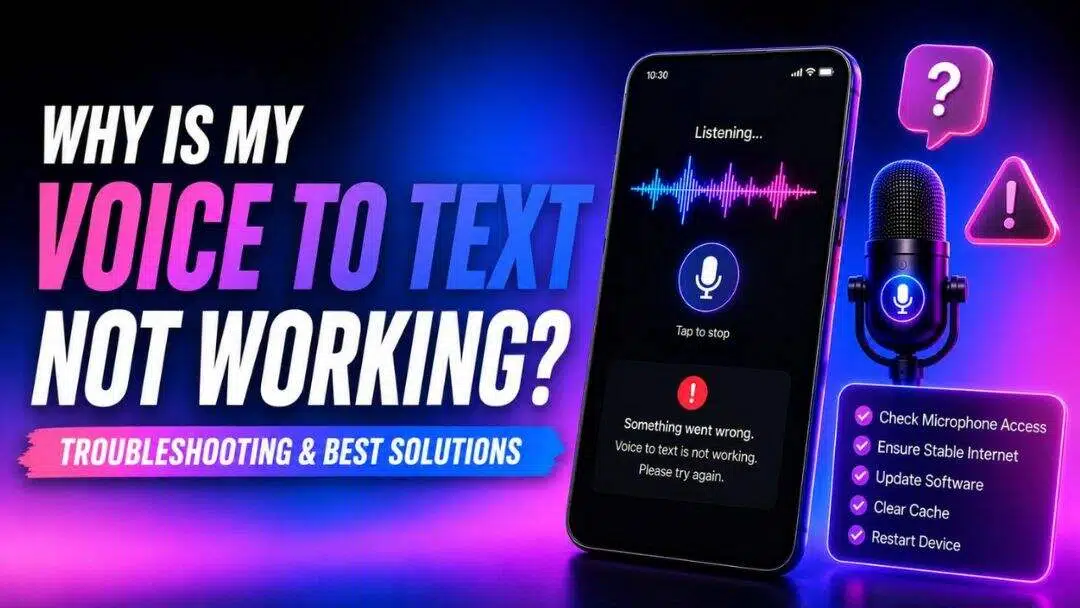
Voice-to-text technology makes communication and drafting faster, but it can be highly frustrating when the feature suddenly stops working. Whether your dictation is laggy, non-responsive, or translating words inaccurately, resolving the issue is usually straightforward. This guide covers the common reasons your speech-to-text tools fail and provides practical, step-by-step solutions to restore them across all major platforms.
Why is my voice to text not working: 6 possible reasons
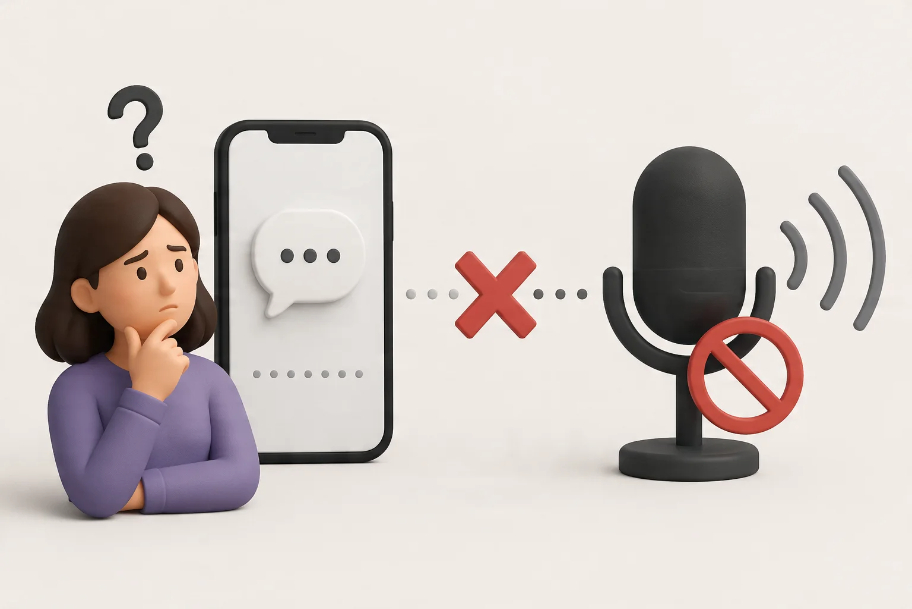
Before troubleshooting, it is helpful to identify what is causing the tool to fail. Here are six common reasons why your voice-to-text system is unresponsive or buggy across different devices.
-
Disabled dictation or voice typing permissions
If the software does not have explicit permission to access your device’s microphone or if dictation settings are turned off globally, your voice input will be entirely ignored. You must enable these options in your system privacy settings.
-
Physical obstructions or microphone hardware failure
Dust, lint, or phone cases can easily block your device's built-in microphone ports. If the hardware is obstructed or failing internally, your system will not receive a clear audio signal, preventing accurate translation of your speech.
-
Unstable internet connectivity and offline dictation limits
Many built-in dictation services require an active cloud connection to process complex speech algorithms. An unstable or offline connection will stop the service unless you have pre-installed offline language packs on your local operating system.
-
Mismatched language pack and keyboard settings
If your speech-to-text engine is set to English but you are speaking Spanish, or if your keyboard layout differs from your spoken dialect, the tool will either output incorrect phrases or fail to generate any text at all.
-
Software corruptions, app glitches, and cache issues
Temporary background glitches within your keyboard application or browser can freeze the speech recognition service. Corrupted cache files over time can also slow down real-time text processing, leading to abrupt crashes or lag.
-
Outdated operating systems and lack of software updates
Running obsolete system software or outdated keyboard applications can cause compatibility conflicts. Developers regularly release patches to fix bugs related to audio engines, meaning an un-updated device is highly prone to voice recognition failures.
How to solve voice to text not working: 6 effective fixes
You can resolve most speech-to-text failures by following simple troubleshooting steps. Here are six practical, cross-platform fixes to restore voice typing functionality on your Android, iOS, Windows, or Mac devices.
How to fix voice to text on Windows?
Step 1: Enable online speech recognition
Open the Settings menu, navigate to Time & Language, click Speech, and make sure the online speech recognition option is fully enabled.
Step 2: Allow microphone permissions
Go to Settings, select Privacy & Security, click Microphone, and allow apps and your web browser access to your microphone device.
Step 3: Run the audio troubleshooter
Right-click the sound icon in your taskbar, select Troubleshoot sound problems, and follow the prompts to fix driver and hardware errors.
How to fix voice to text on Mac?
Step 1: Turn on keyboard dictation
Open System Settings, click Keyboard, scroll down to the Dictation section, and toggle the setting to the On position.
Step 2: Confirm microphone input settings
Navigate to System Settings, click Sound, select the Input tab, and verify that your desired microphone is selected and registering audio.
Step 3: Authorize app microphone access
Go to System Settings, select Privacy & Security, click Microphone, and check the boxes to grant your apps permission to record audio.
How to fix voice to text on Android?
Step 1: Grant keyboard microphone permissions
Go to Settings, tap Apps, select your keyboard app like Gboard, tap Permissions, and ensure microphone access is set to Allowed.
Step 2: Turn on voice typing
Open your keyboard, tap the gear icon, navigate to Voice typing, and ensure the toggle for voice input is fully activated.
Step 3: Clear keyboard application cache
Open Settings, select Apps, find your keyboard application, tap Storage, and select Clear Cache to resolve temporary system glitches.
How to fix voice to text on iPhone?
Step 1: Enable keyboard dictation settings
Go to Settings, tap General, select Keyboard, and scroll down to toggle the Enable Dictation switch to the green active position.
Step 2: Check screen time restrictions
Open Settings, tap Screen Time, select Content & Privacy Restrictions, tap Allowed Apps, and ensure dictation is not blocked or restricted.
Step 3: Verify privacy microphone access
Open Settings, navigate to Privacy & Security, tap Microphone, and toggle the switch green for all apps requiring speech input.
When voice-to-text is not the right solution?
While real-time, built-in voice typing is excellent for quick notes and short messages, it struggles with complex audio scenarios.
If you need to transcribe multi-speaker business meetings, detailed journalism interviews, podcasts, university lectures, or long pre-recorded audio files, standard dictation tools fall short. They lack the ability to separate different speakers, handle overlapping dialogues, or maintain accuracy over extended durations.
In these situations, relying on built-in speech recognition leads to constant interruptions and exhausting manual edits. Transitioning to a dedicated, post-processing transcription tool, such as Vmake Labs, is a much more efficient approach for handling sophisticated audio and video files.
Meet Vmake Labs: A reliable solution to convert voice to text
When native, built-in device tools fail or lack the precision needed for long-form transcription, using a dedicated service offers a reliable solution. Vmake Labs provides a reliable, AI-driven alternative to standard on-device dictation.
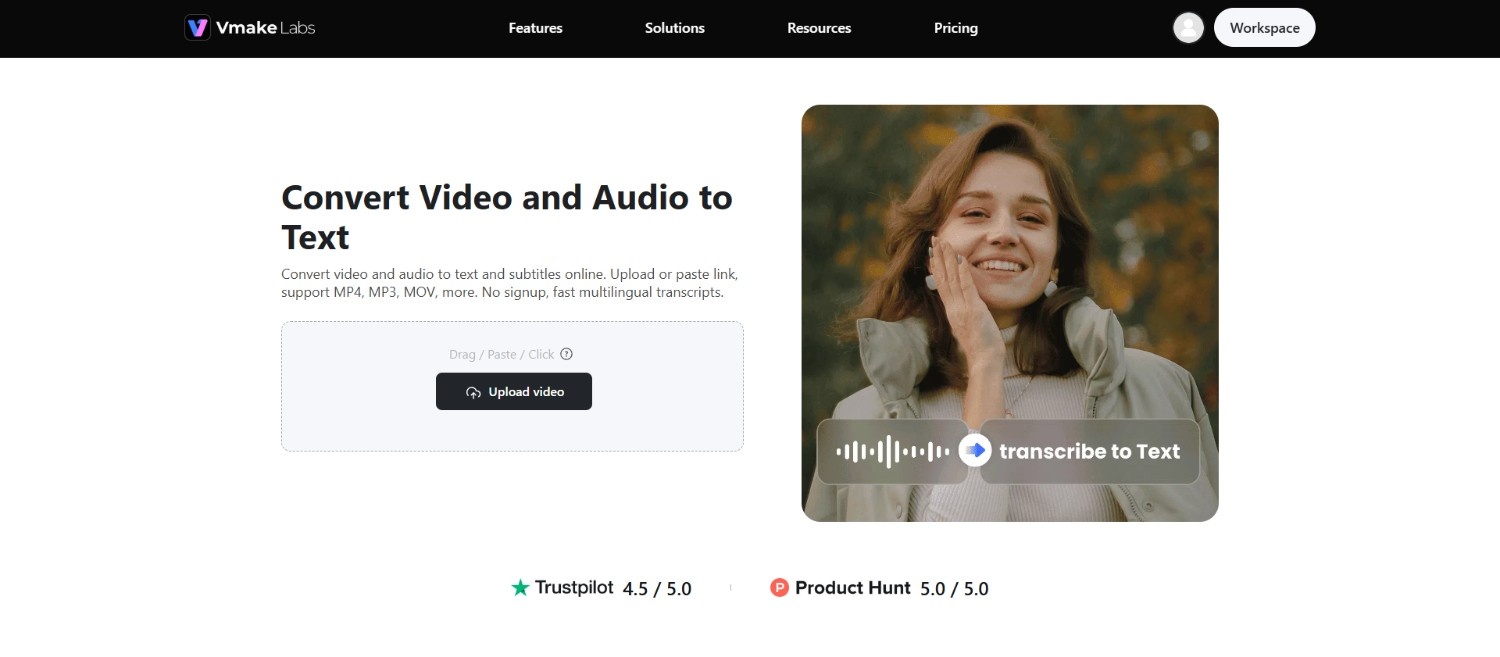
Designed to transcribe both video and audio files accurately, it bypasses the system lag and hardware limitations often associated with native keyboards. The platform operates on AI-based neural networks to handle diverse accents, technical wording, and background noise efficiently. Instead of battling finicky system settings, users can upload pre-recorded audio or video links directly to generate polished text, in SRT or TXT formats.
Key features of Vmake Labs video and audio to text tool
-
Automatic language detection & multilingual translation: The tool automatically identifies the spoken dialect in your audio or video file, allowing you to instantly transcribe or translate speech into multiple languages without manual adjustments.
-
Direct video link transcription (YouTube, TikTok, Instagram, Facebook): Instead of manually downloading files, simply paste video URLs from YouTube, TikTok, Instagram, or Facebook. Vmake Labs directly extracts the audio and converts the spoken words to text.
-
Multi-format exports including TXT and SRT subtitle files: Easily export your finalized transcripts as standard TXT files for documents or download perfectly synchronized SRT files to quickly add captions to any media player or social platform.
-
Fully browser-based processing with no installation required: Access the complete transcription toolkit straight from your preferred web browser. There is no software to install, enabling seamless speech-to-text processing on any mobile or desktop device instantly.
-
Frictionless content repurposing from talking videos to polished text: The tool streamlines the transition from spoken video content to clean, readable text, enabling creators to quickly convert recorded footage into blog posts, newsletters, and social media captions.
How to use Vmake Labs to convert voice files to text?
Step 1: Access the "Video & audio to text" tool
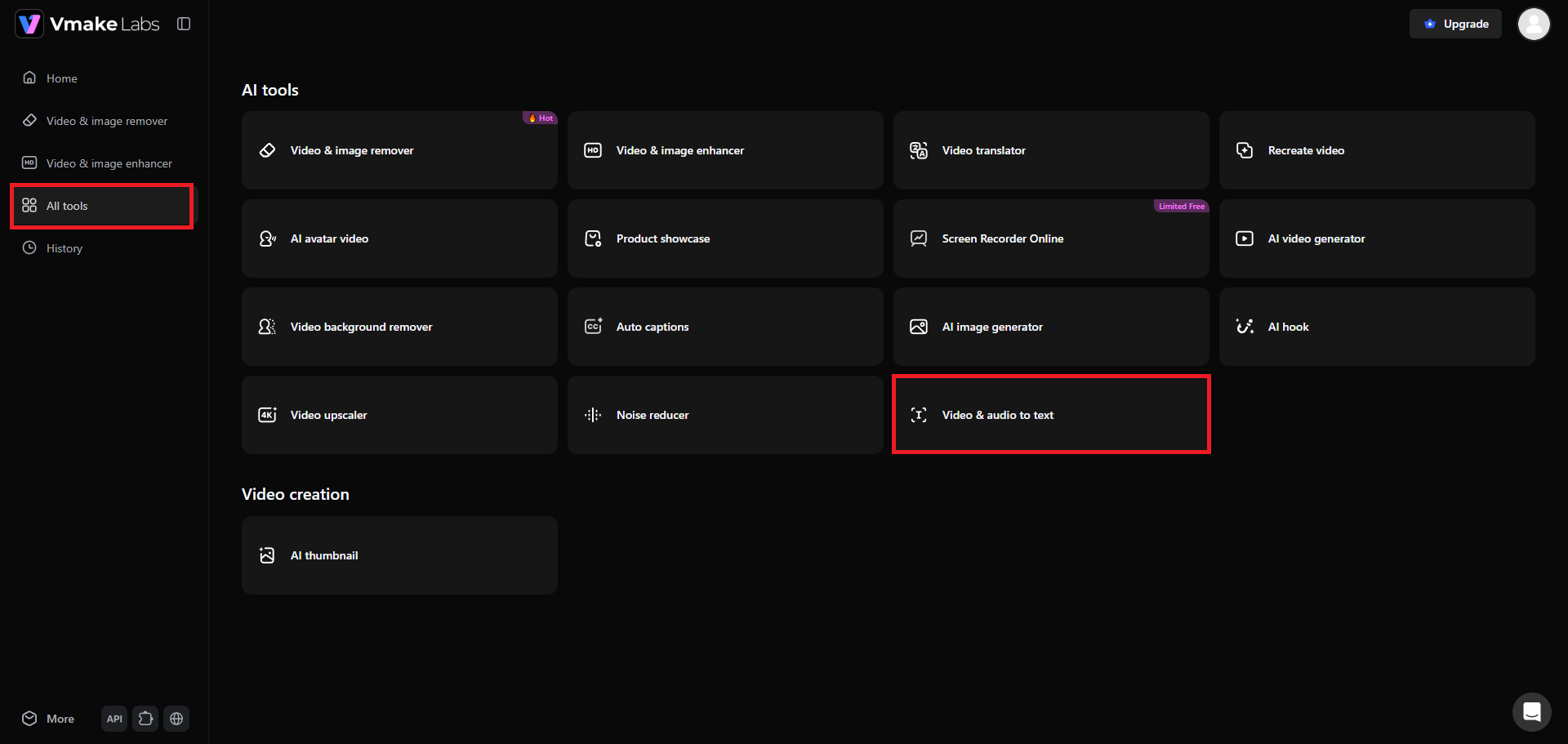
Kickstart the transcription process by first heading over to Vmake Labs and accessing your account. Once signed in, you need to visit the "All tools" section from the dashboard, and then choose the "Video & audio to text" tool. This will give you access to Vmake Labs voice transcription feature.
Step 2: Upload your voice file or simply paste a weblink
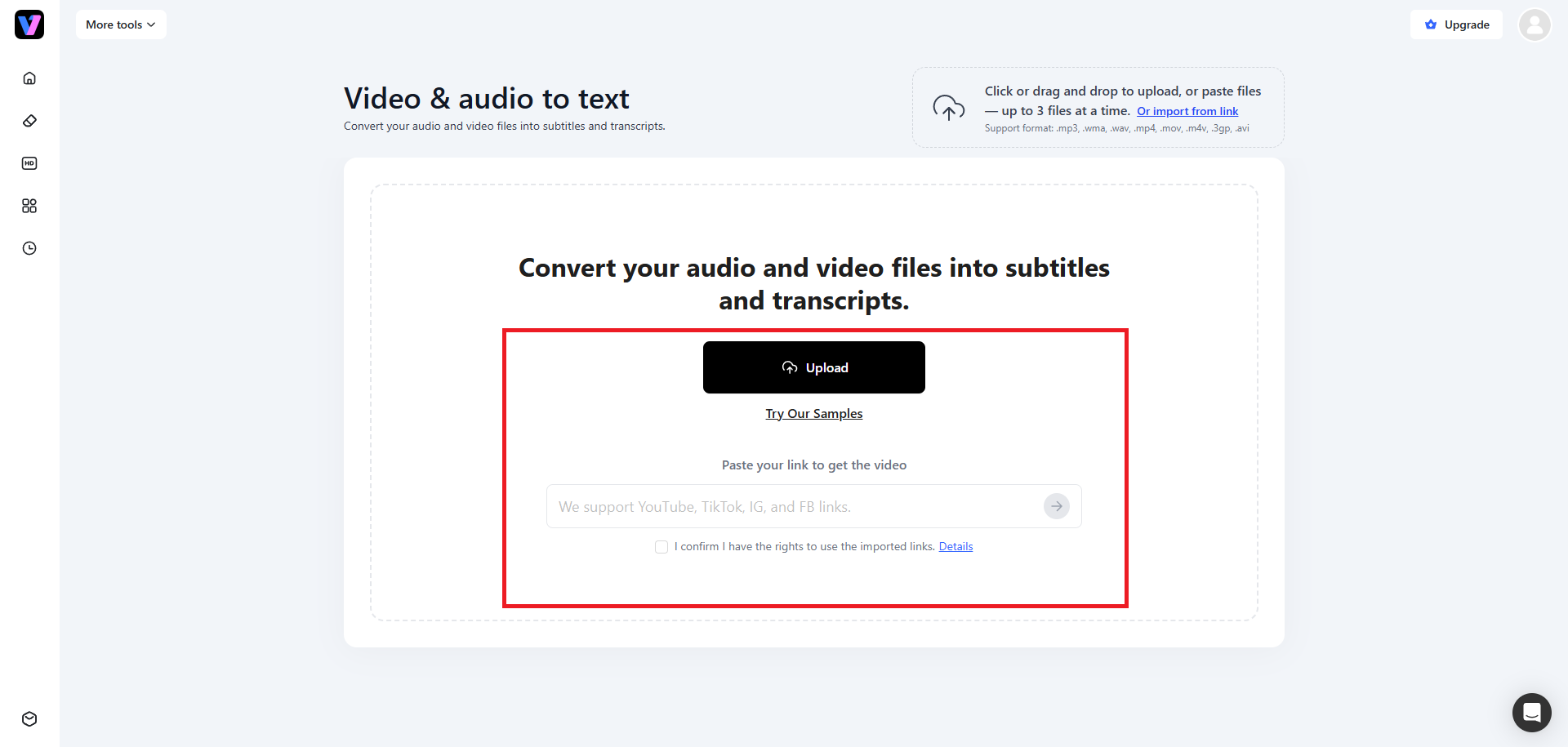
In the next step, you will need to upload your voice file, which you want to transcribe. Vmake Labs supports all the popular voice file formats, such as MP3, WAV, etc. Additionally, this tool also supports uploading videos, and you can upload up to 3 video/audio files at a time. Alternatively, you can also paste weblinks (up to 3 links) instead of uploading the file.
Step 3: Transcribe and export
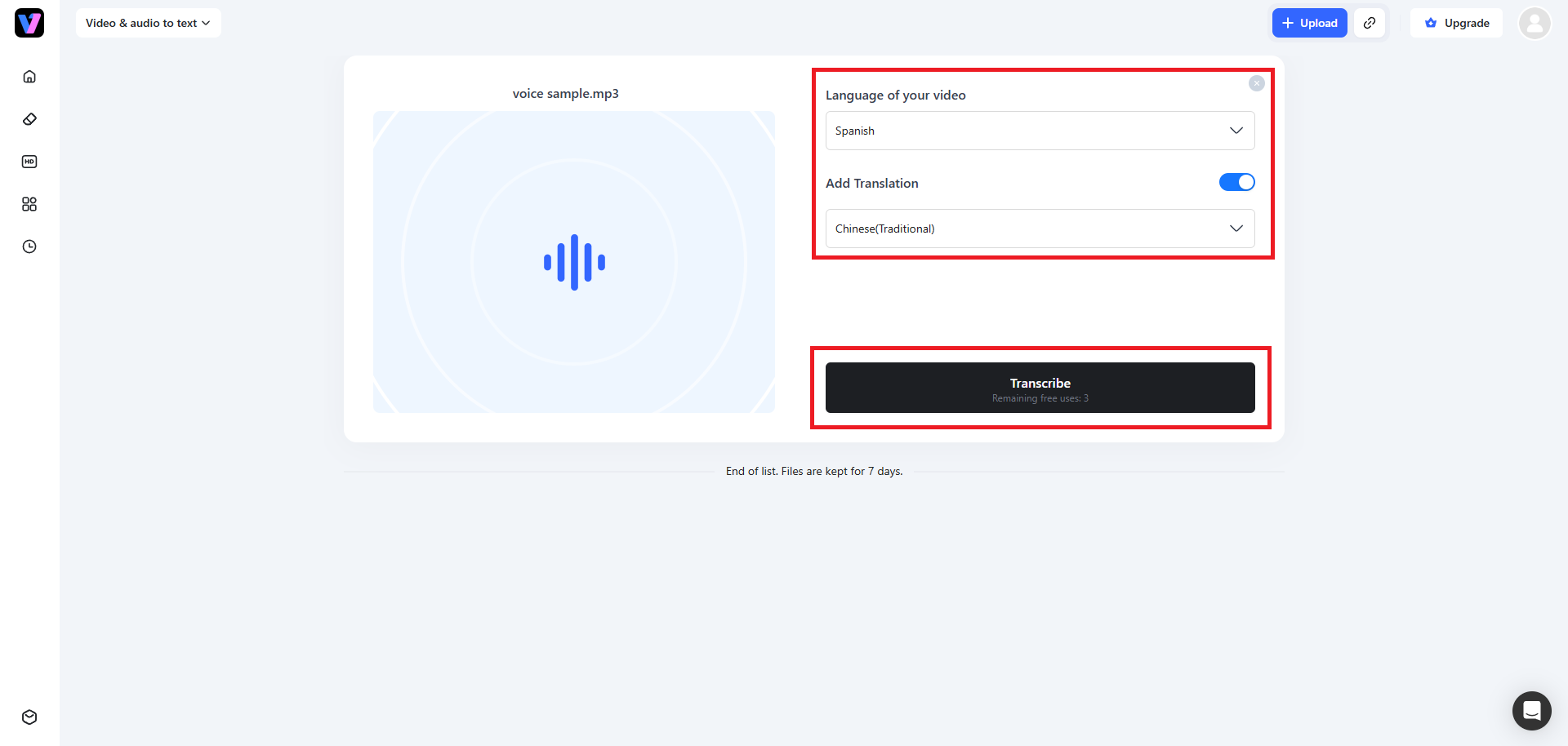
After successfully uploading your file, you will need to first select the original language of the voice file. If the language is unknown or does not show up on the list, you can simply keep it to "Auto". Then, activate the toggle for "Add Translation" and then choose your target language. Once done, hit "Transcribe". Vmake Labs will start the transcription process and once that is completed, you will be able to further edit the transcribed file before downloading it to your local device.
Tips to follow when using voice to text
To maximize the accuracy of any speech recognition software, following a few practical habits can yield much cleaner results. Here are four tips to ensure your spoken words are accurately translated.
-
Minimize ambient background noise and acoustic echoes: Find a quiet space before speaking. Background noise like humming fans, traffic, or loud conversations can easily confuse dictation systems, leading to missed words or highly inaccurate sentences in your transcribed text.
-
Enunciate words clearly and speak at a steady cadence: Avoid rushing your sentences or slurring words together. Speak at a moderate, steady pace while clearly pronouncing each syllable, allowing the speech recognition engine sufficient time to process and map your voice.
-
Utilize high-quality external or directional microphones: If you dictate frequently, invest in an external USB microphone or a quality headset. These capture a much cleaner audio signal than tiny built-in device microphones, drastically reducing transcription errors.
-
Memorize key voice commands for punctuation and formatting: To avoid manual editing, speak your punctuation out loud. Saying "period," "comma," or "new paragraph" prompts the software to format the text dynamically, resulting in a cohesive draft that requires minimal post-editing.
Conclusion
Struggling with non-functional voice-to-text tools and wondering "why is my voice to text not working?" can halt your workflow, but most platform errors are easily resolved through basic permission, microphone, or network updates. When built-in solutions prove unreliable, transitioning to dedicated tools like Vmake Labs ensures seamless, high-accuracy audio and video transcription.
By adopting best practices such as reducing background noise and speaking clearly, you can elevate the performance of any speech-to-text software. Standardizing your approach to troubleshooting will save valuable time, letting you focus on your work instead of manually resolving continuous dictation errors.
FAQs
Why is my voice to text not working on Android?
Go to Settings, check permissions to ensure your keyboard has microphone access, and verify that "Google Voice Typing" ("Samsung voice input" for Samsung Galaxy smartphones) is fully enabled under your system's language and input settings.
Why is my iPhone voice to text not working?
Open Settings, navigate to General, then Keyboards, and toggle "Enable Dictation" off and back on. Also, verify that your screen time settings are not restricting microphone permissions.
Why does my voice-to-text feature suddenly stop listening mid-sentence?
This usually happens due to unstable internet connectivity or a brief pause in speech. Downloading offline language packs can help keep the software listening continuously without requiring network handshakes.
Do I need an active Wi-Fi or cellular network connection to use voice-to-text?
Not necessarily. While active networks offer maximum accuracy, downloading your language's offline pack in your device's keyboard settings allows you to dictate without an active internet connection.
How do I fix speech-to-text when it continuously inserts the wrong words?
Ensure you speak clearly, minimize ambient noise, and verify that your system keyboard matches your spoken accent or dialect. Clearing the keyboard app's cache also resolves word recognition issues.

You May Be Interested
How to Transcribe Audio Recording to Text in Minutes
Aqua Voice Speech to Text Tool: Complete 2026 Review & Guide
Transcribe Podcast to Text with AI: Complete Guide 2026
VEED.io Audio to Text: Everything You Need to Know in 2026
Vidnoz AI Audio to Text: Features, Pricing & Review Guide