
How to Get a Transcript of a YouTube Video: 3 Easy Methods
Need the text from a YouTube video? Learn how to get a transcript of a YouTube video using YouTube's built-in transcript feature or Vmake AI for fast, accurate, multilingual transcripts and ready-to-use subtitle files.

Need to copy the spoken words from a YouTube video? Whether you're taking notes, quoting a lecture, creating subtitles, or repurposing content into blog posts, getting a transcript can save a lot of time. In this guide, you'll learn how to get a transcript of a YouTube video using YouTube's built-in feature, the mobile app, and Vmake Labs for faster AI-powered transcription.
What is a YouTube video transcript?
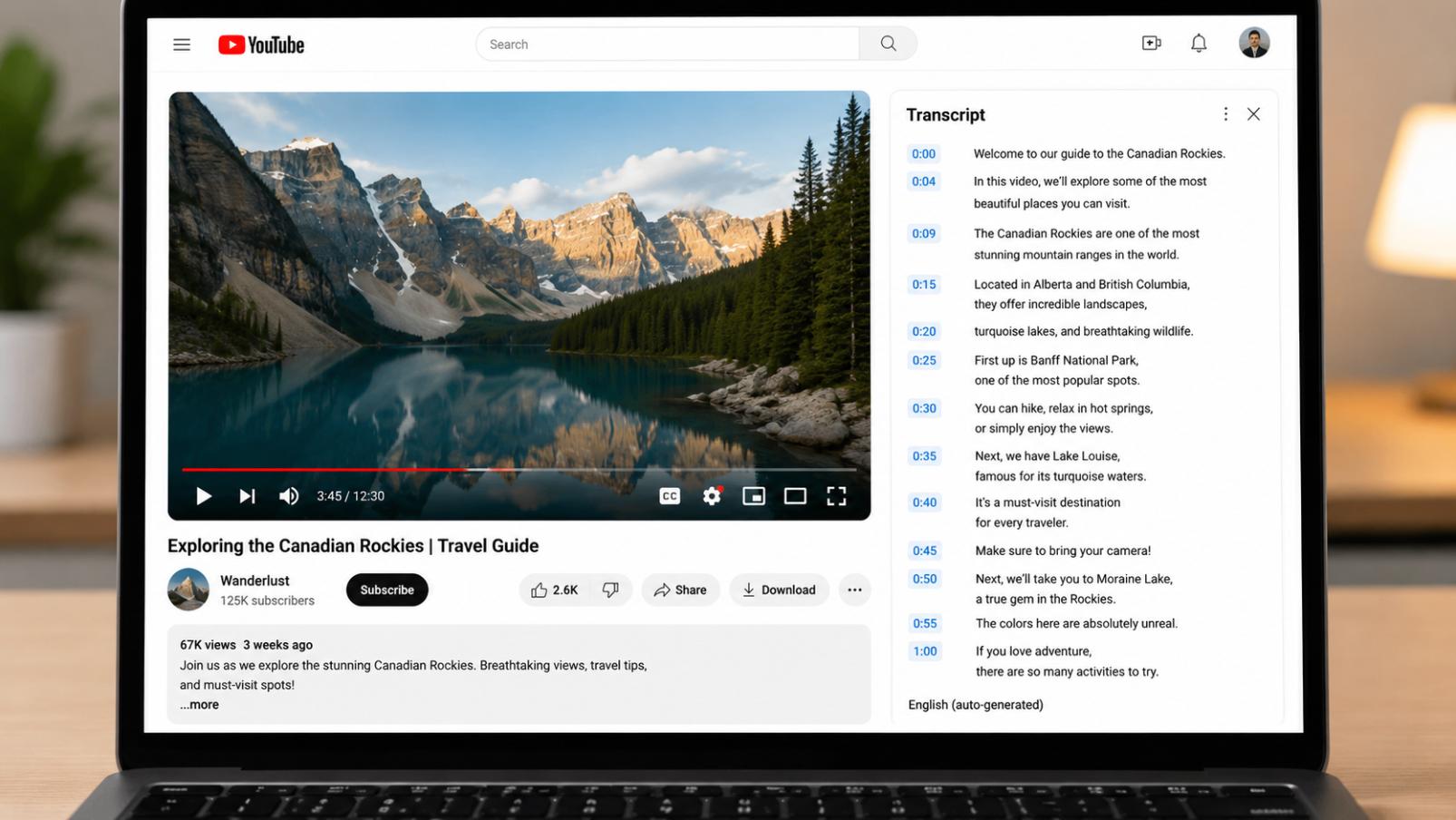
A YouTube transcript is a written, text-based version of the spoken dialogue in a video. It often includes timestamps, allowing you to read along, copy the text for notes, or click on any specific line to instantly jump to that exact part of the video.
Why use a YouTube transcript
-
Take notes faster: Skim the text instead of pausing and rewinding every few seconds.
-
Repurpose content into blogs or social posts: Easily turn your video scripts into blog posts, newsletters, emails, or social media captions.
-
Search for keywords in long videos: Instead of guessing where a topic comes up, search the transcript text and jump straight there.
-
Translate or summarize videos: You can translate the text into other languages or create short summaries from the full transcript.
Method 1: How to get the transcript of a YouTube video on Desktop
The desktop version of YouTube offers the easiest way to access and copy a video transcript. This method works well on computers and laptops. It gives you a clear view of the full text with timestamps. Follow these simple steps to get the transcript quickly.
Step 1: Open the YouTube video
Navigate to YouTube in your preferred desktop browser and pull up the video you want to work with. Wait for the page to load completely before continuing.
Step 2: Show the transcript
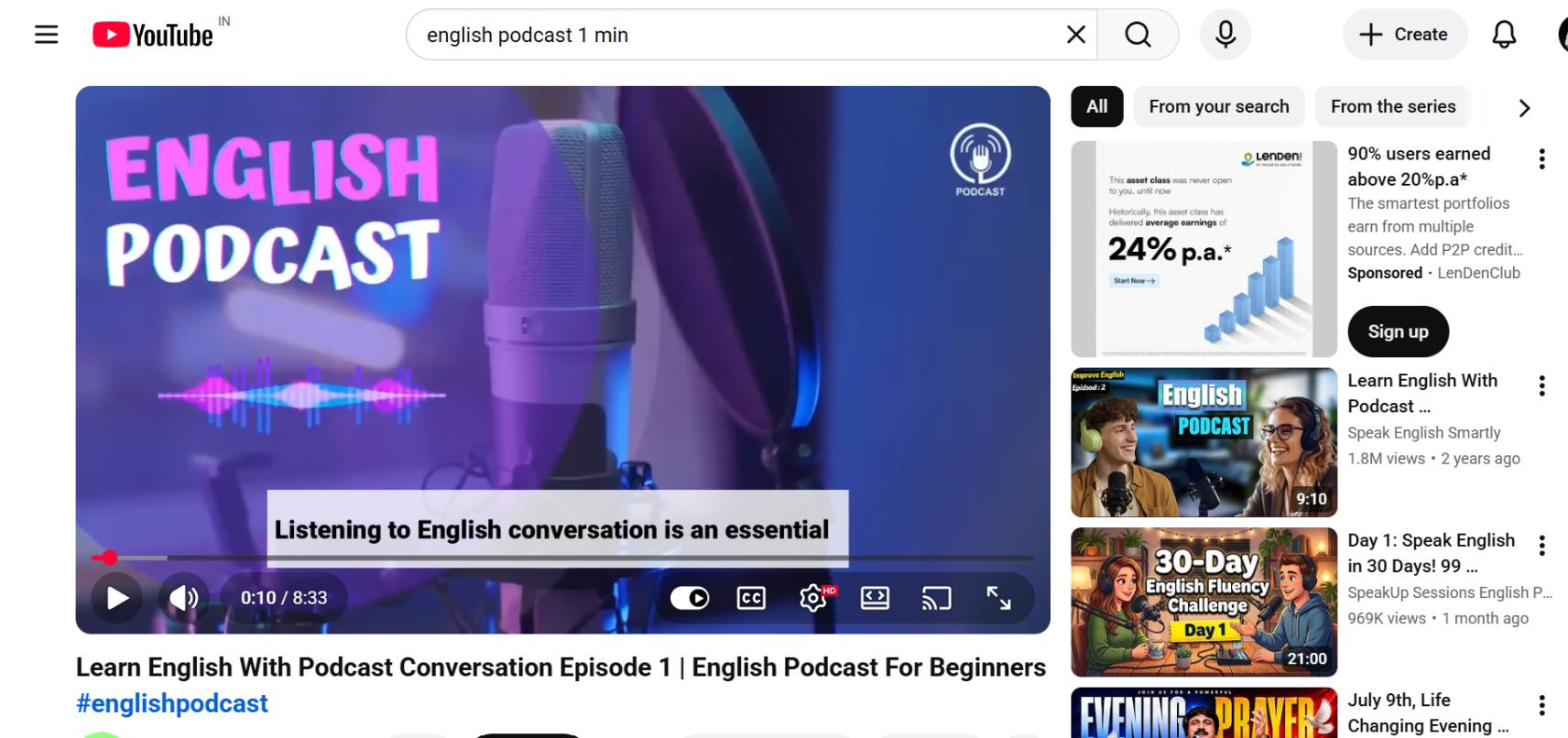
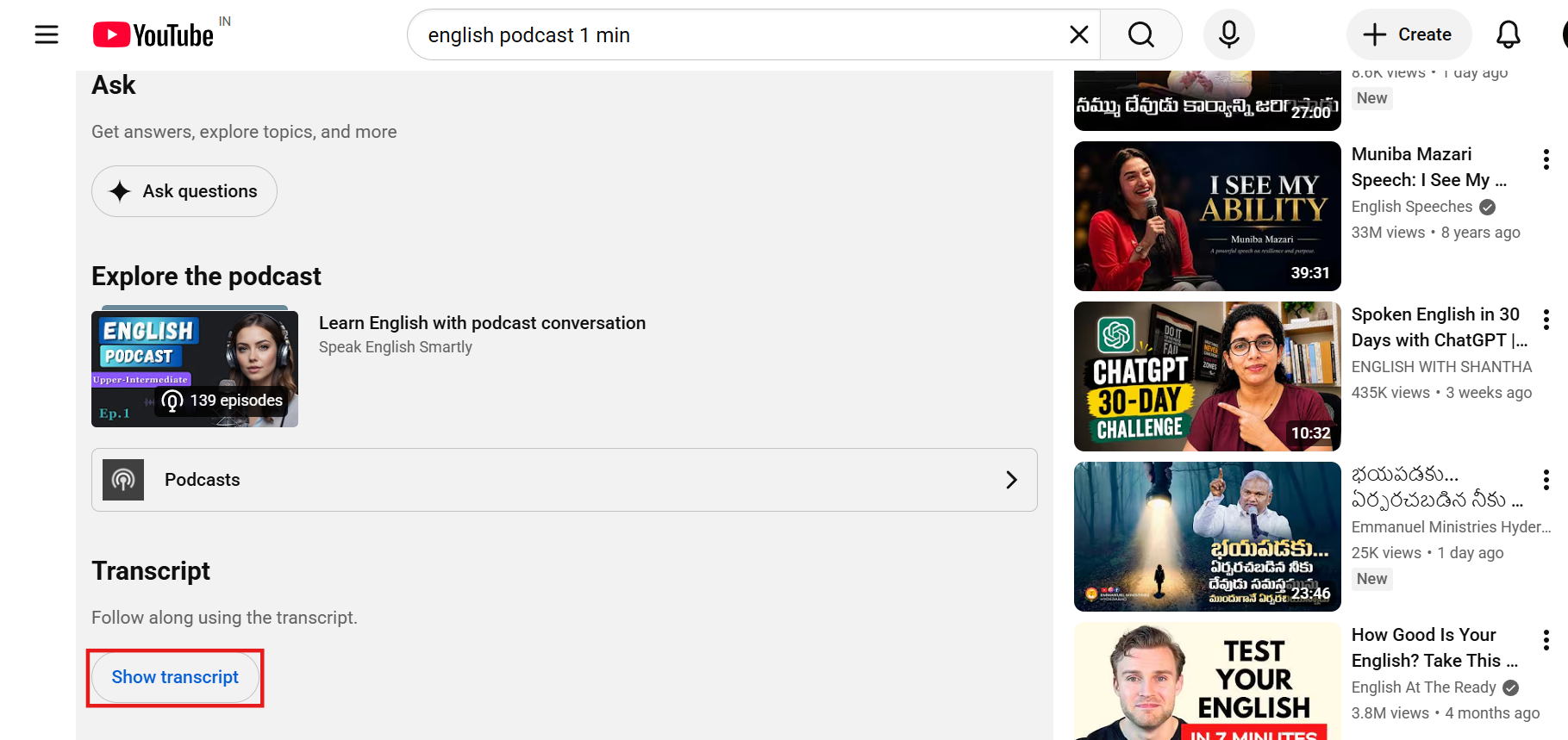
Locate the description box directly underneath the video title and click the "more" button to view the full box. Scroll to the bottom of the description and you'll find a Show transcript button.
Step 3: Copy the transcript
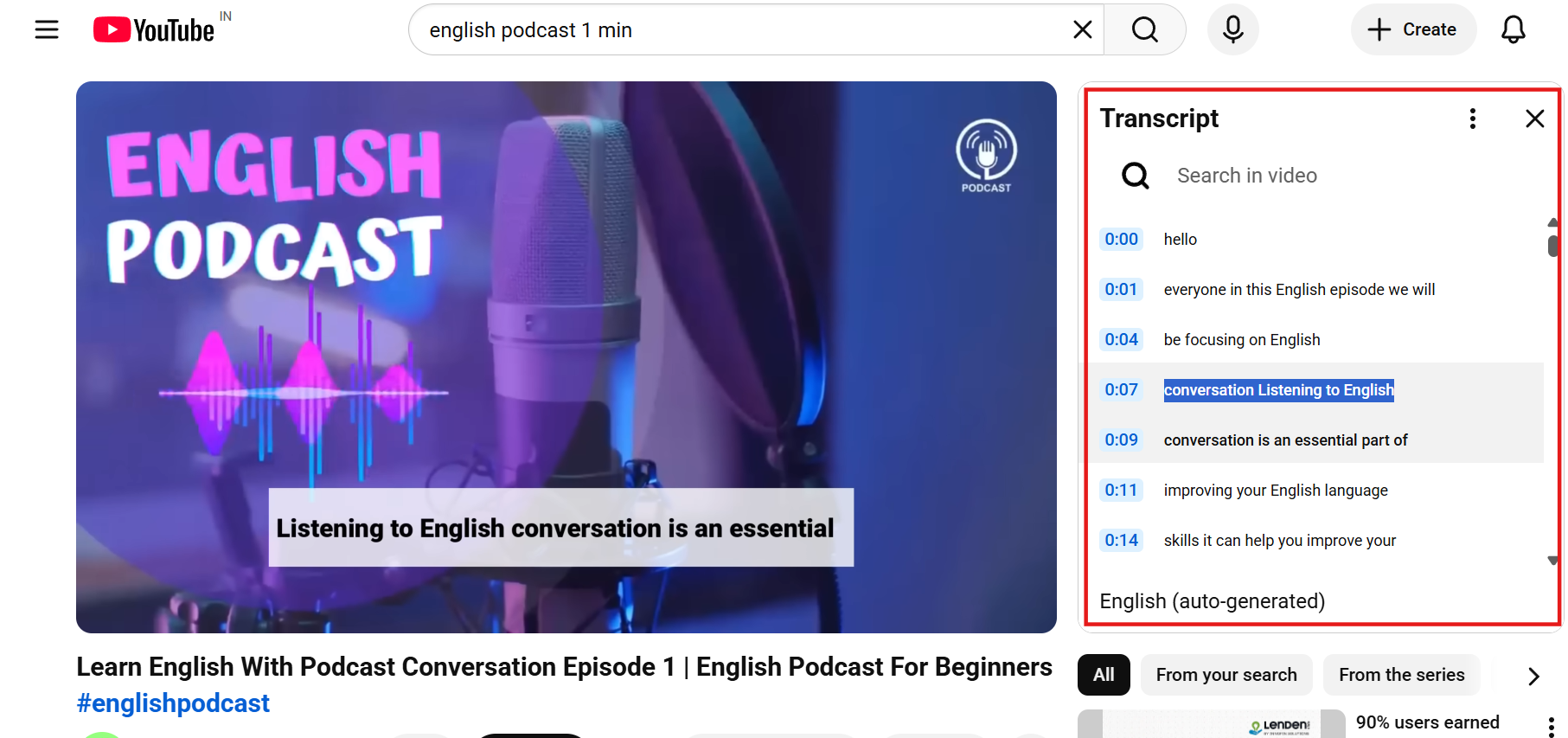
The transcript appears next to the video. Highlight the text and copy it. You can turn timestamps on or off using the three-dot menu.
Method 2: How to get a transcript of a YouTube video on mobile
Step 1: Open the video
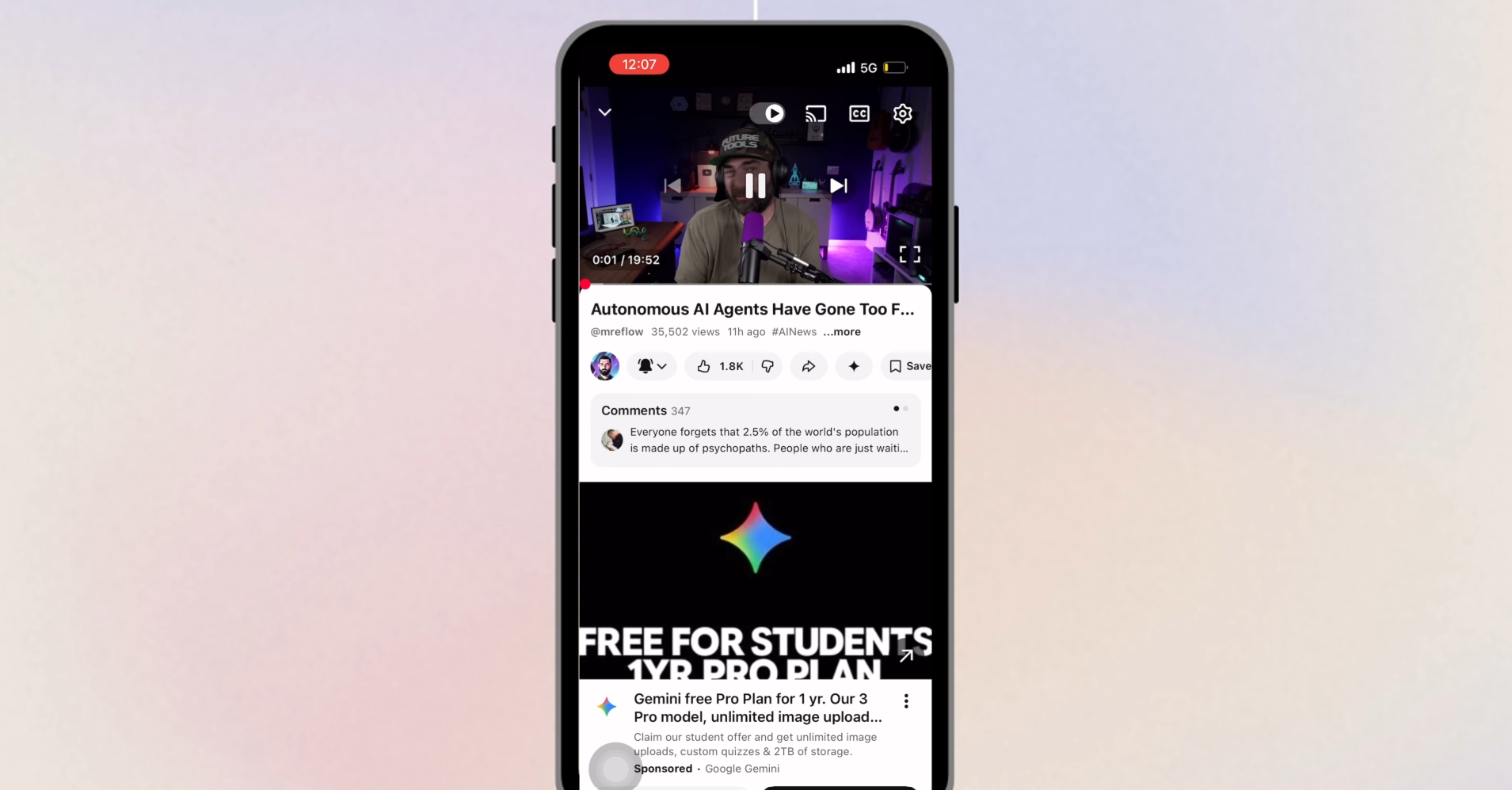
Launch the YouTube app on your Android or iPhone and play the video you want to transcribe.
Step 2: Expand the description
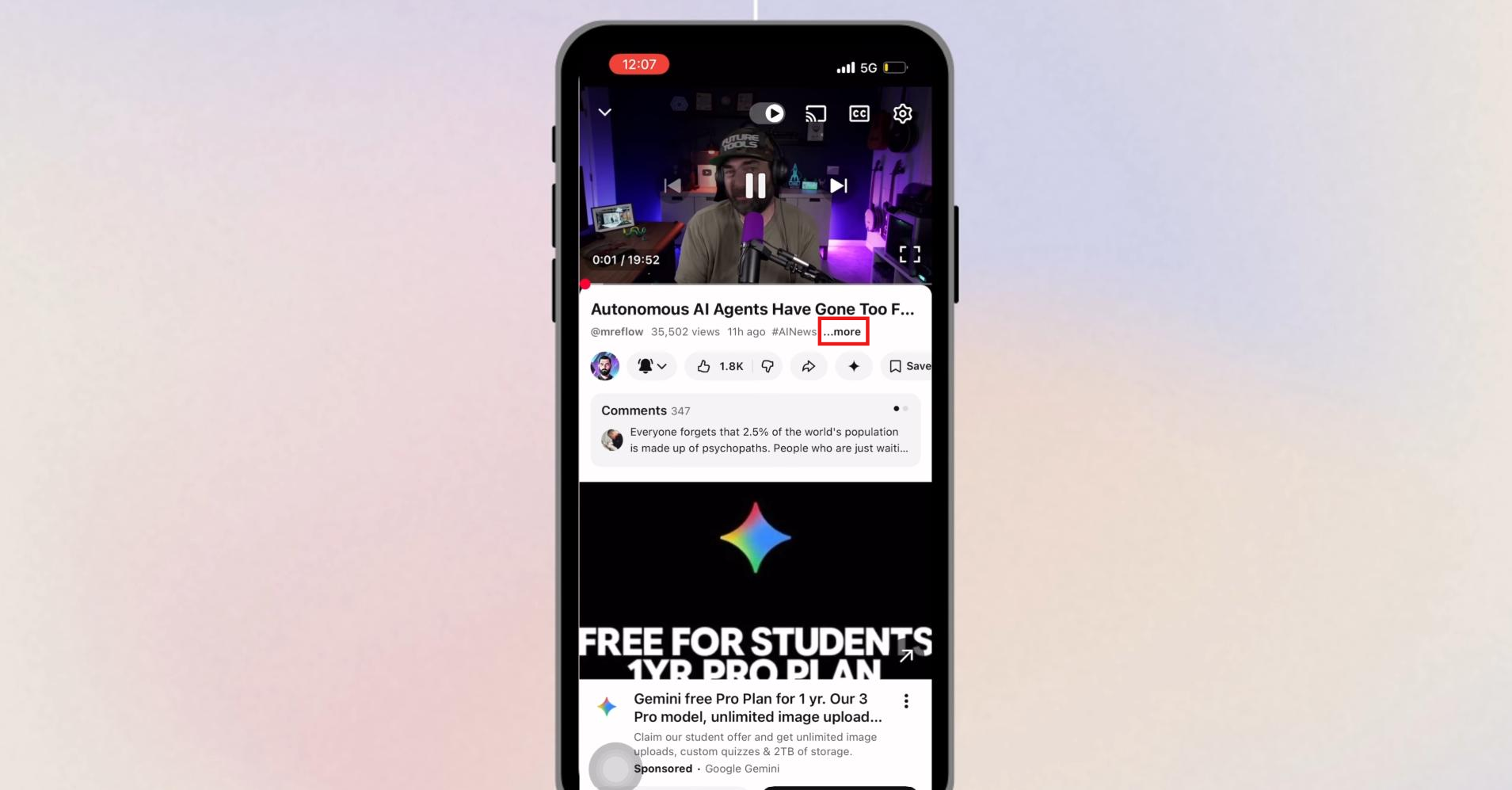
Tap the video title or the (...more) button below the video player to open the full description.
Step 3: Show transcript
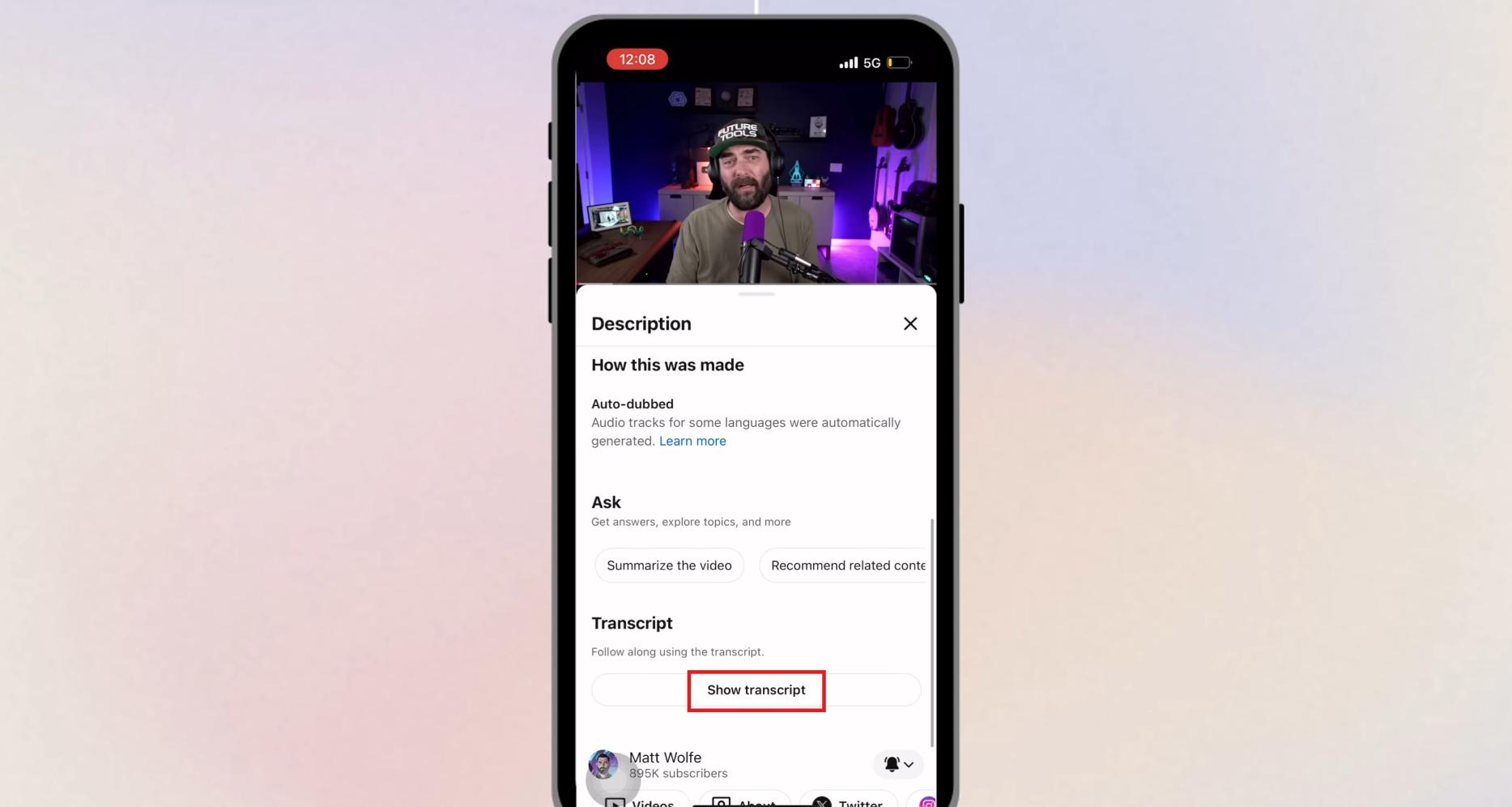
Scroll down to the very bottom of the description section and tap Show transcript. The text will pop up below the video player with clickable timestamps.
Method 3: How to get transcript of a YouTube video using Vmake Labs
YouTube's built-in transcript works fine for a quick read, but it has real limits. It only works if the video already has captions; it dumps everything as one long run of text without punctuation, and there's no way to export it as a subtitle file. If you need something cleaner, or you're working with a video that has no captions at all, an AI transcription tool like Vmake Labs fills that gap. Just paste in the video link, and it handles the rest, generating accurate, structured text (and subtitle files, if you need them) in a fraction of the time it would take to do this by hand.
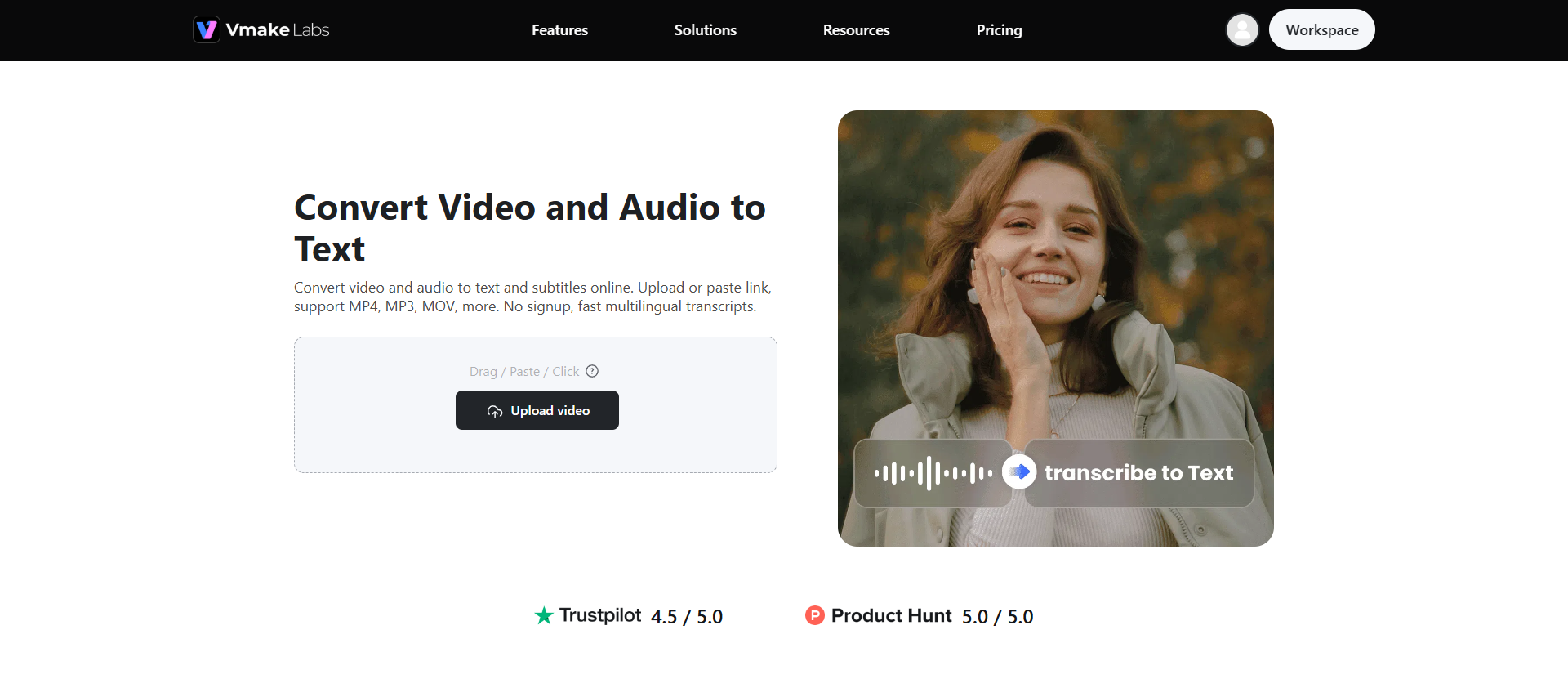
Key features of Vmake Labs for YouTube video transcription
-
Wide format and link compatibility: Paste a YouTube link directly, no downloading or file conversion required. Vmake Labs also accepts uploaded audio and video files (MP4, MP3, WAV, and MOV), so you're not limited to YouTube content alone when you need transcripts.
-
Fast & accurate AI transcription: Get a complete, accurate transcript in seconds rather than minutes, even for longer videos. The AI handles varied accents, speaking speeds, and background noise far better than YouTube's default auto-captions.
-
Timestamped output: Every segment of text is marked with its exact position in the video, so you can jump back to the original moment instantly instead of scrubbing through the timeline to find context.
-
Multilingual transcription: Transcribe videos in multiple languages, not just English, so it's simple to work with international content, translate interviews, or even repurpose non-English videos into text for a totally different audience.
-
Editable transcript exports: Review your transcript online, then download it as TXT or export subtitles in SRT format for editing or publishing. Ideal for adding captions to YouTube content, Shorts, or Reels.
Steps to transcribe a YouTube video with Vmake Labs
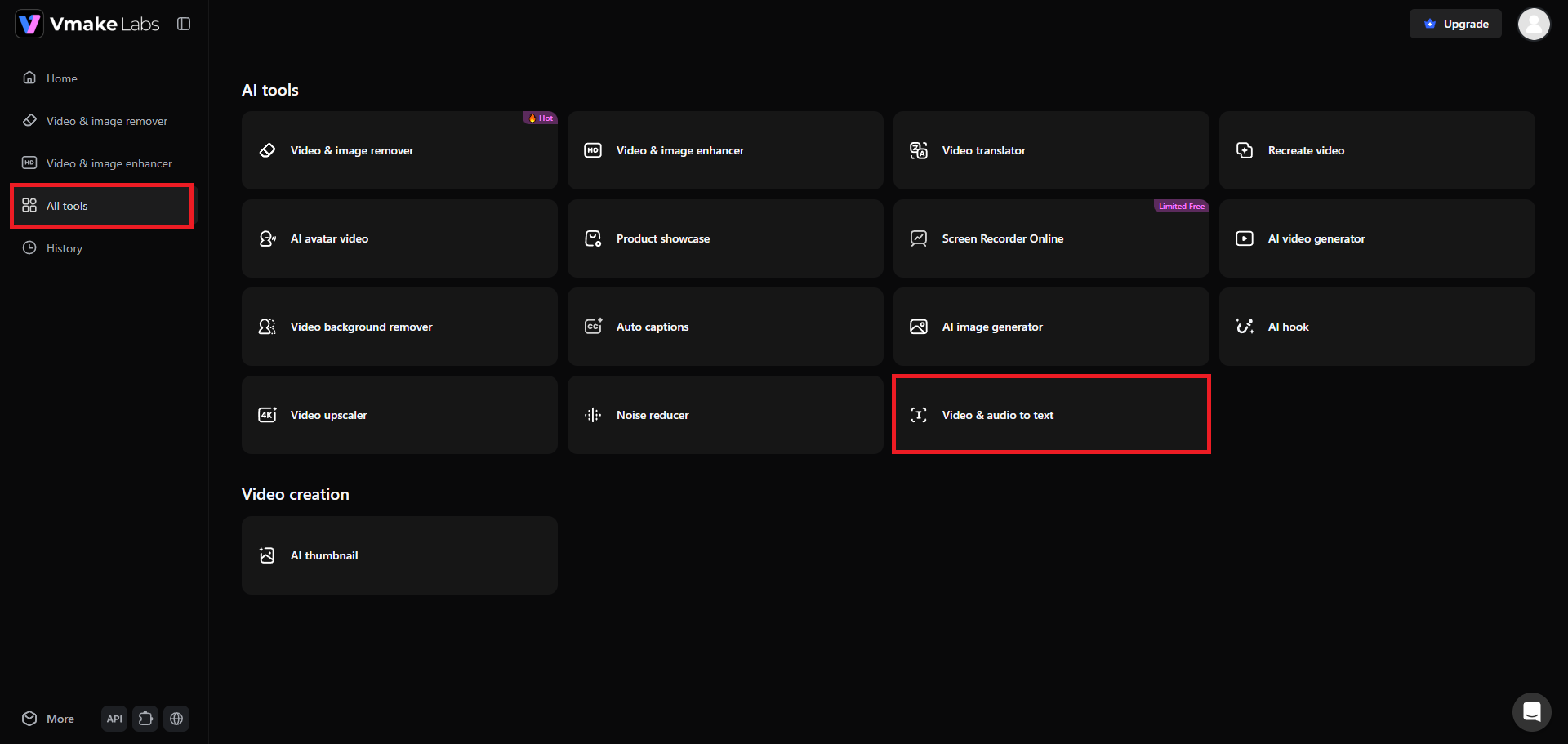
Step 1: Select "Video & audio to text" tool
Log in to Vmake Labs and click "All tools" from the left sidebar. From the AI tools grid, select "Video & audio to text."
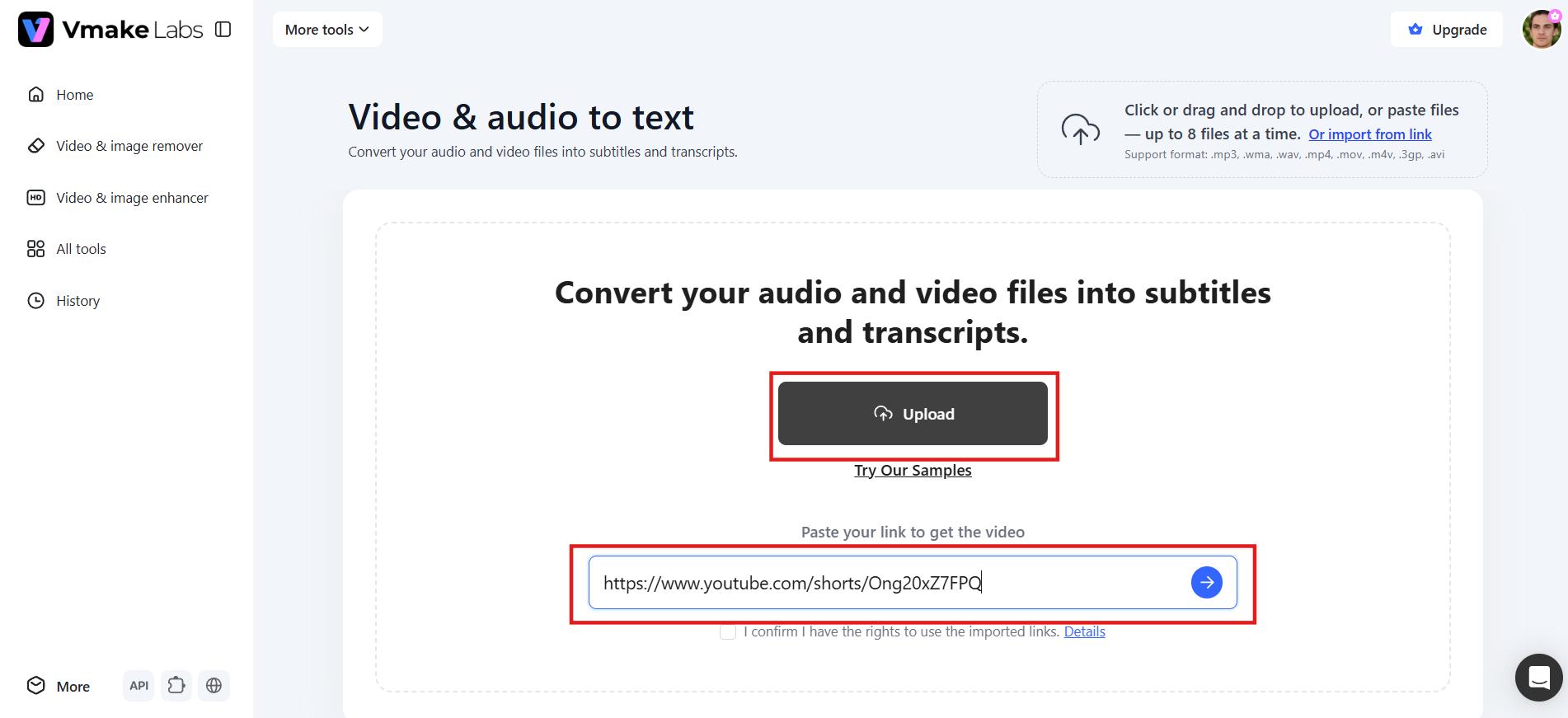
Step 2: Upload file or paste YouTube video link
Click "Upload" to add your video or audio file. You can also paste a YouTube video link, and Vmake Labs will automatically import and transcribe the content. The tool supports uploading up to 8 files simultaneously.
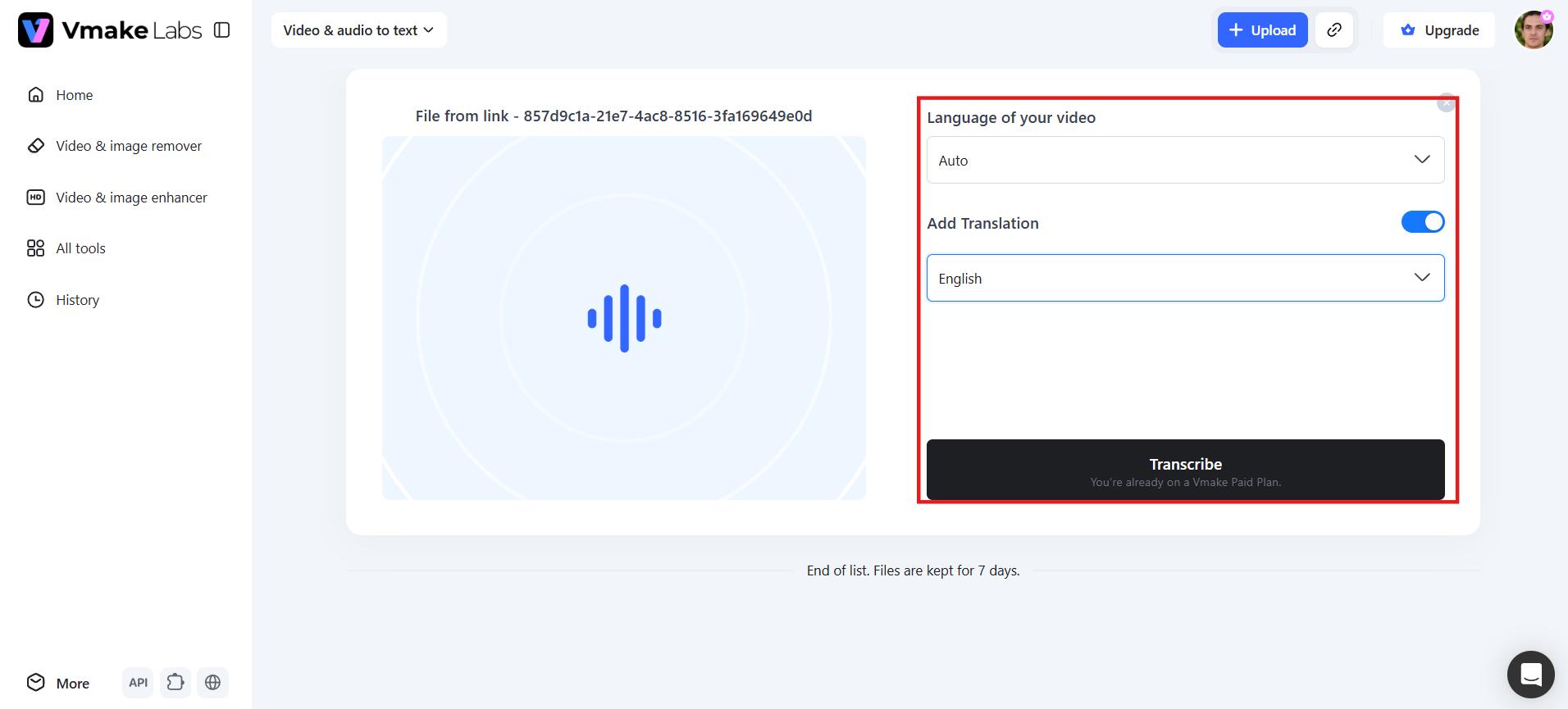
Step 3: Start the transcription process
Choose the language spoken in your video or leave it on Auto for automatic detection. If required, enable "Add Translation" and select the language to which you want the transcript to be translated. Click "Transcribe" to initiate the AI transcription. Upon completion of processing, you can review, edit, and export the transcript in your desired format.
Common reasons a YouTube transcript isn't available
Sometimes the "Show transcript" option does not appear on YouTube. This happens for several common reasons. Here are the main cases where transcripts are not available.
|
Reason |
Why it happens |
Fix |
|---|---|---|
|
Captions are disabled |
If a video has no captions at all, YouTube has nothing to build a transcript from. This applies to both auto-generated and creator-uploaded captions. |
Paste the YouTube link into Vmake Labs. It generates an accurate transcript even when no captions exist. |
|
Live streams |
Transcripts may not be available during a live broadcast or immediately after it ends. YouTube needs time to process the audio and create captions. |
If you need the transcript right away, download or record the stream and upload it to Vmake Labs for immediate AI transcription. |
|
Music-only videos |
Without spoken words, there's no speech for YouTube's system to transcribe. Instrumental content or videos with only background sound won't trigger the auto-caption process. |
No workaround exists for purely music-only content. If any spoken narration is mixed in, Vmake Labs can still extract and transcribe that speech. |
|
Private or restricted content |
Age-restricted, private, or unlisted videos may not offer the transcript option, even if captions exist. Restrictions can make certain features unavailable to viewers. |
If you have access to the video file, download it and upload it to Vmake Labs to generate the transcript without relying on YouTube's caption system. |
|
Creator disabled transcripts |
Some creators choose not to enable captions or transcripts. In these cases, YouTube won't display the Show transcript option at all. |
Paste the YouTube link directly into Vmake Labs. It bypasses YouTube's caption requirement and transcribes the audio using AI. |
Tips for getting more accurate YouTube transcripts
A transcript is only as accurate as the audio it's based on. These simple tips can help improve transcription quality and reduce the amount of editing needed afterward.
-
Choose videos with good audio quality: Clear speech without background noise or music produces the most accurate transcripts. Avoid videos with heavy accents or poor sound.
-
Select the correct language & dialect: Always choose the right language and dialect in the tool settings. This greatly improves recognition and reduces errors in the transcript.
-
Break long videos into sections: Split very long videos into shorter parts before transcribing. This helps the AI focus better and produces more accurate results.
-
Check punctuation and formatting: After getting the transcript, review it carefully. Add proper punctuation, fix spacing, and correct any missing or wrong words.
-
Edit and review timestamps: Check that timestamps match the video. Adjust any wrong time markers, so the transcript stays useful for navigation and editing.
-
Prefer creator-uploaded captions over auto-generated ones: When a video offers both, switch to the manually uploaded captions before copying. Creator captions are more accurate, include proper punctuation, and handle technical terms better.
-
Check the caption language before transcribing: YouTube sometimes defaults to the wrong language on multilingual videos. Confirm the caption language matches the spoken content, or set the correct source language in Vmake Labs before starting.
Conclusion
Knowing how to get a transcript of a YouTube video makes it easier to study, research, create content, and improve accessibility. YouTube's built-in transcript feature is ideal for quickly viewing and copying text, while Vmake Labs offers a more flexible solution with AI-powered transcription, multilingual support, timestamps, and downloadable TXT or SRT files. If you need accurate, editable transcripts for videos or audio, try Vmake Labs to convert your content into searchable text in just a few clicks.
FAQs
How do I get a transcript of a YouTube video?
Expand the video description on desktop, and then click on Show transcript. On mobile devices, do the same via the YouTube app. If captions are missing or messy, paste the link into Vmake Labs instead for a clean, accurate transcript in seconds.
Why doesn't a video have a "Show transcript" option?
This usually means the video has no captions, whether the creator disabled them, it's a live stream still processing, or it's music-only content. In these cases, Vmake Labs can transcribe the video using AI.
Is it free to get a transcript of a YouTube video?
Yes, using YouTube's native platform feature is entirely free on both desktop and mobile. You can easily view, search, and copy the text directly from the video interface without needing any paid services or external subscriptions.
Can I download a YouTube transcript directly from the video?
You can view and copy the transcript text on YouTube, but you cannot download transcript files from there. However, Vmake Labs addresses this problem by enabling you to export your transcripts into a TXT or SRT file format right away.
How do I get a transcript in a different language?
If the video has multilingual captions, switch languages before viewing the transcript on YouTube. For videos without that option, Vmake Labs can transcribe and translate the audio directly, covering a much wider range of languages.

You May Be Interested
How to Create Professional YouTube Thumbnails with AI: A Creator’s 2026 Strategy
YouTube Shorts Ideas: 15 Creative Videos to Grow Your Channel
YouTube Thumbnails vs. Titles: Which Matters More for the Algorithm?
Top YouTube Video Ideas: Methods to Get More Subscribers
