How to Transcribe Voice Memos: iPhone, Mac, and Online Free
Need to turn your audio files into readable text? Learn how to transcribe voice memos on iPhone and Mac using built-in features or AI. Convert recordings into searchable, editable text in just a few clicks with fast, accurate transcription.

Voice memos are great for capturing ideas, meetings, interviews, and reminders, but listening through long recordings isn't always practical. If you're wondering how to transcribe voice memos, this guide explains the easiest methods on iPhone, Mac, and online, so you can quickly turn recordings into searchable text.
What is voice memo transcription?
At its core, transcribing voice memos just means turning your spoken audio into written words. Instead of typing it all out, an AI listens to the recording and handles the script for you. The real game-changer here is that your audio becomes completely searchable. Instead of scrubbing back and forth through a 10-minute recording to find one specific detail, you can just scan or search for the text.
Is Apple voice memo transcription free? (Requirements before you start)
Apple's built-in Voice Memos transcription is completely free. You don't need to pay for an app or subscription, but the feature is only available on supported Apple devices running compatible software.
Before you start, make sure your device meets these requirements:
-
Supported iPhone: iPhone 12 or later.
-
Supported Mac: A Mac running macOS Sequoia or newer.
-
Software version: iOS 18 or later for iPhone, or macOS Sequoia for Mac.
-
Apple intelligence: Standard transcription does not require Apple Intelligence. You only need Apple Intelligence if you want to use advanced text summarizing features.
-
Language and region support: Transcription supports a limited set of languages, including English, Spanish, and Portuguese, among others. Availability can also vary by country or region.
How to transcribe voice memos on iPhone (Built-in method)
Apple includes transcription capabilities in recent versions of iOS, allowing you to view text directly from supported Voice Memos recordings. If you're wondering how to transcribe iPhone voice memos, follow these simple steps:
Method 1: Using the Voice Memos App
Step 1: Open your recording
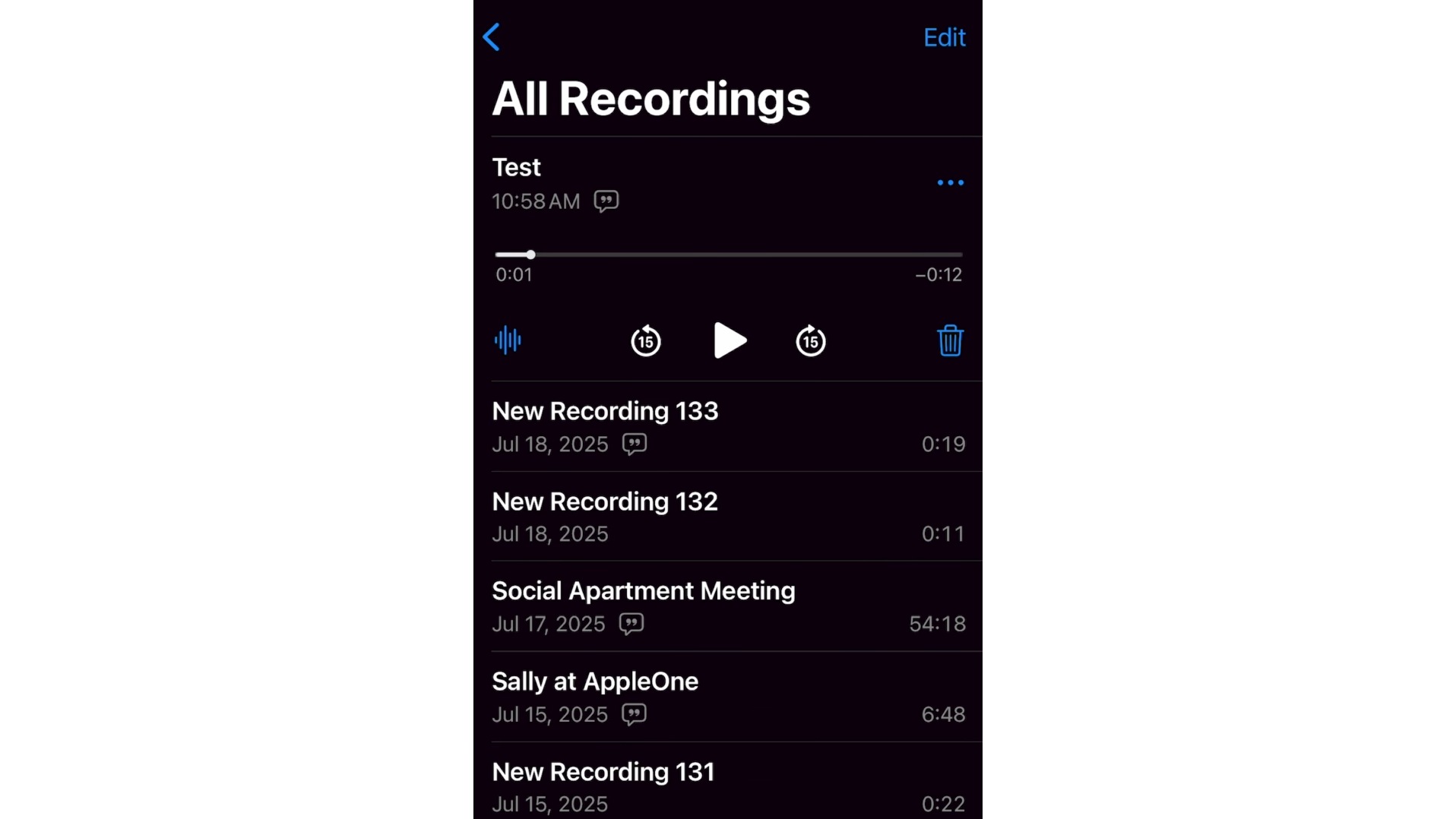
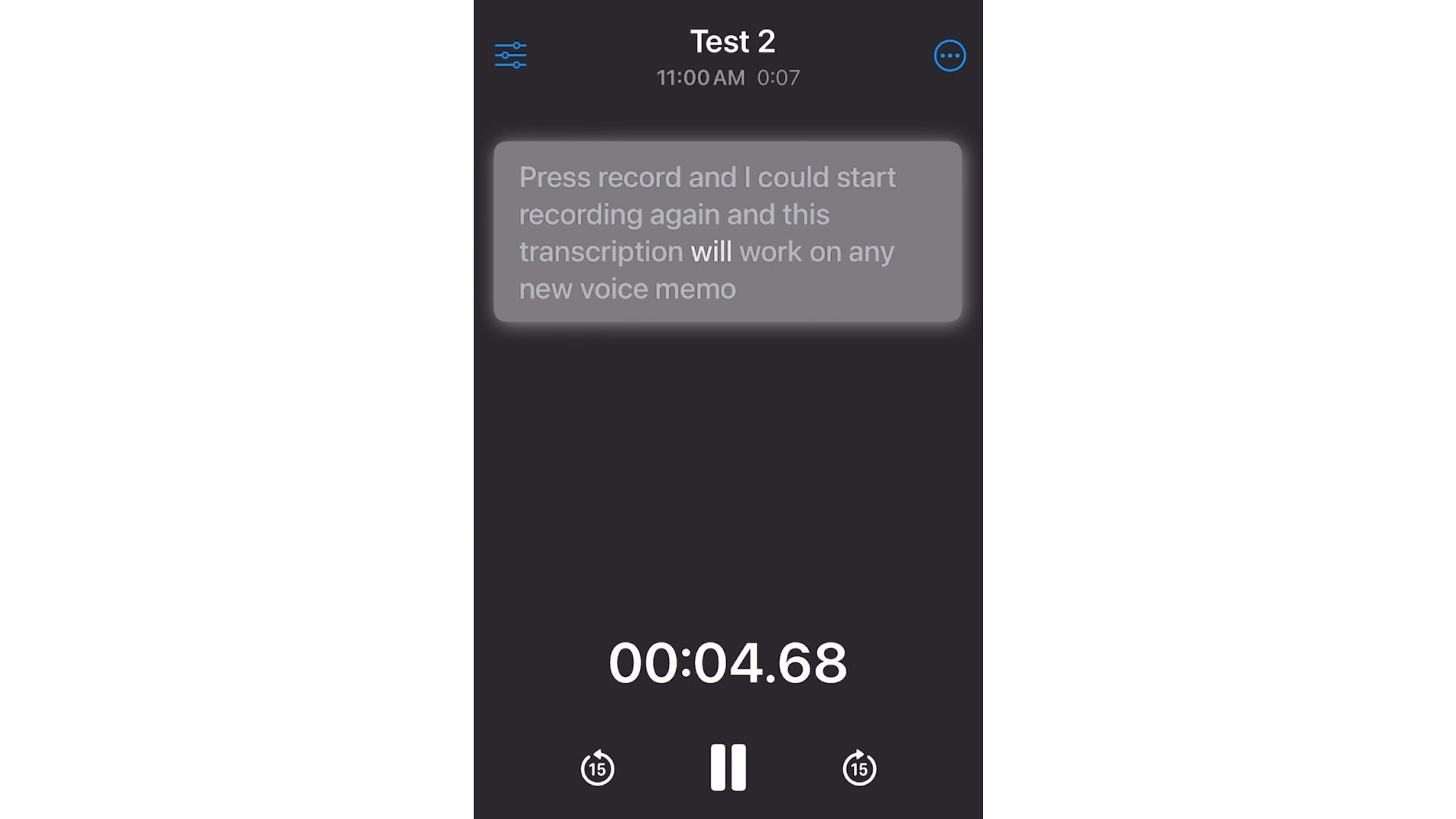
Open the Voice Memos app and select the recording you want to transcribe.
Step 2: View the transcription
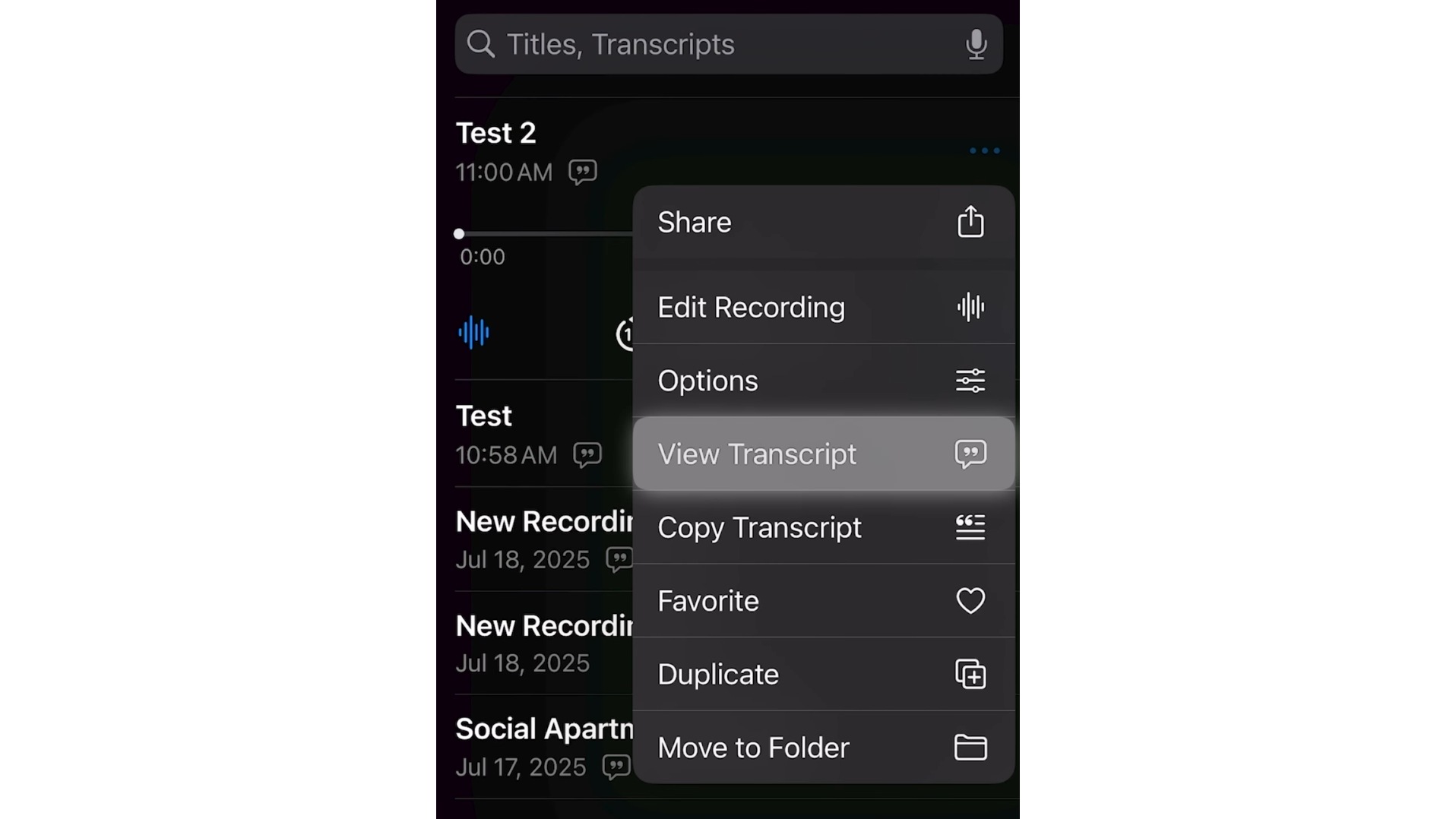
Tap the three dots (More) button. Select View Transcript. The app will process and display your text.
Step 3: Read or share the text
Wait for the transcript to finish processing, then read, copy, or share the text directly from the app.
Method 2: Using the Notes App
Step 1: Create a note
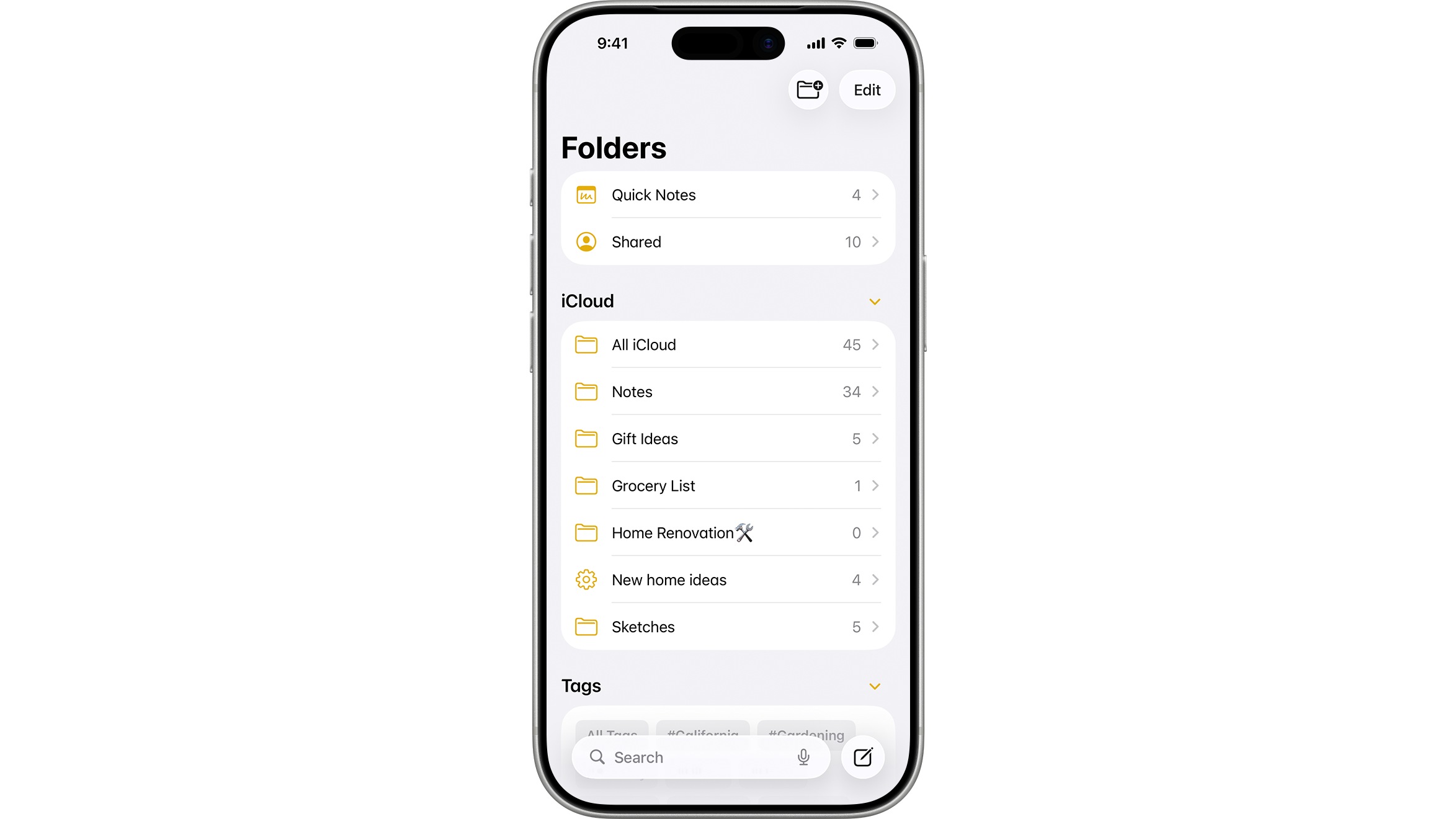
Open the Notes app and create a new note, or open an existing one.
Step 2: Record your memo
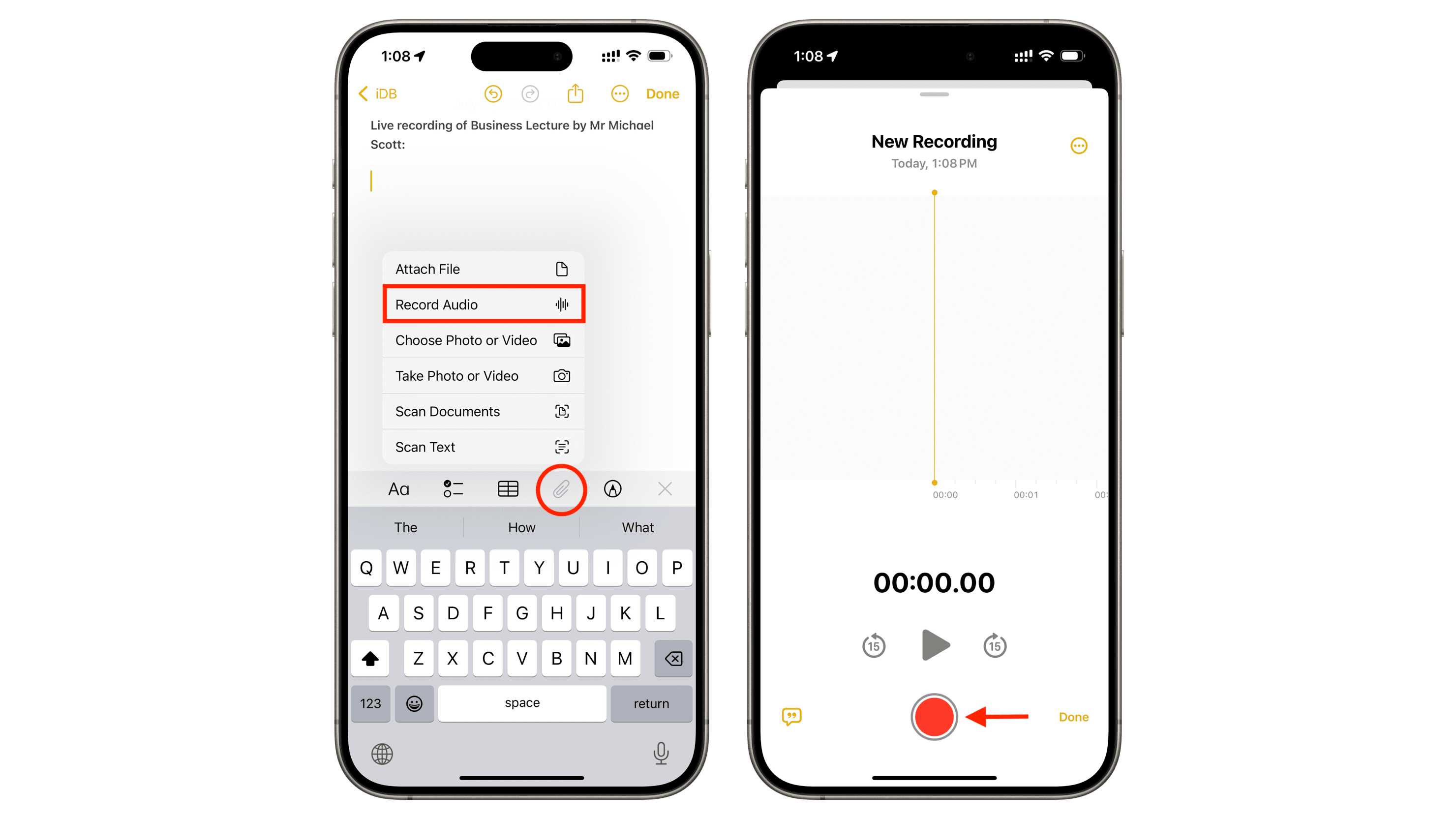
Tap the + (plus) button and select Record Audio. Tap the Record button to start recording your voice memo directly inside Notes.
Step 3: Review the transcript
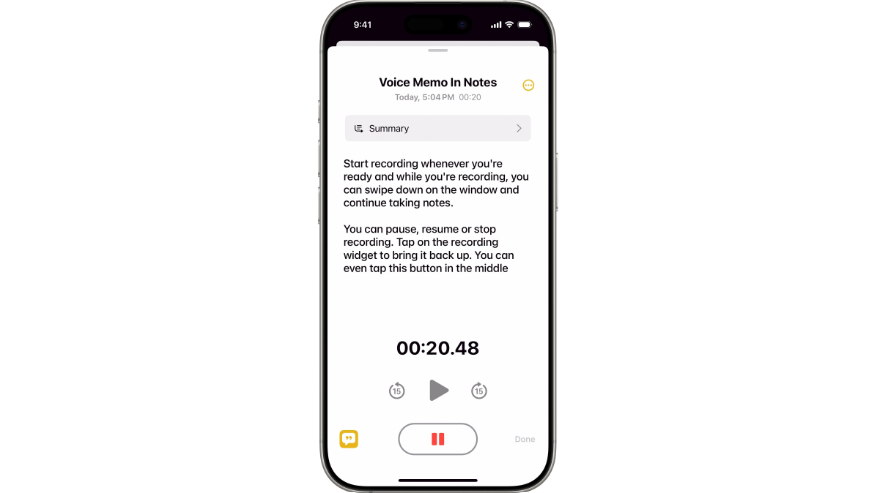
Once you stop recording, Notes automatically generates a transcript below the audio clip, which you can edit like any other text.
How to transcribe voice memos on Mac
For those who sync their voice memos via iCloud or record directly at their desk, macOS provides a seamless desktop transcription experience.
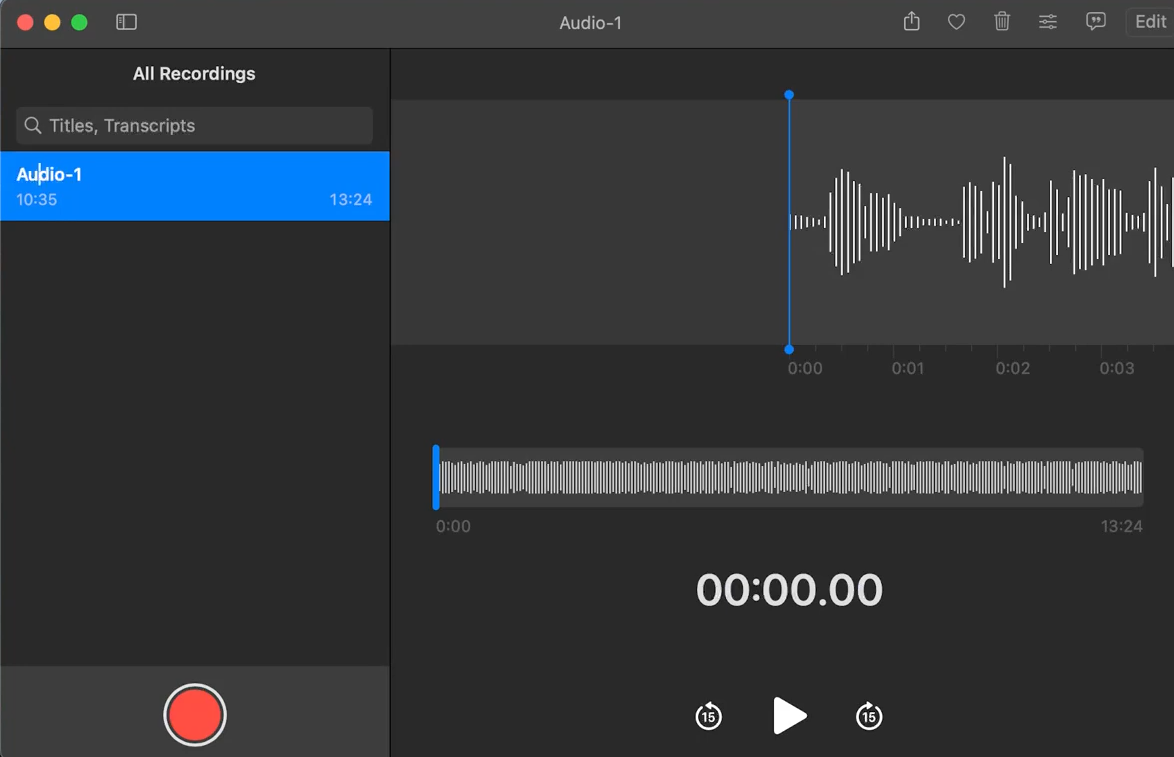
Step 1: Open Voice Memos
Launch the Voice Memos app on your Mac and select the recording you want to transcribe.
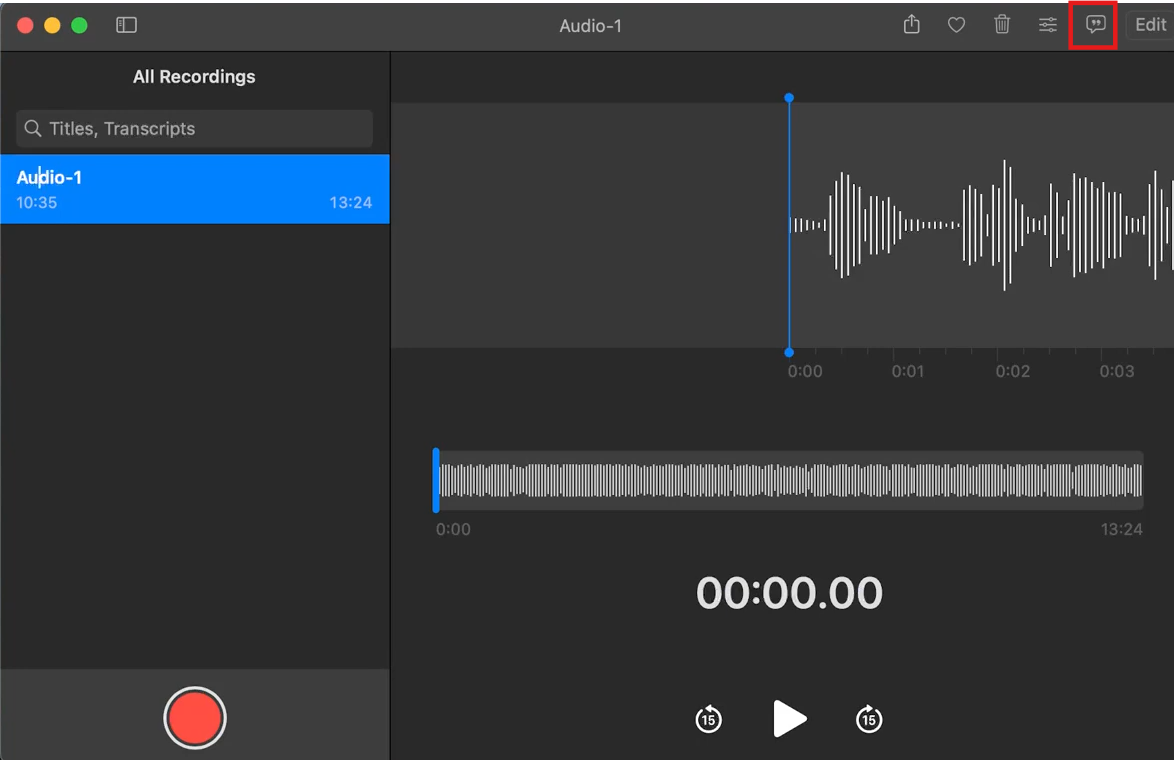
Step 2: Open the transcript
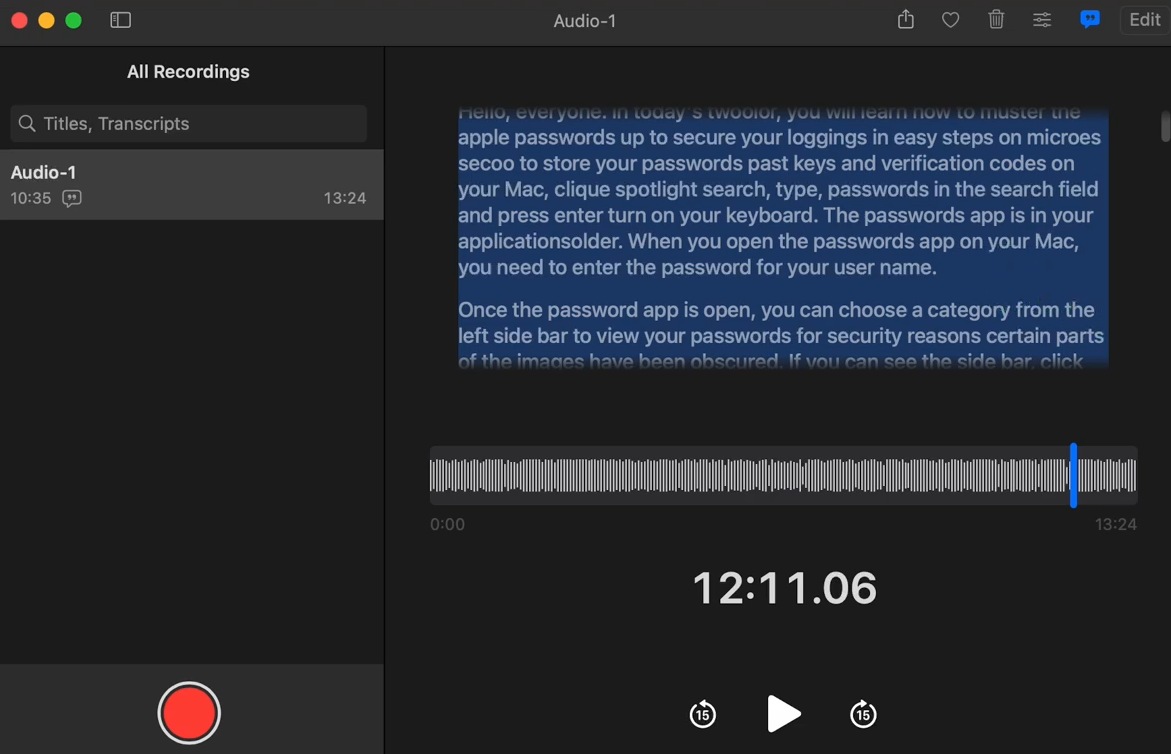
Click on the recording to expand it, then click the Transcript button in the playback controls. The Mac will process the audio locally and display the full text layout.
Step 3: Review and export Read through the full transcript, make any quick corrections, copy text, or use it alongside the audio for reference.
Pros & cons of Apple's built-in voice memo transcription
Apple's built-in transcription is a solid option for many users, but it's worth knowing where it works well and where it falls short before you rely on it.
|
Pros |
Cons |
|---|---|
|
100% free & built-in: No hidden subscriptions, ad interruptions, or extra software to install. |
Strict ecosystem lock: Only works on supported Apple devices running the newest OS versions. |
|
Complete privacy: Audio is processed entirely on-device; your files are never sent to external cloud servers. |
No subtitle/SRT support: Cannot generate timed closed captioning files for video workflows. |
|
Offline functionality: Transcribe anywhere, even without cellular service or Wi-Fi connections. |
No batch processing: You must select, open, and process your recordings one single file at a time. |
|
Searchable notes: Seamless integration allows you to instantly locate text inside your Notes or Voice Memos library. |
Limited file formats: Only M4A recordings are imported directly. WAV and MP3 files don't work without converting them first. |
While the built-in transcription features on iPhone and Mac are convenient and private for most users, you may need an online tool when the native options fall short, such as when you require TXT or SRT file exports, cross-device editing, or cleaning up a recording the built-in tool struggled with, like one with background noise or multiple speakers. In these cases, uploading your voice memo to an online transcription tool gives you more control over the format and editing.
How to transcribe a voice memo with an online AI tool
For more flexibility with exports, high-quality content, or batch processing, online AI tools like Vmake Labs offer a powerful alternative. Its lightweight, browser-based interface makes it easy to transcribe voice memos without installing software. Simply upload your recording or paste a supported link, and Vmake automatically generates an editable transcript that you can review, refine, and export as TXT or SRT for notes, captions, or documentation.
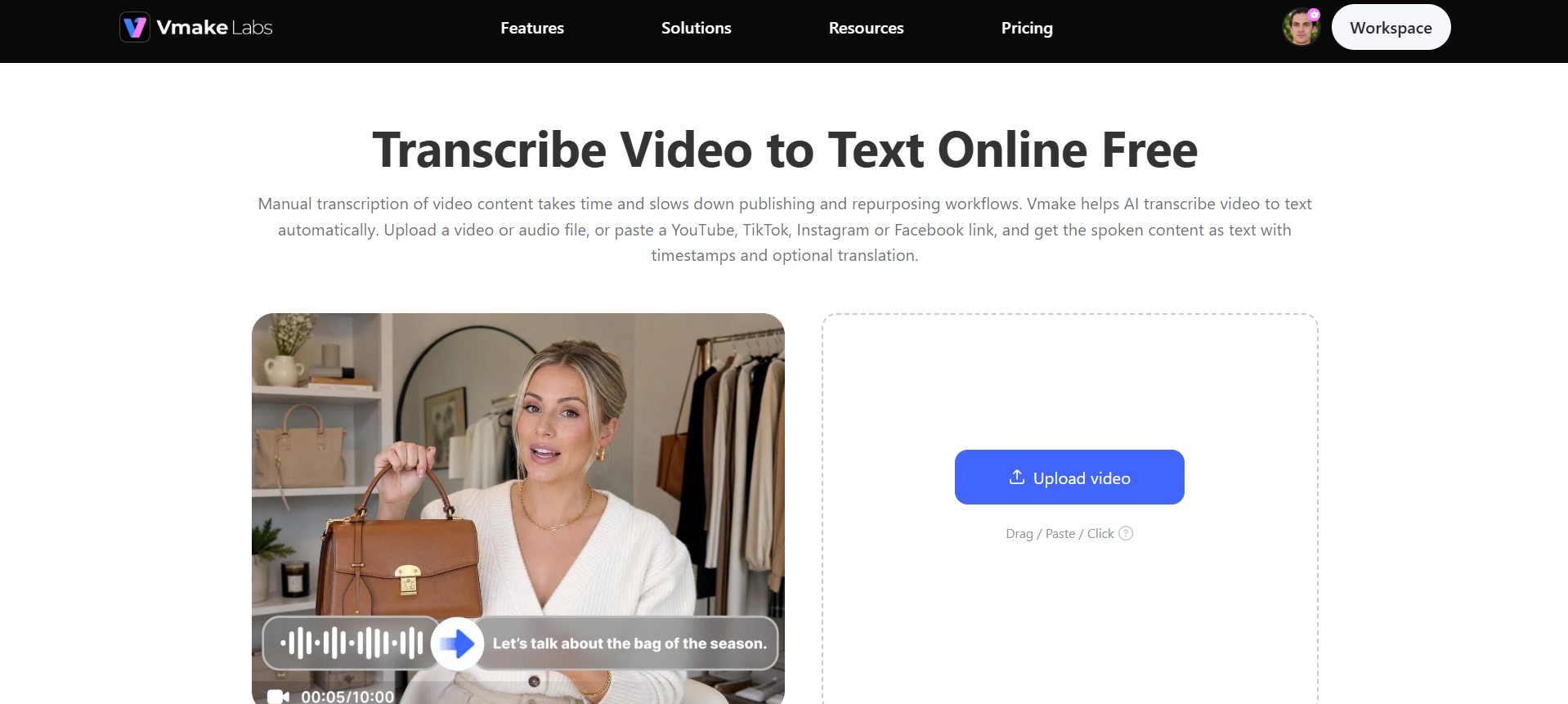
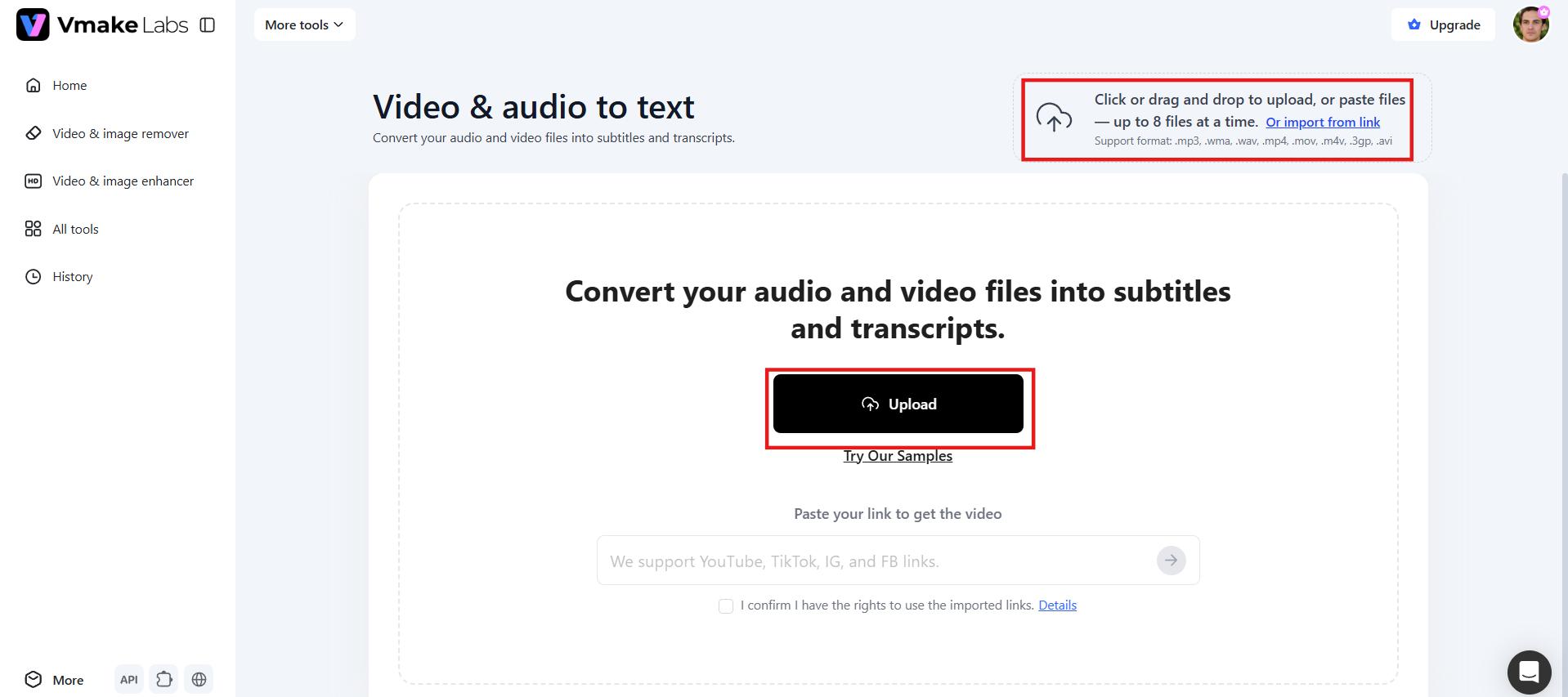
Step 1: Upload your audio
Start off by logging into your Vmake Labs account. Then, go to the "All tools" section and choose the "Video & audio to text" tool from there. Click "Upload" and choose your voice memo file from your device. You can add up to 8 files at once.
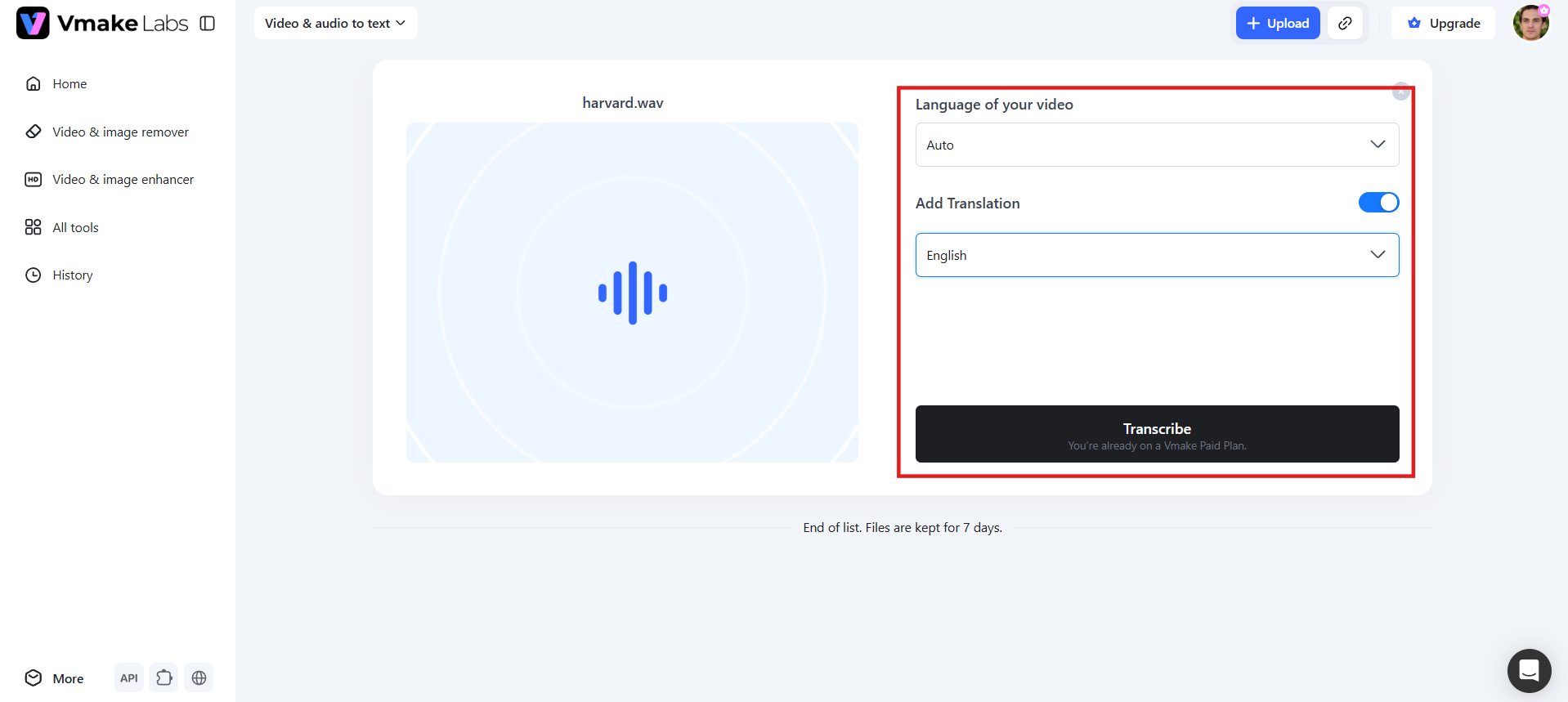
Step 2: Generate the transcript automatically
After uploading your file, select the spoken language or leave it on Auto for automatic detection. You can also turn on "Add Translate" if you want the transcript in a different language. Click "Transcribe" and Vmake Labs will convert your voice memo into editable text.
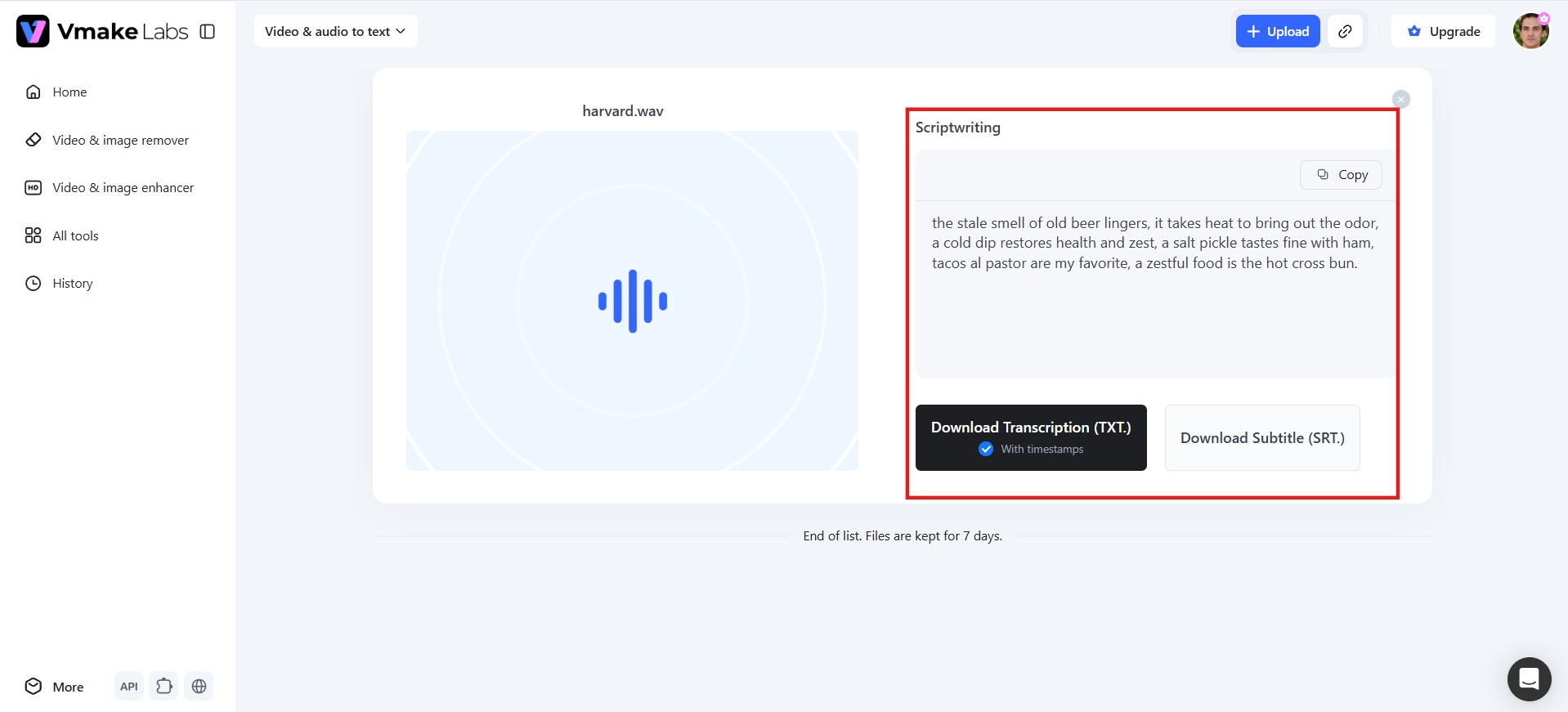
Step 3: Edit and export your transcript
Review the generated transcript and make any edits if needed. When you're satisfied with the result, download it as a TXT file with timestamps or export it as an SRT subtitle file for captions, documentation, or video editing.
Key features of Vmake Labs
-
Broad format & link compatibility: Upload MP4, MP3, WAV or MOV files directly, or skip the upload step altogether and paste a link. Vmake extracts audio directly from YouTube, TikTok, Instagram and Facebook videos, so you can transcribe social content without downloading it first.
-
Multi-language transcription and translation: Vmake transcribes and translates in English, Spanish, Portuguese, Chinese and Indonesian languages. Pick to retain the original spoken language or translate the transcript to another language, ideal for repurposing content to different regions.
-
TXT and SRT export: Download the transcription as a TXT file with timestamps, or an SRT subtitle file. TXT is intended for use in text editing, reporting and documentation workflows. SRT covers caption upload flows. Both are from the same session.
-
Batch upload: You can upload up to 8 files at once, so multiple voice memos or clips get transcribed in a single session. This saves time when you have several recordings from meetings or interviews to review.
Vmake Labs vs. Built-in Apple transcription
Apple's built-in transcription does the job quickly and privately, but it does have its limitations. Here's how it compares to Vmake Labs when you want more flexibility, formats or editing control.
|
Feature |
Vmake Labs |
Apple Voice Memos |
|---|---|---|
|
Device requirements |
Works on any device with a browser; no OS restrictions |
Requires iOS 18+ / iPhone 12 or later, or macOS Sequoia |
|
File formats |
MP4, MP3, WAV, MOV, plus direct video/audio links |
M4A only (WAV and MP3 won't import directly) |
|
Translation |
Transcribe in the original language or translate into another |
Transcribes in the original spoken language only |
|
Subtitles |
Generates SRT subtitle files with timestamps |
No subtitle export — transcript text only |
|
Batch processing |
Upload multiple files at once |
One recording at a time |
|
Editing & export |
Download transcript and subtitle files directly |
Copy transcript text manually into another app |
|
Cross-platform access |
Works the same on iPhone, Mac, Android, Windows |
Locked to Apple devices and OS versions |
Which method should you choose?
The right choice depends on what you're recording and what you plan to do with the transcript afterward.
Choose Apple's built-in transcription if:
-
You're transcribing personal notes, reminders, or short memos for your own reference.
-
Privacy is your top priority and you prefer on-device processing.
-
You have a compatible iPhone or Mac with Apple Intelligence.
-
You don't need translation or subtitle files.
-
You're happy processing one recording at a time.
Choose Vmake Labs if:
-
You're transcribing interviews, meetings, or lectures that need clean, exportable text.
-
You need TXT or SRT exports for documentation, captions, or video editing.
-
You're working with MP3 or WAV files, or content from YouTube, TikTok, or Instagram.
-
You need batch uploads to transcribe multiple files in one session.
-
You want transcription with translation into multiple languages.
-
You want a solution that works on iPhone, Mac, Windows, and Android.
For most everyday users, Apple's built-in feature covers the basics. But if your work involves more recordings, more formats, or more editing, Vmake Labs saves you the extra steps.
Tips for more accurate voice memo transcriptions
Good transcripts start with good audio. These simple habits help you get cleaner, more accurate text every time you record a memo.
-
Record in quiet environments: Background noise makes it harder for transcription tools to pick out your words clearly. Try to record in a quiet room, away from traffic, fans, or other people talking nearby.
-
Speak clearly: Slow down a little and pronounce your words fully. Mumbling or rushing through sentences makes it harder for the transcription software to catch every word correctly the first time.
-
Keep the microphone close: Hold your phone or device close to your mouth when recording. The closer the microphone, the clearer your voice sounds, and the fewer mistakes show up in your transcript.
-
Reduce background noise: Turn off fans, close windows, and stay away from noisy appliances before recording. Less noise means the transcription tool can focus entirely on your voice and your words.
-
Use high-quality recordings: Avoid recording in low-volume settings or with damaged microphones. A clear, well-recorded voice memo gives the transcription tool a much better chance of producing an accurate result.
Conclusion
Knowing how to transcribe voice memos can save time and make your recordings much easier to use. Apple's built-in transcription works well for quick, private transcriptions on supported devices, while Vmake Labs offers more flexibility with multiple file formats, batch uploads, translation, and TXT or SRT exports. Whether you're transcribing meetings, lectures, interviews, or personal notes, choosing the right method depends on your needs. Try Vmake Labs today and transcribe your voice memos for free in just a few clicks.
FAQs
Does voice memo transcription work on all iPhones?
Built-in transcription requires iOS 17 or later and works best on iPhone XS and newer models. Older devices may not support it. For guaranteed access regardless of your iPhone model, Vmake Labs transcribes any uploaded recording online.
How can I get speaker identification in transcripts?
Speaker identification depends on the transcription tool and recording quality. Some AI transcription services, including Vmake Labs for supported content, can better handle conversations with multiple speakers than basic built-in transcription features.
Can I transcribe multiple voice memos at once on my iPhone?
No, the built-in Apple transcription feature processes one recording at a time. If you need batch transcription, Vmake Labs lets you upload up to eight voice memos in a single session.
What audio formats can I import into voice memos on Mac?
Mac's Voice Memos app supports common formats like M4A and WAV. For broader compatibility, including MP3 and MOV files, Vmake Labs accepts a wider range of formats without needing extra conversion steps.
How accurate is AI voice memo transcription?
AI voice memo transcription is usually highly accurate when recordings are clear and background noise is minimal. Accuracy may decrease with overlapping speakers, strong accents, or poor audio quality, so reviewing transcripts is recommended.

You May Be Interested
How to Transcribe Video to Text in 2026: Free Online AI Tool
How to Transcribe Audio Recording to Text in Minutes

How to Transcribe a Video to Text: Guide to Accurate Transcriptions
The Ultimate Guide to Transcribe YouTube Video to Text [2026]