VEED.io Audio to Text: A Comprehensive Guide to AI Transcription
Read our in-depth VEED.io audio to text review to compare transcription accuracy, subtitle generation, ease of use, and the best AI competitor, which is Vmake Labs. Explore Vmake Labs video and audio to text tool today!

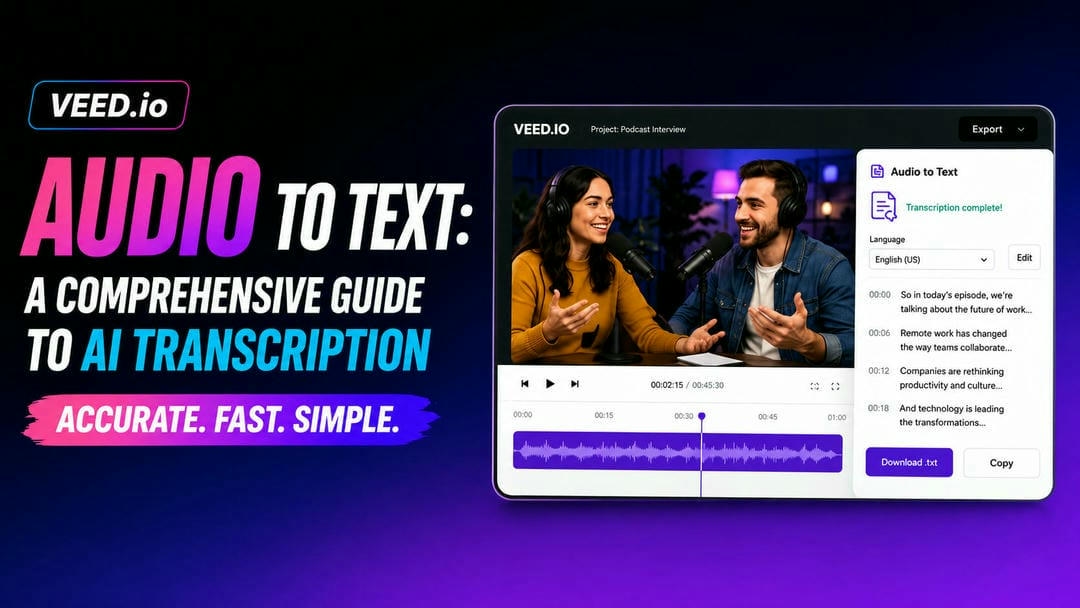
Want to turn hours of audio into searchable, shareable text in minutes? Speech-to-text tools make it possible, and they are a game-changer for repurposing content, improving accessibility, and boosting SEO. This guide breaks down VEED.io's audio-to-text features, limitations, and pricing, then introduces Vmake Labs as a faster, mobile-first alternative. Let's dive in.
What is VEED.io audio to text?
VEED io audio to text is a cloud-based, AI-powered transcription tool integrated directly into an online video and audio editor. It is designed to automatically convert spoken audio files, video voiceovers, or direct recordings into highly accurate written text without requiring manual typing or software installations.
Relying on advanced machine learning, VEED.io processes complex media files in seconds, delivering structured transcripts complete with precise timestamps. It serves as an all-in-one productivity assistant for content creators, agencies, and businesses looking to generate transcripts, add captions, translate audio tracks, and repurpose audio content globally for social media audiences across all popular digital channels.
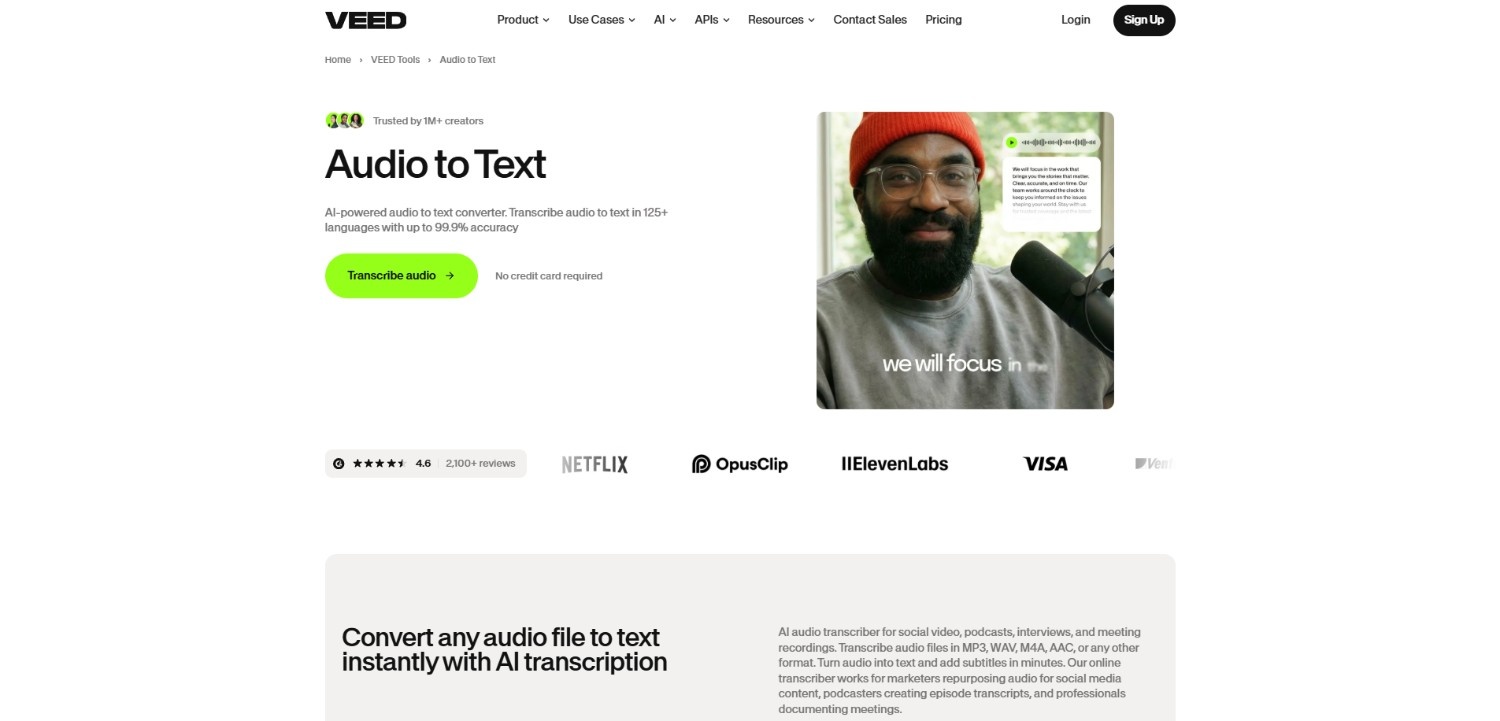
Key features of VEED io audio to text
-
Automated speech-to-text recognition: Powered by cutting-edge speech algorithms, VEED instantly detects spoken voices, separating speech patterns from secondary background noises. It can achieve high accuracy for clear recordings, transforming long speeches, business interviews, and conversational podcasts into clean, readable written drafts.
-
Multilingual support for 125+ languages: VEED's software breaks down geographic boundaries, transcribing and translating spoken words across more than 125 unique languages and regional accents. Users can instantly generate multilingual transcripts to build localized subtitles and cross-cultural media campaigns that capture international audiences.
-
Built-in online transcript editor: The browser-based timeline editor flags uncertain terms and splits texts into structured segments automatically. Users can directly modify phrases, correct spelling mistakes, add speaker labels, and align the written words perfectly to the video playback without exiting the software interface.
-
Diverse export options (TXT, SRT, VTT): VEED supports seamless downloading of raw text files or standardized closed-captioning files for websites. Users can easily choose between SRT, VTT, or plain TXT layouts to instantly pair transcripts with video streaming platforms, learning engines, or websites worldwide very efficiently.
How to use VEED.io audio to text?
Step 1: Access VEED.io audio to text tool
Start your journey by first accessing VEED.io's official website and then accessing its audio-to-text tool. Proceed to click on it and then you will be asked to upload your audio file, in any format, be it MP3, WAV, AAC, or any other codec.
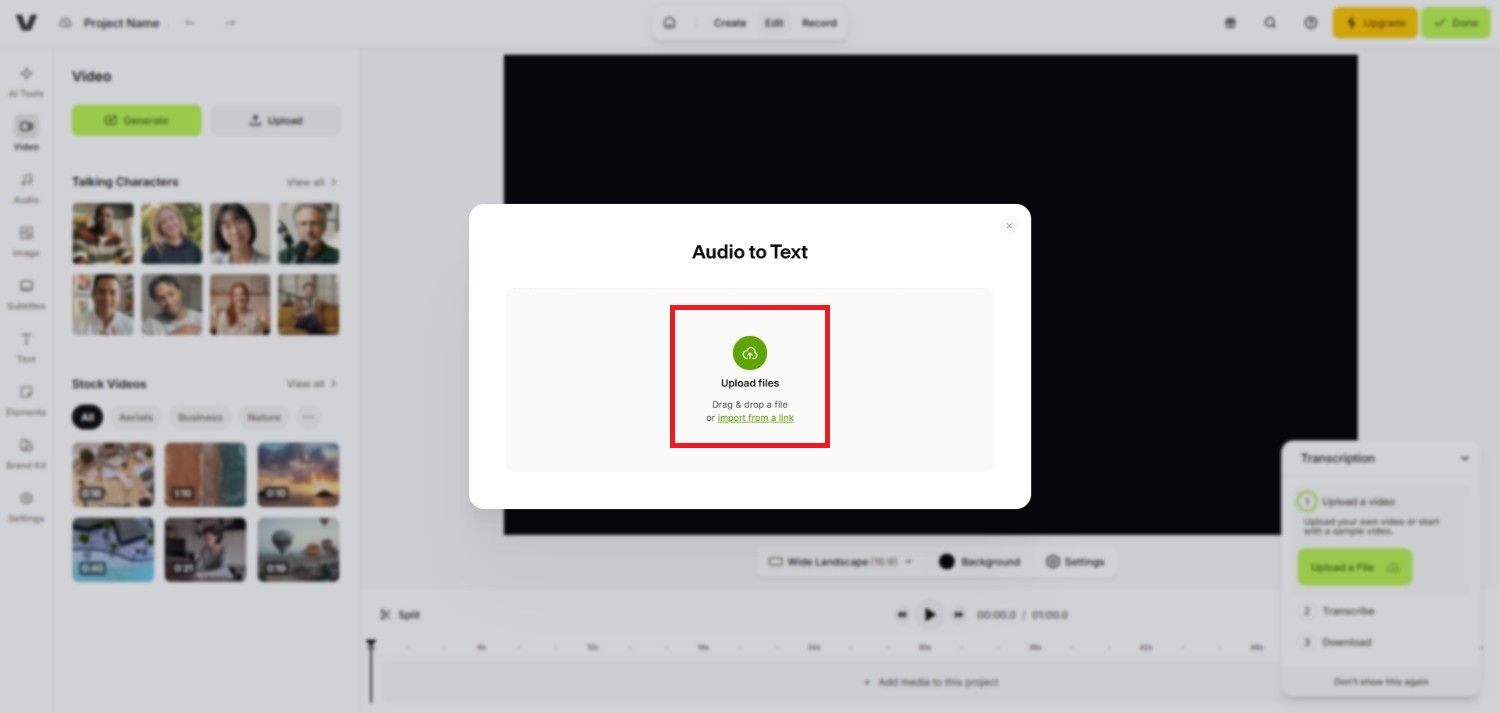
Step 2: Let VEED.io process your audio file
Once you upload your file, VEED.io will start to process it on their servers. It will take some time, so be sure to wait a bit before the uploading and processing time is completed.
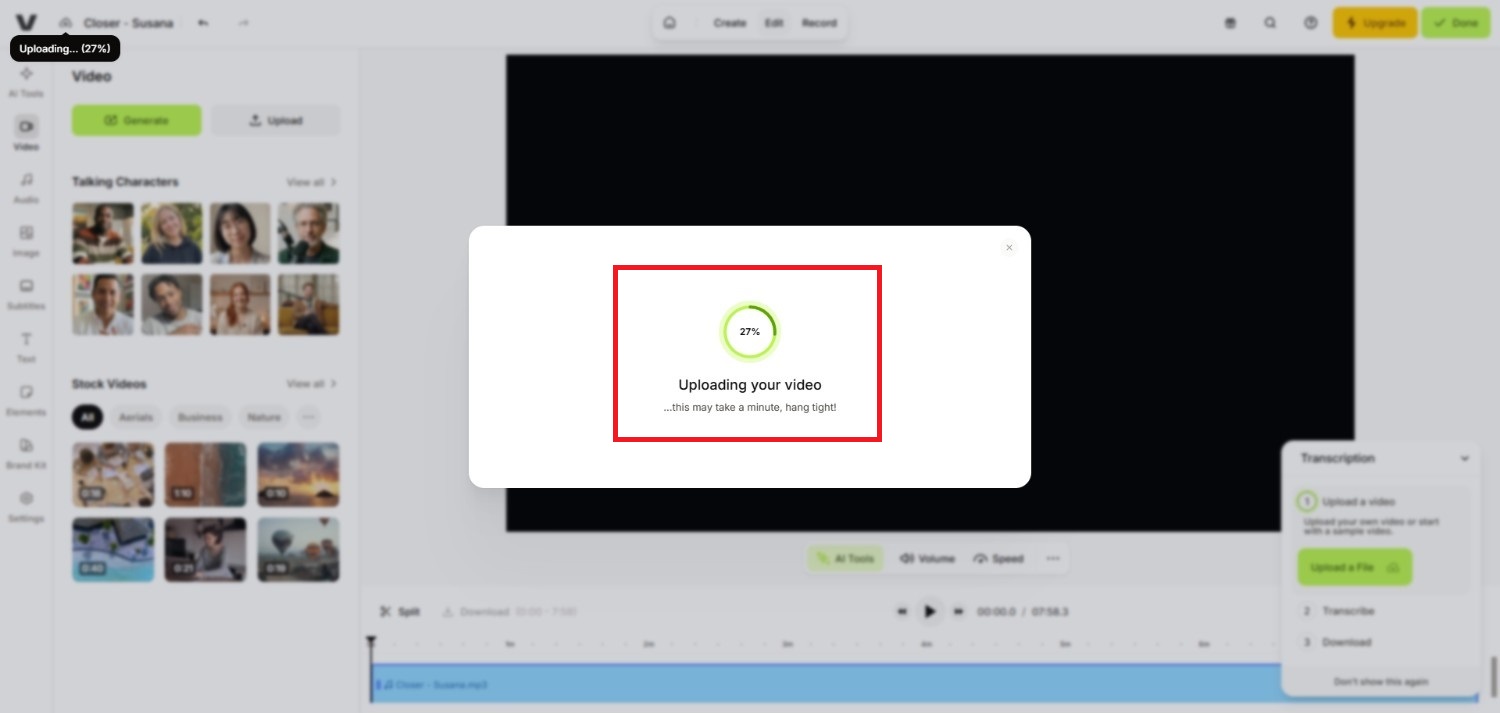
Step 3: Perform the transcription process
After the file is successfully uploaded, you will be provided with a window to perform the transcription/translation process. First, you need to select the original language in which the video is spoken, and then select the target language in which you want it to export. Make sure to toggle on the "Add translation" option. Once done, click on "Auto subtitle with translation" and your audio file will be transcribed effortlessly.
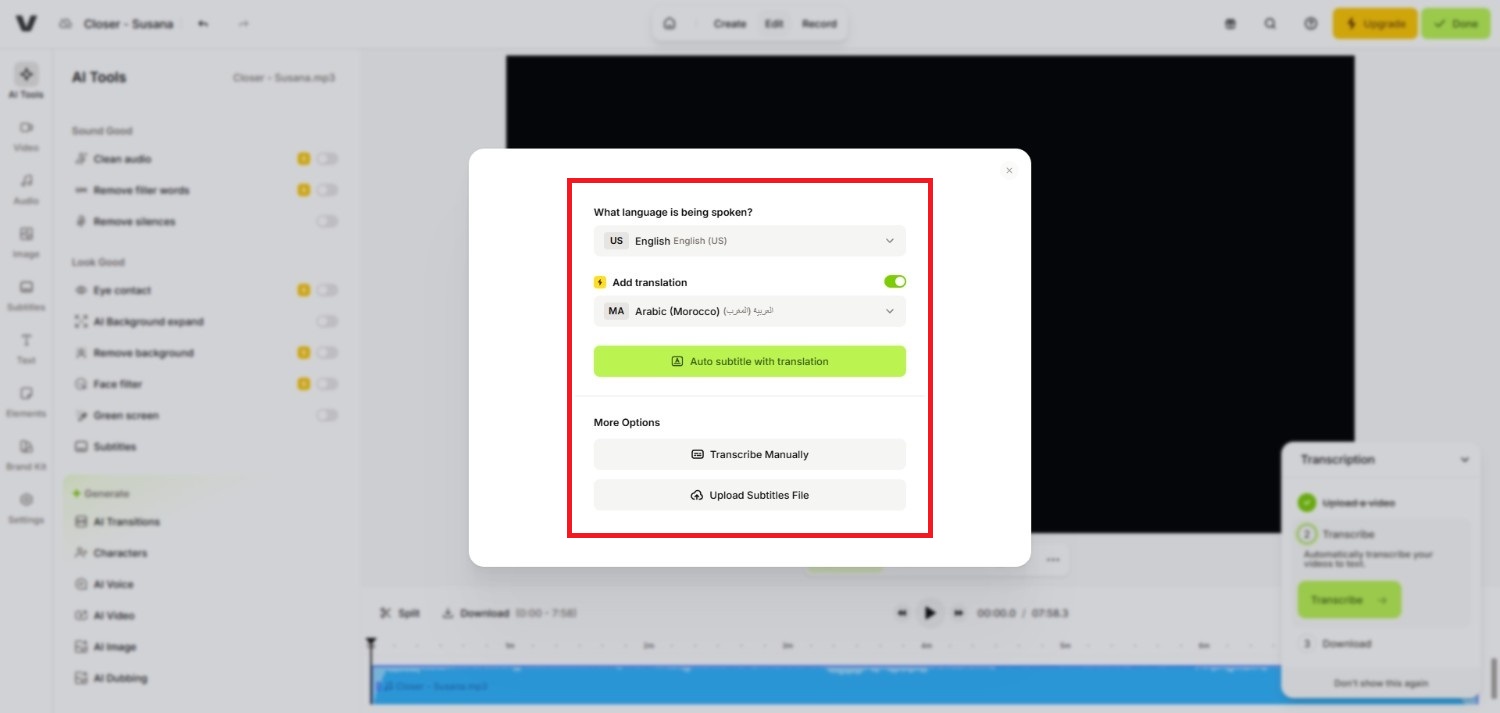
VEED.io audio to text: pros, cons, and pricing plans
In case you are contemplating whether you should use the VEED.io audio-to-text tool, then the following analysis of its strengths, weaknesses, and pricing policy, should help you out.
Advantages |
Disadvantages |
|---|---|
|
|
Pricing plans
|
Plan |
Price (Billed Annually) |
Price (Billed Monthly) |
Core Transcription Features |
|---|---|---|---|
|
Free |
$0 / month |
$0 / month |
Capped auto-subtitles, watermarked outputs, 720p export, no raw text download. |
|
Creator |
$12 / month |
$25 / month |
No watermarks, 1080p export, clean speech tools, standard brand kits. |
|
Pro |
$24 / month |
$49 / month |
SRT/VTT/TXT export formats, unlimited subtitle minutes, 4K quality, AI translate. |
|
Studio |
$39 / month |
$79 / month |
12 hr/yr of translations, multiple brand kits, shared workspaces, advanced video analytics. |
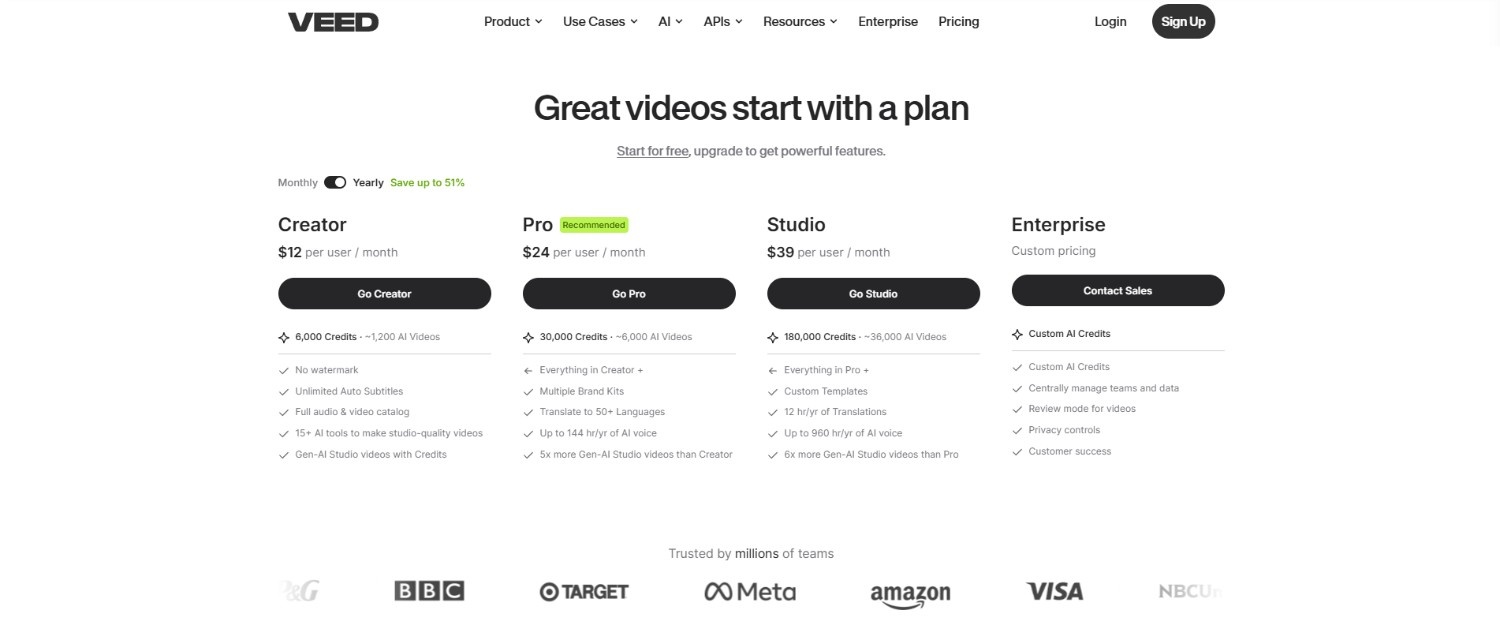
Explore Vmake Labs as an ideal alternative to VEED.io audio to text
While VEED.io is highly popular, it is heavily tailored for desktop web editors and comes with a costly subscription model. For creators, who are looking for an easy-to-use audio/video to text converter alternative, that can be effortlessly operated via a web-browser, should consider Vmake Labs.
Vmake Labs has been specifically built to help creators transcribe content seamlessly without any prior experience, simplifying the transcription process with direct web-link integration or audio/video file uploads. The platform offers superior performance for users looking to extract accurate transcripts or add attention-grabbing captions to their videos, without the unnecessary complications of large, bloated desktop video suites and limitations.
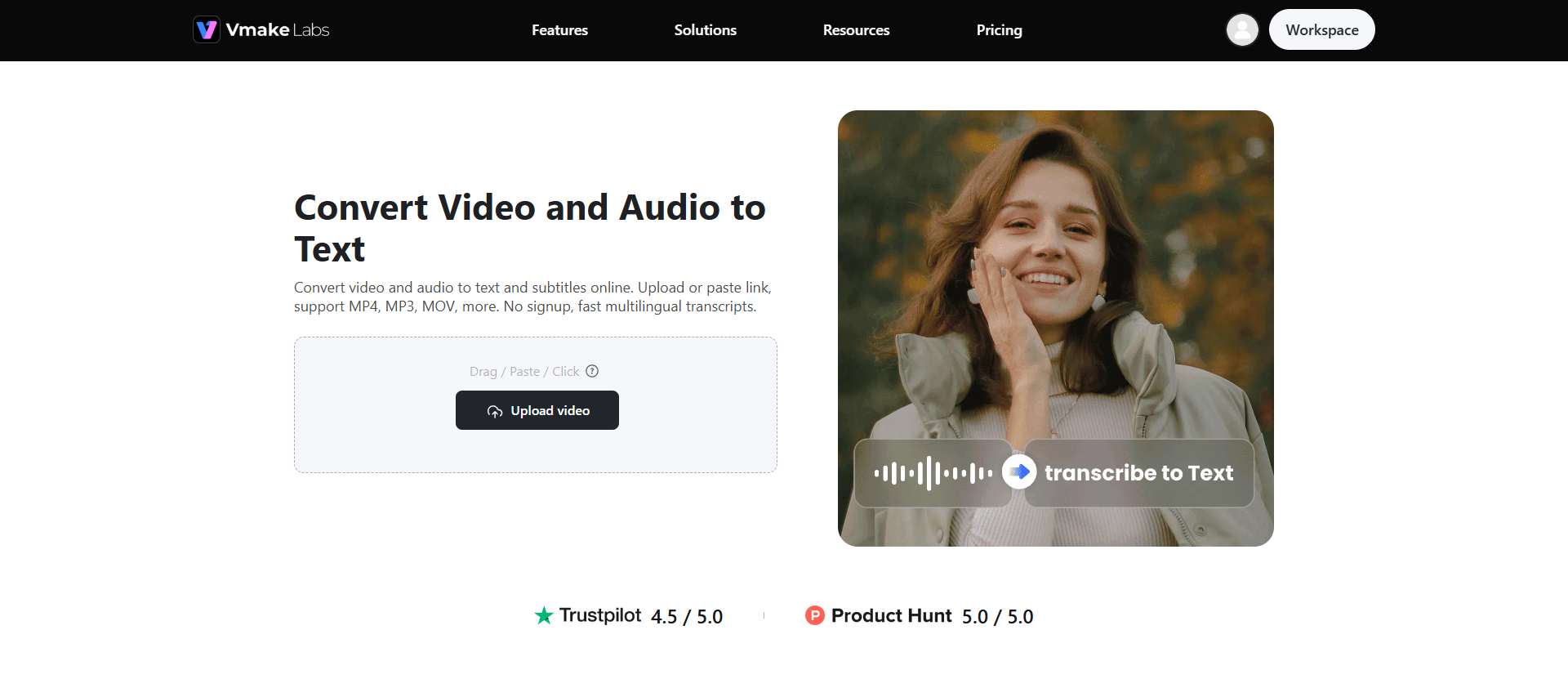
Features of Vmake Labs video and audio to text tool
-
Multi-source input and social link parsing: Simply upload local audio and video files, or effortlessly paste direct links from TikTok, Instagram, and YouTube, to parse files and begin transcribing, without wasting any precious time.
-
AI-powered transcription and auto-captioning: Vmake Labs speech engine transcribes spoken scripts in seconds, aligning words seamlessly. It also offers stylish, viral captions inspired by top creators to keep mobile viewers visually engaged on every platform.
-
High-accuracy dialogue and script extraction: Easily extract raw dialogues and verbal presentations from complex tracks. The tool quickly organizes unstructured vocal sequences into accurate, polished paragraphs ready to download as structured document formats like TXT.
-
Integrated noise reduction for clean speech-to-text: The integrated AI audio cleaner automatically wipes out background hums, wind rustles, and traffic sounds, optimizing vocal clarity before transcription starts to ensure the lowest possible word error rates.
How to use Vmake Labs for content transcription in 3 easy steps?
Step 1: Select Vmake Labs "Video & audio to text" tool
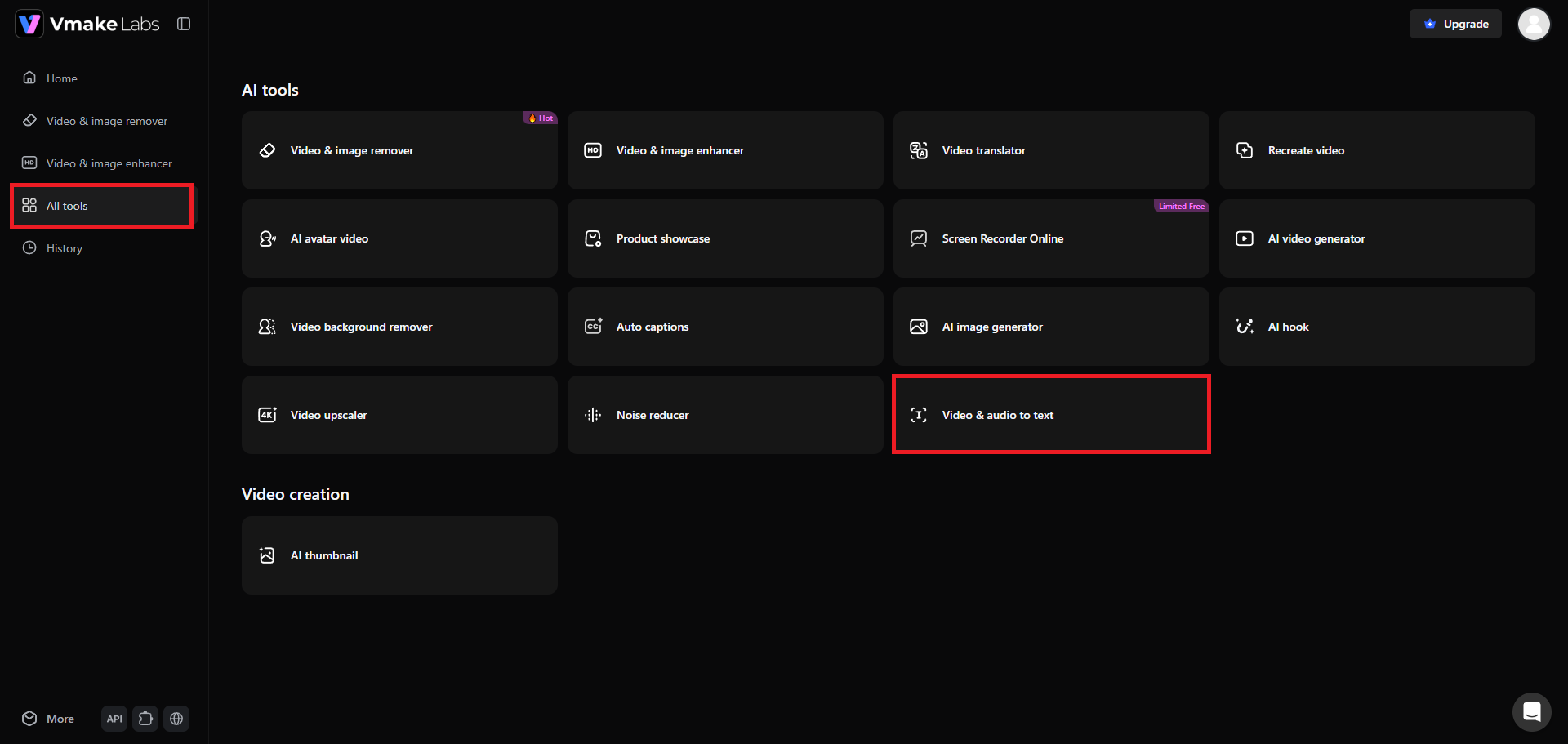
Start the process by first accessing your Vmake Labs account. After logging in, you need to select the "All tools" option from the left-hand menu. This will take you to a new web page, where you can select the "Video & audio to text" tool.
Step 2: Upload your file or paste a web-link
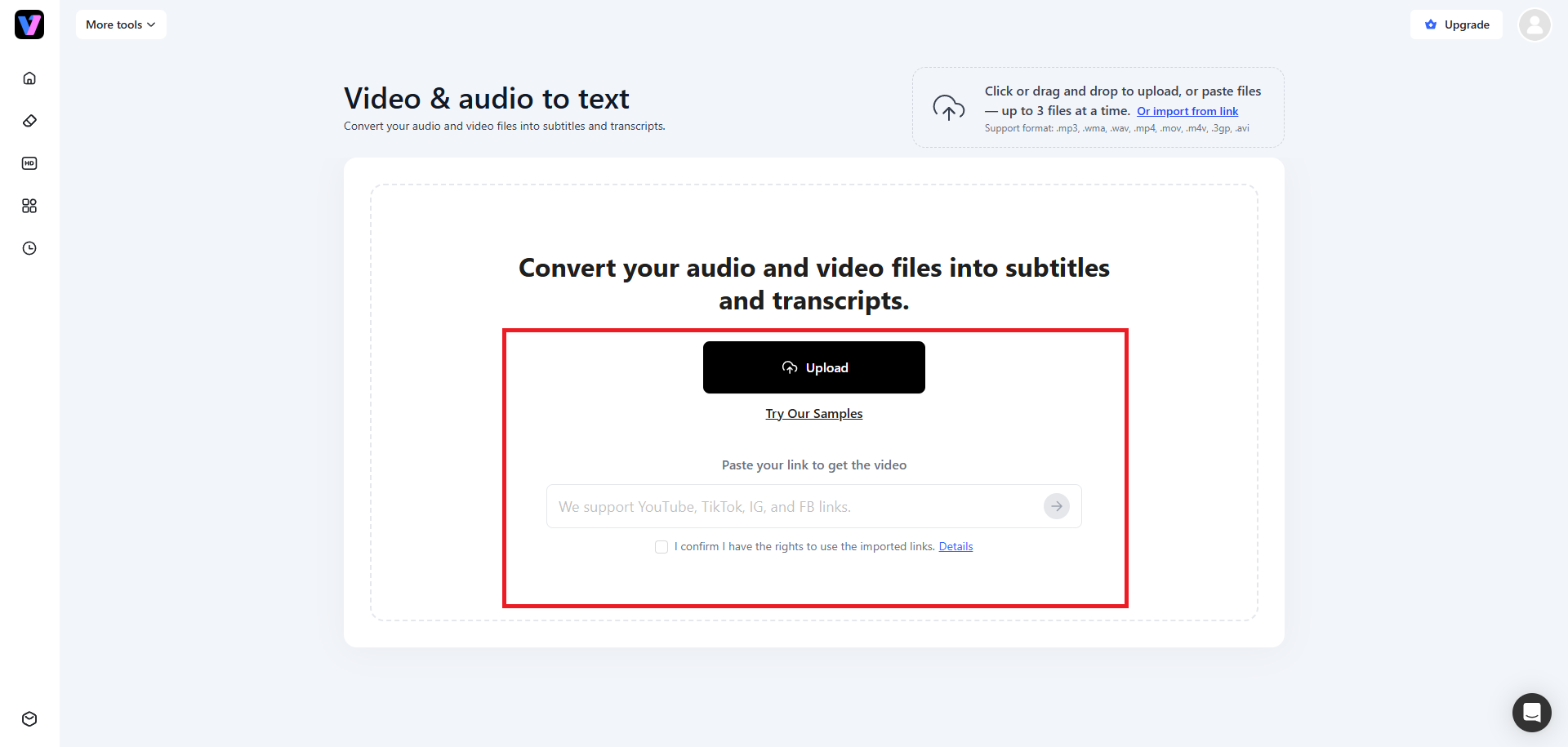
The next step involves uploading your media file, be it a video or an audio track. Alternatively, you can also paste a web-link and Vmake Labs will extract the content automatically. You can upload up to 3 files, or paste links up to 3 links, simultaneously.
Step 3: Perform the transcription process
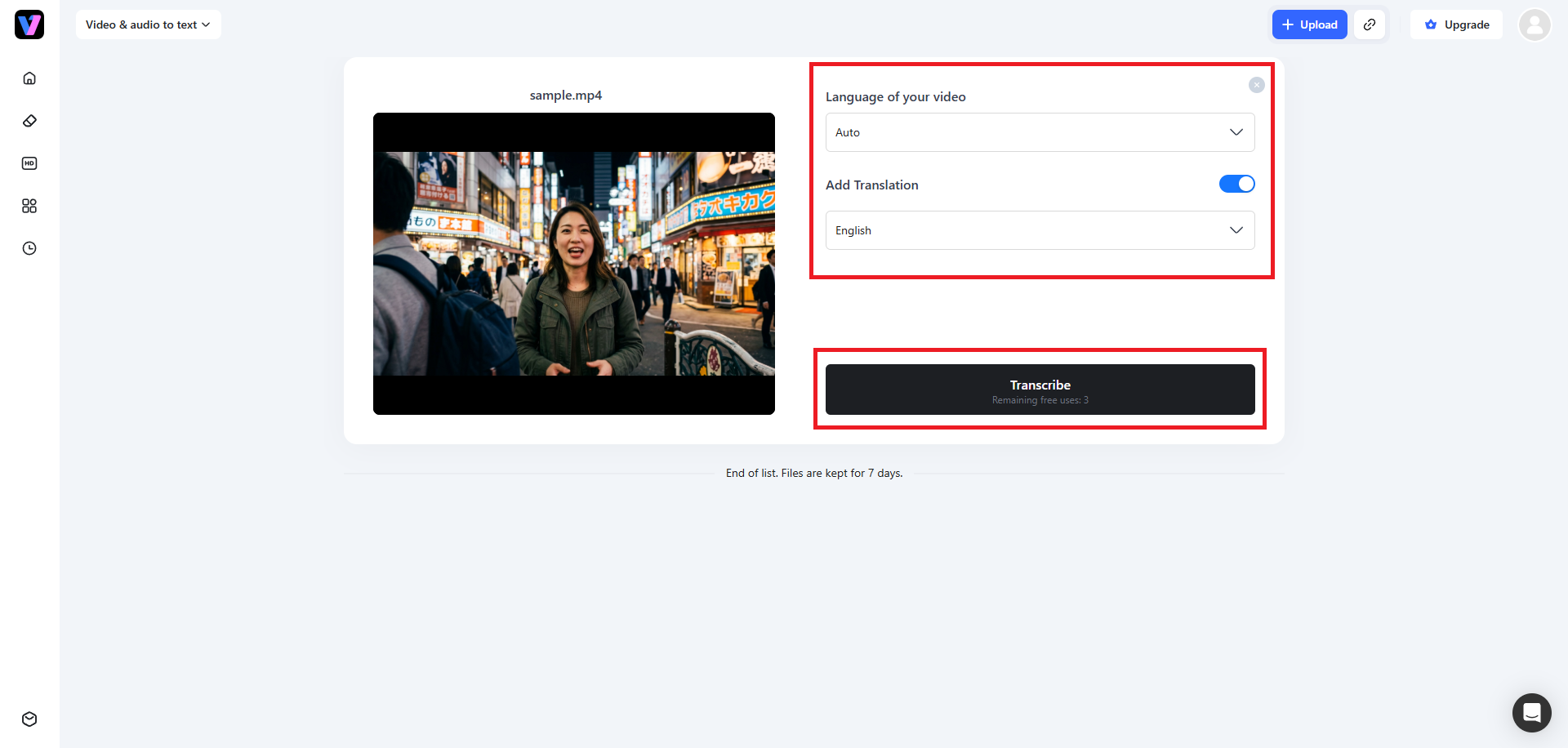
Once the uploading process is completed, you need to first select the source or original language your video is spoken in. If the file contains multiple languages or you don't know the original language, keep it on "Auto". Next, turn on the toggle for "Add Translation" and then select your target language. Finally, click on "Transcribe". Your file will be transcribed automatically and you will be able to download it to your local device.
Veed.io vs Vmake labs for audio to text conversion
VEED.io excels as a comprehensive, browser-based editor featuring extensive customization, long-form transcribing, and collaborative enterprise workflows.
Meanwhile, Vmake Labs stands out as a lightweight, web browser-based alternative designed specifically for rapid social media transcription and translation. Depending on your primary workspace, either tool can elevate your efficiency when turning audio tracks into written scripts.
|
Feature |
VEED.io |
Vmake Labs |
|---|---|---|
|
Primary Platform |
Browser-based (Web Desktop) |
Mobile-first (iOS & Android App) |
|
Input Sources |
Local upload, Zoom, Dropbox |
Local gallery, Social link parse (TikTok, Instagram) |
|
Target Audience |
Desktop editors, agencies, enterprise |
Social creators, mobile influencers, small brands |
|
Formatting & Subtitles |
Advanced timeline & professional templates |
Trendy, viral subtitle style templates |
|
AI Audio Enhancement |
Yes (Clean Audio on paid plans) |
Yes (Denoise & cleanup tools integrated) |
|
Export Formats |
SRT, VTT, TXT (Requires paid plans) |
SRT, VTT, TXT, styled video outputs |
Best practices to follow when using VEED.io audio to text
Applying a few strategic steps can drastically improve transcription speeds, minimize edit times, and boost visual output.
-
Use clear audio with minimal background noise
Prioritize recording in quiet spaces with quality microphones. Clean vocals ensure higher word recognition rates and eliminate hours spent manually correcting complex sentences and misheard dialogue sections later on VEED.
-
Manually verify technical jargon and proper nouns
Automatic transcription tools struggle with niche abbreviations, brand names, or technical terminologies. Always scan through the generated timeline to correct spelling mistakes before compiling and exporting final files to clients.
-
Make strategic use of timestamps and speaker tags
Label your speakers and structure timestamp parameters clearly inside the editor workspace. This ensures highly organized conversational documentation, especially when generating transcripts from interviews or multi-guest podcasts for your listeners.
-
Format text exports for targeted content repurposing
Download your raw transcripts as clean TXT files to convert spoken lines into blogs, social articles, newsletters, or show notes, multiplying your output with minimal manual effort across digital channels.
Conclusion
VEED.io’s audio-to-text transcriber is a highly effective, web-based tool for converting vocal speech into written text. With native support for over 125 languages, a built-in browser-based editor, and direct captioning, it stands as a solid option for desktop creators. However, its restrictive free model and steep premium subscriptions can push creators to seek alternate platforms.
Vmake Labs offers a compelling mobile alternative, combining link-parsing, auto-captioning, and clean speech-to-text algorithms optimized for mobile creators. Choosing between them depends on whether your workflows are centered around a desktop browser or a quick, smart mobile workspace to drive maximum speed, efficiency, and results.
FAQs
Can I use VEED.io audio to text for free?
Yes, VEED offers a free plan that lets you auto-subtitle up to 30 minutes monthly. However, files are capped at 10 minutes, quality is locked at 720p, and exports carry watermarks.
What file formats are supported by VEED.io's audio transcriber?
VEED supports almost all standard digital media files, including popular audio formats like MP3, WAV, AAC, and M4A, alongside video formats such as MP4, MOV, AVI, and WebM.
How accurate is VEED.io's AI audio-to-text converter?
VEED's advanced machine learning engine guarantees up to 99% accuracy for clear voice tracks. However, heavy accent overlaps, slang, background noise, or poor audio quality can reduce recognition accuracy.
Can VEED.io automatically translate my audio transcript into other languages?
Yes, VEED can translate automatic captions and transcripts into more than 125 different languages. However, downloading these translation files or accessing full auto-translation features requires subscribing to their Pro plan.
Why should I choose Vmake Labs over VEED.io for creating social video text?
Vmake Labs is built directly for mobile, offering social-link imports, automated captions, noise cleaning, and modern creator subtitle styles that hook viewers, all without complex desktop interfaces or expensive pricing.

You May Be Interested
How to Download Audio from Instagram: Quick Guide for 2025
How to Transcribe Audio to Text: Efficient Guide