How to Use Microsoft Word Audio to Text: A Complete Step-by-Step Guide
Stop typing by hand. Discover how to use Microsoft Word audio to text to transcribe audio files and live dictation effortlessly in this complete guide. Also, learn how to use Vmake Labs video & audio to text feature for an easier workflow.

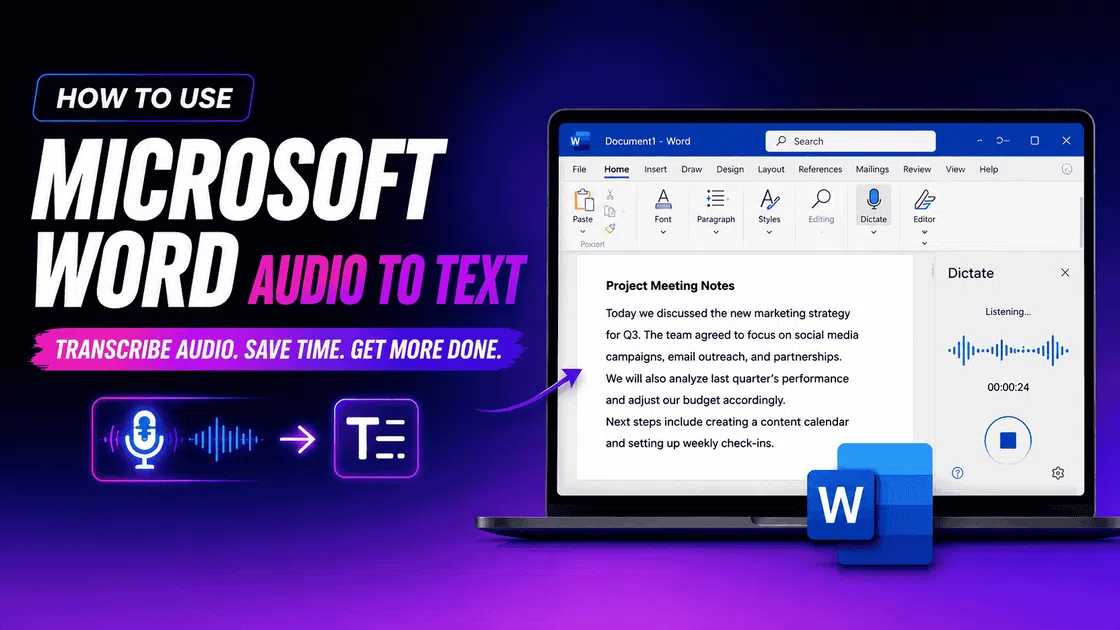
Converting spoken words into written documents used to take hours of manual typing. Today, tools like Microsoft Word's built-in transcription feature make this process incredibly simple and efficient. In this guide, we will walk you through how to use Microsoft Word for audio-to-text conversion, examine its pros and cons, and introduce an outstanding, highly accessible alternative.
What is Microsoft Word audio to text tool?
The Microsoft Word audio to text tool is a cloud-based service integrated within Microsoft 365. Designed to streamline productivity, it allows users to convert spoken languages into written text in real-time or from pre-recorded files. By using advanced speech recognition, it acts as a personal stenographer for students, researchers, journalists, and business professionals.
Accessible directly through Word for the Web or desktop applications, it eliminates the need for expensive third-party software, making it incredibly convenient to capture lectures, interviews, meetings, and personal brainstorms directly onto your digital document page.
Dictate vs Transcribe in Microsoft Word
Microsoft Word offers both Dictate and Transcribe, but they serve different purposes.
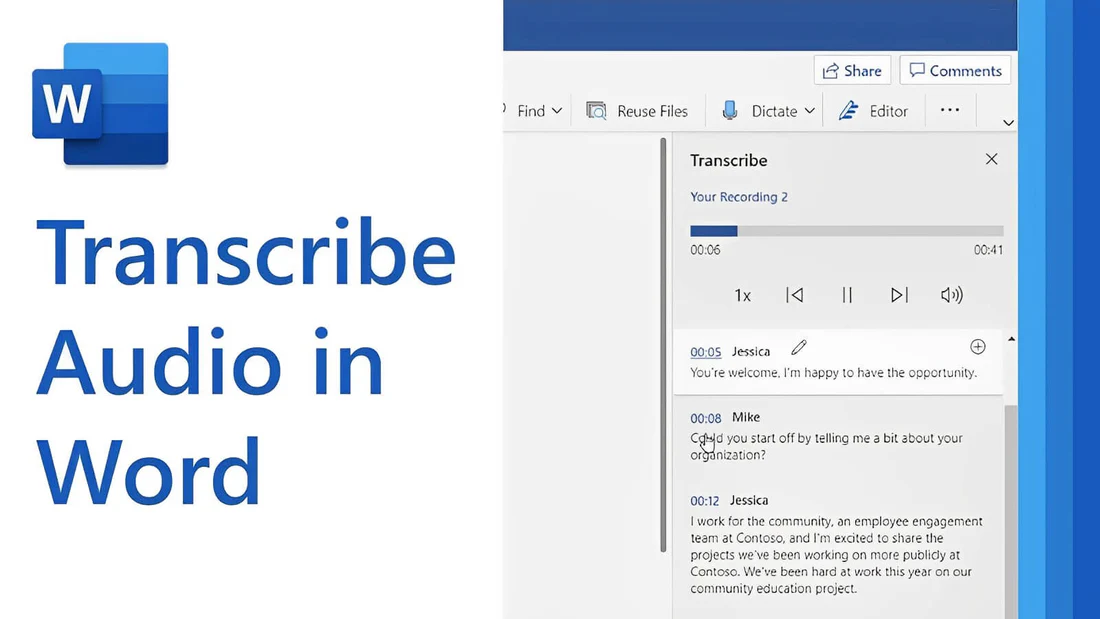
Dictate converts your live speech into text instantly, while Transcribe transforms recorded audio into editable text with speaker separation and timestamps for easier review.
Key features of Microsoft Word audio to text
Real-time live dictation
You can record your voice directly in Word while the tool transcribes your speech in real-time. This is perfect for capturing spontaneous thoughts, dictating long emails, or taking quick notes without typing a single word on your keyboard.
Multi-speaker identification
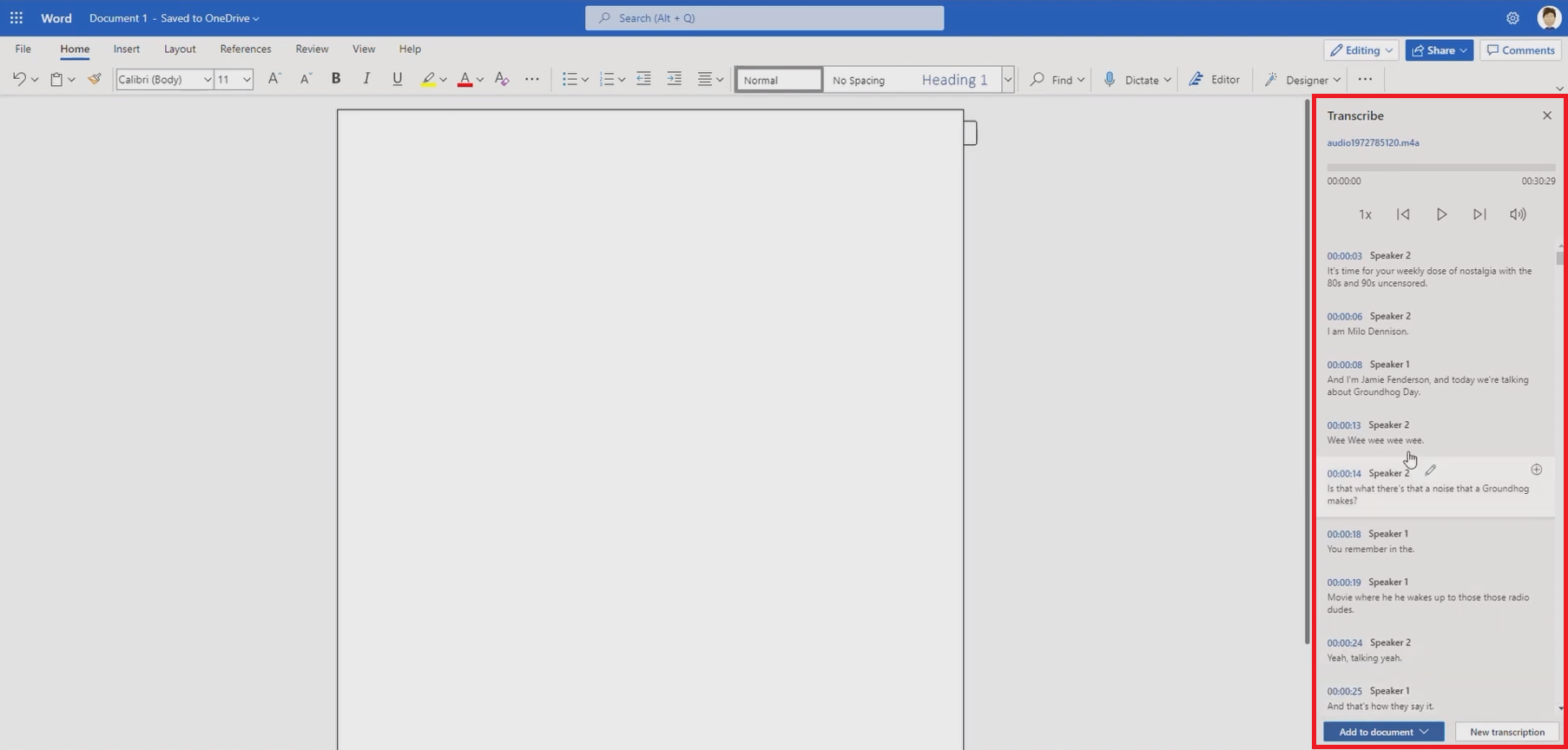
Word automatically detects and separates different speakers in an uploaded audio recording. It labels them individually, allowing you to easily track who said what and quickly edit the speaker names directly inside the clean transcription sidebar panel.
Interactive audio timestamping
Every transcribed segment is linked directly to a specific timestamp in the original audio recording. You can click on any sentence to play the exact moment of audio, making it incredibly easy to verify accuracy and fix typos.
Note: Please keep in mind that Microsoft Word's audio-to-text features are only available for Office 365 Premium users.
How to convert an audio file to text in Microsoft Word (365)?
Step 1: Access the "Transcribe" option
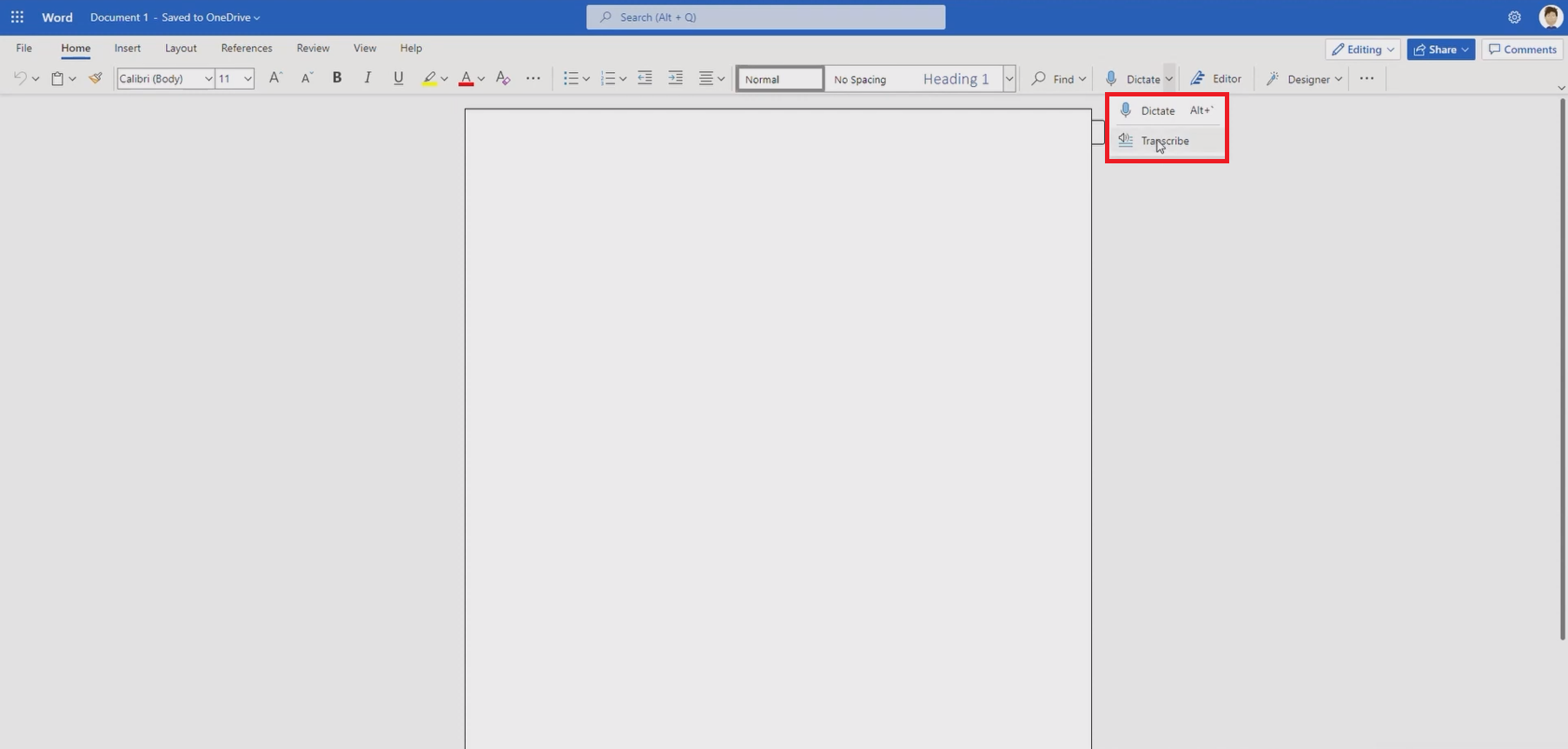
Access Microsoft Word via your Office 365 subscription (you need to have a premium account to access the transcription feature) and then open a new document. Inside the new document, you will find the "Dictate" option. From the drop-down menu, select "Transcribe".
Step 2: Upload your audio file
The next step involves hitting the "Upload audio" button and then uploading your audio file, which you want to transcribe. The audio file can be in any format, be it MP3, WAV, AAC, etc. Additionally, select the language in which the transcription will be done.
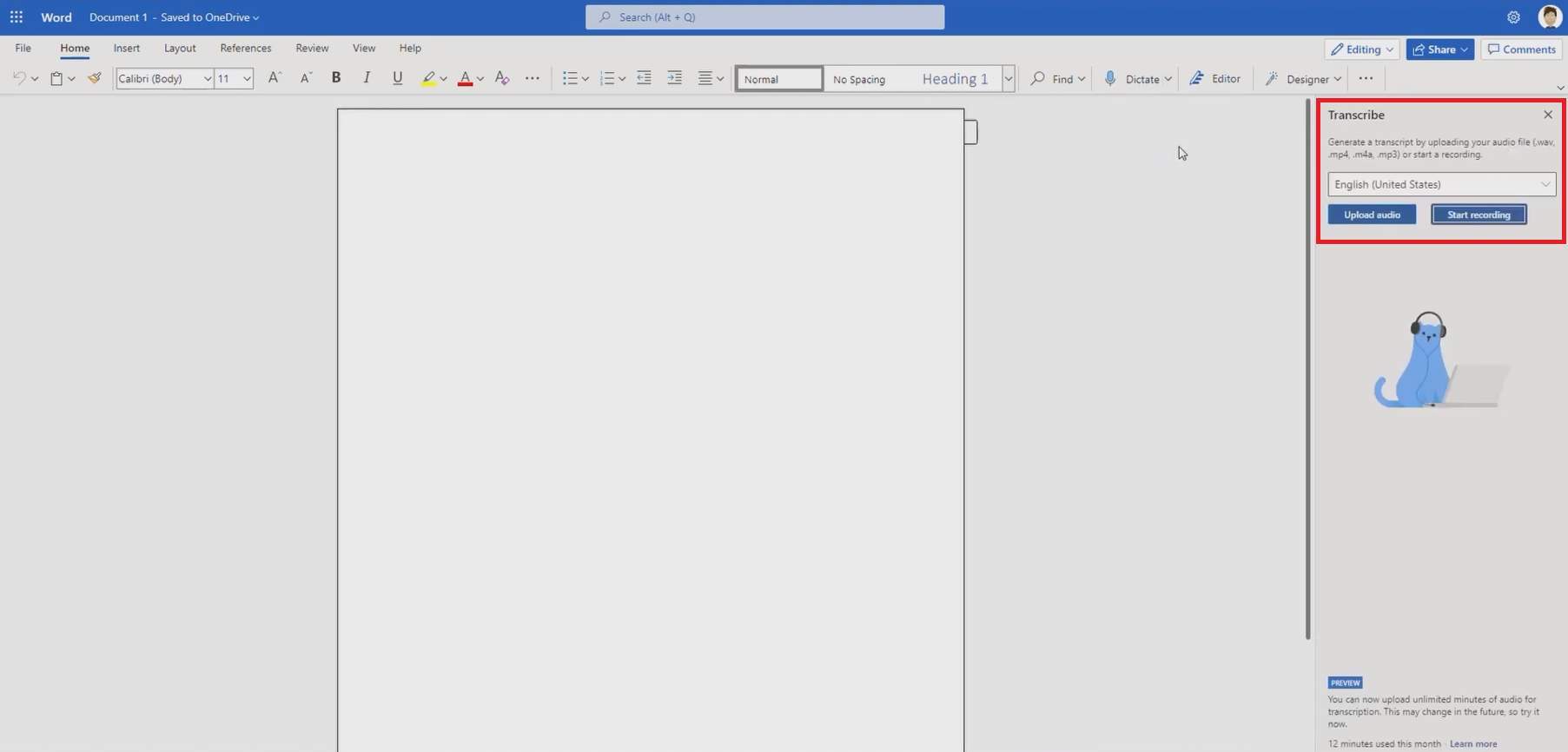
Step 3: Transcribe and add to your document for exporting
MS Word will take a moment to transcribe the voice file and once that is done, you will be able to view the transcription. You can then use the "Add to document" option and later export it in document format to be used for important purposes.
Audio to text in Microsoft Word: Mjor pros & cons
Before you start using Microsoft Word's in-built audio-to-text tool, it makes sense to understand its strengths and weaknesses.
|
Advantages |
Disadvantages |
|---|---|
|
Seamless Office Integration It inserts transcripts directly into your active documents, streamlining your overall editing workflow within the Microsoft 365 ecosystem. High Security and Privacy Microsoft securely processes your audio files, keeping your sensitive data protected under strict enterprise-grade privacy and security compliance policies. Useful Audio Playback Integrated audio playback controls let you listen to specific segments while correcting errors, ensuring a highly convenient verification process. Speaker Differentiation The tool automatically separates different voices, which dramatically reduces the manual effort required when transcribing interviews and multi-person meetings. |
Strict Format Limits It only supports a few specific audio file formats, which often forces users to convert files before transcribing them. Premium Paywall Constraints The upload transcription feature requires a paid Microsoft 365 subscription and has restrictive monthly limits on imported audio hours. |
Vmake Labs: a more accessible alternative to convert audio files to text
If you find Microsoft Word's format limitations and premium paywalls restrictive, Vmake Labs serves as the perfect alternative. This modern platform is built to make transcription accessible, fast, and completely hassle-free for everyone.
Powered by advanced AI models, it converts both video and audio files into accurate text in just seconds. Unlike traditional tools, Vmake Labs is designed with a user-first approach, offering seamless browser accessibility without requiring complex installations or costly suite bundles. It is the ultimate go-to solution for social media creators, educators, and professionals seeking speed, reliability, and flexible formatting.
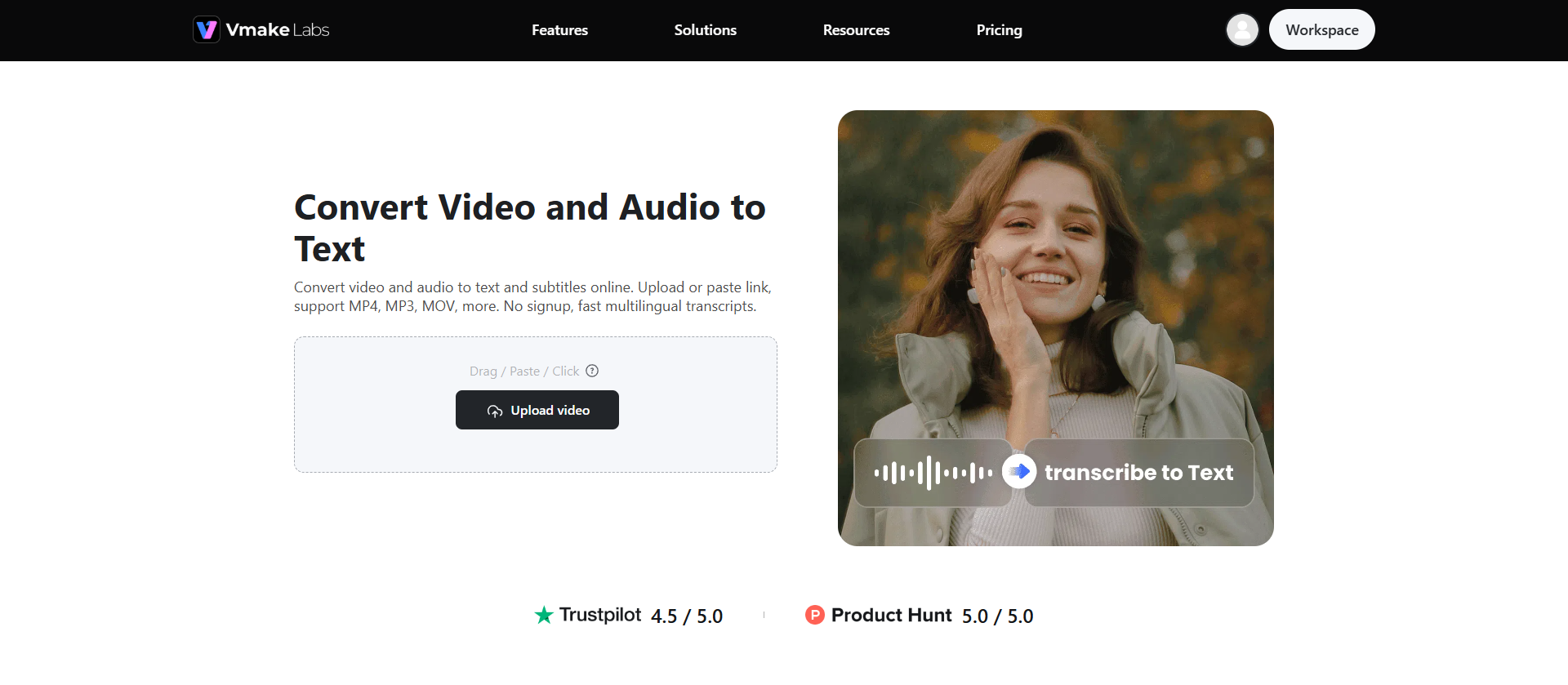
Features of Vmake Labs video and audio to text Tool
-
AI-powered transcription with high accuracy: Leveraging advanced machine learning algorithms, this tool delivers highly precise transcriptions. It easily handles complex vocabulary, diverse accents, and noisy backgrounds, minimizing the need for extensive manual edits.
-
Automatic subtitle and SRT generation: Beyond basic text files, Vmake Labs quickly generates perfectly synced SRT or VTT subtitle files, making it incredibly easy to produce high-quality captions for your social media videos.
-
Wide file format and link compatibility: There is no need to manually convert files first. You can easily upload diverse audio and video formats or simply paste online links directly to extract the text instantly.
-
Broad multilingual support for diverse audiences (Chinese, English, Spanish, Portuguese): Perfect for global creators and businesses, this versatile tool accurately processes and transcribes multiple major languages, breaking down communication barriers and expanding your reach to massive worldwide audiences.
How to use Vmake Labs for audio and video transcription
Step 1: Choose the "Video & audio to text" tool
Access your Vmake Labs account and from the dashboard section, select the "All tools" option. Here, you will need to select the "Video & audio to text" option, which is the option for transcribing audio as well as video files.
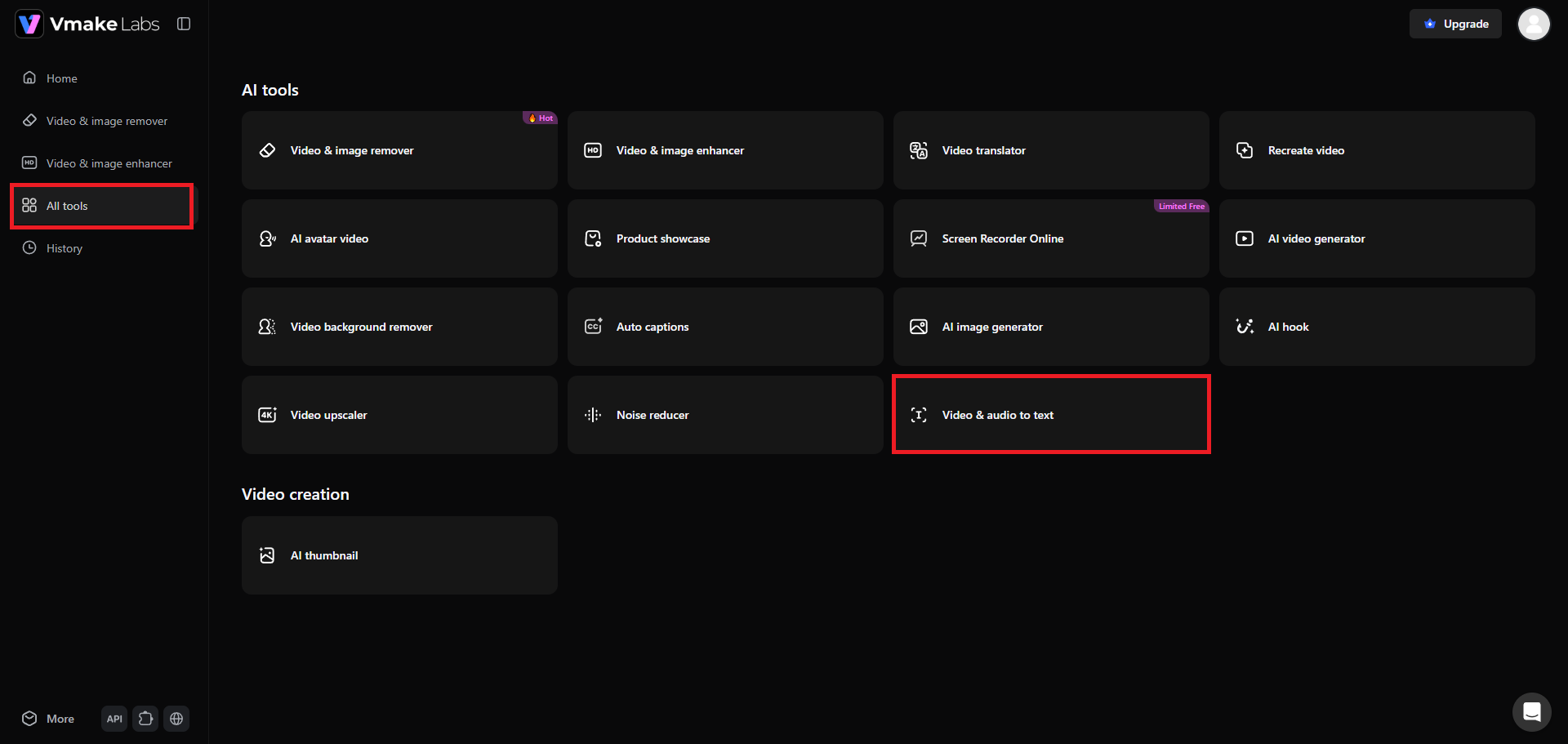
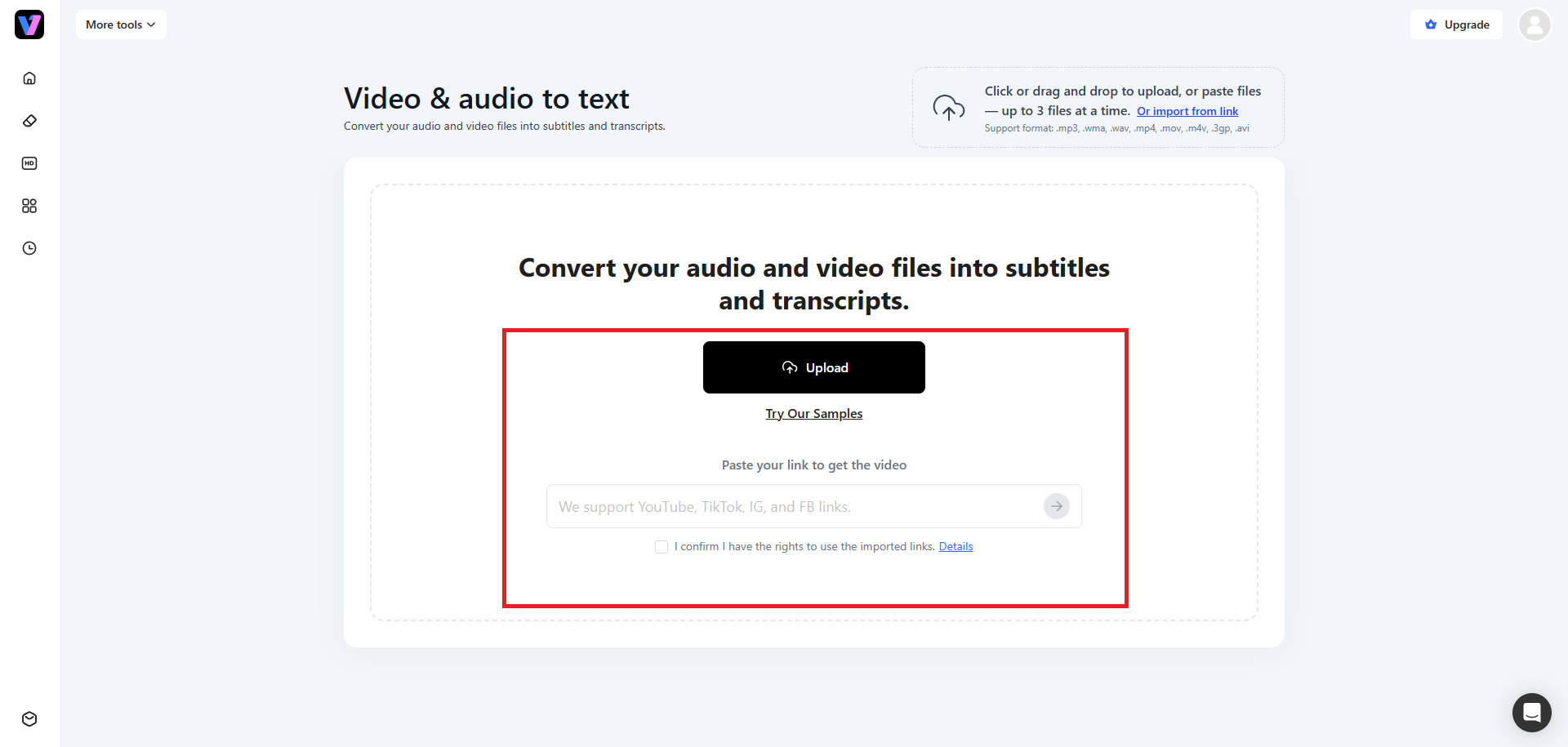
Step 2: Upload your media or paste a weblink
Next, you need to upload your media, be it an audio file or a video file. You can upload up to 3 files at a time. Additionally, Vmake Labs also allow you to import the media by pasting a web link.
Step 3: Select target language and transcribe
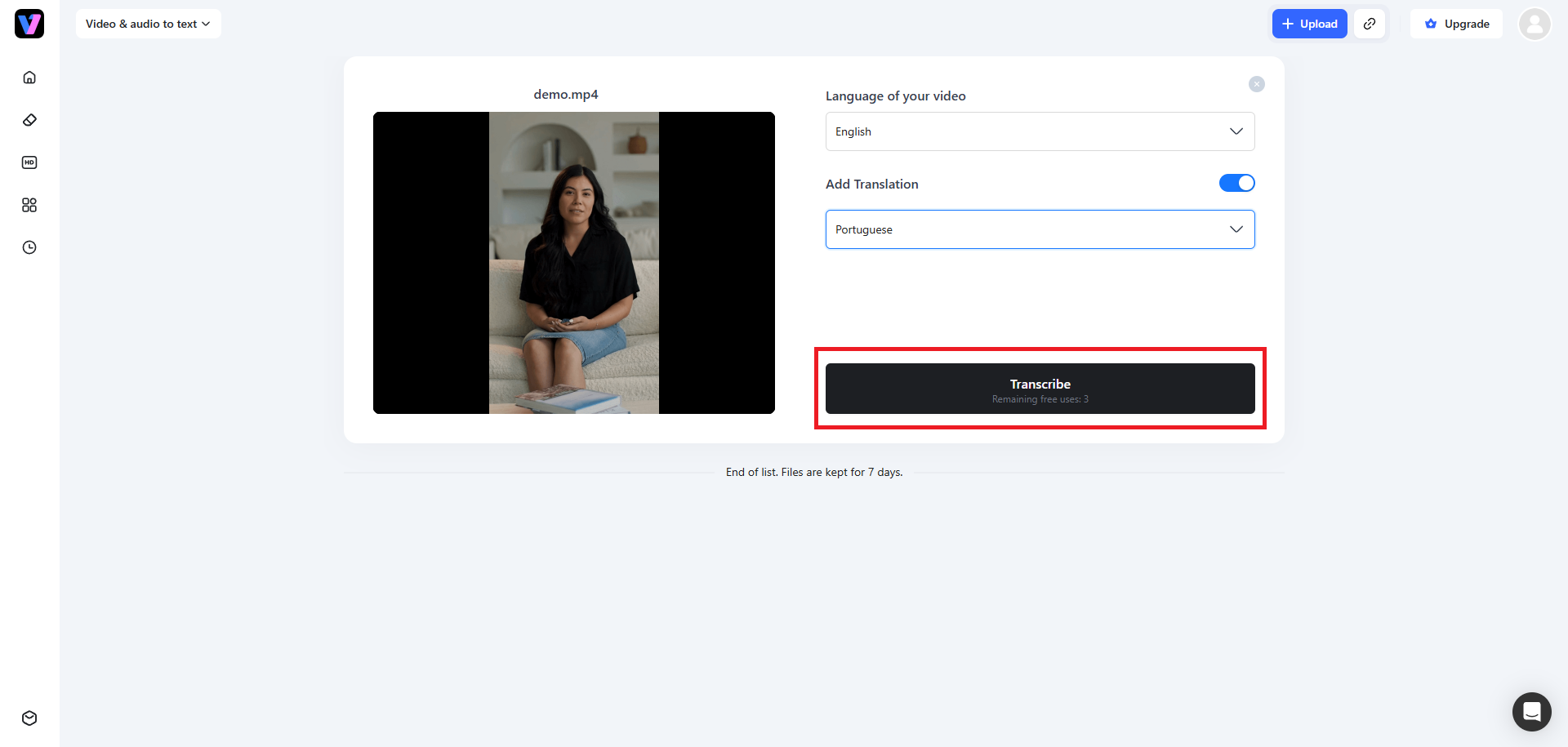
Once Vmake Labs processes your uploaded media, you will need to select your source language (the language the file is in originally) and then the target language you want. Make sure to toggle the "Add Translation" option. After that, click on "Transcribe". Vmake Labs will start the transcription process and once that is completed, you will be able to download your newly translated media.
Tips to follow when using audio to text converter in Microsoft Word
To ensure you get the absolute best results when utilizing Microsoft Word for your transcription tasks, follow these essential tips to maximize transcription accuracy and efficiency.
-
Maintain clear audio quality and minimize background noise
Always use a high-quality external microphone and record in quiet rooms. Minimizing background static helps the transcription algorithm recognize individual words correctly and decreases processing errors significantly.
-
Verify and edit speaker tags in real-time
Edit the speaker labels inside the sidebar as soon as the transcription completes. Doing this immediately prevents confusion later and helps you keep a clean, organized conversational record.
-
Check for supported audio formats (WAV, MP4, M4A, MP3)
Ensure your source files match supported types like MP3, WAV, or M4A before uploading. This step saves you valuable time and prevents frustrating processing errors during upload.
-
Optimize punctuation and paragraph spacing during post-editing
Automated transcriptions often miss nuanced pauses. Always do a quick manual pass to correct sentence structures, add missing punctuation, and divide long walls of text into readable paragraphs.
Conclusion
Converting audio to text is a game-changer for digital productivity, making information easily searchable and highly shareable. Microsoft Word's transcription tool offers an integrated and secure experience for Microsoft 365 subscribers working on standard file types.
However, for users seeking greater flexibility, wider formatting support, and seamless video subtitle creation, Vmake Labs emerges as a superior, highly accessible alternative. By choosing the tool that best aligns with your workflow, you can eliminate tedious manual typing, save countless hours, and focus your energy on what truly matters: creating and analyzing high-quality content.
FAQs
Is the audio-to-text transcription feature in Microsoft Word free?
No, the feature is not entirely free. While basic voice dictation is accessible, uploading pre-recorded files for transcription requires a premium, active Microsoft 365 personal or enterprise subscription.
What are the monthly limits for transcribing audio in Microsoft Word 365?
Microsoft 365 accounts are capped at five hours (300 minutes) of uploaded audio transcription per month. There is currently no option to purchase additional hours once this monthly limit is reached.
Can I use Vmake Labs to transcribe a YouTube or TikTok link directly?
Yes! Unlike Microsoft Word, Vmake Labs allows you to paste public video links from platforms like YouTube or TikTok directly, transcribing the underlying audio file without needing any local downloads.
What audio and video formats does Vmake Labs support for text extraction?
Vmake Labs supports a broad spectrum of popular media formats, including MP3, WAV, M4A, MP4, and MOV, allowing users to extract clean text from almost any file type without prior conversion.
Can Microsoft Word transcribe audio files in languages other than English?
Yes, Microsoft Word supports multilingual transcription. It can convert audio recorded in over 80 different languages and dialects, making it highly useful for global tasks and international teams.

You May Be Interested
How to Download Audio from Instagram: Quick Guide for 2025
How to Transcribe Audio to Text: Efficient Guide