Canva AI Image Generator Review: Is It Worth Using in 2026?
Explore our Canva AI Image Generator review to see how Magic Media performs for AI image creation, image quality, and design workflows, then compare it with Vmake Labs AI Image Generator.

AI image generation has become a valuable addition to modern design workflows, and Canva has joined the trend with Magic Media. In this Canva AI Image Generator review, we'll examine its features, usability, image quality, pricing, and overall performance while comparing it with Vmake Labs AI Image Generator.
Exploring Canva AI Image Generator and its creative capabilities
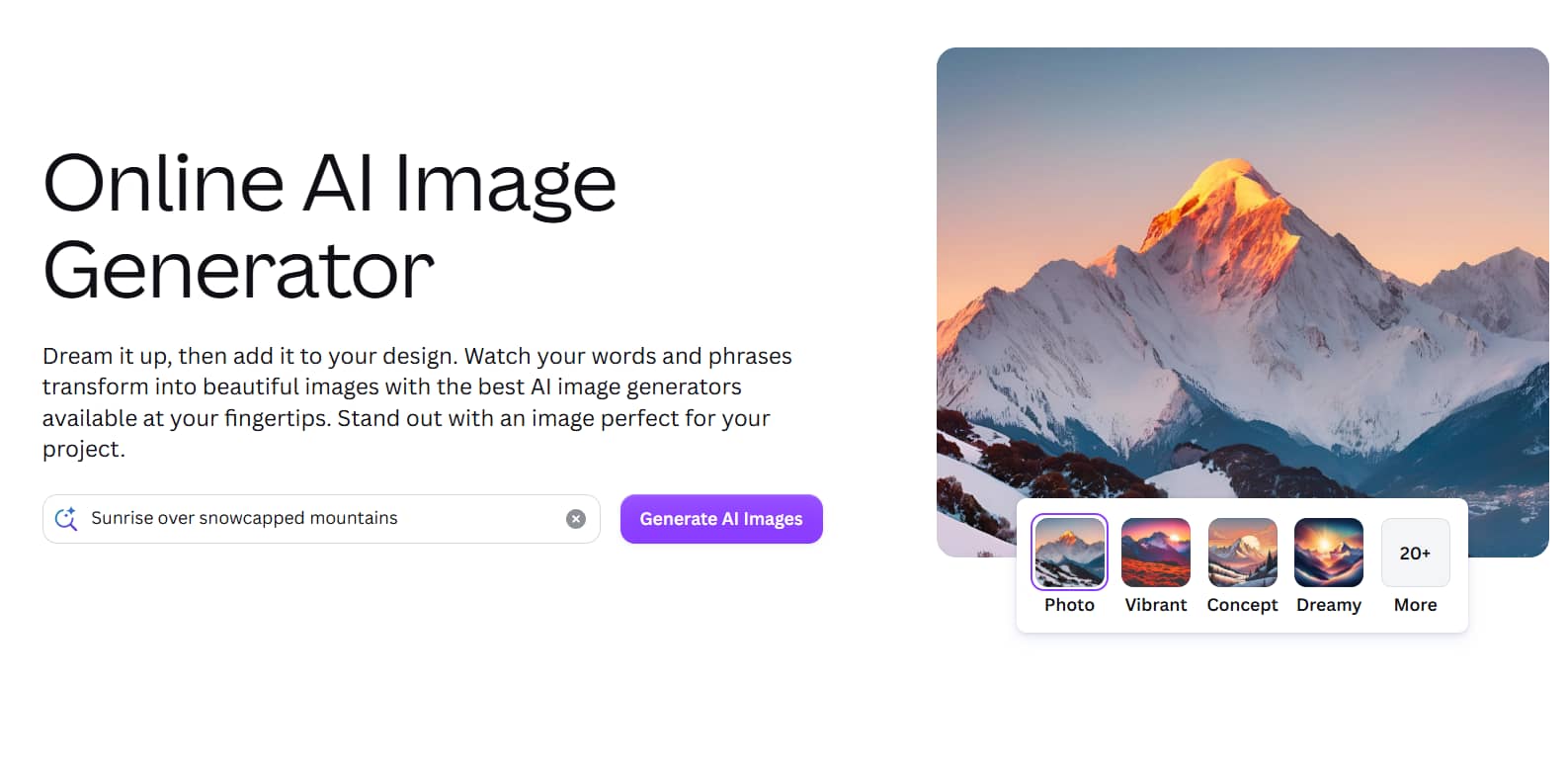
Canva's goal is to democratize AI image generation for everyday users. It emphasizes speed, ease-of-use, and seamless integration with its design platform over advanced prompt controls.
-
Canva Magic Media AI image generator: Magic Media converts text prompts into AI-generated images directly inside Canva. Since it is built into the editor, users can generate visuals and continue designing without switching between different applications.
-
Text-to-image generation: During testing, Canva interpreted simple prompts accurately and generated multiple image variations within seconds. More detailed or photorealistic prompts occasionally required several revisions to achieve the desired result, but overall it performed well for everyday creative tasks.
-
Multiple artistic styles: We tested several preset styles, including anime, watercolor, and digital art. The presets produced visually distinct results without requiring prompt adjustments, although some styles offered less control than dedicated AI image generators. Overall, the built-in styles make it easy for beginners to explore different creative looks.
-
AI-powered editing tools: Magic Edit and Magic Expand integrated smoothly with AI-generated images, making it easy to refine backgrounds and adjust compositions without leaving the Canva editor. While the editing tools worked well for simple adjustments, more complex edits were sometimes less precise than specialised AI editors.
-
Flexible design workflow: Images could be inserted directly into presentations, social posts, and marketing materials without exporting or re-uploading files. This streamlined workflow saved time and was one of Canva's biggest advantages during testing, particularly for users already working within the Canva ecosystem.
Who should use Canva's AI image generator?
Canva's simple interface makes it available to users with different levels of design experience. It's particularly useful for people who want quick AI-generated visuals without learning professional image generation software.
-
Social media creators creating posts, stories, and promotional graphics.
-
Small businesses designing advertisements, flyers, and branded content.
-
Marketing teams producing campaign assets and presentation visuals.
-
Content creators designing blog graphics, YouTube thumbnails, and digital content.
Using Canva AI Image Generator from prompt to final design
Creating images in Canva with AI is just a few steps away. It makes it easy to go from text prompt to finished design, without any technical knowledge or the need for separate image editing software.
Step 1: Open Canva and access AI Image Generator
Open Canva and either create a new design or edit an existing one. Navigate to Magic Media from the editor to launch Canva's AI Image Generator and access the prompt panel.
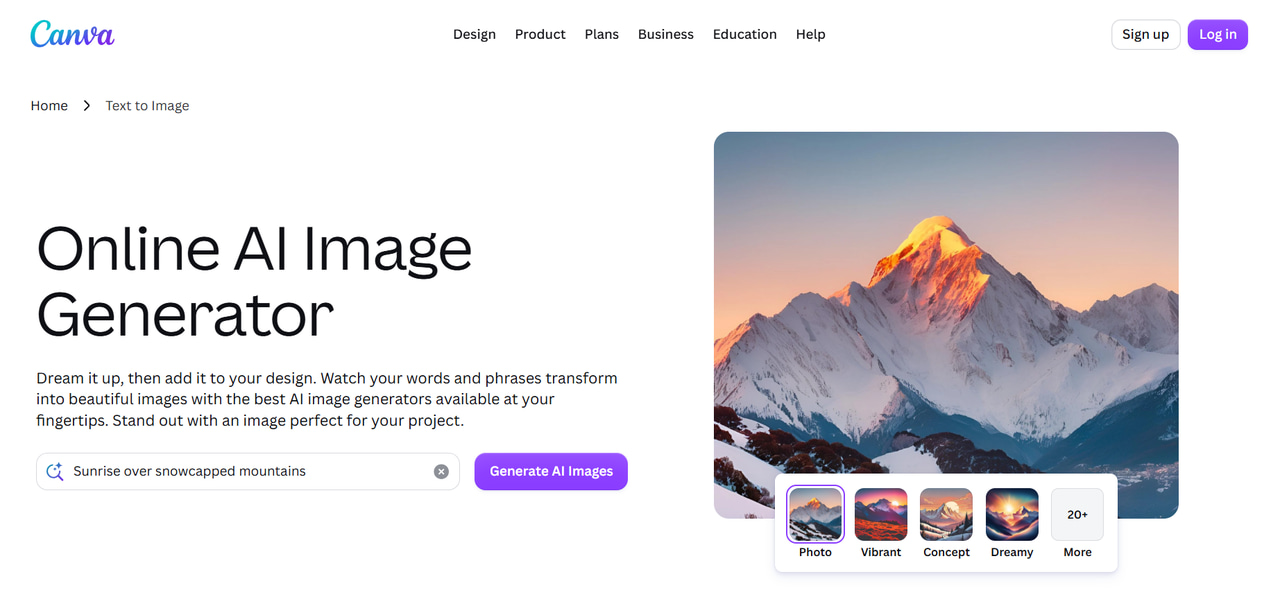
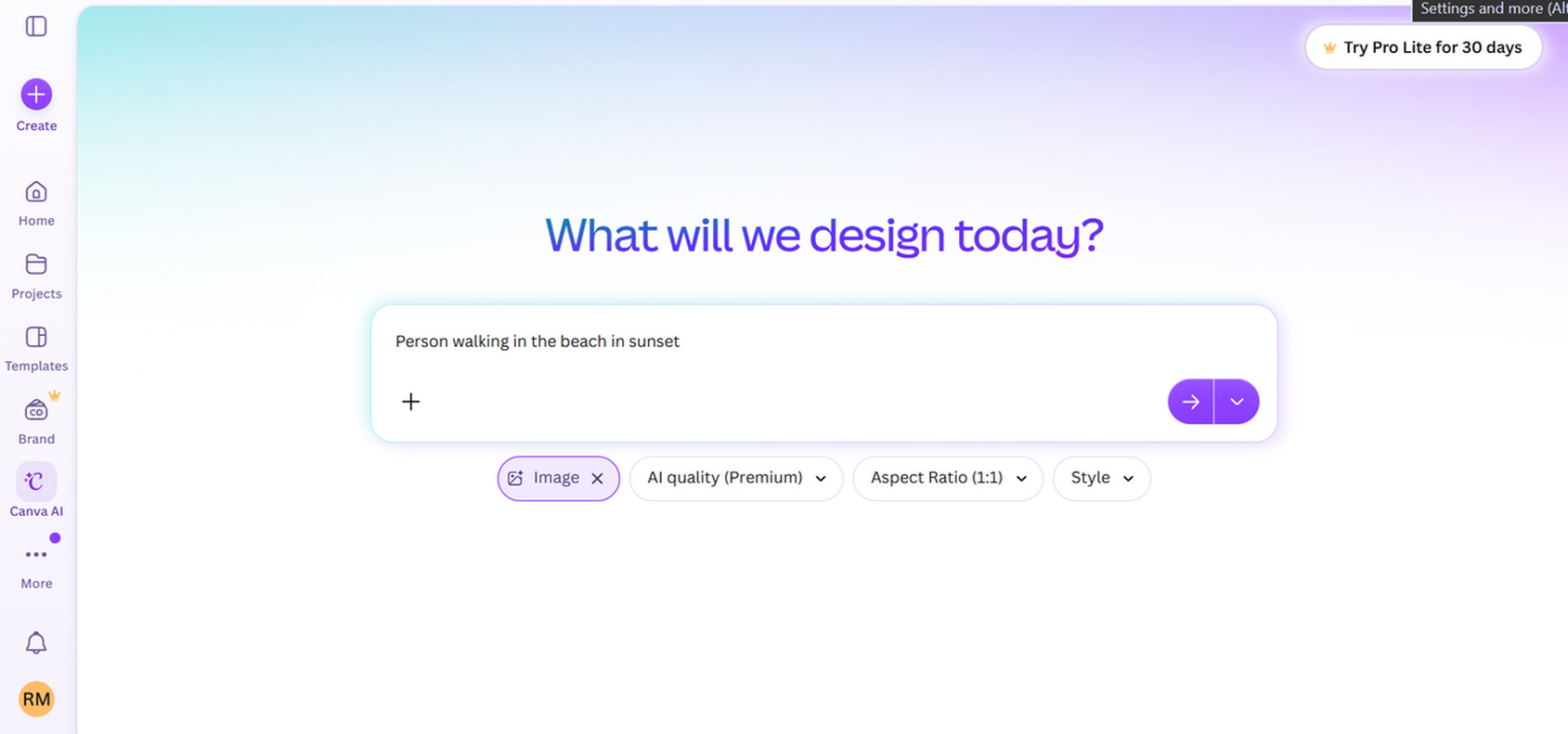
Step 2: Enter your text prompt and choose preferences,and then click Generate
Describe the image you would like to create, then choose your favorite art style and aspect ratio. Read your prompt and click the Generate button to create some variations of the AI image.
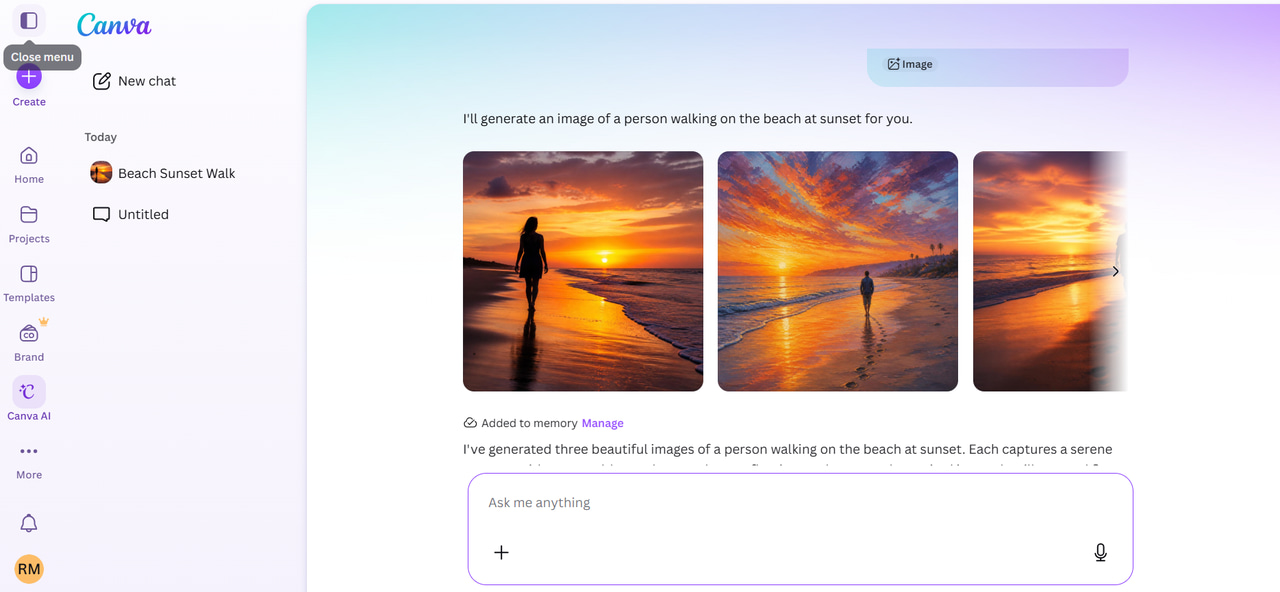
Step 3: Edit and add the image to your Canva project
Choose the AI-generated image that best matches your idea and insert it into your design. You can continue editing with Canva's tools, including text, templates, Magic Edit, and Magic Expand.
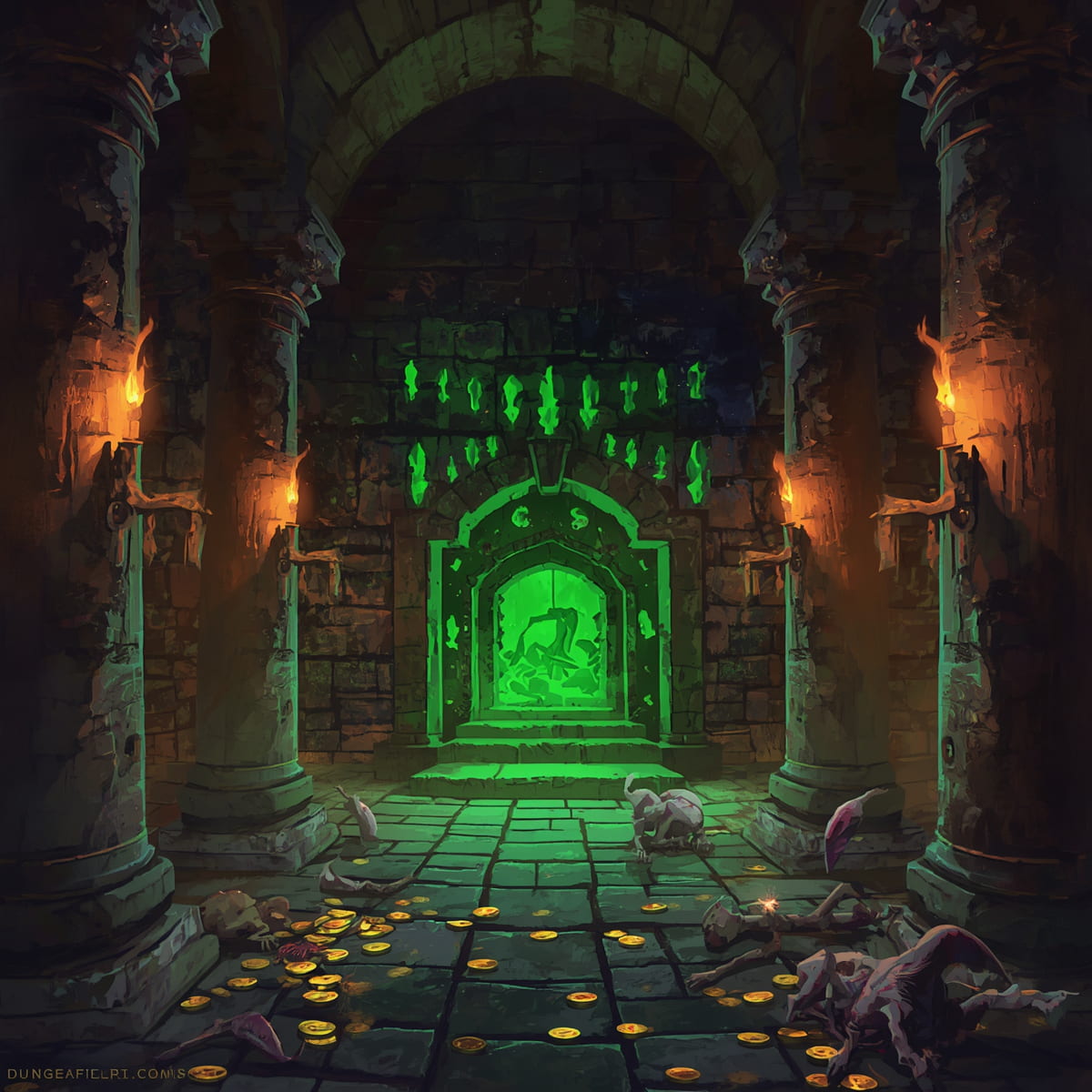
Test results
Fantasy image
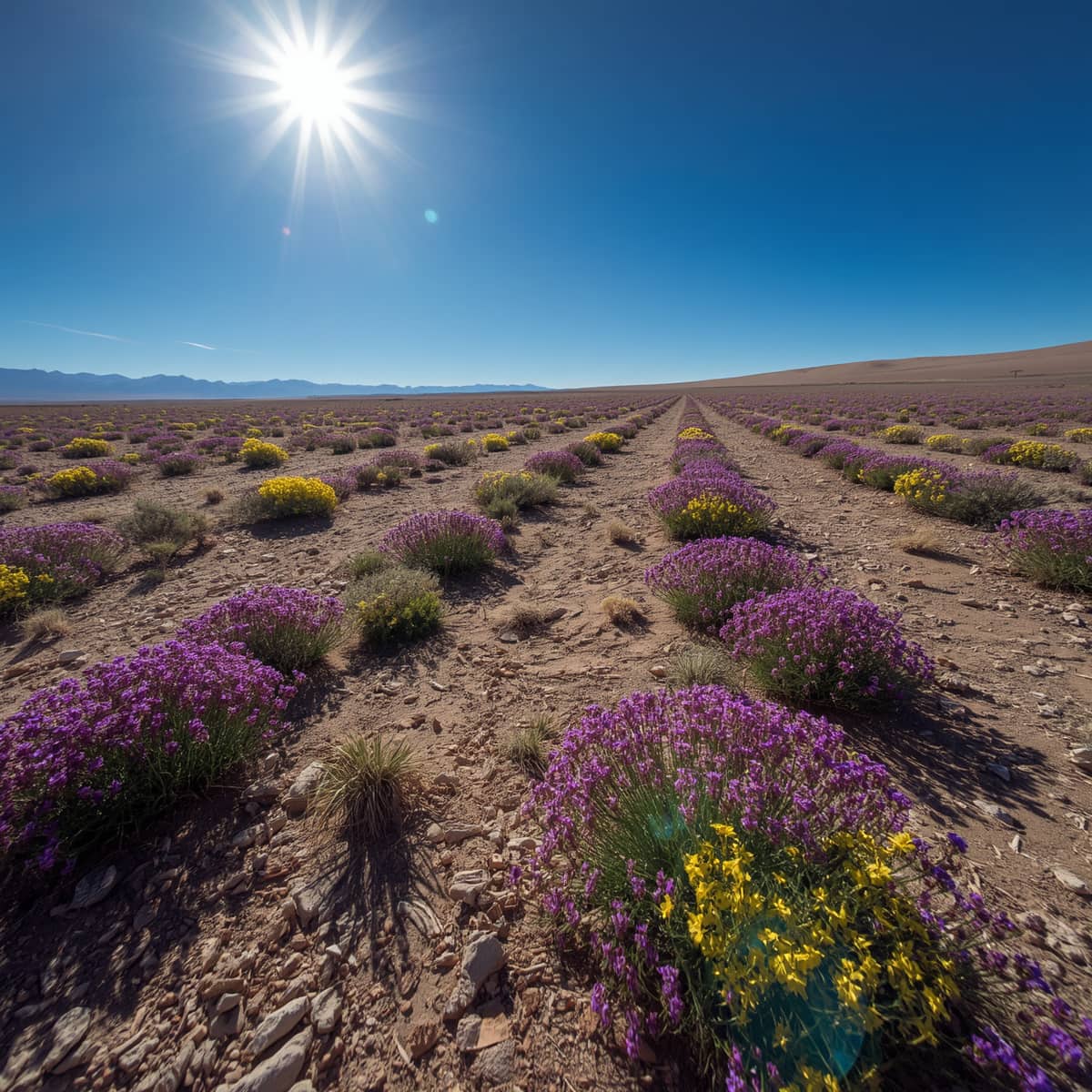
Realistic image
What Canva does well
-
Fast image generation
Most prompts generated multiple image variations within a few seconds, and performance remained consistent across illustrations and marketing graphics.
Why it matters: Faster ideation for presentations, blogs, and social media.
-
Seamless design workflow
Generated images appeared directly inside the Canva editor, allowing further editing with templates, Magic Edit, and Magic Expand without switching between applications.
Why it matters: Reduces editing time and keeps the entire creative workflow in one place.
-
Beginner-friendly image creation
Preset artistic styles and a straightforward prompt interface made it easy to generate attractive visuals without advanced prompt-writing skills.
Why it matters: Makes AI image generation accessible for beginners, educators, and small teams.
Where Canva could improve
-
Prompt customization is limited
Canva offers fewer prompt controls than dedicated AI image generators, with no support for negative prompts or detailed composition guidance. During testing, this made it more difficult to fine-tune complex scenes and maintain consistent characters across multiple generations.
Impact: Complex creative ideas often require multiple prompt revisions.
-
Photorealistic output varies
Realistic portraits and detailed product images often required multiple generations before producing satisfactory results, particularly when prompts included intricate details or lighting.
Impact: Additional regeneration may be needed for commercial-quality visuals.
-
Free plan restrictions
The free plan includes limited AI image generation credits, reducing the amount of experimentation users can do before reaching the usage limit.
Impact: Frequent creators may need to upgrade to maintain a smooth workflow.
Pricing and plans
|
Plan |
Pricing |
AI image generation |
Best for |
|---|---|---|---|
|
Canva Free |
Free / $0 |
Limited AI image generation credits and Magic Media access (~50 uses/month) |
Beginners and occasional users |
|
Canva Pro |
$15/month or $120/year ($10/mo billed annually) |
More AI credits (~500/month) with access to premium Magic Studio features |
Content creators, marketers, and professionals |
|
Canva Teams / Business |
$10/user/month billed annually ($100/user/yr) or $13–$15/user/month (min. 3 seats) |
Team collaboration, shared AI features, higher limits, and centralized management |
Businesses and collaborative design teams |
Canva AI Image Generator review based on real-world testing
We assessed Canva AI Image Generator on popular creative jobs including marketing graphics, product images, blog drawings, and concept art to see how it performs beyond its feature list. To find recurring advantages and disadvantages, we also took into account user experiences posted on YouTube, Reddit, and independent review websites.
Image quality across different use cases
For regular creative tasks like social media material, blog illustrations, and marketing graphics, Canva AI Image Generator is excellent. The product is particularly helpful for users who need visuals without spending a lot of time editing because the photos are produced rapidly and mix in well with Canva's designs. Using its predefined artistic styles, it also produces visually appealing concept art and stylistic illustrations.
More complex prompts or photorealistic scenes yield less reliable results. Product mockups may not have the exact detail you need for e-commerce listings, but are often useful for presentations. Likewise, really realistic portraits or complicated surroundings may take several generations to get a good outcome.
User experience and overall performance
One of Canva's biggest assets is its smooth, user-friendly workflow. With AI image generation built into the Canva editor, you can generate an image and continue designing without exporting or importing files. User-friendly interface and preset styles make it easy for new users to create attractive visuals with very little effort.
It is generally fast, with most images created in a matter of seconds. Exporting designs is just as easy. AI-generated images are instantly added to the project. The experience is consistent and easy to use for everyday design work on any platform, desktop or mobile.
What users are saying
Summarize feedback from:
-
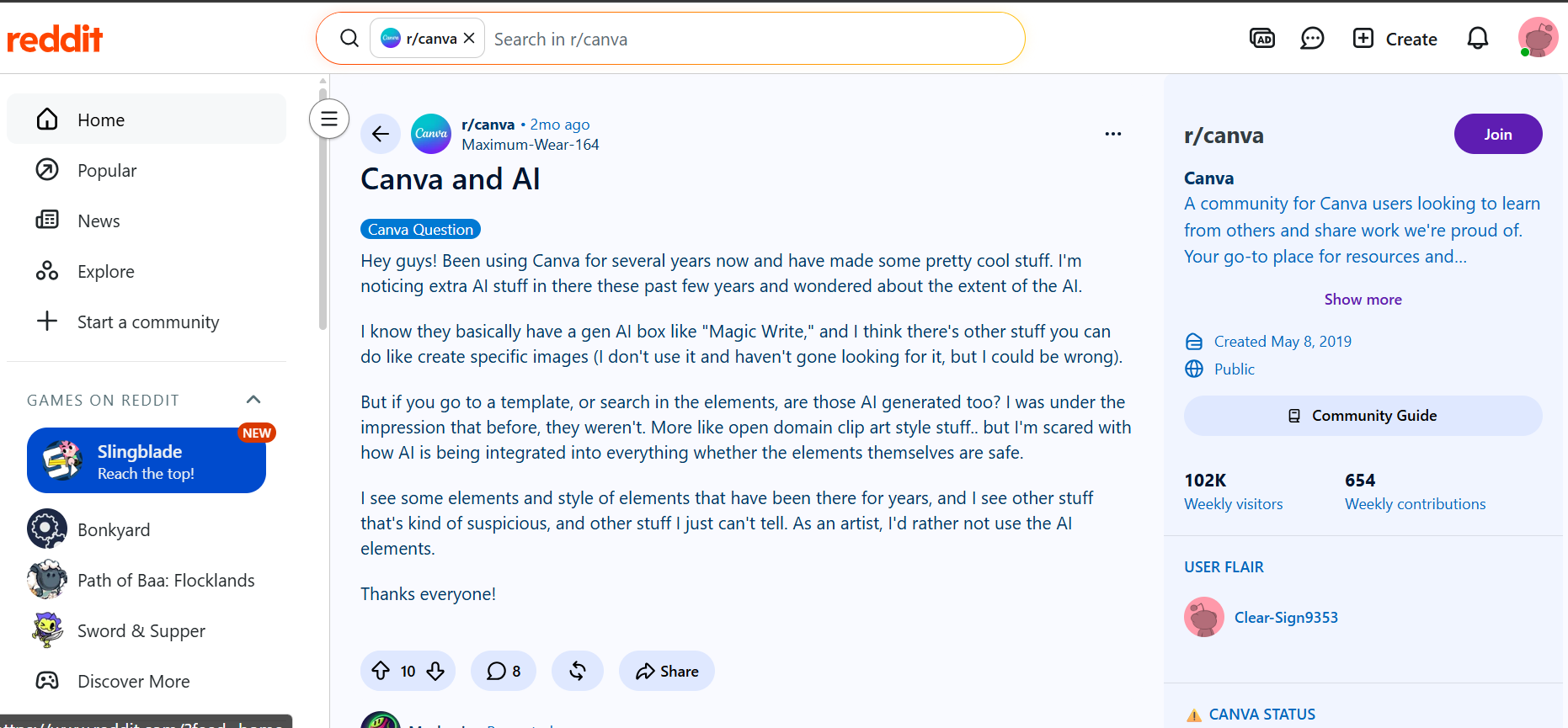
Reddit discussions: Reddit users generally appreciate Canva's AI tools for their convenience and seamless integration into the platform. However, some discussions question how AI-generated elements are identified and express a desire for more transparency and creative control as Canva continues expanding its AI capabilities.
-
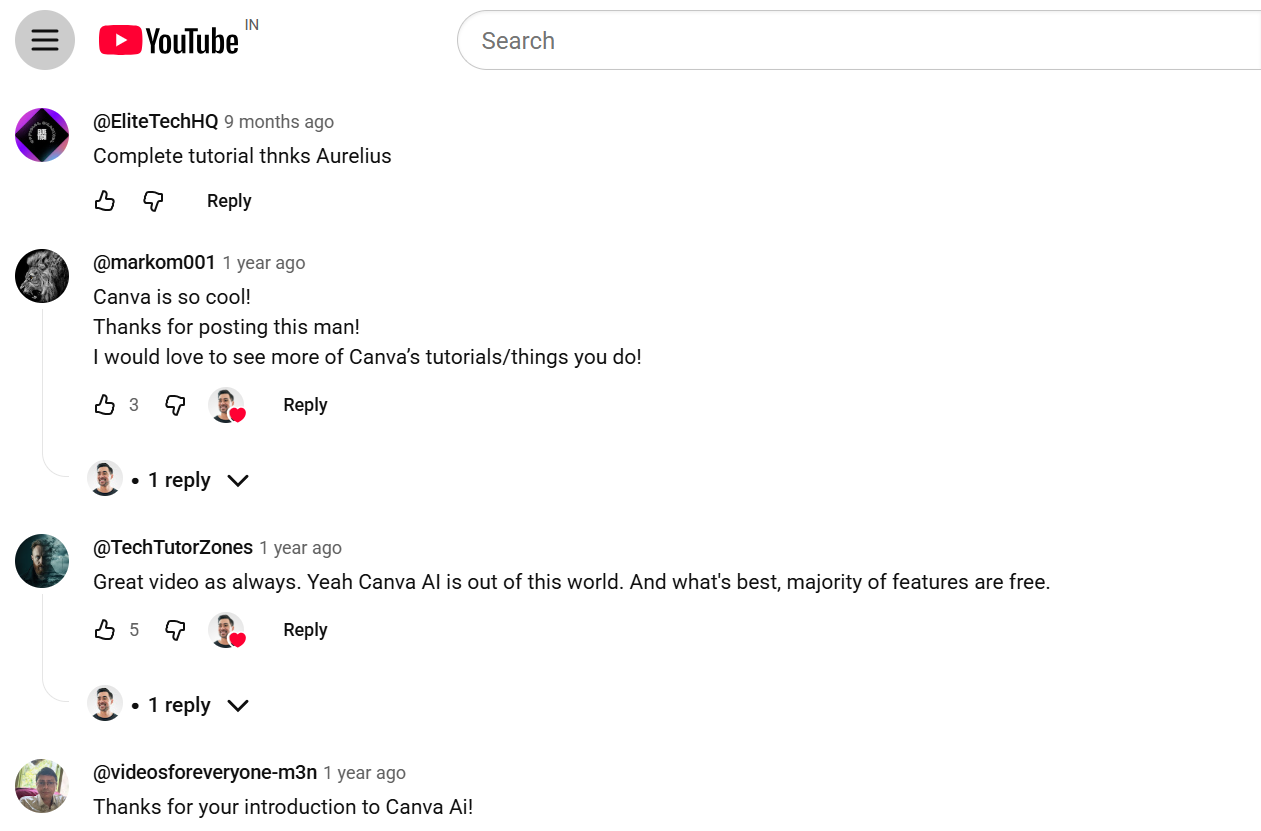
YouTube reviews: YouTube reviewers and viewers highlight Canva AI's ease of use and beginner-friendly workflow. Many comments praise how quickly users can create visuals and appreciate that several AI-powered features are available even without extensive design experience.
Editorial review
Look, Canva is tough to beat if you just need to whip up a quick graphic and want everything in one dashboard. But if you're trying to push the boundaries with hyper-realistic product shots or highly detailed assets, its built-in AI can start to feel a bit too basic. When you reach the point where you need deeper creative control and flawless image quality over pure convenience, transitioning to a dedicated powerhouse like Vmake Labs is usually the smartest move. Let's meet this alternative.
Robust alternative: Create high-quality AI images with Vmake Labs
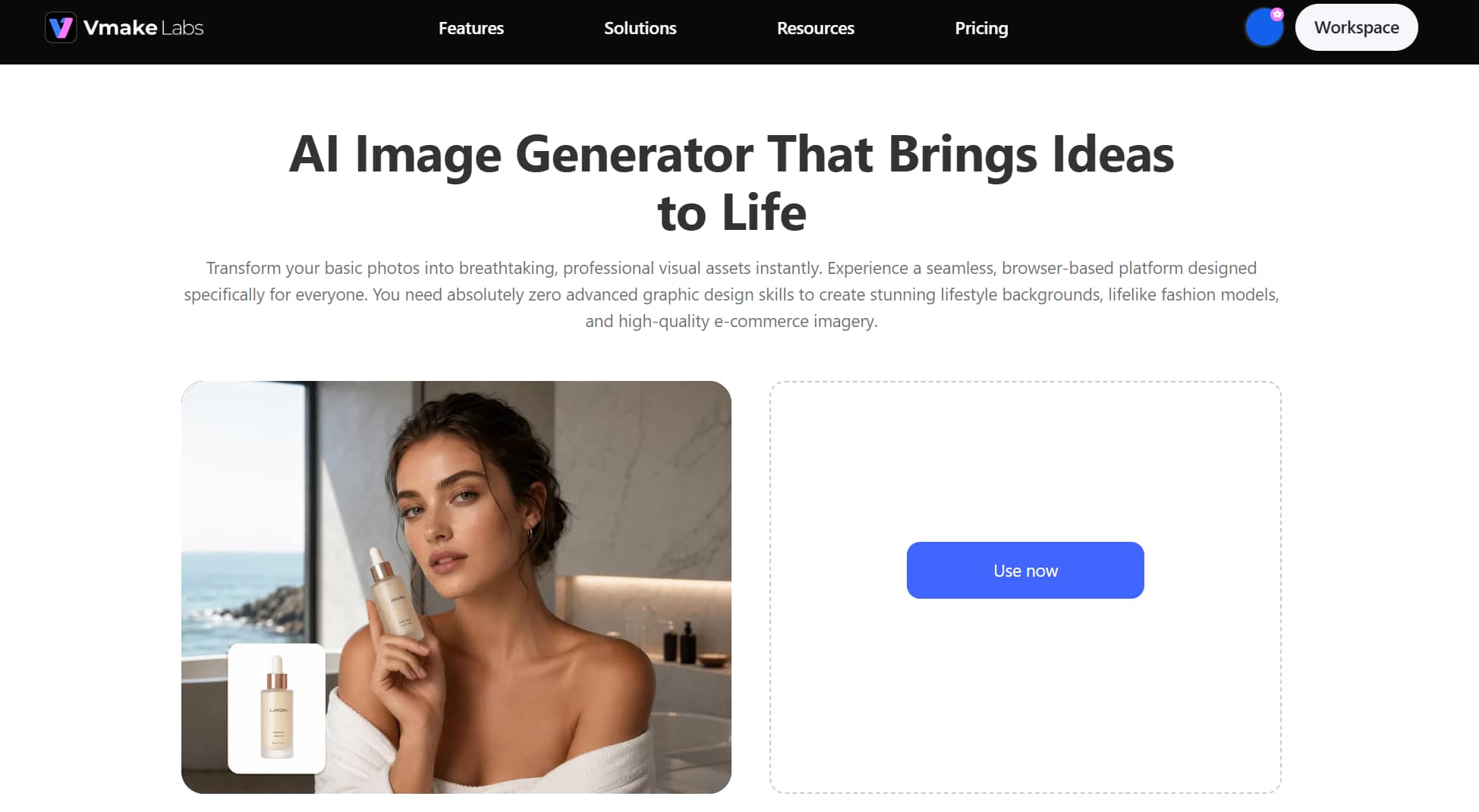
If you want more creative liberty than what Canva offers, Vmake Labs AI Image Generator is a good alternative. It supports text-to-image and image-to-image generation, gives access to multiple AI models, and offers more customization options to create marketing visuals, product images, and creative artwork. If your AI-generated image needs additional refinement, Vmake Labs also offers tools like Image Enhancer, Unblur Image, AI Image Fixer, and Photo Restoration to improve clarity and restore details.
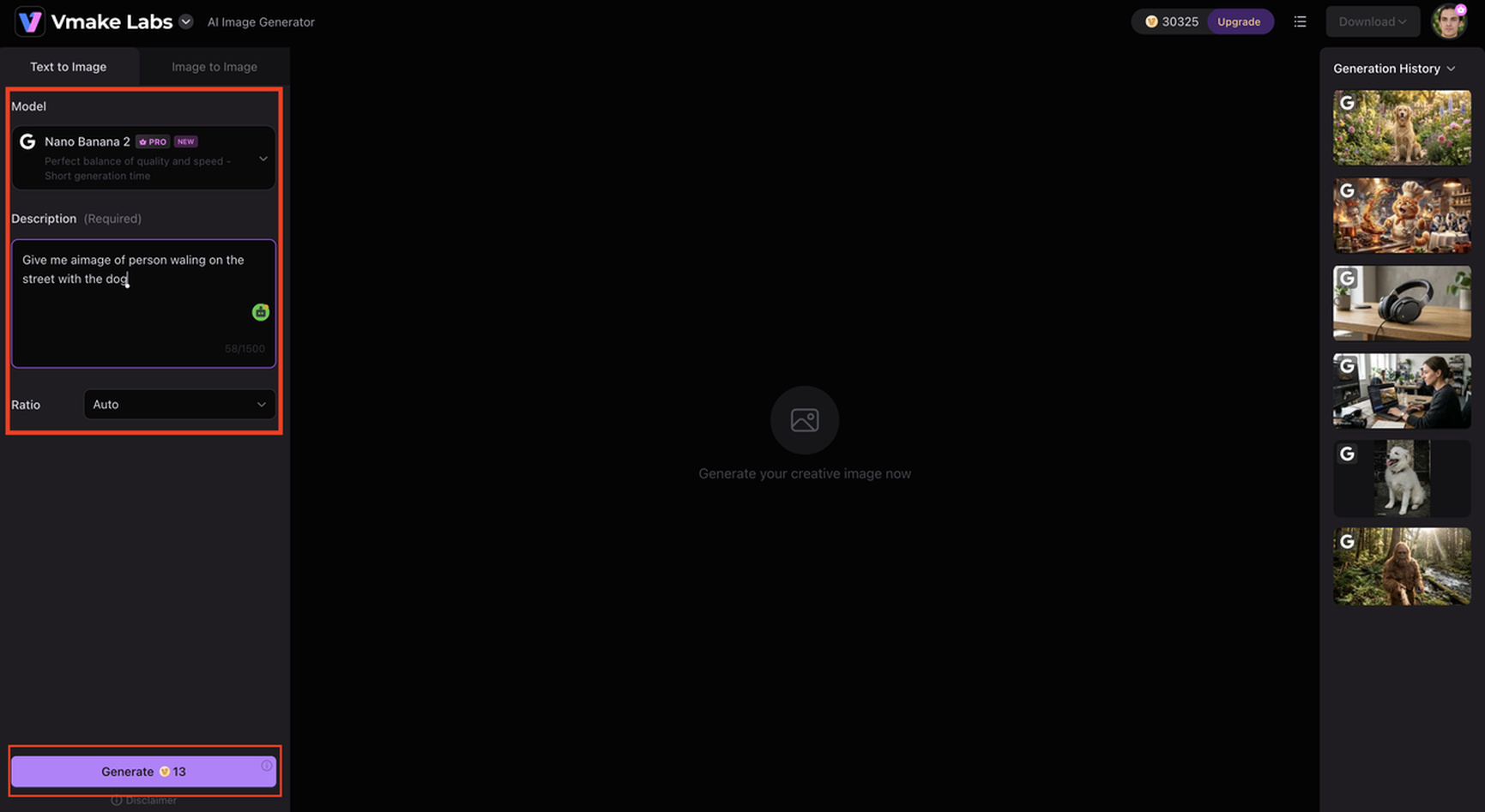
Step 1: Enter a text prompt or upload a reference image
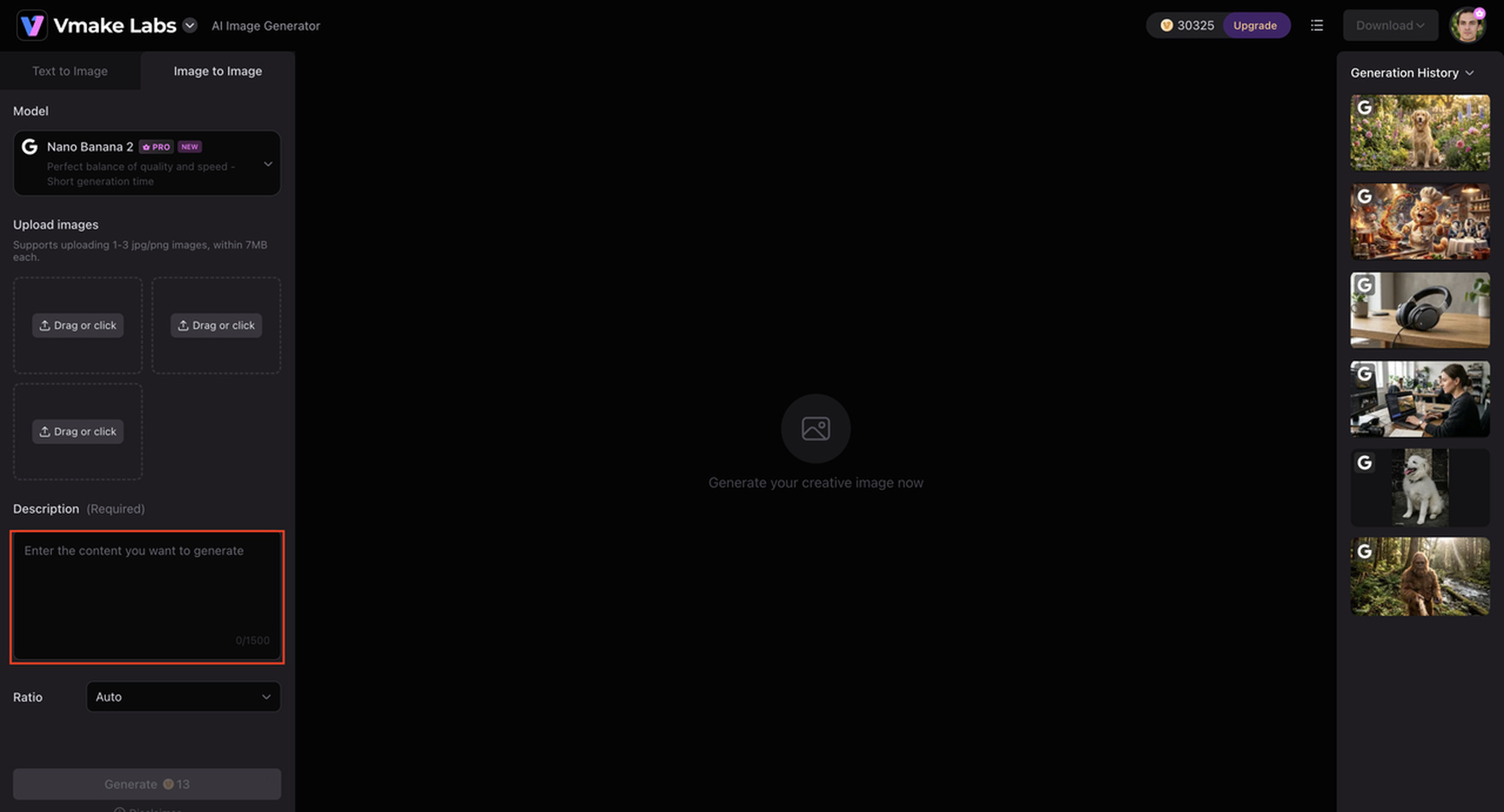
Describe the image you want to create or upload a reference image to guide the AI. This makes it easy to generate original artwork or create new variations based on an existing visual.
Step 2: Select your preferred AI model, style, aspect ratio, and generation settings
Choose the AI model and adjust settings such as artistic style, aspect ratio, and other generation preferences. These controls help produce images that better match your creative vision.
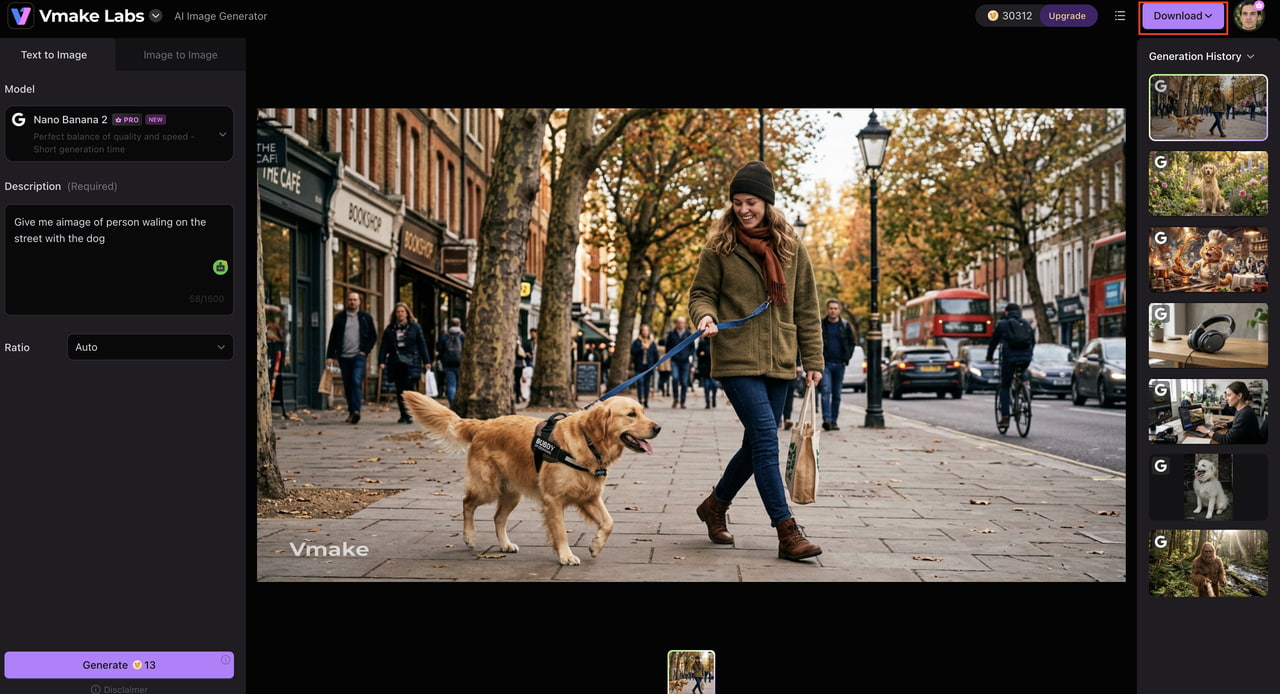
Step 3: Preview and download high-resolution AI images
Look through the variations of the generated image and pick the one that works best for your project. When you're happy, download the finished image in high-res for marketing, ecommerce, social media, or personal use.
Why choose Vmake Labs AI Image Generator
Vmake Labs AI Image Generator offers more creative flexibility than Canva, making it a suitable choice for users who need higher-quality AI images and greater control over the generation process.
-
Text-to-image and image-to-image generation: Create original AI images from text prompts or upload a reference image to generate new variations, making it easier to develop ideas and maintain a consistent visual style across projects.
-
Multiple AI models and artistic styles: Choose from a range of AI models and visual styles to create photorealistic images, illustrations, concept art, and marketing visuals, allowing you to select the best model for each creative task.
-
Customizable generation settings: Adjust aspect ratios and other generation preferences to create images optimized for social media, websites, presentations, and advertising, reducing the need for manual resizing or editing.
-
High-resolution image output: Download detailed, high-quality images suitable for commercial projects, ecommerce listings, and professional creative work, helping you produce assets that are ready to use.
-
Fast cloud-based workflow: Generate, preview, and download AI images directly from your browser without installing software, enabling faster content creation from any device.
-
Beginner-friendly interface: Navigate a clean, intuitive interface that simplifies AI image generation, allowing both beginners and experienced creators to produce high-quality visuals with minimal effort.
Canva AI Image Generator vs Vmake Labs AI Image Generator
Canva AI Image Generator and Vmake Labs AI Image Generator are both AI-powered tools that generate images from text prompts, but they are designed for different creative requirements. Canva is all about making it easier to create images as part of the design platform, while Vmake Labs is all about having a dedicated experience for AI image generation with more customization and higher quality images for professional projects.
|
Feature |
Canva AI Image Generator |
Vmake Labs AI Image Generator |
|---|---|---|
|
Primary purpose |
AI images inside Canva designs |
Dedicated AI image creation |
|
Text-to-image |
Yes |
Yes |
|
Image-to-image |
Limited |
Yes |
|
Prompt flexibility |
Basic |
Advanced |
|
Style selection |
Multiple preset styles |
Multiple creative and realistic styles |
|
Design editor |
Built into Canva |
Standalone AI generation workflow |
|
Image quality |
Good for everyday designs |
Optimized for high-quality AI artwork |
|
Best for |
Presentations, social media, quick graphics |
Marketing assets, creative artwork, product visuals, AI illustrations |
If you already use Canva for presentations and social media content, its AI image generator offers a convenient way to create visuals without leaving the editor.
However, if your priority is generating higher-quality AI images with greater control over styles and outputs, Vmake Labs AI Image Generator is the better option. Its dedicated workflow and flexible generation settings make it better suited for professional creators, marketers, and ecommerce businesses.
Conclusion
The Canva AI Image Generator is a good choice for beginners and regular creators who want to generate AI images in an easy-to-use design platform. It's great for creating marketing graphics, presentations, and social media visuals with minimal effort. However, for users who need more advanced prompt controls, consistent photorealistic output, or more creative freedom, the tool's capabilities may be limiting. If you care about those features, Vmake Labs AI Image Generator is a good option to look into as a dedicated alternative that offers more customization and higher-quality outputs for professional creative projects.
Frequently asked questions
1. How does Canva AI Image Generator work?
Canva's AI Image Generator uses Magic Media to turn text prompts into images created by AI. Just type in a prompt, choose a style if you want to, and Canva produces a few variations of images that you can then add right to your design and edit further.
2. Is Canva AI Image Generator free to use?
Yes, the free plan of Canva has limited AI image generation. If you regularly create AI-generated images, upgrading to Canva Pro gives you more AI credits and premium features. For more advanced image generation, users can also try dedicated tools, such as Vmake Labs AI Image Generator.
3. What is Canva Magic Media AI Image Generator?
Canva has an AI creation tool called Magic Media that generates images from text prompts. It also works in tandem with features like Magic Edit and Magic Expand, making it easy to create and tweak visuals within the Canva editor without going back and forth between platforms.
4. Can Canva AI generate realistic images?
Canva can generate realistic images for a wide range of everyday use cases, but the quality is prompt-dependent. More complex or photorealistic requests might take a few attempts. If you want consistent high-resolution realism, then dedicated AI image generators like Vmake Labs AI Image Generator give you more control and more polished results.
5. What is the difference between Canva AI Image Generator and Vmake Labs AI Image Generator?
Canva AI Image Generator is designed for users who want to create images as part of their Canva design workflow. Vmake Labs AI Image Generator is a dedicated AI image creation platform that supports both text-to-image and image-to-image generation, offers more customization options, and is better suited for creating high-quality marketing visuals, product images, and professional creative assets.

You May Be Interested
Canva Video Enhancer Review [2026]: Pros, Cons, and Pricing

Canva AI Video Generator Review: A Complete Hands-On Test
Canva Audio to Text Converter: Complete Guide & AI Alternative
Canva Image Enhancer Review: A Complete Hands-On Test
Canva Video 2.0 vs Vmake: Best Editor Alternative 2025