How to Unblur a Photo on iPhone: The Ultimate 2026 Guide
Learn how to unblur a photo on iPhone with built-in editing tools, desktop software, and Vmake Labs AI. Restore blurry portraits, selfies, and photos in just a few simple steps.

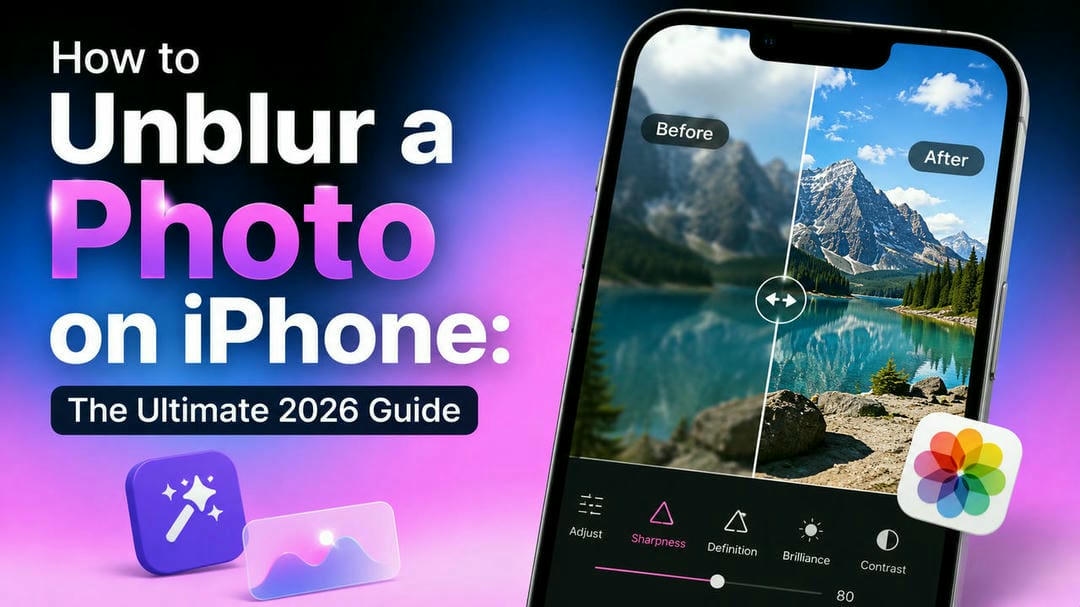
A blurry picture can make a great moment seem like it wasn't worth it. There are good ways to fix blurry photos that are caused by camera shaking, bad lighting, or problems with the focus. This guide shows you how to fix blurry photos on your iPhone using the camera's built-in tools and AI improvements to make them look better.
Things to know before unblurring a photo
Before you learn how to fix a blurry iPhone photo, it's helpful to know why photos get blurry in the first place and what editing can really do. A little blur from camera shake, focus mistakes, or bad lighting can usually be fixed with sharpening tools, and AI enhancement can bring out more details in photos that are only slightly blurry. Images with a lot of motion fuzz or heavy compression, on the other hand, might not get much better.
How to unblur a photo on iPhone
The built-in Photos app has a few editing tools that can help you fix slightly blurry images without downloading any other software. It can't be magic information that wasn't there in the first place, but a bit of finesse around sharpness, definition, and noise reduction can make a huge difference to many everyday photos. If you are wondering how to unblur a photo on iPhone, here is the quickest method to try before you move on to AI-powered solutions.
Step 1: Open the blurry photo in Photos
Open the Photos app on your iPhone, then find the picture you want to improve. Tap the photo, then tap Edit in the upper-right corner to bring up the built-in editing tools.
Step 2: Slide the bar
Swipe through the editing controls until you find Sharpness, Definition, and Noise Reduction. Increase Sharpness and Definition gradually to improve image clarity, then fine-tune Noise Reduction to reduce grain while maintaining details. If you're editing a Portrait mode photo on a supported iPhone, you can also adjust the focus point or depth effect for a sharper-looking subject.
Step 3: Save the edited photo
Once you're satisfied with the adjustments, compare the edited version with the original to ensure the improvements look natural. Tap Done to save your changes. If you've duplicated the photo beforehand, you'll have both the original and enhanced versions available.
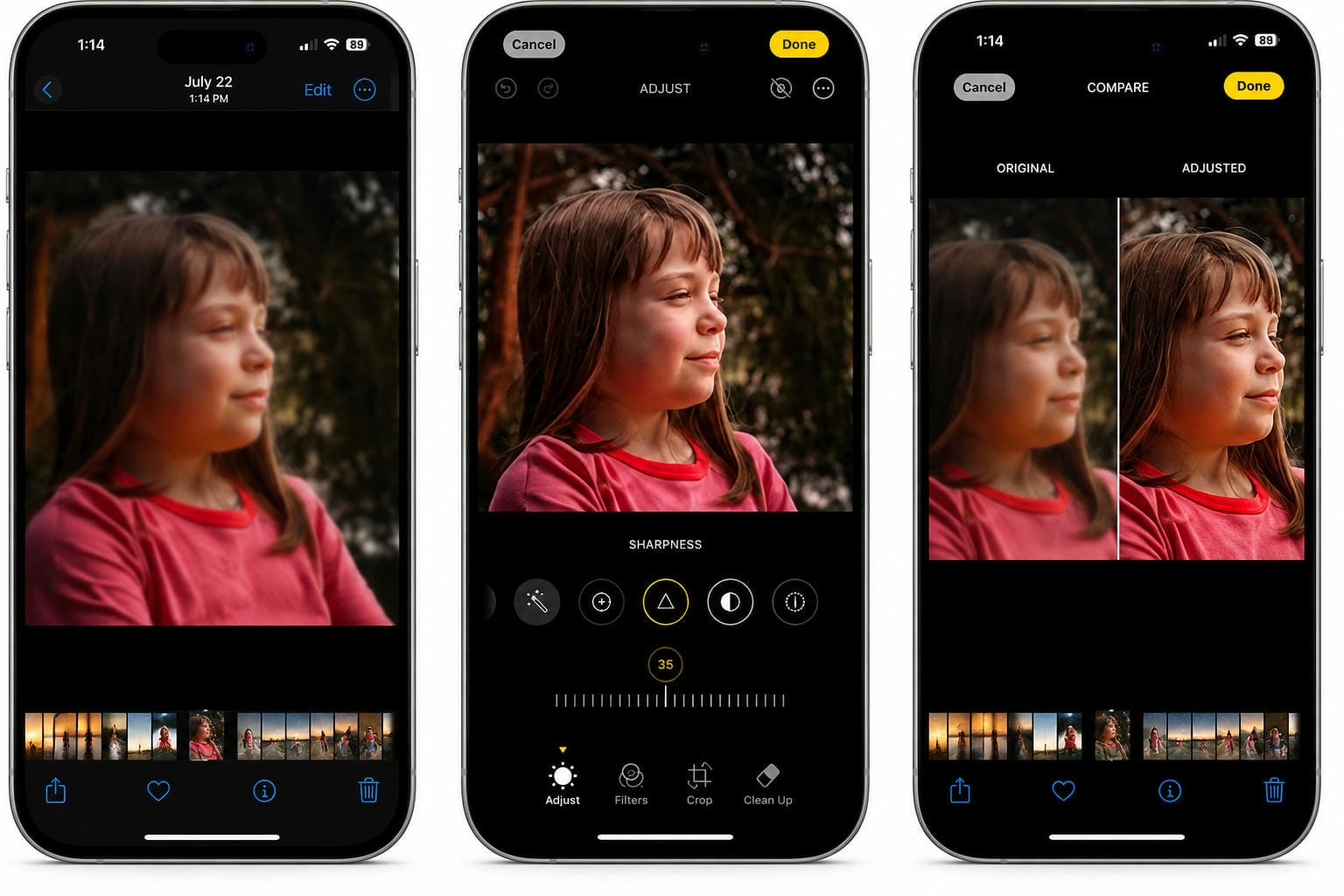
Photos app is often very good for minor "soft focus" or "camera shake" blur. However, it's not very good at dealing with heavily blurred portraits, low-light photos, or images with significant motion blur. In these cases, AI enhancement can provide much better results by intelligently restoring details rather than just increasing sharpness. In the next section, you will learn how to unblur images on iPhone with Vmake Labs Image Enhancer.
Why use AI instead of traditional sharpening?
Traditional sharpening only increases edge contrast to make a photo appear clearer, but it cannot restore details that weren't captured in the original image. AI enhancement analyzes the entire photo to intelligently reconstruct textures, improve facial features, and reduce noise for more natural-looking results. This makes AI especially effective for portraits, old photos, and images taken in low-light conditions where standard sharpening often falls short.
How to unblur an image on iPhone with Vmake Labs Image Enhancer
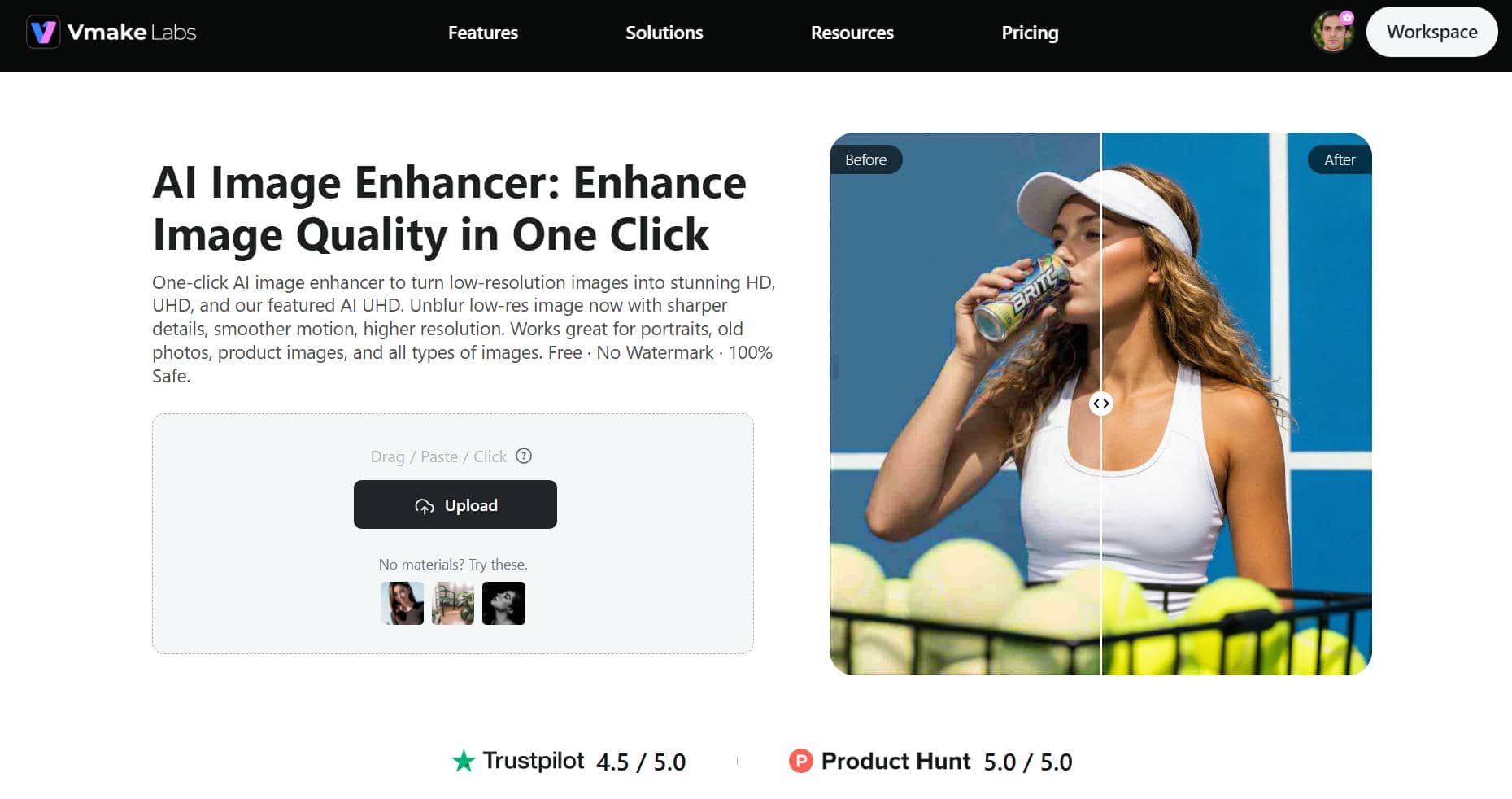
If the built-in Photos app isn't giving you the clarity you want, an AI-powered enhancer can do a much better job. Unlike traditional sharpening, AI looks at your picture to pull out fine detail, boost textures, and reduce noise automatically. Vmake Labs Image Enhancer is a simple, browser-based tool that helps restore blurry portraits, selfies, landscapes, and everyday photos without the need for advanced editing skills.
Key features
Vmake Labs Image Enhancer uses advanced AI technology to improve image quality while preserving a natural appearance. Instead of simply increasing sharpness, it intelligently reconstructs missing details and minimizes visual noise, making it suitable for a wide range of photos.
-
AI-powered photo sharpening: This feature automatically enhances soft images by improving edge definition and overall clarity without requiring manual adjustments.
-
Intelligent detail restoration: This feature analyzes your photo to recover textures and fine details, delivering sharper and more natural-looking results.
-
Face enhancement for portraits: This feature improves facial clarity while preserving natural skin tones and features, making portraits and selfies look more refined.
-
Noise reduction: This feature removes unwanted grain from low-light or compressed photos while maintaining important image details.
-
High-resolution output: This feature exports enhanced images in high quality, making them suitable for sharing, printing, or professional use.
-
Browser-based editing: This feature lets you enhance photos directly from your browser without downloading or installing any software.
Step-by-step guide
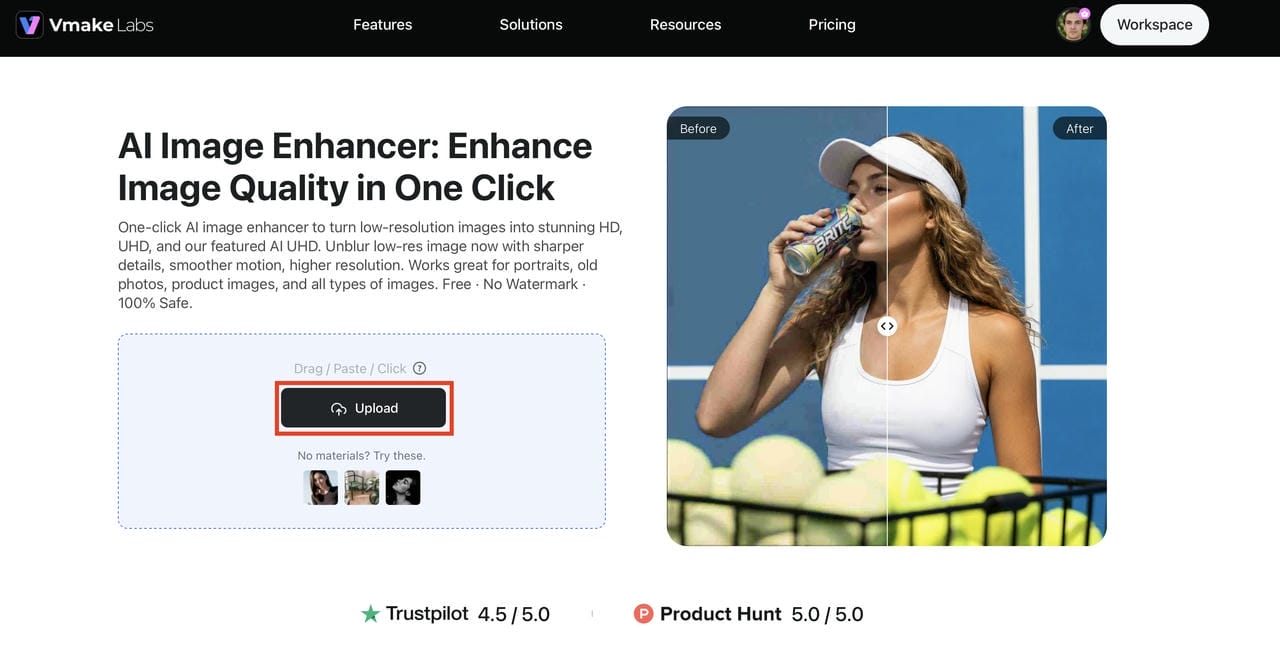
Step 1: Upload your blurry photo
Visit the Vmake Labs Image Enhancer page and upload the blurry image from your iPhone or computer. The tool supports common image formats, making it easy to get started.
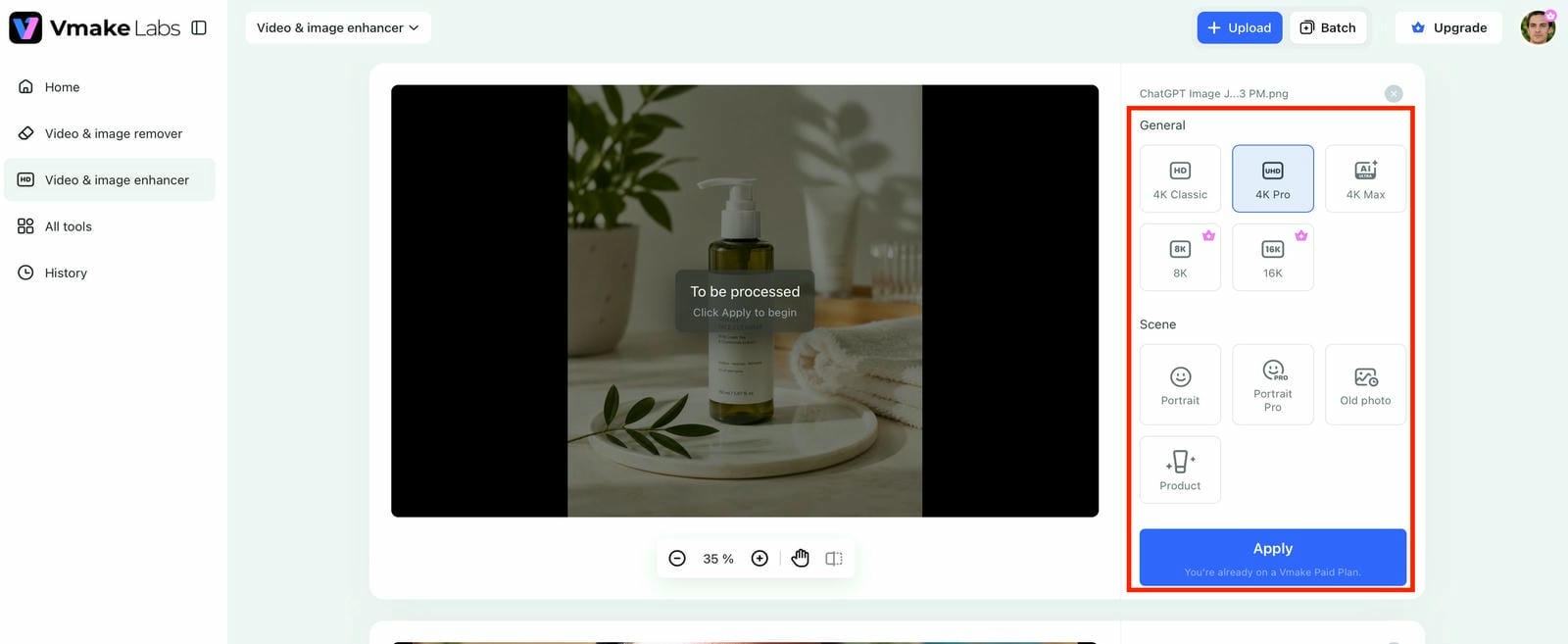
Step 2: Let AI automatically enhance the image
Once the upload is complete, the AI analyzes your photo and automatically restores sharpness, improves textures, enhances facial details, and reduces noise. No manual adjustment is required.
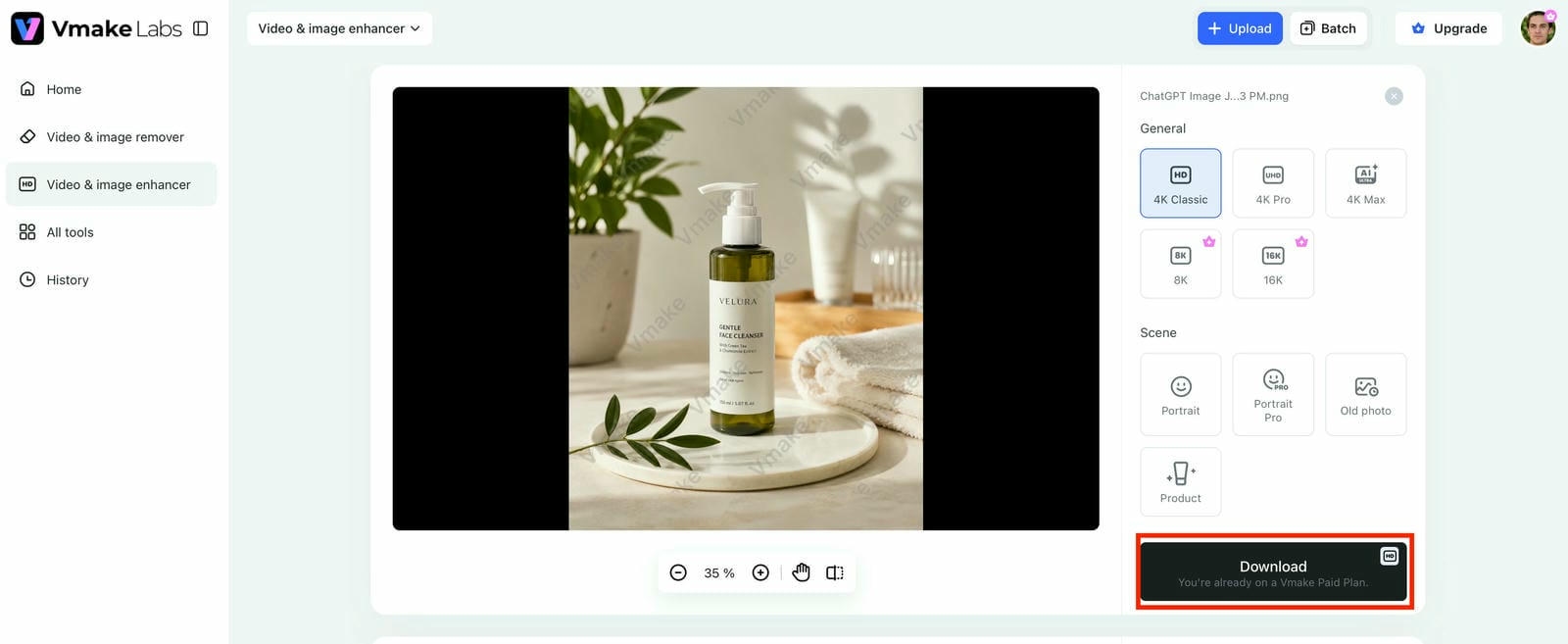
Step 3: Preview and download your sharpened photo
Please compare the original and enhanced versions to review the improvements. Now you can download the improved image if you are satisfied with the result and use it for social media, printing, or storage for yourself.
Tips to prevent blurry photos on iPhone
Knowing how to unblur a picture on iPhone is useful, but it is better if you can prevent blur from happening in the first place. A few simple photography habits can drastically improve image quality and reduce how much editing you need to do later. If you want sharper photos in a variety of shooting conditions, think about the focus, lighting, and camera stability when taking photos with your iPhone.
Before taking a photo
Preparing your iPhone before taking a picture can make a noticeable difference in image quality. Start by cleaning the camera lens with a microfiber cloth to remove dust, fingerprints, or smudges that can soften image details. Tap your subject to set the focus, and if your subject isn't moving, touch and hold the screen to enable AE/AF Lock, which locks both focus and exposure until you take the photo. Avoid excessive digital zoom whenever possible, as it enlarges pixels instead of capturing more detail. Finally, shoot in well-lit conditions whenever you can, since better lighting allows your iPhone to use faster shutter speeds and capture sharper images.
While capturing
Your shooting technique is just as important as your camera settings. Hold your iPhone with both hands or stabilize it against a solid surface to reduce camera shake. When photographing moving subjects, use Burst Mode so you can select the sharpest frame afterward. If you've enabled Live Photos, you can also review the captured frames later and choose a sharper key photo when slight movement affects the original shot. In low-light environments, switch to Night Mode to improve exposure while maintaining better image quality. For long-exposure or night photography, using a tripod provides extra stability and helps eliminate blur caused by hand movement.
Common issues when unblurring photos
Even with the right editing tools, you may not always achieve perfect results. The final quality depends on the original image, the type of blur, and the enhancement method used. Understanding these common issues can help you adjust your editing approach and get the best possible outcome without overprocessing the photo.
-
The image still looks blurry after editing: If the original photo lacks enough detail because of severe camera shake or missed focus, sharpening can only make a limited improvement. AI enhancement may recover additional details, but it cannot recreate information that was never captured.
-
Over-sharpening creates grain or halos: Increasing sharpness too much can introduce visible grain and bright outlines around objects. Apply sharpening gradually and balance it with noise reduction to maintain a natural appearance.
-
Motion blur cannot be fully restored: Blur caused by fast-moving subjects is more difficult to fix than slight softness. AI tools can improve clarity, but extreme motion blur may still remain noticeable.
-
Low-resolution photos lose detail after enhancement: Images downloaded from social media or messaging apps often have reduced resolution. While enhancement can improve their appearance, the limited pixel count restricts how much detail can be recovered.
-
AI enhancement makes faces look unnatural: Aggressive enhancement may oversmooth skin or exaggerate facial features. Choosing a reliable AI tool like Vmake Labs Image Enhancer helps produce more balanced and realistic-looking results.
Conclusion
It's not hard to figure out how to unblur a photo on iPhone. If you need to fix a little blur, the built-in Photos app is a good place to start, but good photography habits help prevent blurry images in the first place. Photos needing more than basic sharpening are better off with AI-powered enhancement, which is faster and more effective. Vmake Labs Image Enhancer enhances overall image quality, reduces noise, and brings back details with minimal effort. Whether you are sprucing up portraits, selfies, or everyday shots, it provides an easy way to get sharper, clearer results in just a few clicks.
FAQs
1. Can you completely unblur a photo on iPhone?
It all depends on how blurry the image is. Some of the photos are a little blurry, but you can often fix those using the Photos app. AI tools, however, can recover detail in photos that are moderately blurred. More intense restoration can be done with AI-powered solutions like Vmake Labs Image Enhancer, which may produce noticeably clearer results. However, heavily blurred photos can't always be brought back to life.
2. How do I unblur an image on iPhone free?
You can tweak Sharpness, Definition, and Noise Reduction in the native Photos app without installing anything. If those tweaks aren't enough, you can also play around with browser-based AI tools like Vmake Labs Image Enhancer, which make it simple to improve photo clarity without complicated editing.
3. What is the difference between sharpening and AI enhancement?
Sharpening increases the contrast along the edges to make the image appear clearer, but too much sharpening can produce grain or halos. AI enhancement looks at the whole photo to recover textures, sharpen up faces, and cut down on noise. Tools like the Vmake Labs Image Enhancer automate this process, making it easy to get natural-looking results.
4. Why are my iPhone photos blurry?
The most common causes of blurry photos are camera shake, subject movement, poor lighting, improper focus, a dirty camera lens, or too much digital zoom. Knowing the cause helps you decide the best way to improve picture quality.
5. What is the best AI tool to unblur an image?
The best tool for you will depend on your editing needs, but look for one that combines AI sharpening, noise reduction, and detail restoration in a simple workflow. The Vmake Labs Image Enhancer has these capabilities in a browser-based editor, making it a convenient choice for quickly enhancing blurry photos.

You May Be Interested
Unblurimage 2026 Review: Video Enhancer Hands-On
Best AI Image Upscaler Tools in 2026: Upscale Images to 4K, 8K & Beyond
Best AI Image Enhancer in 2026: Top Tools to Upscale and Fix Blurry Images
Best AI Photo Enhancer Tools in 2026 (Free & Online): Improve Image Quality Instantly
iPhone Speech to Text: Complete Guide for Beginners