Instagram Story Change Background Color Without Covering Video Guide
Stop Settling for Default Backgrounds! Ready to level up your feed? Discover the easy way to Instagram story change background color without covering video and make your brand stand out today.

Want to customize aesthetics without hiding the main clip? Finding an effective method for an Instagram story change background color without covering video can sometimes be tricky. This guide covers available native options, common limitations, and easier alternatives for creating polished content.
Can you change Instagram Story background color without covering a video?
Yes, you can change the background color in some Instagram Story layouts without covering the video, but uploaded videos are the most limited case. Instagram Stories are built around layers: the canvas sits behind your media, while the video itself often fills or dominates the frame. When a video takes up the full 9:16 Story canvas, there may be no visible background area left to recolor.
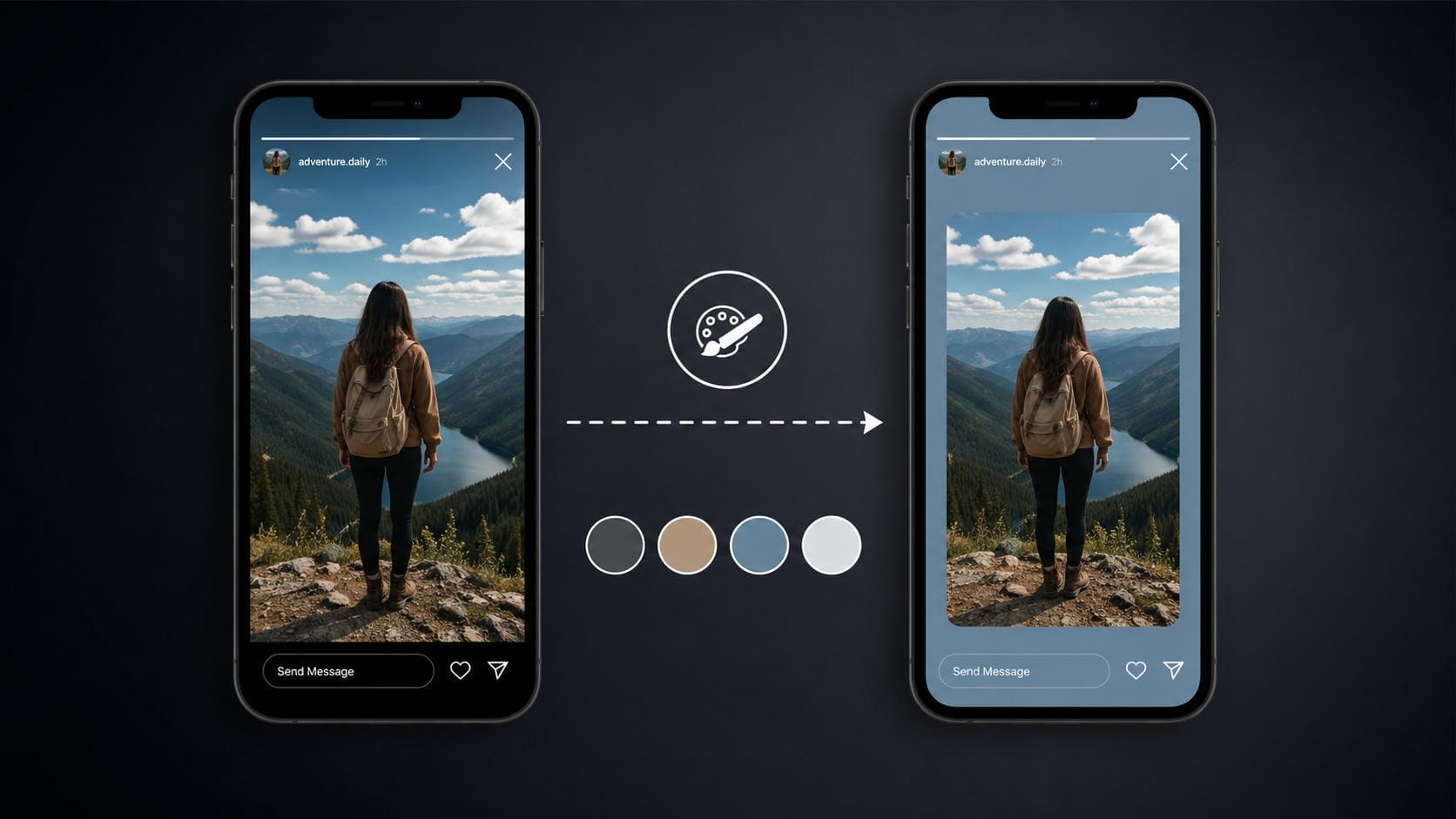
People usually want a custom Story background for 3 reasons:
-
To match brand colors across launches, tutorials, and product clips
-
To make text overlays easier to read
-
To avoid the plain auto-generated colors Instagram applies behind reposts or resized media
Here is the practical difference between common Story content types:
|
Story Content |
Can change background color? |
Covers the video? |
|---|---|---|
|
Shared post |
Yes |
No |
|
Photo |
Sometimes |
Depends |
|
Uploaded video |
Limited |
Usually Yes |
|
Transparent PNG |
Yes |
No |
Instagram's background customization varies strictly by content format, accommodating shared posts and resized media but failing to isolate subjects in full-screen video uploads.
How to change Instagram Story background color without covering video
Adjusting the canvas behind a clip natively requires a few specific workarounds. Utilizing the draw tool or sticker functionality provides partial solutions for creators.
-
Step 1: Upload the clip
Open the application, swipe right to access the camera, and select a media file from the gallery.
-
Step 2: Access the draw tool
Tap the three dots in the top right corner, select 'Draw', and pick a preferred shade from the bottom palette.
-
Step 3: Apply the color
Long-press anywhere on the screen to fill the canvas, which unfortunately hides the visual.
-
Step 4: Use the eraser
Select the eraser brush and manually wipe away the center area to reveal the clip underneath.
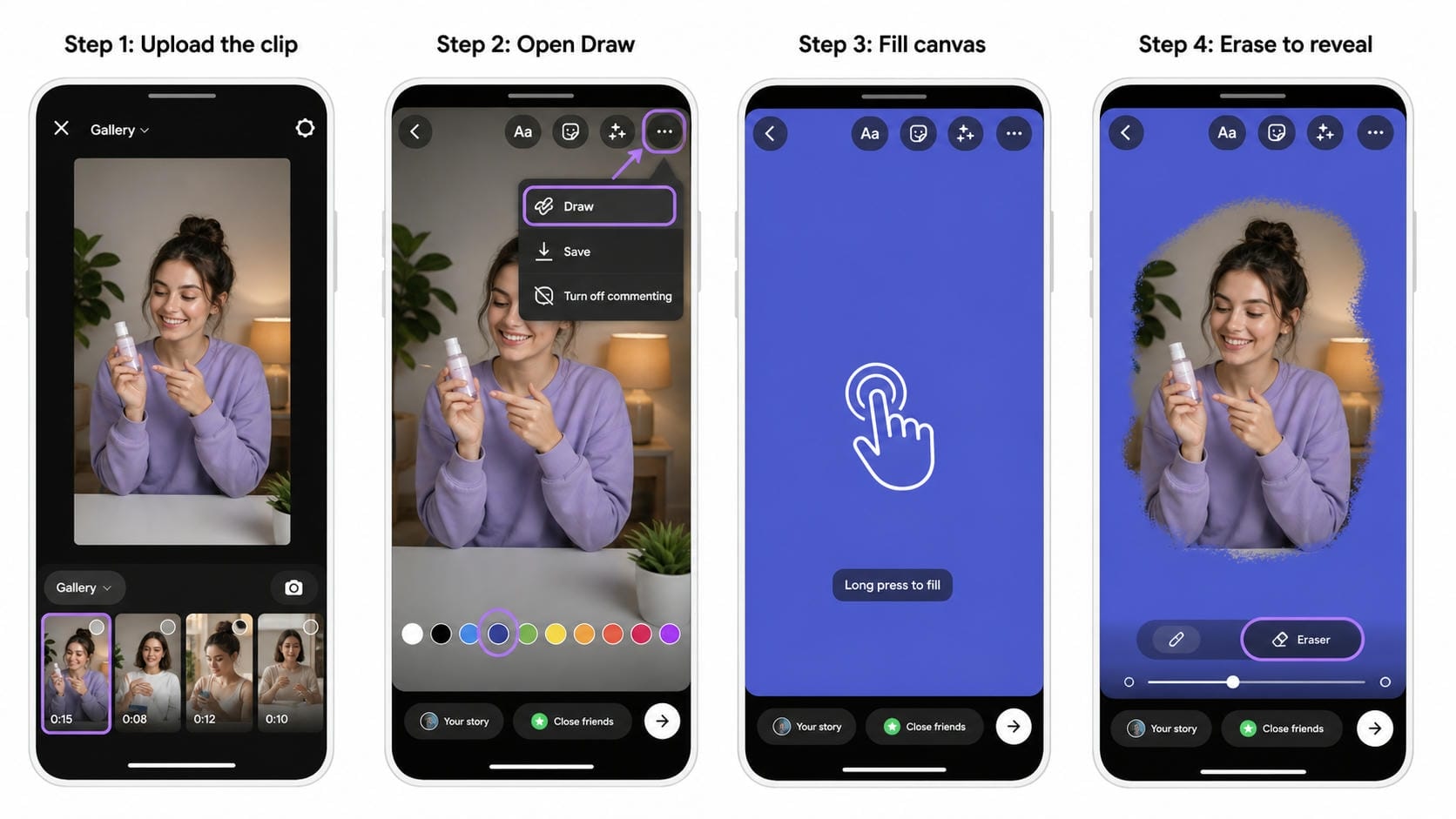
For those wanting to seamlessly remove the background from a video, manual erasing often yields messy edges. Community discussions on platforms like Reddit frequently highlight that this manual technique is imprecise. Getting clean borders around a moving subject is nearly impossible using just a finger.
Why Instagram's built-in background color options don't always work
While native features offer quick fixes, they frequently fall short for professional branding. Several practical constraints prevent creators from achieving a seamless look.
-
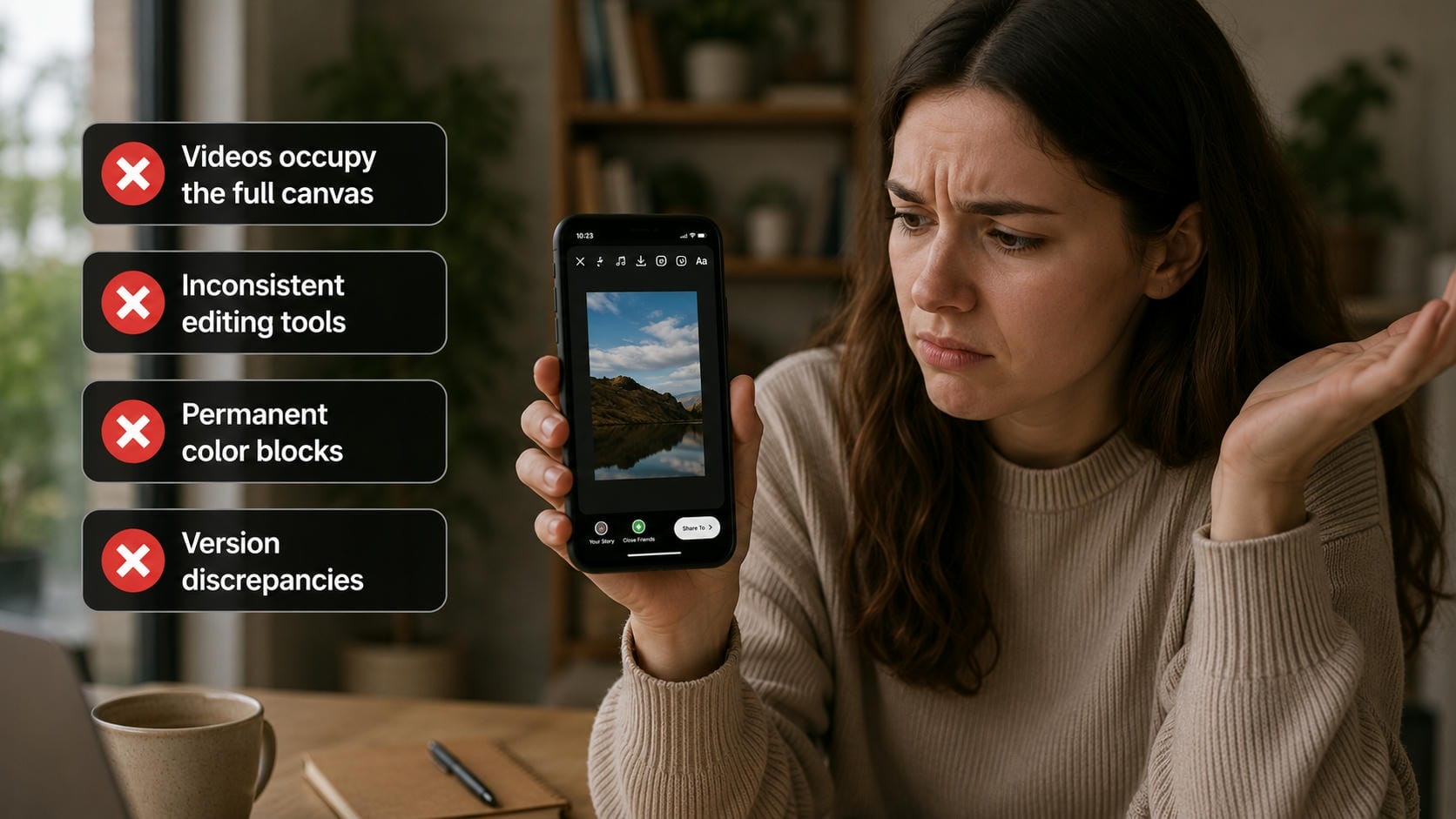
Videos occupy the full canvas: By default, the application stretches uploaded media to fill the entire 1080x1920 screen. Attempting to resize the clip often results in snapping back to the original dimensions. This aggressive auto-formatting prevents underlying colors from peeking through.
-
Inconsistent editing tools: Specific drawing and layering options only appear for certain media formats like shared posts. Uploading a pre-recorded MP4 disables some of the standard overlay functionalities found elsewhere. Consequently, standardizing a visual style across different story types becomes highly frustrating.
-
Permanent color blocks: Once a solid shade is applied via the long-press method, it functions as a topmost layer. Moving or scaling the video afterward does not push the media above this colored block. The only native workaround involves tedious manual erasing, which rarely looks professional.
-
Version discrepancies: The interface frequently updates, causing tool availability to vary between operating systems or regions. A workaround functioning perfectly on iOS might be completely absent on Android devices. Relying solely on these built-in tricks leads to an unpredictable content creation workflow.
Use this quick comparison before choosing a workflow:
|
Scenario |
Instagram Built-in Tools |
Another Editor (e.g., Vmake Labs) |
|---|---|---|
|
Change the background color of a shared post |
Supported |
Not required |
|
Add a solid color behind a resized video |
Supported in some cases |
Optional |
|
Keep a full-screen video while changing the background color |
Not supported in most cases |
Recommended |
|
Replace the video's original background with a new color |
Not supported |
Supported |
|
Create a consistent branded Story background |
Limited customization |
Full creative control |
|
Prepare videos before uploading to Instagram |
Basic editing features |
Advanced editing and background replacement |
While built-in capabilities handle basic static posts, achieving a professional aesthetic demands the precision of external platforms. Bypassing native constraints entirely is the most efficient way to maintain complete creative control over the final design. Rather than struggling with imprecise eraser tools, shifting the initial editing process to an AI-powered workspace provides a seamless, frustration-free alternative.
AI method: How to remove video backgrounds easily with Vmake Labs
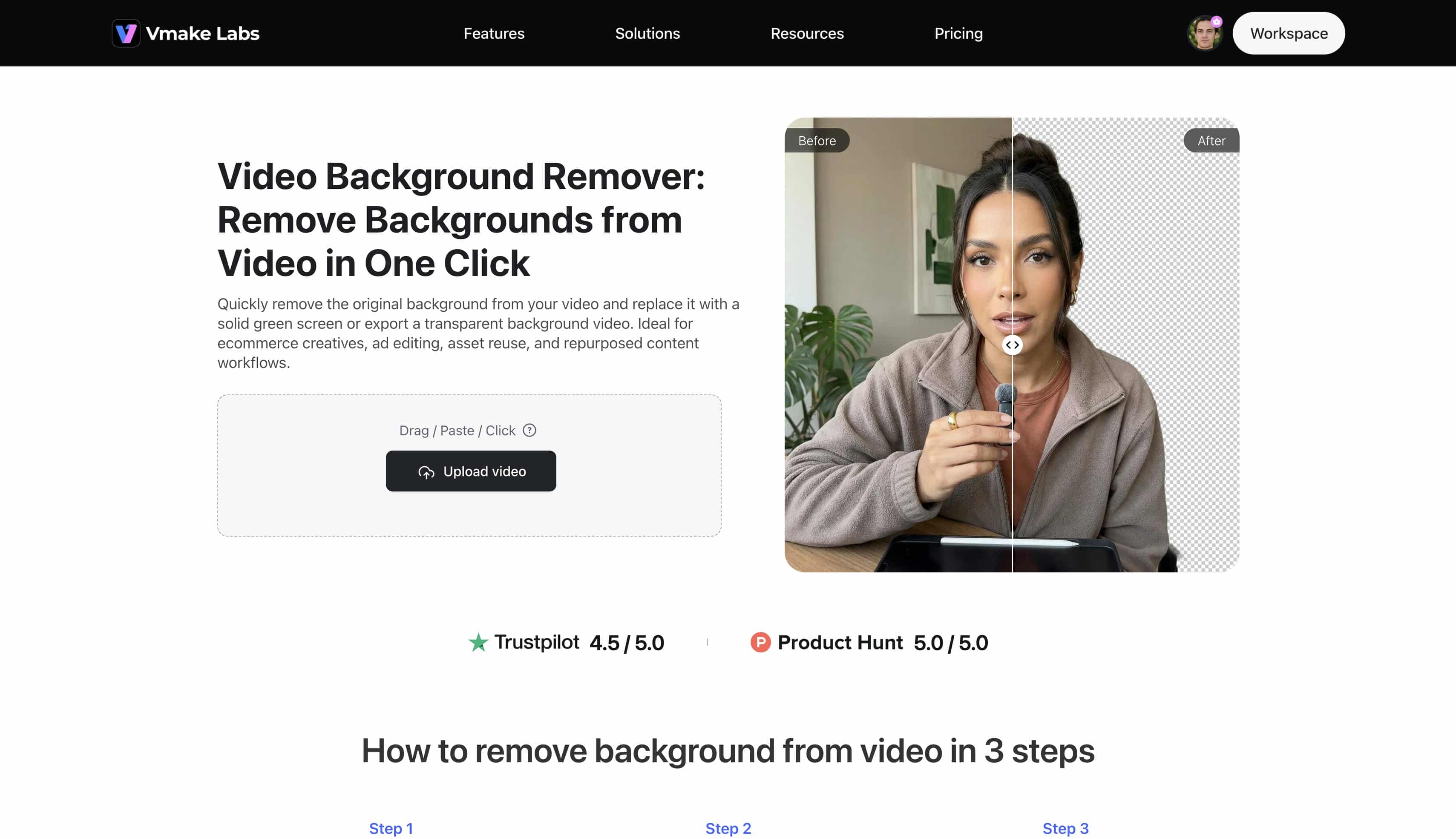
When Instagram cannot isolate your subject from the original scene, prepare the video before uploading. Vmake Labs Video Background Remover is an online tool that helps remove a video background, so you can place the subject over a clean color, transparent background, or a green screen, before creating the Story.
This is especially useful for product demos, creator intros, workplace clips, course videos, and short-form social media content where the subject should remain visible while the background follows a brand color system.
Key features of Vmake Labs Video Background Remover
-
AI-powered background removal: Vmake Labs detects the main subject in the footage and separates it from the original background. The result can be used for cleaner story layouts, ad creatives, overlays, or repurposed campaign assets.
-
Precision edge refinement: Clean subject edges matter around hair, hands, products, and clothing. Source footage with clear contrast usually gives the tool more detail to work with, so the final output stays easier to reuse.
-
One-click background replacement workflow: Vmake Labs supports exporting footage with a transparent background or a green screen background. That makes the clip easier to place into another editor, template, or colored Story canvas for a seamless video background change..
-
HD-ready video export: Finished clips can be downloaded and carried into the next editing step without rebuilding the project inside Instagram. As with any video background remover, output quality depends on the original footage, lighting, motion, and subject separation.
-
Browser-based editing: Vmake Labs works directly online, so there is no heavy editing software to install. Uploading, processing, and downloading can happen from a browser, which keeps the workflow simple for creators and marketing teams.
How to use Vmake Labs Video Background Remover
-
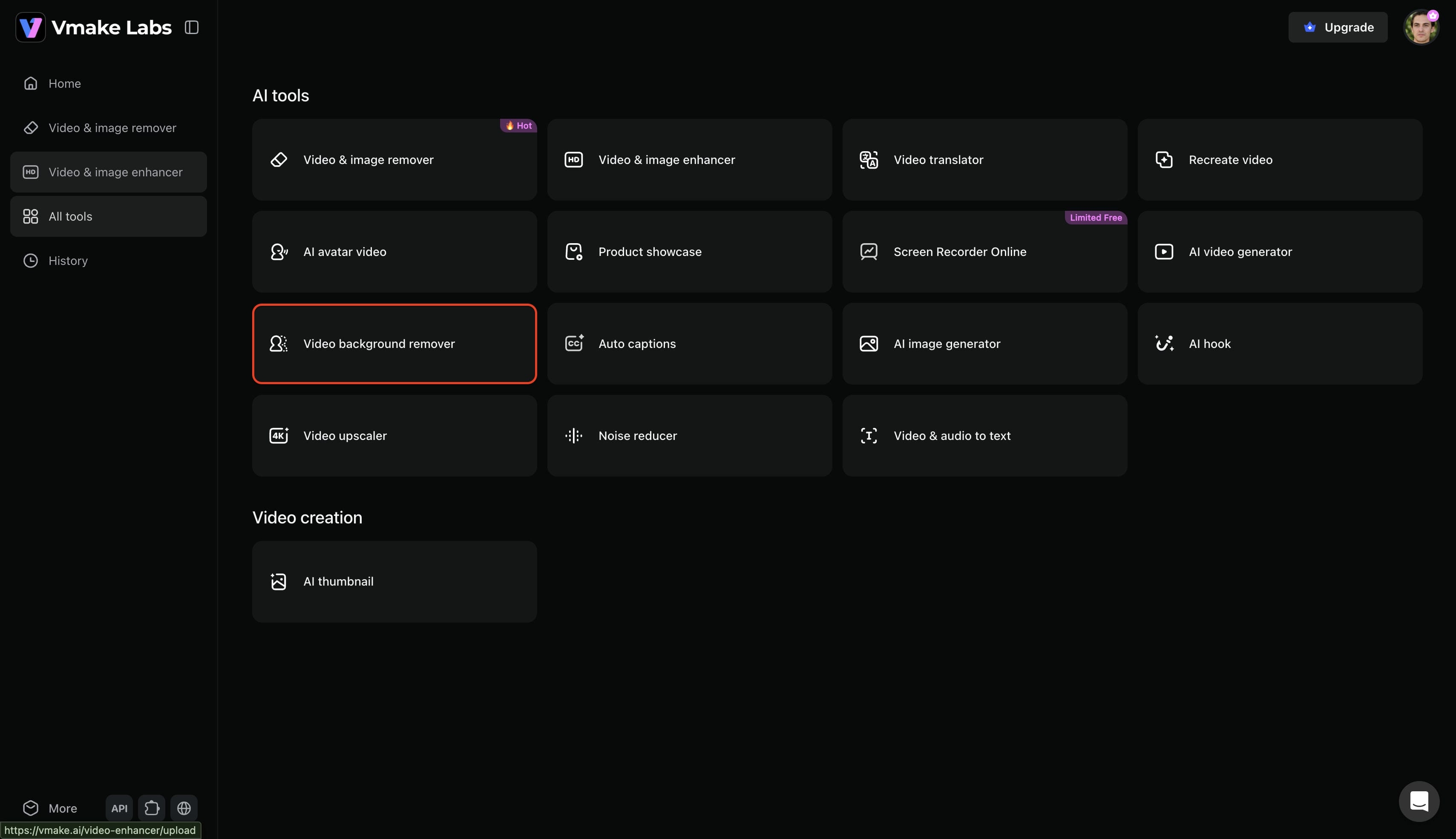
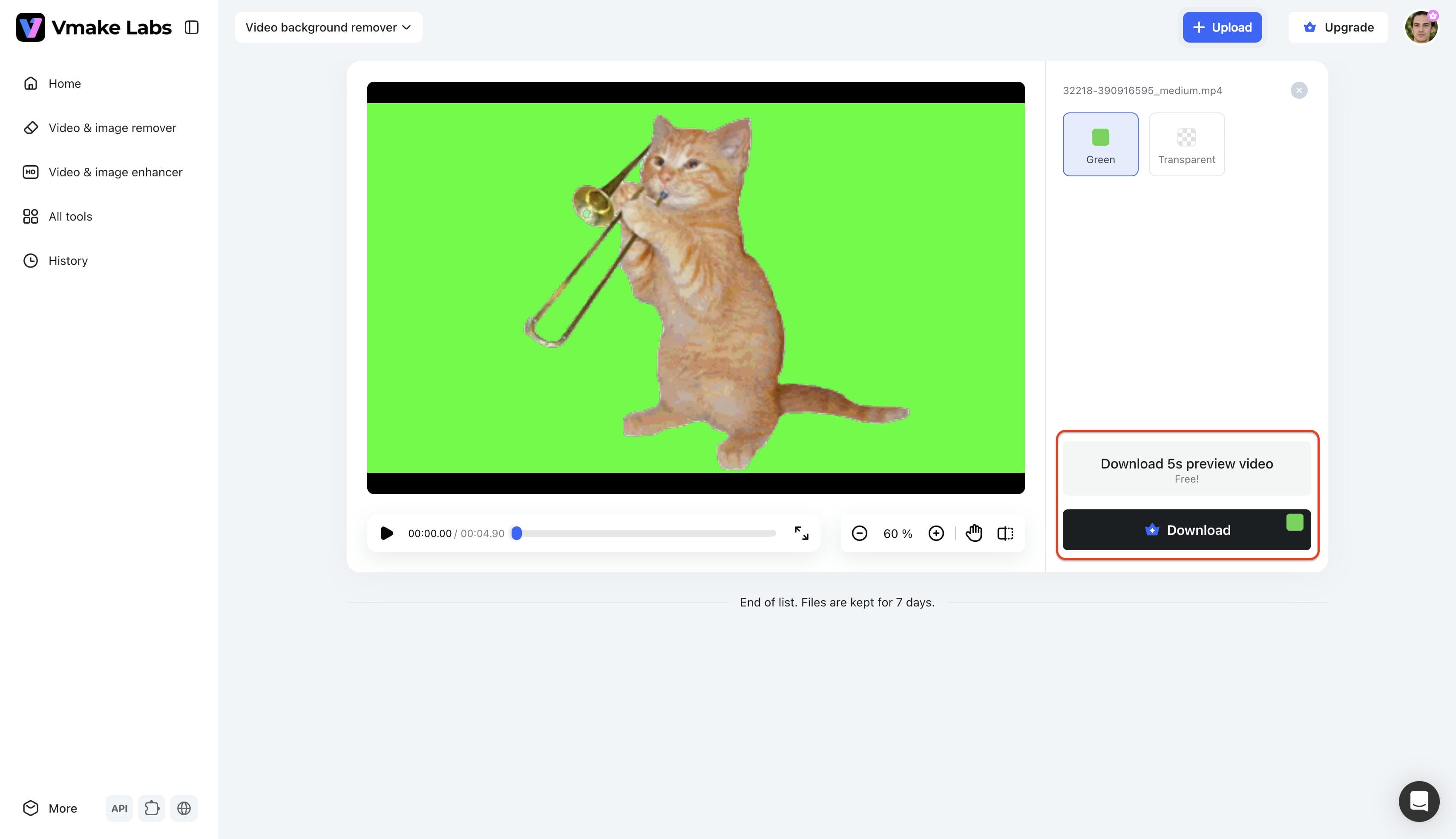
Step 1: Select the "Video background remover" tool
Start the editing process by logging into the Vmake Labs dashboard and navigating to the main menu. Locate the "All tools" directory to find and select the "Video background remover" feature. This immediately opens the dedicated workspace designed for isolating media subjects.
-
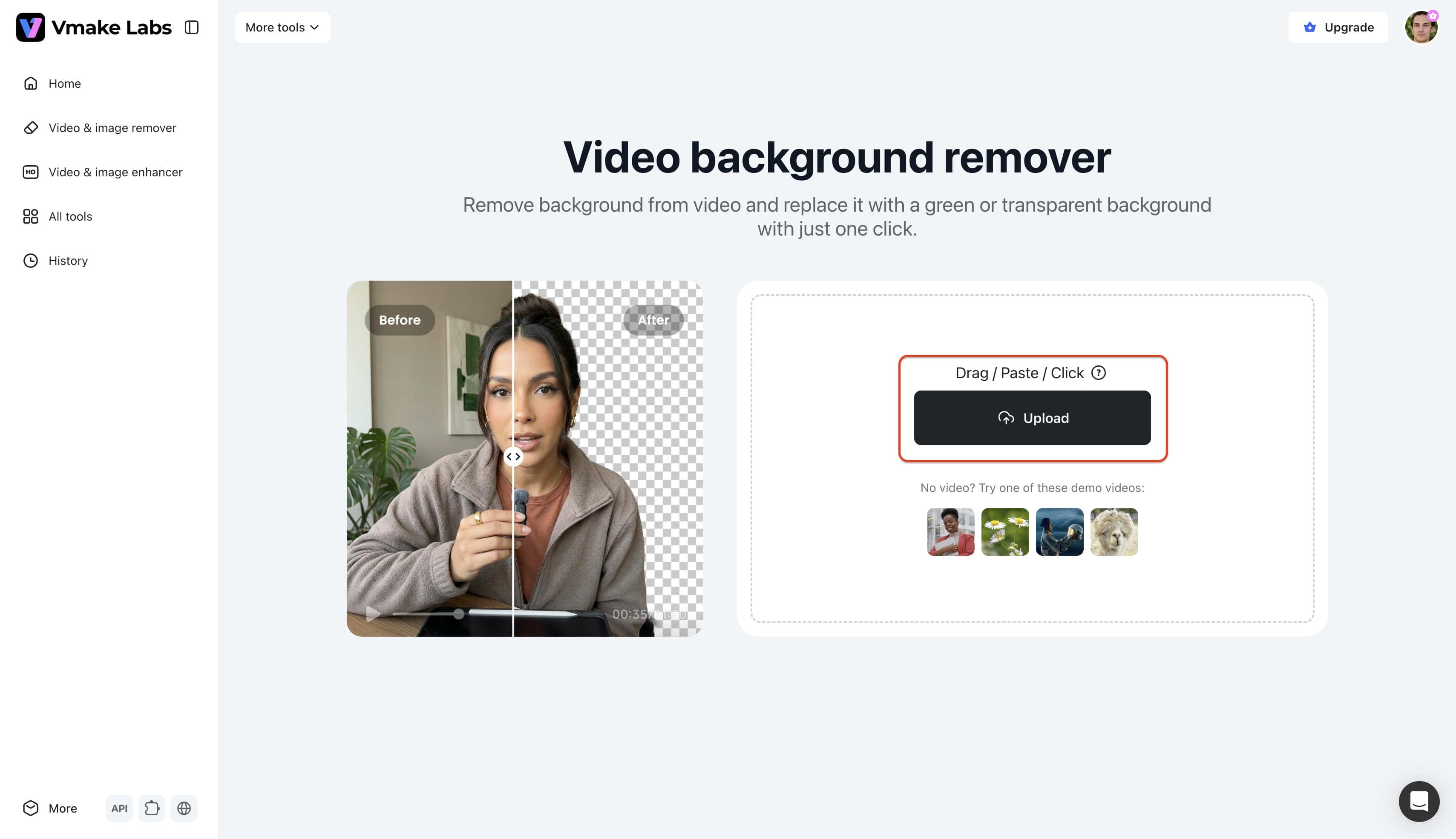
Step 2: Upload the targeted video file
Bring the chosen media file into the editing environment to begin the extraction process. Simply click the "Upload" button to browse local folders and select the target clip. The platform instantly imports the footage and prepares it for immediate processing.
-
Step 3: Remove the background and export
The system automatically processes the footage, swapping the original scenery for a "Green" screen by default. Creators can easily toggle to the "Transparent" option depending on the intended Instagram aesthetic. Upon finalizing the visual adjustments, download the finished clip to apply brand colors and upload directly to social media.
Tips for creating branded Instagram Stories with colored backgrounds
Designing visually cohesive updates helps establish a recognizable online presence. Following a few structural best practices ensures the final output looks stunning and remains highly readable.
-
Match your brand colors: Consistency builds recognition across all social media channels. Select exact hex codes that align with existing marketing materials rather than guessing with the native eyedropper.
-
Leave safe space for Story UI: The platform overlays interface elements like the profile icon and interaction buttons. Keeping crucial visual elements centered prevents them from being obscured by these permanent application features.
-
Improve text readability: High contrast between text and the underlying canvas ensures information remains easily digestible. Avoid placing bright text over similarly bright clips by opting for darker backdrops.
-
Use subtle backgrounds instead of distracting colors: The focus should remain on the primary subject or message being conveyed. Muted tones or soft gradients provide a professional frame without overpowering the central visual elements.
-
Export in the correct Story resolution: Sizing the canvas to precisely 1080 × 1920 pixels prevents unwanted cropping. Preparing the media to successfully change video background color beforehand ensures the final clip matches this exact ratio without awkward borders.
Conclusion
While the native platform provides basic drawing tools for minor adjustments, learning how to change Instagram story background color without covering video natively remains frustratingly inconsistent. Built-in overlay methods often require imprecise manual erasing that damages the final aesthetic. For a truly professional appearance, processing media externally proves highly beneficial. Utilizing an AI-powered solution simplifies the entire workflow, guaranteeing pristine subject isolation. This proactive approach grants total creative freedom, resulting in beautifully branded social media updates that capture audience attention instantly.
FAQs
How do I change Instagram Story background color without covering the video?
The most reliable method involves removing the original backdrop using an external editing tool before uploading. Native application features often force the color layer entirely over the uploaded media.
Why does my video hide the Story background color?
The application automatically scales uploaded MP4s to fill the entire 1080x1920 canvas. This default formatting behavior physically covers any solid shade applied underneath the media layer.
Can I make the background transparent in Instagram Stories?
The native application does not support transparent video exports or background removal directly. A third-party processing tool is required to isolate the subject and create transparency.
Does Instagram let me use any custom background color?
Yes, utilizing the eyedropper or color palette allows selection of custom shades. However, applying these custom shades effectively behind moving media remains technically restricted within the app.
Can I replace my video's background before uploading to Instagram?
Processing files externally allows for complete visual replacement prior to publication. Dedicated background removal tools can swap the original scenery for solid colors or transparent layers effortlessly.

You May Be Interested

How Long Can Instagram Stories Be? Engagement Tips