Best app for photo enhancing: 8 AI apps worth trying
Compare the best apps for photo enhancing in 2026. Discover AI tools that sharpen, restore, and upscale photos, and learn how Vmake Labs enhances images in just a few clicks.

Modern AI photo enhancement apps can sharpen blurry images, restore old memories, improve portraits, and upscale low-resolution photos. Whether you're editing selfies, product images or family photos, having the right tool will make a noticeable difference. In this guide, we compare the best photo enhancing app in 2026 to help you find the right option for Android, iPhone or web.
Brief overview: 8 best photo enhancing apps
If you're short on time, this comparison highlights the strengths of the most popular AI photo enhancer apps, so you can quickly find one that matches your editing style.
|
App |
Best For |
AI Enhancement |
Free Version |
Platform |
|---|---|---|---|---|
|
Vmake Labs |
Portraits, products & old photos |
Excellent |
Yes |
Web |
|
Remini |
Portrait enhancement |
Excellent |
Limited |
Android, iOS |
|
Adobe Lightroom |
Professional editing |
Very Good |
Limited |
Android, iOS |
|
PicsArt |
Creative editing |
Very Good |
Yes |
Android, iOS |
|
PhotoRoom |
Product photos |
Very Good |
Yes |
Android, iOS |
|
Snapseed |
Manual editing |
Good |
Yes |
Android, iOS |
|
Fotor |
AI enhancement |
Very Good |
Limited |
Web, Mobile |
|
Pixelcut |
E-commerce photos |
Very Good |
Limited |
Android, iOS |
What makes the best app for photo enhancing?
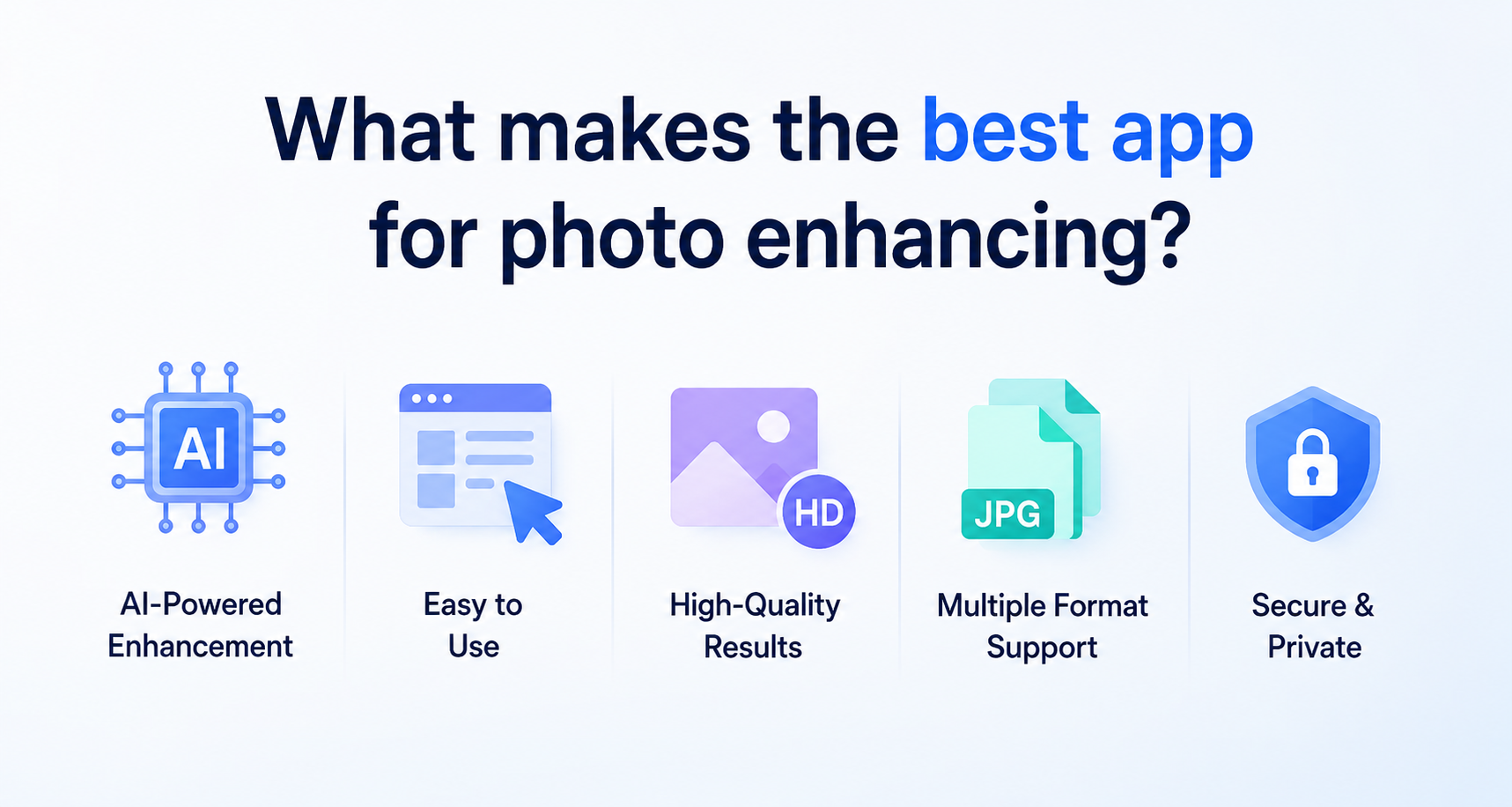
Not every photo enhancer delivers the same results. To rank the apps fairly, we evaluated each one using the same criteria, including AI performance, usability, export quality, platform support, pricing, and privacy.
-
AI enhancement quality: We assessed how well each app sharpens images, restores details, reduces noise, and delivers natural-looking results.
-
Ease of use: Apps were evaluated based on interface design, editing workflow, and how quickly users can enhance and export photos.
-
Portrait enhancement: We compared each app's ability to improve facial details, restore old photos, and maintain realistic-looking portraits.
-
Image upscaling: We considered maximum export resolution and how effectively AI increases image size while preserving detail.
-
Platform compatibility: We reviewed availability across Android, iPhone, and web browsers.
-
Processing speed: Faster AI processing provides a smoother editing experience, especially for high-resolution images.
-
Free plan and watermark policy: We compared free plan limits, export restrictions, and whether downloads include watermarks.
-
Privacy and best use cases: We considered privacy policies, image handling, and which users each app is best suited for, such as creators, photographers, or ecommerce sellers.
8 best apps for photo enhancing
After comparing features, ease of use, and real-world editing performance, these are the best photo enhancer apps for Android, iPhone, and web users.
-
Vmake Labs Image Enhancer
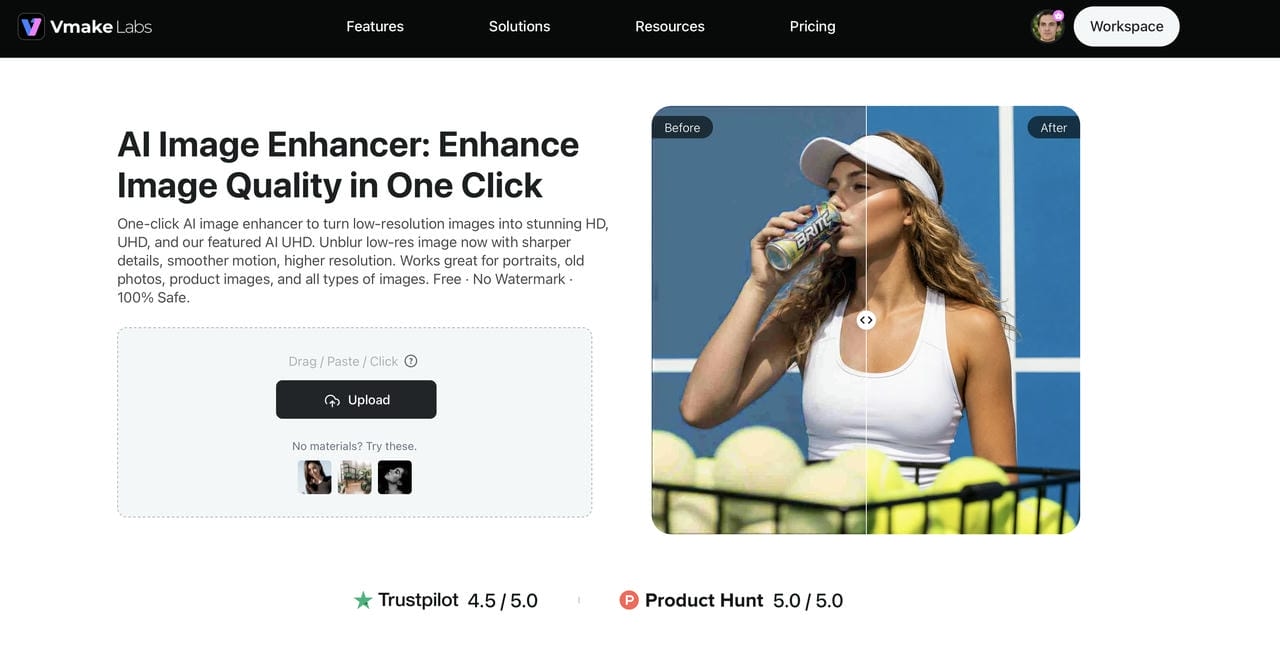
Vmake Labs is an ultimate AI social video studio that helps small businesses generate, enhance, and optimize videos to capture attention, build brands, and drive sales. Its AI Image Enhancer automatically sharpens blurry photos, restores old images, improves portraits, and upscales resolution in just a few clicks. During our comparison, it delivered consistently natural-looking results across different image types, while its browser-based workflow made editing fast and accessible without requiring any software installation
Key features
-
AI-powered one-click enhancement: Automatically enhances sharpness, clarity, colors and overall quality of the image with one click. It analyzes the photo and applies the enhancements automatically without any manual adjustment.
-
Dedicated modes for portraits, products, and old photos: Select an AI model based on the type of image you want to get the most accurate results. Specialized modes can help you optimize facial features, product details, or restore faded vintage photos.
-
HD, UHD, AI UHD, 8K, and 16K output options: Export enhanced images in different resolutions for different uses. High-res outputs are ideal for print, marketing materials and professional content creation.
-
Fast web-based workflow with no software installation: Easily edit photos right in your browser no download, no app to install. This makes the process of enhancement fast and available on different devices.
-
Suitable for creators, businesses, and everyday users: Whether you want to enhance social media images, e-commerce product photos or your personal memories, the platform offers an easy-to-use workflow for users with different editing needs.
Bonus: Step-by-Step guide
Enhancing an image with Vmake Labs takes only a few moments and requires no editing experience.
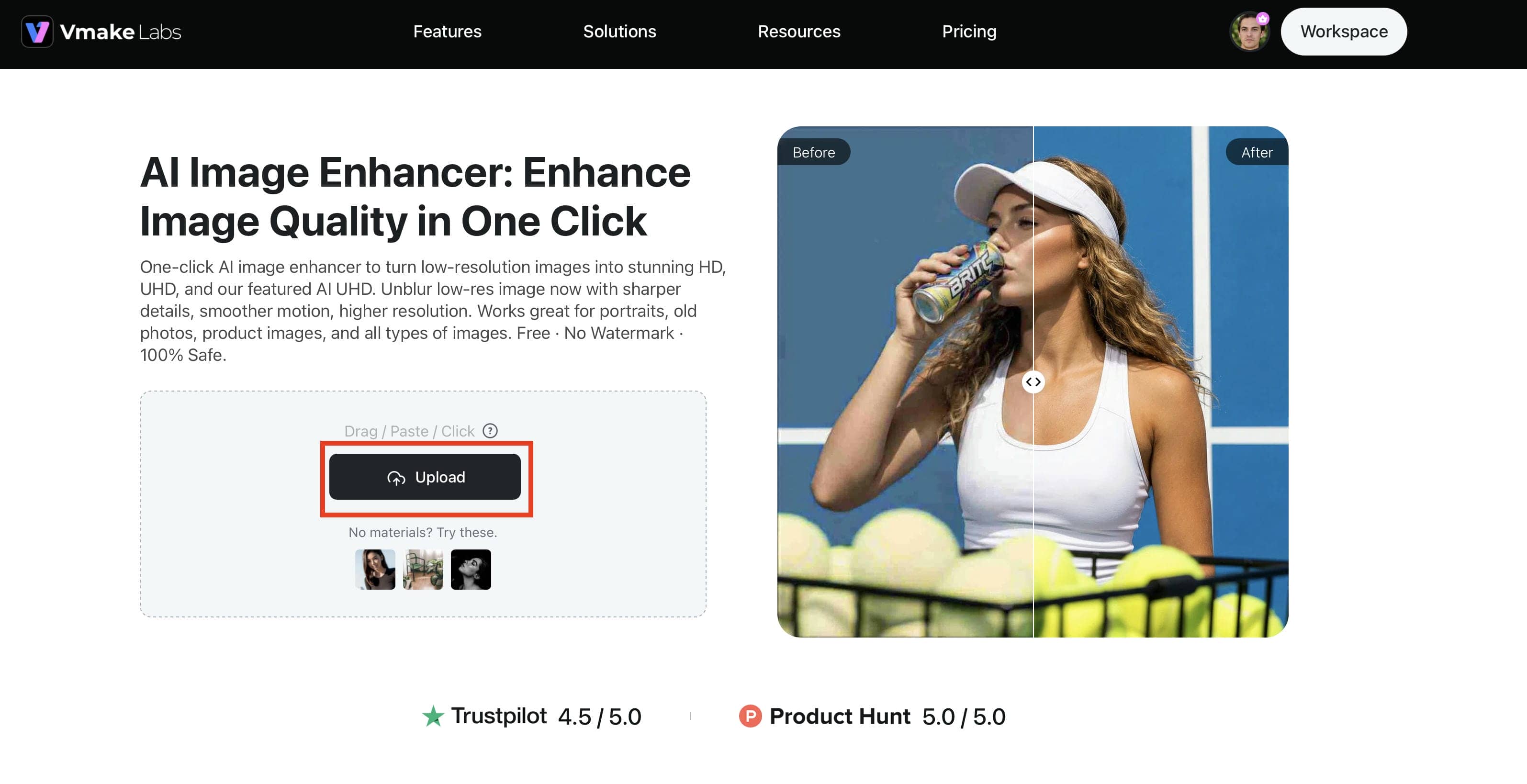
Step 1: Upload your image
Open the Vmake Labs Image Enhancer and upload your photo, wait a few seconds while the AI prepares it for processing. The platform allows for quick uploads of popular image formats.
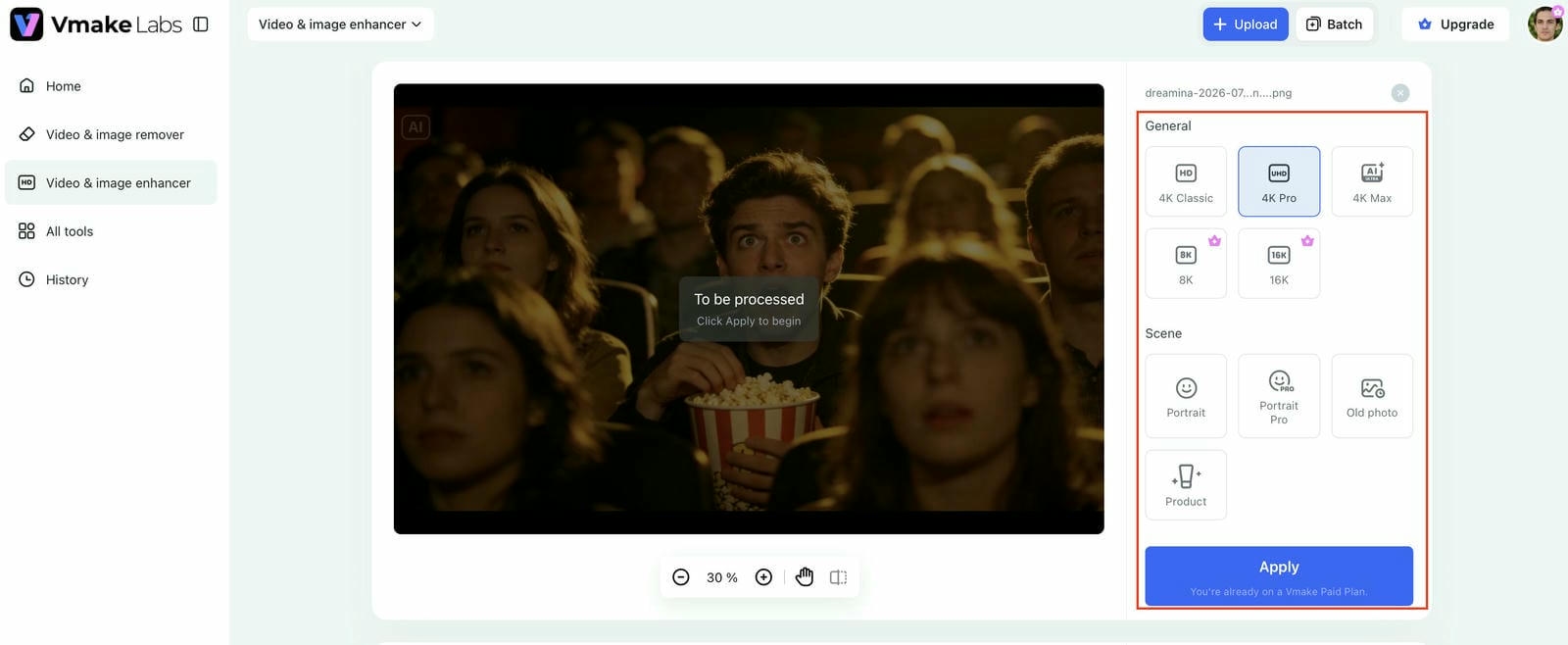
Step 2: Choose AI enhancement mode
Select the enhancement mode that best matches your image, such as Portrait, Product, or Old Photo. Then choose your preferred output quality, including HD, UHD, AI UHD, 8K, or 16K.
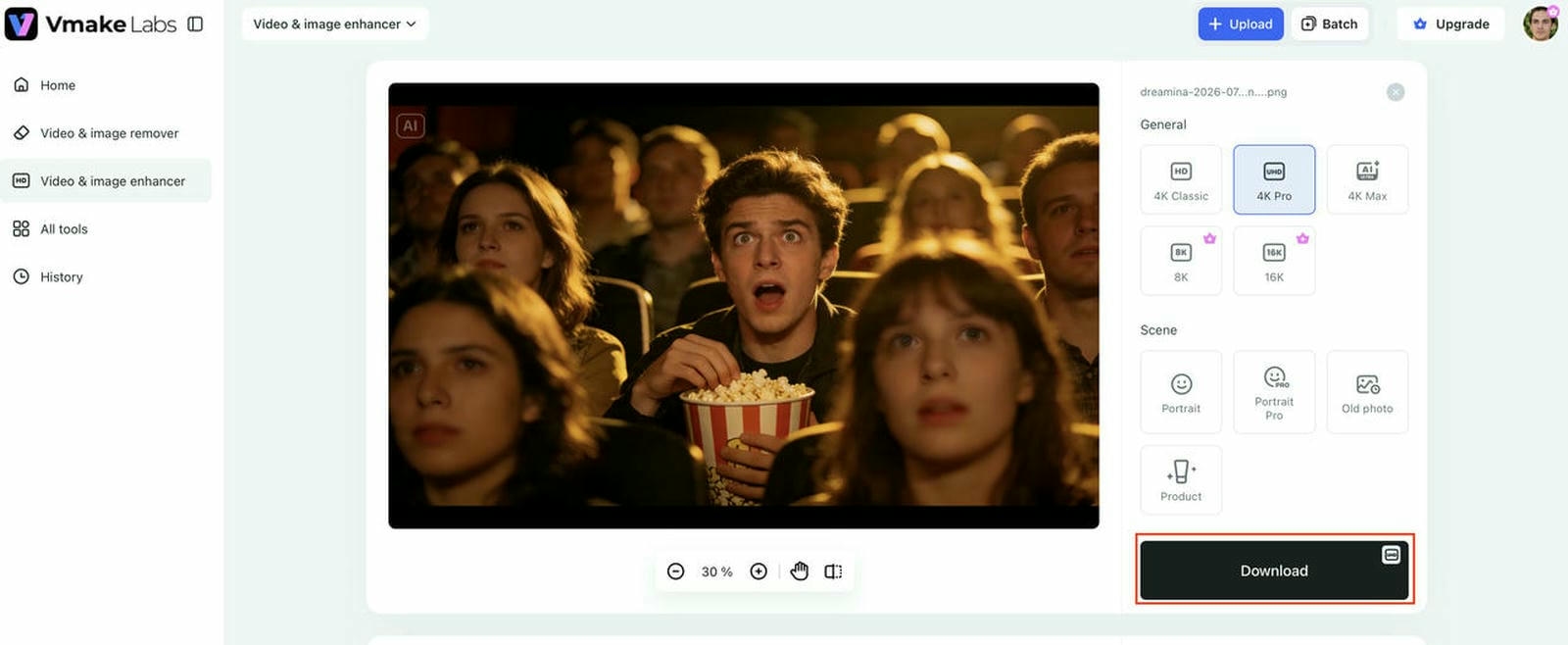
Step 3: Preview and download
Compare the original and enhanced versions before exporting. Once you're happy with the results, download your enhanced image in the resolution you want.
Pros and Cons
|
Pros |
Cons |
|---|---|
|
AI-powered one-click photo enhancement |
Batch processing may depend on your subscription plan |
|
Dedicated AI modes for portraits, products, and old photos |
Some advanced features require paid credits |
|
Supports HD, UHD, AI UHD, 8K, and 16K output resolutions |
|
|
Browser-based with no software installation |
|
|
Simple interface suitable for beginners and professionals |
|
Pricing
|
Plan |
Price |
Key Features & Limits |
|---|---|---|
|
Free |
$0/month |
|
|
Plus |
$9.99/month |
|
|
Pro |
$29.99/month |
|
-
Remini
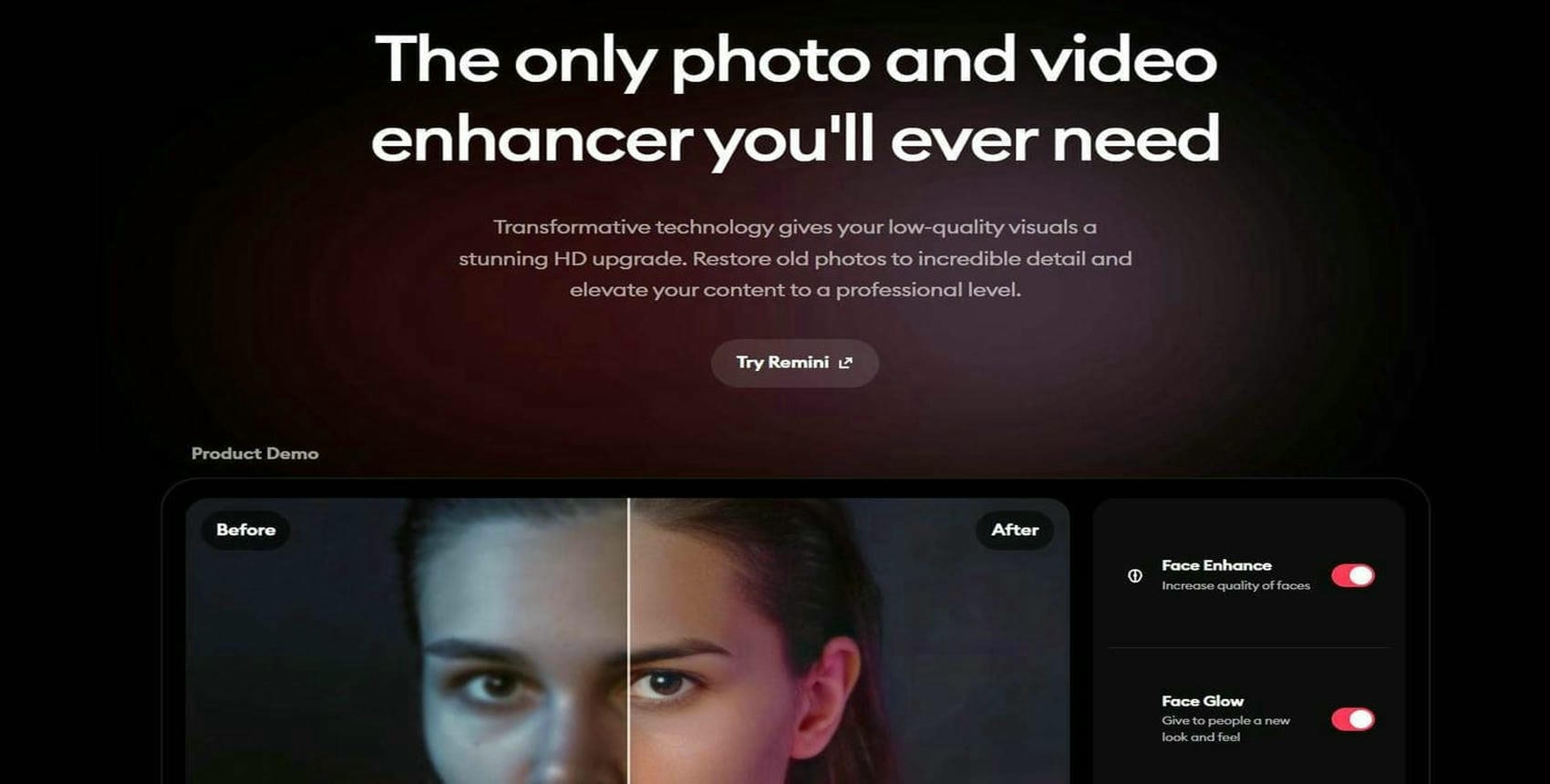
Remini is one of the most recognized AI photo enhancement apps for mobile users, specializing in portrait restoration and facial enhancement. During testing, we found it delivered impressive improvements on selfies and old portraits, although the free version's ads and daily limits interrupted the editing experience.
Key features
-
AI portrait enhancement: Improves facial details, sharpens eyes, and restores skin texture while maintaining a natural appearance.
-
Photo restoration: Revives old, faded, or damaged photos by enhancing clarity and correcting color.
-
Image sharpening: Reduces blur and improves overall image quality with AI-powered enhancement.
-
Video enhancement: Enhances the quality of low-resolution videos using AI technology.
-
Mobile-first experience: Designed for Android and iOS, making it convenient for editing photos on the go.
Pros and Cons
|
Pros |
Cons |
|---|---|
|
Excellent AI portrait enhancement |
Free version contains ads |
|
Restores old and blurry photos effectively |
Daily enhancement limits on free plan |
|
Simple and beginner-friendly interface |
Many premium features require a subscription |
|
Supports both photo and video enhancement |
Less suitable for product or commercial photography |
|
Available on Android and iOS |
Limited manual editing controls |
Pricing
|
Plan |
Price |
Key Features & Limits |
|---|---|---|
|
Free Plan |
$0 |
|
|
Pro Plan |
$6.99 – $9.99/month (~$50 – $99/yr options available) |
|
-
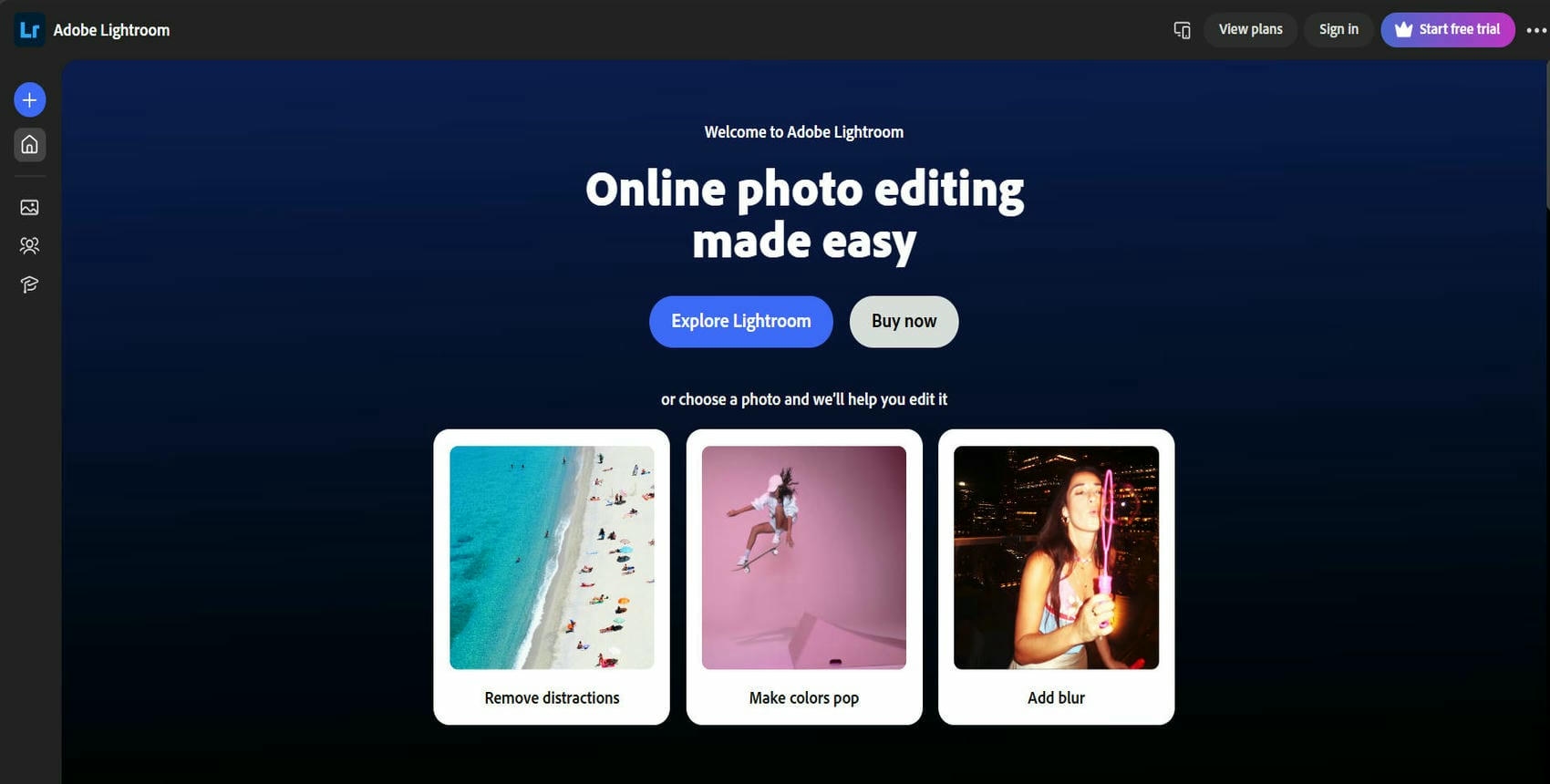
Adobe Lightroom
Adobe Lightroom combines professional photo editing with AI-powered enhancement tools for photographers and advanced users. In our comparison, it offered the greatest editing flexibility, but it required more time to learn than dedicated one-click AI enhancers.
Key features
-
AI-powered photo enhancement: Automatically adjusts lighting, color, and overall image quality.
-
Professional editing tools: Fine-tune exposure, contrast, highlights, shadows, and white balance.
-
RAW photo editing: Supports high-quality RAW files for greater editing flexibility.
-
AI masking: Selectively edit subjects, backgrounds, or skies with intelligent masking tools.
-
Cloud synchronization: Access and edit photos across desktop, web, and mobile devices.
Pros and Cons
|
Pros |
Cons |
|---|---|
|
Professional-grade editing tools |
Steeper learning curve for beginners |
|
Excellent RAW image support |
Many advanced features require a subscription |
|
Powerful AI masking and automatic adjustments |
AI enhancement is less specialized than dedicated enhancer apps |
|
Cross-device cloud syncing |
Free version has limited functionality |
|
Suitable for photographers and professionals |
Can feel overwhelming for casual users |
Pricing
|
Plan |
Price |
Key Features & Limits |
|---|---|---|
|
Lightroom Plan |
~$11.99/month |
|
|
Photography Plan (1 TB) |
~$19.99/month |
|
|
Creative Cloud All Apps |
~$34.99–$69.99/month |
|
-
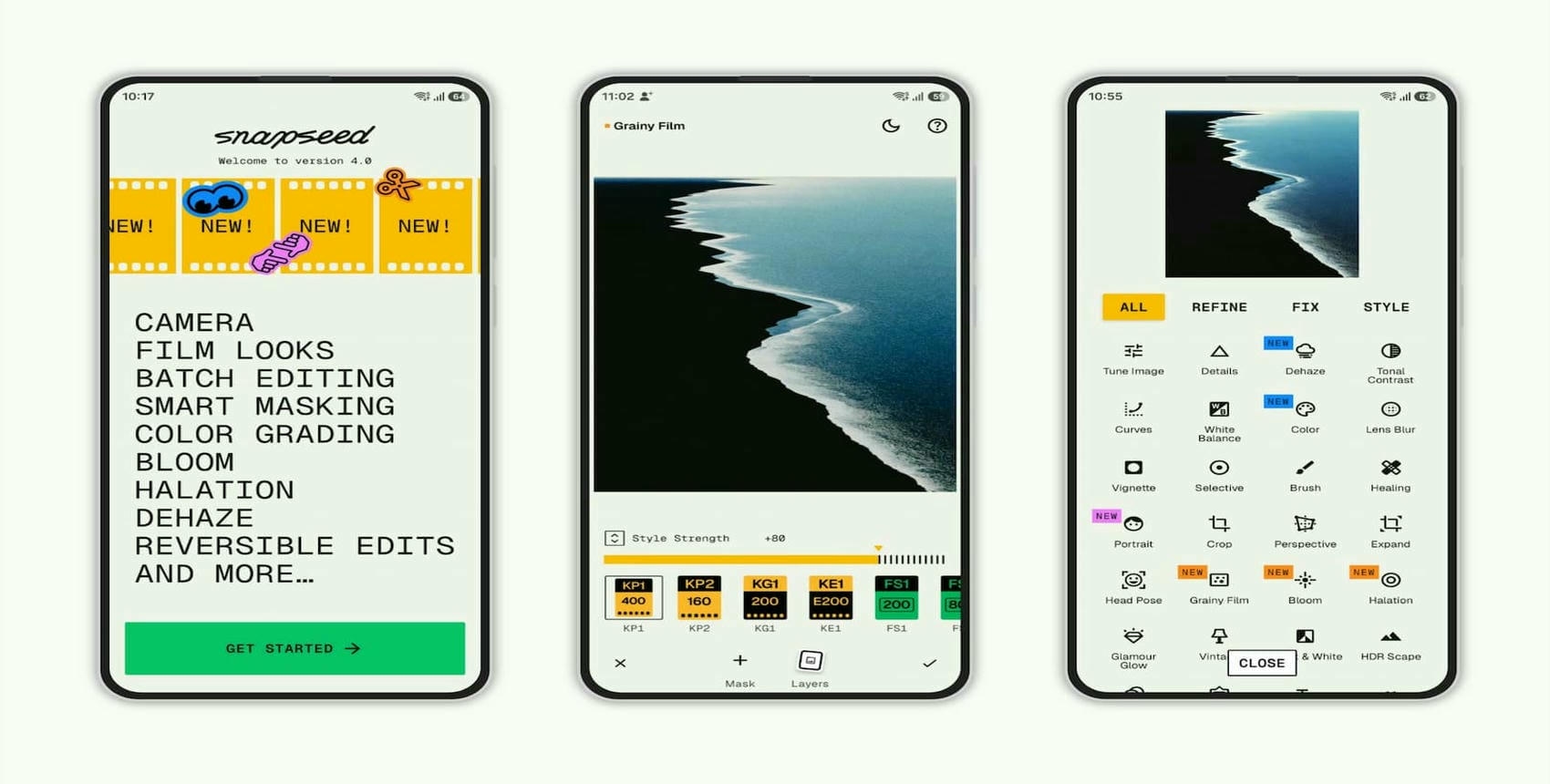
Snapseed
Snapseed is Google's free photo editing app that focuses on manual editing rather than automatic AI enhancement. During testing, we found it ideal for users who prefer hands-on editing, although it lacks the automated restoration offered by AI-first tools.
Key features
-
Professional editing tools: Adjust brightness, contrast, saturation, curves, and white balance.
-
Selective editing: Apply edits to specific areas without affecting the entire image.
-
Healing tool: Remove small objects or blemishes from photos.
-
RAW editing support: Edit RAW images while preserving image quality.
-
Completely free: Access all editing features without subscriptions or watermarks.
Pros and Cons
|
Pros |
Cons |
|---|---|
|
Completely free to use |
Limited AI-powered enhancement features |
|
Powerful manual editing tools |
No automatic image upscaling |
|
Supports RAW photo editing |
Interface may require some learning |
|
No ads or watermarks |
Lacks specialized portrait AI modes |
|
Available for Android and iOS |
No browser-based version |
Pricing
-
Snapseed is completely free for Android and iOS users, with no subscriptions, advertisements, or in-app purchases required.
-
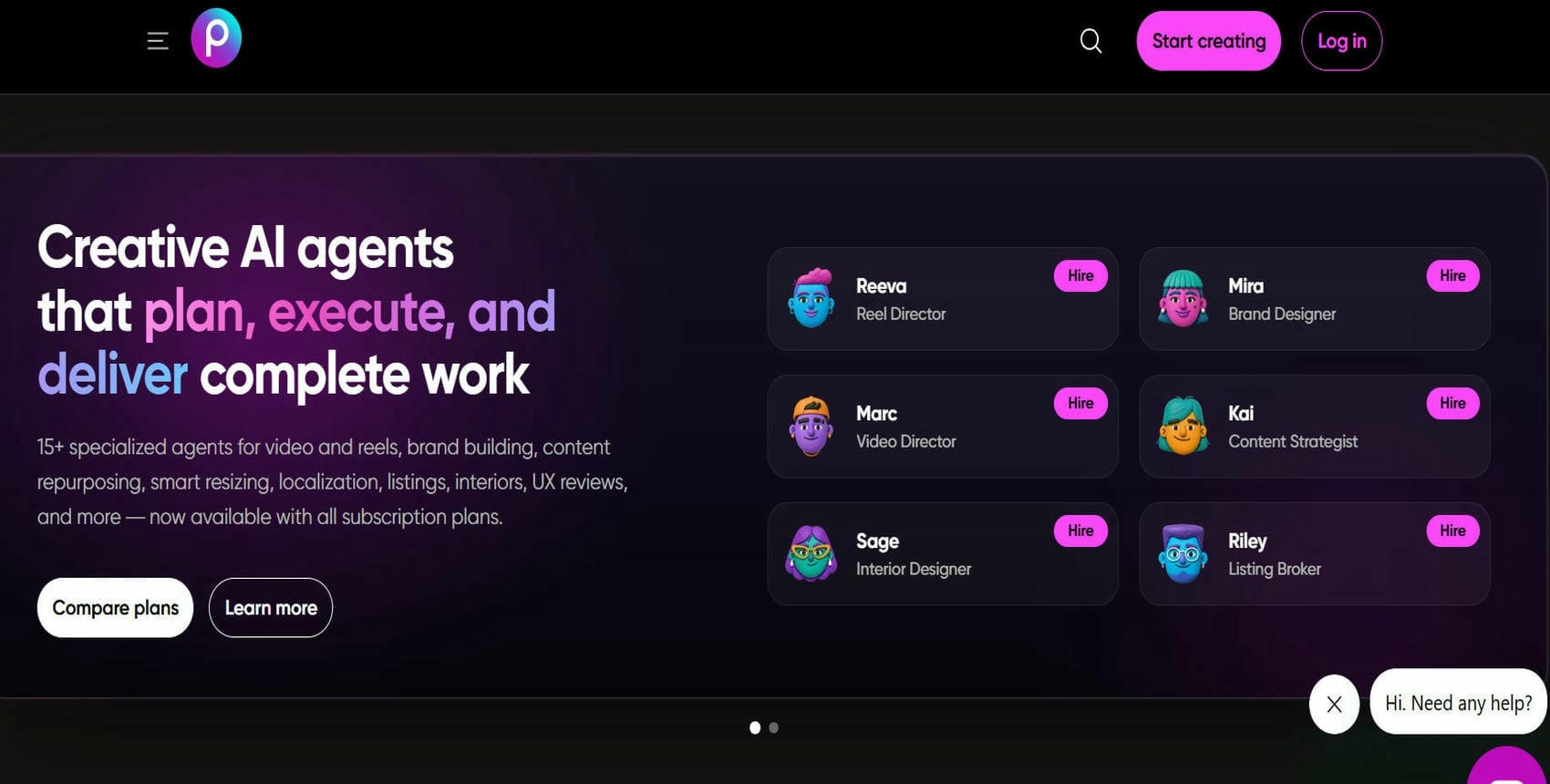
PicsArt
PicsArt combines AI photo enhancement with a wide range of creative editing tools for social media content. We noticed it performed well for quick content creation, though its interface felt more feature-rich than dedicated AI photo enhancers.
Key features
-
AI Enhance: Automatically sharpens images, improves colors, and enhances overall clarity with a single tap.
-
AI background removal: Remove or replace image backgrounds quickly for portraits, products, or social media content.
-
Creative editing tools: Access filters, effects, text, stickers, and collage templates for personalized edits.
-
Object removal: Eliminate unwanted objects or distractions using AI-powered editing tools.
-
Cross-platform support: Edit photos on Android, iPhone, and through the web interface.
Pros and Cons
|
Pros |
Cons |
|---|---|
|
Combines AI enhancement with creative editing |
Free version includes ads |
|
Easy-to-use interface |
Many AI features require a premium plan |
|
Includes AI background and object removal |
Export quality is limited on the free plan |
|
Available on mobile and web |
Interface can feel crowded for beginners |
|
Suitable for social media content creation |
Not dedicated solely to photo enhancement |
Pricing
|
Plan |
Price |
Key Features & Limits |
|---|---|---|
|
Picsart Free |
$0/month |
|
|
Picsart Pro |
~$10.50/month (billed annually) |
|
|
Picsart Ultra |
~$37.50–$60/month (billed annually) |
|
|
Picsart Enterprise |
Custom pricing |
|
-
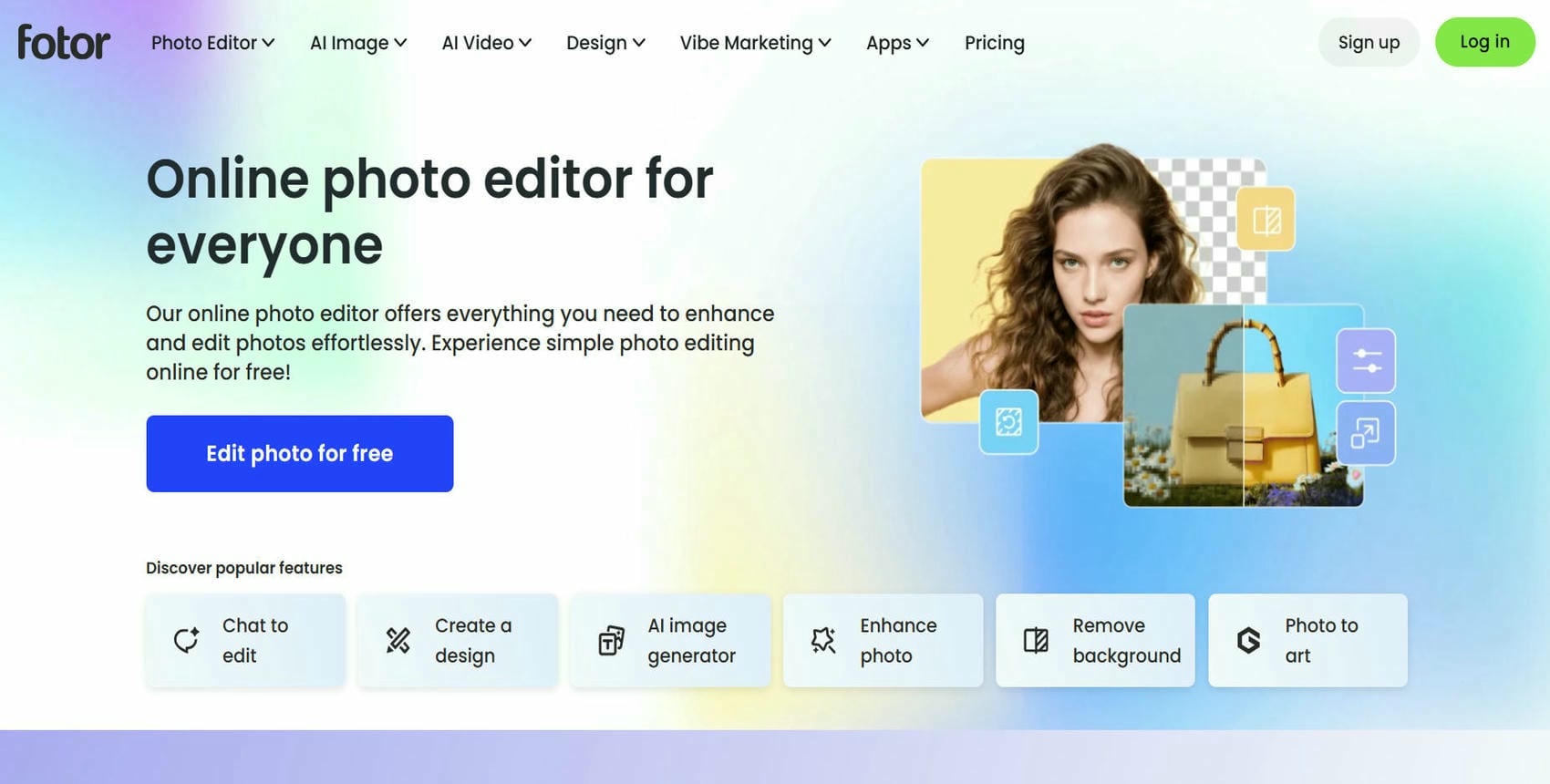
Fotor
Fotor is an AI-powered photo editor available on web and mobile platforms, offering enhancement, portrait retouching, and image upscaling. During our comparison, it produced reliable enhancement results for everyday photos, although larger images sometimes took longer to process.
Key features
-
AI photo enhancement: Automatically improves sharpness, lighting, and overall image quality.
-
AI image upscaling: Increases image resolution while preserving details and clarity.
-
Portrait retouching: Smooths skin, removes blemishes, and enhances facial features naturally.
-
Background removal: Instantly separate subjects from backgrounds using AI.
-
Web and mobile access: Edit photos across multiple devices without sacrificing convenience.
Pros and Cons
|
Pros |
Cons |
|---|---|
|
Strong AI enhancement and upscaling |
Free version has limited exports |
|
Beginner-friendly interface |
Watermarks may appear on free downloads |
|
Available on web and mobile |
Advanced AI tools require a paid plan |
|
Includes portrait retouching features |
Slower processing for large images |
|
Suitable for personal and business use |
Limited manual editing compared to professional software |
Pricing
|
Plan |
Price |
Key Features & Limits |
|---|---|---|
|
Basic |
$0/month |
|
|
Pro |
~$3.33/month (billed annually) |
|
|
Pro+ |
~$7.49/month (billed annually) |
|
-
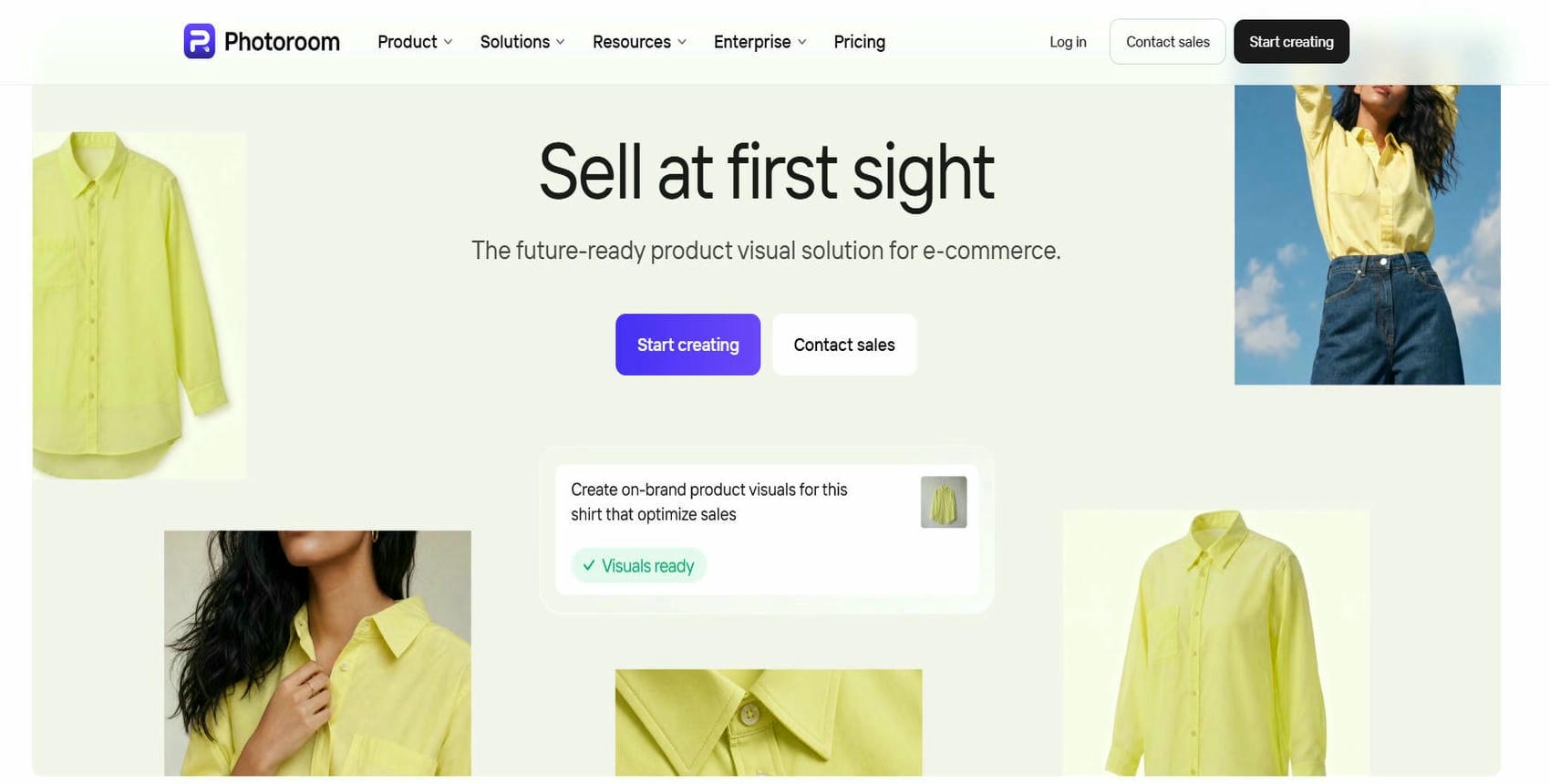
PhotoRoom
PhotoRoom is designed primarily for ecommerce sellers, marketers, and small businesses creating product images. In our testing, its AI background removal and product enhancement tools stood out, making it a strong choice for online store photography
Key features
-
AI photo enhancement: Improves image clarity, brightness, and overall quality automatically.
-
Background removal: Remove backgrounds with one click to create clean product images.
-
Product photo templates: Create polished visuals for online stores, catalogs, and advertisements.
-
Batch editing: Process multiple images at once to improve workflow efficiency.
-
AI backgrounds and shadows: Generate realistic backgrounds and natural-looking shadows automatically.
Pros and Cons
|
Pros |
Cons |
|---|---|
|
Excellent for product photography |
Less suitable for portrait restoration |
|
Accurate AI background removal |
Premium subscription needed for advanced features |
|
Supports batch editing |
Free exports may include watermarks |
|
Beginner-friendly interface |
Limited manual editing controls |
|
Ideal for e-commerce businesses |
AI enhancement is less advanced than dedicated enhancer apps |
Pricing
|
Plan |
Price |
Key Features & Limits |
|---|---|---|
|
Pro |
~$7.50/month (billed annually) |
Includes unlimited core editing tools, AI Backgrounds, AI Fashion Models, Brand Kit, API access, and support for up to 50 team seats. Includes up to 8,000 AI credits and 1,000 exports per month. Does not include Video Generator, 4K exports, Adjustable AI Shadows, or Shopify integration. |
|
Max |
~$20.99/month (billed annually) |
Includes all Pro features plus Video Generator, Shopify integration, and higher AI generation limits. Includes up to 25,000 AI credits and 3,000 exports per month. Does not include 4K AI Fashion Models or enterprise QA and SLA features. |
|
Ultra |
~$82.50/month (billed annually) |
Includes all Max features with 4K video and image exports, 4K AI Fashion Models, API access, and maximum AI usage limits. Includes up to 75,000 AI credits and 10,000 exports per month. Does not include dedicated enterprise onboarding, Visual QA, custom SLA, or SSO. |
-
Pixelcut
Pixelcut is an AI photo editing app built for online sellers, marketers, and content creators. During testing, we found its batch editing and product photo tools particularly useful for creating consistent ecommerce visuals, while its manual editing options remained fairly limited.

Key features
-
AI image enhancement: Automatically sharpens images and improves brightness, colors, and clarity.
-
AI background removal: Instantly isolate subjects for professional-looking product photos.
-
Magic Eraser: Remove unwanted objects and distractions with AI-powered editing.
-
AI-generated backgrounds: Replace plain backgrounds with customized AI-generated scenes.
-
Batch editing: Edit multiple product images simultaneously to save time.
Pros and Cons
|
Pros |
Cons |
|---|---|
|
Excellent for e-commerce product images |
Free plan has limited features |
|
Fast AI background removal |
Premium subscription required for advanced AI tools |
|
Includes object removal and batch editing |
Not intended for advanced professional editing |
|
Easy-to-use interface |
Limited manual editing options |
|
Available on Android and iOS |
High-resolution exports require a paid plan |
Pricing
|
Plan |
Price |
Key Features & Limits |
|---|---|---|
|
Free |
$0/month |
Includes basic background removal, limited upscaling, essential editing tools, and watermark-free exports. Daily limits on background removal, upscaling, and generative AI tools. Does not include batch exports or team collaboration. |
|
Pro |
$8/month (billed annually) |
Includes unlimited background removal and upscaling, all AI models, 600 monthly AI credits, commercial licensing, and support for up to 3 team members. Allows up to 1,000 batch exports per month. Generative AI tools are limited to 300 uses per day. |
|
Business |
$24/month (billed annually) |
Includes unlimited background removal and upscaling, 3,600 monthly AI credits, commercial licensing, and support for teams of up to 10 people. Supports up to 2,000 batch exports per month and higher daily AI usage limits. Larger AI credit allocations and additional team seats require higher-tier plans. |
Tips for getting the best photo enhancement results
Getting the most out of the best app for photo enhancing involves more than simply uploading an image. Following a few best practices can help AI produce sharper, more natural-looking results while preserving important details. Keep these tips in mind before enhancing your next photo.
-
Start with the highest-quality original photo: AI can enhance images, but the best starting point is a clear high-resolution original image. The better quality source images are, the more details can be preserved in the enhancement process, and the cleaner and more realistic results will be.
-
Choose the right enhancement mode: Most AI photo enhancers have dedicated modes for portraits, products, landscapes, and old photos. Choosing the right mode lets the AI make adjustments that are more suited to your particular image.
-
Avoid over-enhancing: Too much sharpening or restoration can make photos look fake. Pay attention to your enhancement settings to keep textures realistic, colors balanced and faces looking natural.
-
Compare the before-and-after preview: Reviewing the original and enhanced versions side by side helps you evaluate the improvements. This comparison makes it easier to decide whether additional adjustments are needed before downloading the final image.
-
Use AI upscaling only when needed: Upscaling is useful for printing or creating high-resolution visuals, but it is not always necessary for everyday sharing. Use it when larger image dimensions or extra detail are required.
Conclusion
Selecting the best app for improving photos depends on your editing goals, operating system, and budget. Remini is great for restoring portraits. Lightroom has professional editing controls. PhotoRoom and Pixelcut are perfect for product photography. Vmake Labs Image Enhancer is a good option if you want an all-in-one browser-based tool that includes AI enhancement, portrait enhancement, old photo restoration, and high-resolution upscaling. By comparing the features and strengths of each app, you can select the tool that best fits your workflow and consistently produce clearer, sharper and more professional-looking images.
FAQs
What is the best app for photo enhancing?
The best photo enhancing app depends on your needs. If you're looking for a simple AI-based solution to improve portrait and product photos, or restore old images, Vmake Labs Image Enhancer is a great choice. Lightroom is better for professional editing and Remini is popular for improving portraits.
Which is the best free photo enhancer app for Android?
Snapseed is one of the best free photo editing apps for Android because it offers powerful editing tools without subscriptions or watermarks. If you prefer AI-powered enhancement, Vmake Labs and PicsArt also provide free plans with basic enhancement features.
What is the best AI photo enhancer app for Android?
AI-powered photo enhancement apps include Remini, PicsArt, Fotor, and Pixelcut. Vmake Labs Image Enhancer is an AI image enhancement tool that offers a browser-based solution for users who wish to enhance images without installing any software and functions across devices.
Can AI improve blurry photos?
Yes. AI photo enhancers can decrease blur, make edges sharper, bring back fine details, enhance lighting, and boost the resolution of an image. With today's AI tools, it's possible to greatly improve slightly or moderately blurry photos, but the results depend on the quality of the original image.
Are AI photo enhancer apps safe to use?
Most reputable AI photo enhancer apps are safe when downloaded from official app stores or accessed via trusted websites. Before uploading your sensitive pictures, check the platform's privacy policy and data handling and storage policies to see how your sensitive pictures are processed and protected.

You May Be Interested
Best AI Image Enhancer in 2026: Top Tools to Upscale and Fix Blurry Images
Best AI Photo Enhancer Tools in 2026 (Free & Online): Improve Image Quality Instantly
2026 Fotor Video Enhancer Review: Features and Top Alternatives
2026 SnapEdit Video Enhancer Review: Features & Alternatives
7 Best Translation Apps in 2026: Top AI Translators Compared