How to Remove Text from Image: One-Click Text Removal from Images
Clean up images by removing distracting text, signs, or overlays. Learn how to remove text from image with Vmake Labs to clean up visuals instantly. Enjoy fast AI-powered editing.


If you have ever tried to manually clone-stamp a caption or watermark out of a photo, you know exactly how painful it is. You don't need to waste time doing that anymore. Modern text-removal tools do heavy lifting for you in a single click. They just erase the unwanted text and automatically fill in the background seamlessly. This guide is all about how to remove text from image using different methods. Here we go.
What does "remove text from a picture" mean
Removing text from an image simply means erasing a stubborn watermark, a timestamp, or some random text to clean up the picture. Whether you are trying to touch up a product shot, clean up a scanned document, or just fix a personal photo for social media, modern AI tools handle the heavy lifting now. Instead of just slapping a blur over the words, the tech actually looks at the surrounding pixels and figures out what should be behind them. It reconstructs the background on the go.
How to remove text from an image: Two methods for different uses
Desktop method: How to remove text from a picture in Photoshop
If you want absolute precision, Adobe Photoshop is still the undisputed tool for this kind of desktop work. It packs an entire arsenal of heavy-duty tools, like the newer Remove Tool and Generative Fill, alongside classic staples like Content-Aware Fill, the Spot Healing Brush, and the Clone Stamp. If you have a highly complex image, Photoshop gives you an unmatched level of granular control.
Here's how to remove a text from a picture in Photoshop.
Step 1: Open the image
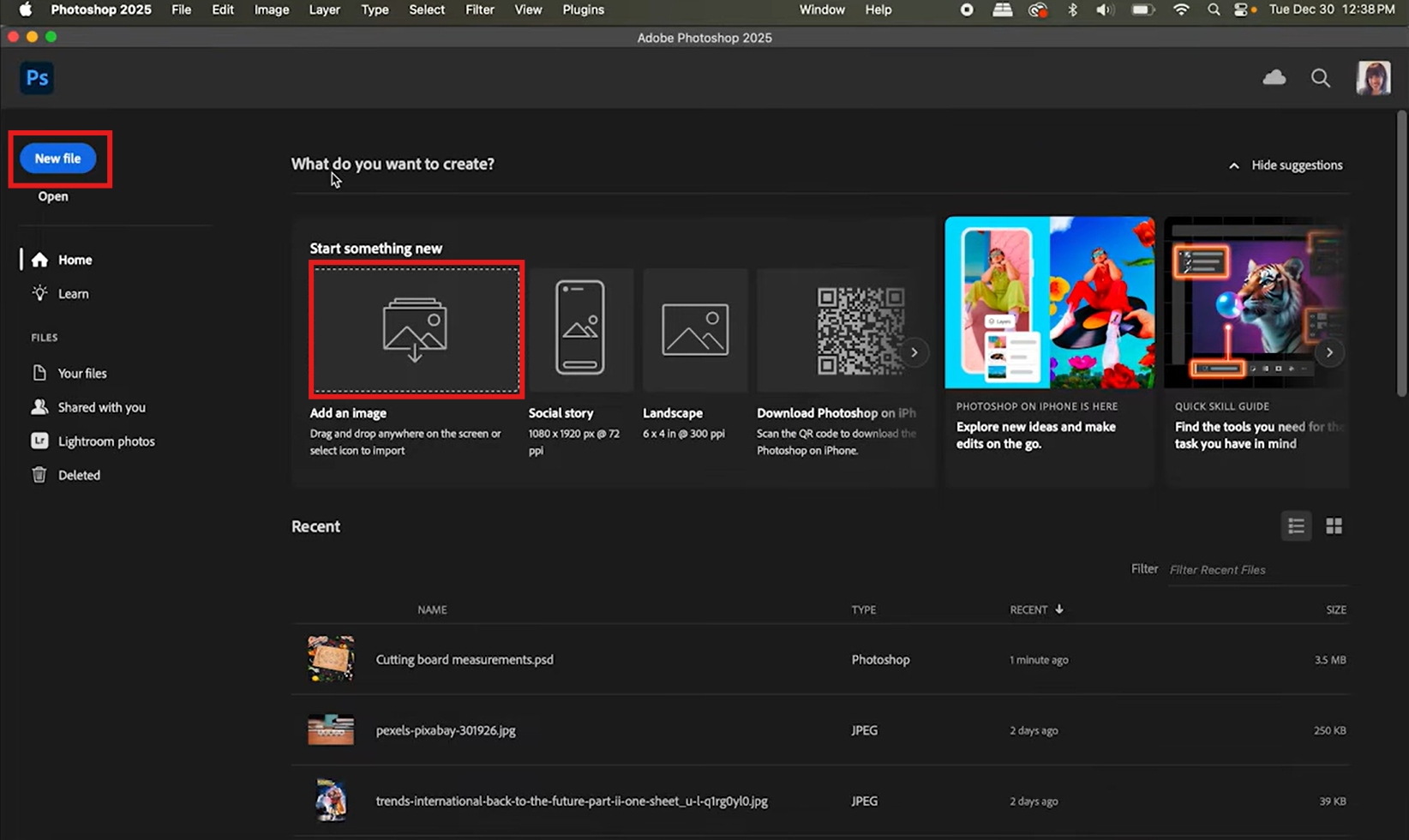
First, launch Photoshop and open the image you need to fix. Click "New file" and "Add an image" to upload the image from which you want to remove the text.
Step 2: Select the text area
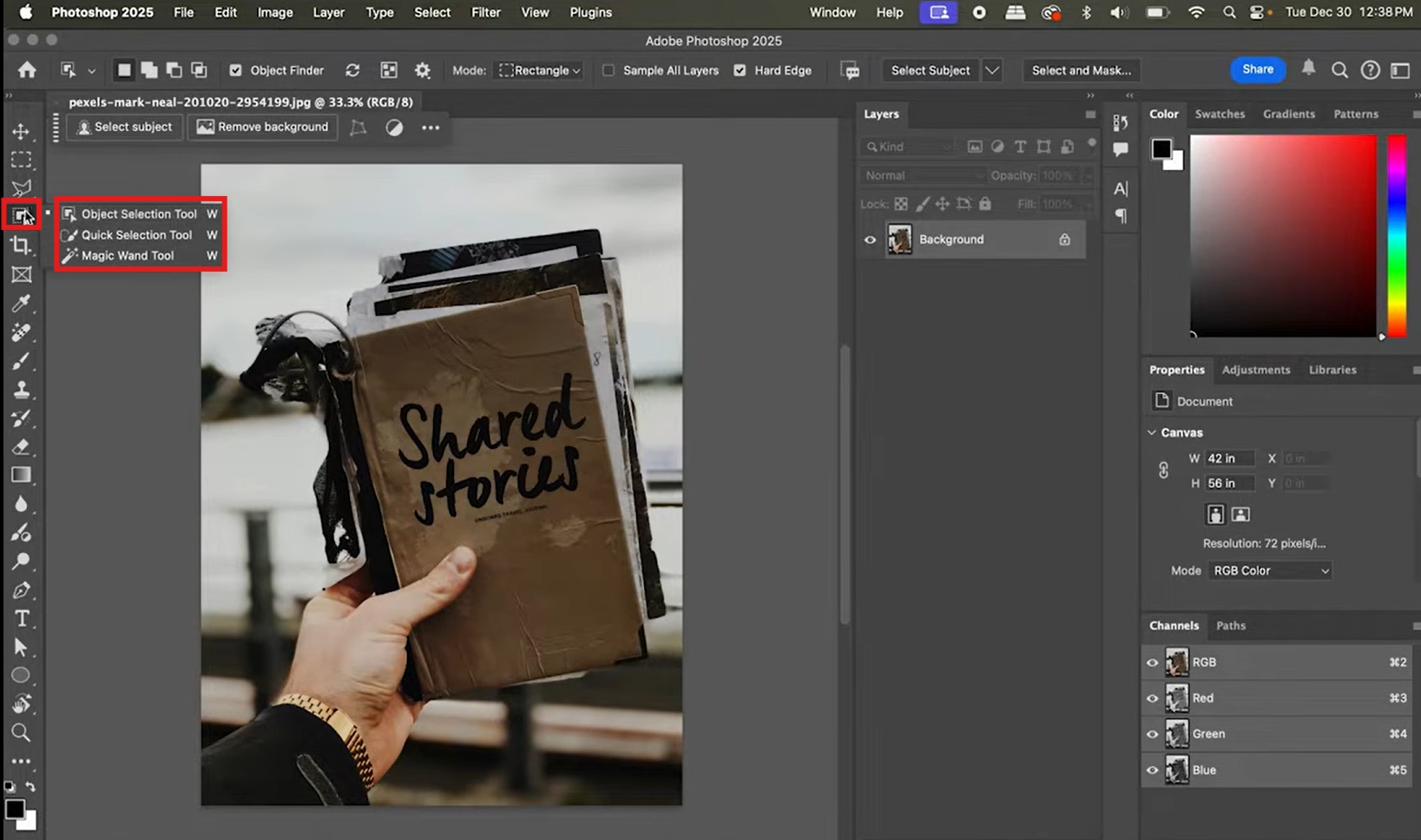
You need to map out the area you are erasing, so grab the selection tool in the left pane or the newer Remove Tool to highlight the words. You can further use the Modify option to smooth the edges or expand the selected text.
Step 3: Remove the text
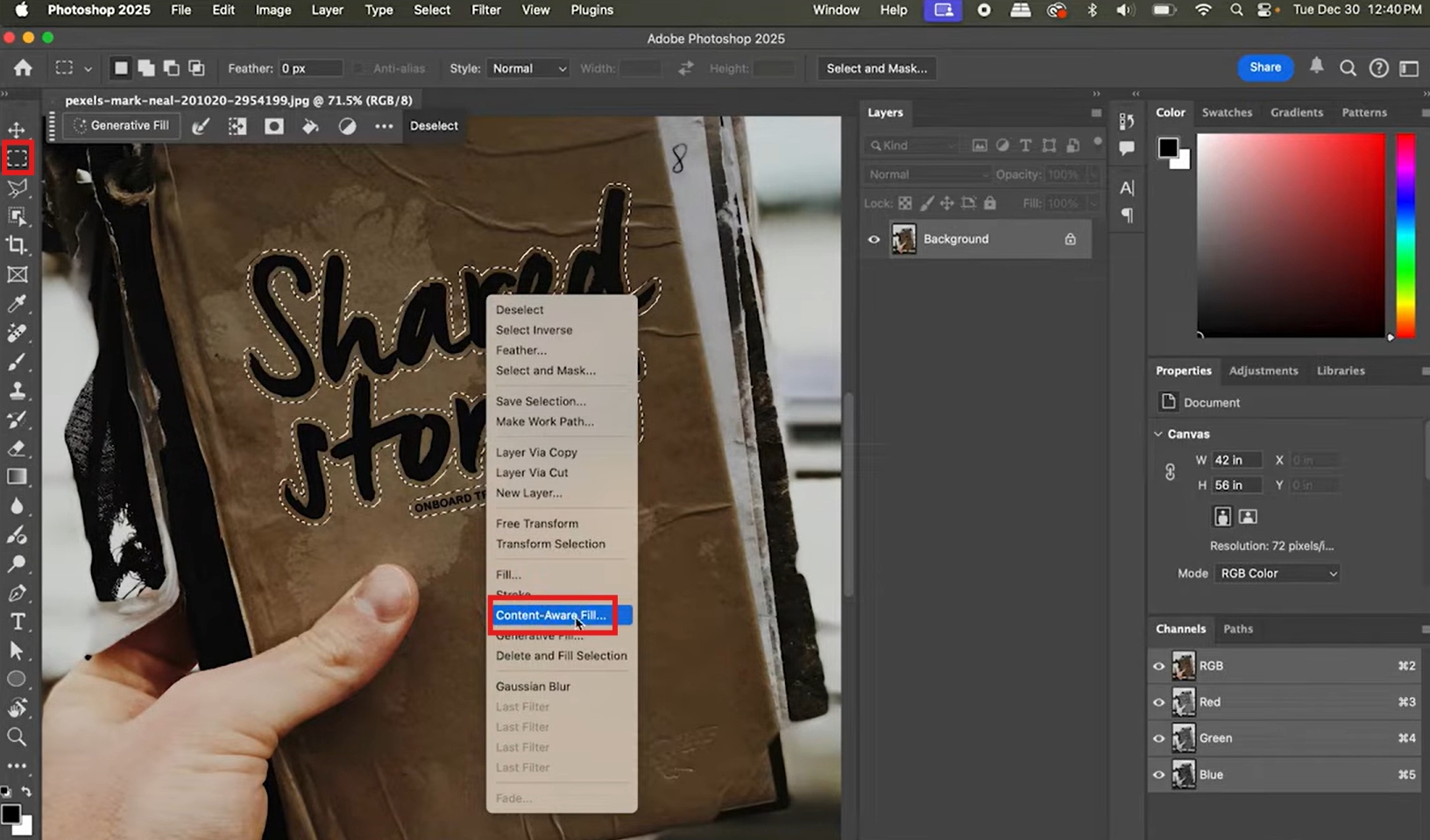
If you have a modern version, just brush over it with the Remove Tool or type a quick command into Generative Fill to let Adobe's tech automatically rebuild the background. For older setups, hitting "Content-Aware Fill" usually does the trick by analyzing the surrounding pixels to patch the hole. Finally, deselect the text to remove it for good.
Photoshop gives you an insane amount of precision and control, making it ideal for professionals handling images with complex backgrounds. However, online AI text removal tools are usually a much better fit if you just want things done quickly. You don't have to install heavy software or watch hours of tutorials to figure out how to use them. You just drop your file into a browser window, paint over the words, and let the tech do heavy lifting.
Online method: Easily remove text from a picture online with Vmake Labs
If you want something faster and way less tedious than heavy desktop software, Vmake Labs AI watermark remover is a great alternative for stripping text out of a photo. It uses an AI engine to spot and wipe out random text, messy watermarks, or logos without completely destroying the background underneath.
You can either opt for watermark or smart mode to remove watermarks or any random text from an image automatically. Then there's a manual box selection feature to draw the line yourself to make sure the AI knows exactly what to delete. Plus, if you have a massive pile of files to clean up, the platform handles batch processing.
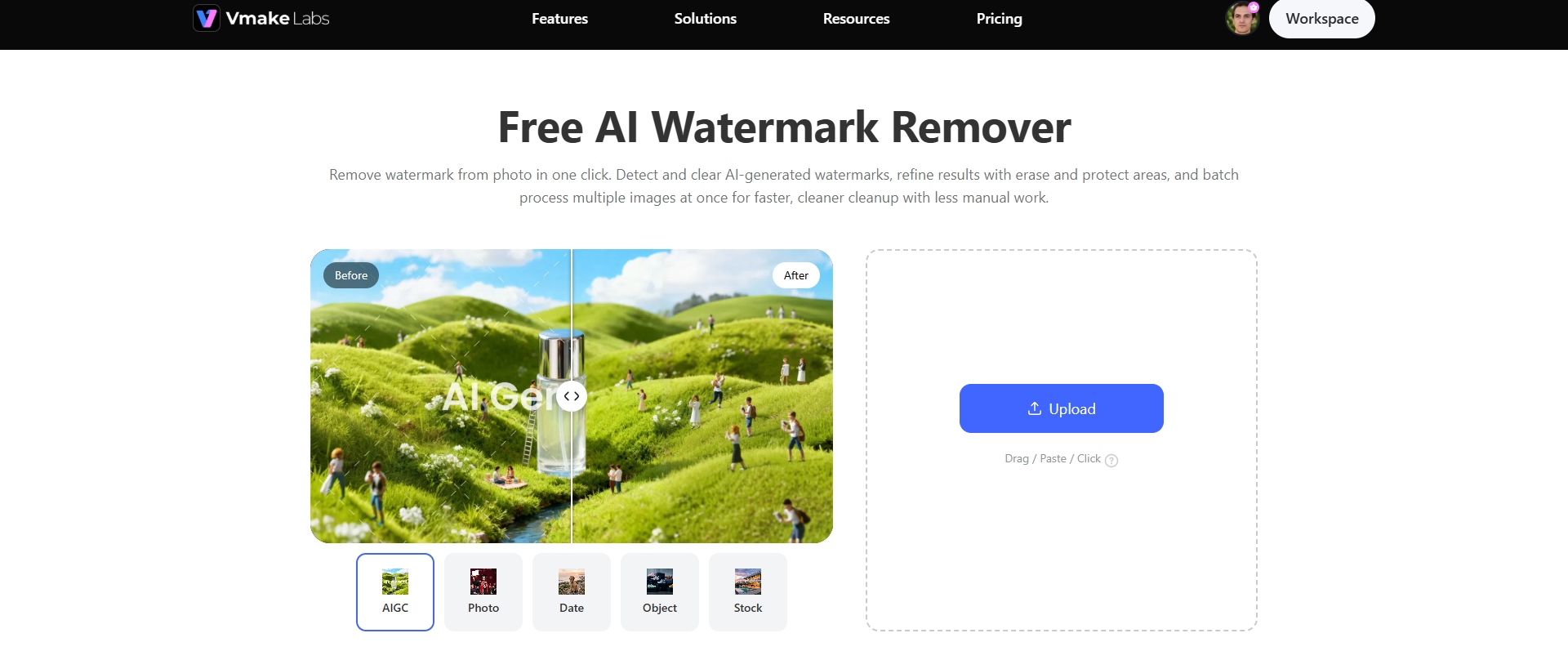
Step 1: Upload an image
Head over to the Vmake Labs AI Image Watermark Remover site and drop in your image. Click "Upload" to import your reference image from which you want to remove the watermark or text. It plays nice with all the usual file formats.
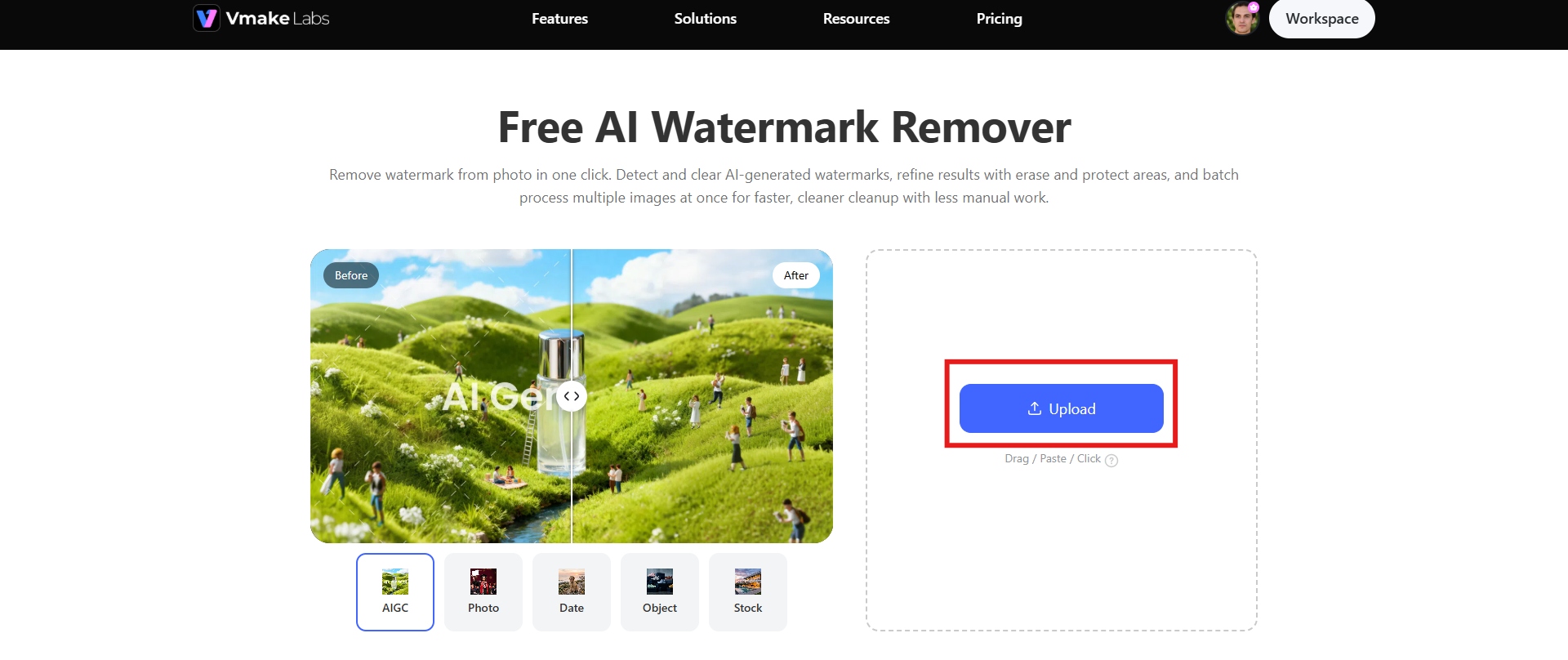
Step 2: Choose a mode
Next, you need to decide how to clear the text. You can simply choose Auto mode to let AI take over and remove the watermark automatically. Besides, you can choose manual mode for more precise control. Once you do, click "Apply", and the AI analyzes the surroundings and patches over the spot, rebuilding the background so it actually looks natural.
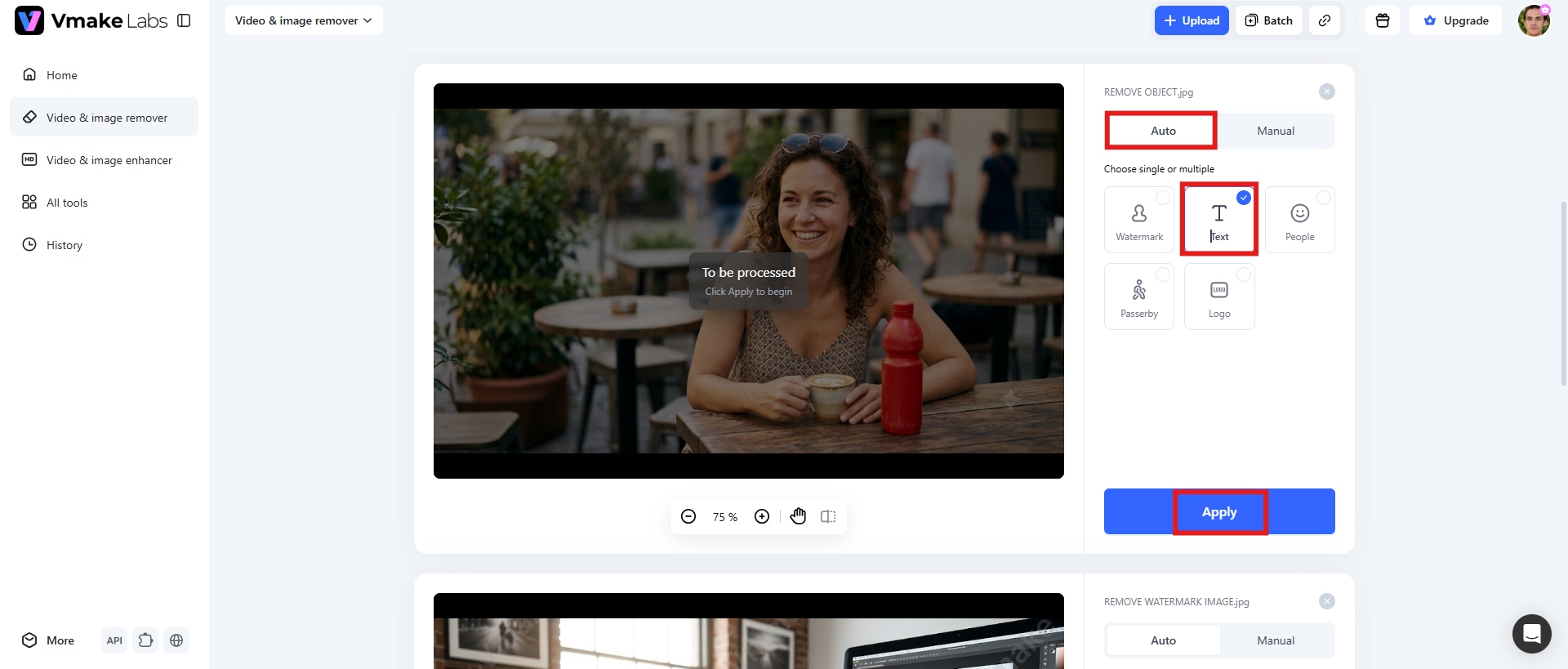
Step 3: Download the image
Before you do anything else, take a quick look at the preview to make sure the edges look right and the background isn't warped. Once you are happy with how it turned out, just click "Download to get the high-quality file.
Key features
-
Natural AI background reconstruction: Vmake Labs uses advanced AI technology to rebuild the area where unwanted text, watermarks, logos, or objects are removed. Instead of simply blurring or covering the selected area, the AI analyzes nearby colors, textures, and patterns to generate a realistic replacement background.
-
Batch processing: Vmake Labs supports batch processing, allowing users to remove text, watermarks, or unwanted elements from multiple images at the same time. This feature saves time for businesses, content creators, and photographers who need to edit a large number of images without processing each file individually.
-
Browser-based editing: This tool works directly in a web browser, so users can remove text from images online without installing additional software. The browser-based workflow makes editing faster and more accessible.
-
Remove people from a photo: Text isn't the only thing that ruins a good shot. Therefore, Vmake Labs can also remove people from photos instantly. It is useful for travel photos, product photography, real estate images, and social media content where a clean background is essential.
-
Eliminate logos and labels: Vmake Labs photo logo remover is also great for stripping out old branding. If you need to update your own company assets, erase a product label, or clean up a promotional image, you can wipe those logos away without ruining the resolution. It keeps the overall look and quality of your image intact.
Photoshop vs AI text remover: Which method should you choose?
Your choice ultimately depends on two things: your skill level and how the final image will be used. Below is a clear comparison to help you decide:
|
Feature |
Photoshop |
AI Text Remover |
|---|---|---|
|
Best for |
Complex professional edits |
Fast, simple text removal |
|
Speed |
Slower, manual workflow |
Fast, often one-click |
|
Skill level |
Requires learning and practice |
Beginner-friendly |
|
Editing control |
Full pixel-level control |
Limited, mostly automatic |
|
Background repair |
Manual with Clone Stamp, Healing Brush, Content-Aware Fill |
Automatic reconstruction |
|
Accessibility |
Desktop software, paid subscription |
Browser-based, many free options |
|
Final quality |
Best for difficult or detailed images |
Great for clean, simple backgrounds |
Choose Photoshop when you need advanced editing control, detailed manual adjustments, or professional photo manipulation. It is the better option for complex images, such as text overlapping a face or sitting on a detailed pattern like a knit sweater.
Choose an AI text remover when you need quick one-click text removal, a simple browser-based solution, automatic background reconstruction, or faster editing without technical skills.
Tips for getting cleaner results when removing text from images
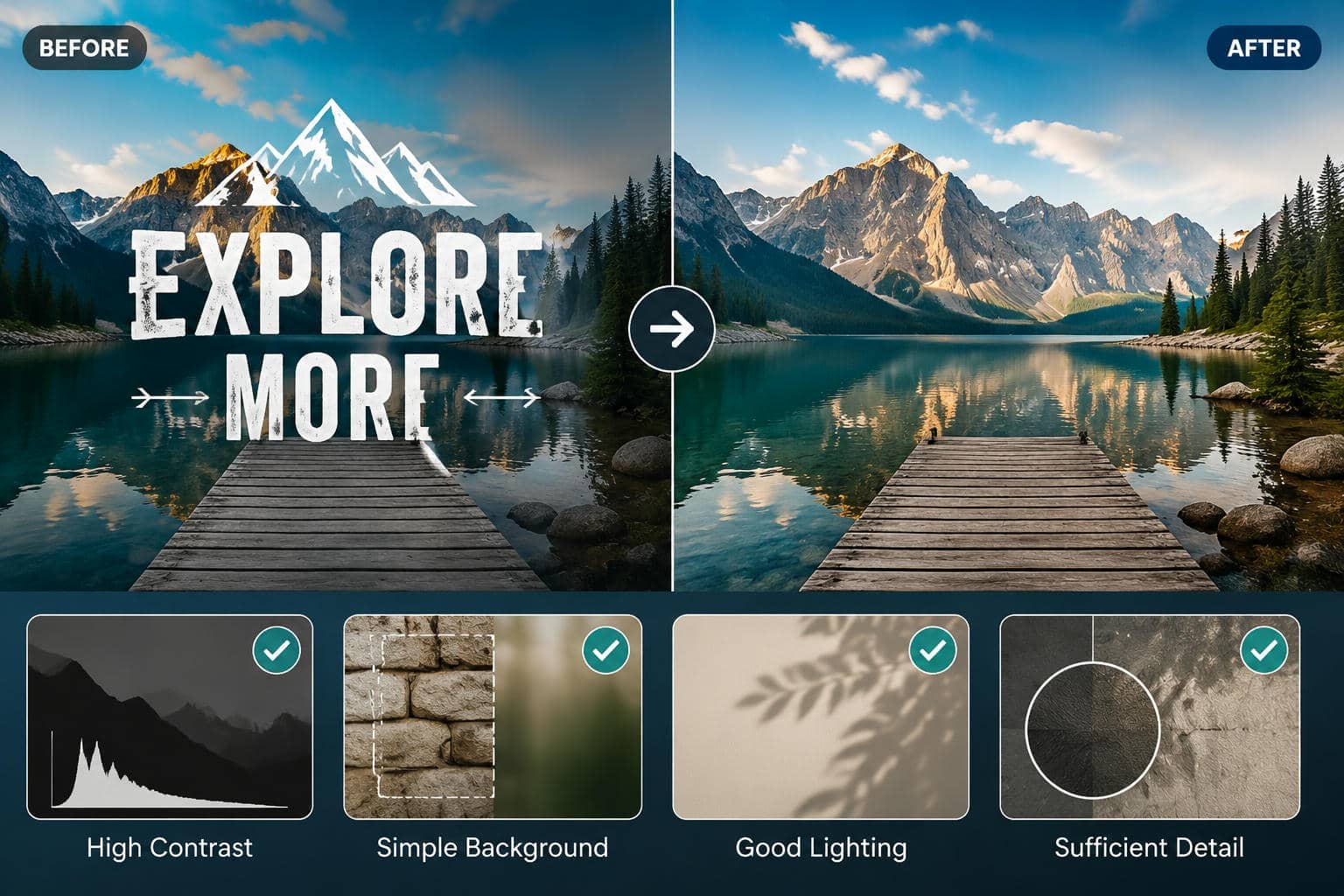
AI tools are incredibly fast and usually do a solid job right out of the gate, but they aren't magic. If you want the final edit to look flawless, there are a few simple things you can do to get a much cleaner result:
-
Use high-resolution images
Always try to upload a high-resolution image instead of a tiny, heavily compressed file. Here is why that matters: the AI needs actual visual data to do its job. If you give it a blurry, pixelated image, the algorithm basically has to guess what the background should look like, which usually ends up looking muddy.
-
Select only the unwanted text
Keep your selection as tight as possible. It's tempting to just draw a lazy, giant bubble around the general area, but don't do it. If you select too much of the surrounding background, you're giving the AI permission to alter parts of the photo you actually wanted to keep, which usually leads to weird, warped details.
-
Zoom in for precise selection
If you're dealing with tiny text or words crowded right next to detailed objects, do yourself a favor and zoom in before making your selection. A tight, precise selection makes it incredibly easy for the AI to tell the difference between the annoying label you want to kill and the background details you actually need to preserve. It takes an extra ten seconds, but the payoff is a much cleaner edit.
-
Remove text in smaller sections if needed
If you are dealing with a massive block of text or words sitting on top of a really busy background, don't try to erase the whole thing in one giant sweep. Instead, take it slow and wipe the text out in smaller, bite-sized sections. It gives the algorithm a much better chance to analyze and rebuild each specific spot accurately.
-
Review before downloading
Always take a second to preview the edited image before you save the file and close the tab. Actually zoom in on the spot where the text used to be. You want to make sure the background looks natural and that the tool didn't leave behind any weird, blurry "artifacts".
Why do people need to remove text from images?
There are plenty of times when text just gets in the way of a perfectly good photo. Maybe you are trying to clean up an old personal memory, fix up some marketing materials, or update an old branded graphic that just feels dated. Here's why you might need to remove text from images online.
-
Remove unwanted captions
Captions make sense when a photo is first posted, but they rarely age well. Wiping that text out fixes the clutter. It strips away the distraction, so people actually look at the main subject of your photo, which is the whole point anyway.
-
Erase watermarks (only when you have the legal right)
If you actually own the photo or if you have explicit permission from the creator, removing a watermark is often the first step. This happens a lot when people are trying to restore their own archived family photos, update outdated branding assets, or work with licensed stock images where the terms allow for it.
-
Try removing text in smaller portions
If the first result is not perfect, avoid removing a large text block in a single attempt. Instead, select a smaller portion of the unwanted text and run the AI removal process again. Smaller selections give the AI more accurate information about the surrounding background, helping it reconstruct details more naturally and produce cleaner results.
-
Delete timestamps
Timestamp is a classic feature on older digital cameras, some smartphones, and security feeds. They are great for organizing files in a dusty hard drive, sure, but they absolutely ruin the aesthetic of a good photo.
-
Remove logos from your own assets
Businesses change their branding all the time. When that happens, you are often left with a massive pile of perfectly good graphics, banners, and product shots. Recreating all of those assets from scratch is a massive waste of time.
-
Clean up screenshots
Screenshots are usually cluttered with random text, like stray notifications, usernames, or clunky menu bars. Stripping out those interface elements leaves you with a much cleaner image, making your guides and presentations significantly easier for people to actually follow.
Conclusion
Gone are the days when cleaning photos meant spending hours squinting at a screen. Modern AI tools handle tedious stuff for you, letting you erase captions, watermarks, timestamps, logos, or random labels while somehow keeping the original background completely intact. It is incredibly useful whether you're just fixing up a personal vacation photo, prepping a product shot for an online store, or cleaning up images for a social media campaign. We hope our guide has helped you know how to remove text from image.
If you are looking for a quick, web-based tool that gets the job done without any hassle, Vmake Labs AI Image Watermark Remover is an excellent choice. It has all the right features for a quick cleanup. Along with different modes, it supports batch processing to save you from doing them one by one. You just upload your files, let the tech do its thing, and download the high-quality results a few seconds later.
FAQs
Will removing text affect image quality?
The quality of your final image really comes down to a few basic variables, specifically the resolution of your file, how busy the background is, and how massive the text block was in the first place. If you start with a high-resolution image, you're going to get a much cleaner result. It is just basic logic: more pixels give the AI more data to work with.
Can AI remove text from complex backgrounds?
The short answer is yes. Modern AI tools are surprisingly smart at reading nearby colors, textures, and patterns to reconstruct what should be behind the text. But here's the thing: if your text is sitting on top of a highly detailed pattern, like a chain-link fence, brick wall, or busy foliage, the system can get a bit confused. These complex areas might require a second pass, or at least a very tight, precise selection, to prevent the tool from giving a blurry smudge.
Is it legal to remove text or watermarks from images?
It really comes down to who owns the image and what rights you have to it. If you are editing your own photos, go right ahead; there is absolutely no issue there. But watermarks are a different story. They are usually placed on an image to signal copyright ownership. Because of that, you should really only strip a watermark if you actually own the photo or have explicit, written permission from the person who does.
Can I remove text from screenshots, posters, or scanned documents?
Yes, absolutely. These AI tools do not really care about the format. They work just fine on screenshots, flyers, advertisements, scanned documents, and social media graphics. But here is the catch: the final quality heavily depends on two things: how high the resolution is, and how much contrast there is between the text and whatever is behind it.
What image formats are supported?
Most of the web-based AI tools out there are pretty flexible when it comes to file formats. You won't have to worry about converting things constantly; they easily handle standard formats like JPG, JPEG, PNG, WebP, and occasionally BMP. Plus, depending on the site, you can sometimes import a whole batch of files at once to save yourself the headache of uploading them one by one.
Which is the best free tool to remove text or people from images online?
If you just want something fast that doesn't require a steep learning curve, consider checking out Vmake Labs AI Image Watermark Remover. It's incredibly straightforward. The AI does a fantastic job of wiping out text, annoying watermarks, brand logos, or product labels. You can even use it to erase random tourists or clutter from your shots in just a couple of clicks. It is a great all-rounder because of how they split the features.

You May Be Interested
Aqua Voice Speech to Text Tool: Complete 2026 Review & Guide

VEED.io Audio to Text: Everything You Need to Know in 2026

Vidnoz AI Audio to Text: Features, Pricing & Review Guide
Microsoft Word Audio to Text: How to Convert Voice Recordings with AI
How to Remove People from Photos on Android: Easy AI Methods

How to Remove Text from a Video: Your Ultimate Guide to Pro Edits