8 Best Mac Photo Enhancement Software for Better Photos in 2026
Discover the best mac photo enhancement software for sharper, clearer photos. Compare AI-powered tools, free options, and professional editors to find the perfect solution for your Mac.

We tested the leading Mac photo enhancement software on portraits, old photos, blurry snapshots, and low-resolution images. This comparison looks at image quality, AI capabilities, speed, ease of use, pricing and value, so photographers, creatives and normal Mac users can pick the right photo enhancement software.
What is Mac photo enhancement software?
AI photo enhancement software improves image quality using advanced AI models and image processing technology, eliminating the need for professional editing skills. Whether you want to enhance everyday photos, sharpen blurry images, or restore old pictures, these tools automatically analyze each image and apply intelligent improvements. Many solutions are available as desktop applications, while browser-based platforms let you enhance photos without installing additional software.
Common photo enhancement features include image upscaling, blur removal, noise reduction, face enhancement, automatic color correction, and old photo restoration. Whether you're a photographer, designer, marketer, online seller, or casual user, these tools can transform low-quality images into polished, high-resolution visuals in just a few clicks.
How we tested these Mac photo enhancement software tools
To provide fair and practical recommendations, we tested each Mac photo enhancement software using the same workflow and evaluation criteria. Our goal was to evaluate not only AI image quality but also the overall user experience on macOS.
-
Testing device: MacBook Air with Apple Silicon to assess performance on modern Mac hardware.
-
Image types: Portraits, old photos, blurry snapshots, low-resolution images, product photos, and everyday lifestyle images.
-
Evaluation criteria: We compared AI enhancement quality, processing speed, Apple Silicon optimization, batch processing support, export quality, ease of use, pricing, and overall value.
-
Testing methodology: Each tool was tested using its default AI enhancement settings where available. We compared improvements in sharpness, detail recovery, noise reduction, colour accuracy, and image upscaling, while also evaluating workflow efficiency, export options, free plan limitations, and whether the results looked natural across different image types.
Quick comparison of Mac photo enhancement software
Each tool excels in different areas, from one-click AI enhancement to advanced manual editing. The comparison below highlights the key differences in features, ease of use, and ideal use cases, helping you quickly narrow down the best Mac photo enhancement software for your needs.
|
Software |
Blur removal |
Upscaling |
Batch processing |
Free version |
Ease of use |
Best for |
|---|---|---|---|---|---|---|
|
Vmake Labs |
Yes |
Yes |
Yes |
Yes |
Very Easy |
AI-powered photo enhancement |
|
Adobe Photoshop |
Yes |
Yes |
Yes |
Trial only |
Advanced |
Professional photo editing |
|
Luminar Neo |
Yes |
Yes |
Yes |
Trial |
Easy |
AI-assisted creative editing |
|
Pixelmator Pro |
Limited |
Limited |
No |
No |
Easy |
Mac-native photo editing |
|
Topaz Photo AI |
Yes |
Yes |
Yes |
Trial |
Easy |
High-quality image restoration |
|
Affinity Photo 2 |
Limited |
Limited |
Yes |
Trial |
Moderate |
One-time purchase editing |
|
GIMP |
Limited |
No |
Limited |
Yes |
Moderate |
Free manual editing |
|
Fotor |
Yes |
Yes |
Limited |
Yes |
Very Easy |
Quick online enhancements |
8 best Mac photo enhancement software in 2026
Top Mac photo editing software offers powerful AI, intuitive controls, and consistent results. Some tools are made for professional editors, while others make it easy with a one-click upgrade. Here are eight popular choices based on image quality, ease of use, supported features, price, and overall value for Mac users.
Vmake Labs Image Enhancer
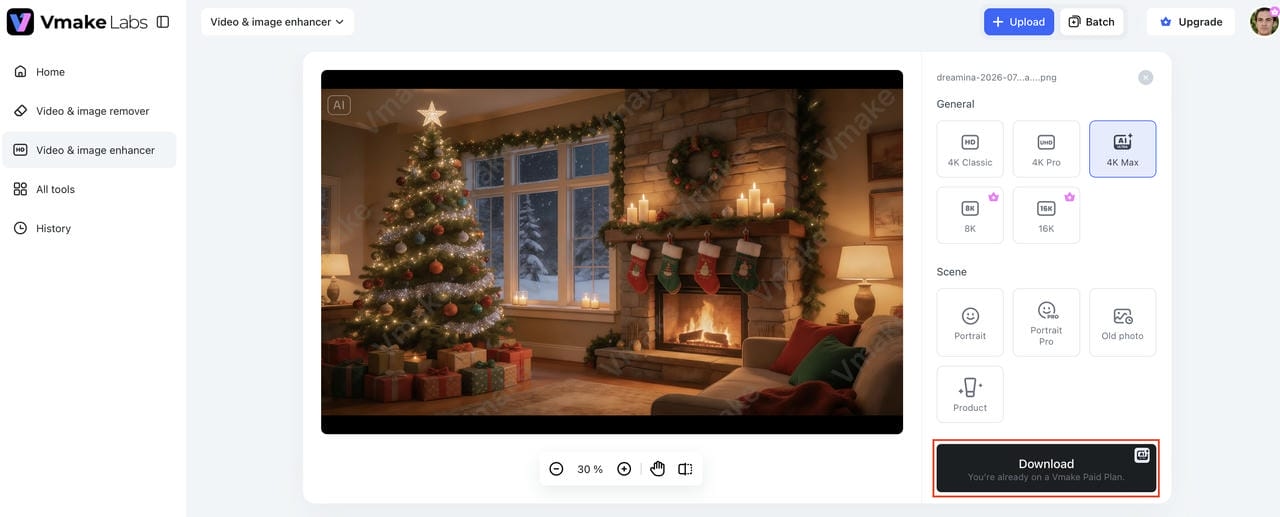
Vmake Labs Image Enhancer is an AI tool that runs in the browser and is designed to quickly improve image quality without the need to install any software. It automatically sharpens details, reduces blur, removes noise, and enhances AI-generated or low-resolution images. With an easy workflow and support for batch processing, it's perfect for creators, businesses, and anyone else looking for fast, high-quality photo enhancement on Mac.
Our testing experience: Vmake Labs delivered consistent results across portraits, product photos, and old image restoration. The AI produced natural-looking enhancements with minimal effort, and the browser-based workflow made batch editing especially convenient. It's best suited for users who want fast, high-quality enhancements without installing desktop software.
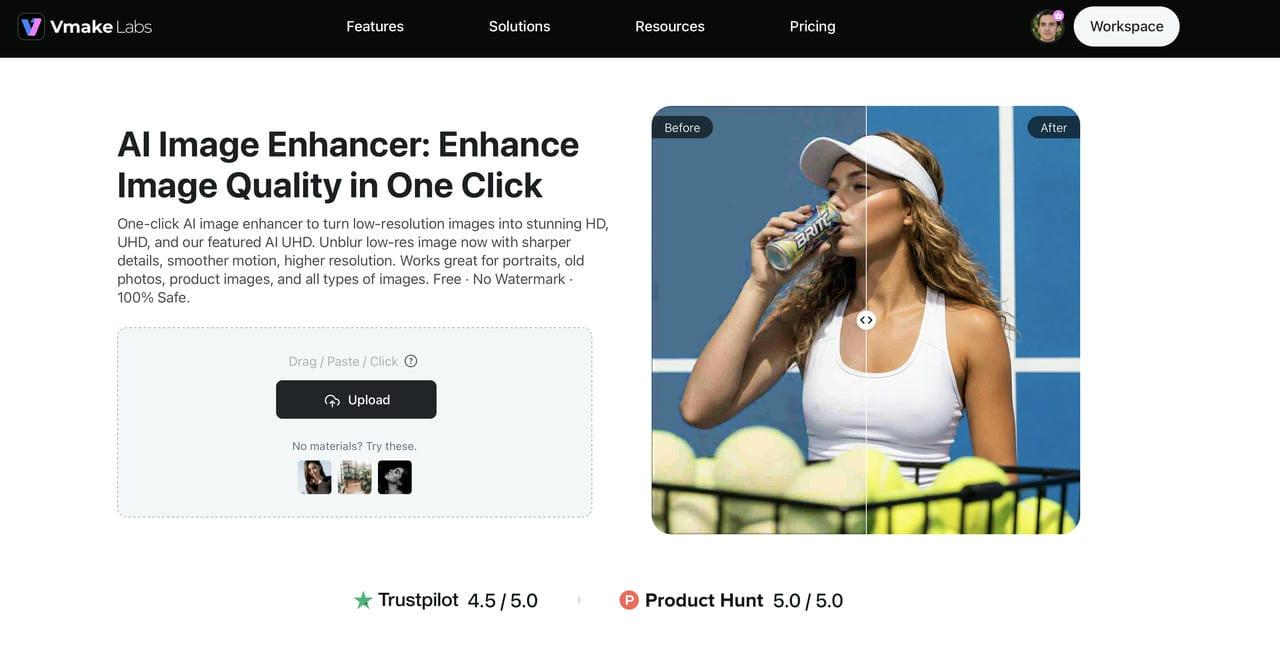
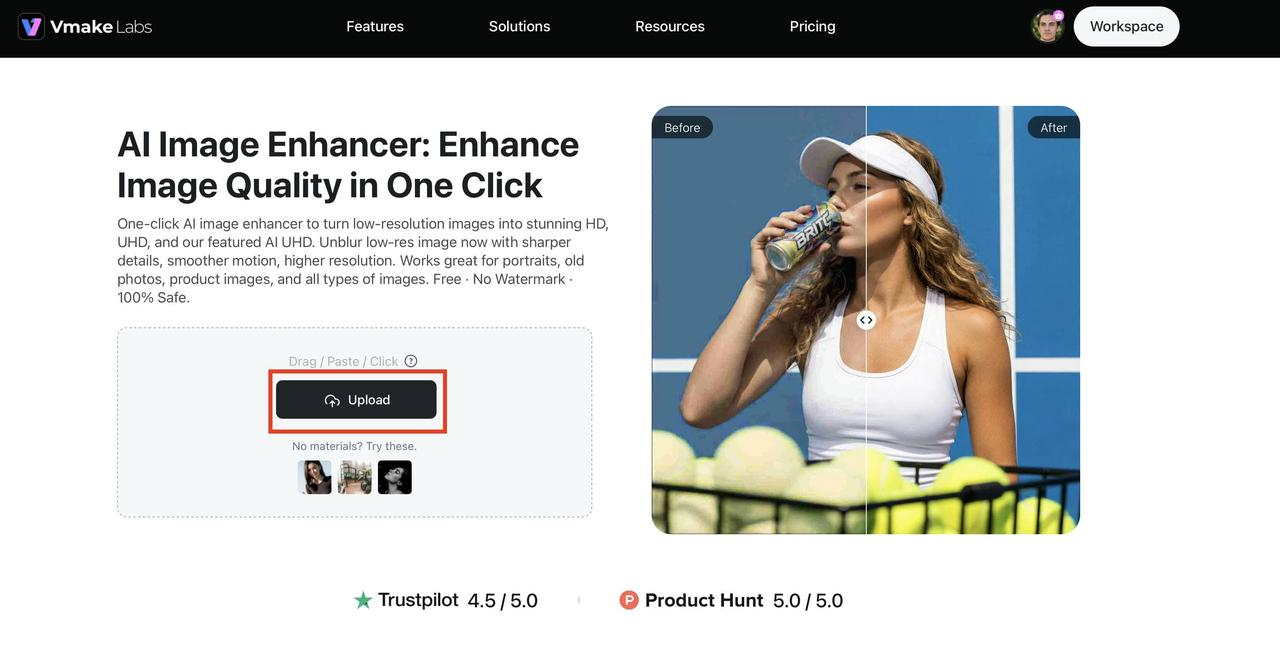
Step 1: Upload your photos
Click, drag and drop or paste your images into the editor to upload them. You can also batch upload up to 30 photos to save time when improving multiple images.
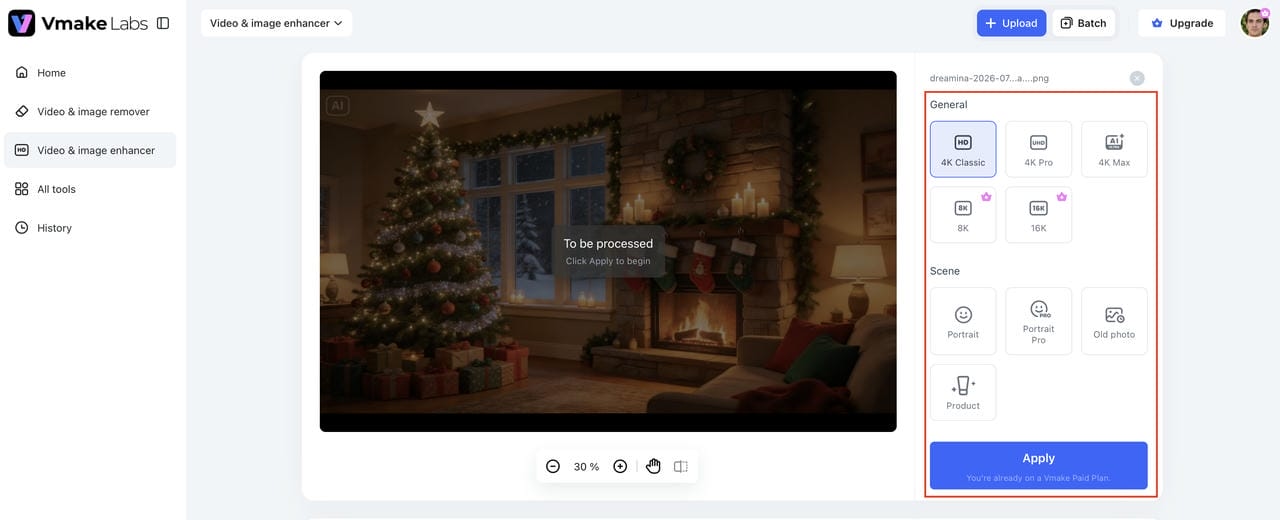
Step 2: Enhance with AI
The AI automatically analyzes each image and improves sharpness, clarity, and overall quality. Preview the results, then choose another enhancement mode if you'd like to refine the output further.
Step 3: Download your enhanced photos
Once you're satisfied with the enhancement, download the processed images directly to your Mac. The workflow is fast and requires only a few clicks.
Key features
-
Advanced AI image repair: Vmake Labs uses a proprietary AI repair model to repair blurry, compressed, and low-quality images. It intelligently fills in the missing details, which leads to sharper and more natural-looking images.
-
Blur and noise reduction: Automatically reduce motion blur, soft focus, and digital noise while preserving important textures. This helps improve overall image clarity without having to make manual adjustments.
-
AI artifact and face correction: Fix common problems in AI-generated or compressed images, e.g. distorted faces, unnatural reflections, and visual artifacts for more realistic results.
-
Image upscaling and detail enhancement: Increase image resolution while preserving fine details and textures. Enhanced images are suitable for printing, e-commerce, marketing, and other high-quality applications.
-
Batch enhancement for up to 30 images: Upload and enhance multiple photos at once to save time. Batch processing is ideal for photographers, businesses, and content creators handling large image collections.
-
Browser-based tool with no software installation required: Edit photos directly in your browser; no need to download desktop software. Simply upload your images, let the AI work its magic, and download the enhanced results.
Pros and cons
|
Pros |
Cons |
|---|---|
|
Browser-based with no installation |
Free plan has processing limits |
|
Excellent AI image enhancement |
Some premium features require paid credits |
|
Supports batch processing for up to 30 images |
|
|
Simple interface for beginners |
|
Pricing
|
Plan |
Price |
Key Features & Limits |
|---|---|---|
|
Free |
$0/month |
|
|
Plus |
$9.99/month |
|
|
Pro |
$29.99/month |
|
Adobe Photoshop
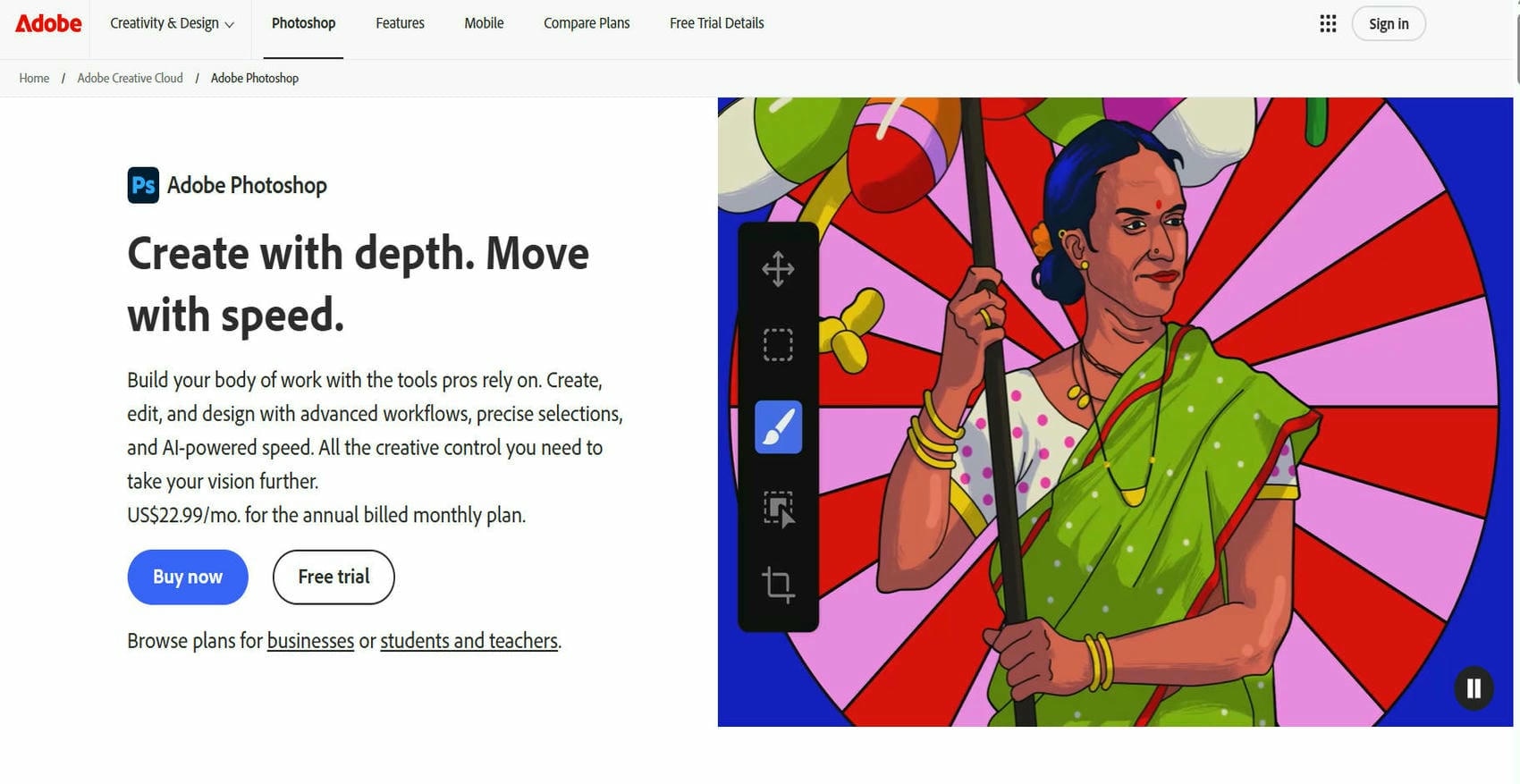
Adobe Photoshop remains one of the most powerful image editing applications available for Mac. While traditionally known for manual editing, it now includes AI-powered tools that simplify tasks such as removing distractions, improving image quality, extending backgrounds, and sharpening details. It is ideal for professionals who want complete creative control alongside intelligent automation.
Our testing experience: Photoshop offered the greatest editing flexibility and powerful AI-assisted tools, particularly for complex photo retouching. However, its extensive feature set comes with a steeper learning curve, making it better suited for professional photographers, designers, and experienced editors.
Pros and cons
|
Pros |
Cons |
|---|---|
|
Industry-leading editing tools |
Subscription required |
|
Powerful AI enhancement features |
Steeper learning curve |
|
Excellent RAW image support |
More complex than one-click AI tools |
|
Extensive plugin ecosystem |
Higher cost than many alternatives |
Pricing
Here are the 4 plans most relevant to photo editing and enhancement, filtered specifically to focus on tools like Photoshop and Lightroom:
|
Plan |
Price |
Key Features & Limits |
|---|---|---|
|
Photography Plan (1 TB Storage) |
US$19.99 / mo (Annual plan, billed monthly) |
|
|
Photoshop Single App |
US$22.99 / mo (Annual plan, billed monthly) |
|
|
Lightroom Single App |
US$11.99 / mo (Annual plan, billed monthly) |
|
|
Creative Cloud All Apps (Students & Teachers) |
US$19.99 / mo (Promo rate; $39.99/mo after Year 1) |
|
Luminar Neo
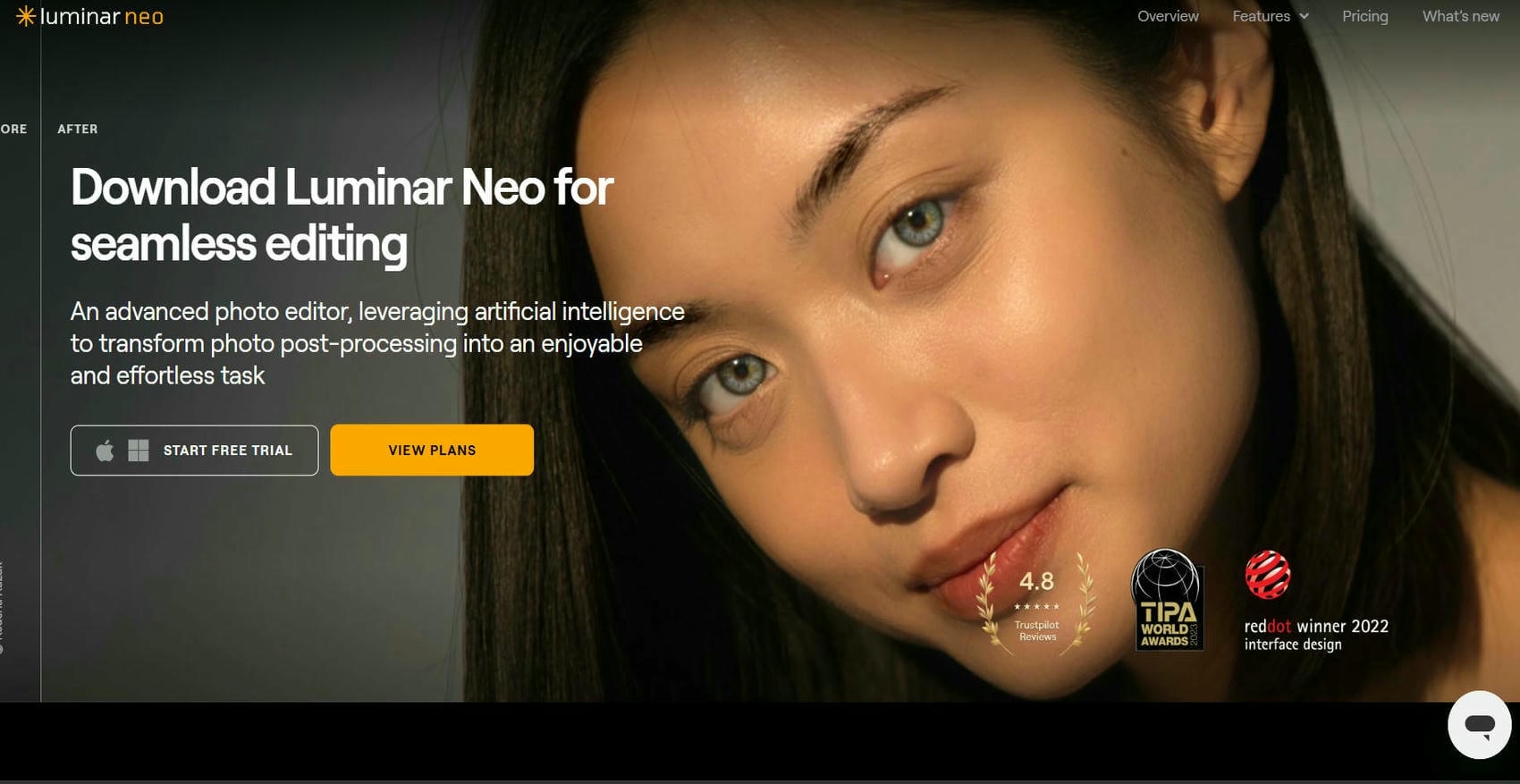
Luminar Neo is an AI-powered photo editor that balances automatic enhancements with creative editing tools. During our testing, it performed particularly well on landscapes, portraits, and travel photos, delivering natural-looking results with minimal effort. Its intuitive interface and powerful AI features make it suitable for hobbyists, content creators, and professional photographers alike.
Our testing experience: Luminar Neo produced natural-looking enhancements with very little manual adjustment, especially on landscape and portrait images. Its AI tools strike a good balance between automation and creative control, making it a strong choice for enthusiasts and content creators.
Pros and cons
|
Pros |
Cons |
|---|---|
|
Powerful AI-powered editing tools |
Requires a paid license or subscription |
|
User-friendly interface |
Some AI features can be resource-intensive |
|
Excellent portrait and landscape enhancements |
Learning advanced tools takes time |
|
Supports layers and RAW editing |
Smaller plugin ecosystem than Photoshop |
Pricing
|
Plan |
Price |
Key Features & Limits |
|---|---|---|
|
Desktop License |
US$119.00 (One-time payment) |
|
|
Cross-Device License |
US$159.00 (One-time payment) |
|
|
Max License |
US$179.00 (One-time payment) |
|
Pixelmator Pro
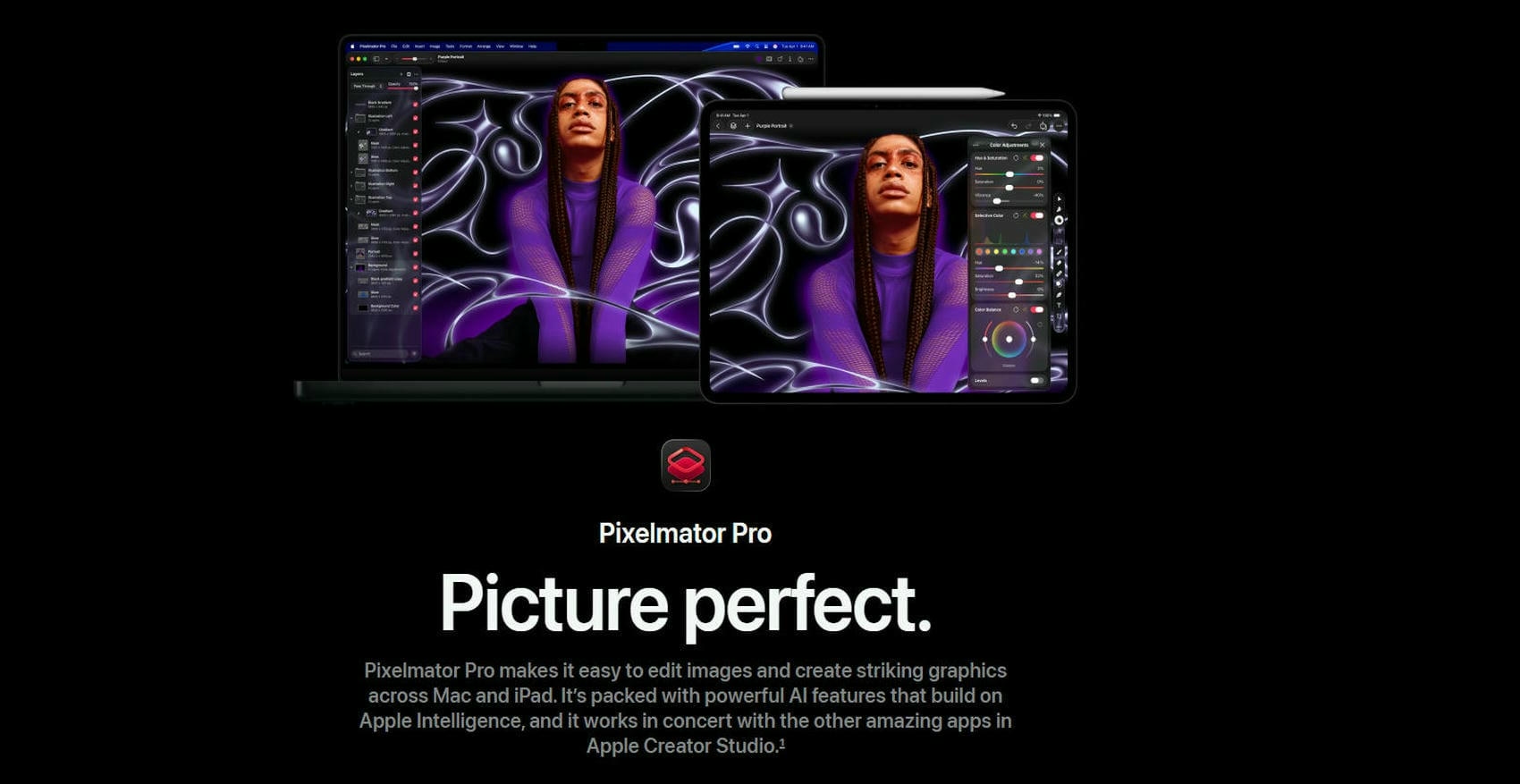
Pixelmator Pro is the Mac photo editor that harnesses the power of macOS and Apple Silicon. In our tests, it gave quick performance and reliable AI enhancements, but it kept things simple and easy to use. If you are a Mac user and want a professional editing experience without the monthly subscription fee, this is a good choice.
Our testing experience: Pixelmator Pro felt fast and responsive throughout testing thanks to its Apple Silicon optimization. While its AI enhancement features are more limited than dedicated AI tools, it provides an excellent Mac-native editing experience for users who prefer a one-time purchase.
Pros and cons
|
Pros |
Cons |
|---|---|
|
Optimized for macOS and Apple Silicon |
No free version |
|
One-time purchase |
AI enhancement features are less extensive than dedicated AI tools |
|
Fast and responsive performance |
Limited batch processing capabilities |
|
Comprehensive editing and retouching tools |
Available only for Mac |
Pricing
|
Plan |
Price |
Key Features & Limits |
|---|---|---|
|
App Store Purchase (One-Time Mac Purchase) |
$49.99 (One-time payment) |
|
|
Apple Creator Studio Subscription (Standard) |
$12.99 / mo or $129 / yr (1-month free trial) |
|
|
Apple Creator Studio Subscription (Student & Educator) |
$2.99 / mo or $29.99 / yr |
|
Photo AI by Topaz Labs
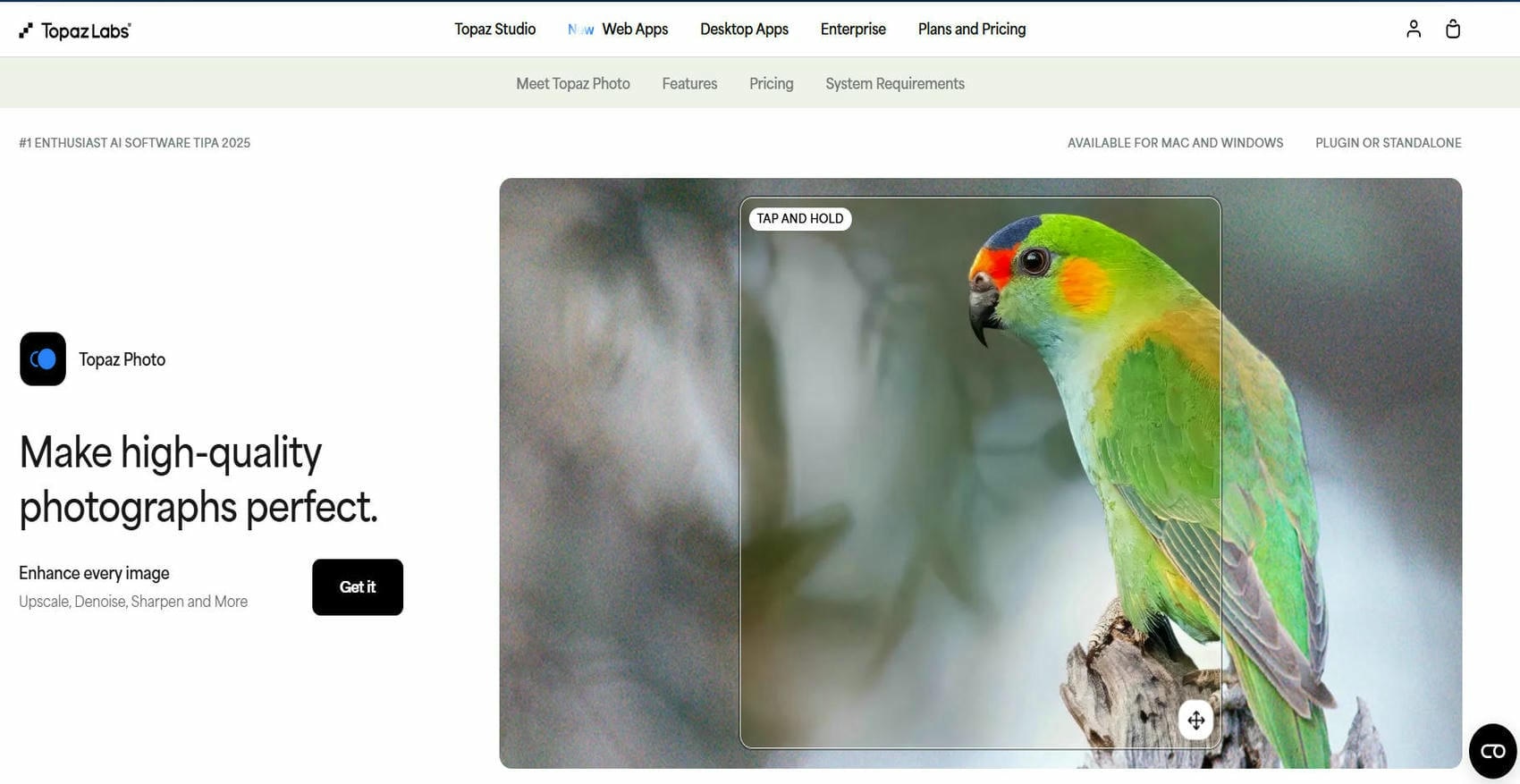
Topaz Photo AI is designed for AI-enhanced image enhancement and restoration. We tested it on blurry, noisy and low-resolution photos, and it consistently produced sharp, natural-looking results while preserving fine details. It works especially well for photographers who frequently edit RAW files and need high-quality restoration.
Our testing experience: Topaz Photo AI consistently delivered some of the strongest restoration results, particularly for blurry and noisy images. Processing large files took longer than some competitors, but the image quality made it well suited for photographers working with high-resolution or RAW files.
Pros and cons
|
Pros |
Cons |
|---|---|
|
Excellent AI sharpening and noise reduction |
More expensive than many alternatives |
|
High-quality image upscaling |
Processing large files can take longer |
|
Supports batch processing |
Limited manual editing tools |
|
Ideal for RAW photo enhancement |
No permanently free version |
Pricing
|
Plan |
Price |
Key Features & Limits |
|---|---|---|
|
Topaz Photo (Personal Tier) |
$17 / mo (Billed annually at $199) or $39 / mo (Month-to-month) |
|
|
Topaz Photo (Pro Tier) |
$50 / mo (Billed annually at $599) or $63 / mo (Annual contract, billed monthly) |
|
|
Topaz Studio (All-Apps Bundle) |
$34 / mo (Billed annually at $399) or $69 / mo (Month-to-month) |
|
Affinity Photo 2
Affinity Photo 2 is a professional photo editing application that offers advanced editing tools without requiring a subscription. Although its AI enhancement features are more limited than dedicated AI software, our testing showed it excels at retouching, compositing, and RAW editing. It is a great option for experienced users who prefer a one-time purchase.
Our testing experience: Affinity Photo 2 excelled in manual retouching and RAW editing rather than one-click AI enhancement. It offers professional editing capabilities without an ongoing subscription, making it a great option for experienced users who want complete control over their edits.
Pros and cons
|
Pros |
Cons |
|---|---|
|
One-time purchase with no subscription |
Limited AI-powered enhancement features |
|
Professional editing and retouching tools |
Steeper learning curve for beginners |
|
Excellent RAW editing support |
Fewer one-click AI enhancement tools |
|
Smooth performance on modern Macs |
Less suitable for quick automatic enhancements |
Pricing
The Affinity Core standalone app is completely free forever for macOS and Windows, requiring only a basic Canva account to download. It includes full, unrestricted access to professional photo editing tools, non-destructive RAW processing, live adjustment layers, HDR merging, and unlimited raster layers without watermarks or paywalls, excluding only Canva AI Studio features.
GIMP
GIMP is a free, open-source photo editing app that offers a range of editing tools for Mac users. It doesn't have the advanced AI power boost features of dedicated photo enhancers. However, our testing proved it's still a capable option for manual photo retouching, color correction, and basic image restoration, especially for budget-conscious users.
Our testing experience: GIMP handled basic photo editing and retouching reliably, although most enhancements required manual adjustments. Its open-source model and free access make it appealing for budget-conscious users, but beginners may find the interface less intuitive than newer alternatives.
Pros and cons
|
Pros |
Cons |
|---|---|
|
Completely free and open source |
No built-in AI photo enhancement |
|
Wide range of editing tools |
Steeper learning curve |
|
Supports plugins and customization |
Interface feels dated compared to newer editors |
|
Active community support |
Manual editing required for most enhancements |
Pricing
GIMP is completely free to download and use. It is open-source software, meaning there are no subscription fees, hidden costs, or premium paywalls. You can access the full suite of professional-grade tools for tasks like photo retouching and image composition without ever opening your wallet.
Fotor
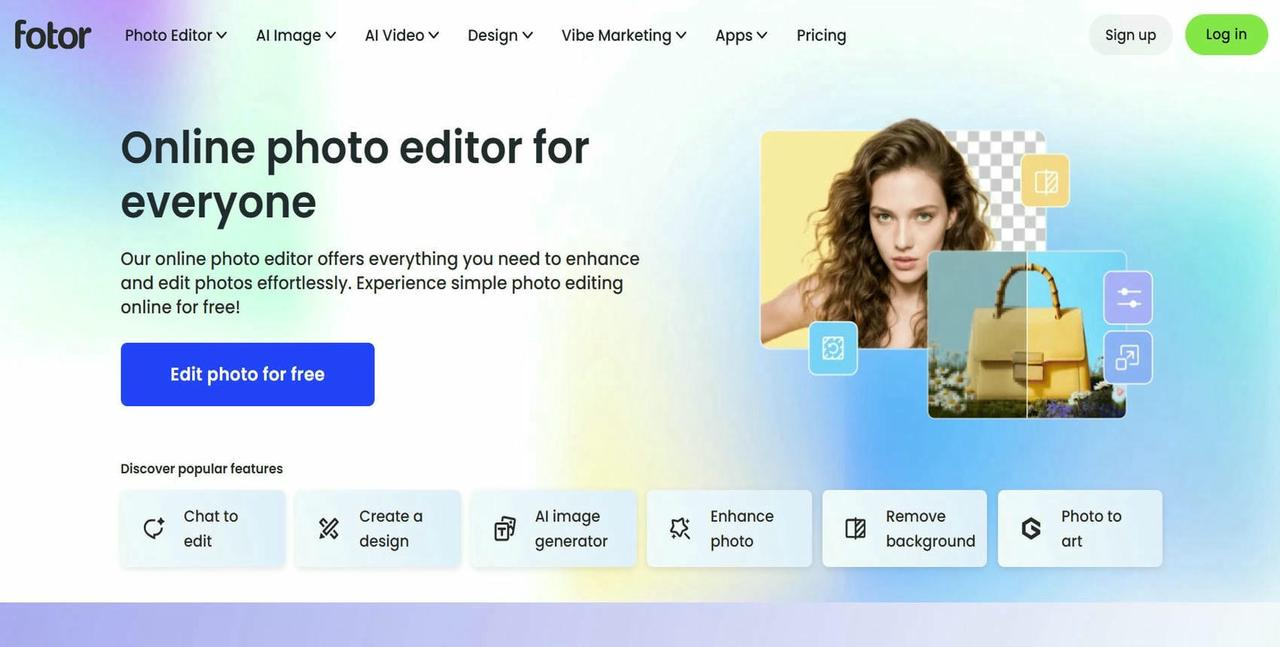
Fotor is an online photo editor that combines AI-powered enhancement with an easy-to-use interface. During our testing, it produced good results on portraits, social media images, and everyday photos. Its one-click enhancement tools make it a practical choice for beginners who want quick improvements without learning advanced editing techniques.
Our testing experience: Fotor provided quick and reliable AI enhancements for everyday photos, with a simple interface that required very little learning. While advanced editing options are more limited, it is a practical choice for beginners looking for fast results without a complex workflow.
Pros and cons
|
Pros |
Cons |
|---|---|
|
Simple one-click AI enhancement |
Advanced features require a paid plan |
|
Beginner-friendly interface |
Free version includes limitations |
|
Available online and on desktop |
Less control than professional editors |
|
Includes additional design tools |
Batch processing is limited |
Pricing
|
Plan |
Price |
Key Features & Limits |
|---|---|---|
|
Basic |
$0/month |
|
|
Pro |
~$3.33/month (billed annually) |
|
|
Pro+ |
~$7.49/month (billed annually) |
|
Mac photo enhancement software comparison
How to choose the best Mac photo enhancement software
The best Mac photo enhancement software depends on what kind of photos you edit, your experience and the features you need the most. Some tools are one-click wonders for AI enhancements, others have advanced editing controls for the pros. Here are some things to think about before you decide.
Consider your editing needs.
Consider the kinds of photos you edit most and pick a tool based on that. If you need to sharpen blurry images, restore old photos or enhance low-resolution pictures, an AI photo enhancer can save you time and produce great results. If you do a lot of detailed retouching, compositing or graphic design work, however, a professional photo editor with advanced manual controls might be a better bet.
Check AI enhancement features.
The quality of AI enhancement differs from software to software, so compare available features carefully. Search for tools that offer image upscaling, deblurring, denoising, face enhancement, color correction, and old photo restoration. The full suite of AI features can help you edit much faster and also produce more natural-looking pictures.
Evaluate pricing
Mac photo enhancement software can be obtained on a free plan, subscription or purchase on a one-time basis. Compare that price to the features included, processing limits, and update policies to get the best value. Pros might want to spend the money on premium software, but if you’re only editing photos once in a while, a free or browser-based solution might be more than good enough.
Ensure Mac compatibility
Not all photo editing software offers the same level of optimization for macOS. Before downloading or purchasing a tool, verify that it supports your macOS version and is optimized for Apple Silicon processors such as the M1, M2, M3, and newer chips. Native optimization generally results in faster performance and a smoother editing experience.
Look for batch processing.
If you're editing multiple images regularly, batch processing can seriously speed up your workflow. Batch processing lets you apply AI enhancements to multiple images at once, instead of editing each photo one by one. This is particularly helpful for photographers, online sellers, marketers, and content creators who have large collections of images to process.
Conclusion
The best Mac photo enhancement software will depend on the kind of editing you do and which features are most important to you. We tested a range of tools, and they all performed well, from professional editing in Adobe Photoshop to advanced image restoration in Topaz Photo AI. And for those who want fast, high-quality AI enhancement without the hassle of installing desktop software, Vmake Labs offers a simple-to-use browser-based alternative. Powerful image repair, batch processing, and one-click enhancement. Browse your options and select the software that fits your creative workflow best.
FAQs
What is the best Mac photo enhancement software?
The best Mac photo enhancer software is based on your needs. Vmake Labs is great for quick AI-powered improvements, Adobe Photoshop is great for professional editing, and Topaz Photo AI is excellent for repairing blurry, noisy, and low-resolution images.
Is there free photo enhancing software for Mac?
Yes. Several free photo enhancing software for Mac options are available, including GIMP, Fotor's free plan, and Vmake Labs' free trial. While free versions may have feature or usage limitations, they are suitable for basic photo enhancement and everyday editing tasks.
Can AI improve blurry photos on Mac?
Yes. AI-powered photo enhancement software can sharpen blurry images, reduce noise, recover missing details, and improve overall image quality. The results depend on the condition of the original photo, but modern AI tools can often restore clarity that would be difficult to achieve with manual editing alone.
Do I need to install software to enhance photos on Mac?
No. Browser-based tools such as Vmake Labs allow you to upload, enhance, and download photos directly from your web browser without installing desktop software. This makes photo enhancement faster, more convenient, and accessible from virtually any Mac.
Which Mac photo enhancement software is best for beginners?
Beginners should look for software with a simple interface and automated AI enhancement features. Vmake Labs and Fotor are both beginner-friendly options that produce high-quality results with minimal effort, making them ideal for users who want quick and effective photo improvements.

You May Be Interested
Best AI Image Enhancer in 2026: Top Tools to Upscale and Fix Blurry Images
Best AI Photo Enhancer Tools in 2026 (Free & Online): Improve Image Quality Instantly
2026 Fotor Video Enhancer Review: Features and Top Alternatives
2026 SnapEdit Video Enhancer Review: Features & Alternatives
7 Best Translation Apps in 2026: Top AI Translators Compared