How to Transcribe Audio Recording to Text Easily with AI
Transcribe audio recording to text for meetings, interviews, lectures, podcasts, and videos with Vmake Labs. Get fast AI transcription, editable text, multilingual support, and quick exports.

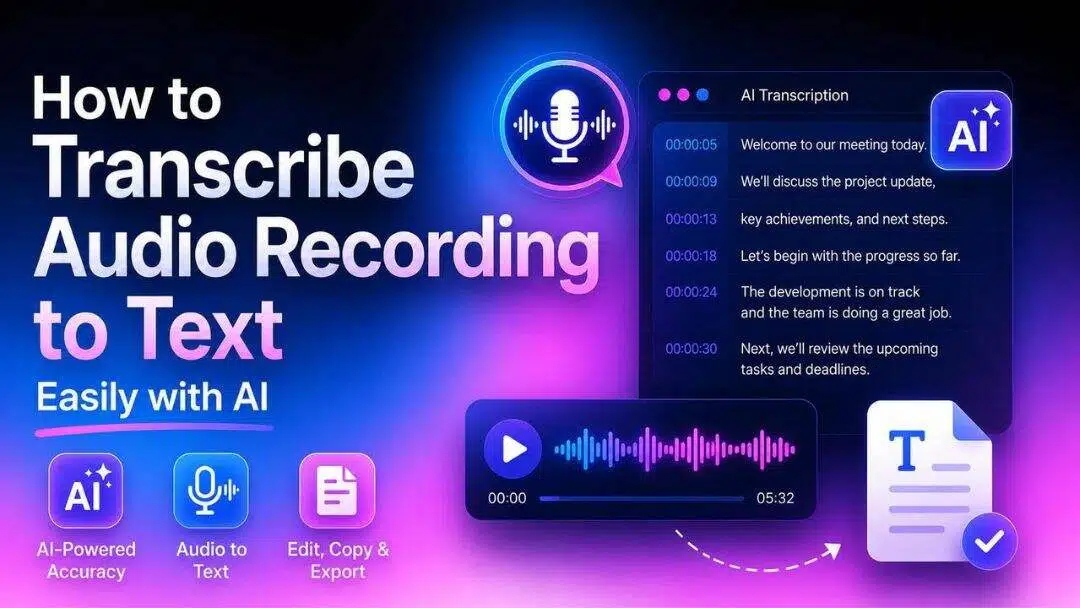
Recording meetings, interviews, lectures, or podcasts and converting speech to text saves time and makes the information easier to process. AI transcription turns recordings into editable text in minutes, instead of you having to type it all out. Vmake Labs makes this process easy by providing fast and accurate transcription for both audio and video files.
Why transcribe audio recordings to text?
Transcribing audio to text is not just about creating a written record. It makes recordings easier to search, edit, and reuse without replaying or re-recording the original content. Students can turn lectures into study notes, journalists and researchers can organize interviews more efficiently, while marketers and content creators can quickly repurpose podcasts, webinars, or videos into blogs, captions, and social media content. As AI transcription becomes more affordable, more individuals and businesses are choosing to transcribe audio recordings to text to boost productivity and simplify everyday workflows.
-
Save hours of manual work: Hand transcribing a recording takes much longer than the recording itself, because you have to stop, rewind, and play back different parts. AI transcription does the same job in minutes, freeing you up to spend more time reviewing the final text, rather than creating it from scratch.
-
Make content searchable and accessible: A transcript means you can search for names, keywords or important conversations without having to listen to the whole file. This is especially useful for meetings, interviews, lectures, and for quickly locating a specific detail, which saves a lot of time.
-
Repurpose recordings into new content: Once your recording is converted into text, it becomes much easier to reuse the content across different formats. A podcast can become a blog post, a webinar can be turned into training material, and a meeting transcript can be edited into summaries or follow-up emails.
-
Keep accurate records: Transcripts provide a reliable record of important conversations, making them useful for businesses, educators, researchers, and individuals alike. Rather than relying on memory or handwritten notes, you can revisit the exact discussion whenever needed.
How to Convert Audio to Text with Vmake Labs
Vmake Labs lets you transcribe both audio and video into editable text. You can upload a file from your device or paste a supported YouTube, TikTok, Instagram, or Facebook link. If you specifically need to transcribe TikTok videos, you can use the same workflow without downloading the original video first. After selecting the transcription language, the platform generates a transcript that you can copy or download as a TXT or SRT file.
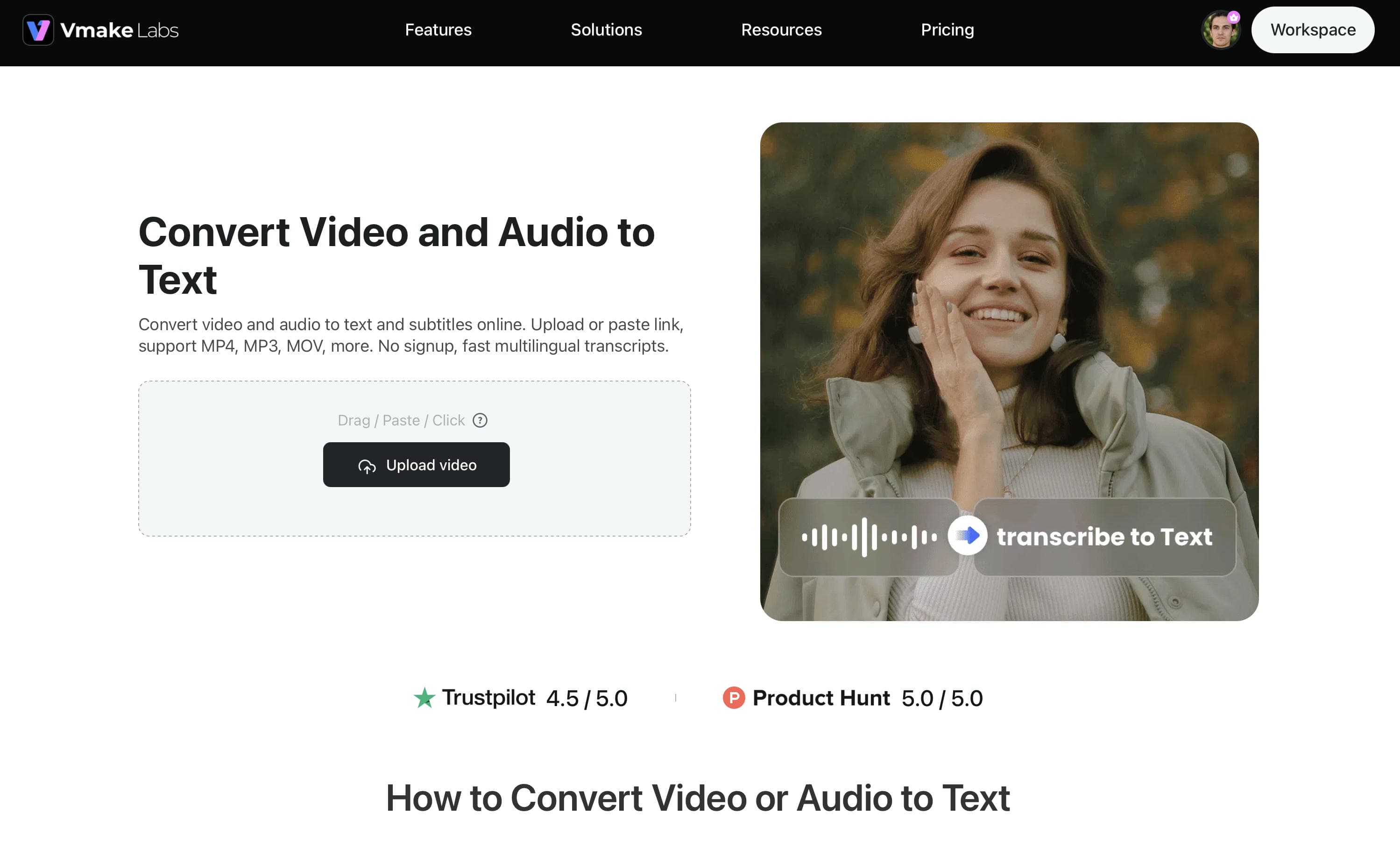
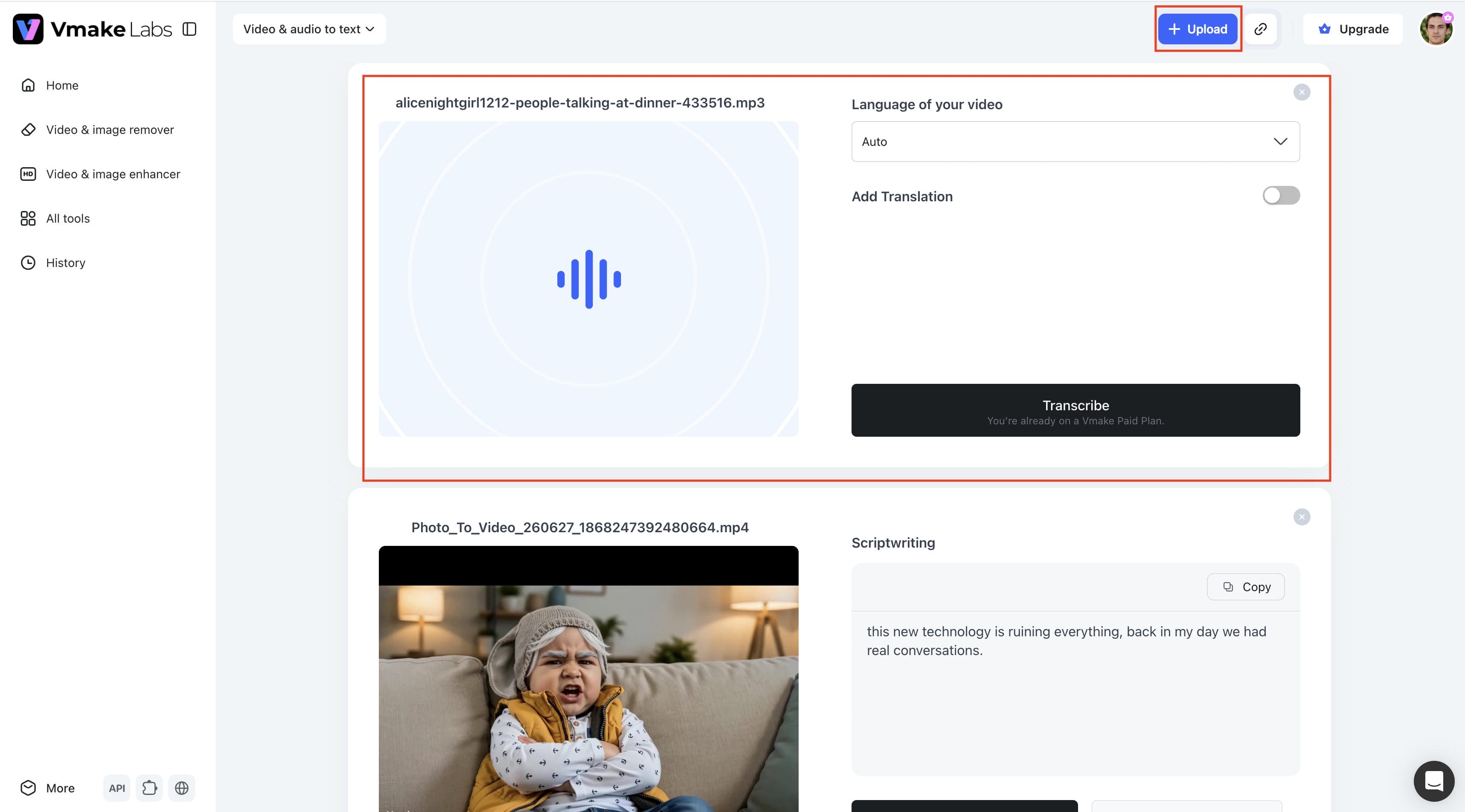
Step 1: Upload your audio or video
Upload an audio or video file by clicking Upload, dragging and dropping it into the editor, or pasting a supported video link. Once the file is added, you'll see a preview before moving to the next step.
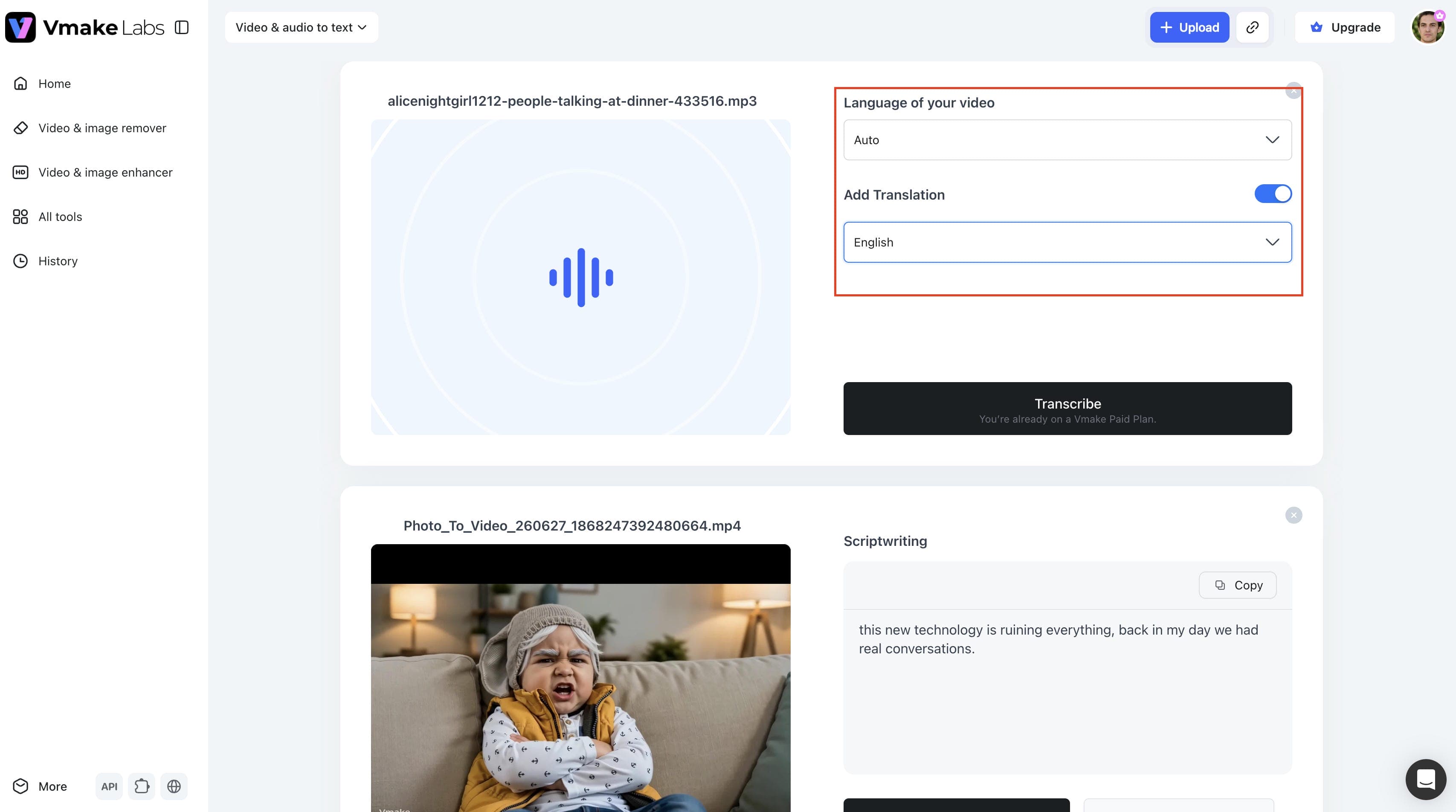
Step 2: Select the transcription language and settings
Choose the language spoken in your recording. If needed, enable translation and select the target language for the transcript. After confirming the settings, click Transcribe to begin processing.
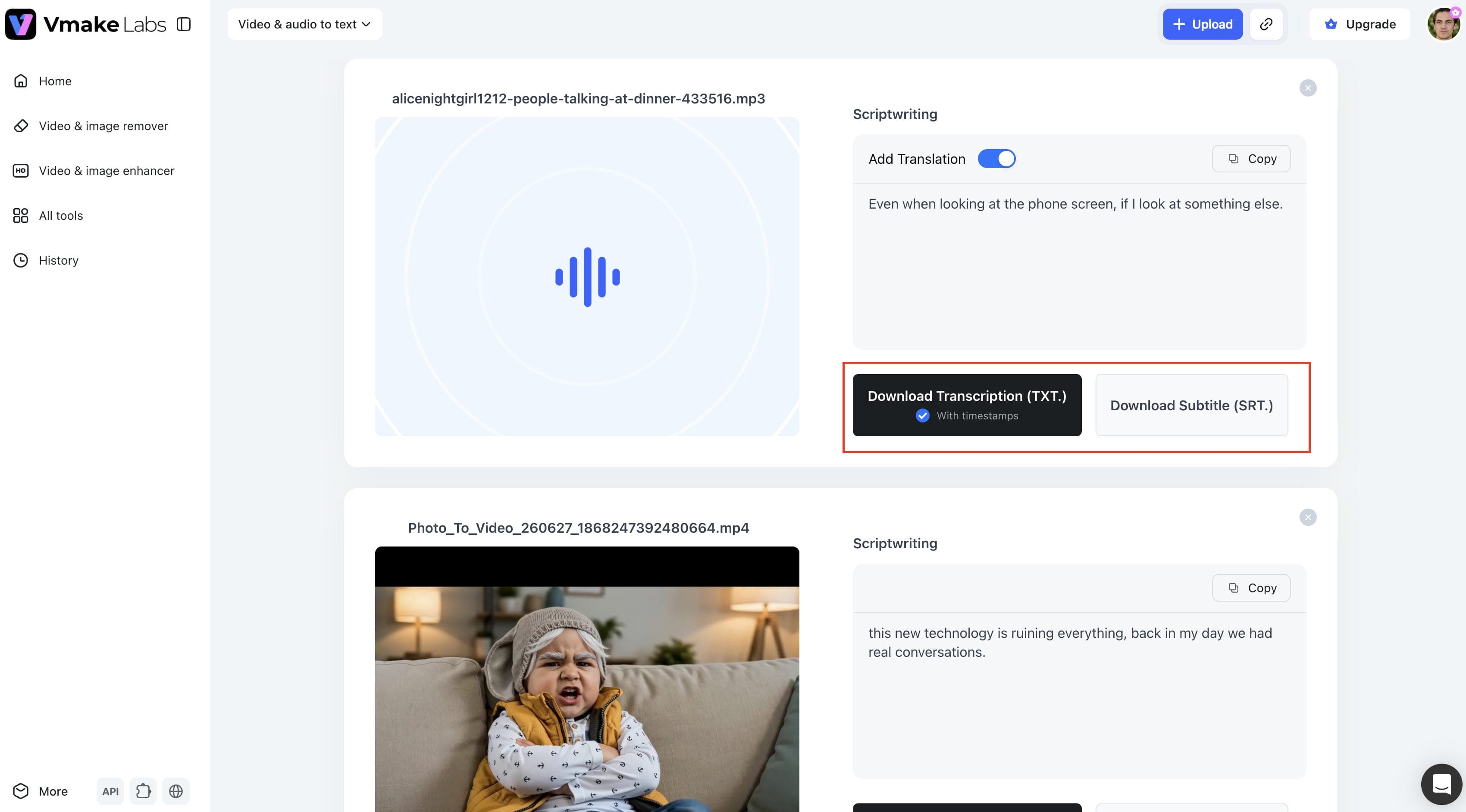
Step 3: Generate, review, and export the transcript
Once the transcription is complete, review the generated text and make any necessary edits. You can copy the transcript directly or download it as a TXT file. If you need subtitles, export the transcript as an SRT file.
Key features of Vmake Labs Audio to Text
Vmake Labs includes several features that simplify the transcription workflow:
-
AI audio and video transcription: Convert both audio and video recordings into editable text using AI-powered speech recognition.
-
Supports multiple languages: Generate transcripts in different languages to support global communication and multilingual projects.
-
Fast and accurate speech recognition: Produce transcripts within minutes while maintaining high accuracy for clear recordings.
-
Editable transcript output: Review and edit the generated transcript before downloading the final version.
-
Audio and video link transcription: Paste supported links to transcribe online content without uploading local files.
-
Simple upload and export workflow: Upload your recording, generate the transcript, and export it in just a few steps.
What Can You Transcribe with AI?
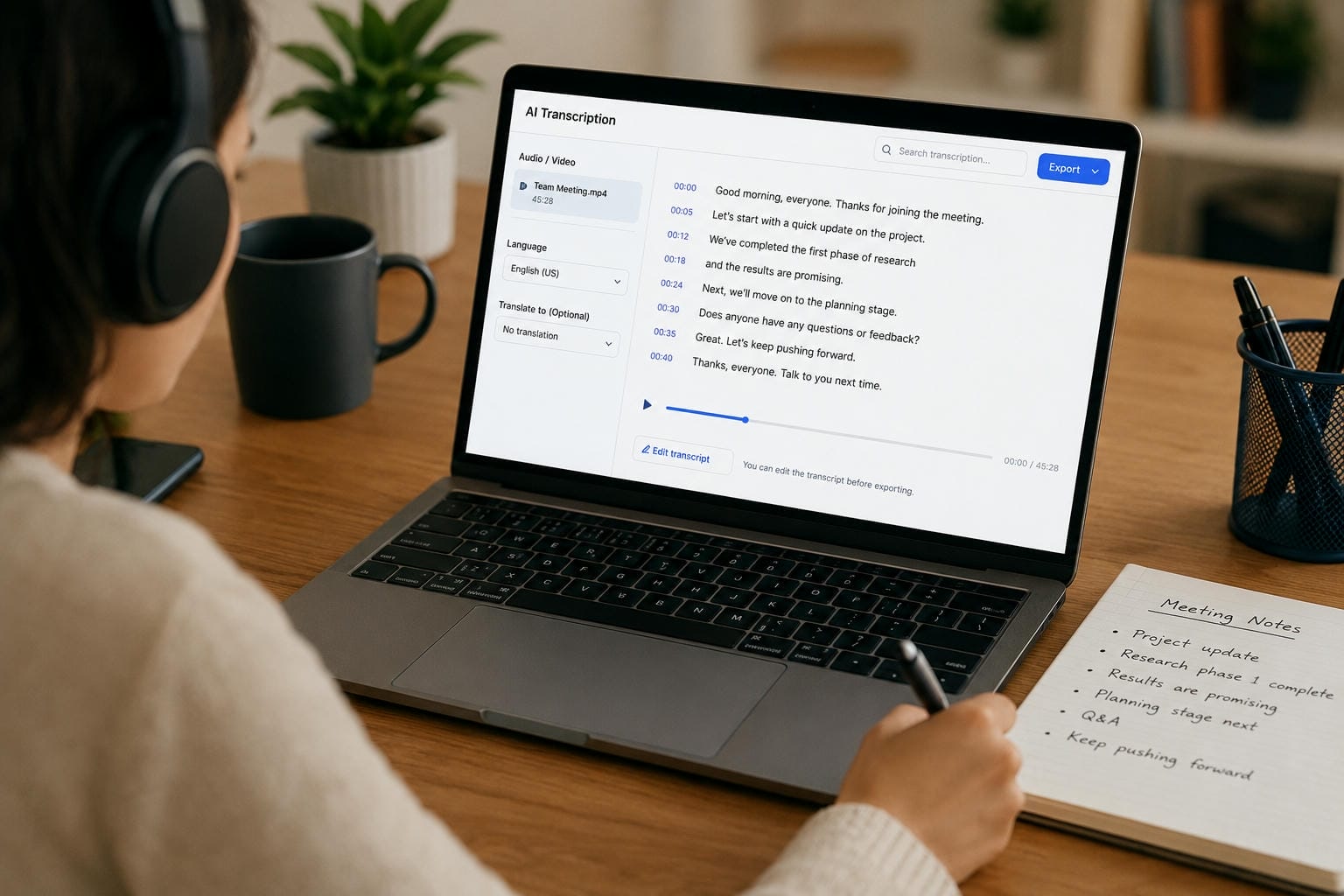
Modern speech-to-text algorithms are trained on deep neural networks capable of understanding vast nuances in human speech. This means they are no longer limited to pristine, studio-quality audio. You can reliably utilize AI to process a wide range of everyday audio and video recordings.
-
Meetings and Conference Calls: Capture every decision, update, and action item from internal team catch-ups, client consultations, and corporate board meetings without needing a dedicated note-taker.
-
Interviews and Research Recordings: Journalists, academic researchers, and legal professionals can transform qualitative interviews, focus groups, and oral histories into clean text for deep qualitative analysis.
-
Lectures and Online Classes: Students and educators can easily turn audio from university lectures, seminars, and virtual workshops into structured study guides and text references.
-
Podcasts and YouTube Videos: Audio creators can instantly generate transcripts to boost SEO, create video descriptions, or prepare captions. Once your transcript is ready, you can also use an AI subtitle generator to create subtitle files for your videos.
-
Voice Notes and Personal Recordings: Dictate brainstorming sessions, quick thoughts, reminders, or journal entries while on the move, and convert them to text so they can be easily organized later.
-
Music and audio recordings: While speech transcription is the most common use case, some creators also use AI for music transcription to convert vocal recordings or musical ideas into written formats for review and documentation.
Manual Transcription vs. AI Transcription
When exploring how to transcribe a recording from audio to text, you will generally face two distinct paths: manual transcription or automated AI transcription. While both avenues eventually lead to a written document, they differ drastically across critical operational metrics.
|
Feature |
Manual transcription |
AI transcription |
|---|---|---|
|
Speed |
Time-consuming |
Completed in minutes |
|
Effort |
Requires constant listening and typing |
Mostly automated |
|
Accuracy |
High with careful review |
High, with a quick review recommended |
|
Cost |
No software cost, but high time investment |
Free and paid AI tools available |
|
Multiple speakers |
More accurate but time-consuming to identify speakers |
Supports speaker identification, though occasional corrections may be needed |
|
Export options |
Manual formatting required |
Export as TXT, SRT, and other supported formats |
|
Best for |
Short recordings and detailed editing |
Long meetings, interviews, podcasts, and lectures |
|
Scalability |
Limited |
Easily handles multiple and lengthy files |
Which method should you choose?
Depending on your workflow and the type of content you are transcribing, the best option will differ. Manual transcription is good for short recordings or when you need to check every word carefully, like in legal, medical, or technical documents. But it can be time-consuming, especially with long recordings or projects with many files. If you want speed and efficiency, AI transcription is the way to go. It turns meetings, interviews, lectures, podcasts, and videos into editable text in minutes and only needs a quick review before export. Vmake Labs provides a straightforward solution for transcribing regular audio or video content. Users can upload supported files or video links, generate transcripts, and download them in either TXT or SRT format.
Tips for more accurate audio transcription
Even the best transcription tools perform better when the source audio is clear. A few simple practices before and after transcription can improve accuracy and reduce the time spent editing the final transcript.
-
Record in a quiet environment: Minimize background noise, echoes, and overlapping conversations to make speech easier to recognize.
-
Use a high-quality microphone: A good microphone captures voices more clearly than a built-in laptop or phone microphone, especially during meetings and interviews.
-
Speak clearly and avoid interruptions: Encourage speakers to talk at a steady pace and avoid speaking over one another whenever possible.
-
Select the correct language before transcription: Choosing the right language helps the transcription tool recognize words and accents more accurately.
-
Review names and technical terminology: AI may occasionally misinterpret proper nouns, industry terms, or abbreviations, so a quick review helps ensure the transcript is accurate.
Conclusion
Transitioning your workflows to include automated transcription is one of the easiest ways to reclaim your time, organize your digital records, and extend the lifespan of your audio and video files. Whether in complex corporate meetings, academic interviews, or scaling a content creation pipeline, getting spoken language to text opens up endless creative and professional possibilities. Choosing advanced AI platforms such as Vmake Labs means getting rid of the friction of traditional typing, enabling you to transcribe audio recordings to text without unnecessary complexity, and solely focus on the work that matters most.
FAQs
How do I transcribe audio recordings to text?
You can transcribe an audio recording by listening to it and typing everything manually or by using an AI transcription tool that automatically converts speech into text. AI is much faster and requires only a quick review before exporting. If you're looking for an online option, Vmake Labs lets you upload audio or video files and generate editable transcripts in minutes.
How long does AI transcription take?
The time depends on the recording length, file size, and processing speed of the transcription tool. In most cases, AI can generate a transcript within a few minutes, making it much faster than manual transcription, which often takes several times longer than the recording itself.
Can I transcribe recorded audio to text from a video?
Yes. AI transcription tools can extract spoken dialogue from video files and convert it into text just as they do with audio recordings. This is useful for meetings, webinars, lectures, podcasts, and social media videos. Vmake Labs supports both audio and video transcription, allowing you to generate transcripts from either format.
Which audio and video formats are supported?
The transcription platform will dictate the supported formats. Most tools support popular formats like MP3, WAV, M4A, MP4, MOV and AVI. It's always good to check what file formats and file size limits are supported by the platform before uploading a file.
Can I edit the transcript after it is generated?
Yeah. Most AI transcription tools generate editable transcripts so that you can correct names, technical terms, punctuation or formatting before downloading the final version. This review step helps improve the overall accuracy of recordings, especially those with multiple speakers or specialised vocabulary.

You May Be Interested
How to Transcribe Audio to Text: Efficient Guide
How to Download Audio from Instagram: Quick Guide for 2025
Speech to Text App: Best Picks and How to Choose One
HappyScribe Audio to Text: Worth It for Your Workflow?