Topaz Labs Video Enhancer: Is It Worth Trying in 2026?
 Ken DawsonJanuary 23, 2026
Whether you’re a professional videographer, content creator, or casual user looking to improve the quality of your personal videos, having the right tools makes all the difference. Topaz Labs Video Enhancer has emerged as one of the leading options.
This cutting-edge solution promises to fix shaky, noisy, or low-resolution footage. What makes it popular is its advanced algorithms and faster processing experience. But is it really worth the hype?
This post covers everything about Topaz Labs Video Enhancer, including its main features, strengths and weaknesses, pricing, practical experience, and top alternatives available in the market.
What Does Topaz Labs Video Enhancer Bring to the Table?
Topaz Labs Video Enhancer is a remarkable online tool that uses AI technology to enhance, upscale, and restore low-quality footage, improving what’s already there. With a user-friendly interface, it offers advanced AI presets and modern workflow improvements. It’s part of Topaz Labs, which has evolved from standalone apps like Denoise, Sharpen, and Video Upscale into an integrated suite called Topaz Labs Express. It is suitable for creators, visual storytellers, artists, and filmmakers.
Additional Features:
Topaz Photo: This intelligent image enhancement software helps sharpen details, denoise, restore focus, remove scratches, and adjust levels on every shot. You can choose from 11 AI-powered tools or let autopilot do all the work.
Bloom: It can creatively upscale your images with AI by up to 8x while adding stunning new details or refining existing ones with prompts. It’s suitable for digital paintings, concept art, character designs, and abstract art.
Topaz GigaPixel: This industry-leading image upscaler can enlarge images up to 6x by creating new pixels, making them larger and sharper. Its nine AI models include Standard, Low Res, Recover, Redefine, and Face Recovery.
Topaz Studio: It offers all desktop apps and services together with cloud credits. You can use it to make any image or video sharp, clear, and smooth, using various apps or AI models.
Cloud-Rendering Feature: It enables faster, more efficient processing, suitable for those looking to complete long video enhancement tasks with insufficient local GPU performance.
API Support: Businesses and developers can integrate Topaz Labs into their apps or websites to automate image upscaling at scale.
Key Features & Performance Review of Topaz Labs Video Enhancer
Topaz Labs Video Enhancer is an advanced enhancement solution available both for desktop and online users. However, each version has its long list of features. So, let’s dive into the performance of each one based on my experience:
Topaz Labs Video Enhancer (Web)
Topaz Labs Video Enhancer is a fantastic browser-based AI-powered tool that can improve video quality frame by frame. It offers different presets to transform blurry videos into high-resolution output with unmatched clarity. You can recreate fine details, increase frame rate, sharpen motion, and improve resolution by up to 4x.
It also lets you trim video and preview the enhanced results instantly before upscaling or downloading. You can even export multiple outputs simultaneously. It is suitable for restoring old footage, creating polished video content, enhancing ads & marketing material, and recovering family footage.
Topaz Video AI (Desktop)
Topaz Video AI is a professional desktop software that helps you enhance and restore video footage. Here are its AI-powered models for different purposes:
Enhancement: These AI models include Proteus, Iris, Nyx, Rhea, and others that remove noise & compression artifacts, restore faces & fine details, denoise high-resolution input, and upscale up to 4x.
Frame Interpolation: Here, you can find Apollo, Apollo Fast, Chronos, Chronos Fast, and Aion. These help produce smooth slow-motion and handle frame-rate conversion with precise results.
Stabilization: It assists you in reducing shakiness and jitter for steadier, more professional footage.
Motion Deblur: You can use this model to restore sharpness by reducing blur from panning, zooming, or fast movement.
Starlight: This diffusion upscaler transforms low-resolution footage into clean, consistent HD/4K without manual controls.
Grain: It adds realistic grain to your footage, mimicking the look of film.
SDR to HDR: This converts SDR videos to HDR to increase contrast, brightness, and color depth.
Topaz Video AI can be used as a standalone app or a plugin to your favorite editing software. It’s perfect for filmmakers & editors, historians & archivists, creators & influencers, and hobbyists & enthusiasts.
Topaz Labs Astra (Web)
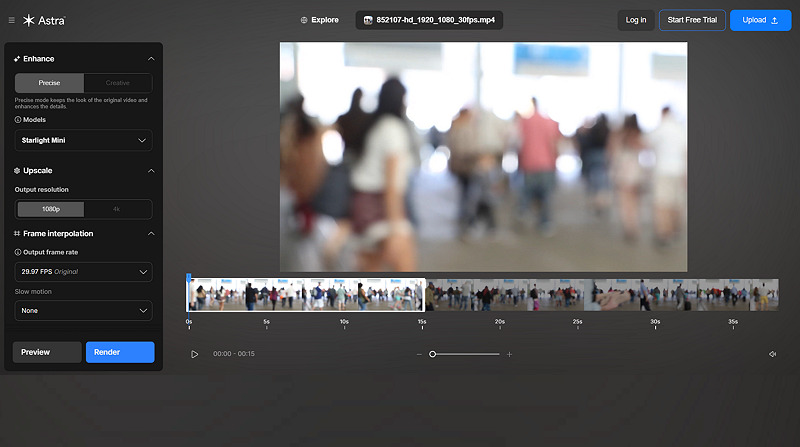
Astra is a new web app by Topaz Labs that can upscale your AI-generated videos to crisp 4K resolution while enhancing quality and finer details. It has both precise and creative modes to enhance your videos. It offers various AI models, such as Starlight, Proteus, Nyx, Rhea, and Iris, to help you choose the one that best fits your video requirements. You can also upscale to 4K, adjust the frame rate, and create slow-motion if needed.
Topaz Labs Video Enhancer: A Beginner’s Guide
Topaz Labs Video Enhancer has a simple interface, so using it is not a difficult task. However, here are the practical guides to help you get started:
Guide 1. How to Use Topaz Labs Video Enhancer
Step 1. Open Video Enhancer
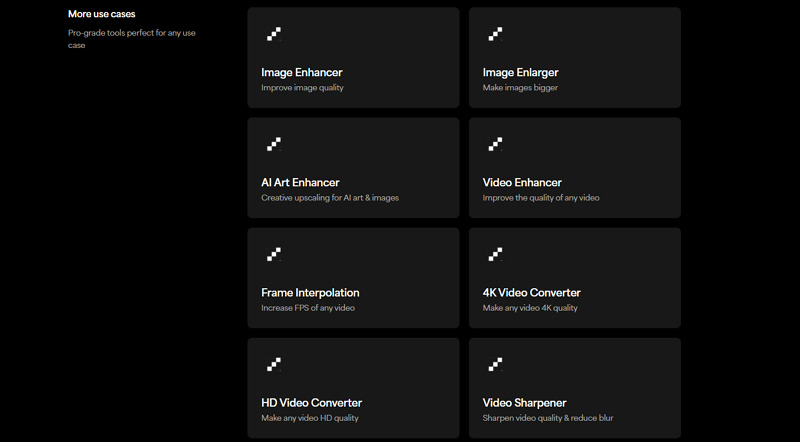
Open the Topaz Labs Express website in your browser. Now, scroll down and click “Video Enhancer” under the “More use cases” category.
Step 2. Upload Video
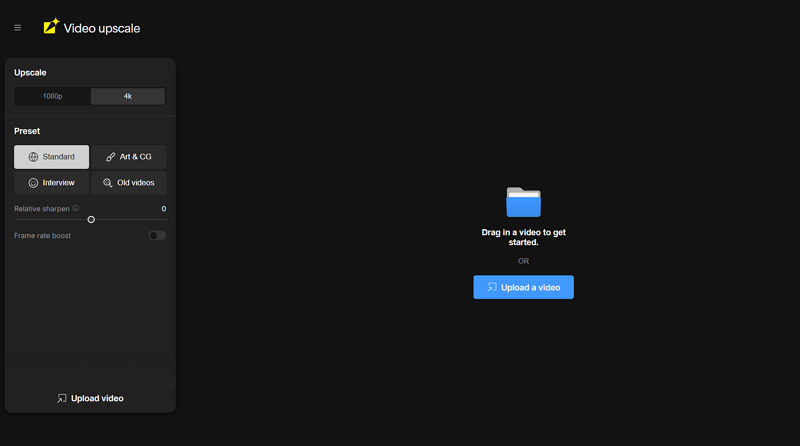
Next, tap “Get Started” and then the “Upload a video” button to browse and import the video. Choose the preset that best matches your video.
Step 3. Preview and Upscale
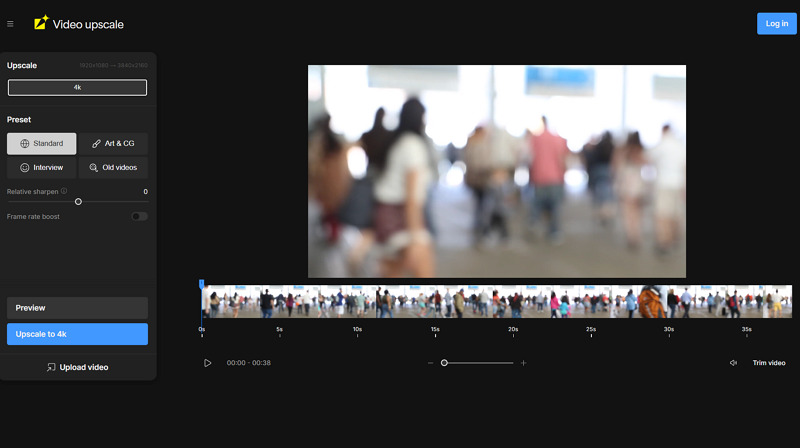
Lastly, adjust the level using the slider and press “Preview” to check the results. Then hit “Upscale to 4K” if needed.
Guide 2. Steps to Enhance Videos on Desktop
Step 1. Import Video File
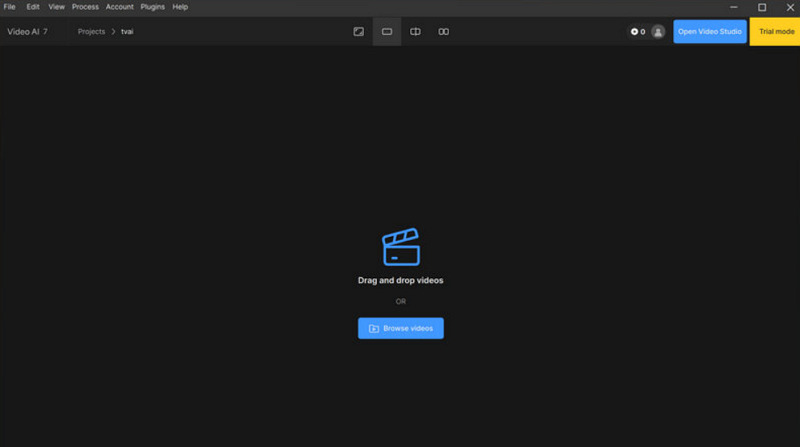
After downloading & installing the Topaz Labs Video AI on your desktop, launch it and click “Browse videos” to upload the required video.
Step 2. Choose the Enhancement Model
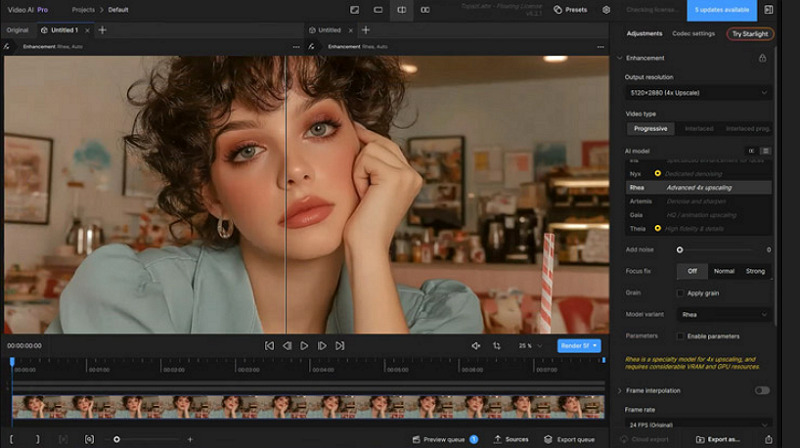
Next, open the “Enhancement” menu and select the “Video type” and “AI model.” You can also use “Frame interpolation” and adjust codec settings or other options.
Step 3. Export Enhanced Video
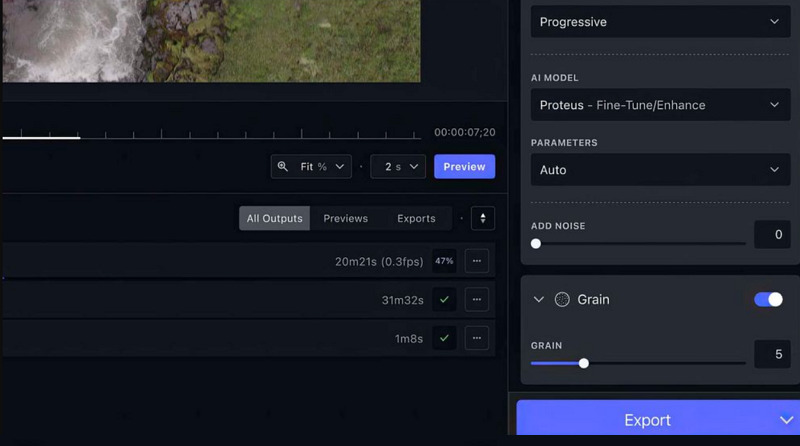
Then click the “Render it” button and let the AI handle the processing. Later, examine the results and, if everything looks good, hit “Export as” to save the output.
Guide 3. How to Enhance Video with Topaz Labs Astra
Step 1. Import Video
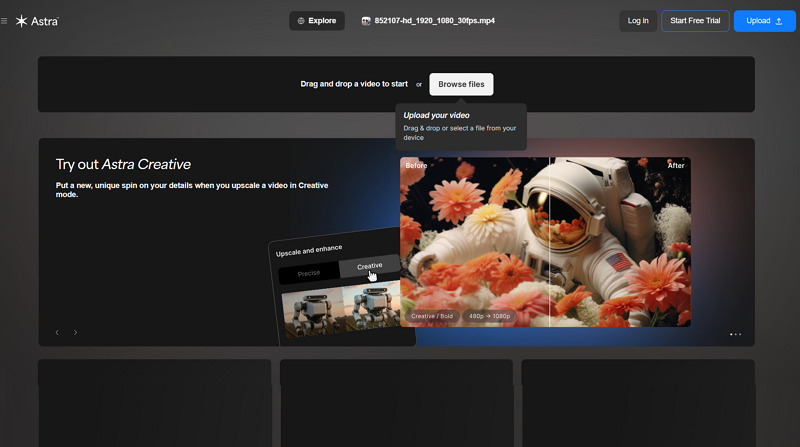
Access the Topaz Labs website, click “Cloud Apps” and choose “Astra.” Now, tap “Get Started” and “Browser” to upload or drag & drop the video file.
Step 2. Select the AI Model
It’s time to choose between “Precise” and “Creative” options. Then, select the preferred model, output resolution, frame rate, and other settings.
Step 3. Render and Export
Finally, press the “Preview” or “Render” button. Once processing is complete, hit “Export” to save the enhanced video.
Pricing & Plans of Topaz Labs Video Enhancer
Topaz Labs uses a credits system as well as offers monthly and annual subscriptions. To understand its plans better, here is a pricing table to look at:
Plan | Pricing | What’s included |
Topaz Labs Video Enhancer | ||
One-time payment | $5 $7.80 $11.70 $15.60 $19.50 $58.50 $79 $126.40 $158 (sold in increments of 20 credits) | 20 credits 40 60 80 100 300 500 800 1000 |
Subscription (Monthly) | $9.99 $19.99 $39.99 $99.99 $199.99 $499.99 $999.99 | 80 credits 160 400 1400 3000 9000 20000 |
Topaz Video (Personal) | ||
Monthly | $59 | Standard models Unlimited local rendering Nyx XL model Starlight (Cloud) model Starlight Sharp (Cloud) model 25 monthly video cloud credits Limited commercial use |
| Annual, Billed Monthly | $33 | |
| Annual | $299 | |
Topaz Video (Pro) | ||
Annual, Billed Monthly | $67 | Starlight (Local) model Startlight Sharp (Local) model 100 monthly video cloud credits Full commercial use |
| Annual | $699 | |
Topaz Video (Topaz Studio) | ||
Monthly | $69 | All the apps Unlimited local rendering 300 monthly video cloud credits 32MP cloud export limit Limited commercial use |
| Annual, Billed Monthly | $37 | |
| Annual | $399 | |
Topaz Labs Astra (Standard) | ||
Monthly | $39 (400 credits) | $0.10 for each extra credit Render 5 videos at a time All render modes Up to 4K output Fast rendering Video storage |
| Annual | $328 (4800 credits) | |
Astra (Plus) | ||
Monthly | $99 (1400 credits) | $0.07 for each extra credit Render 10 videos at a time Everything in standard mode Faster rendering Commercial use |
| Annual | $832 (16800 credits) | |
Astra (Pro) | ||
Monthly | $299 (5400 credits) | $0.06 for each extra credit Render unlimited videos at once Everything in standard mode Fastest rendering Early access to new features Unlimited free previews |
| Annual | $2512 (64800 credits) | |
Best Topaz Labs Video Enhancer Alternatives
While Topaz Labs Video Enhancer is a recognized name, it’s important to compare it with its top alternative to assess its performance. Here is a comparison table:
Tool | Platform | User Experience | Processing Speed | Key Feature |
Topaz Labs Video Enhancer | Web, Desktop (Win & Mac) | Complex | Moderate | Offer the highest-quality noise reduction, frame interpolation, and upscaling to 1080P or 4K |
Web, Mobile (Android & iOS) | Easy | High | World-leading video quality enhancement and restoration. Support for 2K/4K upscaling and multi-feature processing in a single workflow | |
Aiarty Video Enhancer | Desktop (Win & Mac) | Complex | Moderate | Best for overall AI video enhancement, delivering fast 4K upscaling, denoising, restoration, and fine-detail enhancement |
HitPaw Video Enhancer | Web, Desktop (Win & Mac), Mobile (Android & iOS) | Complex | High | Professional-grade video enhancement and upscaling to 4K/8K resolution |
Topaz Labs Video Enhancer: Pros & Cons
Along with the benefits, Topaz Labs Video Enhancer also has some limitations. Let’s look at its pros and cons:
Pros:
Easy to use with autopilot
Outstanding video enhancement
Integrate well with other software
Available for desktop and online users
High-quality output up to 4K resolution
Restore details without making it artificial
Real-time previews with rendered frames
Allow processing multiple videos at a time
Resume your edits even after a system reboot
Cons:
Rendering, preview, and export aren’t free
The price is relatively high
Learning curve for advanced features
High system requirements
Potential for unnatural results in some features
Processing large videos is time-consuming
Real User Reviews:
To learn more about the performance of Topaz Labs Video Enhancer, here is the real user feedback from some platforms:
G2 - Business Software Reviews: 4.7/5 (3 reviews)
What I like best about Topaz Labs is how simple yet powerful its AI tools are. They make it easy to turn low-quality photos and videos into sharp, clear, high-resolution results. Their noise reduction is excellent; it removes grain without sacrificing detail. - Rajat V.
Trustpilot: 3.9/5 (55344 reviews)
I like the frame interpolation model for creating slow-motion videos, but many video enhancement models perform poorly on interlaced video faces, especially when it’s not a close-up. Upscaling of lips and teeth is especially scary sometimes. I have tried presets and created my own customizations, using 4K, FHD, and HD resolutions. - Rock
Frequently Asked Questions about Topaz Labs Video Enhancer
1. Is Topaz Labs Video Enhancer safe?
Topaz Labs Video Enhancer is safe to use. It doesn’t collect your information without your consent and does not share the data it collects with third parties. However, you must download the desktop software from the official site.
2. Does it offer a money-back guarantee?
According to Topaz Labs, all orders are final, and no refunds are available for subscriptions or cloud credits. However, you can use the free trial before making a purchase decision.
3. What are the Topaz Labs Video AI system requirements?
Topaz Labs Video AI requires Windows 10 or 11, or macOS 10.15 or later with an Intel or AMD CPU with AVX2 support, and an NVIDIA (GTX 900 series or newer) or AMD (Radeon 400 series or newer) GPU with at least 4GB of VRAM, and 16GB of RAM.
Final Verdict: Is Topaz Labs Video Enhancer Worth It?
Whether you need to enhance your personal videos or create captivating visuals, Topaz Labs Video Enhancer is worth investing in. With an intuitive interface, it offers powerful features and regular updates to help you compete in the world of video content creation. However, if you need affordable video quality enhancement and scenario-based restoration capabilities, including facial enhancement, Vmake Video Enhancer is the ultimate solution. Try it today and enjoy one-click video processing!

You May Be Interested

Seedance 2.0: What's New & How to Use It
123APPS Watermark Remover Review (2026): Pros, Cons, and Pricing

5 Best Valentine's Day Video Ideas for eCommerce in 2026
How to Create a YouTube Thumbnail? Create YouTube Thumbnails Using AI