
How to do Green Screen on TikTok: A Step-by-Step Guide
Want to create eye-catching TikTok videos? Learn how to do green screens on TikTok with simple steps, editing tips, creative ideas, and discover Vmake Labs for even better video creation.

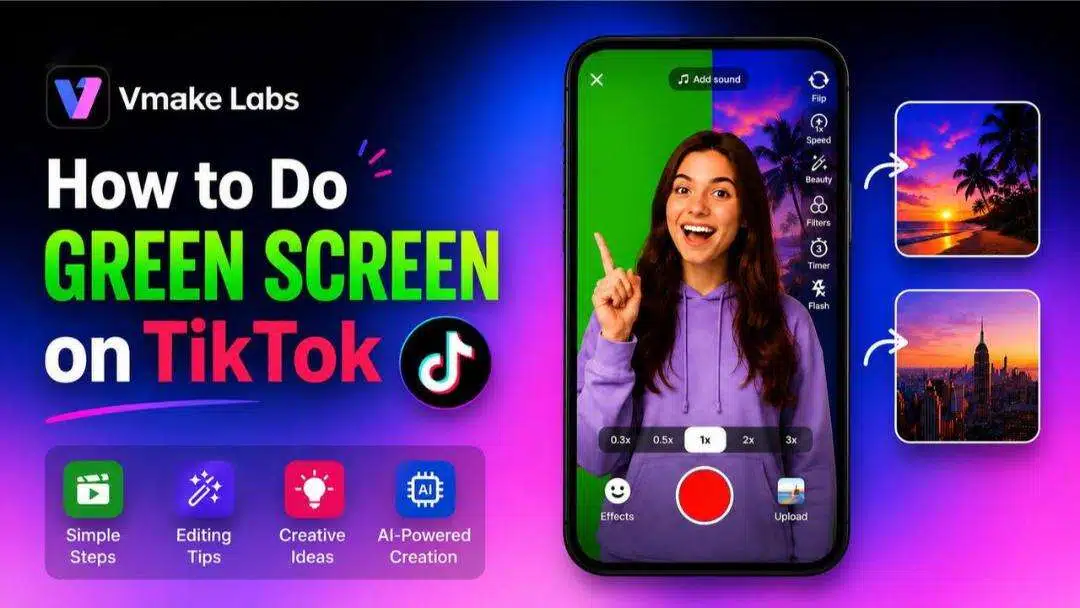
TikTok's Green Screen Effect lets anyone create engaging videos by replacing their background with an image or video in just a few taps. This guide explains how to do green screens on TikTok, shares practical tips for better results, and introduces an AI-powered alternative for faster, professional-quality video creation workflows.
What Is the TikTok Green Screen Effect?
The Green Screen Effect is one of TikTok's built-in editing tools that enables you to change your original background to a photo or video. It doesn't require a physical green backdrop like traditional green screen production, making it a simple option for beginners and casual creators.
How the TikTok Green Screen Effect Works
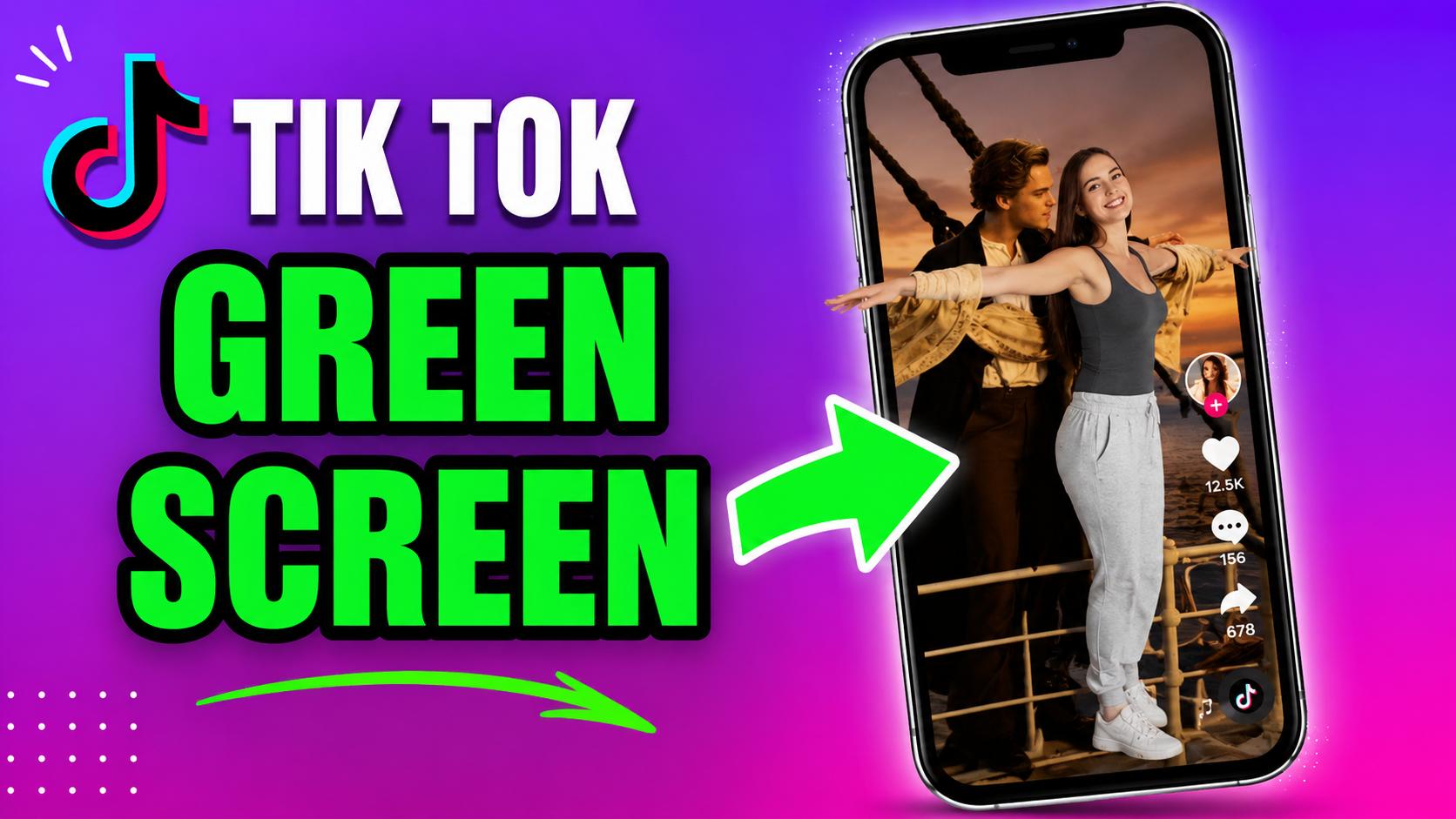
The Green Screen effect employs AI as well as background segmentation to remove you from the environment and place you in front of another image or video. Once you choose your background, TikTok adds the effect automatically while you record. This allows you to create engaging videos without having to use any third-party editing tools.
Types of Green Screen Effects Available on TikTok
TikTok has multiple Green Screen effects which adapt to various creative requirements. Choose a static backdrop for your image, replace it with another video, or choose various built-in background replacement effects. Each option provides you with greater flexibility based on the kind of content you want to distribute.
Best Ways to Use the Green Screen Effect for Content Creation
The Green Screen effect works nicely for various video formats. Content creators use it for instructional, response videos, storytelling, travel material, demonstrations of products, educational presentations, and current trending challenges. Modifying the background will assist in grabbing attention and retaining the focus on your content.
How to do Green Screen on TikTok Step by Step
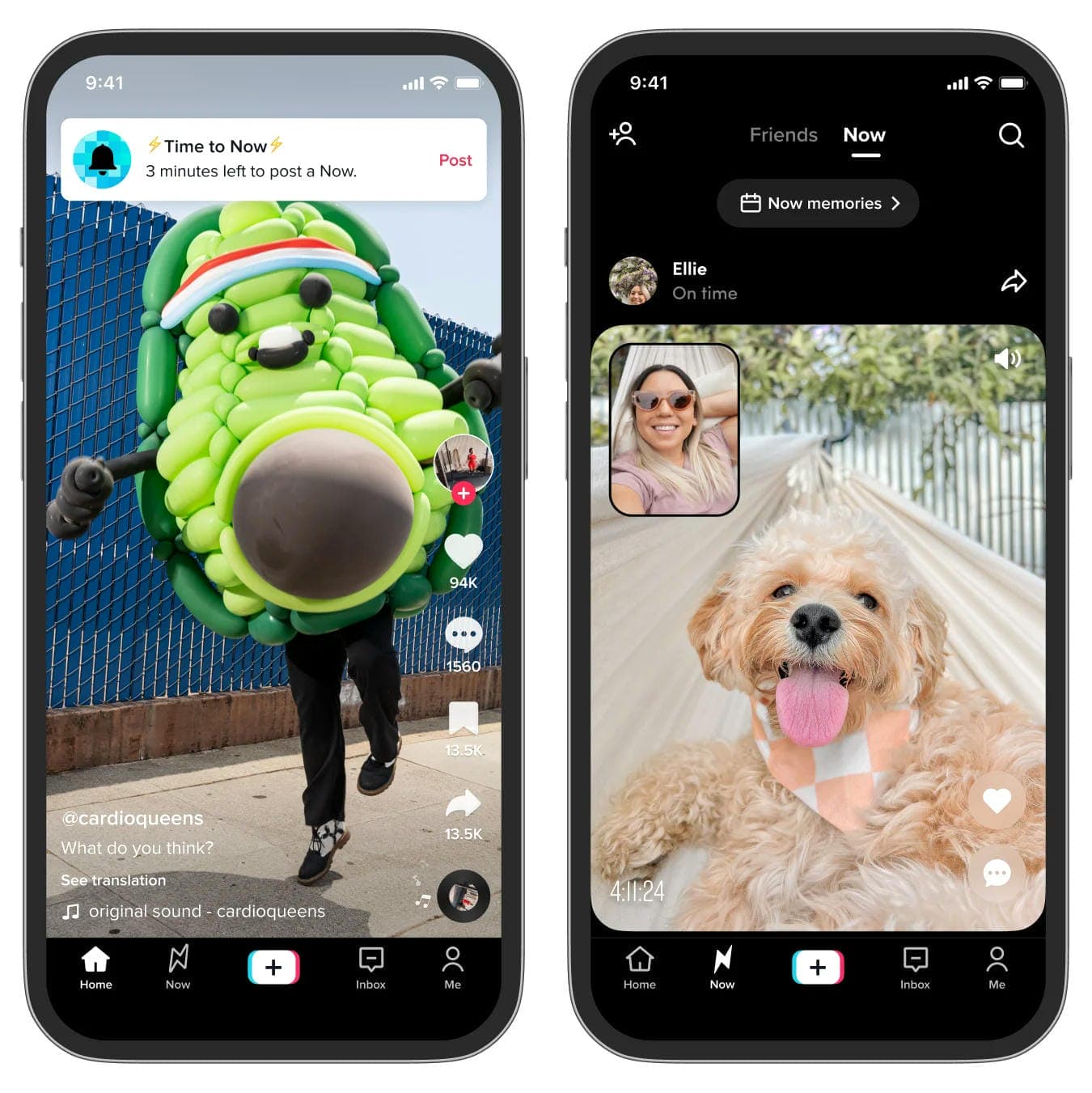
Creating a Green Screen video on TikTok takes only a few minutes. Follow the steps below to replace your background and record a professional-looking video directly inside the TikTok app.
Start Creating Your Green Screen Video
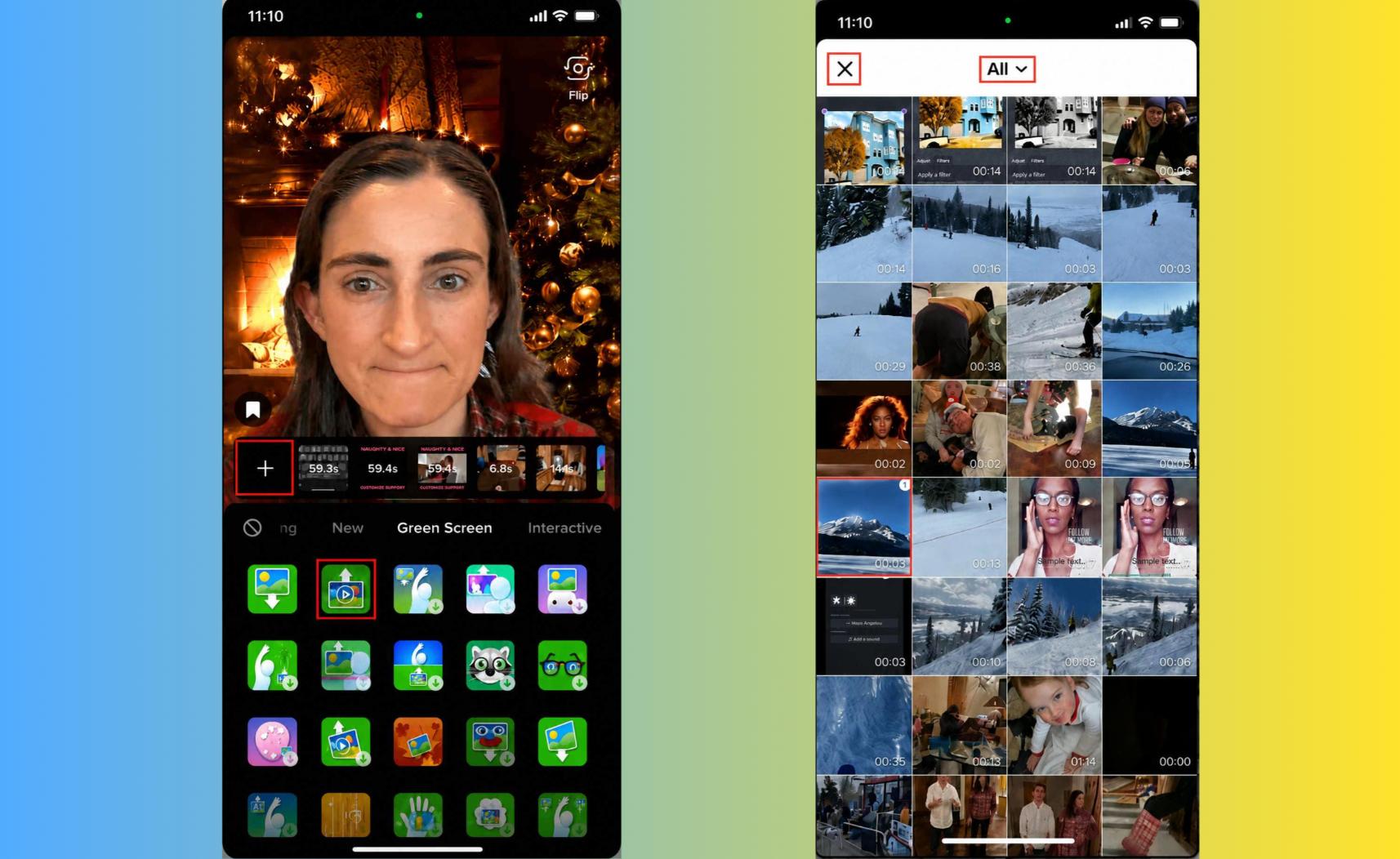
Step 1: Open the Green Screen Effect
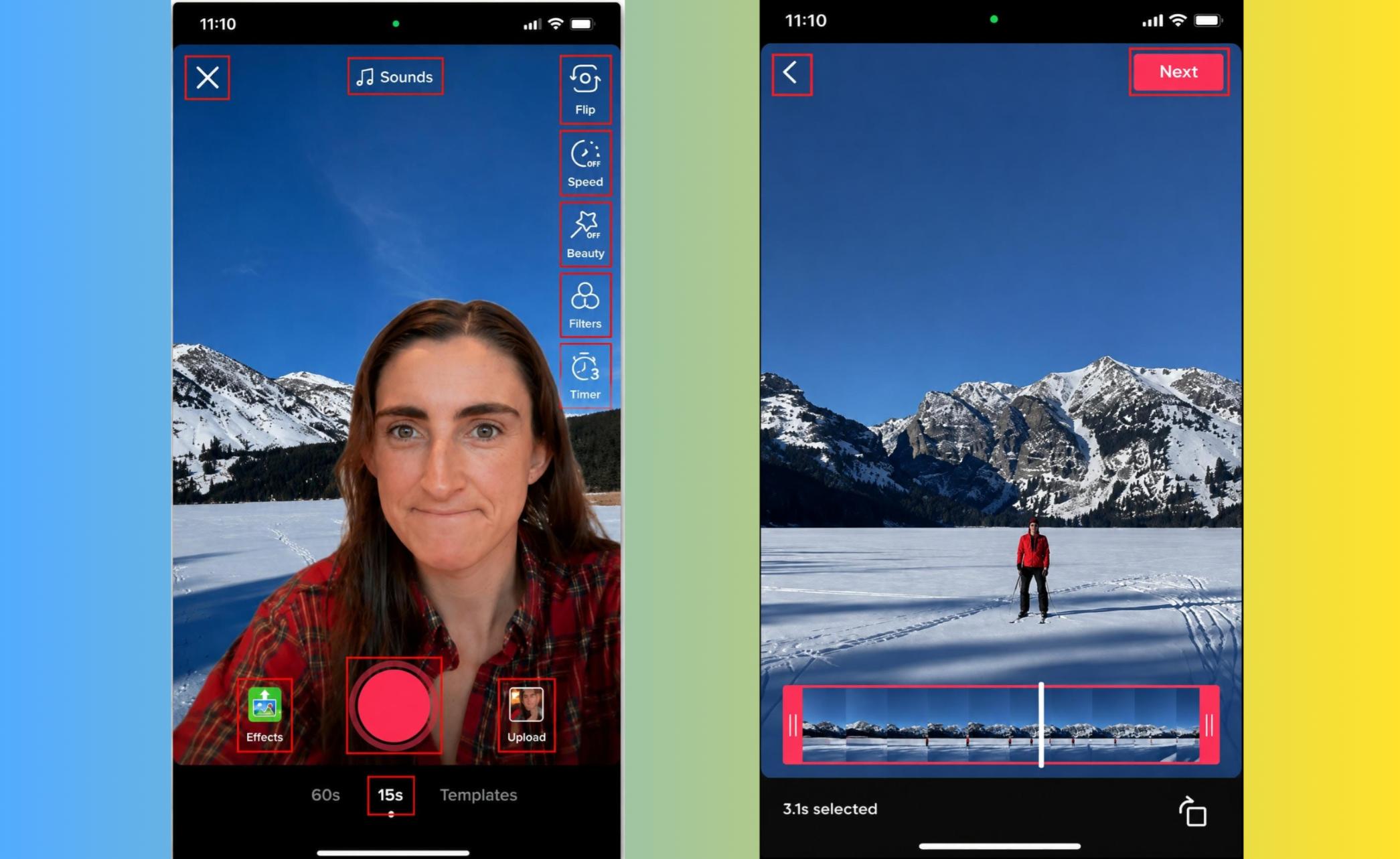
Open TikTok and tap "+" button to create a new video. Next, tap Effects and search for Green Screen. You'll see several versions of the effect, so choose the one that works best for the type of video you want to make.
Step 2: Choose Your Background Video
Browse your camera roll and select the video you want to use as the background. Once you tap it, TikTok automatically applies the video behind you, so you can preview the effect before you start recording.
Step 3: Adjust Your Settings and Start Recording
Fine-tune your video by adjusting options like Flip, Speed, Beauty, Filters, or the Timer if needed. Once you're happy with the setup, tap the Record button to start creating your green screen video on TikTok.
Step 4: Trim and Continue Editing
Press the Record button to capture your video. After recording, you can add music, captions, filters, or stickers before publishing it to TikTok.
How to Improve Your TikTok Green Screen Results
Little changes may have a dramatic impact on the quality of your Green Screen videos. Watch your background, lighting and recording settings for cleaner, more professional visual results.
-
Choose the Right Background for a Seamless Effect: Use images or video records with distinct details. Poor quality background elements might make the end product seem fuzzy or less believable. For example, a low-resolution or busy background can make the final effect look blurry and less realistic.
-
Optimize Your Lighting to Reduce Visual Artifacts: Record in a brightly lit spot with even light on your face. Good lighting allows TikTok to distinguish you from the background better. For example, bad lighting can make the edges around your face and hair appear blurry or uneven.
-
Avoid Colors That Interfere with Background Replacement: Avoid wearing clothing or accessories in the same colour as the background you have selected, since this may interfere with the image being generated. For example, wearing green can cause parts of your clothing to disappear into the background.
-
Test and Adjust Before Publishing Your Video: Sometimes it is better to watch the video once before uploading; you'll notice little things that weren't visible when recording, like rough edges or an uncomfortable background setting. Usually, a short retake or a little adjustment is enough and gives the video a much more polished look. For example, you may notice slight background flickering or objects that weren't separated correctly before you publish.
How to Create AI Green Screen Videos with Vmake Labs
While TikTok's Green Screen effect is handy for short adjustments, AI tools provide more editing options and better background removal capabilities for your videos. Vmake Labs makes it easy to produce professional-looking green screen videos, without the need for a real background.
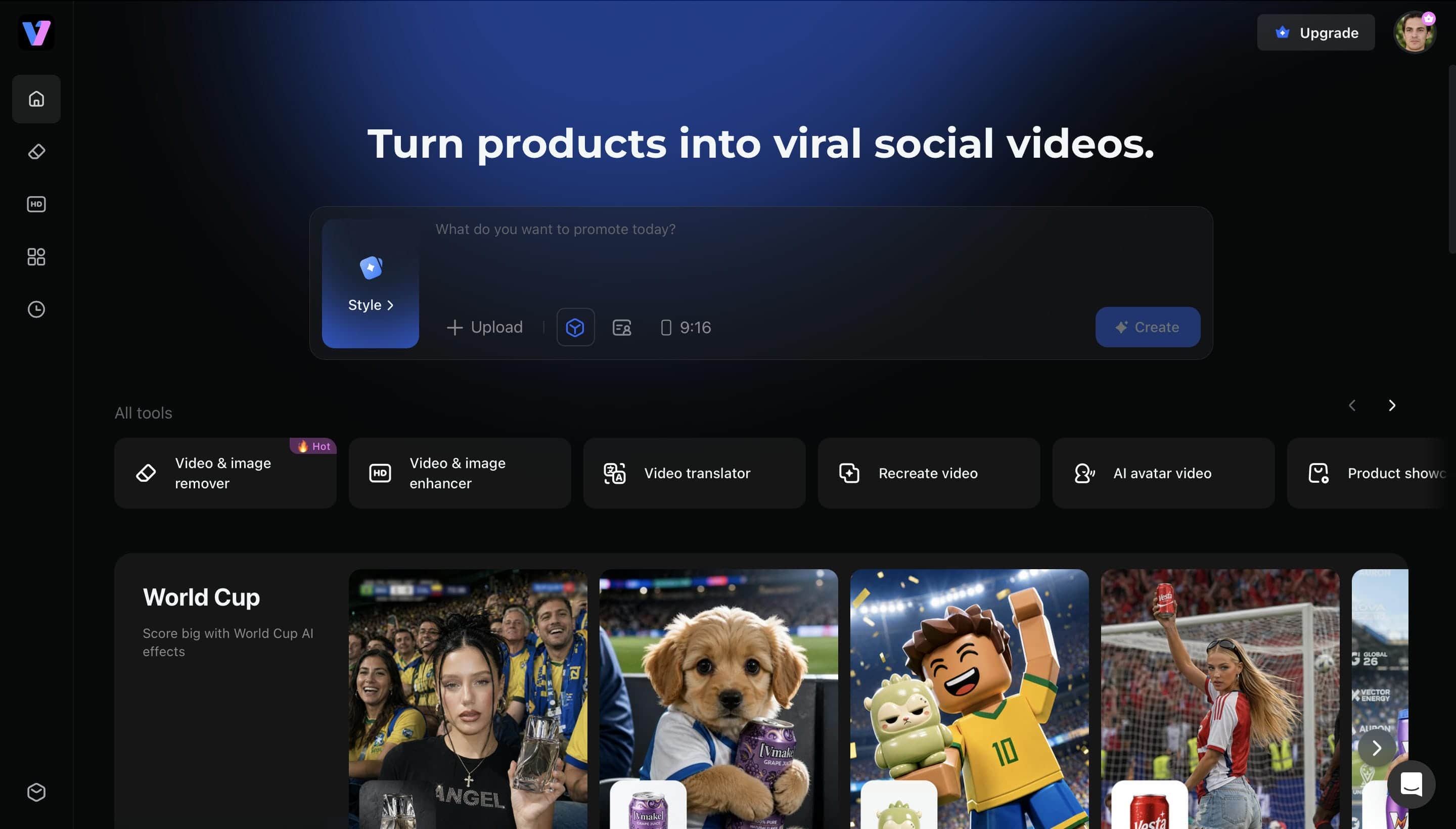
Why Choose Vmake Labs for Green Screen Videos?
Vmake Labs is significantly better than the TikTok Green Screen effect, making background removal and video editing with AI far easier. Its intelligent capabilities let talented artists create cleaner, more professional-looking films with less manual editing.
-
AI-Powered Background Removal: Instead of relying on a physical green screen, Vmake Labs automatically detects your subject and removes the background with a single click. The AI handles separation for you, making the process much easier, especially if you're new to video editing.
-
Green or Transparent Background Output: Sometimes, different projects need different formats, whether it's a traditional green background for further editing or a transparent background for greater flexibility. Vmake Labs lets you export either option, making it easier to edit videos for different platforms.
-
High-Quality Video Enhancement: AI processing keeps the video clear and makes the margins surrounding the subject softer for more realistic backdrop replacement.
-
Fast and Beginner-Friendly Workflow: Its user-friendly layout automates processing the need for manual editing, allowing producers to create professional-looking videos in only a few steps.
Create AI-Powered Green Screen Videos in Four Simple Steps
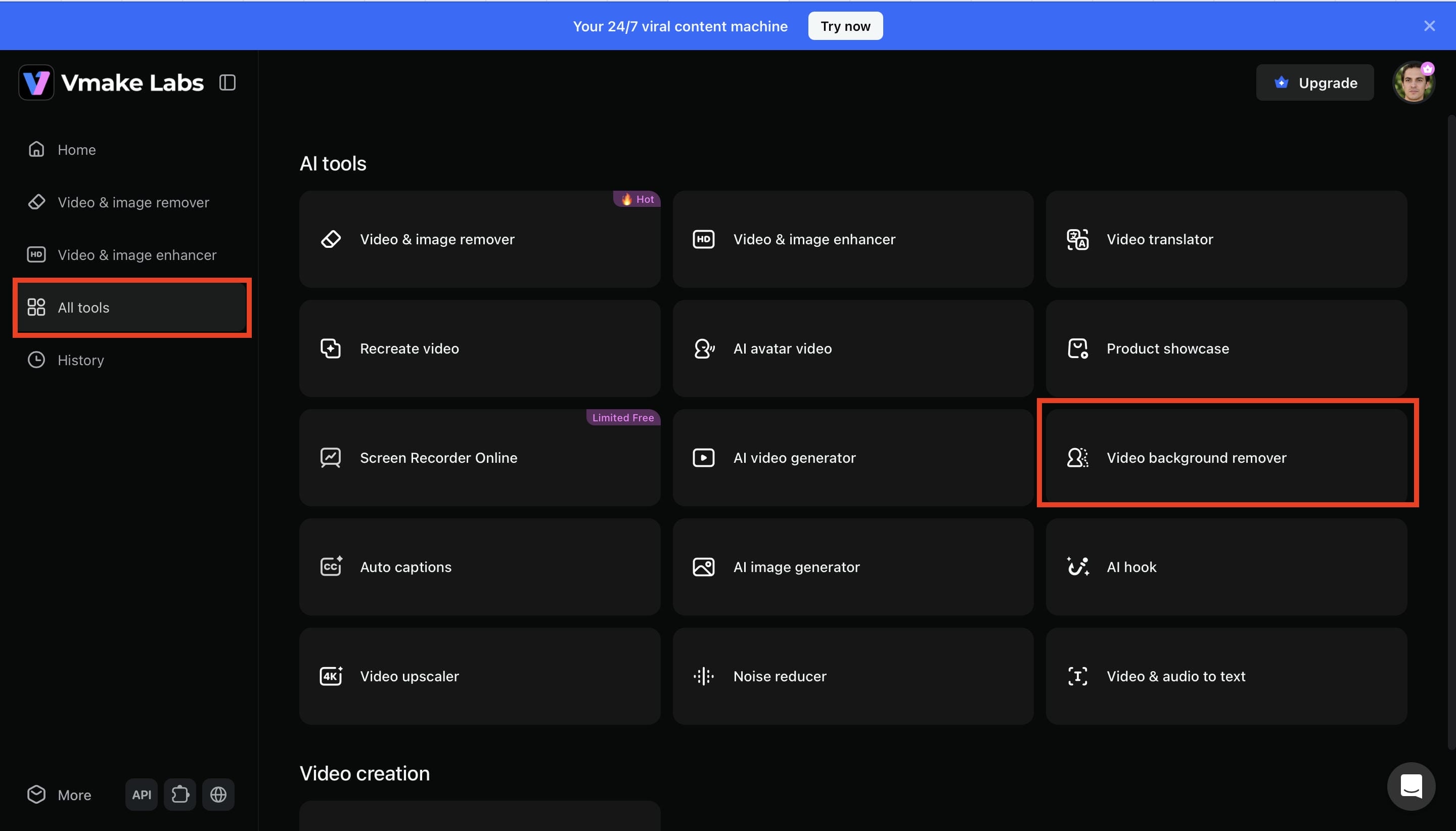
Step 1: Open the Video Background Remover Tool
Start from the All Tools page in Vmake Labs. Scroll to the AI tools section and click Video Background Remover to open the editing workspace. This is where you'll upload your video and create a green screen version in just a few steps.
Step 2: Upload Your Video
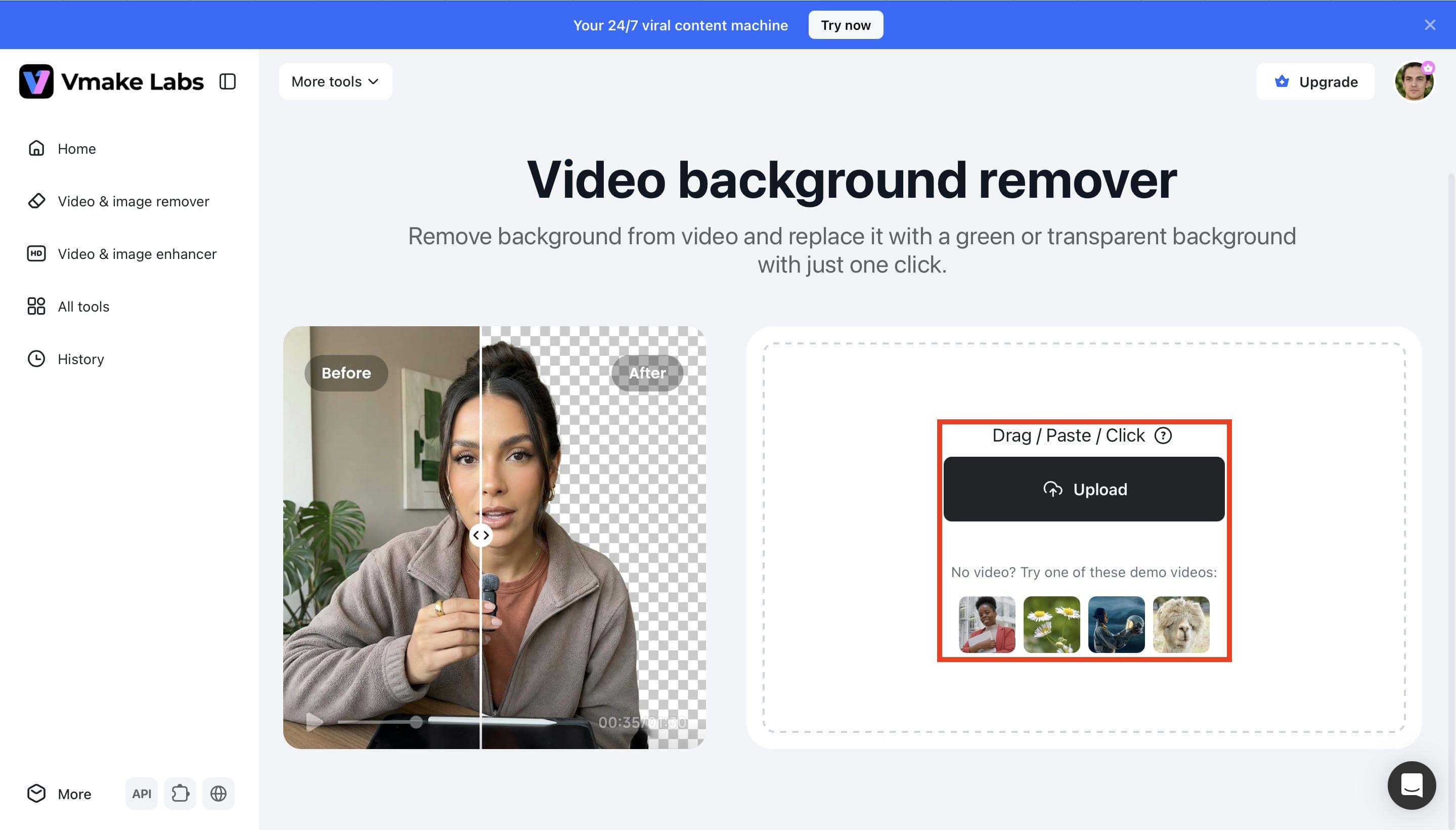
Click Upload, drag and drop your file, or choose a sample video to begin. Vmake Labs automatically prepares your video for background removal after it's uploaded.
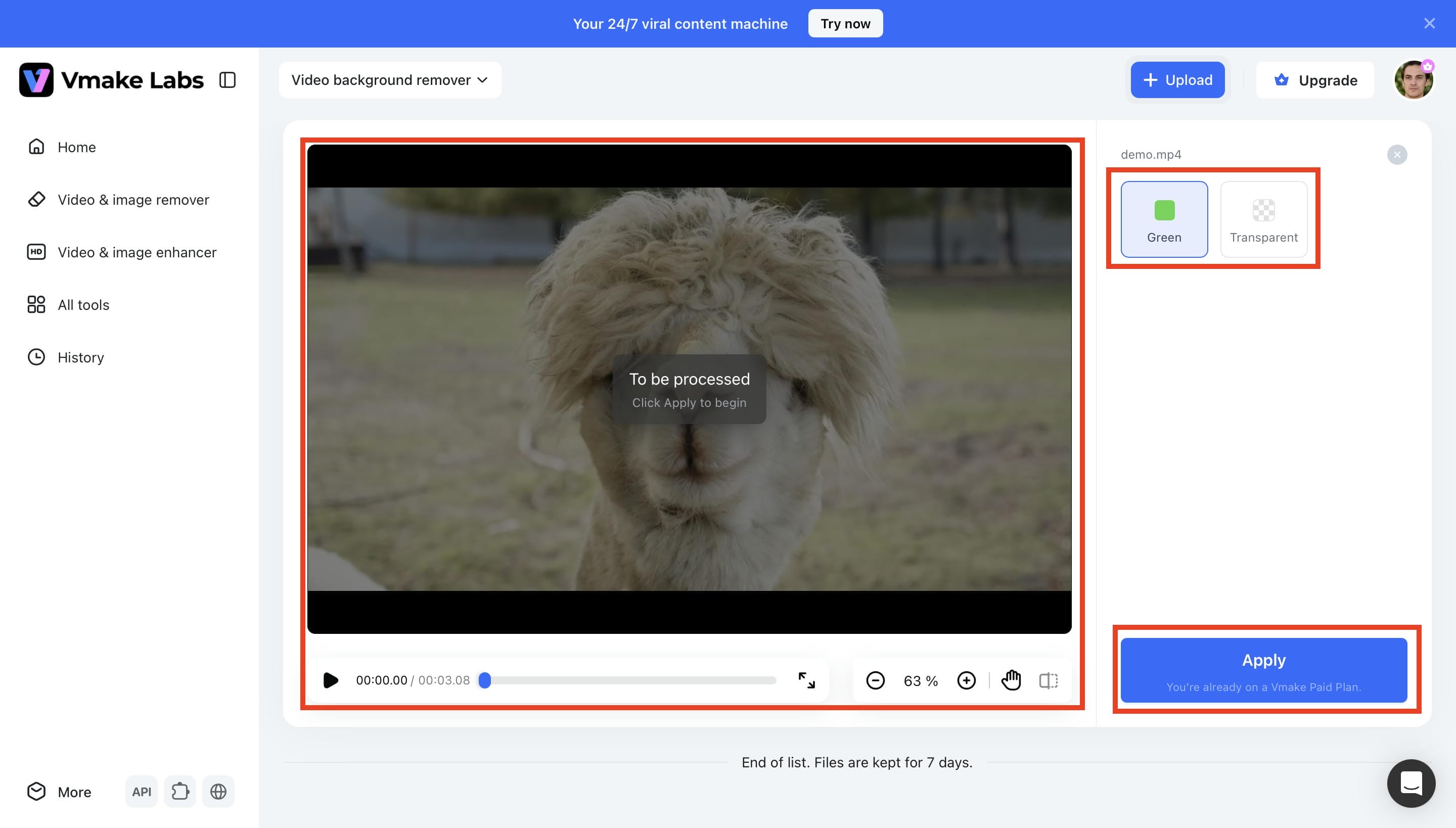
Step 3: Select the Green Screen Output and Apply
Select Green as the output background, then click Apply to start AI processing. Vmake automatically removes the original background and replaces it with a clean green screen.
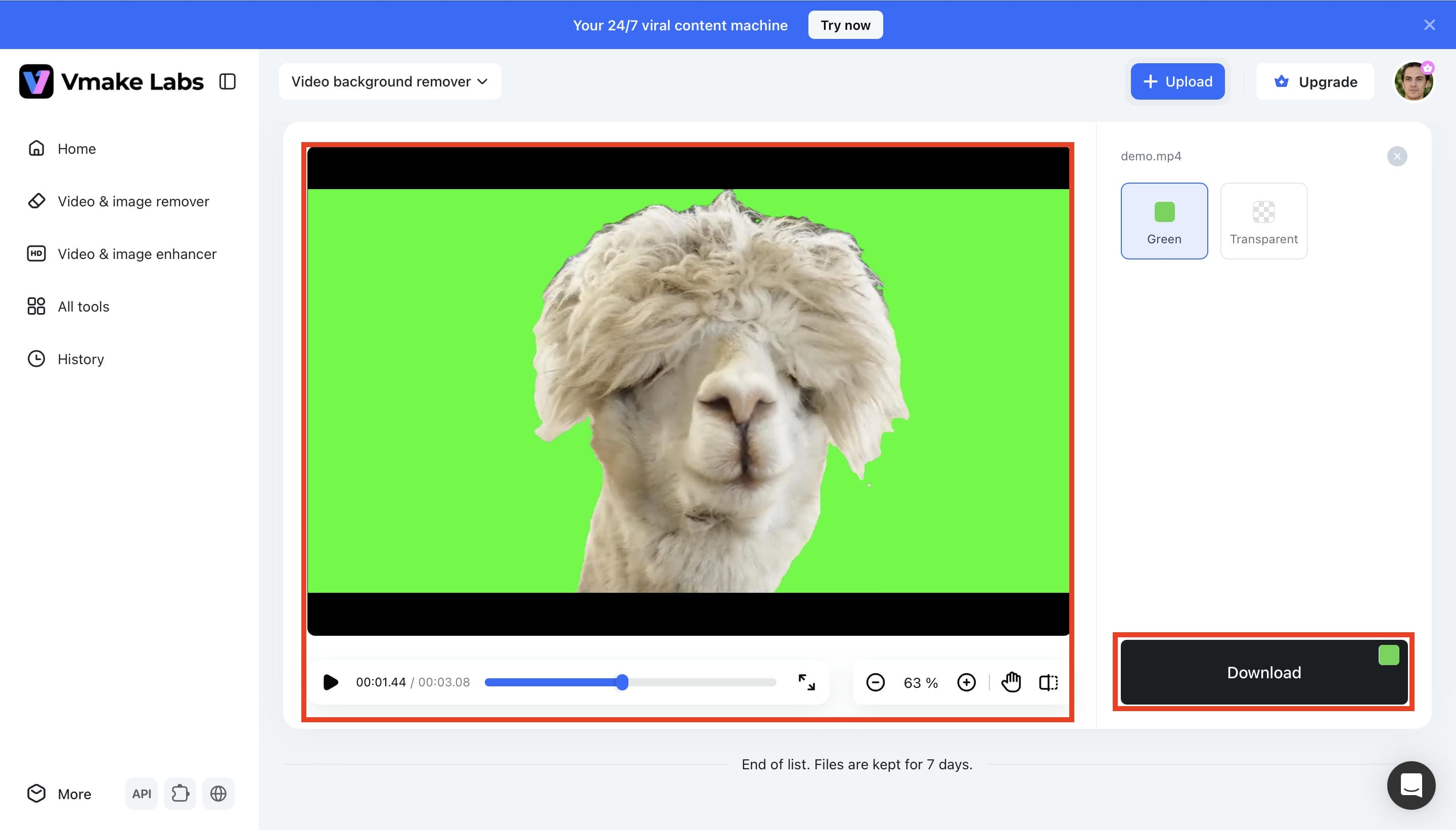
Step 4: Preview and Download Your Green Screen Video
Review the processed video to make sure the background looks accurate and natural. When you're satisfied with the result, click Download to save the finished video.
TikTok Green Screen vs Vmake Labs
TikTok's Green Screen effect is a quick and easy way to create videos without leaving the app. It's ideal for fast edits and everyday content. Vmake Labs offers AI-powered background removal, cleaner results, and more flexibility for editing videos after recording. The right choice depends on whether you need speed or greater control over your final video.
Which Tool Is Better for Creating Green Screen Videos?
Both TikTok and Vmake Labs make green screen editing simple, but they're designed for different workflows. TikTok is ideal for quick in-app videos, while Vmake Labs offers greater flexibility and cleaner results for editing content across multiple platforms.
|
Feature |
TikTok Green Screen |
Vmake Labs |
|---|---|---|
|
Background Replacement |
Built-in Green Screen effect with images or videos |
AI-powered background replacement without a physical green screen |
|
Ease of Use |
Simple for quick TikTok videos |
Beginner-friendly with guided AI editing tools |
|
Editing Capabilities |
Basic editing, filters, and effects |
Advanced AI enhancement, background generation, and customization |
|
Video Quality |
Depending on device camera and lighting |
AI-powered quality enhancement for sharper visuals |
|
Creative Flexibility |
Limited to TikTok's built-in effects |
Create custom AI backgrounds and professional-looking videos |
|
Processing Speed |
Real-time recording inside the TikTok app |
AI processing completed after uploading, optimized for high-quality results |
|
Export Options |
Publish primarily within TikTok |
Export videos with green or transparent backgrounds for further editing |
|
Watermark Support |
Videos may include TikTok branding depending on how they are shared or downloaded |
Independent video exports that are not tied to TikTok downloads |
|
Best For |
Quick social media content |
High-quality content creation for TikTok, Reels, YouTube Shorts, and marketing videos |
Conclusion
TikTok's Green Screen effect makes it easy for anyone to create engaging videos without advanced editing skills or expensive equipment. Whether you're making educational videos, product demos or just for fun, the built-in effect is an easy and fast way to change backgrounds. But if you want cleaner background removal, more editing flexibility, or videos for use outside TikTok, AI-powered tools can make it even easier. With Vmake Video Background Remover, you can effortlessly remove backgrounds and export videos with green or transparent backgrounds, making it easy to create polished, professional-quality content with minimal effort. It serves as an easy, user-friendly tool that automatically removes backgrounds.
FAQs
Can you use the Green Screen effect with both photos and videos on TikTok?
Yes. With TikTok, you can use both images and videos as Green Screen backgrounds, providing you with additional creative alternatives for various sorts of content. Choose the Green Screen effect and pick the material you wish to utilize before you record.
Do you need a physical green screen to use TikTok's Green Screen effect?
No, TikTok's Green Screen effect digitally replaces your background, so you don't need a physical green screen. Vmake is a flexible choice for better clean background removal, along with exporting videos with a green or transparent background.
Why isn't the Green Screen effect appearing in my TikTok app?
First, make sure you're using the latest version of TikTok and search for Green Screen in the Effects library. If the feature is still unavailable, it may not have been released in your region or for your device yet.
Can I change my Green Screen background after recording?
In most cases, you'll need to record the video again if you want to use a different background. For greater editing flexibility after recording, you can use Vmake Labs to remove or change video background during post-production.
When should I use Vmake Labs instead of TikTok's built-in Green Screen?
Use TikTok's Green Screen effect for quick in-app videos and simple edits. If you need AI-powered background removal, higher-quality exports, or videos for TikTok, Reels, YouTube Shorts, and other platforms, Vmake Labs provides a faster and more versatile workflow.
