How to Use Seedance 2.0 on Vmake AI: The Ultimate Step-by-Step Guide
Learn how to use Seedance 2.0 to turn text prompts and images into cinematic AI videos. Follow this step-by-step guide with tips, examples, and best practices on Vmake AI.

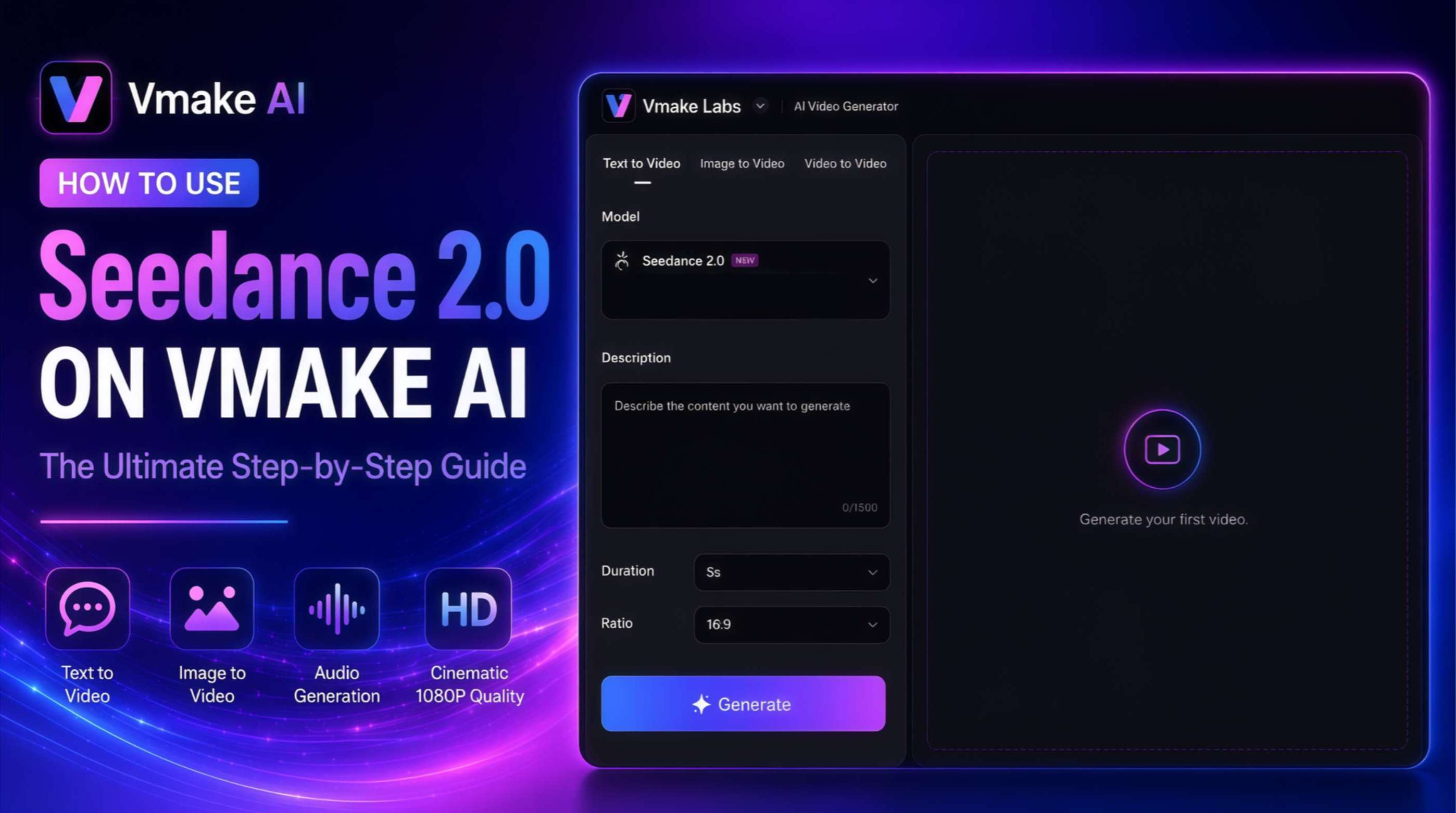
AI video production has experienced a massive shift with the release of Seedance 2.0. This guide will teach you how to master this breakthrough multimodal engine inside the Vmake AI ecosystem. You will discover how to convert basic text prompts, audio, and static images into professional, cinematic 1080p clips seamlessly.
What Is Seedance 2.0 and Why Is It Popular?
Seedance 2.0 is an upgraded multimodal AI video generation model from ByteDance. It became the engine of choice for creators, digital marketers, and video editors around the world in no time. Unlike prior generative video tools that only accept isolated text strings or single picture prompts, this model can accept up to 12 multi-modal references at once, such as images, video clips, and audio layers.
Generate Engaging AI Videos in Minutes with Vmake's Seedance 2.0
Vmake AI has fully integrated the power of Seedance 2.0 right into your web browser dashboard. Marketing teams, e-commerce store owners, and social media influencers no longer need expensive cameras, sound stages, or complex desktop editing software to build studio-grade promotional content. By utilizing the optimized Vmake processing pipeline, complex concept workflows that once required days of rendering and post-production are compressed into a straightforward sequence that takes less than a minute to complete.
Key Features of Vmake's Seedance 2.0
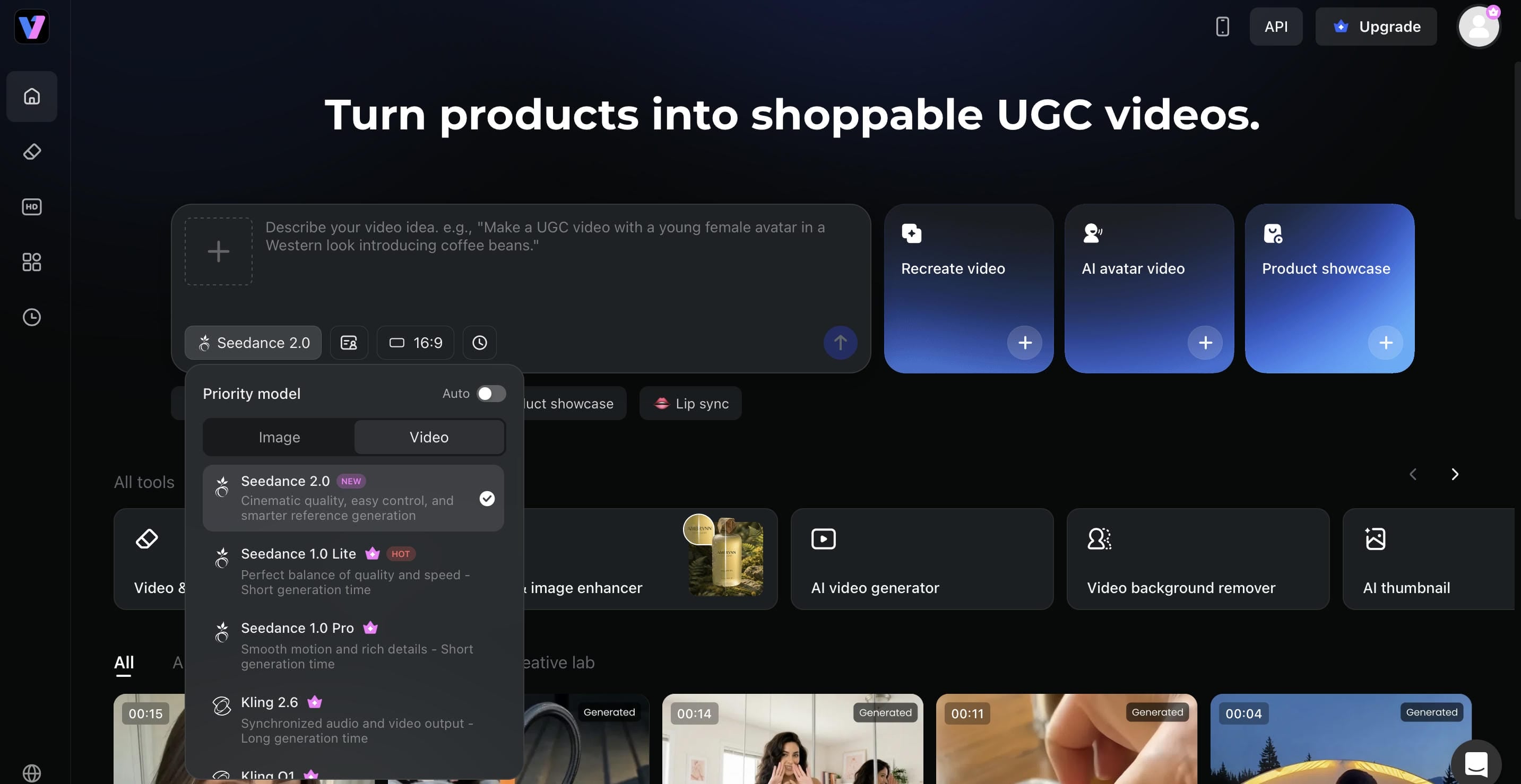
To get the most out of your generation credits, it helps to understand the core engine features built into this framework.
-
Multi-modal video generator
This is where Vmake starts to stand out. Vmake supports a wide range of leading video generation models, including Seedance 2.0, Kling 3.0, Google Veo 3, Sora 2, Vidu Q2, Wan 2.2, and others. Some are better at realistic motion. Others tend to produce a stronger visual style or handle prompts with more consistency.
-
High-resolution output
Vmake puts a lot of attention on producing sharper, high-resolution videos, especially for advertising campaigns, product showcases, and professional marketing content. There's also video cleanup. If your footage contains visual noise or unwanted artifacts, Vmake gives you a way to remove noise from video before publishing.
-
Multiple video generation methods
Different projects require different starting points. Sometimes you have a text idea. Sometimes you already have product photography. In other situations, you're working from existing visuals that need motion added to them. Vmake supports several generation methods, giving you more flexibility when building content.
How to Use Seedance 2.0 in Vmake
Now that you know what Vmake offers, here's how to use Vmake Seedance 2.0 to make your own AI videos. To get started, navigate to your workspace and start bringing your ideas to life.
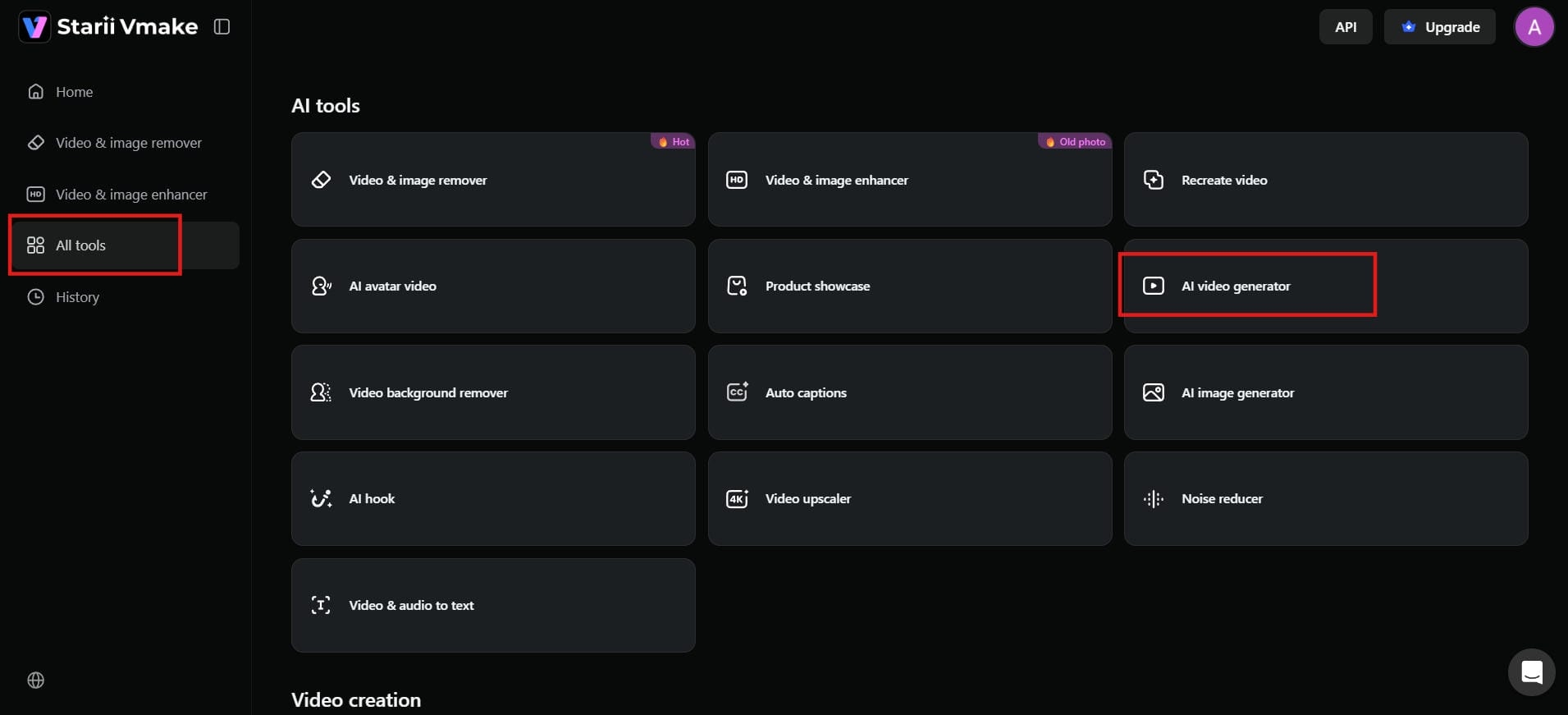
Step 1: Access the AI video generator
From the dashboard, go to the left sidebar and click "All tools". You will see a full list of available tools: select "AI video generator". This will take you to the video creation workspace, where you can start generating videos using text prompts or images.
Step 2: Select the Seedence 2.0 Engine
Find the Model configuration card on the left sidebar, which displays the active rendering network. Click the dropdown arrow on this menu card to expand your available platform models and switch the active engine to Seedence 2.0.
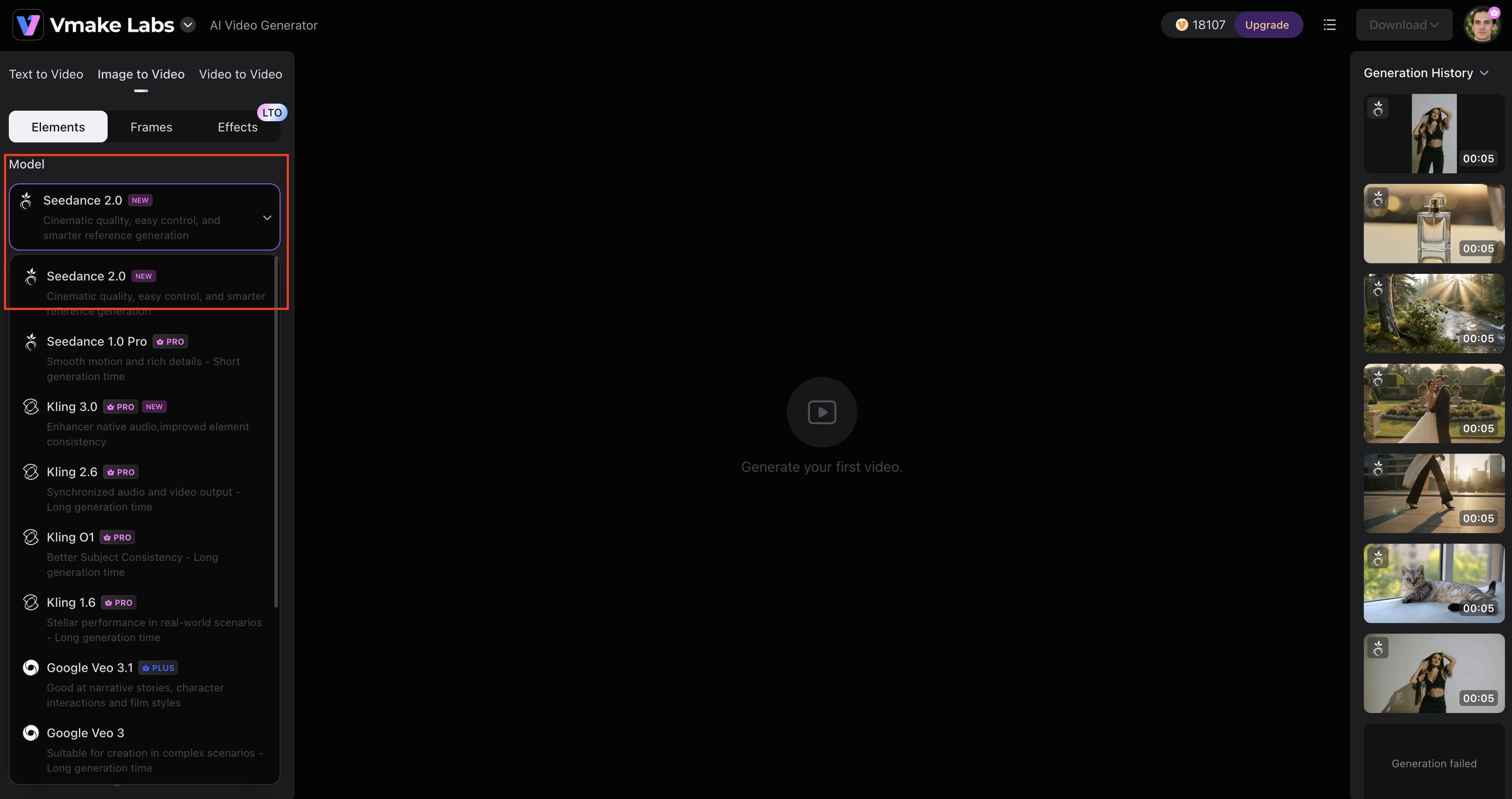
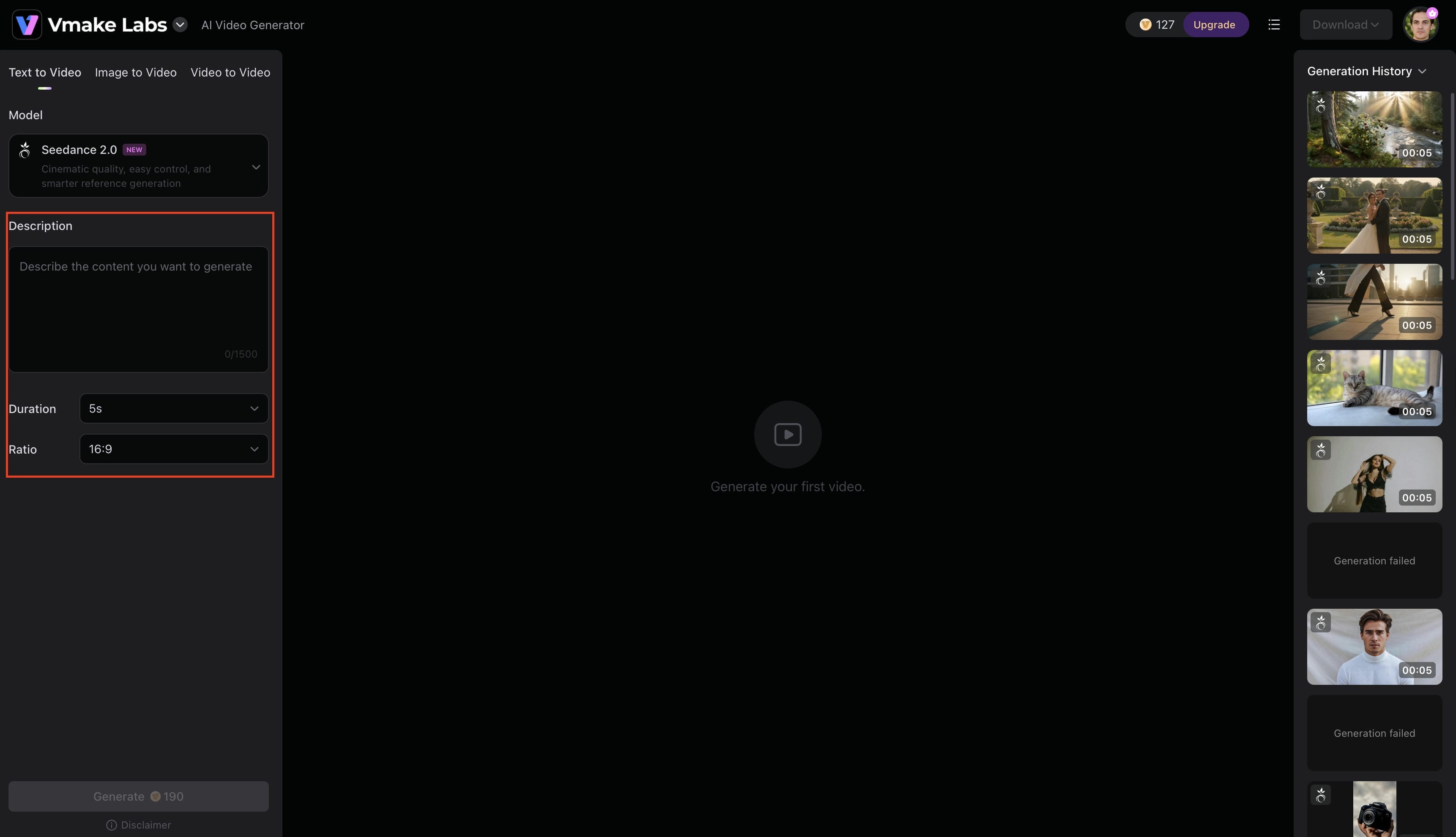
Step 3: Write Your Prompt and Adjust Settings
Scroll down to the Description box and enter a highly detailed text prompt describing your target scene and camera movements. Below the text area, use the dropdown menus to pick your video Duration and select your frame layout under Ratio (such as 16:9 for widescreen or 9:16 for vertical mobile channels). Once your parameters are locked in, click the Generate button at the bottom of the panel.
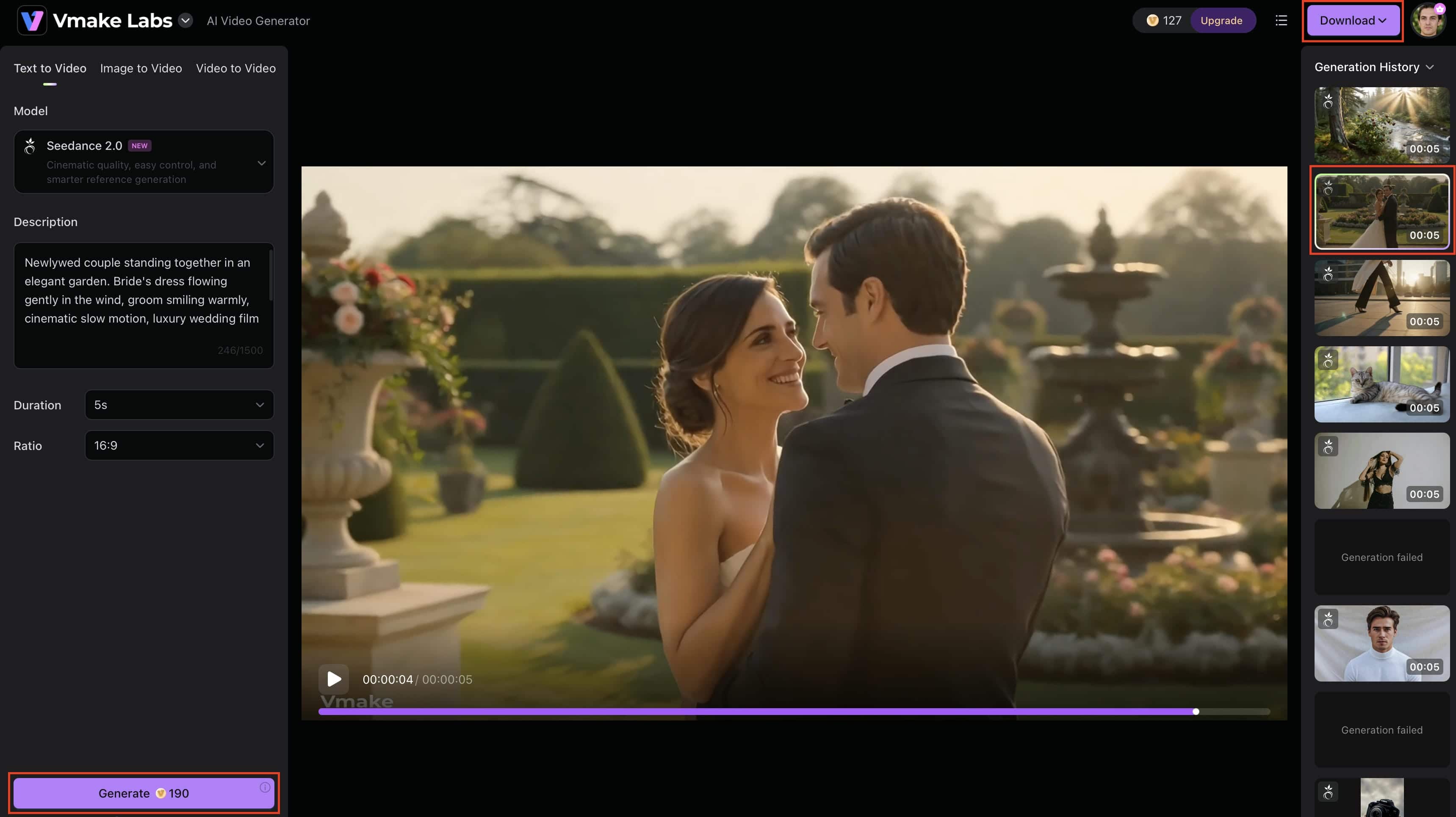
Step 4: Monitor, Preview, and Export Your Video
Track the real-time rendering progress of your clip within the Generation History column situated on the right side of the screen. Once processing finishes, click your new asset card to preview its physical continuity and visual style. If you are satisfied with the clip, click the Download button at the top right of the dashboard to save the high-definition file to your device.
Prompt Examples for Seedance 2.0
The following examples demonstrate how different prompts can be used for various content types.
-
Product ad prompt
"A luxury smartwatch rotating on a reflective surface, cinematic lighting, close-up product shots, smooth camera movement, premium commercial style, 1080p."
This prompt focuses on showcasing product details while creating a premium advertising aesthetic.
-
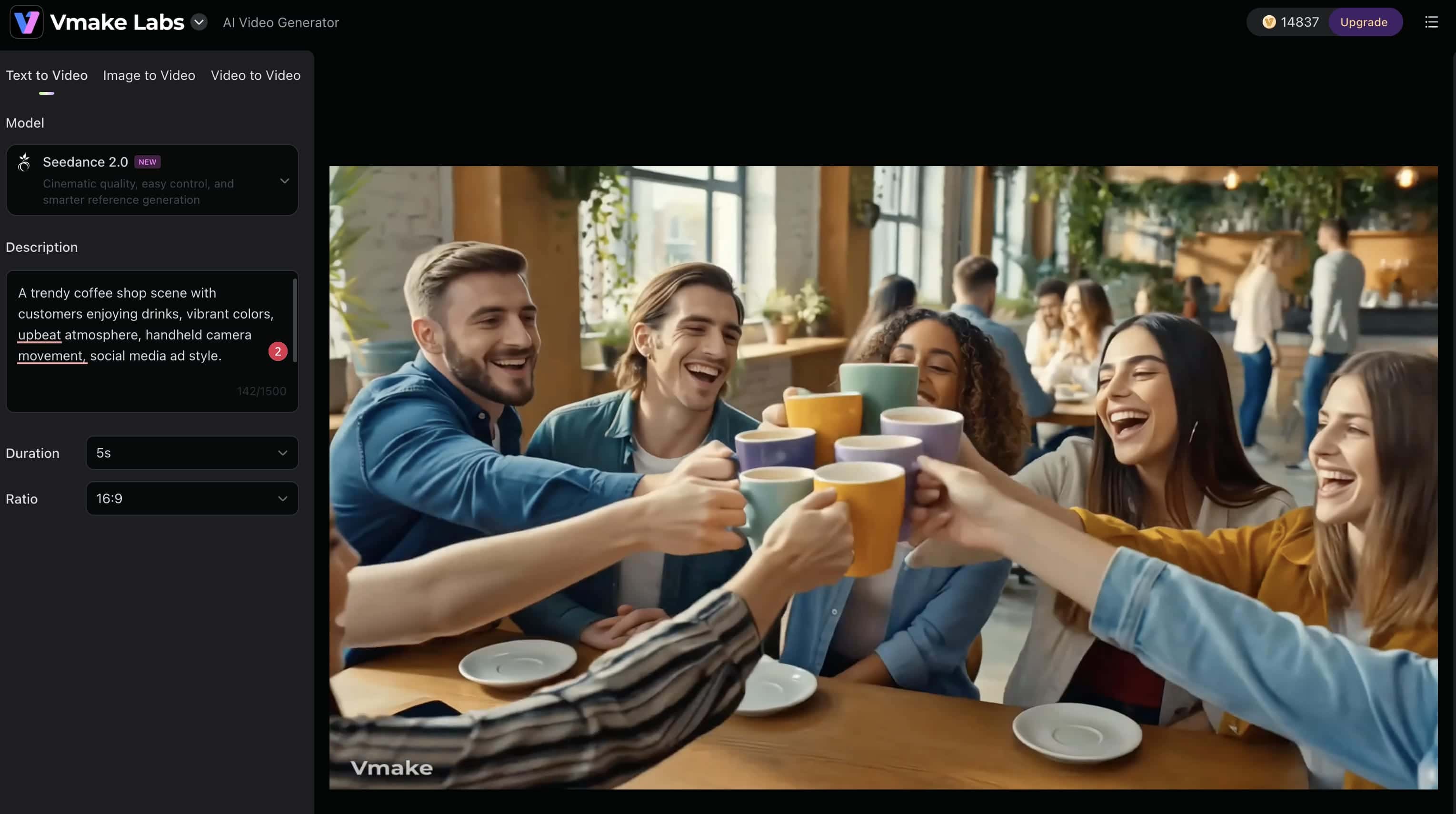
Social media prompt
"A trendy coffee shop scene with customers enjoying drinks, vibrant colors, upbeat atmosphere, handheld camera movement, social media ad style."
This type of prompt is useful for creating lifestyle-focused content optimized for engagement.
-
Storytelling prompt
"A young traveler walking through a futuristic city at sunset, neon lights reflecting on wet streets, cinematic camera tracking shot, dramatic mood."
Narrative prompts help generate immersive scenes with strong visual storytelling elements.
-
Tutorial prompt
"A step-by-step demonstration of assembling a gaming keyboard, clean workspace, clear close-up shots, professional instructional video style."
Educational content benefits from prompts that emphasize clarity, visibility, and structured demonstrations.
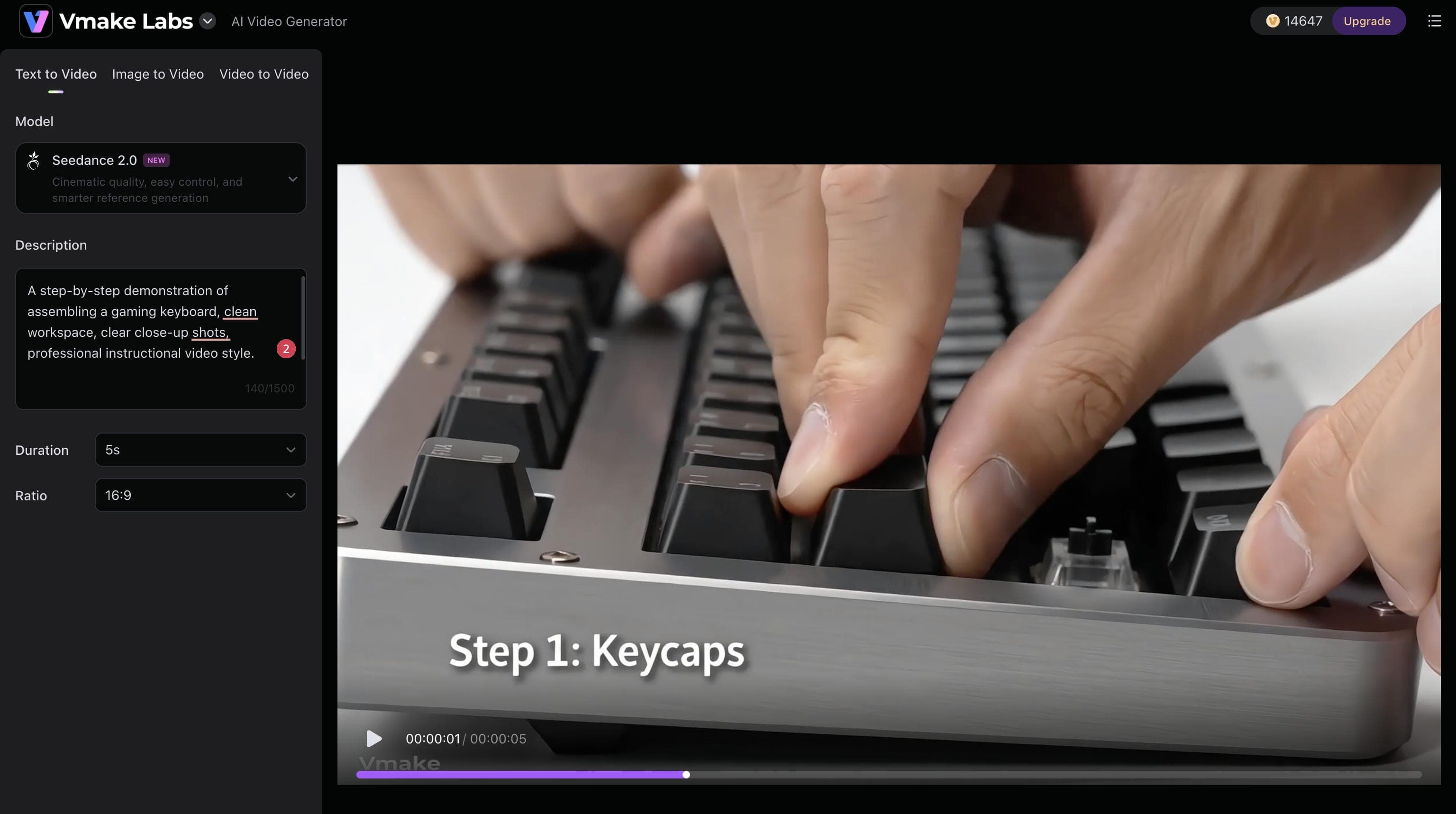
Image-to-video prompt
"Animate the uploaded portrait with natural facial expressions, gentle head movement, realistic lighting changes, cinematic depth of field." This prompt transforms a static image into a more engaging animated sequence.
In general, detailed prompts produce more accurate and visually consistent results. The more context you provide about movement, environment, mood, and style, the easier it becomes for Seedance 2.0 to interpret your creative goals.
Top Ways to Leverage Vmake Seedance 2.0
The flexible architecture of this engine makes it an invaluable asset across multiple digital media workflows:
|
Use Case |
Production Advantage |
Recommended Framing |
|---|---|---|
|
Social Media Content |
Generates highly engaging Instagram Reels, YouTube Shorts, and TikTok clips with native audio that hooks viewers immediately. |
Vertical (9:16) |
|
Short-Form Video Clips |
Functions as an on-demand B-roll asset library, instantly building dramatic visual transitions without requiring stock footage searches. |
Widescreen (16:9) |
|
Marketing Campaign Videos |
Turns basic, static e-commerce inventory shots into high-conversion, cinematic video ads with elegant camera angles. |
Multi-platform |
|
Tutorials and Guides |
Powers educational explainer content by animating clear, step-by-step walkthroughs over clean workspaces. |
Landscape (16:9) |
|
Promotional Video Ads |
Builds immersive, high-end commercial sequences complete with sound effects, significantly lowering filming overhead costs. |
Widescreen or Square |
How to Use Seedance 2.0 for Pro-Level Video Creation
To elevate your creations from simple animations to premium, studio-grade productions, implement these professional techniques within your workspace workflow:
-
Optimize prompts for accurate output: The quality of your findings depends very much on the quality of your prompt. Add detailed information about subject, setting, motion, illumination, and desired aesthetics.
-
Adjust settings for smooth transitions: Try generation options offered for better flow and consistency of scenes and movement. Small tweaks can make a big difference in realism and overall appearance.
-
Combine clips for dynamic storytelling: Instead of one extended sequence, make a few shorter clips that focus on distinct events. You can then piece these together into a more compelling story.
-
Preview edits before final export: Preview each scene carefully before you download your final video. Find inconsistencies, undesired artifacts, or places where the storyline could be better.
Conclusion
Mastering Seedance 2.0 inside Vmake AI allows you to quickly transform raw creative concepts into polished, commercial-ready video assets. By understanding how to combine text prompts with multiple image and audio reference files, you unlock an unprecedented level of director control over your visual projects. This framework streamlines your entire creative pipeline, preserving flawless character consistency, executing lifelike physical motion, and delivering perfectly synchronized audio passes automatically. Explore the layout, implement the CRAFT framework, and start producing high-impact AI videos today.
FAQs
How to use Seedance 2.0 now if you're a beginner?
Begin with a short question that identifies your subject, the environment, and the action you want to do. Create a video, see the outcome, and adjust your prompt to what you’d like to enhance. If you use Vmake AI you can also submit reference photos and produce several variations from the same concept.
How accurate is Seedance 2.0 at understanding prompts?
Seedance 2.0 is capable of interpreting detailed instructions related to subjects, environments, camera movements, lighting conditions, and visual styles. More specific prompts generally lead to more accurate and consistent results.
Can Seedance 2.0 create videos from images?
Yes. Seedance 2.0 supports image-to-video generation, allowing users to animate portraits, product photos, illustrations, and other visual references while preserving key visual details.
How can I get better results with Seedance 2.0?
Use detailed prompts that clearly describe the subject, action, camera movement, lighting, and mood. Adding reference images and testing multiple prompt variations can also improve output quality. On Vmake AI, you can use uploaded assets as references to guide the generated footage more precisely.
Is Seedance 2.0 suitable for professional video creation?
Yes. Seedance 2.0 can generate high-quality footage with realistic motion, scene consistency, and cinematic camera effects, making it suitable for marketing, content creation, advertising, and commercial projects.
How to use Seedance 2.0 on Vmake AI?
Navigate to the Vmake AI Video Generator interface, choose the Seedance 2.0 processing engine, configure your output settings (including video duration and canvas size), upload your reference image, video, or audio files, write your descriptive text prompt, and hit generate.

You May Be Interested
How to Upscale Seedance 2.0 Videos to 4K
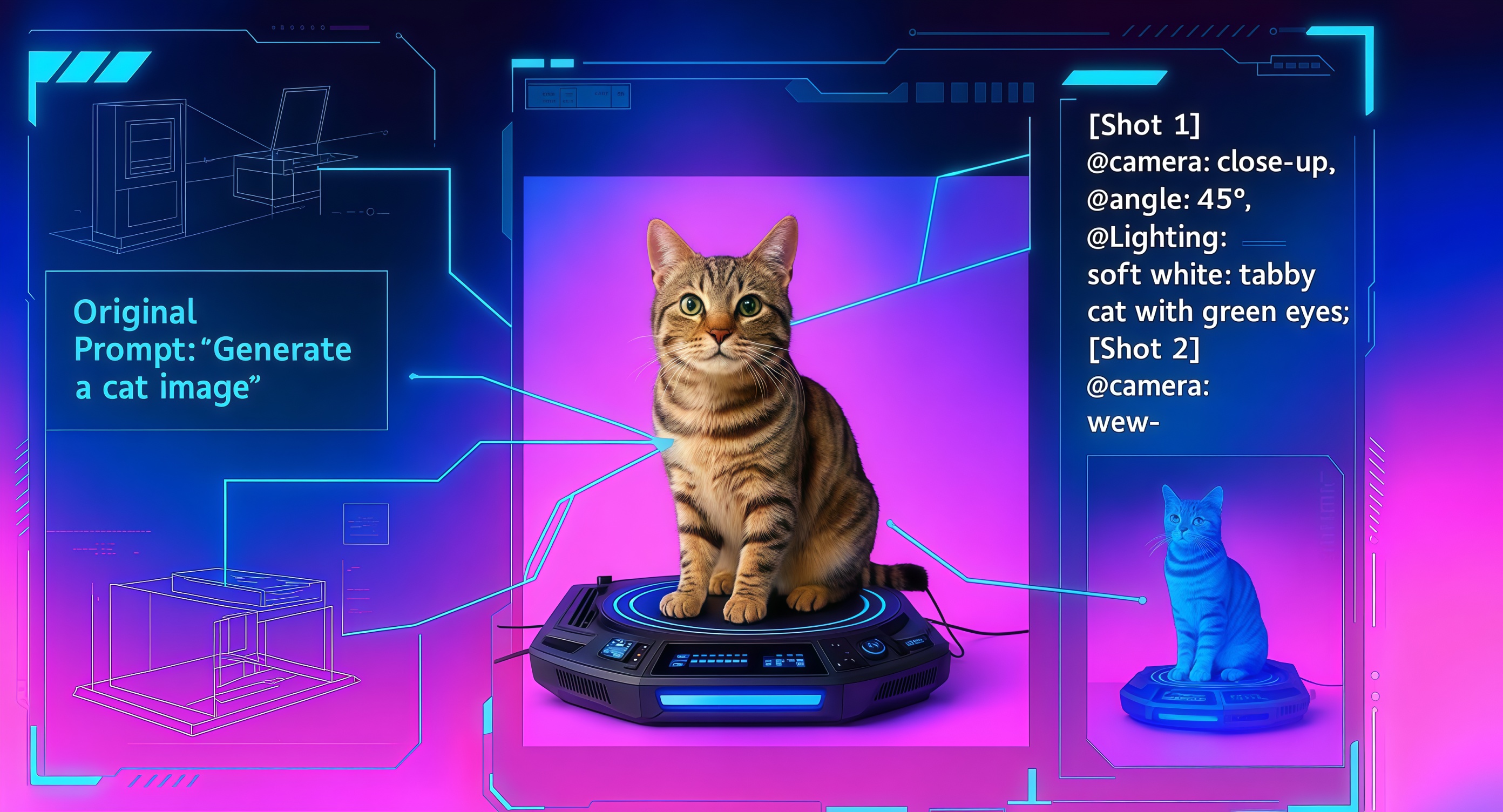
Mastering Seedance 2.0: 10 Advanced Prompts for Multi-Shot AI Video

Seedance 2.0 vs Kling 3.0: 2026 AI Video Model Comparison
How to Remove Seedance 2.0 Watermark from Videos

Sora is Gone, Seedance is Rising: Who Will Win the AI Video War?