
How to Use Veo 3: The Ultimate Step-by-Step Guide
Learn how to use Veo 3 with Vmake AI and create cinematic AI videos. This step-by-step guide shows how to use Google Veo 3, write better prompts, and generate professional-quality videos in minutes.
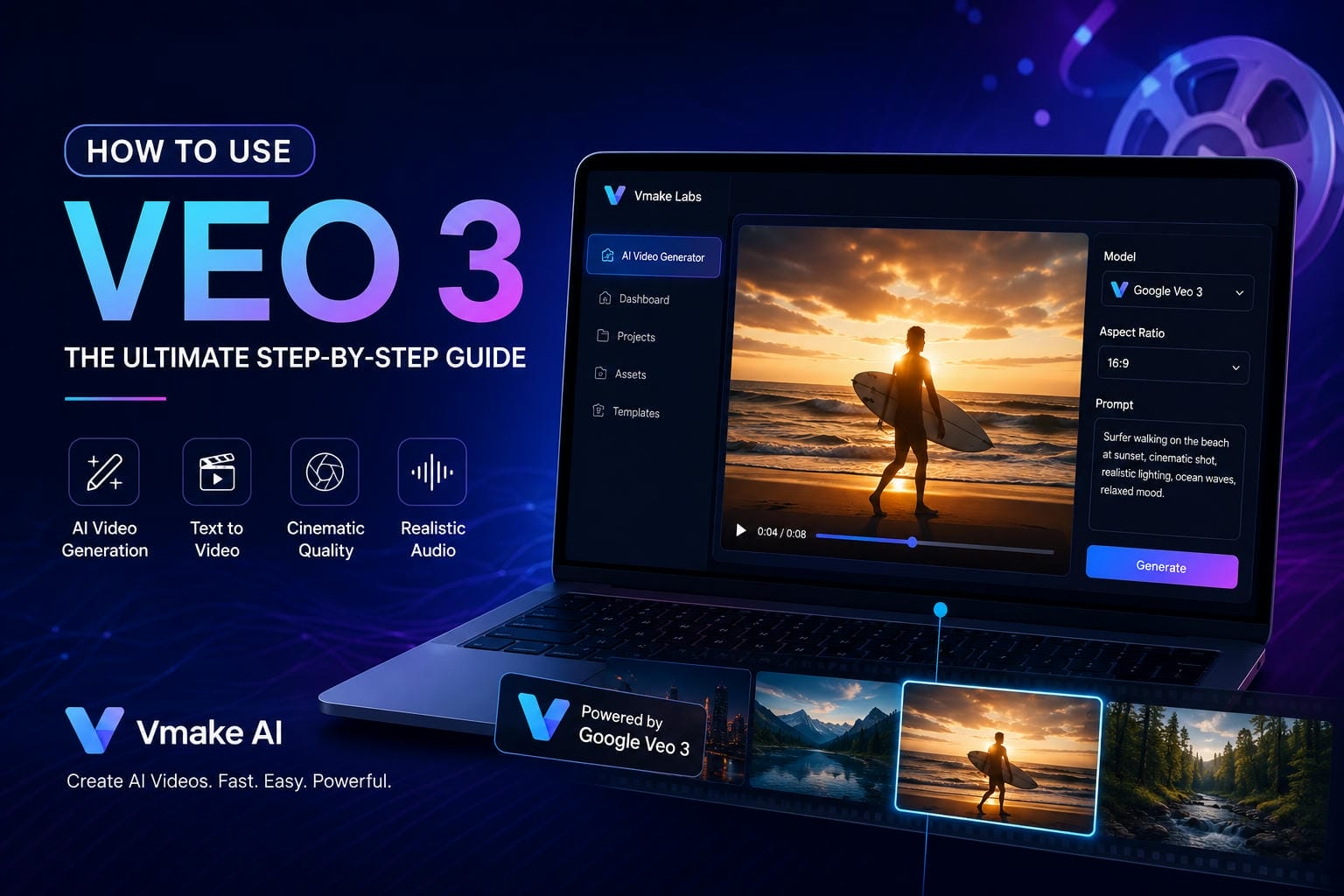
Generative video has evolved past silent, floating visuals. With Google Veo 3 integrated directly into Vmake Labs, creators can now generate cinema-grade 1080p video clips complete with synchronized, native audio from simple text. Here is your definitive, step-by-step masterclass to unlocking professional AI video generation for your brand.
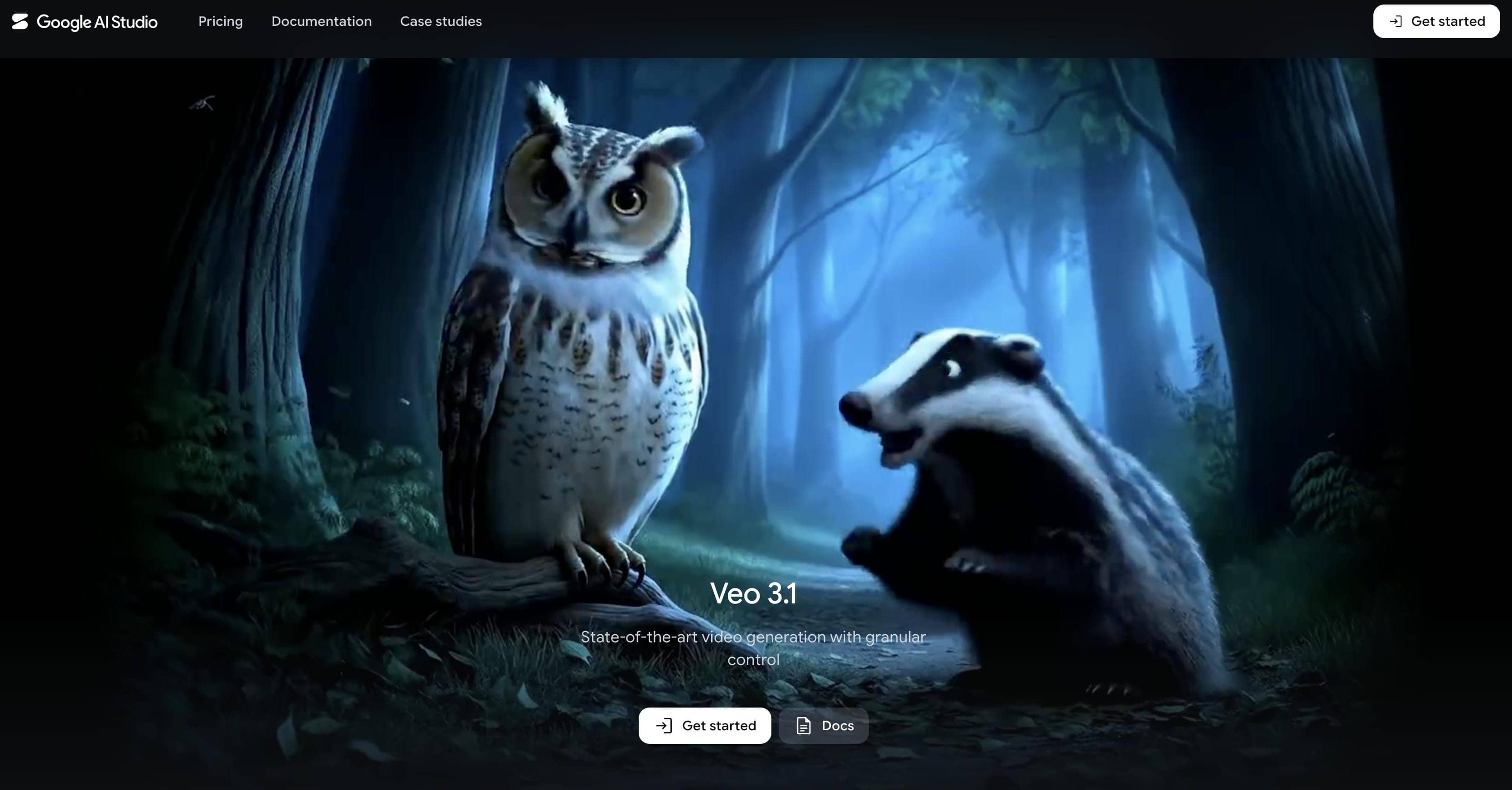
Step-by-Step Tutorial: How to Use Veo 3 on Vmake Labs
Vmake Labs operates as a robust browser-based multi-model workspace designed to streamline raw asset generation. Instead of forcing users to navigate complex developer environments, it simplifies deployment down to an intuitive, web-accessible interface.
Whether you are looking to create marketing assets or cinematic storyboards, following this structured creation pathway will help you maximize your results.
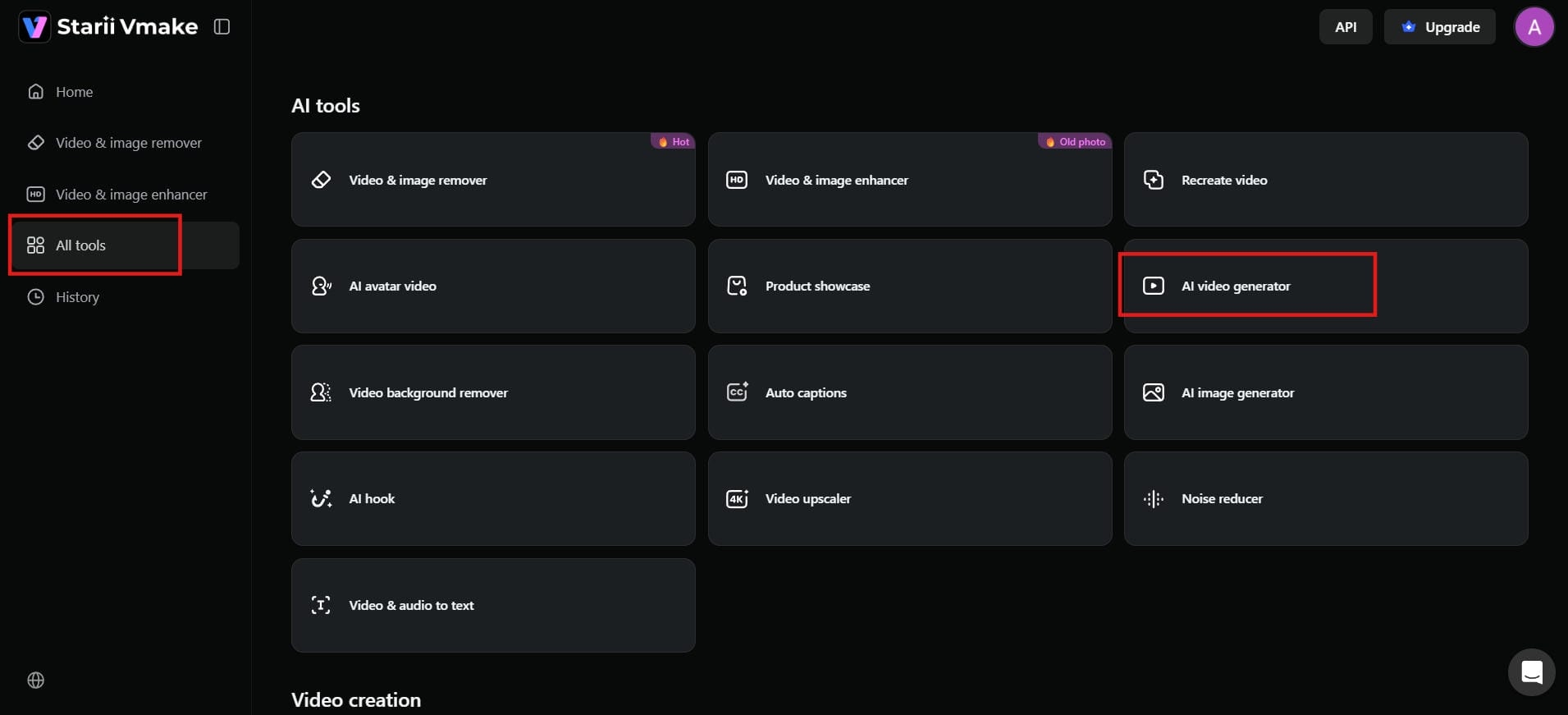
Step 1: Access the AI video generator
From the dashboard, go to the left sidebar and click "All tools". You will see a full list of available tools: select "AI video generator". This will take you to the video creation workspace, where you can start generating videos using text prompts or images.
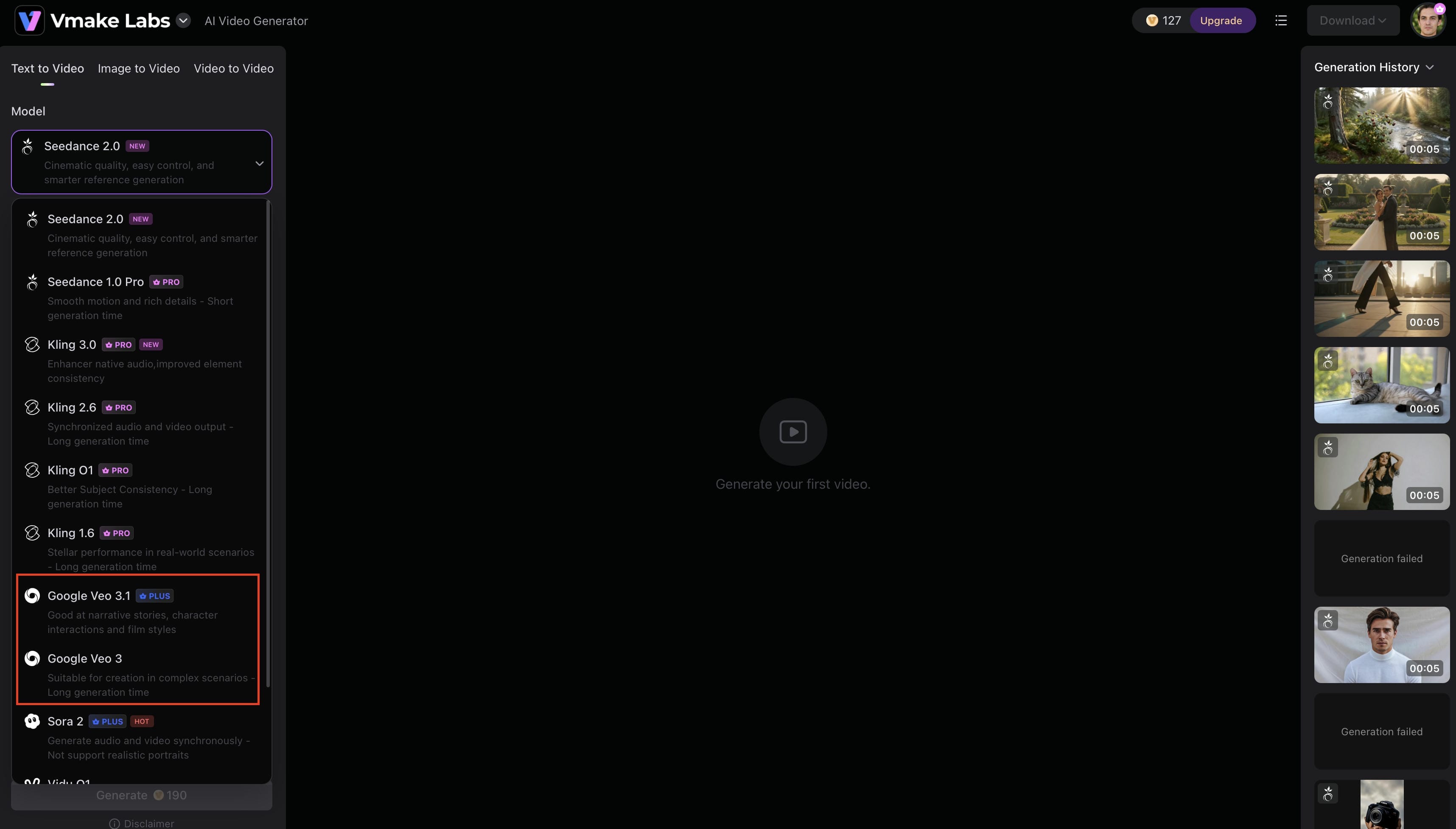
Step 2: Select the Google Veo 3 Engine
Find the Model configuration card on the left sidebar, which displays the active rendering network. Click the dropdown arrow on this menu card to expand your available platform models and switch the active engine to Google Veo 3. Selecting this specific model ensures your project utilizes Google’s advanced spatial physics simulation and deep prompt processing.
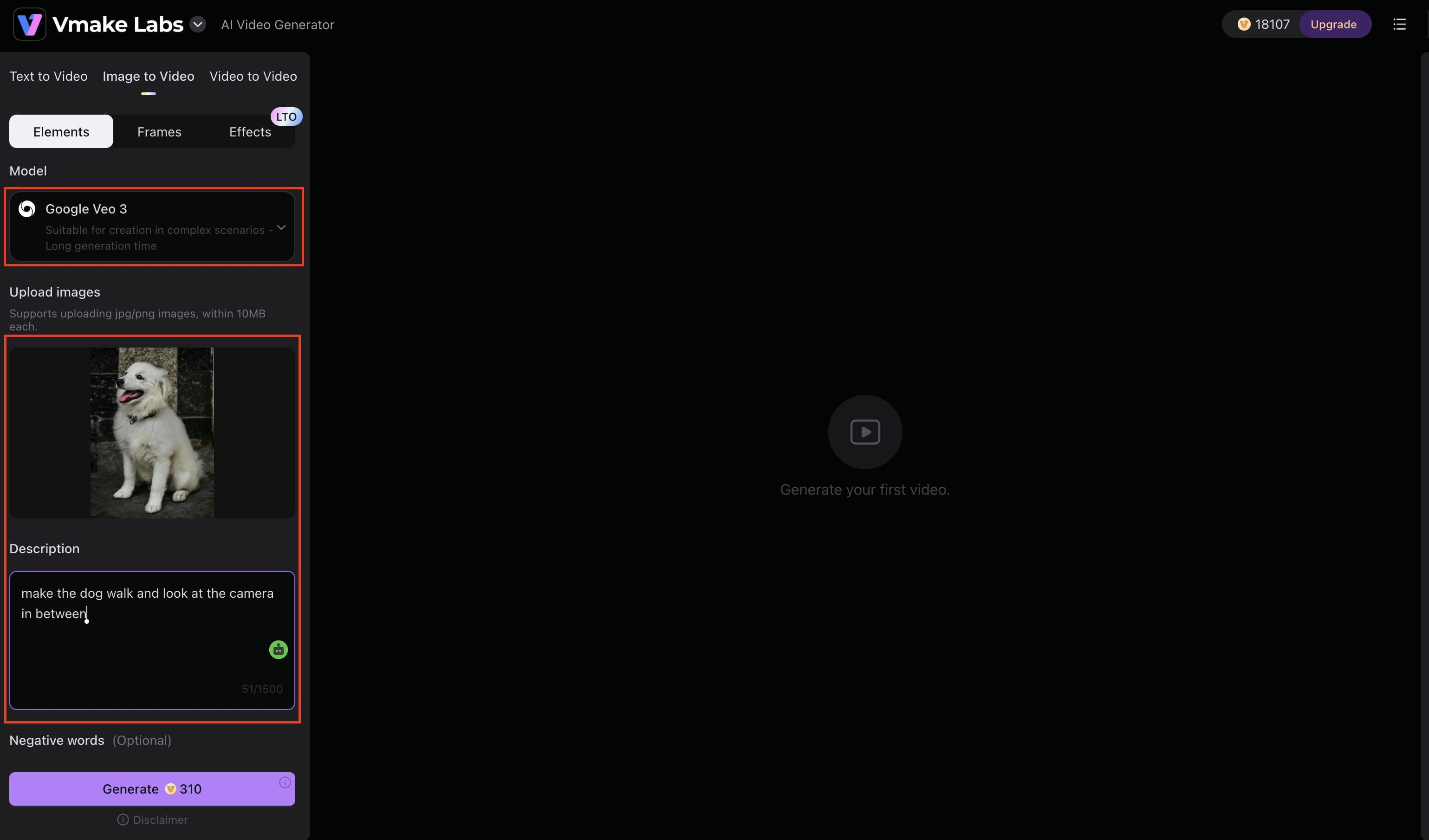
Step 3: Write Your Prompt and Adjust Settings
Scroll down to the Description field and describe the motion, actions, and camera behavior you want to see. For example, you can instruct the model to make a subject walk, turn toward the camera, or perform specific movements during the scene. Include details about lighting, mood, camera angles, pacing, and environment to achieve more accurate results. The more descriptive your prompt is, the better Geogle Veo 3 can understand your creative intent.
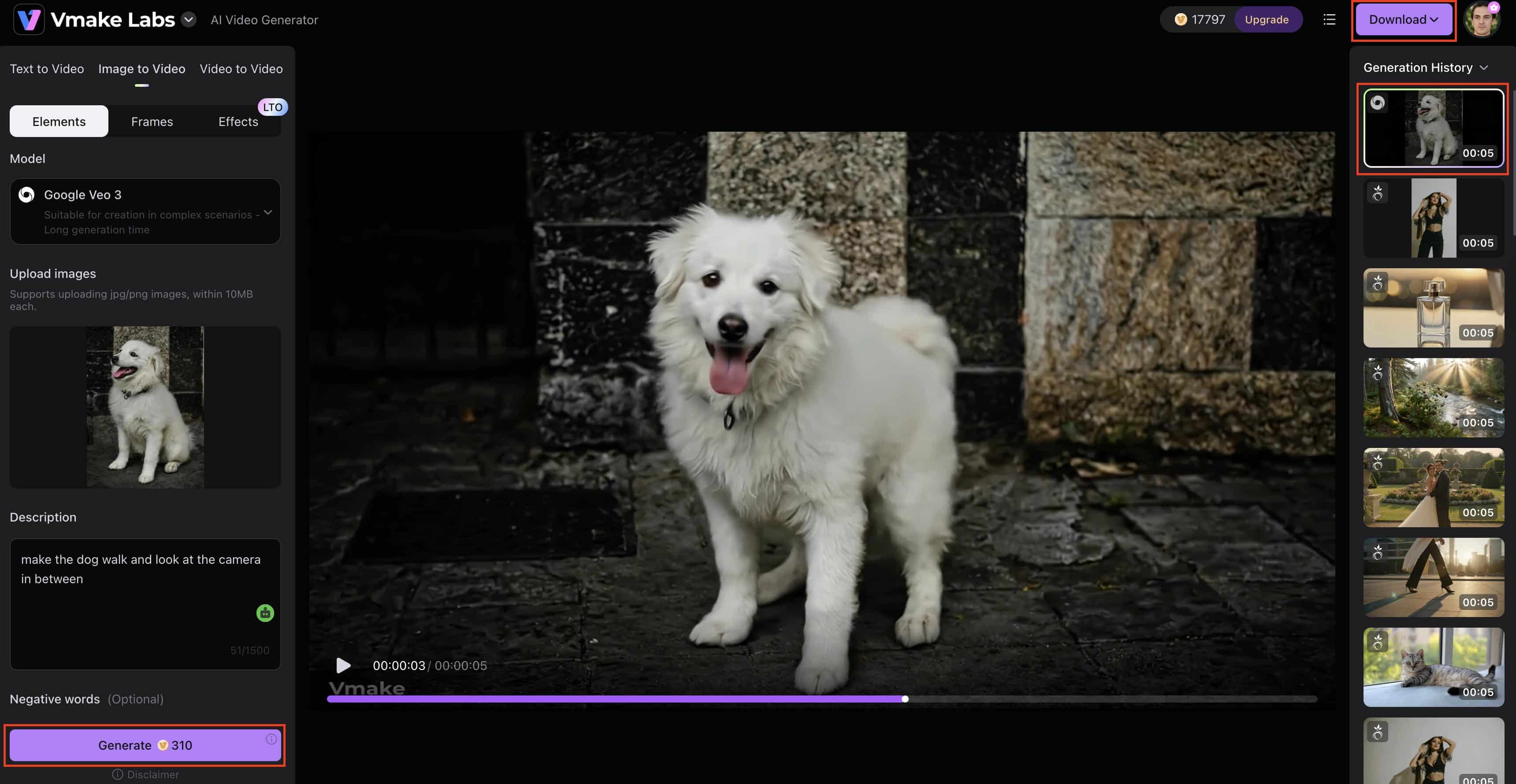
Step 4: Monitor, Preview, and Export Your Video
Track the real-time rendering progress of your clip within the Generation History column situated on the right side of the screen. Once processing finishes, click your new asset card to preview its physical continuity and visual style. If you are satisfied with the clip, click the Download button at the top right of the dashboard to save the high-definition file to your device.
Writing the Perfect Prompt: Professional Tips for Veo 3 Visuals
The Golden Principle
The secret to using Google Veo effectively is to focus entirely on a single, micro-detailed visual slice of time rather than overcomplicating your clip with a multi-sentence timeline or an extensive storyline.
Generative video models struggle to process sequential logic inside a single generation block (e.g., "A man walks into a coffee shop, sits down, orders an espresso, and then looks out the rainy window"). Instead, capture a singular, hyper-specific moment with rich atmospheric texture, and let the motion occur naturally within those bounds.
The 5-Step Prompting Framework for Cinematic Realism
To get the most out of the Google Veo engine on Vmake AI, structure your inputs around these core elements:
-
Subject Actions: Define exactly what is happening in the frame and what the primary subject is doing.
-
Visual Stylisation: Establish your intended aesthetic using clear style terms like cinematic, photorealistic, naturalistic, or stylized.
-
Camera Mechanics: Instruct the virtual lens directly using camera actions such as a static shot, slow pan, smooth tracking, or shallow depth of field.
-
Motion Consistency: Guide the pacing of the clip by specifying deliberate movement, slow gestures, or controlled real-world pacing.
-
Environment Density: Build out the scene texture by detailing whether it is indoor or outdoor, the time of day, weather layers, and overall background complexity.
Example Prompt for Veo 3
The following example combines subject actions, visual style, camera movement, motion pacing, and environmental details into a single prompt:
"A cinematic tracking shot of a young entrepreneur walking through a modern city street at golden hour. Warm sunlight reflects off nearby buildings while pedestrians move naturally in the background. The camera follows smoothly from a side angle with shallow depth of field, creating a professional commercial look. Realistic motion, natural facial expressions, photorealistic style, high detail, and soft ambient city sounds."
This prompt works well because it focuses on a single moment, provides clear camera instructions, establishes a distinct visual style, and adds environmental details that help Veo generate more realistic and consistent results.
Model Comparison: When to Use Google Veo 3 vs. Veo 3.1
When generating video within Vmake AI, you will encounter multiple iterations of the foundational architecture. Choosing the right variant for your current production stage optimizes your credit usage and operational velocity.
|
Feature / Metric |
Google Veo 3.1 |
Google Veo 3 |
|---|---|---|
|
Primary Production Role |
Final production-grade, broadcast-ready assets. |
Rapid prototyping, layout testing, and iteration. |
|
Visual Quality & Finish |
Highest photorealistic detail with ultra-fine textures. |
Standard high-definition layouts and shapes. |
|
Motion & Physics Stability |
Flawless handling of fluid mechanics and stable movement. |
Reliable basic mechanics with minor artifact risks. |
|
Ideal For |
Client-facing commercials and product showcases. |
Concept storyboarding and prompt formula testing. |
|
Computational Footprint |
Longer cloud rendering cycles due to processing depth. |
Accelerated processing speeds for rapid drafting. |
When to Select Google Veo 3.1
Use Google Veo 3.1 when you need the highest visual quality, stable motion, and rich cinematic detail for final, production-ready marketing scenes. This engine features advanced spatial physics and enhanced texture rendering, making it the ideal choice for high-end e-commerce product videos, intricate lighting setups, or client-facing commercial content where flawless realism is required.
When to Select Google Veo 3
Use Google Veo 3 when you are in the early creative phases and need rapid prototyping, layout storyboarding, or initial prompt testing. This engine acts as a cost-effective drafting tool, allowing you to quickly verify composition layouts, character framing, and camera directions before committing your premium generation capabilities to the full 3.1 engine.
Beyond the Raw Clip: Polishing Your Assets in the Vmake Editor
Scaling Raws into Commercial Content
While an 8-second cinematic clip generated by Google Veo can be visually stunning, a raw, silent video file rarely drives conversions on its own. To turn an eye-catching visual into a high-performing advertisement or marketing asset, it needs structure, audio layers, clear call-to-actions, and cohesive brand framing.
Vmake bridges this gap by passing your raw generations directly into a comprehensive web-based post-production suite.
Utilizing Vmake AI Post-Production Tools
-
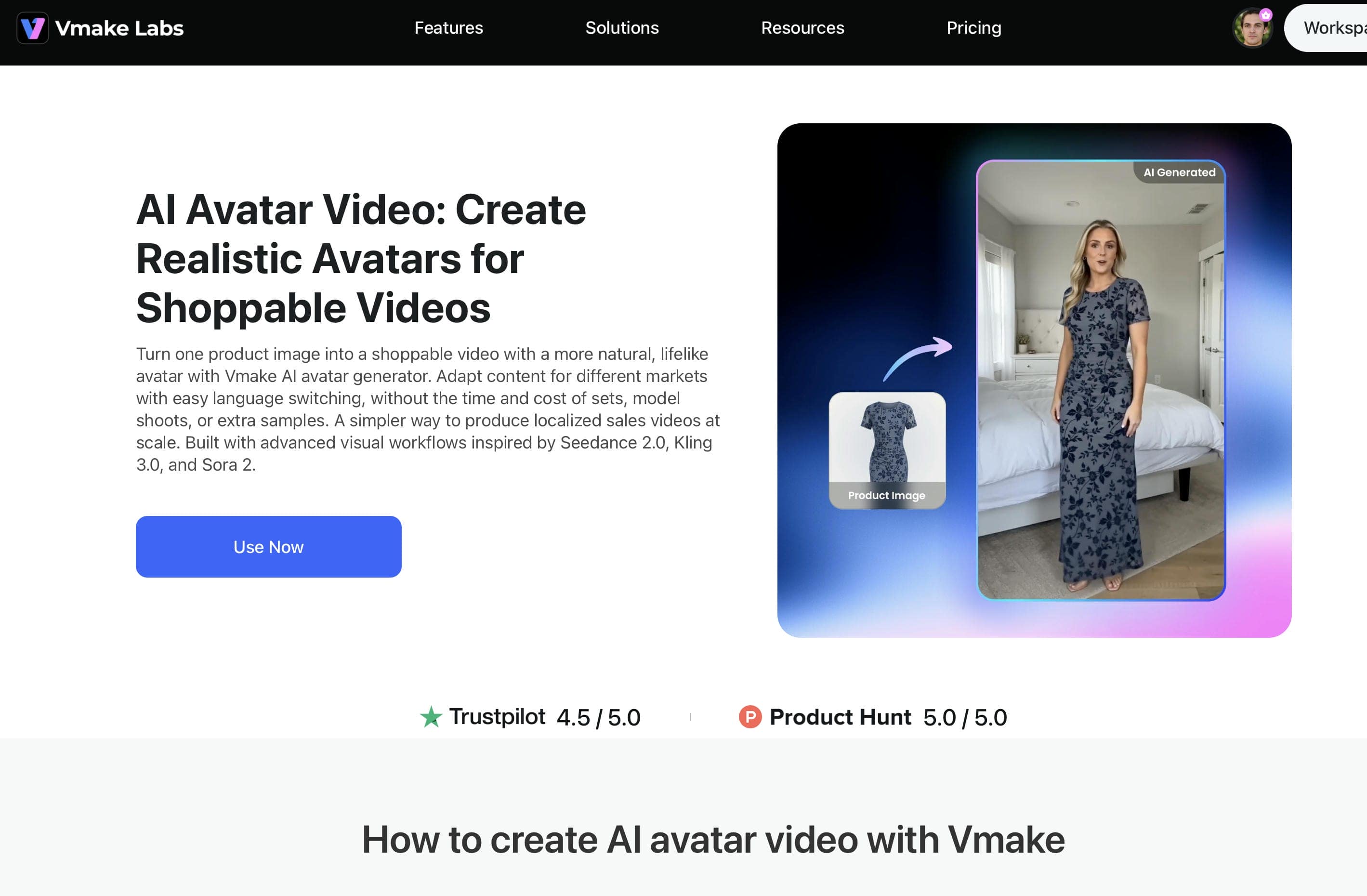
AI Avatar Video creation: Vmake's AI Avatar Video tool allows creators to build presenter-style content without filming themselves on camera. This can be useful for product introductions, training materials, educational videos, and marketing campaigns where a digital presenter helps deliver information in a more engaging format.
-
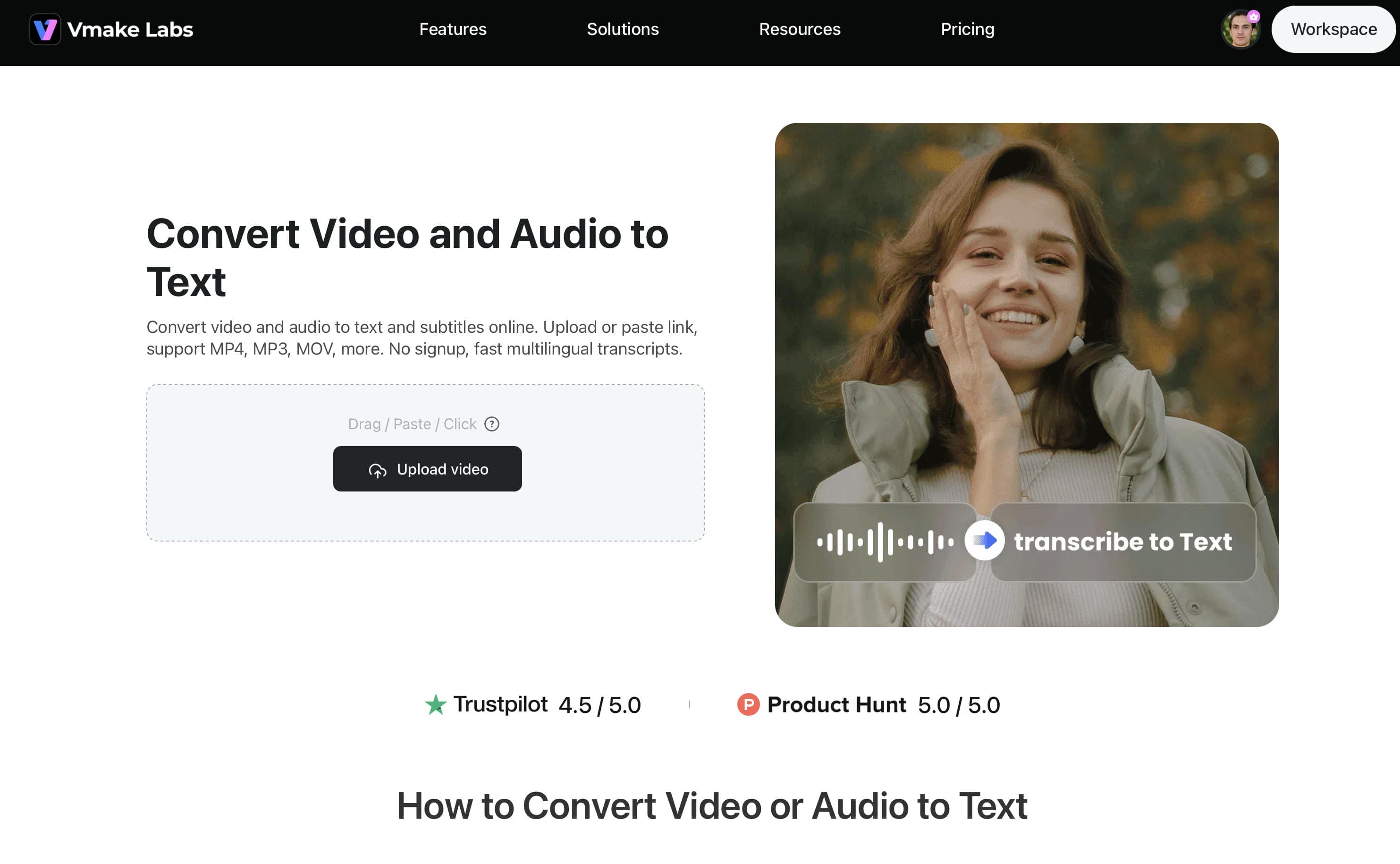
Video and Audio Transcription: Vmake's Video & Audio to Text tool converts spoken content into editable text. This makes it easier to generate transcripts, create subtitles, and repurpose video content into blogs, articles, or social media posts without manually transcribing recordings.
-
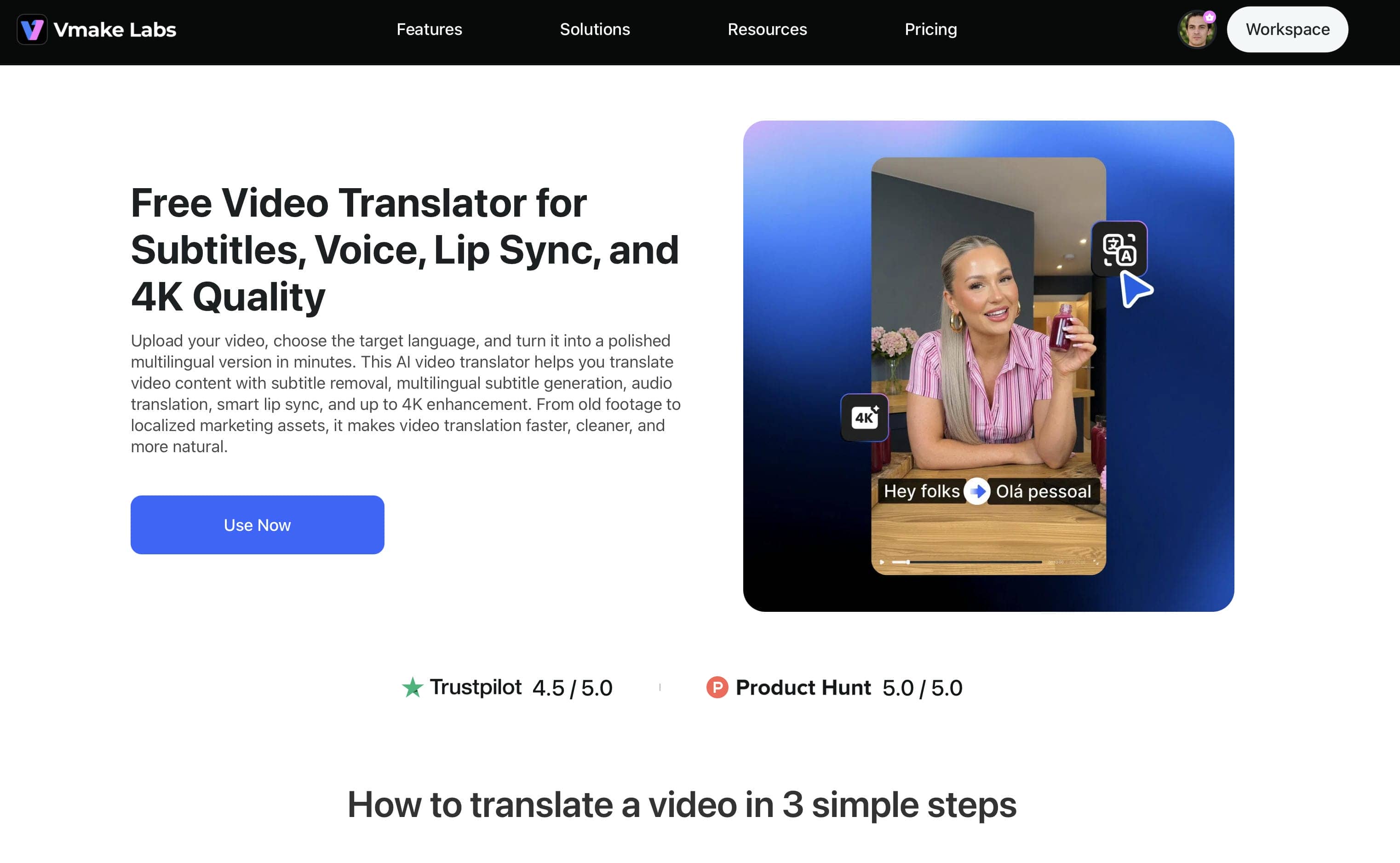
Video Translation for Global Audiences: For creators and businesses targeting international markets, Vmake's Video Translator helps adapt content for viewers in different regions. Translating videos into additional languages can improve accessibility and expand the reach of marketing campaigns across global audiences.
-
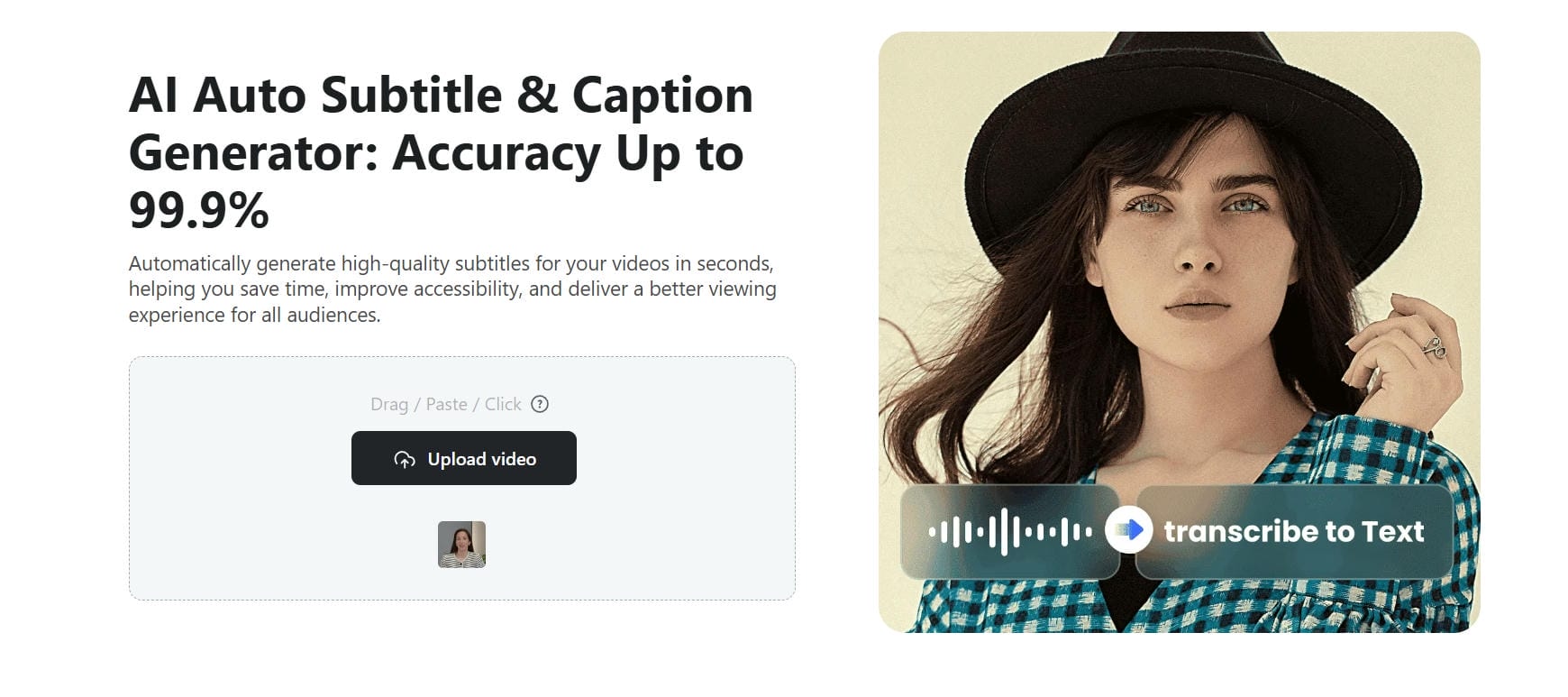
Automatic Caption Generation: Captions play an important role in modern content consumption, particularly on social platforms where many users watch videos with the sound turned off. Vmake's Auto Captions feature helps creators add subtitles quickly, improving accessibility and helping viewers follow the message more easily.
-
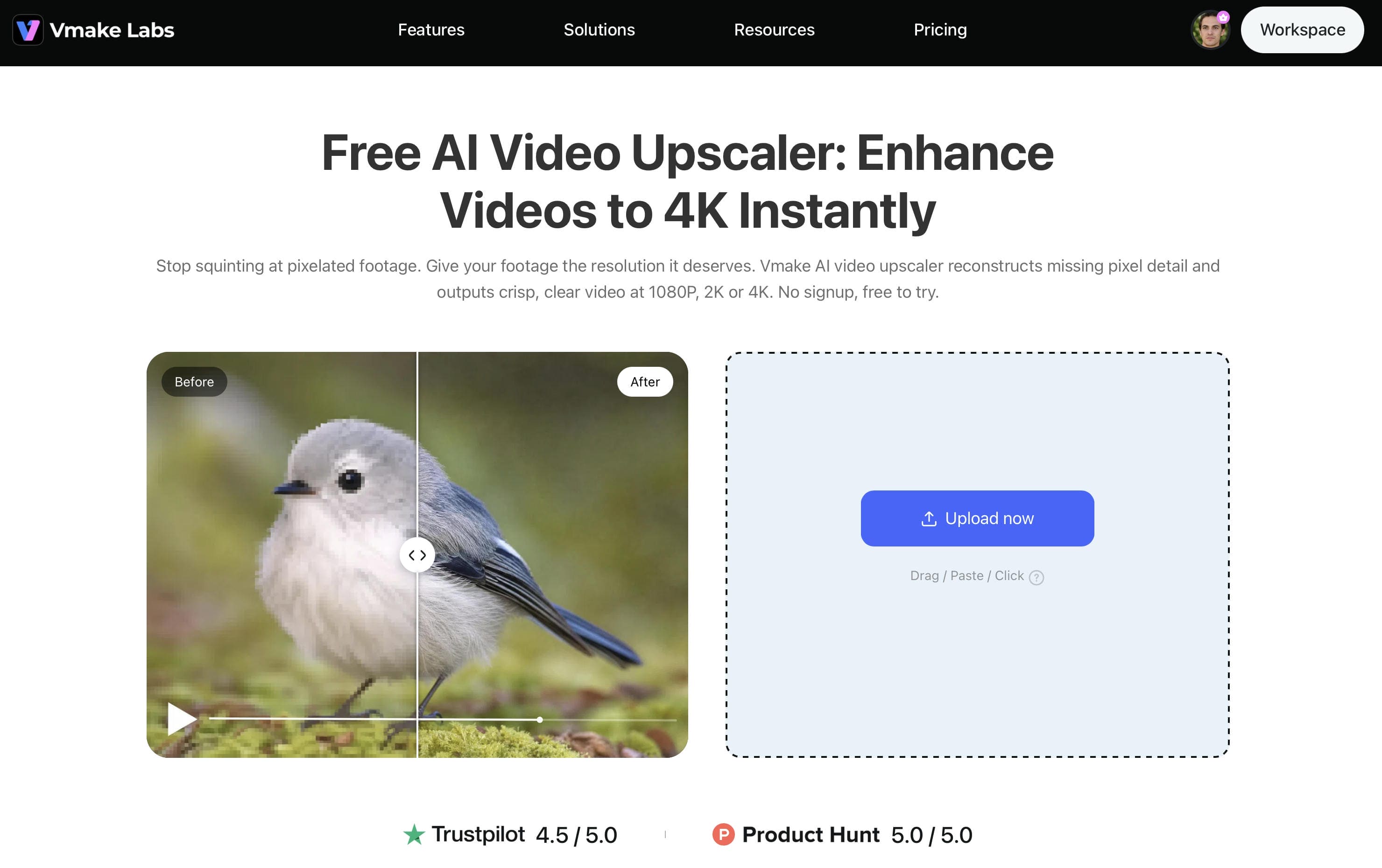
Video Enhancement and Upscaling: Even high-quality AI-generated footage can benefit from additional refinement. Vmake offers Video & Image Enhancer, Noise Reducer, and Video Upscaler tools that help sharpen details, improve clarity, reduce visual noise, and prepare videos for higher-resolution output.
Conclusion: Elevate Your Visual Content with Vmake AI
Whether you're creating marketing videos, product showcases, social media content, or creative storytelling projects, Google Veo helps turn ideas into high-quality videos with greater efficiency. Combined with Vmake AI's editing, captioning, AI voice, and video enhancement tools, creators can move from concept to publish-ready content within a streamlined workflow. This makes it easier for individuals, marketers, and businesses to produce professional-looking videos without the complexity of traditional production processes.
FAQs
How do I access and learn how to use Google Veo for free?
You can access Google Veo for free through introductory trial credits provided upon setting up a new Vmake AI account, or via Google's experimental platforms like Google Labs and Google Vids. To begin testing workflows without upfront costs, simply register on the Vmake Labs dashboard to receive starter credits for your first text-to-video generation.
What is the structural difference between Google Veo 3 and Veo 3.1?
The core difference lies in structural precision and input control. Google Veo 3 is built for rapid concept drafting, while Veo 3.1 features upgraded architecture delivering superior physical realism, frame consistency, and 4K upscaling. Additionally, Veo 3.1 supports reference images to lock down exact character and visual consistency across scenes. Vmake AI integrates both models natively, giving you the flexibility to quickly prototype ideas or render high-fidelity, production-ready content.
Can I transform existing static images into videos using Veo?
Yes, you can animate static source files directly. By uploading any JPG or PNG image into the Image-to-Video pipeline on Vmake Labs, the underlying engine analyzes the visual structure of your photo. It then applies natural camera movements, environmental effects, or subject actions based on your accompanying text prompt.
Why does the interface say that Veo has a "Long generation time"?
Generating video requires the cloud engine to build a simulated 3D environment frame-by-frame, calculating photorealistic lighting, material textures, and physical motion simultaneously. Because this level of spatial rendering demands intensive GPU computing power, platforms like Vmake AI provide a status notice to let users know the system is processing a cinematic, high-fidelity asset rather than a basic flat animation.
Can I adjust video frame dimensions for social channels like TikTok?
Yes. Before clicking generate, you can set your output frame parameters to a vertical 9:16 aspect ratio. This ensures the engine renders the video layout to natively fit mobile-first formats like TikTok, Instagram Reels, and YouTube Shorts without requiring awkward cropping later in the Vmake Editor.
Is "How to use Veo Cam 3" related to this AI video generator tool?
No. Veo Cam 3 is a physical, hardware-based sports camera system used by athletic teams to record and analyze field matches. It has no connection to Google’s cloud-based generative video model or the software-driven video production workflows found inside Vmake AI.

