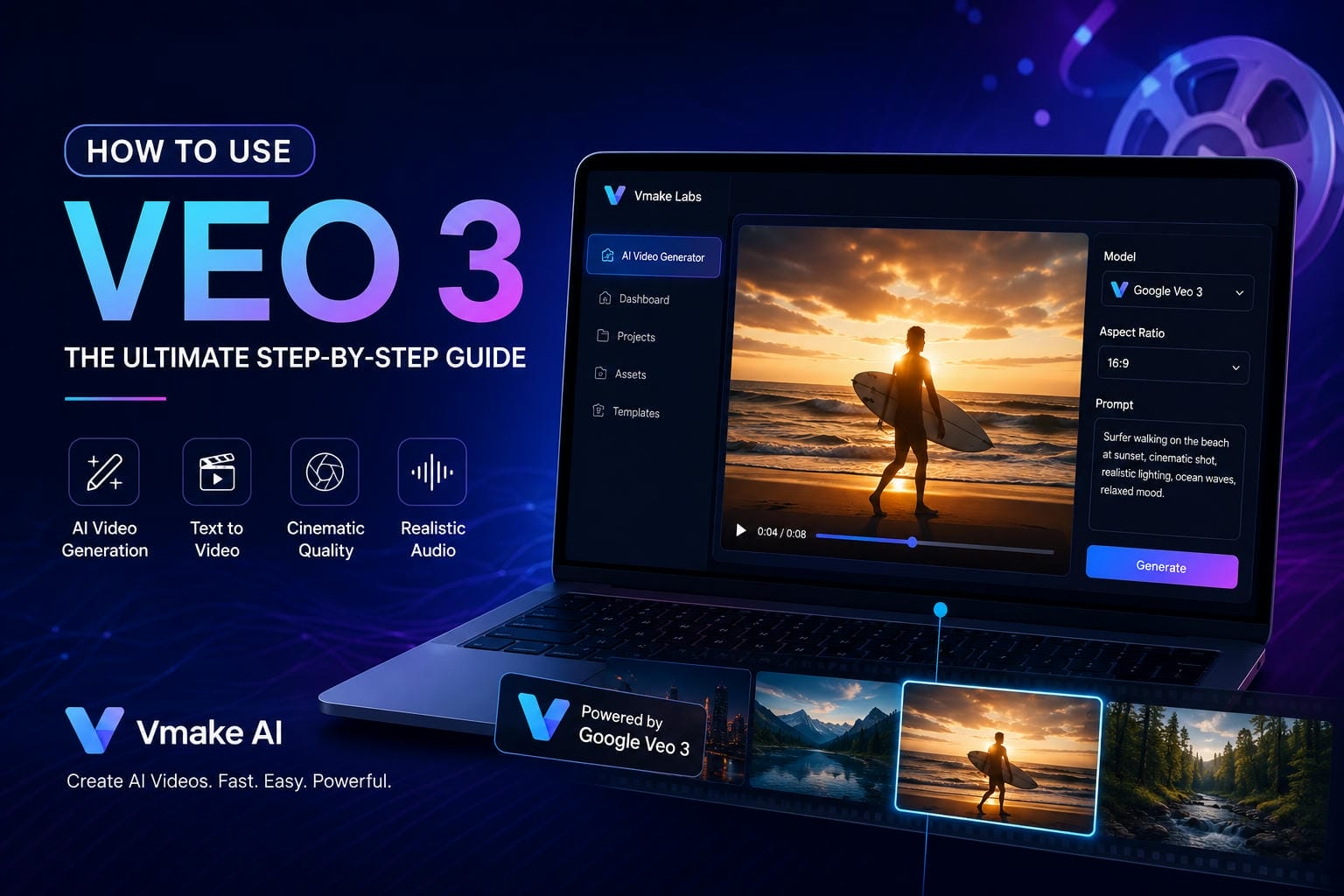
Best Veo 3 Prompts: Frameworks, Examples, and Tips
Master the art of writing a powerful Veo 3 prompt. Discover prompt frameworks, camera techniques, audio instructions, and real-world examples that help generate more cinematic and professional AI videos.
Veo 3 works best when your prompt feels like a clear creative brief. Instead of vague ideas, structured instructions help shape lighting, motion, and storytelling. In this guide, you'll learn reliable frameworks, real examples, and useful tips to consistently produce professional-level AI video results.
What Is a Veo 3 Prompt?
A Veo 3 prompt is a detailed creative brief that tells the AI what to generate. Instead of acting like a search query, it defines the video's subjects, actions, environment, camera movement, mood, audio, and visual style. Veo 3 interprets these instructions to create a coherent video with synchronized visuals and sound, making it suitable for everything from cinematic storytelling and product ads to social media content and explainer videos.
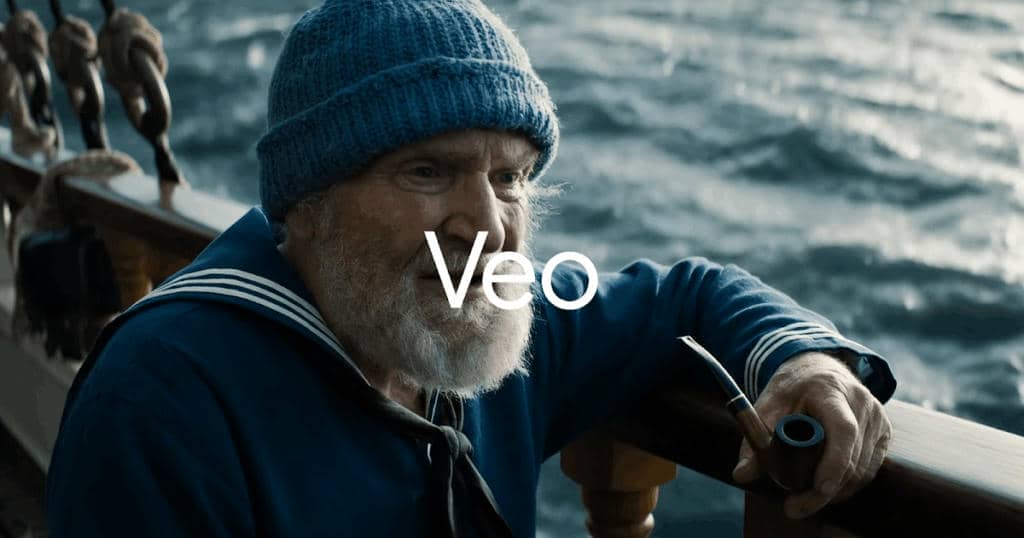
The Best Veo 3 Prompt Framework
To get reliable, jaw-dropping results every single time, structure your text using a dedicated framework. Breaking your prompt down into these specific layers helps the AI visualize the exact scene you intend to create.
|
Element |
Purpose |
Description |
|---|---|---|
|
Scene |
Core Activity |
Describe the main action or movement to create a dynamic, realistic video. |
|
Visual Style |
Aesthetics |
Define the look and feel (cinematic, realistic, animated, documentary, etc.). |
|
Camera Movement |
Direction |
Specify pans, zooms, tracking shots, or close-ups to guide viewer attention. |
|
Main Subject |
Visual Anchor |
Clearly describe the focal subject to maintain consistency throughout the video. |
|
Background |
Setting |
Add context with a relevant environment that supports the subject and story. |
|
Lighting & Mood |
Emotional Tone |
Set the atmosphere with lighting styles such as warm, dramatic, or energetic. |
|
Audio Cue |
Sound Design |
Include dialogue, music, ambient sounds, or effects to enhance immersion. |
|
Color Palette |
Visual Color Scheme |
Define dominant colors to maintain a cohesive style and mood. |
Best Veo 3 Prompts for Marketing
-
Product Showcase
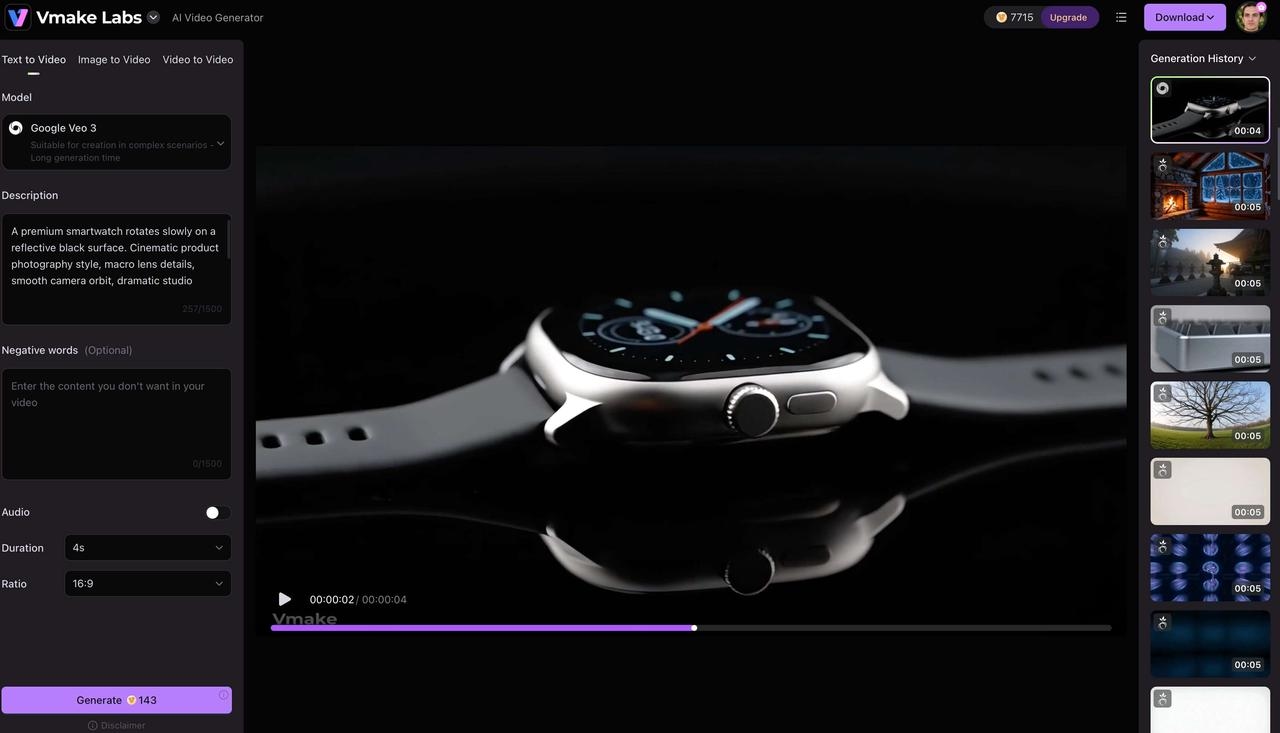
Prompt: A premium smartwatch rotates slowly on a reflective black surface. Cinematic product photography style, macro lens details, smooth camera orbit, dramatic studio lighting, luxury atmosphere, subtle electronic background music, and black and silver color palette.
-
Luxury Brand Commercial
Prompt: A luxury perfume bottle displayed on marble with flowing silk fabric. Slow-motion shots, elegant camera movement, cinematic lighting, sophisticated mood, orchestral music, rich gold and black tones.
-
E-commerce Advertisement
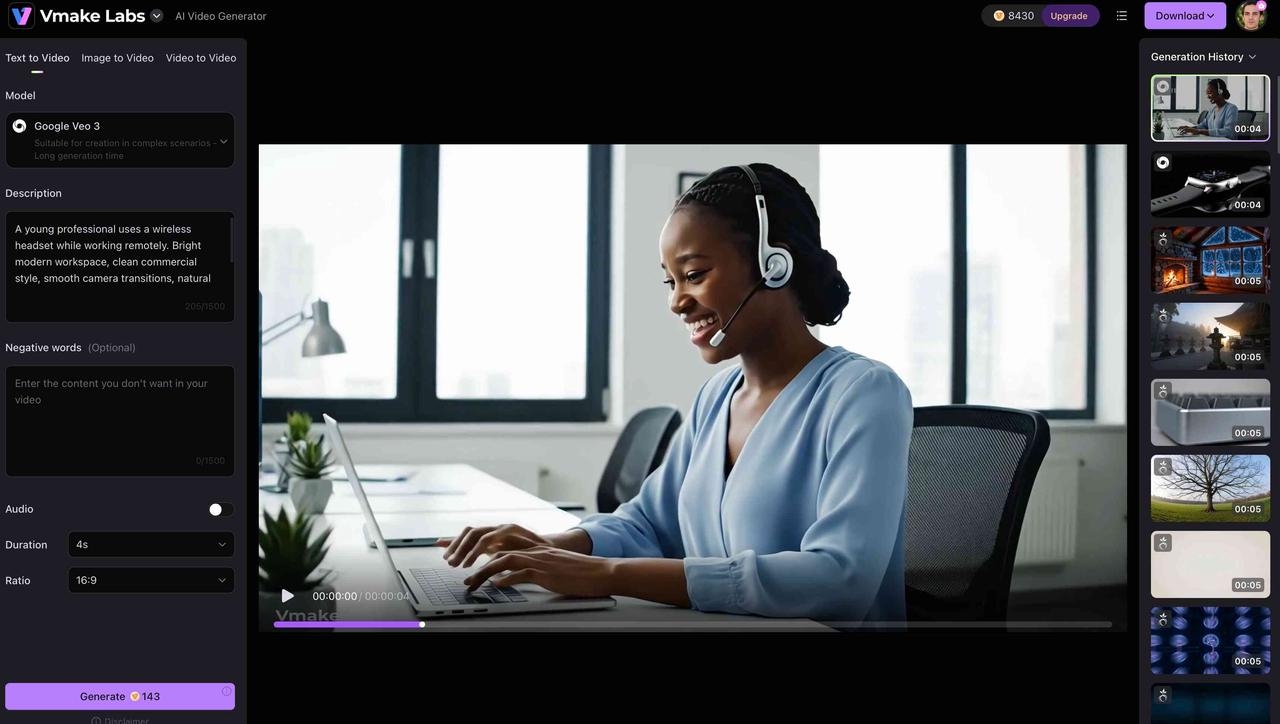
Prompt: A young professional uses a wireless headset while working remotely. Bright modern workspace, clean commercial style, smooth camera transitions, natural lighting, upbeat music, energetic and engaging tone.
Best Veo 3 Prompts for Social Media
-
TikTok
Prompt: A fitness influencer demonstrates three quick workout hacks. Fast-paced editing, energetic camera angles, bright lighting, trending social media style, and motivational background music.

-
Reel
Prompt: A travel creator explores hidden streets in a colorful European town. Dynamic handheld movement, vibrant visuals, upbeat soundtrack, cinematic transitions, social-media-friendly pacing.
-
Viral Video
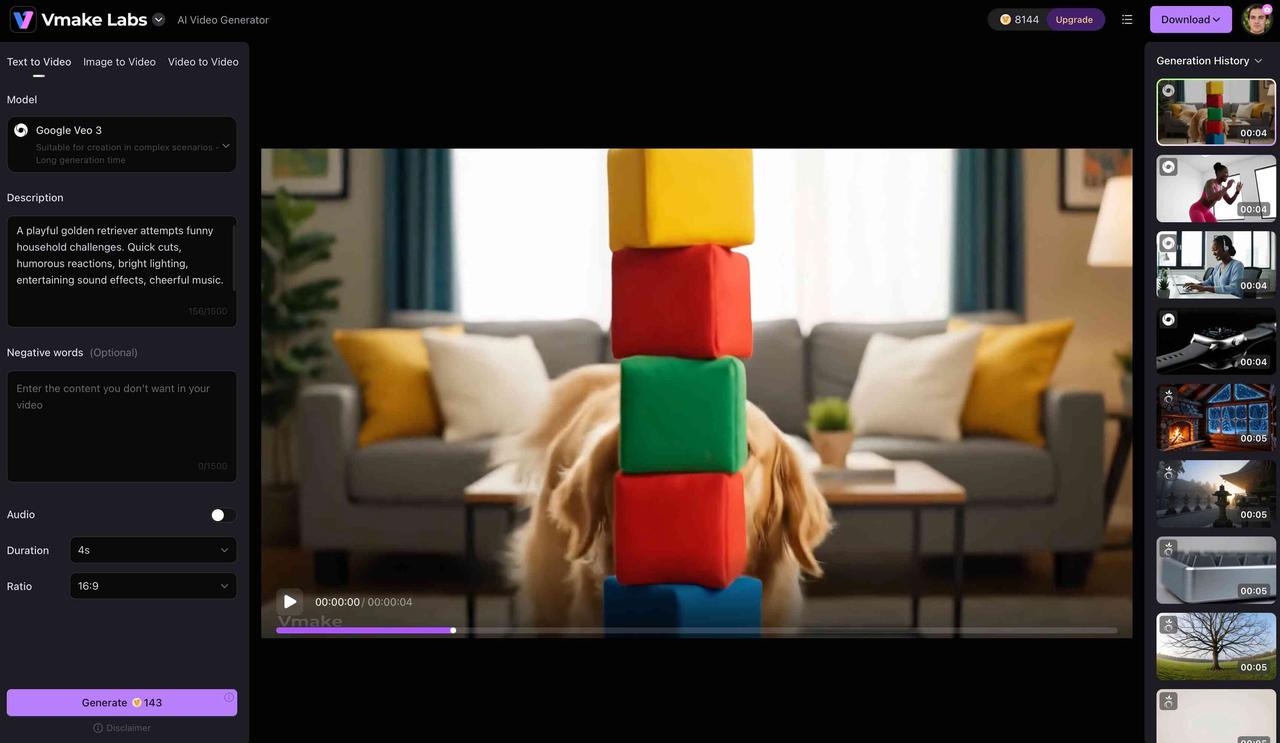
Prompt: A playful golden retriever attempts funny household challenges. Quick cuts, humorous reactions, bright lighting, entertaining sound effects, cheerful music.
Best Veo 3 Prompts for Storytelling
-
Cinematic scene
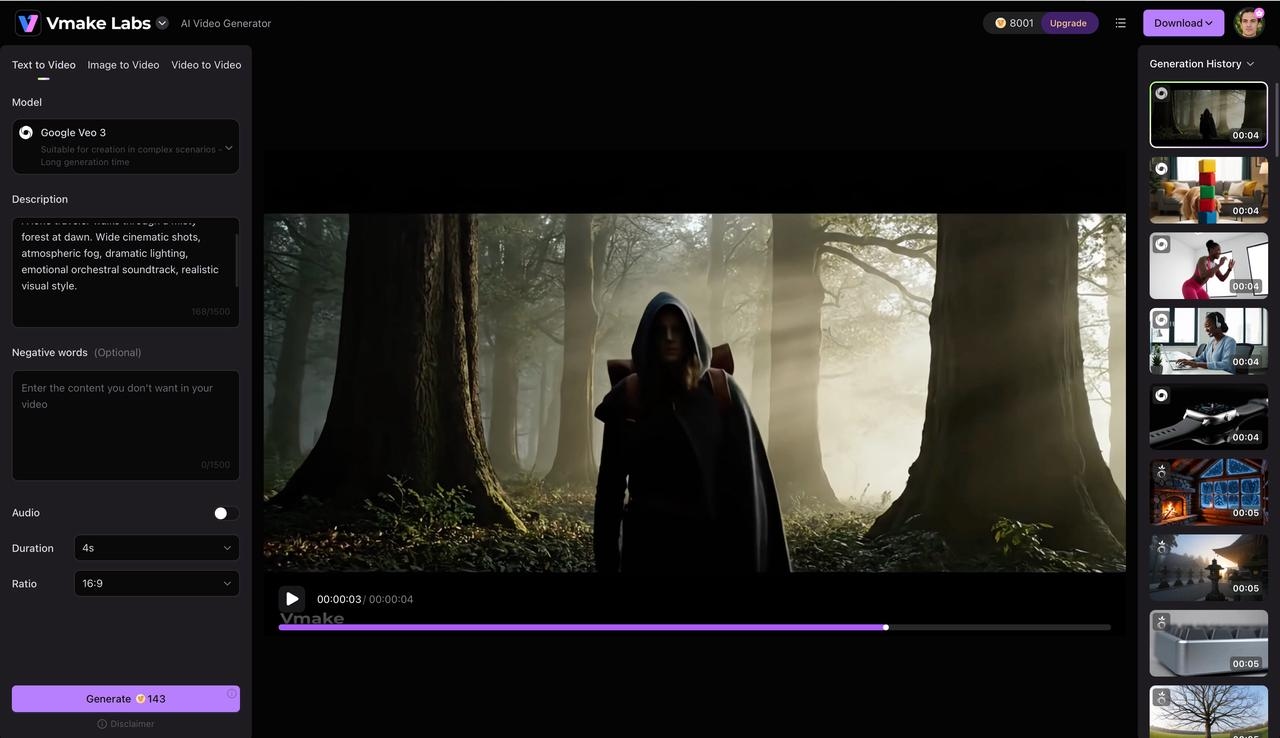
Prompt: A lone traveler walks through a misty forest at dawn. Wide cinematic shots, atmospheric fog, dramatic lighting, emotional orchestral soundtrack, and realistic visual style.
-
Character intro
Prompt: A detective enters a dimly lit office while reviewing evidence. Slow camera push-in, noir-inspired visuals, suspenseful music, moody shadows, cinematic storytelling.
-
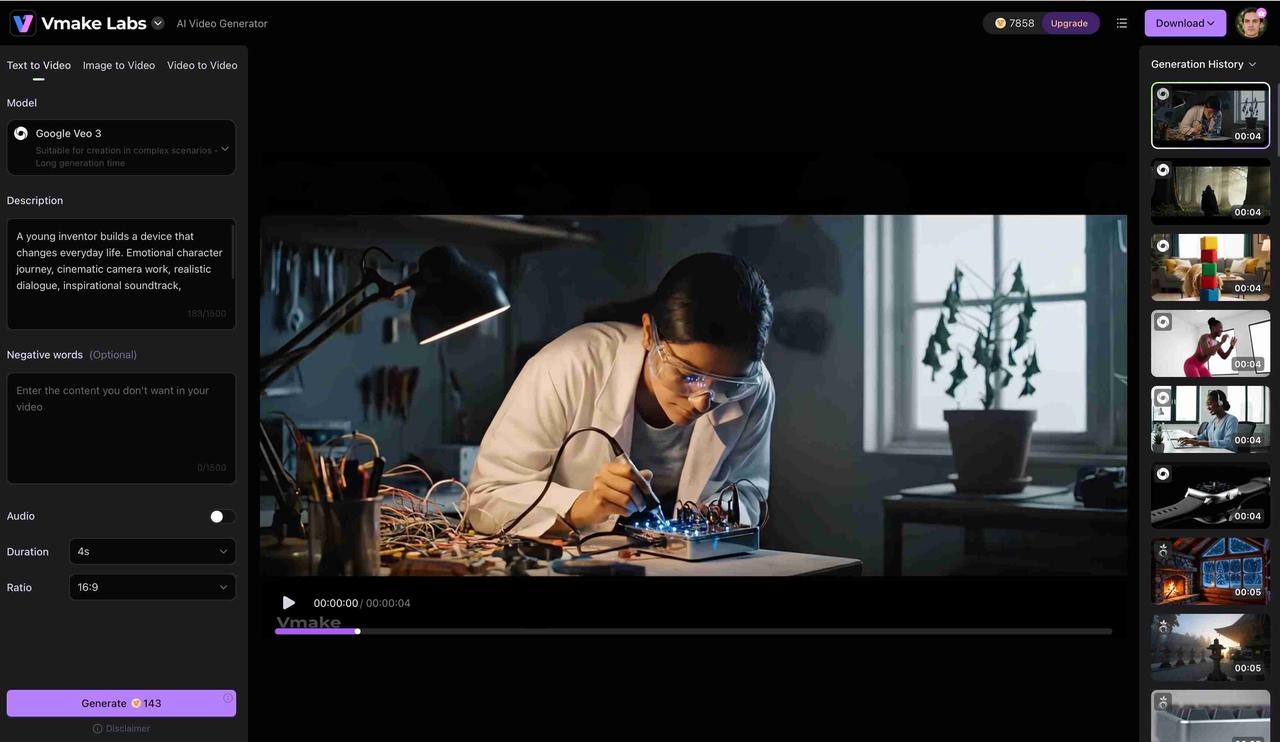
Short Film
Prompt: A young inventor builds a device that changes everyday life. Emotional character journey, cinematic camera work, realistic dialogue, inspirational soundtrack, heartwarming conclusion.
Best Veo 3 Prompts for business
-
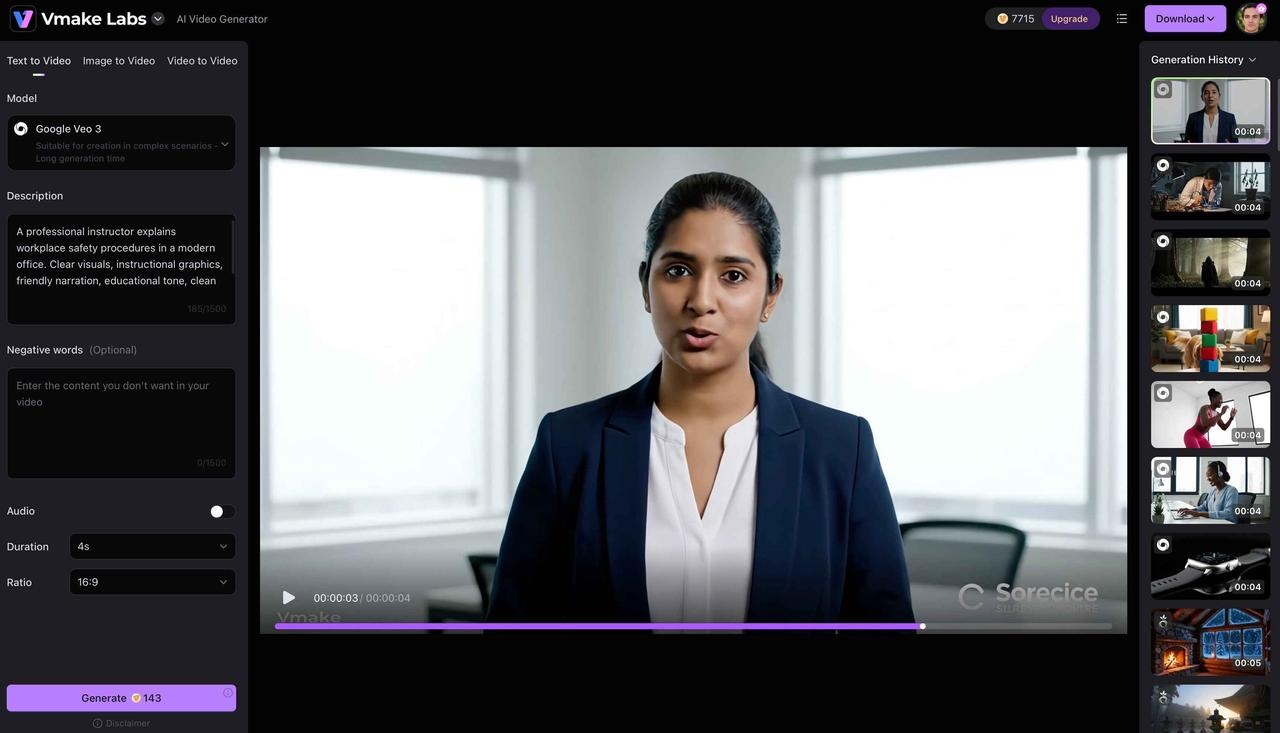
Corporate Training
Prompt: A professional instructor explains workplace safety procedures in a modern office. Clear visuals, instructional graphics, friendly narration, educational tone, and clean corporate branding.
Prompt: Luxury home walkthrough featuring spacious interiors and outdoor views. Smooth drone shots, natural daylight, elegant music, high-end property showcase style.
-
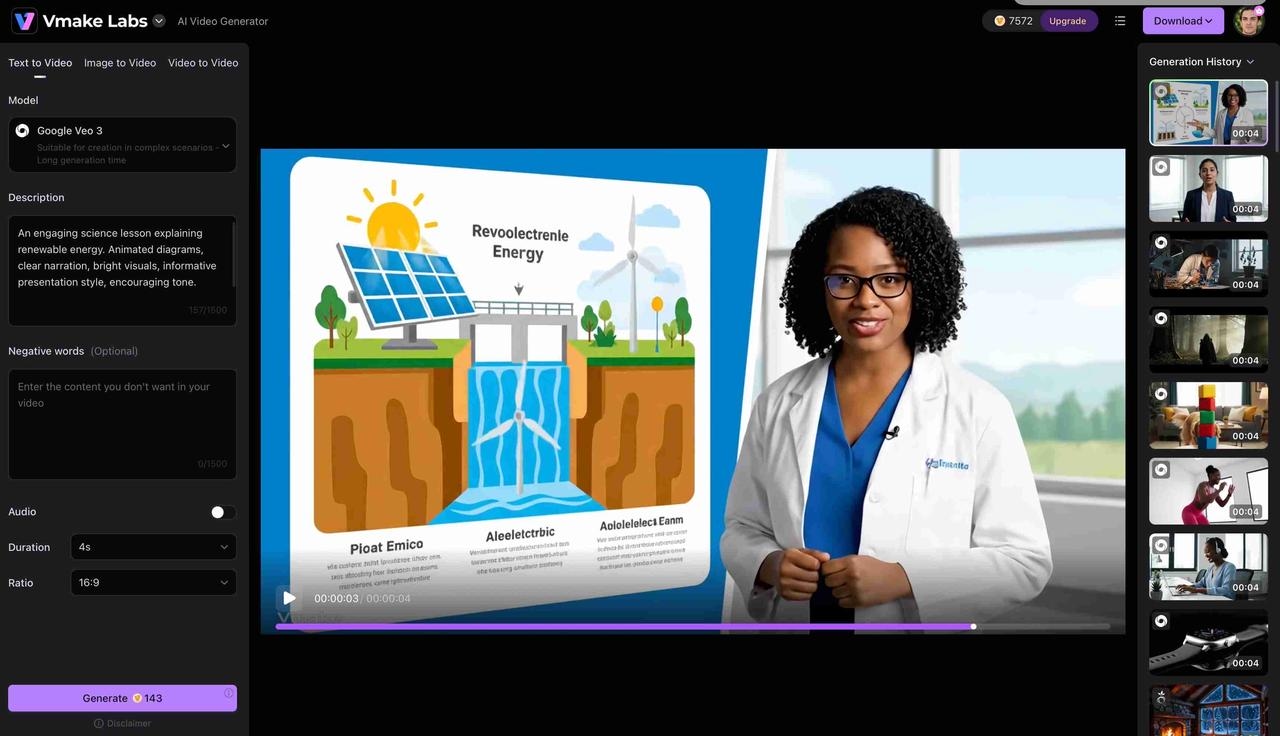
Educational
Prompt: An engaging science lesson explaining renewable energy. Animated diagrams, clear narration, bright visuals, informative presentation style, and encouraging tone.
Now that you've seen how Veo 3 prompts can be tailored to different use cases, it's time for you to try them out. Vmake AI makes the whole process of creation easy, helping you create videos from your prompts, edit settings, and export content ready to share with ease.
How to Turn Veo 3 Prompts into Videos with Vmake AI: Step-by-Step Workflow
Vmake AI makes it easy to transform your Veo 3 prompts into high-quality AI videos without a complicated workflow. Simply enter your prompt, choose the Veo 3 model, customize your generation settings, and create professional-looking videos in just a few steps. The platform is designed to help creators produce engaging content quickly and efficiently.
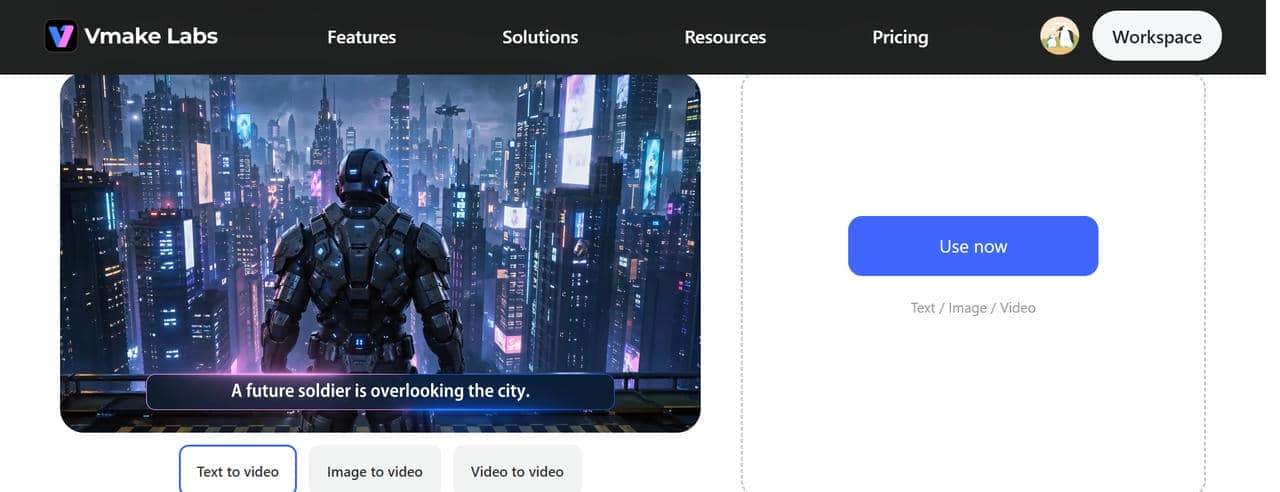
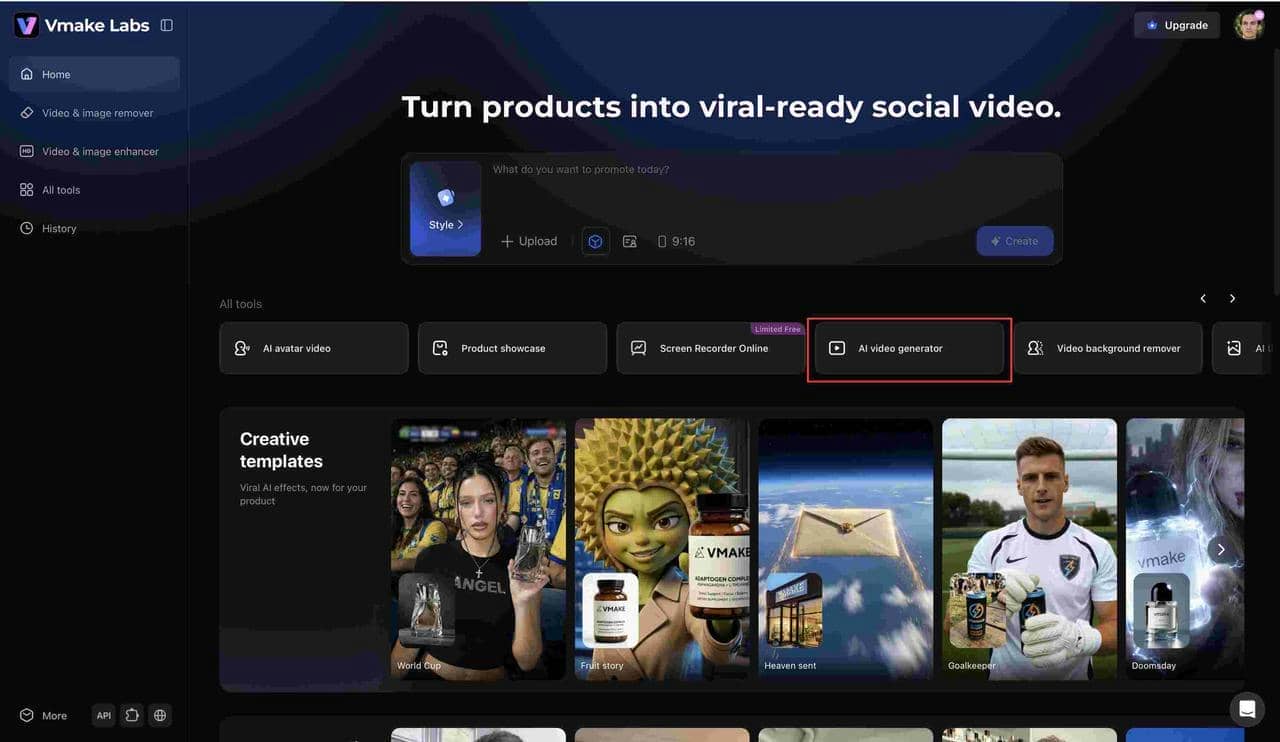
Step 1: Open the AI Video Generator in Vmake AI
Start by logging into Vmake AI and opening the AI Video Generator from the main dashboard. This is your workspace for creating AI-powered videos using text prompts. From here, you can access the available video generation models and begin your project.
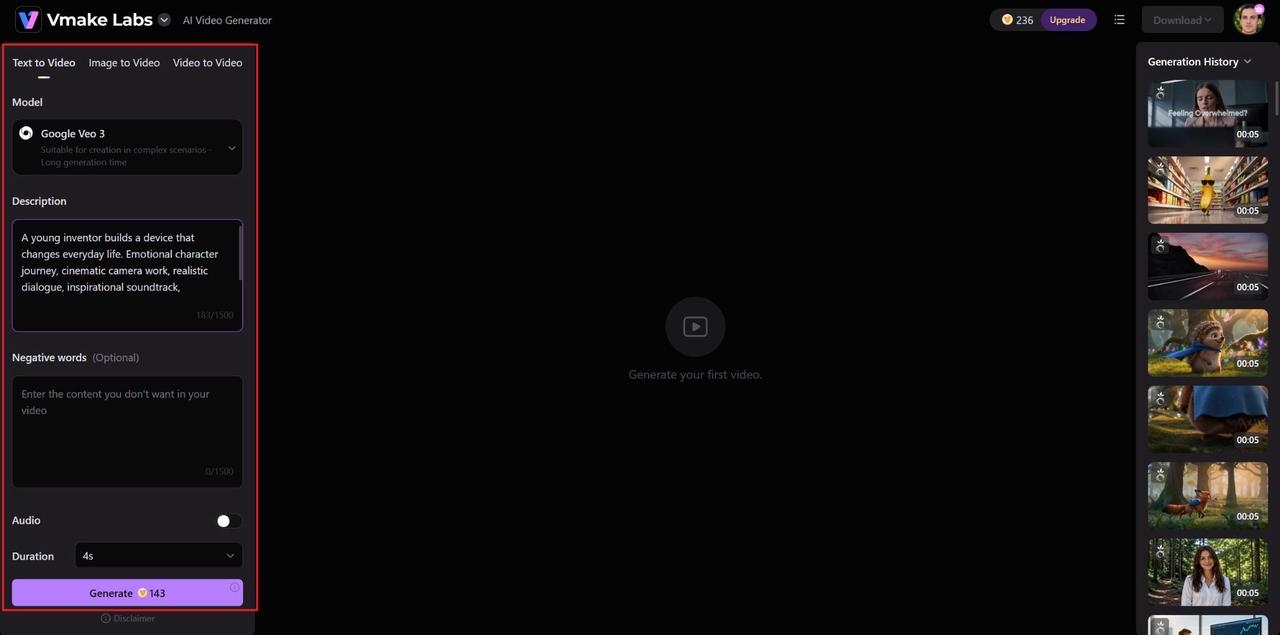
Step 2: Select Google Veo 3 Option and Enter Your Veo 3 Prompt
Choose the Google Veo 3 model from the list of supported AI video engines. Enter your Veo 3 prompt into the input field and adjust settings such as aspect ratio and video duration to match your content goals. Then, take a moment to configure the duration and ratio.
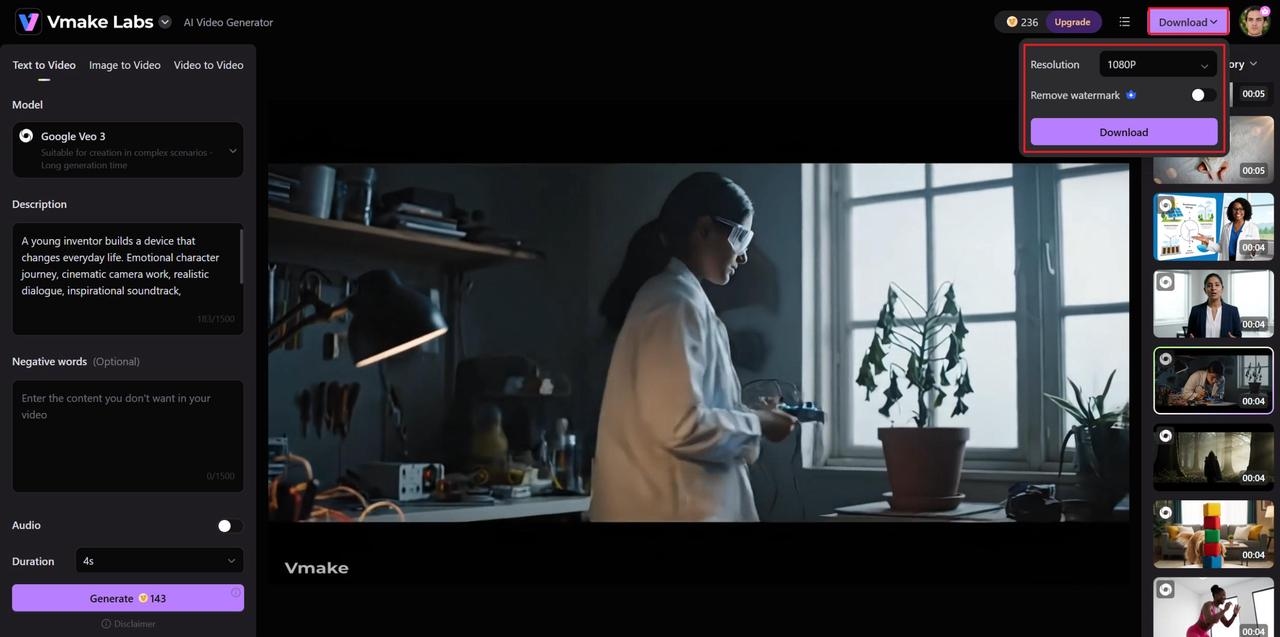
Step 3: Generate, Review, and Export the Final Video
When your prompt is complete, select generate and Veo 3 will generate your video. Review the output carefully, and if necessary, tweak the prompt. Finally, export the final video in high resolution, ready to share or publish.
Tips for Writing Better Veo 3 Prompts
A good Veo 3 prompt gives the AI precise creative direction, which leads to more accurate and visually appealing videos. These tips can help you write better prompts, increase consistency, and get professional-quality results for every generation.
-
Be specific about actions and subjects: Avoid leaving things open to interpretation. Write exactly what your subject is doing rather than relying on broad verbs.
-
Include camera directions whenever possible: Simple instructions like "slow tracking pan" or "low-angle zoom" eliminate shaky, uncontrolled AI movements.
-
Describe audio alongside visual elements: Veo 3 is uniquely built to process sound commands. Take advantage of this by explicitly detailing sound effects and background music.
-
Keep visual style consistent throughout the prompt: Do not mix contradictory expressions like "ultra-realistic photorealism" and "3D cartoon animation style" in the same paragraph.
-
Test, Refine, and Iterate: Writing Video Prompts is like a normal conversation with the AI engine. If the first generation is not perfect, change your wording and try again.
Conclusion
To start creating high-quality videos with Veo 3, you'll need to write clear, well-structured prompts. You guide the AI to more accurate, cinematic results. You choose the scene, the subject, the camera movement, the lighting, the audio, and the visual style. And as you experiment with different prompt styles, you will learn what works best for your projects, and your output will improve over time. Make your workflow easier with Veo 3 and Vmake AI to enhance, refine, and optimize your videos. The right approach will allow you to bring creative ideas to the table in a polished, professional manner far more quickly.
FAQs
What is the best Veo 3 prompt structure for realistic videos?
Focus on specific visual details, real-world lighting conditions, and natural camera movements. Include sensory elements like authentic sounds and genuine human expressions. Avoid fantastical language and stick to photorealistic descriptors.
How detailed should a prompt for Veo 3 be?
A great prompt is comprehensive, but it is also explicit. Two to four sentences describing action, camera work, style, and sound. If you overburden the prompt with repetitive adjectives, the AI model gets confused, and if you give too little detail, the results become random.
Can Veo 3 generate videos with dialogue and sound effects?
Yes, Veo 3 can generate videos with audio elements. Include audio descriptions in your prompt, though for full creative control over dialogue and sound design, you may want to edit audio post-generation using other tools.
What are the best Veo 3 prompts for marketing and advertising?
The best marketing prompts focus heavily on product realism, elegant studio lighting setups, and smooth, professional camera movements (such as macro orbits, slider pans, or clean reveals) to ensure the product looks highly premium and attractive.
How can Vmake AI help improve videos created with Veo 3?
Vmake AI provides an all-in-one web interface that eliminates complex coding setups. It allows you to quickly input prompts, select customized aspect ratios, manage video rendering times, and easily edit or upscale your final high-resolution video export.