Clean Up Pixelated Photo with AI: How to Restore Blurry Images Easily
how to clean up a pixilated picture

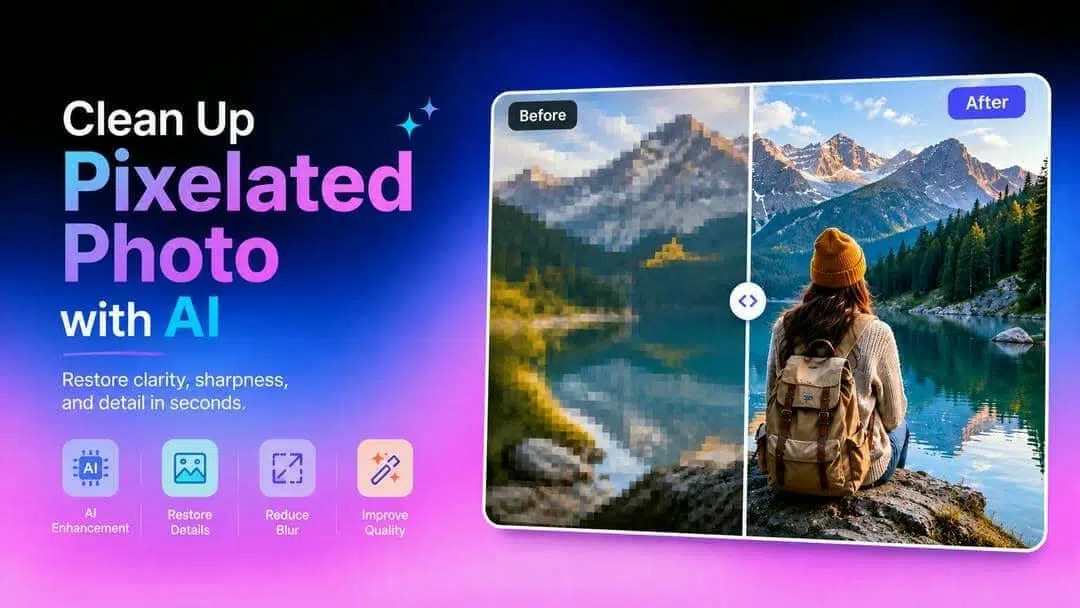
A blurry or distorted picture can take the shine off your fondest recollections. The good news is that AI can easily fill the blanks, increase sharpness, and improve image quality without any complicated editing. This post will teach you simple techniques to get your images back to higher clarity.
What does it mean to clean up a pixelated photo with AI?
Photos become pixelated when they are low-resolution, heavily compressed, or enlarged beyond their original size. This can make faces look unclear, edges appear jagged, and textures lose important details. Unlike traditional resizing methods that only stretch existing pixels, AI image enhancement analyzes image patterns and reconstructs missing information. Modern AI models can restore textures, sharpen edges, and reduce JPEG compression artifacts to create cleaner and more natural-looking results. By understanding the structure of the image, AI can improve clarity while preserving realistic details, rather than making photos look artificially enlarged.
How to clean up a pixelated picture with AI on your phone
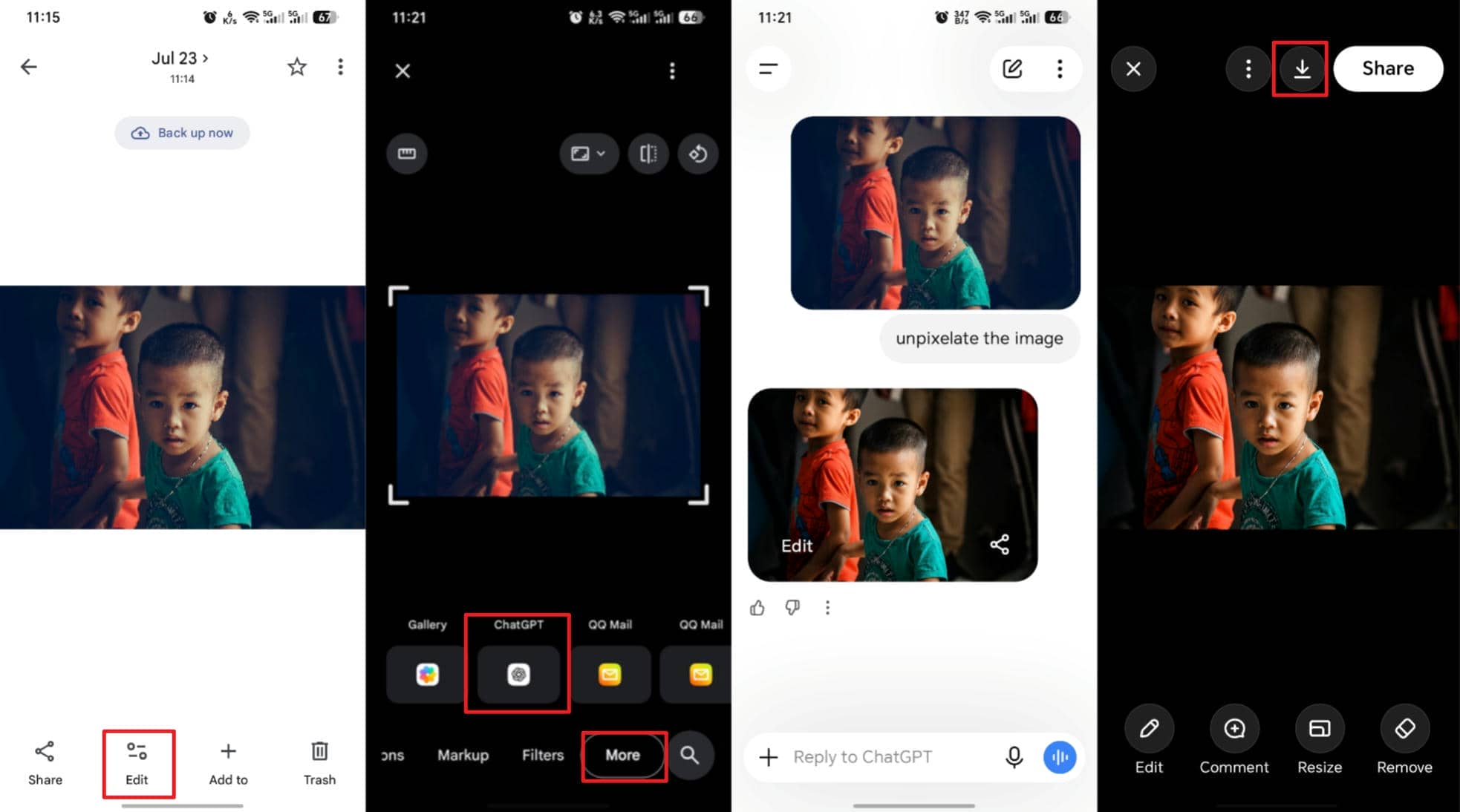
If you are looking to clean up photos on your phone, the Google Photos app offers a ChatGPT integration to improve image quality. ChatGPT uses AI technology to detect and fix pixelated areas. Follow these three simple steps to improve your photos on your iPhone:
Step-by-Step guide to cleaning up photos on iPhone
Step 1: Open the photo in the Photos app
Open the Photos app and select the image you want to improve. Click "Edit" and slide the bar to find "More," then tap "ChatGPT" to use the integration.
Step 2: Use AI to fix the image
In the chatbox, simply key in "unpixelate the image" and let the AI work.
Step 3: Save the Edited Photo
After reviewing your changes, tap Save to save the edited version of your photo. You can compare the original and edited versions at any time in the Photos app.
Editorial review
While ChatGPT can help users understand image improvement techniques and provide editing guidance, it is not designed as a dedicated AI image restoration tool. It has limited super-resolution capabilities, does not support batch image enhancement workflows, and may not deliver the same results when restoring heavily pixelated or blurry images. Additionally, it lacks specialized scene-based enhancement models designed for portraits, old photos, or product images. For users who need more advanced restoration, AI-powered image enhancement tools like Vmake Labs provide specialized features to clean up pixelated photos and improve image quality more effectively.
How to clean up a pixelated photo with AI using Vmake Labs
If an image is blurry or heavily pixelated, manually editing every detail can be time-consuming and often produces limited results. Vmake Labs uses AI to restore clarity, sharpen details, and improve overall image quality in just a few clicks. Whether you want to unblur image files or perform photo restorationon old or low-quality pictures, everything works online. You can enhance images from Windows, Mac, Android, or iPhone without installing any software.
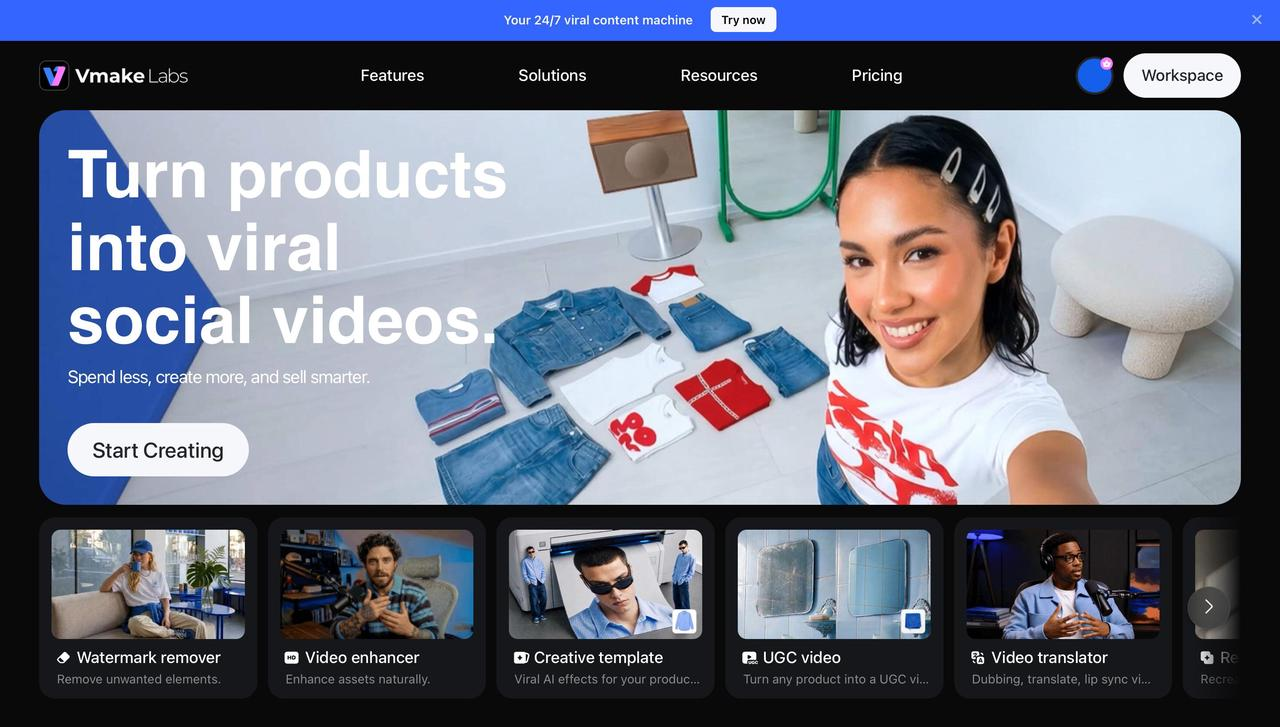
Step 1: Upload your pixelated image
Click upload image and select the blurry or pixelated photo you want to enhance. Vmake Labs quickly uploads your image and prepares it for AI processing, making it easy to get started in just a few seconds.
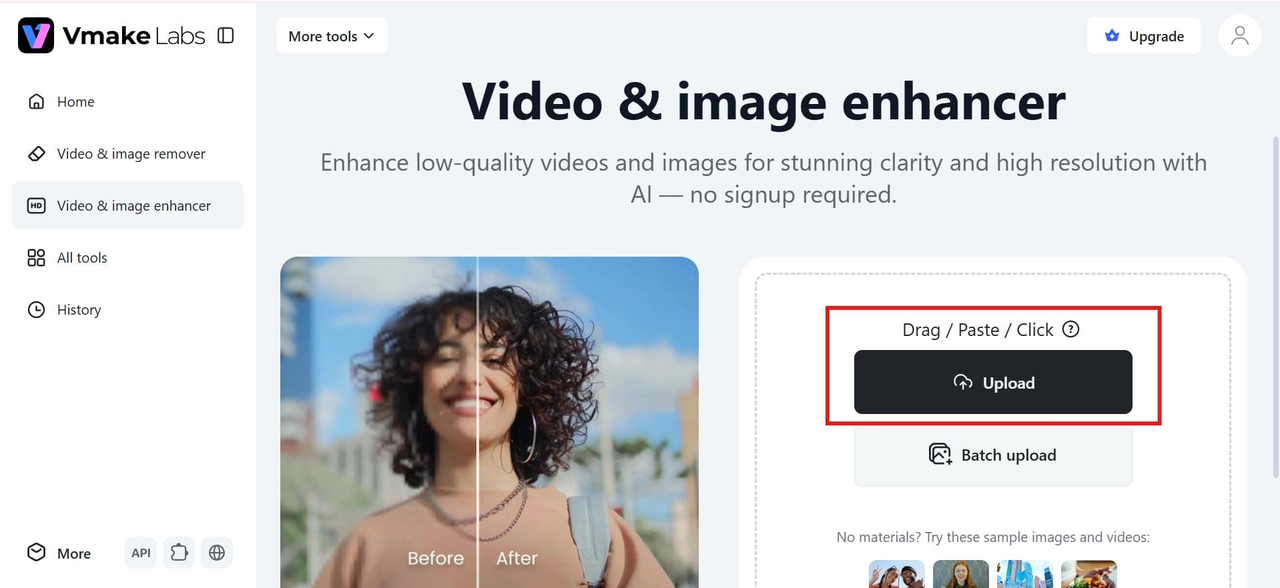
Step 2: Let AI enhance image quality automatically
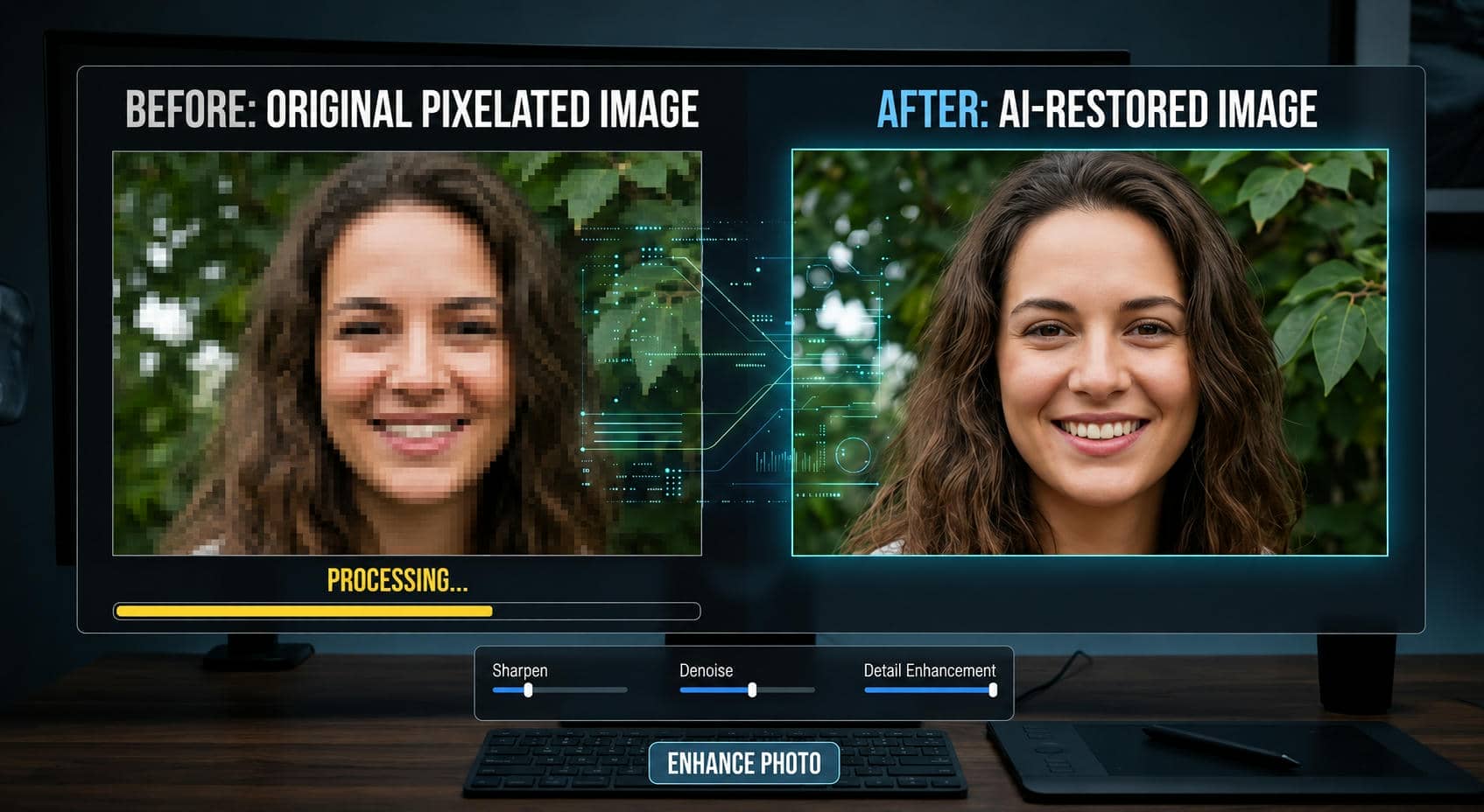
Once uploaded, the AI automatically analyzes your photo to restore missing details, sharpen edges, reduce blur, and improve overall clarity. The enhancement process is fully automated, so no editing skills are required.
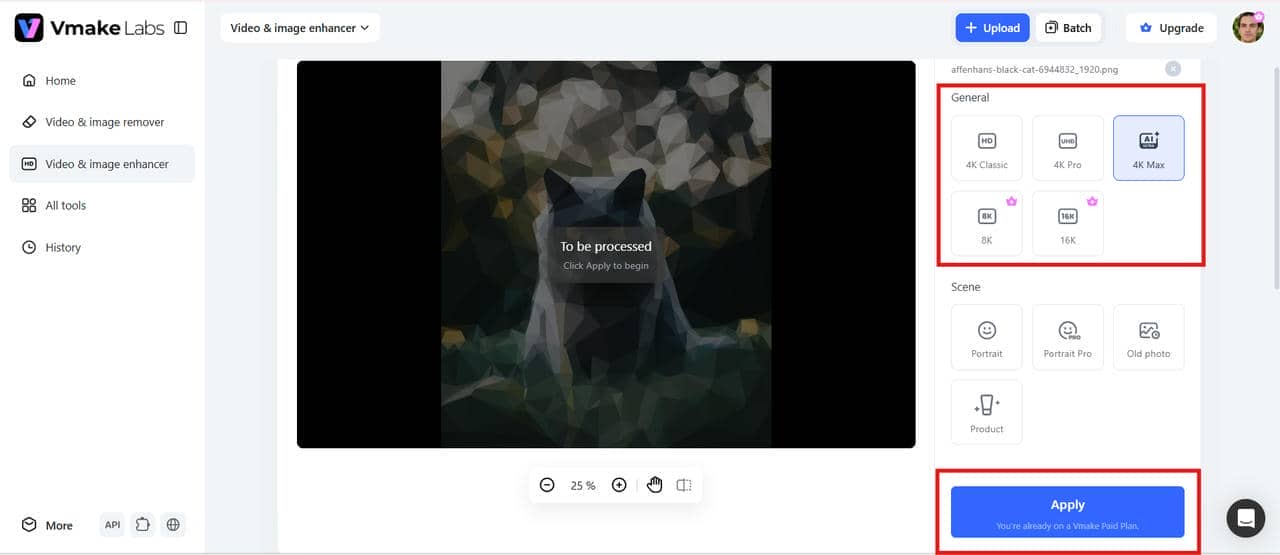
Step 3: Download the image
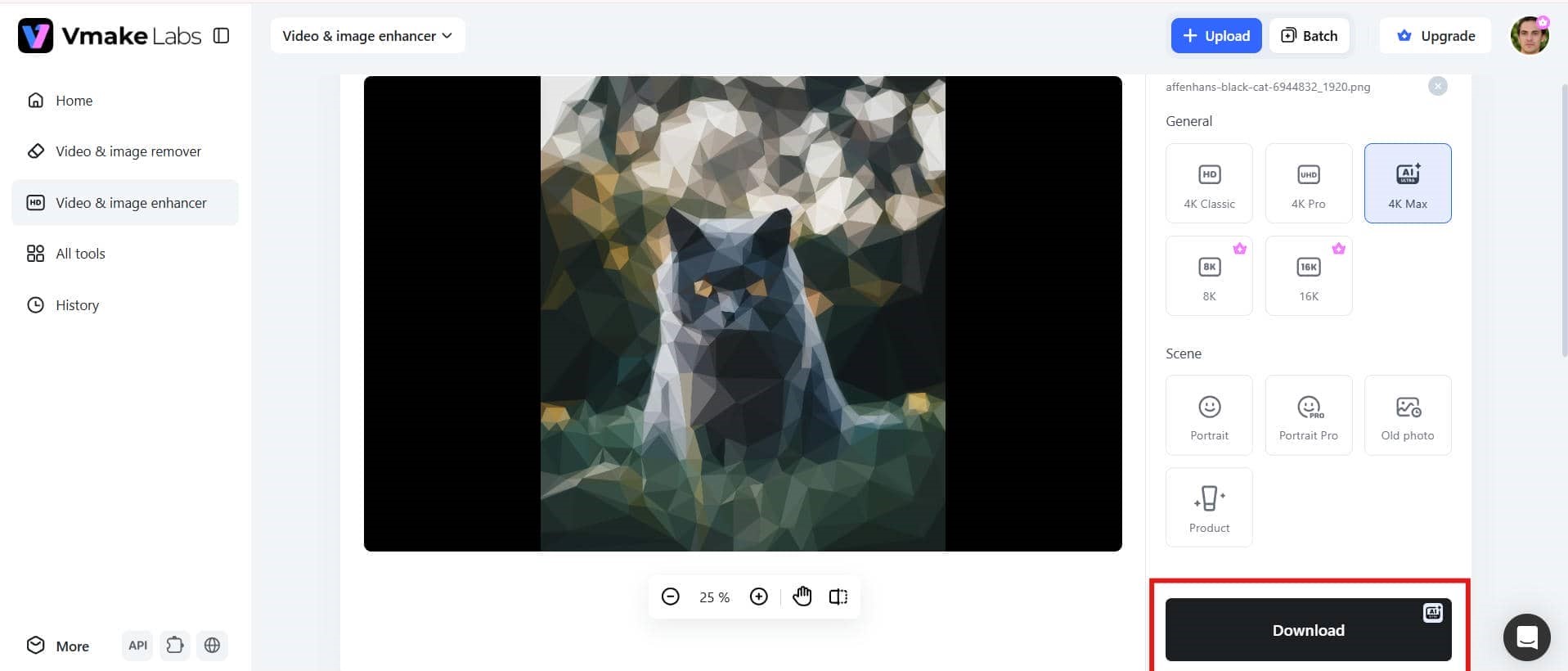
Preview the enhanced result and compare it with the original photo. When you're satisfied, download the high-resolution image, ready for sharing, printing, or saving with improved clarity and detail.
Key features of Vmake Labs AI image enhancer
-
AI-powered image enhancement for improving low-quality photos: Vmake Labs uses AI technology to analyze and improve pixelated, blurry, and low-resolution images by restoring clarity, sharpness, and important details. This feature is useful for users who want to enhance old photos, compressed social media images, or low-quality visuals before using them for personal or professional purposes.
-
AI image upscaling for high-resolution visuals: The AI upscaling feature increases image resolution while preserving natural details, textures, and colors. It helps users prepare images for printing, ecommerce product pages, websites, presentations, or large displays without needing additional editing tools.
-
Blur and noise reduction for cleaner images: Vmake Labs reduces motion blur, compression artifacts, and digital noise that can affect image quality. This feature helps improve photos taken in poor lighting, fixing compressed images from online platforms, or making unclear visuals appear sharper and cleaner.
-
Portrait and facial detail enhancement for natural-looking results: The portrait enhancement feature improves facial details, skin textures, and overall clarity while maintaining a realistic appearance. It is useful for improving profile pictures, professional headshots, social media portraits, and personal photos that need better visual quality without looking over-processed.
-
One-click online enhancement for quick results: Vmake Labs simplifies the enhancement process by allowing users to upload an image, apply AI processing automatically, preview the result, and download the improved photo in just a few steps. This makes it a convenient option for beginners and users who want fast improvements without manual editing.
-
Browser-based editing without software installation: Vmake Labs works directly through a web browser, allowing users to enhance images without downloading or installing additional software. This flexible workflow benefits creators, marketers, and businesses who need to improve images across different devices, including Windows, Mac, Android, and iPhone.
-
High-quality image export for professional use: The tool allows users to export enhanced images that maintain improved clarity, color, and fine detail. This makes it suitable for photographers, businesses, ecommerce sellers, and content creators who need polished visuals for websites, marketing materials, online stores, or personal projects.
Tips for getting the best results when cleaning up pixelated photos with AI
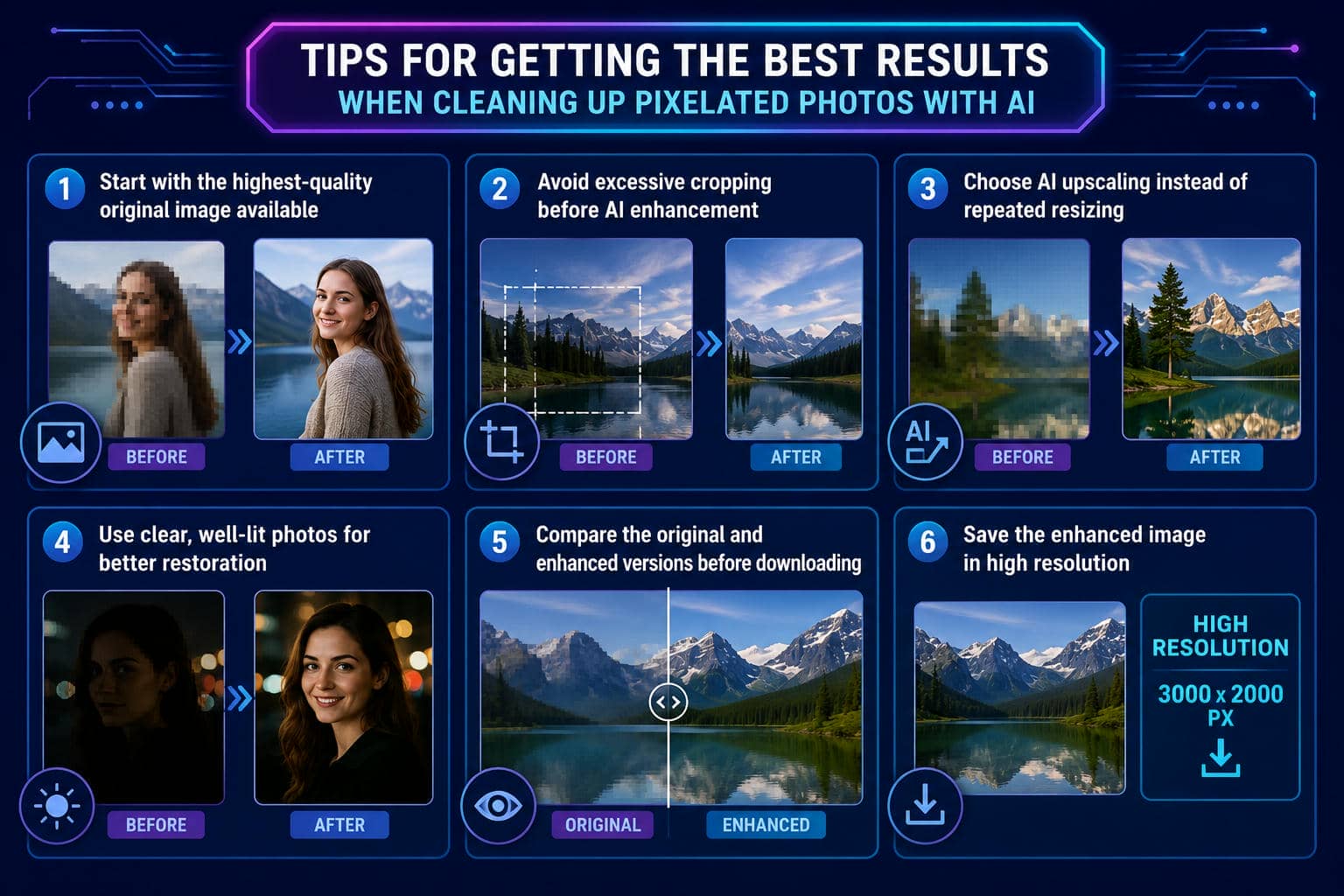
AI can significantly improve blurry or pixelated images, but the quality of the original photo still plays an important role in the final result. Starting with the best version of your image and following a few simple practices can help the AI restore more details, improve sharpness, and produce a clearer, more natural-looking photo. These small steps can make a noticeable difference in the overall enhancement quality.
-
Start with the highest-quality original image available: Whenever possible, utilize the original image and not a screen grab or photo taken from social media. The original data provides more visual information, which enables the AI to reconstruct details more precisely.
-
Avoid excessive cropping before AI enhancement: Cropping throws away vital image data that AI would have used in restoration. Enhance the whole photo first and crop it later to get the best-quality image.
-
Choose AI upscaling instead of repeated resizing: If you take an image and zoom in on it numerous times with normal editing tools, you will often get more pixelated. AI upscaling automatically reconstructs details while retaining textures and generates crisper and more natural-looking results.
-
Use clear, well-lit photos for better restoration: Although AI can improve many types of images, photos with good lighting generally produce the best results. Better lighting gives the AI more information to restore facial features, textures, and fine details accurately.
-
Compare the original and enhanced versions before downloading: Always preview the enhanced image alongside the original. Comparing both versions helps you evaluate improvements in sharpness, clarity, and overall quality before saving the final image.
-
Save the enhanced image in high resolution: After enhancement, download the image in the highest available resolution. This preserves the restored details and makes the photo suitable for printing, presentations, social media, or future editing. Good quality can be maintained as images are enlarged by using advanced AI processing, like say a Gemini image upscaler.
Conclusion
Blurry or pixelated photos no longer have to remain low quality. AI makes it easy to restore clarity, sharpen details, and improve resolution in just a few clicks. Whether you're preserving old memories or enhancing everyday images, Vmake Labs delivers fast, browser-based results. You can also use its image sharpener to refine fine details or HD photo converter to create clearer, high-resolution images without installing any software. With an intuitive workflow, anyone can achieve professional-looking results effortlessly.
FAQs
Can Vmake Labs clean up pixelated photos without losing quality?
Yes. Vmake Labs employs cutting-edge AI to restore blurry and pixelated images by reconstructing missing features, rather than just increasing existing pixels. It helps improve sharpness, eliminate obvious pixelation, and improve overall image quality while keeping the result natural and realistic.
How does AI make a photo clearer?
AI analyzes the textures, colors, edges, and patterns in an image to determine which areas require improvement. It then reconstructs missing features, minimizes blur and compression artifacts and improves overall clarity. The outcome is a clearer, cleaner photo without any human tweaking.
Can I clean up photos on my iPhone using Vmake Labs?
Yes. Vmake Labs operates immediately in your iPhone browser, so there's no need to download or install anything else. Upload a photo and let the AI automatically enhance it. Preview the improved version and get the high-quality outcome in just a few clicks.
Does AI work on old and low-resolution photos?
Absolutely. AI is highly effective at restoring old, blurry, scanned, and low-resolution photos by improving sharpness and recovering lost details. While results depend on the original image quality, AI can significantly enhance clarity and make older photos look much cleaner.
What types of images can Vmake Labs enhance?
Vmake Labs can enhance all sorts of images, such as portraits, selfies, family photos, travel photos, product photos and scanned images. If your image is unclear, pixelated or lacks information, AI helps create a cleaner and more finished final output.
Is Vmake Labs free to try for photo enhancement?
Yes. You can try Vmake Labs to experience its AI-powered photo enhancement features before deciding to explore additional options. Simply upload your image, preview the enhanced result, and see how AI improves clarity, sharpness, and overall image quality within minutes.

You May Be Interested

How to Remove Mosaic from Video: AI Methods to Improve Pixelated Footage in 2026
Restore Old Videos AI: Bring Antique Footage to Life
Best Photo Eraser Tools in 2026: Remove Objects, Text & People from Photos
How to Add a Watermark to Photos (Easy Guide 2026)
How to Touch Up Photos in 2026: Best AI Tools to Retouch Images Easily
A Guide: How to Remove Watermark from a Photo: Simple Solutions That Work