Remove Audio from MP4: Easy Guide to Remove the Sound
Need a silent video? Learn how to remove audio from MP4 files in just a few clicks while keeping the video quality intact. Use Vmake Labs to create clean, silent videos in minutes.

Whether you're trying to create a clean, silent background clip, or you want to drop in a completely new soundtrack, there are plenty of reasons to remove audio from MP4. Let's walk you through the easiest ways to pull the audio from your MP4 files, whether you're working on a desktop setup, adjusting things on your phone, or just using a quick online tool.
What does it mean to remove audio from an MP4?
Stripping the audio from an MP4 file simply means you're eliminating the sound while leaving the visuals completely untouched. An MP4 is just a container holding different layers of data, including video, audio streams, subtitles, and metadata. When you remove audio from an MP4, you are just deleting or disabling that specific audio track. The result is a silent video that plays perfectly normally, just without the background noise, music, or talking.
Difference between removing and muting the video
People often use these terms interchangeably, but they aren't actually the same thing. Muting just turns the volume slider down to zero during playback or inside your editing timeline; the original sound data is still hiding inside the file and can easily be restored. Deleting the track, however, completely guts the audio data from the exported video.
How to remove audio from MP4 online
Online tools are usually your best bet if you want to strip audio from a video quickly without installing new software. The process is pretty predictable: you upload the video, hit a button to mute or drop the track, and download the clean, silent file.
Method 1: Adobe Express
If you want a straightforward option, Adobe Express has a free, browser-based tool that lets you remove or mute MP4s with just a few clicks. The interface is incredibly clean, so you won't get lost in a sea of confusing video-editing timelines if you're a beginner. Since it's web-based, it doesn't matter where you are working.
Step-by-step guide
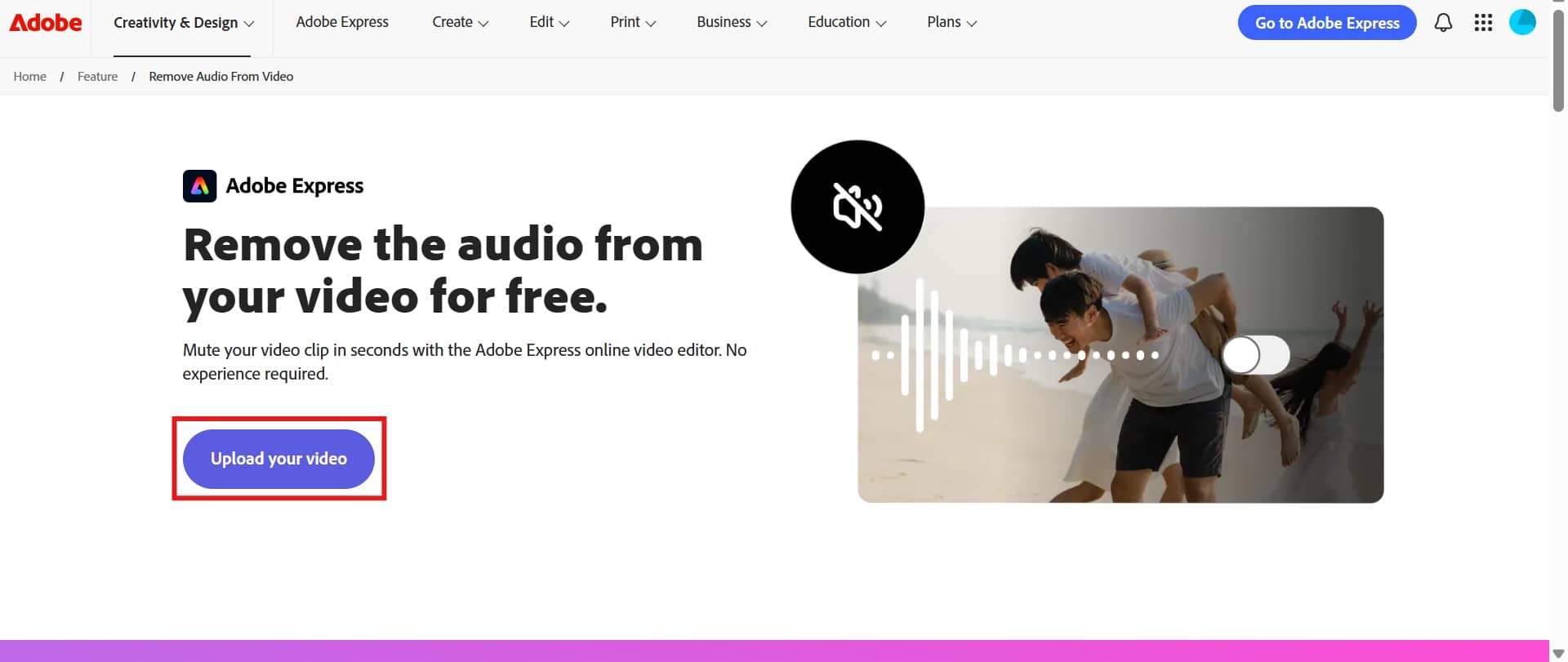
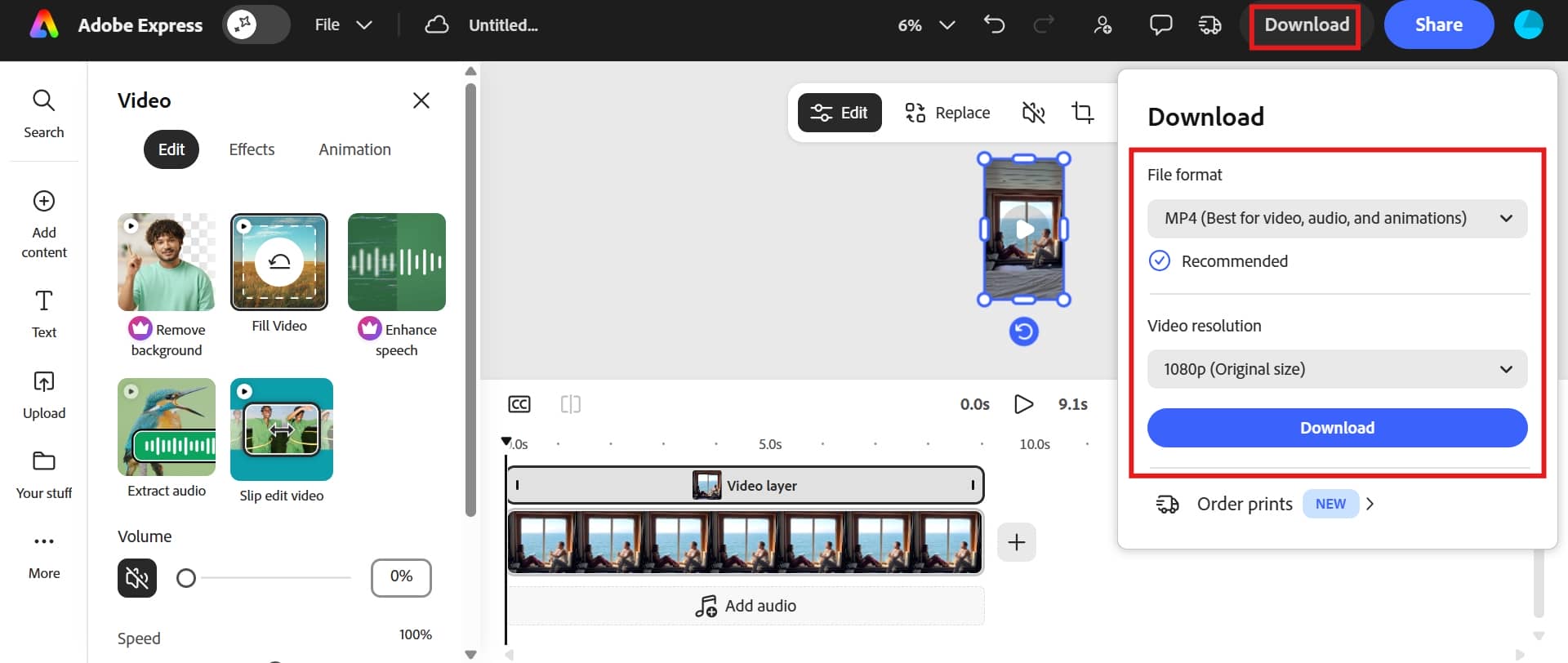
Step 1: Open Adobe Express and upload the video
Open up the Adobe Express video editor in your web browser and upload the MP4 video you are trying to mute. Wait for the video to finish uploading completely.
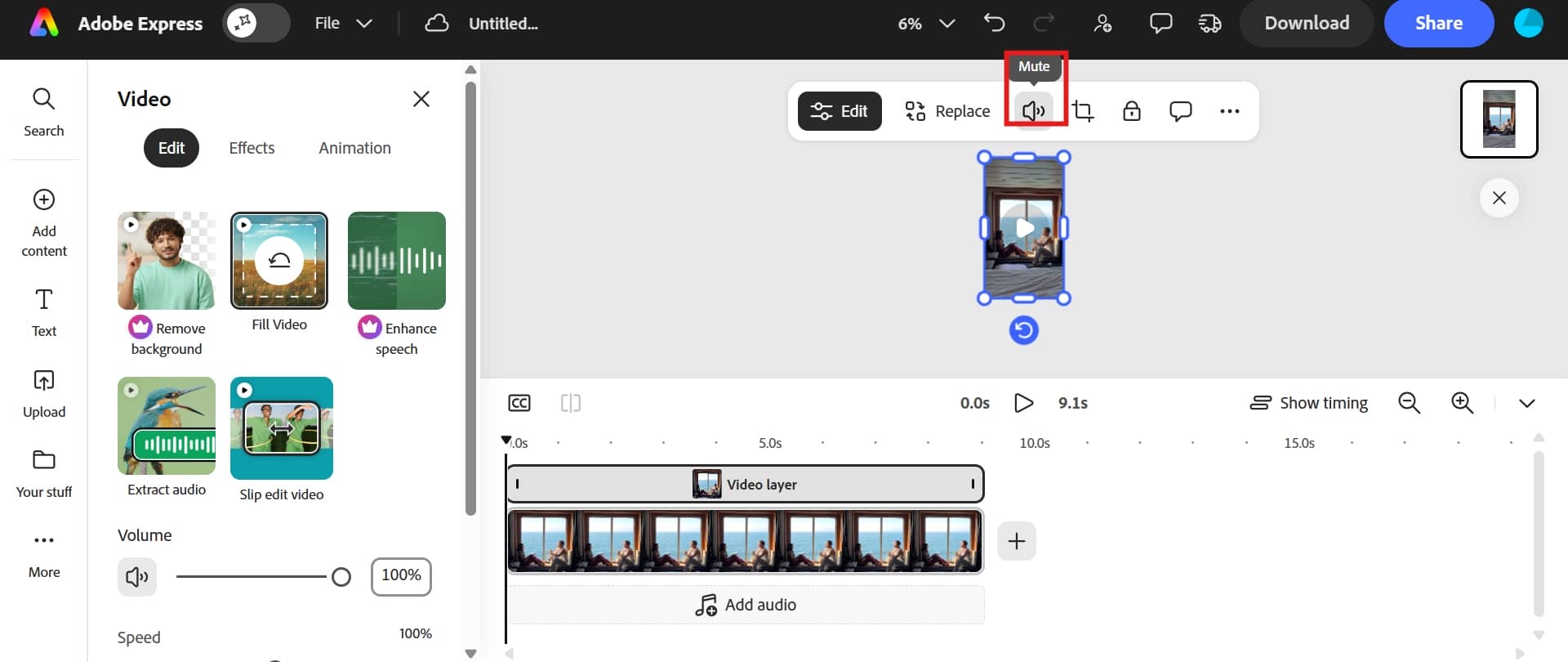
Step 2: Locate the Audio option
Click on the video layer inside the editing timeline to select it. Find the Mute option in the settings panel and switch the sound off.
Step 3: Preview and export
Play back the video preview just to be absolutely sure the audio track is completely silent. Export and download the final, silent MP4 file straight to your device.
Method 2: EZGif
EZGif is a no-frills browser-based tool best known for memes, but it includes a handy feature to strip audio straight from an MP4. No software, no technical skills needed, just upload, remove, and download. It's a solid quick fix when you don't want to deal with a full editing interface.
Step-by-step guide
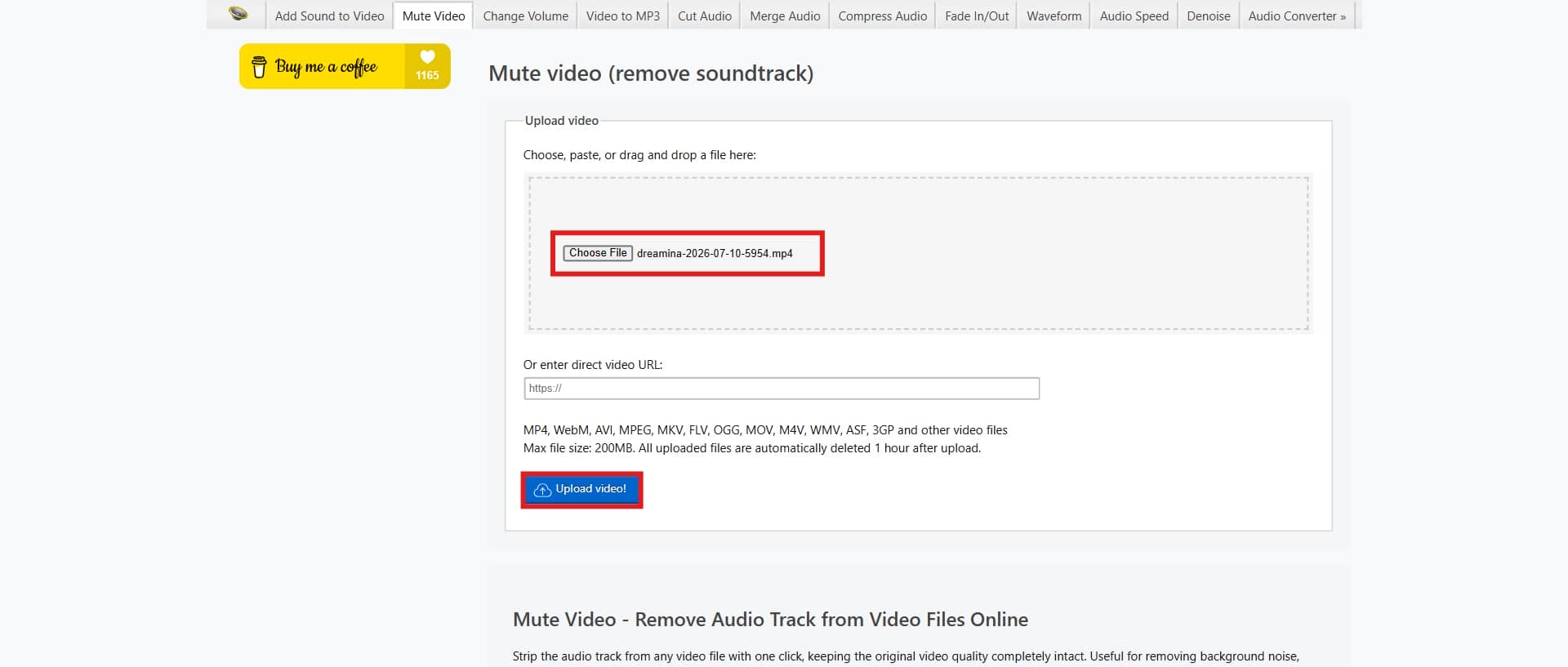
Step 1: Open the Mute Video tool and upload your MP4 file
Open up the EZGif website and navigate straight to their Mute Video tool. Hit "Choose File" to upload the file and click "Upload video", so the platform can start processing the file. Finally, click
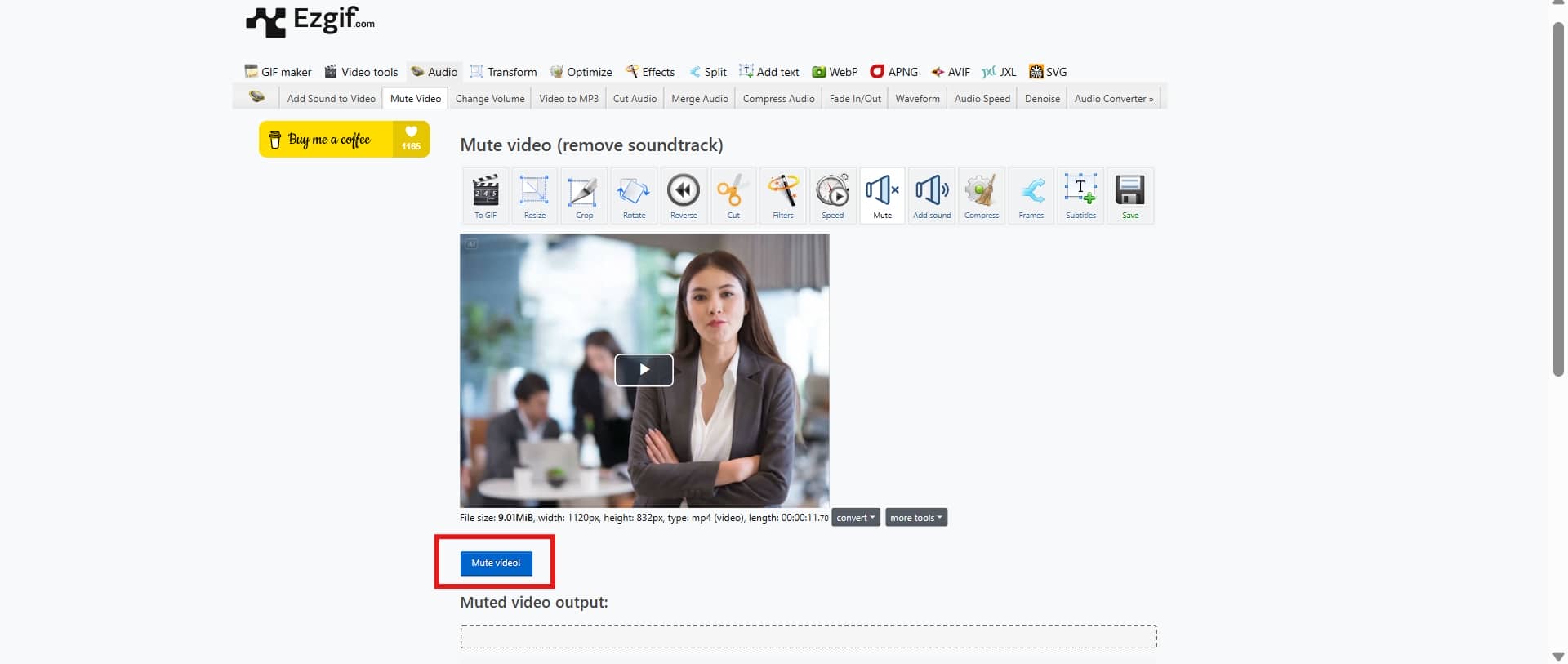
Step 2: Click the Mute Video option
Click the actual "Mute Video" option to strip the soundtrack away from the MP4 video. Wait for the processing bar to finish.
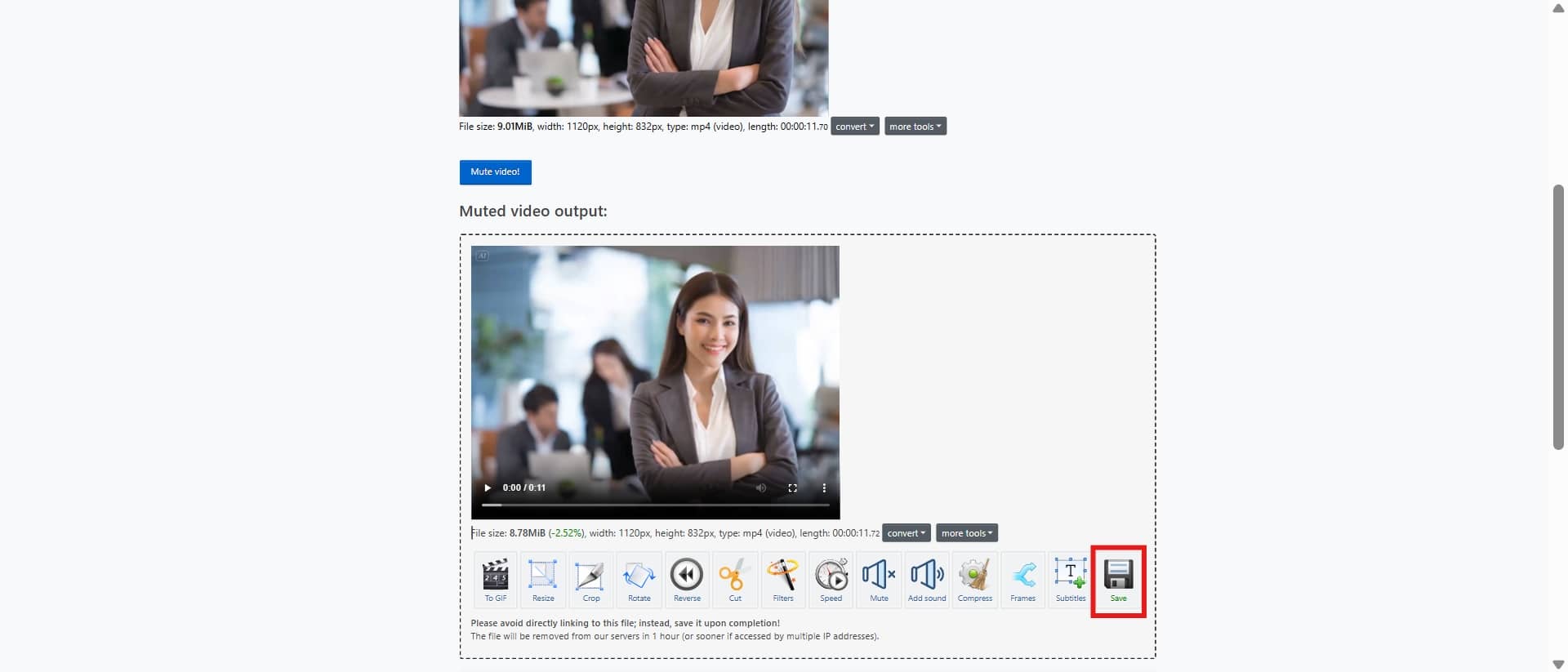
Step 3: Preview and export
Watch the preview of your newly muted video to make sure it looks right. Click "Save" to download the fresh, audio-free MP4 directly to your device.
Method 3: AudioRemover
AudioRemover is a dedicated online tool built for the sole purpose of stripping sound out of video files. It supports the formats most of us actually use, like MP4, MOV, AVI, and WMV. The tool is about as fast and efficient as it gets if you just need a silent video.
Step-by-step guide
Step 1: Open the website and upload the audio
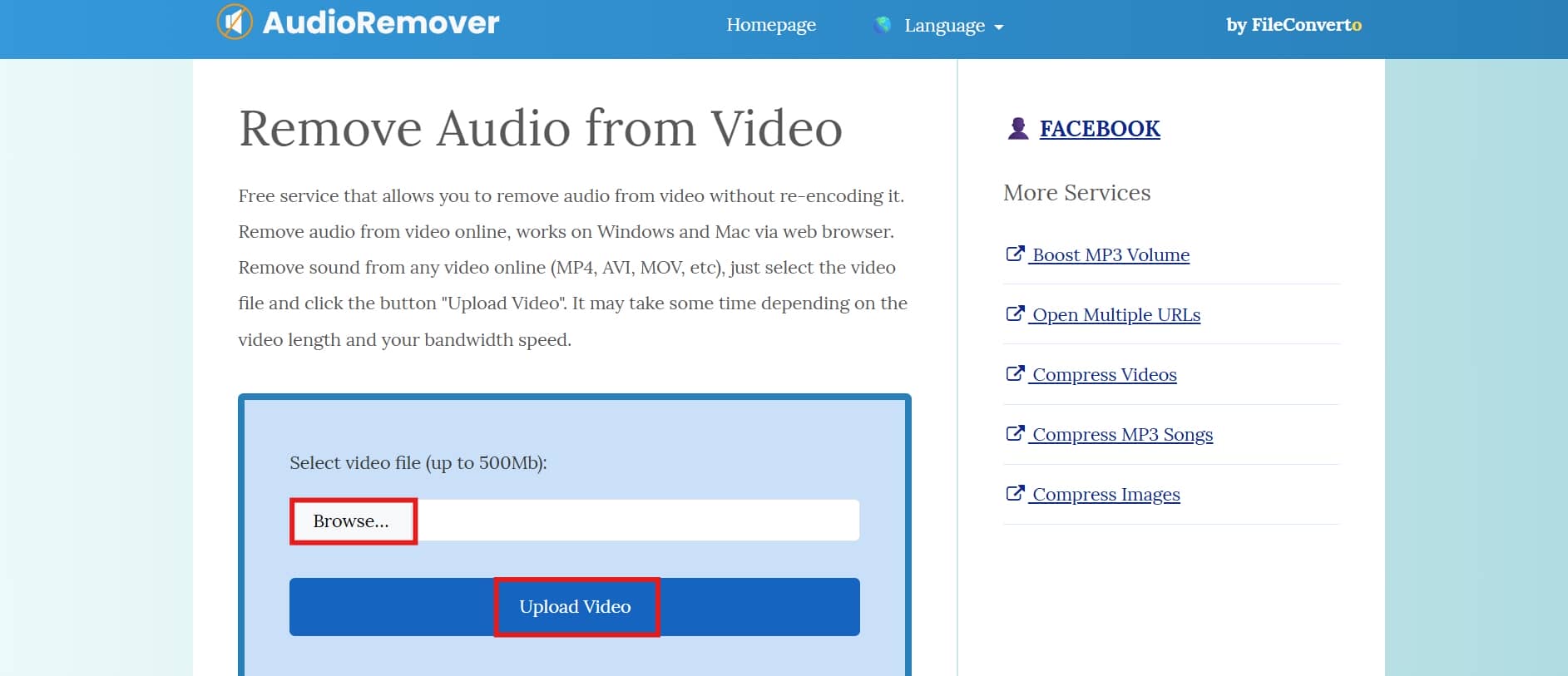
Open the AudioRemover website in your web browser. Click "Browse" and find the MP4 video you need to fix. Upload the video file straight to the site.
Step 2: Start the audio removal process
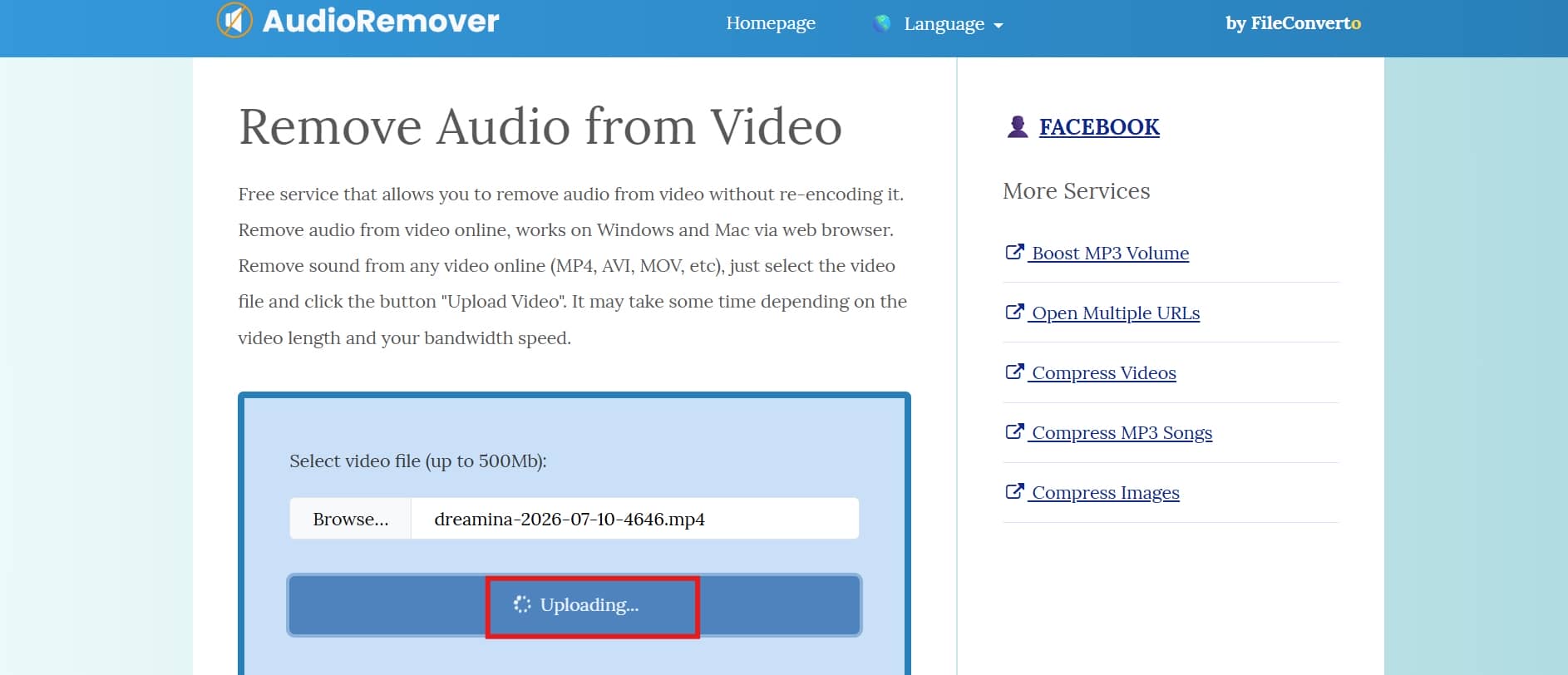
Once you click the Upload video button on the screen, it starts stripping the soundtrack away. Sit tight for a bit while the tool processes your video in the background.
Step 3: Export the final video
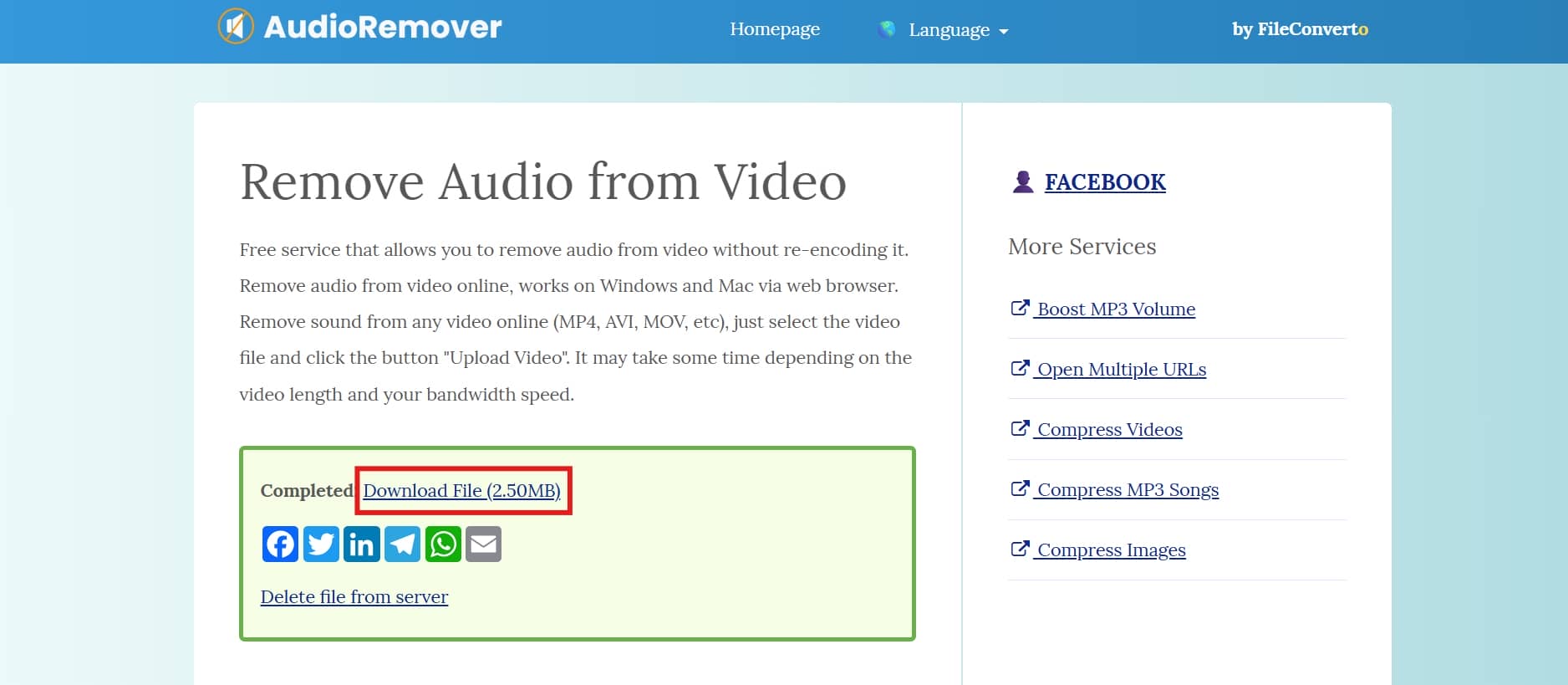
Download the final, processed MP4 once it tells you the audio track is gone. Play the downloaded video on your device just to make sure it is actually silent.
How to remove audio from an MP4 on desktop
If you prefer working offline or happen to be dealing with massive video files, skipping the browser and using desktop software is almost always the smarter play. Desktop apps don't care if your internet drops out; they process files much faster, your privacy stays intact, and they won't choke on high-resolution footage. If you want something free and completely painless, VLC media player is worth a look.
VLC Media Player is a free, open-source app with the orange cone icon that plays literally any weird video file. But it actually has some decent conversion and editing tricks hidden under the hood. You can use it to strip the audio track away entirely and deliver a clean, silent copy of your MP4.
Step-by-step guide
Step 1: Import the MP4 file
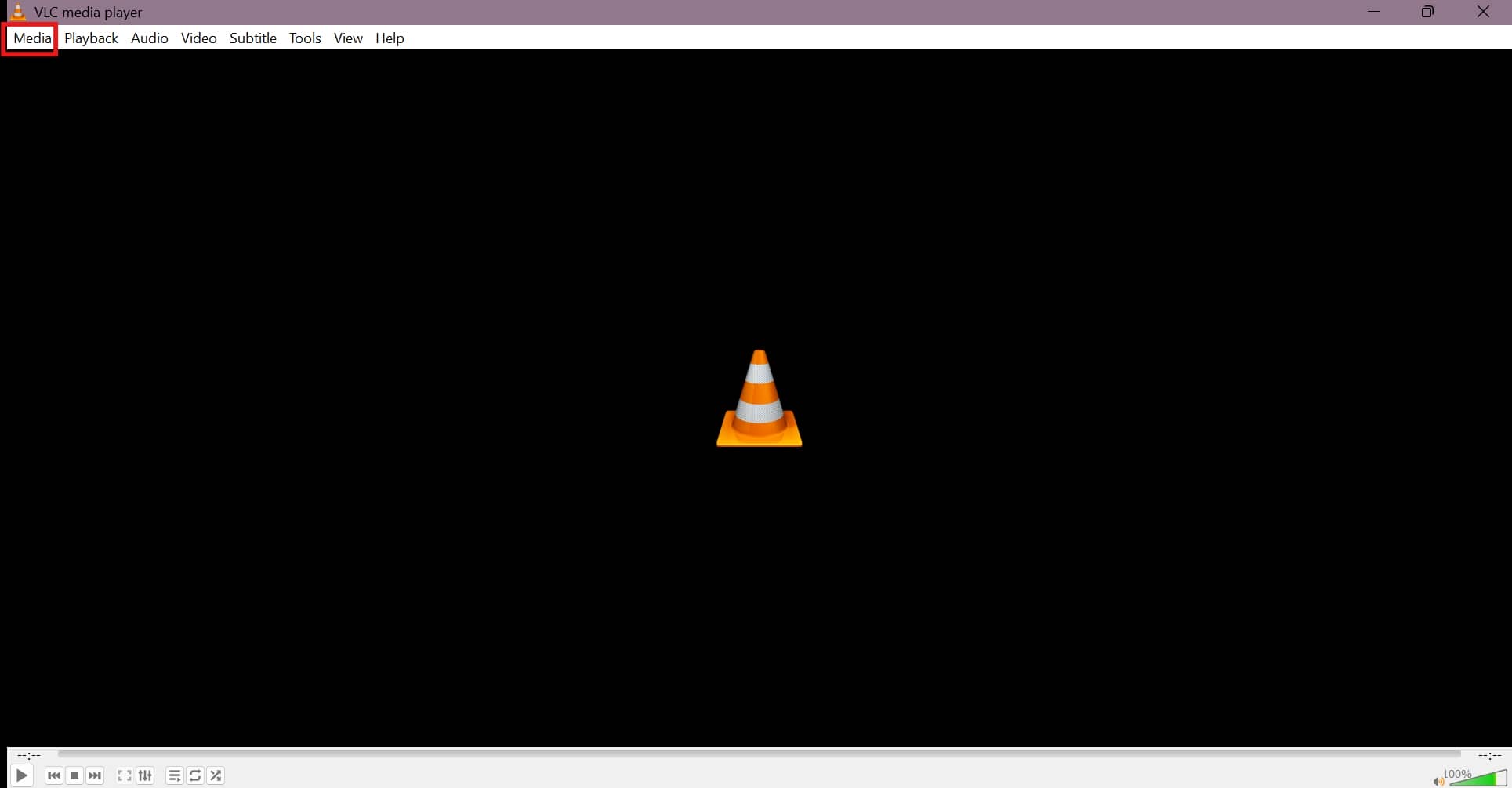
Go to the top menu, click on Media. Hit the Add button, find the MP4 file you're trying to silence, and select it. Once it's loaded in, click that Convert/Save button at the bottom of the window to move on to the actual settings.
Step 2: Disable the audio track
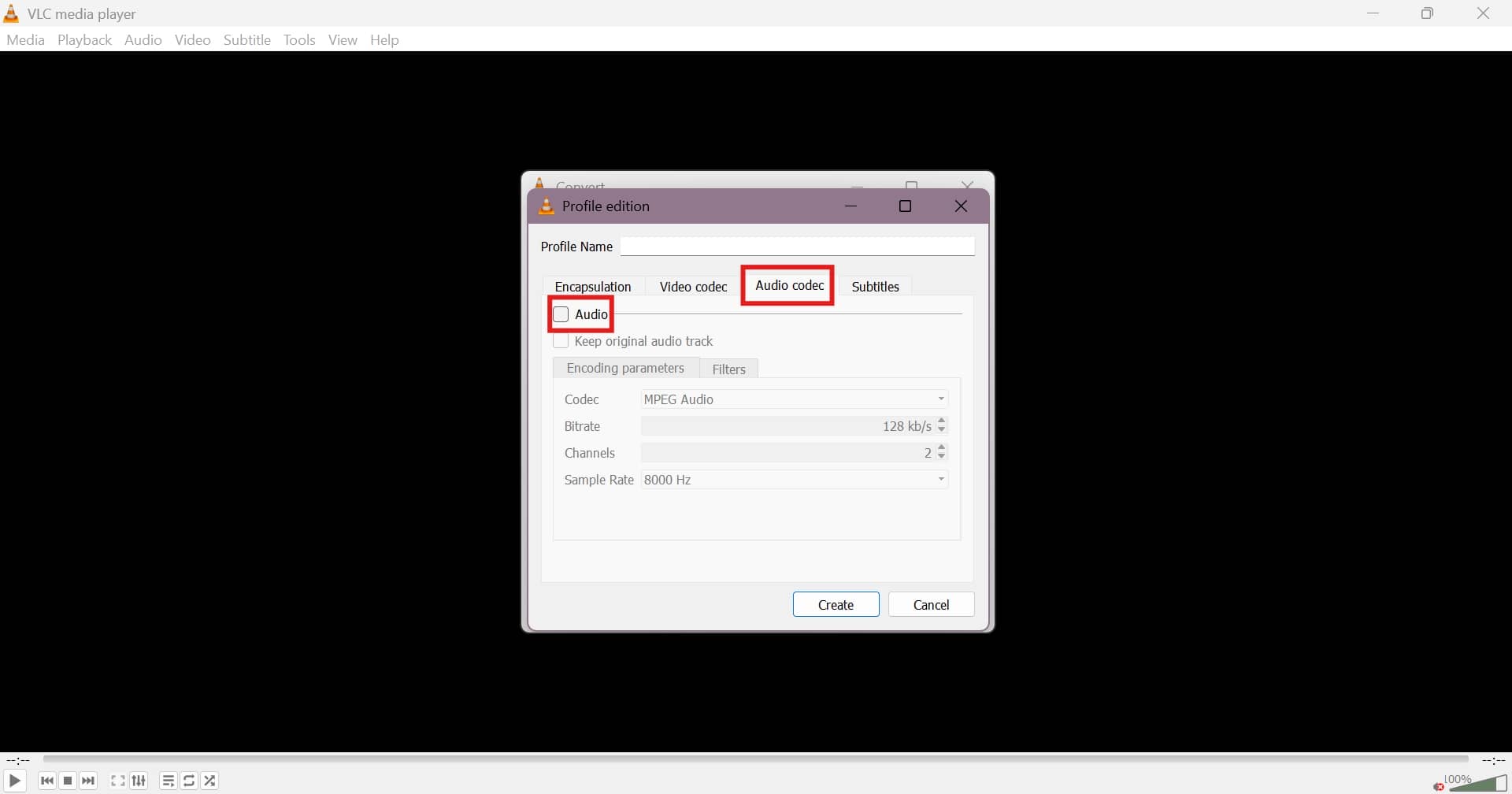
Look for the Profile dropdown menu and pick a standard format. Jump over to the Audio Codec tab, and you'll find a small checkbox simply labeled "Audio." Uncheck that box to ensure the audio track gets completely left behind. Hit Save to lock in the change.
Step 3: Export the silent MP4
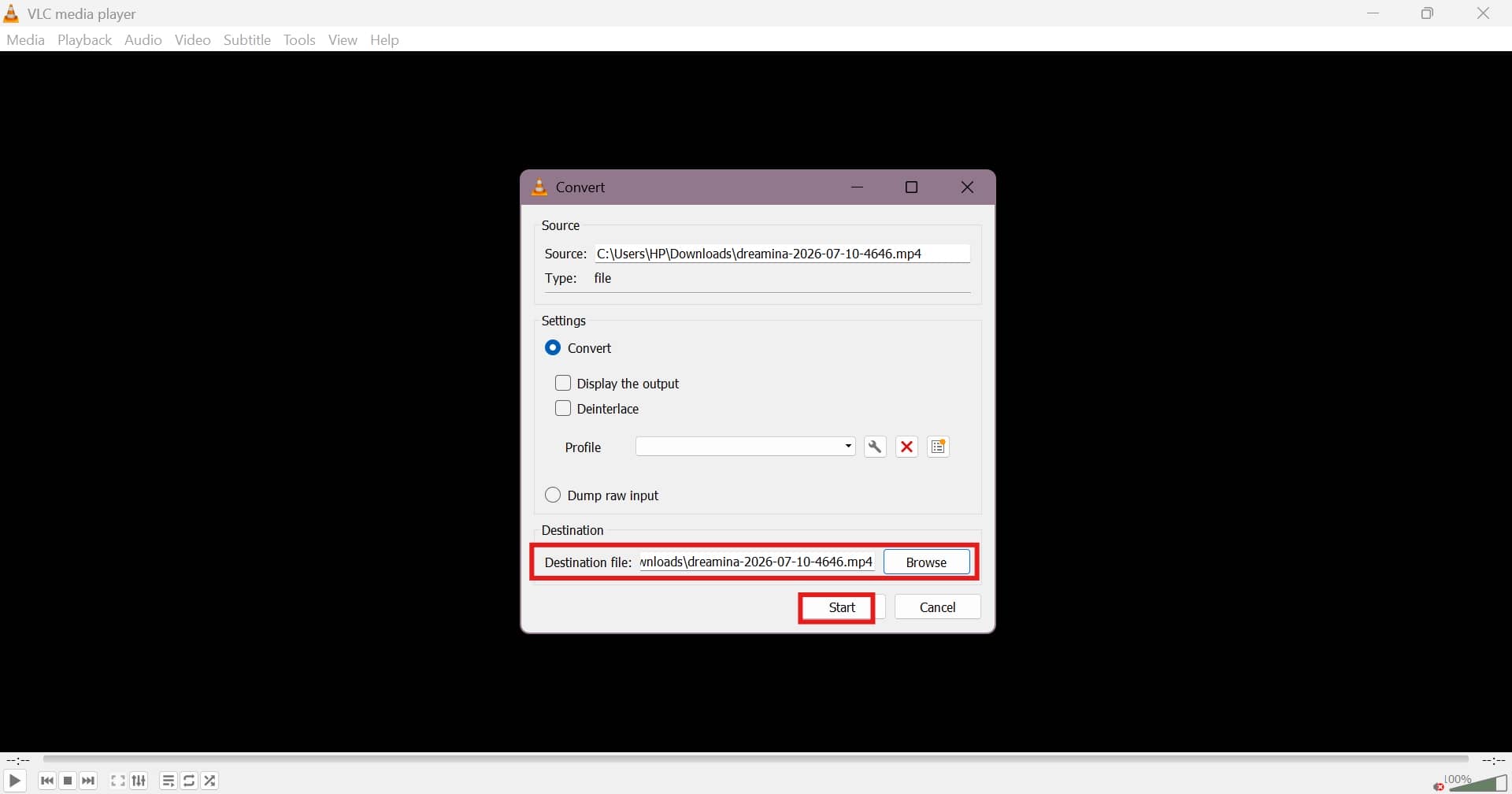
Click the browse button near the destination field, pick whichever folder you want to save it to, and type out a new name for your file so you don't accidentally overwrite the original.
How to remove audio from MP4 video on mobile
You don't actually need to download anything fancy to get this done on your phone. The stock Photos or Gallery app that came pre-installed on your device usually has a basic video editor baked right into it, complete with a mute toggle. Honestly, if you just want a quick, beginner-friendly way to get a silent MP4 without jumping through hoops, doing it right from your phone's native camera roll is about as painless as it gets.
Step-by-step guide
Step 1: Open the editor on your phone
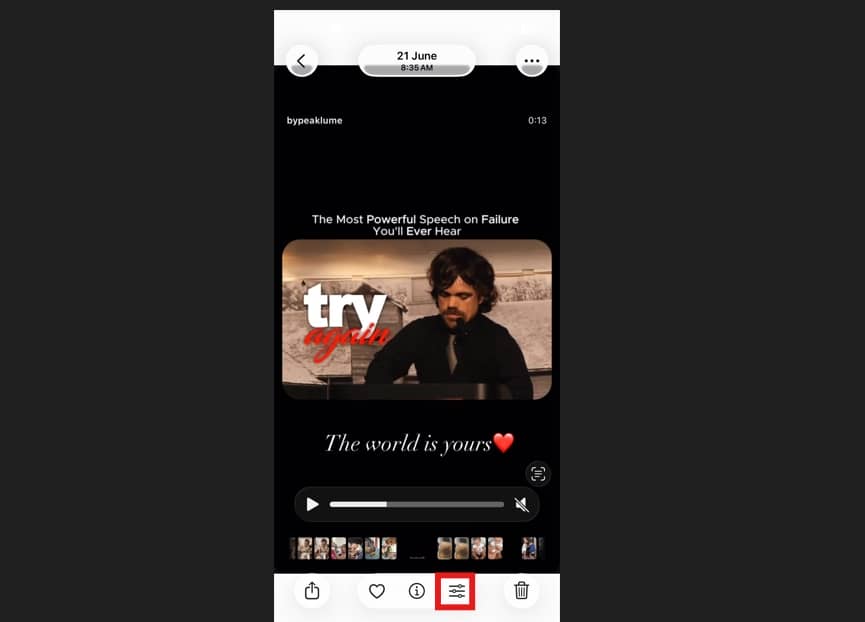
To start, just pull up the native Photos app if you're on an iPhone, or open the Gallery app if you use an Android and Photos app for iOS. Scroll through and find the specific MP4 file you want to mess with. Once you've got it open, tap the Edit button.
Step 2: Mute the audio
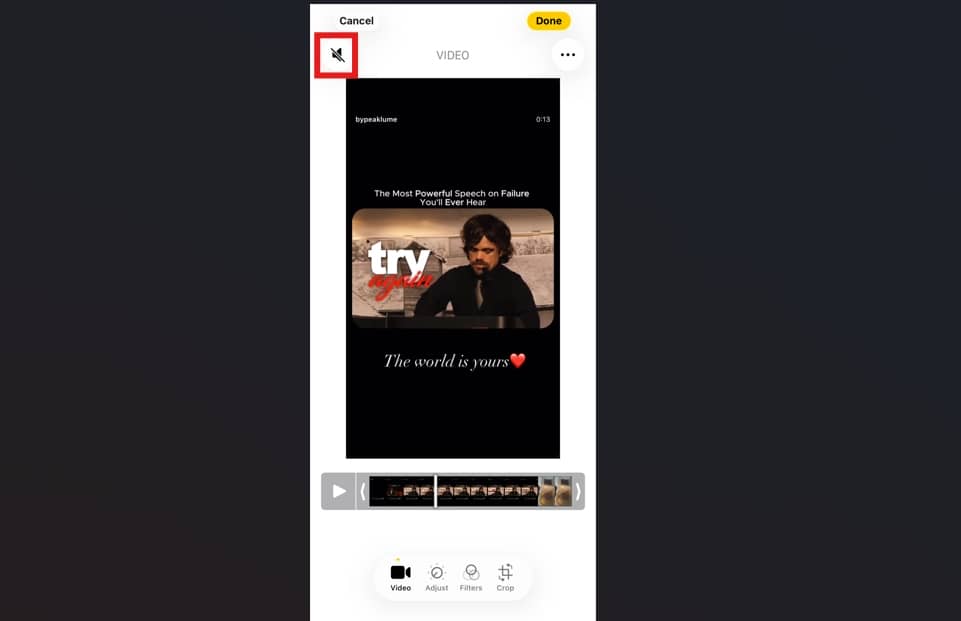
Now you just need to find the volume controls. Look around the edge of the screen for a little speaker or volume icon. Tap it once, and it should switch over to show a slash through it, or change color to show that the sound is off. Go ahead and press play on the preview just to make sure you aren't hearing any stray background noise.
Step 3: Save the silent video
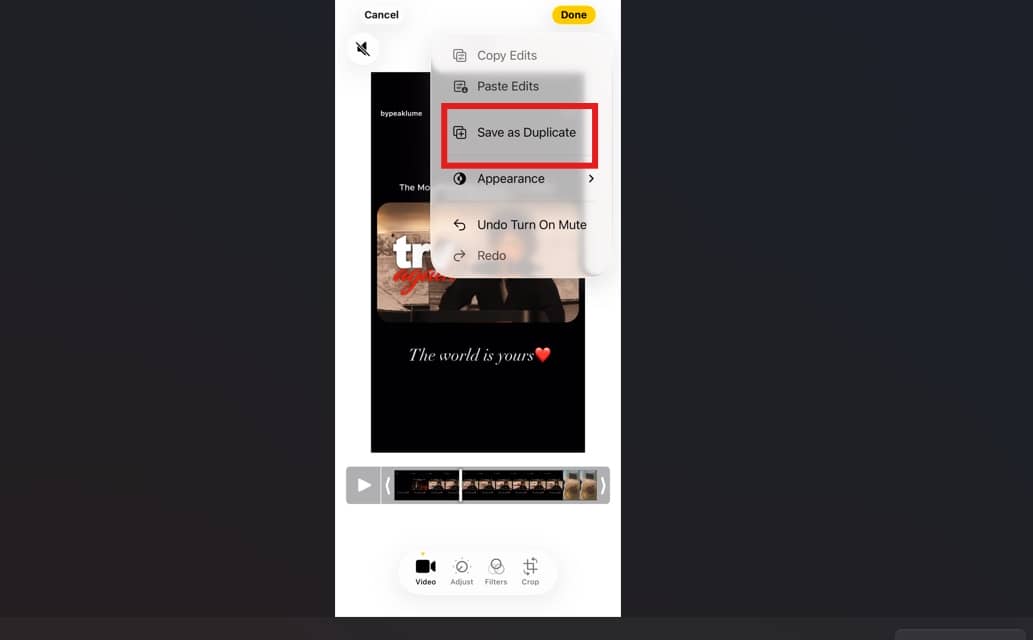
If everything looks right, you just need to save your work. Click "Done" or "Save as Duplicate", depending on your phone, and let the phone do its thing for a second while it processes.
Bonus: How to remove background noise with Vmake Labs
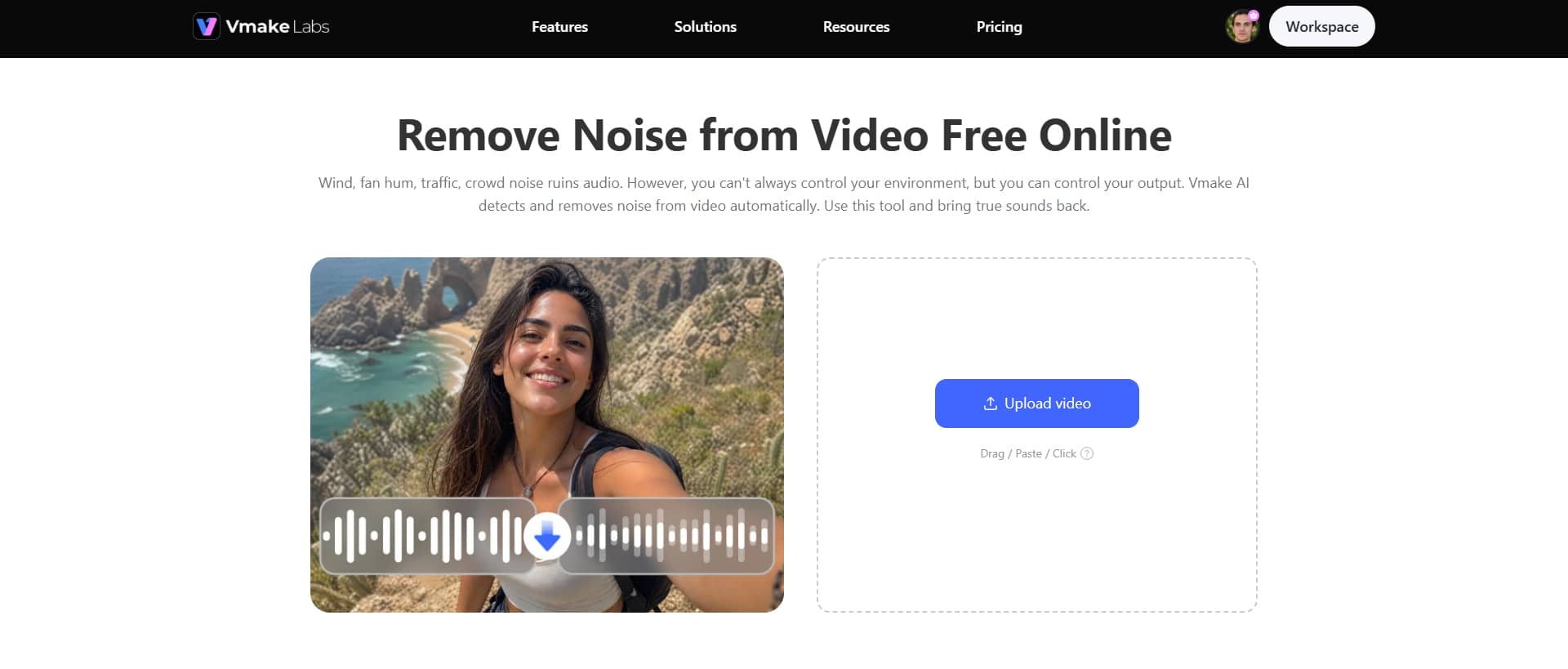
If you want to actually fix your audio rather than just give up and remove the entire audio, Vmake Labs' AI background noise remover is a much smarter way to go. Instead of leaving you with dead silence, the tool uses AI to spot and target those annoying background sounds while leaving the stuff you actually want to hear. It instantly removes wind from the video and gets a clean, professional-sounding result.
Key features
-
Automatically detects unwanted noise
Vmake Labs detects wind, traffic hums, clicking keyboards, echoes, or just the general chatter of a crowd and automatically removes the echo from the video instantly. If you're a beginner who just needs a quick fix without a steep learning curve, it gets the job done in a couple of clicks.
-
Speech-focused audio enhancement
Vmake Labs focuses heavily on saving and polishing the actual spoken voice while it suppresses background chaos. It makes dialogue a whole lot clearer and easier to understand, but without pushing things so far that the speaker ends up sounding like a robot.
-
High-quality video export
Once the audio processing wraps up and the tool removes the wind from video, Vmake Labs delivers high-quality video with the new, clean sound while leaving the original visual quality alone. It avoids hitting your file with that heavy, unnecessary compression during the export phase.
Step-by-step guide
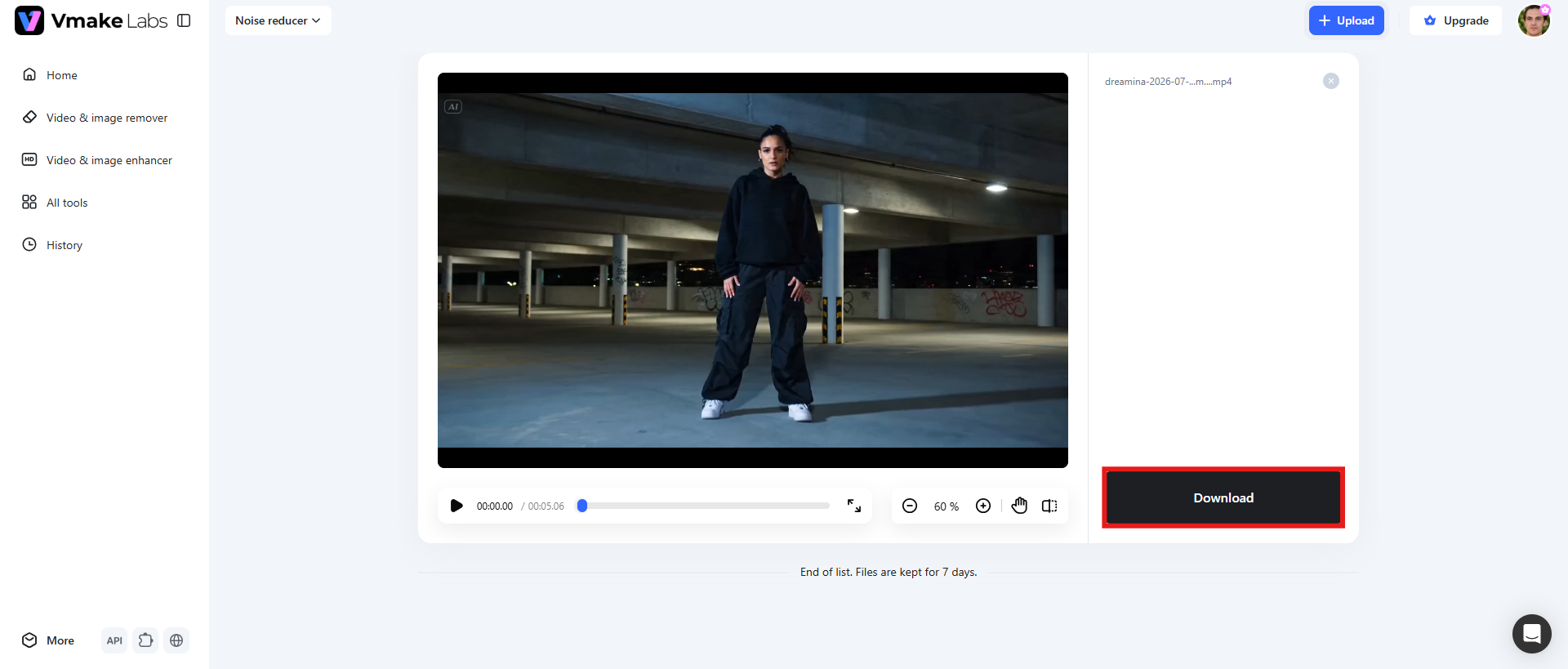
Step 1: Upload your video
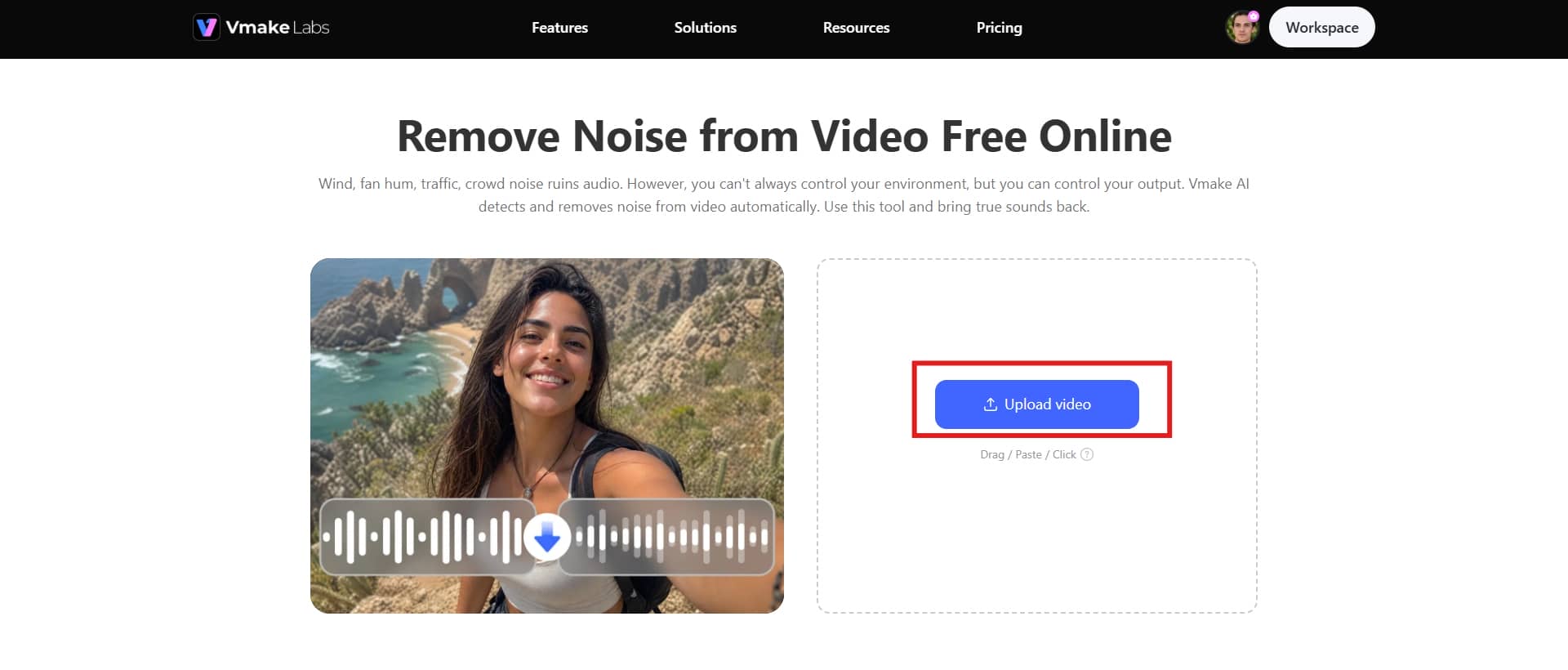
Open up your web browser and head over to the Vmake Labs AI Background Noise Remover page. Click on the "Upload video" button to pull up your files, and then select the video you want to clean up.
Step 2: AI removes background noise
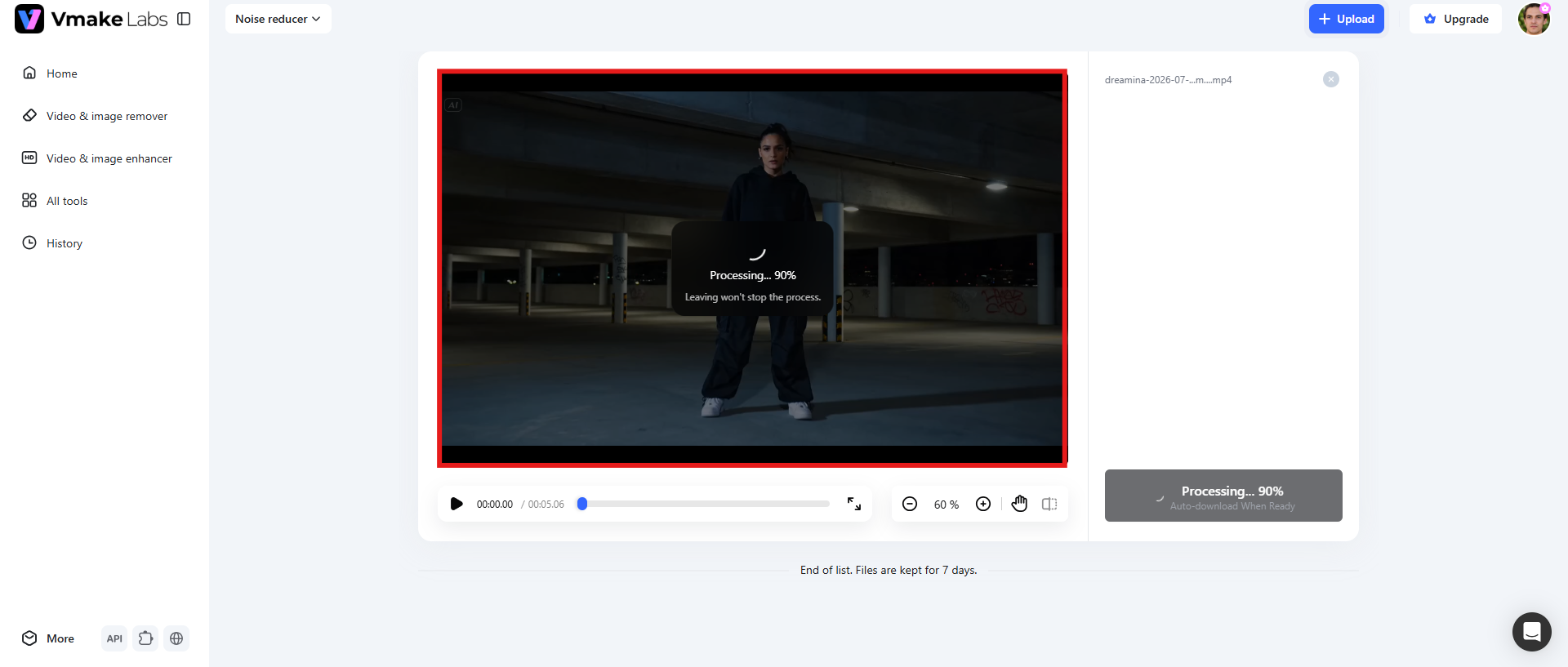
Once the upload wraps up, the AI immediately dives into your video's audio track. It works by mapping out the audio to draw a line between actual speech and the background garbage you don't want. It is pretty smart about isolating and turning down things like wind, passing traffic, and humming appliances.
Step 3: Download your clean video
When you're happy with how the dialogue sounds, just hit the Download button to grab the file. Vmake Labs handles the export by swapping in the polished audio layer while keeping your original video quality intact.
Tips to remove audio from video MP4 without losing quality
Removing the audio from MP4 is usually a quick task, but how you handle the final export can totally ruin your video quality if you aren't careful. If you want to keep your footage looking sharp without any unwanted compression artifacts, you need to be deliberate about how you save the file.
-
Use lossless export when possible
Whenever you're removing a clip, always look for a "lossless" export option if your software gives you the choice. Here's why that matters: a true lossless export leaves the original video packets completely untouched. It literally just unlinks and discards the audio stream.
-
Avoid unnecessary re-encoding
Every time you re-encode a video, you're essentially forcing the software to compress and crunch down your footage all over again. Sure, some basic tools make you re-encode just to remove the sound, but running your video through repeated conversions leads to low bitrates and ugly pixel blocks.
-
Choose MP4 output
When it comes to picking an output format, just stick with MP4. It plays nice with almost every device, media player, and social platform out there. Plus, it hits that sweet spot of holding onto high visual quality. Also, if your source video is already an MP4, then saving the muted version back into the exact same container keeps things clean.
-
Preview before downloading
Before you go ahead and commit to saving the final cut, do yourself a favor and play through the preview. You want to make sure the sound is genuinely gone, but more importantly, you need to verify that your export settings didn't secretly ruin the visual quality. Keep an eye out for blurry artifacts, weird playback stutters, missing frames, or any of those random glitches that pop up during rendering.
-
Keep a backup of the original file
Always duplicate your original MP4 before you start stripping the audio away. Once you delete or overwrite that soundtrack, there is no magical "undo" button to get it back if you don't keep the source file safe. Keeping a clean backup tucked away gives you a safety net.
Conclusion
Removing audio from MP4 isn't rocket science, provided you grab the right tool for the job. You can easily roll out a completely silent video by eliminating the track using a quick browser tool, desktop software like VLC, or just the basic video editor already sitting on your phone.
If you do want to go the fast, browser-based route, Vmake Labs is actually a really solid choice, especially if your original plan was just to remove the background noise, wind, or echo. Instead of deleting the entire soundtrack and leaving you with dead silence, its AI can just target and yank out the background noise. It gives you a clean, professional result without making you learn complicated audio editing steps.
Which route you take really just depends on your specific setup, your device, and what you're trying to achieve. Use a website if you just want it done fast, desktop software if you need absolute control, or your phone if you're working away from your desk. Figure out which workflow fits your current situation, and you can fix your audio tracks without accidentally turning your video quality into a pixelated mess.
FAQs
How can I remove audio from video MP4 without affecting video quality?
Use a tool that removes the audio track directly without re-encoding the file. Desktop tools like VLC or online editors with lossless export support will leave your original resolution and clarity untouched.
Note: If you want to keep your voice but remove background noise, that's a different workflow. Vmake Labs AI noise remover cleans up audio without deleting the track entirely.
Can I remove audio from an MP4 online for free?
Yes, you can easily pull this off without spending a dime. There are plenty of browser-based tools out there, like Vmake Labs, that let you handle the whole thing inside a tab. You just upload your file, hit a button to mute or remove the soundtrack, and grab the new silent version without having to install some random app you'll only use once.
What's the difference between muting a video and removing its audio track?
People often confuse muting a video with actually removing the audio, but they are completely different. When you just mute a video, you're essentially just turning the volume slider to zero for playback; the original audio data is still taking up space inside that file. Removing the track, on the other hand, permanently strips that sound data out when you export. If you just need a temporary fix for your own viewing, muting is fine. But if you're planning to share the clip publicly or want to shrink the file size down, you genuinely want to delete the track entirely.
Can I remove audio from an MP4 on my phone?
You don't need a computer to handle this anymore. You can pull the sound out of an MP4 directly from your phone using the tools you already have. On almost any modern device, you just open up the clip in your default Photos or Gallery app, hit edit, tap the mute button, and save it as a new copy.
Is it safe to upload my videos to online audio removal tools?
Throwing your videos into an online audio remover can be perfectly safe, but it hinges entirely on the provider's privacy policy and how tightly they run their security. Before you hit upload, you should take a quick look to see if the platform encrypts your files, how long they let your video sit on their servers, and whether they automatically wipe it after processing.
Can I replace the removed audio with new background music later?
If your plan is to replace the existing audio you just stripped out with a fresh music track down the road, that's incredibly easy to do. Once you have your silent video file, you can drop it into basically any video editor and layer in background music, custom voice-overs, ambient sound effects, or clean narration. Just make sure you keep a backup copy of that original, unedited video file safe on your drive.

You May Be Interested

avi vs mp4: Which Video Format Should You Actually Use?

MKV vs MP4 Explained: Which Video Format Should You Choose?

MOV vs MP4: What's the difference and which is better?
How to Transcribe Audio to Text: Efficient Guide
Transcription Audio to Text Example: 7 Real-World Samples