HitPaw Photo Enhancer Review: Features, Pricing & Best AI Alternative
Thinking about using HitPaw Photo Enhancer? Read our in-depth review covering features, pricing, real-world performance, pros, cons, and how it compares with Vmake Labs as an AI photo enhancer.

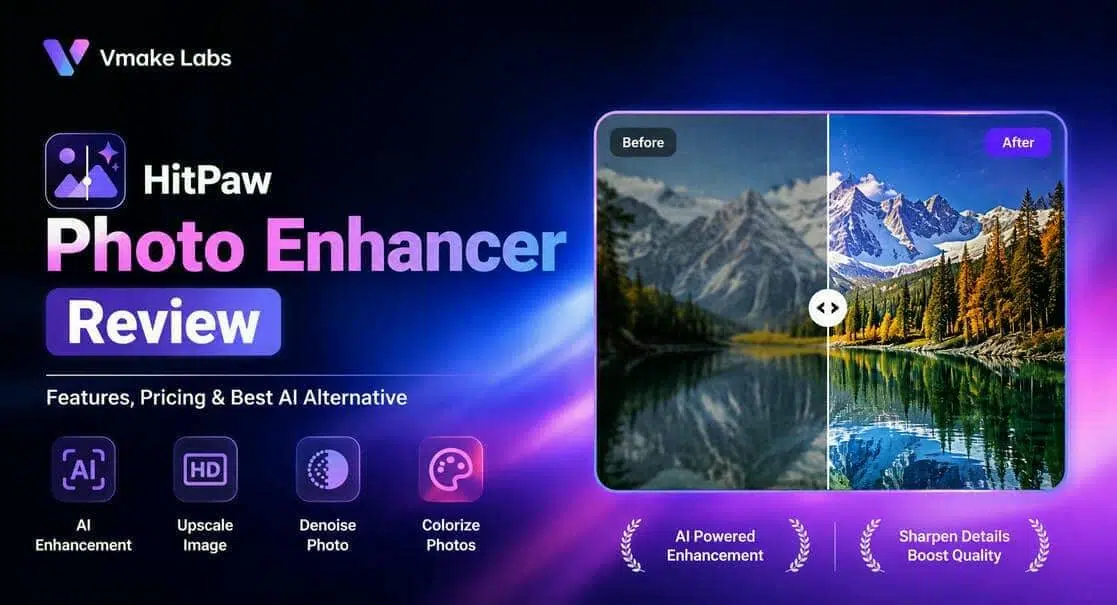
A good AI photo enhancer can save time and enhance images. In this HitPaw Photo Enhancer review, we'll discuss its features, price, real-world performance, pros and cons, and compare it with Vmake Labs to help you decide which AI photo enhancer is right for you.
What Is HitPaw Photo Enhancer?
HitPaw Photo Enhancer is an AI-powered photo enhancement tool to help you enhance photo quality with the least manual effort. Whether you want to unblur images, upscale low-resolution photos, restore old pictures, or reduce noise, the software uses specialized AI models to automate the process. It can be used as a desktop application or an online tool and is ideal for beginners and professionals who want to improve the quality of their images quickly.
What is HitPaw Photo Enhancer designed for?
-
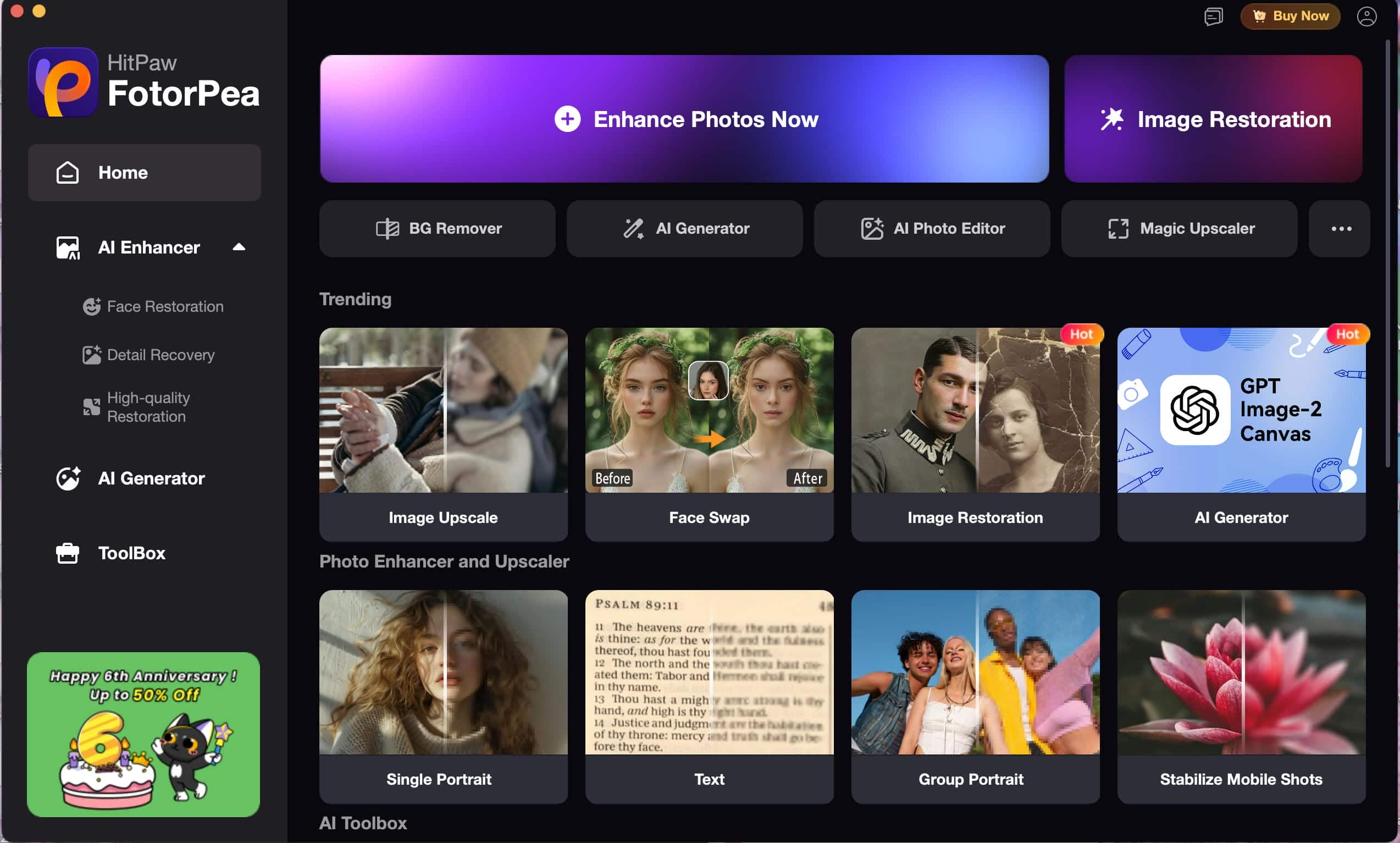
What it does: Uses dedicated AI models to sharpen blurry photos, upscale image resolution, reduce noise, restore facial details, and repair faded or old images with tools like Face Restoration, AI Upscale, AI Denoise, and Repair & Colourise.
-
Primary purpose: Simplifies photo enhancement by automating the editing process. Users only need to upload an image, choose an AI model, preview the results, and export the enhanced photo.
-
Who should use it: Suitable for beginners, photographers, content creators, and professionals who want an easy way to enhance portraits, old photos, landscapes, and other images without complex editing.
How We Tested HitPaw Photo Enhancer
To evaluate HitPaw Photo Enhancer, we tested its features using different image types and everyday editing scenarios. Our testing included:
-
Testing device: Mac
-
Images tested: Portraits, old photos, product images, and landscapes
-
Evaluation criteria: AI enhancement quality, processing speed, export quality, batch processing, and ease of use
-
Features tested: AI Upscale, Face Restoration, Denoise, Repair & Colourise, and export options
Getting Started with HitPaw Photo Enhancer
Getting started with HitPaw Photo Enhancer is simple. The desktop app walks users through a simple workflow from uploading an image to choosing AI enhancement models and exporting the final result. Here is the process.
How to Use HitPaw Photo Enhancer
Step 1. Upload your photo
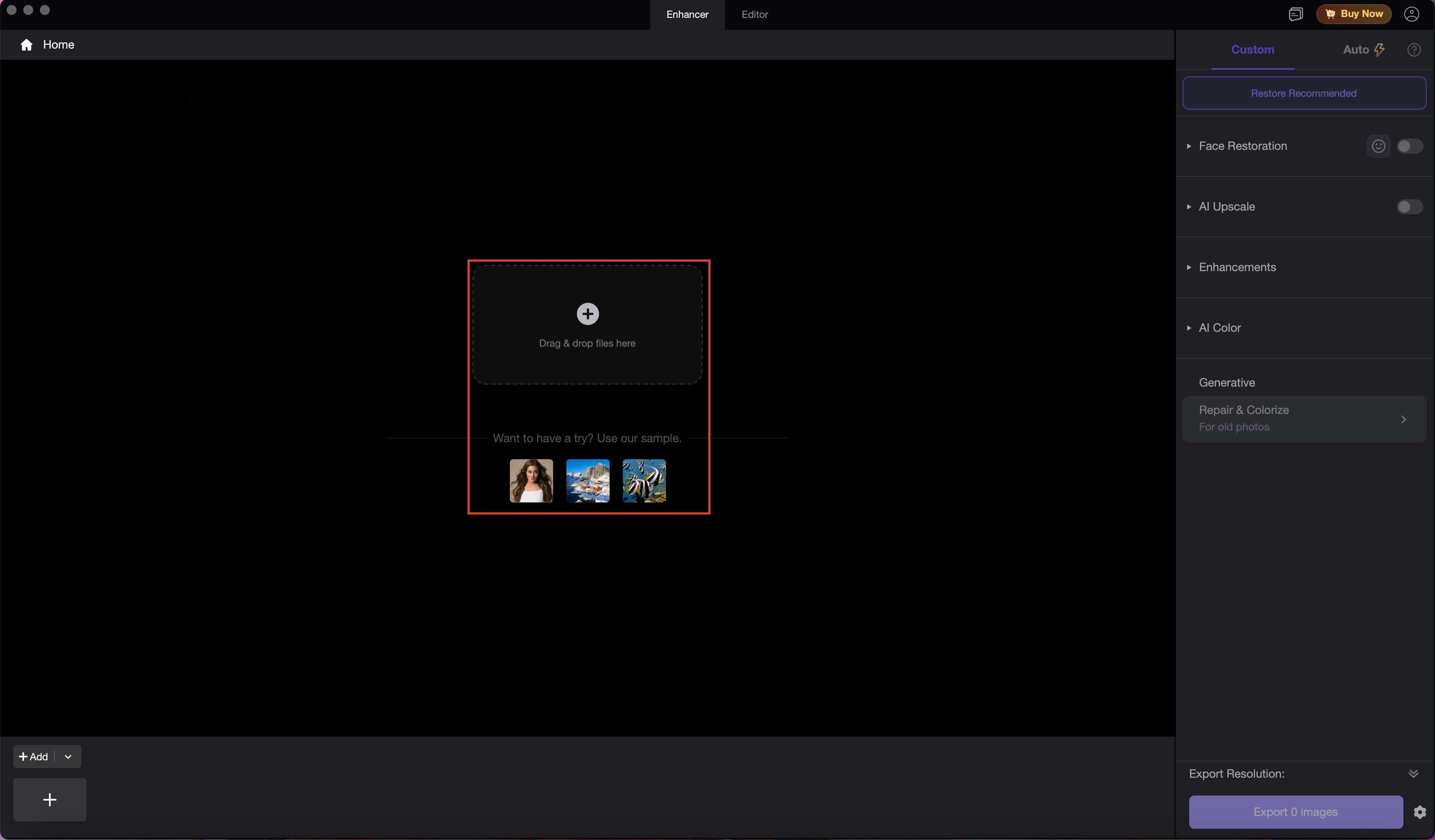
Launch HitPaw FotorPea and navigate to the AI Enhancer section. Drag and drop your image into the upload area or click the upload box to browse files from your computer. The software also provides sample images if you want to explore its features before uploading your own photo.
Step 2. Select AI enhancement settings
Once your image is uploaded, choose the AI models that best match your editing needs. You can enable features such as Face Restoration, AI Upscale, and Denoise, then select enhancement options like Soft, Realistic, or High Fidelity. Adjust the upscale resolution (1×, 2×, 4×, or 8×), preview the results, and fine-tune the settings before exporting.
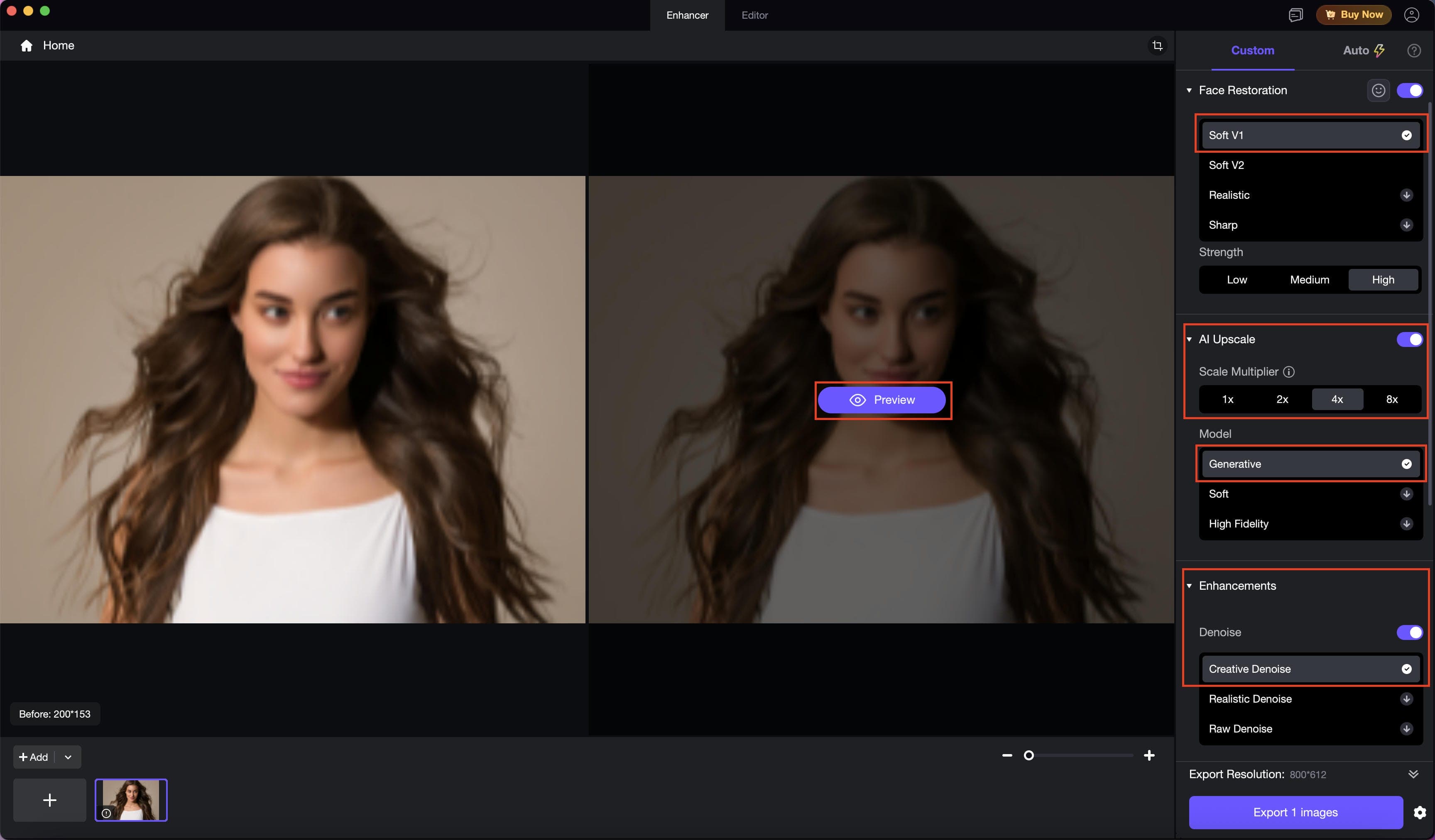
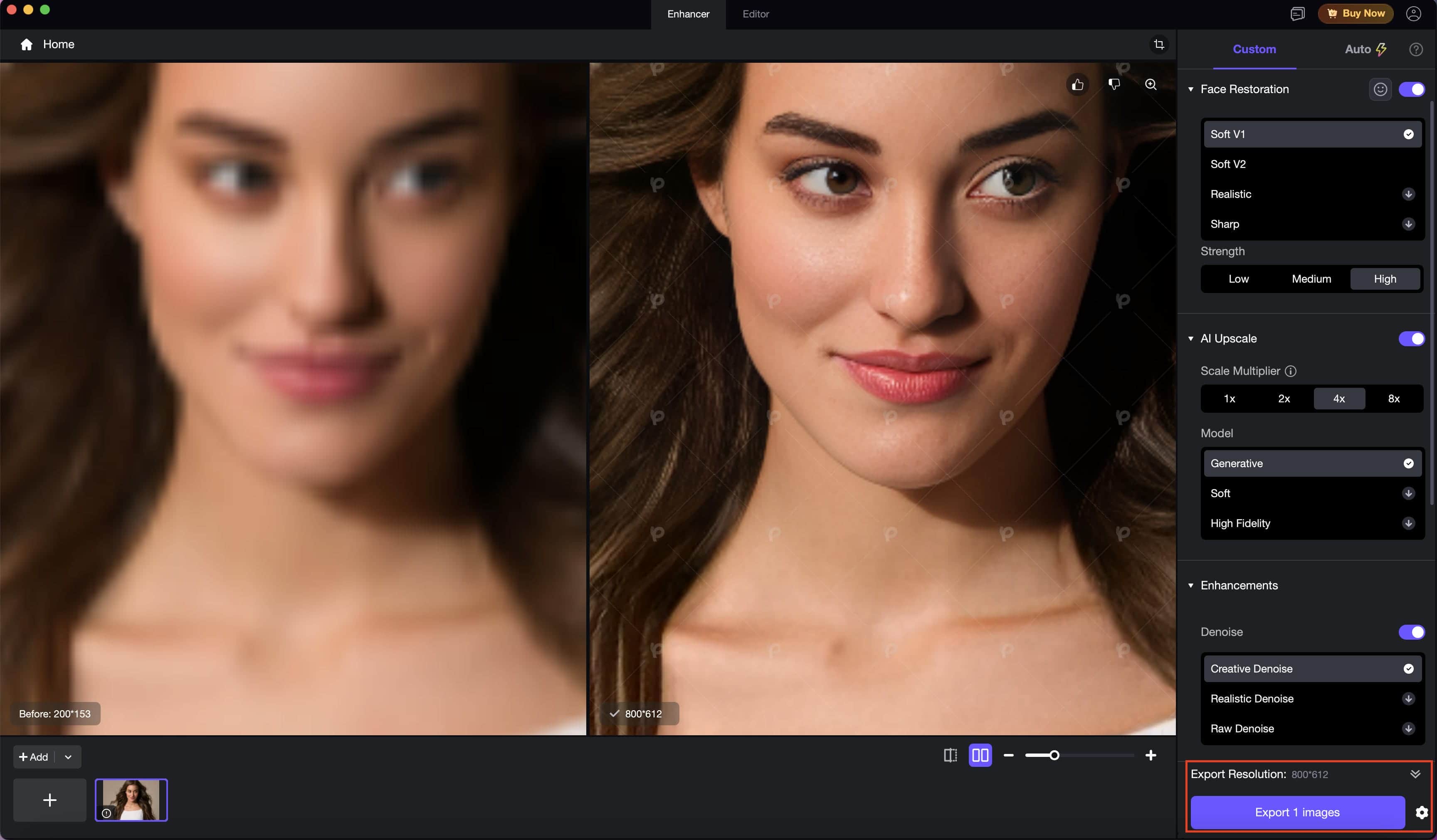
Step 3. Preview and export your image
After processing, compare the original and enhanced images using the built-in side-by-side preview. If you're satisfied with the result, choose the desired export resolution and save the enhanced image to your device.
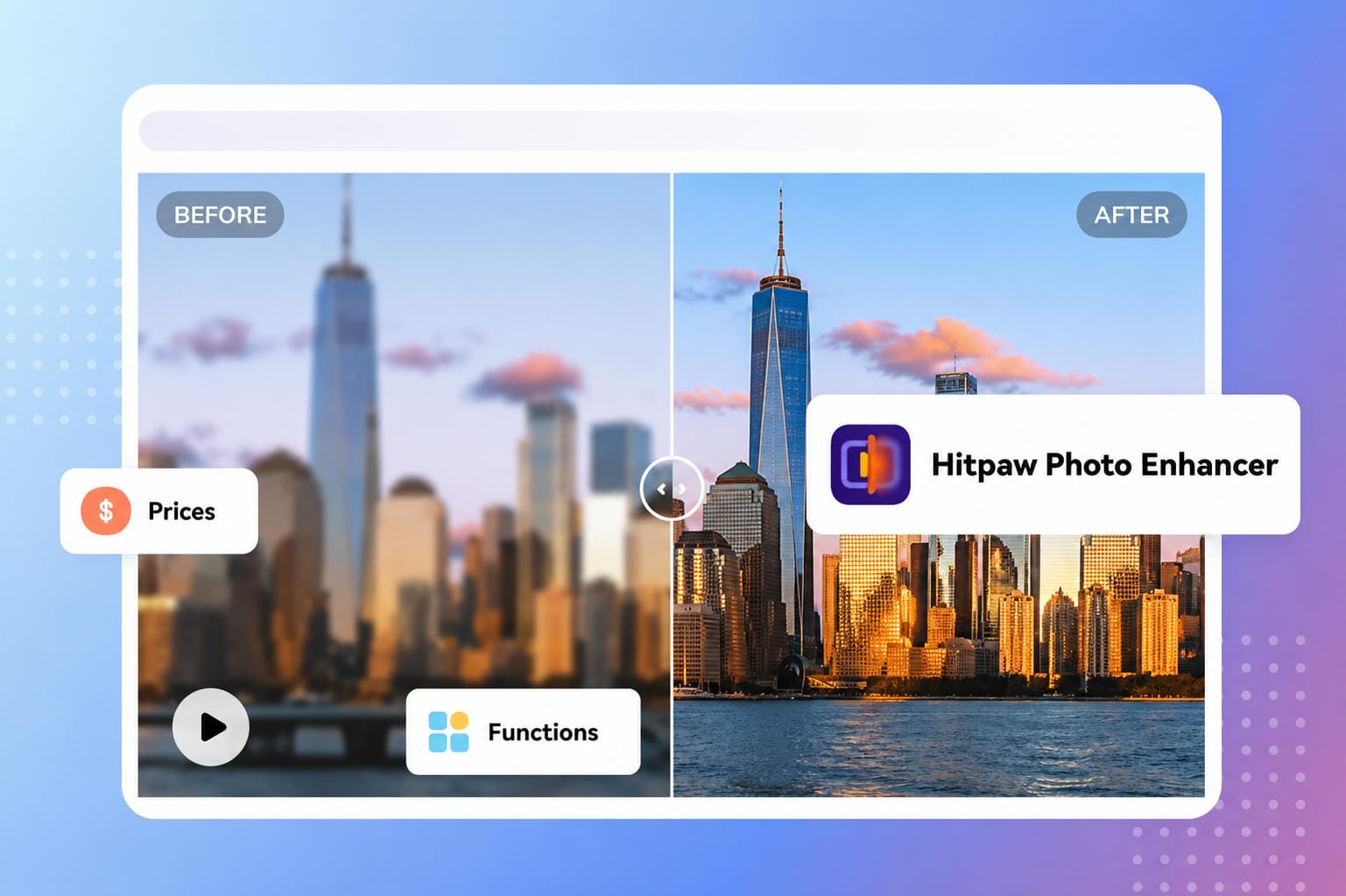
How well does HitPaw Photo Enhancer perform?
HitPaw Photo Enhancer is an easy-to-use tool to enhance blurry, low-resolution, and old photos with multiple AI models. It provides consistent results for everyday photo enhancement and is good for both novice and experienced users.
AI image enhancement results
-
Image enhancement quality: HitPaw improves image sharpener, clarity, and facial details with AI models such as Face Restoration, AI Upscale, AI Denoise, and Detail Recovery. It delivers natural-looking results for portraits, landscapes, and product images.
-
Upscaling performance: The AI upscaling function supports 1×, 2×, 4×, and 8× enlargement in Generative, Soft, and High Fidelity modes. It works great on low-res images and keeps the details, but larger files may take a little longer.
-
Old photo restoration results: With tools such as Face Restoration, Repair & Colourise, and AI Colour, HitPaw restores faded and damaged photos by improving facial details and reducing visible imperfections. It works particularly well for family portraits and vintage photographs.
-
Processing speed and output quality: Processing speed depends on image size and the AI models you choose. Smaller images are processed faster; larger files take longer. Batch processing and custom exports make the workflow efficient and deliver high-quality results for personal and professional use.
HitPaw Photo Enhancer review: Is it really worth it?
Pricing
|
Plan |
Price |
Billing |
Best For |
|---|---|---|---|
|
Free Trial |
Free |
One-time trial |
Users who want to test AI enhancement features before purchasing. |
|
FotorPea Perpetual Plan |
$129.99 (discounted from $199.99) |
One-time payment |
Individuals who regularly enhance photos and prefer lifetime access without recurring fees. |
|
FotorPea Yearly Plan |
Varies |
Annual subscription |
Photographers, designers, and content creators who want continuous updates, new AI features, and ongoing support. |
Which plan should you choose?
-
Choose the Free Trial if you only want to test HitPaw's AI models and don't need unlimited exports.
-
Choose the Perpetual Plan if you edit photos regularly and prefer a one-time payment instead of an annual subscription.
-
Choose the Yearly Plan if you want access to the latest features, software updates, and ongoing support while using HitPaw throughout the year.
Pros & Cons
|
Pros |
Cons |
|---|---|
|
|
Real User Feedback
Reviews for HitPaw Photo Enhancer generally indicate that the software is a good choice for AI-powered photo enhancement. Users consistently praise its image quality, ease of use, and customer support, with main criticisms levelled at restrictions on the free plan, desktop installation, and a lack of advanced business features.
G2
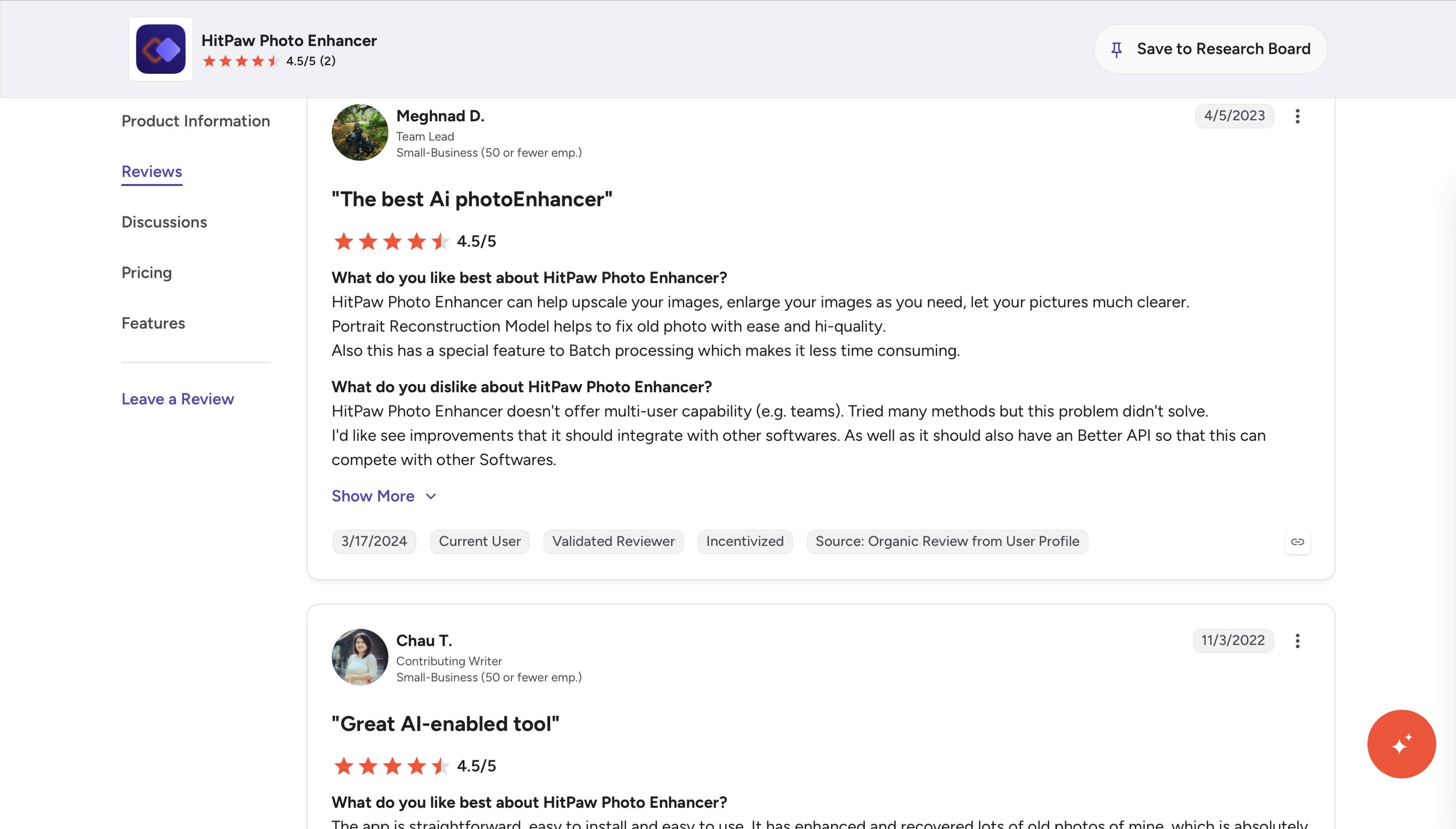
G2 reviewers say that HitPaw Photo Enhancer, an AI-powered image enhancer, provides high-quality photo upscaling, old photo restoration, and batch processing. Many enjoy its user-friendly interface as well. However, some users would like to see better compatibility with third-party software, API support, and collaboration features.
Trustpilot
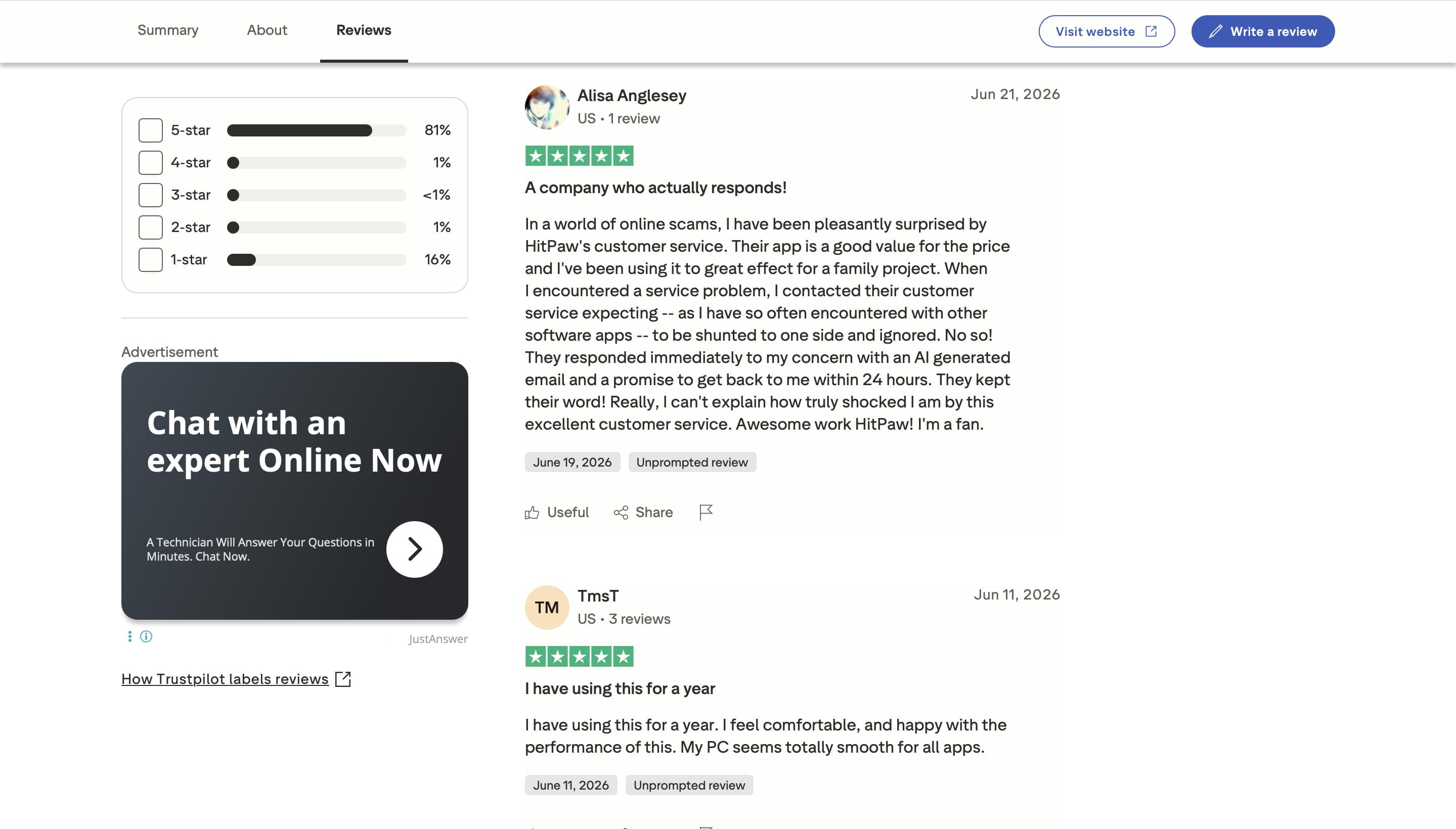
Most of the Trustpilot reviews are positive, with users mentioning good customer service, reliable performance, and value for money. The simple photo enhancements have been well received by many, while some have complained about the subscriptions and limitations of the free version.
Is HitPaw Photo Enhancer suitable for you?
As we mentioned, HitPaw delivers excellent, natural results for portrait and vintage photo restoration; however, its heavy reliance on desktop software installation can slow you down if you prefer working directly on the move. Between processing bottlenecks on large files and a total lack of native API or third-party integrations, it isn't quite built for highly agile workflows.
If you want to bypass local hardware restrictions and transition to an agile, cloud-native setup, Vmake offers a fast, browser-based alternative. Let's take a look at how Vmake trades heavy desktop processing for streamlined cloud automation.
Vmake Labs: The Best Alternative to HitPaw Photo Enhancer
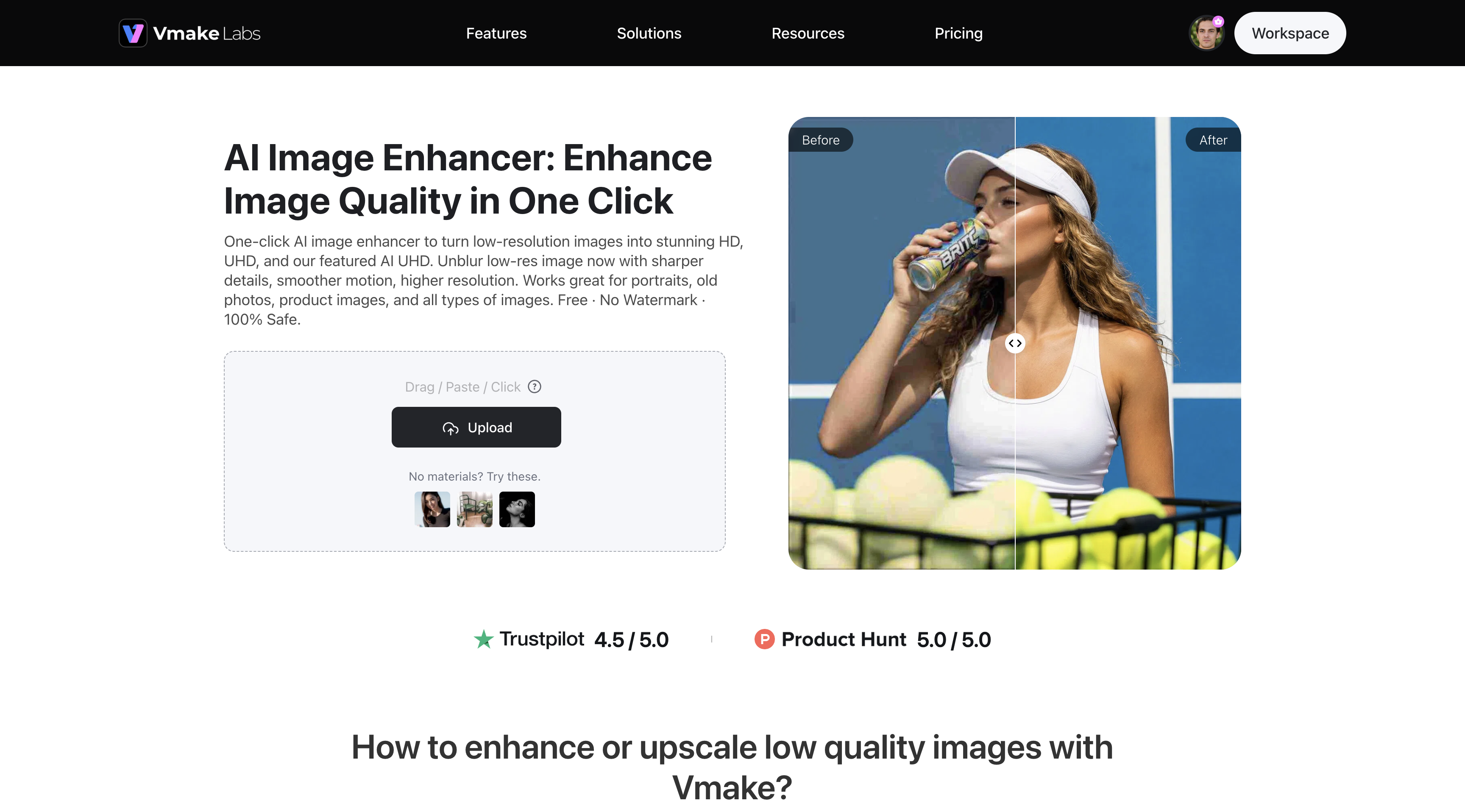
HitPaw Photo Enhancer is a powerful desktop app, but Vmake Labs has a faster, browser-based solution for users who want high-quality AI photo enhancement without downloading software. It offers multiple resolution options, dedicated AI scene modes, and batch processing so that you can enhance images with professional results in just a few clicks.
Why Choose Vmake Labs?
Vmake Labs combines powerful AI enhancement with a simple browser-based workflow, making it easy to improve image quality without installing software. Here are the features that make it a strong alternative to HitPaw Photo Enhancer:
-
Flexible Resolution Options: Export images to HD, UHD, AI UHD, 8K, or 16K, making them suitable for social media, e-commerce listings, marketing materials, presentations, and high-quality printing.
-
Dedicated AI Scene Modes: Select optimised modes for Portrait, Portrait Pro, Old Photo, and Product images to achieve more accurate enhancements without manually adjusting settings.
-
Batch Processing: Enhance up to 30 images at once, helping photographers, online sellers, and businesses save time when working with large image collections.
-
Browser-Based Experience: Edit photos directly in your browser without downloading or installing software, making it easy to enhance images from virtually any device.
-
AI-Powered Enhancement: Automatically sharpen details, improve clarity, reduce noise, and enhance colours to produce professional-looking images with just a few clicks.
How to Enhance Photos with Vmake Labs
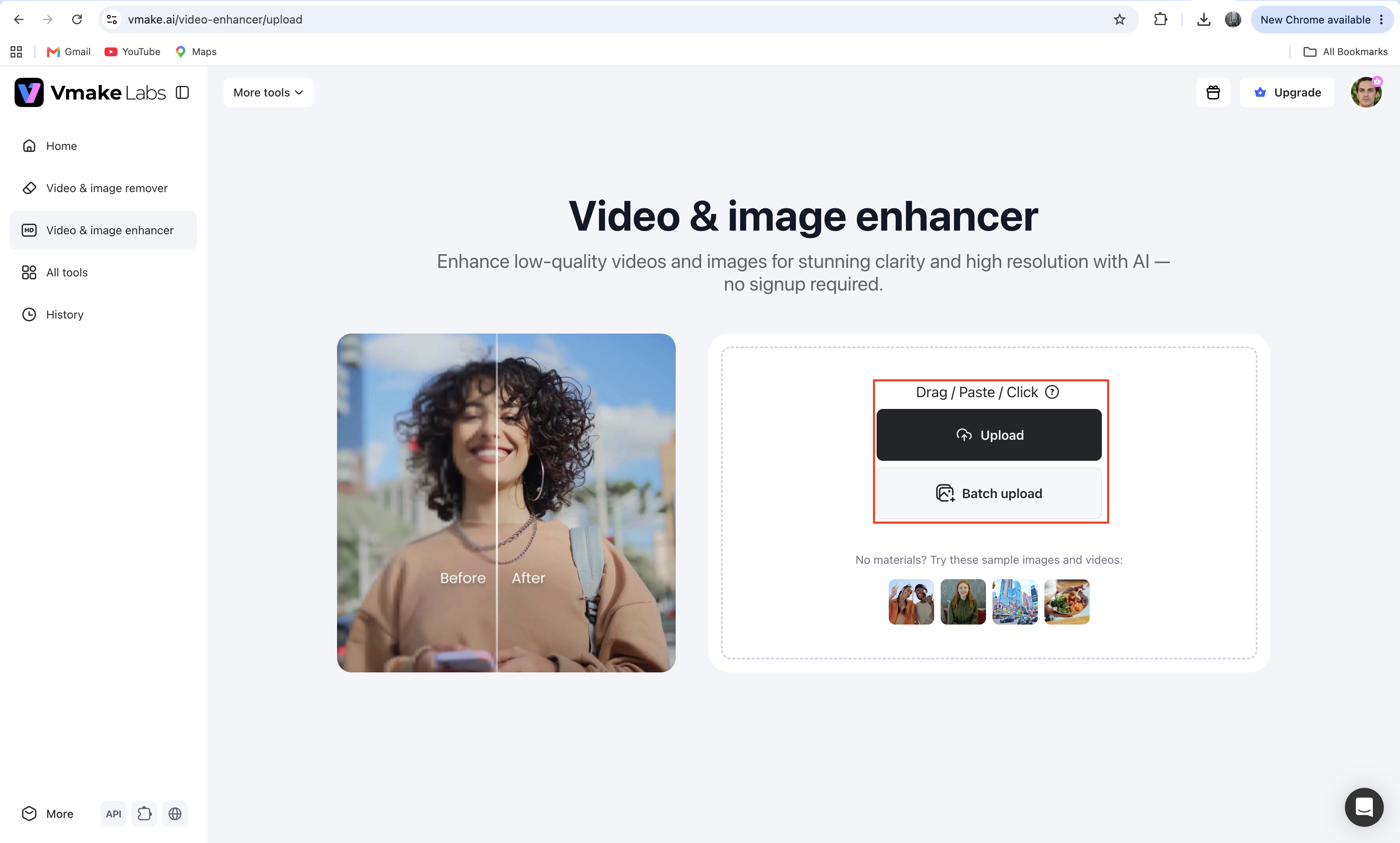
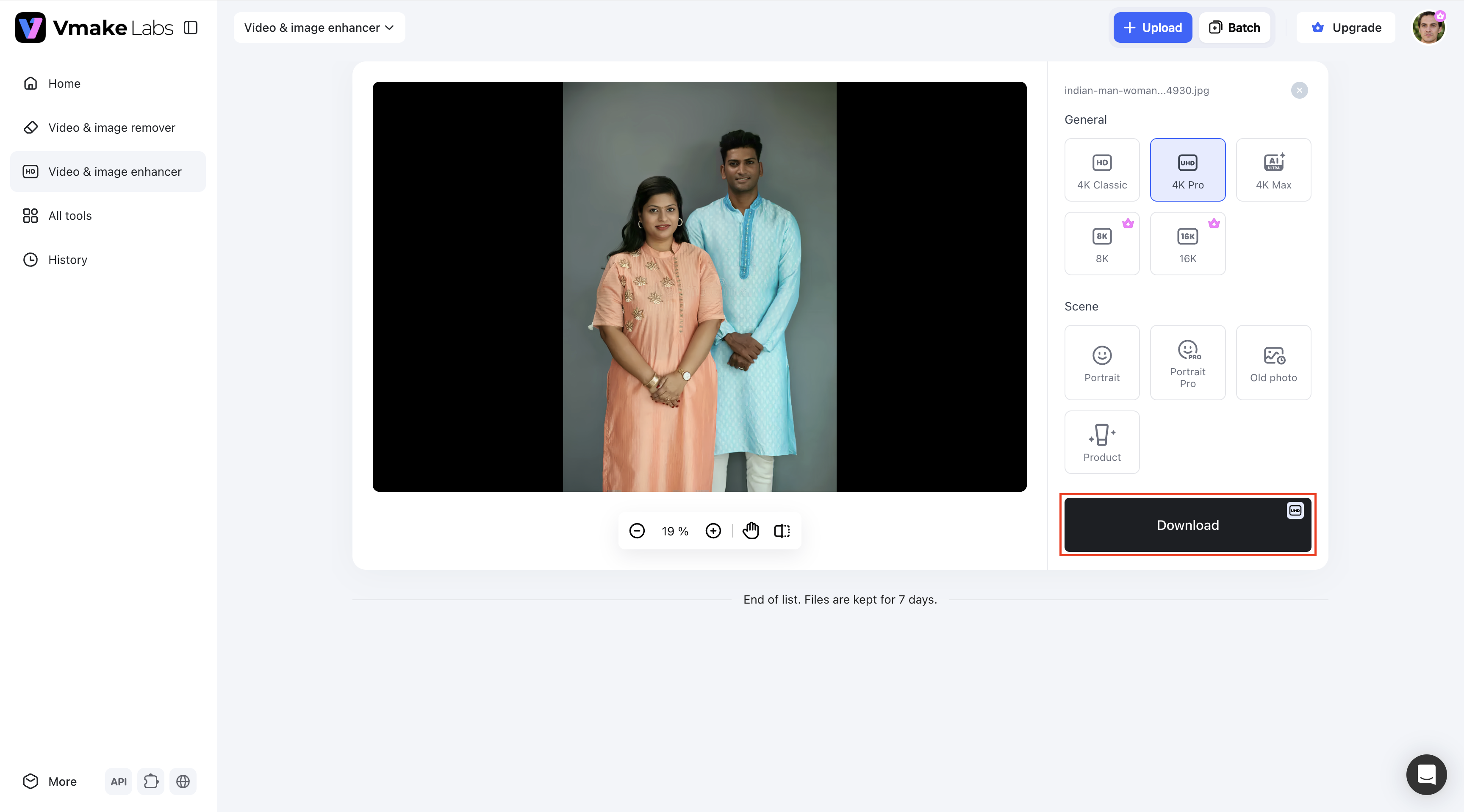
Step 1. Upload your image
Visit the Vmake Labs AI Image Enhancer and upload your image by dragging and dropping it into the upload area or selecting it from your device. You can also use the batch upload option to enhance multiple images at once.
Step 2. Apply AI enhancement
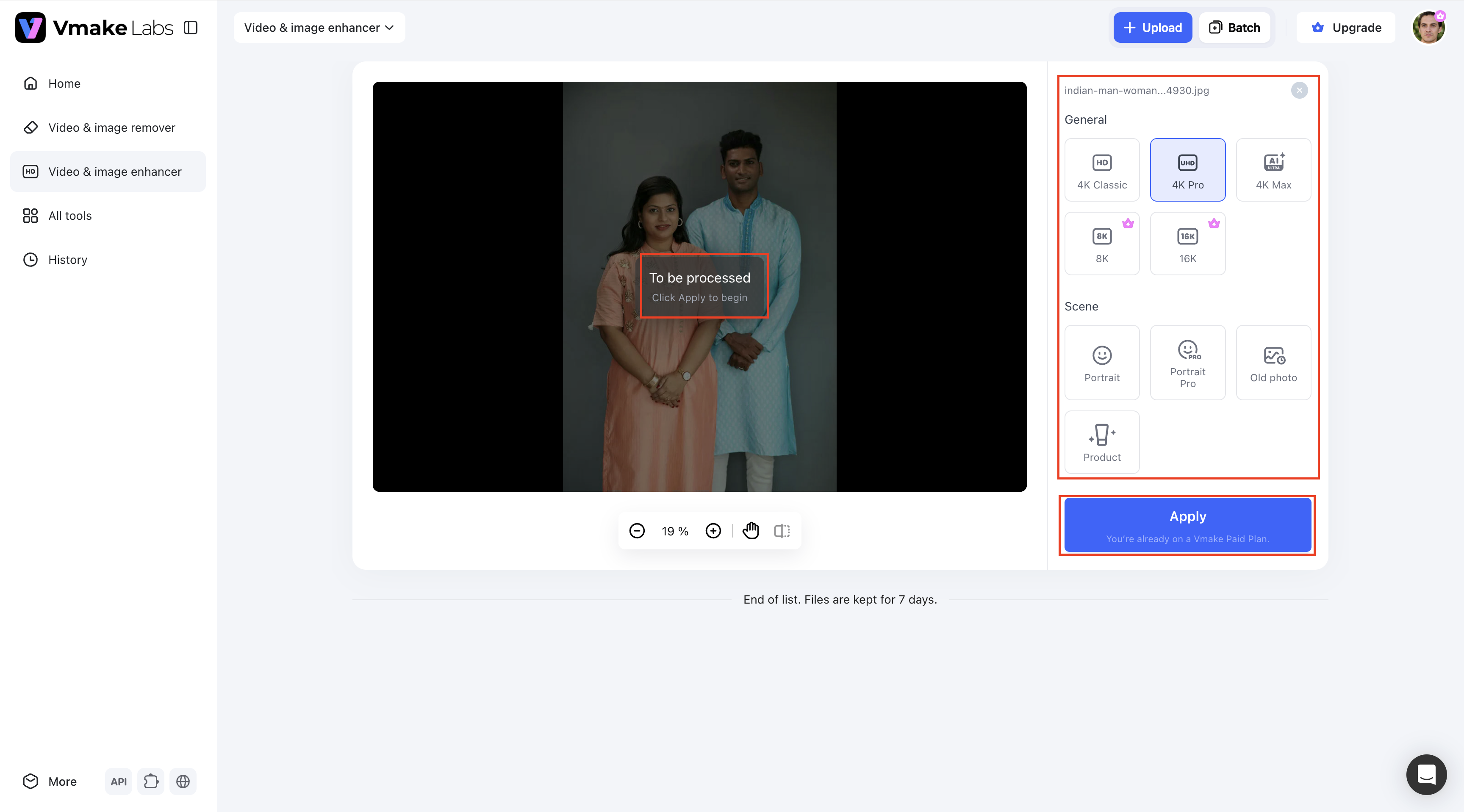
Once your image is uploaded, choose the desired output quality from HD, UHD, AI UHD, 8K, or 16K and select the appropriate AI scene mode, such as Portrait, Portrait Pro, Old Photo, or Product. Click Apply to let the AI process and enhance your image automatically.
Step 3. Preview and download
After processing is complete, review the enhanced image to compare the improvements. If you're satisfied with the result, simply click Download to save the high-quality image to your device.
Which Tool Should You Choose?
Both software use AI to improve the quality of the image, but are designed for different workflows. HitPaw is more for those who want desktop software with a range of AI editing models, while Vmake Labs is more for those who want fast, browser-based image enhancement without having to install anything. Here's how they stack up.
HitPaw Photo Enhancer vs. Vmake Labs
|
Feature |
HitPaw Photo Enhancer |
Vmake Labs |
|---|---|---|
|
Platform |
Desktop + Online |
Online |
|
Installation |
Desktop installation required for full features |
No installation required |
|
Ease of Use |
Beginner-friendly |
Beginner-friendly |
|
AI Enhancement |
Multiple AI models for restoration, upscaling, and denoising |
AI-powered one-click enhancement with dedicated scene modes |
|
Resolution Options |
1×, 2×, 4×, and 8× upscaling |
HD, UHD, AI UHD, 8K, and 16K |
|
Batch Processing |
Yes |
Yes, up to 30 images |
|
Processing |
Local + Cloud |
Cloud-based |
|
Best For |
Desktop photo editing and advanced AI controls |
Fast online photo enhancement without software installation |
Final Recommendation
Both tools offer solid AI photo enhancement, but which one is best for you will depend on your workflow. HitPaw Photo Enhancer: If you want a desktop app with multiple AI models and more advanced editing controls, then go for HitPaw Photo Enhancer. If you are looking for a fast, browser-based solution that doesn't require any installations, supports flexible resolutions, dedicated AI scene modes, and can batch process your everyday image enhancement needs efficiently, then Vmake Labs is the right choice.
Conclusion
HitPaw Photo Enhancer is a powerful AI photo editor that delivers impressive results when enhancing images, improving portraits, and recovering old photos. It is a practical choice for novice and experienced users with a variety of AI models and a user-friendly interface. Desktop installation and free version limitations, though, might not be for everyone. Vmake Labs is a convenient and efficient alternative to enhance images online for a faster browser-based workflow with flexible resolution options, dedicated AI scene modes, and batch enhancement.
FAQ's
Can HitPaw Photo Enhancer restore old or damaged photos?
Yes. HitPaw Photo Enhancer provides AI models such as Face Restoration and Repair & Colorize to repair old, blurry, and damaged photos by increasing facial details, removing defects, and improving the overall picture quality.
Is HitPaw Photo Enhancer safe to use?
Yes. HitPaw Photo Enhancer is generally safe to download from the official website and is popular for AI-powered photo editing. As with any software, it is best to download it from trusted sources.
Does HitPaw Photo Enhancer have a file size limit?
The desktop version can support large image files, but the maximum file size supported may depend on your system resources and the version you are using. The online version may have different upload limits, so it is best to check the official documentation for the latest specifications.
Can I use HitPaw Photo Enhancer without an internet connection?
Yes. After installing the desktop app, you'll be able to use many of the core AI enhancement features offline. But some of the online services, account verification, or cloud-based features may still require the internet.
Does HitPaw Photo Enhancer support batch photo enhancement?
Yes. HitPaw Photo Enhancer has a batch processing feature that enables users to enhance multiple images at once, which is great for photographers, designers, and businesses with large photo collections. If you want an online option, Vmake Labs also allows you to enhance up to 30 images at a time without having to install any software on your machine.

You May Be Interested
Best AI Image Enhancer in 2026: Top Tools to Upscale and Fix Blurry Images
Best AI Photo Enhancer Tools in 2026 (Free & Online): Improve Image Quality Instantly
2026 Fotor Video Enhancer Review: Features and Top Alternatives
2026 SnapEdit Video Enhancer Review: Features & Alternatives

Airbrush Video Enhancer Review 2026: Features, Pros, and Cons
PhotoGrid AI Image Enhancer Review: Tested & Worth It?