Top 6 AI Meeting Transcription Apps You Will Like (Tested and Reviewed)
Turn recorded meetings into accurate, editable text with AI meeting transcription. Upload Zoom, Teams, interviews, podcasts, and other audio or video files to create searchable transcripts, save time on documentation, and simplify content review.

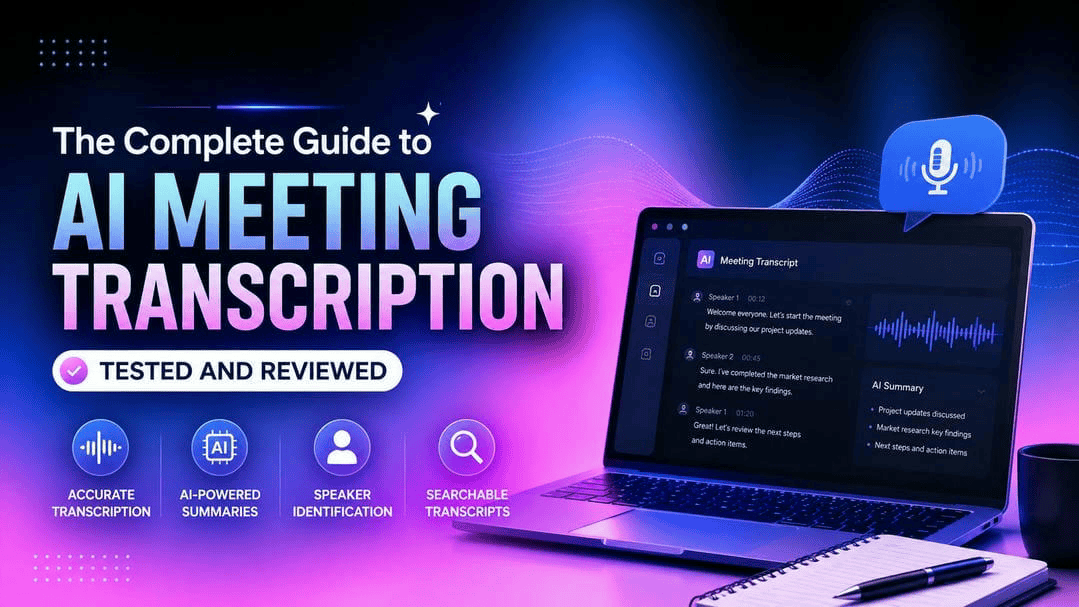
Meetings eat hours every week, and most of what gets said disappears the moment the call ends. AI meeting transcription tools fix that. We tested six of the top tools in 2026, from full transcription apps to the built-in options in Zoom and Teams, so you can pick the right one without guesswork.
What is AI meeting transcription and why do you need it?
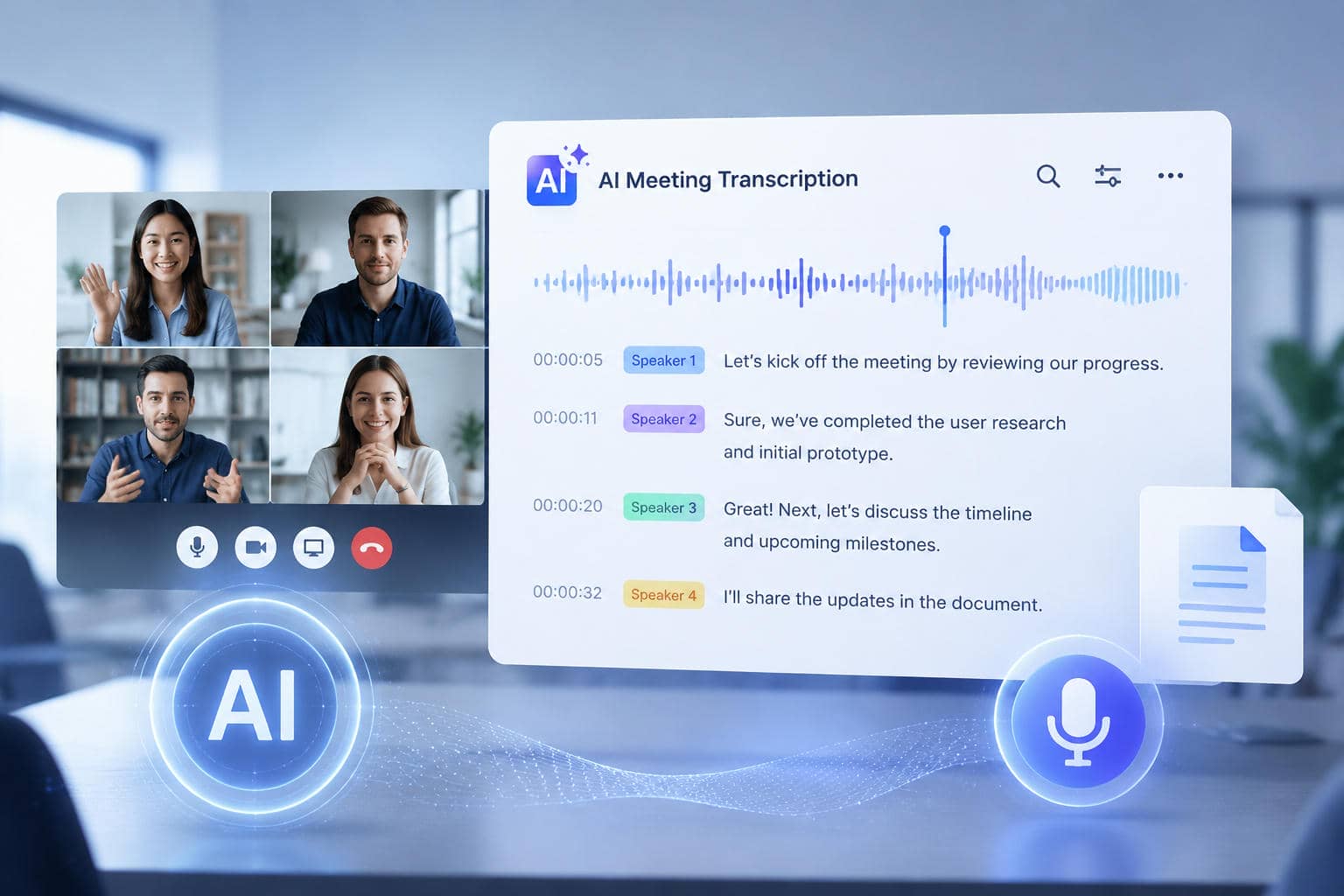
AI meeting transcription is the process of using artificial intelligence to automatically convert spoken audio or video from meetings into accurate, readable text. In 2026, leading tools deliver real-time transcription (live captions as people speak), speaker identification (labeling who said what), intelligent summaries with key points and action items, and searchability across your entire meeting history.
Key benefits
-
Productivity gains: Eliminates manual note-taking so participants can stay 100% focused on the conversation rather than typing furiously.
-
Accessibility: Provides captions for hearing-impaired participants and support multiple languages/accents.
-
Knowledge retention: Prevents critical decisions or project details from getting lost over time by maintaining a permanent, accurate record of every call.
-
Async collaboration: Allows team members who missed a meeting or work in different time zones to catch up in minutes by reading the summary instead of watching a 60-minute recording.
How we tested these meeting transcription tools
We ran real recordings, meetings, interviews, and calls with background noise, through each tool and compared the results side by side. Here is what we looked at.
-
Transcription accuracy: How accurately the tool converted speech into text across different audio conditions, accents, and speaking styles.
-
Speaker identification: Whether the tool correctly labeled who said what, especially in group calls.
-
AI summaries: Whether the generated summary captures the real key points and action items, not just a rough outline.
-
Language support: How many languages each tool handled well, and whether translation was available.
-
Export options: What formats do each tool let us download or copy the transcript in, like TXT, SRT, or DOCX.
-
Pricing: Overall value for money, including free plans, subscription costs, feature limitations, and scalability for teams.
-
Privacy: How each tool handles recordings and data, including whether it uses a bot, stores audio, or offers compliance certifications.
-
Ease of use: How simple it was to upload a file, join a meeting, or find the finished transcript without extra steps.
Top 6 meeting transcription tools reviewed
Here are six leading AI meeting transcription tools for different workflows. We evaluated them based on transcription accuracy, collaboration features, language support, export options, and overall ease of converting meetings into searchable, editable text.
|
Tool |
Live transcription |
Speaker identification |
AI summaries |
Translation |
Export formats |
Best for |
|---|---|---|---|---|---|---|
|
Vmake Labs |
No, works from finished recordings |
Not diarization-based, timestamped only |
No, focuses on transcription |
-Yes, built in |
TXT, SRT |
Uploaded recordings and multilingual transcripts |
|
Otter.ai |
Yes |
Yes, less reliable in group calls |
Yes, with action items |
No |
TXT, PDF |
Live meetings on Zoom, Google Meet, Teams |
|
Fireflies.ai |
Yes |
Yes |
Yes, with CRM sync |
Yes, 100+ languages |
TXT, DOCX, SRT |
Sales and customer success teams |
|
Granola |
No, runs locally without a bot |
Basic, from your own notes |
Yes, enhances your notes |
Limited |
TXT, Markdown |
Privacy-focused and in-person meetings |
|
Zoom |
Yes |
Yes, when available |
No, transcript only |
Limited |
VTT, TXT |
Teams already using Zoom Workplace |
|
Microsoft Teams |
Yes |
Yes |
No, transcript only |
Limited |
DOCX, VTT |
Organizations on Microsoft 365 |
Vmake Labs
Vmake Labs is an AI meeting transcription tool that quickly converts recorded meetings, interviews, webinars, podcasts, and other audio or video files into accurate, editable text. It supports multilingual transcription, automatic translation, timestamped transcripts, and flexible export options, making it easy to document conversations, create captions, and share searchable meeting notes.
Steps to transcribe meetings with Vmake Labs
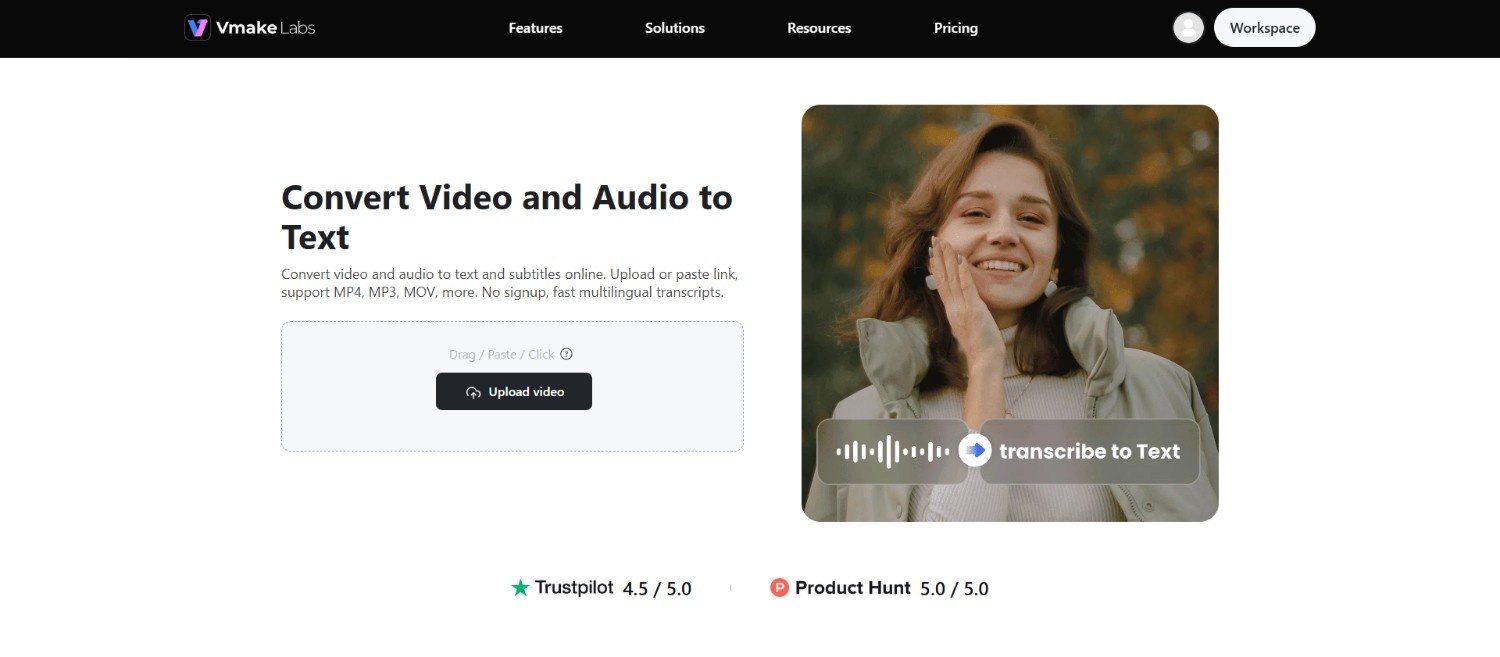
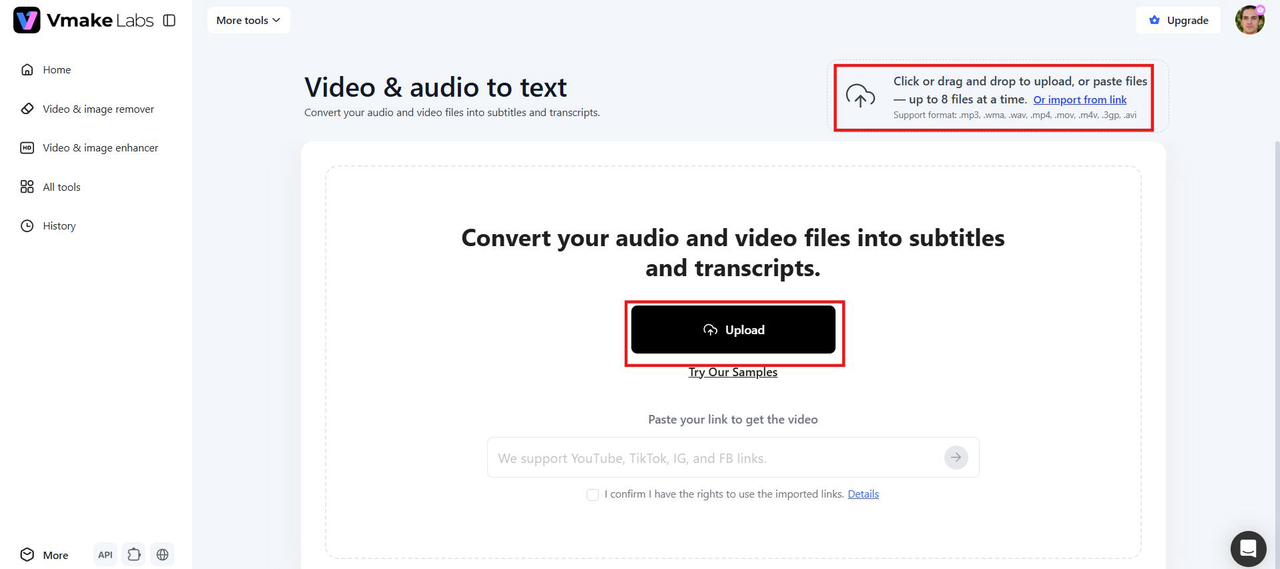
Step 1: Upload your recording or paste a link
Start your journey by signing into your Vmake Labs account. Then go to "All tools" and click on the "Video & audio to text" tool. Click the "Upload" button to select an audio or video file from your device, or paste a link from supported YouTube, TikTok, Instagram or Facebook. You can upload up to eight files at once, so transcribing multiple recordings of meetings is easy.
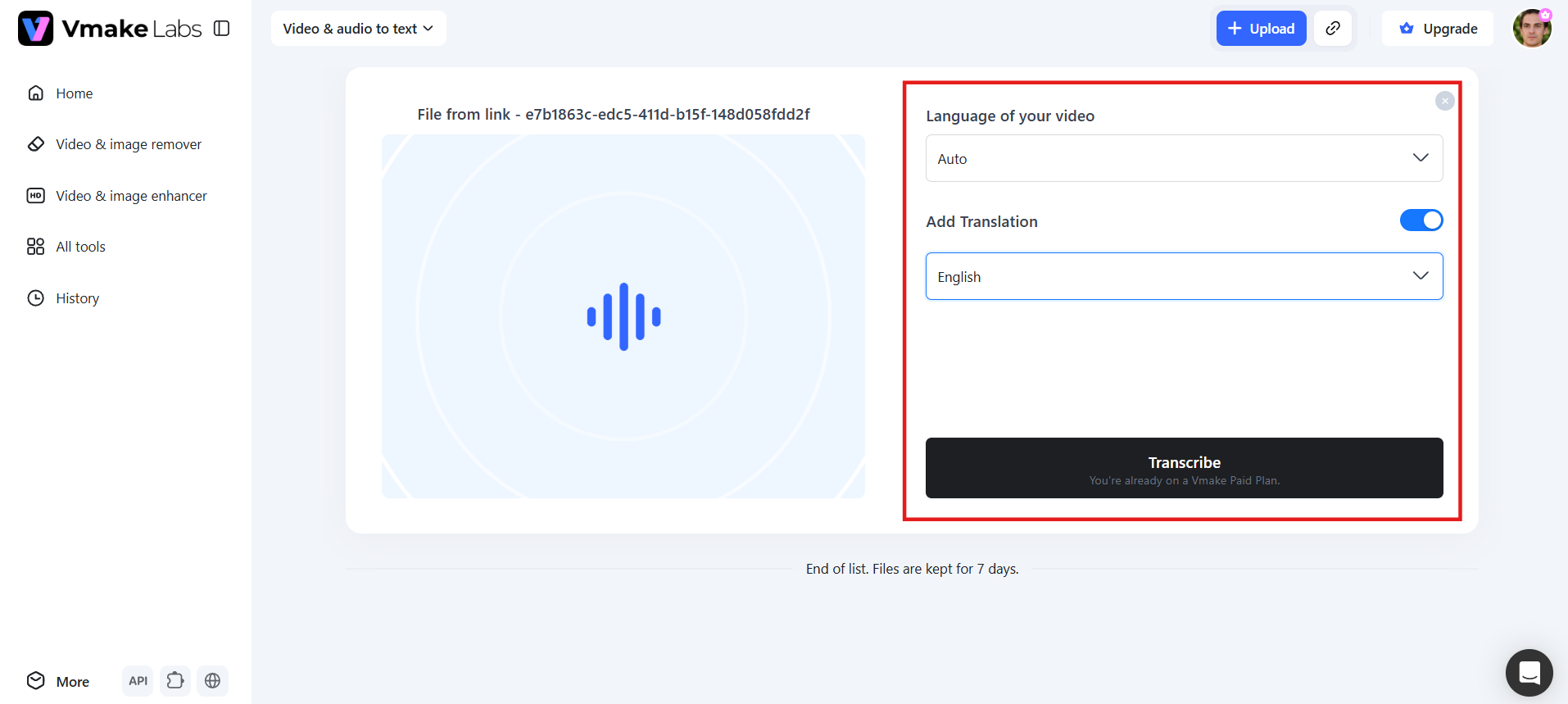
Step 2: Choose the language and transcribe
Select the spoken language from the dropdown, or let automatic language detection handle it. Toggle "Add Translation" if you also need a translated version generated in the same session.
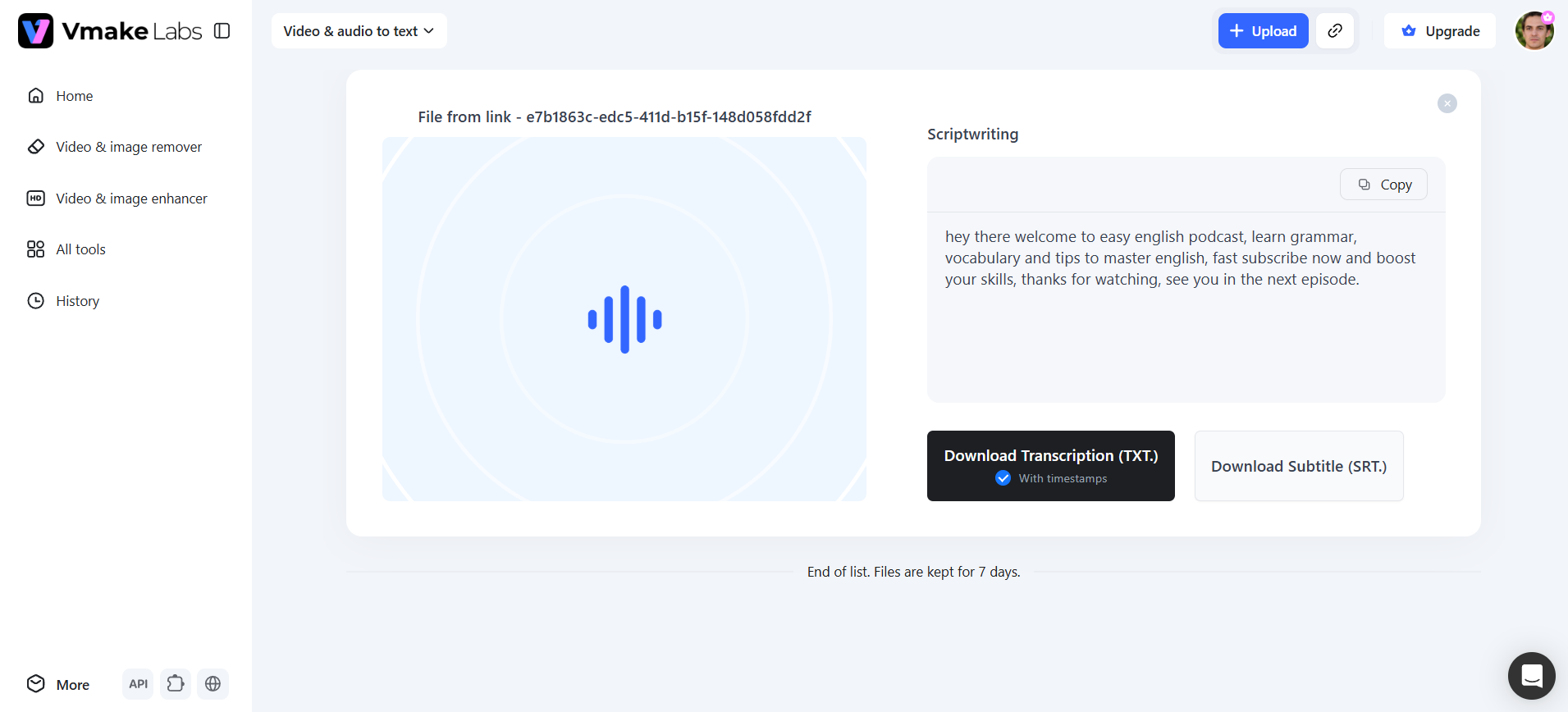
Step 3: Review, edit and export
The transcribed text appears in the Scriptwriting section, where you can review it and make corrections before exporting. Copy the text directly, or download it as a TXT file with timestamps for documentation and notes, or as an SRT subtitle file for captioning.
Key features
-
Upload files or paste links: Vmake Labs makes it easy to start transcription by allowing you to upload audio or video files directly or paste links from platforms like YouTube, TikTok, Instagram, and Facebook. This flexible input method supports common formats such as MP4, MP3 and MOV, so recorded meetings can be processed quickly without extra steps.
-
Multilingual transcription with translation: The tool allows transcribing in multiple languages with automatic language detection for your convenience. You can also enable translation during transcription, so international teams can create both the original transcript and translated version in a single workflow.
-
Multiple export formats: After reviewing your transcript, export it in the format that best suits your workflow. Vmake Labs supports TXT files with timestamps for documentation, SRT subtitle files for captions, and quick copy-and-paste for sharing meeting notes.
-
Timestamped transcripts for easy navigation: Every transcript includes timestamps that pinpoint when each part of the conversation occurs. This makes it easy to revisit key discussion points, verify information, reference important moments, and navigate lengthy meeting recordings without replaying the entire file.
Pros & Cons
Pros |
Cons |
|---|---|
|
|
Best for: Teams that need to transcribe finished recordings in multiple languages with built-in translation.
Otter.ai
Otter.ai is a leading AI meeting assistant known for its real-time transcription and seamless integration with popular video conferencing platforms. It automatically joins meetings, generates live captions, speaker-labeled transcripts, and intelligent summaries. Trusted by teams worldwide, Otter excels at turning conversations into searchable notes and action items, helping professionals stay focused during calls while capturing every important detail.
Key features
-
Real-time meeting transcription: Otter.ai generates live transcripts during meetings, allowing participants to follow conversations as they happen. It automatically captures spoken content and creates searchable notes without requiring manual note-taking.
-
AI meeting summaries and action items: The platform automatically creates concise meeting summaries, highlights important discussion points, and identifies action items, helping teams review decisions without reading the entire transcript.
-
Speaker identification: Otter.ai distinguishes between different speakers and label conversations accordingly. Speaker names can be edited for improved accuracy, making transcripts easier to review during interviews, team meetings, and client calls.
-
Meeting integrations and searchable transcripts: It integrates with Zoom, Google Meet, and Microsoft Teams to automatically capture meetings. All transcripts are searchable, allowing users to quickly find keywords, discussions, or decisions across previous meetings.
Pros & Cons
Pros |
Cons |
|---|---|
|
|
Best for: Remote teams that want live transcription and auto-join across Zoom, Google Meet, and Teams.
Fireflies.ai
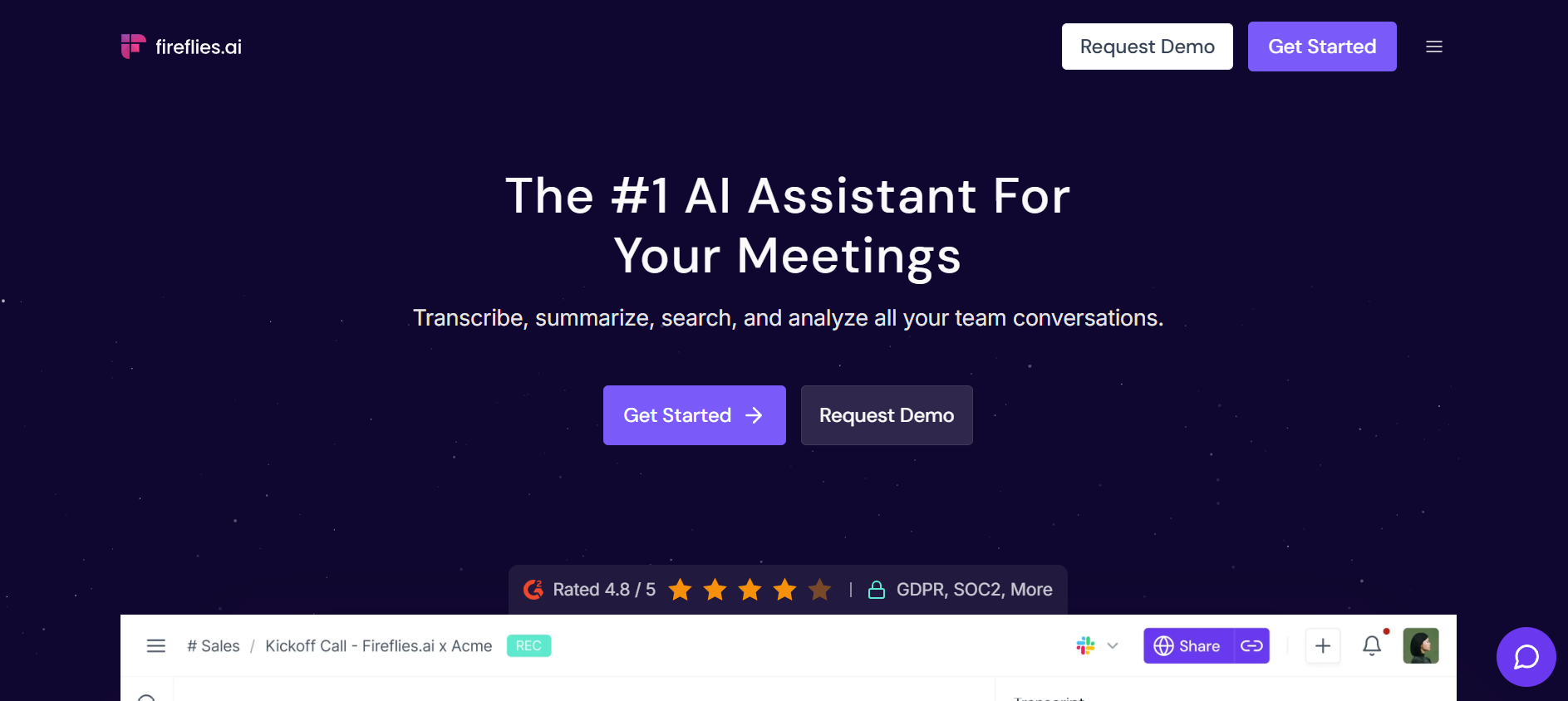
Fireflies.ai is a robust AI meeting intelligence platform that automatically records, transcribes, and analyzes conversations across Zoom, Microsoft Teams, and Google Meet. Popular among sales and customer success teams, it goes beyond basic transcription to deliver conversation insights, CRM integrations, and searchable knowledge bases. With strong multilingual support, Fireflies helps organizations turn meetings into actionable intelligence and improve follow-through.
Key features
-
Automatic meeting recording and transcription: Fireflies.ai can automatically join scheduled meetings on Zoom, Google Meet, and Microsoft Teams to record conversations and generate searchable transcripts without manual intervention.
-
AI summaries and action items: The platform automatically identifies key discussion points, decisions, tasks, and action items, helping teams quickly review meetings without reading the complete transcript.
-
Conversation intelligence and analytics: Fireflies.ai provides conversation insights such as speaker talk time, keyword tracking, sentiment analysis, and topic detection, making it especially useful for sales calls and customer meetings.
-
CRM and collaboration integrations: It integrates with tools like Salesforce, HubSpot, Slack, Notion, Asana, and other productivity platforms, allowing meeting notes and action items to sync directly into existing workflows.
Pros & Cons
Pros |
Cons |
|---|---|
|
|
Best for: Sales and customer success teams that want conversation analytics and CRM sync.
Granola
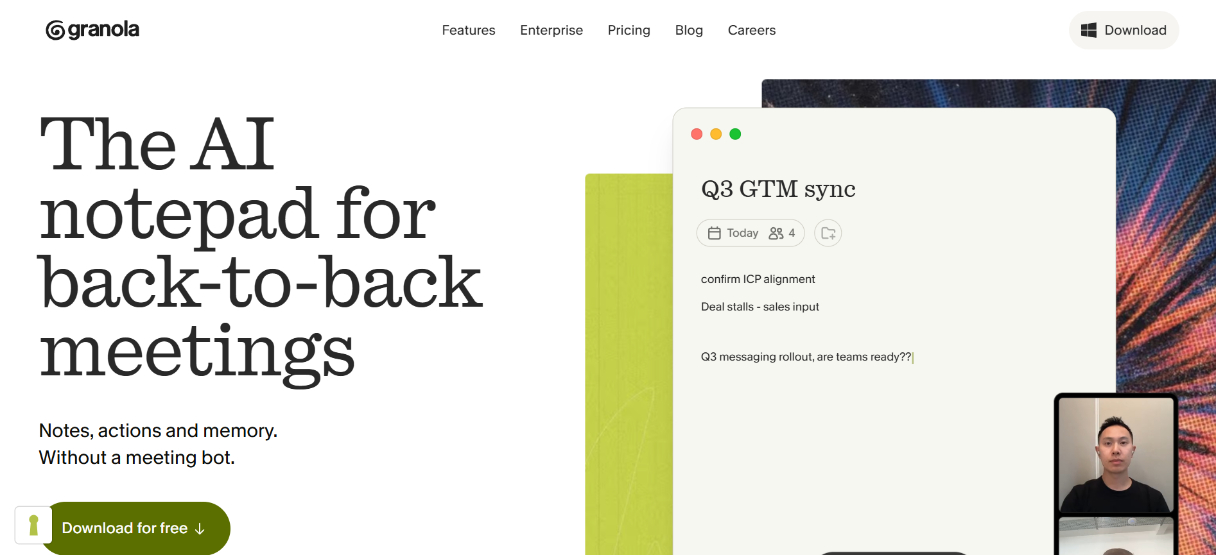
Granola is a privacy-first, bot-free AI meeting notetaker that captures audio locally from your device. Instead of replacing your notes, it intelligently enhances them using the full transcript to produce clean, structured summaries. Popular among professionals who value discretion and control, Granola is especially suited for sensitive meetings, consultants, and teams wary of cloud-based bots.
Key features
-
AI-powered meeting notes: Granola transforms brief notes into well-structured meeting summaries, capturing key decisions, action items, and discussion points while preserving the meeting's context.
-
Works without a meeting bot: Unlike many meeting assistants, Granola runs locally on your computer and doesn't require a bot to join meetings, creating a less disruptive meeting experience.
-
Smart organization and search: Meeting notes are automatically organized and remain searchable, making it easy to revisit previous conversations, decisions, and action items whenever needed.
-
Integrations with productivity tools: Granola integrates with popular calendar and note-taking applications, helping users manage meetings and keep notes organized alongside their existing workflow.
Pros & Cons
Pros |
Cons |
|---|---|
|
|
Best for: Consultants and professionals handling sensitive meetings who want a bot-free, privacy-first option.
Zoom Meeting Transcription
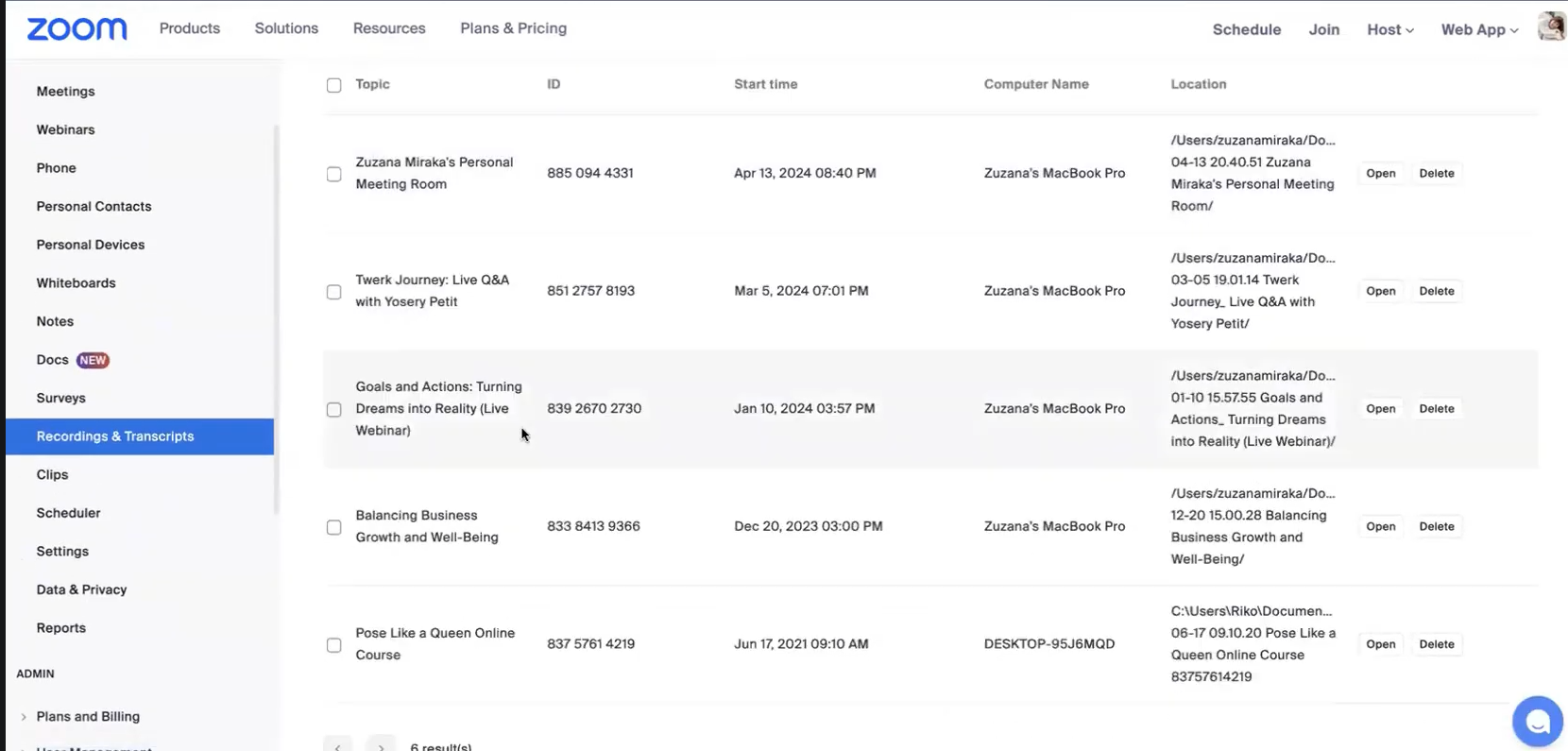
Zoom Meeting Transcription is the built-in AI solution within Zoom Workplace that automatically generates accurate transcripts for cloud recordings and live meetings. Powered by Zoom AI Companion, it offers seamless transcription without needing third-party tools. It is ideal for organizations already using Zoom for video conferencing, providing convenient post-meeting documentation and accessibility features.
Key features
-
Live meeting transcription: Zoom provides real-time captions and live transcription during meetings, allowing participants to follow conversations as they happen and improving accessibility for attendees.
-
Automatic meeting transcripts: After a cloud-recorded meeting ends, Zoom generates a transcript that aligns with the recording, making it easier to review discussions and revisit important moments.
-
Speaker attribution and search: Transcripts include speaker labels when available and allow users to search for keywords, helping them quickly locate specific topics or decisions within lengthy meetings.
-
Cloud recording integration: Meeting transcripts are automatically linked with Zoom cloud recordings, allowing users to play recordings and jump directly to transcript sections using timestamps.
Pros & Cons
Pros |
Cons |
|---|---|
|
|
Best for: Organizations already using Zoom Workplace that want transcription built in.
Microsoft Teams Meeting Transcription
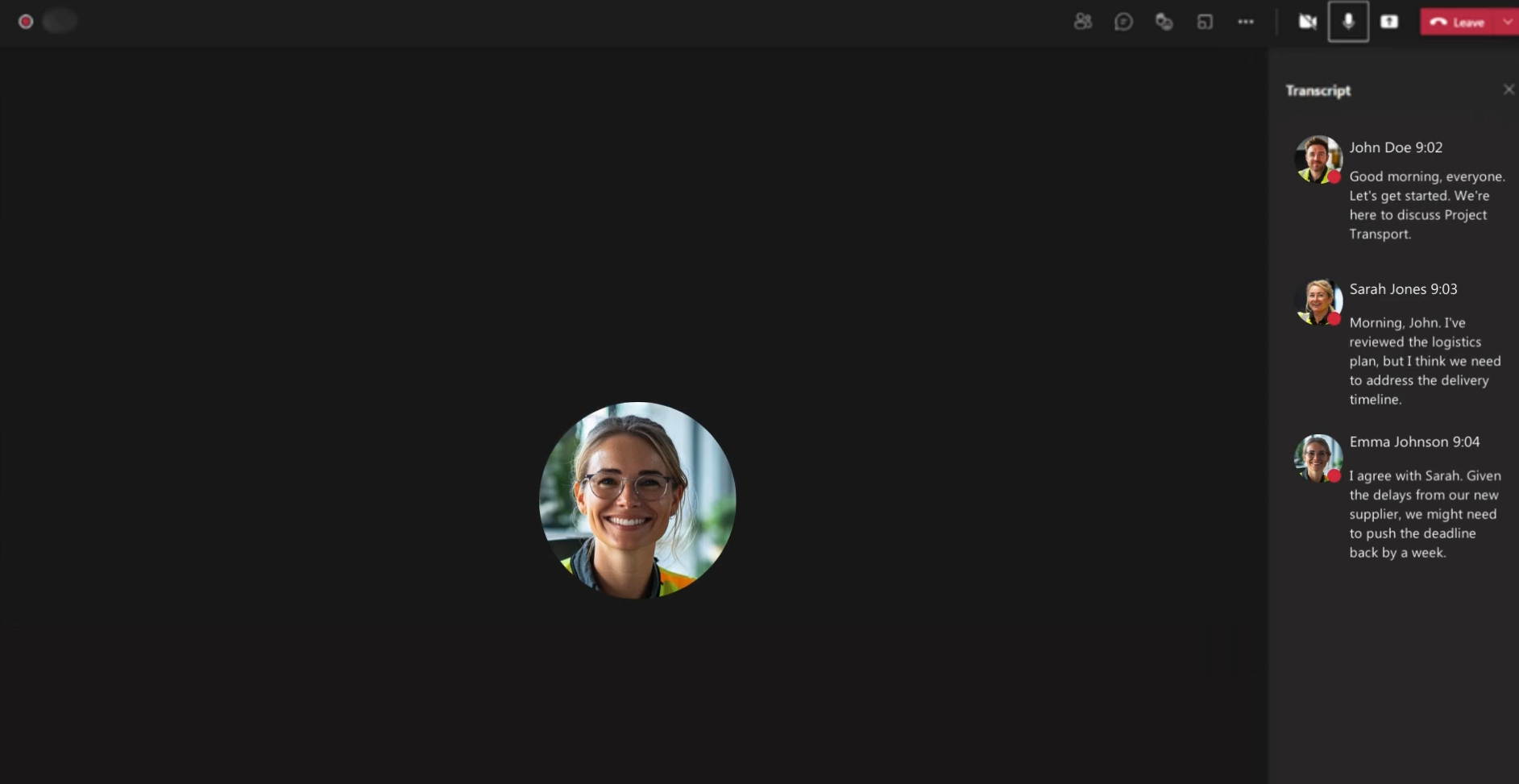
Microsoft Teams Meeting Transcription is a built-in feature that automatically converts meeting conversations into searchable text. Designed for Microsoft 365 users, it provides live transcription, speaker attribution, timestamps, and seamless integration with Teams recordings, making it easier to document meetings, review discussions, and collaborate after sessions end.
Key features
-
Live transcription during meetings: Microsoft Teams generates real-time transcripts while meetings are in progress, allowing participants to follow conversations with live captions and improving accessibility for everyone involved.
-
Speaker attribution and timestamps: Each transcript includes speaker labels and timestamps, making it easier to identify who said what and quickly navigate to important discussion points in the meeting recording.
-
Integrated with Microsoft 365: Meeting transcripts are stored alongside recordings in Microsoft Teams and integrate with Microsoft 365 services, simplifying collaboration and document management across your organization.
-
Searchable and downloadable transcripts: Users can search transcripts for keywords, review meeting discussions, and download or copy transcripts when organizational policies and permissions allow access after the meeting ends.
Pros & Cons
Pros |
Cons |
|---|---|
|
|
Best for: Microsoft 365 organizations that want transcripts stored alongside recordings.
Key features to look for in meeting transcription software
When choosing meeting transcription software in 2026, focus on these essential features that directly impact accuracy, usability, and workflow efficiency. The right combination turns raw recordings into valuable, actionable insights.
-
High transcription accuracy: Look for tools delivering 90-98% accuracy in real-world conditions. Advanced models handle accents, technical jargon, and moderate background noise effectively, minimizing manual corrections and ensuring reliable records for professional use.
-
Speaker identification: This feature automatically labels who said what in multi-person conversations. Reliable diarization works well even with overlaps or similar voices, making transcripts clearer and saving significant time during review and editing.
-
Timestamp generation: Timestamps link text to exact moments in the recording. You can click any section to jump straight to that part of the audio or video. This makes reviewing long meetings fast and efficient.
-
Multiple language support: Strong tools handle dozens of languages and regional accents of high quality. Many also offer real-time translation. This is vital for global teams and international calls where participants speak different languages.
-
Editable transcripts: AI-generated transcripts are rarely perfect. An integrated editor allows you to correct names, technical terminology, punctuation, and formatting before sharing the final transcript with colleagues or exporting it for documentation.
-
Audio and video file uploads: A flexible meeting transcription app should support uploading common audio and video formats or importing recordings through links. This lets you transcribe Zoom meetings, Microsoft Teams recordings, interviews, webinars, podcasts, and presentations.
-
Export options: The best software lets you download transcripts in multiple formats such as TXT, SRT, DOCX, or PDF. This allows seamless integration with documents, subtitles, or note taking apps.
Tips to improve meeting transcription accuracy
Following a few simple best practices before recording can significantly improve transcription quality and reduce the need for manual corrections afterward.
-
Use a quality microphone: Built-in laptop mics pick up room echo and distance noise. A dedicated headset or external mic captures clearer, closer audio, which directly improves how accurately speech gets transcribed.
-
Reduce background noise: Choose a quiet environment and eliminate unnecessary sounds like fans, keyboard clicks, or conversations. Cleaner audio allows AI to distinguish speech more effectively and improves overall transcription accuracy.
-
Speak clearly: Mumbling, rushing through sentences, or trailing off mid-thought makes words harder to detect. Speaking at a steady pace with clear pronunciation gives the model a cleaner signal to work with.
-
Avoid overlapping conversations: When multiple people speak simultaneously, AI may struggle to separate voices correctly. Allow each participant to finish speaking before another begins for more accurate transcripts and speaker identification.
-
Upload high-quality recordings: Low bitrate audio or heavily compressed video files lose detail before transcription even starts. Uploading the original, uncompressed recording gives the AI more to work with.
-
Review speaker labels: Even accurate tools mislabel speakers occasionally, especially with unfamiliar voices. A quick manual check after transcription catches errors before the transcript gets shared or archived.
Conclusion
AI meeting transcription makes it easier to capture conversations, reduce manual note-taking, and keep every discussion searchable for future reference. Whether you need live transcription for Zoom or Teams, or accurate transcription from recorded meetings, the right tool depends on your workflow. If you want a simple way to convert audio and video recordings into editable text with timestamps, translations, and flexible exports, try Vmake Labs. Start for free and turn every meeting into organized, actionable documentation.
FAQs
How accurate is AI meeting transcription?
Accuracy will depend on the tool and the conditions. Most get 90-95% in quiet, single-speaker settings. We tested most of the tools and they still suffered from drops in accuracy with background noise, strong accents or overlapping speakers.
What is the best meeting transcription app?
The best meeting transcription app depends on what you need. Vmake Labs is great for uploaded recordings and multilingual transcription, while Otter.ai, Fireflies.ai, Zoom and Microsoft Teams are great for live meeting transcription.
Which file formats are supported by meeting transcription software?
Most tools export as TXT for plain documentation, SRT for video captions, and DOCX for polished, shareable notes. Some, like Zoom and Teams, also generate VTT files for timestamped captions and video integration.
Is AI meeting transcription secure and private?
It depends on the provider. Look for encryption, clear data retention policies, and compliance certifications like SOC2 or GDPR. Bot-free tools like Granola store only transcripts, not audio, which limits exposure if data is compromised.
How do I get the transcript from a Teams meeting after it ends?
Open Microsoft Teams and navigate to the meeting from your Chat or Calendar. Select the meeting recording or Transcript, then view, copy, or download the transcript if your Microsoft 365 license and organization permissions allow access.

You May Be Interested
Automatic Transcription Software: Best Tools & Guide 2026
Call Transcription: Top 5 Apps and Best Practices
Transcription Audio to Text Example: 7 Real-World Samples
Transcription vs Translation: What's the Difference?