What Is Transcribing? A Complete Guide to Audio and Video Transcription
Learn what is transcribing, explore audio, video, live, and music transcription, compare manual and AI transcription methods, and turn recordings into accurate, editable text with Vmake Labs.

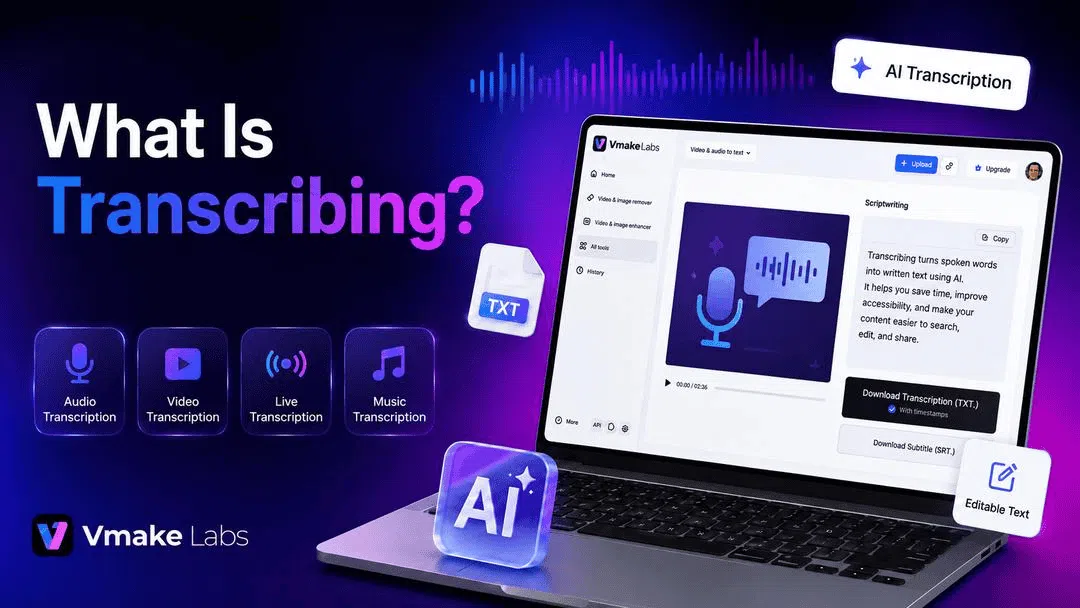
If you've ever wondered what transcribing is, you're not alone. Transcription plays an important role in turning spoken words into written text for meetings, interviews, videos, podcasts, and more. This guide explains what transcribing means, the different types of transcription, and how AI tools have made the process faster and more accessible.
What Is Transcribing?
Transcribing is the process of taking spoken words from an audio or video recording and typing them out as written text. This can either be done manually by a human transcriber or automatically by using AI transcription software. Today, transcription is widely used across education, business, healthcare, media, and content creation because it makes spoken information easier to read, search, edit, and share.

What Is Transcribed?
Almost any recording with spoken content can be turned into text. That includes meetings, interviews, lectures, webinars, podcasts, customer calls, voice notes, and videos. When people ask what is transcribed, they're usually referring to the spoken words, dialogue, or narration captured in an audio or video recording.
Why Is Transcribing Important?
Transcription makes spoken information more easily searchable, reviewable and reusable. Users can search the transcripts for specific information, or create summaries and documentation instead of listening to long recordings. It also improves accessibility, helping deaf and hard-of-hearing people understand audio and video content. For businesses and content creators, transcripts can support subtitle creation, improve search engine visibility, and make content easier to repurpose across different platforms.
Different Types of Transcribing
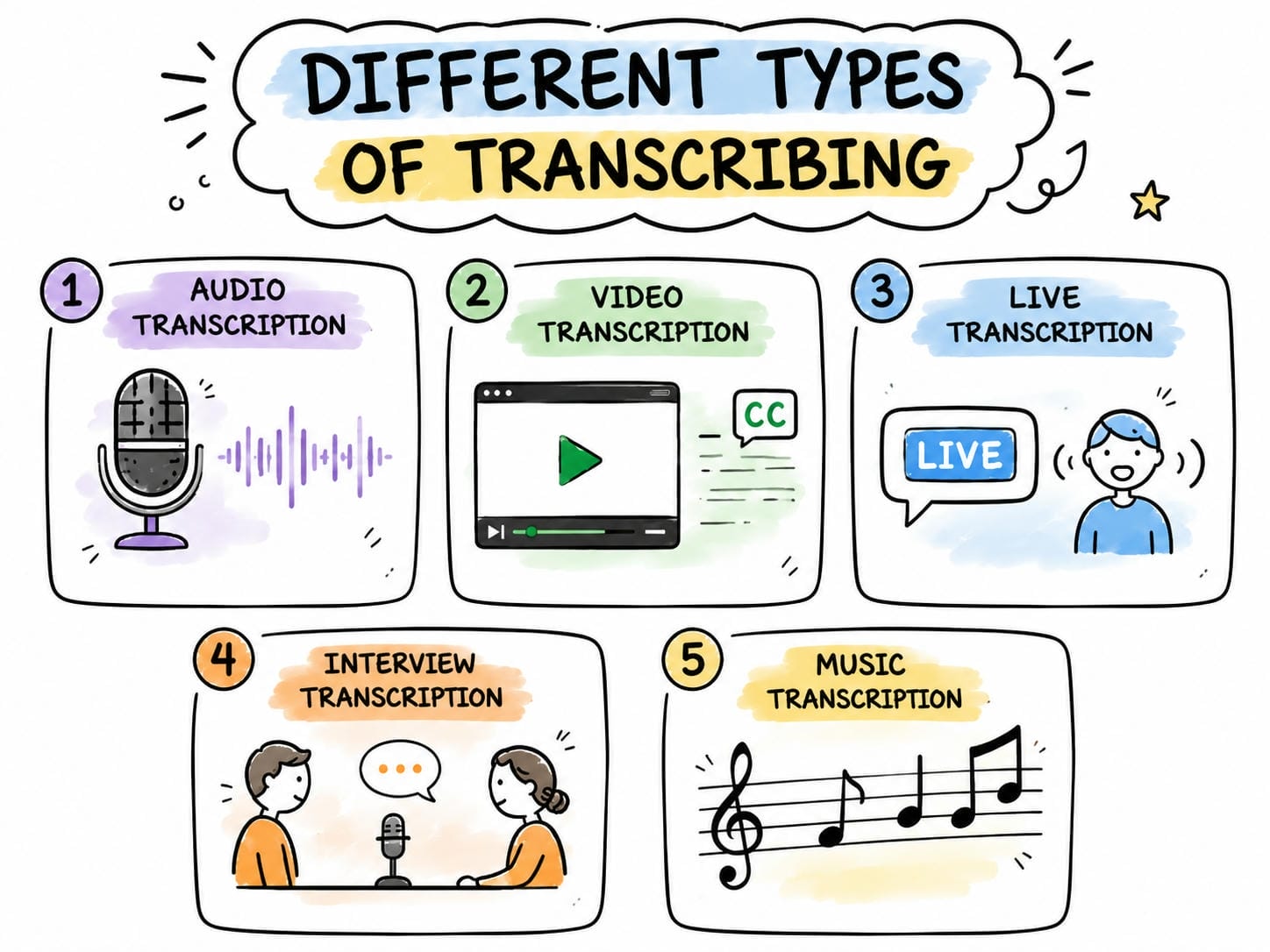
Transcription can be used in many different situations, from converting recorded conversations to creating live captions and written music notation. The type of transcription you choose depends on the source material and how the final transcript will be used.
|
Transcription Type |
Overview |
|---|---|
|
Audio Transcription |
Converts spoken audio from recordings into editable text. |
|
Video Transcription |
Converts dialogue and narration from videos into text. |
|
Live Transcription |
Converts spoken words into text in real time during live conversations or events. |
|
Interview Transcription |
Converts one-on-one or group interviews into written transcripts for documentation and analysis. |
|
Music Transcription |
Converts music, lyrics, or melodies into written notation or text. |
Manual vs. AI Transcription
Both manual and AI transcription convert speech into written text, but they differ in speed, cost, and workflow. Manual transcription offers greater control over complex recordings, while AI transcription provides much faster results for everyday use.
|
Feature |
Manual Transcription |
AI Transcription |
|---|---|---|
|
Who Performs It |
Human transcriber |
AI transcription software |
|
Speed |
Slower; completed manually |
Fast; completed automatically |
|
Accuracy |
High, especially with human review |
High for clear audio; may require editing |
|
Cost |
Usually higher |
Generally more affordable |
|
Best For |
Legal, medical, research, and high-accuracy projects |
Meetings, interviews, podcasts, videos, and everyday transcription |
How to Transcribe Audio and Video with Vmake Labs
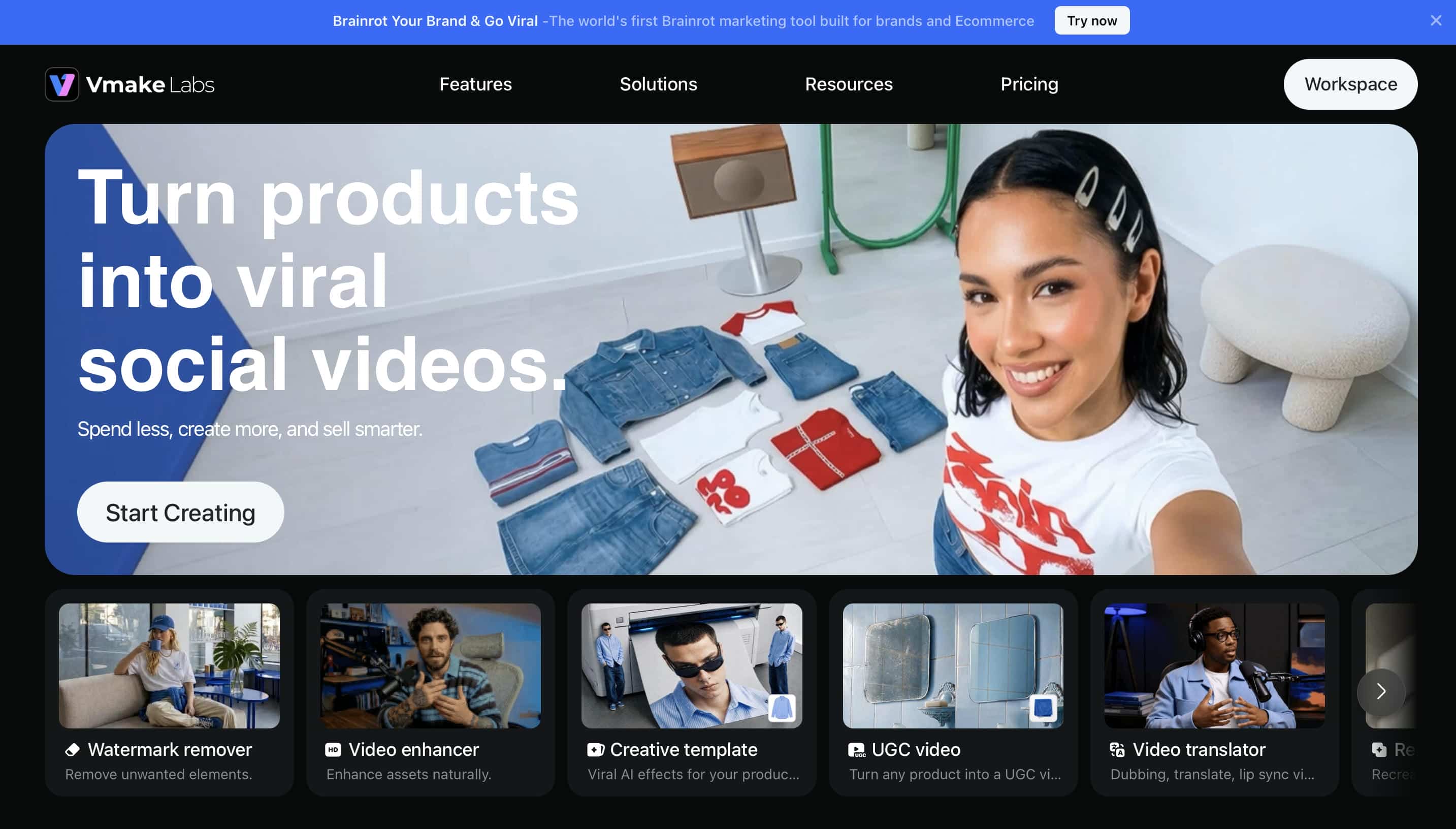
Vmake Labs makes it easy to convert audio and video into editable text with AI. From a single workspace, you can upload your files, choose the transcription language, generate transcripts, and export them in multiple formats. The process takes only a few steps, making it suitable for meetings, interviews, lectures, podcasts, and other recordings.
Key Features of Vmake Labs
-
Direct File and Link Transcription: Upload audio or video files directly from your device, or paste supported YouTube, TikTok, Instagram, and Facebook links to begin transcription. This gives you the flexibility to work with both local media and online content.
-
AI-Powered Speech-to-Text Conversion: Convert spoken content from audio and video recordings into editable text using AI. The tool is suitable for meetings, interviews, lectures, podcasts, webinars, and other everyday recordings. By automating the transcription process, it reduces the time and effort required for manual transcription.
-
Multilingual Transcription and Translation: Generate transcripts in multiple languages and translate them into another supported language when needed. This makes it easier to create multilingual content for global audiences. It's a practical feature for businesses, educators, and content creators working with international viewers.
-
Flexible Transcript Export: After transcription is complete, copy the generated text or download it in TXT or SRT format. These export options are useful for creating subtitles, documentation, presentations, and other written content. You can choose the format that best fits your workflow and publishing needs.
Follow These Steps to Transcribe Your Files
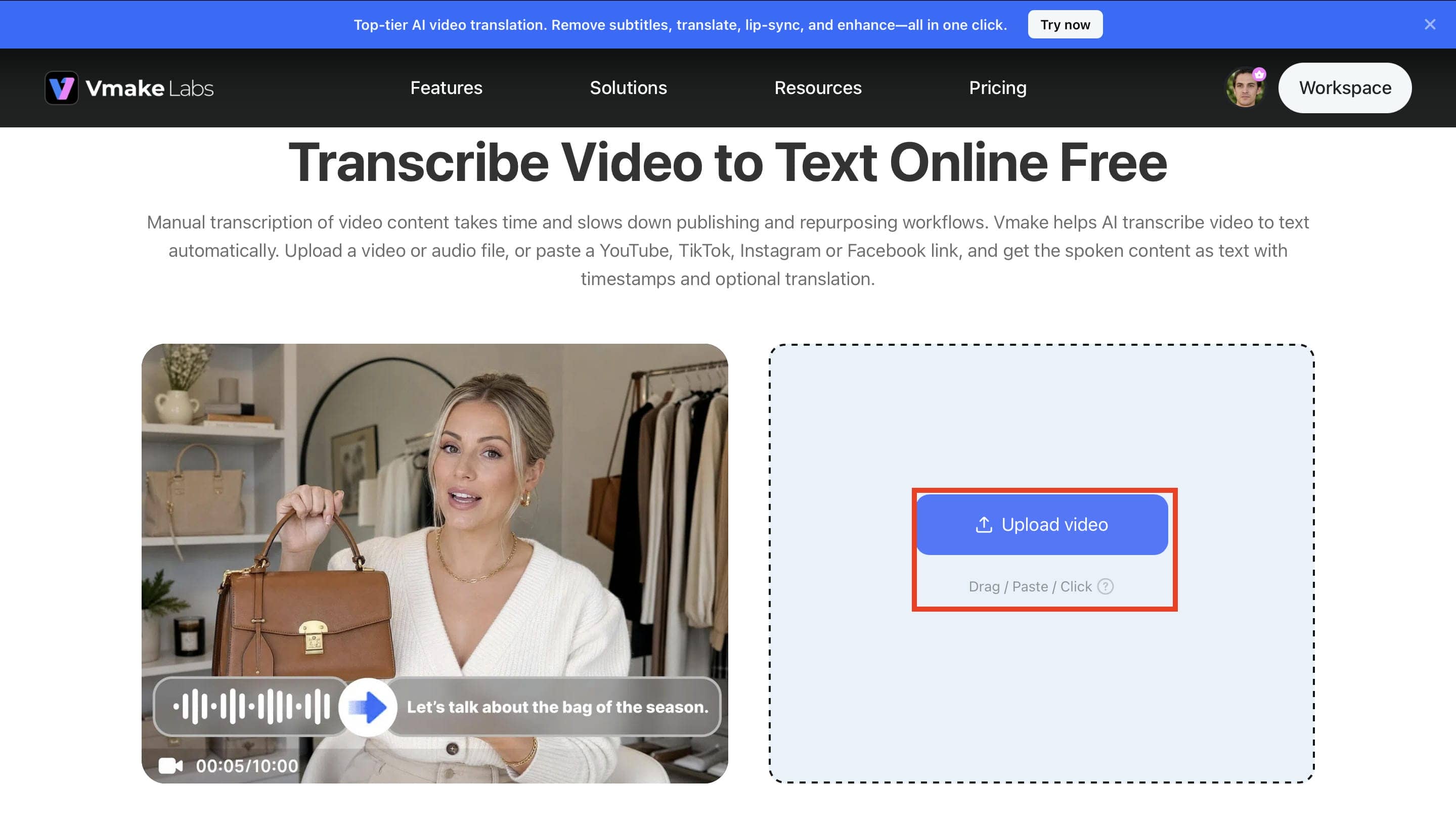
Step 1. Open Video & Audio to Text
From the All Tools page, select Video & Audio to Text to open the transcription workspace. Upload your audio or video file using the Upload button or drag and drop it into the tool. Vmake Labs supports multiple media formats, so you can quickly begin the transcription process. Once the file is uploaded, it's ready for language selection and transcription.
Step 2. Choose the Transcription Language
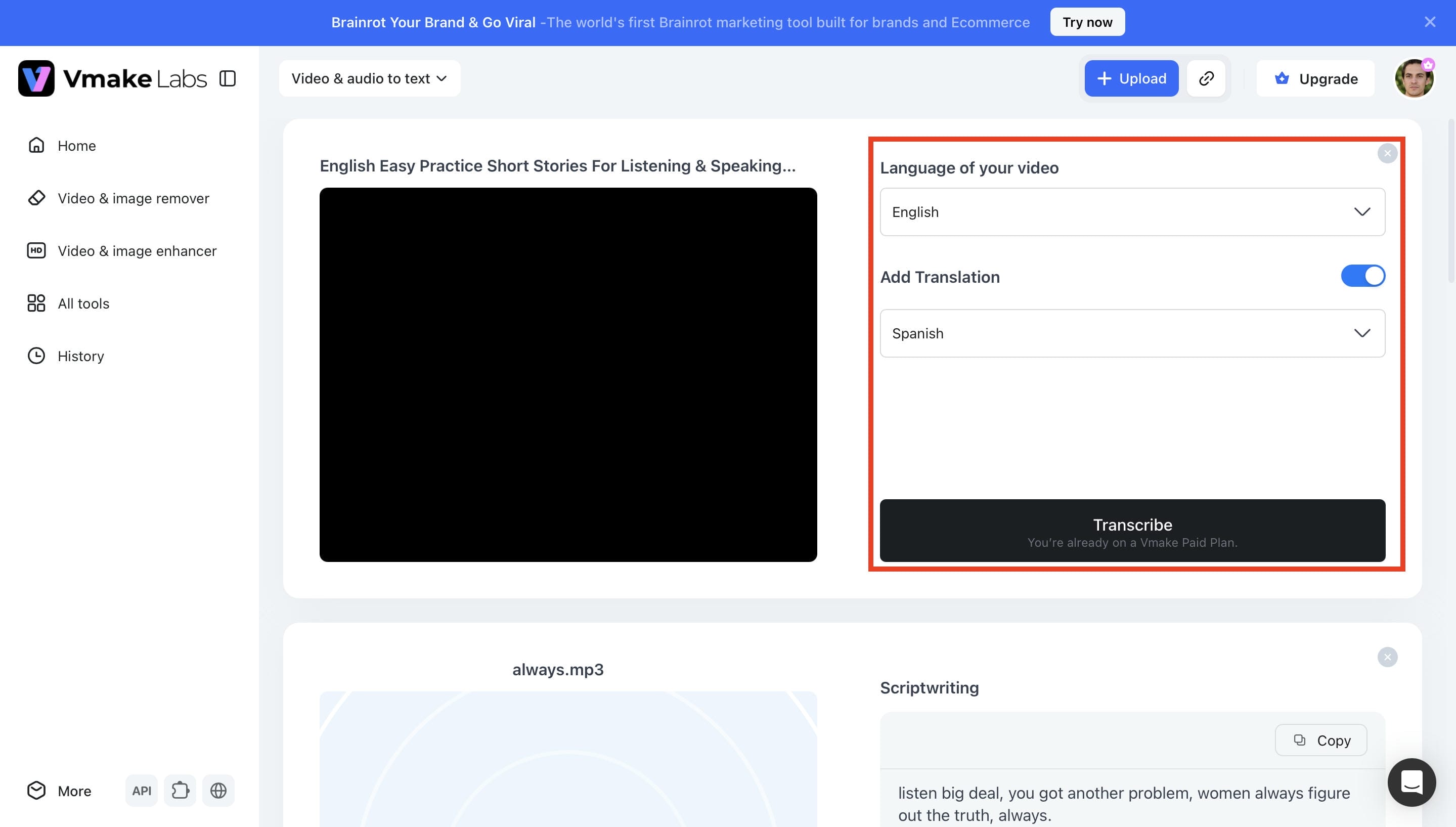
After your file is uploaded, select the language spoken in the recording from the language menu. If needed, enable Add Translation and choose the language you want the transcript translated into. Then click Transcribe to let the AI process your file. Within a short time, Vmake Labs generates an editable transcript based on your selected settings.
Step 3. Generate, Review, and Export the Transcript
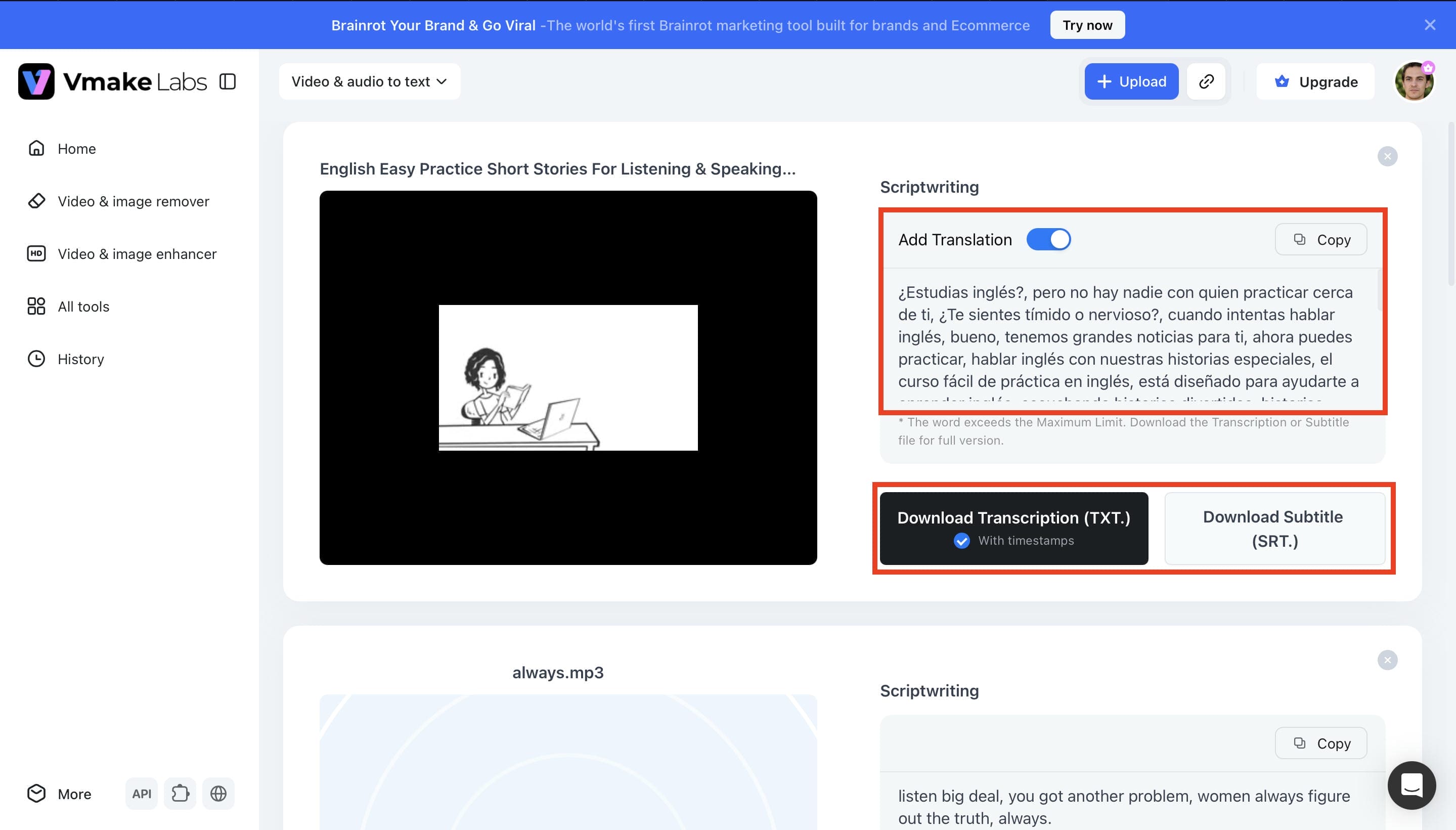
When the transcription is complete, review the generated text and translated content to ensure everything looks accurate. You can copy the transcript directly or download it as a TXT file with timestamps. If you're creating captions, simply export the subtitles in SRT format for use in videos, presentations, or other content.
Common Applications of Transcribing
Transcription shows up in more places than most people realize. Once spoken conversations become searchable text, they're much easier to revisit, share, and organize. That's why you'll find transcripts everywhere, from classrooms and boardrooms to podcasts and video platforms. Still, the value of a transcript depends on how accurate the original recording is.
-
Meetings and Interviews: Meetings move fast, and it's easy to miss important details while you're busy taking notes. A transcript gives you a written record that you can search later instead of replaying an hour-long recording.
-
Podcasts and Videos: A transcript gives your podcast or video a lot more value than just a written copy of what's been said. It helps people who prefer reading, supports subtitle creation, and gives search engines more text to understand your content. Many creators don't think about that until they start repurposing their videos.
-
Education and Online Learning: If you've ever tried revising from a two-hour lecture, you already know how useful a transcript can be. Students can search for specific topics instead of scrolling through an entire recording, while educators can turn lectures into study materials or lesson notes. It works well for most classes, although subjects filled with formulas or technical terminology may still need a little manual editing.
-
Business Documentation: Businesses rely on transcripts to keep records of meetings, customer calls, training sessions, and internal discussions without depending on handwritten notes. Finding a specific conversation becomes much easier when everything is searchable. This is the part many teams appreciate most.
Conclusion
Transcription has become part of everyday work for students, businesses, creators, and professionals who deal with recorded conversations or video content. While manual transcription is still the better choice when every detail needs to be captured, AI transcription saves a considerable amount of time for most everyday tasks. The final result still depends on the quality of your recording, so a quick review is always worthwhile. If you're looking for an easier way to convert audio and video into editable text, Vmake Labs is a practical option that also supports subtitles and multilingual transcription.
FAQs
What factors affect transcription accuracy?
Good transcription starts with good audio. If the recording is clear and people speak naturally, AI usually does a solid job. Things get trickier when there's background noise, strong accents, muffled voices, or several people talking at the same time. That's when you'll probably want to give the transcript a quick review before using it. If you spot anything that needs fixing, Vmake Labs lets you edit the transcript before downloading it.
Can AI identify multiple speakers in a recording?
Yes, in many cases, most AI transcription tools can identify different speakers and label them throughout the transcript, which makes longer conversations much easier to read. The results are usually better when everyone speaks clearly and takes turns, although overlapping speech or frequent interruptions can still confuse the speaker labels, and that's one area where AI still isn't perfect. However, not all AI transcription tools support speaker recognition or speaker diarization, so available features vary by platform.
Does background noise affect transcription quality?
Yes, it does background noise, poor microphone quality, and people talking over each other can make transcripts less accurate, even with modern AI tools, and this is one area where no transcription tool gets everything right. If you can record in a quiet environment, you'll usually spend less time fixing the final transcript. When edits are needed, Vmake Labs lets you review and update the transcript before using or downloading it.
What file formats can be transcribed and exported?
Most AI transcription tools work with common audio and video formats, including MP3, WAV, MP4, and MOV, so you probably won't need to convert your files before uploading them. Once the transcription is finished, you can usually export it as TXT for documents or SRT for subtitles, which is enough for most everyday projects. If your workflow calls for more flexibility, Vmake Labs supports multiple export options to help you use transcripts across different types of content.
Can I edit a transcript after it has been generated?
Yes. Most AI transcription platforms let you review and edit transcripts after they have been generated, making it easier to correct names, technical terms, or formatting before exporting the final version. Vmake Labs also provides editable transcripts, giving you more control over the finished result.

You May Be Interested
How to Transcribe Video to Text in 2026: Free Online AI Tool
How to Transcribe Audio Recording to Text in Minutes
How to Transcribe a Video to Text: Guide to Accurate Transcriptions
The Ultimate Guide to Transcribe YouTube Video to Text [2026]