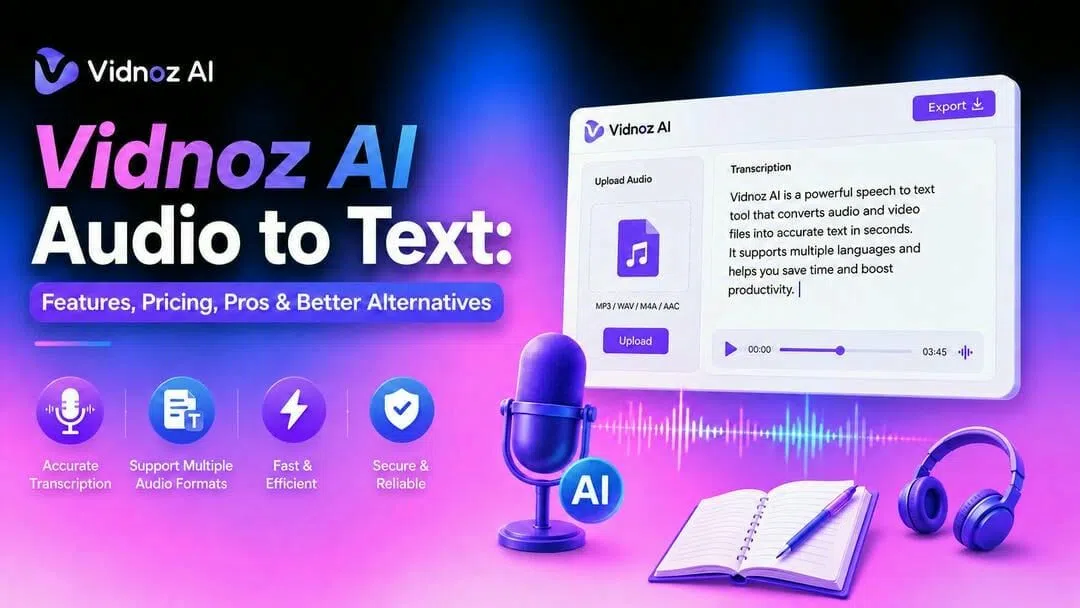
Vidnoz AI Audio to Text: Features, Pricing, Pros & Better Alternatives
Discover Vidnoz AI audio-to-text features for fast, accurate transcription, and boost your content workflow with powerful video and audio tools from Vmake Labs for creators worldwide today.

Transcribing interviews, meetings, or podcasts by hand is exhausting. Vidnoz AI changes that by converting your audio into editable text in seconds with intelligent speech recognition. In this guide, we'll take a look at its features, pricing, pros, and cons to see how it compares to the competition.
What is Vidnoz AI audio-to-text?
Vidnoz AI audio-to-text is an advanced AI transcription service that quickly converts your audio and video files into clean, editable text. The platform supports most major file formats, utilizing intelligent speech recognition to accurately capture every word. It is the perfect tool for professionals, creators, and students looking to save hours of manual typing from interviews, podcasts, and important meetings.
Why do people choose Vidnoz AI audio-to-text
Vidnoz AI audio-to-text tool is a practical solution for creators, educators, businesses, and teams looking to streamline their content workflow with multilingual support, speaker recognition, and support for both audio and video files.
-
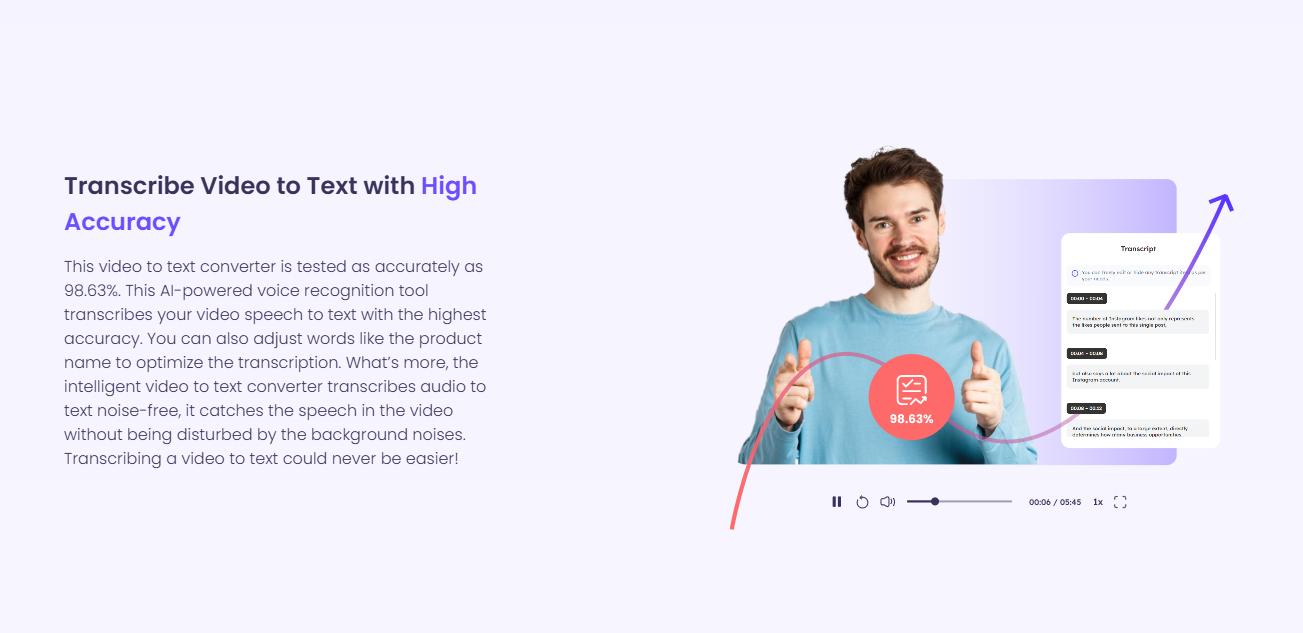
Fast automated transcription: Quickly convert long audio or video files into text in minutes, saving you hours of manual typing.
-
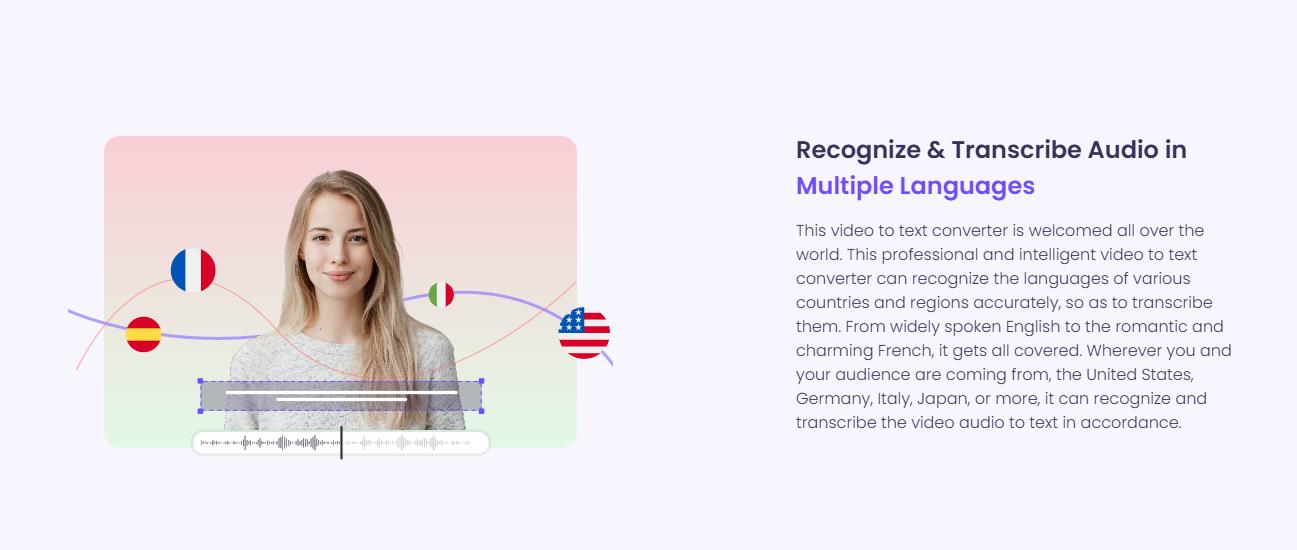
Multilingual support: Easily generate transcripts in several languages to reach a global audience.
-
Audio & video friendly: Upload your regular audio & video files with no need to mess around with extra transcription software.
-
Speaker tracking and timestamps: Identify who's speaking automatically and add helpful timestamps to make your transcripts easy to read and edit.
-
Flexible download options: Export your completed transcripts to easily editable formats for quick captioning, documentation, or further tweaking.
-
Easy to use: Upload and convert is a simple process for transcribing, so it's easy to use even if you've never used a tool like this before.
How to convert audio to text with Vidnoz AI
Vidnoz keeps the transcription process simple. After uploading your media, the AI analyzes speech, converts it into text, and provides an editable transcript that can be exported in different formats.
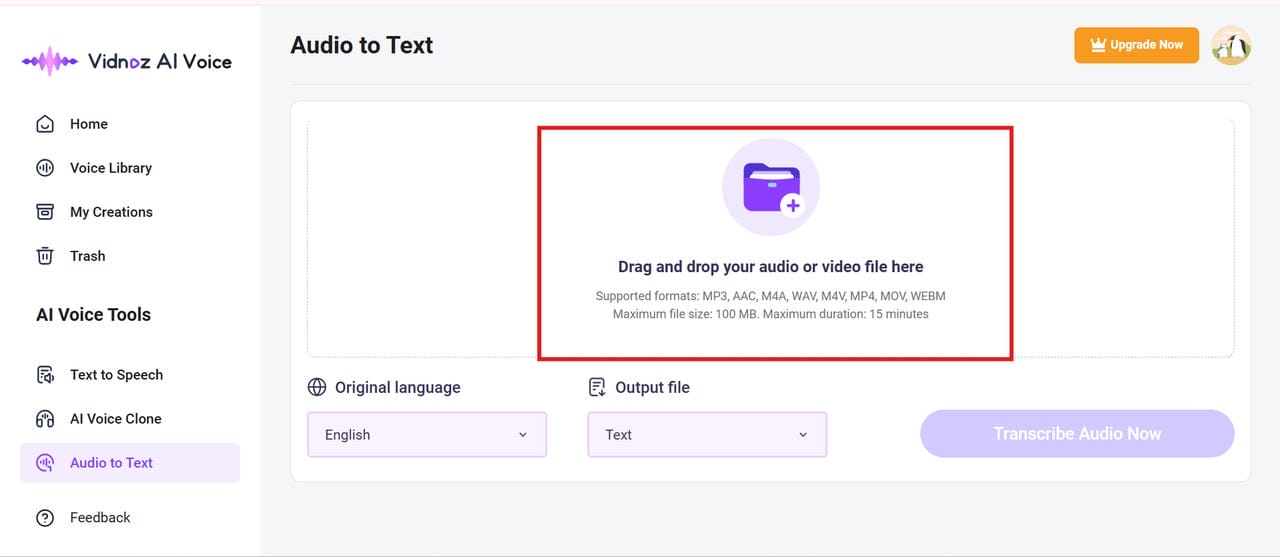
Step 1: Upload your audio file
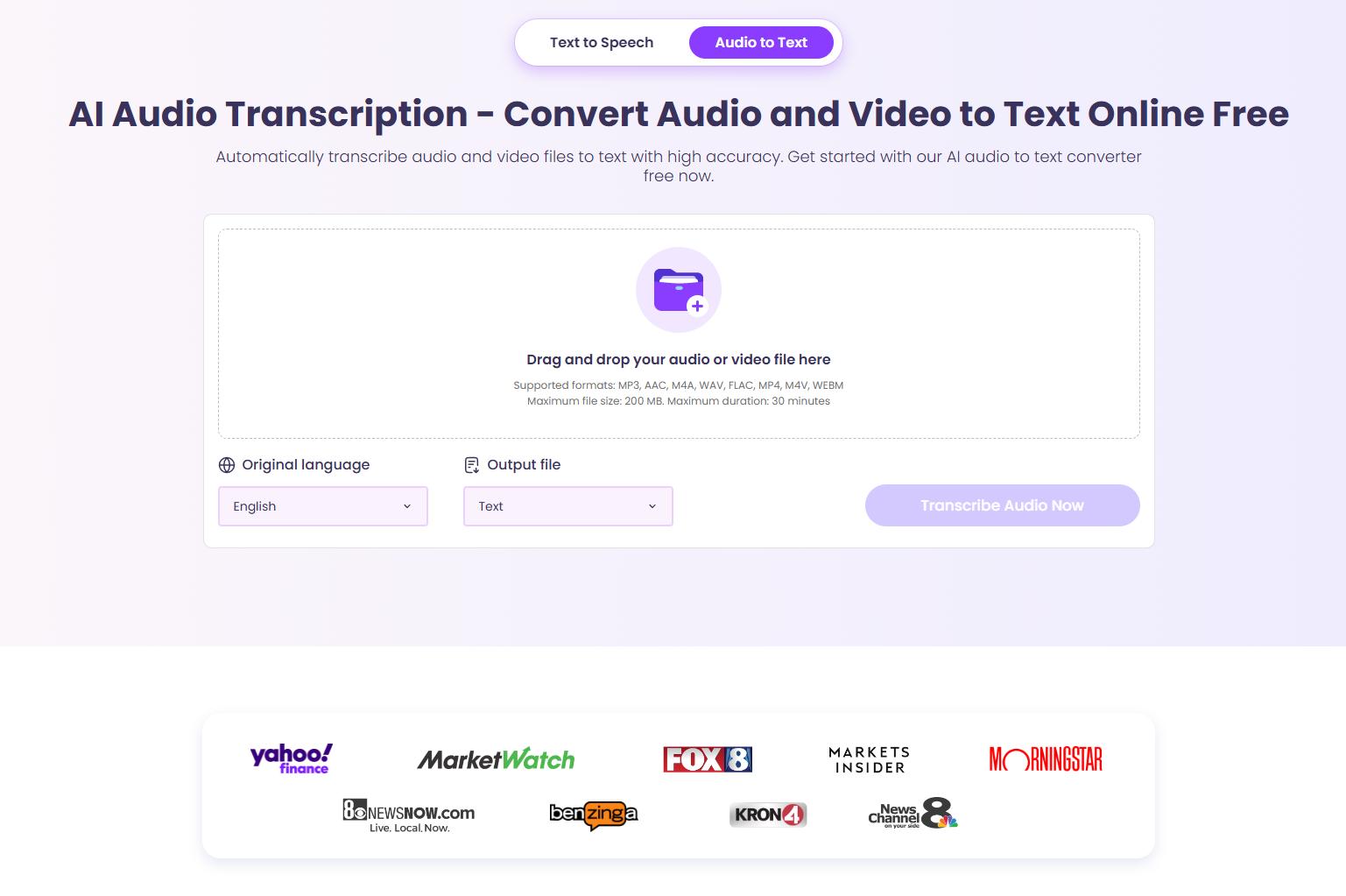
Upload your audio or video recording from your device. Vidnoz supports several commonly used file formats, allowing you to transcribe podcasts, interviews, lectures, meetings, and presentations without additional conversion.
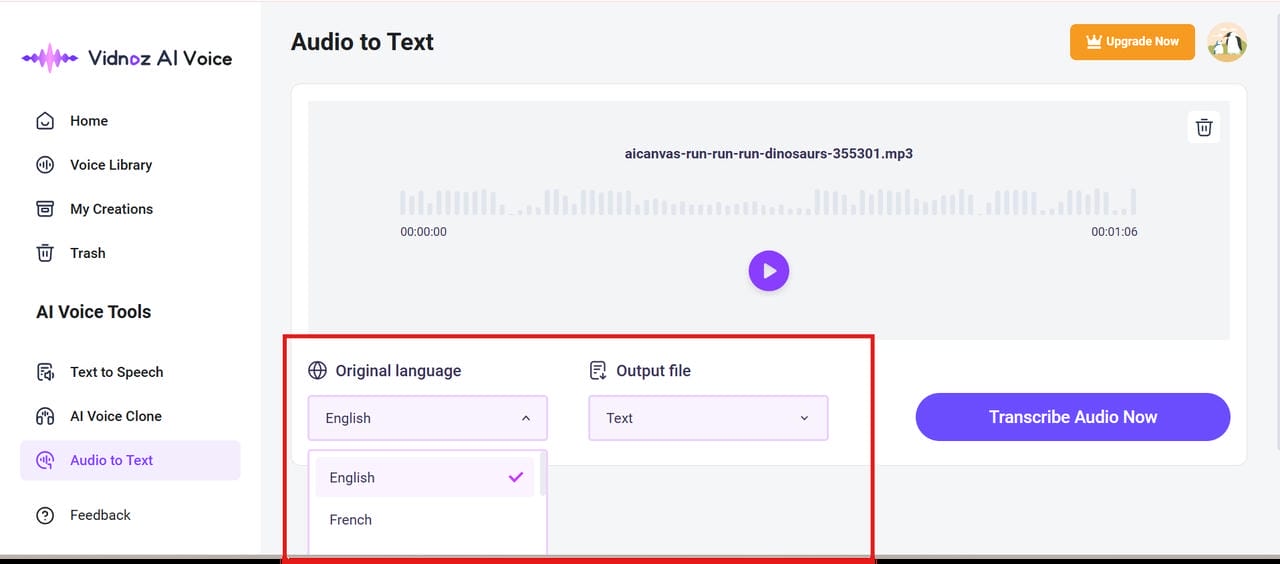
Step 2: Select the language and output file
Choose the language spoken in your recording so the AI can improve transcription accuracy. Then select your preferred output format based on how you plan to use the transcript.
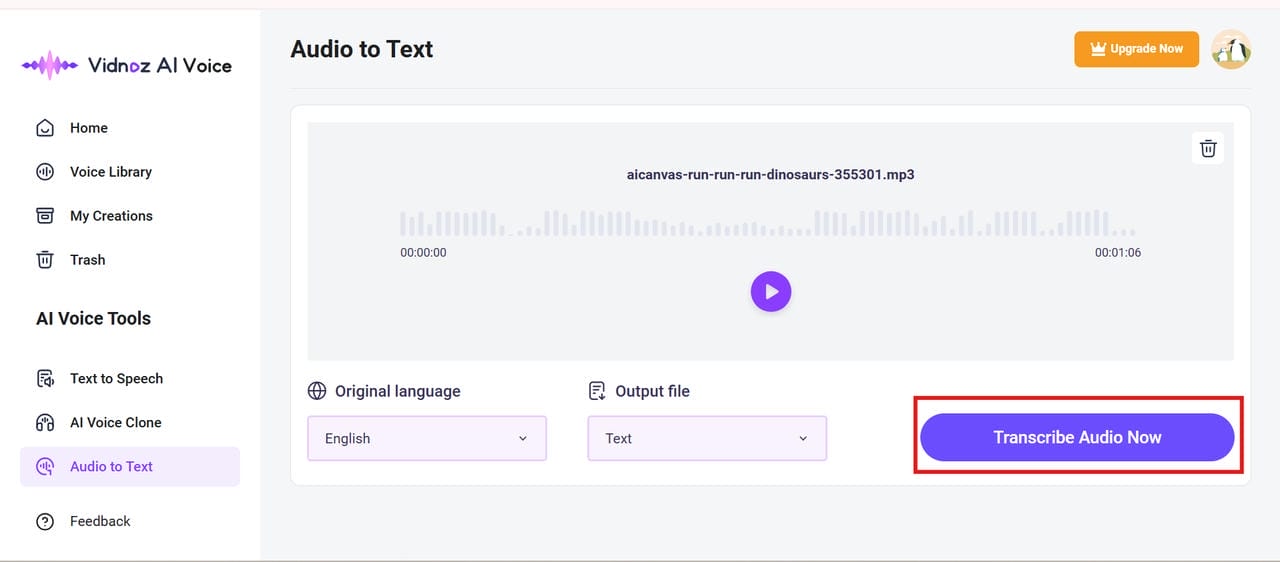
Step 3: Generate and review the transcript
Start the transcription process and wait for Vidnoz AI to generate the text. Once complete, review the transcript, correct any names or technical terms if necessary, and export the final version.
Vidnoz AI Pros, Cons and Pricing
Choosing a transcription tool is more than just accuracy. Ease of use, export options, collaboration features, and pricing are also crucial. Vidnoz AI is easy to use for beginners with helpful AI transcription features, but as with any platform, strengths and limitations exist based on your workflow.
Pros and cons
|
Pros |
Cons |
|---|---|
|
|
Pricing and Plans
|
Plan |
Pricing |
|---|---|
|
|
If you want an easier way to turn your audio and video files into text, then Vmake is a fantastic option to check out. It combines AI transcription, editing, and exporting into one fluid dashboard. No need to have multiple apps or tabs open to do the job. Just upload your media, get your highly accurate transcript, make your edits, and download the finished file right from a single easy-to-use page.
How to convert audio to text with Vmake Labs
Vmake Labs is an AI-powered transcription tool that makes it very easy to transcribe audio and video to editable text in a few clicks. It works quickly and accurately whether you're transcribing interviews, meetings, podcasts, webinars, tutorials, or social media content. The software allows file uploads and direct media links so you can generate, modify, and export transcripts from one easy-to-use workspace, speeding up and optimising content reuse.
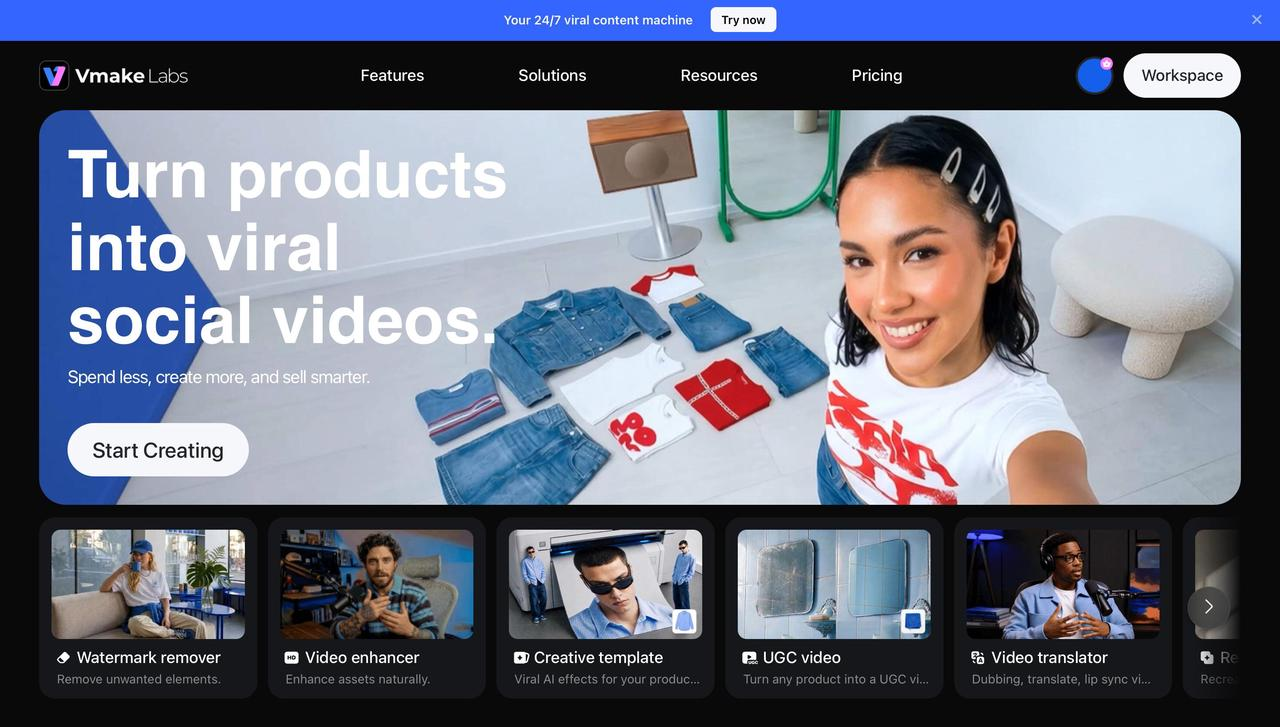
How to transcribe audio with Vmake Labs
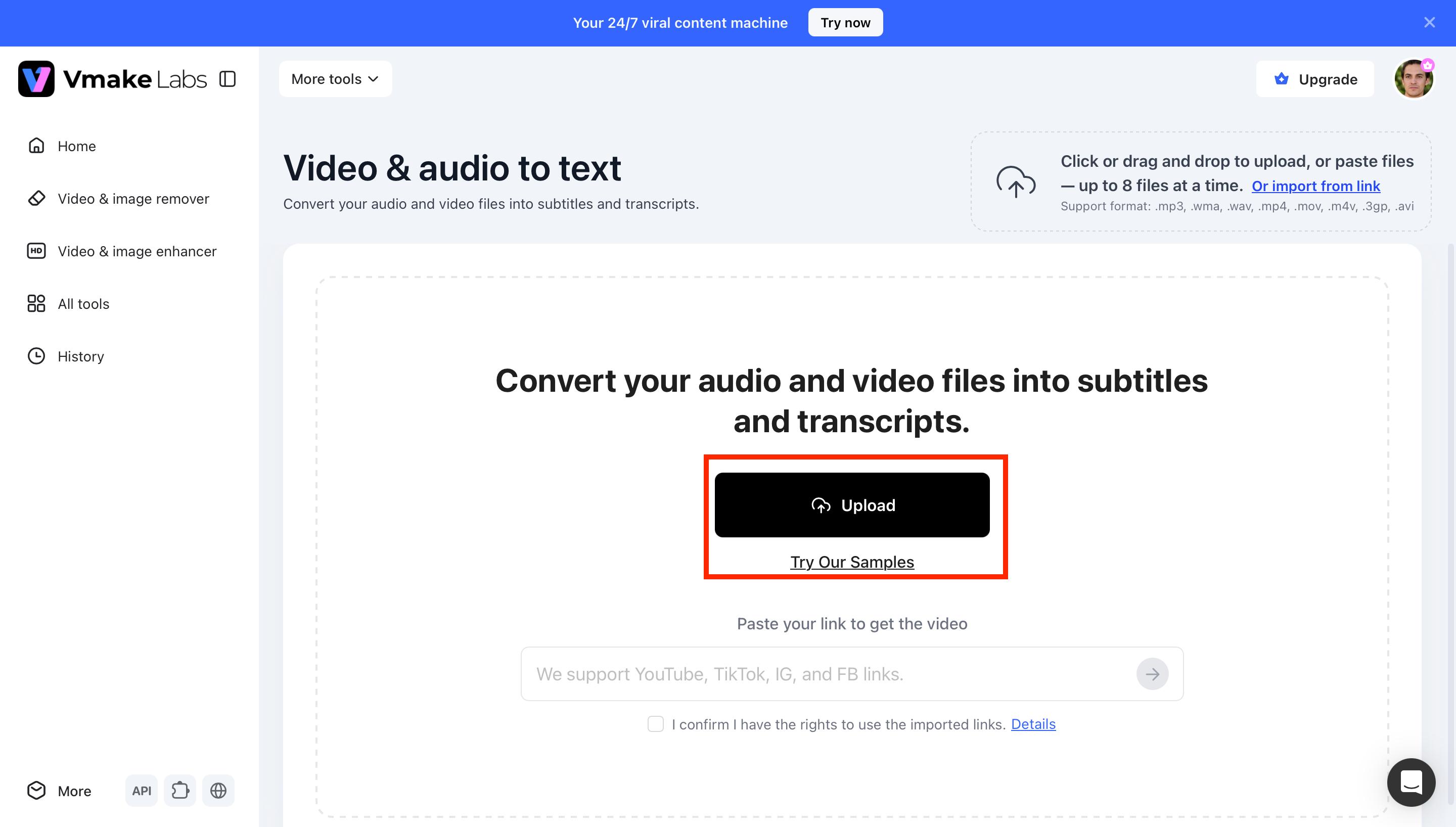
Step 1: Upload your audio or video
Upload your audio or video file to Vmake. It supports popular media formats, making it easy to transcribe interviews, podcasts, meetings, lectures, and other recordings in just a few clicks.
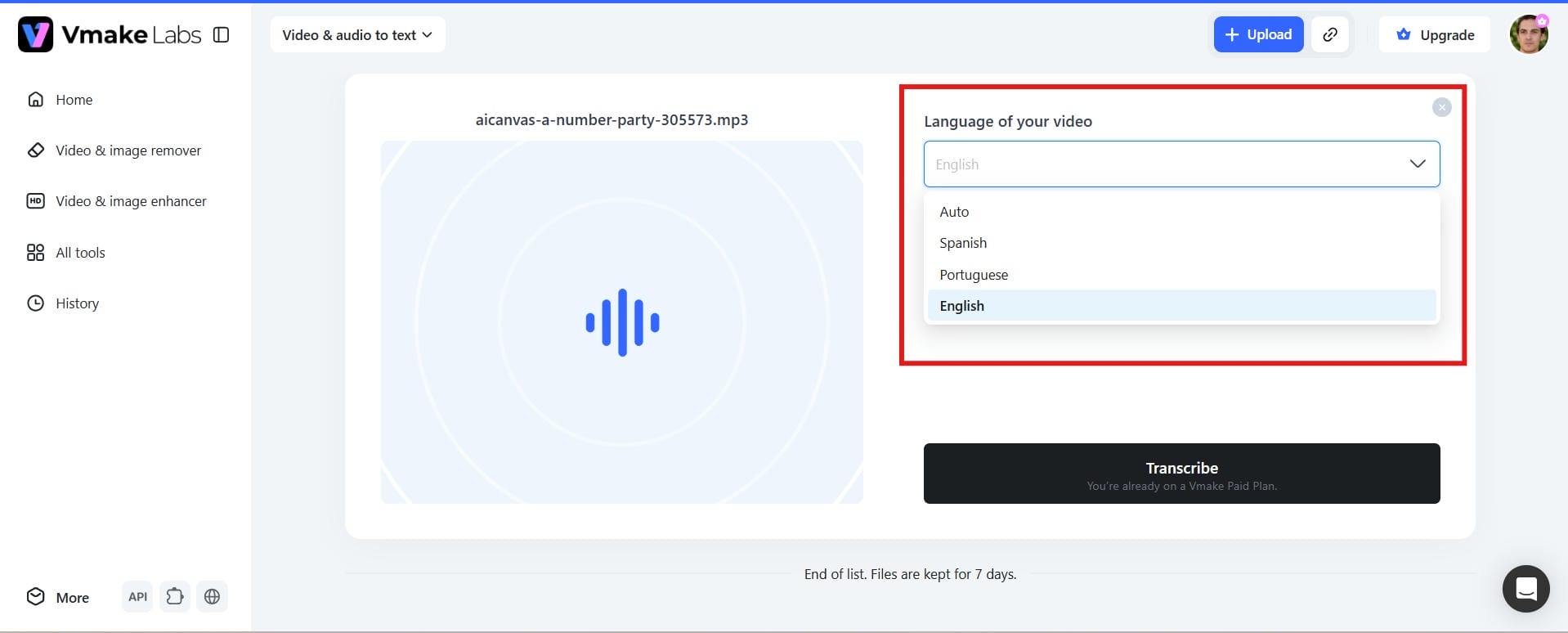
Step 2: Choose the language and transcription settings
Select the language used in your recording and adjust the transcription settings if needed. Vmake's AI will process your file to deliver accurate, editable transcripts.
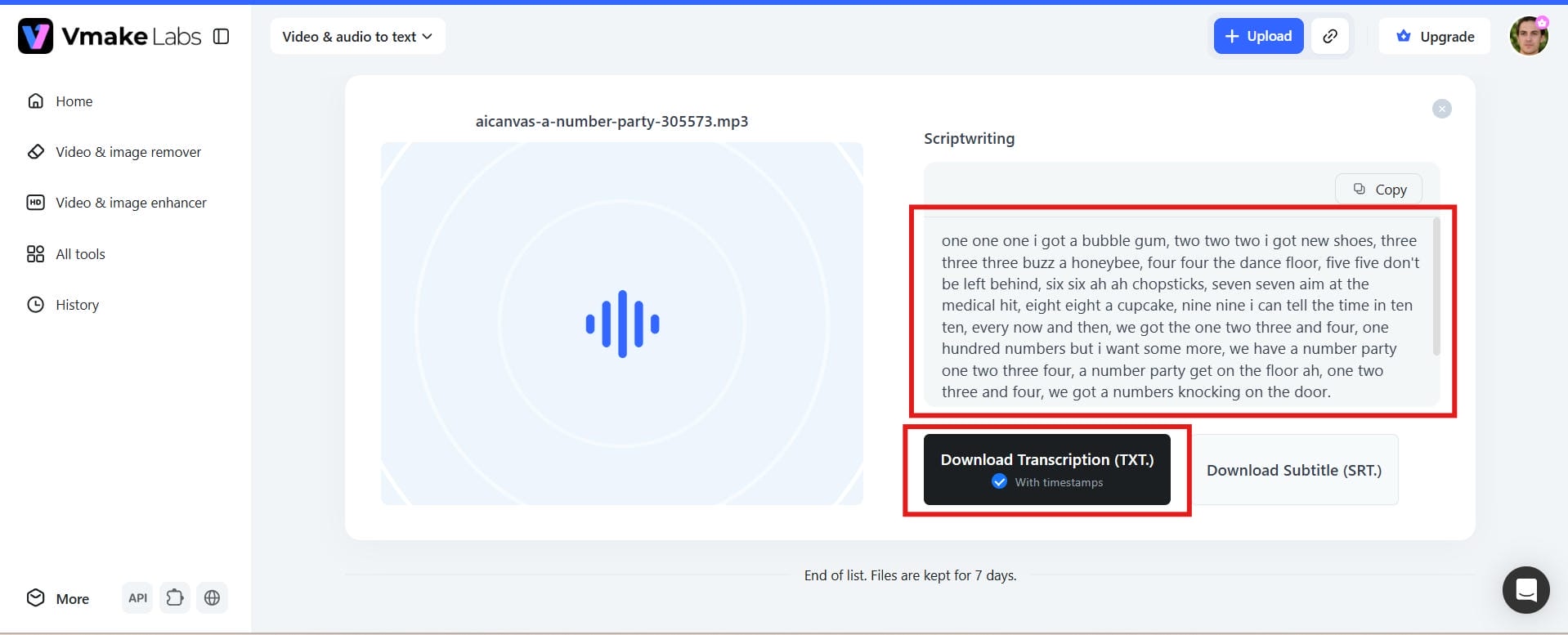
Step 3: Generate, edit, and export the transcript
Click Generate to start the transcription. Review the transcript, make any edits if necessary, and export it in your preferred format for subtitles, documents, or captions.
Why use Vmake Labs for audio-to-text conversion?
-
AI transcription for audio and video files: Convert spoken content from audio and video recordings into editable text with the latest AI speech recognition.
-
Multilingual support: Easily transcribe multilingual recordings, making Vmake ideal for creators, enterprises, and global teams.
-
Fast processing and speech recognition: Receive transcripts within minutes, allowing you to save time during meetings, interviews, podcasts, and educational content.
-
Editable transcript output: Review, edit, and update your transcripts before downloading to ensure the final text is a perfect match to your recording.
-
Transcribe audio & video links directly: Transcribe supported media links besides uploaded files, saving time and avoiding further downloads.
-
One-click export workflow: Quickly export completed transcripts for subtitles, documentation, blogs, captions, or content repurposing without a cumbersome workflow.
Vidnoz AI audio to text vs Vmake Labs
Both Vidnoz AI and Vmake use AI to convert audio and video into editable text, but they cater to different workflows. Vidnoz AI is suitable for occasional transcription, while Vmake offers a faster, more streamlined experience with flexible editing and export options. For creators, businesses, and teams that regularly repurpose content, Vmake can help simplify the entire transcription process.
|
Feature |
Vidnoz AI |
Vmake Labs |
|---|---|---|
|
AI transcription |
Yes |
Yes |
|
Audio transcription |
Yes |
Yes |
|
Video transcription |
Yes |
Yes |
|
Direct link transcription |
Limited |
Supported |
|
Editable transcripts |
Yes |
Yes |
|
Export formats |
Basic |
Multiple options |
|
Workflow |
Multi-step |
One-page experience |
|
Best for |
Casual users |
Content creators and teams |
Tips for more accurate audio-to-text results
If you want the best results from AI transcription tools, the audio source needs to be clean. A few simple practices can drastically improve the accuracy of transcripts and cut down on the time you spend editing them afterwards.
-
Record high-quality audio: Use a reliable microphone whenever you can. Better recordings help AI better distinguish words and reduce transcription mistakes.
-
Avoid background noise: Don't record in a noisy place, and avoid sounds like traffic, fans, or people talking over each other. Cleaner audio makes cleaner transcripts.
-
Speak naturally and clearly: Speak at a steady pace and enunciate words clearly. Avoid interrupting other speakers, especially in interviews or meetings.
-
Supported file formats: Ensure uploading files in supported formats suggested by the transcription platform to prevent compatibility issues.
-
Check names and technical terms: AI can misinterpret proper names, industry terms, or abbreviations. A quick review will help make sure your transcript is accurate and professional.
-
Edit transcripts before publishing: Always proofread your transcript before sharing or publishing it. Final editing helps readability and correctness, whether you're working on meeting notes, subtitles, or blog content.
Conclusion
Vidnoz AI audio-to-text is a good and easy-to-use tool to convert your media into text that you can edit, but if you are reusing content regularly, then Vmake is often the better choice. Vmake accelerates your workflow with fast AI processing and flexible editing options. It also goes beyond basic transcription by offering powerful tools like voice translation, auto-generated captions, and a handy YouTube video subtitle generator. Ultimately, it makes the process of turning your raw recordings into content ready for the platform extremely easy, saving you hours of manual labour and increasing your overall productivity.
FAQs
How does Vidnoz AI audio to text work?
Vidnoz AI audio to text uses AI-powered speech recognition to convert spoken content from audio and video files into editable text. Simply upload your file, choose the language, and the platform automatically generates a transcript that you can review and export.
Is Vidnoz AI audio to text free to use?
Yes, Vidnoz AI offers a free plan that lets users try its AI transcription features without any upfront cost. However, the free version comes with usage limits, which may not be enough for frequent transcription needs. Upgrading to a paid plan unlocks more transcription time, higher limits, and additional features for regular users.
Can Vidnoz AI transcribe both audio and video files?
Yes. Vidnoz AI supports both audio and video transcription, making it suitable for podcasts, meetings, interviews, webinars, and presentations. If you need a simpler workflow, Vmake Labs Video and Audio to Text tool also lets you quickly generate, edit, and export transcripts from multiple media formats.
What export formats are available in Vidnoz AI audio-to-text?
Vidnoz AI allows you to export transcripts in common formats such as TXT and SRT, depending on your workflow. After reviewing and editing the transcript, you can download it for documentation, subtitles, or other content needs.
Can Vmake Labs convert audio and video into editable transcripts?
Yes. Vmake converts both audio and video into editable transcripts using AI-powered speech recognition. It supports multiple languages, fast processing, transcript editing, and flexible export options, making it ideal for creators, businesses, and educators.
Why choose Vmake Labs instead of Vidnoz AI audio to text for daily workflows?
Vmake offers a streamlined transcription experience with support for uploaded files, direct media links, editable transcripts, and multiple export options. If you regularly create subtitles, meeting notes, blogs, or social media content, Vmake can help simplify and speed up your workflow.

You May Be Interested
Canva Audio to Text Converter: Complete Guide & AI Alternative
ElevenLabs Audio to Text: Complete Guide to AI Alternative
How to Transcribe Audio to Text: Efficient Guide
How to Transcribe Audio Recording to Text in Minutes

Vidnoz AI Video Generator Review 2026: Pros, Cons & Best Alternative