Pixelcut Image Upscaler Review 2026: Tested & Honest Verdict
Not fully happy with Pixelcut's upscaled results? Vmake Labs AI Image Enhancer restores sharper, more natural detail in one click, with no watermark and zero cost to start, try Vmake Labs for free today.

Low-resolution photos frequently compromise product listings and social posts. While the Pixelcut image upscaler promises fast resolution boosts through artificial intelligence, determining whether it delivers genuine quality requires hands-on testing. Here is a realistic, direct breakdown of its performance, pricing, and overall value.
What is Pixelcut image upscaler & its key features?
Pixelcut functions as a web and mobile graphic design suite built primarily for content creation and quick edits. Within its toolkit, the Pixelcut AI image upscaler uses automated algorithms to increase pixel density while attempting to reduce blur.
Online merchants, digital marketers, and casual creators frequently rely on the platform to clean up low-quality media assets quickly. Small business owners using the Pixelcut AI photo enhancer often process product photos to meet marketplace image standards, especially when optimizing e-commerce product photography for higher conversion rates.

The tool provides several practical functions for basic photo enhancement:
-
2x and 4x Resolution Scaling: Instantly expands overall pixel dimensions to prepare low-resolution images for digital displays or print formats.
-
Bulk Image Processing: Enables batch uploads to scale multiple photos simultaneously on premium membership plans.
-
Enhance Detail Toggle: Applies localized sharpening filters to refine blurry edges across compressed visual assets.
-
Multi-Format Export Support: Allows convenient file downloads in universally compatible JPEG and PNG image formats.
Hands-on review: Testing Pixelcut image upscaler step by step
Evaluating an automated photo tool requires examining how algorithms handle real-world lighting, fine textures, and varied compression levels. Testing this software firsthand through direct interaction reveals its true capabilities and limitations.
How we tested Pixelcut Image Upscaler
Our rigorous testing methodology focused on evaluating how the automated scaling algorithms handle varied lighting, texture details, and severe compression across diverse visual assets.
-
Testing Geometric and Texture Details: We uploaded numerous compressed product photos with clean lines and diverse fabric patterns to evaluate edge retention and texture restoration. Utilizing the Pixelcut AI photo enhancer settings consistently sharpened geometric borders but caused significant loss of intricate textile details.
-
Portrait Fidelity Analysis: Evaluations focused on testing the Pixelcut AI image upscaler output clarity across human faces in varying light conditions. Consistently, the automated processing produced artificial smoothing artifacts on skin tones and fine facial hair.
-
Bulk Processing Workflow Efficiency: We executed multiple concurrent scaling tasks on premium membership tiers to measure throughput and overall batch management simplicity. The specialized AI image upscaler Pixelcut module reduced single-file editing time but suffered from noticeable server delays during peak hours.
-
Analyzing Compression Management: Our process involved testing low-quality assets heavily impacted by JPEG compression artifacts to measure noise reduction and edge sharpening effectiveness. These tests for a Pixelcut upscale image mostly produced blurred results and inconsistent detail recovery across high-noise environments.
Step-by-step testing walkthrough
-
Upload the Source Image: Click the "Upscale image" button or drag and drop a target JPG, PNG, or HEIC file directly into the Pixelcut upload zone.

-
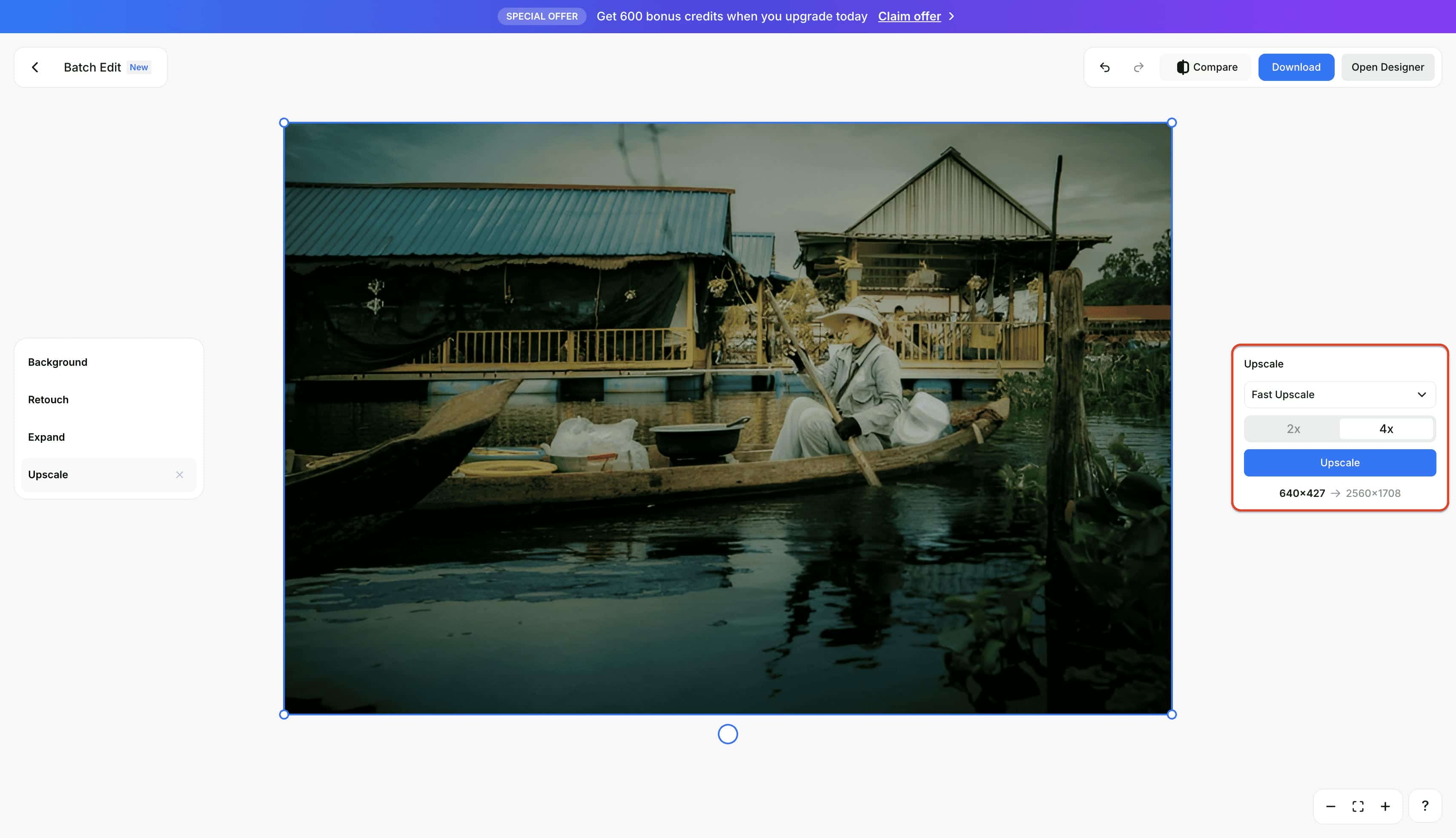
Select Upscale Settings: Choose the processing mode (such as "Fast Upscale") from the right sidebar, select between 2x or 4x magnification, and click the blue "Upscale" button to start processing.
-
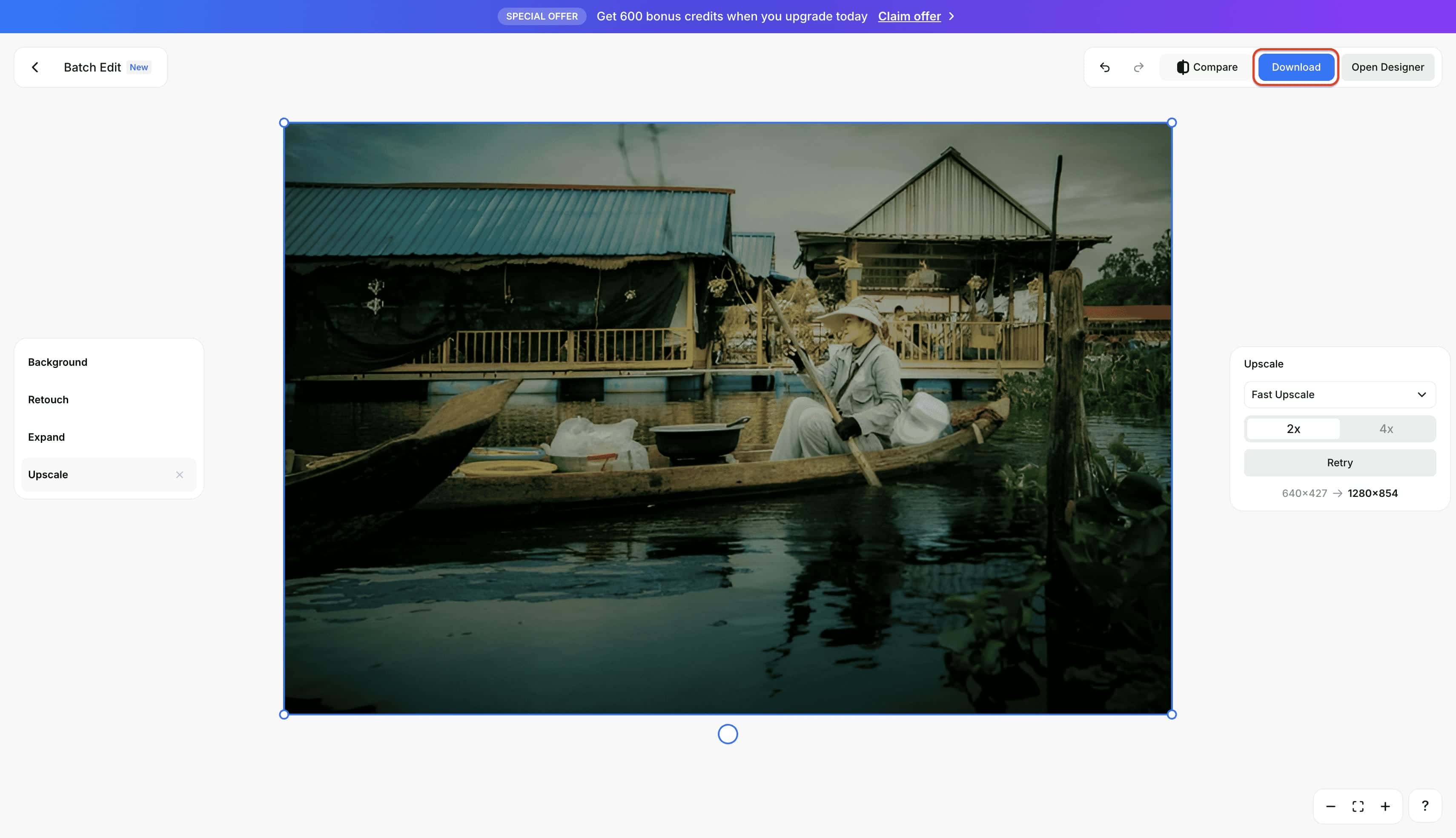
Preview & Download: Evaluate the rendered photo using the "Compare" tool at the top bar to inspect edge sharpening, then click the blue "Download" button to save the enhanced file.
Question you may ask: How does the result look?
The software delivered solid results when processing high-contrast product shots and simple graphics with clean borders. Sharp geometric edges retained integrity without noticeable blurring. However, when attempting to upscale image Pixelcut files containing complex human facial features or fine fabric patterns, the algorithm produced visible plastic smoothing and minor blurring artifacts along soft gradients.
Pixelcut image upscaler pricing: Free vs. Pro
Understanding the feature access across pricing tiers helps determine whether upgrading aligns with individual workflow requirements. Here is a breakdown of the available plans.
|
Feature / Limit |
Free Plan |
Pro Plan |
Business Plan |
|---|---|---|---|
|
Price (Monthly) |
$0 per month |
$10 per month |
$30 per month |
|
Monthly AI Credits |
None listed |
600 AI credits monthly |
3,600 AI credits monthly |
|
AI Model Access |
Standard access |
Access to all AI models |
Access to all AI models |
|
Image Upscaling |
Limited upscale capacity |
Unlimited image upscaling |
Unlimited image upscaling |
|
Background Removal |
Limited background removal |
Unlimited background removal |
Unlimited background removal |
|
Batch Export Limits |
Single processing only |
1,000 batch exports monthly |
2,000 batch exports monthly |
|
Team Size Capacity |
Individual use only |
Supports up to a 3 person team |
Supports up to a 10 person team |
|
Licensing |
Standard personal use |
Commercial license included |
Commercial license included |
|
Watermark Policy |
Free export without watermark |
Watermark-free premium export |
Watermark-free premium export |
Plan Discount Note: Opting for a yearly billing cycle offers an additional savings of 20% across the paid premium tiers. All paid tiers include priority customer support channels and the flexibility to cancel at any time.
Which Plan Should You Choose?
-
Free Plan: Ideal for casual creators, students, or personal users who only need occasional single-photo enhancements and basic editing tools without a recurring subscription.
-
Pro Plan: Best for active freelancers, social media managers, and small business owners who regularly upscale images to 4K/8K and require batch editing capabilities.
-
Business Plan: Designed for e-commerce brands, agencies, and high-volume teams that need multi-seat access, API integration, and large-scale bulk processing (up to 10,000 images at once).
What real users say: Pixelcut reviews on Trustpilot, G2 & Reddit
Analyzing feedback across major platforms reveals how the Pixelcut image upscaler performs in real-world workflows, highlighting both its mobile convenience and common user pain points.
-
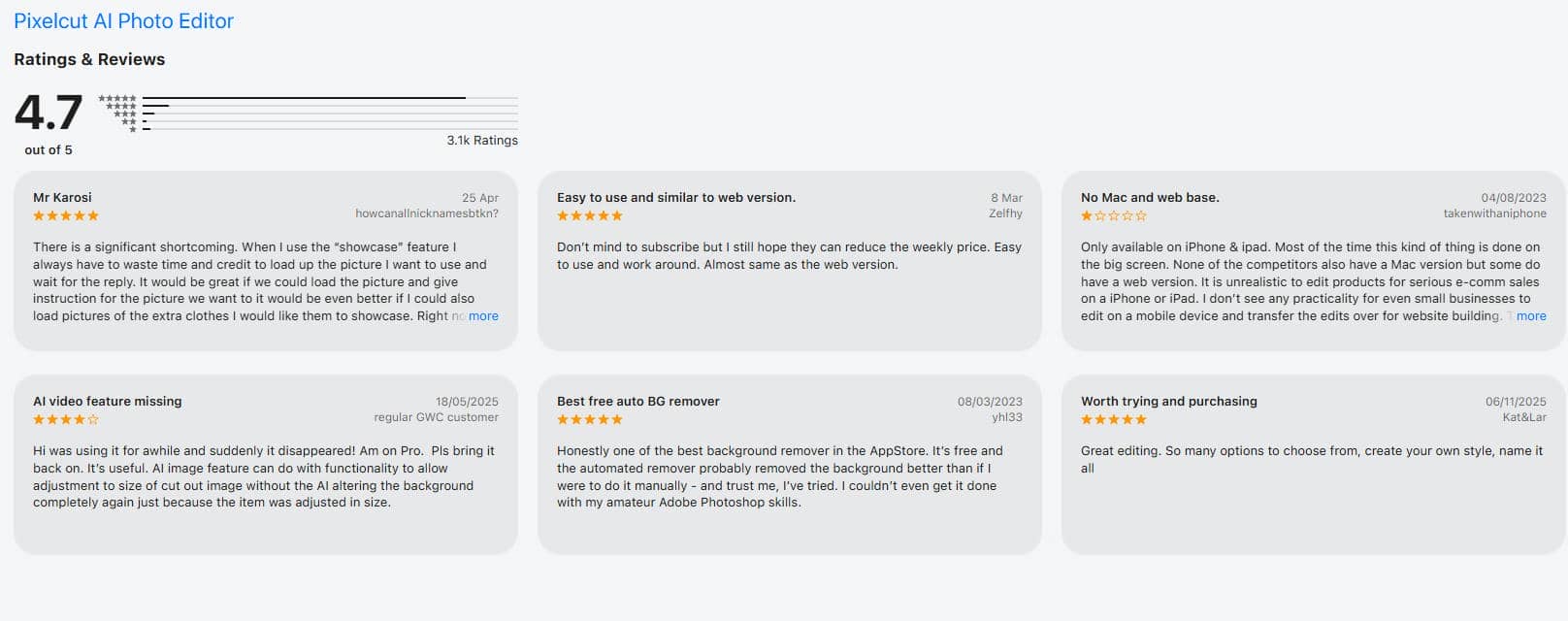
App Store Feedback: Users highlight the convenience of quick AI photo upscaling and sharp background removals for fast edits directly on mobile devices.
-
Reddit Community Insights: Sellers in e-commerce threads note that while the tool effectively boosts resolution for basic product photos, higher scale factors can produce noticeable over-smoothing, and batch upscaling feels clunky for high-volume tasks. (from the Reddit post)
-
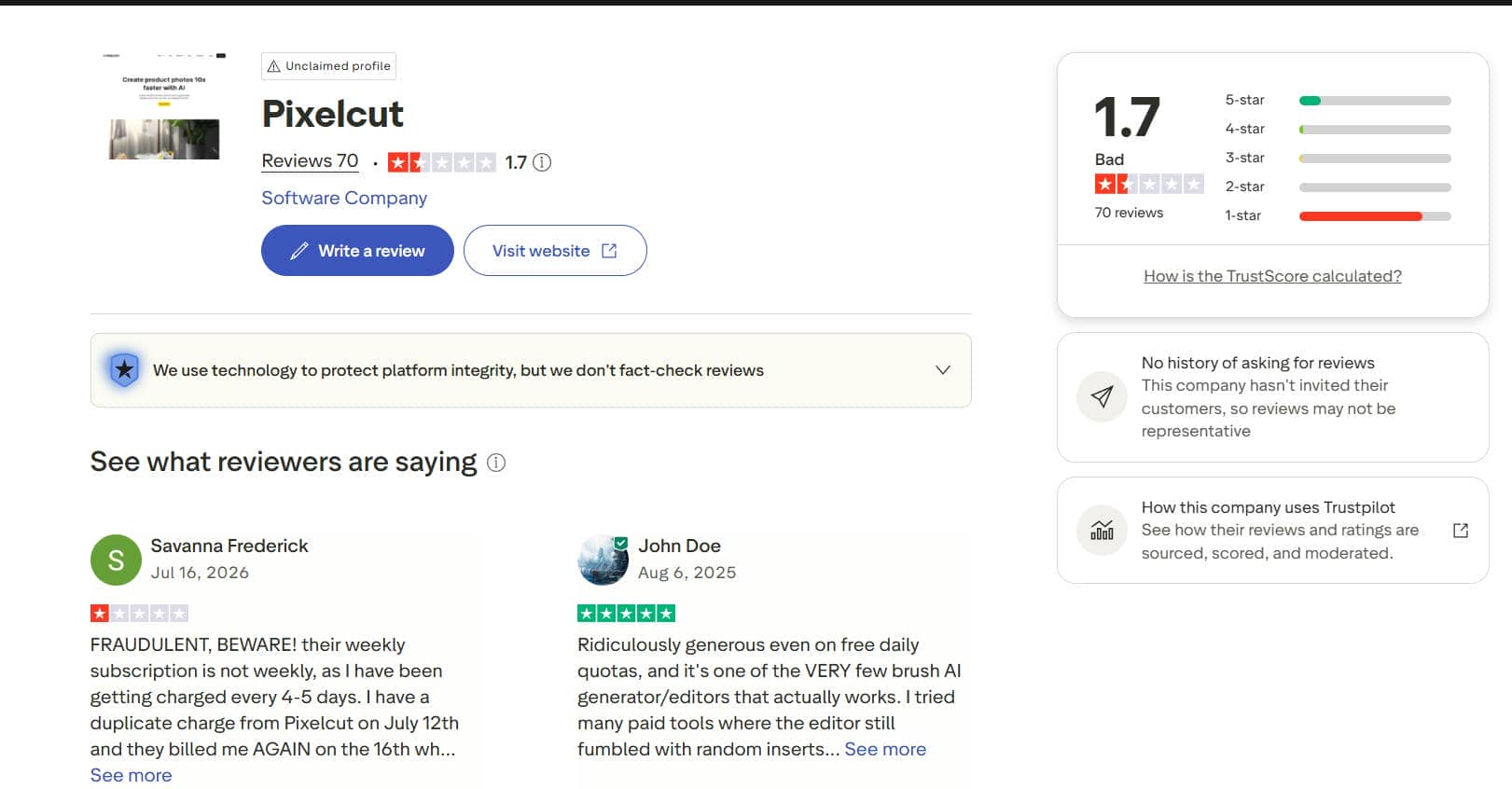
Trustpilot Ratings: Holds a 1.7 "Bad" overall score, where negative feedback stems heavily from recurring subscription charges, unexpected billing cycles, and difficult cancellation processes rather than basic image processing.
-
G2 Consensus: Reflects general praise for fast AI resolution enhancements and crisp edge detection, though feedback points out occasional processing lag during multi-file upscaling and a lack of granular manual controls for detail tuning.
Weighing these real-world user experiences highlights clear trade-offs between daily convenience and operational friction. The key benefits and recurring drawbacks are summarized below:
|
Pros |
Cons |
|---|---|
|
Fast and accessible AI resolution upscaling on mobile and web |
Over-smoothing artifacts on complex facial features and fine textures |
|
Instant photo clarity improvements and clean edge sharpening |
Persistent community complaints regarding subscription billing and auto-renewals |
|
Intuitive, beginner-friendly interface for rapid product edits |
Processing lag and queue slowdowns during batch upscaling tasks |
|
Watermark-free exports available on basic image downloads |
Limited manual editing controls for fine-tuning upscale parameters |
Best Pixelcut alternative: Vmake Labs Image Enhancer
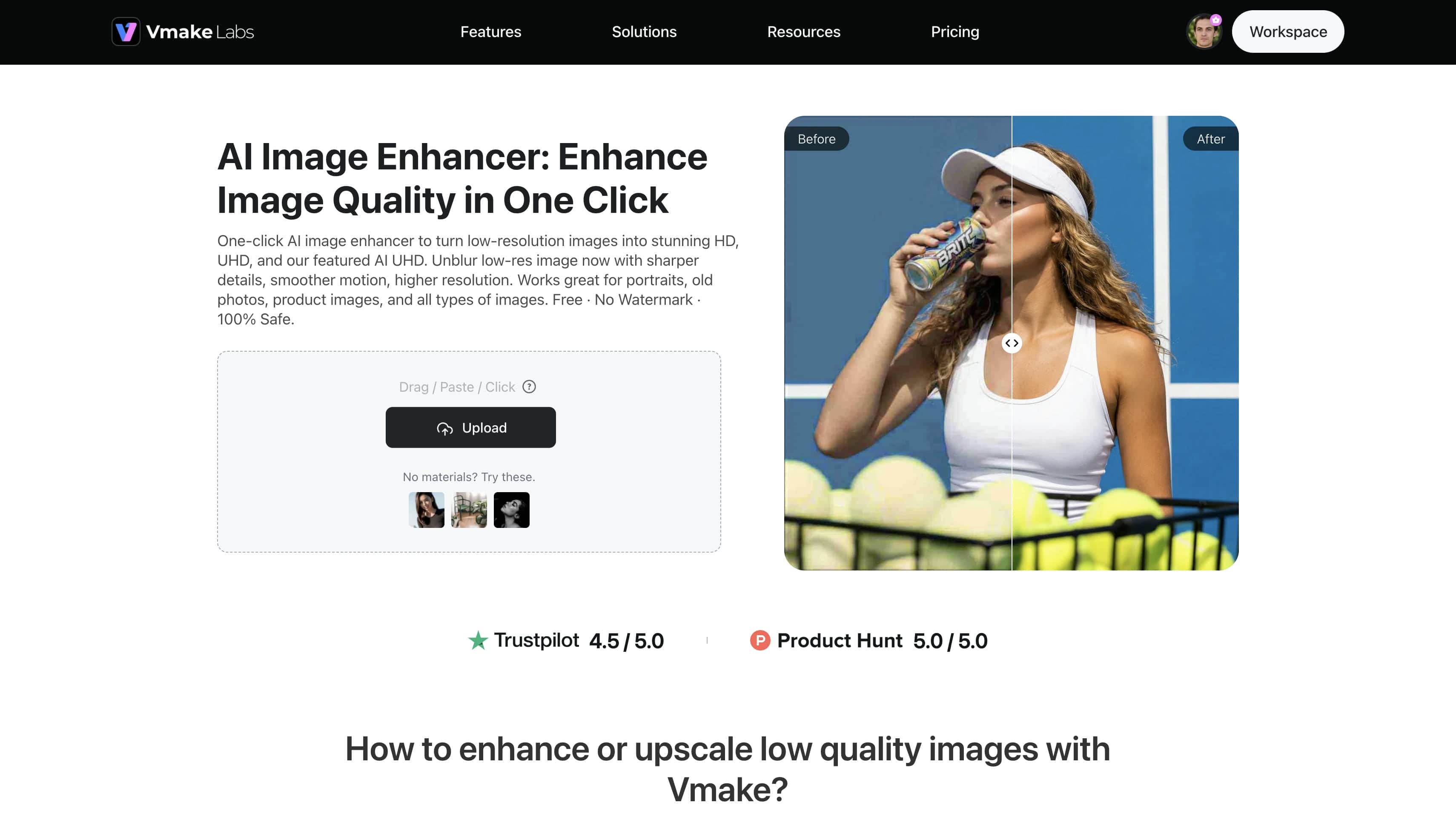
When clean clarity and natural detail recovery are paramount, Vmake Labs serves as the ultimate AI social video studio that helps small businesses generate, enhance, and optimize visual content to capture attention, build brands, and drive sales. Unlike basic scaling tools that simply multiply pixels, Vmake Labs utilizes specialized neural networks to rebuild lost textures without introducing artificial smoothing. Creators seeking professional clarity can test the Image Enhancer to restore high-resolution details across product photos, portraits, and graphics effortlessly.
Key features of Vmake Labs Image Enhancer
-
One-Click Scene Enhancement: Eliminates tedious manual adjustments and dramatically speeds up the editing process by using tailored modes for portraits, old photos, and products. Automated algorithms instantly correct lighting and edge clarity, so users achieve polished results in seconds.
-
AI UHD Mode for Deeper Repair: Restores natural textures to transform degraded files into crisp, higher-quality ecommerce assets and print-ready visuals up to 16K resolution. Functioning as an effective image sharpener, it effortlessly repairs heavy compression noise, generative detail loss, and blurry edge lines.
-
Efficient Batch Processing: Saves hours when processing large volumes of product photos by handling concurrent uploads of up to 30 images at once. This streamlined rendering replaces tedious single-file editing workflows to manage high-volume marketing campaigns effortlessly.
-
Comprehensive Scene Coverage: Ensures creators and businesses consistently produce high-converting, professional visuals without extra effort. Specialized models deliver enhanced contrast and crisp detail, whether polishing commercial product listings or reviving faded memories with AI.
-
Free Web Accessibility: Lets users enhance images instantly without downloading software or committing to upfront financial costs. Operating directly inside web browsers without attaching watermarks to initial exports, it offers an intuitive unblur image workflow right out of the box.
How to upscale images with Vmake Labs
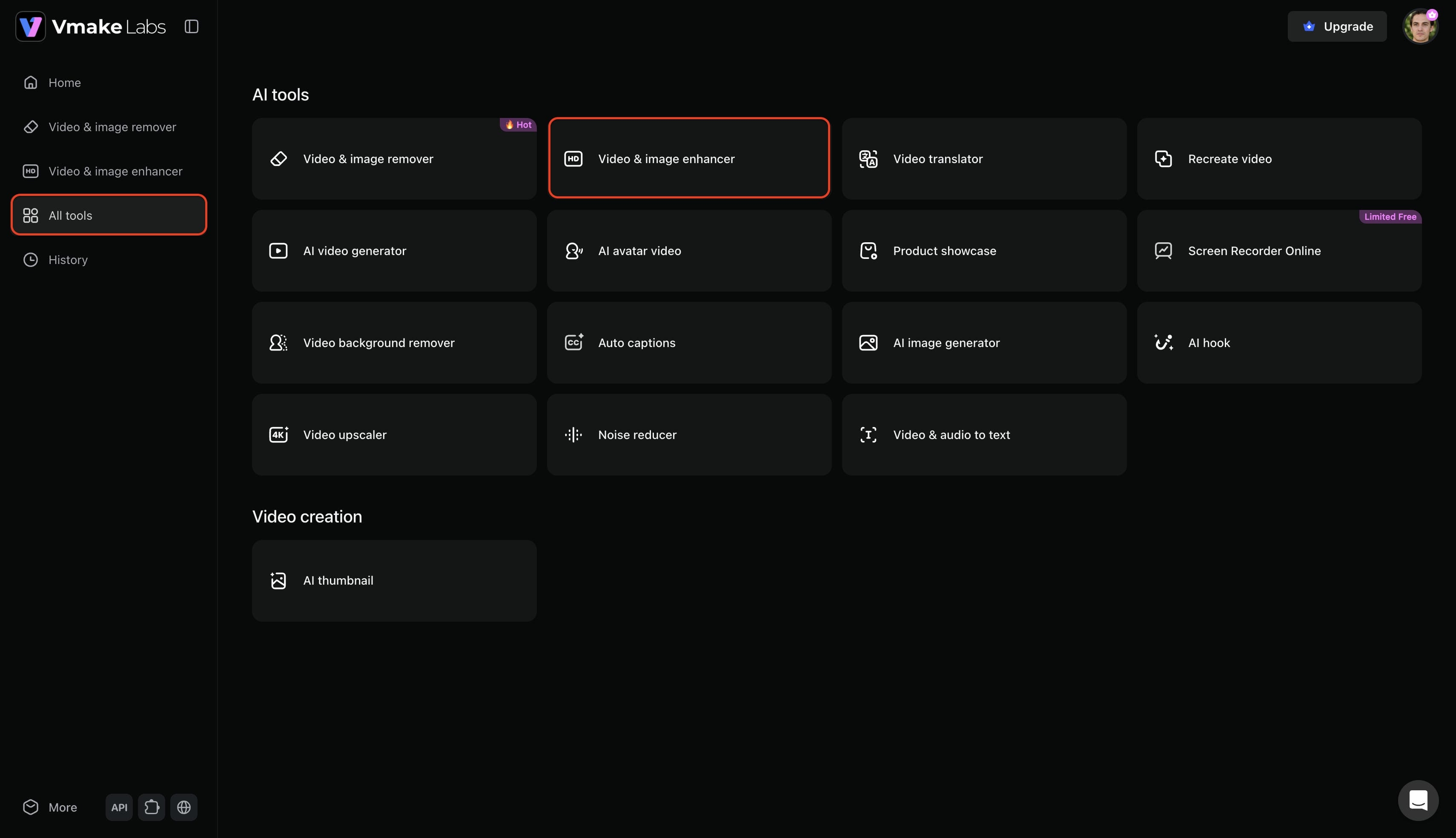
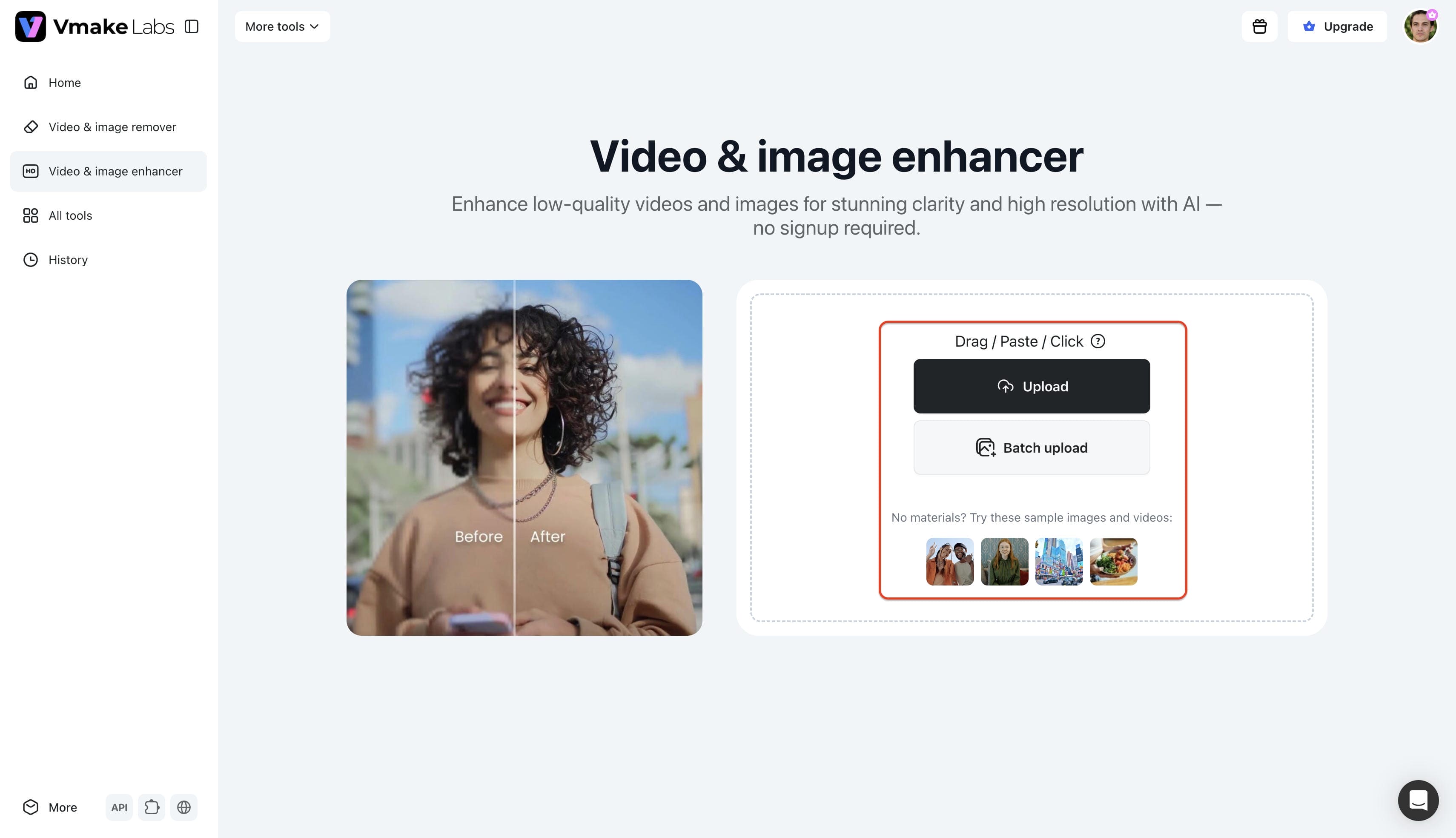
Step 1: Access Vmake Labs "Video & image enhancer" tool
Begin by navigating to the official Vmake Labs website and signing into an account. From the main dashboard, choose "All tools" from the left menu bar and select "Video & image enhancer" from the available options.
Step 2: Upload the image which you want to enhance
Click the upload area to select the target file from local storage. The platform supports batch processing for up to 30 photos simultaneously, making multi-file editing fast and convenient.
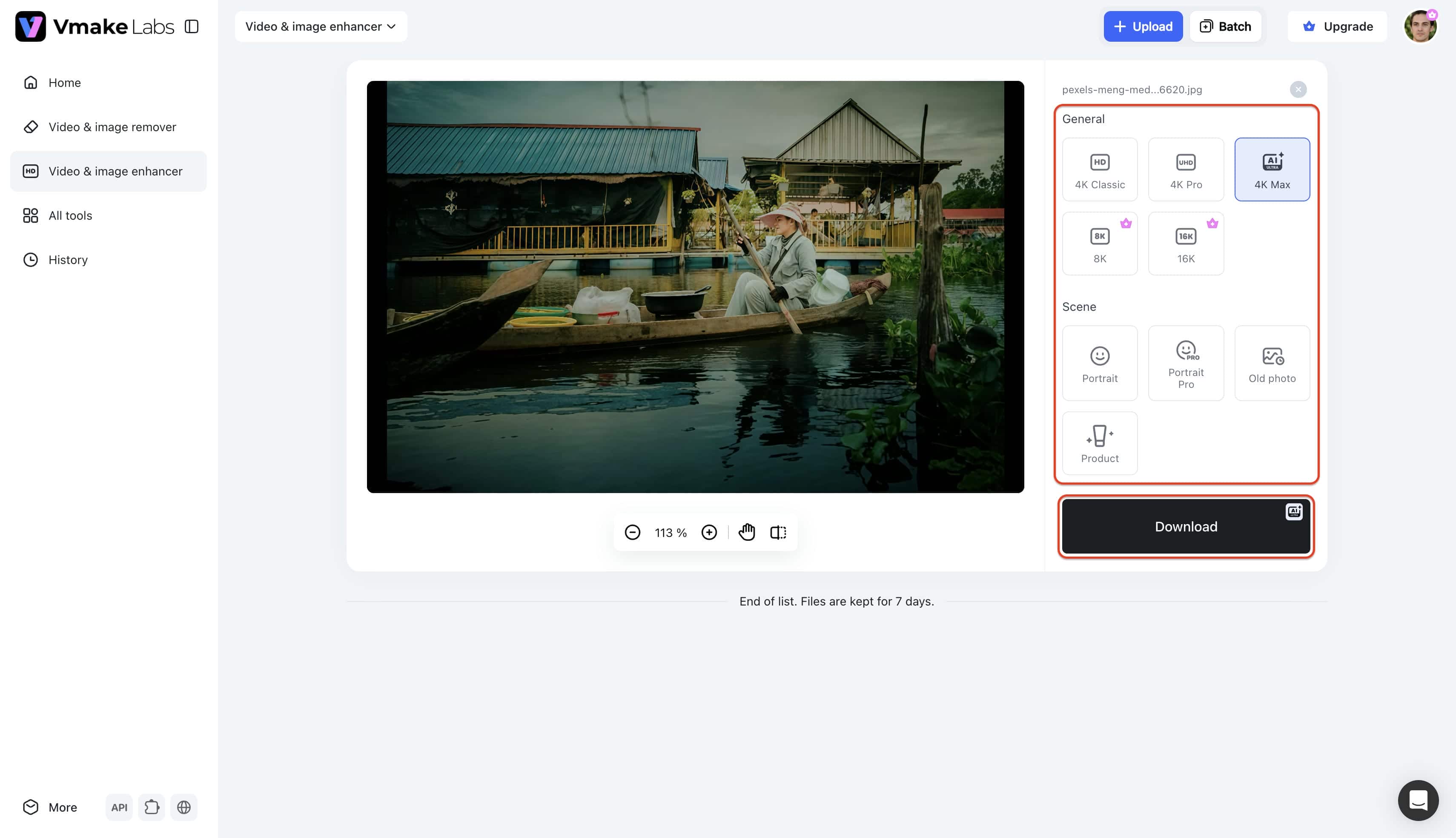
Step 3: Enhance and export the image
Select between "General" mode for scaling up to 16K resolution or choose a specific "Scenes" preset like Portrait or Product. The AI automatically applies the enhancements, allowing immediate downloading once satisfied with the visual outcome.
Pixelcut vs Vmake Labs
Choosing the right enhancement tool depends entirely on the specific creative workflow and desired output quality. While both platforms offer artificial intelligence solutions, their core strengths cater to different professional requirements.
Pixelcut operates as a broad, multi-purpose creative platform designed for speed, offering rapid batch processing and straightforward tools like background removal and basic image scaling. In contrast, Vmake Labs is an ultimate AI social video studio that helps small businesses generate, enhance, and optimize visual content to capture attention, build brands, and drive sales. Vmake excels in deep texture recovery and professional-grade video upscaling without introducing the artificial, plastic-like smoothing often seen in standard upscalers.
|
Feature Spotlight |
Pixelcut |
Vmake Labs |
|---|---|---|
|
Core Platform Focus |
General photo editing and batch processing |
Ultimate AI social video and image studio |
|
Detail & Texture Recovery |
Sharpens basic edges; struggles with heavy noise |
Rebuilds complex textures naturally |
|
Video Capabilities |
Basic generative video tools |
Advanced AI 4K+ upscaling and noise reduction |
|
Batch Processing |
Up to 10,000 images at once (Pro/Business) |
Streamlined batch enhancement for mixed media |
|
Ideal User Profile |
E-commerce teams needing high-volume edits |
Small businesses and creators requiring studio quality |
For teams requiring bulk processing of thousands of standard product photos, Pixelcut provides an efficient workflow. However, professionals and brands demanding pristine, natural detail recovery across both high-resolution imagery and social video content will find Vmake Labs to be the superior, specialized solution.
Conclusion
The Pixelcut image upscaler offers a fast, accessible option for quick photo edits and basic resolution bumps on mobile devices. However, noticeable detail loss on complex textures and recurring billing complaints reported on Trustpilot lead many users to seek higher precision. For those requiring clean artifact removal, specialized scene modes, or bulk processing without subscription paywalls, Vmake Labs provides an effective, high-definition alternative for elevated visual quality.
FAQs
Is the Pixelcut image upscaler secure for sensitive or private corporate documents?
Pixelcut processes images through cloud servers in accordance with standard online privacy protocols. Users handling confidential corporate assets should review data retention policies before uploading sensitive documents.
Can the Pixelcut upscale image tool process files in bulk?
Bulk processing functionality is available exclusively to subscribers on Pro and Business paid plans. Free users are restricted to processing single image files one at a time.
Does the Pixelcut AI photo enhancer fix heavy compression artifacts?
The tool works well for mild softness, but heavy pixelation often results in unnatural blurring or smoothed textures. For severe compression recovery, dedicated AI repair models yield superior edge clarity.
Is there a completely free alternative for reviving old photos?
Vmake Labs offers a specialized web-based platform featuring dedicated modes tailored specifically for restoring faded memories and repairing severe compression noise. This alternative rebuilds crisp textures naturally and allows users to download the enhanced files without any restrictive watermarks.
Why does the Pixelcut AI image upscaler sometimes crash on very large photos?
High-resolution source files require substantial browser memory and server processing power during upscaling operations. Uploading files above recommended dimension limits can cause session timeouts or rendering freezes.

You May Be Interested
Artguru Image Upscaler Review: Features & Best Alternative
Best AI Image Upscaler Tools in 2026: Upscale Images to 4K, 8K & Beyond
Best AI Image Enhancer in 2026: Top Tools to Upscale and Fix Blurry Images
Best AI Photo Enhancer Tools in 2026 (Free & Online): Improve Image Quality Instantly
2026 Fotor Video Enhancer Review: Features and Top Alternatives