TurboScribe Review: Features, Pricing, and a Better Alternative
Wondering if TurboScribe is worth using? Explore this TurboScribe review covering its AI transcription features, accuracy, pricing, pros, cons, user feedback, and a powerful alternative for audio and video transcription.

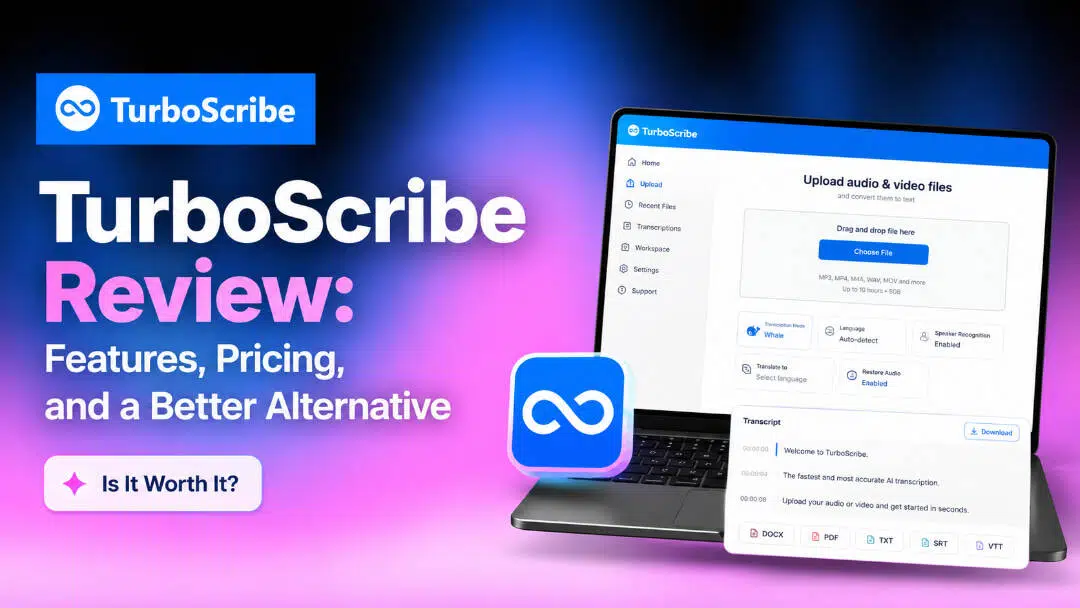
TurboScribe turns audio and video into text with Whisper AI, claiming 99.8% accuracy and unlimited use on a flat plan. This review covers its features, pricing, real limits, user feedback, and where it falls short, plus a clearer alternative for many workflows.
What is TurboScribe AI?
TurboScribe AI is an automated transcription service built on OpenAI's Whisper speech recognition technology. Founded by Leif Foged (ex-Meta), the platform stands out primarily for its aggressive value proposition: flat-rate, unlimited audio and video-to-text conversion.
TurboScribe markets itself as offering up to 99.8% claimed accuracy across 98+ spoken languages, designed to give users high-throughput transcriptions without per-minute anxiety.
Key features of TurboScribe AI
-
Accuracy and Whisper AI engine
TurboScribe runs on Whisper models with three modes: Cheetah for speed (about 30 seconds per hour of audio), Dolphin for balance, and Whale for maximum accuracy. Clean recordings often hit the mid-to-high 90s percent. Optional audio restoration reduces background noise before transcription starts.
-
Multilingual support and translation
It transcribes speech in more than 98 languages and can translate the finished transcript into 134+ languages. You can also force direct transcription into English. Language detection works automatically, though results vary by language and audio quality.
-
Speaker recognition and identification
Enable speaker recognition during upload, and the tool labels different voices, such as Speaker 1, Speaker 2, and so on. It works reasonably well on clear multi-speaker audio but still needs manual renaming for names and can struggle with heavy overlap or similar-sounding voices.
-
Advanced file handling
Paid accounts accept files up to 10 hours long or 5 GB and let you upload 50 files at once. Supported formats include MP3, MP4, M4A, MOV, AAC, WAV, and most common video containers. Free accounts are limited to 30-minute files, one at a time.
-
Export formats
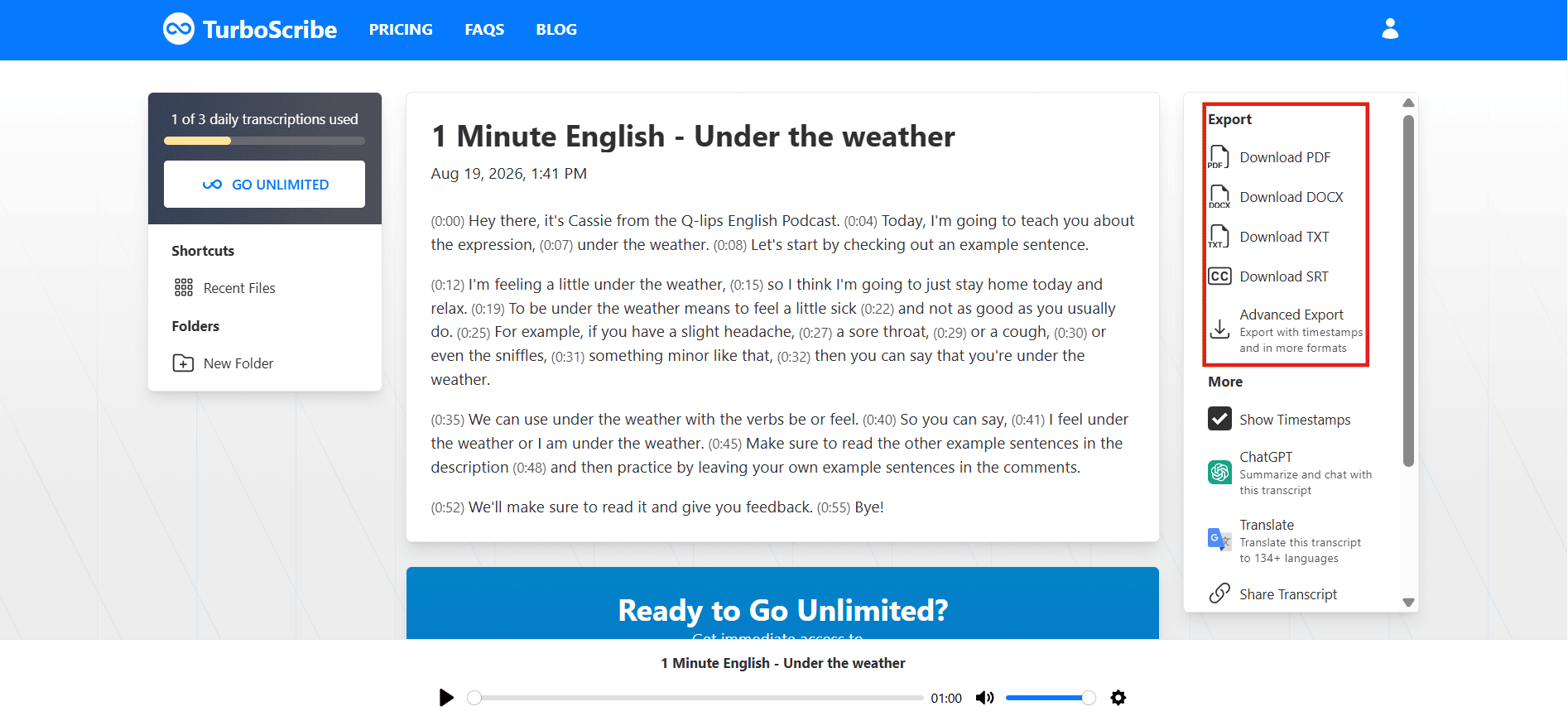
Finished transcripts download as DOCX, PDF, plain TXT, or subtitle files in SRT and VTT. Bulk export is available on the Unlimited plan. Timestamps appear in most formats, making the output ready for editing, sharing, or captioning without further conversion.
How does TurboScribe work?
TurboScribe operates entirely within your web browser through a four-step conversion flow:
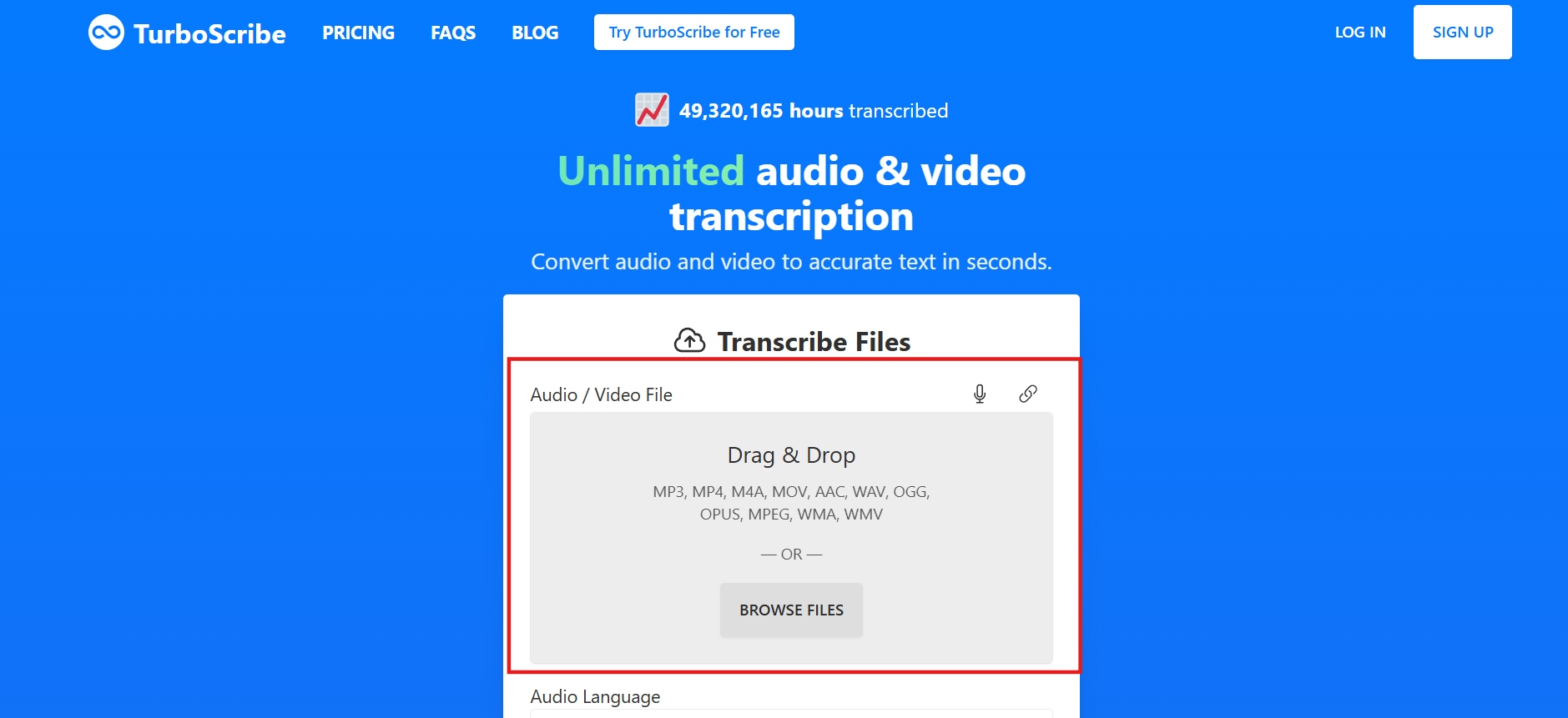
Step 1: Upload the file
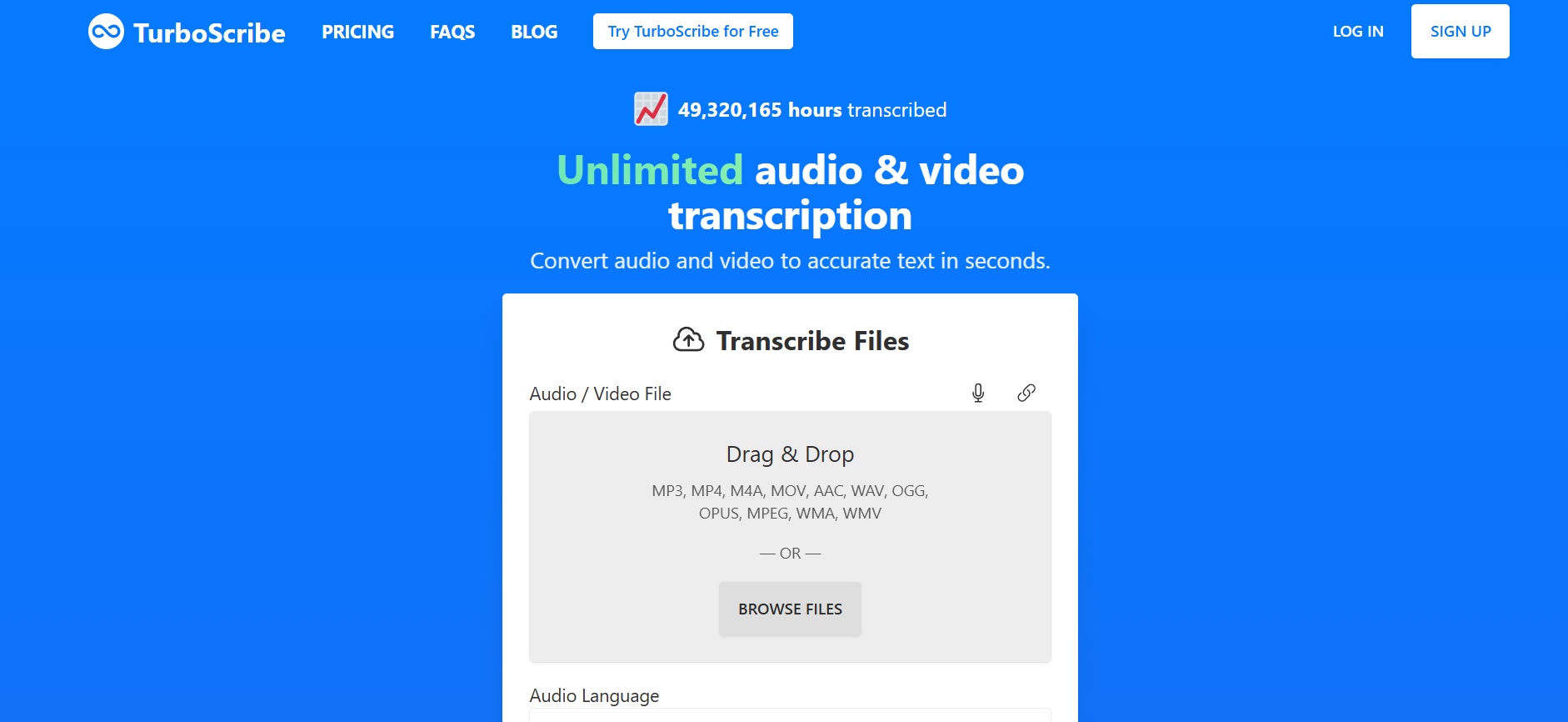
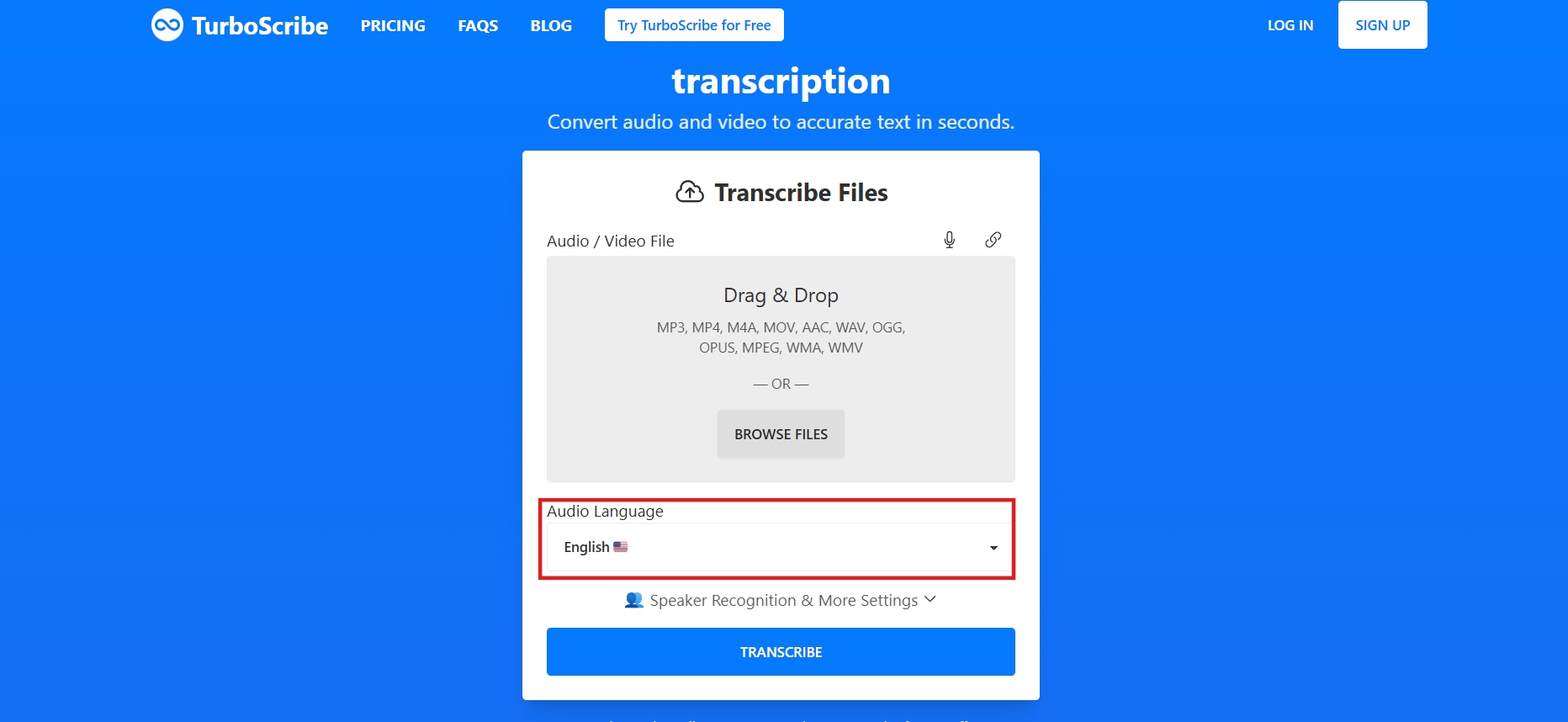
Drag and drop an audio or video file, or browse to select one. TurboScribe accepts MP3, MP4, M4A, MOV, AAC, WAV, OGG, OPUS, MPEG, WMA, WMV, and several other common formats.
Step 2: Choose your settings
Select the audio language or let TurboScribe auto-detect it. From there you can turn on speaker recognition, pick a transcription mode (Cheetah, Dolphin, or Whale), enable audio restoration for noisy recordings, or transcribe directly into English.
Step 3: Start transcription
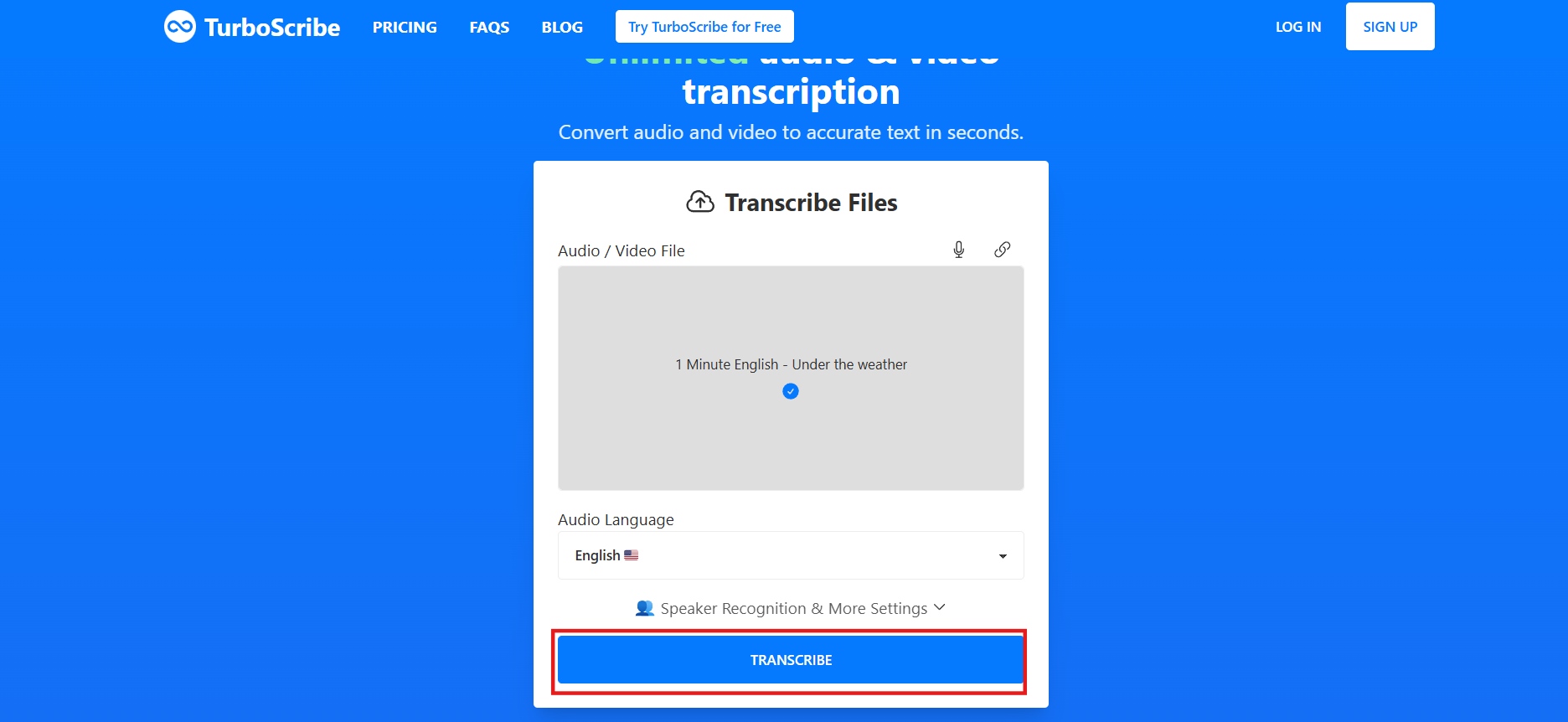
Click "Transcribe." TurboScribe uses GPU-powered Whisper AI models to process the file. Most files finish in minutes (often under 5 minutes for a 1-hour recording, depending on the mode and queue). Free-plan files run at lower priority; Unlimited users get the highest priority.
Step 4: Download the transcript
Once processing finishes, export the result as DOCX, PDF, TXT, or subtitle files (SRT/VTT), ready to edit, share, or upload directly.
TurboScribe pricing
TurboScribe keeps pricing simple, offering a limited free plan and an Unlimited subscription for users who need frequent, high-volume AI transcription.
|
Plan |
Price |
File Limits |
Queue Priority |
Core Features |
|---|---|---|---|---|
|
Free Plan |
$0 |
3 files/day, max 30 min per file, 1 at a time |
Standard / Lower |
Clean TXT, DOCX, SRT, PDF exports |
|
Unlimited Plan |
$10/mo (billed annually at $120/yr) or $20/mo (monthly) |
Up to 10 hrs / 5GB per file, 50 files at once |
Highest Priority |
All 3 modes, 134+ translation languages, bulk exports |
TurboScribe defines "unlimited" as unlimited usage for a single human operator. There is a practical ceiling of roughly 720 hours per month (the literal number of hours in a 30-day billing cycle). Account sharing and automated bot abuse are restricted, making it an economical option for solo power users, researchers, and podcasters with high-volume backlogs.
TurboScribe review: pros and cons
Pros |
Cons |
|---|---|
|
|
Real user reviews and feedback
Trustpilot
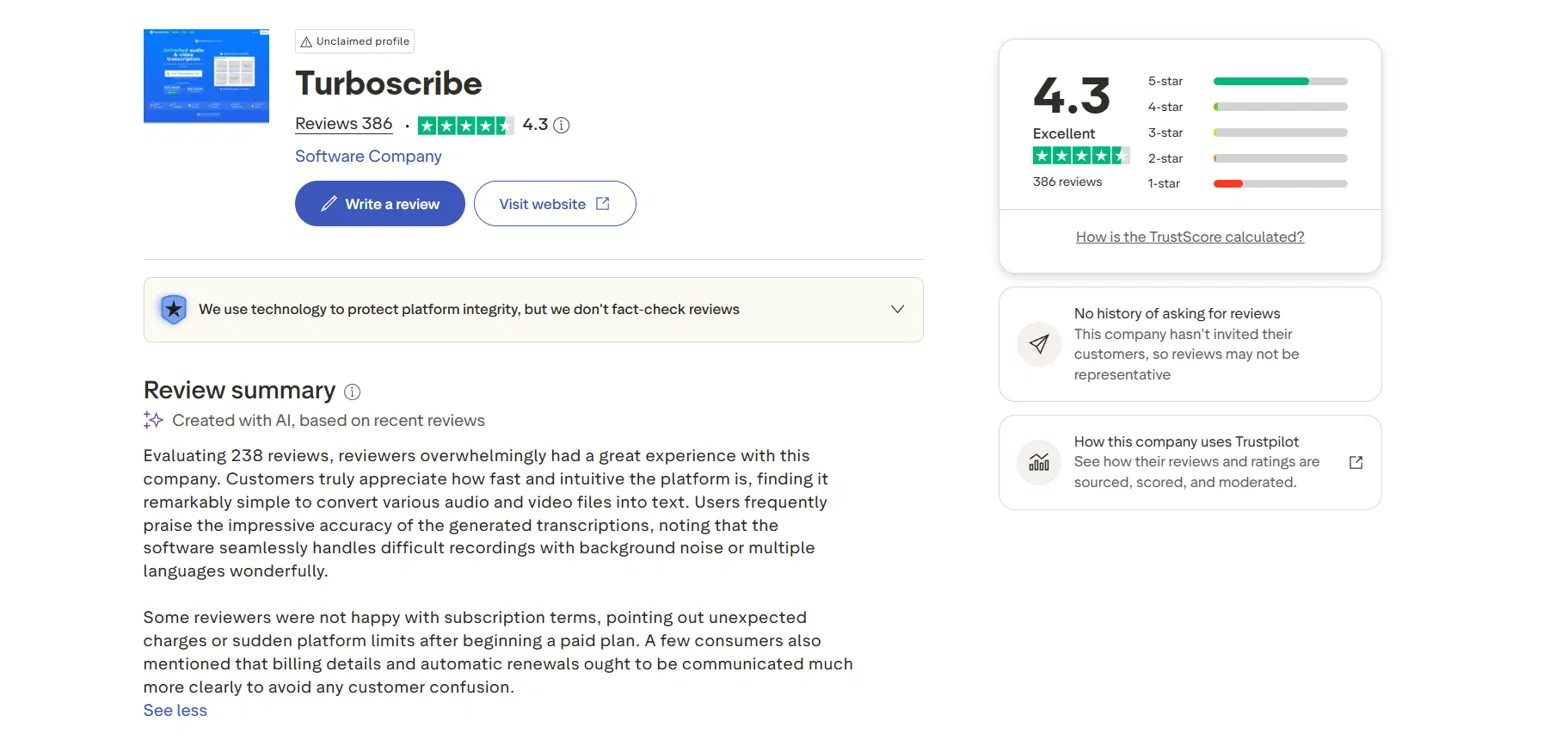
TurboScribe is often praised by users for its speed, ease of use, and transcription accuracy, even on challenging recordings and in different languages. However, some reviewers cite concerns about subscription terms, unexpected charges, service reliability, and practical limits on higher-volume use.
G2
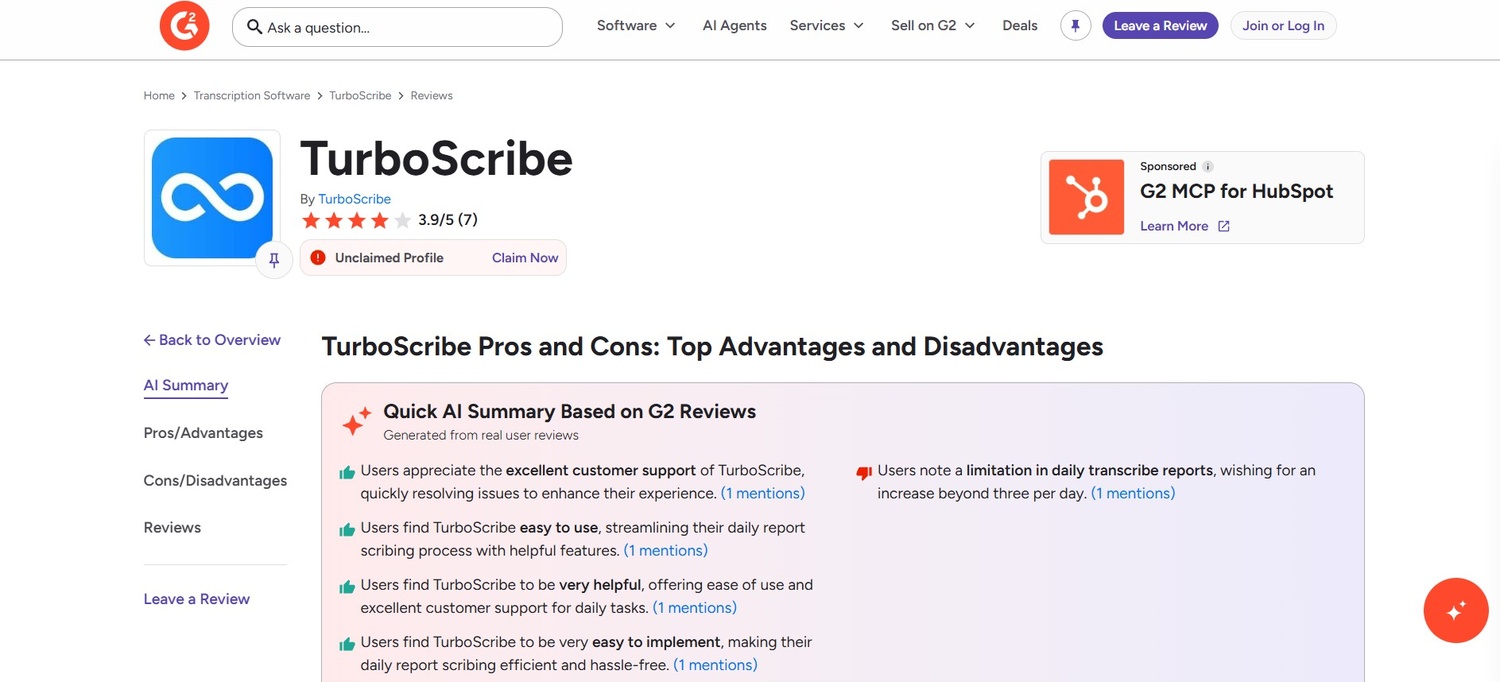
Reviewers have said that TurboScribe is easy to use and helpful for daily transcription work. The good quality transcripts and responsive customer support have also been praised. The most common complaints are about the free plan's three transcriptions-per-day limit and the lack of better communication about those limitations.
Product Hunt
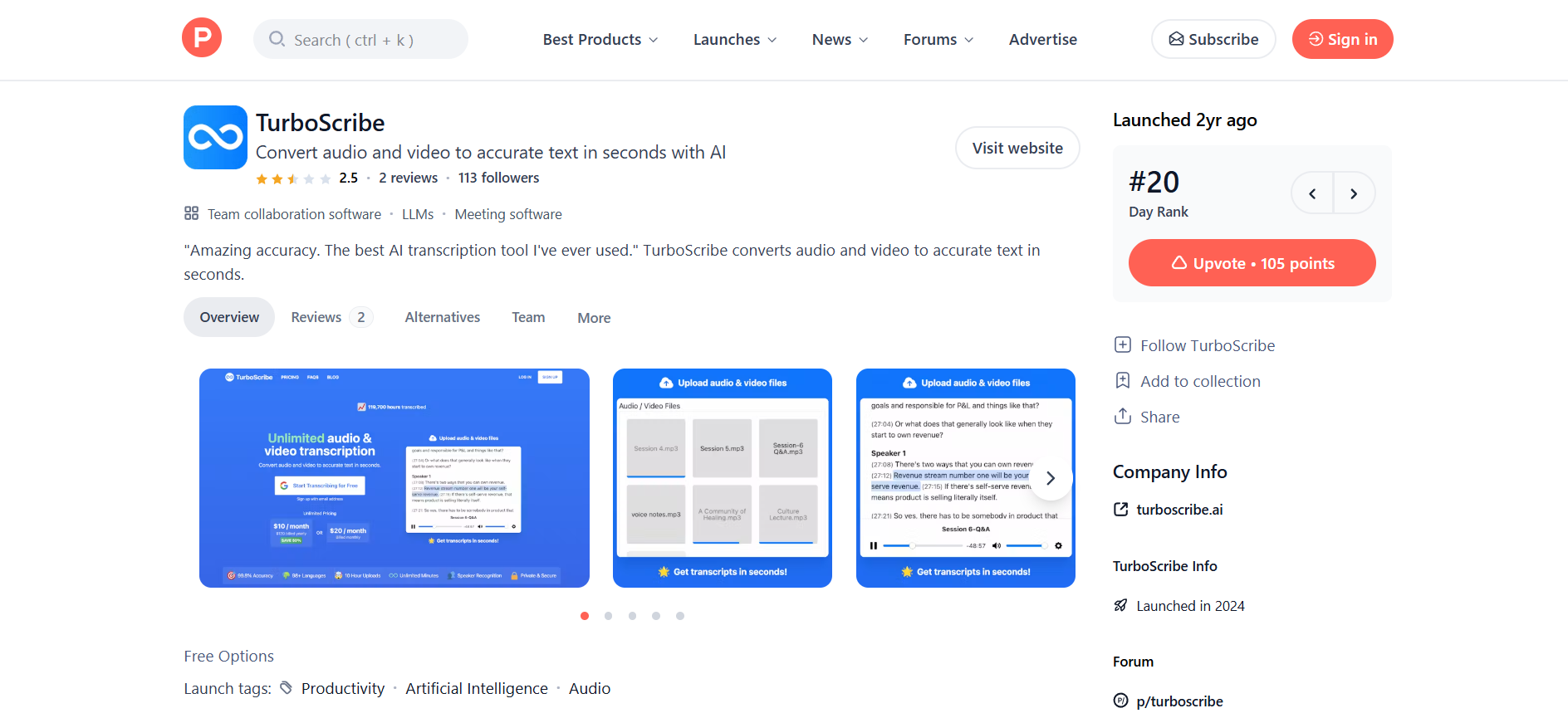
Feedback highlights TurboScribe's fast transcription and strong core product. However, one detailed review raised concerns about unclear practical limits on the Unlimited plan, particularly for bulk uploads, along with frustration around support.
Our verdict
TurboScribe works well if you have a steady volume of pre-recorded files, want predictable pricing, and mainly work with reasonably clear audio. The unlimited model removes the constant mental calculation of "how many minutes will this cost?" that comes with metered tools.
It is less ideal if you need live transcription, frequent speaker identification that requires little cleanup, or maximum reliability on noisy multi-speaker recordings. In those cases, the extra editing time can offset the price advantage.
Meet Vmake Labs: a strong alternative to TurboScribe
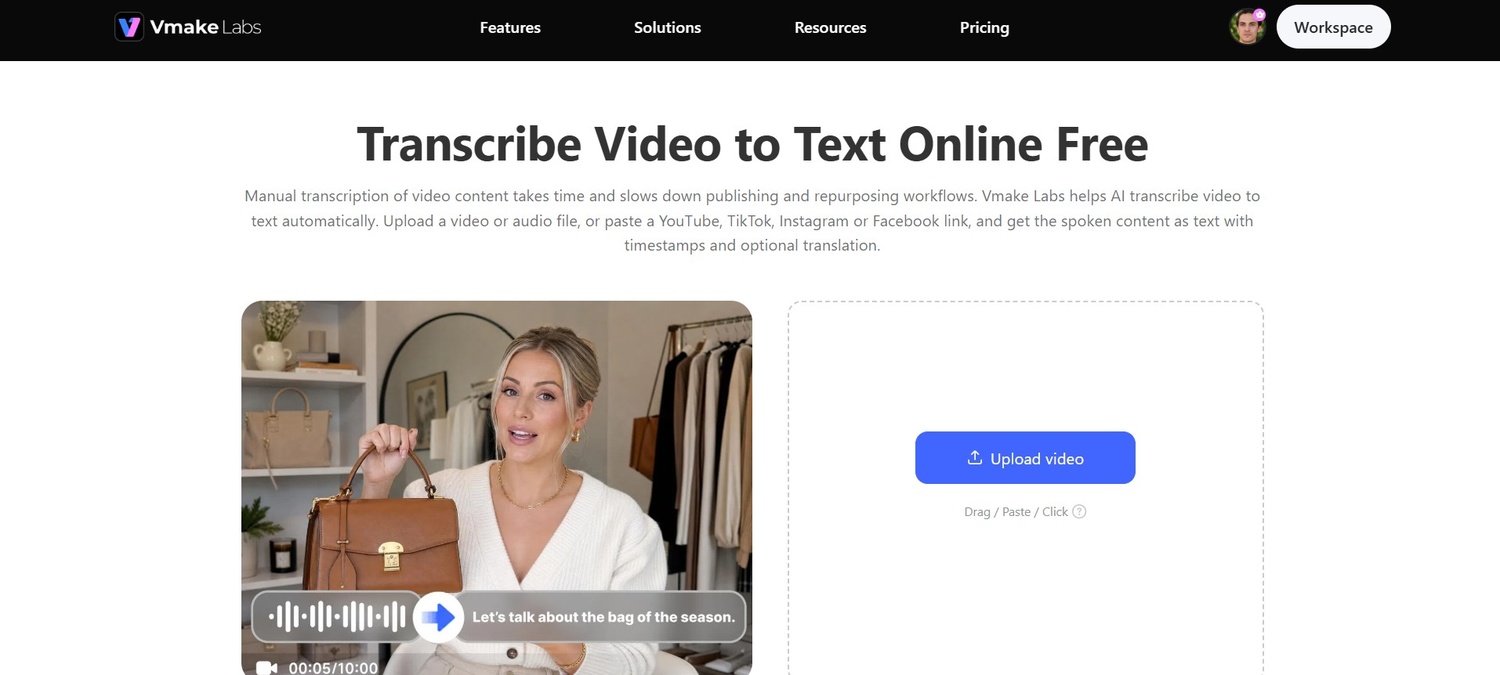
Vmake Labs offers a straightforward way to turn video and audio into text. You can upload files or paste a YouTube, TikTok, or Facebook link. No download required. It supports several major languages with optional translation in the same session, and exports as TXT with timestamps or SRT.
Key features of Vmake Labs
Upload files or paste a link directly
Vmake Labs accepts direct file uploads and pasted links from YouTube, TikTok, and Facebook. You skip the download step entirely. The same workspace handles both local files and online videos, which speeds up transcription for social content and online recordings.
Multilingual transcription with built-in translation
It supports English, Spanish, Portuguese, Traditional Chinese, and Simplified Chinese. Toggle Add Translation to generate a translated version in the same session. No separate tool or re-upload required. This keeps multilingual workflows simple and fast.
Flexible export options
Download the finished transcript as TXT with timestamps for editing, notes, or documentation, or as an SRT subtitle file for captioning. Both formats come from the same session, so you can move straight into writing or video editing without extra conversion steps.
Simple transcription workflow
Upload your file or paste a supported link, select the source language, enable translation if required, and process the content. You can then copy or download the completed transcript in your preferred format.
Steps to transcribe video or audio using Vmake Labs
Follow these simple steps to transcribe video or audio effortlessly.
Step 1: Upload your audio or video file
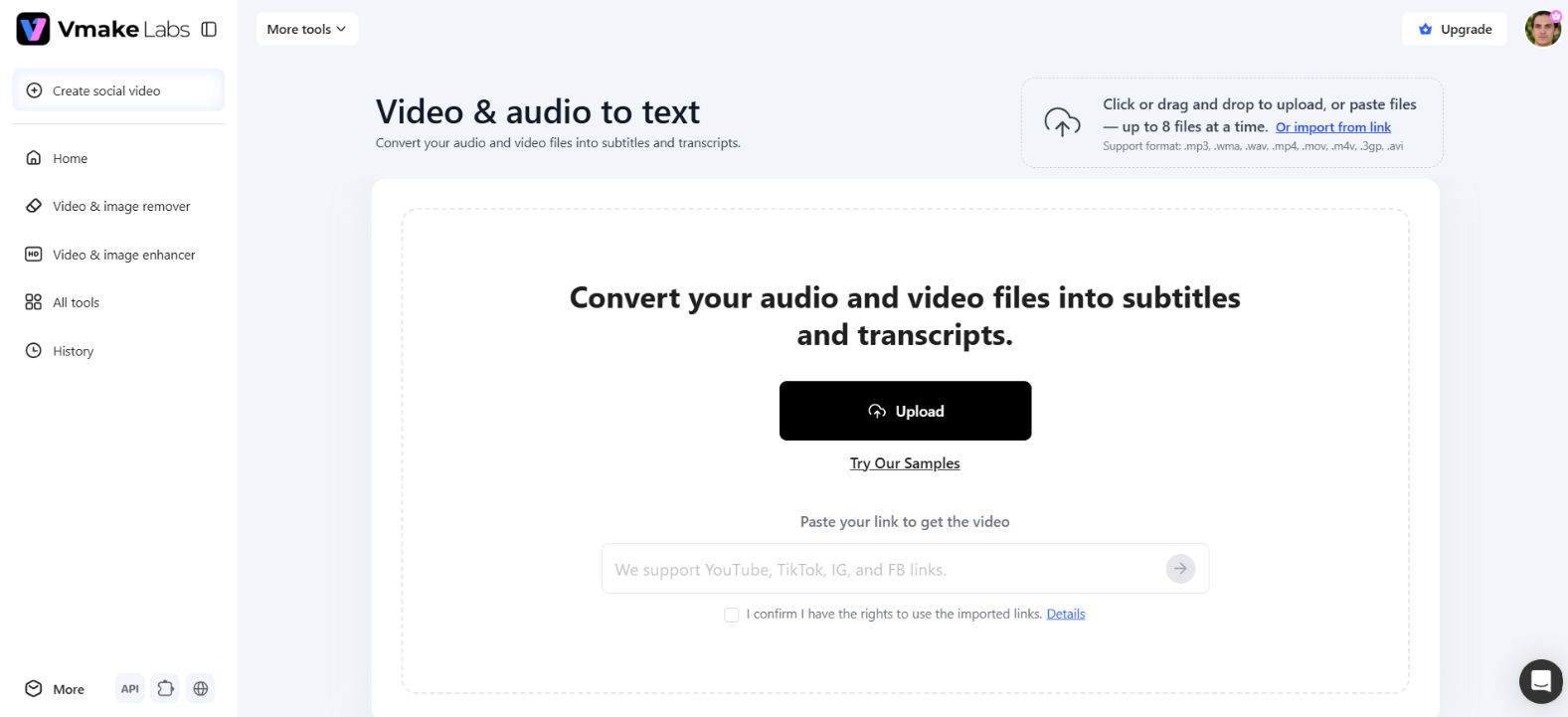
Click, drag, or paste a file to upload video or audio directly. Or paste a YouTube, TikTok, or Facebook link to transcribe without downloading the video first.
Step 2: Select the transcription language & options
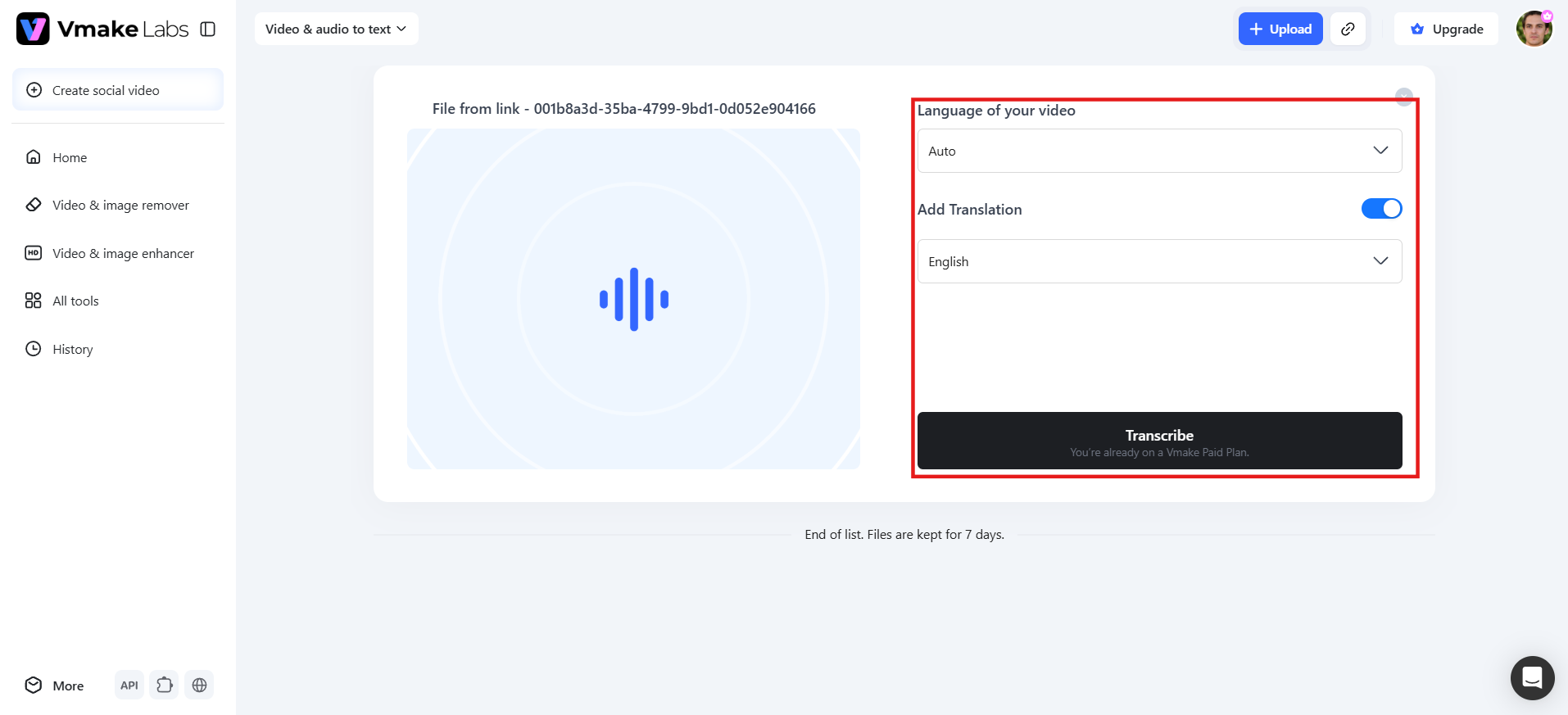
Choose the source language from the dropdown, or leave it on Auto. If you need a translated version, toggle Add Translation to generate a translated transcript alongside the original in the same session; no separate tool or re-upload required.
Step 3: Review, edit & export
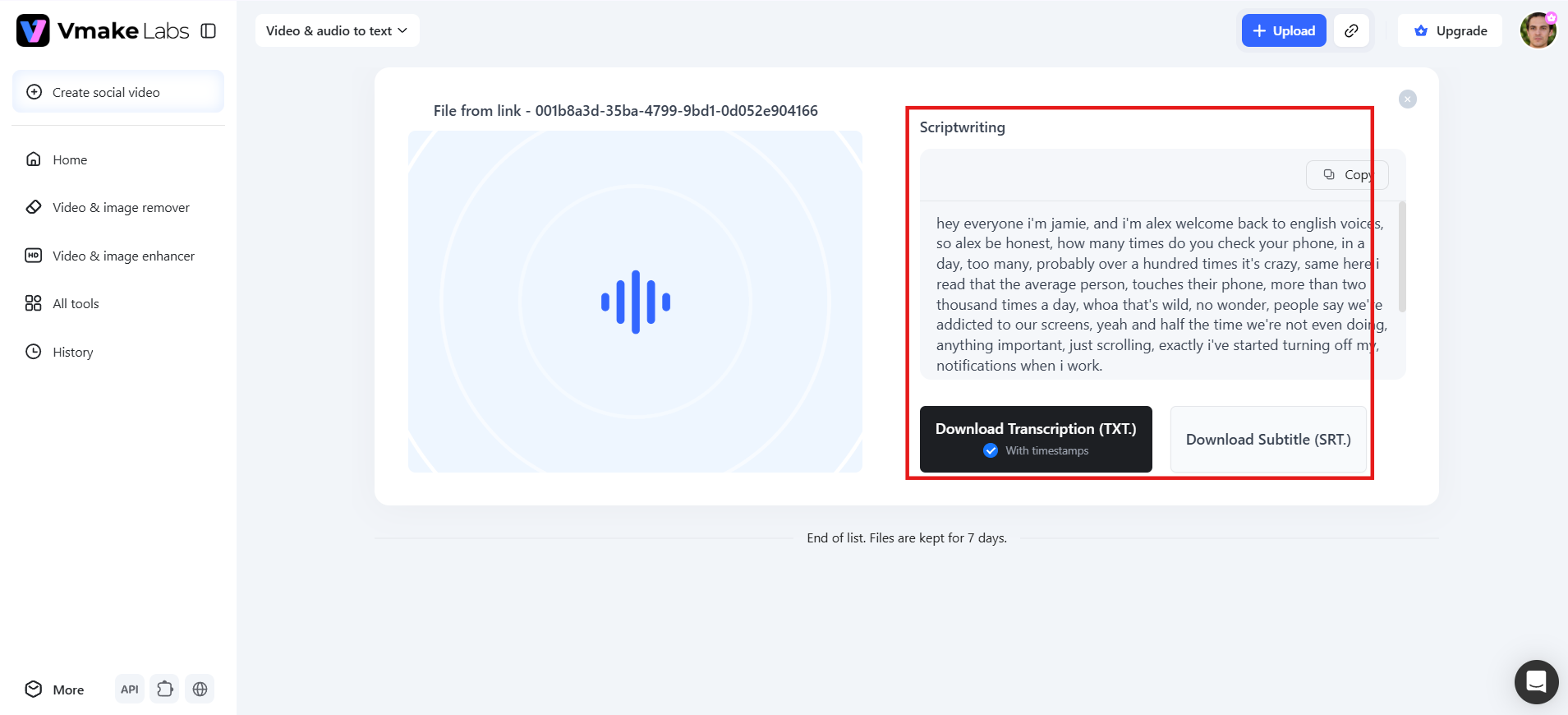
Once processing is complete, your transcript appears in the Scriptwriting section, where you can review before finalizing. From there, copy the text directly or export it as a TXT file with timestamps, or as an SRT subtitle file, both available from the same session.
TurboScribe vs Vmake Labs comparison
Both tools transcribe audio and video well, but they're built for different jobs. Here's how TurboScribe and Vmake Labs compare on price, limits, and use.
|
Feature |
TurboScribe |
Vmake Labs |
|---|---|---|
|
Input methods |
File uploads only (MP3, MP4, WAV, etc.) + YouTube, Dropbox, Google Drive, Facebook, Vimeo, X, audio/video URL |
Local file uploads + Direct Link pasting (YouTube, TikTok, Facebook) |
|
Pricing model |
Free tier + flat-rate Unlimited ($10-$20/mo) |
Free credits + plan-based pricing |
|
File limits |
Up to 10 hours / 5GB, 50 files/batch (paid) |
Standard upload limits, session-based |
|
Accuracy focus |
Strong on clean, long-form audio |
Strong on social and short-form video |
|
Export formats |
DOCX, PDF, TXT, SRT, VTT |
TXT with timestamps, SRT |
|
Transcription languages |
98+ |
English, Spanish, Portuguese, Traditional Chinese, Simplified Chinese |
|
Translation |
134+ languages |
Built into the transcription workflow |
|
Best for |
High-volume, long-form transcription |
Social content repurposing across platforms |
Choose TurboScribe if:
-
You have hundreds of hours of raw local recordings to process on a fixed budget.
-
You require niche translation support across more than 100 rare languages.
-
You need native exports in formatted Word (.DOCX) or PDF documents.
Choose Vmake Labs if:
-
You frequently transcribe content directly from YouTube, TikTok, or social video links without downloading files first.
-
You need to clean up and edit captions inside the platform before generating subtitle files.
-
You want a fast, creator-focused transcription-to-captioning pipeline with zero setup friction.
Conclusion
TurboScribe delivers accurate, flat-rate transcription that holds up on clear, long-form audio, and real user feedback backs that up across the board. It's the strongest pick for lecture archives, interview backlogs, and podcast libraries, where volume matters more than speed to publish. If you mostly work with online videos or prefer pasting links from YouTube, TikTok, or Facebook, Vmake Labs is the cleaner fit.
FAQs
Is TurboScribe really free?
Yes, up to a point. The free plan gives you three transcripts a day, each capped at 30 minutes, with one file processed at a time and lower priority. Beyond that, you need the Unlimited plan.
Is the "Unlimited" plan truly unlimited?
TurboScribe's Unlimited tier allows unlimited personal transcription without per-minute fees. The practical limit is roughly 720 processing hours per month (the maximum number of hours in a single month) under a fair personal-use policy.
How accurate is TurboScribe?
TurboScribe claims up to 99.8% accuracy using Whisper's largest model. That holds up well on clear audio. Background noise, overlapping speakers, and heavy accents all reduce accuracy, which matches what most Whisper-based tools experience.
Is my data safe with TurboScribe?
TurboScribe encrypts files and transcripts and says it doesn't use uploaded content to train AI models. It's a US-based service, so if data sovereignty or GDPR compliance matters for your work, factor that in separately from the transcription quality itself.
What is the best TurboScribe alternative?
It depends on your source material. For social and short-form video specifically, Vmake Labs handles direct links from YouTube, TikTok, Instagram, and Facebook without a download step, includes built-in translation in the same session, and exports the finished transcript as TXT or SRT.

You May Be Interested

Artistly AI Review 2026: Is It Worth Trying for Creators?
Getimg AI Review 2026: Is It the Best AI Image Generator?
Nero AI Review 2026 Explained: Is the Tool Worth Using?

Pixar AI Review: What It Is & How to Create Pixar-Style Art
Mind Video AI Review: The Ultimate AI Filmmaking Tool?
Supawork AI Review: Watermark Remover Tested (2026)