Nero AI Review: Features, Pricing & Free Alternative
 Ken DawsonMay 19, 2026
AI video enhancers are everywhere now, and Nero AI Video Upscaler Pro is one of the names that keep coming up. The pitch is simple enough: throw in an old or low-resolution clip, let the AI clean it up, sharpen details, smooth motion, maybe even fix faces that got wrecked by compression years ago. With Nero AI, you're getting automated enhancement that saves time when you don't want to wrestle with professional editing software. However, Nero AI isn't cheap. The paid plans climb fast, and the software leans pretty heavily on your GPU if you want decent rendering speeds. So the real question isn't just "Does Nero AI work?" In this guide, we'll cover the detailed Nero AI review, its key features, and a smart alternative to do the job effortlessly.
What is Nero AI video upscaler: A quick overview
Nero AI Video Upscaler Pro sits inside Nero AG's larger collection of AI media apps. The whole idea is simple: you upload the software and an old, blurry, compressed, or low-resolution clip, and the AI tries to clean it up without forcing you into professional editing workflows that take forever to learn. You won't spend hours tweaking timelines or masking frames.
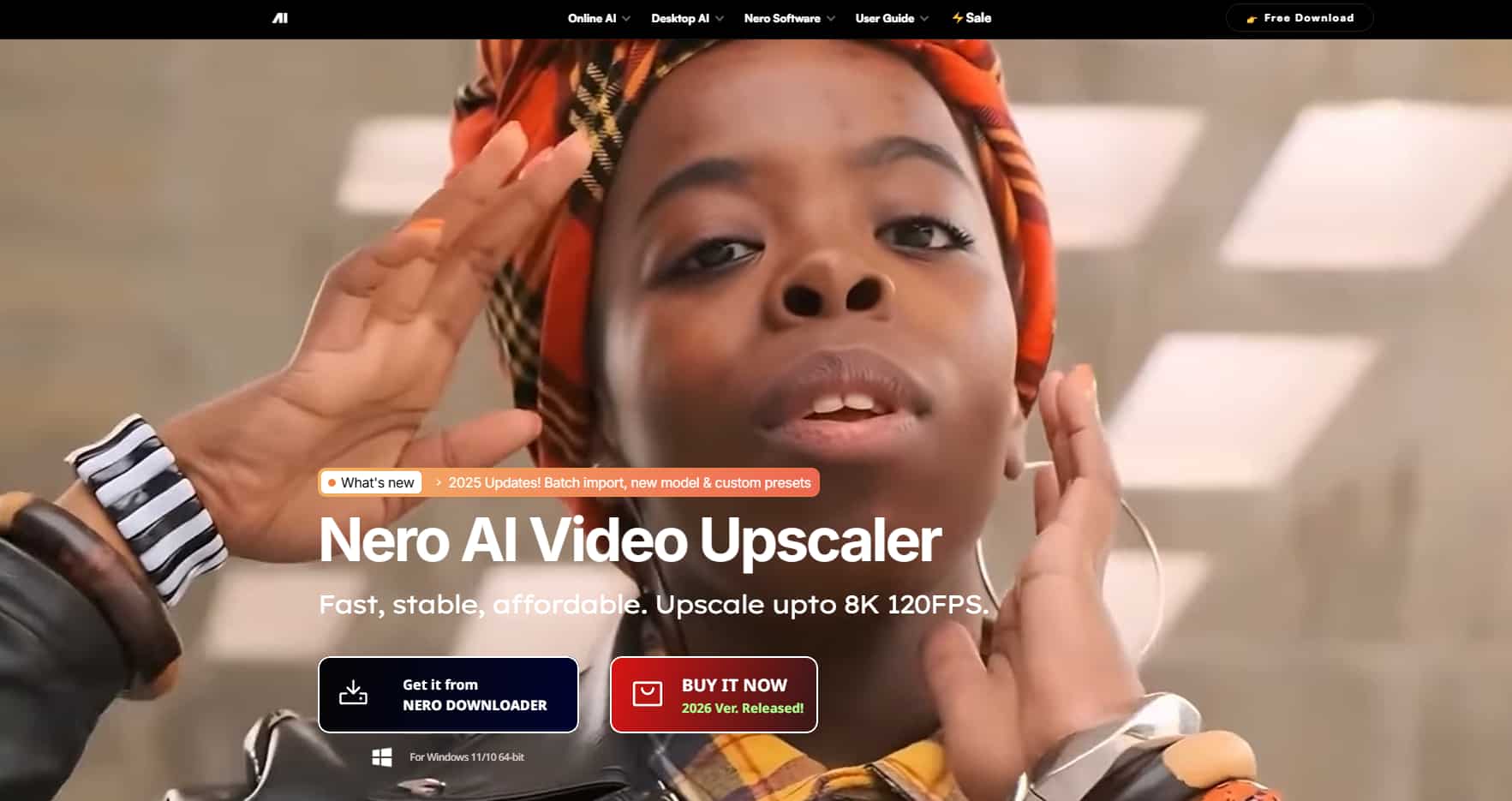
What Nero AI mainly does is upscale footage, reduce noise, sharpen soft details, and restore clarity that got lost somewhere along the way. The software relies heavily on AI super-resolution technology. Instead of stretching pixels like older upscalers used to do, it tries to rebuild textures and edges by predicting what should be there. You'll probably get the most value from Nero AI if you just want quick improvements without messing around in advanced editing software.
Key features of Nero AI video upscaler
-
AI-powered super resolution
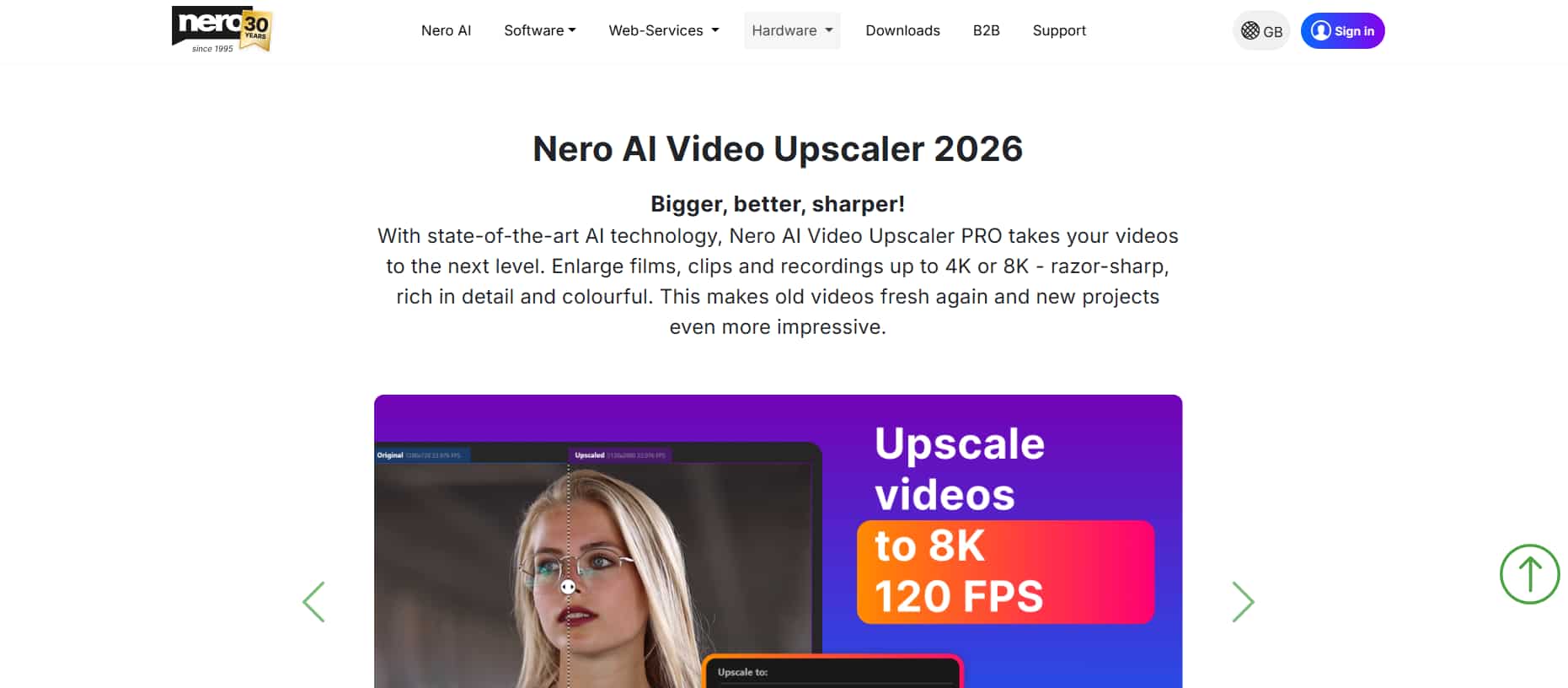
This is the headline feature, and honestly, it's the reason most people download Nero AI in the first place. The software can upscale videos by 2x, 3x, or even 4x resolution using AI super-resolution technology instead of basic pixel stretching. That difference matters more than you'd think. Nero AI tries to rebuild missing textures, edges, and finer details by analyzing surrounding frames. When it works well, older 480p or 720p videos suddenly look cleaner and far more watchable on modern displays.
-
AI Noise Reduction & Sharpening
A lot of low-quality videos don't just suffer from poor resolution. They're noisy too. Grain, compression artifacts, muddy edges, weird pixel crawling around dark scenes. Nero AI includes automatic noise reduction and sharpening tools that try to clean those problems up during processing. The software removes wind from video and visual clutter while sharpening outlines and textures, so the footage looks less washed out. This is especially helpful for old phone recordings or clips exported too many times through social platforms.
-
Face enhancement mode
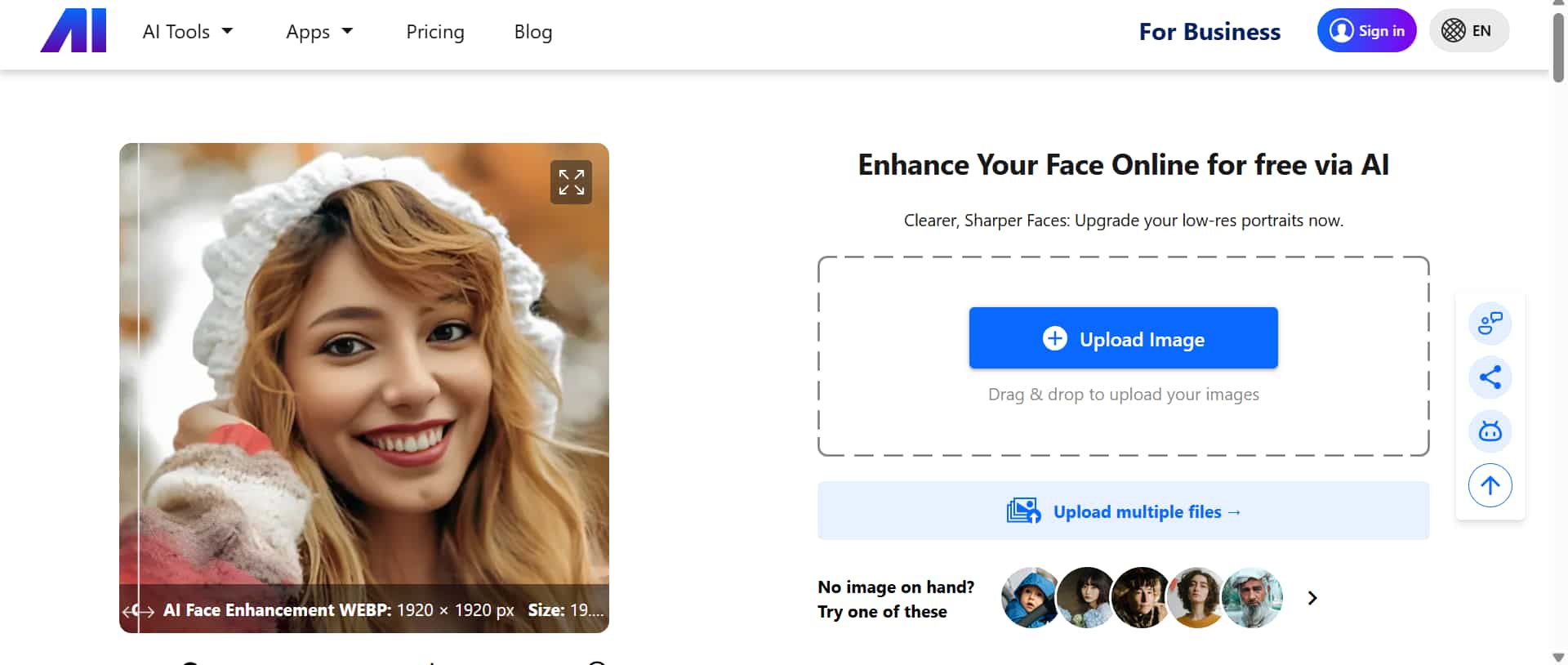
Face enhancement is one of those features that sounds gimmicky until you actually try it on old footage. Nero AI specifically targets facial areas in a video and attempts to restore missing detail around eyes, skin texture, lips, and contours that get blurred out over time. For talking-head videos, interviews, podcasts, Zoom recordings, and family clips, this feature can make a surprisingly big difference. Faces become clearer without needing manual retouching frame by frame.
-
Wide format compatibility
Nero AI supports most of the common video formats you're likely to use, including MP4, MOV, AVI, WMV, and several others. The flexibility helps if you're pulling footage from different devices. Phone clips, DSLR recordings, downloaded videos, old archived media - the software handles most of them without much trouble. Importing files is simple enough that you probably won't need tutorials just to get started.
-
AI frame interpolation
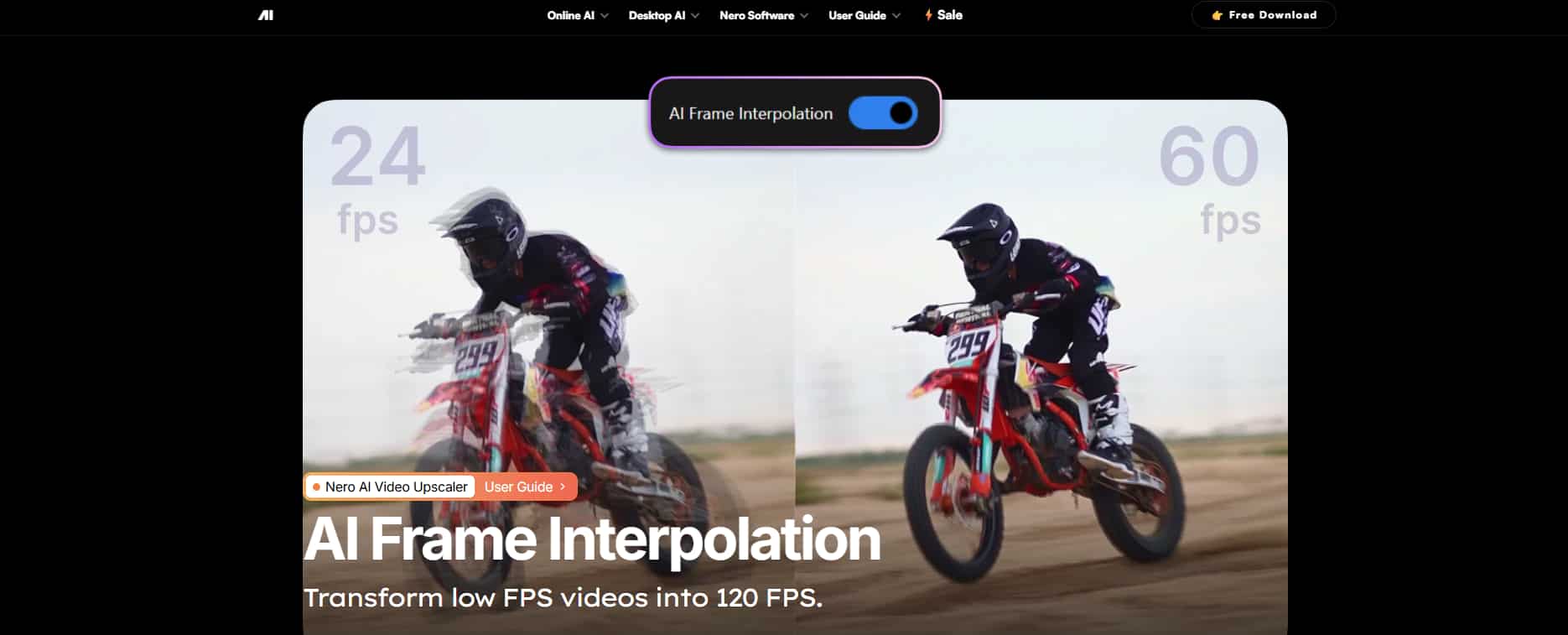
The AI frame interpolation feature focuses on motion rather than image detail. Nero AI creates extra frames between existing ones, so playback appears smoother and less choppy. If you've ever watched an old 24 FPS video and thought it looked jittery on modern screens, this is the feature trying to fix that.
Sports clips, gaming footage, drone shots, and action scenes tend to benefit the most. Slow-motion playback also looks cleaner because the AI fills in missing motion data between frames instead of simply duplicating them.
How Nero AI video upscaler works: A step-by-step workflow
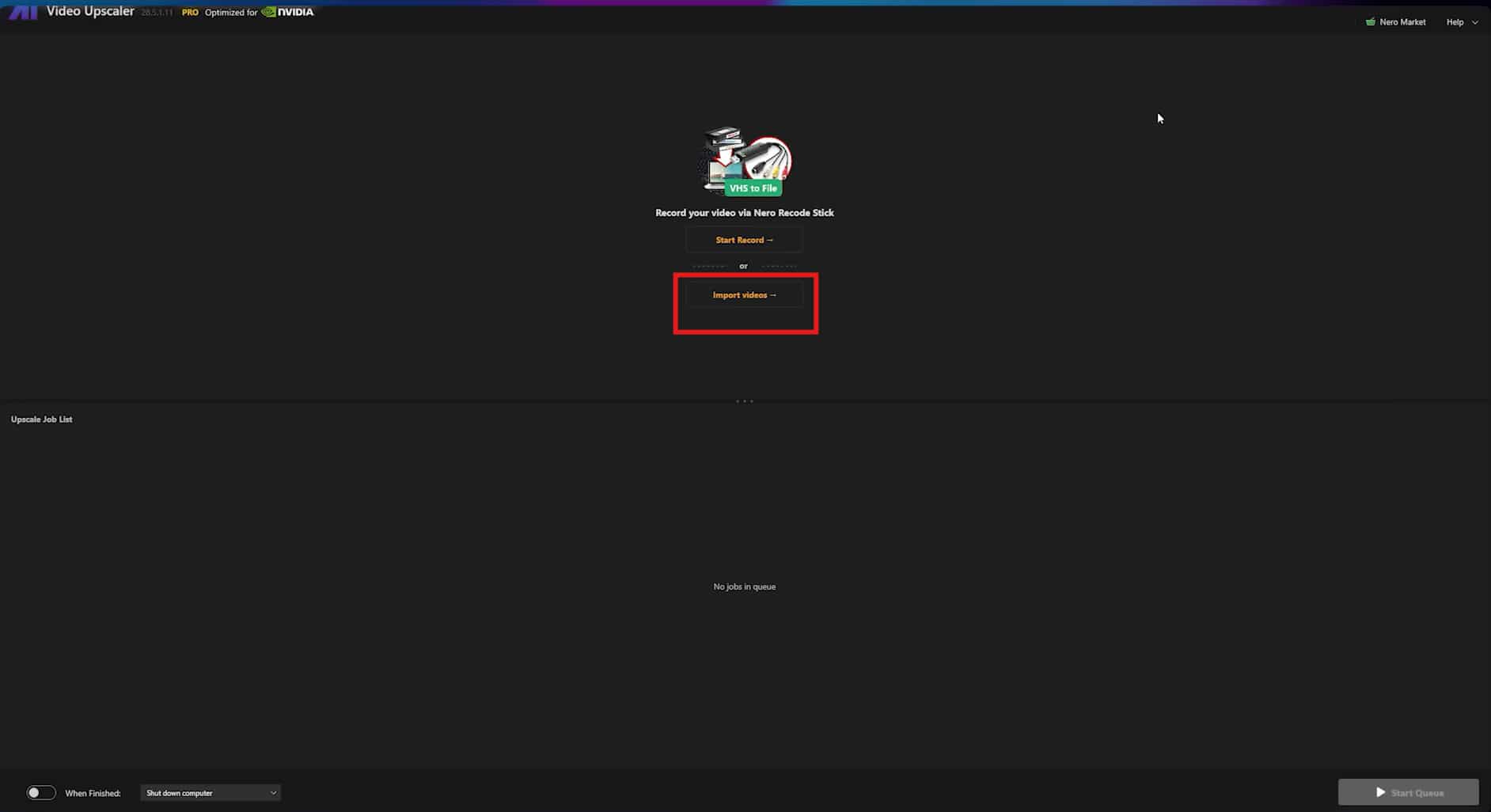
Step 1: Upload video
The process starts with importing your footage into Nero AI. You can drag and drop files directly into the interface or use the standard upload option. The software supports most common formats, so you usually won't spend time converting files beforehand.
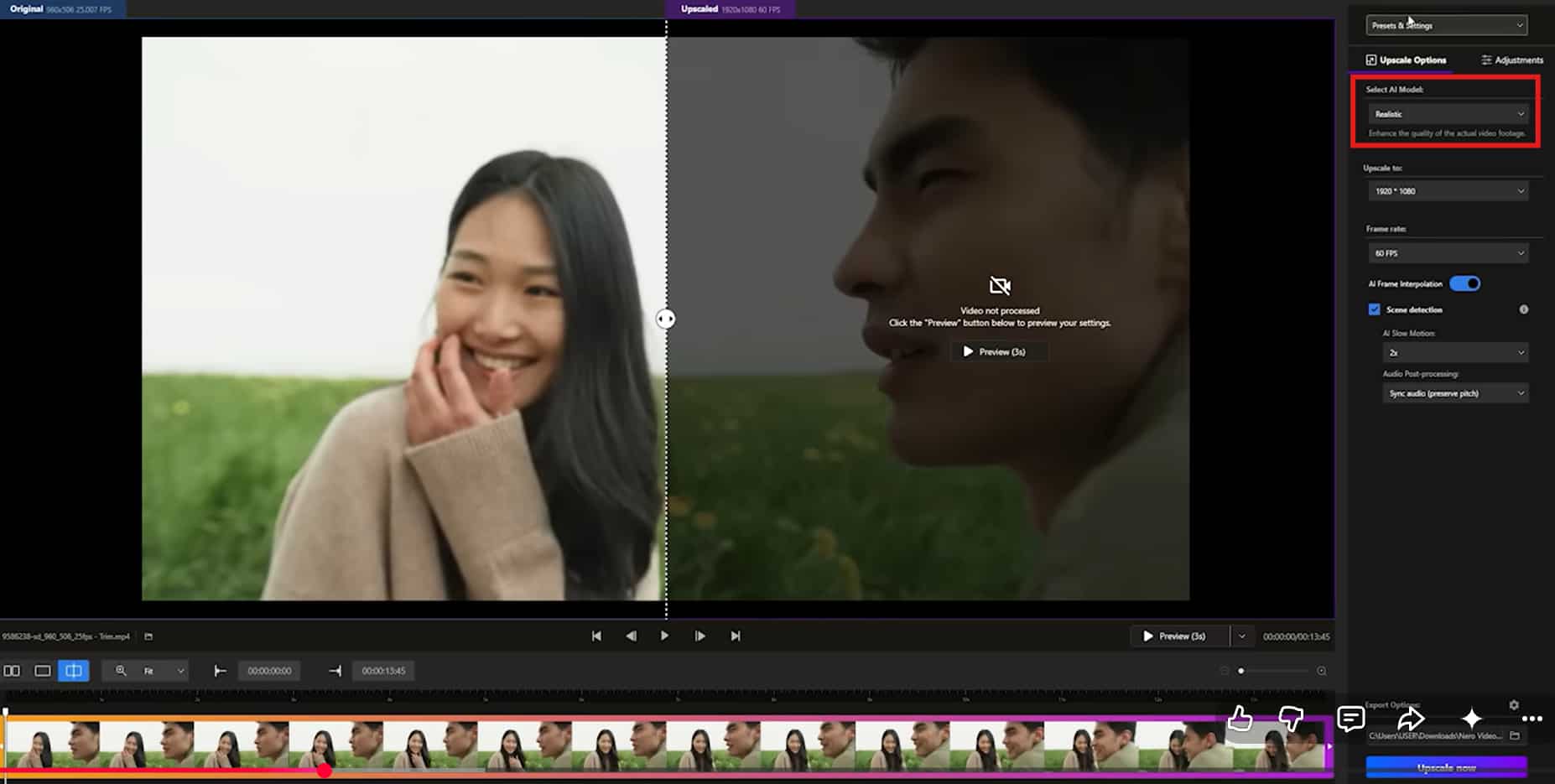
Step 2: Choose AI model (Realistic / Animation / Fast)
After uploading your video, the next step is picking an AI model. Nero AI splits its processing into different models based on content type. The Realistic mode usually works best for live-action footage while animation mode handles cartoons, anime, and digitally illustrated content a lot better.
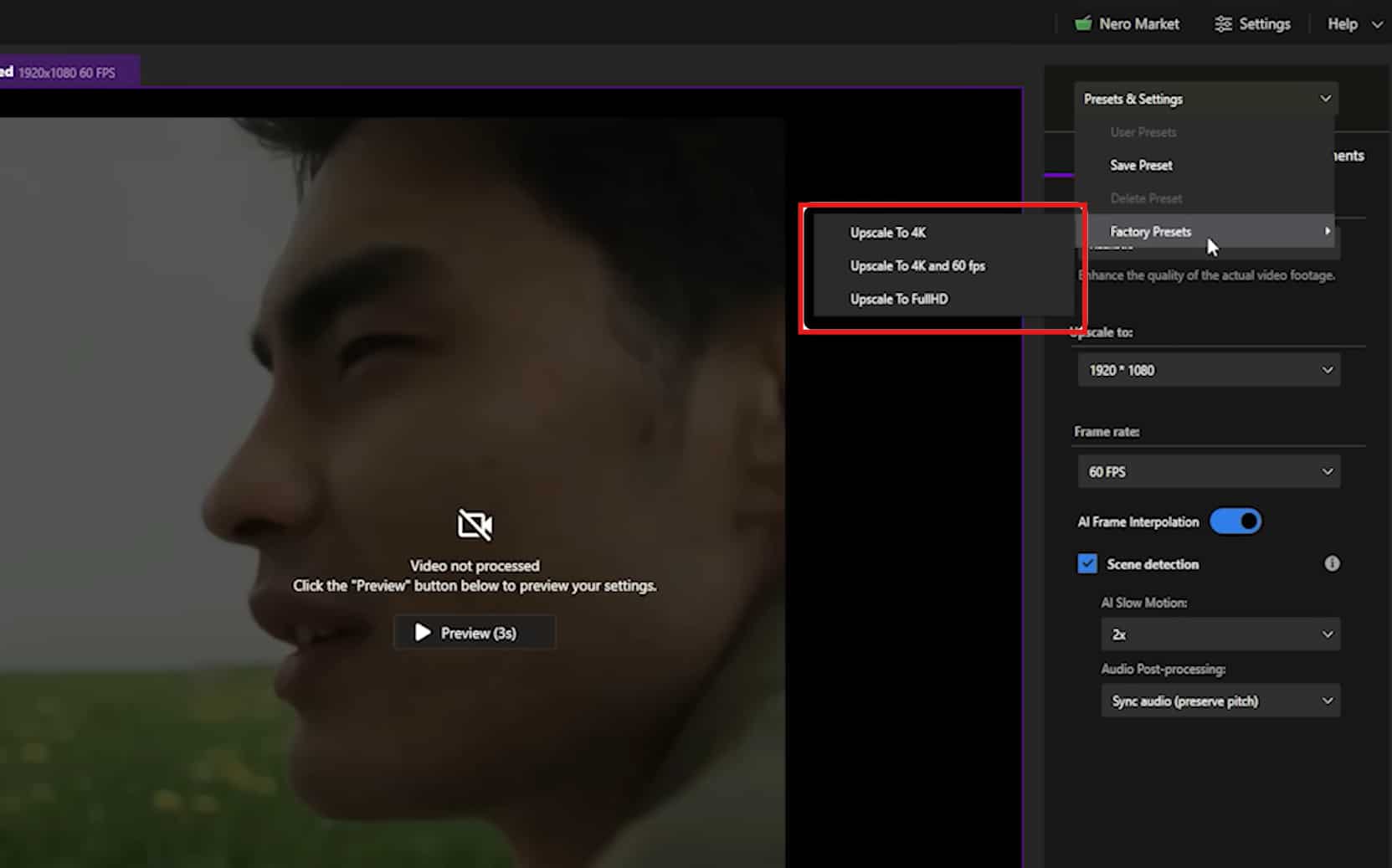
Step 3: Select enhancement level
This is where you decide how hard Nero AI should push the footage, with options like 4K or full HD enhancement sitting right in front of you. However, higher upscale settings ask a lot more from your GPU, so if you're working on an older machine, you'll probably notice the slowdown almost immediately.
Step 4: Preview output
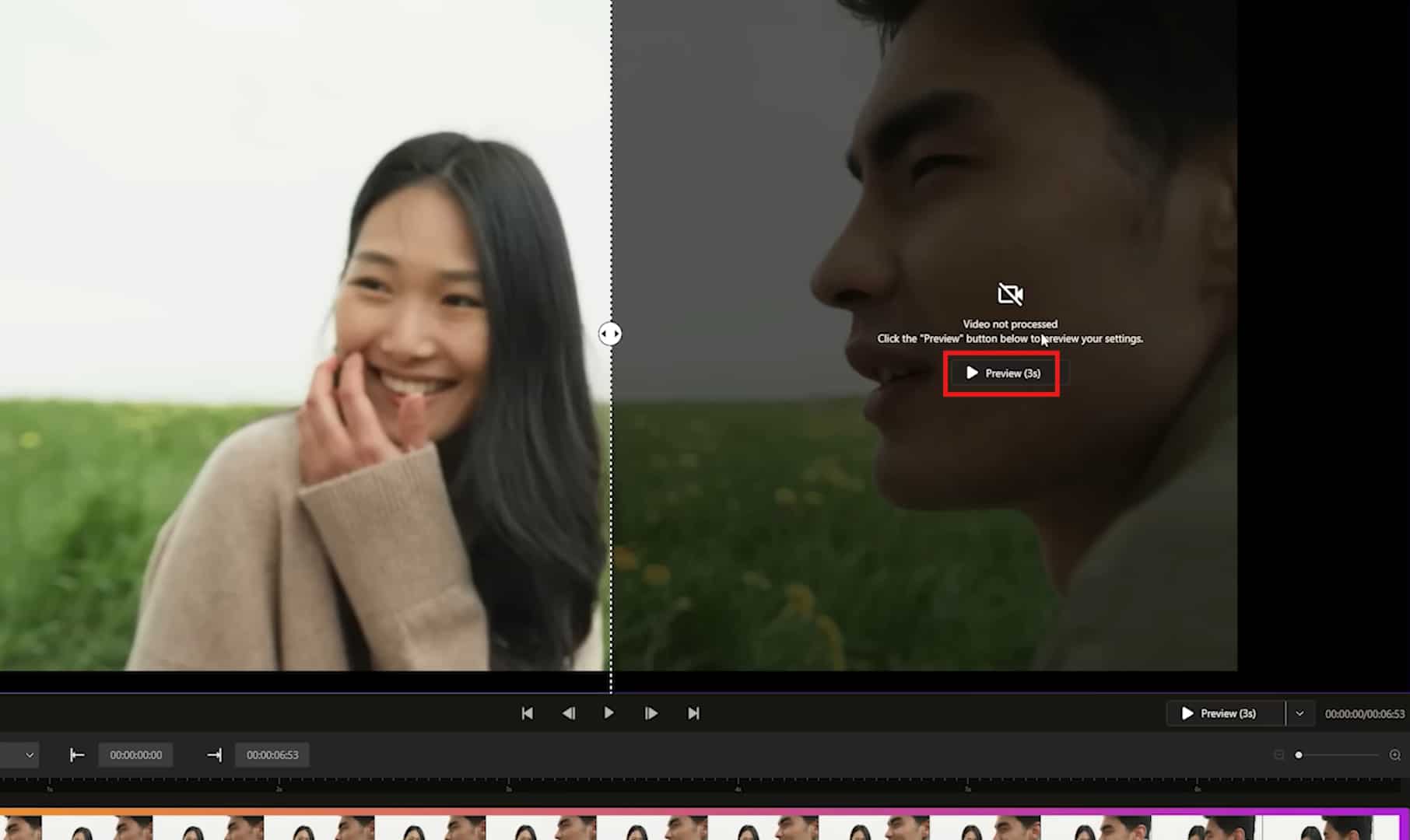
Before exporting the final version, Nero AI gives you a preview window so you can compare the original footage against the enhanced result. This step is genuinely useful because AI processing can look dramatically different depending on the scene, lighting, and motion.
Step 5: Export enhanced video
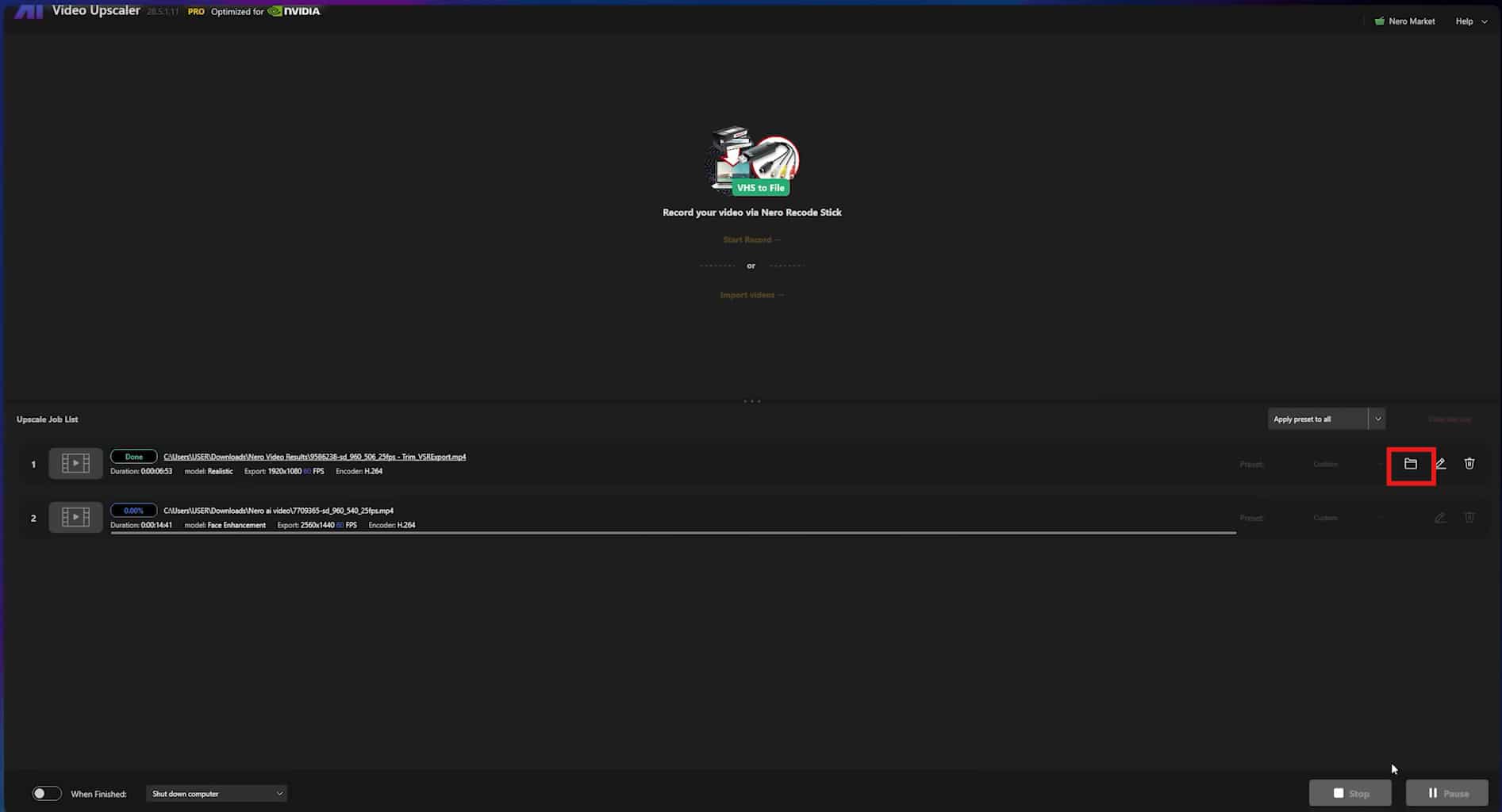
Once everything looks good, you can export the finished video in your preferred format and resolution. Nero AI handles the rendering automatically, so you mostly just wait for processing to finish. Short clips export fairly quickly on newer systems, while longer videos may take time. Rendering speed depends heavily on your hardware.
Nero AI video upscaler pro: Pricing review
|
Free |
Upscaler Bundle |
Video Upscale |
Lifetime License |
|---|---|---|---|
|
$0 |
179.16 NZD$ per year |
139 NZD$ |
$139-$195, depending on the vendor and promotions applicable |
|
|
|
|
|
Nero AI Video Upscaler Pro isn't exactly budget software. It sits in that uncomfortable pricing range where casual users start hesitating.
-
Free trial
Nero does include a free trial, but you'll run into limitations pretty quickly. Export restrictions, shorter clip processing, and locked features are all part of the experience.
-
Upscaler bundle
Upscaler bundle starts at 179.16 NZD$ per year. The plan offers both image and video upscaling options. Besides, the bundle offers 100 Nero credits for further use.
-
Video upscaler
As the name implies, the video upscaler option of Nero AI offers only a video upscaling option to users. The plan starts at 139 NZD$ and provides no Nero credits.
-
Lifetime license
Then there's the lifetime license. That version typically lands somewhere near the $139 range, although pricing changes depending on promotions or bundles. If you process videos regularly, maybe the one-time payment makes sense. For occasional users? Harder sell. A lot harder, actually. Especially when newer online AI enhancers keep popping up with cheaper plans or free usage tiers.
Nero AI video upscaler review: Pros & cons
|
Pros |
Cons |
|---|---|
|
|
Overall, Nero AI does a pretty solid job with quick video enhancement and restoration. You upload a clip, pick your settings, wait through the processing, and most of the time the footage genuinely comes back looking cleaner and sharper than before. That simplicity is a big part of the appeal. Then there's the pricing problem. The annual subscription feels manageable at first, until you realize you may only use the software a few times a month. The lifetime plan costs even more, and once you add the need for decent hardware into the mix, Nero AI starts feeling less casual than it pretends to be. Here comes the need for a smarter alternative with the highest-quality output at reasonable pricing, and one of the best options you can consider is Vmake.
Meet Vmake: A trendsetter alternative to Nero AI video upscaler
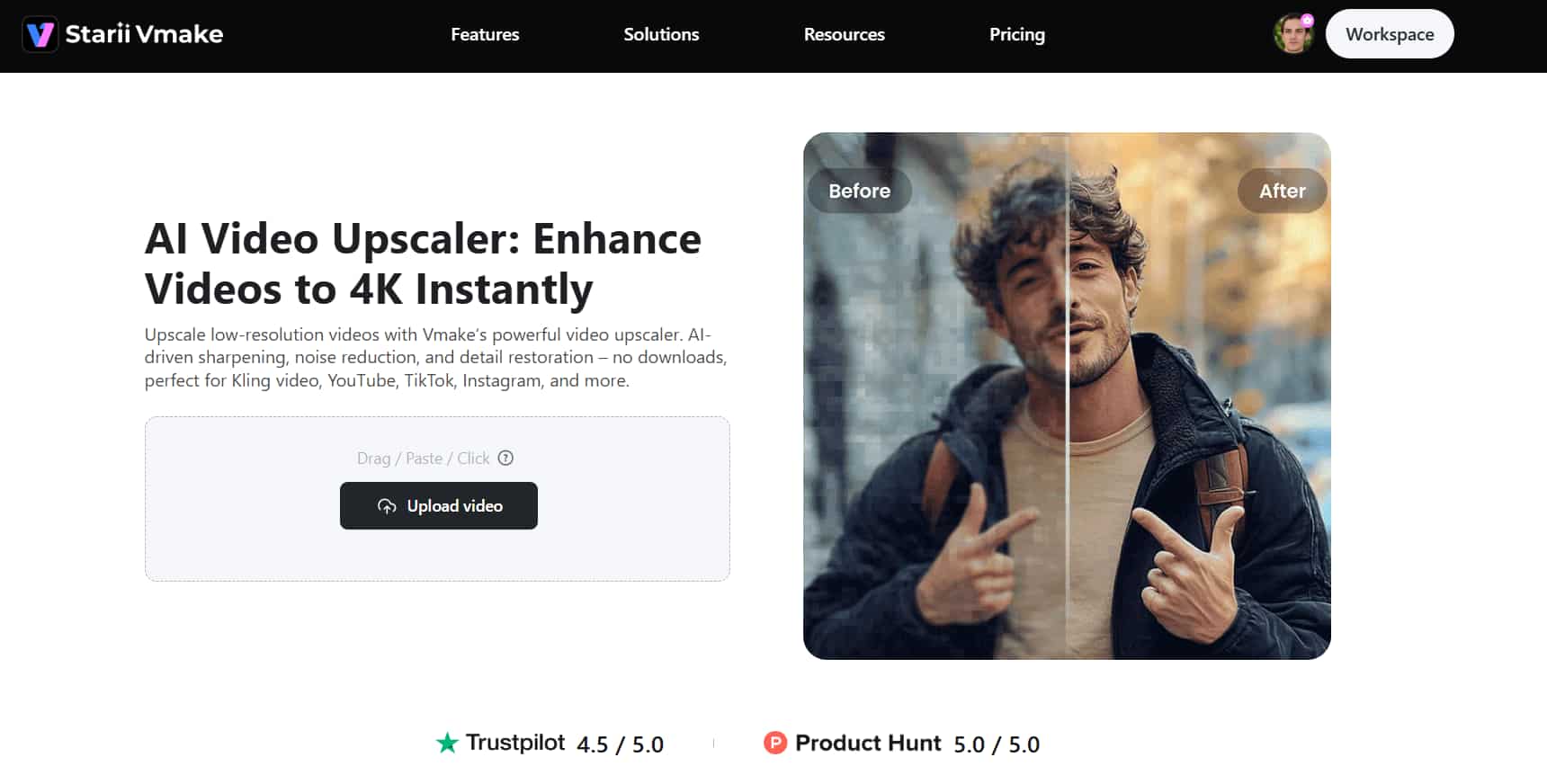
Vmake video upscaler takes a much simpler approach to AI video enhancement. No heavy desktop installation. No complicated setup process. You open the site, upload your footage, pick an enhancement option, and let the AI handle the processing from there. The tool focuses heavily on browser-based AI enhancement tools. You can improve video quality, sharpen blurry footage, remove noise from video, and upscale lower-resolution clips without relying entirely on your computer's GPU.
How to use Vmake to upscale videos
Step 1: Upload the video
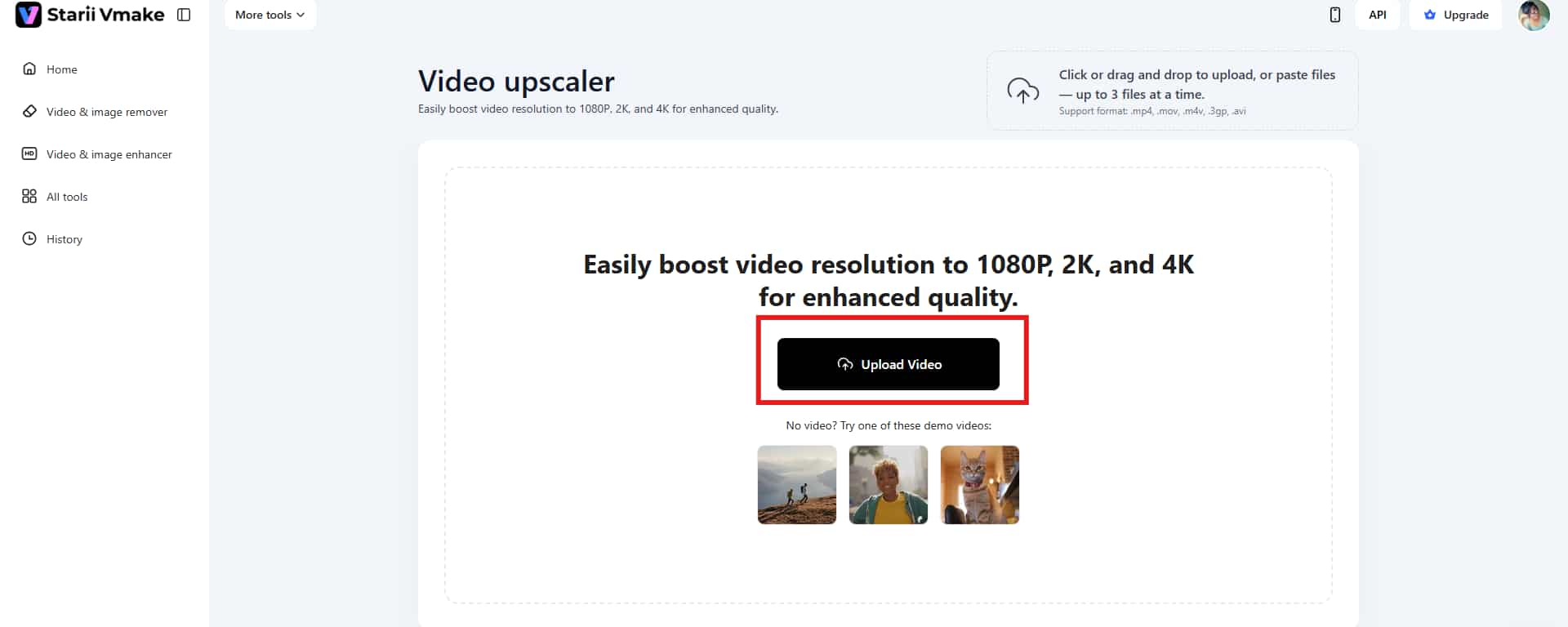
Start by uploading the video you want to upscale. Launch the tool in your web browser, and click the "Upload Video" option. You can also drag and drop the video to get started. Vmake allows you to upscale up to 3 videos at once.
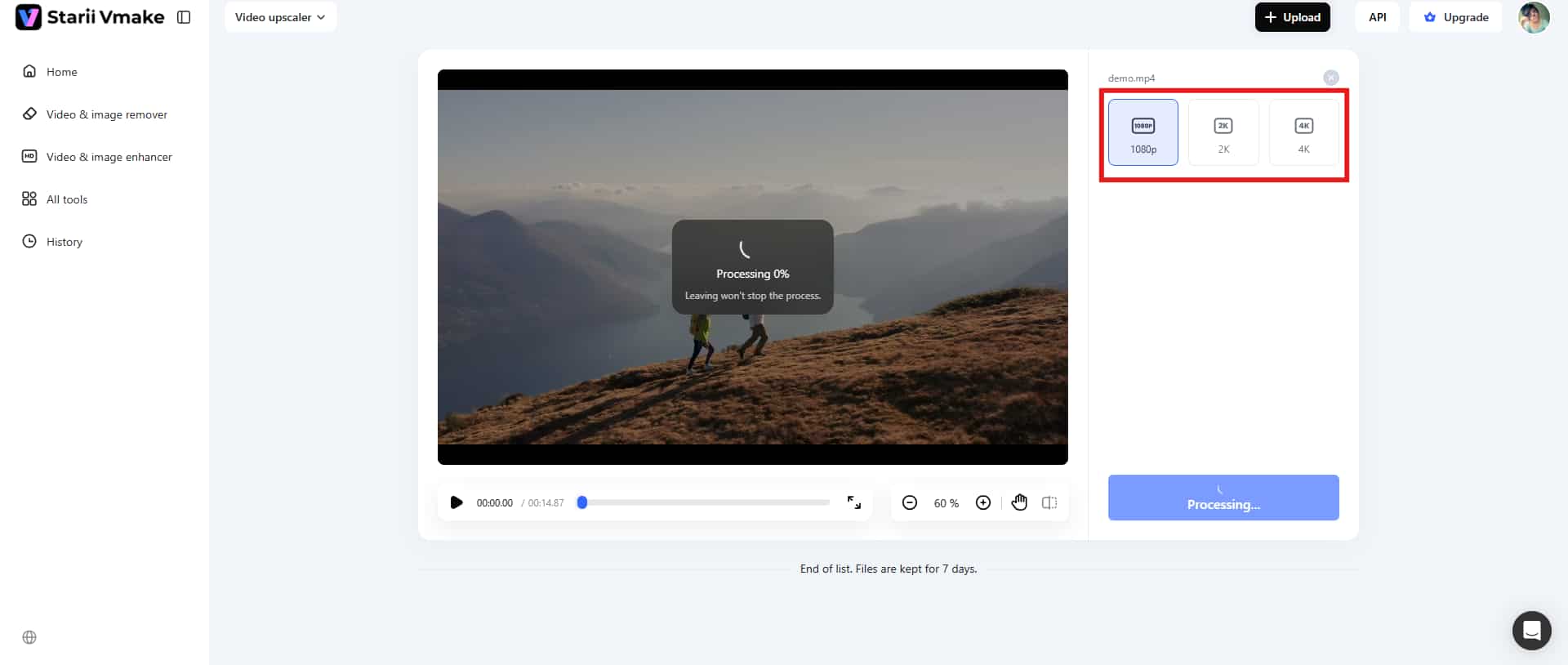
Step 2: Select the resolution preset
After uploading the video, choose the resolution preset. The tool offers three options, namely 1080p, 2K, and 4K. Choose the option that fits your requirements and wait until the AI enhances the video for you.
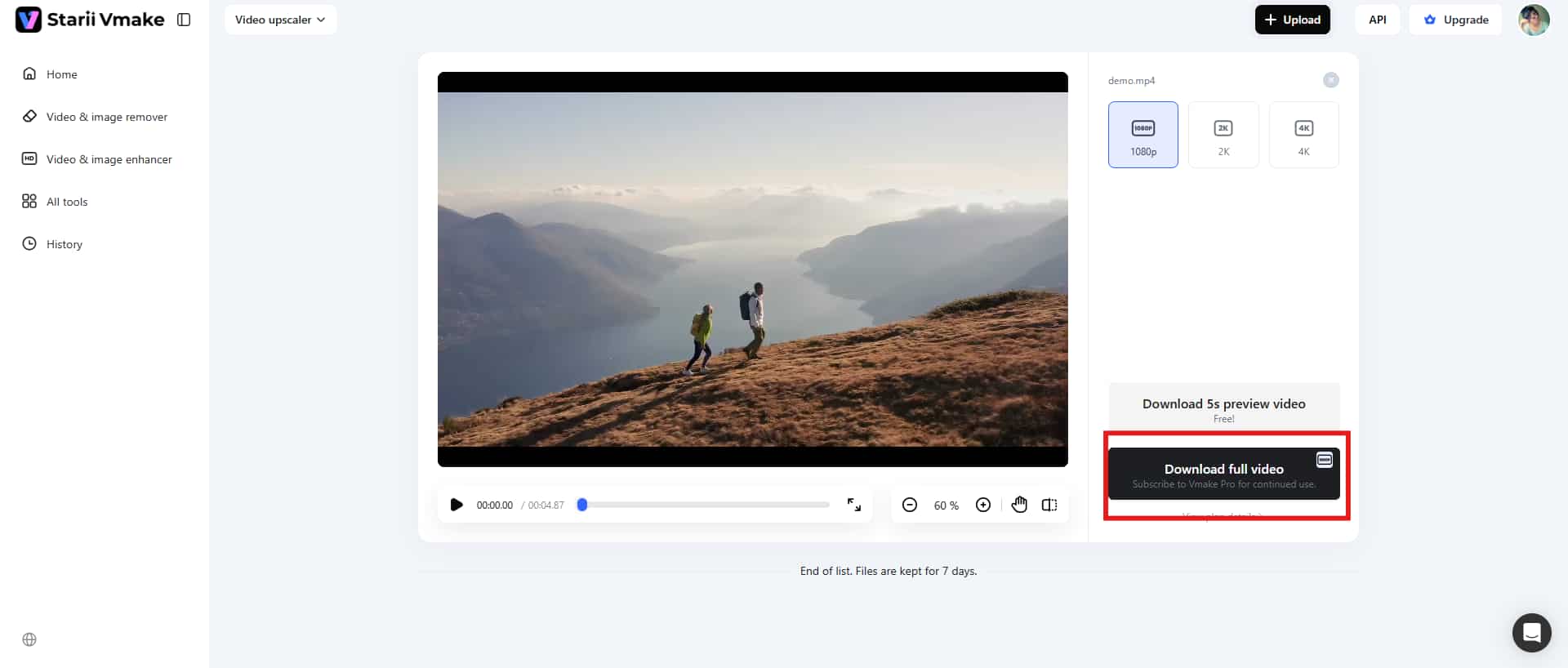
Step 3: Export the upscaled video
If you are satisfied with the final output, click the "Download Full Video" option in the bottom-right corner to save the upscaled video for further use.
Key features
-
Batch processing: Vmake lets you upload and process multiple clips together (3 files at a time) instead of repeating the same steps over and over again for every single file.
-
AI video enhancement: Vmake's main feature is its AI-based video enhancement system, which focuses on improving clarity, sharpness, and overall visual quality.
-
HD export: Once the enhancement process finishes, Vmake lets you export videos in higher resolutions, including HD-quality output suitable for YouTube, TikTok, Instagram, and product showcases.
Conclusion
That's all about Nero AI review. The tool does a lot of things right. You get AI upscaling, noise reduction, face restoration, frame interpolation: all packed into software that doesn't expect you to spend weeks learning professional editing workflows just to sharpen an old clip.
Still, Nero AI has a habit of reminding you it's desktop software first and beginner-friendly second. The pricing climbs faster than many casual users expect, especially once you start looking at lifetime licenses. That's where Vmake comes into role. Instead of loading your computer with heavy rendering tasks, the platform keeps things browser-based and much lighter overall. Vmake also lowers the barrier with free usage options, if you only enhance videos occasionally and don't want another yearly subscription. Start with Vmake now and upscale your videos instantly.
FAQs
What does Nero AI video enhancer do?
Nero AI Video Upscaler Pro improves low-quality videos using AI-based enhancement tools that focus on sharpening details, reducing noise, restoring facial clarity, and increasing resolution. You upload a clip, choose an AI model, and the software processes the footage automatically.
Is AI Nero free?
Not fully. Nero AI offers a free trial version, but the trial comes with restrictions that show up pretty quickly once you start testing larger projects or longer clips. Some features stay locked behind the paid version, and export limitations can become frustrating if you plan to use the software regularly.
Can Nero AI upscale videos to 4K?
Yes, Nero AI can upscale videos to 4K. In some situations, it can push footage even higher depending on the original file quality and the export settings you choose. The software uses AI super resolution instead of old-school pixel stretching, which means it tries to rebuild missing details while enlarging the video rather than simply making everything bigger and blurrier.
How much does Nero AI cost?
Nero AI Video Upscaler Pro usually comes with three paid options. There's the Upscaler bundle, which offers both image and video upscaling, and Video Upscaling, which does exactly what the name implies. Then there's the lifetime license that can climb close to $195 depending on bundles or temporary discounts.
What is the best free alternative to Nero AI video upscaler?
Vmake is one of the more popular free alternatives to Nero AI right now, mainly because it takes a simpler browser-based approach instead of relying heavily on desktop hardware. You upload your video online, choose the enhancement option, let the AI process the footage, and export the final result directly from the platform.

You May Be Interested

Seedance 2.0 vs Kling 3.0: 2026 AI Video Model Comparison
How to Remove Watermarks from Videos with Vmake's Watermark Remover Tool
Airbrush Video Enhancer Review 2026: Features, Pros, and Cons
Picwand Video Enhancer 2026 Review: Features & Alternatives