How to Use Voice to Text on Android: A Complete Step-by-Step Guide
Want to dictate texts and notes on the go? Master how to use voice to text on Android with this complete, beginner-friendly guide. Additionally, you can save time by using Vmake Labs video & audio to text tool.

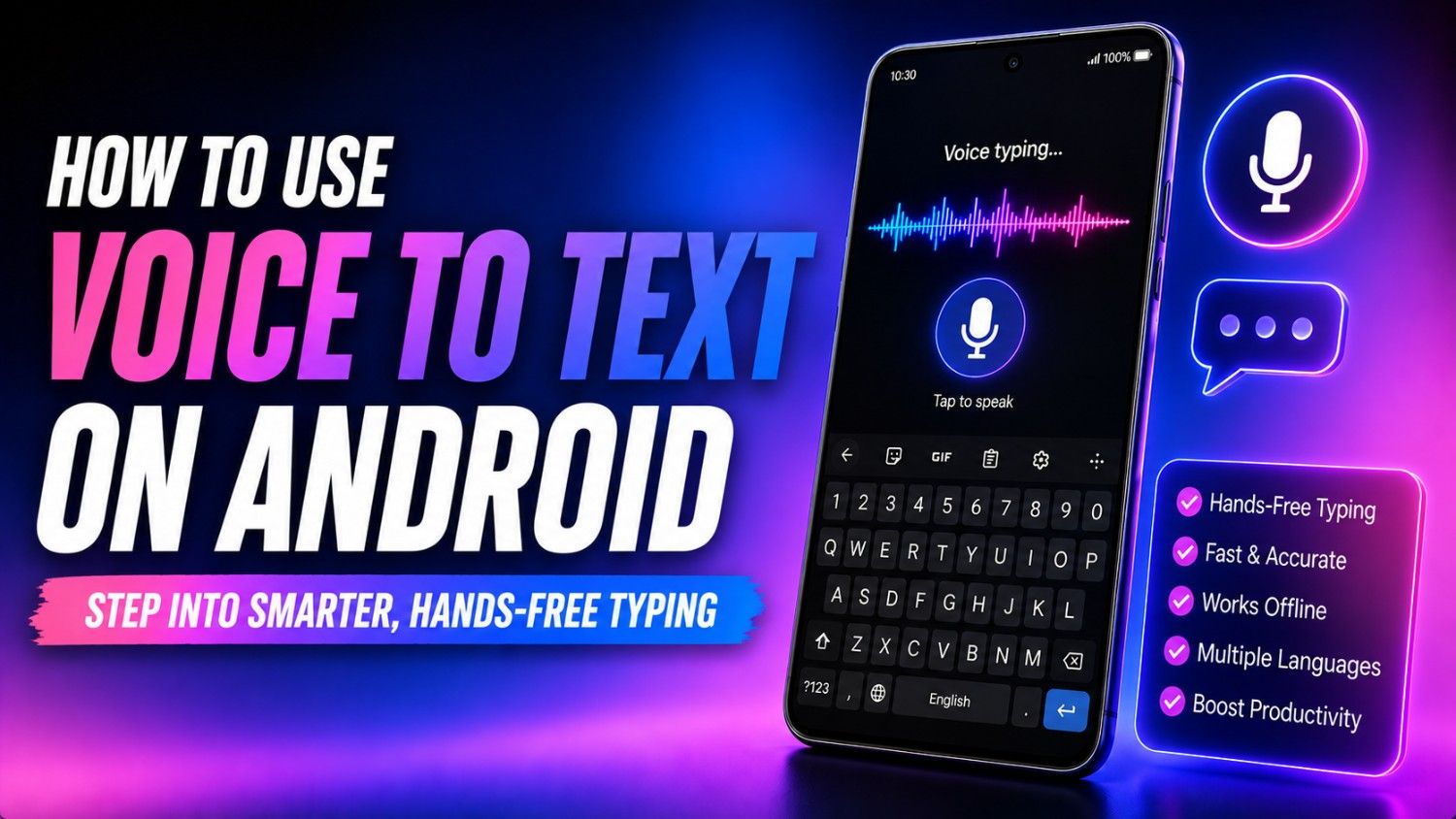
Typing on a mobile screen can be slow and physically exhausting, especially when multitasking. Android devices offer highly integrated voice-to-text systems that translate spoken words into text instantly. This comprehensive guide walks you through enabling and using these features on Gboard and Samsung keyboards, and explores tools to transcribe pre-recorded audio files efficiently.
What is voice to text on Android?
Voice-to-text on Android is an accessibility and productivity feature that converts spoken language into written text in real-time.
Built upon machine learning algorithms and advanced acoustic modeling, this tool captures audio input through your device's microphone and instantly decodes it into typed characters. It is deeply integrated into standard keyboard applications like Google’s Gboard and Samsung Keyboard.
It allows you to dictate text seamlessly within any application containing an active text field, including messaging apps, emails, and notes. By removing the need for physical keyboard input, voice typing offers a hands-free method to communicate quickly.
This feature simplifies how to text using voice on Android in daily life. Users commonly rely on voice typing for drafting long emails, capturing thoughts in note-taking apps, dictating documents in Google Docs, or sending quick replies inside popular messaging apps.
How to use voice to text on Android?
Activating voice typing is simple on Android devices. To do the same, simply follow the steps mentioned below judiciously, and you will be good to go.
Step 1: Access your Android device's voice input settings
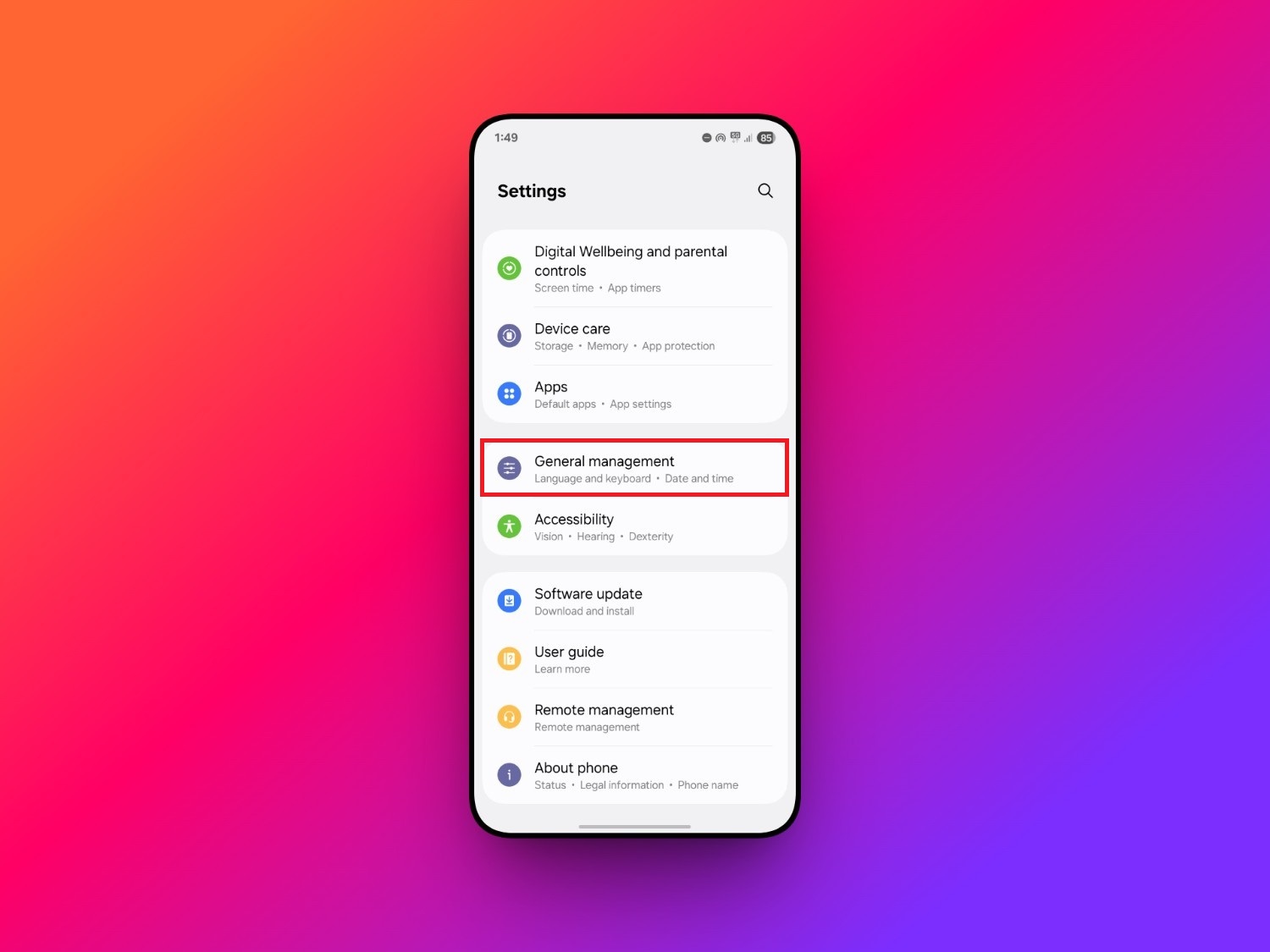
To start using voice-to-text on Android, you need to first turn it on. To do that, head over to your phone's "Settings". From there, head over to "General management", because this is where the voice settings for your phone's keyboard can be found. From there, under keyboard settings, you will find the option for "Voice input".
Step 2: Select "Google Voice Typing"
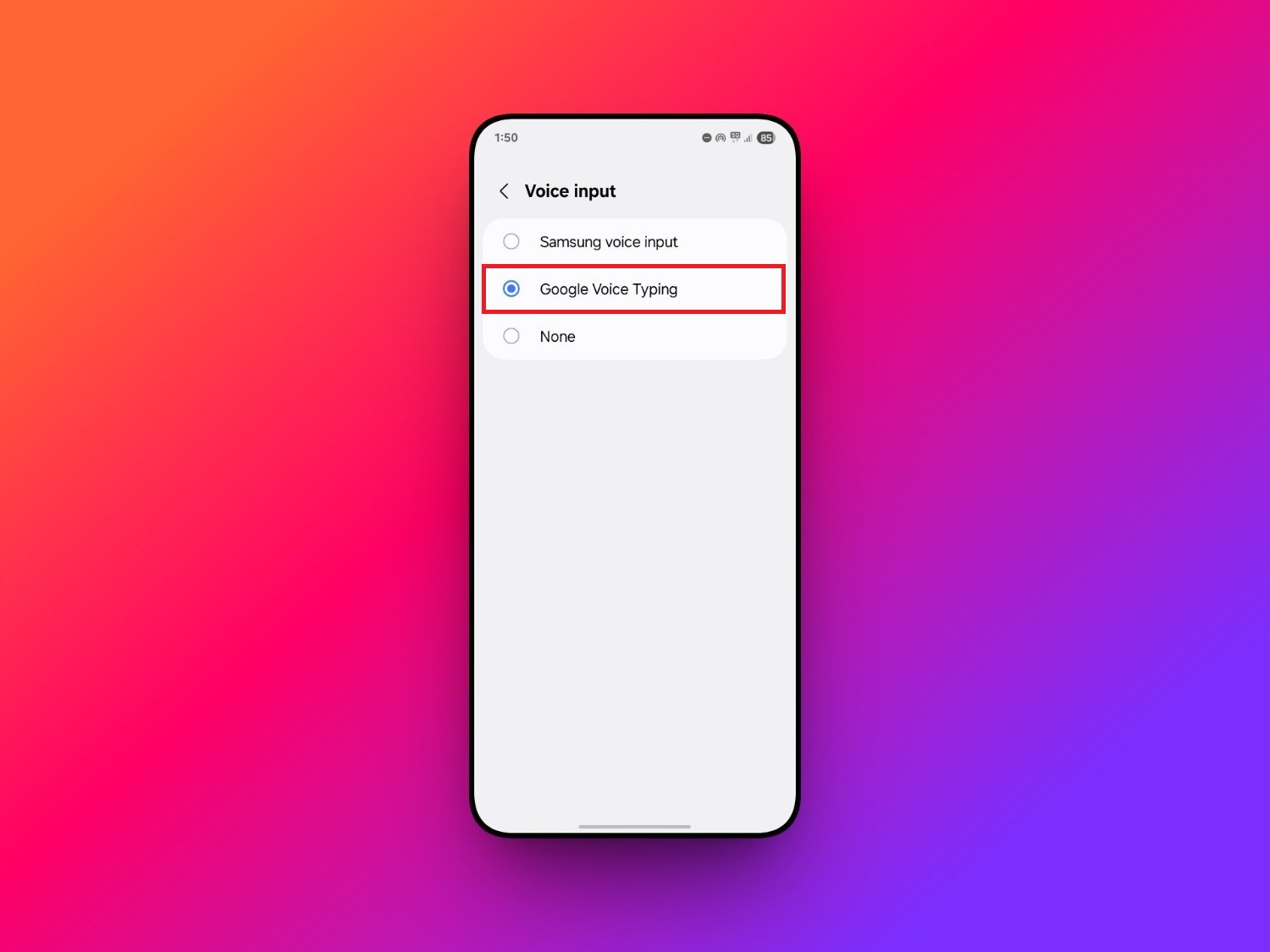
Under "Voice input", you need to select the "Google Voice Typing" option, especially if you are using GBoard keyboard on your Android device. However, if you are on a Samsung Galaxy Android device, you need to select "Samsung voice input" for your Samsung keyboard.
Step 3: Perform voice-to-text seamlessly
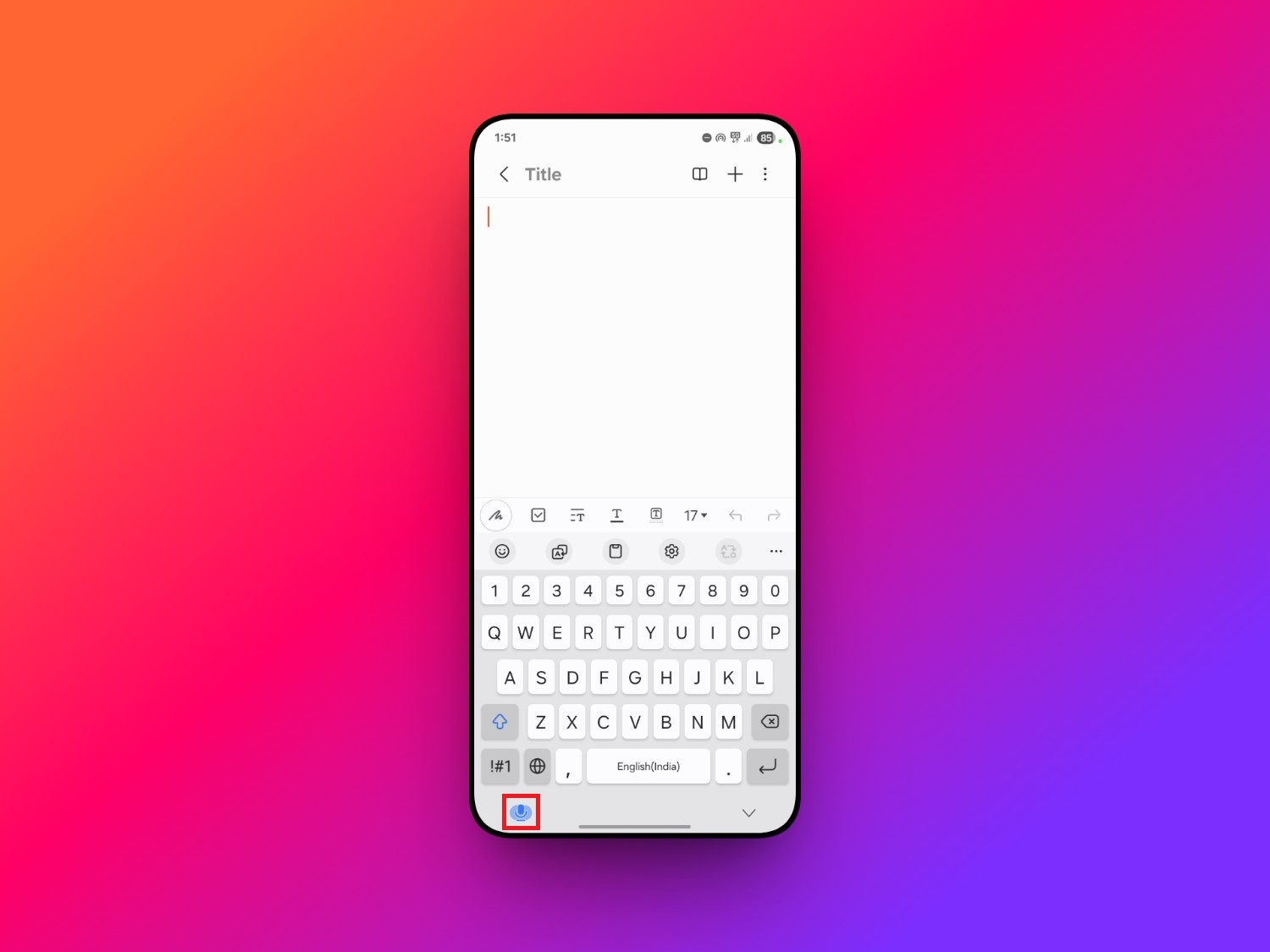
After turning on the voice input option, you need to head over to any app (your phone's notes app would be preferable). From there, access your on-screen keyboard and you will find the mic option on the bottom left-hand corner. Click on it and start dictating. Your spoken words will now be converted to text easily.
Vmake Labs: alternative for transcribing recorded audio & video files
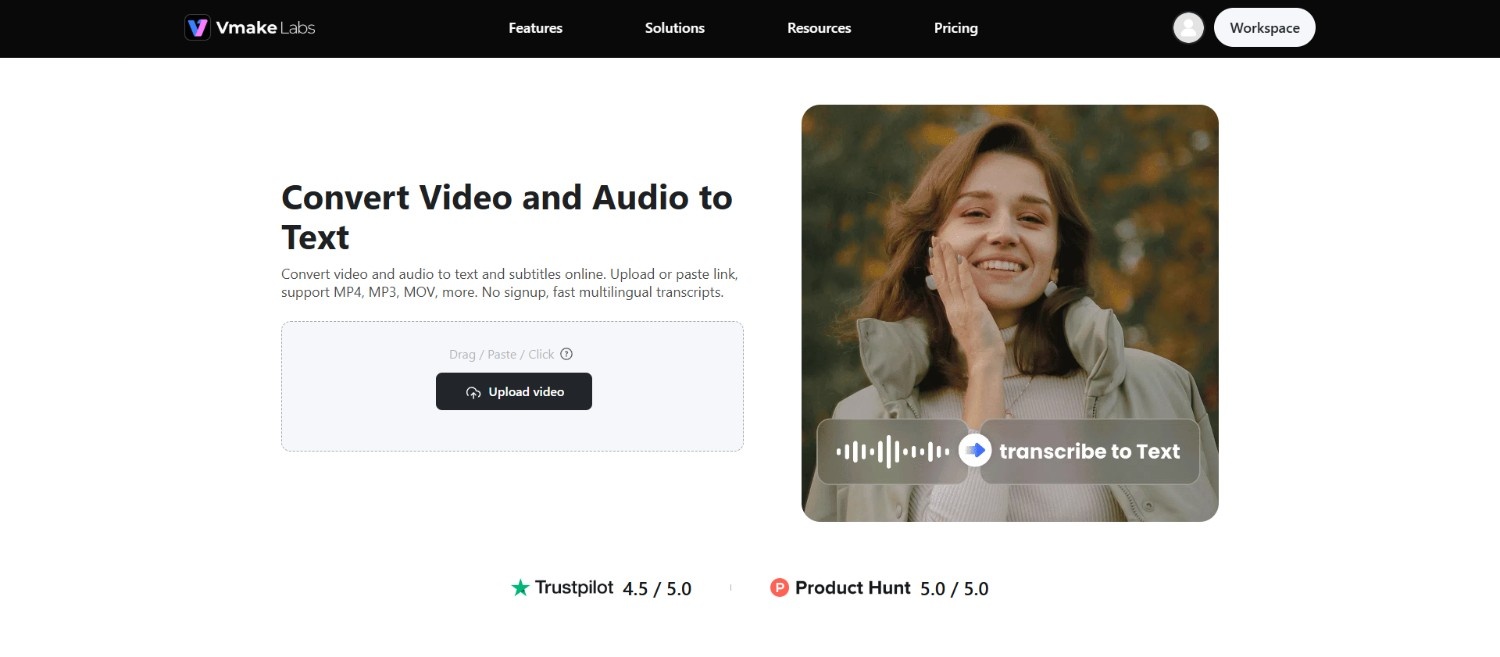
While native keyboard dictation is excellent for real-time messaging, it cannot convert pre-recorded media files or video links into text. This is where Vmake Labs steps in.
As a robust and highly accessible transcription platform, Vmake Labs specializes in extracting speech directly from audio and video files. It is an ideal web and mobile solution for creators, researchers, and professionals who need to convert recordings, podcasts, or online videos into readable text documents.
By shifting the workload to advanced AI speech-to-text models, Vmake Labs delivers rapid and precise transcriptions that bypass manual typing entirely.
Key features of Vmake Labs video and audio to text tool
-
Instant video link parsing: You can paste video links from platforms like YouTube or TikTok directly into Vmake Labs. The engine extracts the audio stream and translates the spoken words into structured text.
-
High-accuracy multi-language speech extraction: The AI engine recognizes over 100 languages and regional dialects. It processes diverse acoustic accents accurately, ensuring your localized video or audio transcripts remain precise and culturally context-aware.
-
Seamless local audio and video file upload support: The platform supports uploading various file formats, including MP3, MP4, WAV, and MOV. You can easily process local audio notes, interview records, or footage from your device storage.
-
Effortless subtitle repurposing: Vmake Labs automatically matches the timestamped text directly to the source audio. You can quickly edit the generated captions and export them as SRT or TXT files for content repurposing.
How to use Vmake Labs to convert audio to text?
Step 1: Access the "Voice & audio to text" tool
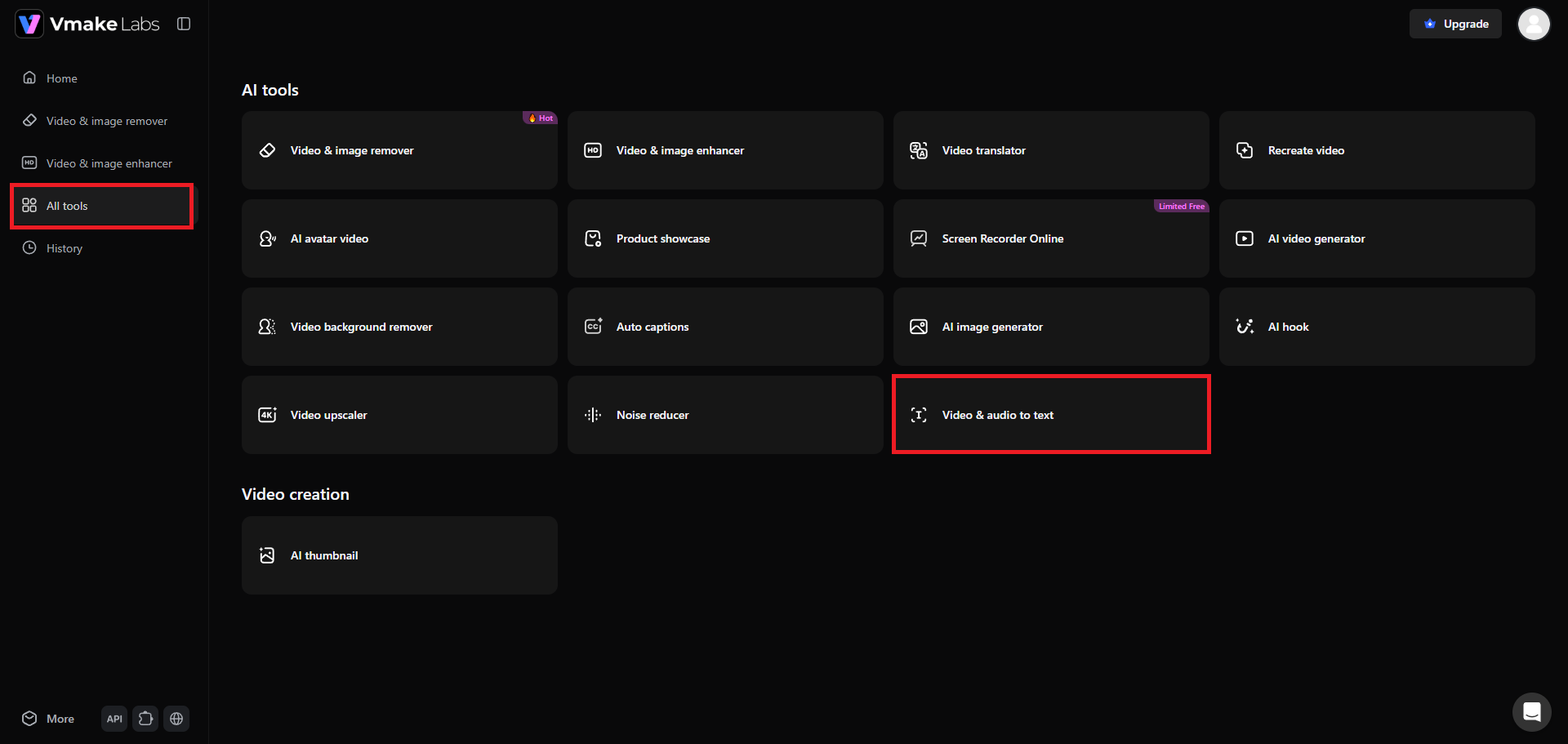
Begin your journey by first heading over to the official Vmake Labs website and signing into your account. Once signed in, visit the "All tools" tab and you will be greeted with a number of Vmake Labs tools that you can access. From that list, choose the "Video & audio to text" tool.
Step 2: Upload your recorded voice file or paste a link
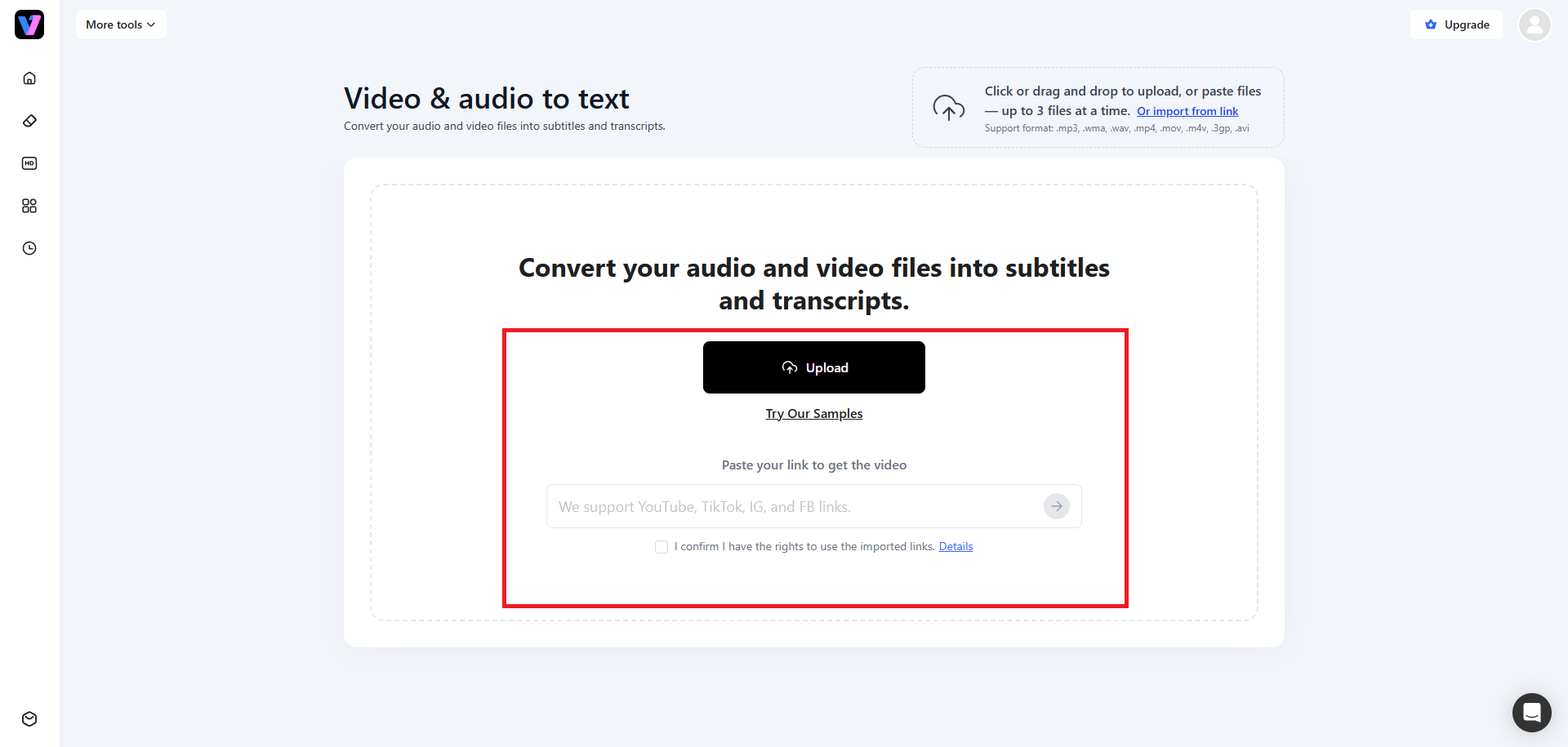
The next step involves uploading your recorded voice file onto Vmake Labs servers. Keep in mind that you can upload up to 3 audio files simultaneously. The same goes for weblinks, as you can paste up to 3 links. Additionally, Vmake Labs also support uploading of videos, and up to 3 videos simultaneously.
Step 3: Perform the transcription process and export
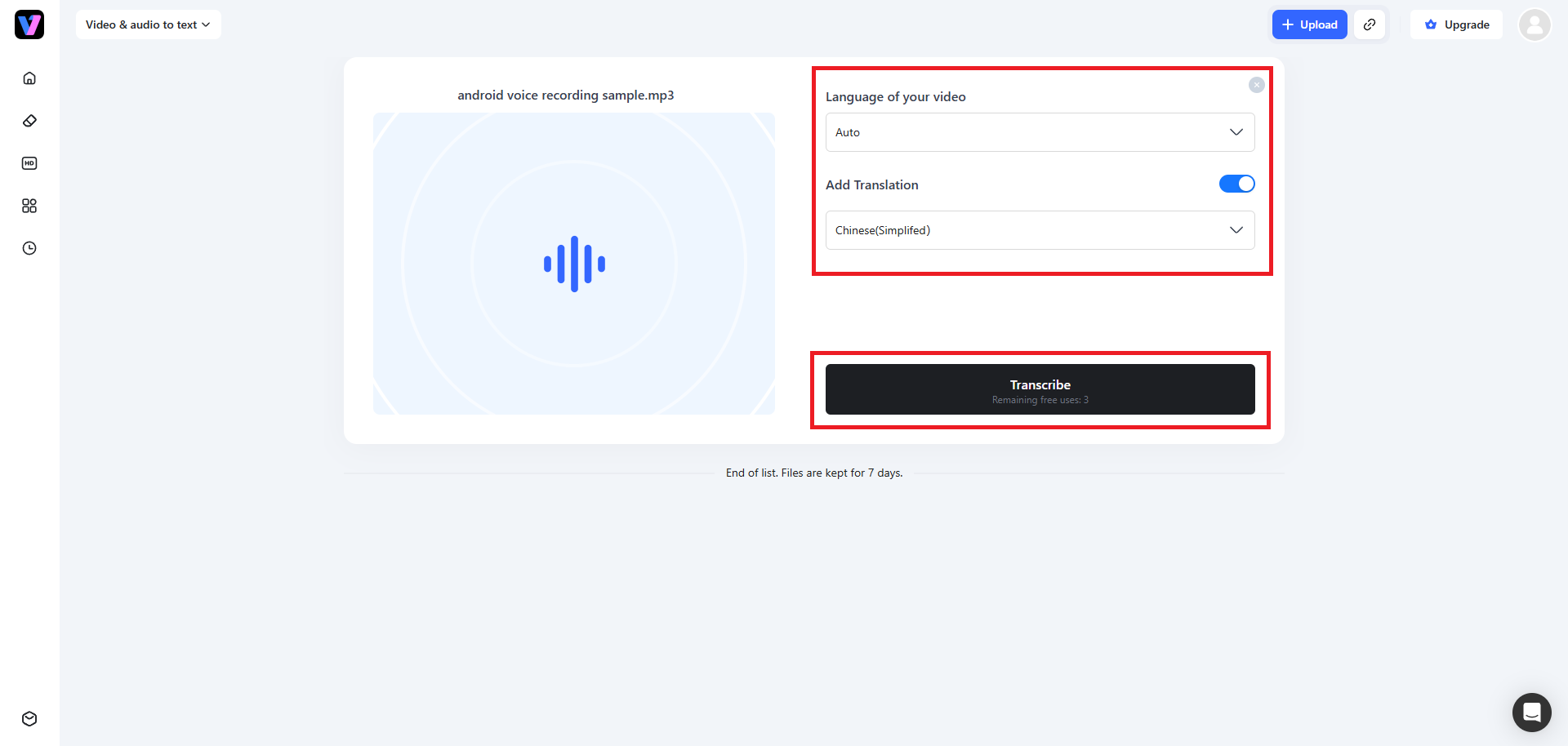
Once your file is successfully uploaded, you need to select your original audio file language from the drop-down men, or keep it to "Auto" if you are not sure about the language name. Then, activate the "Add Translation" toggle and then select your target language. Finally, click on "Transcribe" and Vmake Labs will start the transcription process. After completion, you will be able to further edit and finalize the transcription file, before downloading it to your local device.
Choose what you need: Android voice to text vs Vmake Labs
Android voice to text is ideal for capturing speech instantly while typing on your phone. Vmake Labs, however, is designed for processing recorded audio and video, producing structured transcripts suitable for documentation, research, content creation, and collaboration.
|
Factor |
Android Voice to Text |
Vmake Labs |
|---|---|---|
|
Primary purpose |
Converts live speech into text while typing on Android devices. |
Transcribes uploaded audio and video files into editable text. |
|
Input method |
Real-time voice input through the device microphone. |
Upload audio or video files, or paste supported media links. |
|
Best for |
Messages, notes, emails, and quick document drafting. |
Meetings, interviews, lectures, podcasts, and recorded content. |
|
Output options |
Inserts text directly into supported apps. |
Generates transcripts that can be reviewed, edited, and exported. |
Who should use Android Voice to Text vs Vmake Labs?
While both technologies convert spoken words into readable text, they serve entirely different workflows and media types.
Use Android Voice to Text if you need fast, hands-free typing for daily texting, emails, and notes on the go. Choose Vmake Labs if you are a content creator, professional, or researcher looking to convert pre-recorded media uploads, video links, and audio recordings into highly accurate, complete, and structured transcripts.
Tips for better voice accuracy on Android voice to text
To ensure your Android device accurately transcribes every word without mistakes, follow these practical dictation practices during daily usage:
-
Speak clearly and maintain a steady, normal pace
Avoid rushing your speech or slurring your words together. Pronounce each syllable clearly and speak at an even, conversational volume. This steady pace allows the speech-to-text engine to identify word boundaries accurately and reduce overall correction time.
-
Minimize background noise or utilize a headset microphone
Heavy background chatter, wind, or engine sounds confuse microphone inputs. Speak in a quiet room or wear a dedicated headset with a built-in microphone. This isolates your voice from surrounding noise, vastly improving the transcription accuracy of your device.
-
Keep your default keyboard language aligned with your spoken tongue
If you speak multiple languages, ensure your active keyboard layout matches your spoken tongue. Android keyboards often struggle to transcribe text if they are searching for English phonetics while you are speaking a completely different regional language.
-
Explicitly dictate your punctuation and formatting commands
Instead of relying solely on auto-punctuation, verbally dictate your punctuation marks. Saying commands like "comma" or "period" directly ensures your sentences are structured exactly as intended, preventing the engine from merging multiple sentences into a single block.
Common issues and fixes for Android voice to text
If your voice typing stops working, it is usually due to misconfigured settings or system limitations. Here are common issues and quick troubleshooting steps to resolve them:
Issue 1: The keyboard microphone icon is missing
Solution: If the microphone icon disappears from your keyboard toolbar, go to your settings menu, choose your default keyboard, and verify that voice typing is actively toggled on. Disabling conflicting third-party input methods often restores this missing icon instantly.
Issue 2: Poor accuracy or incorrectly transcribed words
Solution: When transcription quality drops, clean dust out of your physical microphone ports. Additionally, download offline language packs within your keyboard settings. This provides localized speech models that are fine-tuned to recognize your specific accent and vocabulary without internet lag.
Issue 3: Voice to text fails to work in offline environments
Solution: Voice typing will fail without connection if offline dictation is not set up. Open your keyboard settings, navigate to voice typing, and download your primary language pack. This allows offline voice-to-text to run directly on your hardware.
Issue 4: System permissions restricting microphone access
Solution: If the keyboard fails to listen, check your system permissions. Go to your apps list, select your keyboard app, and open permissions. Ensure that microphone access is set to "Allow only while using the app" to enable communication.
Conclusion
Utilizing our "how to use voice to text on Android" guide is a practical way to boost your daily productivity and eliminate keyboard fatigue. By understanding how to activate Google voice input or Samsung voice input, you can dictate messages easily on the go.
When your transcription needs expand beyond real-time typing to converting pre-recorded audio or video files, platforms like Vmake Labs offer an excellent, user-friendly alternative. By mastering both built-in mobile settings and specialized AI transcription tools, you can seamlessly convert speech to text across any medium, making your overall mobile experience more accessible, organized, and hands-free.
FAQs
How to use voice to text on an Android Samsung phone?
Go to Settings, select General Management, and tap Keyboard list and default. Set Samsung Keyboard as your default, then toggle on Samsung Voice Input to activate the feature.
Why is my voice to text not working on Android?
This usually happens due to missing microphone permissions or disabled keyboard settings. Check your keyboard options, ensure voice typing is enabled, and verify that the app has system permission to use your microphone.
Can I use Android voice to text offline without an internet connection?
Yes. You must first go to your keyboard's voice typing settings and download your preferred language pack. This allows the speech engine to translate your voice locally without an active connection.
How do I dictate punctuation like commas and periods on Android?
Simply speak the punctuation mark aloud as you dictate. For example, say "period" or "comma" at the end of your thought, and the keyboard will insert the character instead of spelling it.
How can I transcribe a pre-recorded audio or video file on my phone?
While native keyboards cannot do this, you can use Vmake Labs. Upload your local media files or paste a video link to automatically generate an accurate text transcription in seconds.

You May Be Interested
Aqua Voice Speech to Text Tool: Complete 2026 Review & Guide
Transcribe Podcast to Text with AI: Complete Guide 2026
VEED.io Audio to Text: Everything You Need to Know in 2026
Vidnoz AI Audio to Text: Features, Pricing & Review Guide
Microsoft Word Audio to Text: How to Convert Voice Recordings with AI