How to Remove People from Photos on Android (Step-by-Step Guide for 2026)
 Ken DawsonApril 13, 2026
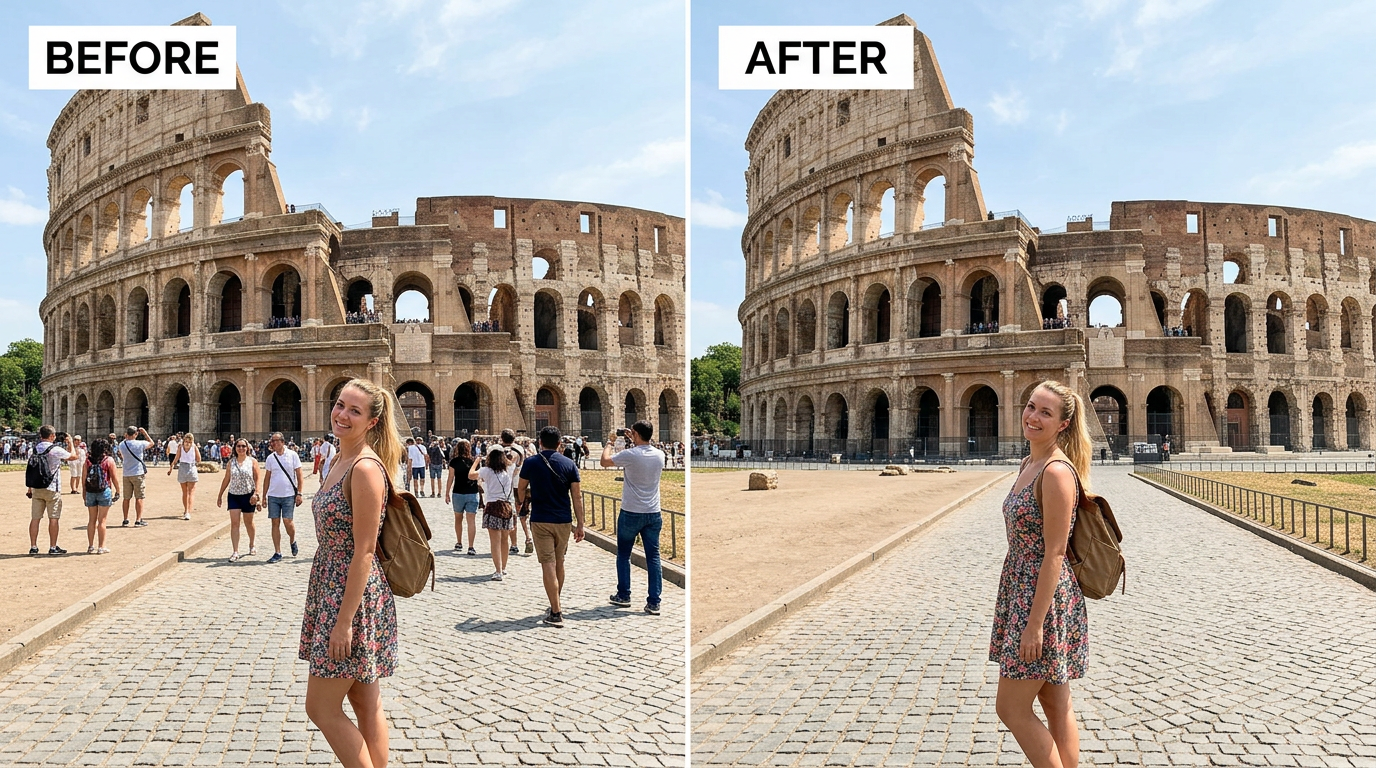
You know that feeling when you finally get a shot you're genuinely proud of, and then you zoom in and spot some random person lingering in the background? It's frustrating, especially when you've put real effort into the framing. Whether it's a tourist who wandered into your landmark shot or a stranger who happened to be in the wrong place, the result is the same, the photo isn't what you wanted.
The good news is that in 2026, sorting this out on Android doesn't require a desktop computer or professional editing software. You've got real options, and this guide walks you through all of them.
Why You'd Want to Remove People from Photos
It comes up more often than people expect:
Travel photography — You've travelled hours to reach somewhere worth photographing, and the moment you press the shutter, a group of tourists walks straight through. Removing them gives you the clean shot you actually came for.
Photobombs — Events, busy public spaces, parties — someone always manages to appear where they shouldn't. It rarely ruins the whole photo, but it ruins enough of it.
Social media content — A messy, people-filled background pulls attention away from your subject. Clean backgrounds just perform better when you're posting content.
Privacy — Sometimes you don't want certain people appearing in photos you're sharing publicly. Blurring faces works, but it often looks clunky. Removal is cleaner.
Product and real estate photos — Having a person visible in the background of something you're selling immediately makes the image look less professional. Buyers notice these things.
Can Android's Built-in Tools Handle This?
Short answer: sometimes, but not reliably.
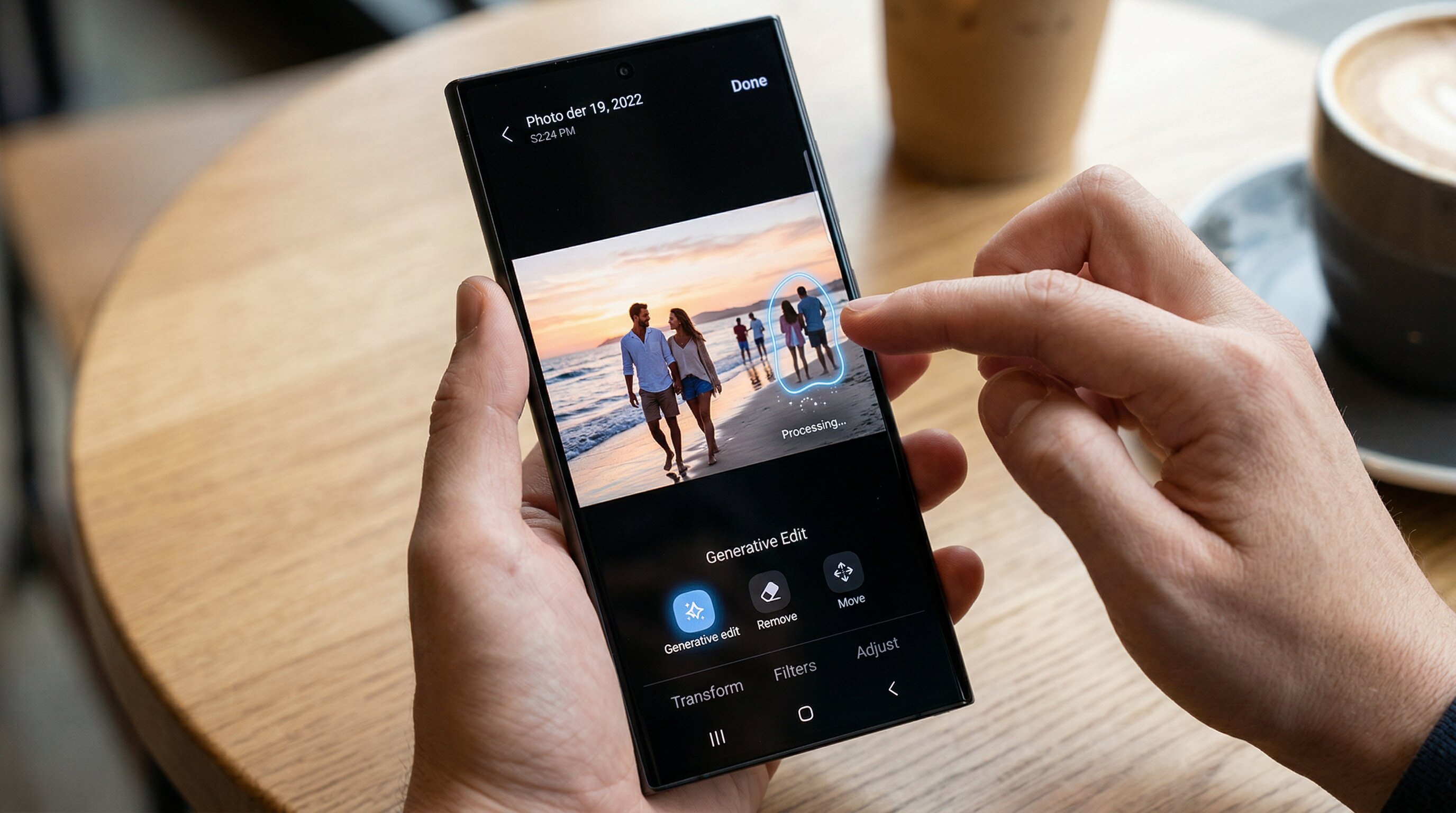
Newer Samsung Galaxy phones have a feature called Generative Edit built into the gallery app. You select what you want removed and the AI attempts to fill in the space behind it. It works reasonably well in simple situations.
Google Photos has Magic Eraser, available to Pixel users and Google One subscribers. It's designed for removing small background distractions: signs, wires, stray objects, and handles that kind of thing decently enough.
Both tools show that Android manufacturers are moving in the right direction. For quick, low-stakes edits, they're worth a try.
Where they fall short:
The limitations show up fast once you try to remove a full person. Generative Edit is exclusive to Galaxy S24 and newer, and Magic Eraser requires either a Pixel phone or a paid Google One subscription, if you're on a mid-range or older Android, neither is available to you. More importantly, both tools were built for smaller removals. When you try to erase an entire person, the background fill often comes out patchy, smeared, or obviously wrong. And once the AI has made its edit, there's no fine-tuning, if it looks off, you undo and try again.
For anything you actually care about, you need something better.
Zawa AI Photo Editor
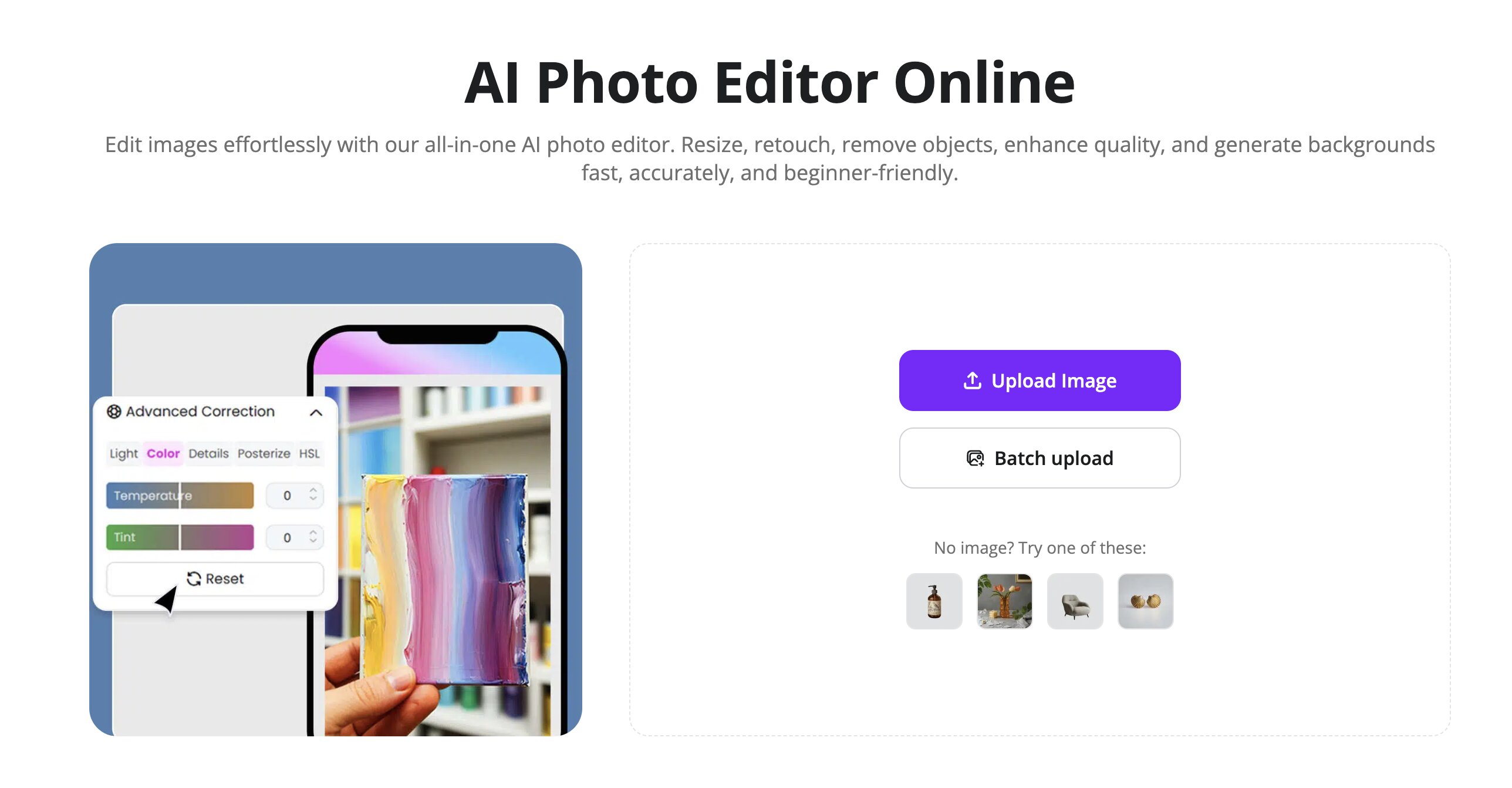
The most consistently reliable option right now is the Zawa
Upload Your Image: Access the
Zawa AI Photo Editor Brush the Target: Use the selection tool to paint over the person you want to remove. Adjust the brush size to stay close to the edges of the figure for better precision.
Analyze and Erase: Tap Erase to let the AI process the image and intelligently reconstruct the background textures.
Save the Result: Once you are satisfied with the clean look, tap Download to save the edited image directly to your device.
It handles a solid range of scenarios, a single person on a simple background, multiple people in a busier scene, and backgrounds with some complexity. Samsung users who find Generative Edit falling short will find this works on any Galaxy model, not just the newer flagships.
Even a strong AI tool does better work when you set it up properly:
Be precise with your selection. Stay close to the edges of the person's body and avoid accidentally brushing large chunks of background into the selection. A tighter selection gives the AI more to work with.
Use the highest resolution version of the photo you have. More detail means better background reconstruction. Heavily compressed images will always produce weaker results.
Simple backgrounds cooperate better. Someone standing in front of open sky or a plain wall will always come out cleaner than someone in front of a complex crowd or patterned surface. That's just how background reconstruction works.
Remove one person at a time. If you have several people to erase, doing them individually tends to produce better results than selecting them all at once. Each removal gives the AI cleaner context for the next one.
Zoom in before you download. Check the edited area at full zoom to catch any artifacts or odd patches before saving.
What About Removing People from Videos on Android?
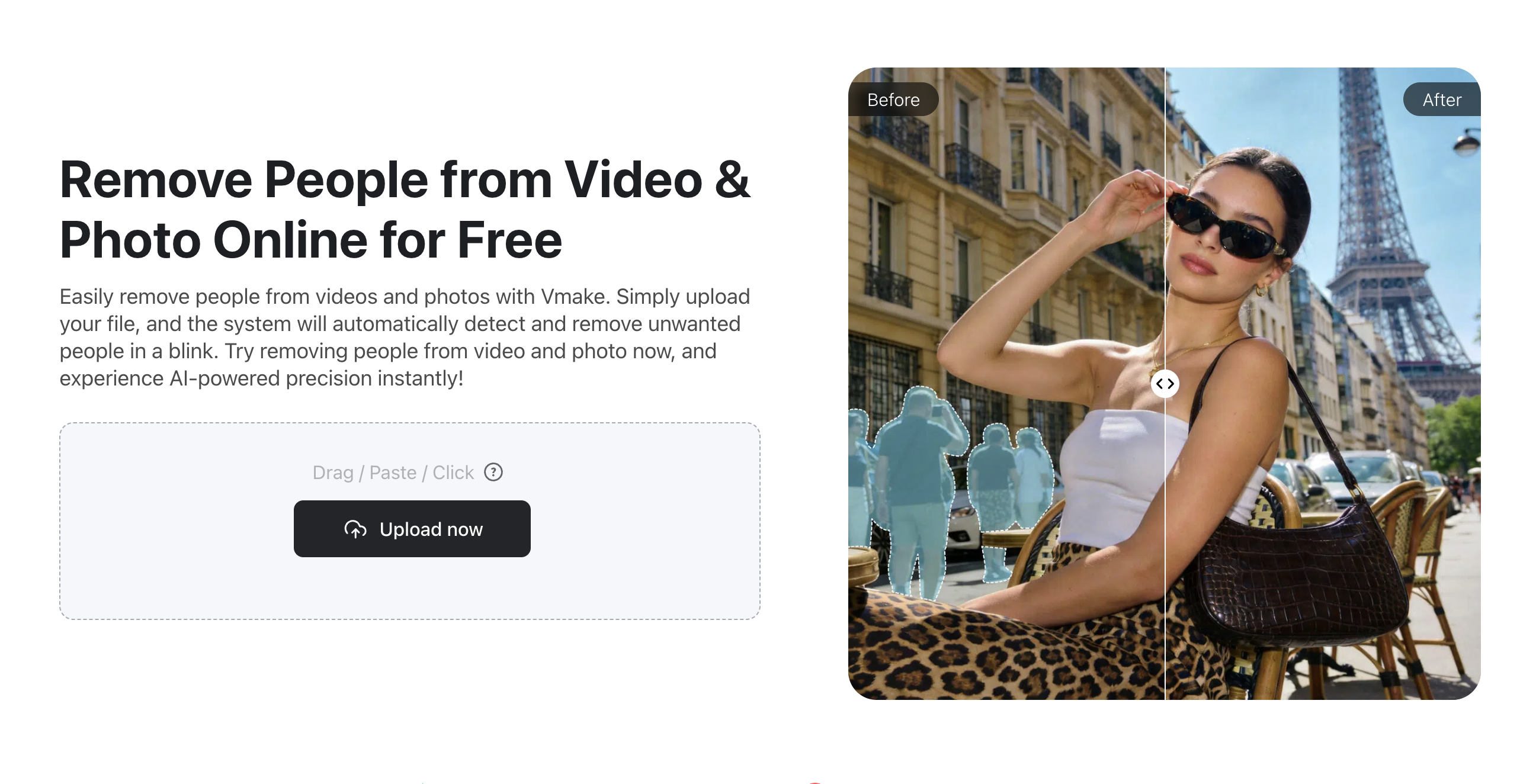
Video is a completely different challenge because it requires tracking a subject across thousands of frames. Most Android apps are not designed for this: but the Vmake
Import Video Footage: Head to the
Vmake Remove People Select the Person: Tap or draw around the person you want to disappear. The AI will automatically track their path throughout the entire clip.
Automated Removal: Click Remove so the
Vmake Remove People Preview and Export: Review the motion to ensure it is fluid and then download your professional grade video.
If you've ever tried manually masking footage frame by frame in a traditional editor, you'll understand why a purpose-built tool like this matters.
How do I remove a person from a photo on Android for free?
Zawa AI lets you start editing for free at zawa.ai/ai-photo-editor. Google's Magic Eraser is also free if you're on a Pixel or have a Google One subscription. For something that works across all Android phones without device restrictions, Zawa is the more flexible pick.
Can I remove people from photos on a Samsung phone?
Yes. Galaxy S24 and above have Generative Edit built in. For cleaner results or on older Samsung models, Zawa AI in your browser is the stronger option.
Does this work on all Android phones?
Built-in tools like Generative Edit and Magic Eraser are limited to specific devices. Zawa AI works on every Android phone regardless of brand, model, or Android version, as long as you have a browser and internet connection.
Can I remove people from Android videos too?
Yes. Vmake at vmake.ai/remove-people is built specifically for this. It handles people removal frame by frame, which standard photo editors and built-in Android tools simply can't do.
Final Thoughts
The built in tools on Samsung and Google devices are a decent starting point: but they were never truly built for full body person removal. For photos that carry real emotional or professional value, the Zawa
For video content, the Vmake

You May Be Interested
Best Photo Eraser Tools in 2026: Remove Objects, Text & People from Photos
How to Remove People from Background: Fast AI Tools
How to Remove People in Photoshop: Step-by-Step Guide for Beginners

2026 Magic Eraser Watermark Remover Review: Hands-On Experience