Honest DeeVid AI Review 2026: Pricing, Features & Best Alternatives!
Looking for the best DeeVid AI alternative without the credit drain? Transform your ideas into stunning social videos effortlessly and scale your branded content with the industry's top models!

Testing software daily in 2026 provides a clear perspective on which platforms actually deliver. For this review, the platform's core workflows, interface features, and credit economy were analyzed to evaluate how effectively the tool supports creators.
What is DeeVid AI?
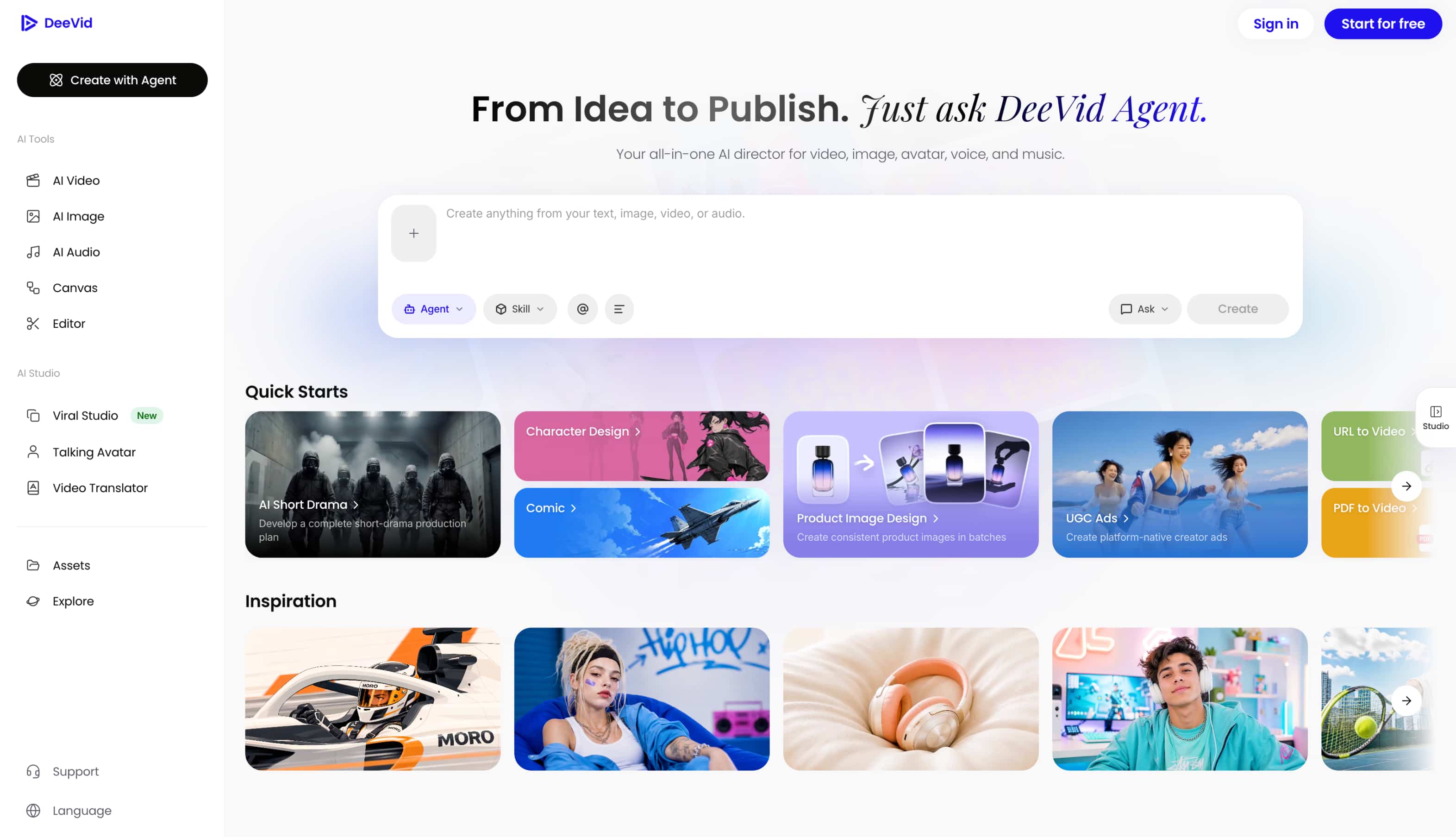
DeeVid operates as a simplified AI platform merging image animation, face swapping, and video generation. The primary audience consists of casual creators wanting quick visual outputs without complex timelines or advanced editing knowledge. Navigating the dashboard feels straightforward, allowing users to rapidly process media through a minimalist layout. For broader insights into optimizing digital workflows, learning to generate videos with AI offers excellent foundational knowledge.
Core features tested
Getting started requires logging into the platform dashboard, which provides new users with 20 free credits upon registration to test the main toolkit. Once inside, exploring the primary functions reveals how the software handles foundational multimedia generation:
Note: While the standard registration provides 20 complimentary credits, trial allocations may occasionally experience activation delays or rapid initial depletion depending on account verification status.
-
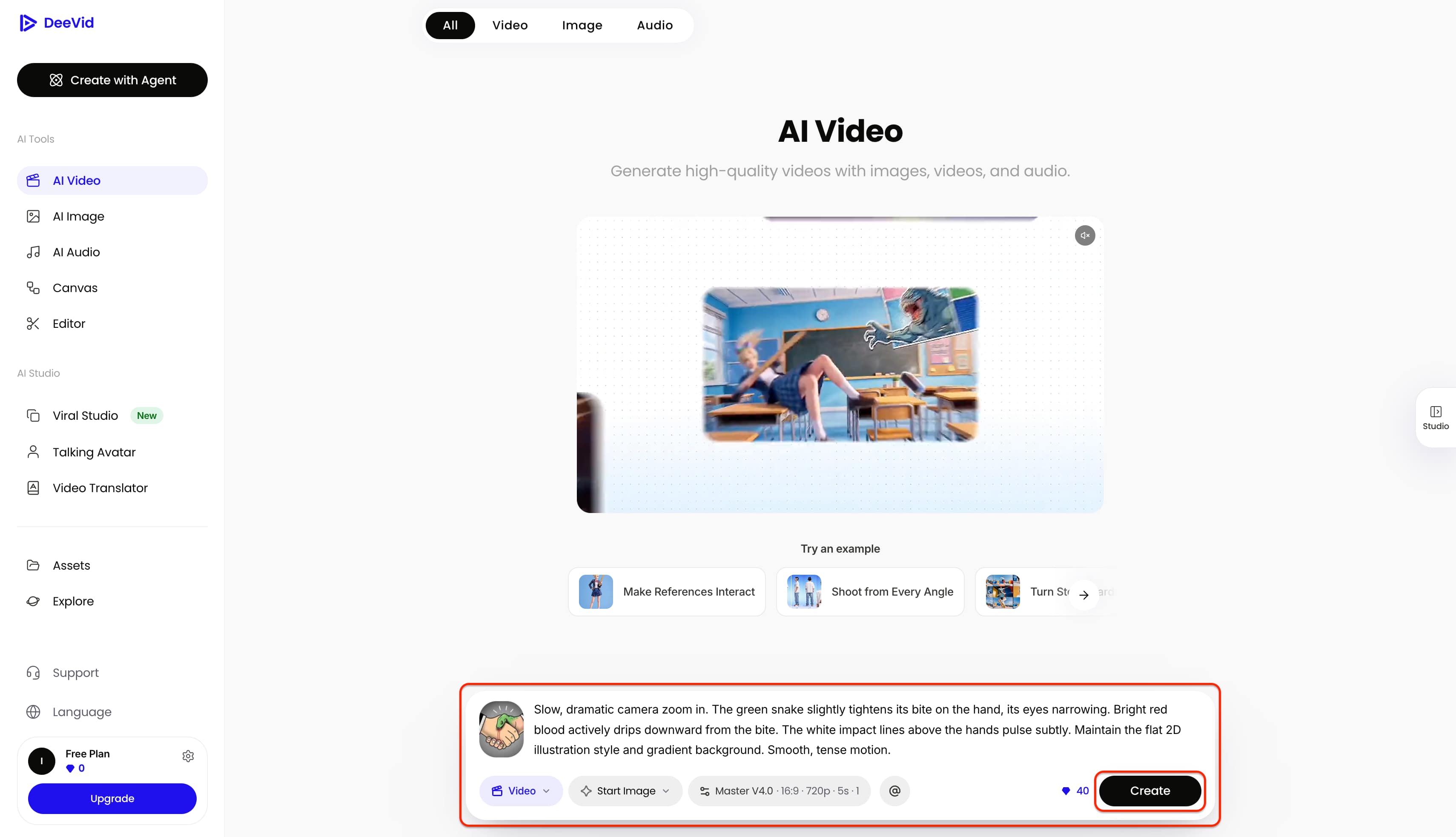
DeeVid AI Text to Video: This capability demonstrates the ability to generate basic scenes directly from text prompts, functioning best with highly simplified instructions.
Example prompt: Glowing neon sign, cyberpunk city alley, dim dusk lighting, cinematic close-up, heavy rain falling steadily.
-
Image to Video: This suite allows for dynamic animation styles:
-
Start Image: Animates a single initial image to create fluid motion.
-
Reference Image: Uses a specific image to guide the style and content of the generated output.
-
Between Image: Generates transitional frames between two distinct images for a morphing effect.
-
Example prompt: Bring a static portrait of an astronaut looking at distant stars to life with gentle breathing motions.
-
Omni Reference: A specialized feature that provides deeper structural guidance, allowing the AI to interpret multiple complex references across text, image, video, or audio simultaneously to maintain consistency across scenes.
Example prompt: Animate the rubber duck gently bobbing and rocking in the soapy water, with subtle head movements and playful beak motion as if quacking. Add natural water ripples and moving bubbles. Keep the duck, composition, lighting, and background unchanged. Realistic, smooth, charming motion.
-
Quick Starts & Inspiration: Pre-made layouts highlight the pre-made formats suitable for quick social media posting, bypassing manual formatting entirely.
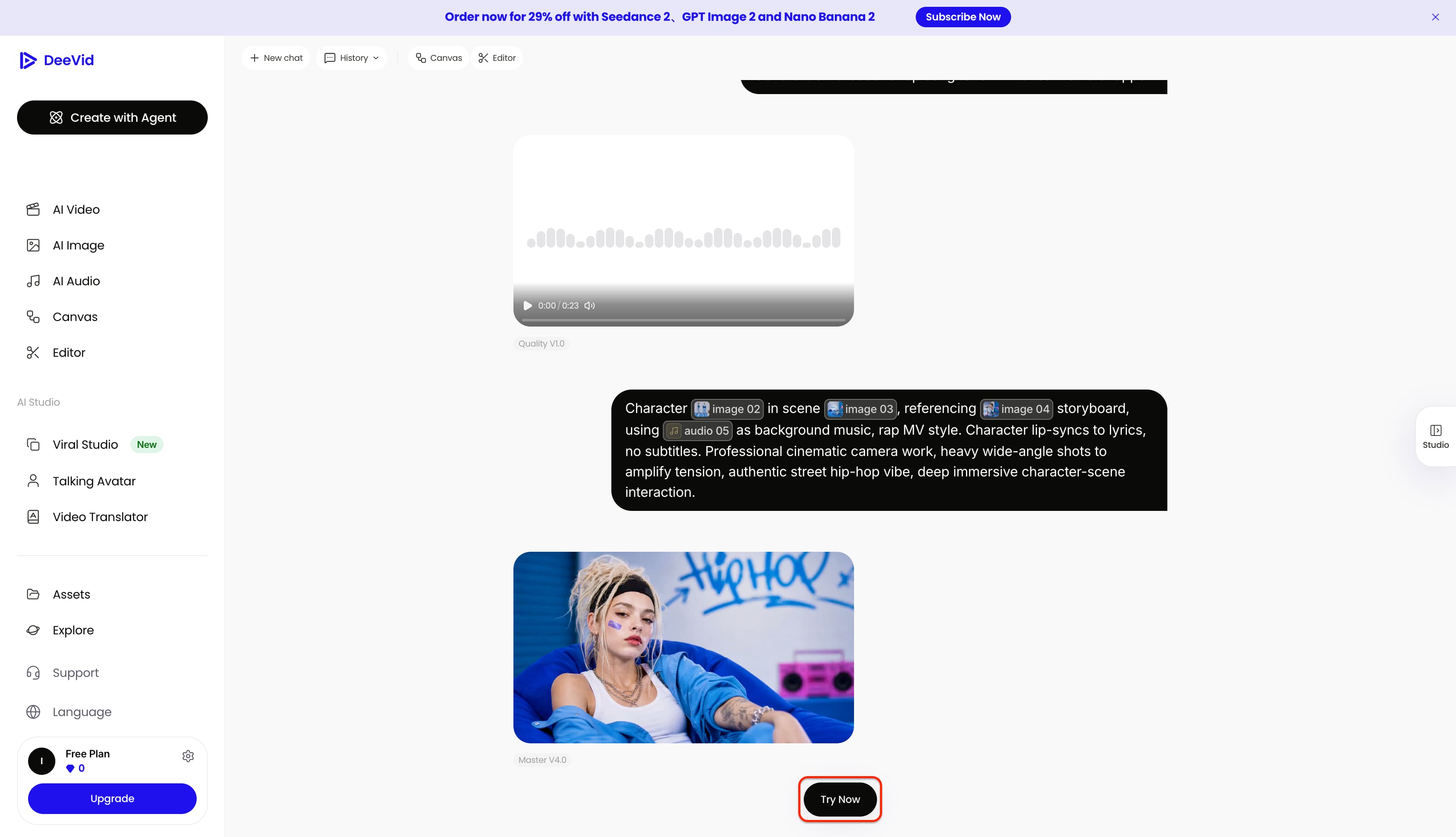
Preparing your media files according to these strict parameters guarantees cleaner renders and prevents unnecessary credit drain during generation:
|
Tool Feature |
Input Specifications |
Asset Best Practices |
|---|---|---|
|
Text to Video |
Text prompt only |
Use a strict formula: [Subject] + [Environment] + [Lighting] + [Camera Angle] + [Motion]. Avoid abstract or multi-step actions. |
|
Start Image |
1 primary image (JPG/PNG) + Text prompt |
Use high-resolution images with clean edges and good lighting; blurry or heavily compressed areas are prone to visual warping during animation. |
|
Reference Image |
1 style reference image (JPG/PNG) + Text prompt |
Choose references with distinct palettes, textures, or stylistic traits. Remove unwanted stock watermarks unless specific typography is intended. |
|
Between Image |
2 distinct images (First and Last frames) + Text prompt |
Align the primary subject scale and perspective between both frames for smooth interpolation, unless an intentional morph or sudden scene shift is desired. |
|
Omni Reference |
Multi-modal: Video clip, audio track, and character reference image |
Provide clean, focused individual inputs (such as clear character angles, distinct motion clips, or well-paced audio) so the model can track each reference without confusion. |
|
Quick Starts & Inspiration |
Platform preset + 1 subject image (PNG with transparent background) |
Match the input asset to the template requirement, such as isolated cutouts for product showcases or front-facing portraits for character generation. |
After loading the prepared assets into the system, pushing the platform through rigorous trials exposed distinct operational realities.
Real testing: How the features performed
-
Strengths: Short clips (3-5 seconds) render quickly with fair lighting, making rapid prototyping highly accessible.
-
Weaknesses: The engine struggles with temporal consistency; faces often distort, and spatial rendering fails on complex prompts or longer sequences. Visual artifacting during these failures frequently results in distorted, unnatural motion that breaks the immersion of the generated scene.
Pricing & plans
Addressing the common query regarding whether DeeVid AI free plans exist requires looking at the onboarding structure. The system implements a 20-credit trial limitation, which embeds permanent watermarks on all exported media. A significant operational drawback involves the credit-drain issue where failed generations still consume your balance, quickly depleting available resources.
|
Plan |
Lite |
Pro (Popular) |
Premium (Best Value) |
Credits Included |
|---|---|---|---|---|
|
Monthly Billing |
$14/mo |
$35/mo |
$159/mo |
200 Credits/mo |
|
Annual Billing (Effective Rate) |
$10/mo (Save $4/mo) |
$25/mo (Save $10/mo) |
$119/mo (Save $40/mo) |
600 Credits/mo |
|
Total Annual Billed |
$120/year |
$300/year |
$1,428/year |
3,000 Credits/mo |
|
Credits Included |
200 Credits/mo |
600 Credits/mo |
3,000 Credits/mo |
|
|
Key Features & Output Limits |
Up to 25 videos or 100 images; Standard resolution (No 1080p); 2 concurrent agents (50 chats/day); 5 concurrent tasks |
Up to 75 videos or 300 images; 1080p HD resolution; 5 concurrent agents (200 chats/day); 30 concurrent / 100 queued tasks; Custom workflows & asset library |
Up to 375 videos or 1,500 images; 1080p HD resolution; Unlimited concurrent agents & chats; 50 concurrent / 300 queued tasks; Dedicated priority support |
|
|
Best For |
Beginners & casual experiments |
Regular creators & social media managers |
Agencies & high-volume production teams |
|
Community proof & feedback
Pros:
-
Minimalist UI
-
Fast rendering
-
Multi-tool convenience
Cons:
-
Strict no-refund policy
-
Rigid annual lock-ins
-
High failure rates on complex prompts
General forum consensus mentioning DeeVid IA searches captures global intent regarding these exact frustrations. Users consistently praise the accessible interface but heavily critique the financial model when generation errors deplete their accounts.
When creative teams reach the limits of inconsistent renders and unpredictable credit usage, finding a robust ecosystem becomes essential. Scaling branded content requires software that prioritizes reliability and high-fidelity output over basic novelty, paving the way for industry-leading alternatives.
The best DeeVid AI Alternative: Vmake Labs
As an AI social video studio, Vmake Labs offers a powerful AI video generator, helping small businesses generate, enhance, and optimize videos to capture attention, build brands, and drive sales. With it, professionals access a highly dependable ecosystem tailored for modern creators. It effectively eliminates the rendering frustrations common in entry-level applications, providing the necessary infrastructure to scale digital marketing efforts efficiently.
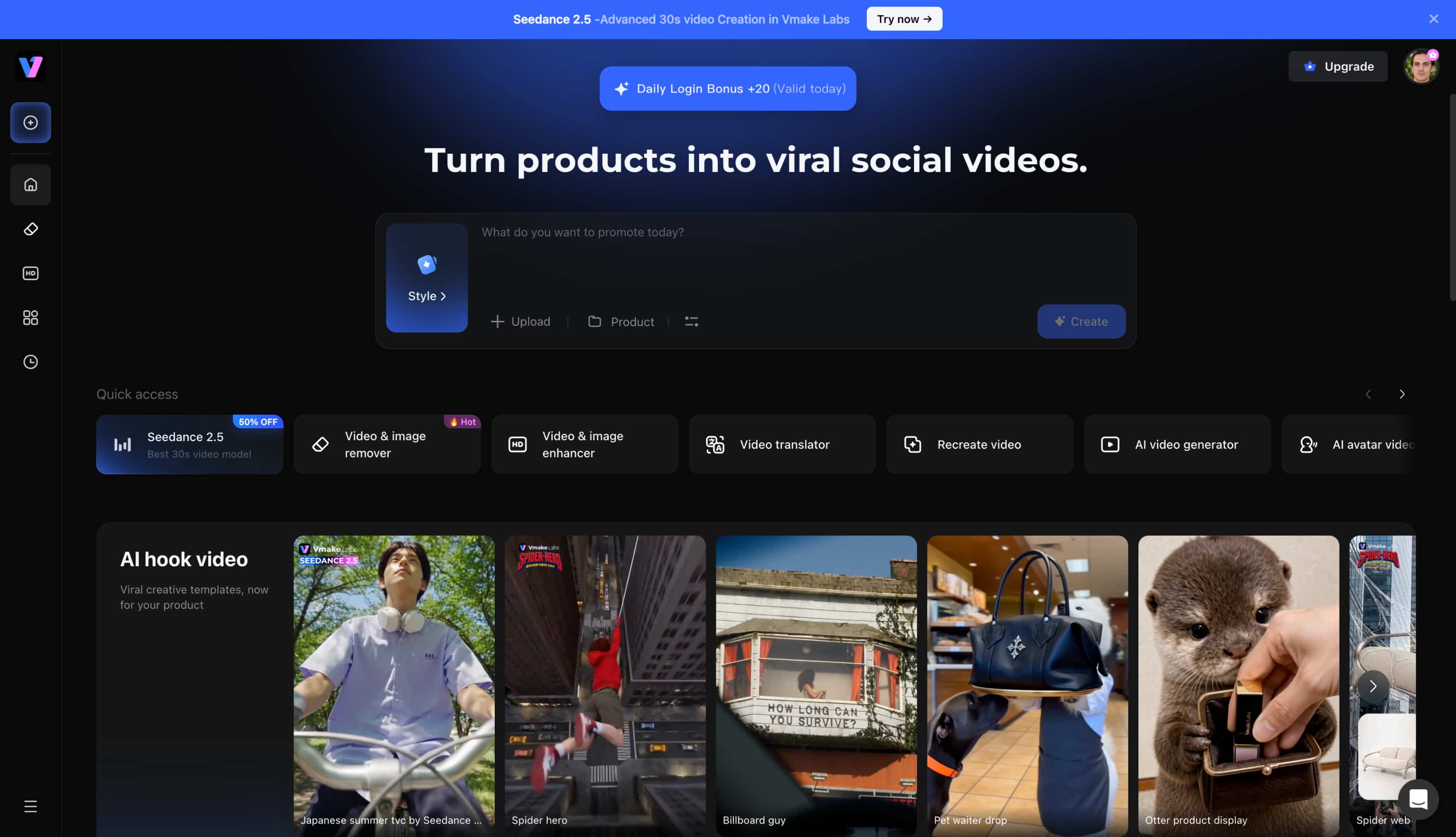
Key Vmake Labs features:
-
Multi-Model Aggregation: Access industry-leading models like Seedance, KLING 2.0, VIDU, Wan 2.1, and MiracleVision in one workspace. This provides the flexibility of the best AI video generator to easily match your required visual aesthetic.
-
Duration & Aspect Ratio Controls: Maintain absolute control over final framing with custom aspect ratios tailored for modern platforms. You can dictate precise video lengths between 2 and 15 seconds while ensuring pristine, high-definition output.
-
Flexible Generation Workflows:
-
Text to Video: The dedicated workspace allows users to describe their desired content in up to 1500 characters to easily handle highly detailed prompts. The built-in Quality toggle also lets creators instantly balance faster render speeds against enhanced visual fidelity.
-
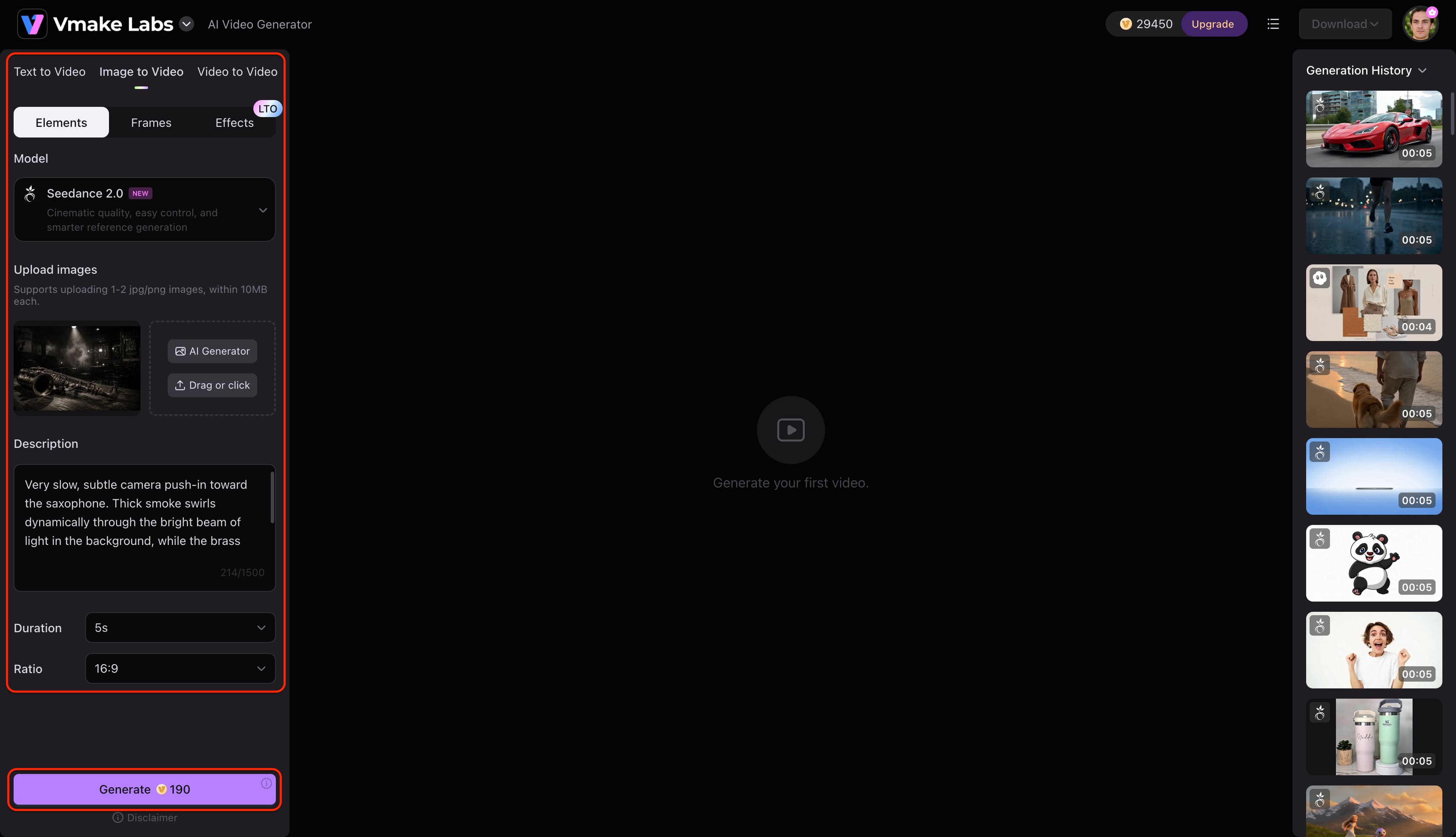
Image to Video: The workspace offers dedicated controls for Elements, Frames (start-end), and Effects, allowing users to upload assets via Drag or Click or create reference images using the built-in AI Generator. This delivers an adaptable AI image-to-video generator free of rigid constraints, complete with easy post-generation previews and downloads.
-
Video to Video: The dedicated workspace allows users to easily drag and drop MP4 or MOV source clips up to 60 seconds long. Creators can then instantly transform their footage using popular one-click visual presets from the built-in Style library, including 3D Animation, Comics, and others.
-
-
UGC Video Generator: Purpose-built for social media, this tool rapidly produces vertical UGC ads to bypass traditional editing timelines. It supports verified 4K exports and watermark-free downloads for professional campaign deployment.
How to use the Vmake Labs AI Video Generator
Step 1: Access the AI video generator and define your concept
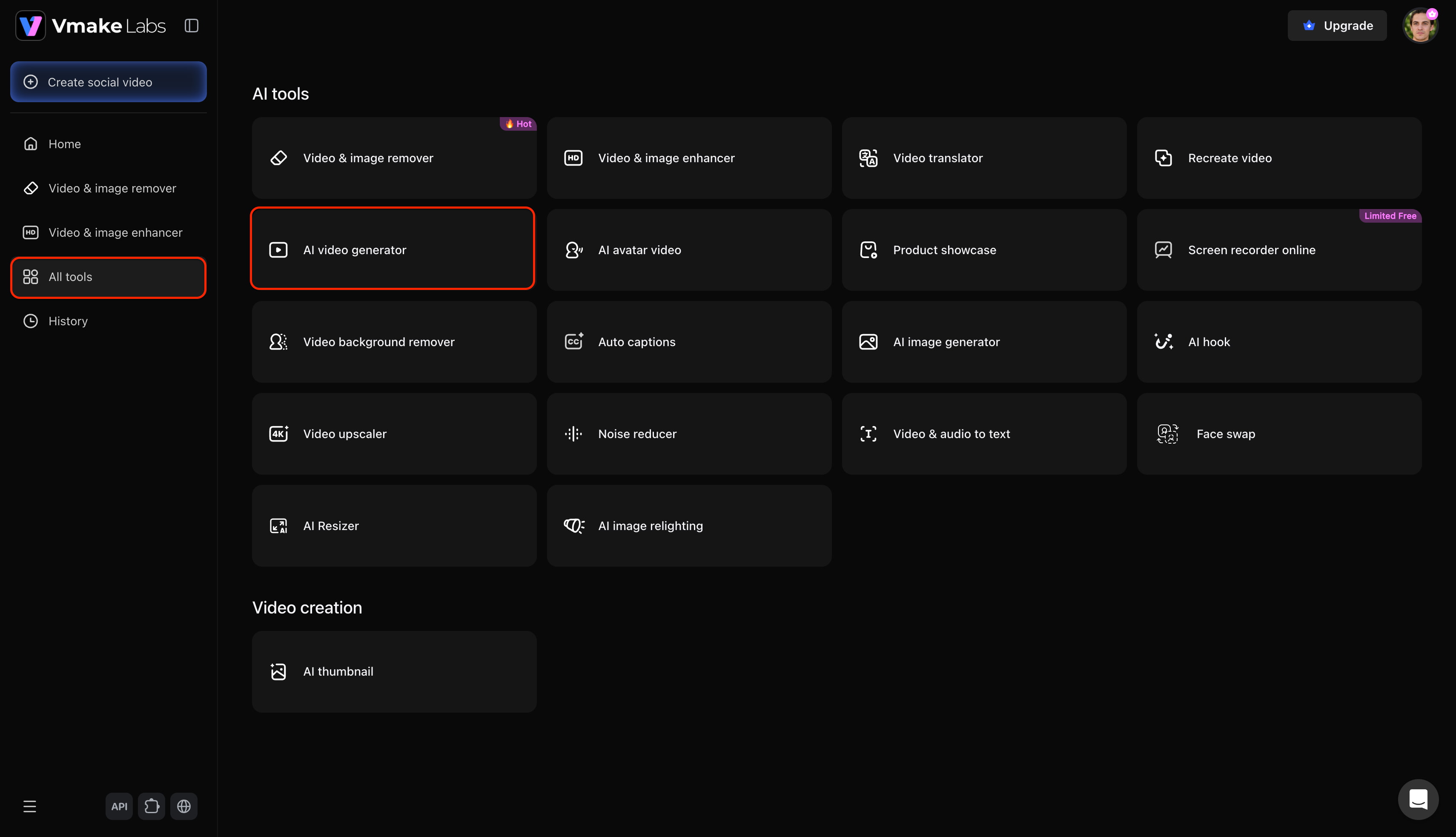
Start by logging into the dashboard, opening the "All tools" menu, and selecting the "AI video generator" option to launch the creative workspace. Provide a detailed text description to establish your foundational visual context.
Step 2: Choose pathways, upload references, and set parameters
Select your preferred production route from the Text to Video, Image to Video, and Video to Video pathways. For this specific workflow, select Image to Video. Next, upload a high-quality reference image to establish your style, choose an AI model (such as Seedance 2.0 or Kling 3.0), configure the required duration and aspect ratio, and click "Generate."
Step 3: Preview and download
Review the finalized sequence directly on the screen once processing is complete. Toggle on the "Remove watermark" setting, then click "Download" to export your completed, high-resolution file in 1080p, 2K, or 4K for professional distribution.
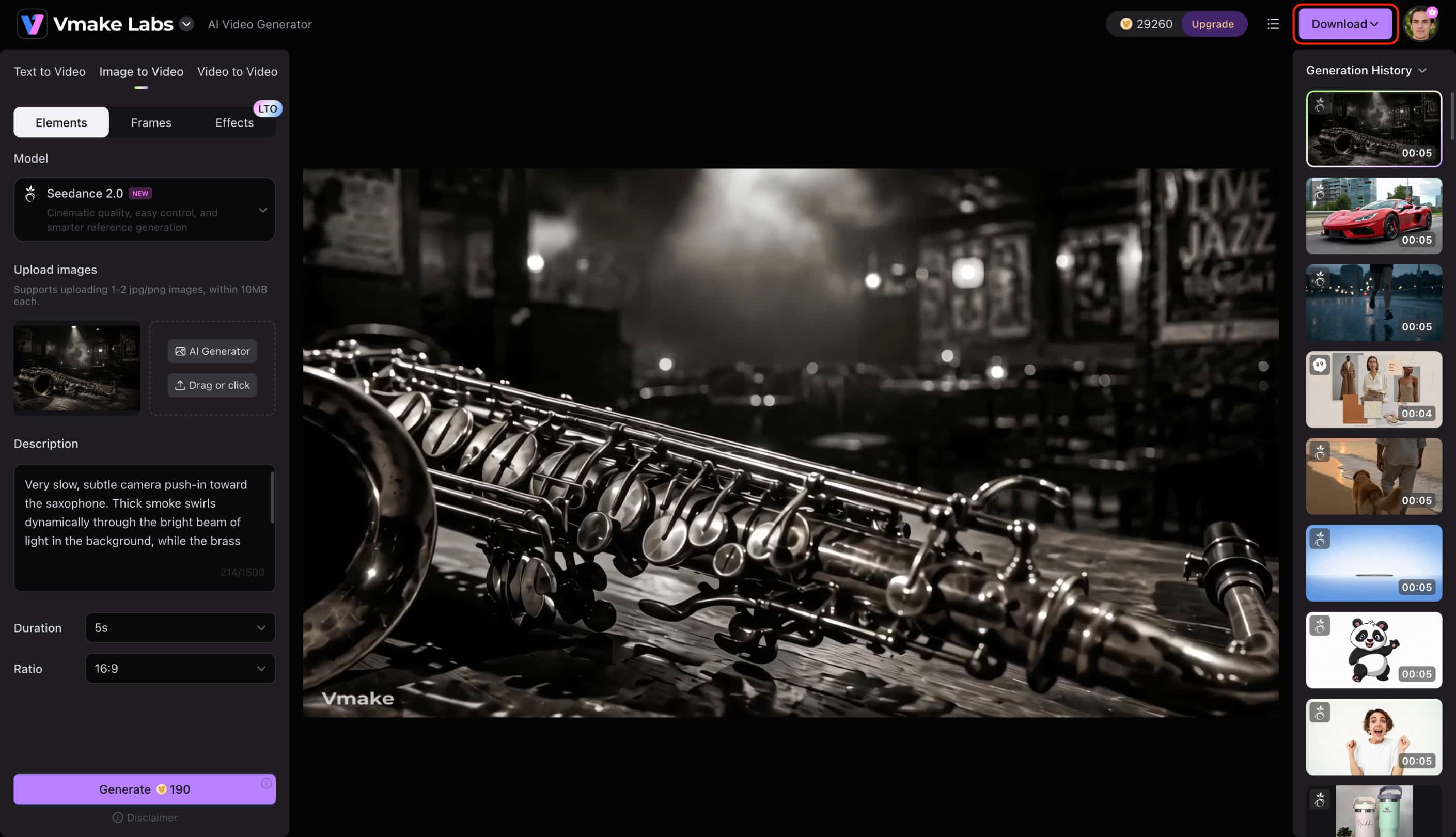
Video Sample:
Conclusion
To conclude, while this DeeVid AI video generator offers fun entry-level features for casual hobbyists, the inconsistent outputs severely hinder professional scaling. Frequent spatial distortions and strict credit consumption make reliable production incredibly difficult for serious digital strategists. Vmake Labs stands as the ultimate solution for dependable, high-quality branded content. Upgrading ensures access to the essential infrastructure required to maintain consistent visual fidelity across all marketing campaigns.
FAQs
Is DeeVid a legit platform?
Yes, it functions as a legitimate operational service for generating short digital media clips. Creators successfully render basic animations, although final quality heavily depends on prompt simplicity.
Is DeeVid AI free to use?
New accounts receive a complimentary 20-credit allocation to test the baseline functionalities. However, these initial generations remain restricted in resolution and include permanent visual stamps.
Does the free trial add a watermark?
Yes, all outputs generated using the 20 onboarding credits contain a watermark. Exporting clean, watermark-free video requires upgrading to a paid subscription tier.
What is the best DeeVid AI alternative?
Professionals seeking consistent visual quality typically migrate to specialized multi-model studios like Vmake Labs. These advanced platforms consistently offer superior resolution control alongside drastically fewer rendering artifacts.
How does DeeVid AI text-to-video work?
Navigate to the AI Video generator from the left panel and select the Text to Video option from the feature dropdown. Enter a highly specific text prompt, then configure your output settings, including the aspect ratio, resolution, and video duration. Finally, select a processing model based on your project's priority for either fast generation speeds or maximum visual quality before initiating the synthesis.

You May Be Interested
Artistly AI Review 2026: Is It Worth Trying for Creators?
Getimg AI Review 2026: Is It the Best AI Image Generator?
Nero AI Review 2026 Explained: Is the Tool Worth Using?

Pixar AI Review: What It Is & How to Create Pixar-Style Art
Mind Video AI Review: The Ultimate AI Filmmaking Tool?
Supawork AI Review: Watermark Remover Tested (2026)