Whisper Speech to Text: How to Transcribe Audio and Video Easily
Explore how Whisper speech to text converts audio into text, compare it with other AI transcription models, then transcribe audio and video effortlessly using Vmake Labs online today.

Whisper speech-to-text has emerged as a popular AI solution for transcription of spoken content into accurate transcripts. Whether you need meeting notes, subtitles, interviews or podcasts, understanding how Whisper works helps you choose the right transcription method. This guide also includes a simpler alternative for fast, no-code transcription today.
What is Whisper speech-to-text?
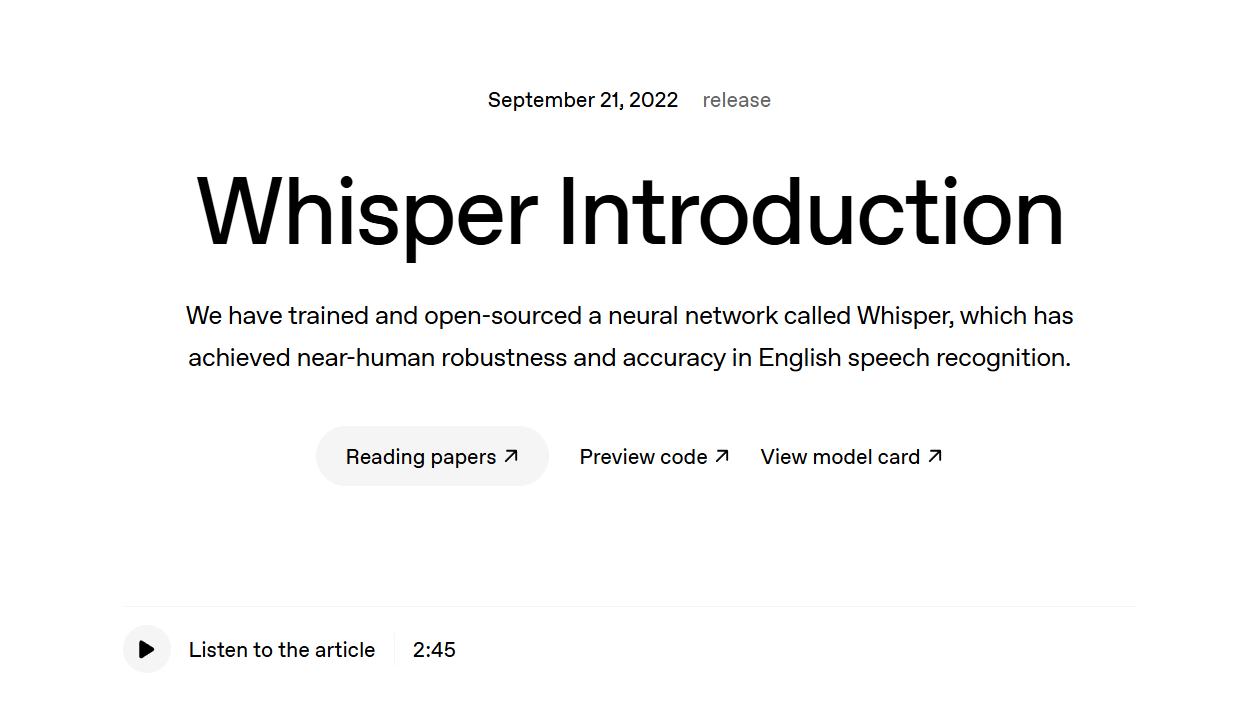
OpenAI Whisper speech-to-text is an artificial intelligence (AI) powered automatic speech recognition (ASR) system that takes spoken language and turns it into written text. Developed by OpenAI and available as an open-source model, it is one of the most popular transcription tools because it can recognize multiple languages, understand multiple accents, and provide reliable results for a variety of audio situations.
How to use Whisper speech-to-text
There are several ways in which you can get access to the Whisper speech-to-text model, depending on your technical experience:
The open-source model is often installed locally by developers or accessed via APIs to build bespoke workflows; beginners may want desktop applications or online platforms that use Whisper behind the scenes, without any coding. The best method for you will depend on your workflow, your hardware, and your transcription needs.
Step 1: Choose how you want to use Whisper
Select the method that best fits your workflow. You can install Whisper locally, access it through the OpenAI API, or use a no-code desktop or web app that supports the model.
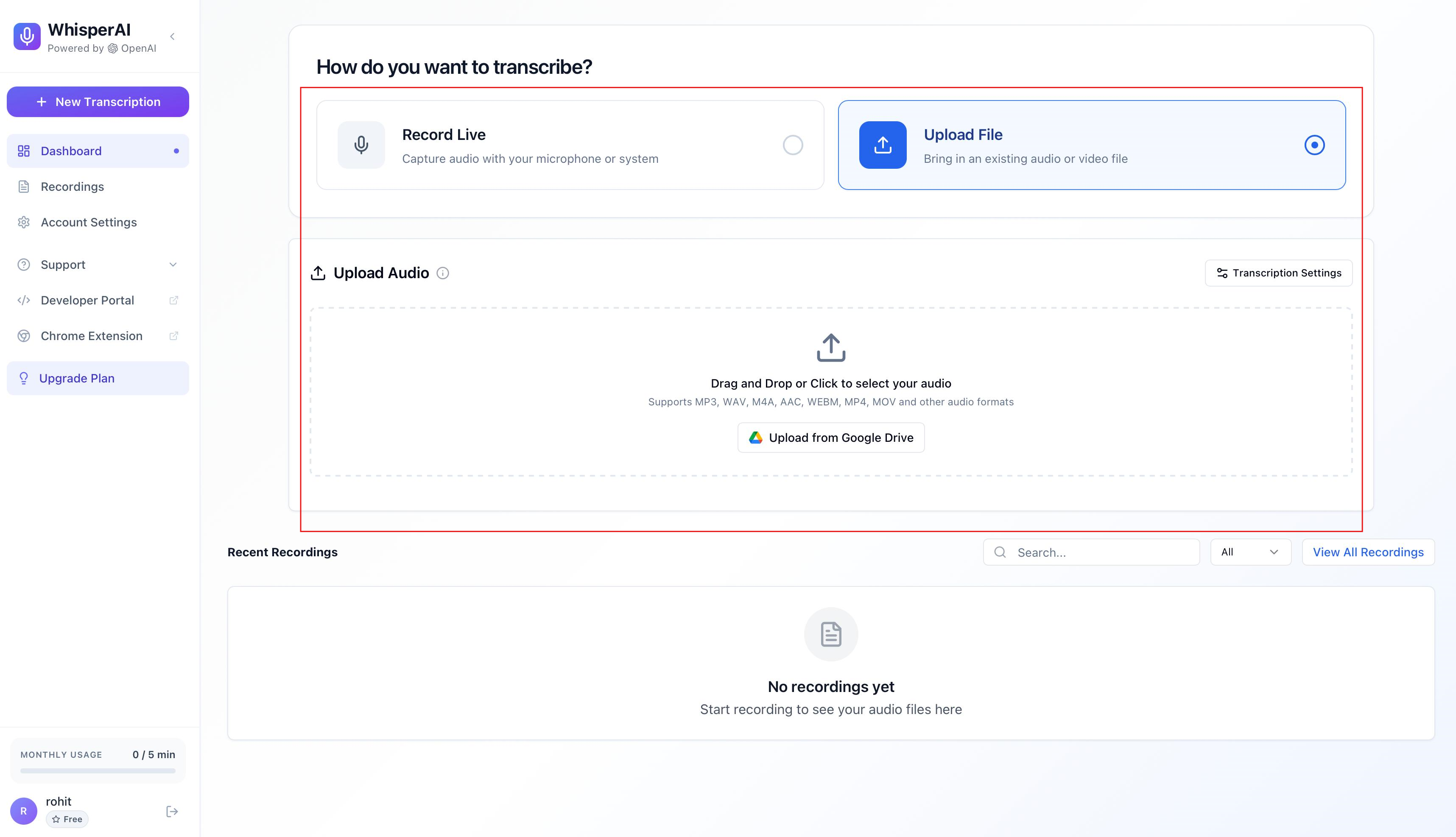
Step 2: Upload or record your audio
Upload your audio file or record directly if your chosen tool supports it. For better accuracy, use clear recordings with minimal background noise and select the correct language when needed.
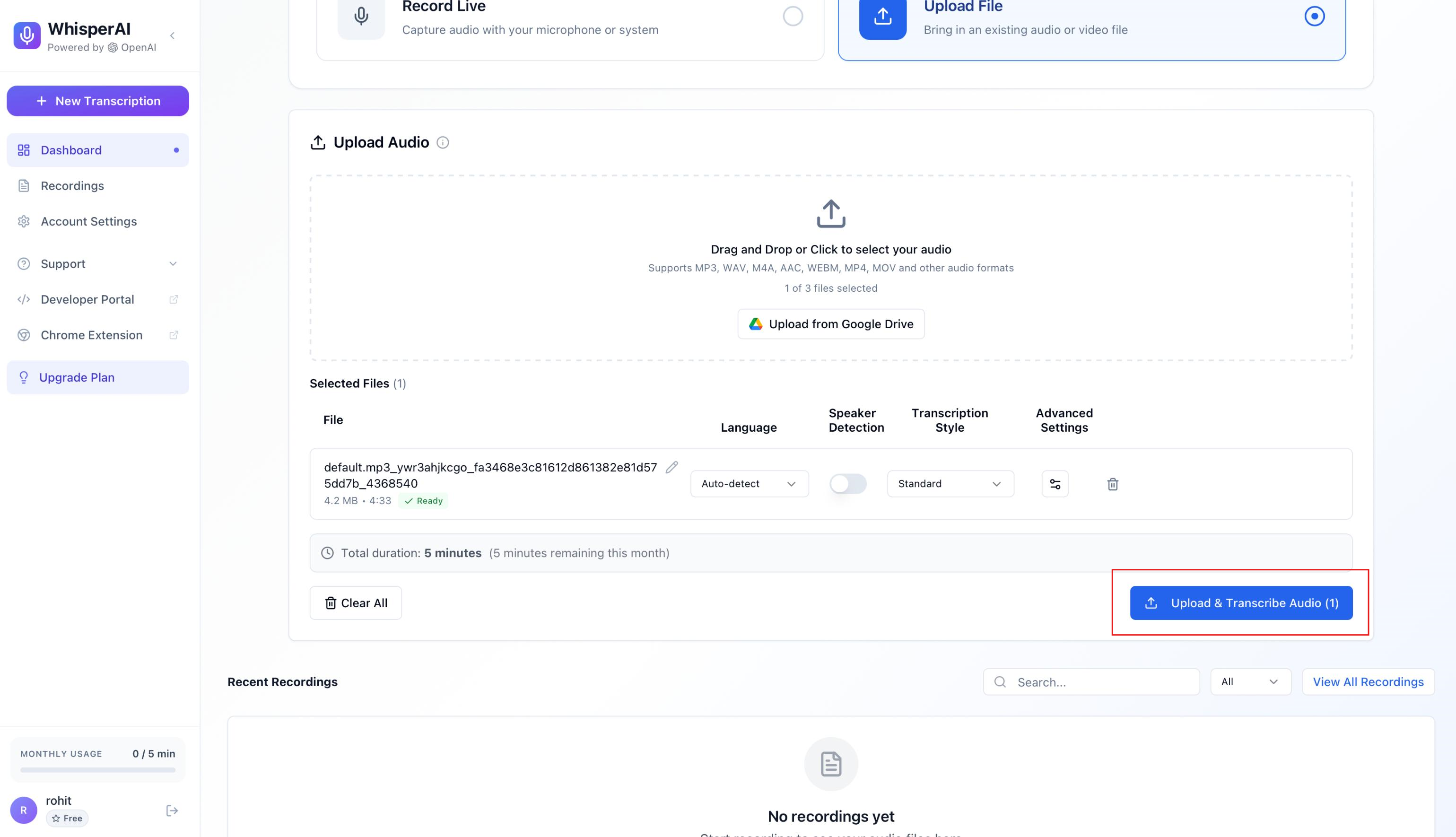
Step 3: Generate and review your transcript
Once the transcription is complete, review the generated text for accuracy and make any necessary edits. After confirming the content, export your transcript in the format that best suits your workflow.
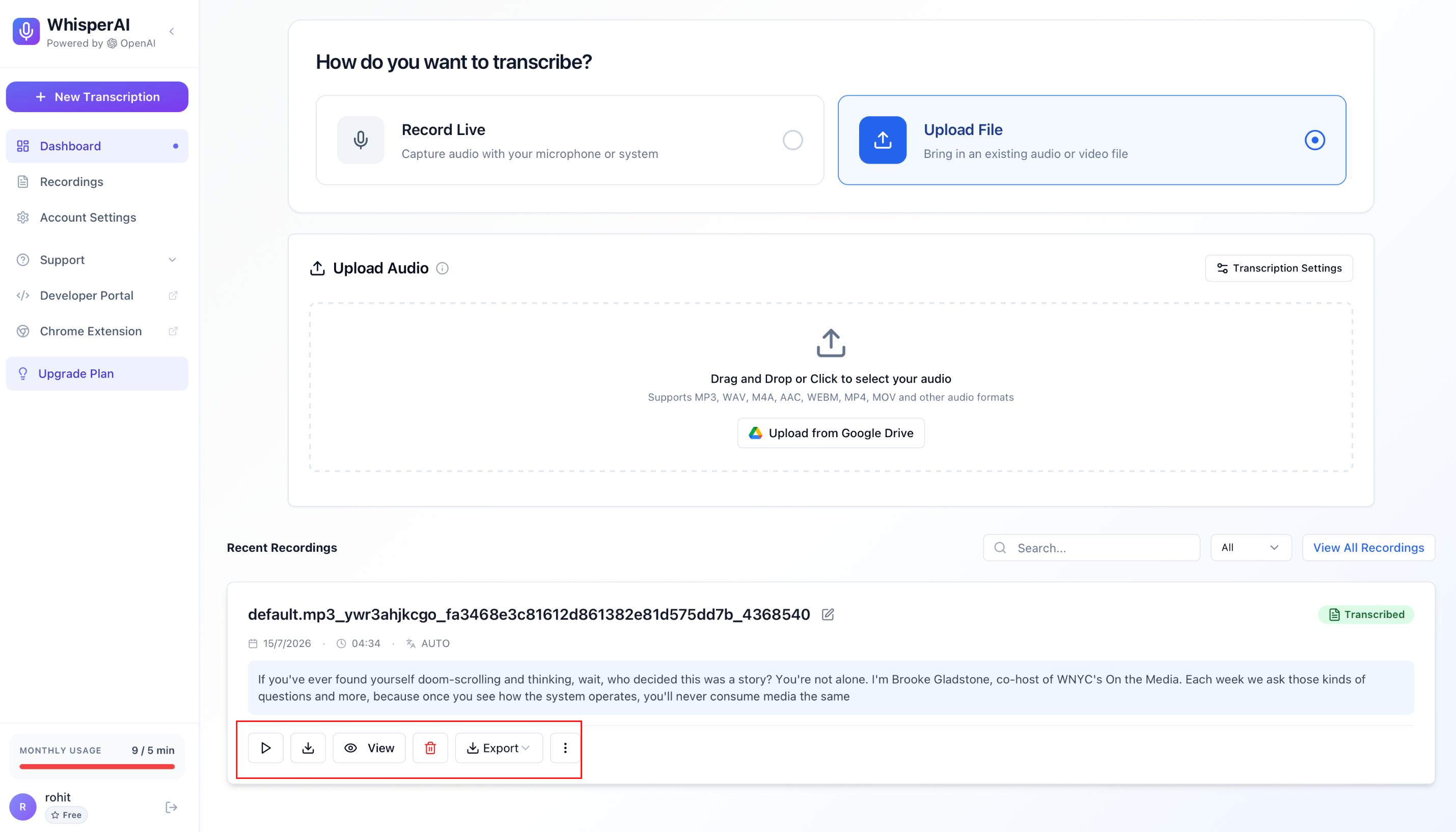
Wrapping up
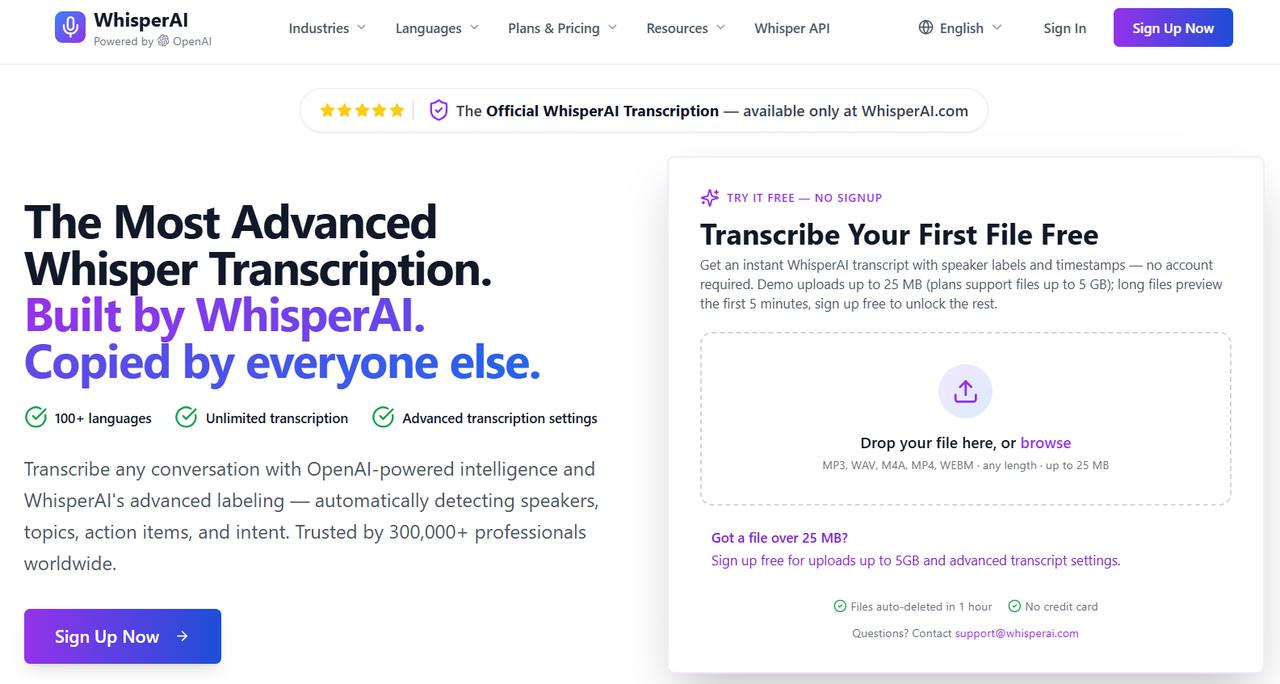
While a specialized tool like WhisperAI.com is ideal if you just need raw, highly accurate text files or meeting notes, video creators usually need more than just a TXT document. If you want to turn those transcripts directly into styled, social-ready captions or repurposed content without switching apps, Vmake offers a streamlined, no-code video-to-text pipeline designed specifically for short-form video production.
Pros & cons of Whisper speech-to-text
Whisper speech-to-text is widely recognized for its strong multilingual transcription capabilities and open-source flexibility. However, like any AI transcription solution, it has strengths and limitations that users should consider before choosing it for their workflow.
|
Pros |
Cons |
|---|---|
|
High transcription accuracy for clear audio |
May require technical setup for local installation |
|
Supports dozens of languages and language detection |
API usage and third-party services may incur costs |
|
Open-source and customizable for developers |
Performance depends on hardware and model size |
|
Handles different accents and speaking styles well |
Background noise and overlapping speakers can reduce accuracy |
|
Supports speech translation and timestamp generation |
Beginners may find setup and configuration challenging |
Is Whisper free? (Access & pricing)
The OpenAI Whisper speech-to-text model is available as an open-source project, meaning you can download and run it locally without paying a licensing fee. However, running the model requires compatible hardware and the necessary software environment, which may not be suitable for every user.
If you prefer a managed solution, several platforms provide access to Whisper through subscription plans. These services handle the infrastructure and maintenance for you, but pricing and features vary by provider.
|
Plan |
Price (Monthly) |
Key Features & Limits |
|---|---|---|
|
Premium |
$14.99/month |
120 minutes per month (audio + video) |
|
Business Pro |
$24.99/month |
Unlimited transcription minutes (up to 10 at a time) |
|
Enterprise |
$75.00/month |
Includes 5 seats (add extra seats at $15/seat/month) |
Robust alternative: Transcribe audio and video easily with Vmake Labs
Whisper is a powerful transcription model, but you may need to do some additional setup depending on how you want to use it. Vmake Labs is a no-code, clean-interface alternative for beginners to convert audio and video to text. Whether you're creating subtitles, transcribing meetings or repurposing content, it helps simplify the transcription process and supports multiple media formats.
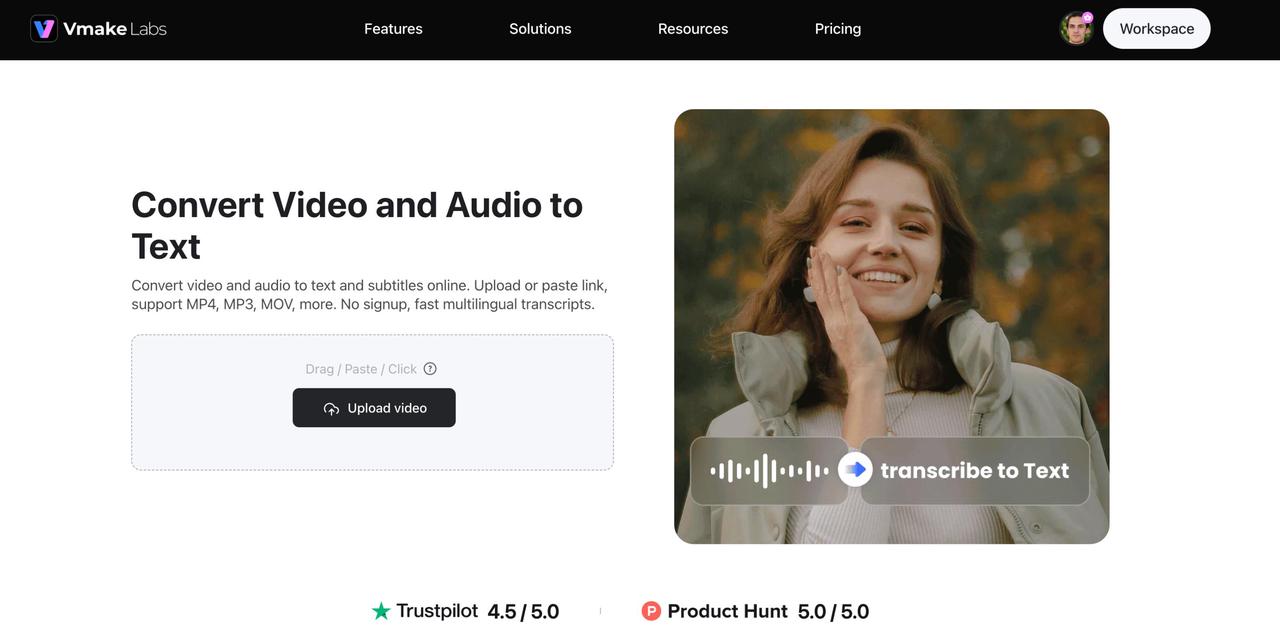
Step 1: Upload your audio, video, or link
Open the "video and audio to text" tool in Vmake Labs. Upload an audio or video file from your device, or paste a supported link into Vmake Labs. The platform supports common media formats, allowing you to start transcribing without installing additional software.
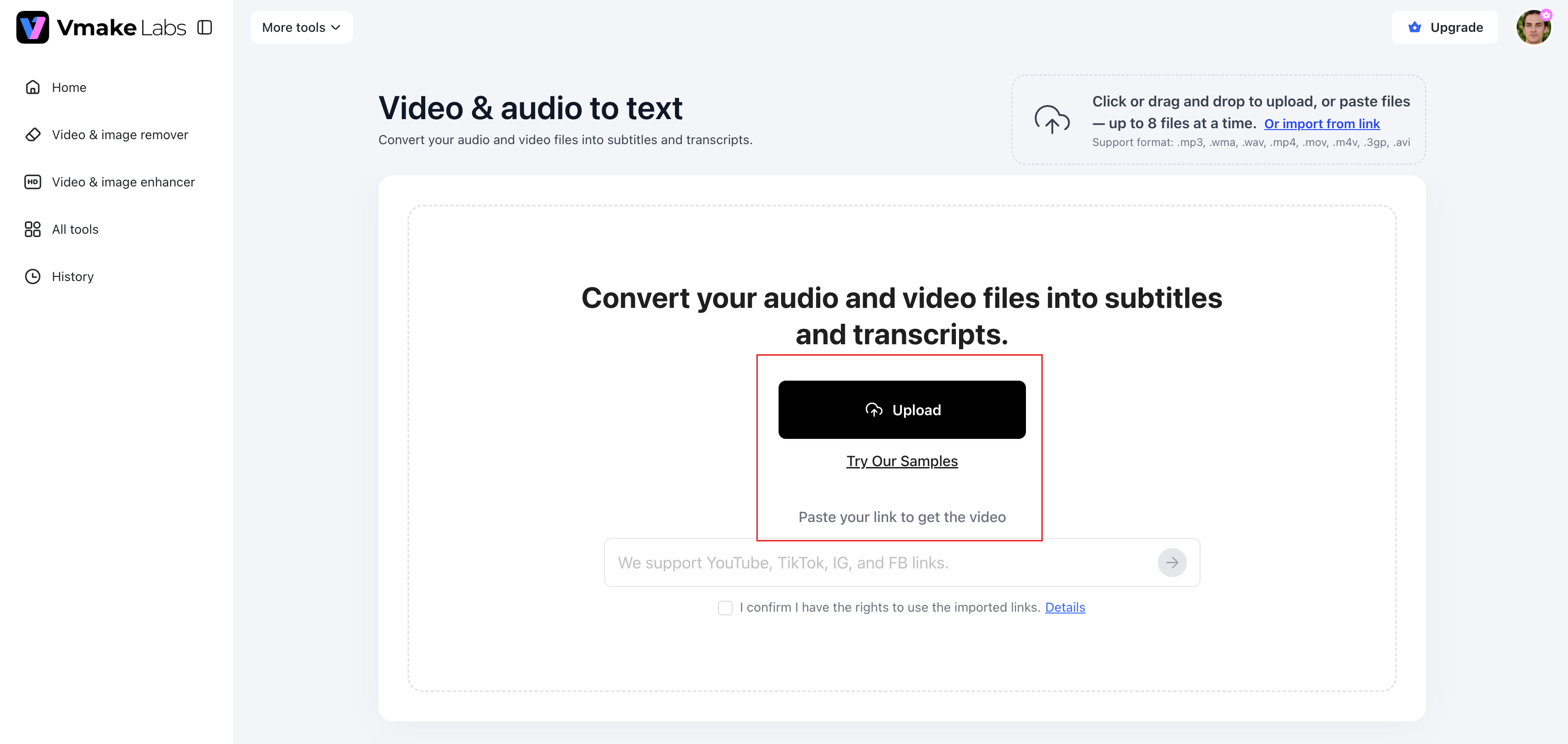
Step 2: Generate the transcript automatically
Vmake Labs’s AI analyzes the speech and produces a transcript in minutes once you upload your file. Automatic processing helps you save time compared to manual transcription.
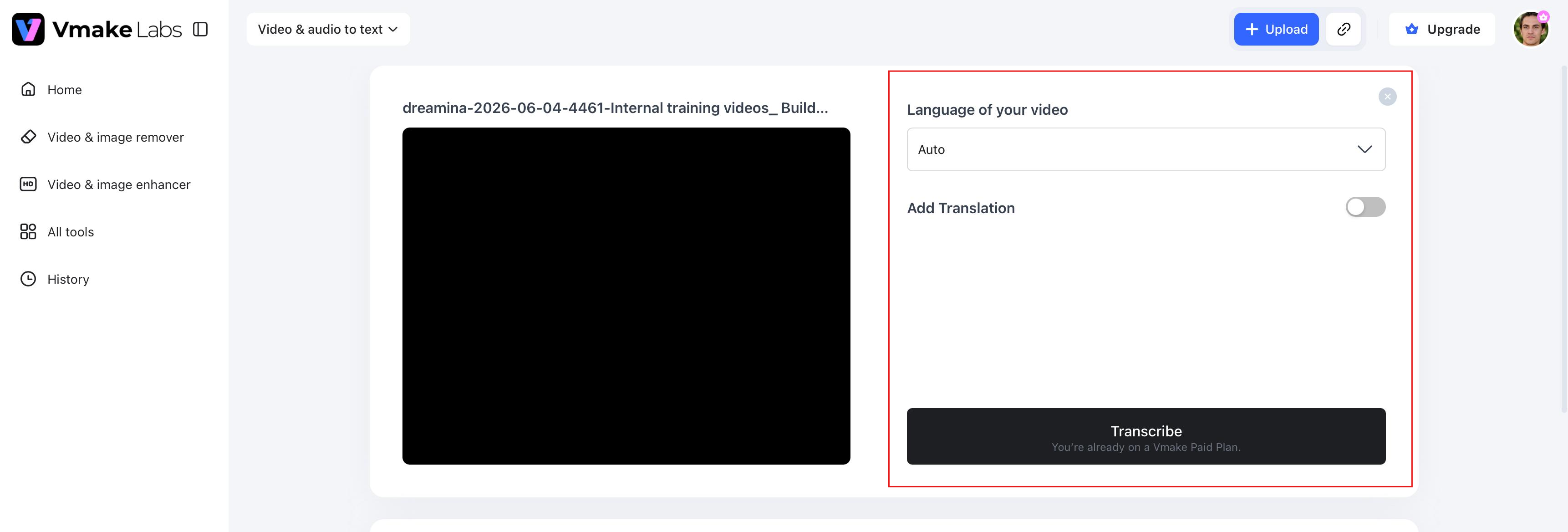
Step 3: Edit and export your transcript as TXT or SRT
Review the generated transcript, make any necessary edits, and export it as a TXT or SRT file. This makes it easy to create captions, subtitles, meeting notes, or written records for future use.
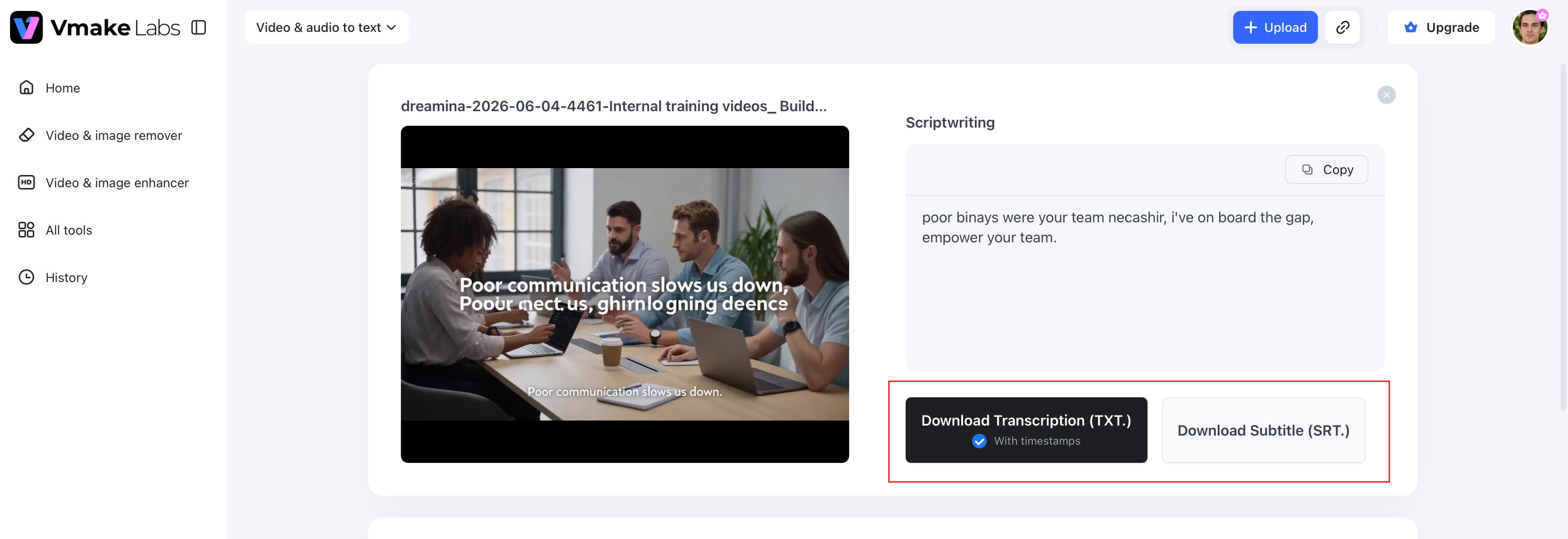
Why choose Vmake Labs for transcription?
Vmake Labs combines AI-powered transcription with an intuitive workflow, making it suitable for creators, businesses, educators, and professionals who want accurate transcripts without technical complexity.
-
Upload audio, video, and supported links: Transcribe content from multiple sources in a single place. Upload a file or paste in a supported link, and you are good to go with making transcripts.
-
AI-powered multilingual transcription: Convert speech into text across multiple languages with AI-powered accuracy. This makes it suitable for interviews, meetings, educational content, and global audiences.
-
Automatic timestamps: Generate transcripts with timestamps to make it easier to locate, review, and edit specific sections of your recordings.
-
Subtitle generation: Automatically create subtitles from your transcript, helping you prepare videos for social media, online courses, or professional presentations.
-
Multiple export formats: Download your transcripts in TXT or SRT format, making them easy to use for documentation, editing, or subtitle workflows.
-
No installation or coding required: Access Vmake Labs directly in your browser without downloading software or configuring APIs, making transcription simple for beginners and professionals alike.
Whisper speech to text vs Vmake Labs
Both Whisper and Vmake Labs use AI to convert speech into text, but they are designed for different types of users. Whisper speech-to-text provides a flexible, open-source model that developers can customize for specific applications. In contrast, Vmake Labs focuses on delivering a streamlined transcription experience, allowing anyone to upload files, generate transcripts, and export results without technical setup.
|
Feature |
Whisper Speech to Text |
Vmake Labs |
|---|---|---|
|
Best for |
Developers and technical users |
Fast audio and video transcription |
|
Installation |
Required for the open-source version |
No installation required |
|
Coding required |
Yes, for local deployment or API integration |
No |
|
Browser access |
Depends on the implementation |
Yes |
|
Audio upload |
Yes |
Yes |
|
Video upload |
Depends on the implementation |
Yes |
|
Automatic subtitles |
Depends on the implementation |
Yes |
|
Setup complexity |
Moderate to high |
Simple, no-code workflow |
|
Time for the first transcription |
Varies based on installation or API setup |
Upload and transcribe in a few clicks |
|
Export formats |
Depends on the implementation |
TXT and SRT |
Who should use Whisper vs Vmake Labs?
The right transcription tool depends on your experience, workflow, and project requirements. While Whisper offers flexibility for users who want to build custom transcription solutions, Vmake Labs focuses on delivering a simple, no-code experience for everyday transcription tasks.
|
User group |
Recommended solution |
Best suited for |
|---|---|---|
|
Developers |
Whisper |
Building custom AI transcription applications with API or local deployment. |
|
Researchers |
Whisper |
Handling large transcription datasets and customized research workflows. |
|
Students |
Vmake Labs |
Converting lectures, presentations, and study recordings into editable text quickly. |
|
Podcasters |
Vmake Labs |
Creating transcripts and subtitles for podcast episodes with minimal effort. |
|
Marketers |
Vmake Labs |
Repurposing video content into captions, blogs, and social media assets. |
|
Educators |
Vmake Labs |
Transcribing lessons, webinars, and training videos for improved accessibility. |
|
Content creators |
Vmake Labs |
Generating transcripts and subtitle files from audio and video in just a few clicks. |
Tips for getting the best transcription accuracy
Even the most sophisticated AI transcription tools do better with clear source audio. Following a few best practices can help improve transcript quality and reduce the amount of editing required afterward.
-
Record in a quiet environment to minimize background noise.
-
Use a quality microphone for clearer speech capture.
-
Select the correct language whenever manual language settings are available.
-
Avoid multiple people speaking at the same time.
-
Upload higher-bitrate recordings for improved speech recognition.
-
Always review AI-generated transcripts before publishing or sharing them.
-
For large audio and video projects, go for a dedicated AI transcription platform that streamlines uploading, editing, subtitle creation and exporting in one workflow.
Conclusion
Whisper speech-to-text is a powerful AI transcription model with great flexibility and multilingual recognition, making it a favorite among developers and technical users. But you may need additional tools or coding skills to install it or unlock its full potential. If you’d like an easier way to transcribe audio and video, Vmake Labs has a fast, no-code option that automatically transcribes, timestamps, creates subtitles, and exports in multiple formats. From caption creation and meeting documentation to content repurposing, Vmake Labs provides fast, efficient, and minimal-effort generation of accurate transcripts.
FAQs
What is Whisper speech-to-text?
Whisper speech-to-text is an open-source automatic speech recognition (ASR) model that was developed by OpenAI. It transcribes speech to text and offers multilingual transcription, language detection and speech translation.
Is OpenAI Whisper speech-to-text free?
OpenAI’s open-source speech-to-text model, Whisper, is free to download and run locally. Using Whisper through APIs or third-party services, however, may incur some usage fees. If you don’t want to install anything and prefer online solutions that are ready to use, Vmake Labs provides a simple way to transcribe your audio and video files directly from your browser.
How accurate is the Whisper speech-to-text model?
The Whisper speech-to-text model is highly accurate for clear recordings and supports a very large number of languages. With background noise or overlapping speakers, results can differ. In case you need to do some quick editing after the transcription, Vmake Labs has a simple online workflow.
Can Whisper transcribe video files?
Yes. Whisper can transcribe the audio from video files, although the exact workflow depends on the application or implementation you use. If you prefer a simpler option, Vmake Labs lets you upload video files directly and automatically generates transcripts and subtitles online.
Does Whisper support multiple languages?
Yes. Whisper AI speech to text supports dozens of languages and can automatically detect the spoken language in many situations. This makes it suitable for multilingual transcription projects. Vmake Labs also offers AI-powered multilingual transcription with an easy, no-code experience.
What is the best alternative to Whisper speech-to-text for beginners?
For those who don’t want to install software or write code, Vmake Labs is a good alternative. It lets you upload audio, video or supported links, automatically create accurate transcripts, edit them online and export them as TXT or SRT files in just a few clicks.

You May Be Interested
VEED.io Audio to Text: Everything You Need to Know in 2026
Aqua Voice Speech to Text Tool: Complete 2026 Review & Guide
Speech to Text Chrome Extension: Dictate Anywhere Online
Speech to Text App: Best Picks and How to Choose One
Best Speech to Text Software: Top 5 AI Tools Evaluated