Speechnotes Speech to Text: Features, Tutorial, & Alternative
Learn how to use Speechnotes Speech to Text with this beginner's guide. Discover voice typing, dictation tips, and features. Explore how Vmake Labs can bring your speech to life.

Capturing your ideas is important, whether you're trying to finish an essay, prep for a meeting, or just write down a passing thought. That is usually where Speechnotes - speech to text app comes in. It is a straightforward dictation tool designed to do one thing really well: turn your spoken words into text without making you fight a clunky interface. Let's walk you through how it actually works, key features, its pricing, and compare it with another practical alternative, Vmake Labs, which handles things a bit differently, so you can figure out which one actually fits your workflow.
What is Speechnotes speech to text app
At its core, Speechnotes is a web-based dictation tool designed to turn your voice into text on the go. It runs entirely in your browser with no download or installation required, and also offers a Chrome extension so you can dictate directly inside tools like Google Docs or Gmail without switching tabs.
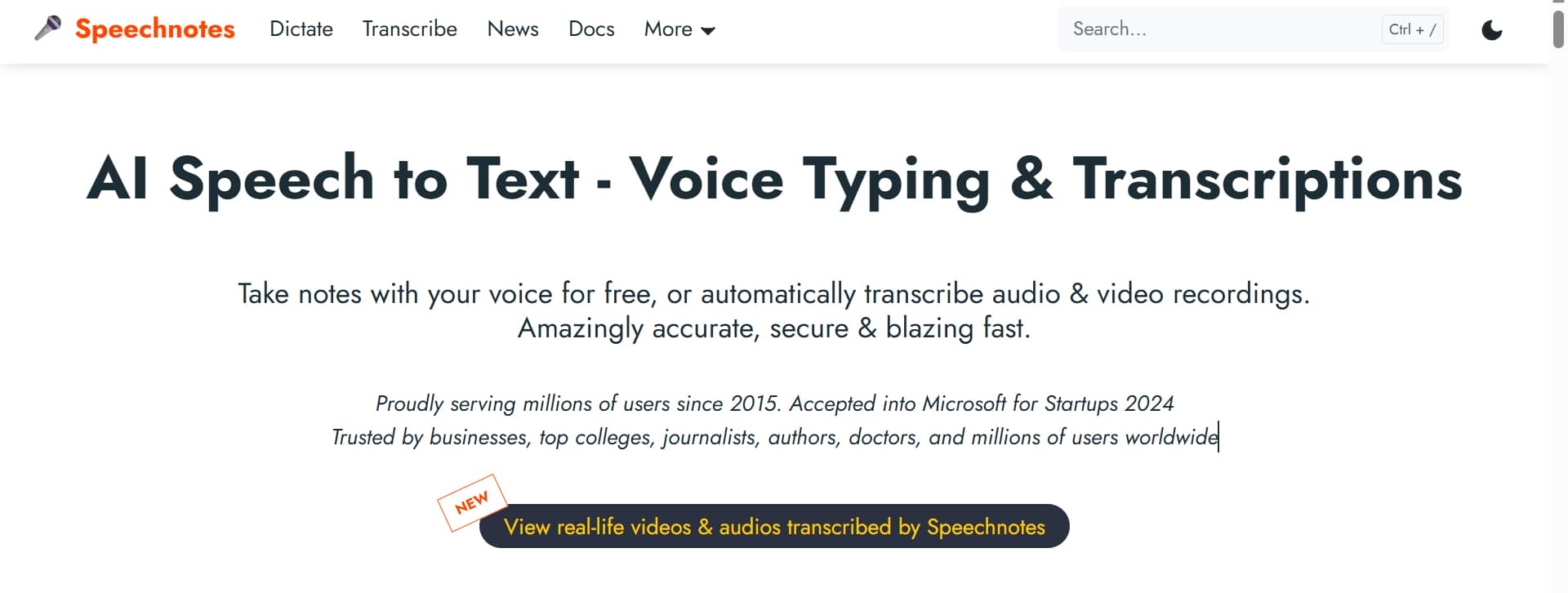
It is built for anyone who just wants to talk instead of typing, whether you are drafting an email, hammering out a blog post, or trying to capture a messy thought before it vanishes. Besides live voice typing, it handles uploaded audio and video files if you have a pre-recorded interview or lecture, and even has built-in AI translation if you need to flip that text into another language.
Because it works on almost any device and keeps the interface completely stripped down, it relies on simple voice commands for punctuation and formatting. If you are a student, a journalist, or honestly anyone drowning in typing, it is a remarkably easy way to give your fingers a break.
Key features of Speechnotes speech to text
Speechnotes essentially combines smart speech recognition with a handful of straightforward productivity features, mostly just to help you get your thoughts down without a keyboard getting in the way. It handles everything from live, on-the-spot dictation to transcribing older files, and then lets you export the text wherever it needs to go.
-
Real-time voice typing
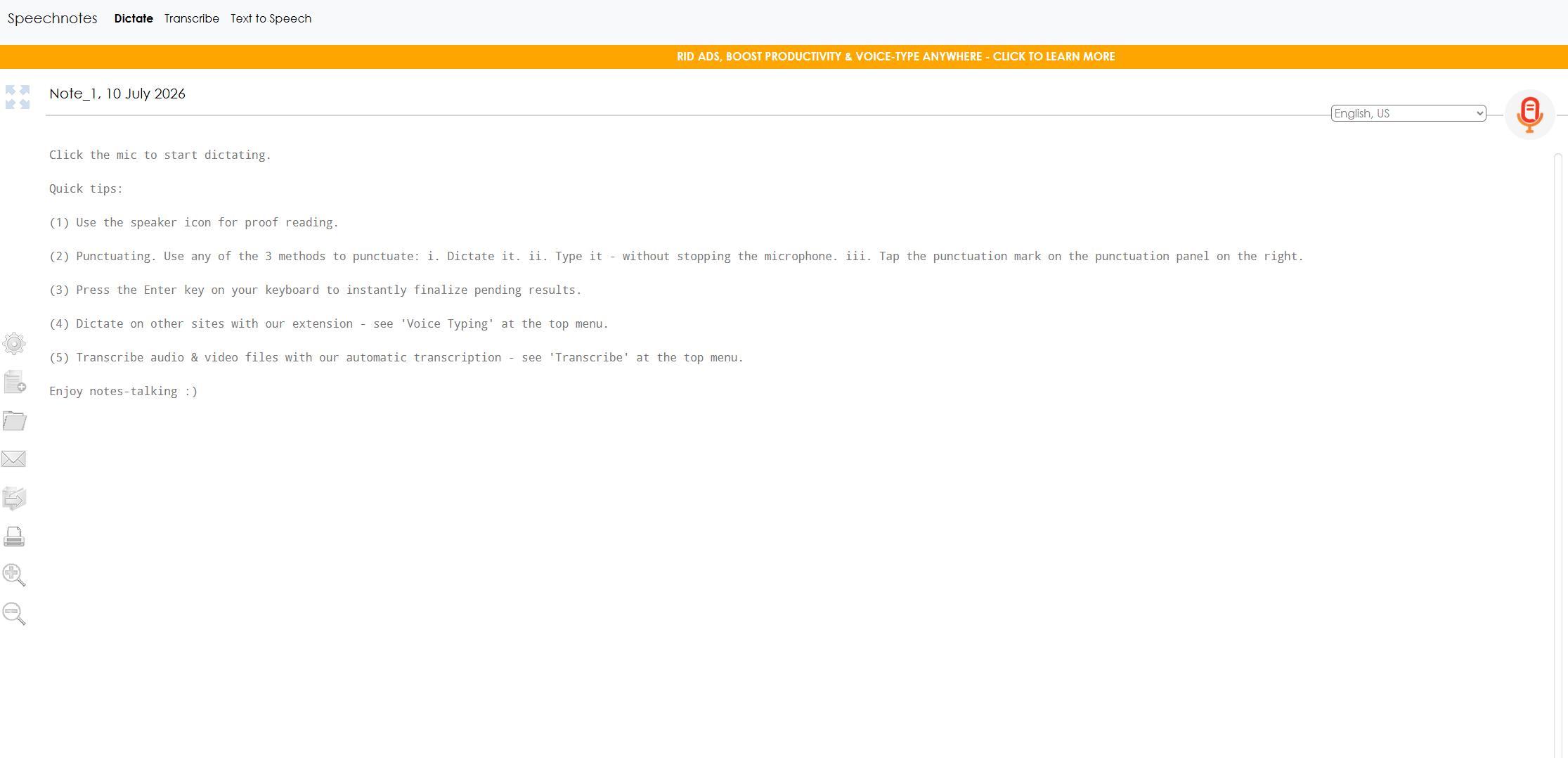
Speechnotes is surprisingly good at keeping up with live speech, meaning you can just talk naturally and see your words hit the screen instantly. It completely bypasses the clunky process of typing everything out by hand. It is incredibly useful when you are drafting a messy first iteration of an email, a detailed report, or even a long article, and your hands just can't keep up with your brain.
-
AI audio & video transcription
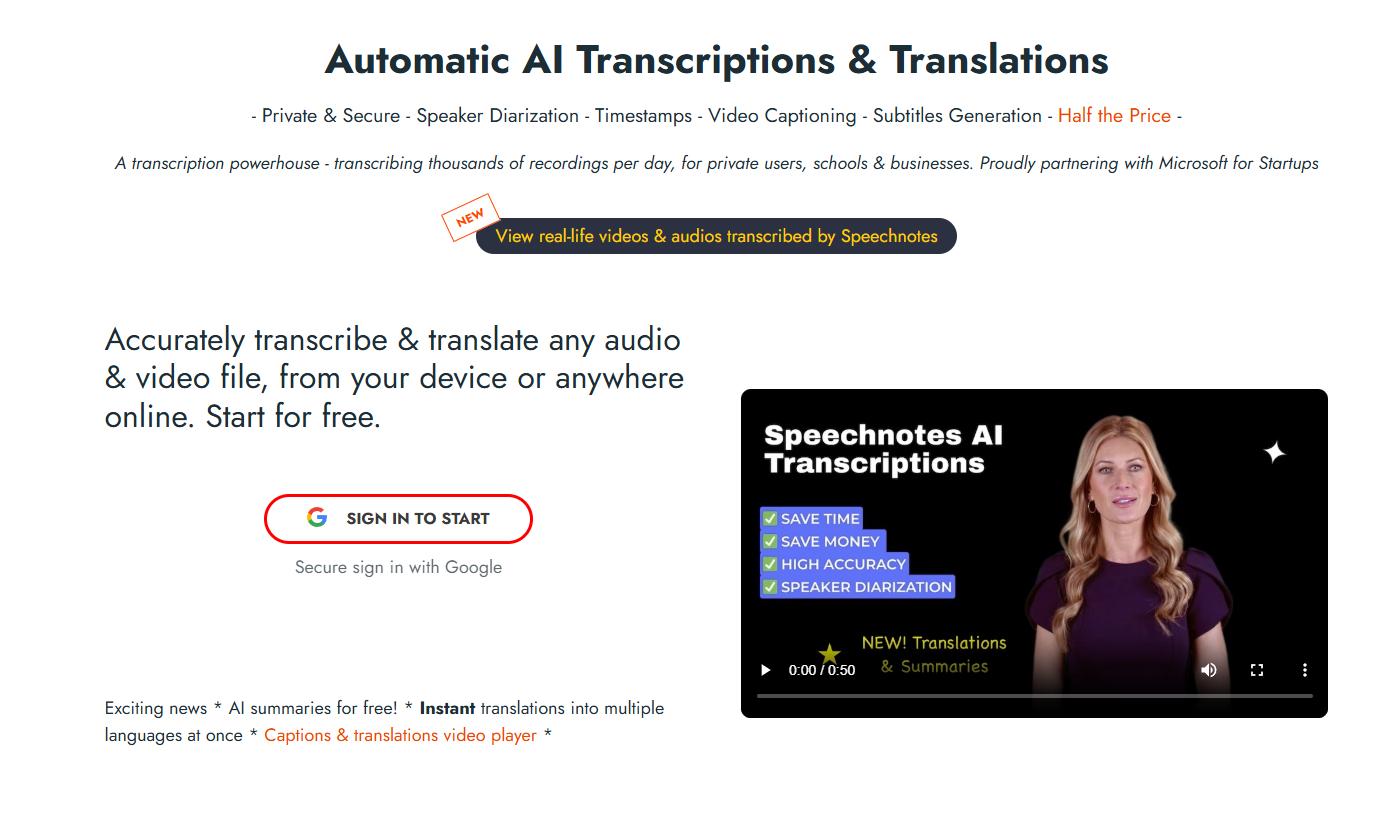
Speechnotes handles recorded audio and video files too, using its AI to flip them into text after the fact. You just upload the file, whether it is a messy interview recording, a lecture, a corporate webinar, or a quick voice memo you took in the car, and let it auto-transcribe.
-
Voice commands
One of the best things about the platform is that you don't have to keep reaching for your keyboard every time you want to insert a comma. It builds voice command support so you can format and edit as you talk. You can literally just say your punctuation out loud, tell it to start a new paragraph, or manage the formatting on the go.
-
Export options
Once you finish talking, Speechnotes makes it pretty simple to get your text where it actually needs to go. You can quickly export it, copy it to your clipboard, or send it directly to other apps if you need to share it with a colleague or keep tweaking it. It is handy if you're trying to piece together a heavy report, organize study notes, or just clean up a rough draft.
-
Productivity features
What makes this tool stand out is that it focuses on features that genuinely save you time. It auto-saves your work constantly, keeps the interface completely stripped down, and lets you edit the text quickly right there on the screen.
How to use Speechnotes speech to text for free: Tutorial
Getting started with Speechnotes is remarkably straightforward. Open a tab and have your first spoken words showing up on the screen almost instantly. Let's walk you through how to actually use it, from starting your first live note to fixing typos.
Step 1: Open Speechnotes and start dictating
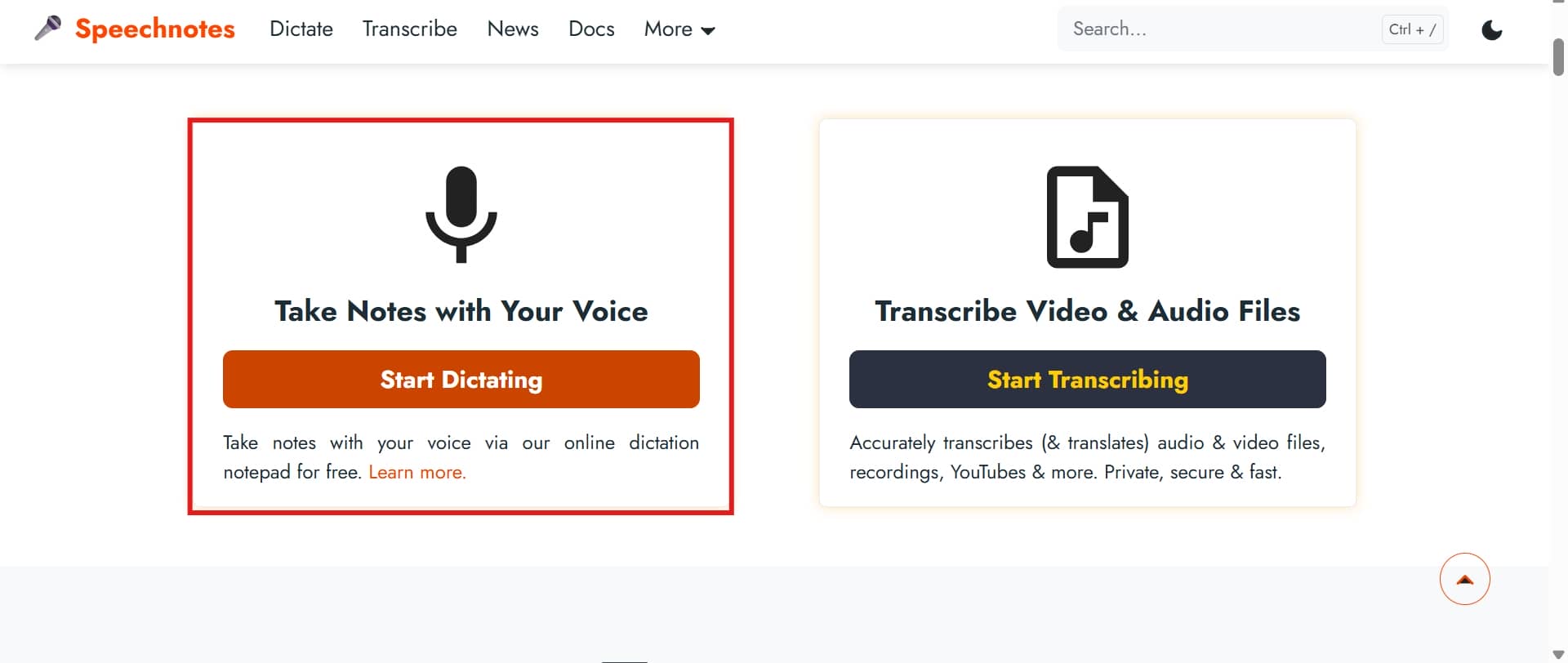
First, just head over to the Speechnotes website in your browser and click on the voice typing option. Your browser is going to pop up a little prompt asking for permission to use your microphone. Once your mic is good to go, just hit the main dictation button "Start Dictating" and start talking normally. You don't need to overenounce or adopt a weird robot voice; the app will just start dropping your words onto the screen as you speak.
Step 2: Review and export the document
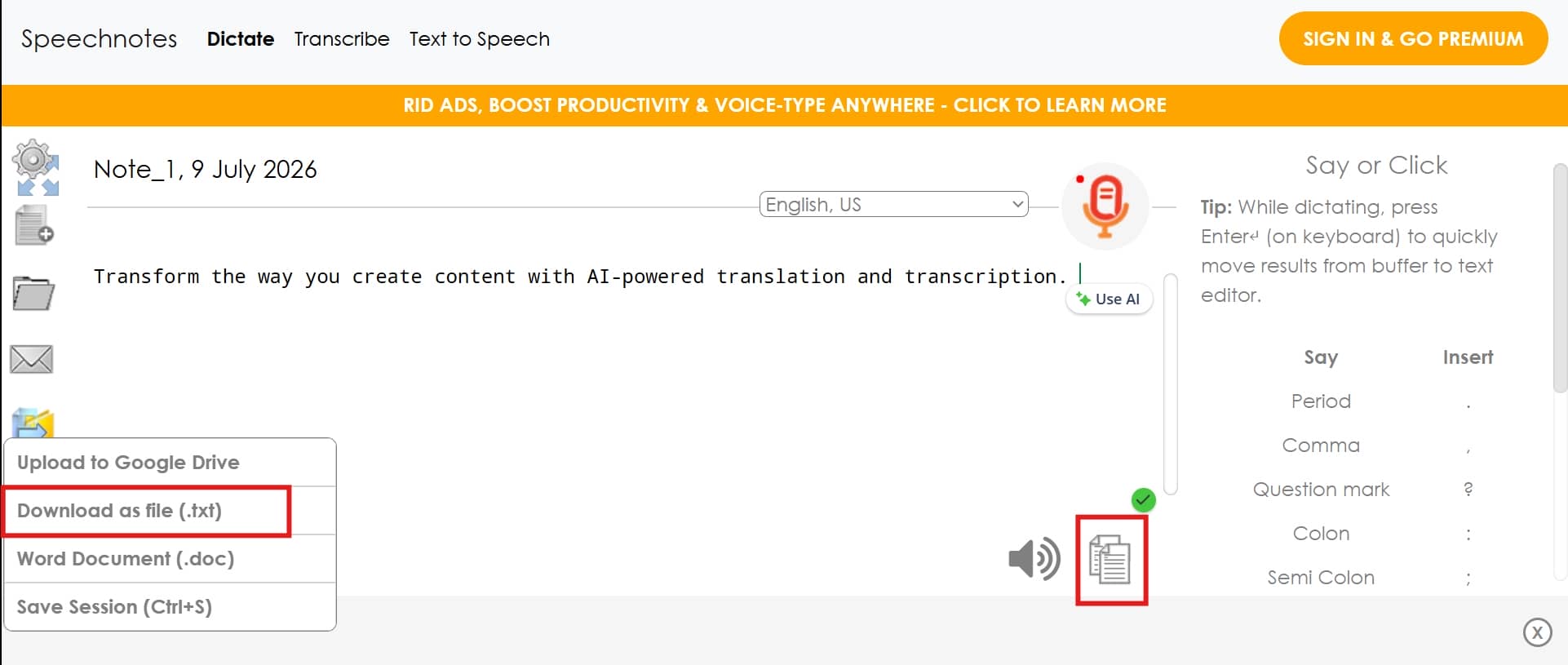
When you are done, pause to read back through it. You will definitely want to clean up a few typos, mess around with the layout, and smooth out the pacing before you actually call it a finished piece. Once the editing is out of the way, you just need to decide where this text is actually going. Speechnotes gives you a couple of different ways to offload your work. You can just export the whole thing to your clipboard with a quick copy command, download the file directly, or slide it over to whatever other program your team uses.
Transcribe the audio or video
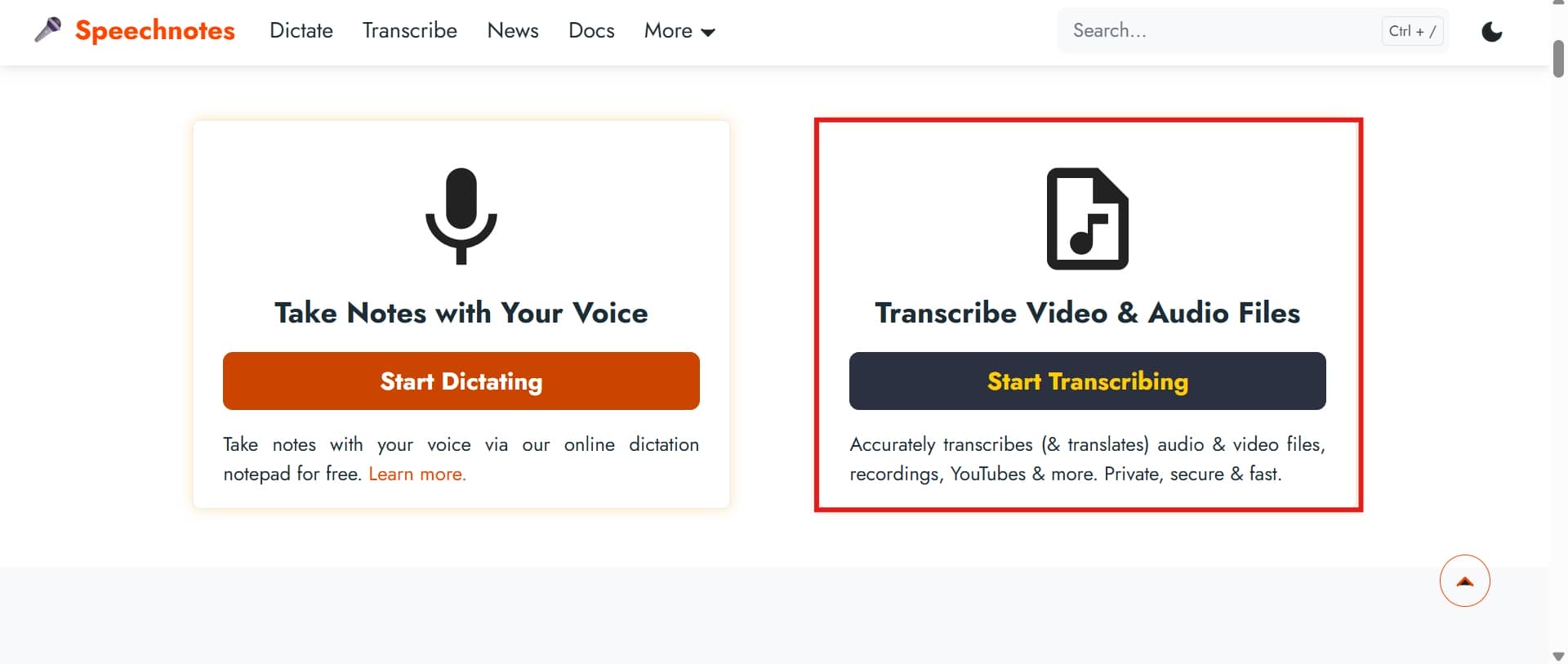
If you are dealing with pre-recorded files instead of live dictation, you just drop your audio or video file straight into Speechnotes' transcription tool. The system handles heavy lifting from there, gives you a searchable text file in a fraction of the time, making it infinitely easier to skim through interviews or grab key quotes from a long podcast without losing your mind.
Speechnotes pros, cons, and pricing: Is it worth it
Speechnotes lets you use its basic voice typing features entirely for free, which is great if you just need a straightforward, no-frills tool to dictate occasional notes. If you need heavier lifting, like transcribing long audio files, unlocking advanced features, or getting past the free tier's usage caps, you will have to look at their paid plans.
|
Free plan |
Dictation - Premium |
Transcription |
|---|---|---|
|
$0/mo |
$1.9/mo |
$0.1/minute |
|
|
|
Speechnotes: Pros & cons
Speechnotes is a solid, genuinely convenient option if you just need to get your words onto a screen without typing. Between live voice dictation, file transcription, and quick export features, it does exactly what it promises for students, professionals, or anyone creating content who wants to save a bit of time. However, it is not a magic fix for everything. Like any software, it comes with a few specific limitations and quirks that you really should weigh before you decide to rely on it.
|
Pros |
Cons |
|---|---|
|
|
Afterthought
Speechnotes is a solid bet if you just want a simple, quick, and reasonably cheap way to talk your way into a text document. It does a great job with basic daily tasks, like student homework or getting a quick idea on the screen before it slips your mind. However, if your work demands heavy-duty team collaboration features, slick AI editing, or professional-grade transcription setups, you will probably want something more robust. That's where Vmake Labs comes in. It focuses much more on managing and polishing digital media workflows rather than just pure text dictation.
Meet Vmake Labs: A robust alternative to transcribe audio and video
Vmake Labs' AI-powered transcription tool essentially lets you import your video and audio files into a browser window and automatically turns them into clean text transcripts or subtitles. The tool plays nice with pretty much all the standard formats you'd expect, like MP4, MP3, WAV, and MOV, and it can even pull media straight from a direct video link. Because it relies on pretty solid speech recognition, it actually breaks things down into structured transcripts complete with timestamps and proper subtitle files.
Step-by-step guide
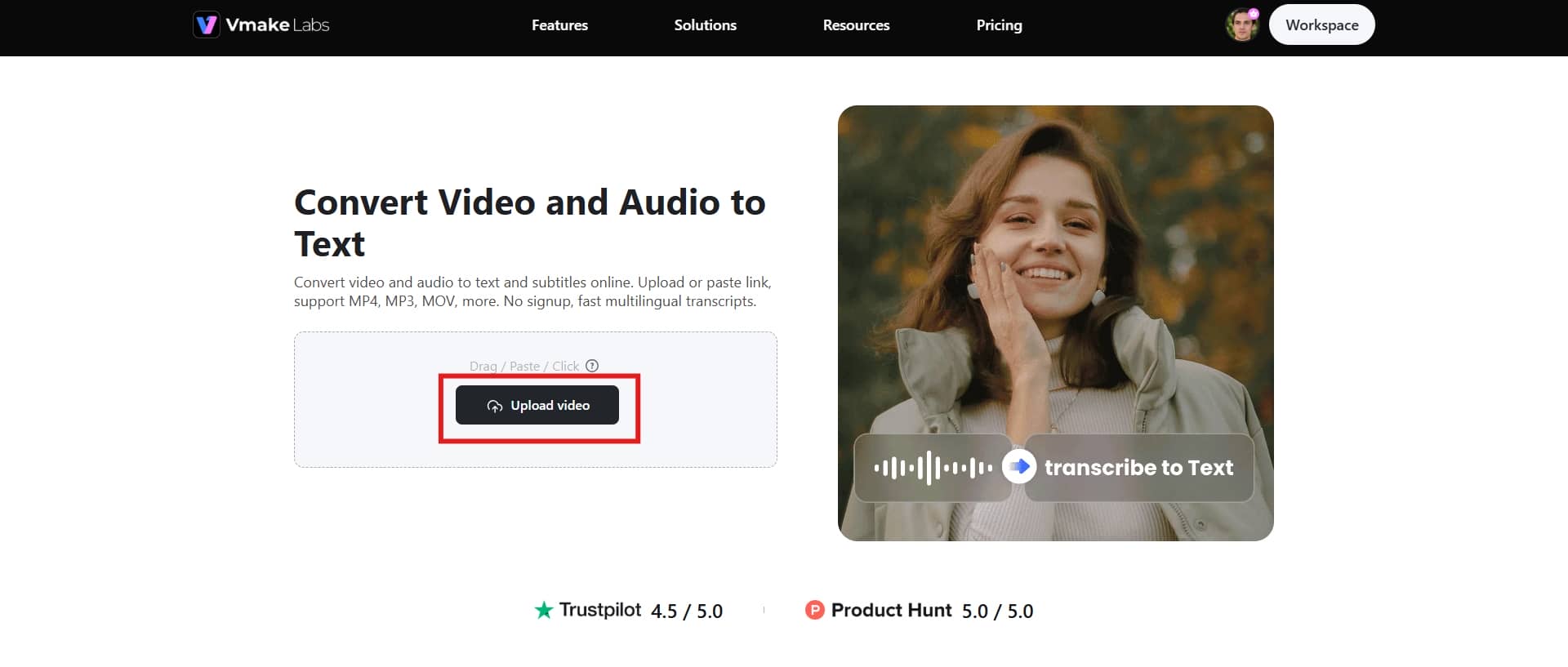
Step 1: Upload your audio, video, or link
You start by dropping your audio or video file right into Vmake's Video & Audio to Text tool. Click the "Upload video" button and import audio and video in any format without any conversion or additional steps.
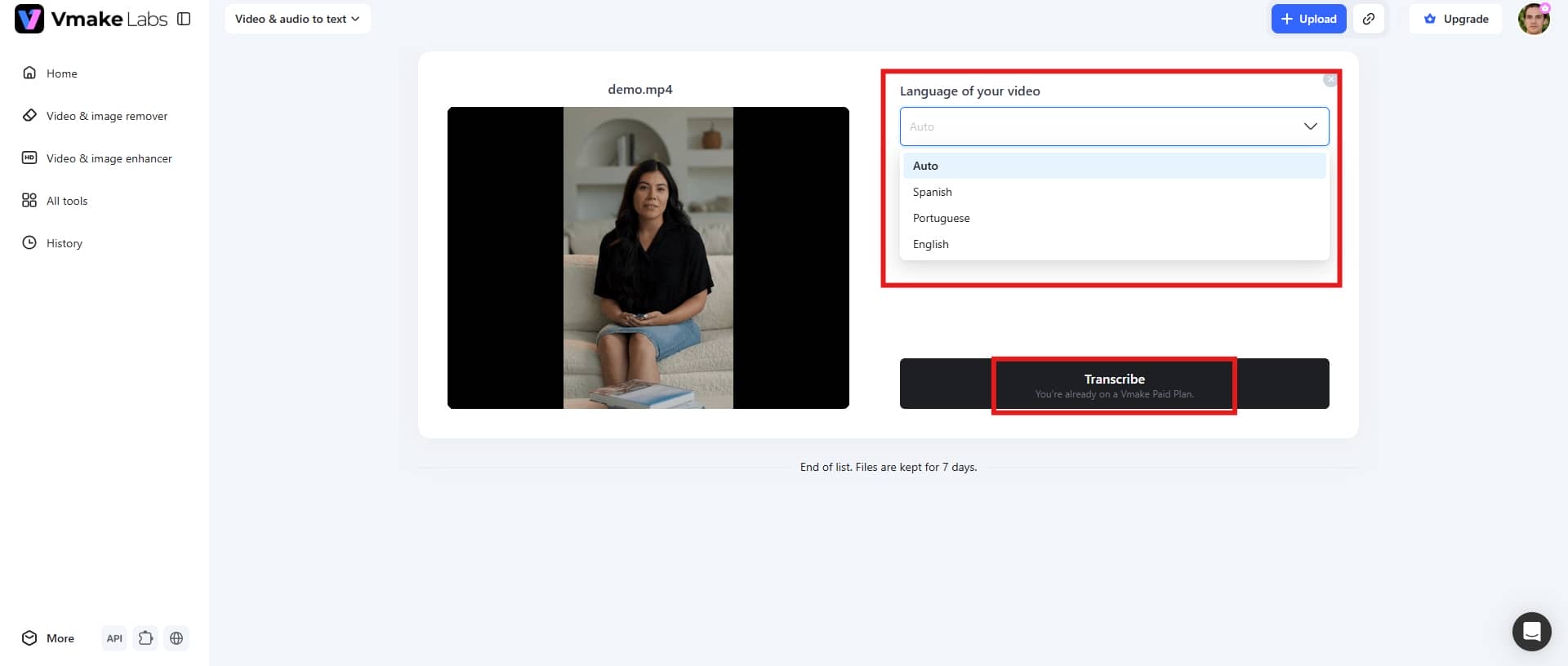
Step 2: Select the language
From there, you just need to choose the language for your transcription or translation. You can stick with whatever language was originally spoken in the file, or you can have the system convert it into an entirely different language depending on what you need. Once that is set, just click "Convert" to kick off the processing.
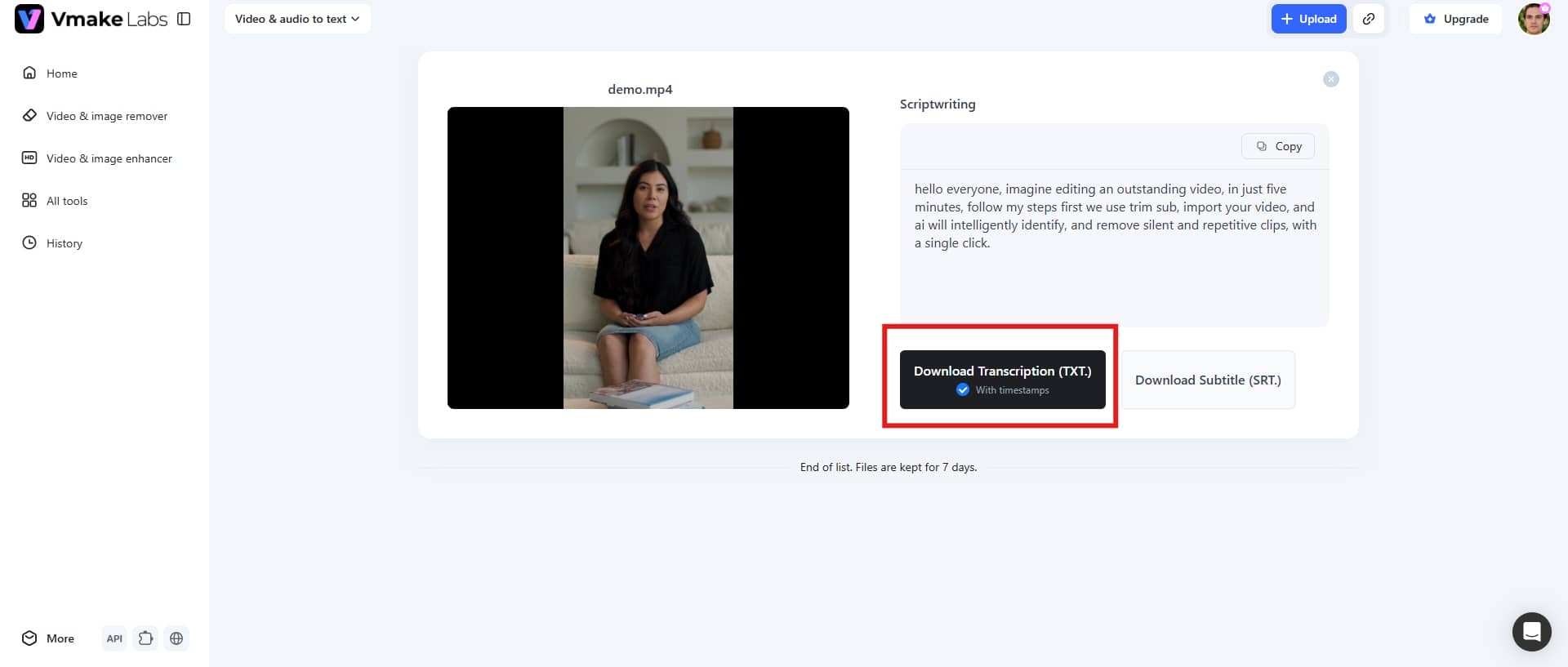
Step 3: Export your transcript
Once the system wraps up the transcription, you can read through the generated text. Click the "Download Transcription" button at the bottom to save the transcriptions for captions, scripts, blogs, presentations, and social media videos.
Key features
-
Audio, video, and link transcription
Vmake handles basically whatever media source you throw at it. Whether you're uploading a raw audio file from your phone, a finished video, or just pasting in a supported web link, it works. This video transcript generator can transcribe long interviews, podcasts, webinars, or recorded business meetings instantly.
-
AI-powered multilingual transcription
The platform uses AI-driven speech recognition to handle multilingual transcription and translation workflows. You can stick with the speaker's original language, or you can have the system automatically flip the content into an entirely different language.
-
Timestamped transcripts
Vmake also builds proper timestamps and subtitle alignment right into the text. This matters because it lets you match the script to specific moments in your video without scrubbing back and forth a million times. It spits out actual SRT subtitle files if you need timed, auto-generated captions.
Speechnotes speech to text vs Vmake Labs: Quick comparison
While both Speechnotes and Vmake Labs rely on AI to turn spoken words into text, they are built for entirely different workflows:
|
Features |
Speechnotes - speech to text n |
Vmake Labs |
|---|---|---|
|
Primary use |
Voice typing, note-taking, and speech-to-text conversion |
AI-powered audio/video transcription and content localization |
|
Best for |
Students, writers, professionals, and users who need quick dictation |
Content creators, marketers, educators, and businesses working with media files |
|
Real-time voice typing |
Supports live speech-to-text dictation with voice commands |
Mainly focused on processing uploaded audio/video content |
|
Platform |
Web browser (Chrome, Edge, Firefox) + Chrome extension |
Web browser — no download or installation required |
|
Language support |
100+ languages for live dictation and transcription |
Multilingual transcription and translation across major languages |
|
Export formats |
TXT, copy to clipboard, Google Docs integration |
integrationTXT, SRT subtitle files, timestamped transcripts |
|
Pricing |
ree plan available; Dictation Premium from $1.9/mo; Transcription at $0.1/min |
Starts at $9.99/mo |
Speechnotes is really your go-to for live voice typing and rattling off quick dictations on the fly.
Vmake Labs, on the other hand, is much better suited for heavy-lift video and audio transcription, generating proper subtitle files, or handling complex multilingual workflows.
Conclusion
Both Speechnotes - speech to text app and Vmake Labs are incredibly useful tools, but they really don't compete with each other because they are built for entirely different problems. Speechnotes is what you turn to when you just want to get your spoken thoughts onto a page quickly. Vmake Labs is a different tool altogether, stepping in when you have pre-recorded audio or video that needs heavy-duty transcription, translation, or actual localization work.
If your primary goal is just straightforward voice typing or knocking out quick notes, Speechnotes is clearly the better choice. But the moment you start working with actual video or audio files, Speechnotes isn't going to cut it. That's where Vmake Labs comes into play. It handles the stuff basic dictation tools can't touch, like multilingual translation, automated timestamps, and generating proper subtitle files. So, the final choice depends on your content workflow.
FAQs
How accurate is AI-powered transcription?
Well, it depends on a handful of variables, like background noise, how clearly people are speaking, thick accents, or even the specific language being used. If you give a modern AI tool a crystal-clear recording, the accuracy is honestly impressive.
Does Speechnotes support multiple languages?
It does support multiple languages for both speech recognition and transcription. The list is pretty extensive, including English, Spanish, French, German, Hindi, Japanese, Korean, Chinese, and Arabic are all in there, along with quite a few others. Having that kind of range is incredibly useful if you routinely deal with international projects or need to generate text for different regions.
Can Speechnotes transcribe video files?
Yes, Speechnotes isn't just for live dictation; it handles audio and video transcription, too. You can upload your own recordings and let the tool generate the transcript for you, which also gives you access to handy features like timestamps.
Is Speechnotes free to use?
As for the cost, they've got a split model. If you just need a quick way to dictate notes online, you can use the voice-typing tool for free. But if you're looking to actually upload files for transcription, and you want those extra perks like captions, timestamps, and the more advanced transcription tools, that's where the paid side of the service comes in.
What is the difference between transcription and translation?
People often mix these two terms up, but transcription and translation are actually entirely different steps when you're working with spoken audio. Transcription keeps things in the exact same language. You are just changing the format from sound to paper. Translation is where you actually cross the language barrier. That is when you take that newly typed English script and rewrite the content into Spanish, French, or something else entirely so a completely different audience can read it.
What is the best free alternative to Speechnotes for translating videos?
If you are staring down a project that requires actual video translation, multilingual transcripts, or custom subtitle creation, Vmake AI is a strong alternative to keep on your radar. Its Video & Audio to Text setup handles the entire heavy lifting of turning media files into readable prose. You can choose your target language, and it spits out standard text files or properly timed SRT files for your subtitles.

You May Be Interested
Speech to Text App: Best Picks and How to Choose One
How to Transcribe Audio to Text: Efficient Guide
How to Transcribe Audio Recording to Text in Minutes
VEED.io Audio to Text: Everything You Need to Know in 2026