Speech to Text Chrome Extension: Easy Guide, Features & Alternative
Save time with the Speech to Text Chrome extension and bring your words to life effortlessly. Learn how Vmake Labs can help you translate audio and video instantly.

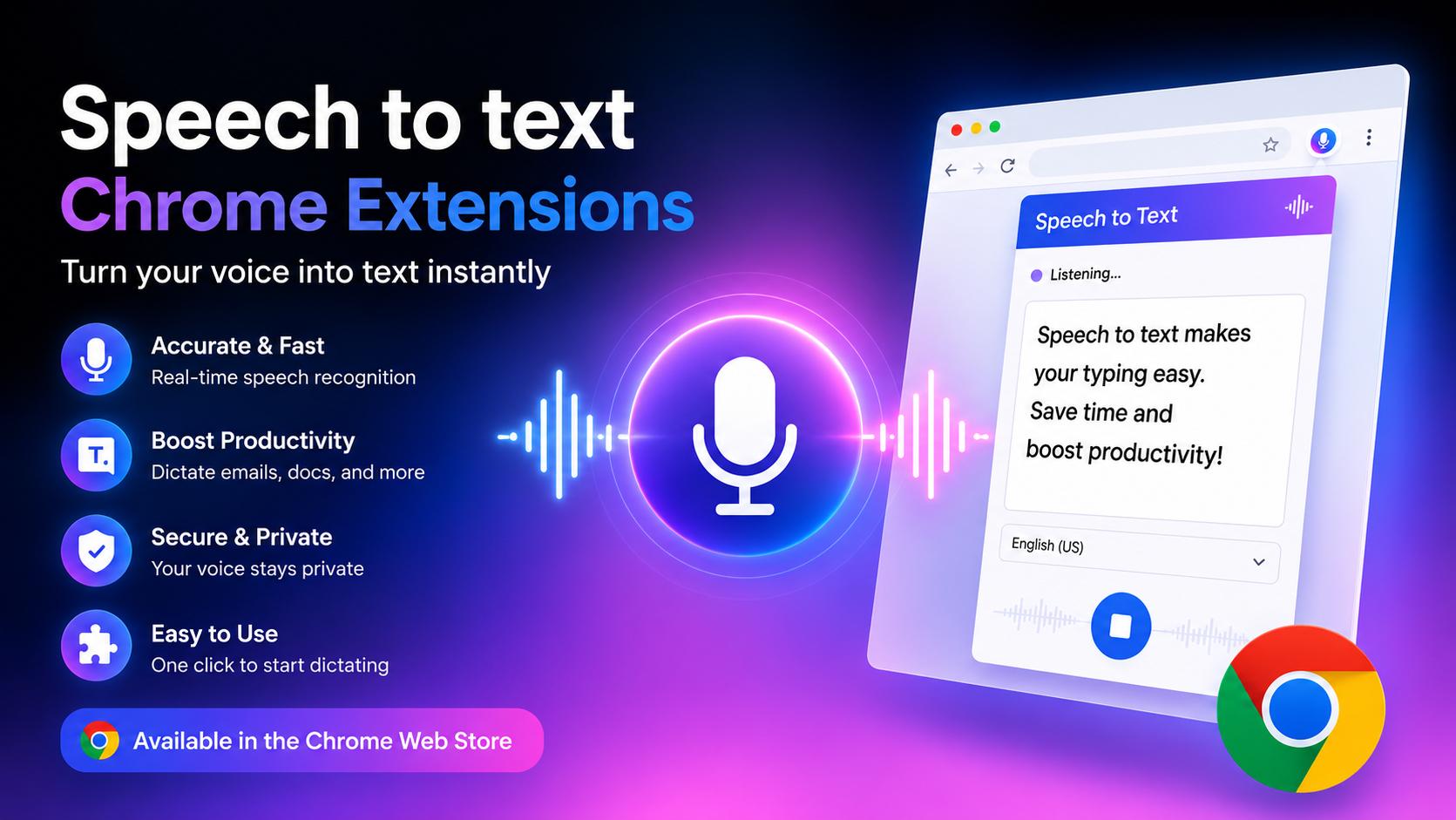
Ever wish you could type without touching the keyboard? A speech-to-text Chrome extension does exactly that — it turns whatever you say into written text on your screen. This guide covers the best features of these extensions, why they are worth using, and how to set one up step by step. We have also included a practical alternative in case a browser extension is not the right fit for your workflow.
What is a Chrome extension speech-to-text
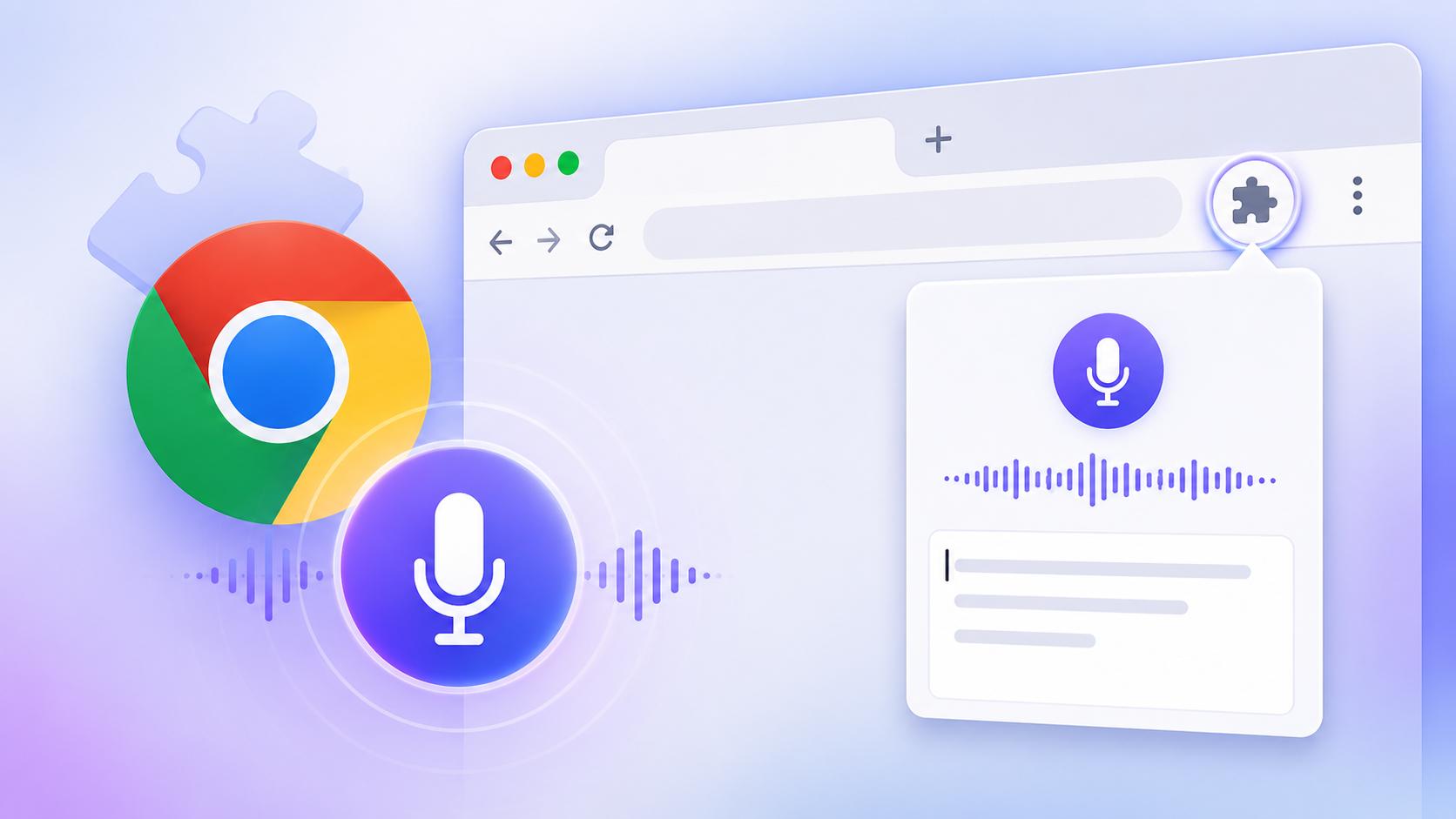
Speech-to-text Chrome extensions are simple add-ons that let you dictate directly into your browser, translating your spoken words into text in real time. It mainly relies on something called automatic speech recognition, or ASR. When you turn the extension on and start speaking, it captures the audio from your microphone and sends it to cloud-based AI models to be processed.
Key features of Chrome speech-to-text extension
Modern speech-to-text tools have gotten incredibly fast and accurate, mostly because they're backed by pretty sophisticated AI. These are packed with features designed to actually make your life easier. Here is what you actually want to keep an eye out for when you're digging through the options.
-
Real-time voice transcription
The real magic of these extensions is how fast they actually process what you say. You talk into your microphone, and the text just shows up on your screen almost instantly. Skipping the keyboard entirely makes drafting long emails, knocking out blog posts, or filling out tedious online forms go by twice as fast.
-
High recognition accuracy
Modern extensions rely on advanced automatic speech recognition and massive datasets of human speech to figure out what you're actually saying. Because they're trained on so many different voices, they've gotten much better at handling fast talkers, strange pronunciations, and heavy accents.
-
Multi-language support
One of the biggest advantages of these extensions is just how well they handle different languages. Most of these tools can jump between dozens, sometimes hundreds, of different languages and specific regional dialects. If you're an educator, a student, or a professional who has to toggle between languages to communicate globally, that flexibility is massive.
-
Voice commands for punctuation
If you've ever tried dictating text, you know how incredibly annoying it is to go back and manually add every single period or comma. The good news is that most of these extensions handle that for you if you just speak the punctuation out loud. Saying words like "comma," "period," "question mark," or "new paragraph" prompts the tool to format the text on the go.
-
Works across websites
The best thing about a speech to text Chrome extension is that it follows you around the web. You can dictate a quick message on your CRM platform, jump over to an online document editor, and then immediately reply to someone on a messaging app or customer support system without changing a single setting.
How to Install and Use a Speech-to-Text Chrome Extension
Getting started with a speech-to-text Chrome extension takes less than two minutes. Here is the process from start to speaking:
Step 1: Open the Chrome Web Store
Head to chromewebstore.google.com and type the name of the extension you want into the search bar, for example, Voice In, Voicy, or Speechnotes. Click on the extension from the results to open its listing page.
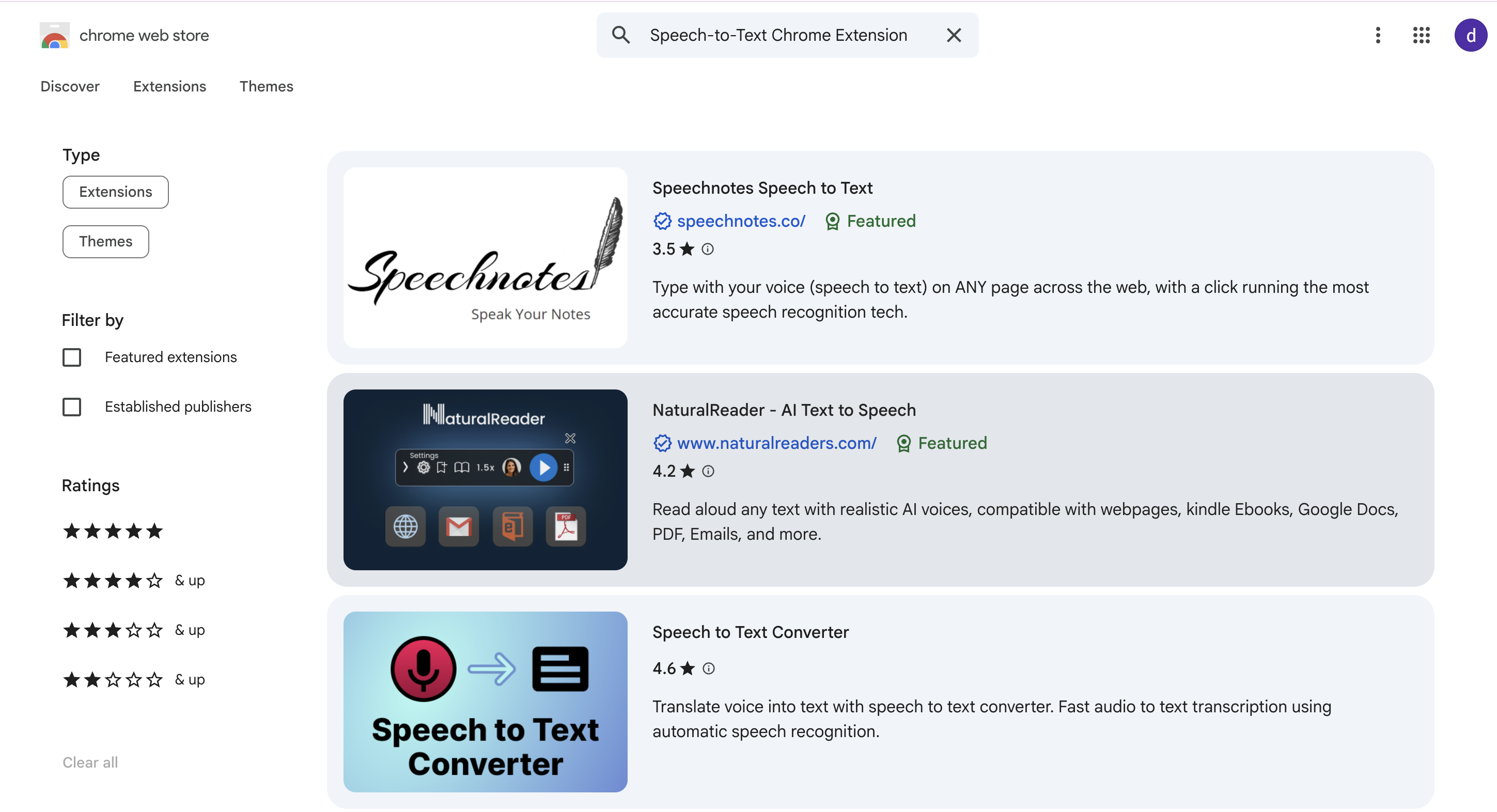
Step 2: Click "Add to Chrome" and allow microphone permission
Hit the blue "Add to Chrome" button and confirm the install. Once added, Chrome will ask for microphone access. Click "Allow" so the extension can actually hear you. Without this, nothing works.
Step 3: Start dictating
Navigate to any website with a text field, click the extension icon in your Chrome toolbar to activate it, and start speaking. Your words will appear as text in real time. Say "comma," "period," or "new paragraph" to handle basic formatting without touching the keyboard.
How We Evaluated the Best Speech-to-Text Extensions for Chrome
If you open up the Chrome Web Store and search for speech-to-text extensions, you're immediately hit with dozens of options. To cut through the noise and build this list, we looked at what actually matters when you're trying to get work done.
-
Ease of use
A good speech-to-text extension needs to be something you can install in a couple of clicks and immediately figure out without a headache. If a tool has a brutally steep learning curve, it defeats the whole purpose of saving you time.
-
Performance
A speech-to-text extension needs to do two things really well: respond fast and just work, whether you're writing a quick email or settling in for a long writing session.
-
Privacy and permissions
Giving any browser extension permission to use your microphone is a bit uncomfortable. Because these tools often process your voice data online, privacy isn't just a footnote; it's a massive deal.
-
Pricing value
Then, there's the cost. We looked at what you actually get for your money, comparing the free versions against the paid tiers.
Best speech-to-text Chrome extensions: Quick comparison
|
Features |
Voice in speech to text |
Voicy |
Speechnotes |
|---|---|---|---|
|
Features |
Voice In Speech-to-Text |
Voicy |
Speechnotes |
|
Best for |
Browser-wide voice typing and productivity |
Users looking for quick voice transcription and convenient hands-free typing through Chrome |
Writers, students, professionals, and users who need long-form voice dictation with built-in note-taking features |
|
Voice commands & punctuation |
Supports punctuation and formatting commands |
Includes voice commands and punctuation recognition for smoother transcription |
Supports spoken punctuation commands and automatic capitalization for smoother dictation |
|
Works across websites |
Yes, works on most websites with text fields |
Works primarily within supported browser environments; may have limited compatibility |
Primarily designed for the Speechnotes editor, with browser integration available for certain workflows |
|
Offline support |
No - requires active internet connection |
No - cloud-based, internet required |
No - relies on cloud speech recognition |
|
Supported languages |
50+ languages |
50+ global languages |
100+ languages with regional dialects |
|
Voice commands |
Yes - punctuation, formatting, new paragraph |
Basic - comma, period, new line |
Yes - punctuation, capitalization, paragraph control |
|
AI editing |
Not built-in |
Auto grammar correction and comma insertion |
Not built-in |
|
Export options |
Copy to clipboard; paste to any app |
Copy or save transcript |
TXT download, Google Docs integration, clipboard |
|
Pricing |
$60 per year |
$8.49/month |
$1.90/month |
Best speech to text extension for Chrome
-
Voice In Speech-to-Text
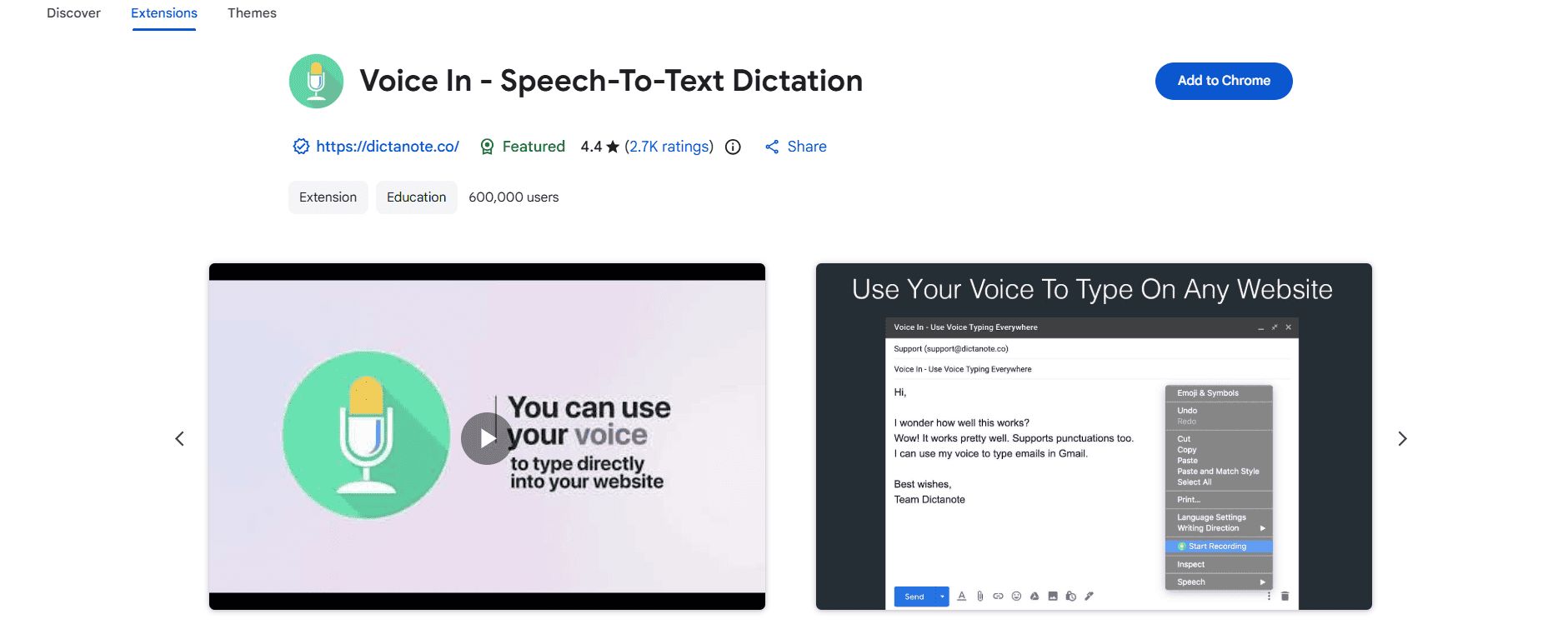
Voice In is pretty much the heavy hitter when it comes to Chrome extensions for voice typing. The big draw here is that it lets you dictate directly to thousands of different websites, so you can just skip the keyboard entirely whether you're drafting an email in Gmail or Outlook, working inside Google Docs, posting on social media, or just filling out random online forms.
Key features
-
Instant, real-time dictation: It turns your spoken words into text on the fly. You can write emails, draft documents, and send messages without ever touching your keyboard.
-
Works almost anywhere on the web: You aren't locked into one specific app. It works across thousands of websites, from Gmail and Outlook to Google Docs, social media, and standard online forms.
-
Handles accents and multiple languages: It supports a huge range of languages and regional accents, which is a massive plus if you need to switch back and forth between different tongues.
-
Hands-free formatting and punctuation: You can dictate punctuation, jump to a new paragraph, or format your text using basic voice commands.
|
Pros |
Cons |
|---|---|
|
|
Best for
It is ideal for people who spend all day hopping between different browser tabs, like customer support agents, students, content creators, or just busy professionals.
-
Voicy
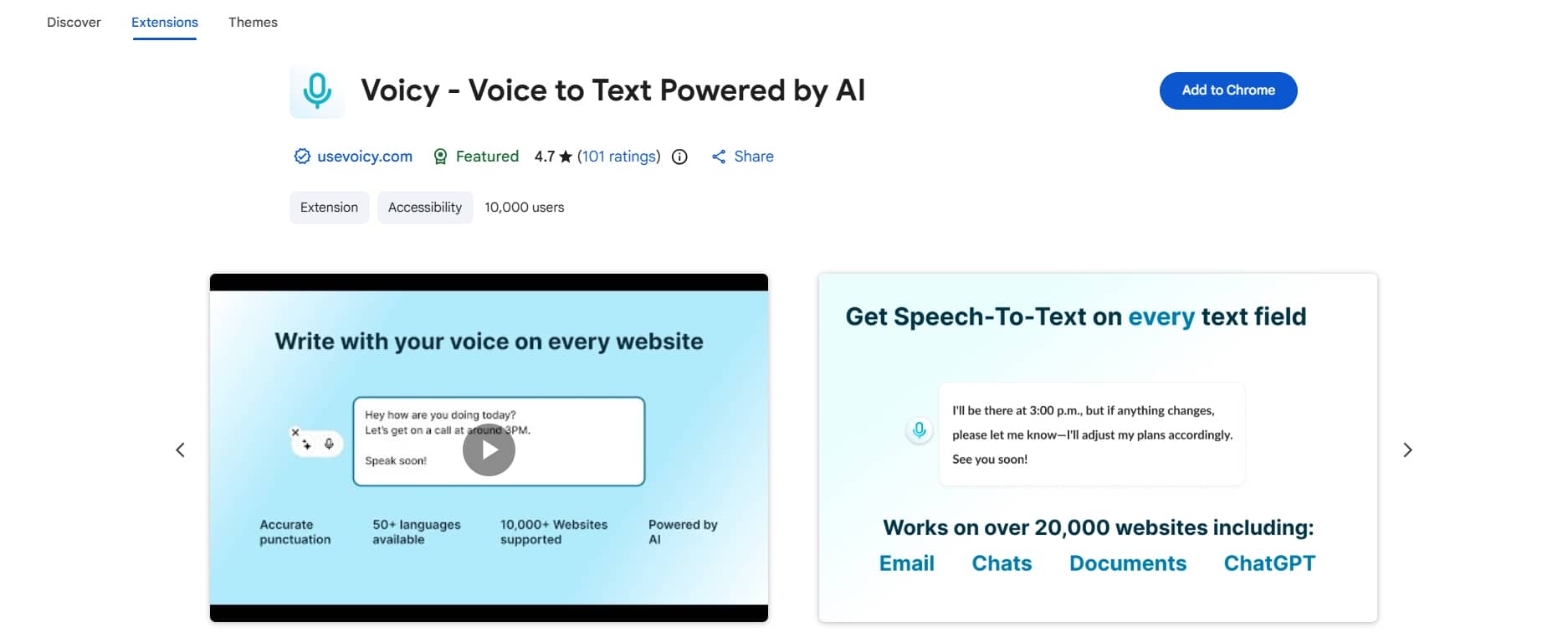
Voicy Speech to Text is basically a Chrome extension designed to take whatever you say out loud and turn it into written words right on your screen. It handles typing for you, using speech recognition to pull your voice input and drop it into editable text. The tool is especially useful if your daily routine involves heavy writing and constant note-taking.
Key features
-
Instant voice transcription: It converts your speech to text right as you talk, which makes knocking out quick notes, emails, or basic documents pretty effortless.
-
Handles plenty of languages: It comes with support for 50+ global languages, so you can dictate comfortably in whatever language you prefer.
-
Basic voice punctuation: You can use simple spoken commands like "comma," "period," or "new line" to handle formatting on the go, saving you from constantly reaching for the keyboard.
-
Easy exporting: Once you're done talking, you can quickly copy the text or save the transcript to edit and share later.
|
Pros |
Cons |
|---|---|
|
|
Best for
If you're a student, writer, or professional looking to generate text a bit faster without typing everything out by hand, Voicy fits right into that routine. It works perfectly fine for quick notes, messages, emails, and basic content creation.
-
Speechnotes
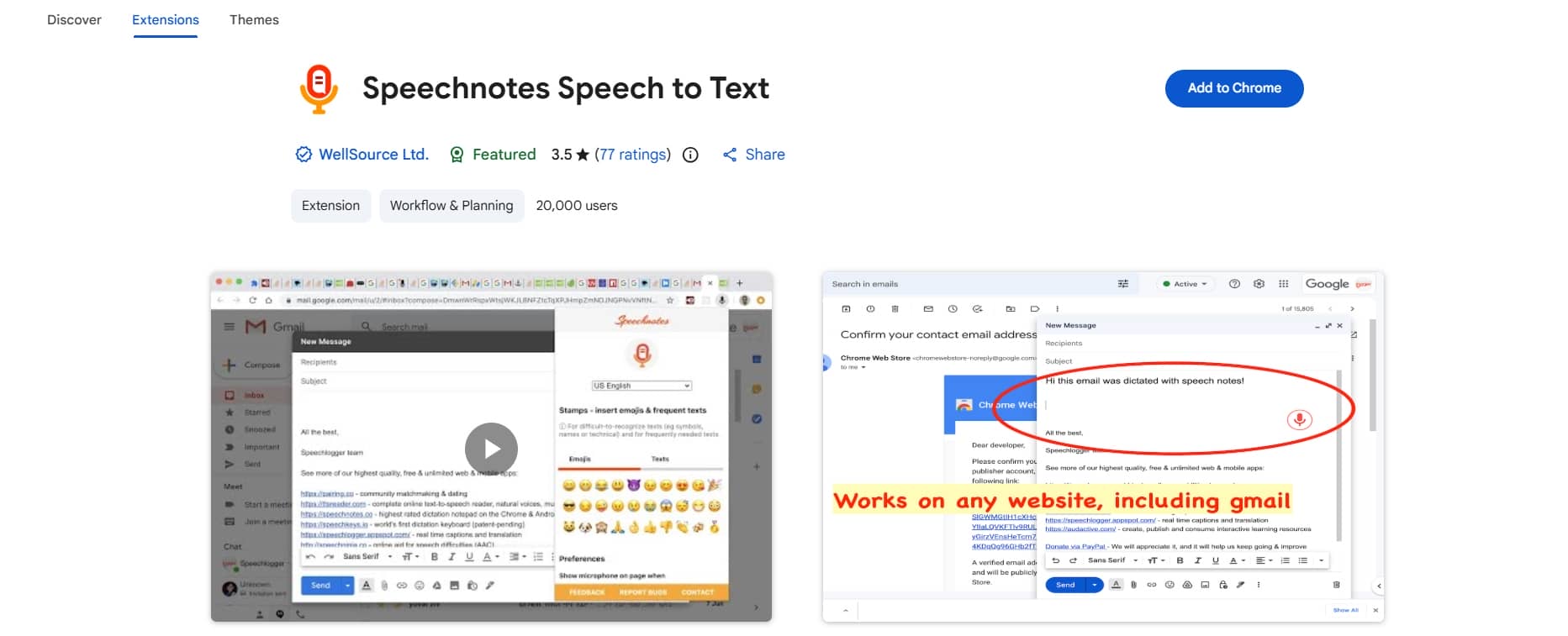
SpeechNotes is one of those tools that actually handles the heavy lifting without cutting you off. It uses AI-driven speech recognition, but the real pull here is that it offers continuous voice typing inside a completely distraction-free workspace. That makes it a solid option if you're trying to draft long articles, capture an entire lecture, or map out messy meeting notes.
Key features
-
Continuous, uninterrupted dictation: Unlike tools that cut you off if you pause for a breath, this lets you keep talking indefinitely. It's built for marathon writing sessions, like long reports, full articles, or exhaustive meeting notes.
-
Handles global accents and languages: It recognizes a wide variety of languages and regional accents. This is a massive relief if you don't speak with a standard textbook accent.
-
Hands-free formatting commands: You can dictate your punctuation, build paragraphs, and structure your document using spoken commands, so you don't have to keep switching back to your keyboard.
-
Reliable auto-saving: It saves your work continuously while you talk, which is a big relief if a browser tab crashes.
|
Pros |
Cons |
|---|---|
|
|
Best for
SpeechNotes makes the most sense if you're looking to sit down and talk out long-form material. If you're a writer drafting a chapter, a student mapping out an essay, or a journalist transcribing an interview, it handles that heavy lifting beautifully.
Limitations of using speech-to-text extension for Chrome
Using a speech-to-text Chrome extension can be a massive shortcut for your productivity. It genuinely saves your wrists from hours of typing, but let's be realistic: these things aren't perfect. Knowing what you're actually getting into beforehand just makes it easier to pick the right tool without losing your mind.
-
Requires stable internet for many tools
A huge chunk of these extensions don't actually process your voice locally on your computer. They rely entirely on cloud-based speech recognition engines to figure out what you're saying. If your Wi-Fi is acting up or you're working on a slow connection, expect lag, broken phrases, or just straight-up terrible transcription quality.
-
Background noise affects accuracy
Speech recognition engines are notoriously sensitive. They do their best work when it's quiet, so if you have people talking in the next room, traffic buzzing outside, or even just the loud click-clack of a mechanical keyboard, expect the app to get confused.
-
Browser permission issues
Before any of these extensions can even attempt to copy your voice, you have to grant them permission to access your microphone. If the mic access is blocked in your Chrome settings, or if you're on a work laptop where your company's IT policies restrict it, the extension is just going to sit there and do absolutely nothing.
-
Punctuation commands vary
Every single one of these extensions speaks a slightly different language when it comes to formatting. While one app might instantly understand "comma," "period," or "new paragraph," another will just sit there and blindly type out the words you said instead of actually adding the punctuation.
-
Free plans may have usage limits
If you're planning on using the free versions, just look out for the strings attached. Most developers offer a free plan, but they restrict it enough to make you look longingly at your wallet. You will run into daily transcription limits, fewer language options, or minimal customization.
Afterthought
Chrome extensions are great if you just want to talk to your browser and type out some quick notes on the fly. But to be honest, they fall flat if you are trying to transcribe prerecorded audio or video files. They just aren't built for that. If you actually need to handle multimedia content, deal with multiple languages, or generate accurate timestamped transcripts using AI, a tool like Vmake Labs is a much better, more comprehensive way to go.
Vmake Labs: A perfect alternative to transcribe your audio and videos
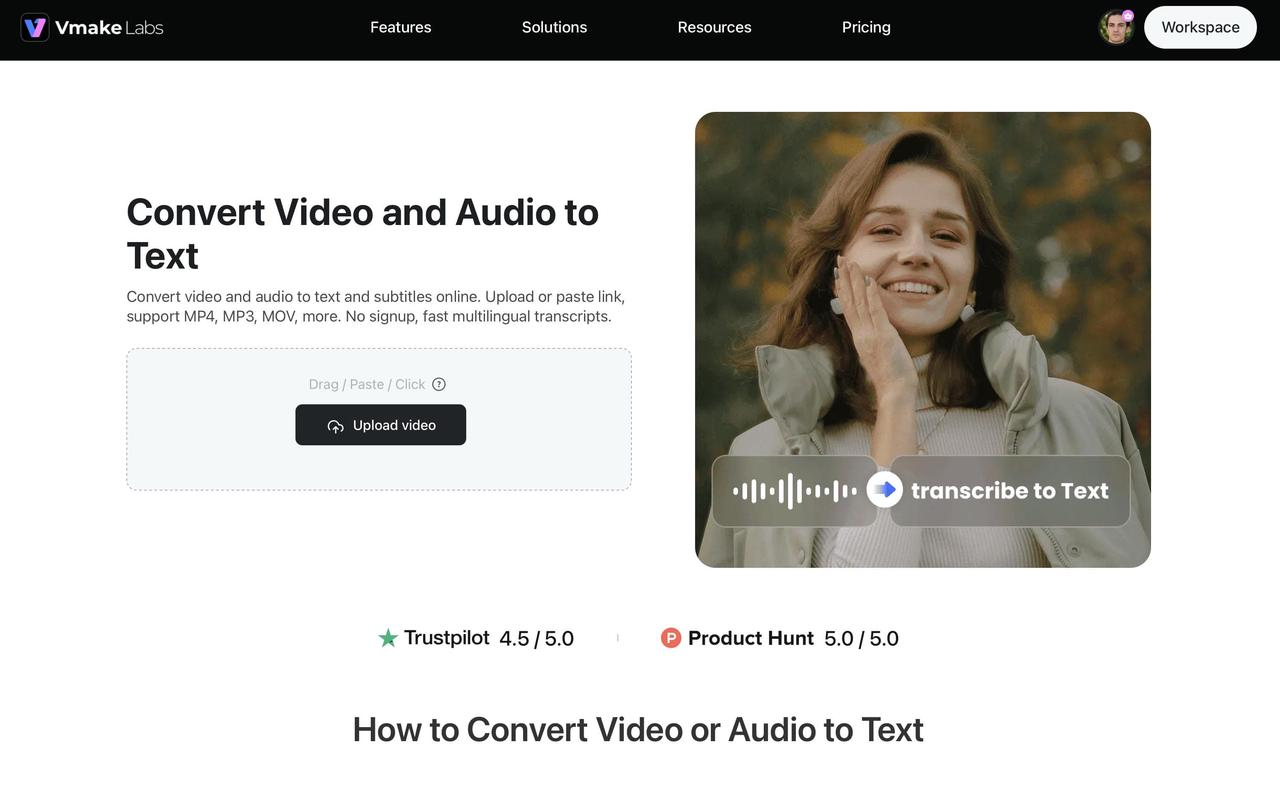
Chrome speech-to-text extensions are great for live dictation, but they completely fall apart if you try to feed them recorded audio. If you actually need to turn audio files, videos, podcasts, interviews, or online meetings into text, you're going to need something more robust. That's where a proper AI platform like Vmake Labs comes in. Its AI-powered transcription tool automatically generates transcripts from the files you upload or the web links you feed it. The tool also handles multiple languages and builds timestamps, which is incredibly useful.
Step-by-step guide
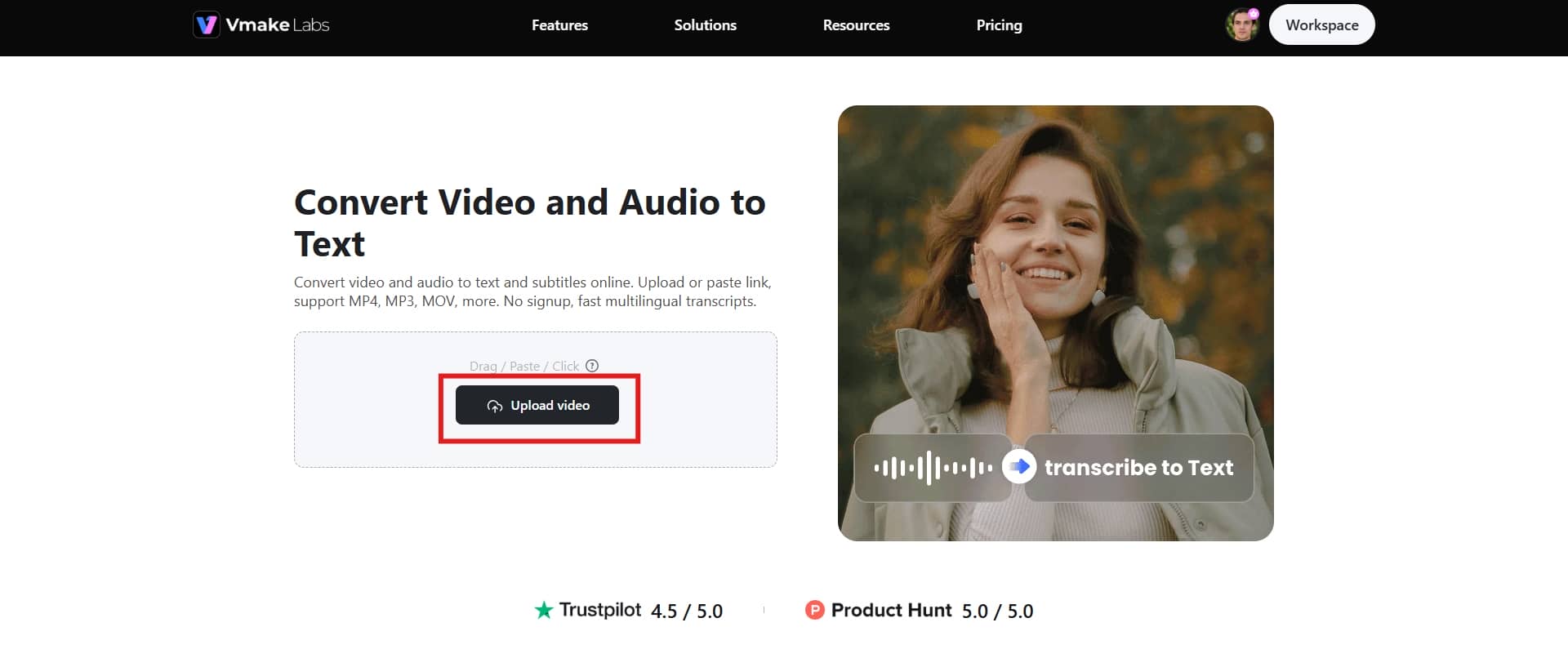
Step 1: Upload your audio, video, or link
First, click the "Upload video" button to upload your video file directly to the platform. It handles pretty much any standard media format, so you don't have to worry about conversions.
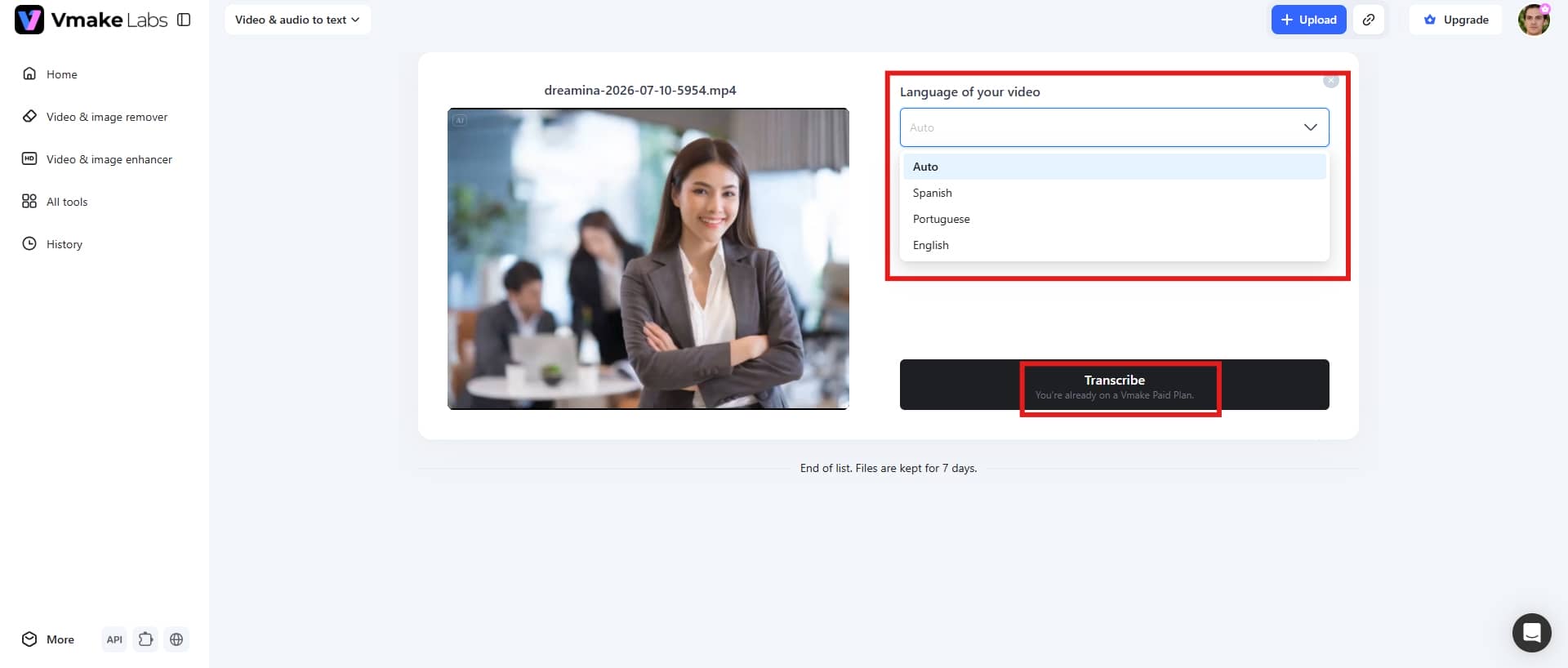
Step 2: Select the language
Before you let the AI do its thing, make sure you choose the language being spoken in the clip. The engine is tuned to recognize a wide variety of global languages. Getting this right matters because it directly affects how clean your final text will be. Finally, click "Transcribe" to begin the process.
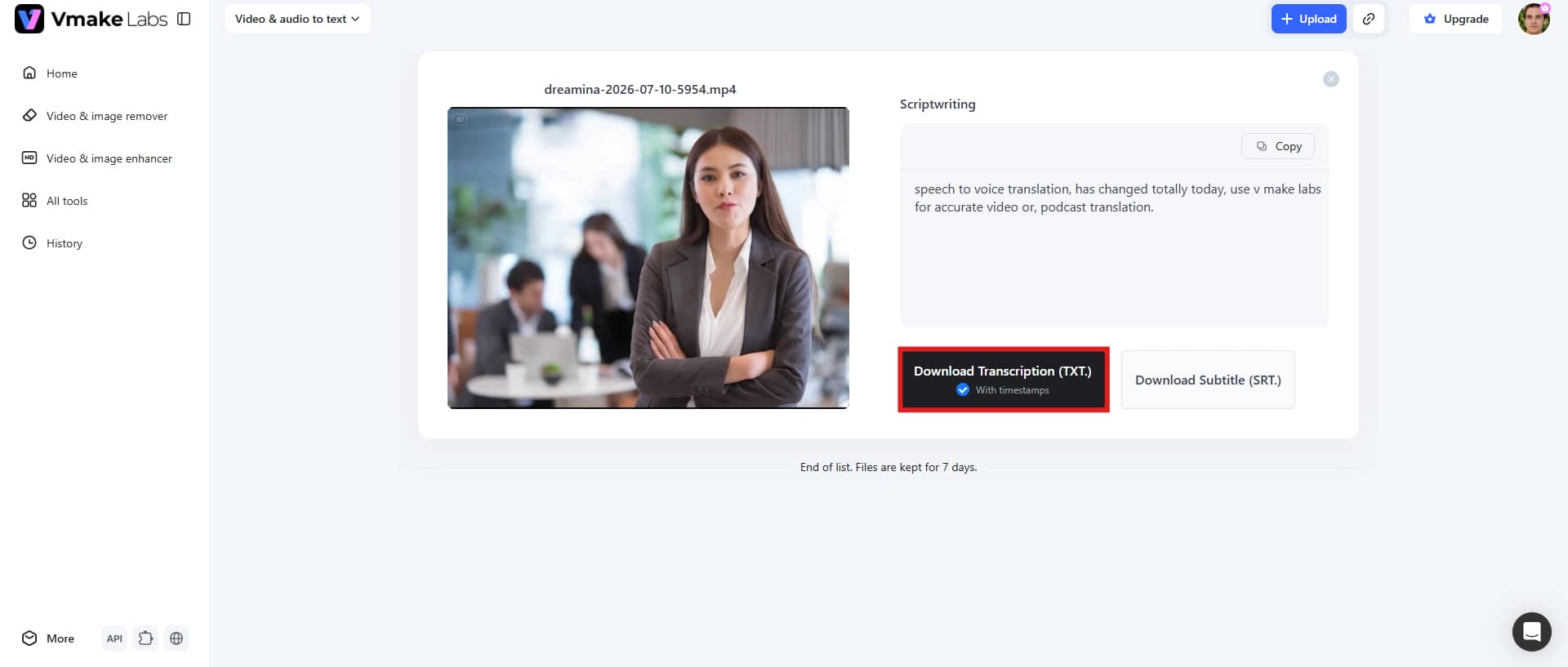
Step 3: Export your transcript
Once the transcription is done, you'll want to take a quick look through the text to fix any weird mishearings or typos. After it looks good, click "Download Transcript" to export the final file.
Key features
-
Audio, video, and link transcription
Instead of bouncing between three different apps just to handle different formats, Vmake Labs lets you drop in audio recordings, video files, or web links all in the same place. You can get video or music transcription without juggling multiple tools.
-
AI-powered multilingual transcription
The platform uses advanced AI speech recognition that does a remarkably good job handling different languages. If you're an educator, creator, or running a business that deals with international audiences, this is where it really shines. Besides, you can also use Vmake's video translator for accurate script translations.
-
Timestamped transcripts
Vmake Labs automatically drops timestamps throughout the text, which makes it incredibly easy to jump straight to the exact moment you need. Whether you're checking subtitles, reviewing a specific quote, or leaving notes for your team to collaborate on, you can just click and go right to the important stuff.
Why Use Vmake Instead?
Chrome extensions are great at one thing: live dictation while you browse. But that’s exactly where they stop. They cannot process a file sitting on your desktop, they cannot transcribe a YouTube video, and they cannot build a properly timed subtitle file. The moment you step outside of live voice typing, browser extensions hit a hard wall.
Vmake Labs is built for everything extensions cannot handle. Specifically, it supports:
• Prerecorded audio files (MP3, WAV, M4A)
• Video files (MP4, MOV, and more)
• YouTube links and other web video URLs
• Accurate timestamps synced to the media
• SRT subtitle file exports
• Multilingual transcription and translation
If your workflow goes anywhere beyond typing into a browser text box, Vmake Labs is the more complete solution.
Conclusion
Using a speech-to-text Chrome extension is honestly one of the easiest ways to give your wrists a break and speed up your day. But don't just install the first extension you see. You'll want to think about how it actually handles accuracy, whether it works across all the websites you visit, and its language support. It really comes down to your specific routine. For instance, if you just want to type short sentences into web forms, a basic browser-wide voice extension is perfect. If you're planning to write a novel or transcribe long video files, that basic extension is going to push you to your limit.
If you find yourself hitting those limits, that's where something like Vmake Labs comes into play. It goes way beyond just copying your voice in real time. It can actually take audio files, pre-recorded videos, or web links and turn them into clean text, complete with timestamps and multilingual support. For content creators, teachers, or anyone handling heavy business transcription, it saves an incredible amount of time compared to standard browser extensions.
FAQs
What is the best speech-to-text Chrome extension?
Which speech-to-text Chrome extension you should actually install depends entirely on what you're trying to get done. If you want something that works across almost any website you happen to be browsing, Voice In Speech-to-Text is probably your best bet. Then there's SpeechNotes, which is much better suited if you're planning to sit down for a long-form dictation session or need a dedicated space for heavy note-taking.
Are speech-to-text Chrome extensions free?
Most of these extensions give you a free version to start with, which is fine if you just need basic voice typing. But here's the catch: the free plans usually come with strings attached. You'll likely hit a wall with strict transcription time limits, or find that advanced voice commands, heavy customization, and genuinely useful productivity features are locked behind a paywall.
Can I use speech-to-text on any website?
For the most part, these extensions play nice with basically any website that gives you a standard text box. This includes everyday spaces like Gmail, Google Docs, Word Online, your usual social media feeds, messaging apps, and generic online forms. However, compatibility is rarely uniform and depends on which tool you pick.
Do speech-to-text Chrome extensions work offline?
No. The vast majority of these Chrome extensions are completely useless without an active internet connection. That's because they don't do the heavy lifting on your actual computer; they pass your voice data over to cloud-based recognition servers to figure out what you said, which requires a solid internet connection.
How can I improve speech recognition accuracy?
Invest in a halfway decent microphone and keep it positioned properly; not right against your mouth, but close enough to catch clear audio. Then, just speak clearly at a normal, steady pace. It also helps immensely if you quiet things down in the room, double-check that you've selected your exact local dialect in the settings, and actually use the tool's supported punctuation commands.
Is Vmake Labs a good alternative to a speech-to-text Chrome extension?
Yes, absolutely. Chrome extensions are fine for typing out emails as you talk, but they are completely useless if you hand them a pre-recorded file. Vmake Labs handles the job by automatically transcribing actual audio files, videos, and web links using its AI engine. It builds in timestamps and can jump between different languages with ease.

You May Be Interested
Speech to Text App: Best Picks and How to Choose One
Best Speech to Text Software: Top 5 AI Tools Evaluated
Google Docs Speech to Text: Complete Guide for Beginners
How to Transcribe Audio Recording to Text in Minutes
VEED.io Audio to Text: Everything You Need to Know in 2026
Mac Speech to Text: Complete Guide for Faster Dictation