Guide to VeryUtils Photo Object Remover: Features, How-To, and Best Alternative
Clean up your images instantly! Learn how to use VeryUtils Photo Object Remover, explore its features, and see how Vmake Labs offers a smarter workflow. Start editing your photos today!

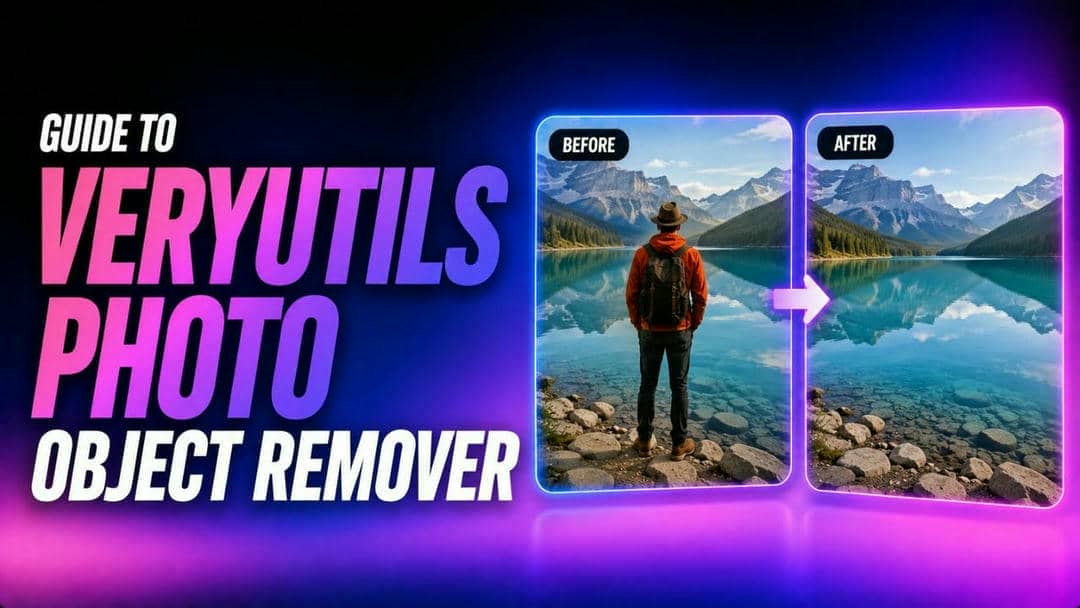
Removing unwanted background elements, date stamps, or distractions from digital images is a common task for content creators, photographers, and casual users. Software solutions like VeryUtils Photo Object Remover aim to simplify this process. This guide provides an objective breakdown of VeryUtils' functions, usability, strengths, and drawbacks, alongside a practical alternative for higher-volume editing workflows.
What is VeryUtils Photo Object Remover?
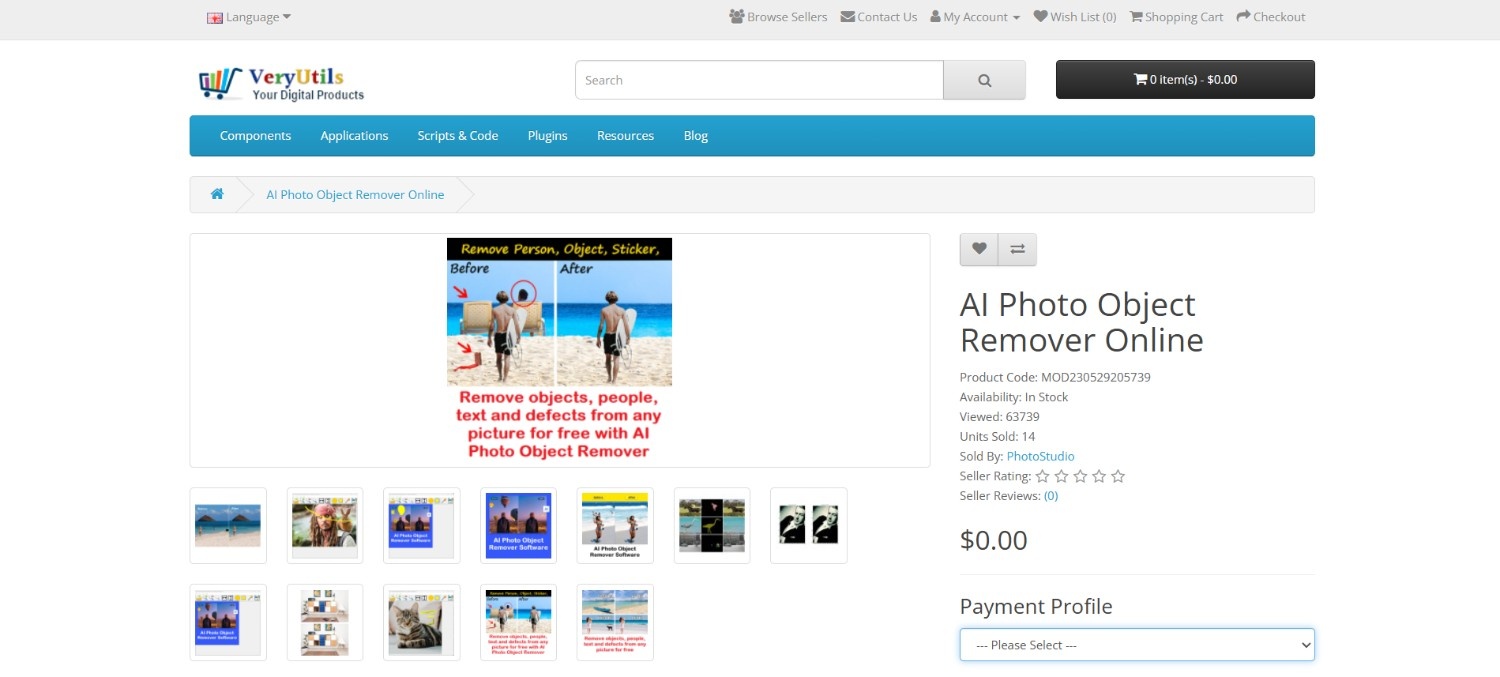
VeryUtils Photo Object Remover is a practical utility designed to eliminate unwanted items, text, logos, and timestamp overlays from digital images.
Relying on pixel-reconstruction and content-aware algorithms, the software analyzes surrounding textures and colors to fill in the space left behind by erased objects. Available primarily as a desktop application for Windows, it targets users who need straightforward image cleanup without navigating complex photo editing suites like Adobe Photoshop.
Key features of VeryUtils Photo Object Remover
-
Content-aware erasing: Automatically samples surrounding background pixels to fill in erased regions seamlessly. This helps maintain natural textures when removing small clutter, power lines, or unwanted background objects from standard photographs.
-
Text and watermark removal: Designed specifically to clear date stamps, hardcoded subtitles, overlaid text, and logos. The software isolates overlay pixels and blends the underlying background without distorting the primary subject.
-
Customizable selection tools: Provide adjustable brush and lasso selection tools, allowing users to trace irregularly shaped objects accurately. Adjusting brush size helps target fine details without affecting adjacent visual elements.
-
Desktop offline processing: Operates directly on local hardware without requiring an active internet connection. This ensures user privacy, faster file loading, and consistent offline availability for editing sensitive personal or corporate files.
How to use VeryUtils Photo Object Remover in 3 simple steps?
Step 1: Download and install VeryUtils Photo Object Remover
Begin your journey by first downloading the VeryUtils Photo Object Remover exe file on your Windows computer system. Once downloaded, proceed to install the software, so that you can start using it. After successful installation, launch it.
Step 2: Import your photo and remove the object
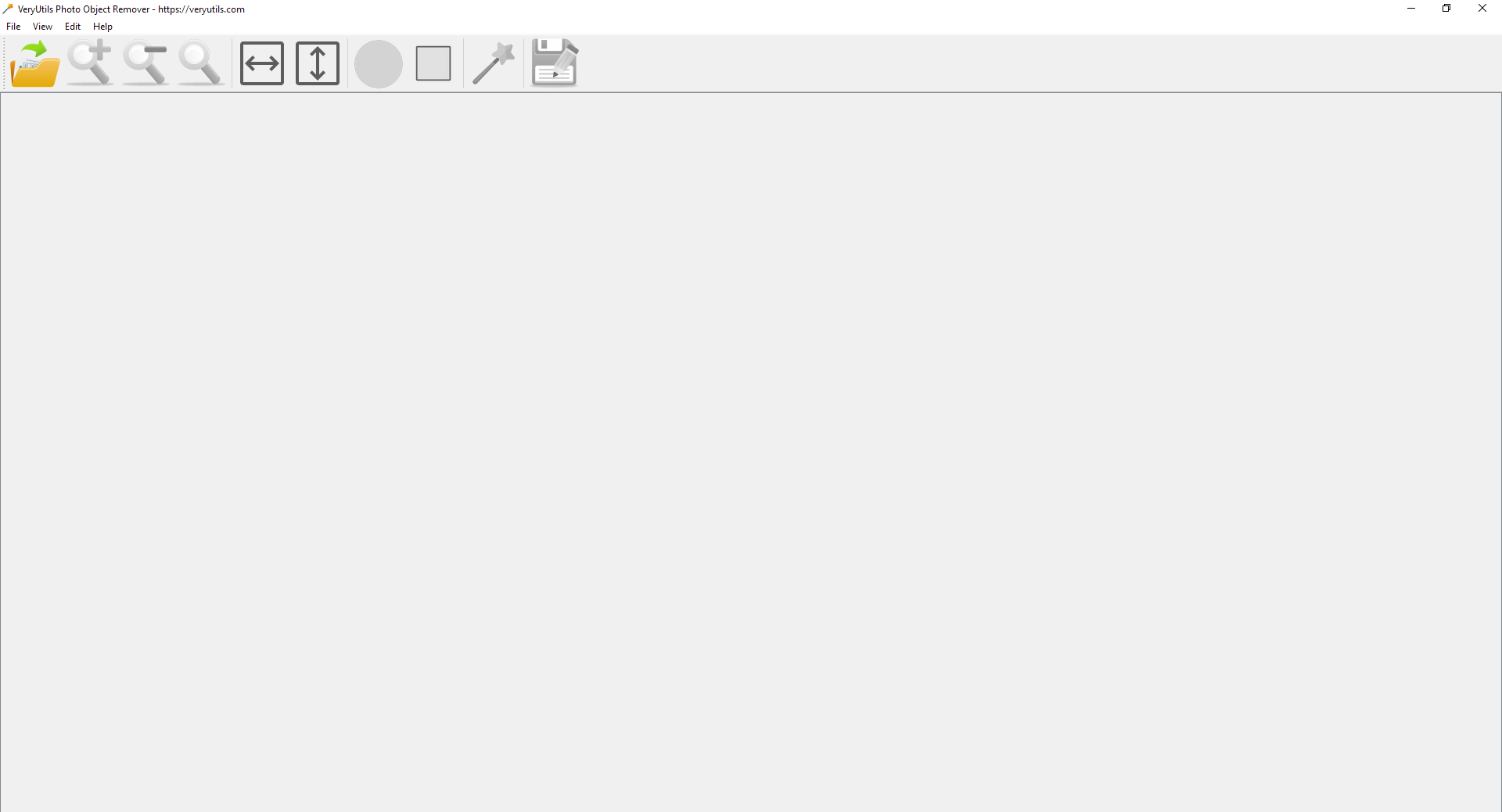
After launching the program, you need to import the photo from which you want to remove a specific object. After importing, use CTRL+K to adjust the paint brush size and once you paint over the object that you want to remove, use the "Inpaint" tool.
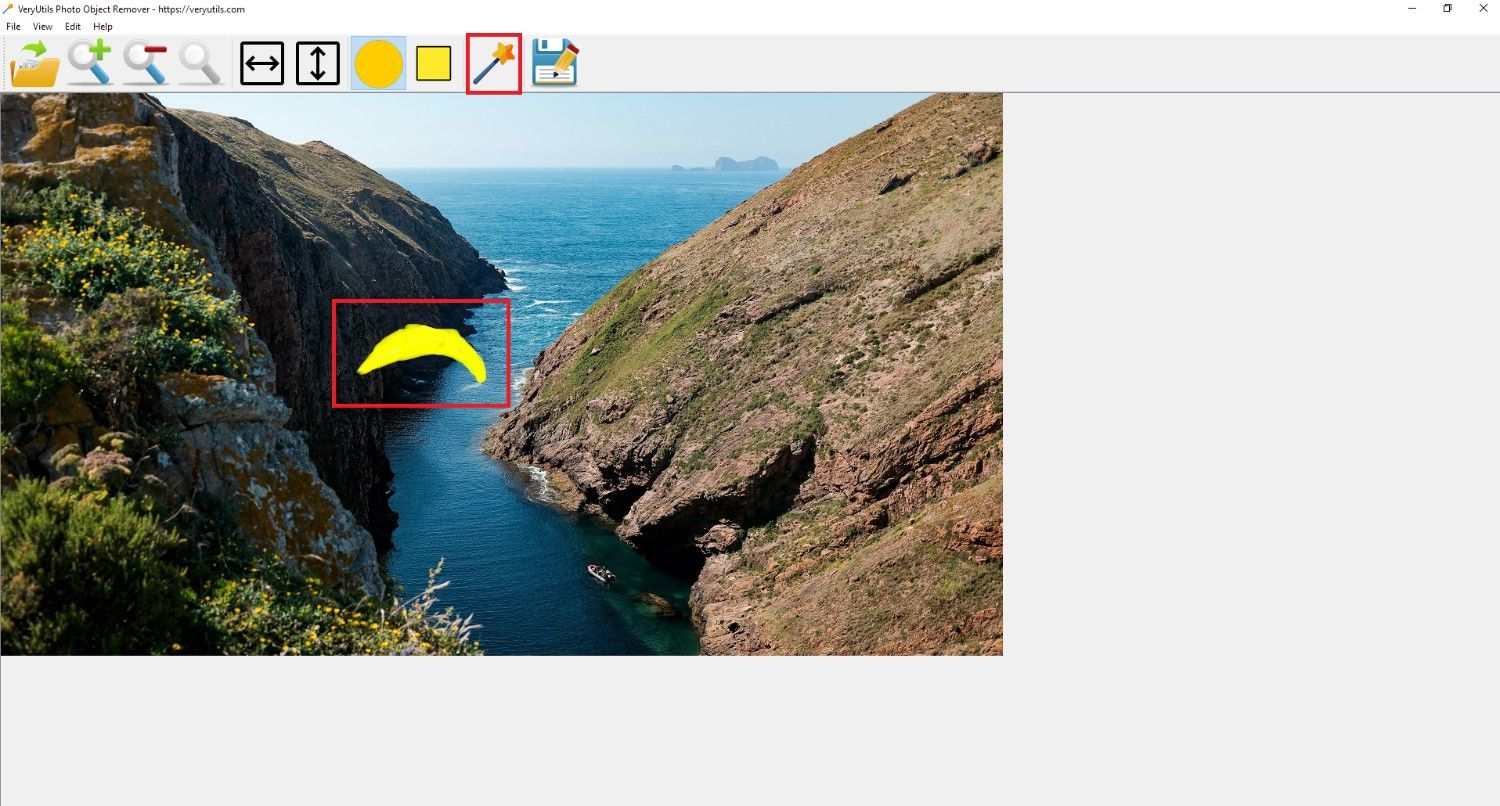
Step 3: Export your clean photograph
Once you achieve your required results, you can click on the "Save option and then proceed to save the clean picture to your local device storage. You can then share the photo on various social media platforms, such as Instagram or Facebook.
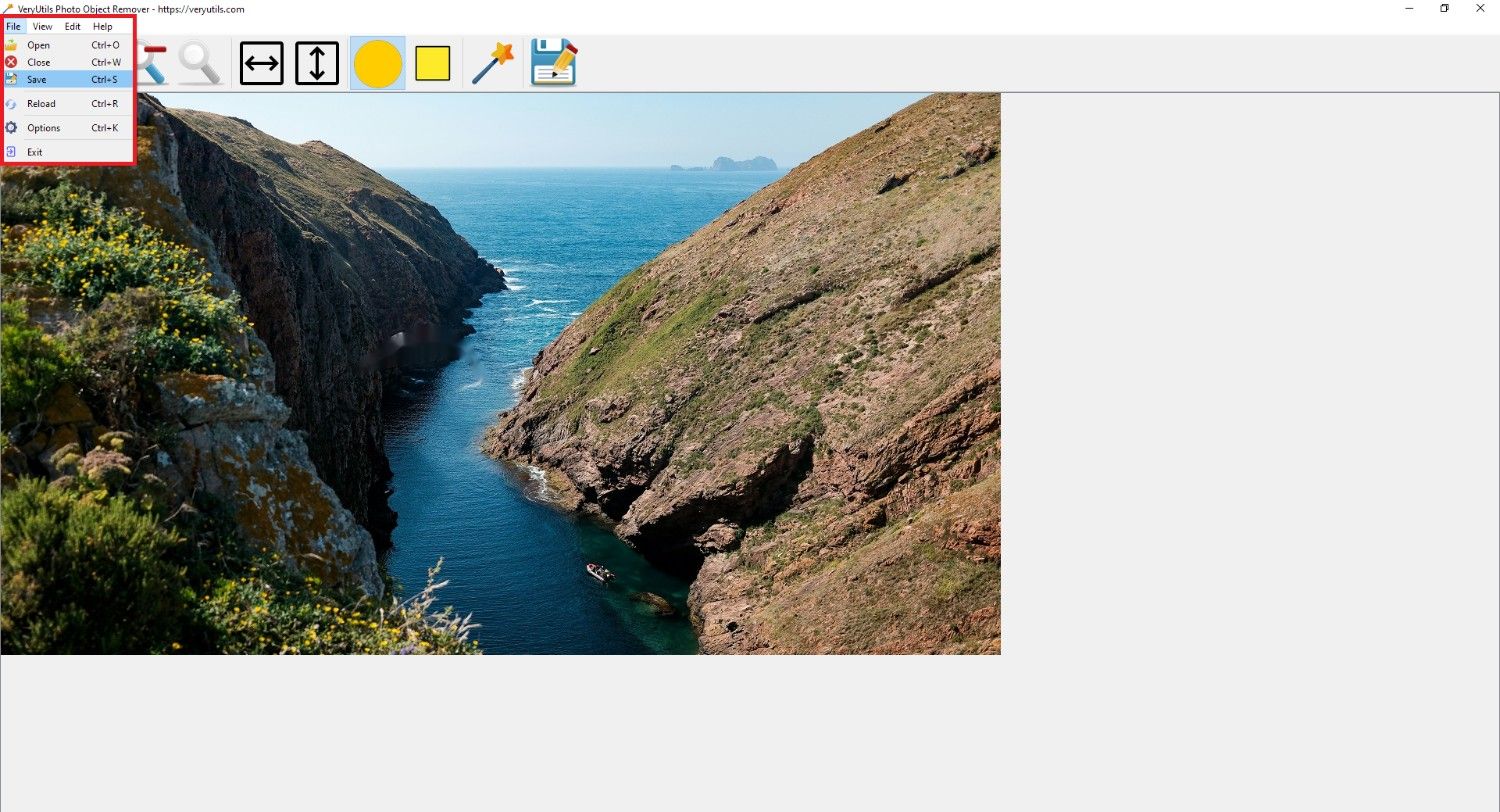
VeryUtils Photo Object Remover pricing plans
VeryUtils provides flexible pricing options ranging from a free basic desktop download to cloud-based web access and expert manual editing services.

Understanding these plans helps you choose the right tier for your budget and editing complexity.
|
Plan / Option |
Pricing |
Key Features & Restrictions |
|---|---|---|
|
Free Desktop Version |
$0.00 |
Local Windows app, non-AI pixel blending, maximum 720p export, unlimited personal use without watermarks. |
|
Monthly Web Subscription |
$9.95 / month |
Web-based AI object removal, high-definition exports, unlimited photo processing, and ongoing email support. |
|
Yearly Web Subscription |
$49.95 / year |
Annual web access with full AI capabilities, high-definition exports, continuous updates, and priority support. |
Free version
The free version is suitable for users who want to try the software before purchasing a subscription. It is a practical option for occasional photo editing or evaluating whether the available tools meet your requirements.
Monthly plan
The monthly plan works well for short-term editing needs. If you're completing a one-time project, restoring a collection of photos, or only need advanced features for a limited period, this option offers greater flexibility without a long-term commitment.
Yearly plan
The yearly plan is best suited for users who edit images regularly. Designers, photographers, content creators, and businesses that frequently remove unwanted objects from photos can benefit from continuous access while avoiding monthly renewals.
VeryUtils Photo Object Remover review: pros and cons
After testing VeryUtils Photo Object Remover on images with simple backgrounds, textured surfaces, and larger unwanted objects, we found the software straightforward to install and easy to navigate.
The interface is simple enough for beginners, and the editing tools are clearly organized. Object removal was generally quick for basic edits, while more complex images occasionally required additional manual adjustments to achieve cleaner results.
|
Strengths |
Weaknesses |
|---|---|
|
|
What users are saying on Reddit & Trustpilot?
Reddit users often highlight VeryUtils as a lightweight tool for simple, offline watermark cleanup. Several users appreciate that it doesn't require uploading images to the cloud and is suitable for basic editing tasks. However, common discussions mention that removing objects from textured backgrounds often requires additional manual work, prompting some users to consider AI-powered alternatives for more challenging edits.

Trustpilot
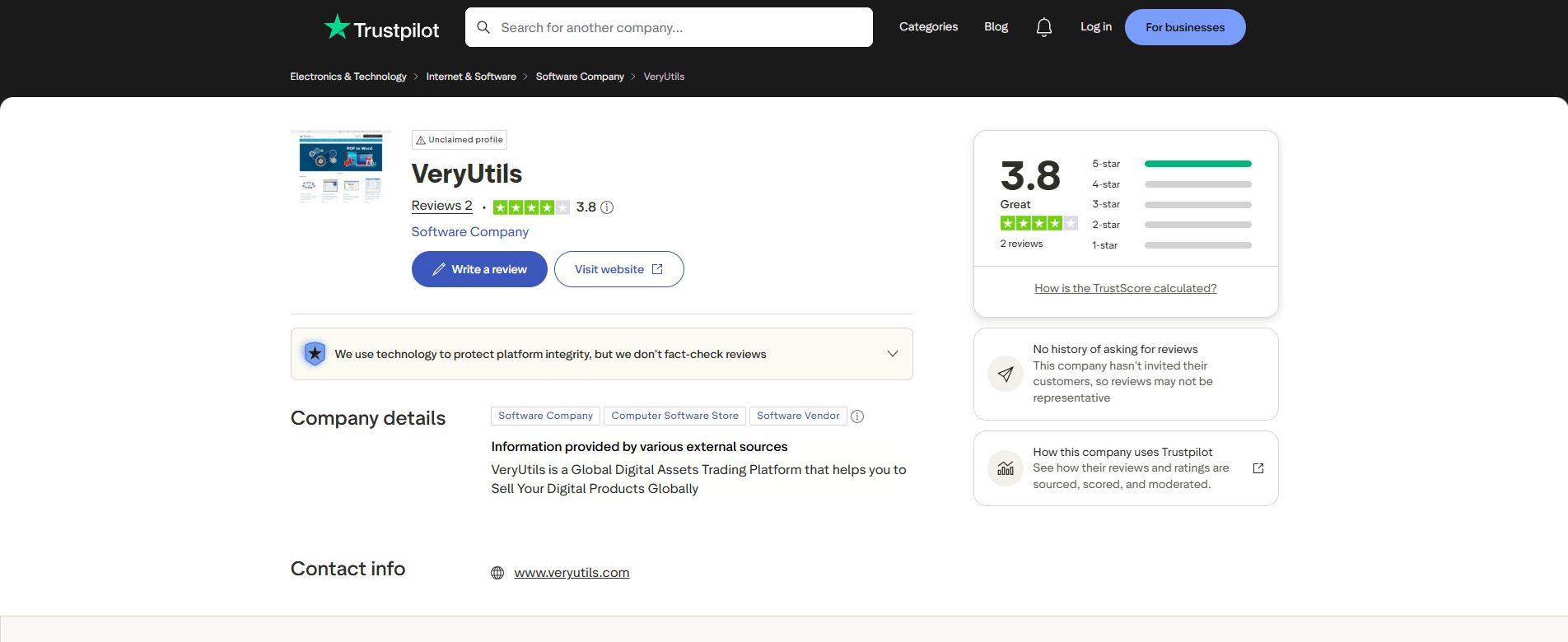
Trustpilot reviewers appreciate the straightforward setup and privacy of offline processing for utility tasks. Users frequently mention that the software is easy to install and use for simple photo cleanup. Common criticisms include inconsistent results on complex or high-resolution images and fewer modern AI-assisted editing capabilities than newer online tools.
Takeaway
Overall, user feedback suggests that VeryUtils is a practical option for basic offline object removal and watermark cleanup. However, users working with complex backgrounds, large image collections, or more demanding editing tasks often look for AI-assisted alternatives. Tools such as Vmake Labs provide features like AI background reconstruction, smart selection modes, and batch processing that can simplify these more challenging workflows.
Discover Vmake Labs: the ideal photo object remover alternative
Unlike traditional desktop utilities, Vmake Labs photo object remover uses cloud-based AI inpainting to evaluate scene context, depth, and lighting before filling removed areas. This approach prevents blurry artifacts on complex textures like fabric, water, or architecture. Operating directly in the web browser, Vmake Labs eliminates hardware constraints and operating system limitations.
It caters to e-commerce sellers, marketers, and photographers who need precise edits and batch processing capabilities without manually installing desktop software or adjusting legacy settings.
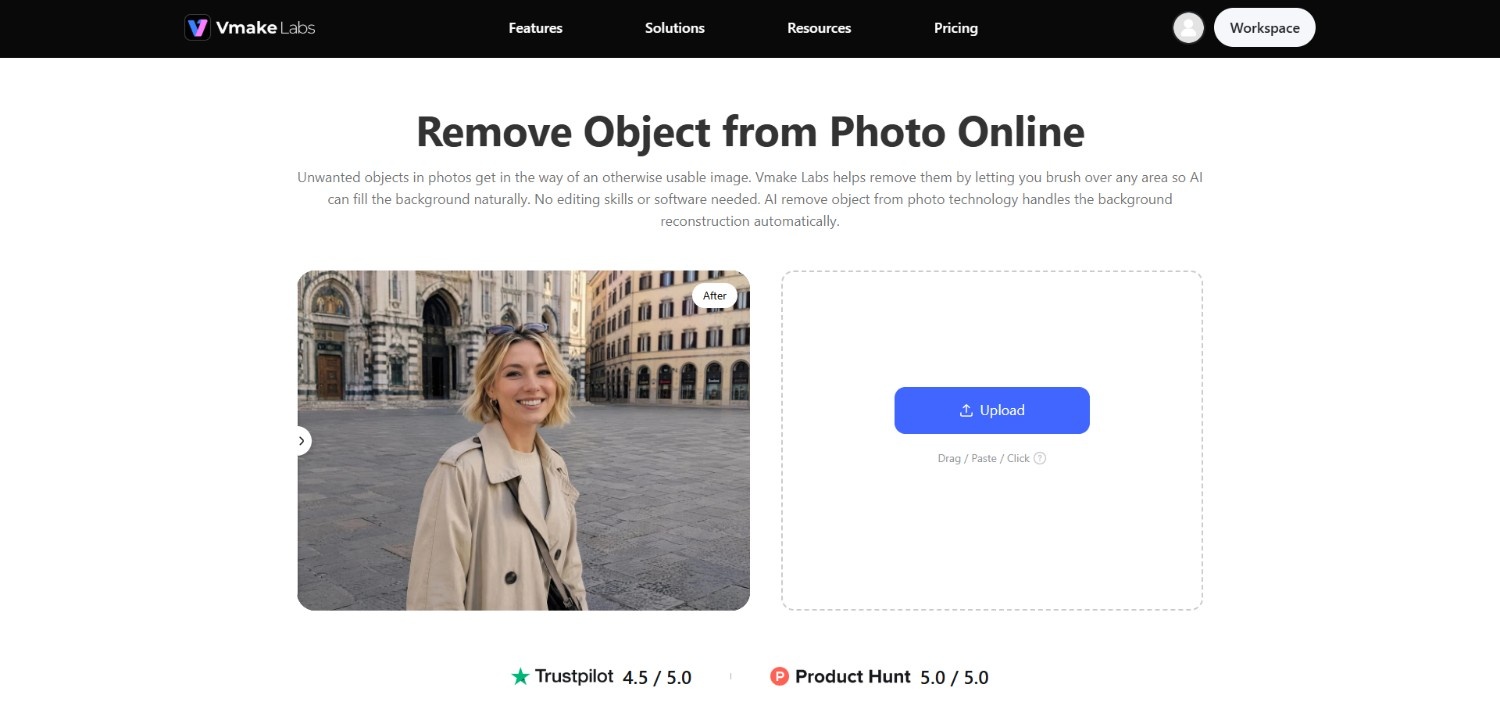
Features of Vmake Labs photo object remover tool
-
Precision AI-powered image inpainting: Employs generative fill to evaluate depth, color, and texture across the scene. It reconstructs erased background sections accurately, ensuring realistic results without blurry artifacts or pixel distortions. This helps produce more natural-looking background reconstruction, especially when removing objects from patterned or detailed areas that typically require extensive manual editing.
-
Adjustable brush for precise selection: Features adjustable brush sizes alongside Smart, Box, and Eraser selection modes. This allows precise targeting over intricate borders, fine lines, or larger objects across various image layouts. The combination of multiple selection methods provides greater flexibility, making it easier to isolate objects accurately before applying AI removal.
-
Seamless support for batch processing: Supports bulk uploads, letting users process up to 30 images simultaneously. This accelerates workflows for e-commerce listings, event photography cleanup, or visual catalog maintenance. Unlike workflows that require editing images individually, batch processing can significantly reduce the time needed to clean up large photo collections.
-
High-definition visual export support: Maintains full image fidelity by exporting processed files in high definition. This ensures clean visual quality suitable for commercial web display, digital publishing, and high-resolution print materials. Preserving image quality after object removal helps reduce the need for additional editing before sharing, publishing, or printing the final images.
How to use Vmake Labs to remove objects from photos?
Step 1: Access Vmake Labs photo object remover tool
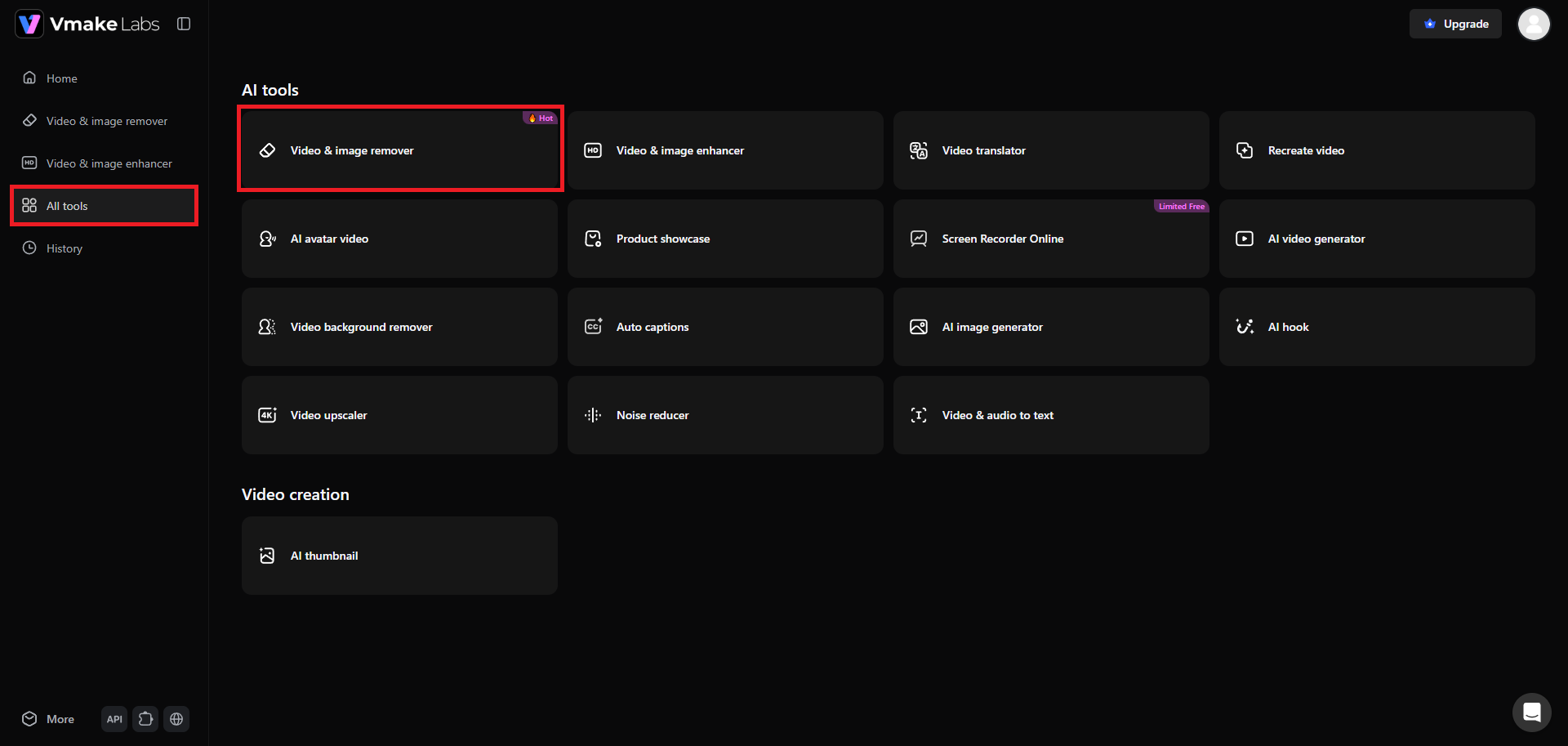
Kickstart the process by first heading over to the official website of Vmake Labs. From there, sign-in to your account and access the "All tools" option. Then, you need to select the "Video & image remover" tool from the list of given options.
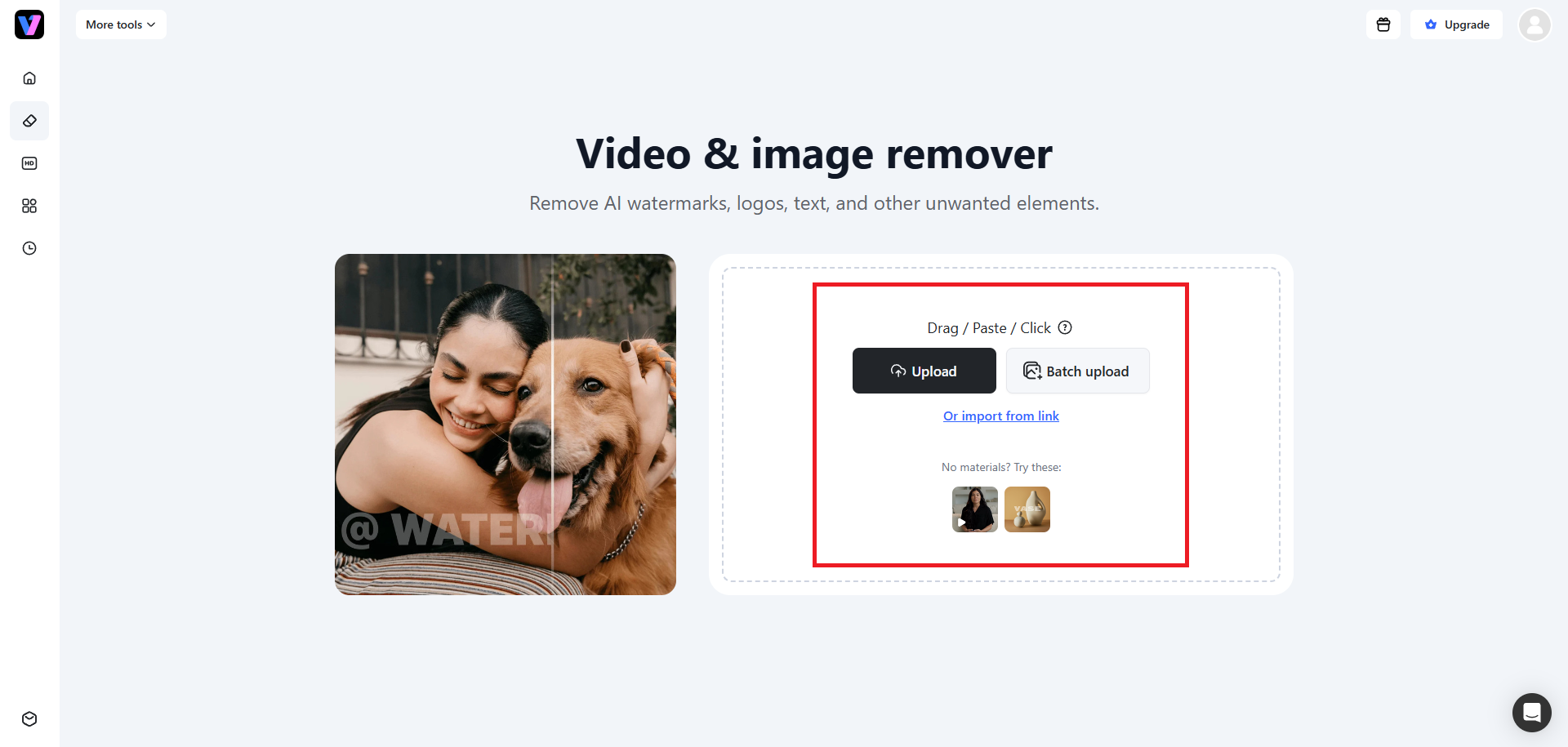
Step 2: Upload your photo or import via a link
In the next step, you will need to upload the photo, from which you want to remove the object. Additionally, you can also decide to paste a weblink as well. Alternatively, if you have more than one photo, you can use the "Batch upload" option, which supports up to 30 images.
Step 3: Remove the object and export the clean photograph
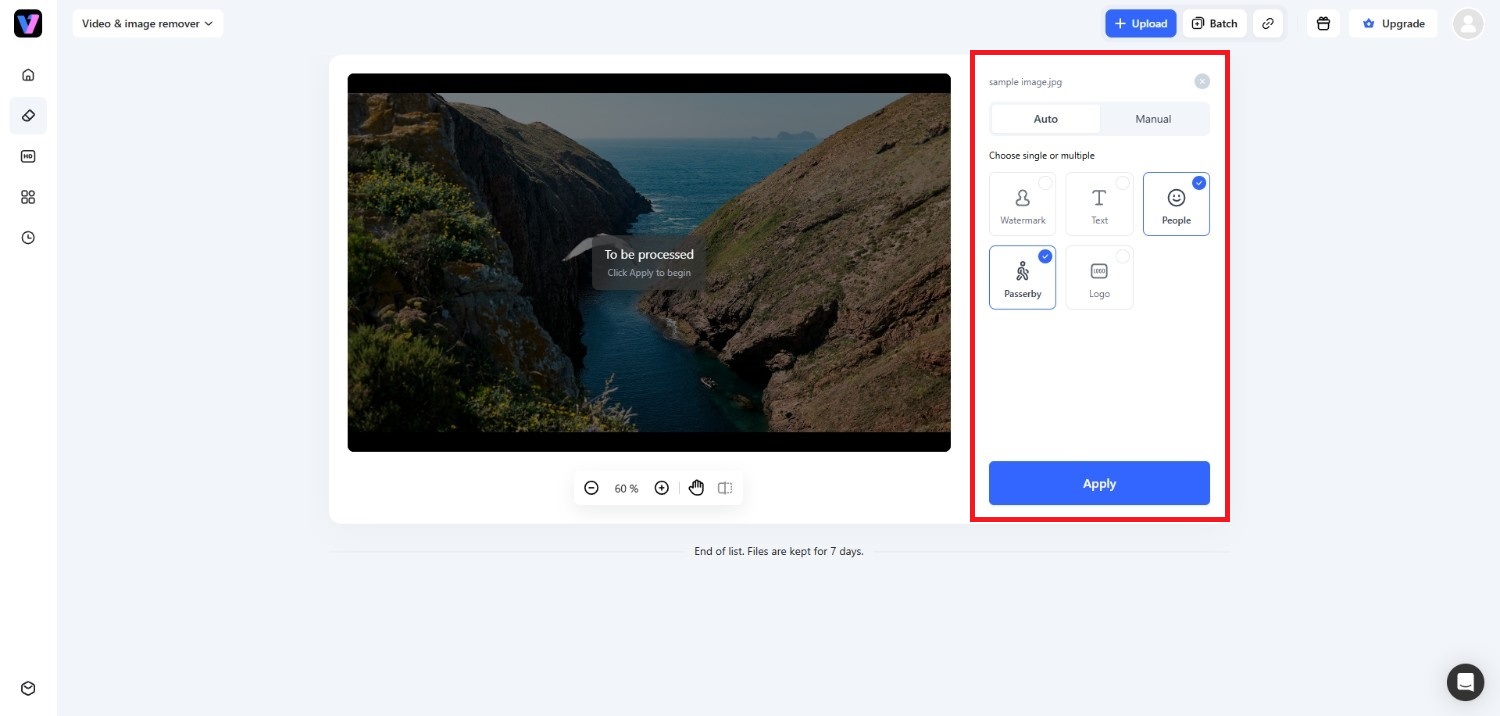
After uploading your photograph, you can choose between "Auto" and "Manual" options to remove objects, watermarks, text, people, or even passersby from your photo. Under "Auto", you only need to select the item you want to remove and then hit "Apply". On the "Manual" side, you need to manually select the object you want to remove and then hit "Apply".
Once you are satisfied with the results, you can proceed to download your clean photo and then share it on social media platforms.
VeryUtils Photo Object Remover vs Vmake Labs: a noteworthy comparison
Selecting the right object removal software depends on your operational needs, volume requirements, and budget preferences.
|
Feature / Criteria |
VeryUtils Photo Object Remover |
Vmake Labs Photo Object Remover |
|---|---|---|
|
Operating Platform |
Desktop (Windows only) |
Web-Based (Cross-Platform) |
|
Core Technology |
Content-Aware Pixel Sampling |
AI Generative Inpainting |
|
Batch Processing |
Not Supported (Single File) |
Supported (Up to 30 Files) |
|
Internet Requirement |
Offline (No Internet Needed) |
Online (Requires Internet) |
|
Output Quality |
Standard Resolution |
High-Definition (HD) Export |
While VeryUtils offers local desktop functionality for quick manual fixes, Vmake Labs brings cloud-assisted automation and batch handling to modern browser workflows. The following comparison highlights key structural and functional differences between both platforms to help you decide which tool fits your image editing goals.
Who should choose VeryUtils?
VeryUtils Photo Object Remover is a suitable choice for users who prefer a desktop application and don't mind spending time on manual editing. It works well for occasional photo cleanup, simple watermark removal, and users who value offline processing. If you typically edit only a few images and want direct control over the removal process, VeryUtils can be a practical option.
Who should choose Vmake Labs?
Vmake Labs is better suited for users who want an AI-assisted workflow with less manual effort. It is a good fit for content creators, online sellers, photographers, and marketers who regularly process multiple images. Features such as AI background reconstruction, smart selection tools, and batch processing can help streamline editing, particularly when working with complex scenes or larger photo collections.
Best practices to follow when using VeryUtils Photo Object Remover
Applying structured editing techniques can improve texture blending and output quality when using VeryUtils.
-
Fine-tune brush sizes for intricate and narrow borders
Match your brush size closely to the target object's dimensions before painting over it. Using an oversized brush grabs unnecessary surrounding pixels, which increases the likelihood of unwanted blurriness or smudging along defined edges and narrow borders.
-
Draw slightly beyond the object edge for natural textural blending
Extend your selection brush slightly past the outline of the object you wish to remove. Inclusion of a thin margin of surrounding background helps the algorithm sample adjacent pixel patterns more accurately for a smoother visual transition.
-
Edit highly complex scenes iteratively rather than in one brush stroke
Erase large or intricate subjects in smaller, incremental sections rather than attempting a single large stroke. Processing complex items piece by piece gives the sampling algorithm cleaner reference points, preventing distorted patterns on detailed backgrounds.
-
Provide high-resolution source images for better pixel pattern analysis
Upload the highest resolution version of your original photo available. Higher pixel density provides the content-aware algorithm with richer texture data, allowing it to synthesize matching background pixels far more convincingly than on compressed, low-resolution images.
Conclusion
VeryUtils Photo Object Remover provides a localized solution for basic photo cleanup, making it suitable for users who prefer simple, offline desktop utilities. However, its classic pixel-sampling approach can struggle when handling complex backgrounds or high-volume tasks.
Modern AI solutions like Vmake Labs offer better precision through cloud-based generative fill, alongside multi-image batch processing and cross-platform browser convenience. Choosing the right tool depends on your specific editing demands, technical environment, and quality expectations.
For quick offline fixes, VeryUtils remains a light option, while Vmake Labs supports modern, high-definition digital creation workflows.
FAQs
Is VeryUtils Photo Object Remover completely free to use?
VeryUtils provides a free trial version with limited features and watermark overlays on exports. Unlocking full functionality, full resolution, and commercial usage rights requires purchasing a paid desktop license key.
Can I seamlessly remove text, logos, and watermarks using VeryUtils?
Yes, VeryUtils effectively erases basic text overlays, timestamps, and logos from uniform backgrounds. However, removing watermarks overlaid across complex or detailed background textures may produce visible pixel smudging.
Does VeryUtils Photo Object Remover support batch processing?
No, VeryUtils Photo Object Remover is designed primarily for single-image processing. Users needing to clean up multiple files simultaneously will find cloud-based batch tools like Vmake Labs far more efficient.
What image file formats are compatible with VeryUtils?
VeryUtils supports standard raster image formats including JPEG, PNG, BMP, and TIFF. Users can import these common image types, perform object removal edits, and export the cleaned result directly.
Why should I choose Vmake Labs over VeryUtils for my editing projects?
Vmake Labs offers AI generative fill for seamless background reconstruction, bulk batch processing up to 30 images, HD exports, and web access without needing local desktop installation.

You May Be Interested
AniEraser Watermark Remover by Media.io: 2026 Hands-On Review
How to Remove CapCut Watermark

AI Remove Echo: Clean Audio for Every Podcast
How to Remove Background Noise from Video: Best AI Tools in 2026
Best Photo Eraser Tools in 2026: Remove Objects, Text & People from Photos