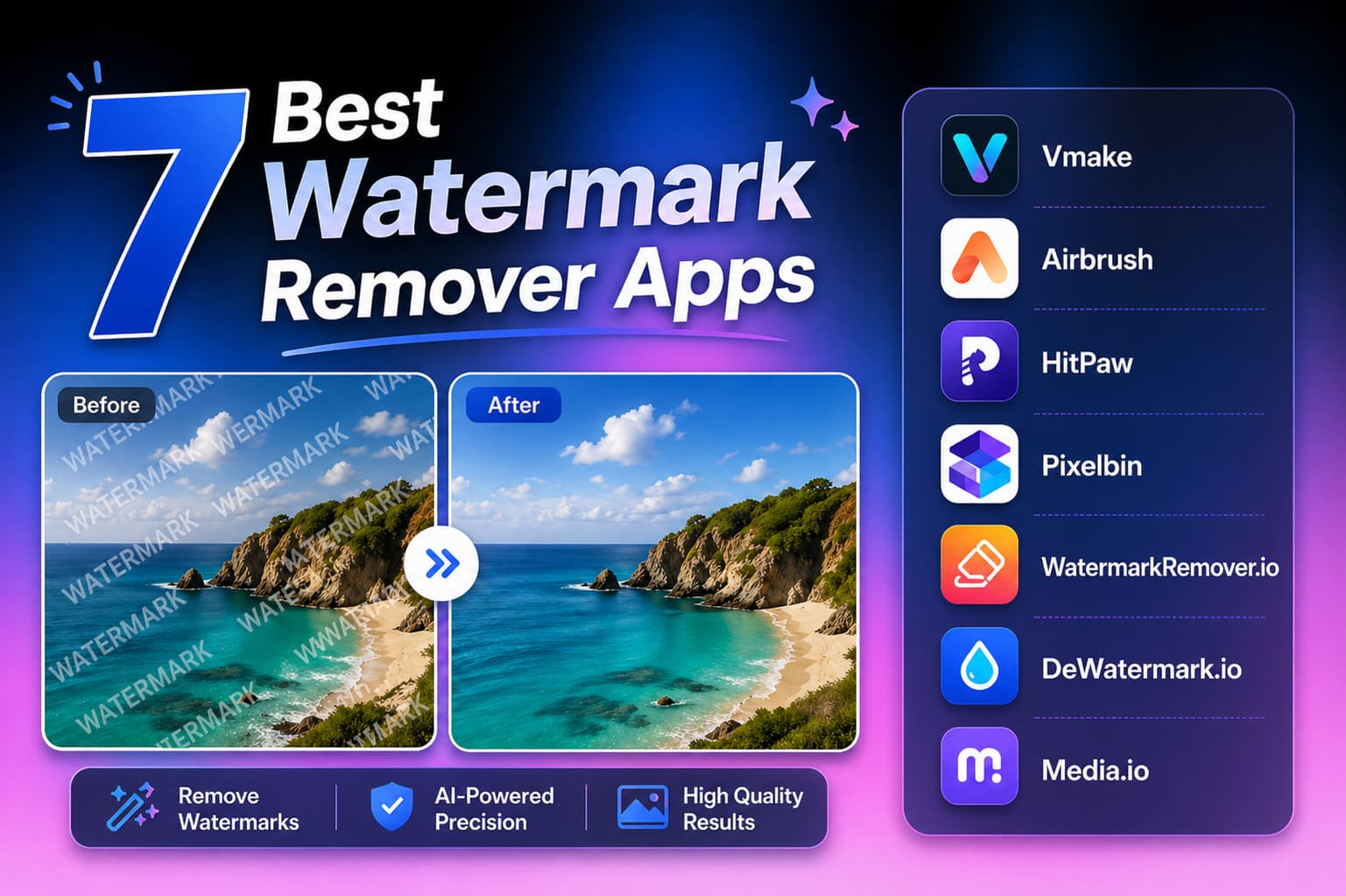
How to Remove CapCut Watermark Using 5 Free Methods
 Vmake Labs TeamMay 12, 2026
CapCut is one of the most downloaded free video editors in the world, but every export from the free version carries its branding. Sometimes it’s the outro clip, sometimes a tiny logo in a template corner, sometimes tied to a premium effect. This guide shows five tested ways to remove the CapCut watermark — starting with the free 30-second settings fix, ending with the AI trick that cleans template watermarks when CapCut’s own tools fall short. Pick the method that fits your watermark type.
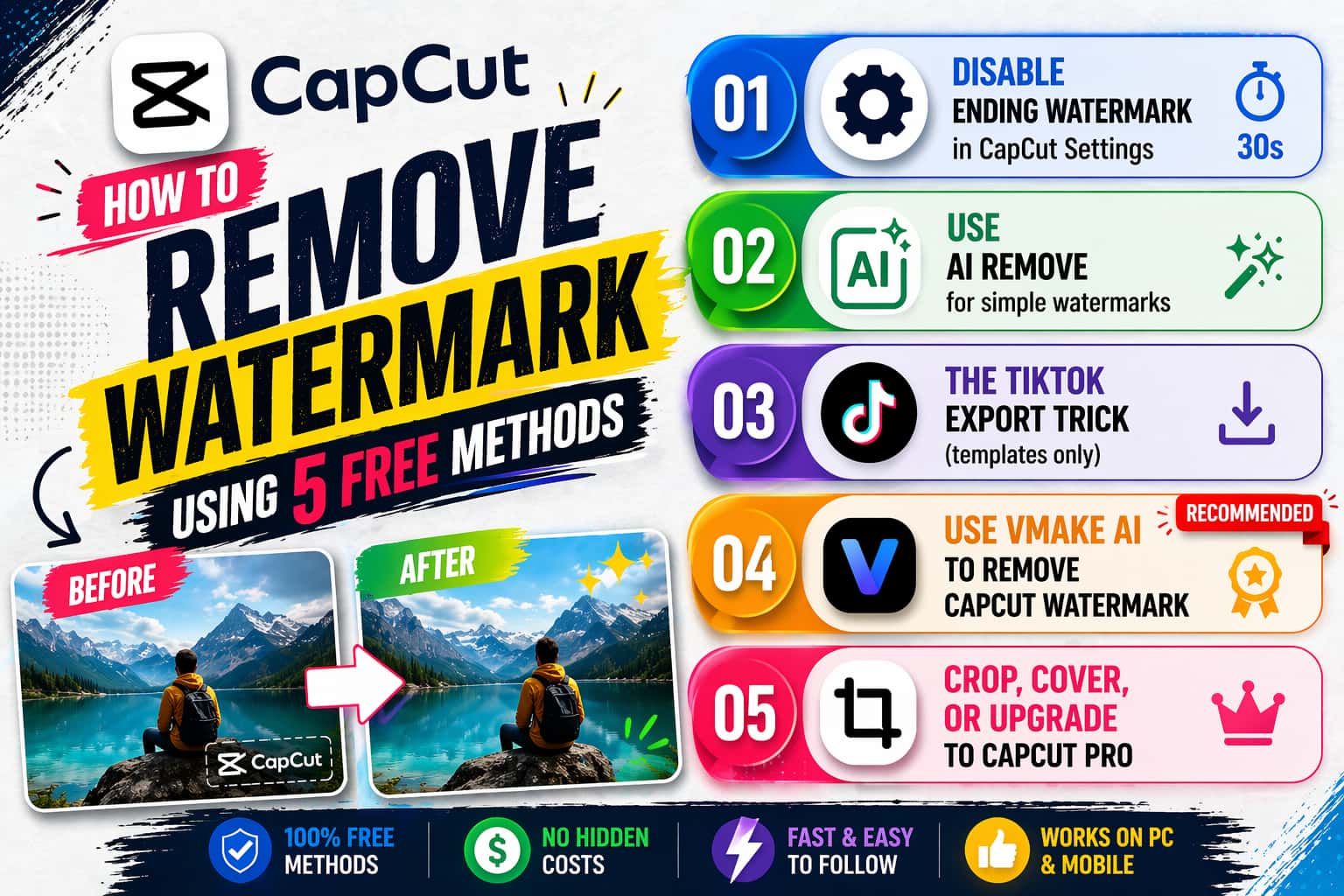
Does CapCut have a watermark remover? (Yes — but with limits)
Let's address the most common question right away: does the app actually feature its own built-in removal tool? Yes, but it comes with strict limitations depending on the type of branding you are trying to erase. There are three native paths you can take, ranging from a simple settings tweak to a paid upgrade. However, if you are dealing with stubborn template corner logos or AI-generated effect badges, native tools usually fall short, and you will likely need to step outside the app.
-
Free option 1 — Disable "Add default ending" in Settings (removes outro only)
This built-in toggle takes seconds to flip and completely stops the black CapCut logo screen from attaching to the end of your future videos. It won't fix watermarks stamped directly onto your actual footage, though.
-
Free option 2 — CapCut AI Remove inside the editor (simple watermarks)
Found under the Basic Video tab, this native masking tool lets you manually brush over unwanted logos. It works fairly well for static graphics on plain backgrounds but struggles significantly with fast motion or complex lighting.
-
Paid option — CapCut Pro subscription (no watermarks on export)
Upgrading to the premium tier automatically strips all proprietary branding from your exports, including templates and advanced generative effects. It is the most frictionless native solution, but it requires a recurring monthly fee.
-
External option — AI watermark remover like Vmake (best for template watermarks)
When built-in tools fail, dedicated web-based software uses advanced AI inpainting to seamlessly erase corner logos and badges. This is the most reliable method for cleaning up templates without sacrificing video quality or paying for a CapCut Pro subscription.
The 3 types of CapCut watermark (identify yours first)
People constantly apply the wrong fix. Misunderstanding the source of the logo causes endless frustration. The app doesn't rely on a single, uniform watermark. Identifying your specific badge type is required before attempting any removal.
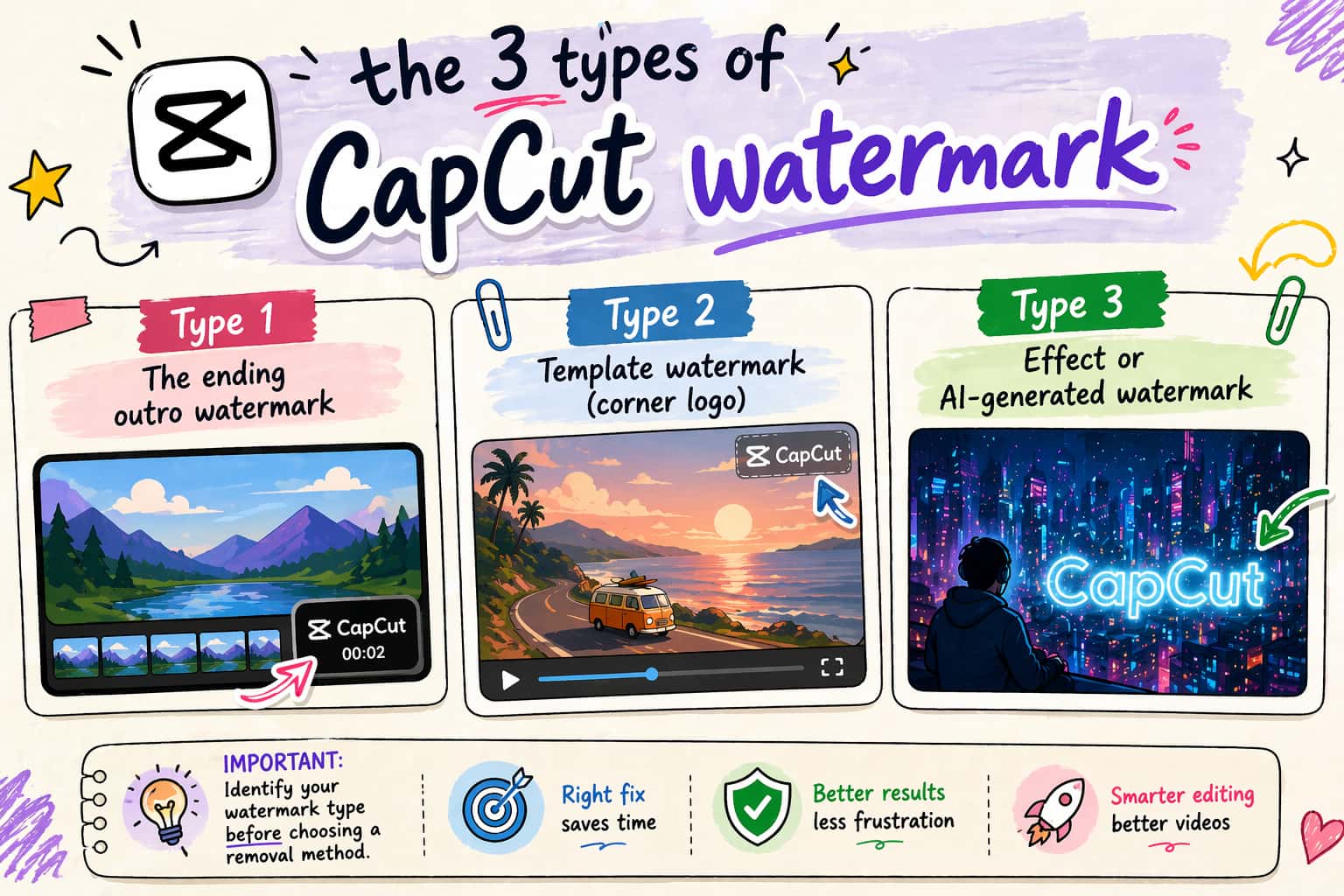
Type 1: The ending outro watermark
A brief, two-second clip carrying the logo gets appended to the very end of your timeline. It's the absolute easiest to eliminate. Third-party software isn't required here. A simple native settings toggle stops it from appearing.
Type 2: Template watermark (corner logo)
Building a video using a pre-made template embeds a small, stubborn logo. It sits permanently in the top-right or bottom-right corner of the screen. The basic settings toggle won't disable this. Cleaning template videos demands AI removal software, physical cropping, or very specific export workarounds. Frankly, cropping usually ruins the framing entirely.
Type 3: Effect or AI-generated watermark
Certain premium filters and generative fill tools force branding directly onto the footage. Removing these specific additions requires a bit more effort. Swapping the effect for a free alternative works.
How to Remove CapCut Watermark: 5 Tested Methods
Method 1: Disable the ending watermark in CapCut Settings (30 seconds, free)
This is the fastest and most permanent fix for the standard black outro screen. It works across both mobile and desktop apps. Adjusting this setting once applies the rule to all your future projects automatically.
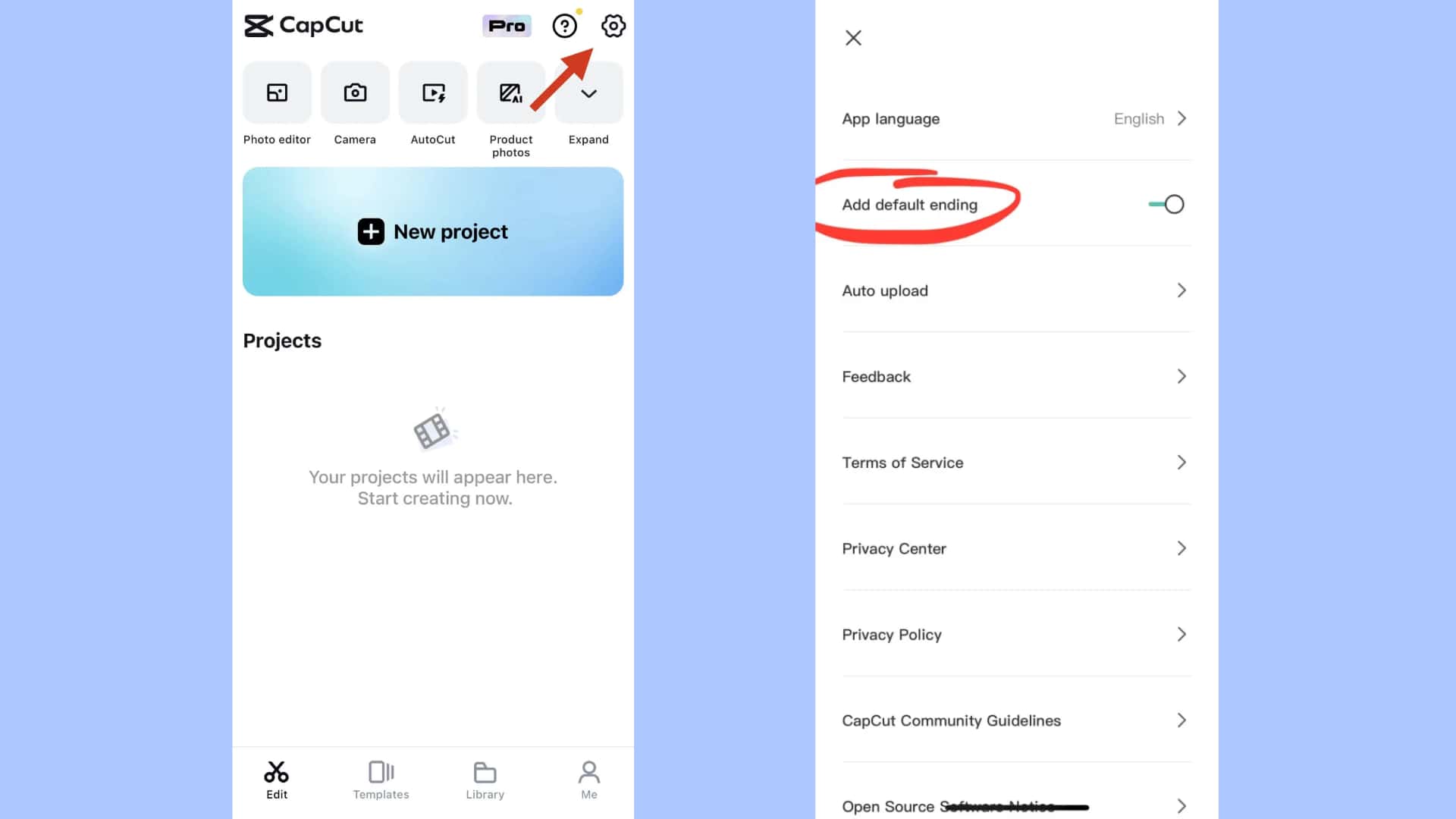
For future projects on mobile:
-
Open the app.
-
Stay on the main launch screen. Don't open a project yet.
-
Tap the gear icon in the top-right corner to open Settings.
-
Locate the toggle labeled "Add default ending."
-
Switch this toggle off.
-
Tap "Discard" when the confirmation prompt asks if you want to keep the ending.
Existing projects are different. The global settings toggle does not retroactively clean projects already sitting in your timeline. To fix a current draft, open your timeline. Swipe all the way to the extreme right of your footage. Tap the separated black clip containing the logo. Hit the delete icon at the bottom of your screen. Export normally.
Method 2: Use CapCut AI Remove for simple watermarks
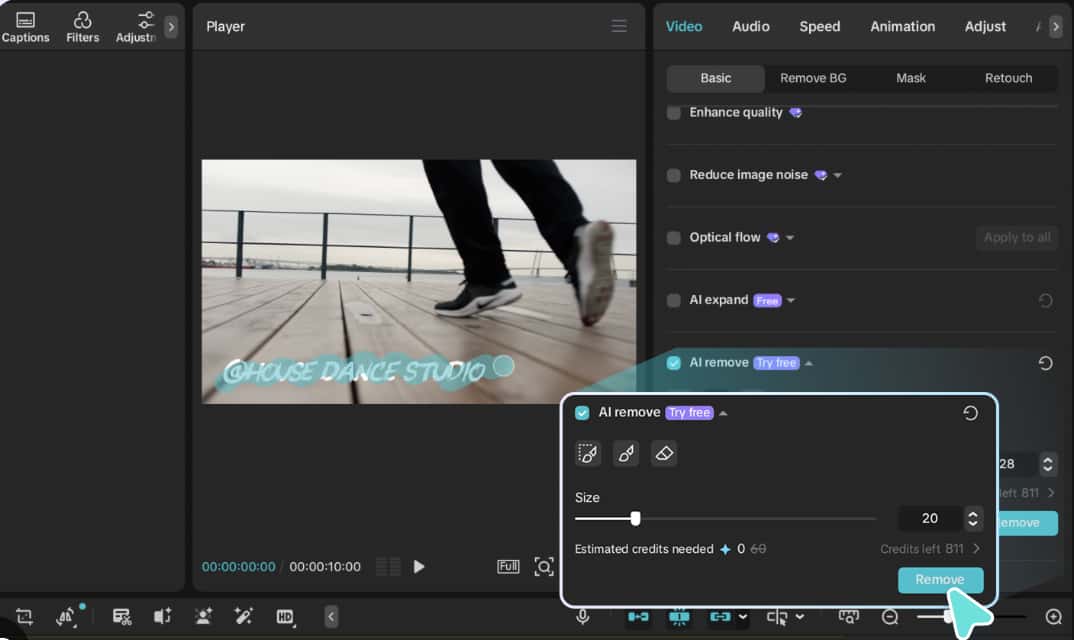
People frequently ask if the app can handle imported media. The native editor does feature an AI masking tool designed specifically for static overlays. It performs adequately on plain, solid-color backgrounds. It fails miserably on motion-heavy scenes, faces, or complex visual gradients, however.
-
Import your video onto the editing timeline.
-
Highlight the specific clip.
-
Navigate to the bottom menu and tap Video, then select Basic.
-
Scroll until you find AI Remove.
-
Select the Brush tool and carefully paint over the target logo. Ensure you cover the entire text and graphic.
-
Tap Process and wait. Preview the result closely.
If the background looks warped or blurry after processing, the native tool lacks the computing power for that specific frame. Cancel the edit immediately. You'll need to proceed to an external solution or explore the best AI watermark remover alternatives.
Method 3: The TikTok export trick (templates only, free)
This workaround targets template-based videos specifically. It's widely shared and highly effective. The trick relies entirely on the deep integration between CapCut and TikTok to bypass the forced corner logo.
-
Finish editing the chosen template within the app.
-
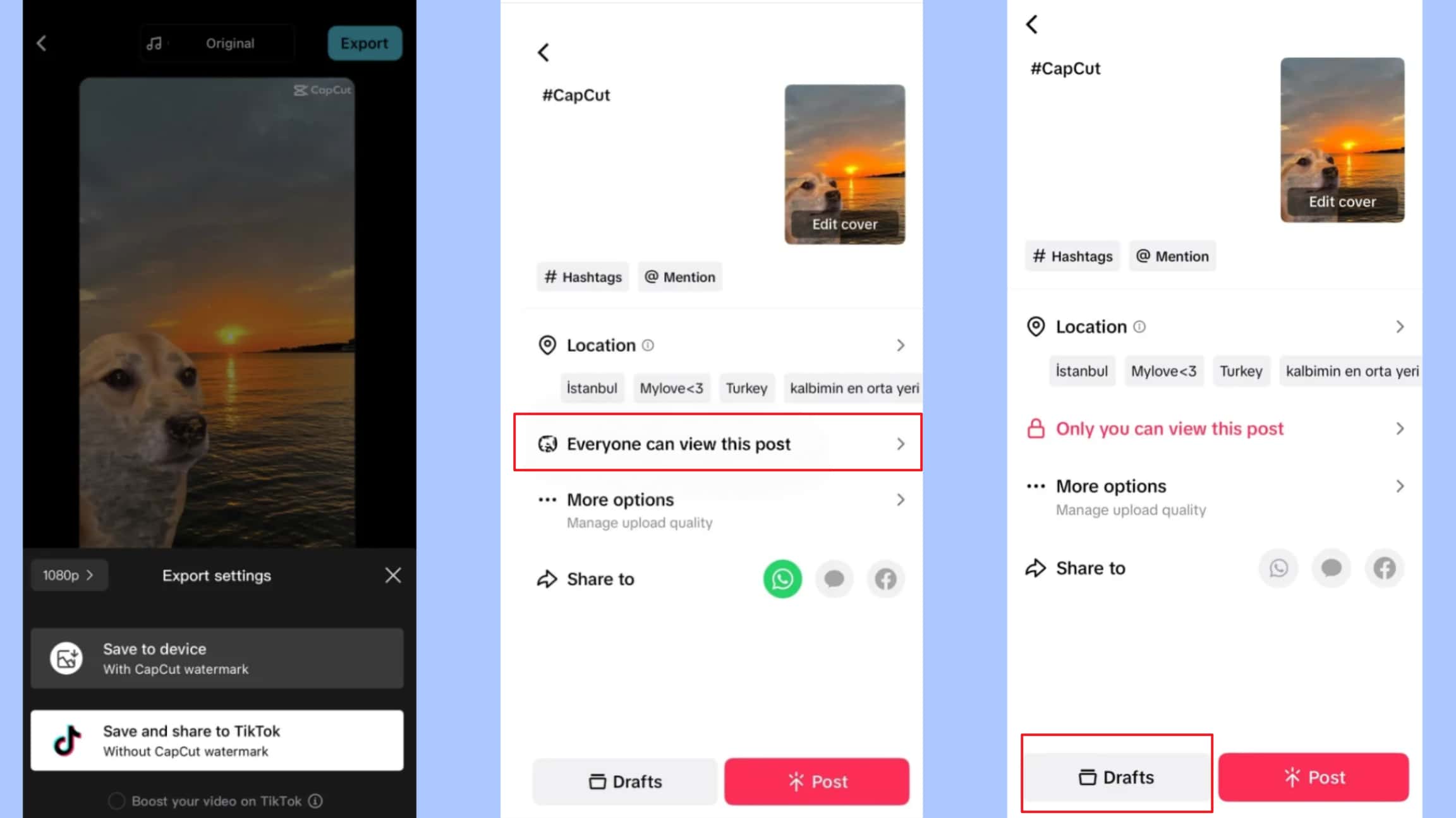
Tap the export button located in the top right.
-
Select the option labeled "Save and share to TikTok".
-
Avoid tapping the standard "Save to device" button. Doing so ruins the process.
-
Wait for the file to render. The system automatically switches applications and opens TikTok.
-
Close the TikTok app completely the moment the posting screen appears. Pressing publish isn't required. Saving it as a TikTok draft isn't needed either.
-
Open your phone's native camera roll.
A clean, unbranded version of the template video automatically downloads to local storage. This happens right before the file is handed over to TikTok. While not a conventional tiktok watermark remover, this method works consistently on iOS 16+ and most modern Android devices. It does occasionally glitch if the app version is severely outdated, leaving a frustrating black screen. Technology rarely cooperates perfectly every single time.
Method 4 (Seamless): Use Vmake AI to remove the CapCut watermark
When built-in settings fail, and the TikTok trick does not apply, external software becomes the most reliable solution. I recommend Vmake AI. It operates directly in your web browser. You don't need heavy software installations, app downloads, or manual frame-by-frame brushing.
Vmake provides a dedicated video watermark remover. It targets and eliminates stubborn template logos and embedded badges. Unlike basic blurring tools that leave noticeable smudges on your footage, Vmake utilizes advanced AI inpainting. It analyzes the surrounding pixels, predicts what should be behind the logo, and reconstructs the background.
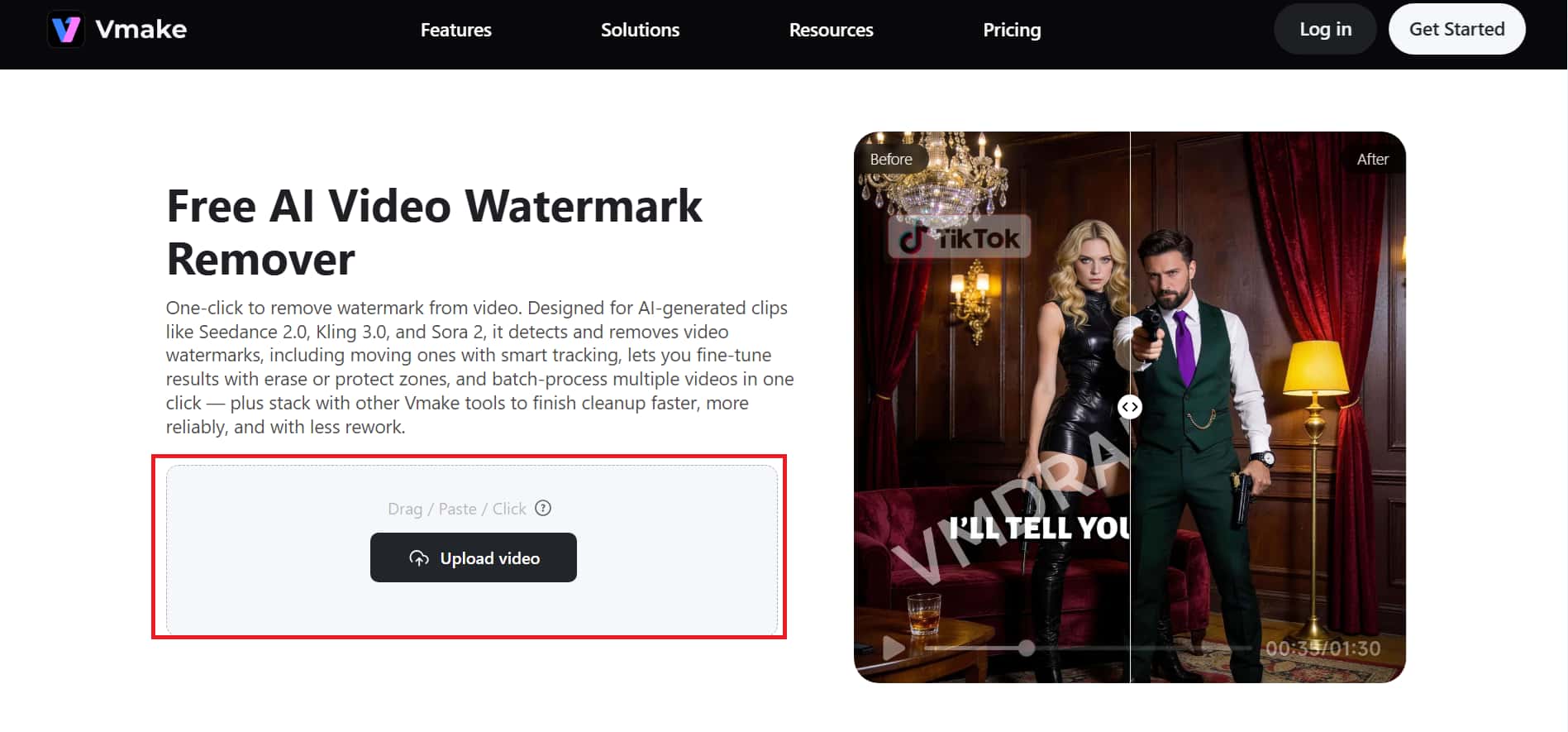
Using Vmake AI to remove CapCut watermarks
Step 1: Export your video from CapCut with the watermark still visible.
Step 2: Navigate to Vmake AI watermark remover in your web browser. Select the Video & Image Remover tool.
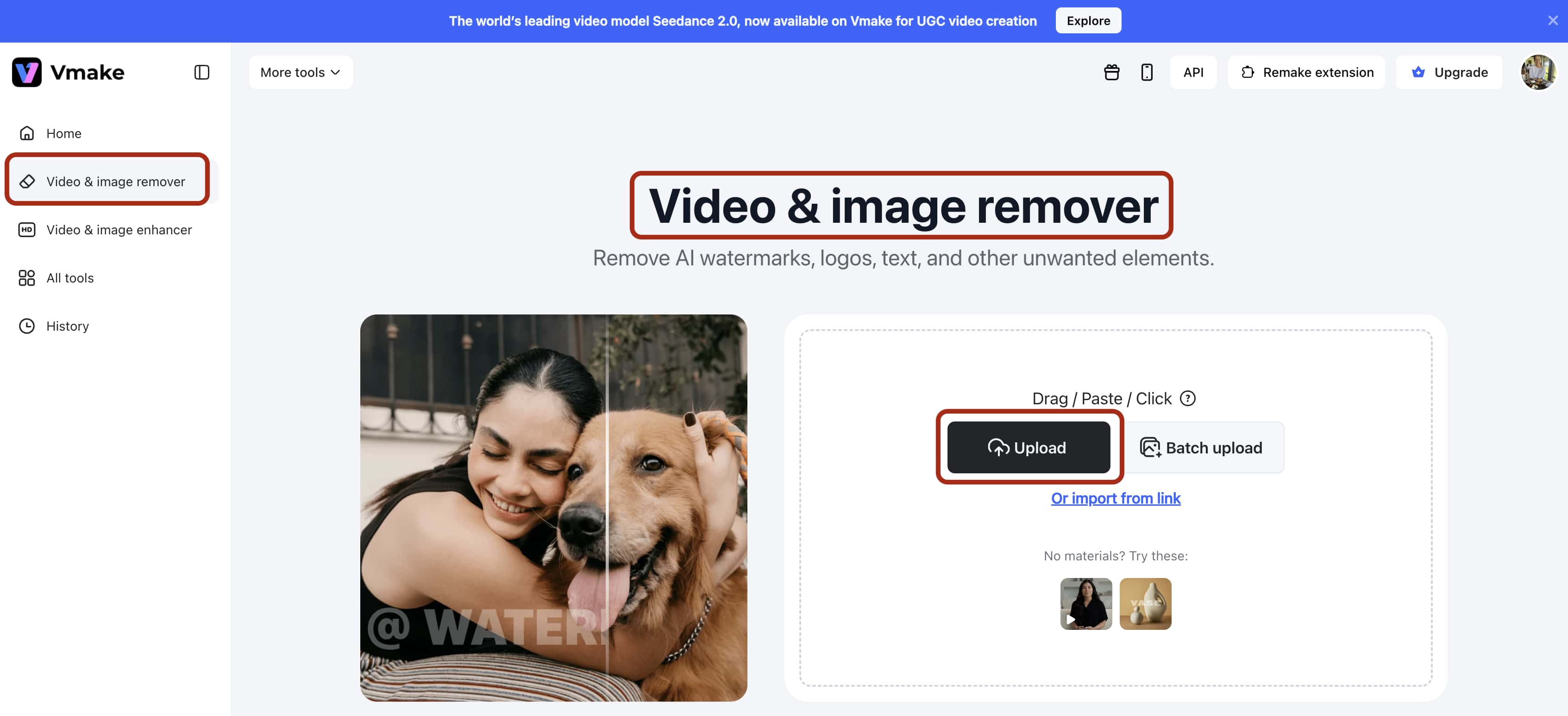
Step 3: Upload your file. The AI automatically scans the frames and detects standard logos. You don't even have to manually highlight the area.
Step 4: Process and preview a shortened version of your clean, watermark-free video.
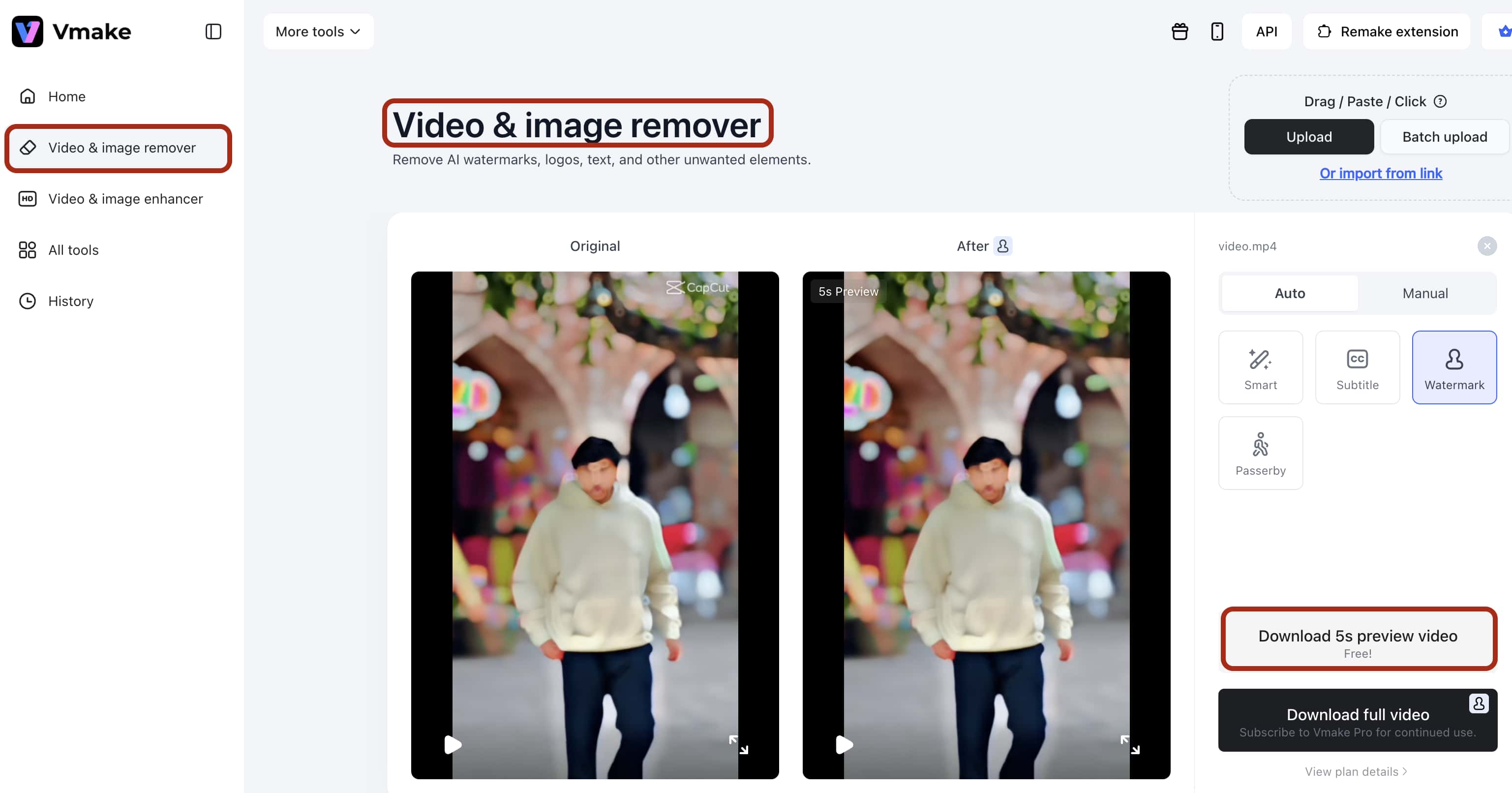
Step 5: Download the high quality video post processing.
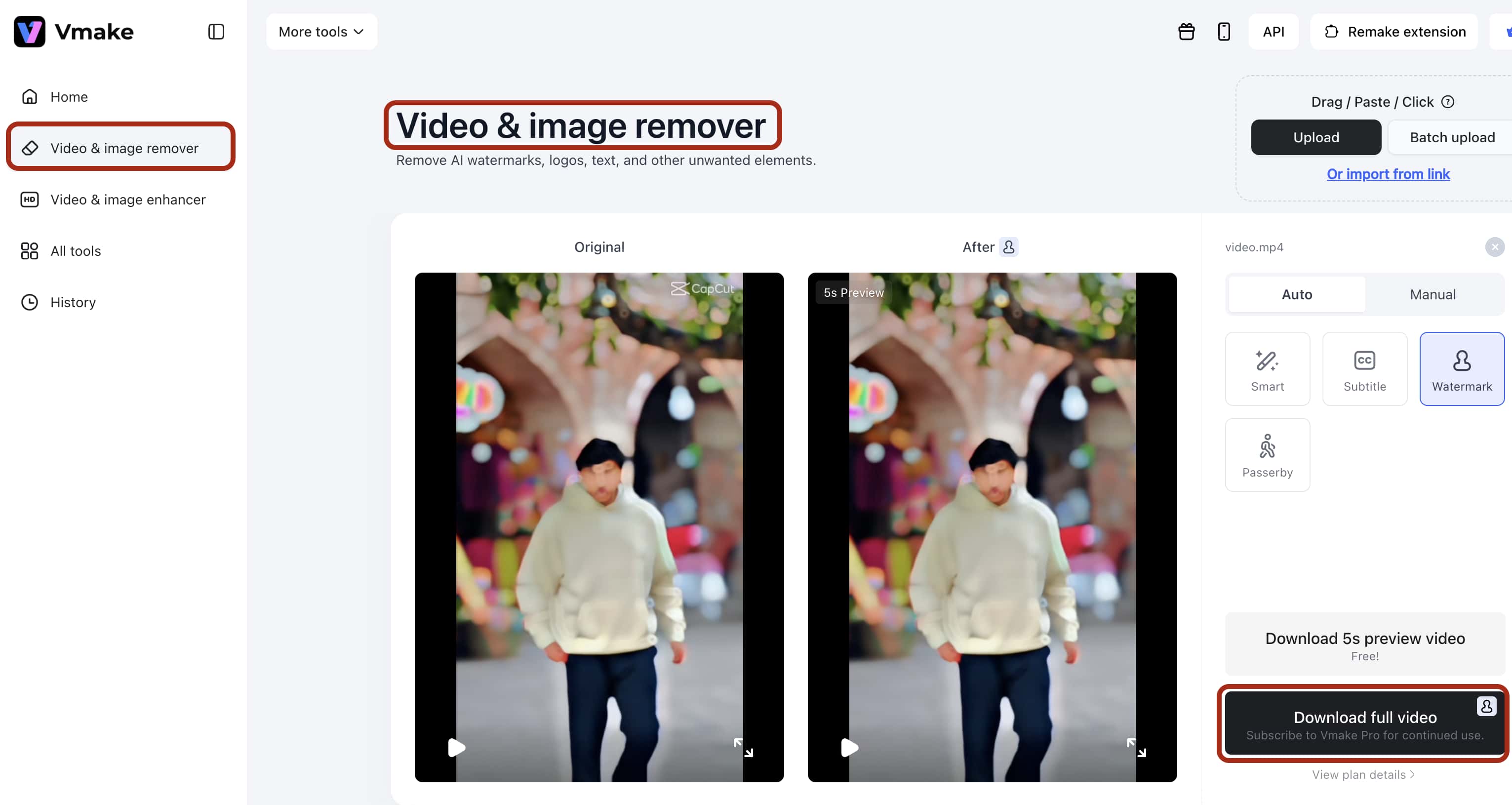
There's a critical next step. Moving videos between different editors and running them through compression algorithms degrades visual fidelity. Your video might look slightly softer than the original raw footage.
To fix this, Vmake offers a Video Enhancer. After processing your file through the watermark remover, run the newly cleaned video through the Video Enhancer. This sharpens soft edges and restores the crisp clarity lost during the multiple export processes. Vmake gives you the first few seconds of processing for free. This lets you verify the quality before committing credits to the full-length video.
Method 5 — Crop, cover, or upgrade to CapCut Pro
If AI tools are temporarily unavailable to you, traditional editing workarounds remain an option. These are generally considered last-resort fixes.
-
Crop: If the logo sits at the extreme edge of the frame, you can pinch-and-zoom on your timeline to push the branding off-screen. This guarantees removal, but it permanently alters your aspect ratio. You lose peripheral visual data. It often ruins the rule of thirds or cuts off heads.
-
Cover: You can place a digital sticker, a graphic overlay, or your own brand logo directly over the CapCut branding. This successfully obscures the original mark. It introduces a completely new visual distraction, though. Avoid using basic blur effects here. A blurry box immediately draws the viewer's eye to the hidden area, making it look incredibly amateur.
-
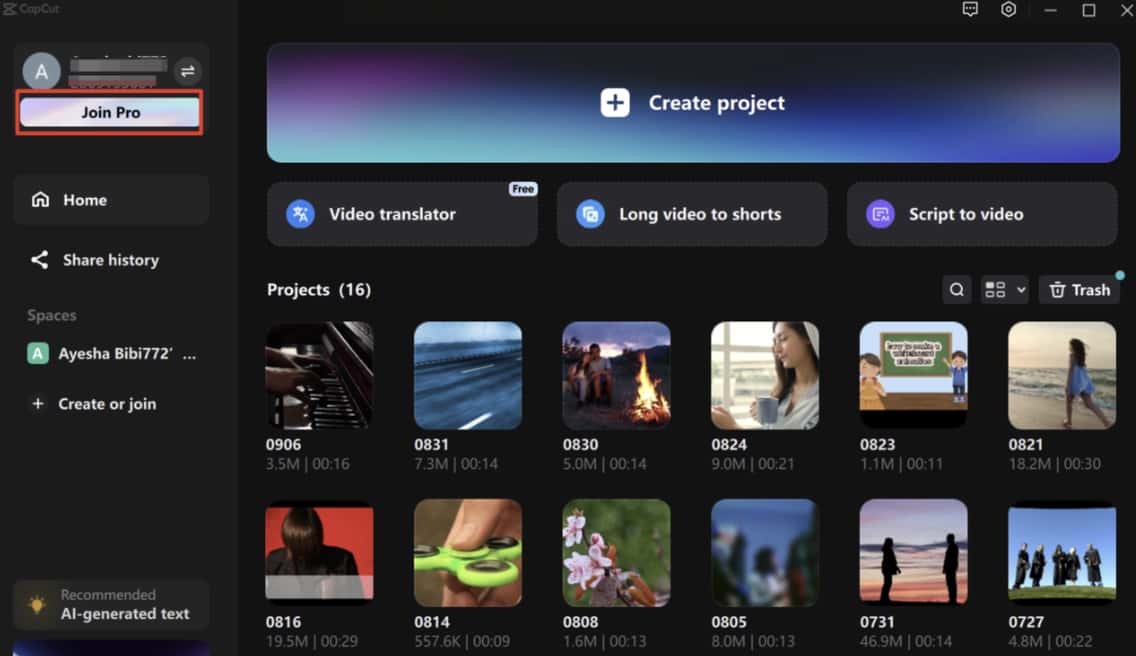
CapCut Pro: The most frictionless method is simply paying for the premium tier. A Pro subscription automatically strips all proprietary branding from your future exports, including templates and complex AI effects. Upgrading does not retroactively clean videos you exported before subscribing.
Other CapCut watermark remover tools
If you prefer to test alternative external platforms, several other AI-based removers perform effectively on standard MP4 files. They lack the integrated enhancement tools mentioned above, however.
-
WatermarkRemover.io — A popular cloud-based application that excels at detecting static logos. It requires a manual selection of the branded area. It processes the final file relatively quickly.
-
Pixelbin — Pixelbin AI watermark remover offers a clean, browser-based interface. It reconstructs backgrounds effectively. It supports batch processing if you need to clean multiple drafts simultaneously.
-
AVCLabs — A heavy-duty desktop software option. It utilizes advanced motion tracking, making it ideal for moving watermarks. It requires local installation and substantial computing power from your PC.
Important Note: Legal note on removing the CapCut watermark
Always understand the legal boundaries before modifying digital files. You should only remove watermarks from videos that you personally filmed, edited, and created. Stripping watermarks from someone else’s custom template or copyrighted media violates both terms of service and standard copyright law. Use these tools strictly to clean your own original content, following ethical best practices for watermark removal for creators.
Conclusion
Forced branding on personal videos doesn't have to be accepted. Toggling off the default ending in the settings solves the most common issue immediately.
Stubborn template logos and AI-generated badges demand a bit more creativity. Bypassing the system with the TikTok export trick handles templates well. Dedicated software like Vmake's Video Watermark Remover handles the rest. For anyone still exploring how to remove a watermark from video, combining these methods guarantees a clean export almost every single time.
FAQ
Can you remove the CapCut watermark for free?
Yes. The app's internal Settings toggle handles the outro clip entirely for free. For corner template watermarks, you can use the TikTok export workaround at no cost. External tools like Vmake AI watermark remover offer free tiers for testing short clips.
Does CapCut have a watermark remover built in?
Yes. The editor features a native AI Remove tool located under the Basic Video settings tab. It successfully masks out simple static logos. It frequently struggles to blend complex or motion-heavy backgrounds naturally, however.
Why does CapCut still add a watermark after I disabled it?
The master disable toggle in the settings menu exclusively governs the black outro clip at the end of the timeline. It does not apply to template watermarks or effect-specific badges. Those elements require separate removal methods.
How do I remove the AI-generated watermark from CapCut?
If you are wondering how to remove ai generate watermark capcut additions, you have to realize they are permanently tied to the effect itself (like Dreamina integrations). To remove them, you must either delete the effect from your timeline, upgrade to a Pro subscription, or export the video and run it through a third-party remover like Vmake AI watermark remover.
Does removing the CapCut watermark reduce video quality?
Using the built-in settings toggle or a Pro subscription causes zero quality loss. Advanced AI inpainting tools reconstruct the background with minimal degradation, and running it through a Video Enhancer afterward fixes any compression issues.
Is it legal to remove a CapCut watermark?
It is strictly legal to remove branding from content that you originally filmed and own entirely. It is not legal to remove watermarks from content, templates, or media that belongs to another creator without their explicit, documented permission.

You May Be Interested

123APPS Watermark Remover Review (2026): Pros, Cons, and Pricing

Airbrush Watermark Remover Review (2026): Features and Pricing

Guide on How to download TikTok videos without a watermark