How to Remove Moving Watermark in Filmora: 5 Best Free Methods in 2026
 Ken DawsonApril 28, 2026
Watermarks can make well-edited videos look unfinished, especially if you use free editing software. This post is mostly about how to remove watermarks in Filmora, but it also covers other PC and Mac softwares and web programs that work well. There are many ways to fix watermark issues without compromising video quality, whether you're editing on a desktop or looking for quick fixes in your web browser. With its premium upgrade, Filmora offers built-in options. On the other hand, desktop editors include more advanced masking and tracking tools. You may also find AI programs online that make things easier and provide you with quick results. This post gives you five useful ways, recommendations, and comparisons to help you pick the best way to remove watermarks in 2026.
How to remove watermarks using Filmora
Wondershare Filmora is a top-notch video editing program that strikes the right balance between professional functionality and an easy-to-use UI. While most solutions only blur a limited area, Filmora offers several advanced methods for handling watermarks, including AI-powered smart removal, clever cropping, and overlay options. This flexibility makes it a great choice for creators who need more than just a quick fix. You may get a polished, high-quality outcome that keeps your audience's attention on your content by using its extensive masking and keyframing features.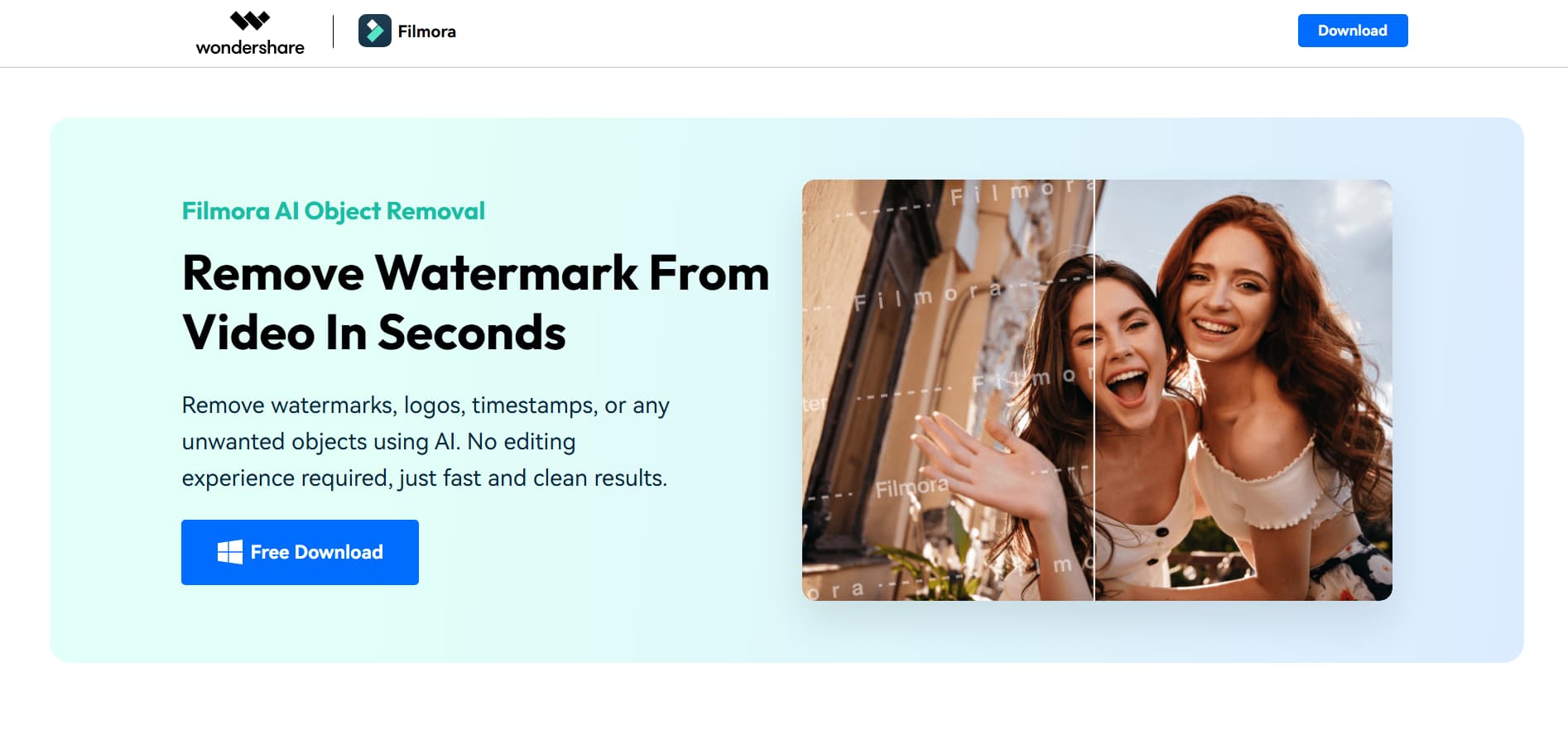
Step-by-step guide
Step 1: Open Filmora and import your video
Open Filmora and choose the ''AI Object Remover'' tool from the Toolbox. When you import your video, the tool will open instantly for you to modify it.
Step 2: Select the watermark using AI tools
Use the ''Smart Brush'' to mark the area of the watermark you want to remove. Filmora's AI will look at the selection and get rid of anything like logos or text that you don't want.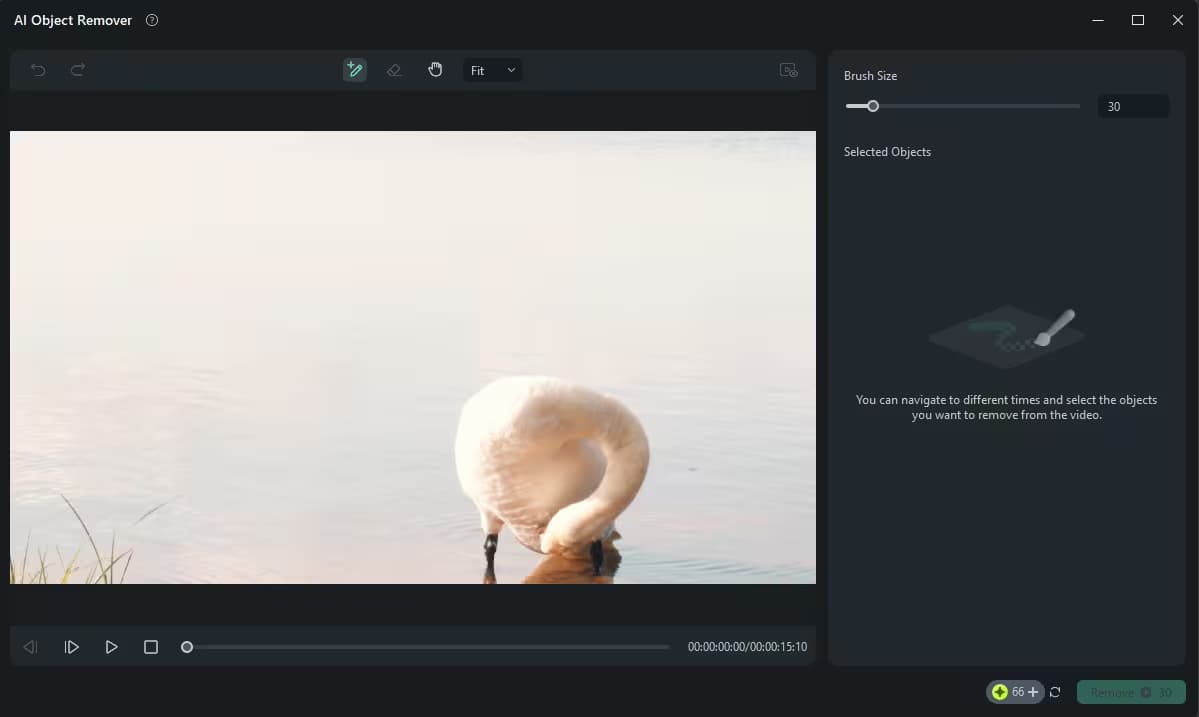
Step 3: Remove and export the final video
Use the removal tool to remove the watermark and save your movie. If you need to, you can also employ crop, zoom, or blur effects to make the result even better.
Key features
-
AI-driven object removal: Use the Filmora AI video object remover to remove watermarks with high accuracy. The AI smartly fills in background pixels, ensuring the effect is clean and natural without any manual patching.
-
Pro-grade quality & support: Export your results in Full HD or 4K in all the main formats, like MP4 and MOV, with professional quality and support. This ensures that removing watermarks, won't make your footage less clear.
-
Advanced AI toolkit: Use AI to monitor things to do more than just basic removal. These technologies let you automatically follow moving watermarks, giving you professional-level control with little effort.
Compatibility
-
Windows: Fully compatible with Windows 11, 10, 8.1, and 7 (64-bit). It supports both x64 and the latest ARM-based architectures, ensuring smooth performance on standard PCs and newer laptops.
-
macOS: Works with macOS 10.15 (Catalina) to macOS 15 (Sequoia). It works perfectly with Apple Silicon (M1, M2, and M3 CPUs) and Intel-based Macs. It uses metal rendering to speed up editing.
How to remove watermarks from videos using PC/Mac tools
-
Apowersoft
Apowersoft watermark remover is a desktop and web tool that removes visual clutter from digital files with surgical precision. This software is great for marketers, teachers, and casual users because it uses a simple "select and erase" approach that doesn't require extensive training. It uses complex algorithms to let you quickly remove logos, date stamps, subtitles, and even people you don't want in your movie. Its main virtue is that it's simple. It offers a lightweight solution that combines high-speed processing with high-quality output for both photos and videos.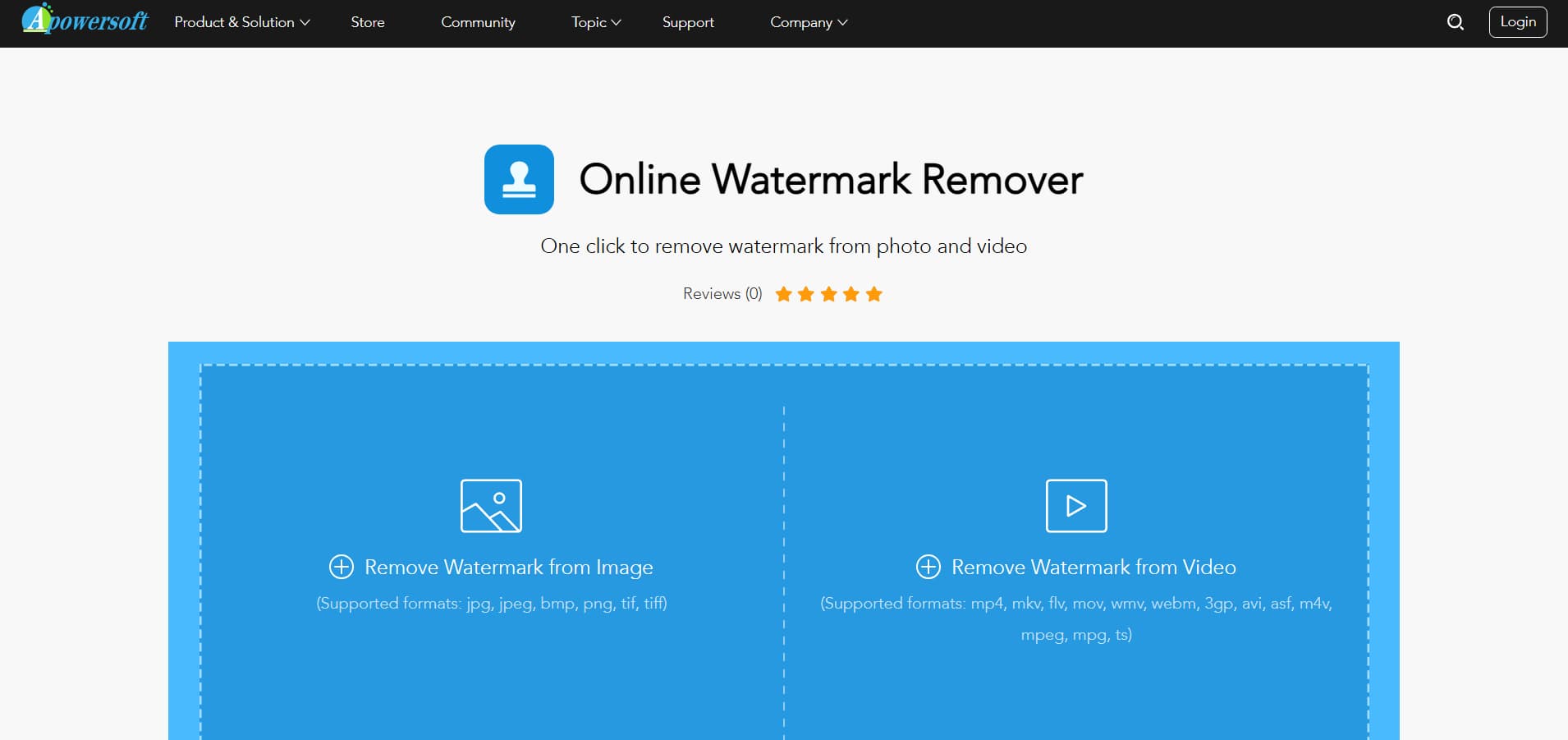
Step-by-step guide
Step 1: Import your video and choose removal mode Download and run Apowersoft Watermark Remover. Then, in the video watermark section, add your video.
Step 2: Select and preview the watermark area Use the selection or trim tool to highlight the watermark area in your video. Before processing, check the preview to ensure the watermark is properly covered.
Step 3: Remove watermark and export video To save the final video without the watermark, click "convert."
Key features
-
Batch processing capability: Save significant time by importing multiple videos or photos simultaneously. The software han
-
dles high-volume tasks without compromising quality.
-
Precision selection tools: Choose from various selection methods, including marquee, polygonal, and brush tools, to accurately target irregular shapes or moving watermarks.
-
Lossless quality retention: The tool is engineered to maintain the original resolution and format of your media, ensuring background reconstruction looks natural.
Compatibility
-
Windows: Works perfectly with Windows 11, 10, 8, 7, and Vista. It makes the desktop environment reliable for local processing.
-
macOS: The PicWish/Apowersoft Online version works perfectly in Safari and Chrome on Mac. (Please note that dedicated desktop versions for Mac usually need version 10.13 or higher.)
-
CapCut
CapCut for desktop is a professional-level editing program that combines the ease of mobile editing with the capability of a PC. A lot of people know it for its viral templates, but the desktop version is also a great way to remove logos, watermarks, and end-screen credits. CapCut lets people clean up their videos without buying pricey software by combining AI-powered tools with human masking techniques. It is designed for speed and offers a "one-click" method for exporting clean films, making it a must-have tool for social media makers who need polished results right away.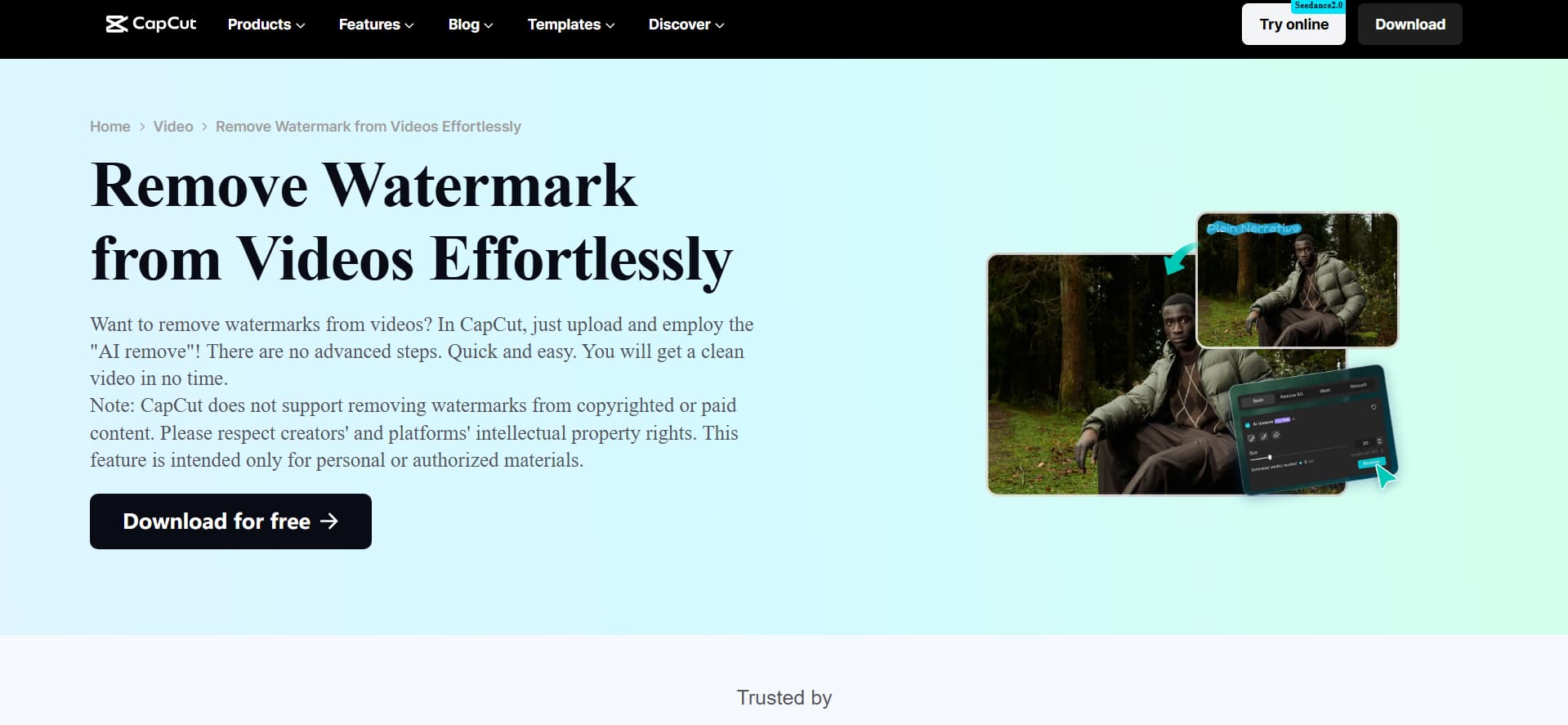
Step-by-step guide
Step 1: Import your video
Start a new project in CapCut, then import your video from your smartphone. To start editing, drag the clip to the timeline.
Step 2: Use the AI removal tool to erase the watermark Go to Video settings and look for the AI delete option. Choose the brush tool, change its size, and carefully highlight the region with the watermark before removing it.
Step 3: Export and share your final video After you're done editing, go to the export options and change the resolution, frame rate, bitrate, and codec as needed. You may export the video and post it right away on sites like YouTube or TikTok.
Key features
-
Smart AI for watermark removal: CapCut's sophisticated AI makes it easy to find and erase watermarks with brush tools or automatic background recognition. We take our time with each frame to make sure the results are clean and professional.
-
Precise brush selection: You can highlight specific watermark locations by hand with the customizable brush tool. Image inpainting and other features help fill in and blend the chosen area, making the alterations smoother.
-
Maintains original video quality: CapCut preserves the video's colors, textures, and resolution while removing unwanted elements. This ensures the finished product looks sharp, polished, and consistent with the source footage.
Compatibility
-
Windows & PC (Desktop App): This version is a special software package for Windows 10/11 and macOS. It uses your computer's hardware to speed up rendering, making it the best choice for editing high-resolution 4K videos and removing watermarks with AI that requires consistent processing power.
-
CapCut Web (Browser-Based): You can use CapCut Web (Browser-Based) on any operating system, including Windows, Mac, Linux, and ChromeOS. You can access it through Google Chrome, Safari, and Edge. You don't have to install anything, and it's great for speedy cloud-based fixes as long as you have a stable internet connection to upload files.
How to remove watermarks from videos using online tools
-
Vmake
Vmake AI Video Watermark Remover is a professional tool that helps people clean up their videos by removing logos, text, and timestamps they don't want. It uses superior AI inpainting technology to let you easily reuse content for other social media outlets or e-commerce sites without the original watermarks getting in the way. It rebuilds the background to ensure it looks natural by carefully examining the surrounding pixels. With clicks, marketers, small business owners, and content creators can obtain desirable results.
Try Vmake Video Watermark Remover Now
Step-by-step guide
Step 1: Upload your video
You can drag and drop up to 30 videos at a time. Each file looks like a separate card, which makes it easy to manage and review.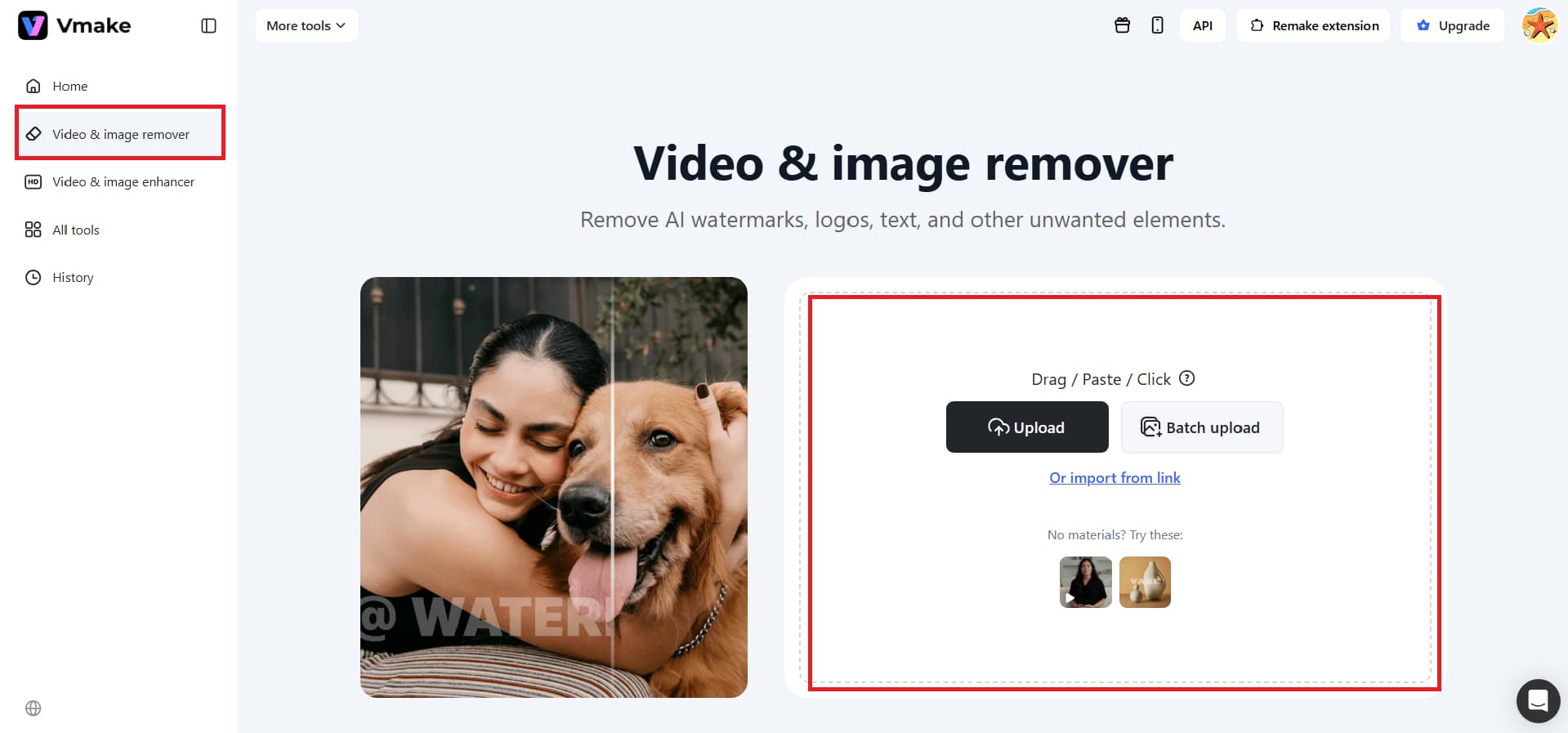
Step 2: Automatic removal of watermarks
Vmake automatically removes watermarks for you, so you don't have to do any editing yourself. You can see what the output would look like without the watermark right within each card.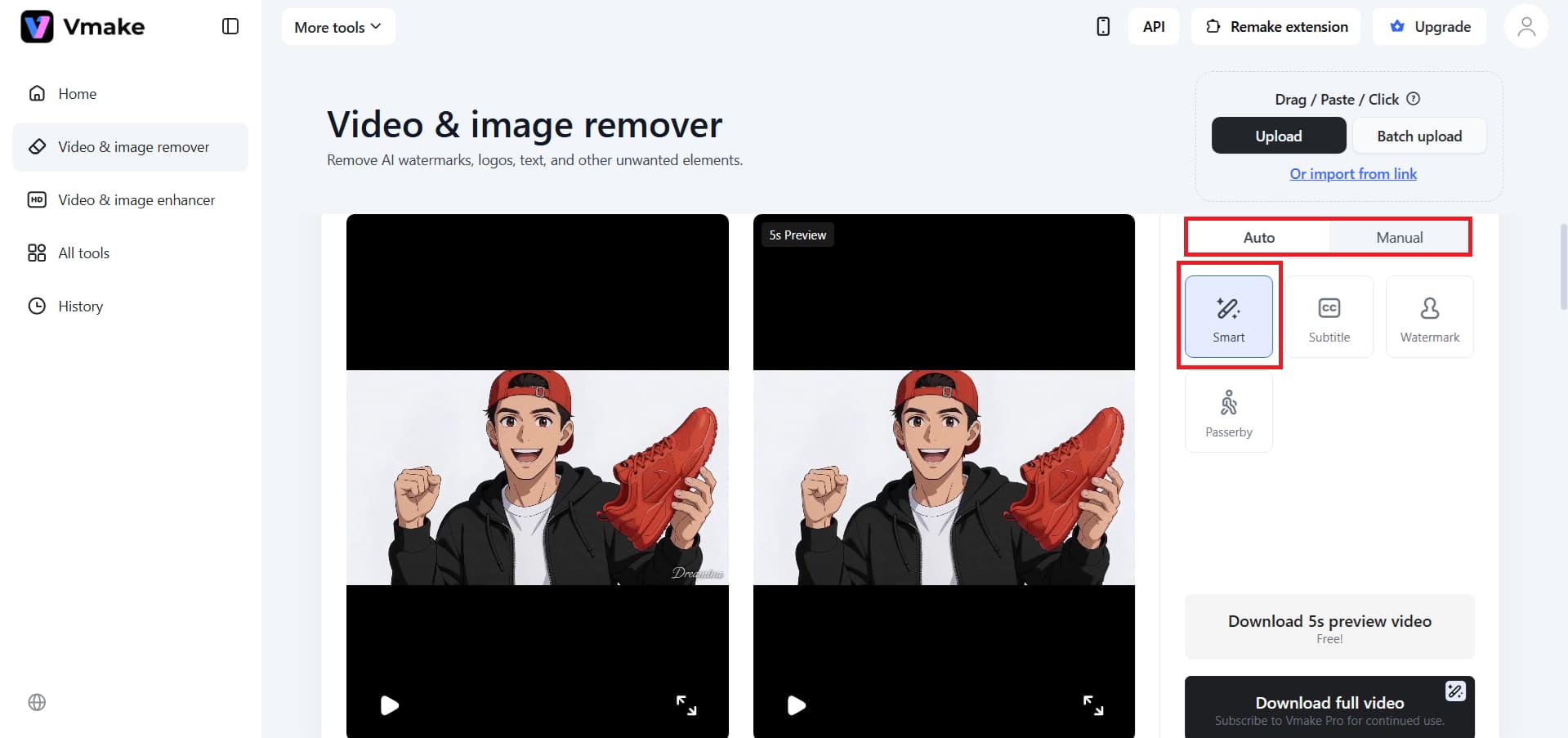
Step 3: Preview & Download
Vmake lets you remove watermarks for free. You can get a free preview of the first 5 seconds or export the whole video to HD.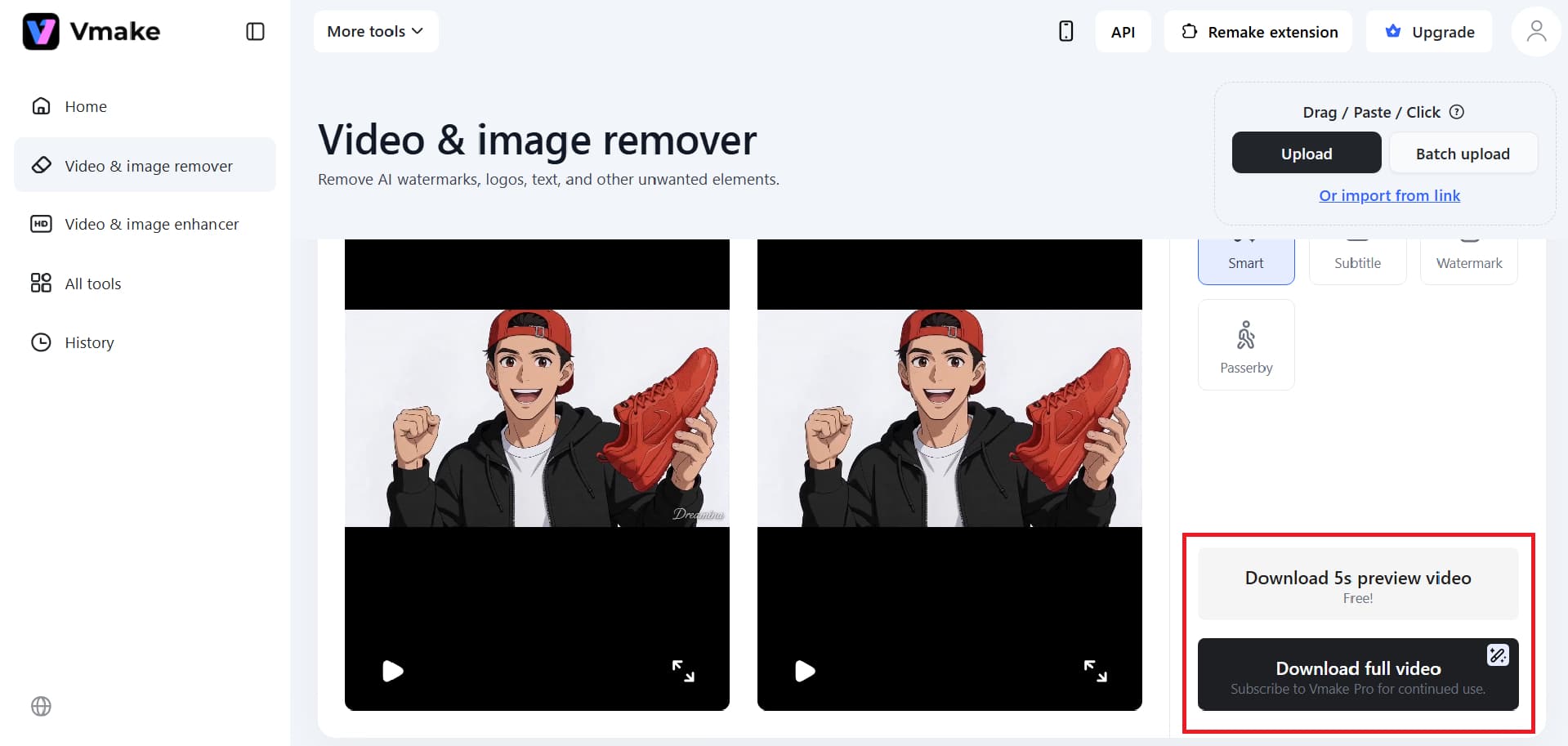
Start Cleaning Your Videos Today
Key features
-
Advanced AI detection and tracking: Vmake can intelligently detect and remove watermarks, subtitles, logos, and even moving elements like people walking by. It keeps track of things across frames to ensure they come off smoothly and naturally.
-
Auto and manual removal modes: You can use automated modes to make quick changes, or switch to manual controls like box selection and subtitle range selection for more precise changes and better control.
-
Batch processing with multi-format support: The tool can process videos in multiple formats and lets you edit up to 30 files at once, making it easy to handle large volumes of media.
Pros
-
Universal file compatibility: The program works perfectly with MP4, MOV, and AVI files of all resolutions. You can count on a 98.7% success rate for high-quality results, whether your film is from a smartphone, a professional camera, or a screen recording.
-
Production-ready quality: This platform removes marks so well that clips are ready for professional use right away, unlike basic editors that just blur distractions. This lets you use your existing materials across multiple channels without restarting the editing process.
-
Optimized workflow speed: Automating the cleanup process can make you up to 5 times faster than doing it by hand. It eliminates the need for arduous frame-by-frame masking or patching, reducing hours of careful effort to just a few minutes of processing.
Cons
-
Connectivity requirements: The processing speed and upload stability on a cloud-based AI platform depend heavily on your internet connection. This could be a problem for people who work with big 4K files or have limited bandwidth.
-
Credit-based system: To get high-definition, full-length exports, you usually have to pay for a membership or buy credits. This could be a problem for people who want a completely free, unrestricted option.
-
WatermarkRemover.io
WatermarkRemover.io is a new solution that uses AI to make it easier to clean up visual assets. This tool offers an automated way to remove unwanted logos, date stamps, and text overlays from movies and photographs, whether you are a content provider, a marketer, or just a casual user. It uses advanced computer vision algorithms to locate the watermark region and intelligently reconstruct the background pixels.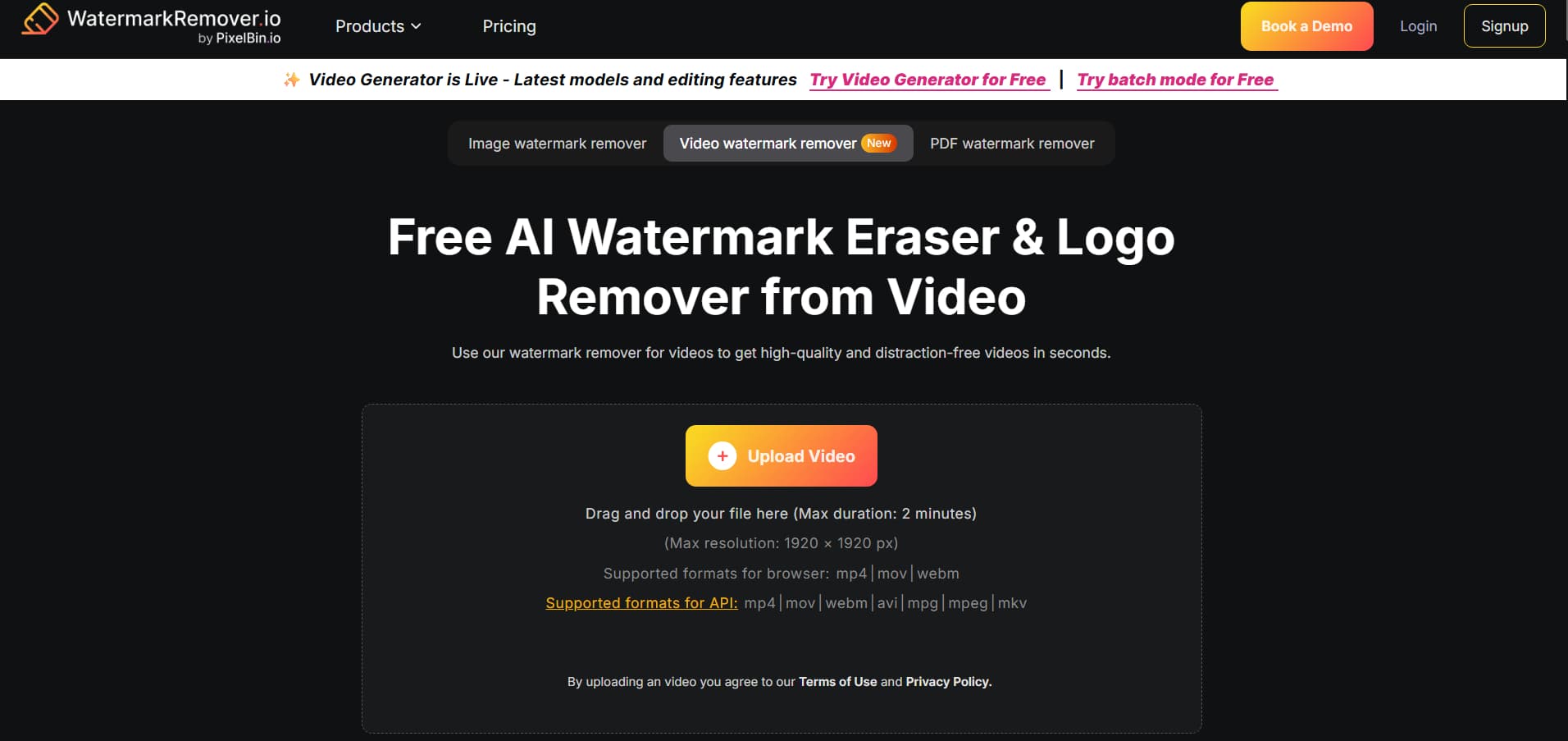
Step-by-step guide:
Step 1: Upload:
To upload your video file, just drag and drop it onto the platform. It can be in MP4, MOV, or WebM format and be up to 2 minutes long.
Step 2: Detect & Select:
The AI will find the watermark on its own, or you can choose the region you want to delete by hand.
Step 3: Download:
Check the altered version to make sure it looks good, then save the watermark-free version to your device.
Key features:
-
AI-powered precision: Automatically finds and removes complicated watermarks without changing the textures and information underneath.
-
Batch processing: Saves time by allowing users to remove watermarks from multiple files simultaneously with consistent quality.
-
Cross-platform accessibility: This tool is completely web-based and works with any browser. It renders quickly without requiring much software.
Pro tips for removing watermarks from videos
-
Use AI tools for automatic removal: AI tools can find and remove moving watermarks across frames without any help from a person. Compared to other ways of editing, they save time and keep the quality of the video.
-
Upgrade to the premium version: You can export videos without any watermark forever if you pay for programs like Filmora. This ensures the output is of the highest quality without the need for further editing or changes.
-
Use masking and tracking tools: With advanced editing tools like masking and motion tracking, you can accurately cover up or take off moving watermarks. These technologies work well for complex videos where the watermark moves over time.
-
Crop the video frame: You may remove watermarks along the edges of the screen by cropping the frame. But this strategy can make the visible area a little smaller and change how your film is put together.
-
Try quick online removal tools: You don't have to install any software to use online watermark remover solutions, which are quick and easy to use. They are helpful for quick changes, especially when you don't have many system resources or are working with small files.
Online vs offline tools for removing watermarks
-
AI-powered removal tools: AI-powered tools can automatically detect and remove watermarks with minimal input, making the process quick and easy. They are great for moving watermarks around while maintaining high video quality.
-
Professional editing software: Offers advanced tools for precise watermark removal, including masking, layering, and motion tracking. These tools are appropriate for people who need to have a lot of control over high-quality editing.
-
Fast online solutions: You can quickly remove watermarks from your browser using online tools that don't require installation. They are useful for uncomplicated activities for people who require quick results with minimal effort.
-
Advanced desktop editors: Desktop editors let you make changes to each frame, which gives you complete control over removing watermarks. They work well for complicated edits where getting things right and high-quality output are important.
Conclusion
In 2026, you'll need to know how to remove moving watermarks in Filmora and other professional programs in order to generate polished, high-quality footage. The goal is still the same, whether you use Filmora's built-in AI Object Remover, a powerful desktop app like Apowersoft, or a simple web-based solution like Vmake: to keep the picture looking good. You can eliminate distractions without losing any of your film using AI-powered tracking and precise masking. It depends on how you work and what the ideal way is for you. To attain a beautiful, watermark-free finish, you need to think about how fast internet tools are compared to how much control professional desktop editors give you.
FAQs
Is there a free way to remove the Filmora watermark?
The free version of Filmora adds a branded watermark to exports, but you can use the built-in AI Object Remover to hide other logos in your movie. You can use a third-party app like CapCut or an online AI remover like Vmake to hide Filmora's branding for free. The only official way to export without Filmora watermarks is to upgrade to a premium subscription.
How to remove a watermark from a video online without blur?
Use AI-powered platforms like Vmake or WatermarkRemover.io that use inpainting to avoid the "blurry patch" effect. These tools don't just hide the background; they also analyze the surrounding pixels and intelligently rebuild them. This makes it look cleaner and more natural while keeping the original texture of your video.
Can watermarks be removed without losing video quality?
Yes, you can remove watermarks and keep the original bitrates and 4K resolution with professional software tools like Filmora or AI online tools like Vmake. These tools just change the area around the watermark, leaving the rest of the frame unchanged. To avoid losing clarity, always make sure your export settings match those of your source file.
What is the best Filmora watermark remover tool?
Filmora's proprietary 'AI Video Object Remover' is the best tool because it is designed to find and delete objects in the same environment. CapCut for PC is a very easy-to-use AI brush that works well overall. Also, those who want an online alternative can use Vmak for automatic, online bulk removal if they want to do it themselves.
How to use Filmora watermark remover online without installing software?
Filmora is a desktop app, but you can get the same results on your browser with online tools like WatermarkRemover.io or Vmake. Just submit your movie to the site, use their AI detection and background-pixel reconstruction to make the watermark stand out, and then process the file. You can clean up your film on any device, including Chrome and tablets, without installing anything.

You May Be Interested

Airbrush Watermark Remover Review (2026): Features and Pricing

123APPS Watermark Remover Review (2026): Pros, Cons, and Pricing

[Updated!] Best 10 Ways to Remove Emoji from Video (Free Included)

AniEraser Watermark Remover by Media.io: 2026 Hands-On Review