Best Photo Eraser Tools to Remove Objects, Text, and People
 Vmake Labs TeamApril 2, 2026
Many people have a photo they’ve been meaning to fix for weeks.
The light is sufficient, the composition is functioning, and the subject is in focus, except for one distracting detail in the background. It may be a stranger passing across the frame, an unwanted object, or a text that distracts the focus of the moment. All of a sudden, that little slip becomes the first thing that anyone notices.
If this sounds familiar, and for most people, it does--it explains why photo eraser tools have become so popular.. They are not supposed to be heavily edited. They are there so that they can eliminate the one thing that spoils such a good picture.
In 2026, AI-powered tools built for this task have become remarkably effective. They work quickly, produce clean results, and require little to no technical skill. This article reviews the photo eraser tools that are actually available today, highlights where each one performs best, and shares the insights many users wish they had from the start.
Why You Might Need to Erase Elements from Photos
The scenarios are more common than people think. Product photos with clutter in the background. That trip photo where some strangers planted themselves right in front of the thing you actually came to photograph. A real estate photo with a bin visible in the driveway.
None of these is a disaster. But they quietly drag down an otherwise solid image.
The old answer was Photoshop. And while it's still powerful, it requires time, skill, and a subscription. But opening it to fix one photo feels like taking a sledgehammer to a nail. Nobody wants to spend half an hour on something they just want to clean up and post. You want it to be gone, you want it fast, and you want it to actually look right.
That's exactly what modern AI photo eraser tools are built for. And they've gotten good enough that results are often indistinguishable from a native shot , no smudging, no obvious patching, no weird artefacts.
Common Things You Can Erase from Photos
Before choosing a tool, it helps to understand exactly what modern photo eraser technology can handle.
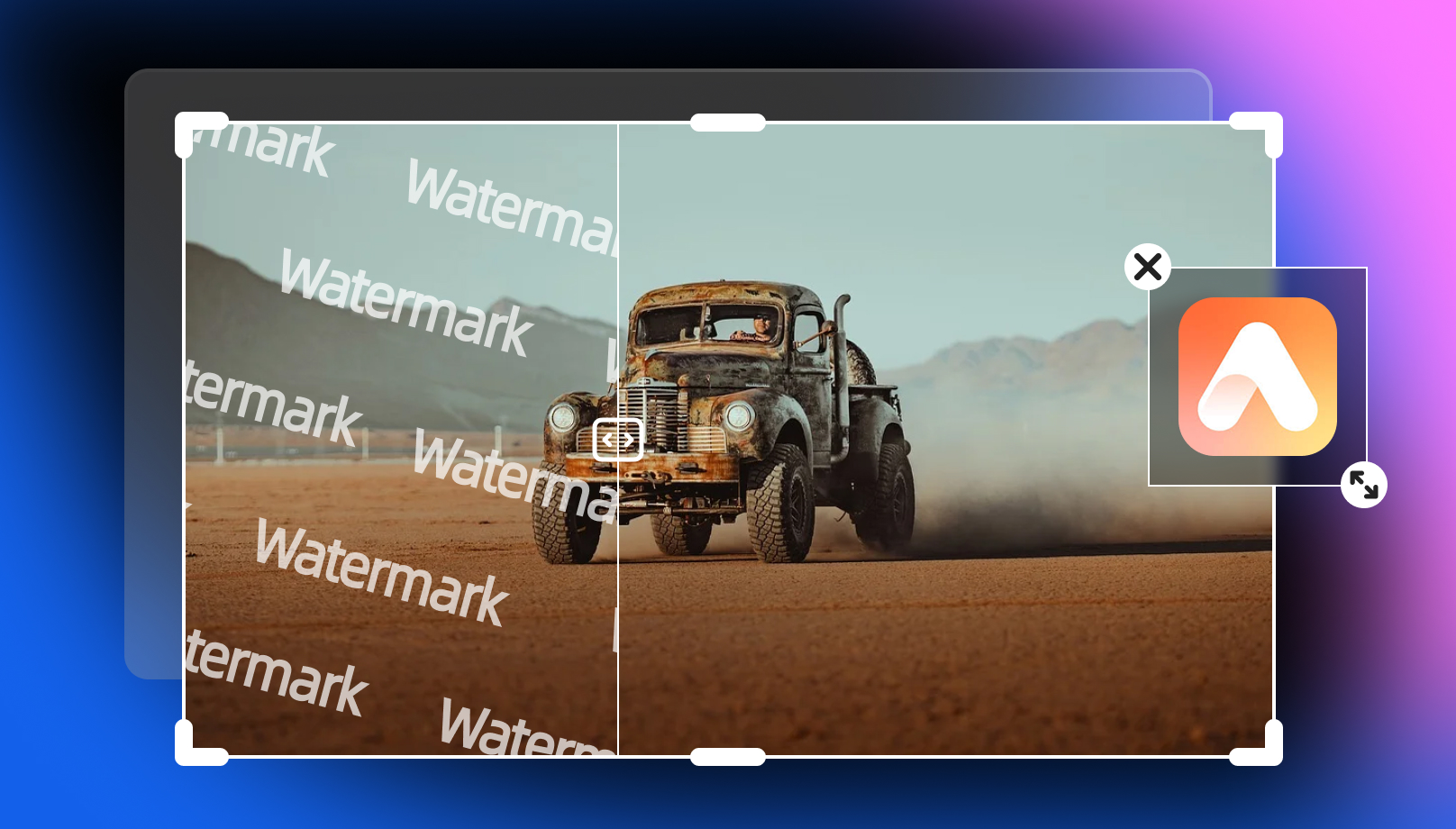
Text and watermarks: Timestamps, platform watermarks, overlaid branding. The ability to erase watermark from photo and even erase texts from photos is now standard across most tools. When it works well, the AI doesn't just cover the text , it reconstructs whatever was underneath.
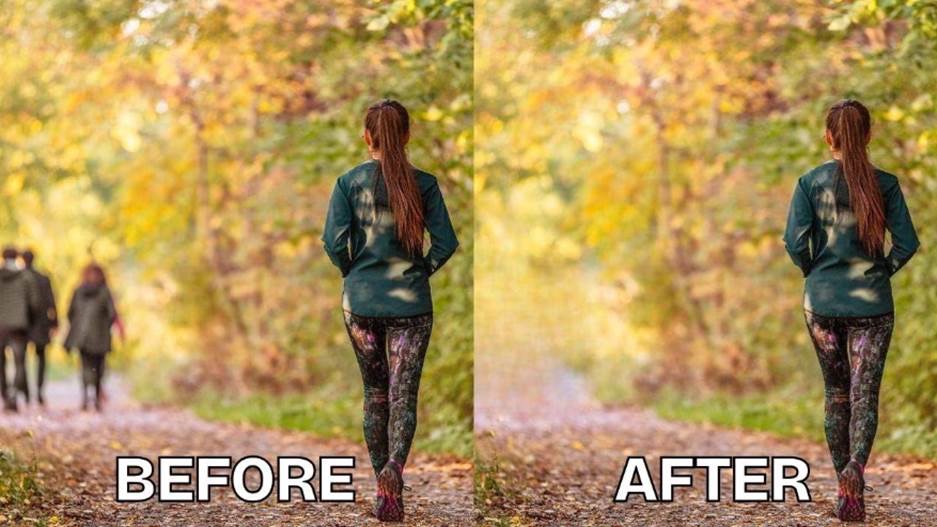
Unwanted people: The photobomber, The stranger in the background. To erase people from photos used to require serious manual work. Now it's a brush stroke and a few seconds of processing.
Objects and clutter: Cars, bins, cables, furniture that doesn't belong. These are often the easiest removals because objects have clear edges and surrounding backgrounds can be logically reconstructed.
Messy backgrounds: Sometimes it's not just one thing, it's everything behind the subject. Photo erasing tools now make it easy to erase the background, making them perfect for product photography and portraits.
 Best 5 Photo Eraser Tools in 2026
1. Vmake AI Image Watermark Remover
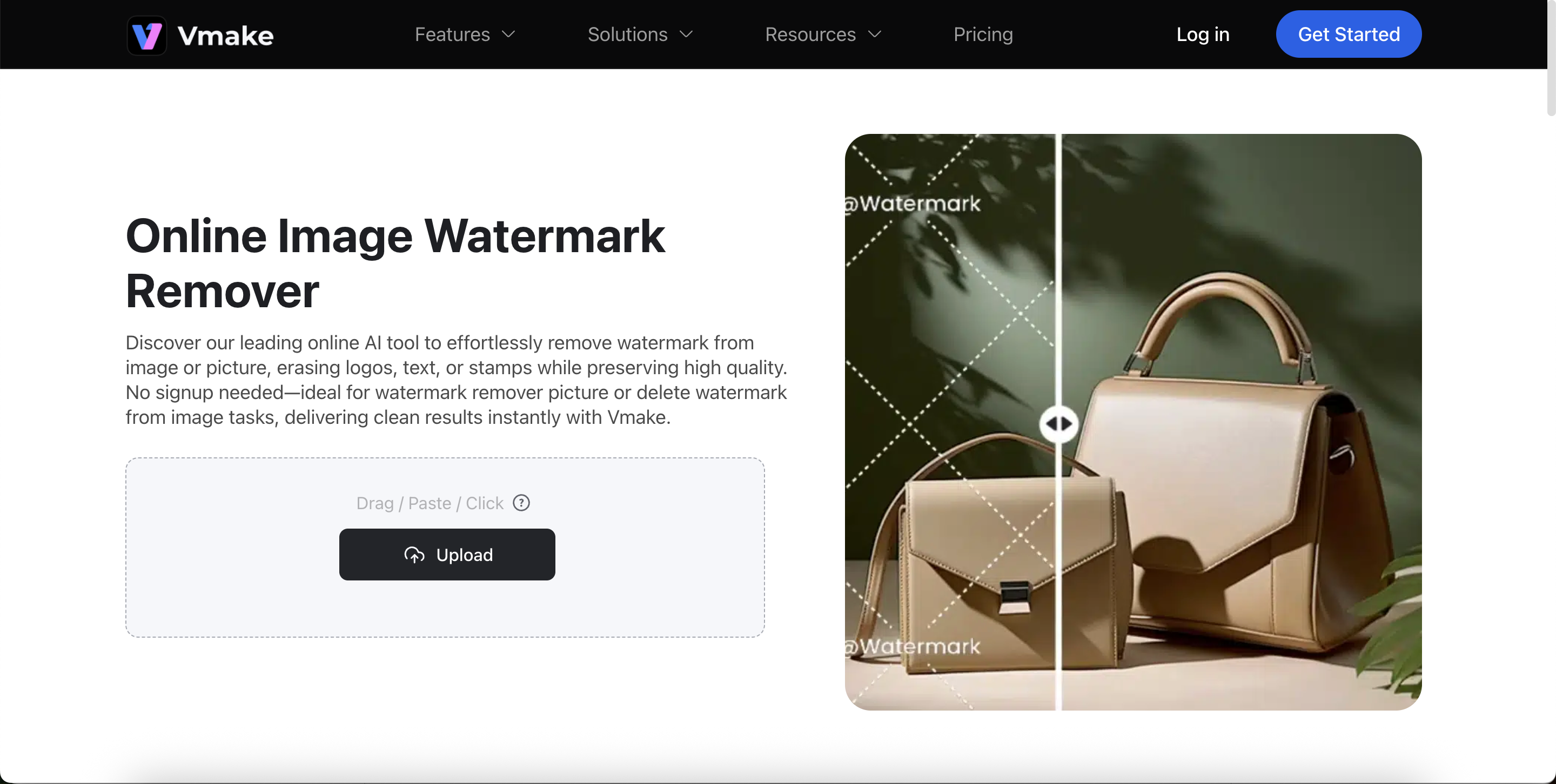
This is the specialized tool I'd recommend first for anyone needing to clean up overlays.
While others act as general erasers, Vmake AI Image Watermark Remover focuses on intelligent inpainting to erase watermark from photo and erase text from photo. It doesn’t just smudge the area; it analyzes the surrounding textures to reconstruct what was originally underneath the branding or timestamps. The result looks natural because the AI understands the image context.
What stands out is its efficiency. You can handle complex text overlays, platform watermarks, and embedded branding all in one interface. It’s particularly powerful for those who need to erase watermark from a whole batch of product shots at once, rather than one by one. No installation is required—just upload and process. For a reliable, professional-grade fix for unwanted text and watermarks without software complexity, this is the strongest option available.
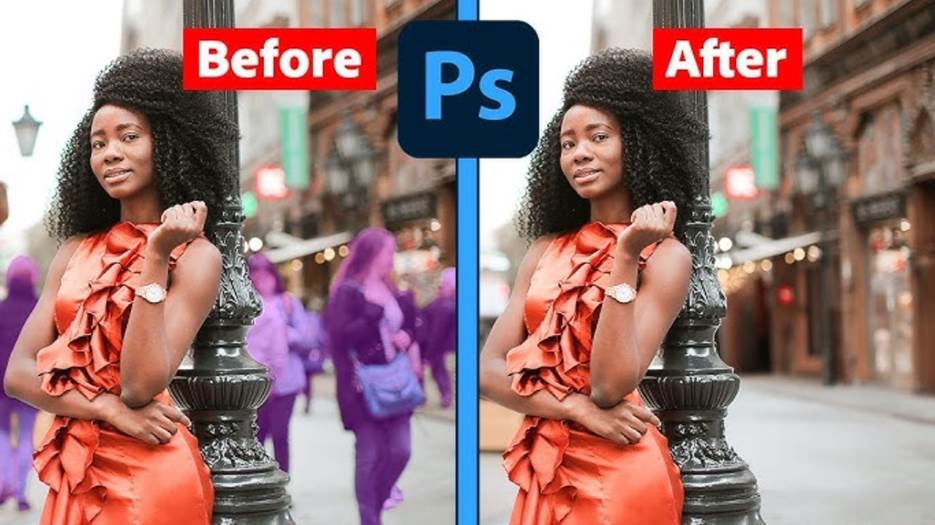
2. Adobe Photoshop Generative Fill
Photoshop barely needs an introduction. The Generative Fill feature, built on Adobe Firefly, brings serious AI erasure into what's already the most powerful image editing environment available.
Select the area you want removed, tell it to fill the gap, and the tool generates a replacement automatically. What stands out is that it doesn’t stop at a single result—you get several variations to choose from, which makes a real difference when the first option isn’t quite right.
It handles complex scenes exceptionally well. Detailed textures, intricate backgrounds, and large reconstruction areas, Photoshop’s AI outperforms most standalone tools in these scenarios.
The honest downside is access. Paid Creative Cloud subscription required, plus at least basic familiarity with the interface. For professionals already in Adobe's ecosystem, this is a non-issue. For someone who just wants to erase the background photo quickly, the barrier is real.
3. Google Photos Magic Eraser
One of the most widely used AI eraser, simply because it's already on most Android devices and requires nothing extra to access.
Open a photo in Google Photos, tap editing tools, and select Magic Eraser. It often automatically identifies things you might want removed and suggests them. Tap a suggestion or draw around something yourself, and it disappears.
Google Photos Magic Eraser is excellent for casual mobile photography. Quick, free, already integrated into a platform most people use daily. Handles common removals — background people, small objects, minor distractions — with solid results.
Where it falls short is precision and control. Complex removals, large areas, scenes needing detailed reconstruction — these hit the ceiling fast. It's a consumer tool. Know what you're using it for, and it delivers. Expect it to handle everything, and you'll be disappointed.
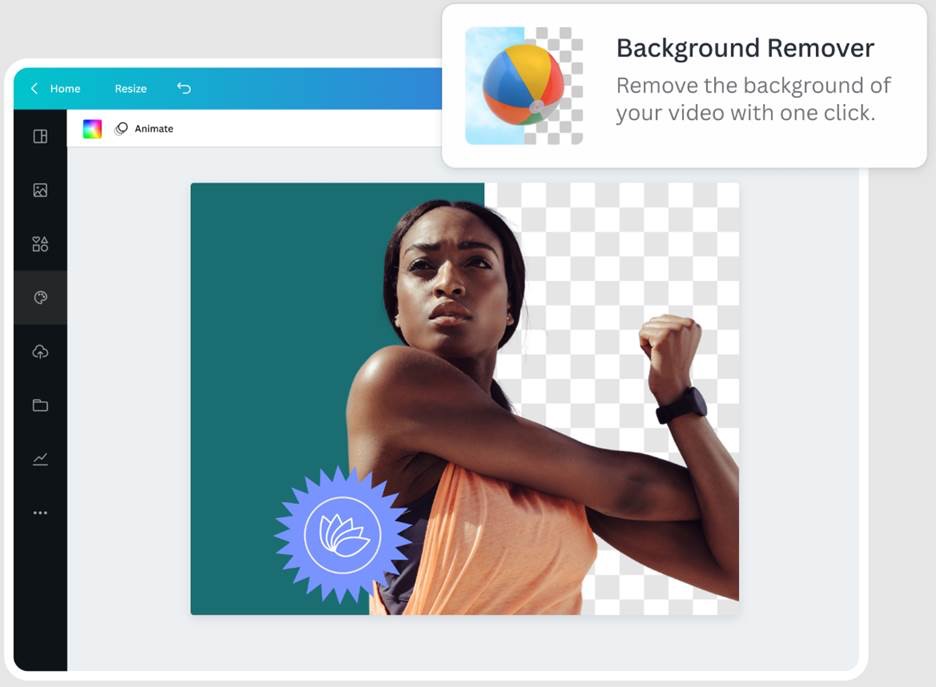
4. Canva Background Remover and Erase Tool
Canva has grown from a simple design tool into something that handles a surprising amount of image editing, erasure included.
The background remover works cleanly for portraits and product shots. The manual erase tool lets you brush over specific elements — objects, text, people, and removes them with reasonable accuracy.
The real value isn't the erasure capability itself. It's the workflow. If you're a content creator or social media manager already inside Canva, building graphics, being able to erase background from photo in the same environment without exporting anywhere is genuinely efficient.
The limitation is that Canva's erasure tools are built for design convenience rather than photographic precision. Simple, clean removals work well. For detailed or complex erasure, you'll want something more purpose-built.
5. Cleanup.pictures
As the name suggests, it does exactly what it promises.
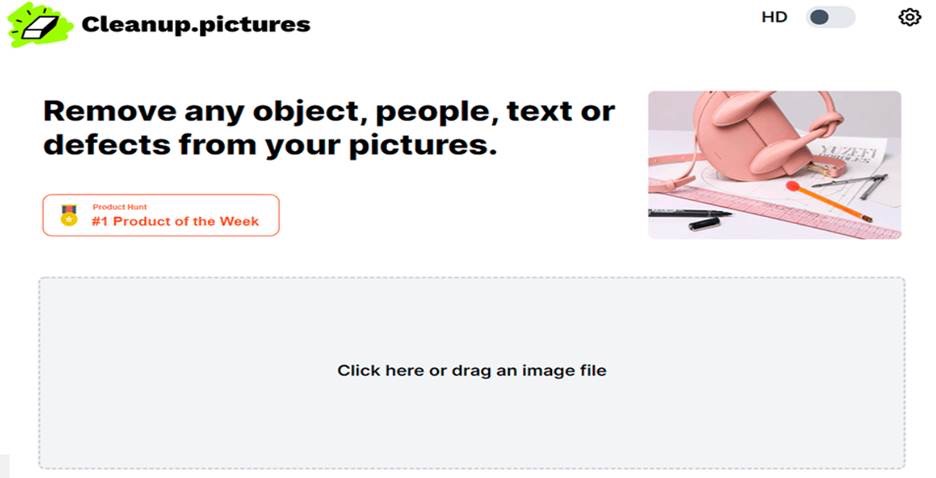
Cleanup.pictures is a browser-based tool that does one thing: it removes unwanted elements from photos. No account required on the free tier. No complicated interface. Upload, brush over what needs to go, done.
The AI handles uncomplicated tasks well. Single objects against simple backgrounds, isolated text, and small elements that don't require much reconstruction—fast, accessible, zero learning curve.
Where it gets limited is on complex scenes or large removal areas. When significant background reconstruction is needed, results can start looking slightly off. For a quick task where you just need to erase something from a photo in under 60 seconds, though — Cleanup.pictures is hard to beat.
So, Which One Do You Actually Use?
For removing watermarks, text, and branding with precision — choose Vmake. It is the most reliable specialist for reconstructing backgrounds hidden under complex overlays and supports efficient batch processing.
For mobile quick edits — Google Photos Magic Eraser. Already on your phone, already free, good enough for everyday use.
For professional work inside Adobe — Photoshop Generative Fill. If you're paying for Creative Cloud, use it.
For content creators in Canva — Canva's Erase tool. Stay in your workflow.
For the simplest possible one-off removal — Cleanup. pictures. No friction, no setup, just done.
The technology behind all of these tools has improved dramatically. The line between “looks edited” and “looks natural” is practically gone. You no longer need to be a designer or pay for professional software to get spotless results. Find the tool that fits your workflow—and give it a try on that photo you’ve been putting off. You might be surprised at just how effortless it is. Try it today and see the difference for yourself.
Best for: Removing Text and Watermarks from Photos Quickly
Vmake Image Watermark Remover
Features:
AI inpainting technology that reconstructs the background after removal
Timestamps, overlaid branding, platform watermarks, embedded text — all handled
Works across multiple removal types in one interface: erase object from photo, erase text from photo, erase watermark from photo, erase people from photos.
Batch processing for multiple images at once
Browser-based, no installation required
Pros:
Clean, natural results even on textured or complex backgrounds
No prior editing experience needed
Covers the widest range of removal tasks in a single tool
Fast processing with consistent output quality
Cons:
Advanced batch features may require a paid plan
Browser-dependent, needs a stable internet connection
Best for: Removing People from Photos
Cleanup.pictures
Features:
Simple brush-based selection — paint over the person, hit remove
AI reconstructs the background where the person was standing
No account required on the free tier
Works directly in the browser
Pros:
Zero learning curve
Fast results on simple and mid-complexity scenes
Free to use for basic tasks
Clean output for isolated subjects against straightforward backgrounds
Cons:
Struggles with large or complex background reconstruction
Limited control over output — no variation options
Free tier has resolution limits
Best for: Removing Simple Objects from Photos
Adobe Photoshop Generative Fill
Features:
Select any object, apply Generative Fill, and the AI reconstructs the gap
Produces multiple output variations to choose from
Handles complex textures, detailed scenes, and large removal areas
Full professional editing environment built around the AI tool
Pros:
Most precise and powerful object removal available
Multiple fill variations give control over the final result
Handles high-resolution images without quality loss
Ideal for professional product and commercial photography
Cons:
Requires a paid Adobe Creative Cloud subscription
Steeper learning curve for first-time users
Overkill for simple, quick removals
Best for: Removing Backgrounds from Photos
Canva Background Eraser
Features:
One-click background removal optimized for portraits and product shots
Manual erase tool for fine-tuning edges and removing specific elements
Fully integrated into the Canva design workflow
Supports direct export into social media formats, presentations, and graphics
Pros:
No switching between tools — erase and design in the same platform
Clean results on portraits and product photography
Accessible to non-designers
Free tier available with paid plans unlocking full resolution
Cons:
Not purpose-built for photographic precision
Complex or detailed backgrounds may need manual touch-ups
Less effective on busy scenes compared to dedicated photo eraser tools
FAQ
Can I erase something from a photo for free?
Yes. Cleanup.pictures, Google Photos Magic Eraser, and Canva's free tier all handle basic removals at no cost. Higher resolution output, batch processing, and complex scenes typically sit behind a paid plan.
How does AI photo erasing work?
Most AI photo erasers rely on inpainting. Mark what needs to go, and the AI reads the surrounding pixels, works out what the background should look like, and fills the space accordingly. The result looks natural because the tool works from context, not just the isolated removal area.
Is Google Photos Magic Eraser good enough for serious use?
For quick mobile edits — a background figure, a small object, minor clutter, it works well. Precision removals and complex scenes push past its limits fast. It is built for convenience, not professional output.
Which tool is best to erase person from photo?
Cleanup.pictures handle this quickly for most scenes. For detailed backgrounds or professional-grade results, Vmake AI Photo Eraser or Adobe Photoshop Generative Fill produce stronger output.
Can these tools erase watermarks from photos?
Yes. Vmake is particularly effective here — its inpainting engine reconstructs what sits underneath the watermark rather than placing a patch over it.
Final Thoughts
One small distraction is often all that separates a photo that works from one that almost does. A stranger in the background or a poorly placed watermark used to require professional retouching skills. That is no longer the case.
The tools in 2026 handle these tasks effortlessly. Whether you need to erase object from photo, erase people from photos, or erase background from photo, the results are fast and clean. For most use cases, especially when you need to erase watermark from photo or erase text from photo with consistent quality, Vmake AI Image Watermark Remover covers the most ground. Start there and see how a few clicks can transform your images.

You May Be Interested
2026 Magic Eraser Watermark Remover Review: Hands-On Experience
AniEraser Watermark Remover by Media.io: 2026 Hands-On Review

How to Remove Text from a Video: Your Ultimate Guide to Pro Edits

Best AI Watermark Remover for Clean, Fast Edits