Submagic Review: A Complete Guide to Its AI Video Tools
Discover what Submagic offers in this detailed Submagic review, including AI captions, editing features, pricing, use cases, limitations, tips, and video hook alternatives such as Vmake Labs.

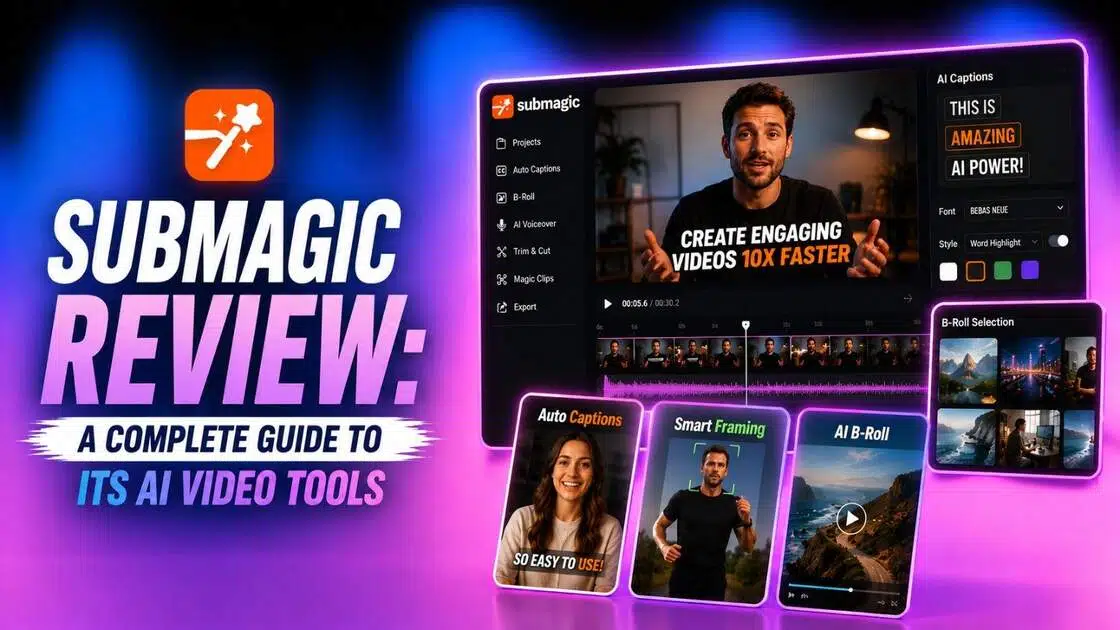
Short-form video editing can involve repetitive captioning, trimming, B-roll selection, and formatting. Submagic.co brings several of these tasks into one AI-powered workflow designed around social media content. In this Submagic review, we examine what the platform offers, its key features, pricing, use cases, advantages, limitations, and user feedback, before comparing it with Vmake Labs for AI-powered subtitle creation and video hooks.
What is Submagic AI?
Submagic is an AI-powered video editing platform focused primarily on short-form content. It can automatically generate captions, remove silences and filler words, add B-roll, create visual effects, and help turn longer recordings into shorter clips.
The platform also includes tools for AI-generated hook titles, audio cleanup, caption translation, and social publishing. Submagic supports workflows for creators, marketers, agencies, and teams producing content for platforms such as TikTok, Instagram, and YouTube.
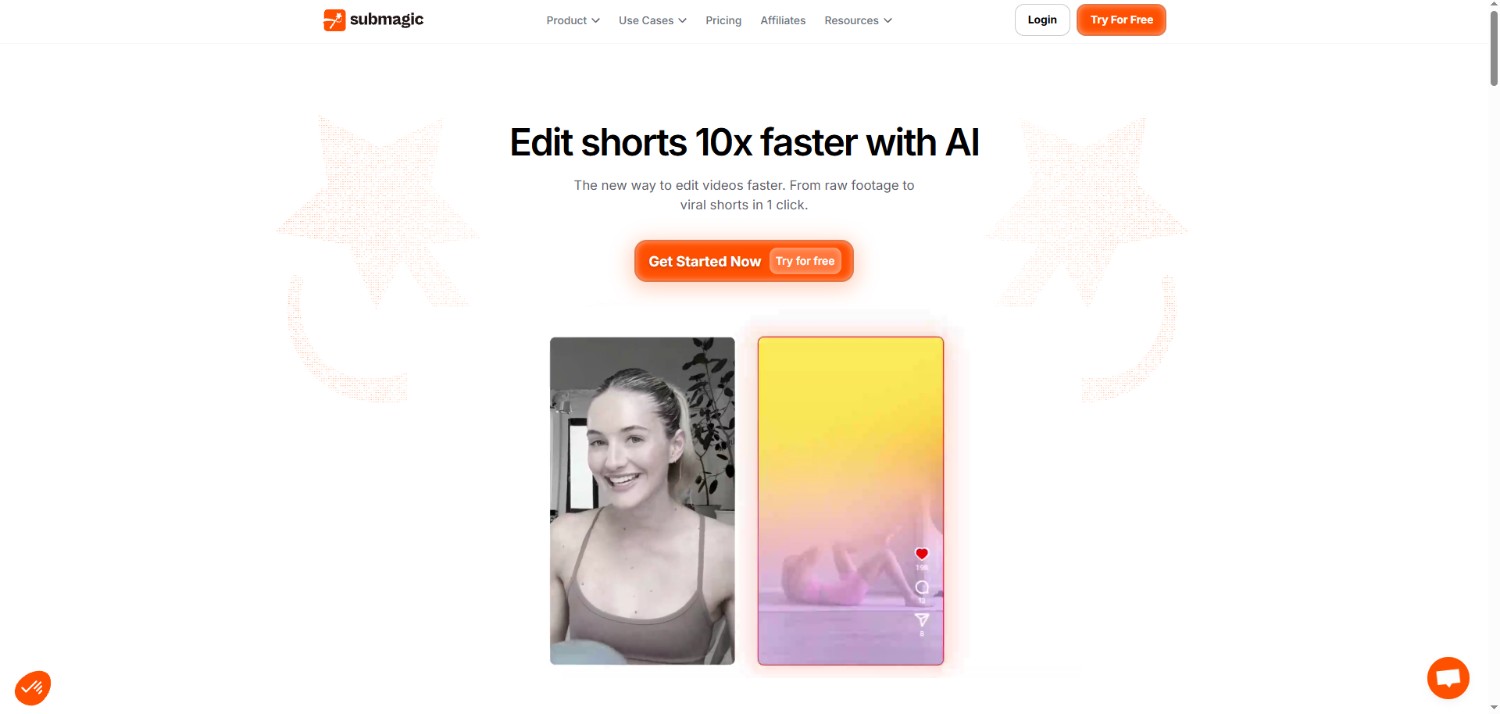
Submagic features worth trying
-
AI auto captions and animated subtitles
Submagic automatically generates captions and provides multiple animated styles that can be customized for short-form videos. Captions can also be downloaded separately as subtitle files.
-
AI-powered video editing and text-based trimming
The platform uses AI to remove silences, filler words, and awkward pauses, while text-based editing lets you make changes through the generated transcript.
-
B-roll, music, transitions, and visual effects
Submagic lets you add stock B-roll, audio, transitions, zoom effects, images, GIFs, and sound effects to short videos without switching between separate editing tools.
-
AI hooks, clipping, and content repurposing
Its AI tools can generate hook titles, identify moments for shorter clips, and support content repurposing from longer recordings into short-form videos.
How to use Submagic for video transcription purposes?
Step 1: Access Submagic
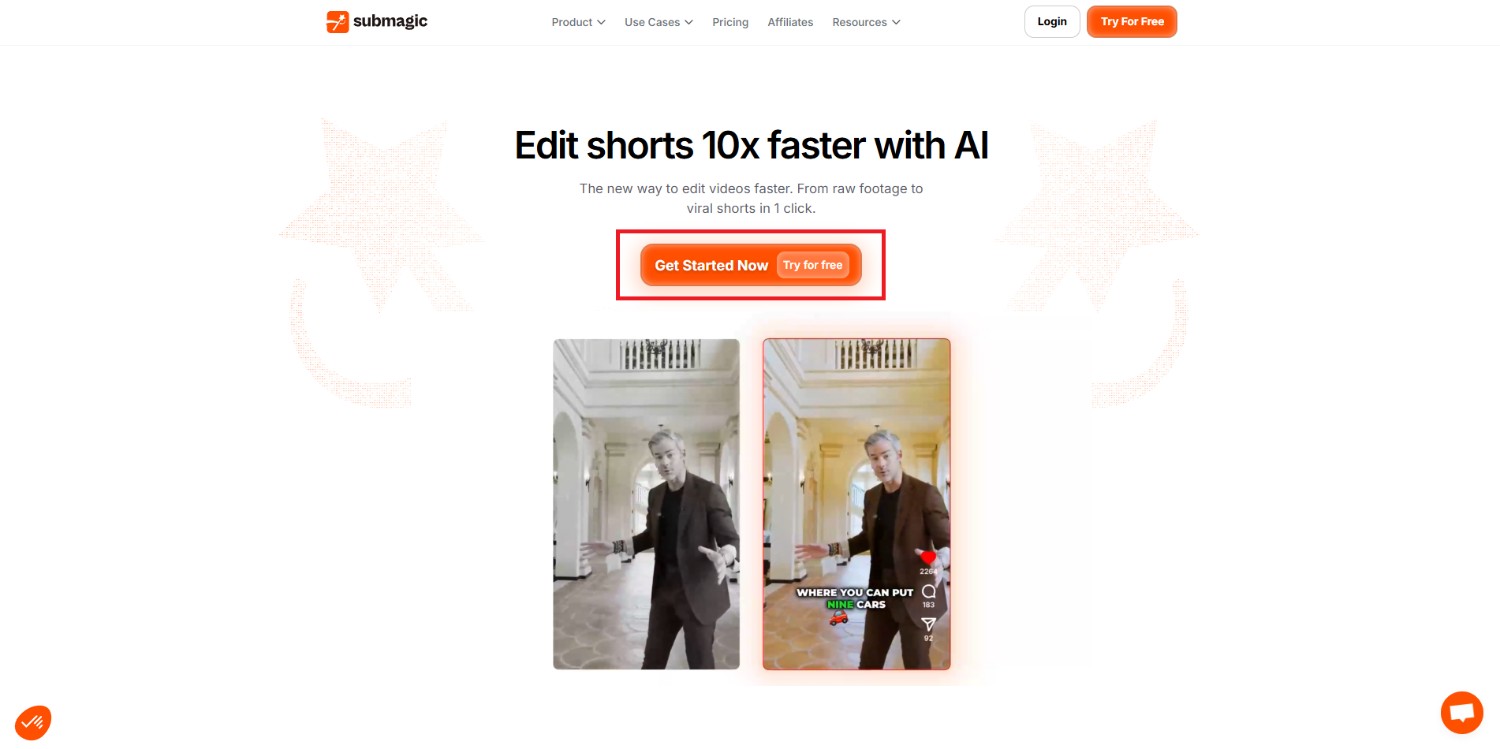
Start by first accessing the official website of Submagic and then clicking on the "Get Started Now" option from the homepage. You will be asked to sign up for a new account using your email ID, or sign in to an existing account using your email address and password.
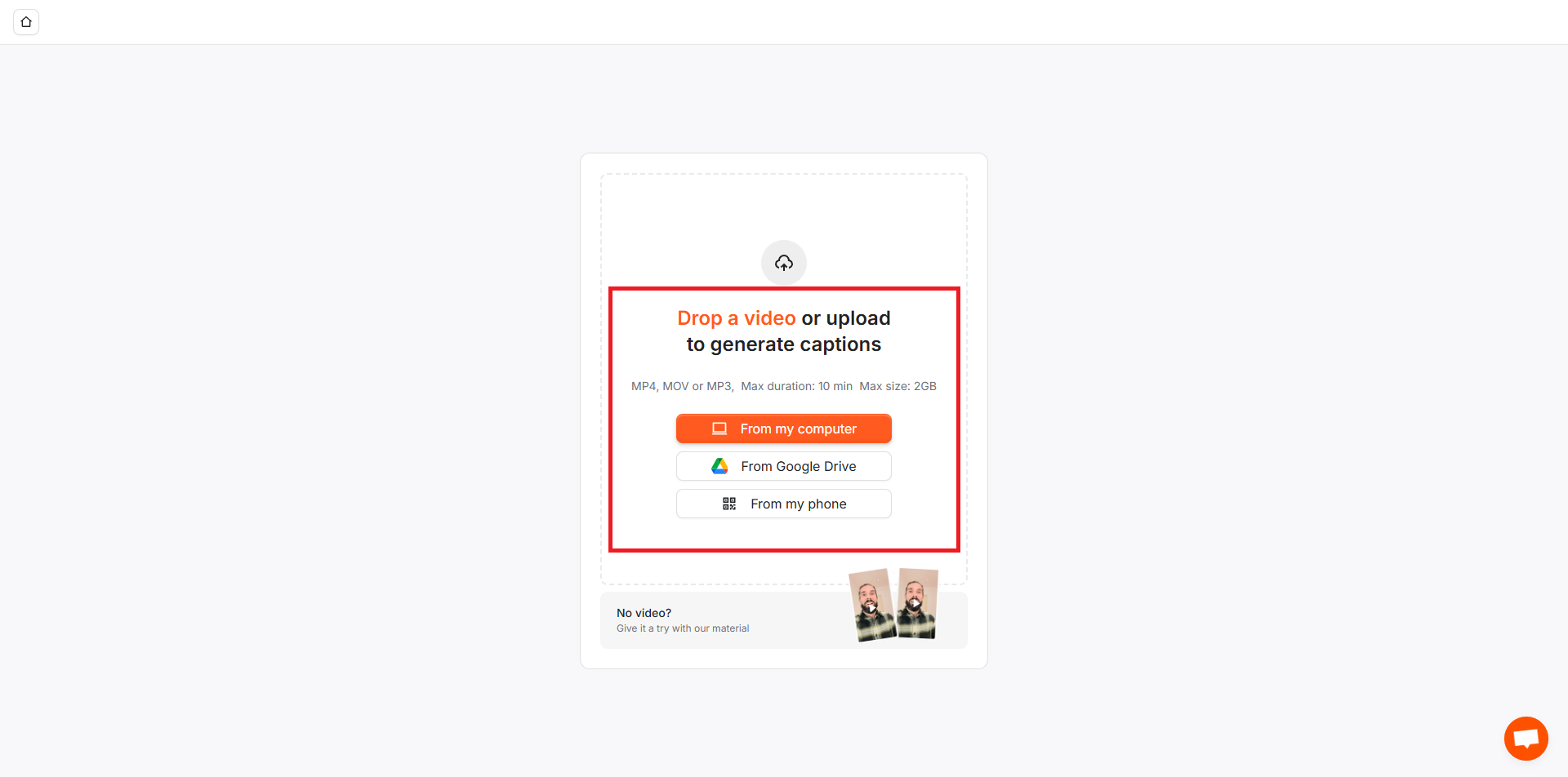
Step 2: Upload your video to create captions
In the next step, you will be asked to upload your video, to which you want to add captions. Keep in mind that the format should be MP4, MOV, or MP3, and the duration should be 10 minutes. Additionally, the maximum file size allowed will be 2GB.
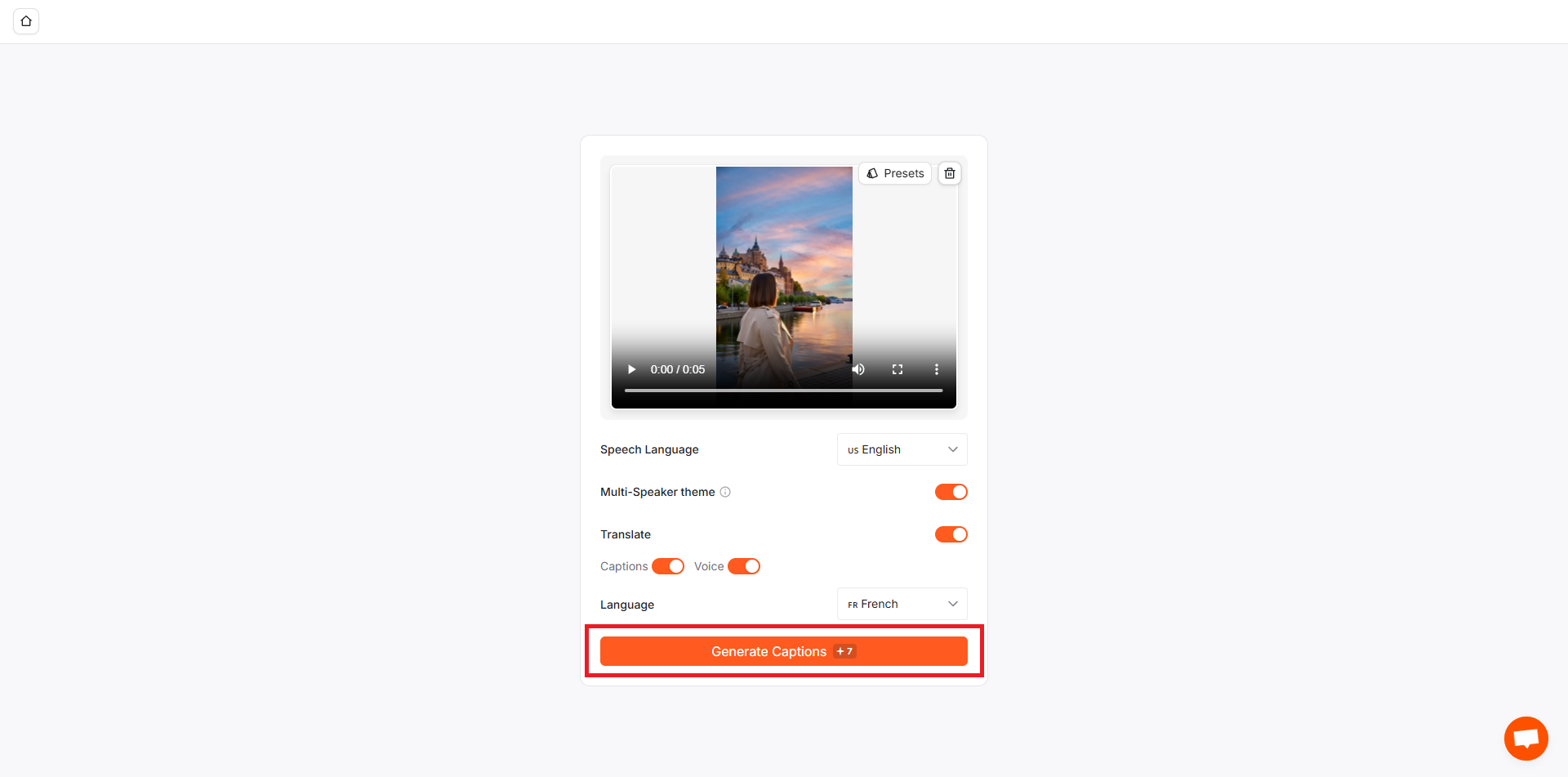
Step 3: Choose settings and generate
After that, choose the original speech language in which the video is in and then you can choose to add captions. Additionally, you will also have the option to translate your original speech into a different language. There is also the option to turn on the setting for multiple speakers. Once done, click on "Generate Captions".
Submagic will then generate the captions automatically and once that is completed, you will be able to download the captioned video to your local device for sharing.
Submagic pricing and plans
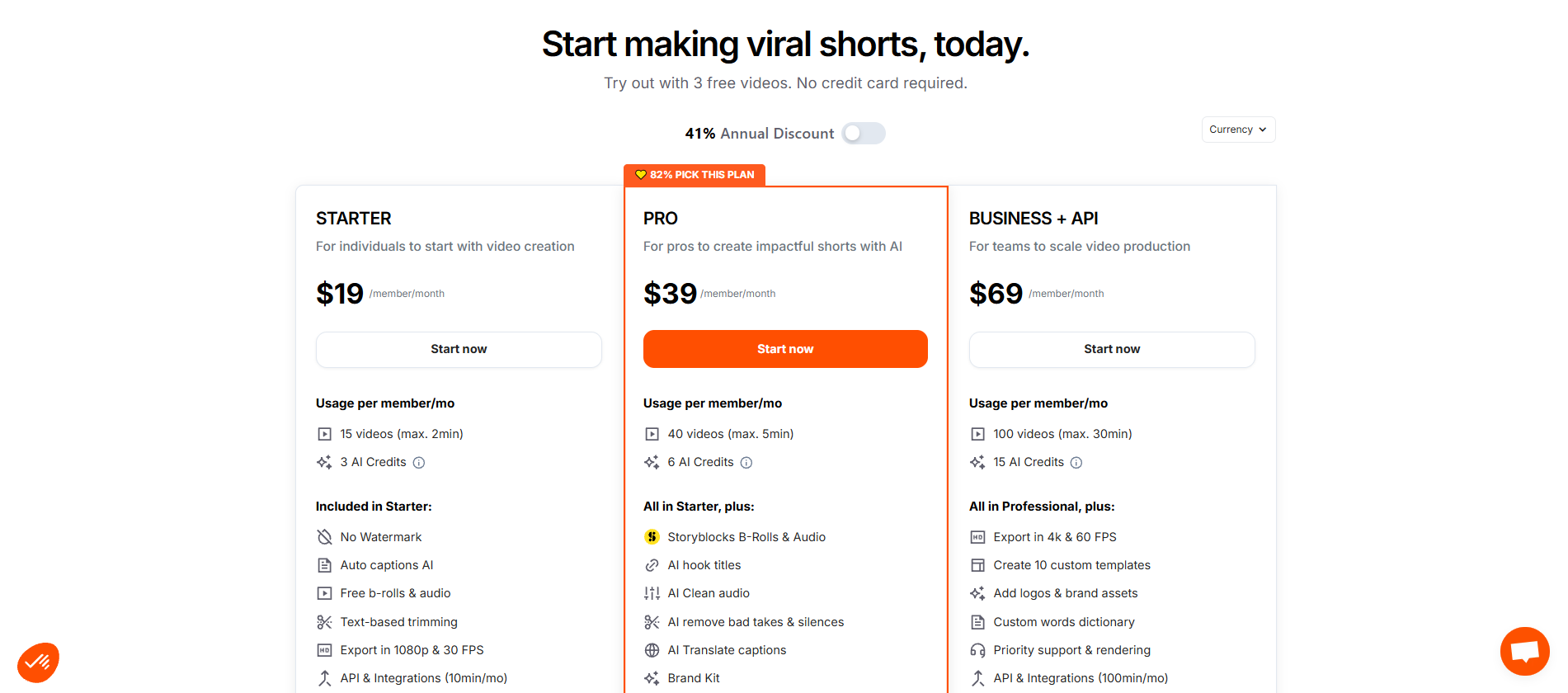
Submagic offers a free option alongside paid plans, with pricing based on monthly video limits, video duration, AI credits, export quality, and additional features. Monthly plans start at $19 for Starter, while Pro costs $39 and Business + API costs $69 per member/month. Annual billing reduces the listed rates.
|
Plan |
Price |
Videos/month |
Max video length |
Key features |
|---|---|---|---|---|
|
Free |
$0 |
3 |
1.5 minutes |
Watermarks, starter templates, free stock media |
|
Starter |
$19/member/month |
15 |
2 minutes |
AI captions, B-roll, text-based trimming, 1080p export |
|
Pro |
$39/member/month |
40 |
5 minutes |
AI hooks, clean audio, caption translation, Brand Kit |
|
Business + API |
$69/member/month |
Up to 100 |
30 minutes |
4K/60 FPS export, custom templates, API access, priority support |
Prices shown are monthly billing rates; annual plans are available at discounted rates.
Submagic use cases
Submagic is designed mainly for short-form video workflows, making it useful across creator, marketing, podcast, and social media production. Its AI tools can automate captions, editing, clipping, and visual enhancements.
Short-form social media content
Creators can use Submagic to prepare videos for TikTok, Instagram Reels, and YouTube Shorts, combining captions, B-roll, effects, and formatting within a single editing workflow.
Podcasts and talking-head videos
Podcast hosts and interview creators can turn longer recordings into shorter clips using Magic Clips, then add captions, B-roll, and other elements suited to social platforms.
UGC and creator content
UGC creators can use Submagic to add stylized captions, remove unnecessary pauses, and polish talking-head footage without relying on complex traditional editing timelines.
Marketing and promotional videos
Marketing teams and agencies can create branded short-form videos from existing footage, using captions, visual effects, B-roll, and collaborative workflows for recurring social content production.
Submagic reviews: the major pros and cons
Submagic combines automated editing, captions, B-roll, and short-form content tools in one platform. However, user feedback also highlights limitations around plans, exports, and reliability.
Strengths |
Weaknesses |
|---|---|
Captions and editing in one workflowSubmagic combines caption generation, trimming, B-roll, effects, and other editing tasks, reducing the need to move between separate tools. Beginner-friendly editing experienceIts automated workflow and straightforward interface can make short-form editing easier for users without extensive video editing experience. Wide range of AI-powered editing toolsSubmagic offers AI features for captions, clipping, hooks, audio cleanup, B-roll, and other editing tasks, giving creators several tools within one platform. Useful features for short-form contentThe platform is particularly focused on short-form videos, with features designed around captions, social formats, visual effects, and content repurposing. |
Limited video uploads and durations on lower plansLower-tier plans impose limits on video quantity and duration, while some users have also criticized the restrictions of free or trial experience. Visual hooks may require an additional tool or workflowCreators specifically seeking dedicated visual hook creation may need another solution, particularly when their workflow requires more specialized opening effects. |
What are users saying on Reddit & G2?
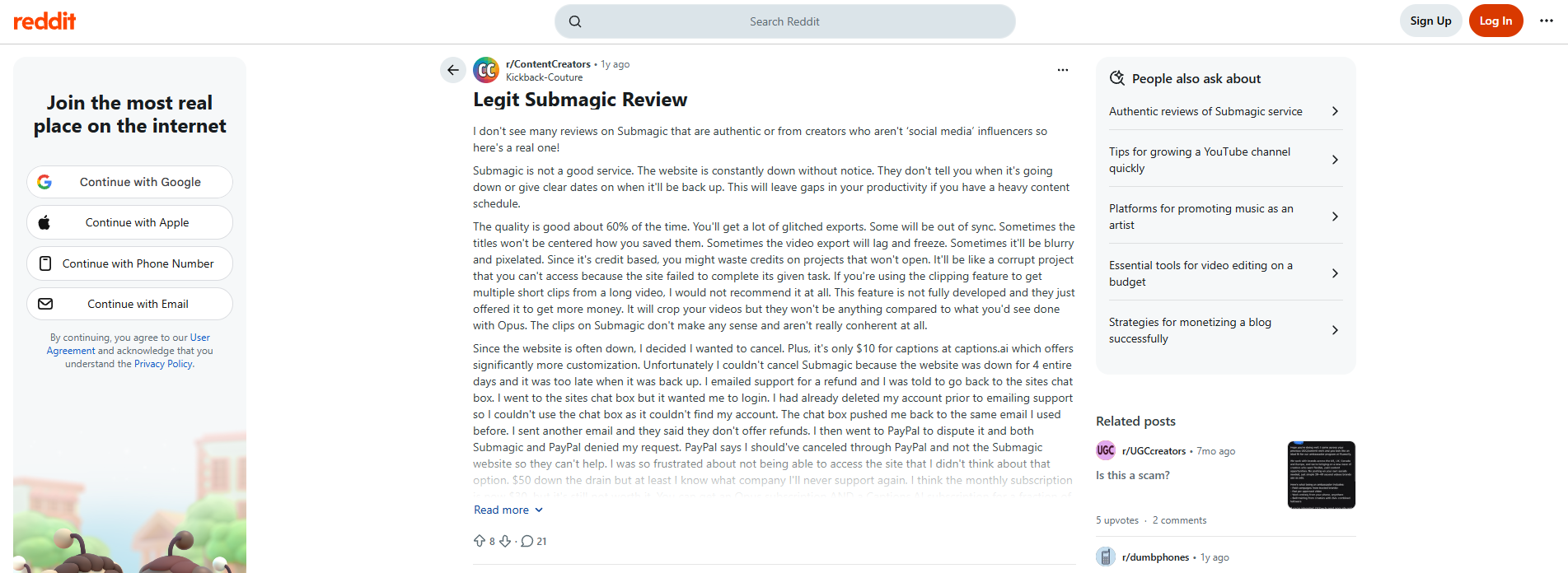
Reddit sentiment around Submagic is mixed. Some creators appreciate its ability to generate multiple short clips with captions and edits, while others report bugs, export problems, inconsistent clipping, and concerns about customer support or billing.
G2
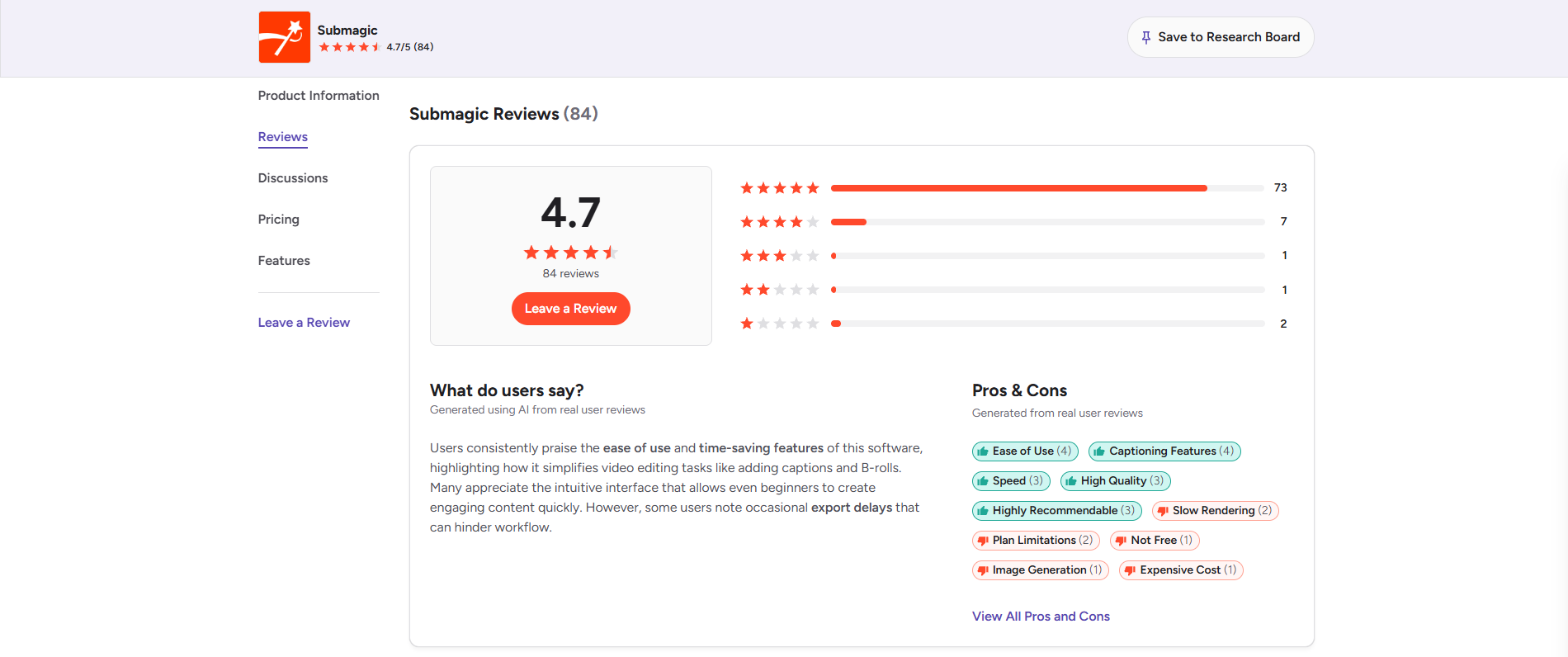
G2 sentiment is considerably more positive, with Submagic currently rated 4.7 out of 5 from 84 reviews. Users frequently praise its ease of use, captioning, speed, and editing workflow, while some mention rendering delays and plan limitations.
Key takeaway
Reddit discussions suggest Submagic can be useful for accelerating short-form editing, but experiences vary. Users considering it should weigh its automation and convenience against reported reliability, clipping quality, and subscription-related concerns. On the other hand, G2 reviews indicate strong overall satisfaction, particularly among creators and small businesses. Still, recurring complaints about export delays, plan restrictions, and occasional glitches suggest the experience may not be completely consistent.
Meet Vmake Labs: a strong Submagic alternative for AI-powered subtitles
If Submagic’s broader editing workflow feels like more than you need for caption-focused videos, Vmake Labs offers a more focused AI subtitle workflow. Its AI Subtitle Generator automatically transcribes spoken audio, detects the language, and creates synchronized captions that you can edit and style before exporting. The tool supports seven languages, customizable caption templates, timestamp-level editing, audio denoising, and multiple output ratios.
This makes it useful when your priority is turning existing footage into captioned social content rather than managing a larger editing workflow. Vmake Labs also provides dedicated AI hook tools for creators who want to work specifically on video openings.
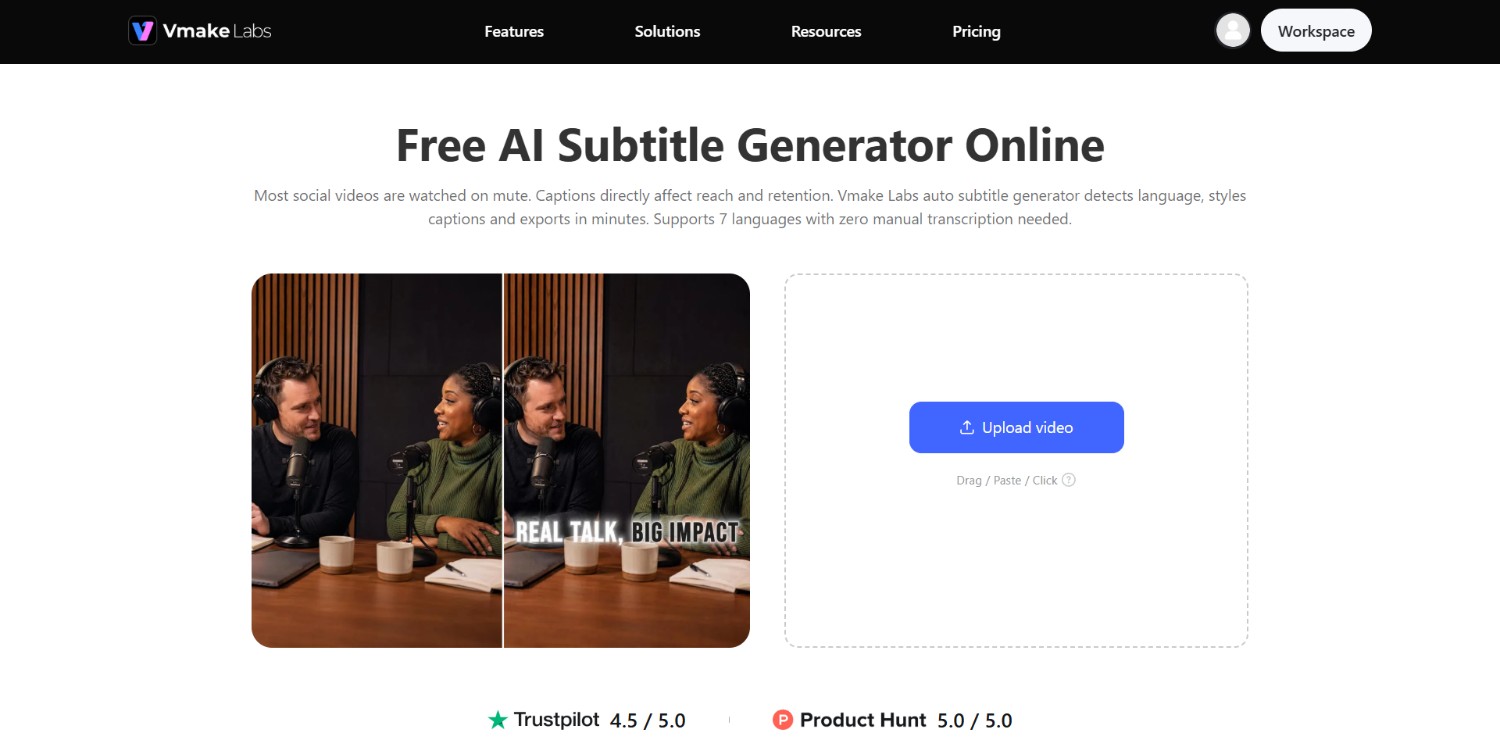
Vmake Labs AI subtitle generator features
-
Automatic speech-to-text transcription: Vmake Labs automatically detects spoken language and converts dialogue into synchronized subtitles. You can review the generated text and make corrections at the individual caption-line level before exporting.
-
Multi-language subtitle support with timestamp editing: The tool supports seven languages, including English, Spanish, Portuguese, Indonesian, Japanese, Korean, and Chinese. Timestamp-level editing lets you correct individual subtitle segments without regenerating the entire transcription.
-
Customizable subtitle templates & styles: Choose from multiple caption templates, then customize the font, size, and color. You can also save a customized design as a personal template for reuse across future videos.
-
Auto noise reduction and export settings: Vmake Labs includes a denoise option for reducing background noise, alongside adjustable sound settings. Videos can be exported in 9:16, 16:9, 1:1, or original ratios, with resolution options depending on the plan.
How to use Vmake Labs AI Subtitle Generator?
Step 1: Access Vmake Labs "Auto Captions" tool
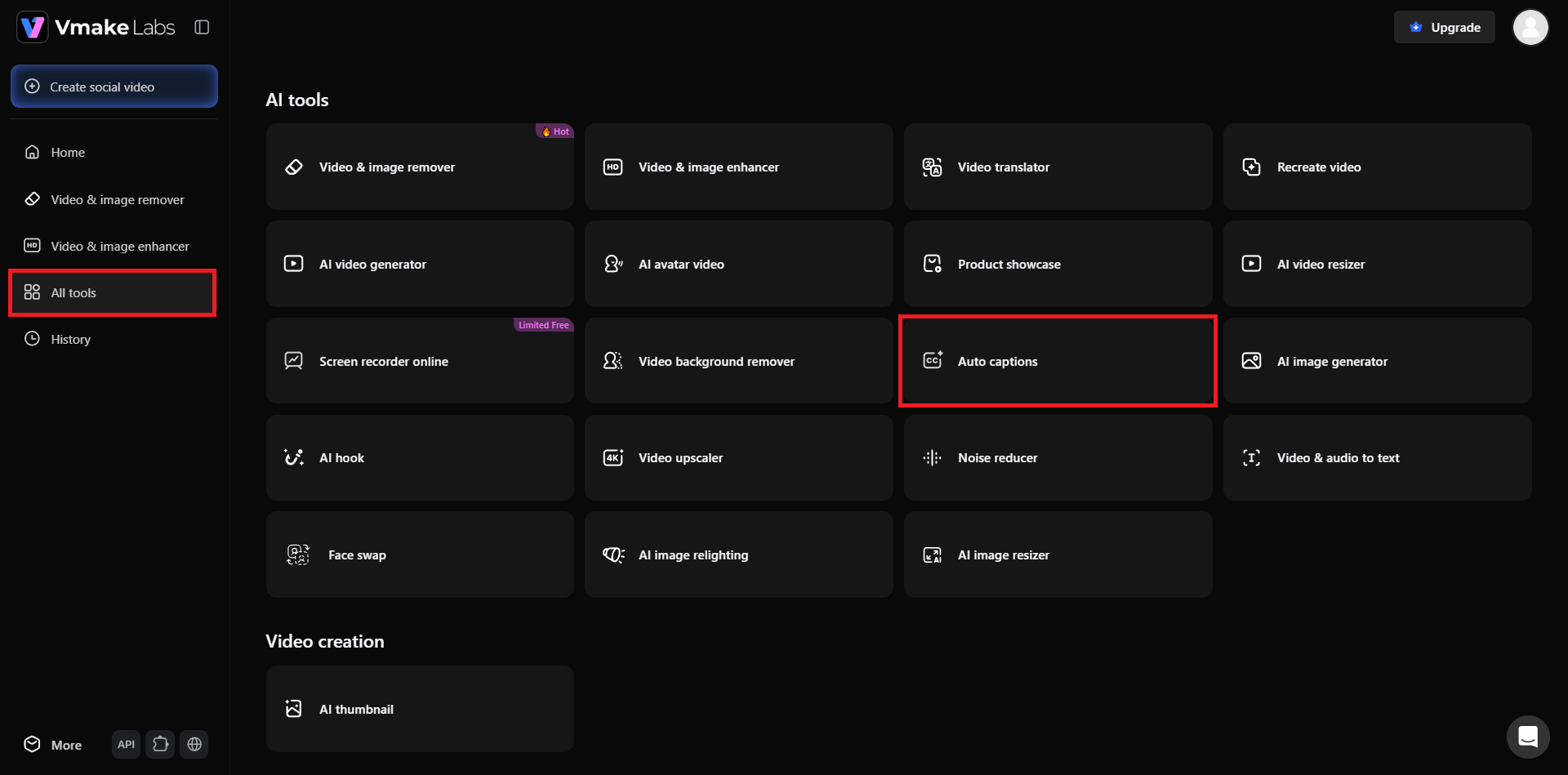
Kickstart your project by first accessing the official website of Vmake Labs. From there, you need to first sign up for a new account, or sign in to an existing account. Once done, access the "All tools" option from the left-hand menu, and from there, you need to select the "Auto captions" tool.
Step 2: Upload your video
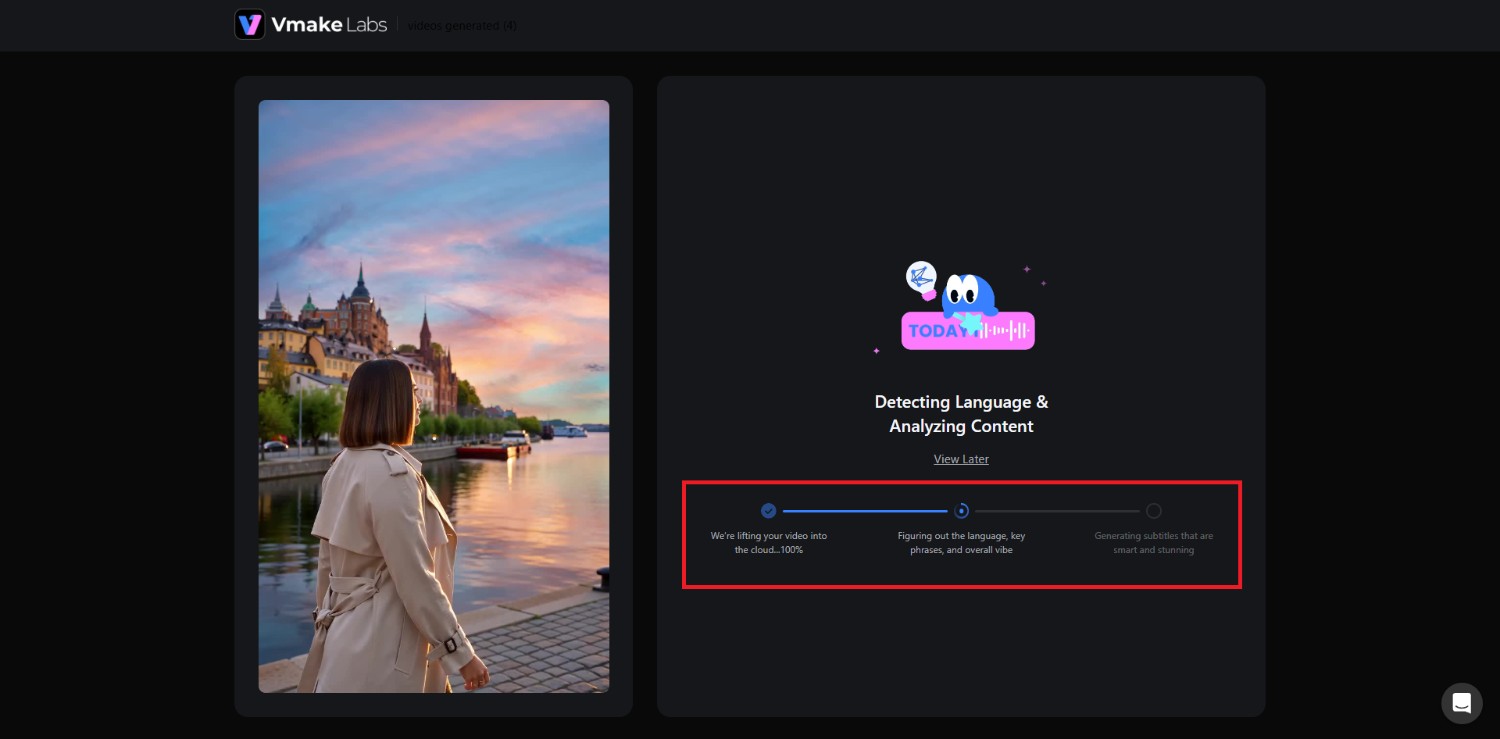
Once you click on the "Auto captions" tool, you will be asked to upload the video you want to caption. After uploading, Vmake Labs will start generating captions for it, automatically. Be sure to wait for a few moments for the process to be completed.
Step 3: Choose your video caption settings and export
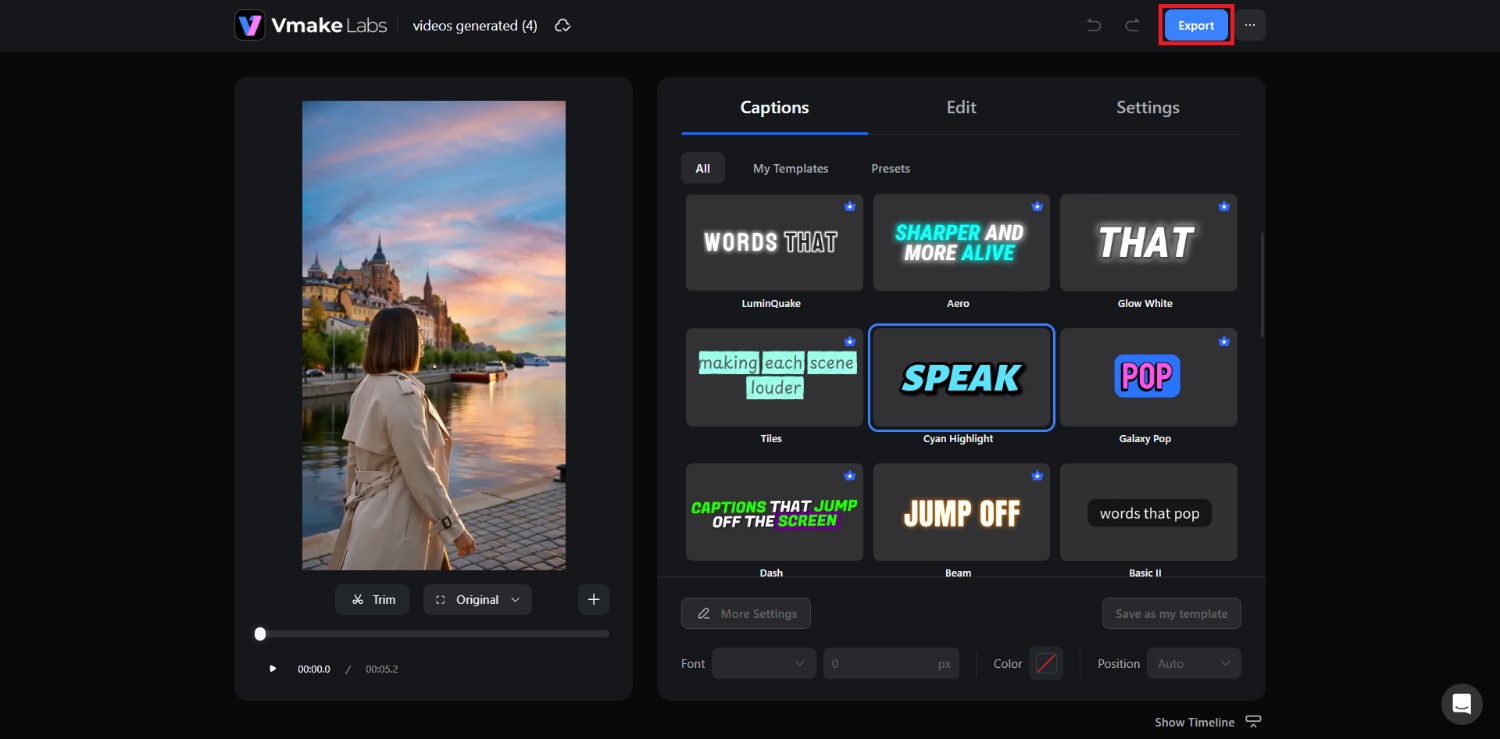
As soon as the captions are auto-generated, you will then be able to change the style of the "Captions", as the way it appears on the video, including the font style, color, position, etc. Then, under the "Edit" tab, you will be able to edit the auto-generated captions, especially to correct any errors or make any necessary changes.
Finally, under the "Settings" tab, you will be able to denoise your video, add sound effects, and even increase or decrease the sound of the background music. Once done, click on "Export" and then proceed to save the captioned video to your local device for sharing.
Submagic vs. Vmake Labs for video hooks
Submagic and Vmake Labs can both fit short-form video workflows, but they approach the opening of a video differently. Submagic is broader, while Vmake Labs has dedicated tools focused specifically on visual hooks.
Who should use Submagic?
-
Short-form creators: Choose Submagic if you want captions, B-roll, editing, and other video-enhancement tools within one workflow.
-
Podcasters and talking-head creators: It suits users who regularly turn recorded conversations into polished social clips.
-
Marketers and agencies: Its broader editing toolkit can be useful when producing recurring branded short-form content.
Who should use Vmake Labs?
-
Creators focused on video openings: Vmake Labs is suitable when your main requirement is adding a dedicated visual hook to the first few seconds.
-
Users repurposing existing footage: Visual Hook Maker can apply a trending effect to an already-recorded video without requiring a reshoot.
-
Creators wanting dedicated hook tools: Vmake Labs provides two hook modes, including Visual Hook Maker and UGC Hook Generator, rather than treating hooks as one part of a broader editor.
|
Feature |
Submagic |
Vmake Labs |
|---|---|---|
|
AI captions |
Yes |
Yes |
|
Animated subtitle styles |
Yes |
Yes |
|
B-roll and editing tools |
Yes |
Broader AI video toolkit |
|
Dedicated visual hook workflow |
More limited |
Yes |
|
Existing-video hook creation |
Limited |
Yes |
|
UGC hook generation |
Not the primary focus |
Yes |
|
Trending visual effects |
Available through editing features |
Dedicated effects library |
|
Best suited for |
Overall short-form editing |
Visual hooks and social video enhancement |
Vmake Labs specifically focuses its hook workflow on the opening seconds, with one-tap effects such as Angel Wings, Earth Zoom, and Figure Style. Its Visual Hook Maker works with existing footage, while UGC Hook Generator can create a hook from a script, avatar, voice, and hook style.
Tips and tricks for using Submagic effectively
A few practical adjustments can help you get more consistent results from Submagic while keeping your short-form videos readable, focused, and suited to their intended platform.
-
Keep captions short and easy to follow
Avoid overcrowding the screen with excessive words. Use readable caption styles and make sure important dialogue remains easy to follow while viewers watch the video.
-
Use visual elements without overcrowding the frame
B-rolls, emojis, zooms, and effects can add variety, but using too many simultaneously may distract you from the speaker, product, or central message.
-
Start with a strong opening
Treat the first few seconds as a separate creative priority. Introduce the topic quickly and consider a visual or verbal hook that gives viewers a reason to continue.
-
Match edits and captions to your target platform
Check the video's aspect ratio, caption placement, pacing, and overall presentation before exporting. Different platforms have different layouts and interface elements that can affect visibility.
Conclusion
Concluding our Submagic review, we can say that Submagic is a capable AI video editing platform for creators who want to combine captions, trimming, B-roll, audio cleanup, hooks, and short-form content tools in one workflow. Its range of automation can make recurring social video production more convenient, although plan limits and the breadth of its editing workflow may not suit every creator.
Vmake Labs is worth considering when the priority is more focused subtitle creation or dedicated video-hook workflows. Ultimately, the better option depends on whether you need a broader short-form editor or a more specialized tool for captions and visual hooks.
FAQs
-
What is Submagic used for?
Submagic is an AI video editing platform for short-form content. It generates captions, removes silences, adds B-roll and effects, creates clips, and supports workflows for social platforms.
-
Does Submagic offer a free plan?
Yes. Submagic provides a free option with limited exports. Paid plans add higher video limits, longer durations, additional AI features, and more export capabilities.
-
Can Submagic replace traditional video editing software?
Submagic can handle many short-form editing tasks without a traditional timeline, including captions, trimming, B-roll, zooms, and effects. More complex productions may still require advanced editing software.
-
Is Submagic good for beginners?
Submagic is designed to simplify short-form editing through automated workflows. Users can upload footage, select a style, and let AI apply captions, B-roll, transitions, and other edits.
-
What makes Submagic different from other AI video editors?
Submagic focuses heavily on short-form content, combining automated captions, text-based editing, B-roll, clipping, effects, and AI-assisted workflows within one platform rather than emphasizing general-purpose video editing.

You May Be Interested
Supawork AI Review: Watermark Remover Tested (2026)
Z Image AI Review 2026: Features, Performance, Pros and Cons
Artistly AI Review 2026: Is It Worth Trying for Creators?
Getimg AI Review 2026: Is It the Best AI Image Generator?
Nero AI Review 2026 Explained: Is the Tool Worth Using?

Pixar AI Review: What It Is & How to Create Pixar-Style Art