iPhone speech-to-text: How to Dictate and Transcribe Audio Easily
Learn how to use iPhone speech to text for fast voice typing and discover an easier way to transcribe audio, videos, and online links with Vmake Labs. Create accurate, editable transcripts in minutes.

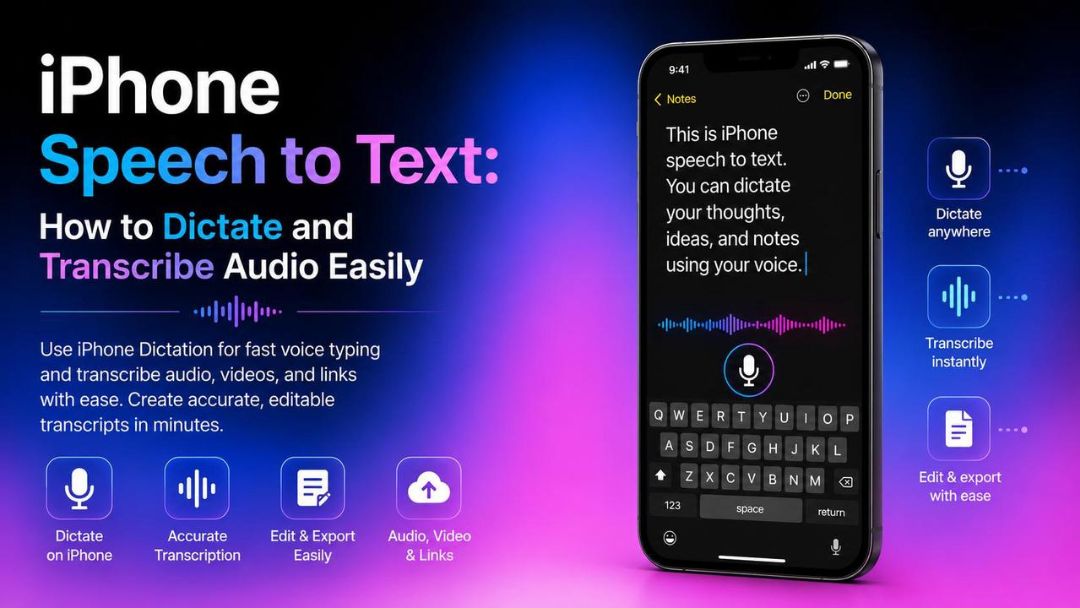
iPhone speech-to-text makes typing faster by converting your voice into text in supported apps. Whether you're taking notes, sending messages, or creating documents, Apple's Dictation offers a simple solution. This guide explains how it works, how to use it effectively, and when AI transcription tools provide a better alternative.
What is iPhone speech to text?
iPhone speech-to-text is Apple's built-in Dictation feature that converts your spoken words into text in real time. Instead of typing, tap the microphone icon on the keyboard and speak naturally. It works with apps such as Notes, Messages, Mail, Safari, Microsoft Word, Google Docs, and thousands of third-party apps. Dictation is available on most iPhones running recent versions of iOS. It works in multiple languages, and some have offline, on-device speech recognition, which means better performance and improved privacy.
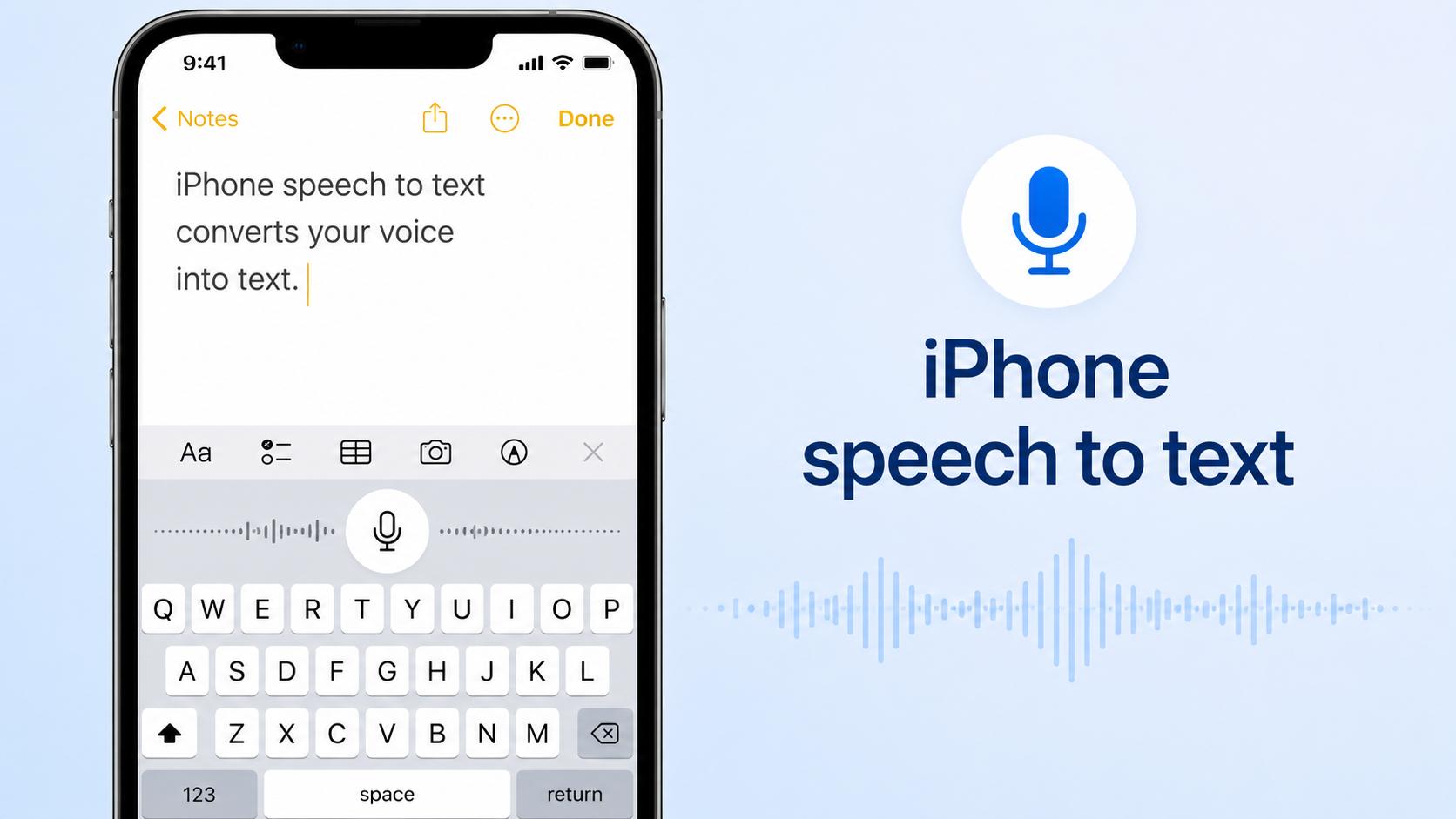
Unlike AI transcription tools, Apple Dictation is designed for live voice typing, not pre-recorded content. It can understand voice commands such as "comma," "period," and "new paragraph" to format text as you speak, making it great for writing messages, emails, and documents. However, it cannot directly transcribe audio or video files that you upload, such as meetings, podcasts, or lectures. To perform these tasks, you need a dedicated AI transcription solution, able to automatically transcribe recorded audio and video and support online links.
Benefits of using iPhone speech to text
Use Apple's built-in Dictation to help you get text out faster, without having to rely on manual typing. Whether you're messaging, taking notes or drafting documents, it provides an easy way to capture your ideas with your voice. Here are some of the major benefits of using iPhone speech-to-text.
-
Save time on every message: Voice dictation lets you draft emails, texts, and notes significantly faster than typing by hand, freeing you up for everything else on your to-do list.
-
Type hands-free, anywhere: Whether you're cooking, commuting, or carrying something, Dictation lets you keep your workflow going without needing to touch the screen.
-
Improve accessibility: For users with limited dexterity, repetitive strain injuries, or other conditions that make typing difficult, voice input removes a major barrier to using your iPhone productively.
-
Stay in your workflow across all your apps: Because Dictation works inside Notes, Messages, Mail, Google Docs, and thousands of other apps, you can keep working without switching tools.
-
Start immediately, no setup required: There is nothing to download or configure. Enable Dictation once in Settings and it’s available on your keyboard whenever you need it.
How to use speech to text on iPhone
Using speech-to-text on an iPhone takes only a few minutes to set up. Apple's Dictation is ideal for real-time voice typing when creating notes, emails, messages, or documents. However, if you want to convert prerecorded meetings, podcasts, videos, or online content into text, an AI transcription platform offers a much more efficient workflow.
Step 1: Turn on Dictation
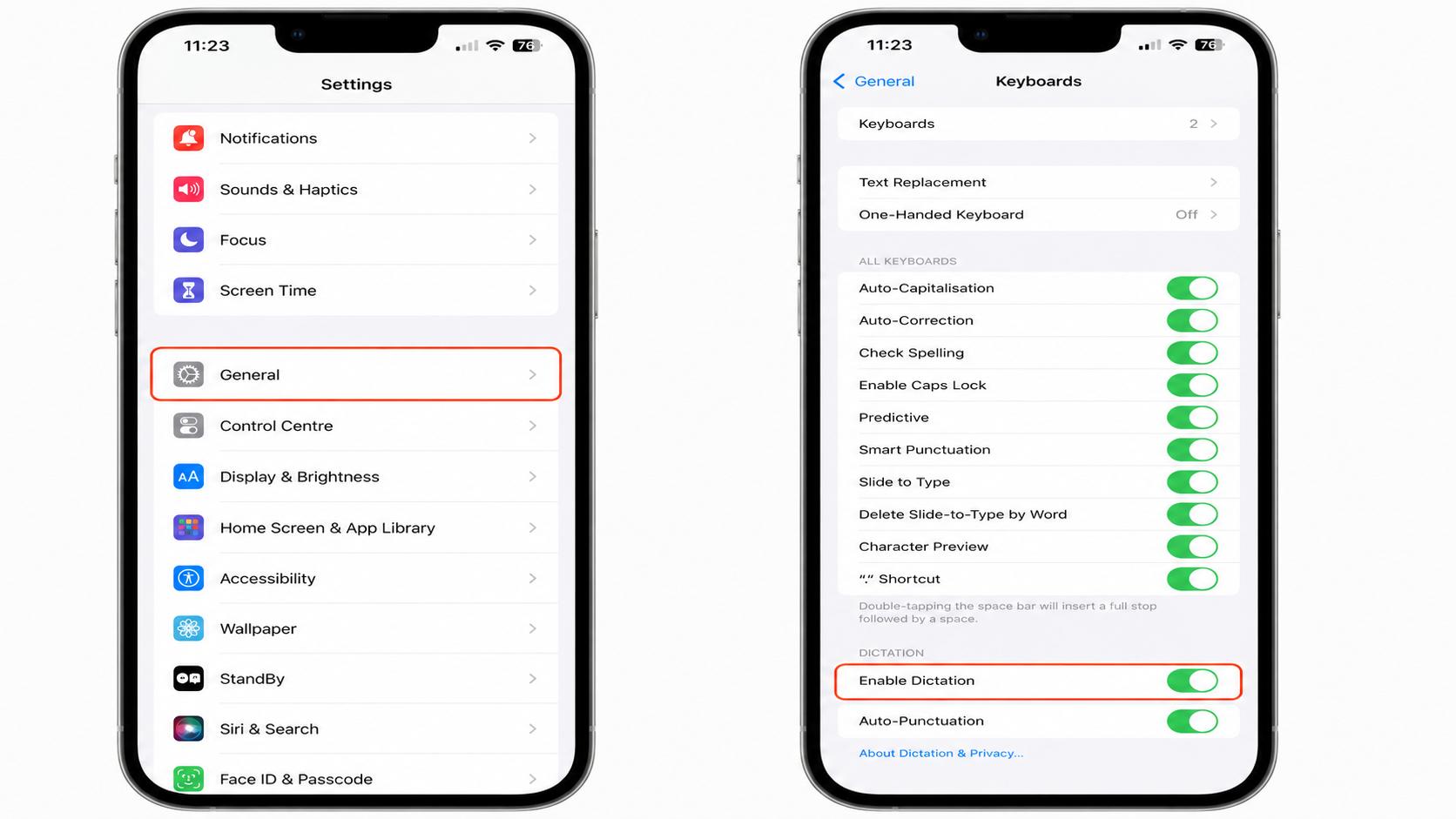
Open Settings > General > Keyboard and enable Dictation. If prompted, allow the necessary permissions so your iPhone can convert your voice into text.
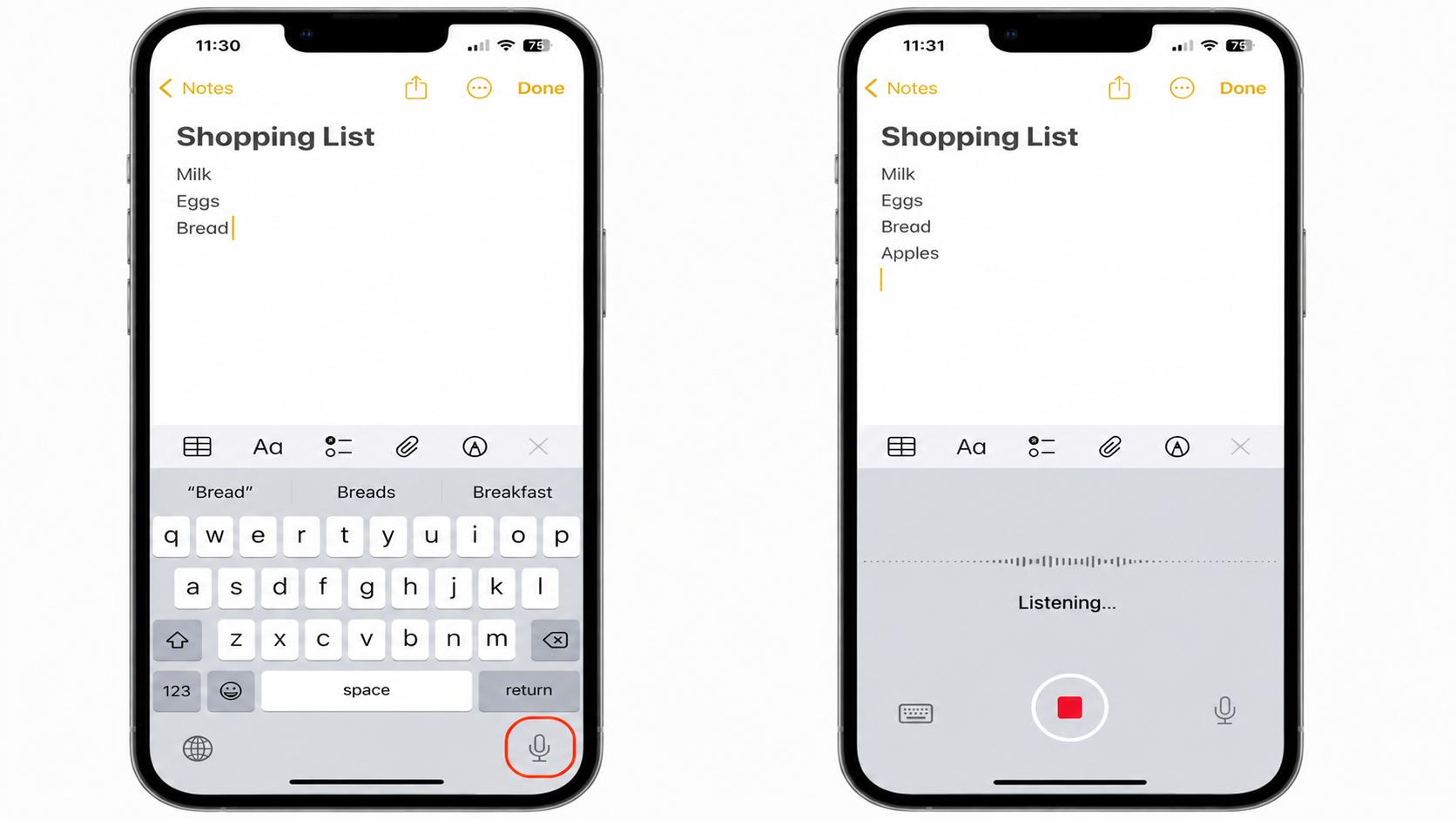
Step 2: Start dictating
Open an app like Notes or Messages, tap the microphone icon on the keyboard, and begin speaking clearly. You can say commands like "period" or "new paragraph" to format your text.
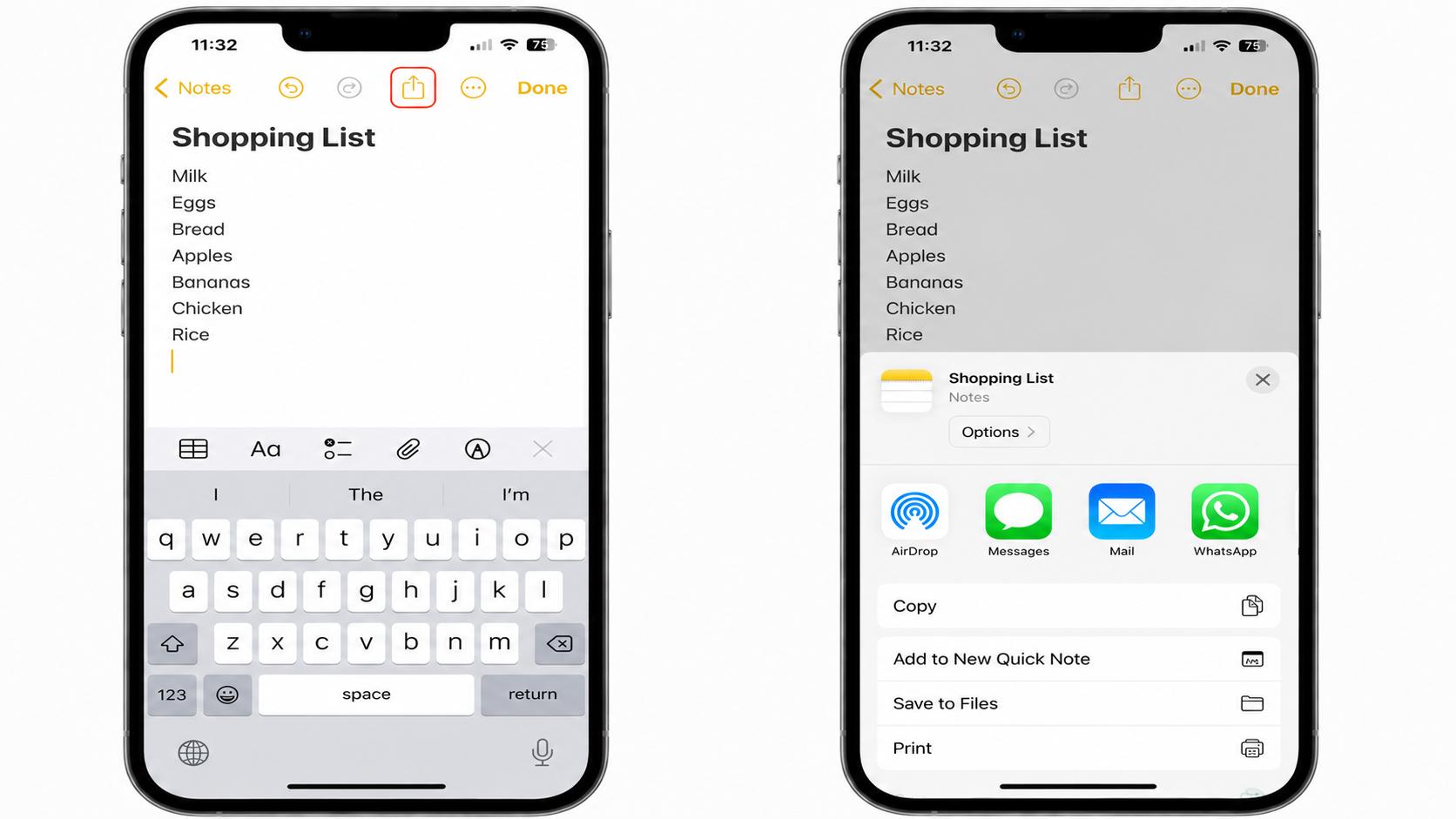
Step 3: Edit and save your text
Review the generated text and correct any recognition errors if needed. Once you're satisfied, save, copy, or share your document directly from the app.
Apple Dictation is excellent for creating text from live speech. However, if you need to convert recorded meetings, podcasts, lectures, videos, or even supported online links into editable transcripts, you'll need a dedicated AI transcription tool. In the next section, you'll learn how Vmake Labs automatically transcribes audio and video files in just a few steps.
Common iPhone Dictation Commands
One of the most useful things about iPhone Dictation is that you don’t have to stop speaking to format your text. Say these commands out loud while dictating and your iPhone handles the rest:
-
Period: Inserts a full stop at the end of a sentence.
-
Comma: Inserts a comma to separate clauses or list items.
-
Question mark: Inserts a question mark at the end of a question.
-
New paragraph: Starts a new paragraph, equivalent to pressing Enter twice.
-
New line: Moves to the next line, equivalent to pressing Enter once.
-
Emoji commands: Speak the name of an emoji (e.g., smiley face emoji) and Dictation will insert it.
-
Undo that: Removes the last word or phrase you dictated, letting you correct mistakes hands-free.
These commands work in most apps that support Dictation. Learning just a few of them makes voice typing noticeably smoother and faster.
How to transcribe audio and video with Vmake Labs
Vmake Labs makes it easy to transcribe recorded audio, videos, and supported online links into accurate, editable text. Its AI-powered transcription lets you create transcripts in minutes, review the results, edit them, and export them in your preferred format, all in one simple workflow.
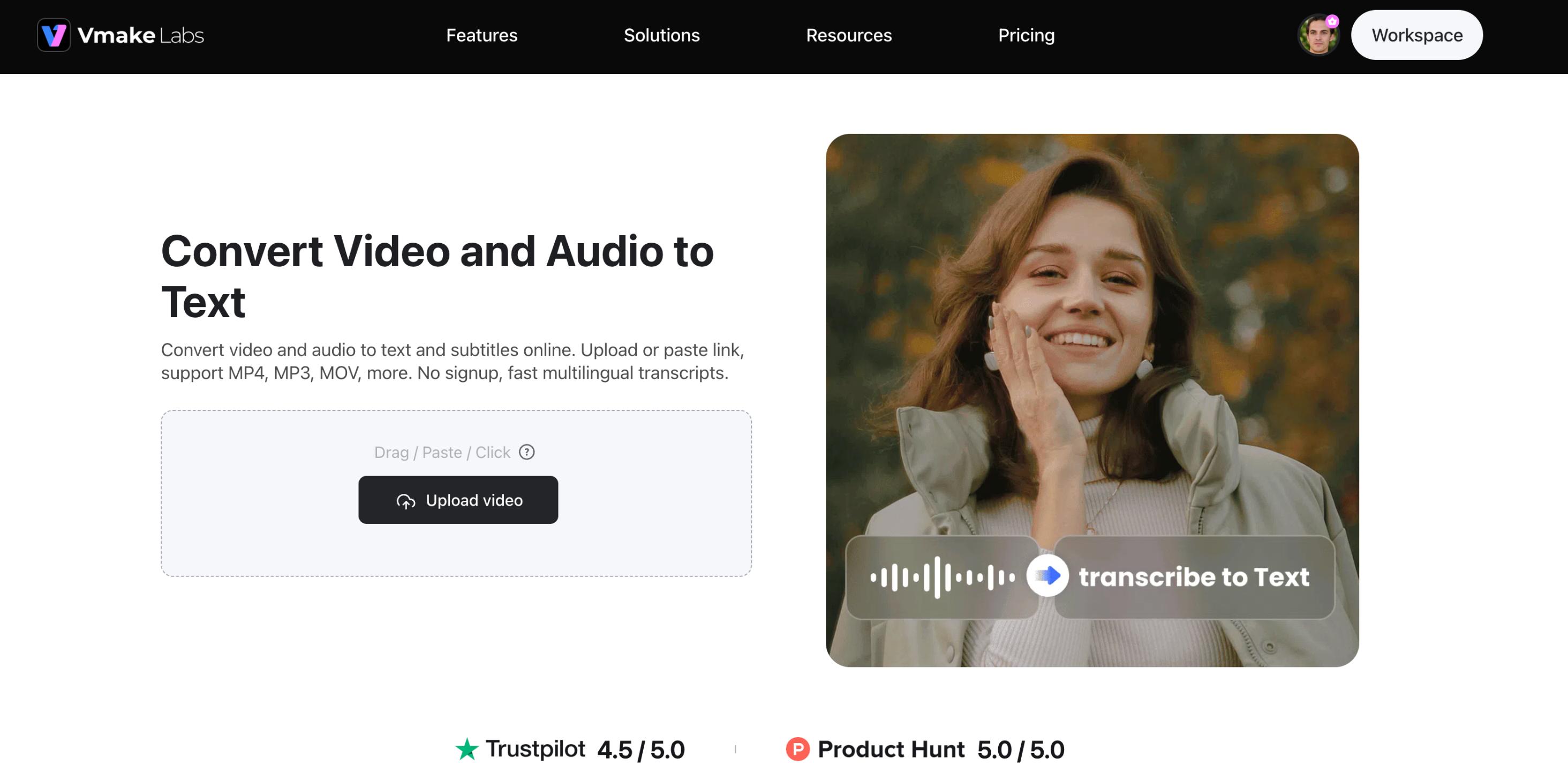
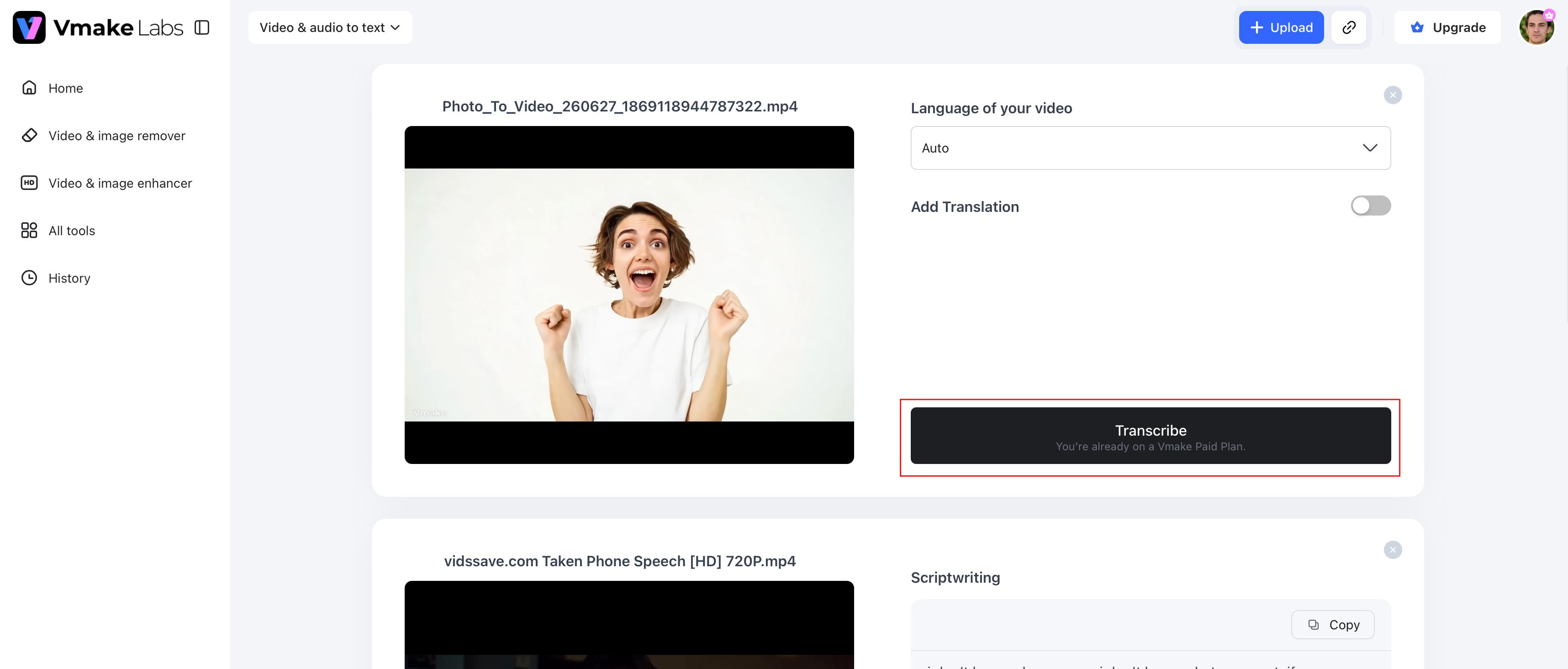
Step 1: Upload your audio, video, or link
Choose an audio or video file from your device, or paste a link to a supported online source. Vmake Labs supports many file formats, so you can transcribe many types of content with ease.
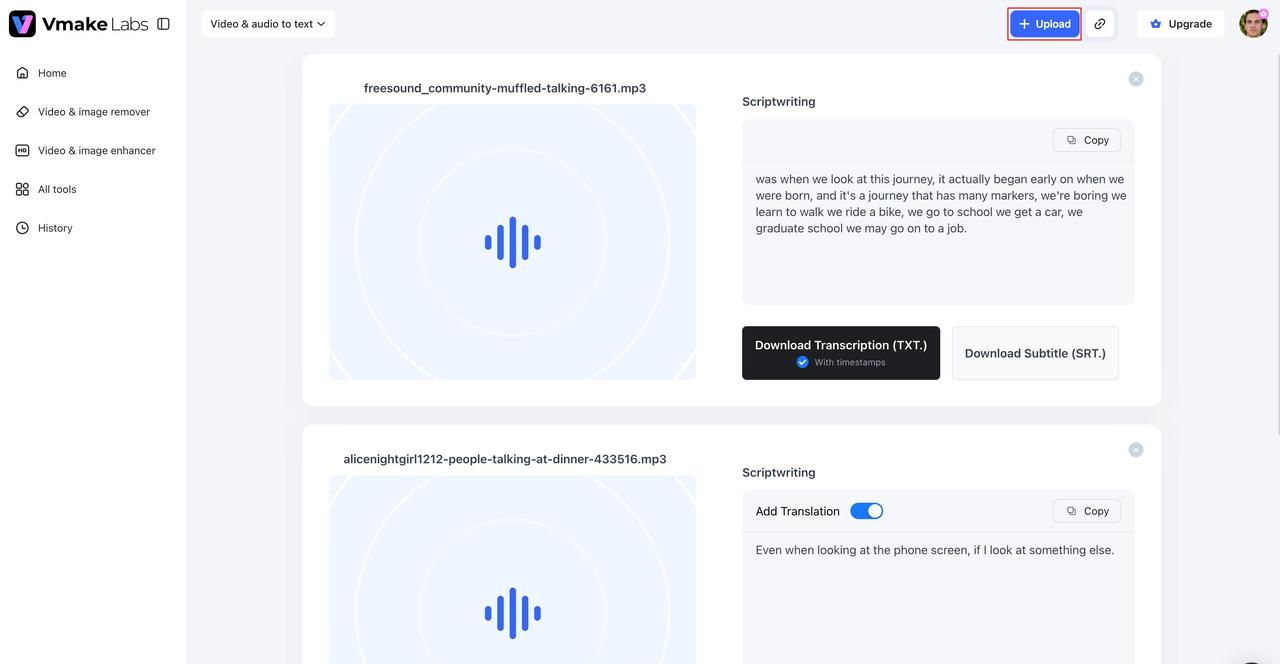
Step 2: Generate the transcript automatically
The AI processes your content and transcribes speech to text in a matter of minutes. It also offers timestamps to facilitate reviewing and navigating through the transcript.
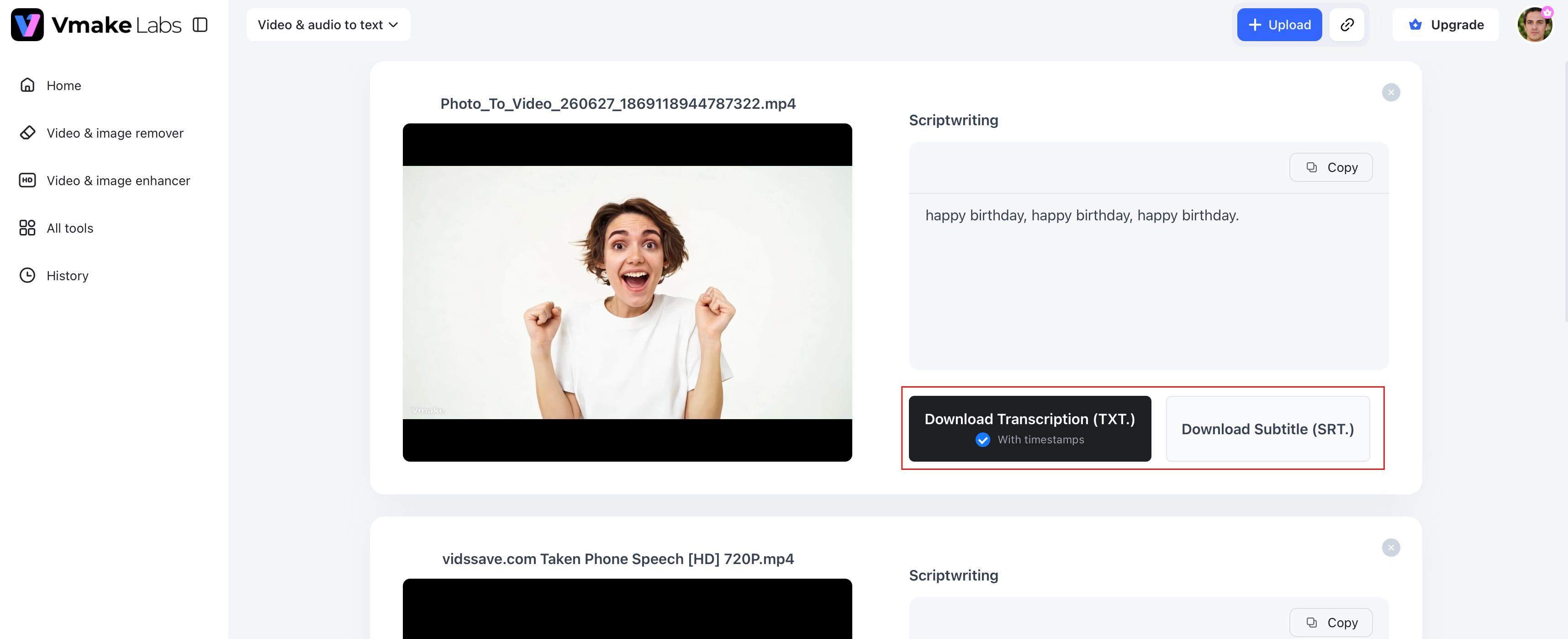
Step 3: Edit and export your transcript
Review the transcript, edit as necessary, and export in your preferred format. You can also use the transcript to create subtitles or repurpose your content.
Why choose Vmake Labs for transcription?
If you need more than live speech-to-text on iPhone, Vmake Labs offers AI-powered transcription for recorded audio, videos, and supported online links. It helps you create accurate, editable transcripts quickly with features designed for both personal and professional use.
-
Audio, video, and link transcription: Convert recorded audio, videos, and supported online links into accurate speech-to-text transcripts from a single platform.
-
AI-powered multilingual transcription: Transcribe speech to text in multiple languages, making it easier to work with multilingual recordings and global content.
-
Timestamped transcripts: Automatically add timestamps to your speech-to-text transcript so you can quickly locate important moments in long recordings.
-
Automatic subtitle generation: Turn speech to text into subtitles instantly, making your videos more accessible and ready to share.
-
Multiple export formats: Export your speech-to-text transcripts in different file formats for editing, collaboration, or publishing.
iPhone speech to text vs Vmake Labs
Although both tools convert speech into text, they are designed for different purposes:
|
Feature |
iPhone Speech to Text |
Vmake Labs |
|---|---|---|
|
Live dictation |
Yes |
Yes |
|
Upload audio files |
No |
Yes |
|
Upload videos |
No |
Yes |
|
Transcribe online links |
No |
Yes |
|
Automatic transcription |
Live speech only |
Yes |
|
Timestamps |
No |
Yes - synced to media |
|
Subtitle generation |
No |
Yes - SRT files |
|
Translation support |
No |
Yes - multilingual output |
|
Multi-language support |
Yes |
Yes |
|
Export formats |
Copy text manually |
TXT, SRT, multiple formats |
|
Best for |
Live voice typing |
Audio and video transcription |
In a nutshell, speech-to-text on the iPhone is ideal for real-time Dictation, while Vmake Labs is built for transcribing prerecorded audio, videos, and supported online links.
Bonus: Why is speech-to-text not working on iPhone?
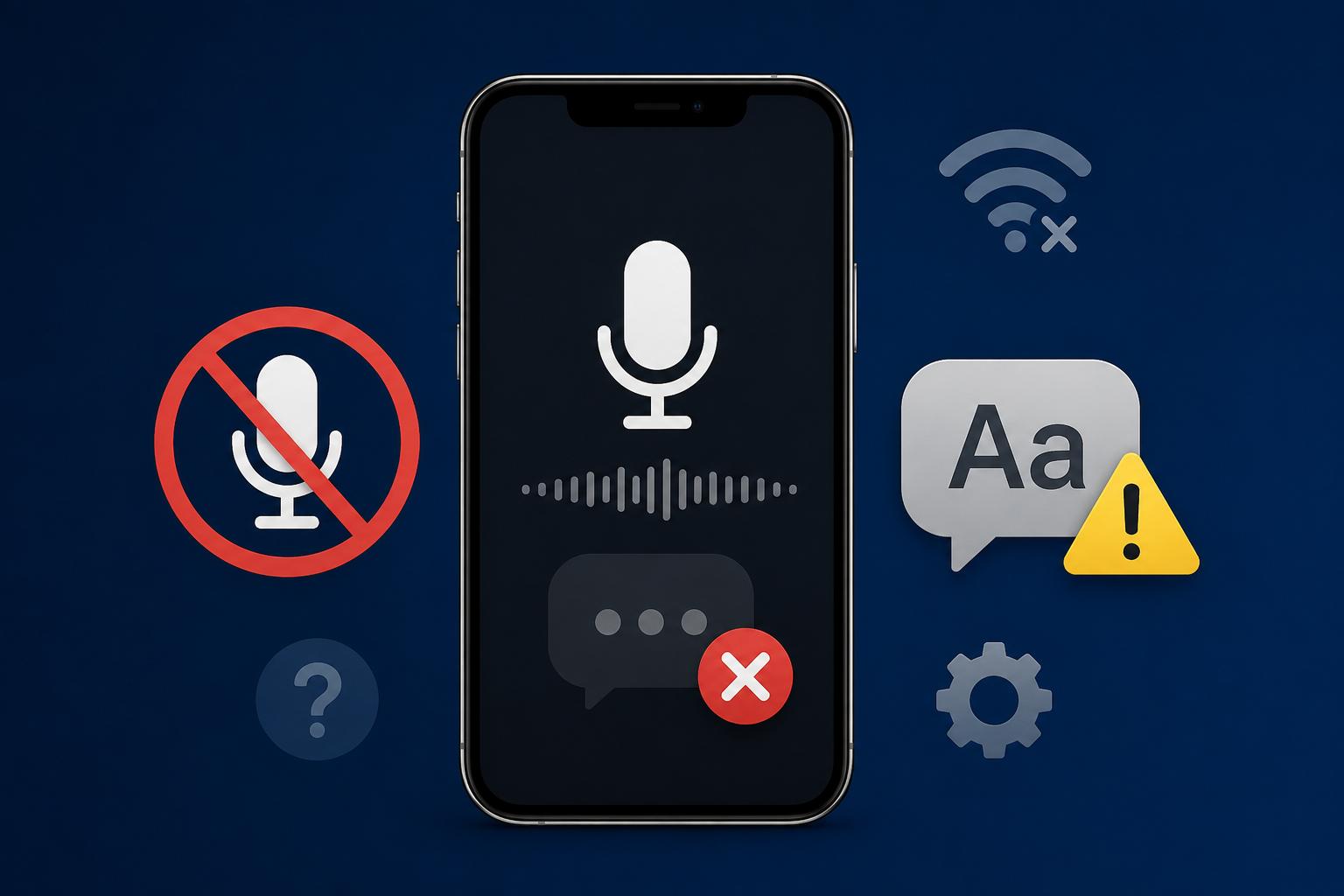
If speech-to-text isn't working on your iPhone, it's usually a simple settings or software issue. You might have turned off Dictation, blocked microphone permissions, or your iPhone might be using the wrong keyboard or Dictation language. An unstable internet connection or an outdated version of iOS can also affect speech recognition sometimes. If none of these apply, it could be a problem with your iPhone's microphone hardware, and it may not detect your voice correctly.
How to fix iPhone speech-to-text not working
If my speech-to-text is not working on the iPhone, try these solutions before seeking technical support.
|
Problem |
Possible Cause |
Solution |
|---|---|---|
|
Dictation not responding |
Temporary software glitch |
Restart your iPhone to clear the issue. |
|
Dictation toggle greyed out |
Screen Time restrictions blocking it |
Go to Settings > Screen Time > Content & Privacy Restrictions and allow Dictation. |
|
Microphone not picking up voice |
App lacks microphone permission |
Go to Settings > Privacy & Security > Microphone and enable access for the app you are using. |
|
Wrong words being transcribed |
Incorrect Dictation language selected |
Change or re-download the Dictation language from Settings > General > Keyboard > Dictation. |
|
Dictation stops working after iOS update |
iOS bug or outdated software |
Install the latest update from Settings > General > Software Update. |
|
Poor audio quality or no audio detected |
Microphone hardware issue |
Record a clip in Voice Memos. If audio is unclear, the microphone may need servicing. |
|
Dictation enabled but not working |
Feature needs a reset |
Turn Dictation off and back on from Settings > General > Keyboard. |
Conclusion
The speech-to-text function on the iPhone is a nice feature to create messages, notes, emails, and documents with your voice instead of typing. Apple's built-in Dictation lets you quickly capture ideas in many apps and supports multiple languages. If you need to transcribe recorded meetings, podcasts, videos or online content, then an AI transcription platform gives you more flexibility. Vmake Labs makes it easy; it can convert audio, video, and supported links into accurate transcripts that are timestamped, editable, and generate subtitles. The appropriate tool will depend on whether you want live dictation or transcription of pre-recorded content.
FAQs
How do I turn on speech-to-text on iPhone?
Go to Settings > General > Keyboard and enable Dictation. Once it's turned on, open any app where the keyboard appears and tap the microphone icon. Speak naturally to convert your voice into text, then review the generated text before saving or sharing it.
How do I use speech-to-text on iPhone?
Open an app such as Notes, Messages, or Mail, tap the microphone icon on the keyboard, and speak clearly. Your iPhone will convert your speech into text in real time, and you can use voice commands like "period" or "new paragraph" for formatting.
Why is my speech-to-text not working on iPhone?
Speech to text may stop working if Dictation is turned off, microphone permissions are blocked, or your iPhone is running an outdated iOS version. Check these settings first, then restart your device. This resolves the most common dictation issues.
Can iPhone convert video speech into text?
No. Apple's Dictation is designed for live voice typing and does not support video transcription from uploaded files. To transcribe videos into editable text with timestamps and subtitles, you can use an AI tool like Vmake Labs.
What is the best speech-to-text app for iPhone?
Apple Dictation is a great option for everyday voice typing and quick note-taking. For transcribing recorded audio, videos, or online links with timestamps, subtitles, and export options, Vmake Labs offers more advanced capabilities.
When should I use Vmake Labs instead of iPhone Dictation?
Use iPhone Dictation for live speech and quick voice typing. Choose Vmake Labs when you need to convert prerecorded audio, videos, or supported online links into accurate transcripts that can be edited, exported, or turned into subtitles.

You May Be Interested
Speech to Text App: Best Picks and How to Choose One
Best Speech to Text Software: Top 5 AI Tools Evaluated

How to Remove People from Photos on iPhone: Best AI Tools & Easy Methods
Google Docs Speech to Text: Complete Guide for Beginners
How to Transcribe Audio to Text: Efficient Guide
How to Transcribe Audio Recording to Text in Minutes