How to Remove People from Photos on iPhone (Step-by-Step Guide for 2026)
 Ken DawsonApril 13, 2026
We've all been there. You finally get that perfect shot: good lighting, everyone smiling, and then you notice a stranger walking straight through the background. Or worse, a full-on photobomber has made themselves at home right in the middle of your vacation memory.
The good news? Getting rid of unwanted people in your iPhone photos is genuinely doable in 2026, and you don't need to be a photo editing wizard to pull it off. Here's everything you need to know.
How to Remove People Directly with Built-in iPhone Editing
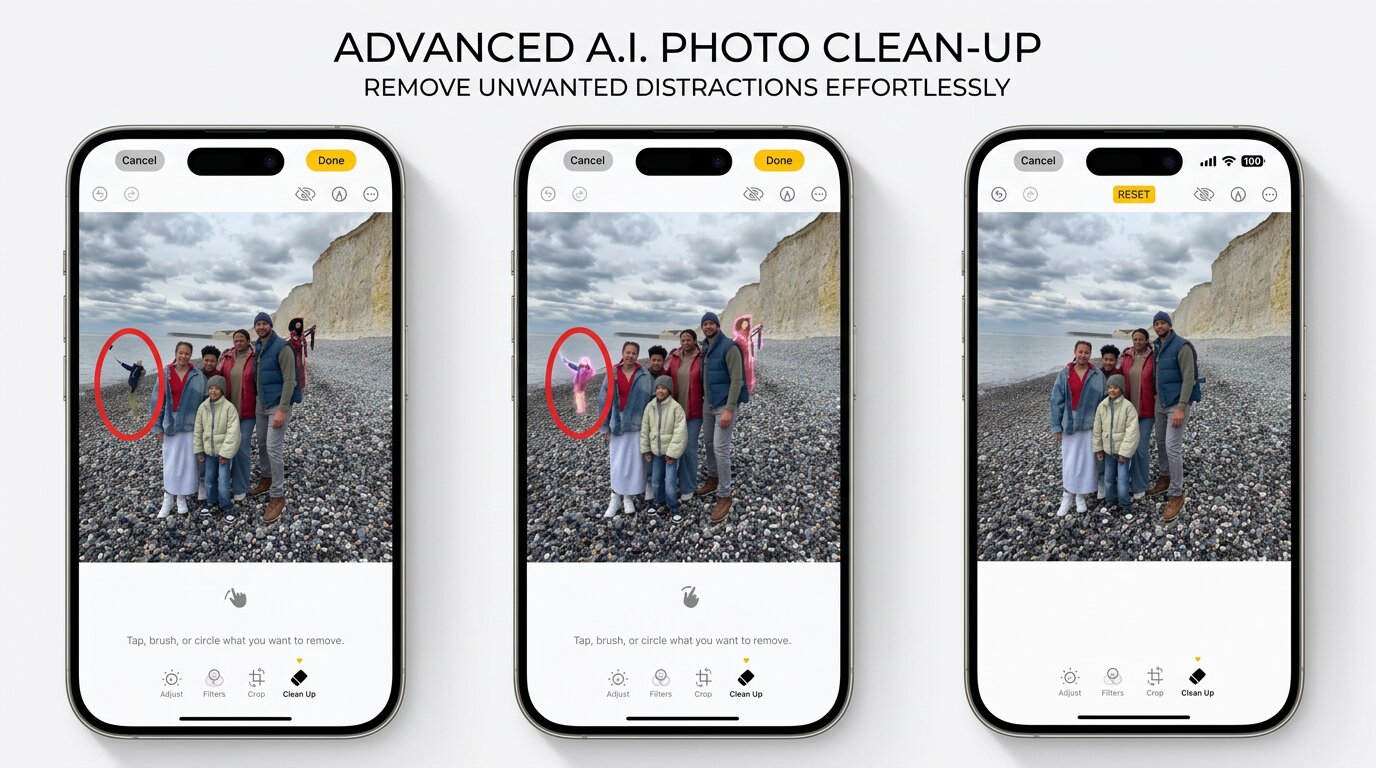
Apple quietly added a tool called Clean Up to the Photos app when iOS 18 rolled out. If your iPhone is already on iOS 18 or newer, you've had it this whole time and may not even know it. It runs on Apple Intelligence and handles the heavy lifting of detecting what doesn't belong in a photo, then fills the gap with whatever should logically be behind it.
Using it is pretty straightforward:
1. Open Photos and tap on the image you want to fix.
2. Hit Edit in the top right corner.
3. At the bottom of the screen, find the Clean Up icon.
4. Use your finger to brush over the person you want gone.
5. Let your iPhone work its magic and fill in the background.
6. Tap Done to save.
Why the Built-in Tool Has Real Limitations
Here's the honest truth about the Clean Up tool: it wasn't really built for removing people. Apple designed it more for tidying up small distractions — a stray wire here, a bin there, maybe an ugly sign in the background. When you try to erase a full person standing in the middle of a scene, it usually produces a blurry smear or an obviously patched area that looks worse than the original problem.
Complex backgrounds are where it really struggles. A crowded beach, a busy street, a packed festival — the tool often can't reconstruct what's behind a person convincingly enough for the result to look natural.
There's also the compatibility issue. You'll need an iPhone 15 Pro or any iPhone 16 model, plus iOS 18, to even access it. And once the AI does its thing, you don't have much say in how the result looks.
For a quick fix on a simple, clean background, it can save the day. But if you're working with a photo you actually care about, you'll want something more capable.
Best Way to Remove People from Photos on iPhone: Using Zawa AI Photo Editor
For genuinely clean results where no one can tell a person was ever there, the
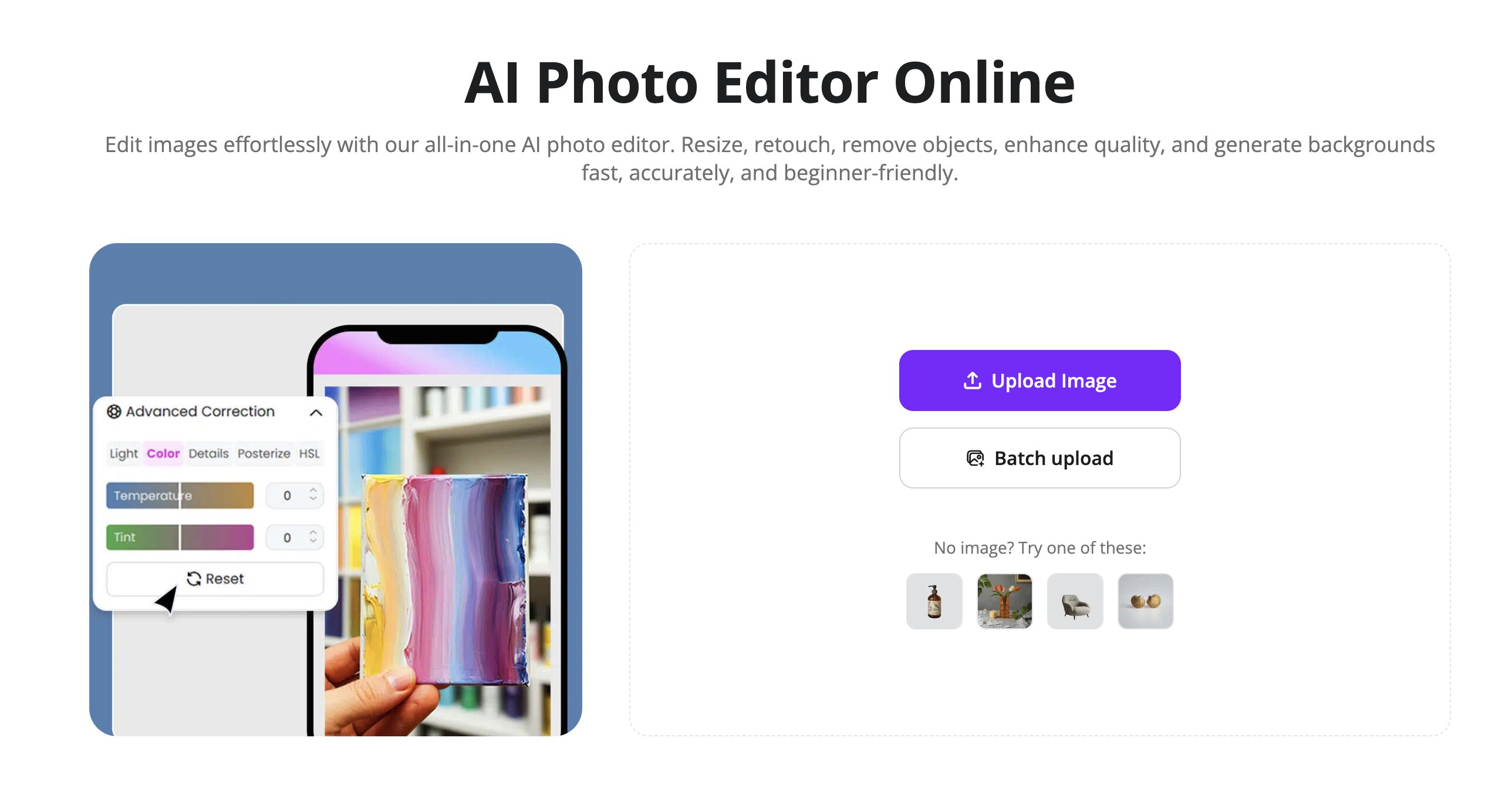
Upload Your Image: Access the
Zawa AI Photo Edito r Select the Person: Use the Brush tool to paint over the person you want to remove. The AI will automatically analyze the surrounding pixels to ensure a precise selection.
Execute the Removal: Tap Erase and let the AI fill the gap by logically reconstructing the background textures and lighting.
Export Your Photo: Once the result looks seamless, tap Download to save the high resolution image to your device.
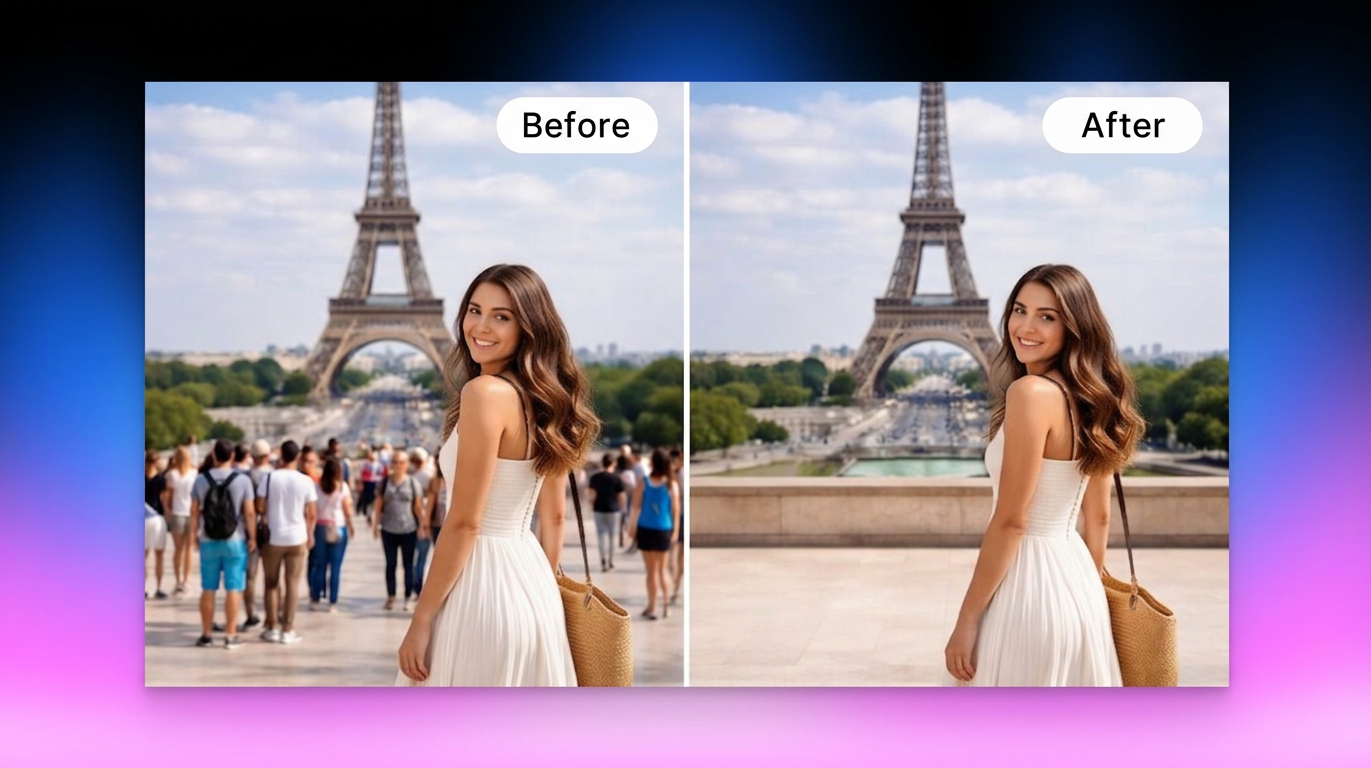
 What makes Zawa particularly good is how it handles the background reconstruction. Whether you're removing a stranger from a park photo, deleting someone from a beach shot, or cleaning up a photobomb in a group picture, the filled area actually looks like it belongs there. No obvious patches, no blurring, no weird artifacts around the edges.
It also works on iOS 16 and above, so you don't need the latest iPhone to get good results. As long as you have a browser and a decent internet connection, you're set.
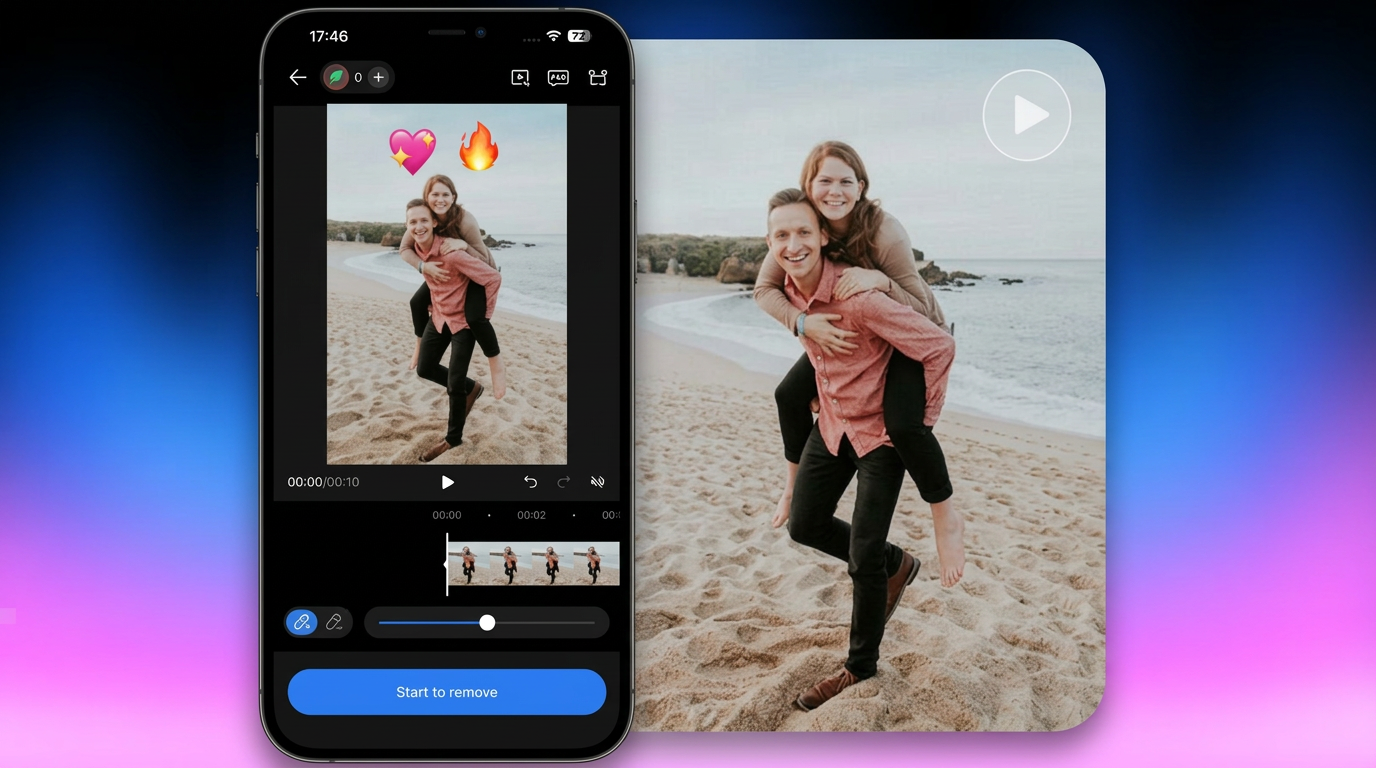
Extra Tip: Remove People from Videos with Vmake
Removing people from video is a complex challenge that most photo tools cannot handle. However, the
Import Your Clip: Head to the
Vmake Remove People Identify the Target: Tap or draw around the person you want to remove. The AI will then track their movement across the entire duration of the video.
AI Background Reconstruction: Click Remove so that the
Vmake Remove People Save Your Footage: Preview the final result to ensure the motion is fluid and then download your professional grade video.
 If you've ever tried manually masking footage frame by frame in a traditional editor, you'll know what a nightmare it is. Vmake handles all of that automatically, which is a genuine time-saver.
FAQ: Removing People from Photos on iPhone
Can I remove a person from a photo on an iPhone without an app?
Yes. if you're running iOS 18 on an iPhone 15 Pro or iPhone 16 series, the Clean Up tool in Photos does this natively. That said, the results for full-person removal are hit or miss. Zawa AI runs in the browser and doesn't require any download, so it's a good alternative regardless of your iPhone model.
What iOS version do I need to remove people from photos on iPhone?
Apple's Clean Up feature requires iOS 18 or later. Zawa AI has no iOS requirement since it runs in any mobile browser, making it accessible on older iPhone models too.
How do I remove someone from a photo on an iPhone for free?
The Clean Up tool in the Photos app is free if you have a compatible device. Zawa AI also lets you get started with free edits, which makes it one of the more accessible options for people who don't want to spend money on this.
Can I remove people from videos on iPhone too?
Yes. Photo editors typically handle still images only, but Vmake is built specifically for video and includes people-removal that works on iPhone footage. Head to vmake.ai/remove-people to try it out.
Does removing people from photos reduce image quality?
With Zawa, image quality stays intact. The built-in iPhone tool can sometimes produce blurry or patched areas, but dedicated AI editors are designed to preserve the original resolution and detail.
Conclusion
Getting people out of your photos used to mean either accepting a bad shot or spending hours in Photoshop. In 2026, the built-in iOS 18 tool handles minor distractions: but for professional results, the
When it comes to moving images, the Vmake

You May Be Interested
Best Photo Eraser Tools in 2026: Remove Objects, Text & People from Photos
How to Remove People from Background: Fast AI Tools
How to Remove People in Photoshop: Step-by-Step Guide for Beginners

Best AI Watermark Remover for Clean, Fast Edits