Google Docs Speech to Text: How to Transcribe Audio and Video Easily
Learn how to use Google Docs speech-to-text for live voice typing, then transcribe recorded audio, videos, and online links with Vmake Labs. Create accurate, editable transcripts in minutes.

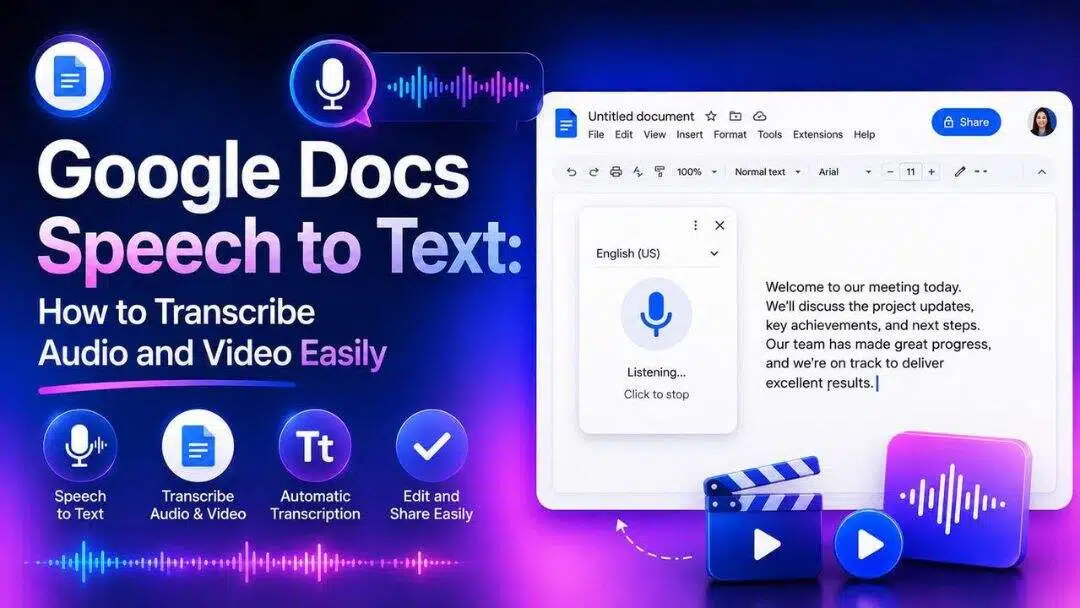
Google Docs speech-to-text is a free voice typing feature that transcribes spoken words into text in real time. It's best for live dictation, but not so good when it comes to recorded audio or videos. This guide explains how it works and when to use AI transcription tools.
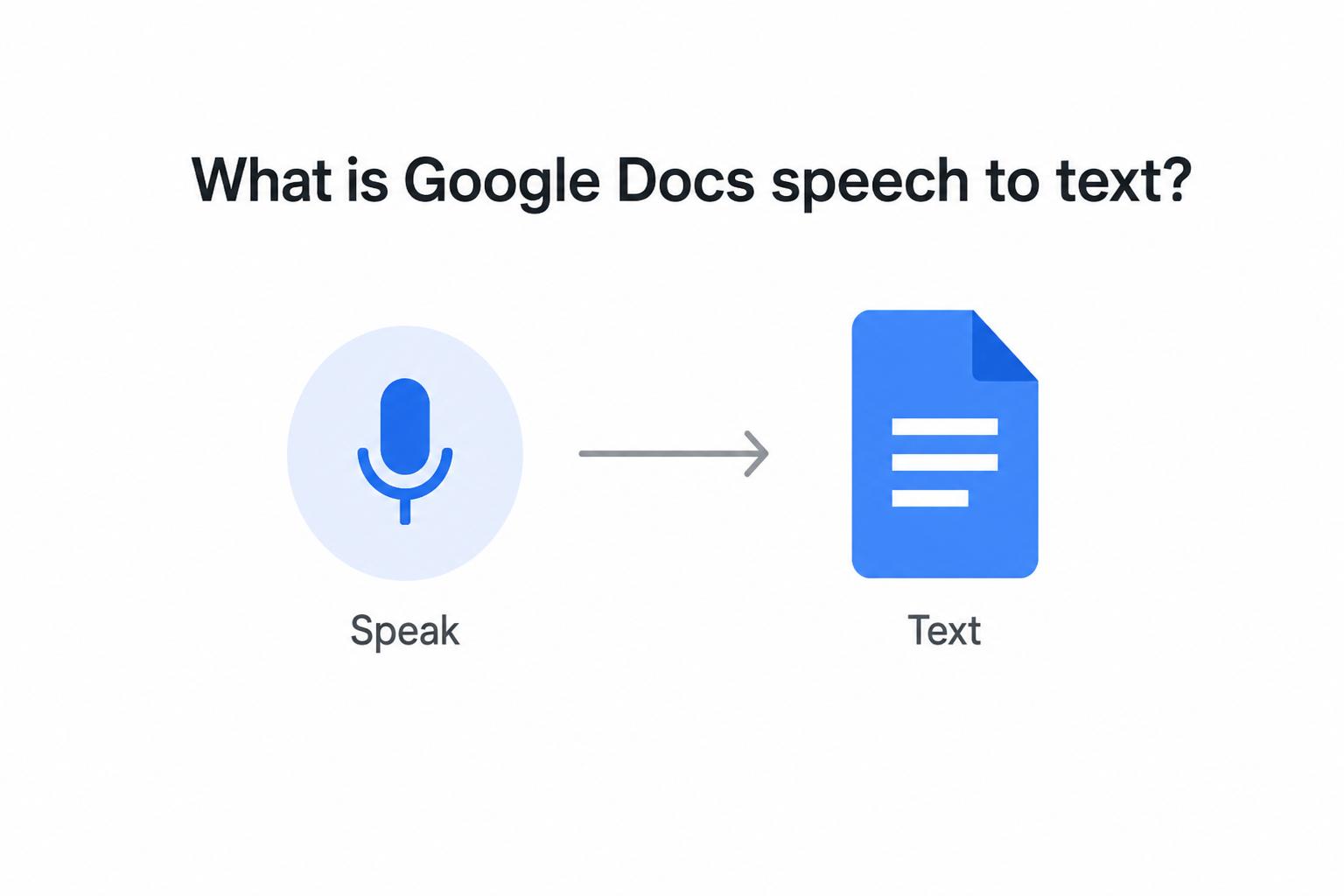
What is Google Docs speech-to-text?
Google Docs speech-to-text is Google's built-in Voice Typing feature, which uses speech recognition technology to convert live speech into editable text. It's in Google Docs, and you can create documents hands-free by talking into your microphone instead of typing. It supports multiple languages, works best in Google Chrome, and is a convenient option for note-taking, drafting, and everyday writing.
Voice Typing is intended for live dictation, not for use with pre-recorded audio or video files, as transcription software is. It's great for writing documents, brainstorming ideas, and taking notes in meetings as they happen. You can't upload audio or video files directly, and it doesn't provide you with subtitles or transcripts with timestamps. If you have recorded audio or video, you're better off with AI transcription services.
How to use Google Docs speech-to-text
It only takes a few minutes to learn how to use speech-to-text on Google Docs. No additional software or extensions are required as it's built into Google Docs. After your microphone has been enabled, you can start talking straight away. But keep in mind that Voice Typing is designed for live use of voice, and you'll need special software to transcribe recorded audio and videos.
Step 1: Open Google Docs and enable Voice Typing
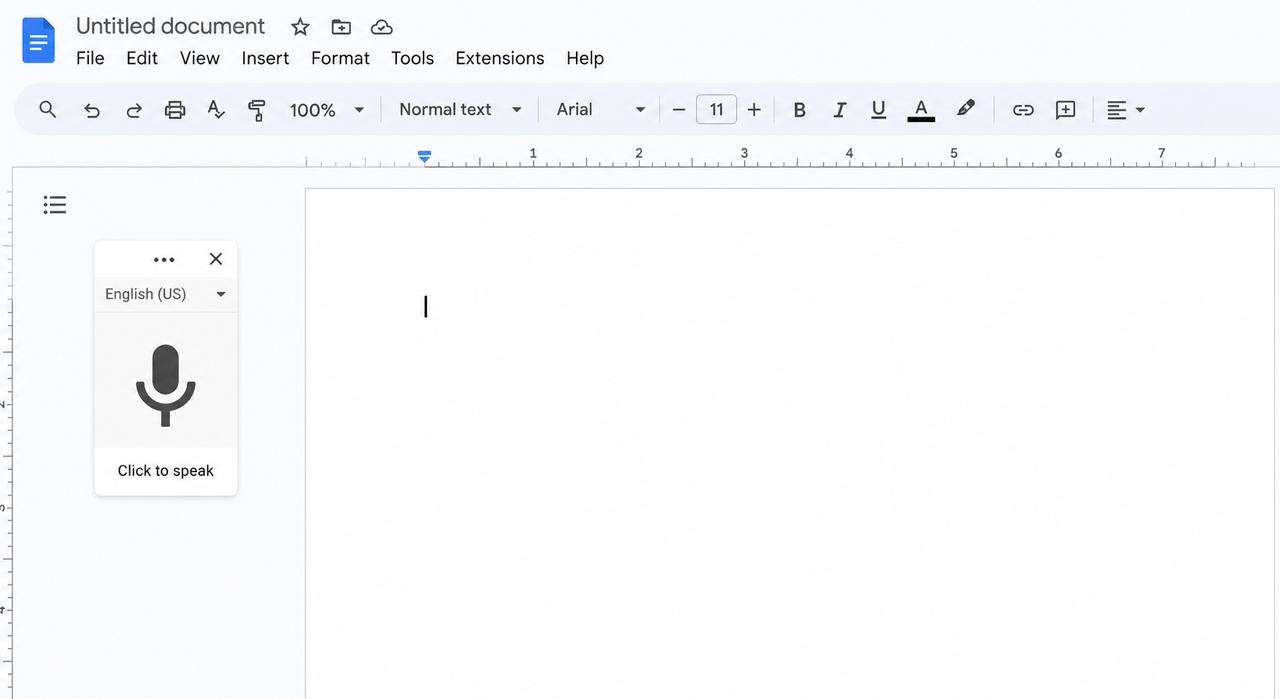
Open Google Docs in Google Chrome and create a new document. Go to Tools > Voice typing, then allow microphone access when prompted. Once enabled, the microphone icon will appear on your screen.
Step 2: Select your language and start speaking
Select the language of your choice from Voice Typing and click on the microphone icon to begin. Speak clearly and at a steady pace. Use voice commands like "period" or "new paragraph" for better formatting.
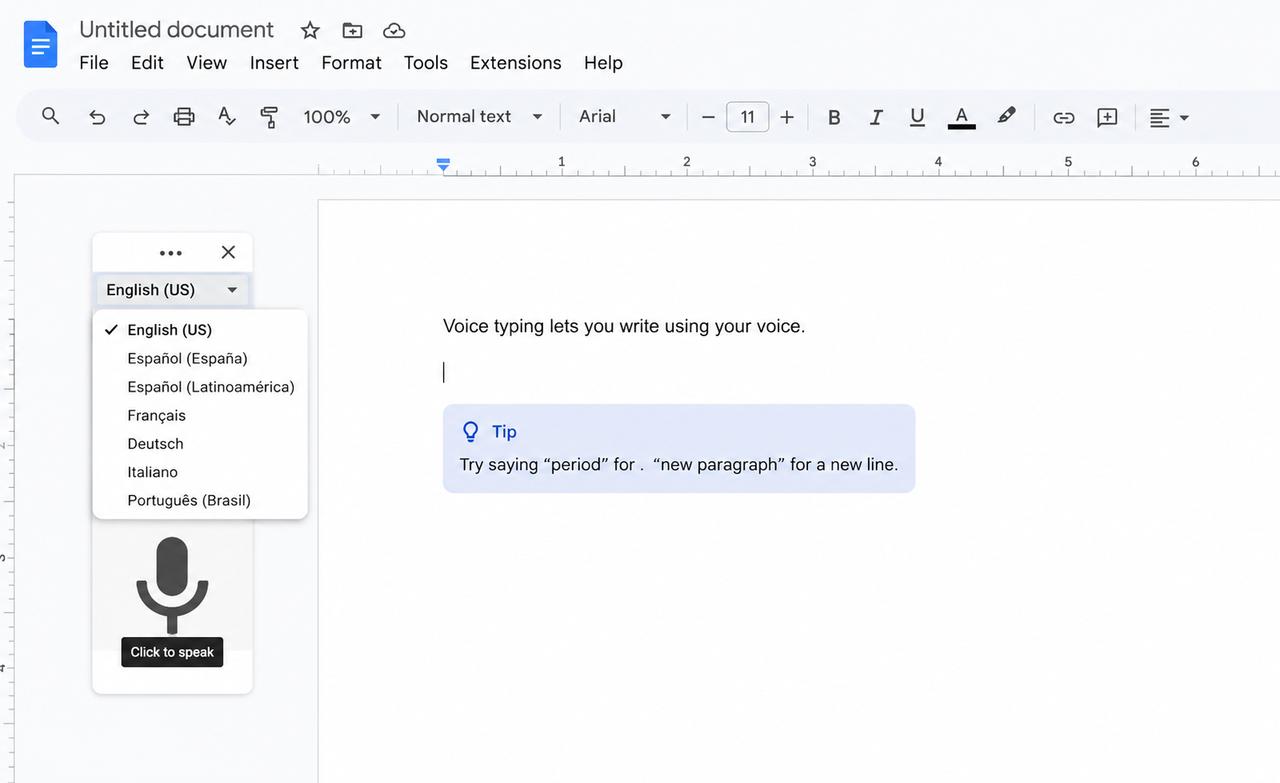
Step 3: Review, edit, and save your transcript
After dictating, stop Voice Typing and review the generated text for any recognition errors. Make the necessary edits, format your document, and export or share it directly from Google Docs.
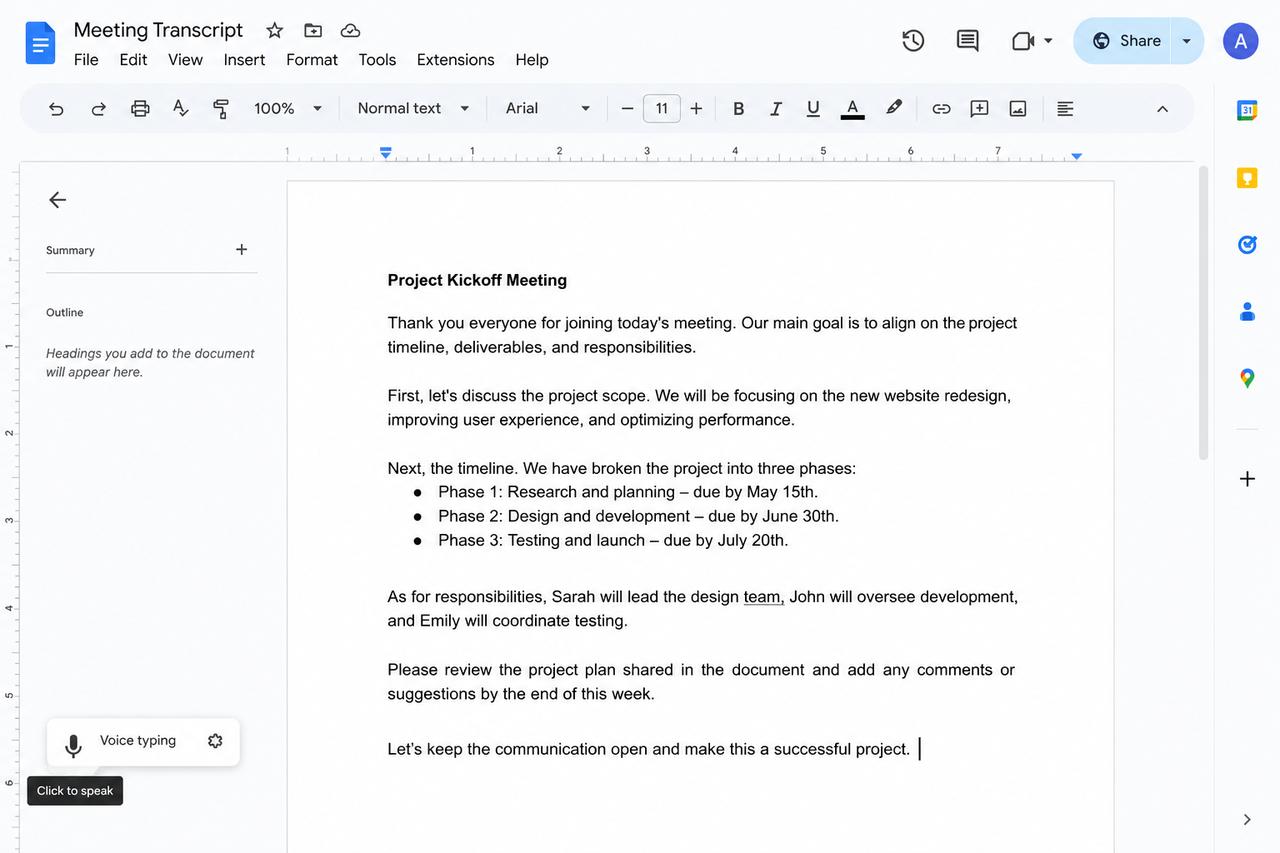
While Google Docs is a convenient tool for live voice typing, it cannot directly transcribe uploaded audio or video files. If you need accurate transcripts from recorded content, a dedicated AI transcription solution like Vmake Labs provides a faster and more efficient workflow.
How to transcribe audio and video with Vmake Labs
Vmake Labs makes transcription easy by converting audio, video, and supported online links into editable text. Using AI-powered speech recognition, you can create accurate transcripts, review them, and export them in a few simple steps.
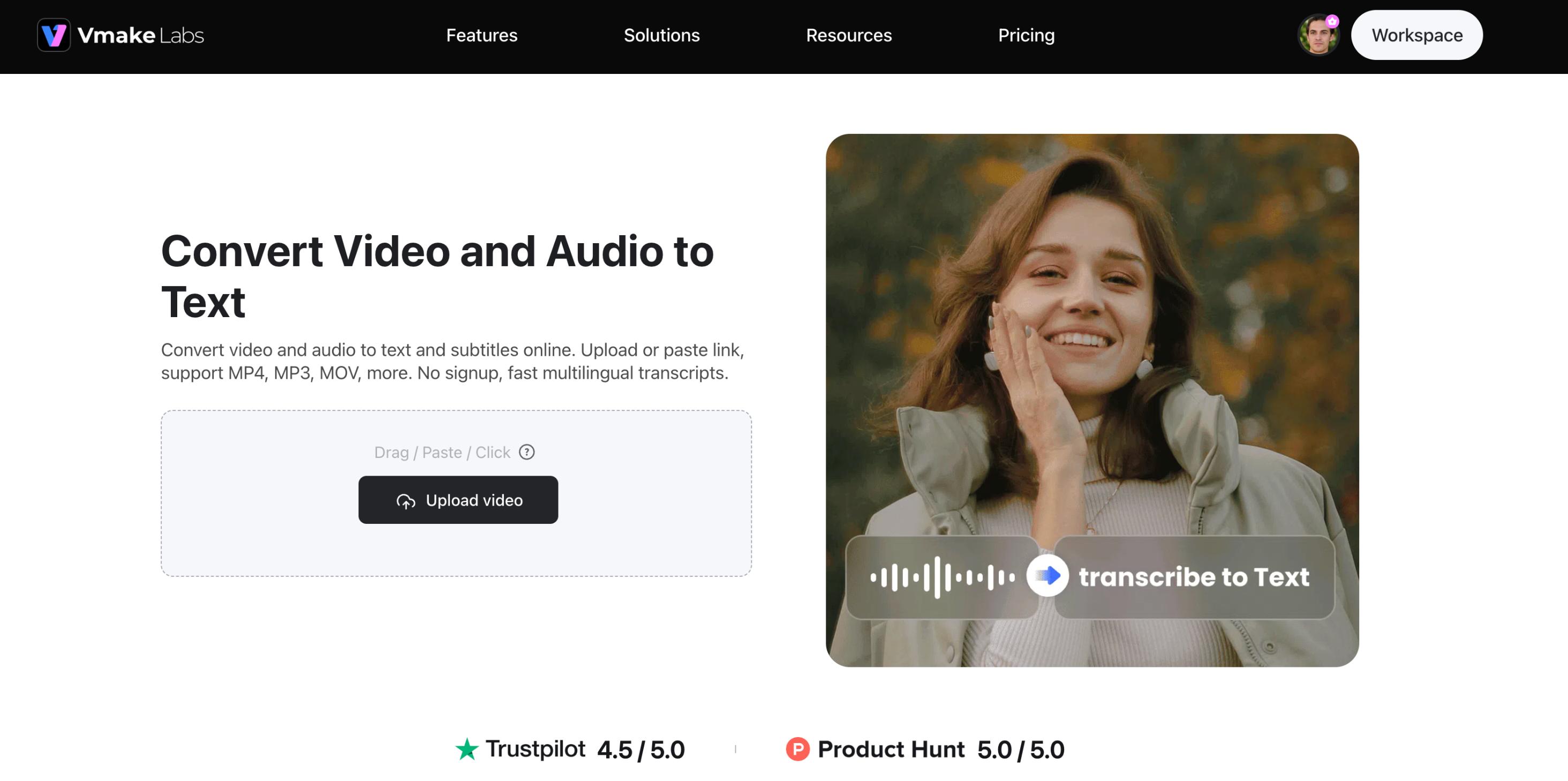
Step 1: Upload your audio or video
Upload an audio or video file from your device, or paste a supported online video link to begin. Vmake Labs accepts common file formats, making it easy to start transcription without additional conversions.
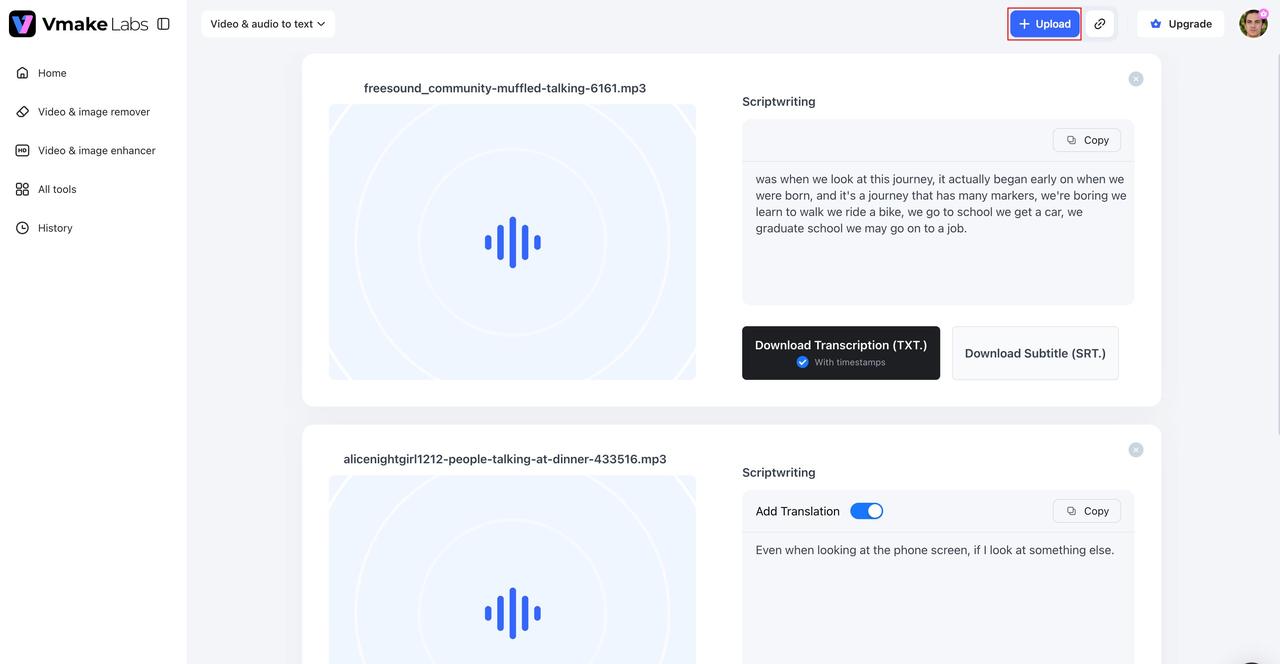
Step 2: Generate the transcript automatically
Select the transcription language and let the AI work on your content. Vmake Labs offers an accurate transcript with timestamps in minutes, so you can easily review and navigate long recordings.
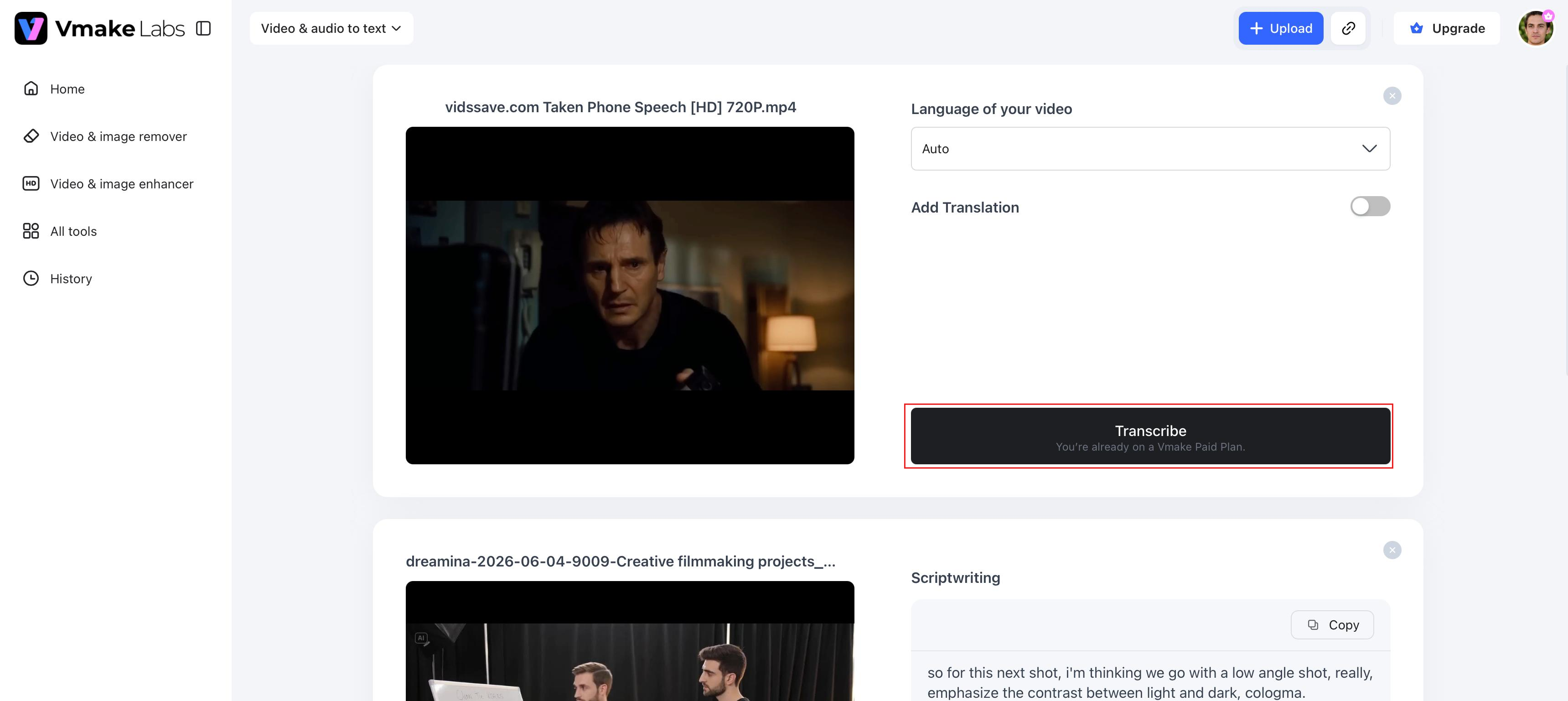
Step 3: Edit and export your transcript
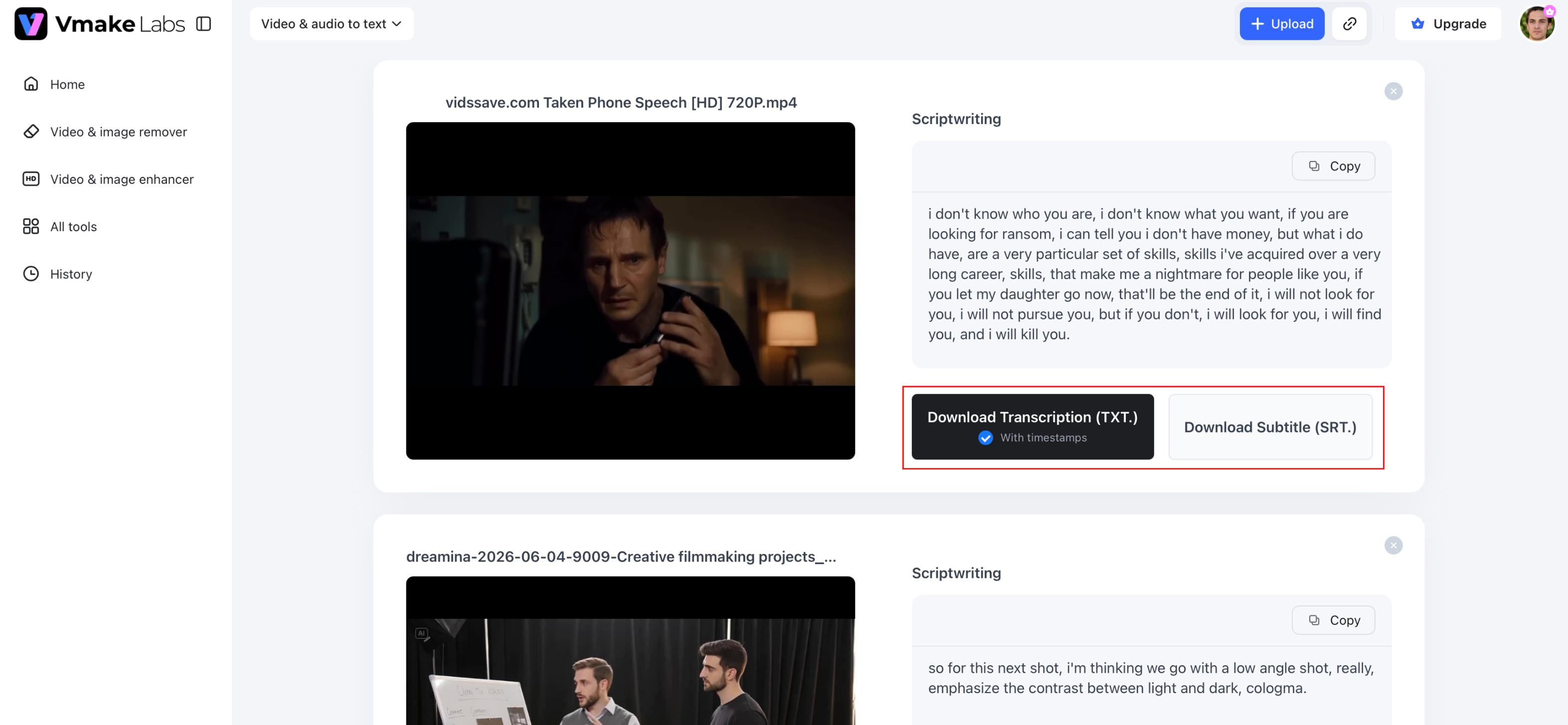
Review the transcript that has been created, make any changes you wish, and then export it in the format you want. You can also make subtitles for your videos, so the content is ready to publish or share.
Why choose Vmake Labs for transcription?
Vmake Labs makes transcription simple, supporting both recorded media and online content all in one platform. The AI-powered workflow saves time and delivers accurate, editable results whether you are creating subtitles, documenting meetings, or converting videos to text.
-
Audio, video, and link transcription: Upload audio and video files from your device or paste supported online links to generate transcripts without downloading or converting content first.
-
Multilingual AI transcription support: Get the transcripts automatically with timestamps so you can easily review recordings, find specific sections and edit efficiently.
-
Accurate timestamped transcripts: Automatically generate transcripts with timestamps, making it easier to review recordings, find specific sections, and edit content efficiently.
-
Automatic subtitle generation: Convert spoken content into synchronized subtitles that you can edit before exporting for videos, presentations, or social media.
-
Multiple export format options: Review and edit your transcript before downloading it in TXT format for documentation or content creation, or SRT format for subtitles. These export options make it easy to share, repurpose, or use your transcripts across different platforms and video editing workflows.
Google Docs speech to text vs Vmake Labs
Both Google Docs and Vmake Labs convert speech into text, but they're built for different workflows. Google Docs is ideal for live dictation, while Vmake Labs is designed to transcribe recorded audio, videos, and online content. The comparison below highlights which tool is better suited for different transcription needs.
|
Feature |
Google Docs Speech to Text |
Vmake Labs |
|---|---|---|
|
Live voice typing |
Yes |
Yes |
|
Upload audio files |
No |
Yes |
|
Upload videos |
No |
Yes |
|
Automatic transcription |
Limited |
Yes |
|
Subtitle generation |
No |
Yes |
|
Multi-language support |
Voice typing only |
Yes |
|
Export transcript |
Google Docs |
Multiple formats |
|
Best for |
Live dictation |
Audio & video transcription |
Google Docs is a practical choice if you mainly dictate notes, documents, or ideas in real time. However, if you regularly work with recorded interviews, podcasts, meetings, lectures, or videos, Vmake Labs offers a more complete transcription workflow. With support for uploaded files, online links, multilingual transcription, subtitles, and flexible export options, it eliminates the manual effort required to convert recorded content into editable text.
Tips for improving transcription accuracy
Even the best speech recognition tools are improved with a clear source recording. If you're using Google Docs speech-to-text for live dictation or an AI transcription platform for recorded content, there are a few best practices to follow to improve accuracy and reduce editing time.
-
Use a clear microphone: A high-quality microphone picks up your voice more accurately and eliminates background noise, so that Google Docs speech-to-text can accurately interpret what you are saying.
-
Reduce background noise: Record or dictate in a quiet environment to prevent unwanted sounds from affecting transcription quality. This is especially important for meetings, interviews, and lectures.
-
Select the correct language: Always select the language that corresponds to your speech before you start. Correct language setting enhances recognition accuracy and minimises transcription errors.
-
Speak at a natural pace: Speak clearly without rushing or pausing excessively. They will be more likely to recognise the words and punctuation if you speak at a steady pace.
-
Proofread your transcript: Review the generated transcript for spelling, punctuation, and formatting mistakes before sharing or publishing. A quick edit helps ensure professional results.
-
Use AI transcription for prerecorded files: If you are using audio or videos that have been recorded, go for an AI transcription tool like Vmake Labs rather than Google Docs. It supports uploaded media, timestamps, and subtitles for speed and accuracy in transcription.
Conclusion
Google Docs speech-to-text is a reliable option for live voice typing, making it easy to create documents without manual typing. However, it isn't designed to transcribe uploaded audio or video files. Vmake Labs is a faster alternative for accurate transcripts of recorded content with AI-powered transcription, subtitle generation, multilingual support and flexible export options. It depends on whether you are dictating live or converting pre-recorded media into editable text.
FAQs
How do I enable Google Docs speech-to-text?
Open a document in Google Docs with Google Chrome and then choose Tools > Voice typing. Allow when asked for permission to access the microphone, and then click on the microphone icon to start dictating. Your words will be shown as editable text as you speak.
Can Google Docs transcribe prerecorded audio?
No. Google Docs Voice Typing is for real-time speech with your device's microphone and does not support audio file uploads directly. Use an AI transcription tool like Vmake Labs to automatically create accurate transcripts for pre-recorded audio.
Can Google Docs transcribe videos?
No. Google Docs cannot transcribe uploaded video files or generate transcripts from recorded videos. If you need video transcription, Vmake Labs can convert video speech into editable text and synchronized subtitles in just a few minutes.
Is Google Docs speech-to-text free?
Yes. Google Docs speech-to-text is a free feature available with a Google account. You only need a supported browser, such as Google Chrome, and a working microphone to start using Voice Typing. There are no additional charges for the built-in feature.
How do I write a transcript for a video?
The easiest way is to use AI transcription software instead of typing everything manually. Upload your video to Vmake Labs, and the AI will generate an accurate transcript in minutes. You can then review, edit, and export it in your preferred format.
Which tool is better for video transcription?
If you want to do live voice dictation, then Google Docs speech-to-text is better. For recorded audio and video transcription, Vmake Labs is better. Vmake Labs supports uploaded files, online links, multilingual transcription, subtitle generation, and multiple export formats for an end-to-end workflow.

You May Be Interested
How to Google Translate a Video: Step-by-Step Guide
How to Remove Background Noise from Audio: Step-by-Step Guide
How to Download Audio from Instagram: Quick Guide for 2025
How to Transcribe Audio to Text: Efficient Guide
How to Transcribe Audio Recording to Text in Minutes