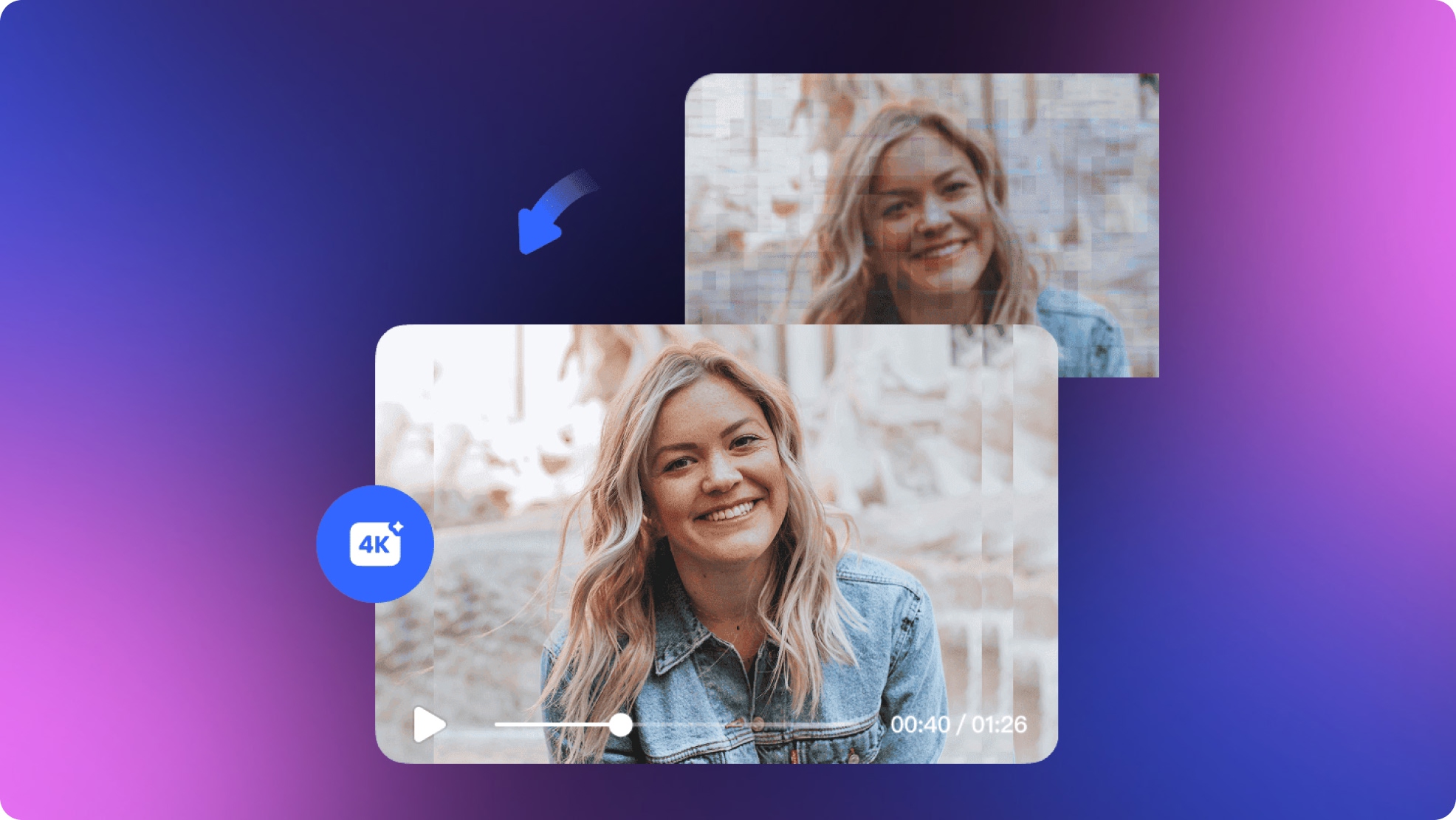
How to Remove Mosaic from Video and Improve Pixelated Footage
Learn how to reduce mosaic effects in videos using AI enhancement tools. Discover practical methods to improve pixelated footage and restore video clarity online.

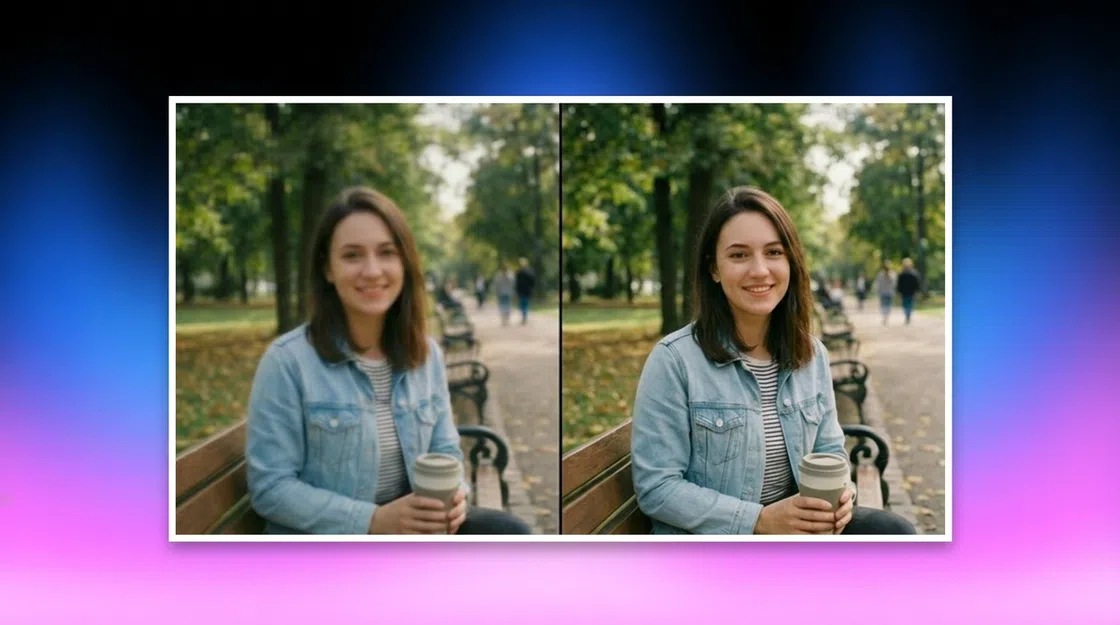
Mosaic effects are quite problematic if you want to have a high-quality video. It’s imperative to find ways to fully remove mosaic from your video in 2026, even if that can be hard to do. But with enough attention and the right tools, you can switch pixelated footage into something that’s very high-quality and appealing.
What Is Mosaic in Video and Why Does It Appear?
The mosaic effect in video refers to those pixelated/blocky portions you see in a video. What happens is that visual data is either heavily compressed or it gets lost. There are multiple reasons behind this, from digital zooming to censorship, heavy compression, or a low resolution being recorded. Understanding the cause of mosaic effects and pixelation will help eliminate most of these concerns.
Can Mosaic Be Completely Removed from a Video?
The short answer is not entirely. Realistically, if you lost pixel data, restoring it can be very difficult. But with AI technology, you can reconstruct missing details based on existing data. AI studies the original image, texture, patterns, and context, and it will generate data designed to complement all that missing information. And while this is not a 100% method to recover your image, it works great, and it can help improve the image quality.
Best Methods to Reduce Mosaic Effects in Videos
Reducing the mosaic effects in videos is difficult, although with the right methods, you can enhance the video quality. Thankfully, the methods shown below are proven to work, and it’s up to you to make the right choice.
Method 1: Enhance Video Quality Using AI
AI tools can be great if you want to reduce the occurrence of mosaic effects in a video. Such tools use machine learning models that were trained beforehand to reduce pixelation, sharpen the edges, and restore lost details from the video. The Vmake video enhancer is a prime example, as this tool makes it easy to harness AI features in order to restore pixelated videos to a much better, more visually appealing result.
Method 2: Upscale Low-Resolution Videos
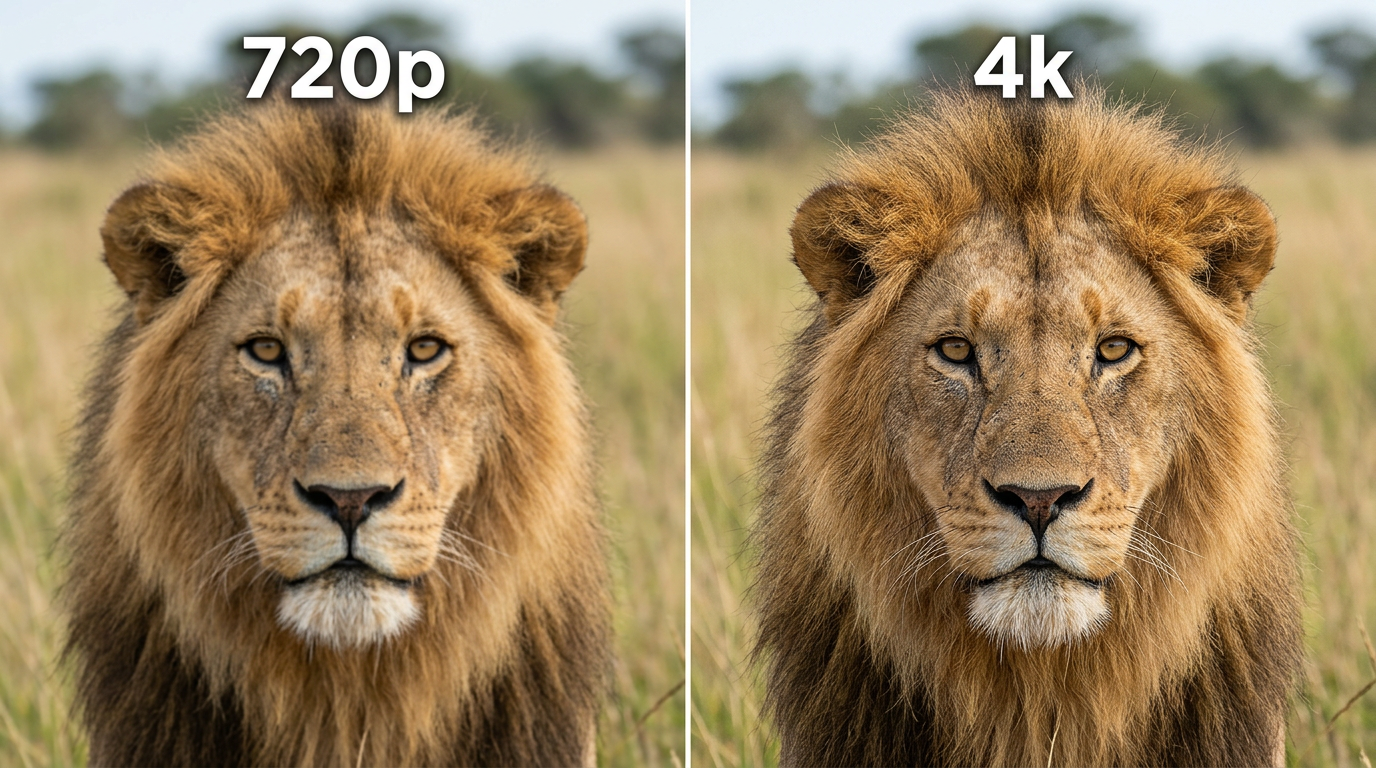
Upscaling is meant to help you increase the video resolution with help from a tool. You’re taking 480p footage, for example and you are turning it to 1080p or 4k. What upscaling does is it allows you to add missing information to make the video feel smoother and of a higher quality. However, this requires a solid initial video, one without too many downsides.
Upscaling does have its limits, if you have a basic 240p video and want to upscale to 4k, then the results will not be extraordinary. You should also combine with sharpening features for excellent results and use AI-based upscaling tools to fill in the gaps. Resizing tools will not add any details, while AI-based tools will, which leads to a more consistent visual style and a higher video quality, too.
Method 3: Reduce Noise and Compression Artifacts
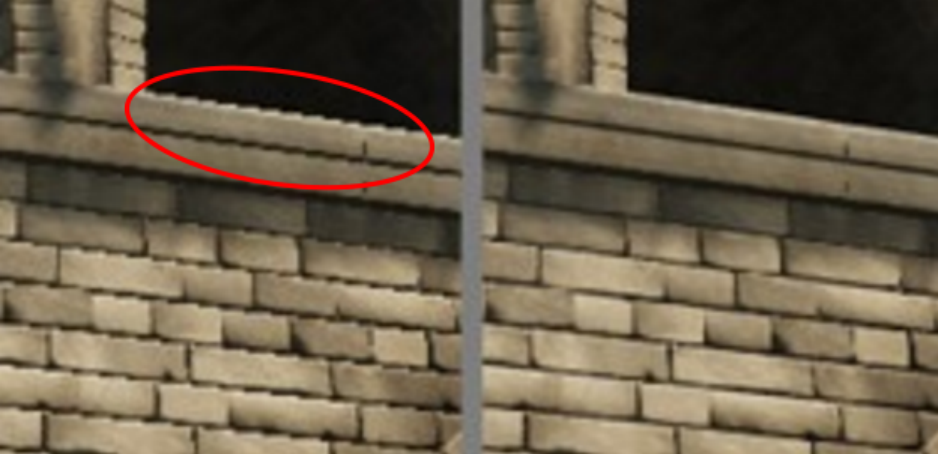
Compression and noise artifacts will make those mosaic effects even worse. With this approach, you want to reduce distortion, which will allow you to boost the quality of your video, refine its visuals, and presenting a better experience to viewers.
The methods available for this include deblocking algorithms, but also spatial filtering, bitrate optimization or even temporal noise reduction. If you use a dedicated tool with AI support, these changes can be applied during the enhancing process, which is extremely important to consider.
Method 4: Crop or Reframe the Video
Another method you can use is to reframe or crop the video. That’s a good idea if you have a video where the mosaic effect is damaging only a part of the frame. By zooming into the clear region, shifting the aspect ratio, or using smart tracking tools to reframe subjects, you can solve that issue. Granted, this will not restore detail from the image, but it will help improve the viewing quality of the video.
Step-by-Step: Improve a Mosaic Video Using Vmake Video Enhancer
An AI video enhancer is very useful if you want to remove the mosaic effect and make the videos feel more appealing. If that’s what you are looking for, then the Vmake Video Enhancer is the right option to consider.
The tool is designed to help increase the video quality with AI, while also keeping details intact. It relies on upscaling as well as noise reduction and other technologies to offer a more presentable, modern version of the video.
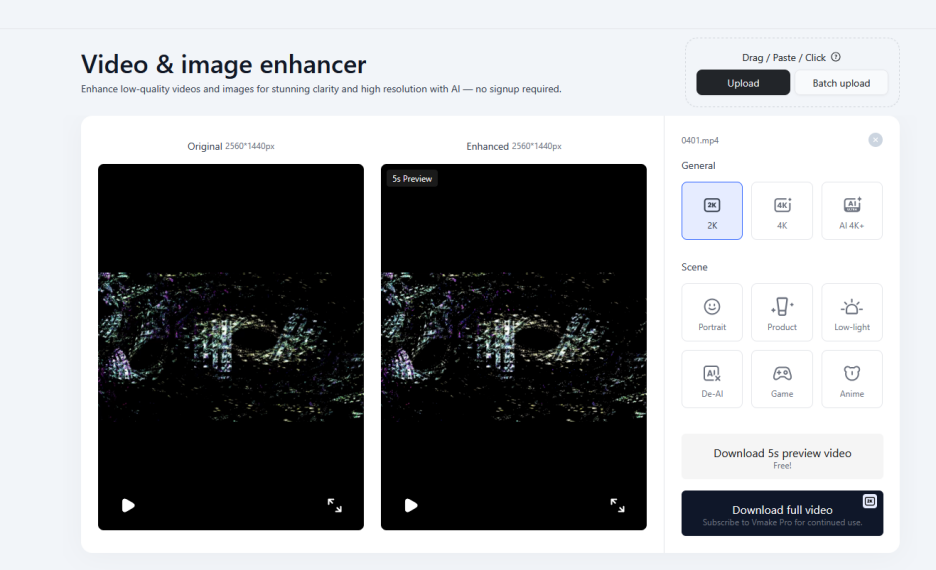
The way you use Vmake Video Enhancer is simple; you have to follow these guidelines:
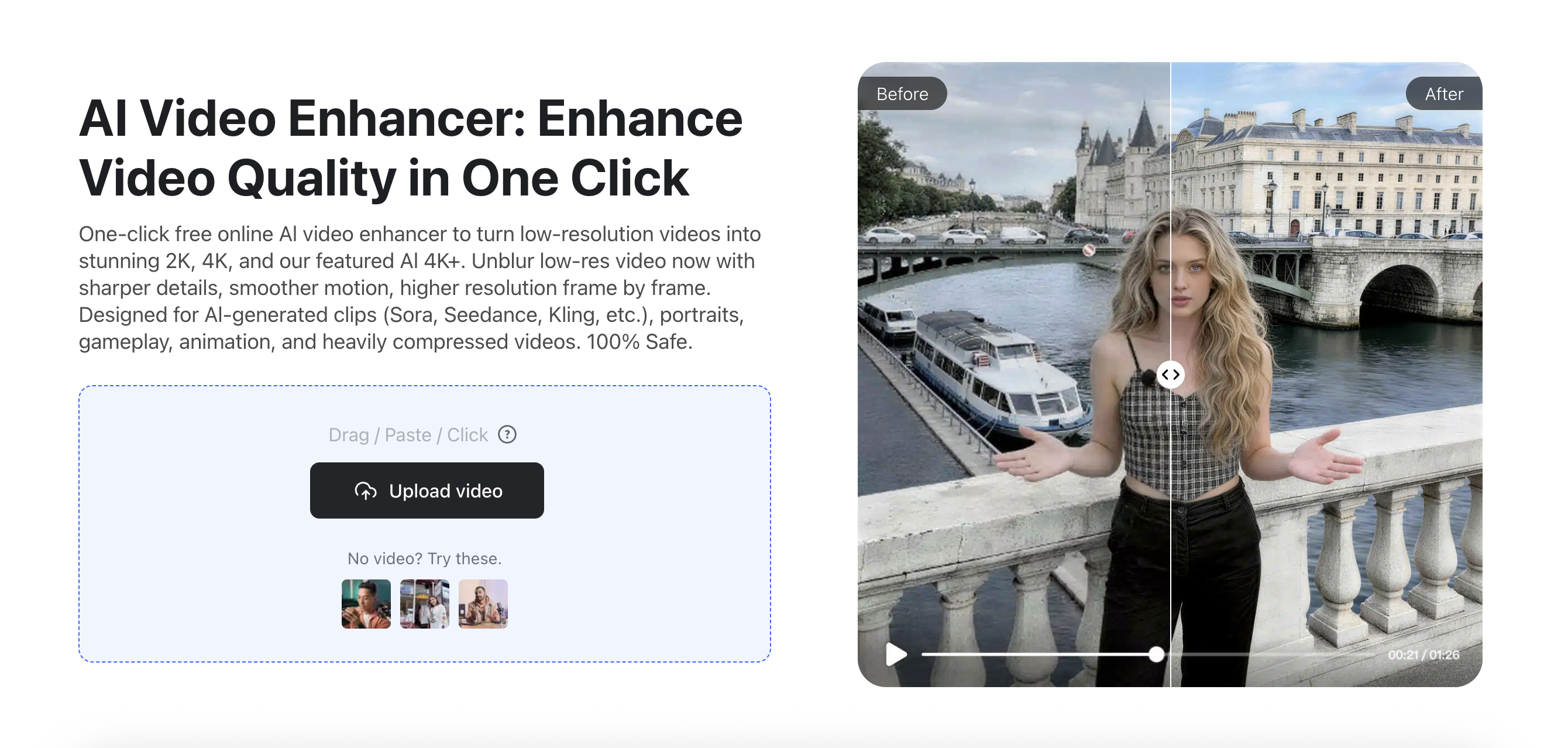
Upload the video
You will need to visit Vmake Video Enhancer, and then you can upload your pixelated video onto the platform. Depending on the video size, it could take a few minutes, so wait until the process is completed.
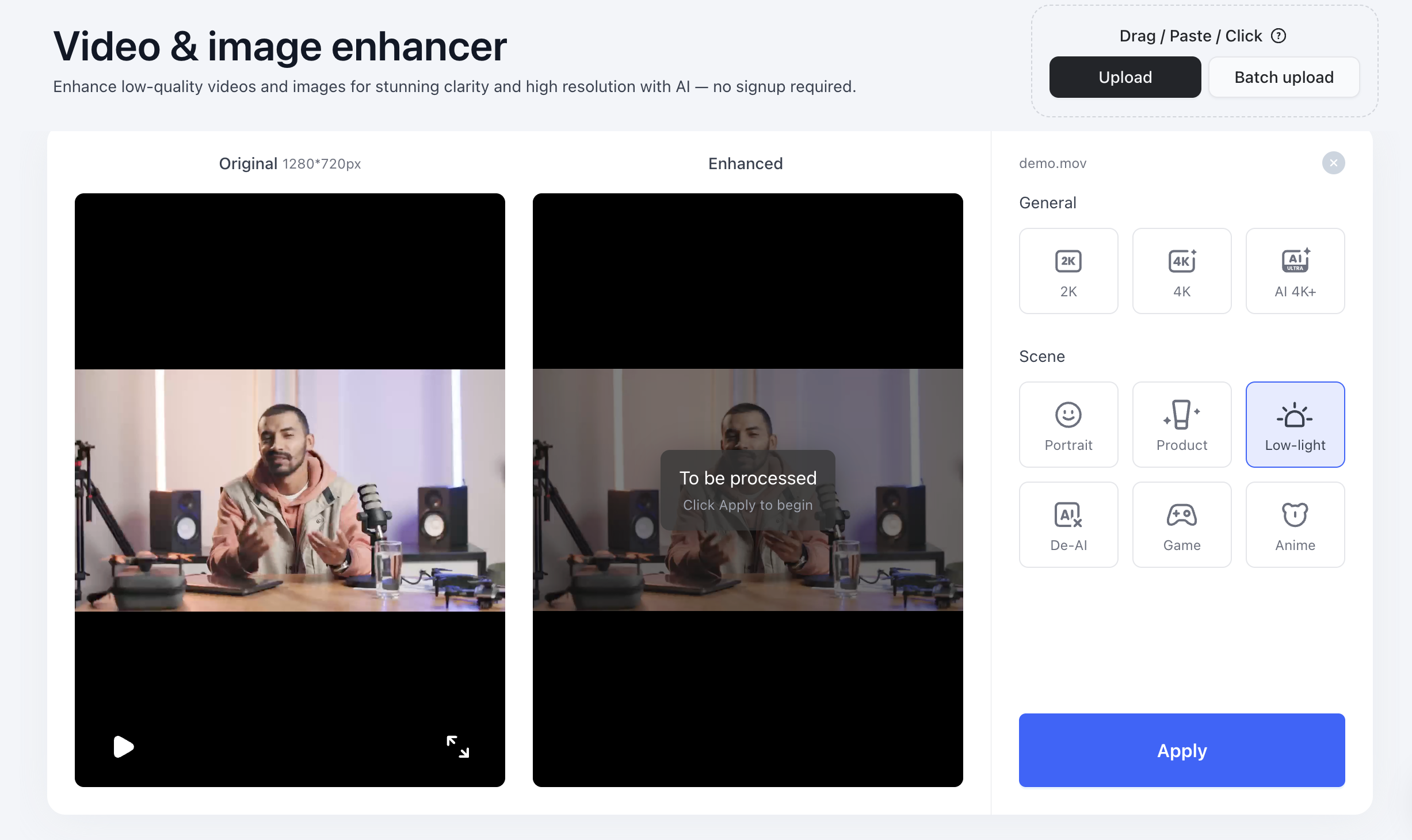
Pick the enhancement option
After uploading, you can choose how to enhance the video. You can upscale the video, but also optimize it for a certain format. You can also have low-light, remove AI features from the video, and so on.
 Preview the results
After you choose how to enhance, all you have to do is to press the Apply button. That will allow you to assess the video and see if it’s the quality you are seeking. If not, you can make further changes to it until you are satisfied.
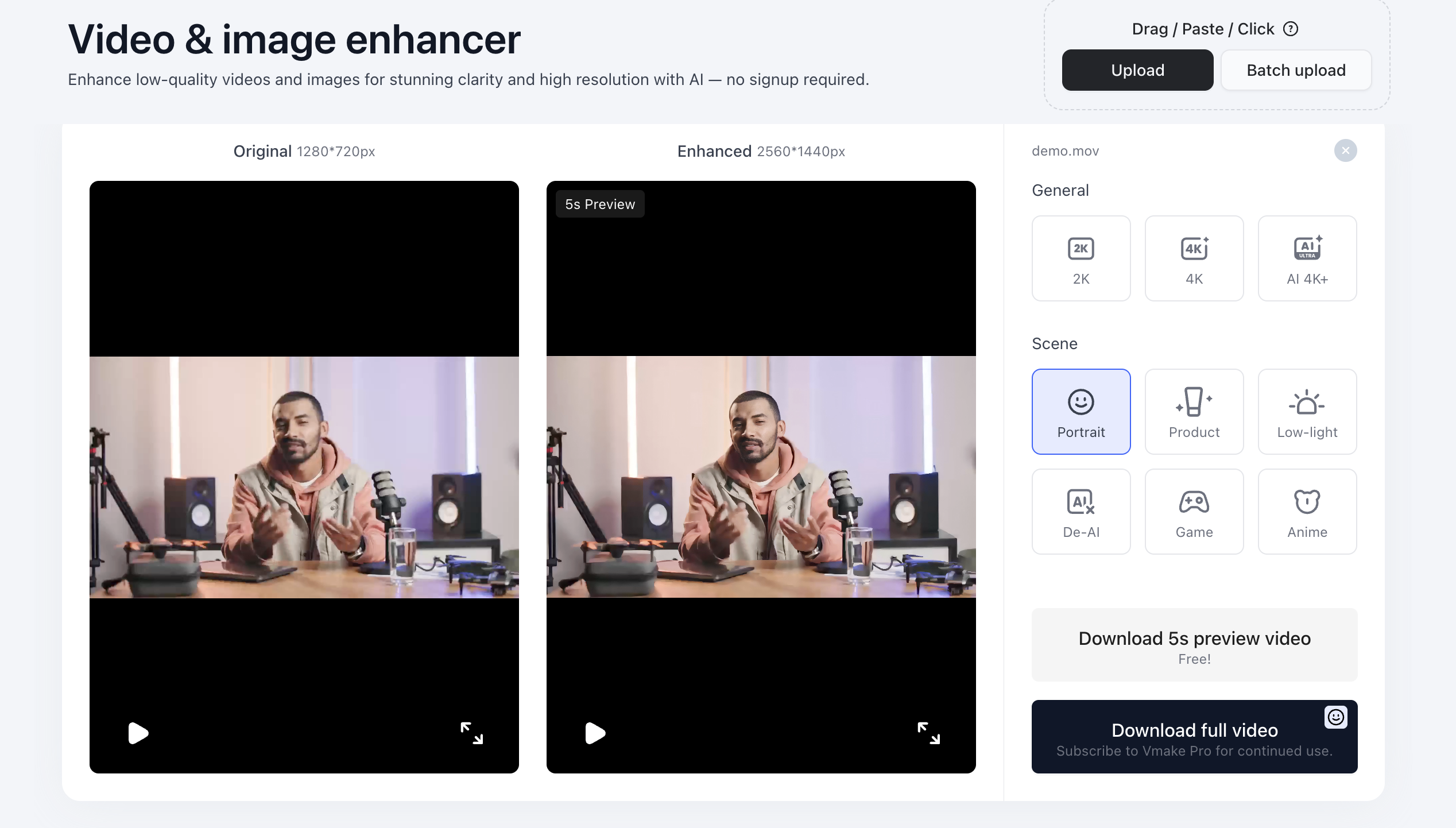 Download the enhanced video
After you are happy with the resulting video and its quality, you will need to download it. Press the Download button, and then you can watch/use the video anywhere you see fit.
In order to have the best results, a very good idea is to use the highest quality original file available. That will make it easier to identify an optimal output. The last thing you want is to try and add too many enhancements to a video. If you do, the quality might be too low, since you are attempting to change so many things.
FAQs About Mosaic Removal and Video Enhancement
Can AI fully restore blurred or censored faces?
The role of AI when it comes to enhancing a video or doing mosaic removal is to improve the clarity of the video. It can’t reconstruct details that were hidden purposefully by the video creator. So if you want to use an AI tool to improve a video, keep in mind that it won’t restore censored parts of a video.
Is it safe to use an online video enhancer?
It’s ok to use an online video enhancing tool. Make sure that you check reviews and the company history. Assessing their privacy policies and seeing when the videos get deleted matters as well. The most reputable companies will always delete videos after a week or a month at most.
What is the best resolution you can upscale from?
The best starting resolution for upscaling is 1080p, especially if you want a 4k video. However, upscaling can work for 240p, 480p or 720p videos as well. The highest the video quality is, the better the upscaled video will look. That way, you will have way less quality loss, and not worry about even more artifacts or mosaic effects in your videos. So, it makes sense to start with a higher video quality.
Will enhancing the video reduce your file’s size?
Most of the time, video size remains the same, but it can vary. It depends on the final output quality. There are times when enhanced videos are larger, especially if you are upscaling to 4k videos, due to the higher bitrate and increased resolution.
Should you consider using online tools or professional software?
The upside when it comes to professional software is that it will give you more control. However, you need to purchase the software and download it. AI web tools, on the other hand, allow you to upload the video, enhance and then download it immediately. Online tools allow you to enhance the video right away, for free, with some features being something you have to pay for. However, online tools are more effective because they are less expensive and can still provide a great visual quality.
Final Thoughts
It’s very difficult to do a perfect restoration for an old or pixelated video. Instead, the focus is on trying to improve what’s already there and make it look better. Advancements in AI tech make it easier these days to enhance videos to a video that’s acceptable and of very good quality.
In order to get the best results, it’s a good idea to use an online video enhancement tool like Vmake Video Enhancer. The tool is free to use, it allows you to enhance video quality online, while also previewing the results before you download. It’s the ultimate solution for those of us that have videos with mosaic effects and pixelation!

You May Be Interested
AI Video Enhancement And Upscaling: Pros, Cons, Alternatives, and Future Trends
AI Video Enhancement vs. Traditional Video Editing: Comparative Guide for 2025

Unblurimage 2026 Review: Video Enhancer Hands-On