Animaker Review: Exploring Its AI, Animation & Avatar Tools
Explore our Animaker review covering animation tools, AI features, avatars, pricing, free access, user feedback, and how Vmake Labs compares as an alternative for AI video creation.

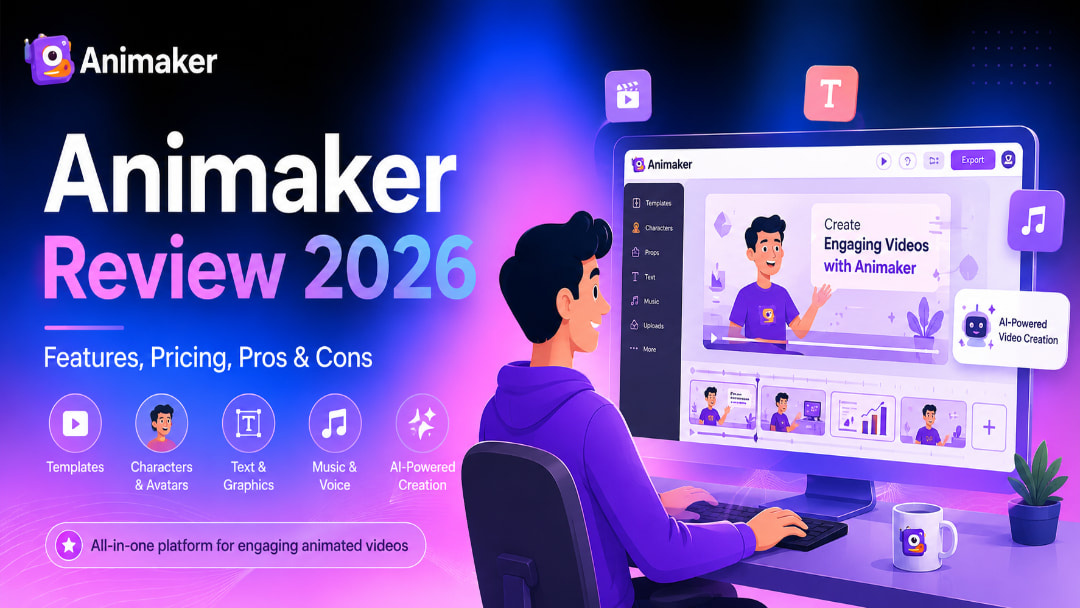
Animaker is built around a familiar way of making animated videos: choose a template or scene, add characters and other assets, then customize the project to fit your message. In this Animaker review, we look at its animation tools, AI features, avatars, pricing, free access, user feedback, and how Vmake Labs compares.
What is Animaker?
Animaker is an online platform that enables you to produce animated videos without the need of a traditional animation setup. It employs a template and scene-based workflow with a library of 2D characters, backgrounds and other visual elements that users can arrange and modify to fit their projects.
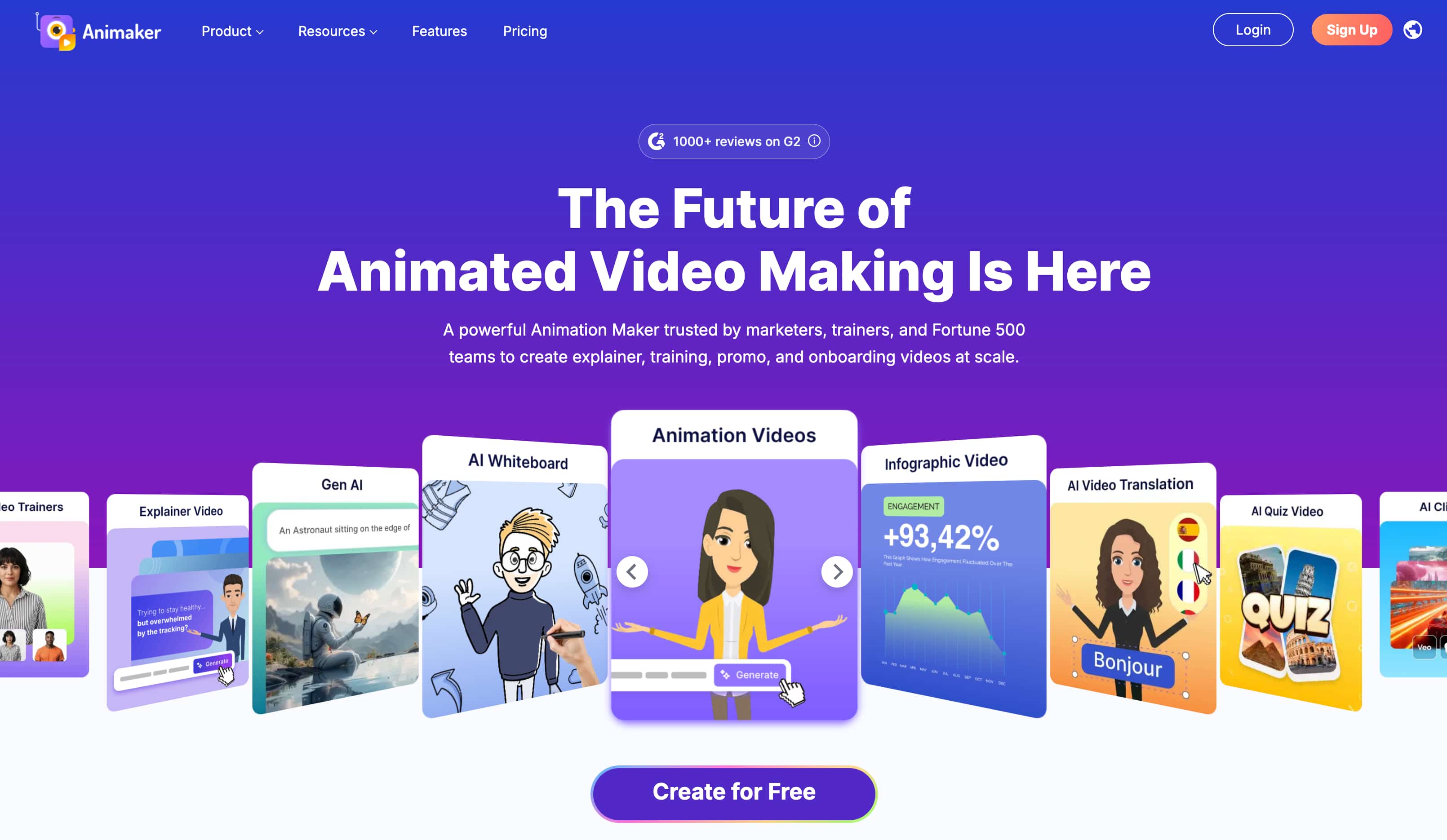
It is mainly suited to marketing teams, educators, small businesses, and other users who need explainers, presentations, training material, or promotional videos. The drag-and-drop editor keeps the process fairly approachable, while the range of characters and templates gives creators a starting point instead of asking them to build every scene from scratch.
Key Animaker features
-
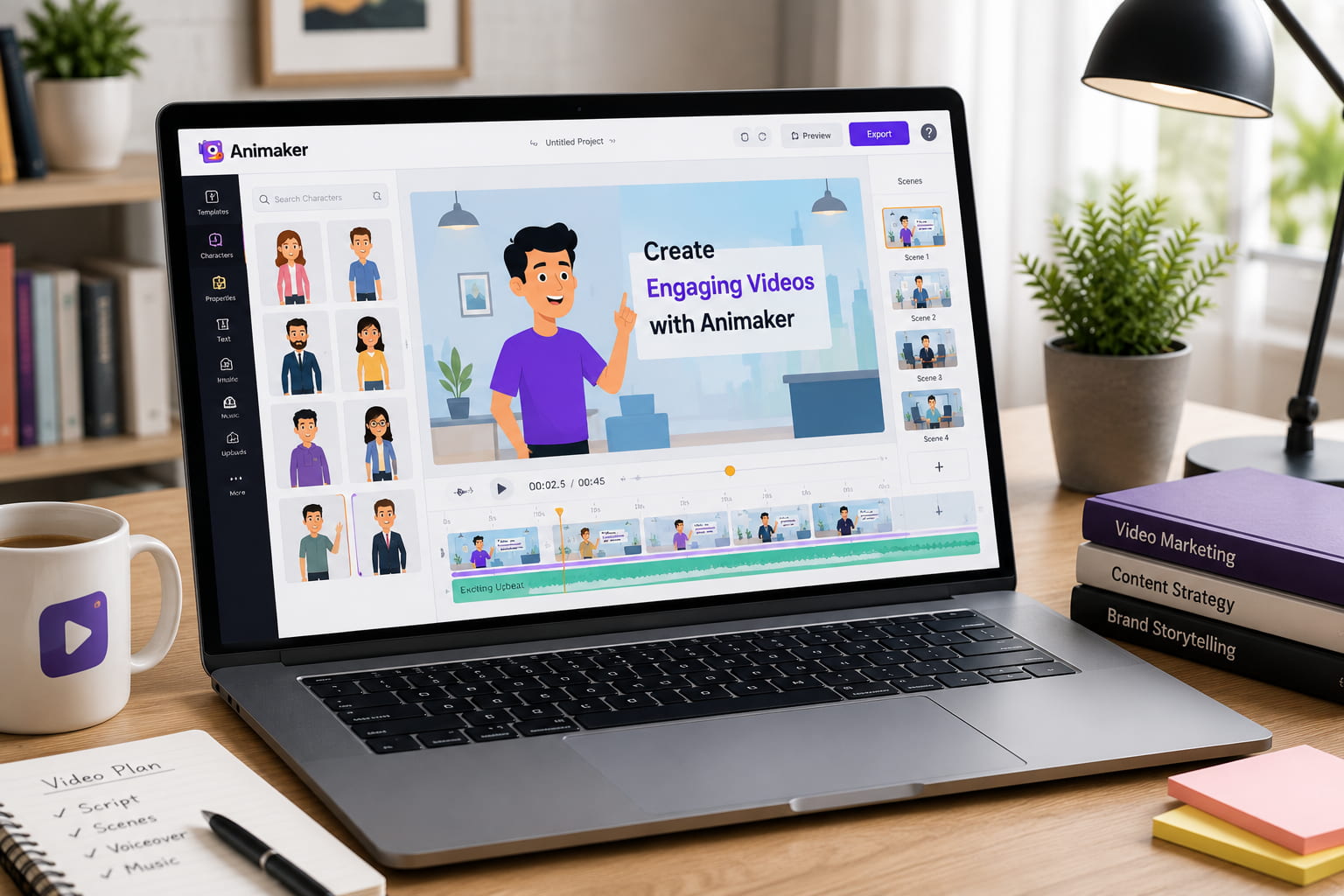
Animation and video creation: Build animated videos using scenes, characters, backgrounds, text, and other visual elements within the browser-based editor.
-
Templates and customizable scenes: Start with ready-made templates or create scenes from scratch, then adjust the layouts and visual elements to fit your project.
-
Characters and customization: Choose from a broad character library and customize characters to suit different stories, presentations, explainers, and training videos.
-
Animaker AI / AI-assisted creation: Use Animaker's AI-assisted features to speed up parts of the video creation process while keeping the project within its animation workflow.
-
Avatar maker: Create avatar-based content for presentations, training, narration, and other videos where a character-led format works better than traditional slides.
-
Voice and audio tools: Add narration, voiceovers, music, and other audio elements to give animated scenes more context and make videos easier to follow.
-
Video editing and animation controls: Adjust scenes, timing, transitions, text, characters, and other elements to fine-tune how the finished video looks and plays.
What can you create with Animaker?
Animaker is most useful when the video needs a clear visual structure, characters, or animated scenes. Its templates and editable elements make it suitable for several types of content, from simple explainers to business presentations.
Explainer and educational videos
Animaker can be used for tutorials, presentations, explainers, and instructional videos. Characters, scenes, text, and voiceover options help turn information into a more visual format, which can work well for lessons and step-by-step content.
Marketing and social media videos
For marketing teams, Animaker can be used to create promotional videos, product explainers, social posts, and short branded content. Templates give users a starting point, while the editor allows them to change the scenes, characters, text, and other elements.
Avatar and character-based videos
Its character and avatar tools are useful when the video needs a presenter or a recurring character. This can suit narrated presentations, training material, educational content, and other projects where a visual character helps carry the message.
Business and training content
Animaker can also fit internal communications, onboarding, employee training, and business presentations. The scene-based format makes it easier to break information into smaller sections instead of presenting everything as a long block of text.
How to use Animaker
Creating a video in Animaker follows a straightforward scene-based workflow. You can start with a ready-made template or build the project yourself, then adjust the visual elements before exporting the finished video.
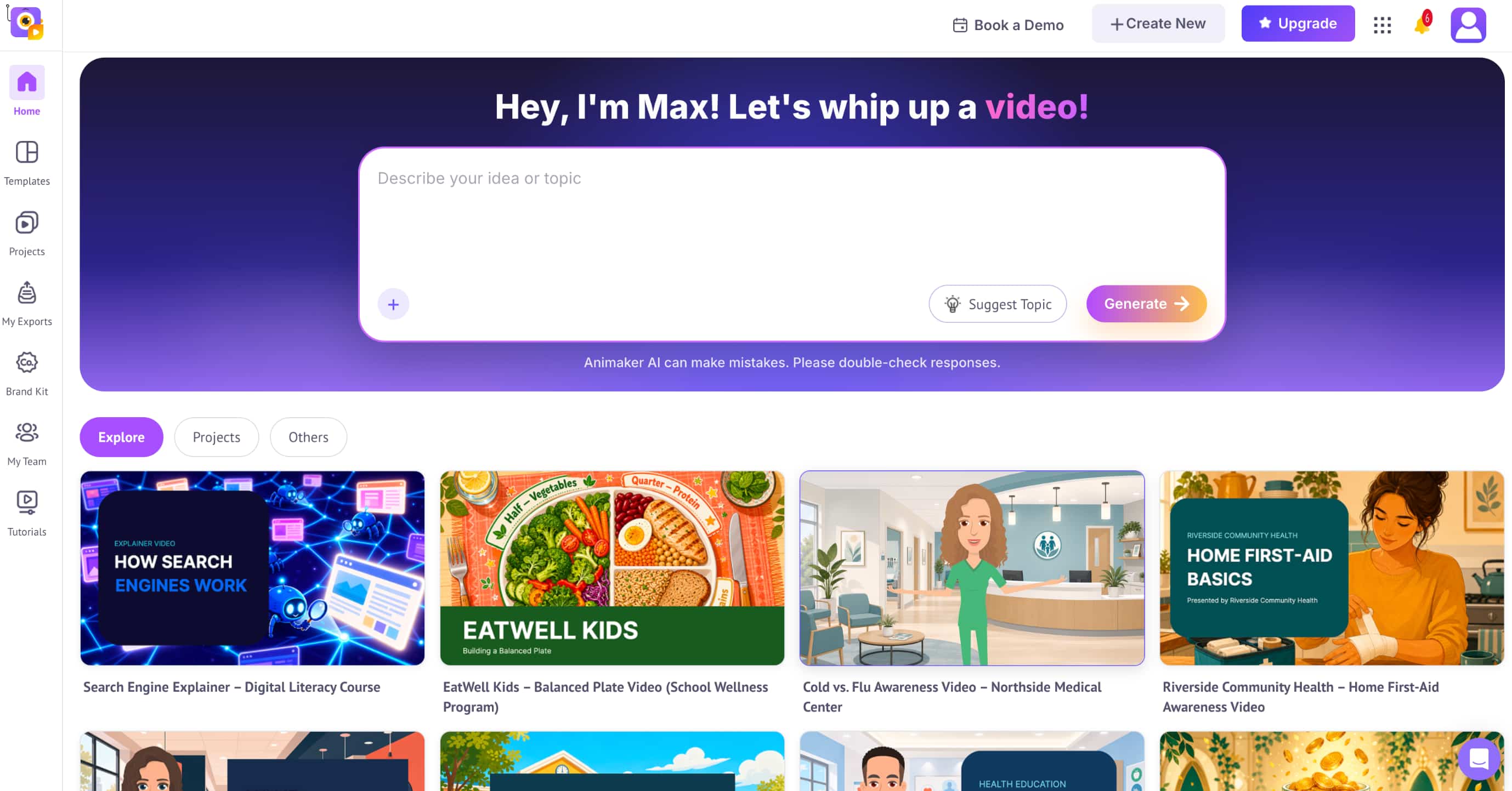
Step 1: Choose a template or start a project
Pick a template that matches your video type, or start with a blank project if you want more control over the design. Templates can give you a useful starting structure without requiring you to build every scene from scratch.
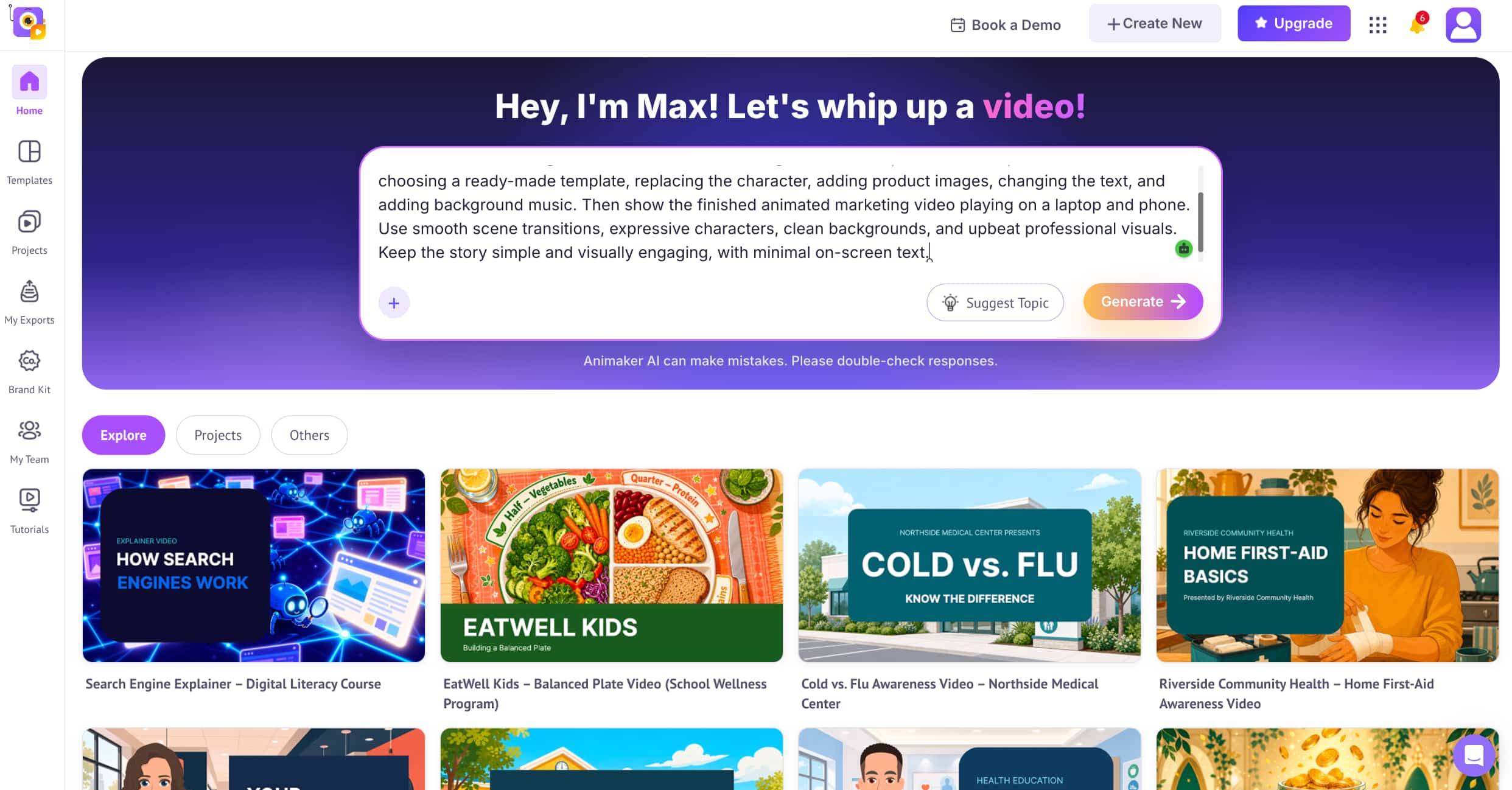
Step 2: Customize your video
Edit the scenes and add the elements you need, such as characters, text, images, avatars, voiceovers, and other audio. You can adjust these elements to match the message, style, and pacing of your video.
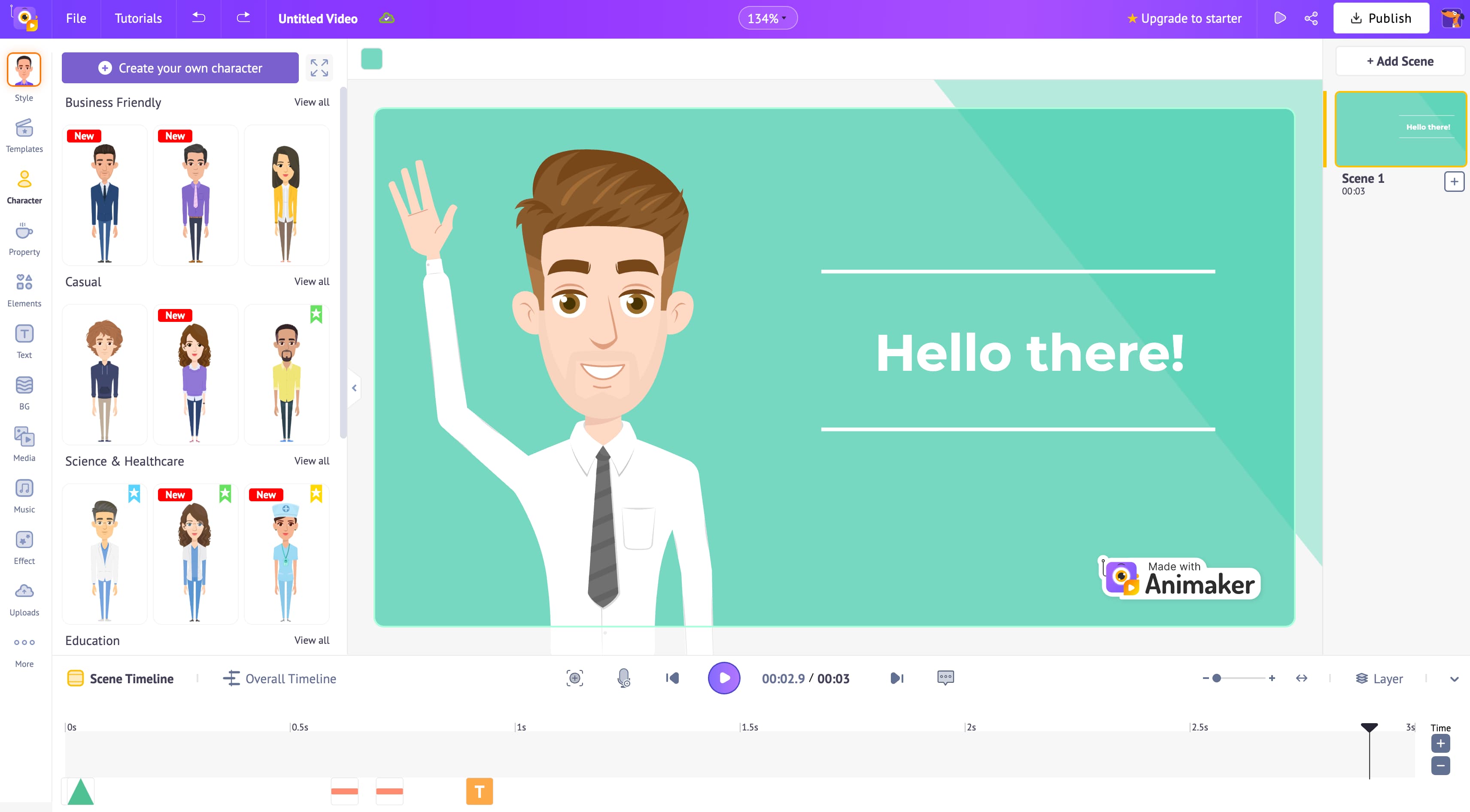
Step 3: Preview and export
Preview the complete project to check the timing, animations, text, and audio. Once everything looks right, make any final changes and export the video using the options available with your Animaker plan.
Animaker pricing, free plan, pros, cons, and user feedback
Animaker offers several plans for different levels of video creation, from occasional projects to more regular production. Before looking at its strengths and limitations, here's a quick look at what each plan includes.
Animaker pricing and free access
Animaker's current pricing page shows three paid options: Starter, Pro, and Enterprise. Starter and Pro are listed at $45/month and $79/month respectively, when billed yearly, while Enterprise uses custom pricing.
|
Plan |
Price |
AI Video Credits/mo |
Premium Downloads/mo |
Generative Video |
Quality |
|---|---|---|---|---|---|
|
Starter |
$45/mo, billed yearly |
3,000 |
10 |
90 sec/mo |
FHD |
|
Pro |
$79/mo, billed yearly |
5,000 |
30 |
180 sec/mo |
2K |
|
Enterprise |
Custom |
Custom |
Unlimited* |
6,000 sec/yr |
4K |
The plan you choose mainly depends on how often you create videos and how much production capacity you need. Beyond pricing, Animaker's overall value also comes down to its features, ease of use, and limit,ations.
Pros and cons of Animaker
Pros
-
Wide range of animation and video creation tools
-
Large selection of templates and characters
-
Avatar and AI-assisted creation options
-
Accessible for users without advanced animation skills
-
Suitable for business, educational, and social content
Cons
-
Free-plan limitations
-
Watermark or export restrictions, where applicable
-
Learning curve for more complex projects
-
Pricing can be a consideration for frequent users
-
Some recurring limitations mentioned in user reviews
What users say about Animaker
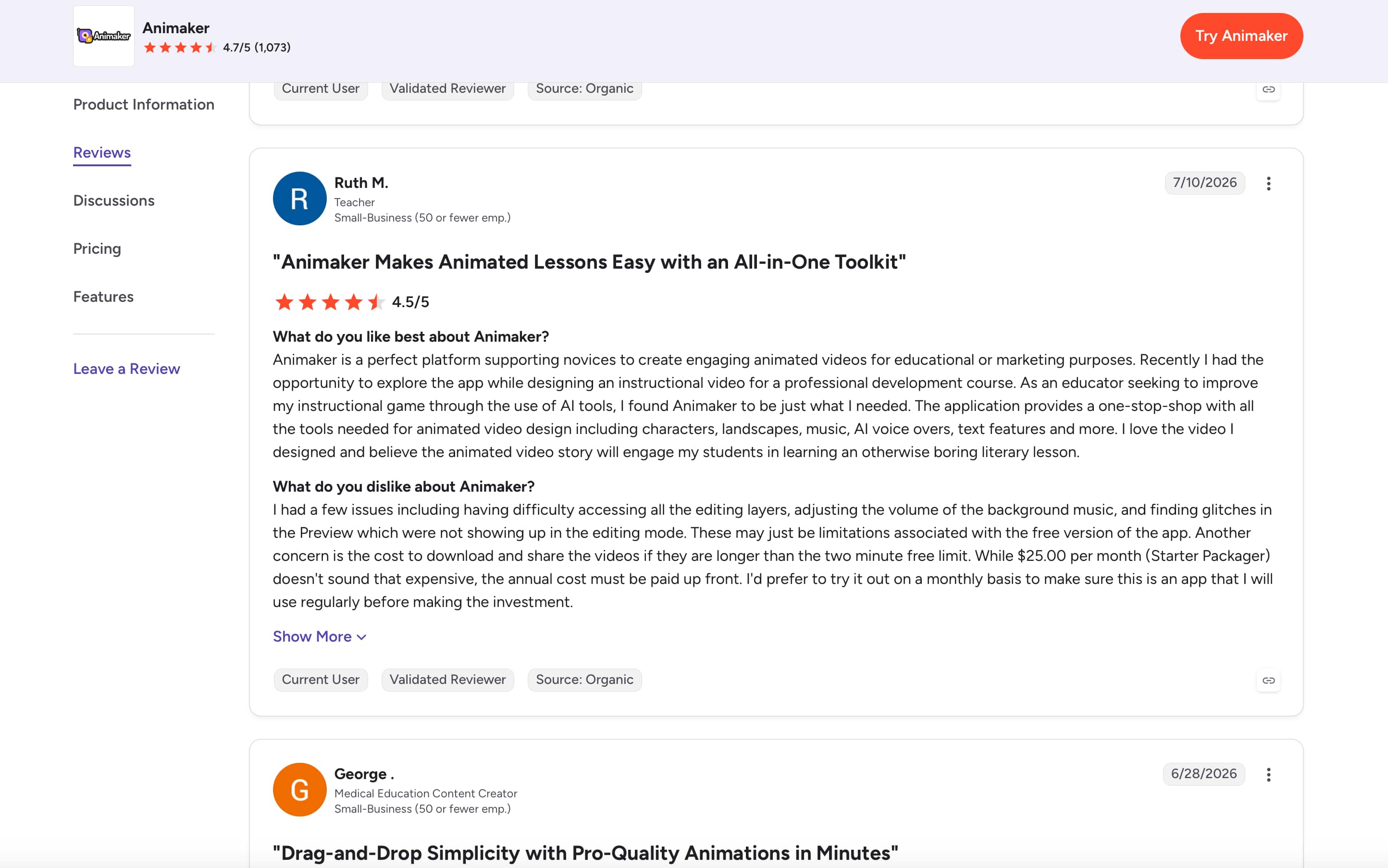
G2: Animaker has a 4.7/5 rating from 1,073 reviews on G2. Reviewers commonly praise its ease of use and the range of tools available for creating animated videos. One educator gave it 4.5/5 and said the platform made it easier to build engaging lessons, while also noting some issues with editing layers, audio controls, and preview glitches.
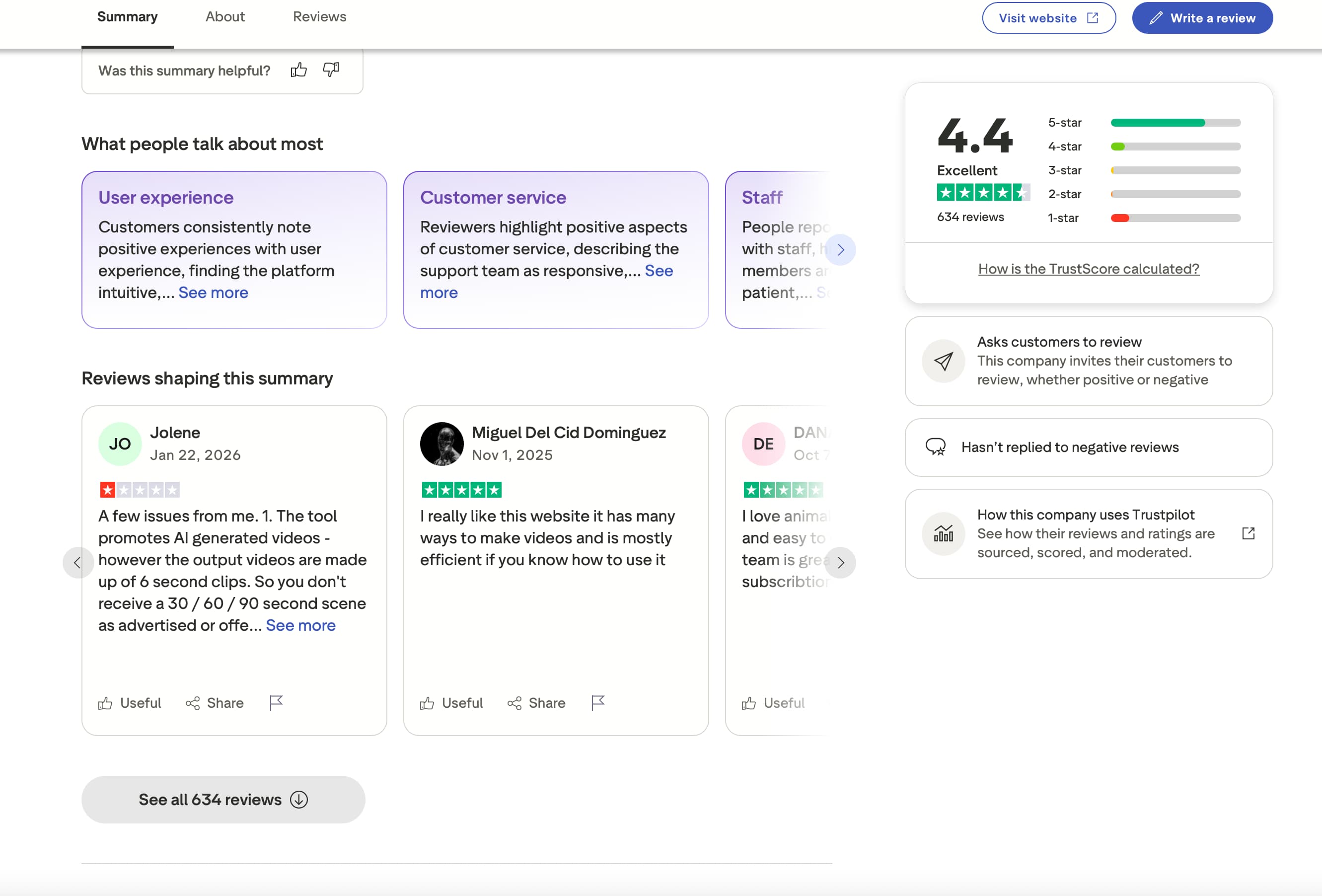
Trustpilot: Animaker has a 4.4/5 rating from 634 reviews on Trustpilot. Positive feedback highlights the platform's intuitive experience, variety of video-making options, and responsive customer service. Some users, however, have raised concerns about AI-generated video output and limitations around clip length, showing that the experience can vary depending on the feature being used.
Is Animaker worth using?
Animaker is something you should consider if you need to make animated explainers, training videos, presentations or character-based content without having to learn complicated animation software. It gives you enough templates, characters, avatars, and editing tools to have some fun with, but if you create videos regularly, the prices and plan limits may be important. If you’re less about scene-by-scene animation and more about creating video from prompts, images or existing footage, Vmake Labs is a more direct alternative worth considering.
Vmake Labs AI Video Generator as an alternative
For users who want a more generation-focused workflow, Vmake Labs offers another way to approach video creation. Instead of building every scene from scratch, creators can start with text, images, or existing footage and choose the workflow that suits the project. The AI video generator also brings multiple video models into one place, which can be useful for marketing, social media, ecommerce, and other short-form content.
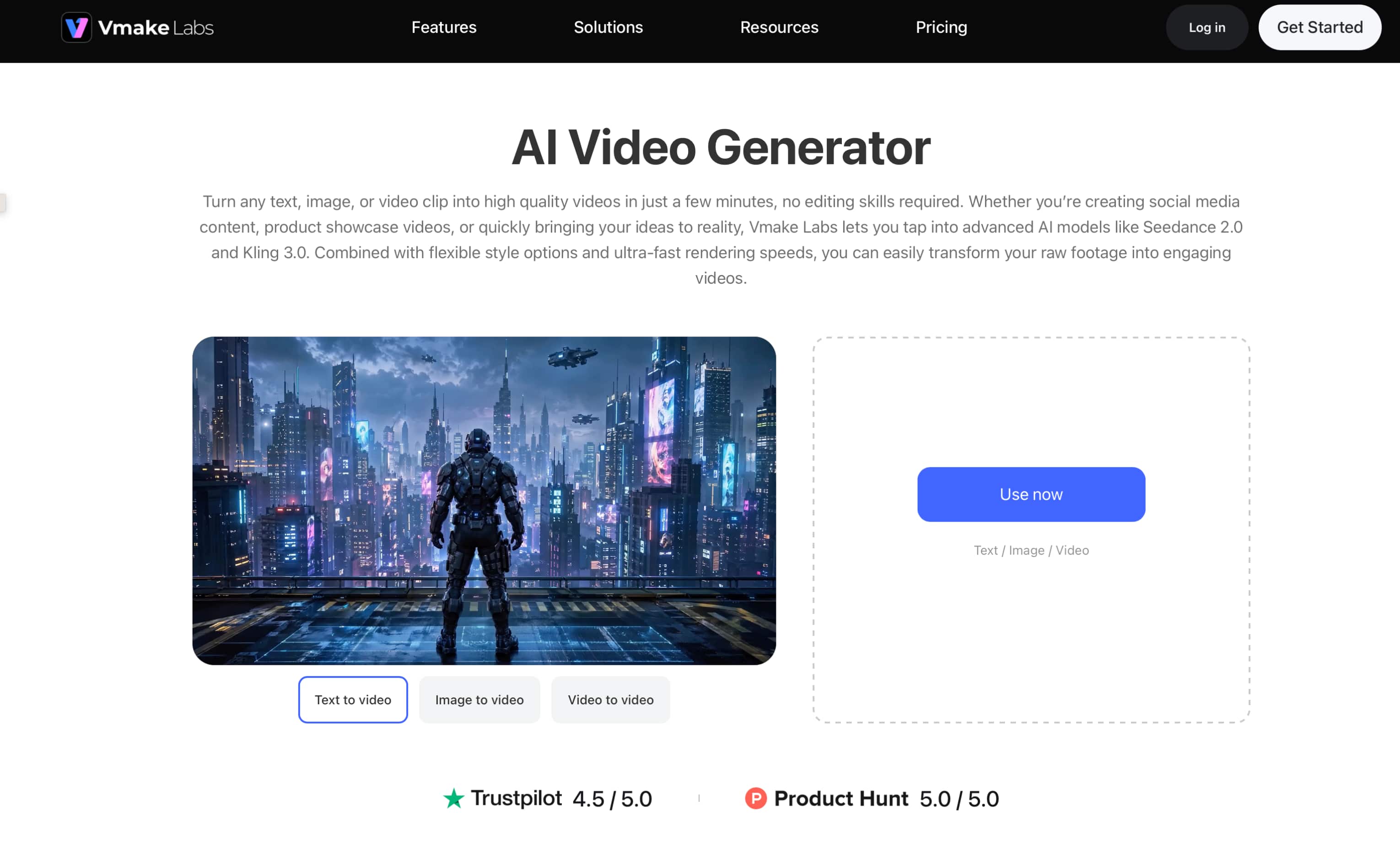
Why consider Vmake Labs AI Video Generator?
-
Multiple video models: Vmake Labs brings different supported video models into one workspace, giving creators more options when experimenting with styles and results.
-
Text to Video: Start with a written idea and turn it into a short video without needing an existing visual as the starting point.
-
Image to Video: Animate a still image or reference visual, which can be useful for product images, creative assets, and social content.
-
Video to Video: Upload existing footage and use it as the starting point for a new video variation.
-
Flexible generation workflows: Depending on the project, creators can also work with Frames and built-in Effects, giving them more ways to develop a video from different types of source material.
How to create videos with Vmake Labs
Step 1: Choose a generation method Select Text to Video, Image to Video, or Video to Video depending on whether the project starts with an idea, a reference image, or existing footage.
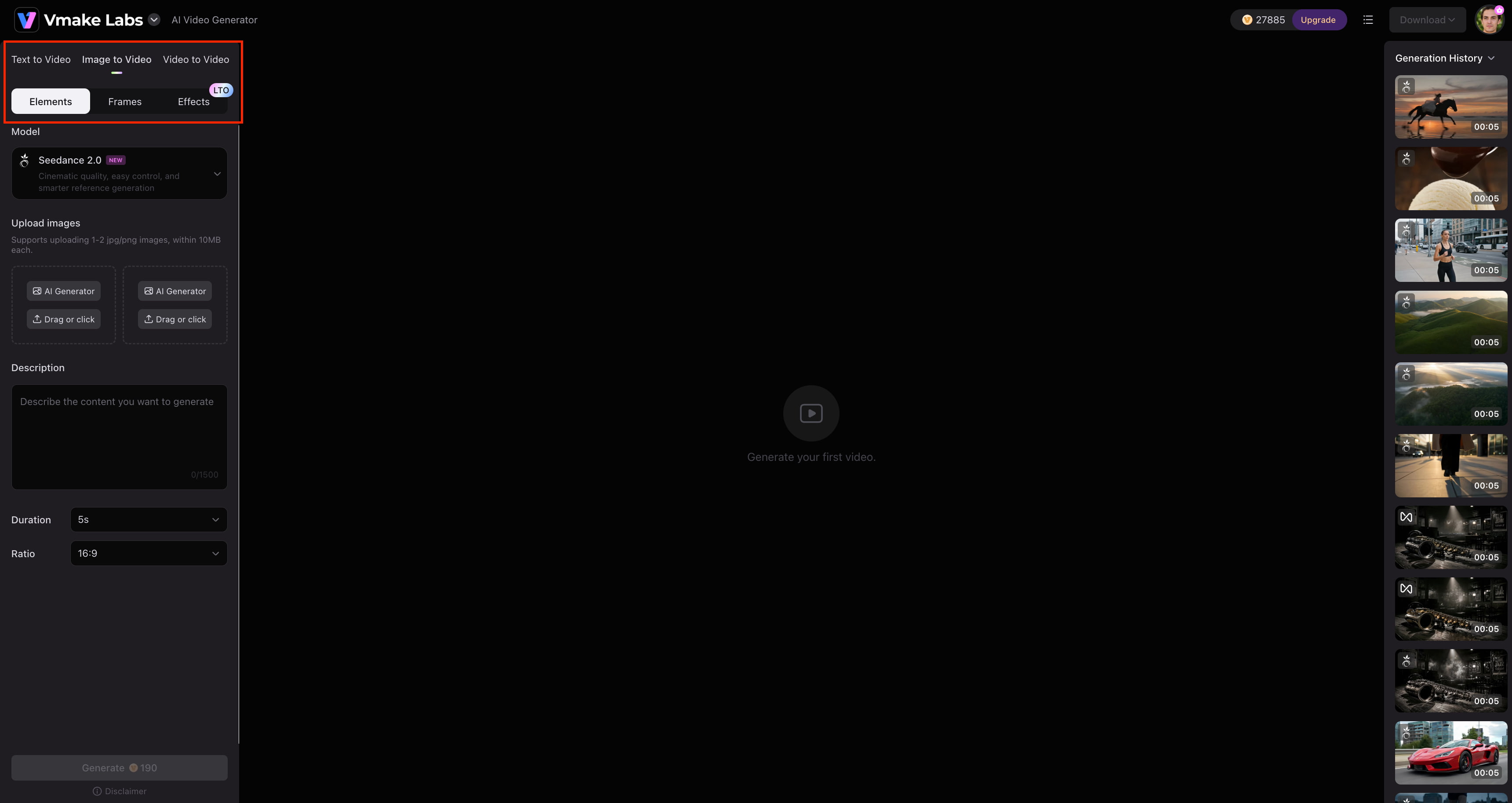
Step 2: Add your input and choose a model Enter a prompt or upload the required image or video, then select an available video model and adjust the relevant settings for the generation.
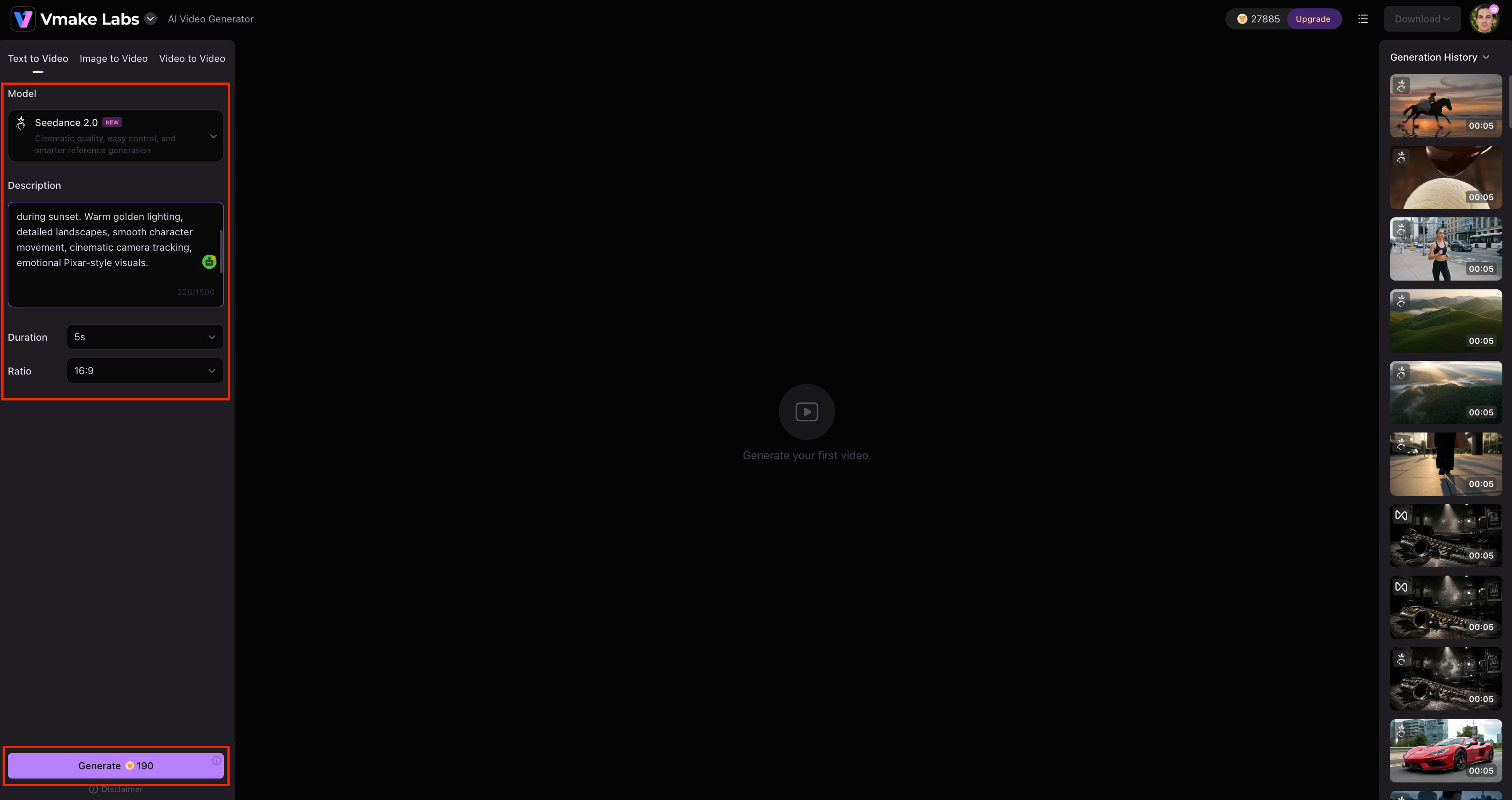
Step 3: Generate, review, and download Generate the video and check the result. If the clip needs changes, make adjustments and create another version before downloading the finished video.
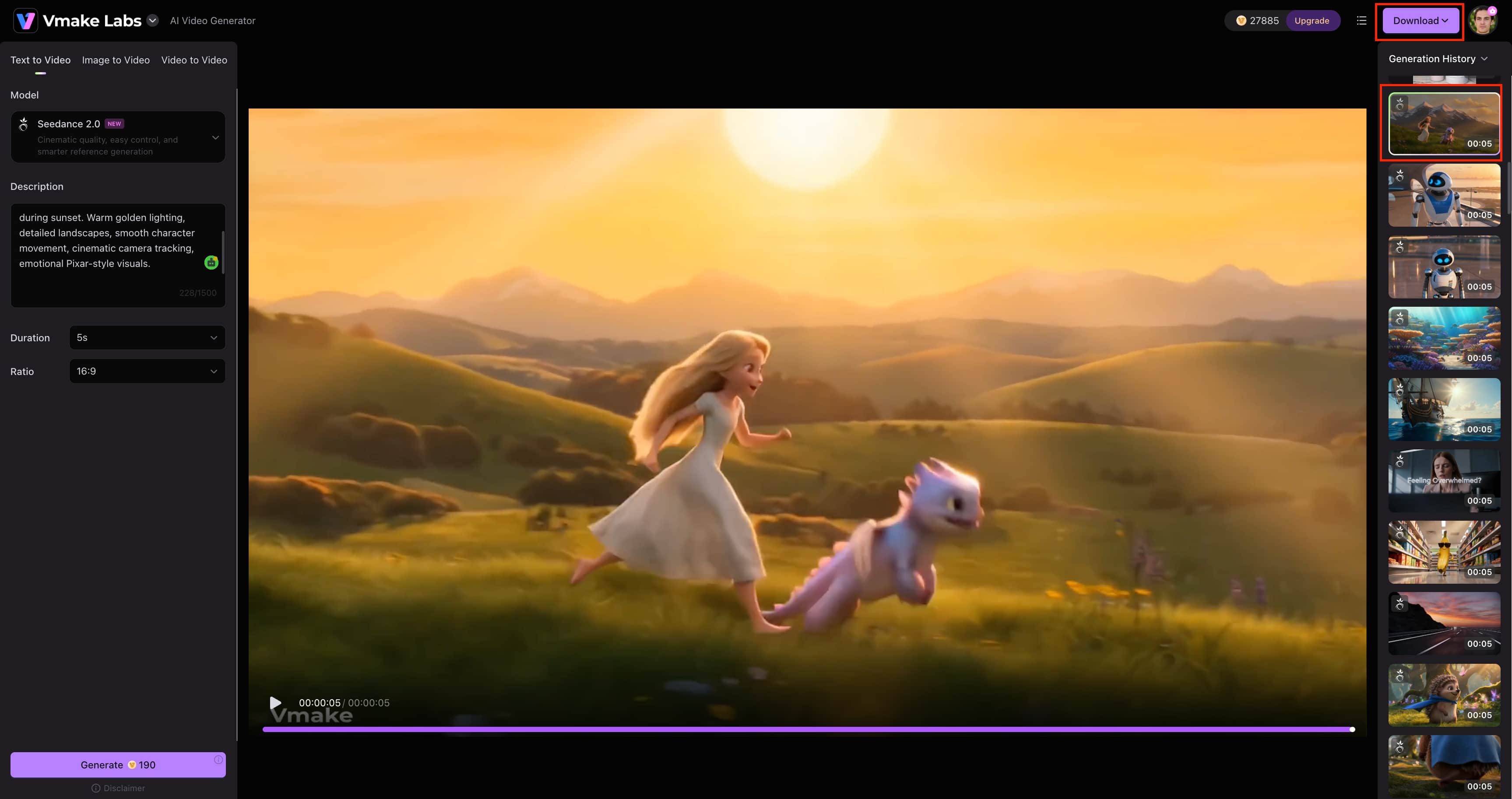
Animaker vs Vmake Labs AI Video Generator
Animaker and Vmake Labs take different routes to video creation. Animaker is a better option for structured animation videos where you have control over your characters, scenes, templates and avatars. Vmake Labs is more about creating videos from prompts, images, or existing footage, with a variety of models and workflows to pick from.
|
Category |
Animaker |
Vmake Labs AI Video Generator |
|---|---|---|
|
Best for |
Animation, explainers, presentations, and avatar content |
Marketing, e-commerce, social, and creative video |
|
Primary approach |
Template- and scene-based creation |
AI video generation |
|
AI video generation |
AI-assisted creation features |
Multiple AI video models |
|
Text to Video |
AI-assisted capabilities, where supported |
Supported |
|
Image to Video |
Image and animation workflows |
Supported |
|
Video to Video |
Not a core workflow |
Supported |
|
Avatars |
Avatar and character creation |
Not a core focus |
|
Generation workflows |
Animation and scene-based creation |
Text to Video, Image to Video, Video to Video, Frames, and Effects |
|
Best suited to |
Structured animated content |
Creators, marketers, e-commerce teams, and businesses |
Which tool should you choose?
Animaker is more geared toward structured video creation where you build scenes with templates, characters, avatars, text and animation controls. Vmake Labs has gone the other way, allowing you to create short video clips from text, images or existing footage. It also provides users access to multiple video-generation models, which can be useful if different projects require different visual styles or results.
For creators working on marketing, e-commerce, social media, or other fast-moving visual content, Vmake Labs offers more flexibility in how a video can be started. You can turn a written idea into a clip with Text to Video, animate a still visual with Image to Video, or use existing footage with Video to Video. Its Frames and Effects workflows provide additional starting points, while an AI thumbnail maker can help prepare supporting visuals for content shared across social platforms.
Conclusion
Animaker is a practical choice for users who want structured animation, customizable characters, avatars, templates, and video editing tools in one place. Its free access makes it easy to try, although export limits, watermarks, and plan restrictions may matter for regular use. Vmake Labs takes a different approach, focusing on AI video generation through Text to Video, Image to Video, Video to Video, and multiple generation workflows. If you prefer scene-based animation and character creation, Animaker is the better fit. For faster AI-generated clips and more flexible video-generation options, Vmake Labs is worth considering.
Animaker FAQs
-
What is Animaker used for?
Animaker helps you create animated videos, explainers, presentations, training content, social media videos and more. Vmake Labs provides prompt-to-video creation with Text to Video, Image to Video and Video to Video workflows.
-
Is Animaker free to use?
Yes, Animaker is free but with limited features and exports available. It is good for trying out the platform before you pay, while Vmake Labs offers a different way of making videos from prompts or existing visuals.
-
Does Animaker have an AI animation generator?
Yes, Animaker has AI-assisted creation, along with its regular animation and editing tools. For those seeking a more generation-first workflow, Vmake Labs offers video generation from text prompts, images, and existing footage.
-
Does Animaker have an avatar maker?
Yes, Animaker has an avatar maker and character customization tools to create character-led videos. If you’d prefer to convert images or existing footage into video rather than creating avatar-based scenes, Vmake Labs has those workflows.
-
How much does Animaker cost?
Animaker's paid plans are Starter, Pro and Enterprise. Starter is $45/month, Pro is $79/month and Enterprise has custom pricing. The plans are billed annually. If you care more about AI generated video than structured animation, then Vmake Labs is worth a look.

You May Be Interested
Artistly AI Review 2026: Is It Worth Trying for Creators?
DeeVid AI Review 2026: Features, Pricing & Top Alternative
Doodle AI Review 2026: Features, Pricing and Alternatives
Getimg AI Review 2026: Is It the Best AI Image Generator?
Supawork AI Review: Watermark Remover Tested (2026)
Nero AI Review 2026 Explained: Is the Tool Worth Using?

Pixar AI Review: What It Is & How to Create Pixar-Style Art
Vivideo AI Review 2026: Features, Pricing and Alternatives