How to Transcribe a YouTube Video to Text: 3 Ways You Cannot Miss
 Ken DawsonMarch 9, 2026
Undoubtedly, video transcriptions can be incredibly useful. Whether you’re a student studying lectures in a foreign language, a researcher skimming key points, or a creator repurposing content, having a text version of a video makes everything more accessible. Although it’s tedious to transcribe YouTube videos manually, you don’t have to go through that. In this guide, you’ll learn how to transcribe YouTube video to text using three simple and practical methods.
- What Does It Mean to Transcribe a YouTube Video?
- 3 Common Methods to Transcribe a YouTube Video
- Method 1: Use YouTube’s Built-in Transcript
- Method 2: Transcribe YouTube Video with AI-tools
- Method 3: Manual Transcription (Not Recommended)
- FAQs About Transcribing YouTube Videos
- 1. Is it legal to transcribe YouTube videos?
- 2. Can I transcribe private videos?
- 3. How accurate is AI transcription?
- 4. How do I copy a transcript from YouTube without timestamps?
- Final Thoughts
What Does It Mean to Transcribe a YouTube Video?
To transcribe YouTube videos, you convert spoken audio from a video into written text. The transcript can either be displayed as real-time closed captions or scrollable text. It captures the dialogue, narration, and sometimes sound cues. Converting a video to text makes the information easier to read, search, and reuse.
For example, content creators transcribe YouTube videos to repurpose for blog posts or captions, while businesses use transcripts to improve accessibility and SEO. It simply adds to the viewer’s comprehension, providing learning opportunities.
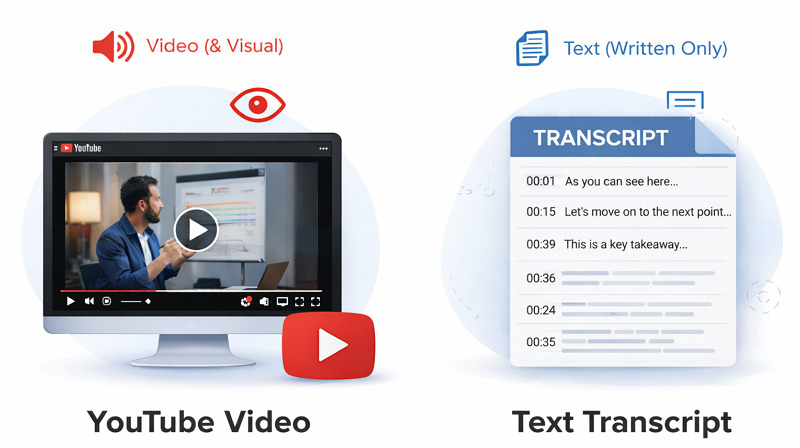
Transcription offers several advantages:
Better accessibility for people with hearing impairments
Improved discoverability in search engines for SEO purposes
Content repurposing for articles, social media, documents, etc.
Translation possibilities into other languages for non-native speakers
Improved comprehension, especially for long educational videos
3 Common Methods to Transcribe a YouTube Video
Are you looking for the best ways to transcribe YouTube video to text free? Let’s look at the most practical options; each has its own advantages depending on your needs, the video length, speed, and accuracy.
Method 1: Use YouTube’s Built-in Transcript
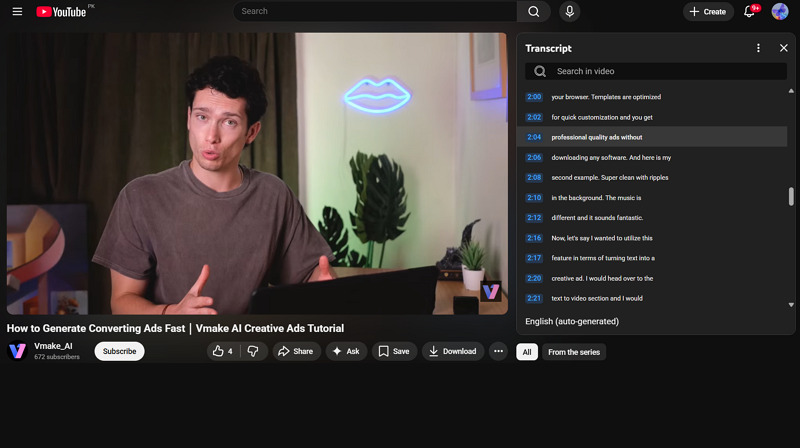
For those who want to transcribe a YouTube video free without any external tools, they can use YouTube’s built-in transcript feature. You can access the auto-generated captions for many videos. Although it’s fast, free, effortless, and timestamped, this won’t be highly accurate, especially for accents, background noise, or technical terms.
It is suitable only when you need a rough transcript for small videos on a desktop, without any editing or exporting options. Also, it only works for videos with captions enabled. Here is how to transcribe a YouTube video:
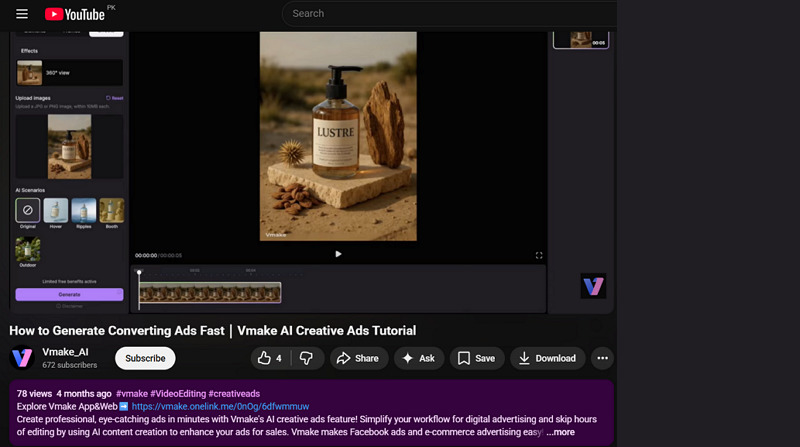
Step 1. Open YouTube Video Description
First of all, open the YouTube video you want to transcribe. Now, click “... more” to expand the video description.
Step 2. Transcribe YouTube Video Free
Next, you have to scroll down until you see the “Transcript” section. Then, tap “Show transcript” to proceed.
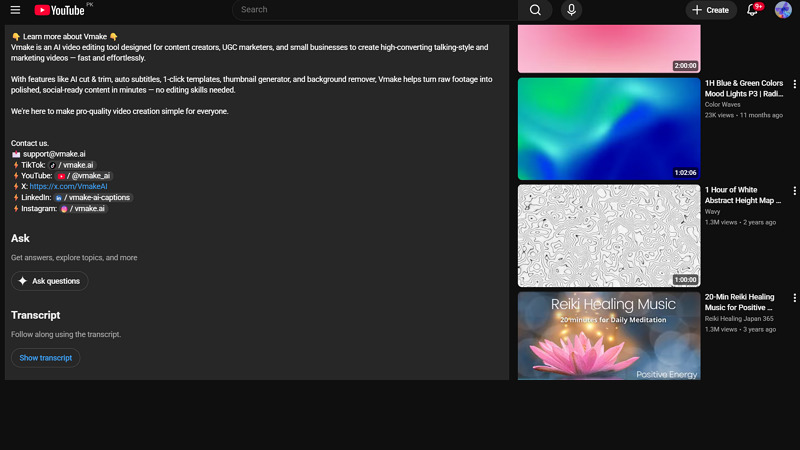
Step 3. Copy the Transcript
You’ll automatically get to the top of the page. A transcript panel will appear next to the video player. You can copy it to paste anywhere.
Method 2: Transcribe YouTube Video with AI-tools
Another method is to use artificial intelligence, which has transformed how we convert audio and video into text. Today, AI transcription tools can transcribe long YouTube videos within minutes and deliver highly accurate results.
One such efficient tool is Vmake Video to Text, where AI transcribe YouTube video content. By uploading video or audio files, its latest speech recognition technology automatically converts them into text and subtitles. You also have the option to either keep the original language or convert it into another language of your choice. With a user-friendly interface, fast speed, and high precision, this YouTube video transcriber is a reliable solution for everyone.
Features:
Let you upload a range of audio and video formats
Support multiple languages and nuanced accents
Allow you to paste the YouTube video link as an input
Help you transcribe multiple videos at once in a batch
Provide precise, professional, and polished transcripts
How to Transcribe YouTube Video to Text:
Step 1. Upload YouTube Video
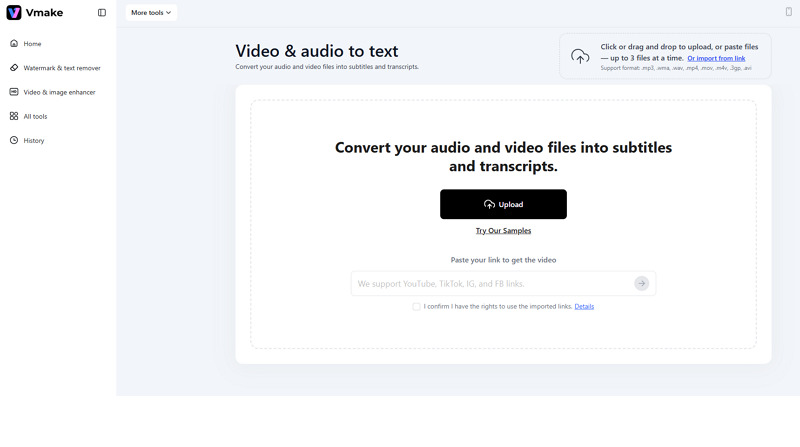
The first step is to open the Vmake Video and Audio to Text tool. Now, copy the YouTube video link and paste it into the Vmake upload section.
Step 2. Select Transcription Language
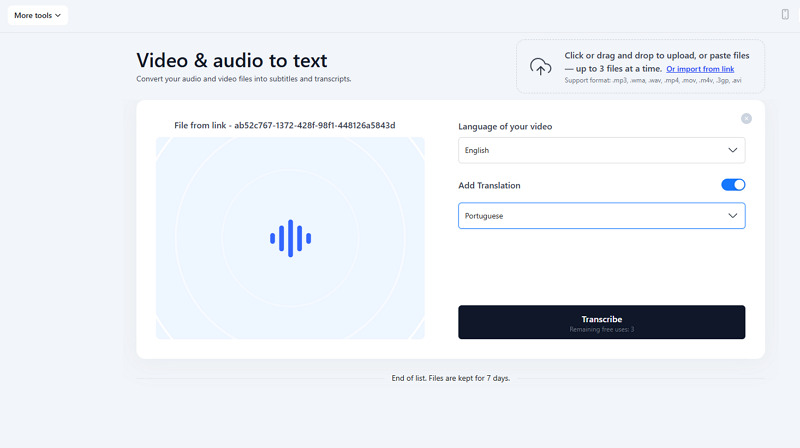
Next, choose the video’s language, and if you need translation, turn on the “Add Translation” switch and select a language from the menu. Then, press “Transcribe.”
Step 3. AI Transcribe YouTube Video
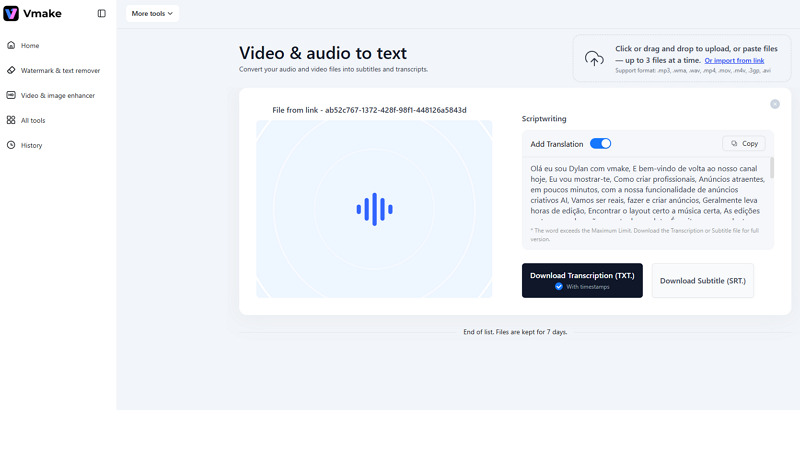
Wait for the transcription to complete. Once done, hit the “Download Transcription (.TXT)” or “Download Subtitle (.SRT)” button. That’s all!
Method 3: Manual Transcription (Not Recommended)
Manual transcription is the traditional method of converting video into text. You have to watch the YouTube video and type everything you hear.
While this approach can produce highly accurate transcripts, it is extremely tiring and time-consuming. The process involves pausing the video frequently to type everything you hear, rewinding when necessary to capture the missing details, and editing the text later.
It can take 4 to 5 times as long as the video length. For example, a 20-minute video may require over an hour to transcribe. It also requires strong listening skills and patience. For these reasons, most users now prefer AI tools when searching for transcribir video YouTube a texto online gratis.
FAQs About Transcribing YouTube Videos
1. Is it legal to transcribe YouTube videos?
It depends. Transcribing a video for personal use, research, or study purposes is acceptable. However, publishing, redistributing, or selling requires permission from the original creator. Always respect copyright rules when using someone else’s content.
2. Can I transcribe private videos?
Yes, but only if you have access to the video. If you can download or view the content, you can convert it into text. However, YouTube’s built-in transcript feature may not be available for private videos.
3. How accurate is AI transcription?
Modern AI transcription tools can reach 85–95% accuracy, depending on audio quality, background noise, speaker accents, and the number of speakers. Most transcripts require light editing, but AI tools significantly reduce the workload.
4. How do I copy a transcript from YouTube without timestamps?
On the desktop, you can toggle timestamps on or off once the transcript is displayed. Click the three little dots in the right corner of the transcript box. However, it can’t be done on the mobile.
Final Thoughts
This post has provided various ways to transcribe YouTube video into a searchable, reusable resource. So, you can go for the one that best fits your requirements. While the built-in transcript feature works well for quick tasks, AI tools provide the best balance of speed and accuracy.
Manual transcription is also available; however, it requires significant time and effort. For the fastest, effortless, and most accurate results, Vmake Video to Text is highly recommended. Try it today for your transcription needs

You May Be Interested

Best Free Music Sites for YouTube Videos Without Copyright Issues
How to Enhance Video for YouTube Like a Pro