Python Speech to Text: Convert Audio to Text with AI
Master Python speech to text with AI! Learn voice recognition and real-time speech processing. Compare it with a practical alternative, like Vmake Labs, to transcribe your audio and video instantly.

Python speech to text actually makes transcribing audio very easy. You don't need to be some machine learning genius to build a solid speech-to-text tool anymore. With the APIs and open-source libraries we have access to right now, you can plug in a few lines of code and get highly accurate transcriptions for your interviews, voice notes, or whatever audio you're dealing with. Here's what you need to know to get started.
How does speech to text in Python work
Python is the easiest place to start when you're messing around with speech-to-text. The ecosystem is just huge. You have these massive, hyper-accurate cloud APIs on one end, and then some surprisingly solid offline libraries on the other, meaning you're rarely locked into one specific approach. Here is a quick look at how speech to text API in Python actually works.
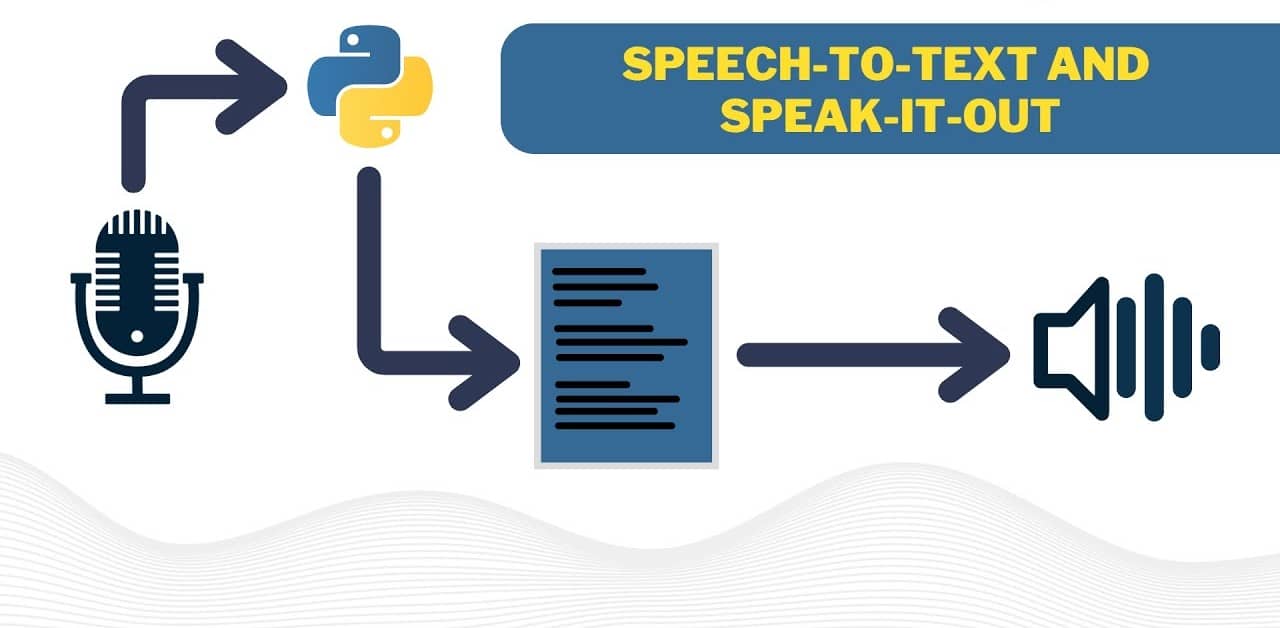
How to convert speech to text in Python
-
Get to know about popular speech-to-text libraries
If you start looking around, you'll find quite a few Python libraries that can convert audio into text.
-
SpeechRecognition
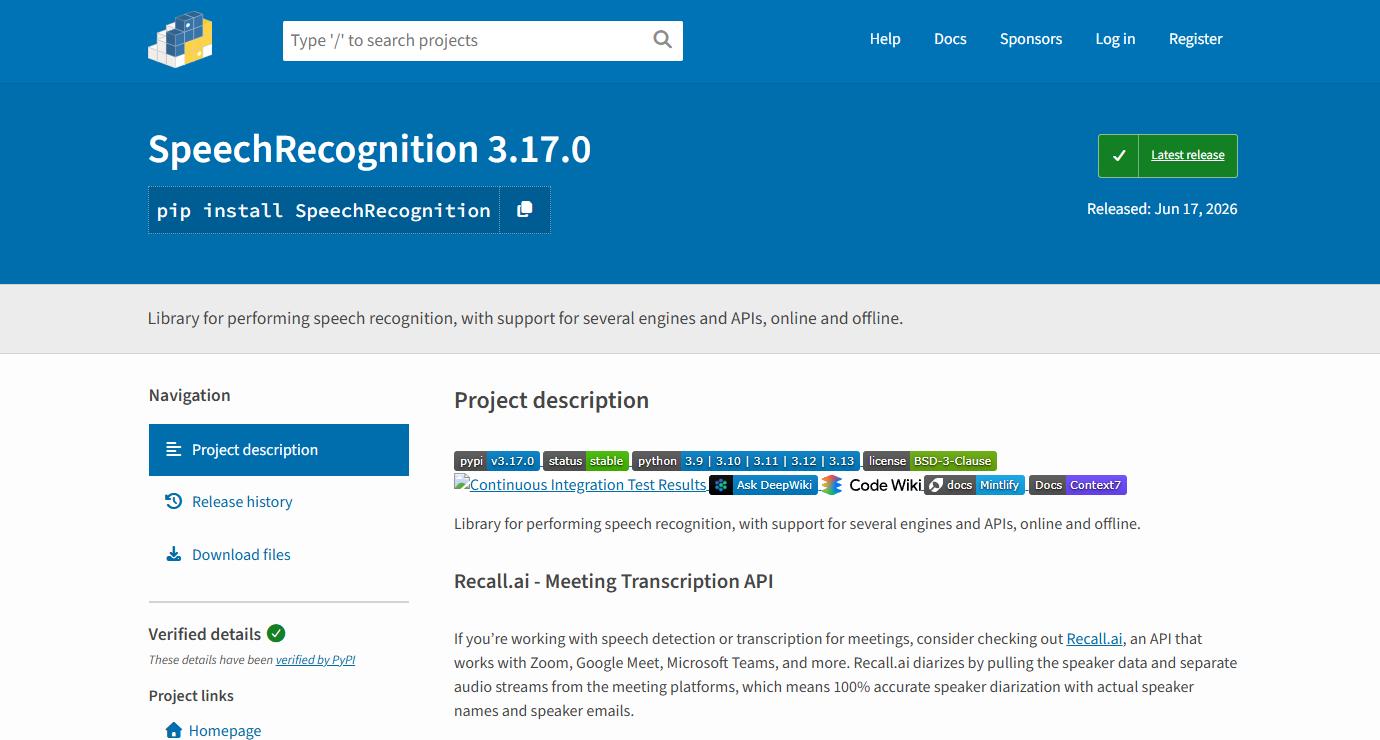
The easiest one to start with is SpeechRecognition. It is essentially a wrapper, meaning it gives you a single, incredibly simple interface to talk to various underlying speech engines, including Google's free web service. This speech-to-text library is incredibly easy to use and has great documentation, which is a lifesaver when you are starting out.
-
OpenAI Whisper
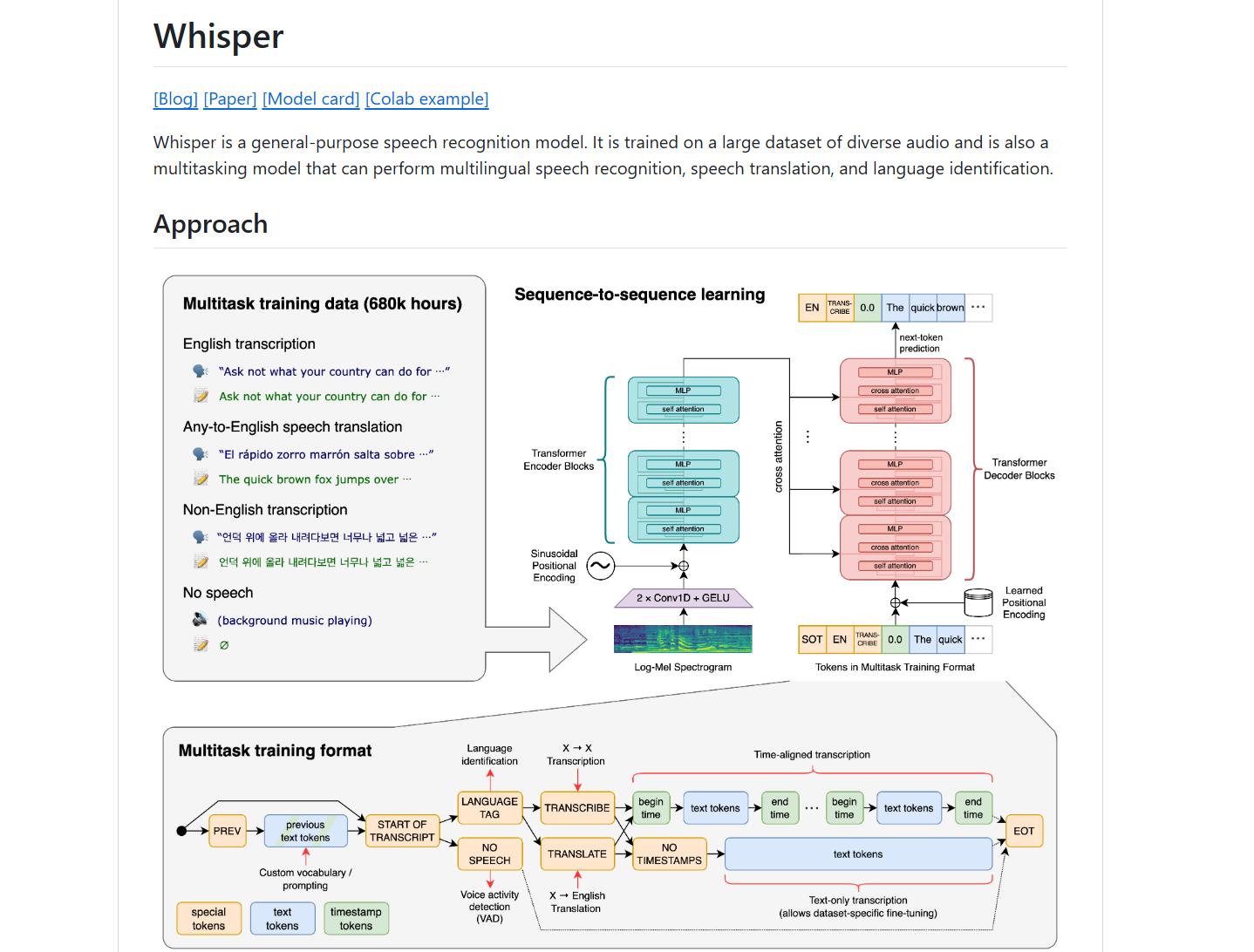
If you want top-tier accuracy and don't want to constantly pay for API calls, OpenAI Whisper is pretty much the gold standard right now. Because it's open-source, you can run it entirely on your own hardware. That means once you get it set up, you do not even need an internet connection to use it, which is fantastic for privacy.
-
Google Speech-to-Text API
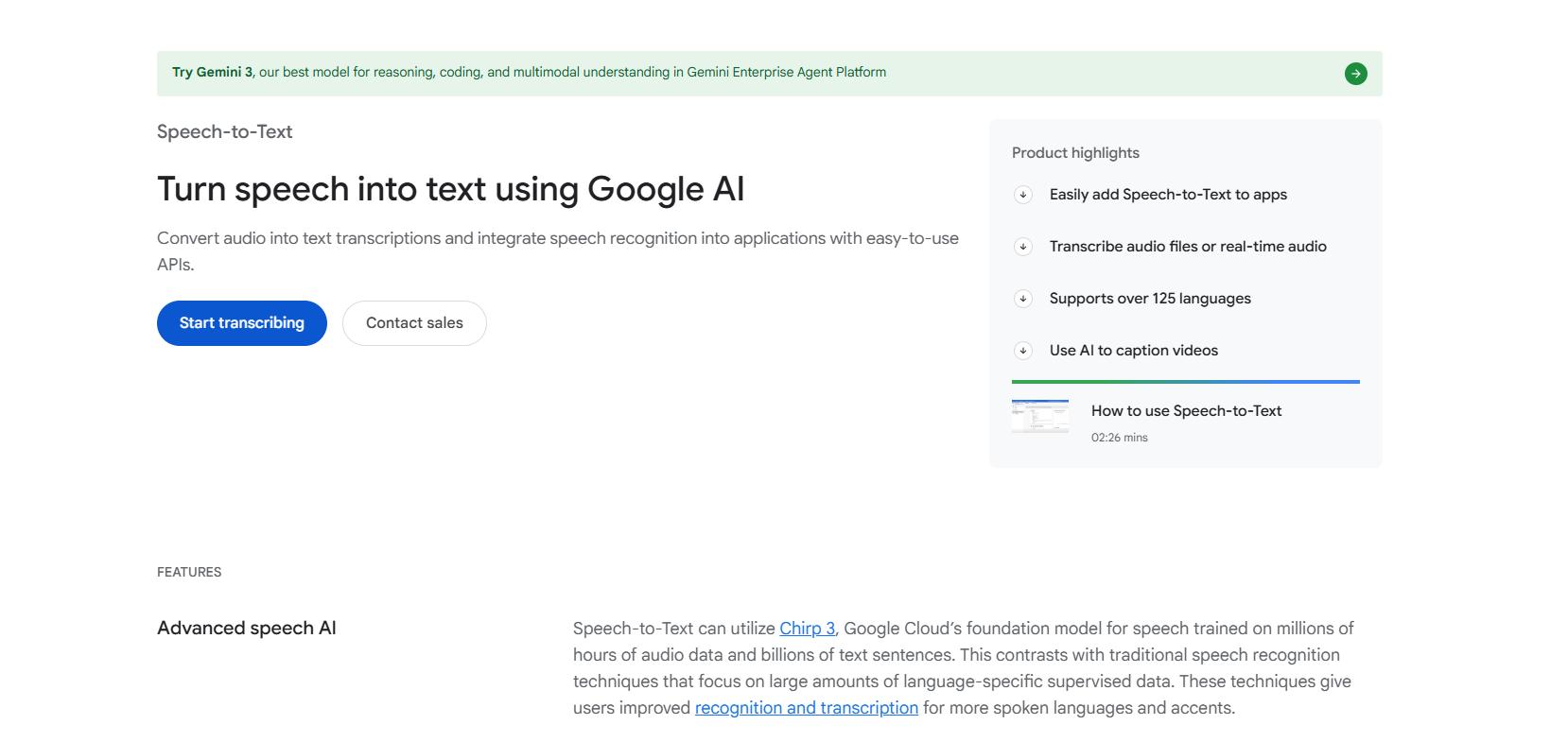
If you are building a commercial product or scaling up to handle thousands of hours of audio, Google Cloud's Speech-to-Text is usually where you end up. To be honest, it is a bit of a beast to configure compared to simple local libraries, but it is built specifically for enterprise-level heavy lifting. The accuracy is incredibly solid, mostly because Google has trained these models on an absurd amount of data. But the real selling points are the built-in, production-ready features.
-
Other common options (e.g., Vosk)
If you need something that runs locally but Whisper is just too heavy for your hardware, you should probably look at Vosk. It is an offline speech recognition toolkit that is surprisingly versatile. You can run it on standard desktops, mobile phones, and even tiny embedded systems. Vosk is fast enough to transcribe audio as it is being spoken, which is exactly what you want for live voice commands.
-
Installing the required libraries
Before you can actually write any code, you need to get your environment sorted out. Depending on which route you decide to take, you're going to need a mix of standard Python libraries and, in some cases, some external system tools.
If you're going for the simpler option, you can just pip install SpeechRecognition to get that beginner-friendly wrapper. If you want to capture live audio straight from your computer, you'll also want to grab PyAudio to handle the microphone input.
If you've decided to go with OpenAI's Whisper for that heavy-duty offline transcription, you'll install that via pip too. But here's the catch: Whisper doesn't work in a vacuum. It absolutely requires an external tool called FFmpeg installed on your system.
-
Reading audio files
-
Now, you've got to get your audio file into the code. Most libraries of speech to text Python can handle standard formats like WAV, MP3, FLAC, OGG, M4A, or AAC. But here's the thing: actual compatibility depends heavily on the specific library you choose and whether you have FFmpeg configured.
During this step, the library reads the raw file and translates the audio data into a format the engine can actually parse. If the data isn't clean and properly formatted right here, your transcription quality is going to suffer.
Here's how SpeechRecognition loads the audio for transcription.
import speech_recognition as sr
recognizer = sr.Recognizer()
with sr.AudioFile("sample.wav") as source:
audio = recognizer.record(source)
-
Converting audio to text
-
Once the audio is loaded, the speech engine finally takes over to analyze the waveforms and gives the text. If you're using the SpeechRecognition library, it's essentially shipping that audio file off to a web service like Google's free engine to let their servers do the work.
Here's how SpeechRecognition converts audio to text.
import speech_recognition as sr
recognizer = sr.Recognizer()
with sr.AudioFile("sample.wav") as source:
audio = recognizer.record(source)
text = recognizer.recognize_google(audio)
print(text)
If you go with Whisper, your own computer's hardware is running the AI models locally to parse the speech. And if you're using the enterprise Google Speech-to-Text API, everything is processed in the cloud, giving you access to those highly advanced features like automatic punctuation and speaker identification.
-
Capturing microphone input
-
Sometimes you don't want to deal with pre-recorded files at all. You just want to capture live speech straight from a microphone. In the Python world, you usually do this by pairing up
SpeechRecognitionwithPyAudio.
Your code actively listens to the mic, records the audio on the fly, and instantly hands it off to be transcribed. This is exactly how you build things like custom voice assistants, live captioning tools, virtual meeting trackers, or voice-controlled software. It lets you translate words into text practically the second they are spoken. That's how to convert speech to text in Python.
Tips to improve accuracy in Python speech to text API
Getting accurate speech recognition depends just as much on the quality of your raw audio and how you configure your application as it does on the machine learning model itself. Following these best practices can significantly improve transcription accuracy and produce more reliable results.
-
Use high-quality microphones
The single biggest bottleneck is almost always hardware. Switching to a dedicated external USB microphone or a professional setup makes a night-and-day difference. It captures much cleaner speech with far less distortion, giving the model a fighting chance at identifying the actual words, especially if you're trying to transcribe in a noisy environment.
-
Reduce background noise
Background chatter, hums from a desk fan, passing traffic, or even the loud click-clack of a mechanical keyboard; all of these are absolute killers for transcription accuracy. The best fix is always physical: just record in a quiet room. If that isn't possible, you'll need to run some basic software-based noise reduction before you pass the file to your speech-to-text pipeline. It helps the model zero in on the actual voice instead of trying to translate the background air conditioning.
-
Normalize audio
Normalizing the audio fixes this by bringing the volume to a consistent level throughout the recording. It ensures the quiet parts get boosted, and the loud parts get tamed. Having a steady, predictable volume level makes a massive difference because the recognition model doesn't have to keep adjusting to wild jumps in input levels, which dramatically cuts down on transcription errors.
-
Longer pause detection
You also want to look closely at how your engine handles silence. Configuring your pause detection settings correctly is one of those tiny, overlooked tweaks that completely changes the quality of your output. If the engine is too eager and cuts off too quickly, it'll aggressively chop a single spoken sentence into a bunch of awkward, incomplete text fragments.
-
Use better recognition engines
If you're still relying on older legacy systems, you're going to spend half your time fixing typos. Modern, AI-driven solutions like OpenAI's Whisper or the Google Speech-to-Text API are simply on another level. They do a vastly superior job of handling real-world chaos, whether that's navigating thick accents, filtering out background noise, or processing multilingual speech where people switch languages mid-sentence.
-
Use a proper sampling rate
There is a sweet spot when it comes to sampling rates, and for speech recognition, it is almost always 16 kHz. It is tempting to think that recording at a massive, studio-quality sample rate (like 48 kHz) will make things better, but it actually doesn't. It just bloats your file sizes for no good reason. On the flip side, anything too low will strip out the subtle, high-frequency details the model needs to distinguish between similar-sounding words.
Python speech-to-text libraries are an excellent choice for developers who want to build custom transcription applications or integrate speech recognition into their own software. However, if your goal is simply to transcribe audio or video quickly without writing code or setting up libraries, a ready-to-use AI transcription tool can save significant time and effort. One such solution is Vmake Labs, which offers automatic transcription and subtitle generation through an easy-to-use web interface.
Bonus tips: Easily transcribe audio and video with Vmake Labs
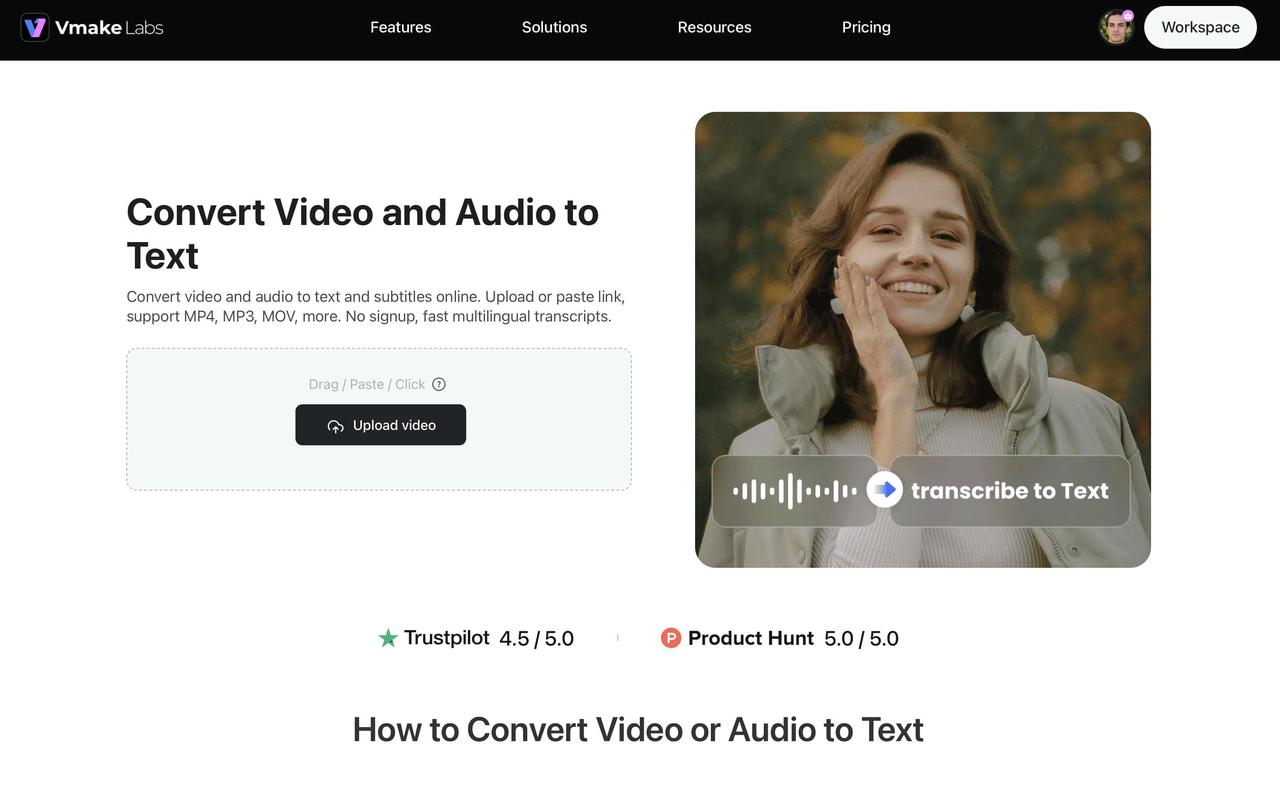
Vmake Labs AI-powered transcription tool easily complements your existing Python workflow, especially for content creators, businesses, or even developers who just need a quick, no-code backup. The tool basically automates the entire video-to-text process. You can upload a standard audio or video file directly, and it hands you back a clean transcript complete with timestamps.
Step-by-step guide
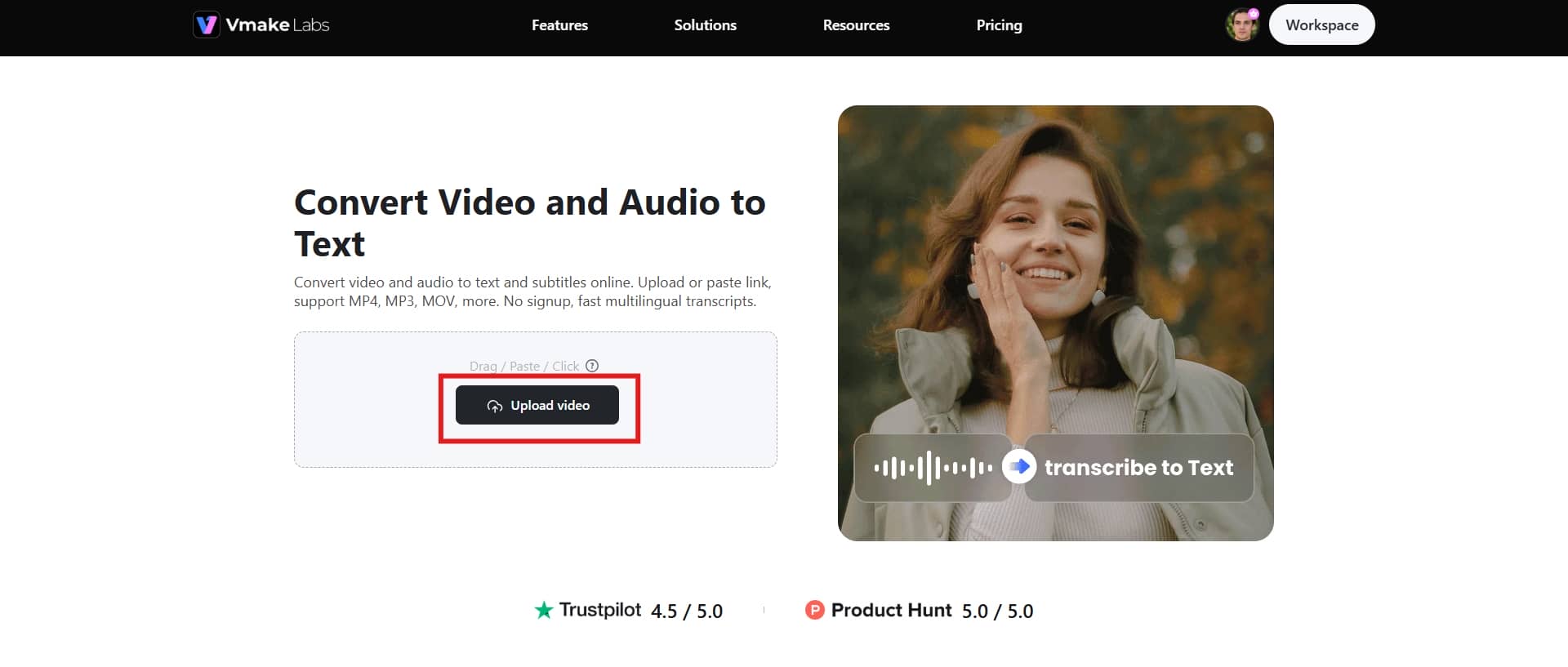
Step 1: Upload your audio, video, or link
You start by uploading the audio or video file to the platform. If you don't have the raw file sitting on your desktop, you can just grab a link from the web and paste it right in. The platform handles a whole bunch of different input sources.
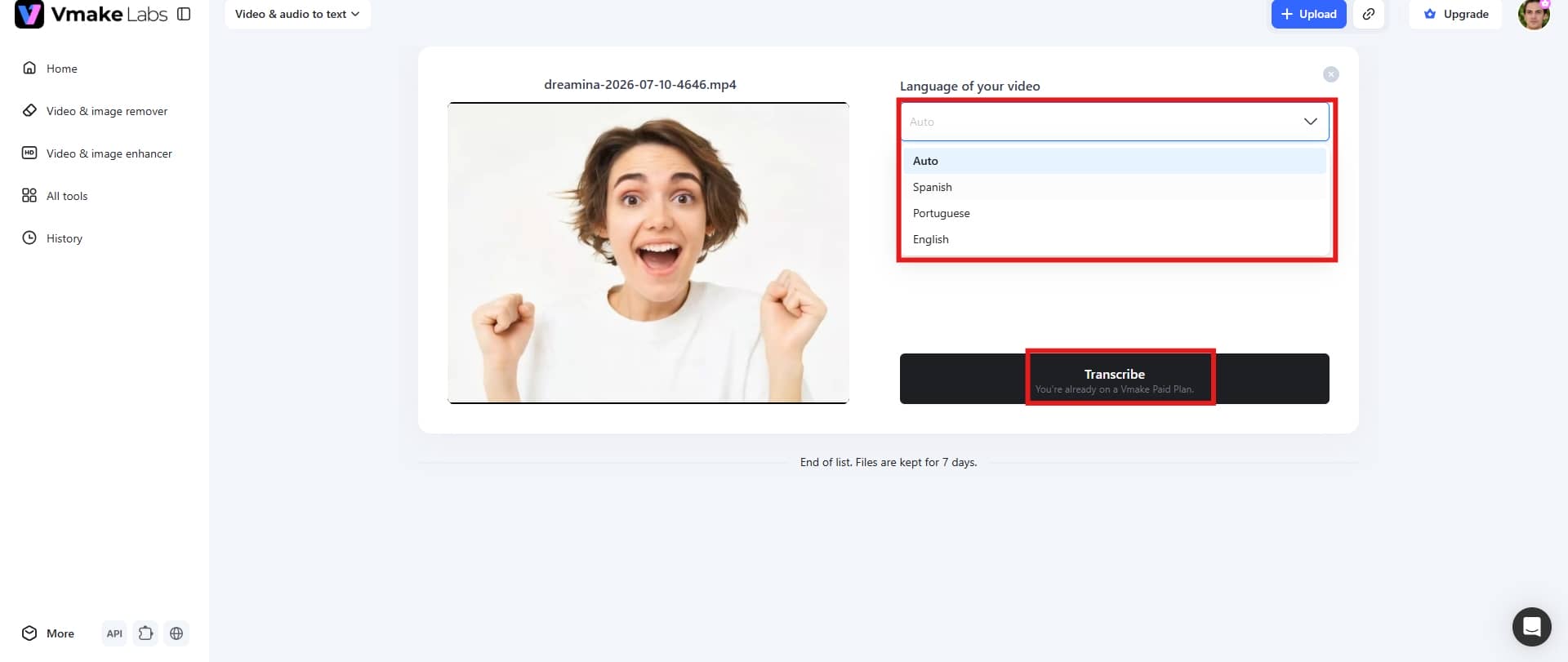
Step 2: Select the language and transcribe
Once your media is in the system, the AI takes over to parse the speech and generate the transcript. But before that, choose the language being used in the clip or if you want a transcript in another language. Click "Transcribe" to get started.
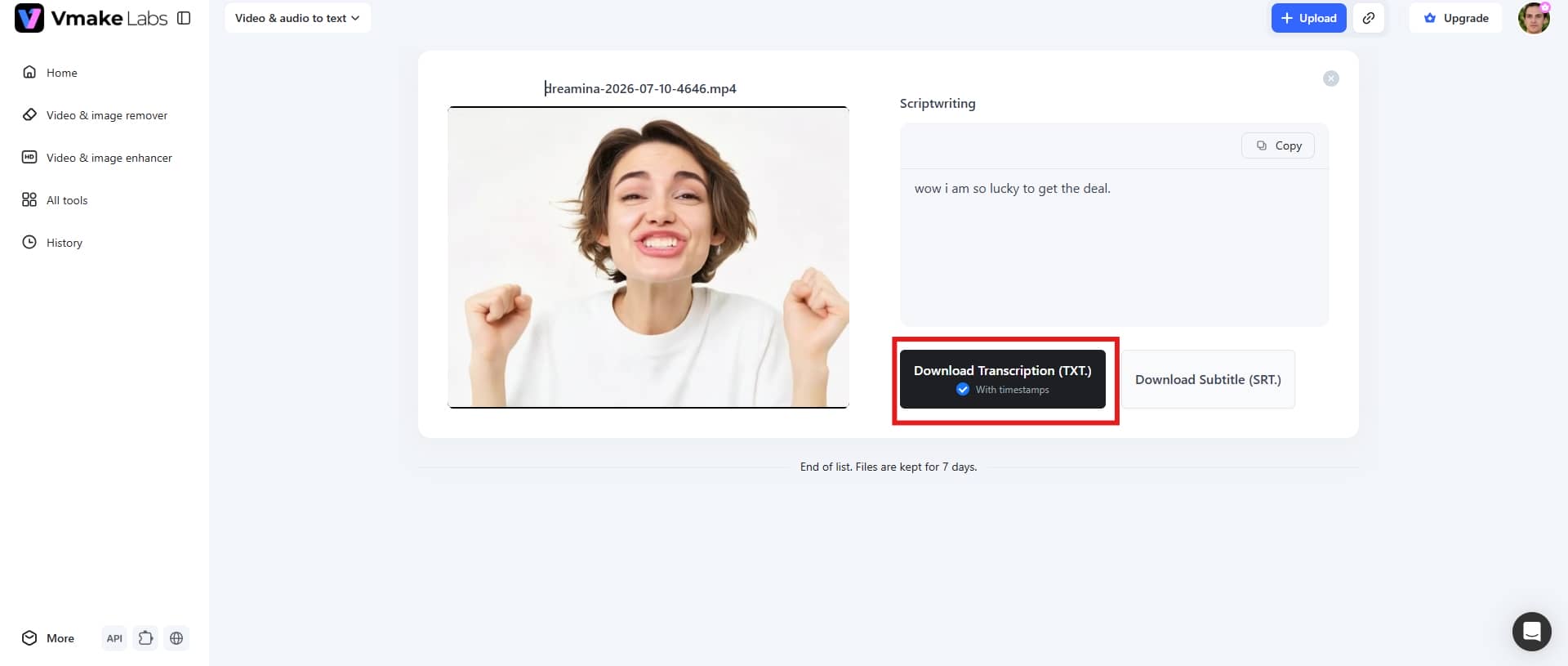
Step 3: Export your transcript
When the engine finishes, you can jump straight into the text. Preview the transcript, and once the text looks clean, you just export it using the "Download Transcript" option at the bottom.
Key feautres
-
Direct link transcription
You can import pretty much anything to Vmake Labs, including audio files for music transcription or just a direct link to a supported media site. It is incredibly convenient because you don't have to waste time running your files through an extra converter before you can start transcribing. Just upload the link, and you are good to go.
-
Automatic language detection
Vmake Labs automatically detects the language spoken in your audio or video, eliminating the need to manually select the language before transcription. This simplifies multilingual transcription and helps produce accurate results with minimal setup.
-
Browser-based workflow
Vmake Labs runs entirely in your web browser, so there's no need to install software or configure additional dependencies. Simply upload your media or paste a supported link to generate transcripts.
-
Automatic subtitle generation
The tool also handles the heavy lifting of synchronized subtitle generation right alongside the transcript. You get captions that align nicely with the speaker, which is a massive help for video accessibility and keeping people watching.
Conclusion
Python speech to text gives you an incredibly powerful sandbox for building speech-to-text tools. It doesn't really matter if you are trying to parse massive pre-recorded audio files, battle with live microphone input, or plug advanced AI models straight into an existing project; the ecosystem has you covered.
Depending on what you actually need in terms of accuracy, speed, and budget, you can lean on options like the simple SpeechRecognition library, OpenAI's Whisper, Google's cloud API, or Vosk. If you are looking to speed things up or just want a break from coding, a platform like Vmake Labs is a great way to complement your Python scripts. It takes care of the messy video and audio transcription and handles subtitle generation out of the box, which saves a ton of time when you are trying to put together a pipeline that actually scales.
FAQs
What is the best Python library for Speech-to-Text?
There isn't a single "perfect" choice here; it really depends on what you're trying to build. If you want top-tier transcription accuracy, massive multilingual support, and the ability to run everything locally without cloud fees, OpenAI's Whisper is easily the best option out there right now. If you're just starting out or hacking together a quick weekend project, the standard SpeechRecognition library is much easier to get up and running.
Can Python transcribe live microphone audio?
You absolutely can. Python handles live mic input surprisingly well if you pair the SpeechRecognition library with PyAudio. The code sits there, listens to the room, captures the audio in real time, and immediately streams it over to be converted into text.
Does SpeechRecognition work offline?
Think of the SpeechRecognition library as a universal translator or an adapter layer. It doesn't actually do heavy lifting itself; it just gives you a single, unified interface to plug into different speech engines. Most people end up pairing it with online tools like Google's web speech API because it's easy.
Which audio formats are supported?
When it comes to the actual audio files you can feed these libraries, you have a decent amount of flexibility. Most of them will happily ingest the standard formats you'd expect: WAV, MP3, FLAC, OGG, M4A, and AAC. But here is the catch: support isn't entirely uniform across the board. Every library has its own quirks, and some of the heavy hitters, particularly Whisper, lean heavily on an external utility called FFmpeg to act as their audio decoder.
How can I improve transcription accuracy?
The single biggest leap in accuracy comes from switching away from awful built-in laptop mics to a proper external microphone. But even a great mic will struggle if you're recording in a noisy room. You want a quiet environment, or at the very least, you need to run some background noise reduction before the audio hits your pipeline. It also helps to normalize the audio levels, so the engine doesn't trip over sudden changes in volume.
What is the best alternative to Python speech to text?
Look, building a custom Python pipeline is great, but sometimes it's just time-consuming. If you just need a transcript right now and don't want to deal with dependencies or syntax errors, a platform like Vmake Labs AI-powered transcription tool can help; not as an alternative but as an add-on. It handles everything through a simple web interface. You just upload your audio or video file, or even just drop a supported media link—and let their AI do heavy lifting. The platform handles multiple languages, syncs up subtitles automatically, and lets you dump the final text straight into a TXT or SRT file.

You May Be Interested
VEED.io Audio to Text: Everything You Need to Know in 2026
Aqua Voice Speech to Text Tool: Complete 2026 Review & Guide
Speech to Text Chrome Extension: Dictate Anywhere Online
Speech to Text App: Best Picks and How to Choose One
Best Speech to Text Software: Top 5 AI Tools Evaluated