Image Upscaler: How to Upscale Images Without Losing Quality in 2026
 Ken DawsonMay 19, 2026
Whether you need to enhance image quality for e-commerce listings, large-format printing, websites, or archive restoration, an efficient image upscaler can help. However, finding the right AI image upscaler that can transform compressed images into sharper, higher-resolution masterpieces is difficult in the crowded market.
In this article, you’ll learn about image upscaling, the best image upscaler online and offline, as well as how to upscale an image with ease.
What Is an Image Upscaler and How Does AI Upscaling Work?
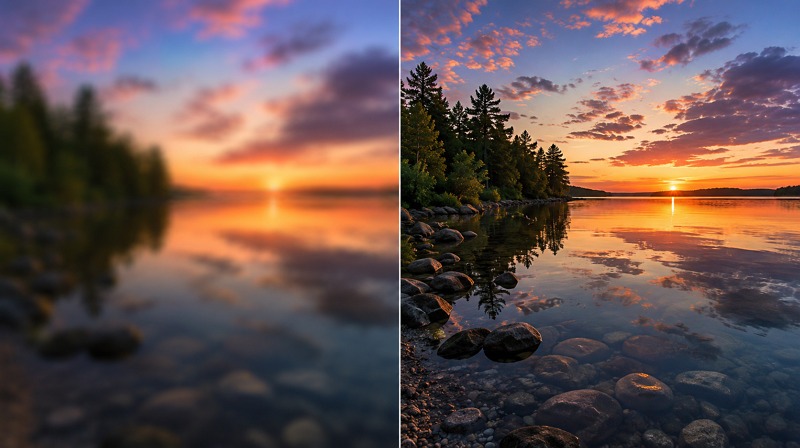
An image upscaler is a tool to increase the image resolution by stretching its pixels while preserving sharpness. However, a modern AI image upscaler analyzes the image and intelligently upscales it, preserving and enhancing detail.
Increasing Image Resolution (2x, 4x, 8x)
Most image upscale tools offer 2x, 4x, and 8x enlargement levels. A 2x upscale is good; however, a 4x or 8x result makes the picture much larger. This is useful when you need a 4K image upscaler, prepare visuals for large screens, or improve low-resolution files for printing.
How AI Reconstructs Missing Image Details
An AI upscaler uses machine learning models to identify patterns and generate new, detailed pixels automatically. For example, if a portrait has soft facial details, the AI may improve skin texture, hair definition, and eye clarity.
Upscale vs Resize: What’s the Difference?
Resizing changes an image’s dimensions. The tools add pixels mathematically without understanding the texture. This results in a stretched or soft look.
In contrast, upscaling is more intelligent, improving image quality as it enlarges. An image upscaler AI tool will sharpen edges, remove compression artifacts, reduce blur, and restore details.
So, for better visual quality, AI image upscaling has become popular among designers, online sellers, photographers, bloggers, and marketers.
When Should You Use an Image Upscaler?
You have to use an image upscaler whenever an image is too small, blurry, or low-quality for its intended purpose. Here are some situations to consider:
Preparing Images for Large Screens or Printing
A low-quality image appears pixelated on banners, posters, or product catalogs. An AI image upscaler increases resolution while preserving detail, making visuals sharp enough for large-format display or print.
Improving Low-Resolution Website Images
Low-res images on websites will always look unprofessional. Using an online image upscaler helps improve clarity, sharpness, and texture while keeping file sizes optimized for faster loading.
Enhancing Product Photos for E-commerce
Product photos influence purchasing decisions. Upscaling can sharpen labels, textures, and packaging details, making product listings in online stores look more appealing and professional.
Restoring Old Digital Images
Old photos often suffer from blur, dust, scratches, and low resolution. An upscaler can clean and enhance these images, restoring clarity while maintaining natural appearance for sharing or printing.
Best AI Image Upscaler Tools in 2026 (Compared)
There are many tools available to upscale image online and offline, but the best choice depends on what you need. Let’s explore some leading options in detail:
Best for Fast Online Upscaling: Vmake AI Image Enhancer
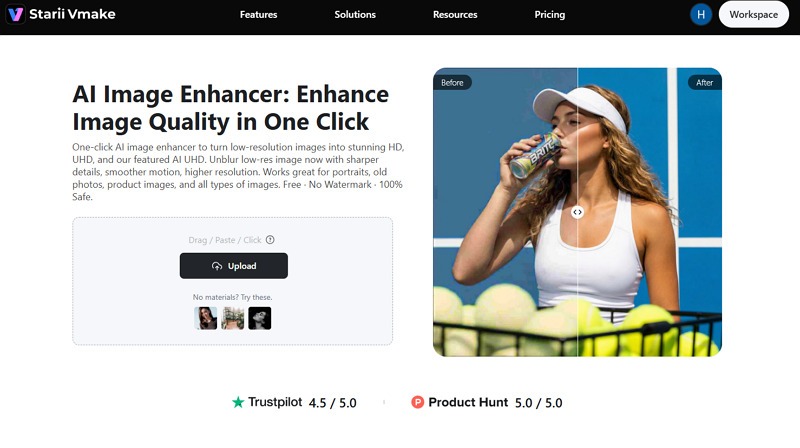
Vmake AI Image Enhancer is the most practical solution for users who want to upscale image resolution online without any technical knowledge.
This image upscaler 4K tool ensures quick enhancement with clearer details and better textures. You can also upscale AI image to 4K+ resolution. It even offers scene-based enhancement, helping you improve all types of images, including portraits, products, and old photos accordingly.
Key Features
-
Batch processing
-
Fast, one-click enhancement
-
API support for developers
Strengths
-
Simple and reliable
-
No sign-up required
-
Suitable for non-designers
Best for Design Integration: Canva Image Upscaler
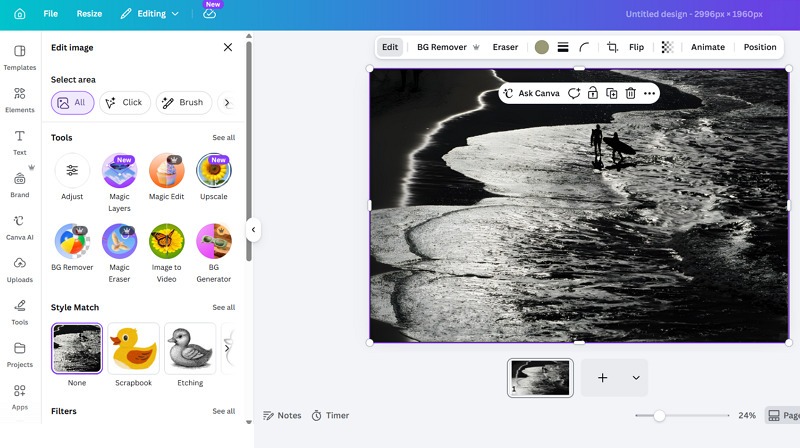
Canva Image Upscaler is a strong choice for people who already create designs inside Canva. With its built-in features, you can enhance and upscale images with a single click while preserving quality.
It also lets you adjust the white balance, light, color, and texture. You can edit the upscaled image with various filters. However, it doesn’t deliver the same output quality as specialized upscaling tools.
Key Features
-
Magic Studio editing options
-
Export in any preferred format
-
Direct publishing to social media
Strengths
-
Cross-platform support
-
Various upscaling apps available
-
Easy workflow for Canva users
Best for Advanced Control: Adobe Photoshop Super Resolution
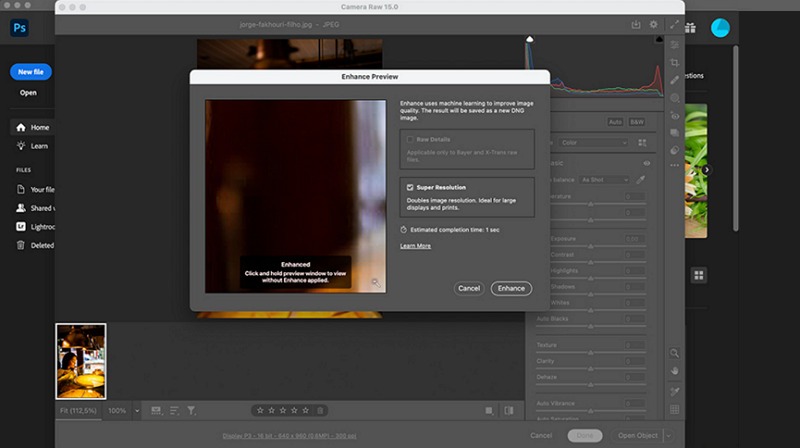
Powered by Camera RAW, Adobe Photoshop Super Resolution is an AI-powered feature that doubles the linear resolution, increasing the image’s overall pixel count while enhancing detail and sharpness.
You can also fine-tune each detail to get the desired results. Although it’s not available as a standalone app and requires a decent GPU for quick processing, you can try this if you’re already paying for Creative Cloud.
Key Features
-
Support RAW files
-
Manual detailed control
-
Detailed export settings
Strengths
-
Non-destructive workflow
-
Seamless Photoshop integration
-
Ideal for enlarging photos for printing
Key Factors to Consider When Choosing an Image Upscaler
Before choosing the right image upscaling AI tool, consider your image type, final use, and more. Here are some common factors:
Upscaling Quality and Detail Preservation
Quality is more important than size. A good image resolution upscaler should enhance the image without making it look artificial. Check details such as skin, hair, product labels, fabric, backgrounds, and edges.
Supported Upscale Levels (2x, 4x, 8x)
Whether you want to upscale image to 4K or just 2K for a website, choose a tool accordingly. For very large prints or displays, 4x or 8x is useful, but the source image should be sharp enough.
Processing Speed
Speed matters when you need quick but consistent results. Online tools like Vmake AI Image Upscaler are useful for fast, high-quality image enhancement every day.
Batch Upscaling Capability
A bulk image upscaler is valuable for e-commerce stores, photographers, and agencies. If you need to enhance multiple images simultaneously, batch processing saves time and keeps your workflow consistent.
Online vs Desktop Tools
If you want to upscale image online free, browser-based tools are best for casual use. Desktop software is better when you need professional control, offline access, and detailed export control.
Common Mistakes When Upscaling Images
AI upscaling can improve image quality, but people often make some mistakes that still ruin the final result. Let’s learn about them to avoid:
Over-Upscaling That Creates Artifacts
Do not upscale more than necessary. An image may look better at 4x than 8x. Over-upscaling can create strange textures, fake details, rough edges, or unnatural sharpness.
Using Extremely Low-Quality Source Images
The better the original image, the better the output. If the image is very small, heavily compressed, dark, or damaged, even the best AI upscale image tool may struggle.
Ignoring Output File Format
After using an image resolution upscaler, choose the format based on where the image will be used. For example, JPEG is useful for smaller sizes. PNG is better for graphics and transparency. WebP is for website images as it balances quality and size.
How to Upscale an Image with Vmake
As Vmake Image Upscaler is most popular among users, here are the steps to enhance images using it:
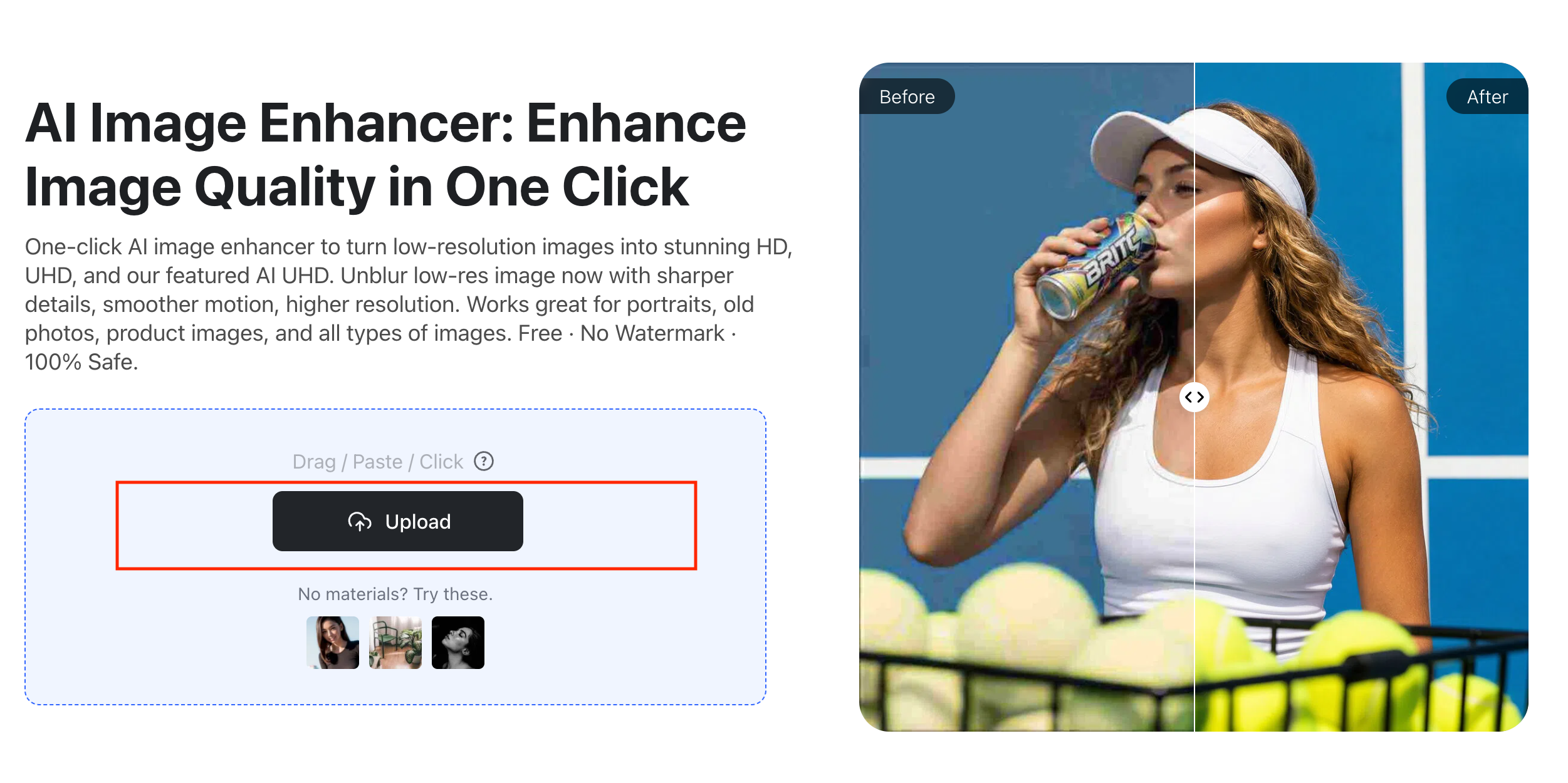
Step 1:Upload Image
The first step is to open this tool in your browser. Now, click “Upload” to browse and import the low-resolution image.
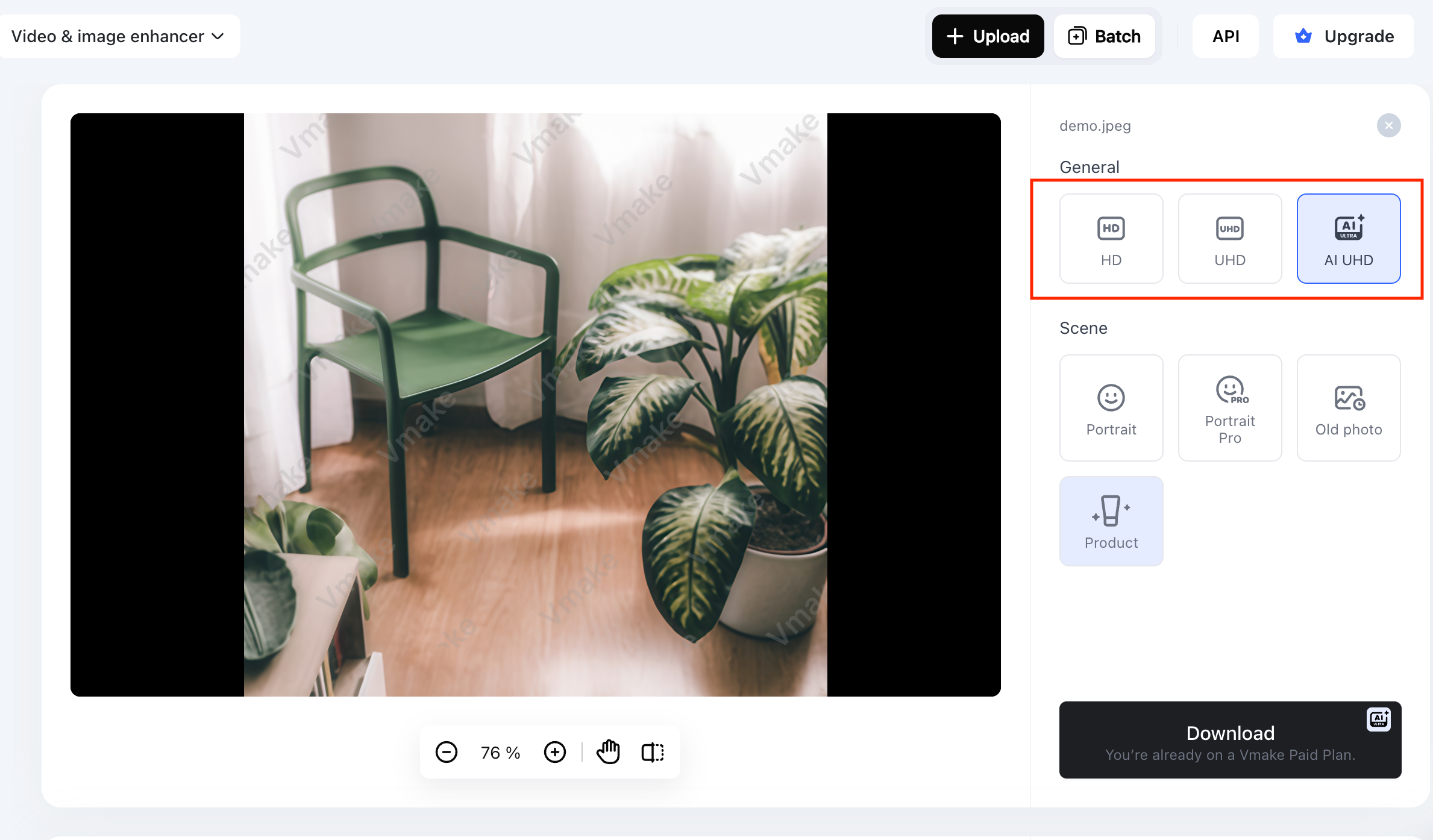
Step 2:Select Enhancement Settings
Next, you can select the resolution as “HD” or “UHD” and pick the scene, such as portrait, product, or old photo. Then, press “Apply.”
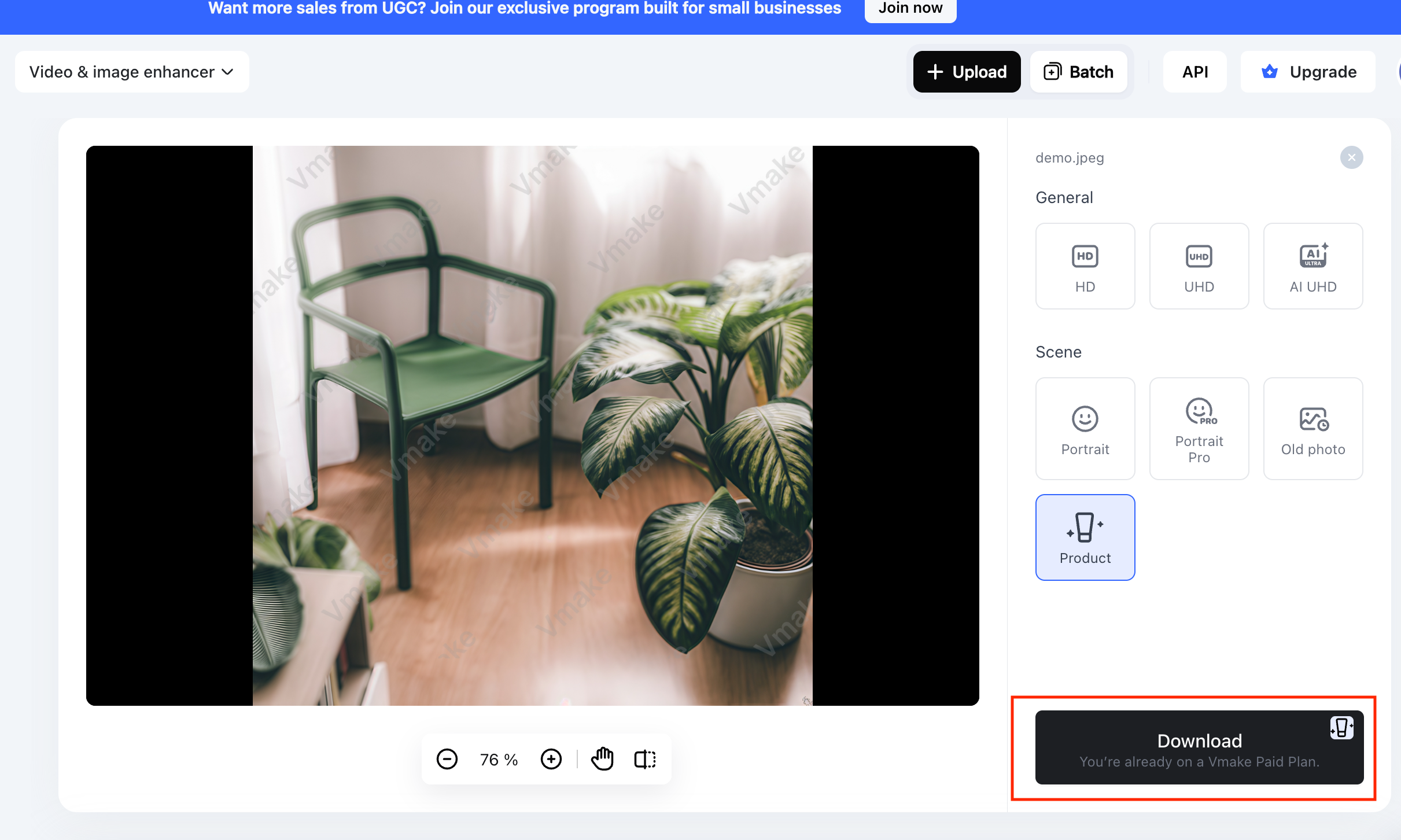
Step 3:Preview and Download
Once the AI finishes processing, you can preview and download the output to your device. That’s all!
FAQ
What is the best image upscaler?
The best image upscaler depends on your needs. However, Vmake AI Image Enhancer is the best solution for beginners seeking fast online image enhancement and upscaling.
Can AI upscale images without losing quality?
Yes, AI can upscale images with much better results than normal resizing. However, the final quality still depends on the original image.
How can I upscale an image to 4K?
To upscale image to 4K, you need an image resolution upscaler that supports 4K. Then, upload your image, select 4K, preview the result, and download it.
Are there free AI image upscalers online?
Yes, many free AI image upscaler tools are available, such as Vmake, Canva, and Pixelcut Image Upscaler. However, free plans may have limits on image size, downloads, or batch processing.
What is the difference between upscaling and resizing?
Resizing only changes image dimensions. However, upscaling uses AI technology to enlarge the image while improving sharpness, clarity, texture, and detail.
Final Thoughts
AI image upscaling has transformed how we enhance low-resolution images, making it faster and easier to achieve sharp, high-quality visuals. Whatever the purpose, this post has the solution for everyone.
For speed, user-friendliness, and online use, Vmake AI Image Upscaler is an excellent choice, offering reliable enhancement, texture restoration, and batch processing for any project.

You May Be Interested

Google Gemini|Copy Paste This Simple Prompts to Create “Hug my younger self ” Photos
How to Create a YouTube Thumbnail? Create YouTube Thumbnails Using AI
How to Enhance Images with AI: The Guide to Crisp Visuals
What is 480p Resolution and How to Enhance 480p Quality