Google Transcribe Audio to Text: Free Methods Explained
Learn how Google transcribes audio to text for meetings, interviews, lectures, podcasts, and videos. Explore Google's free tools and a simple AI-powered transcription workflow with Vmake Labs.

Not sure if Google Transcribe audio-to-text is the best way to convert your recordings? Google has free, cloud-based tools for transcribing meetings, interviews, lectures and more. In this guide, you'll find out how they work, how they differ, and when you might be better off using an AI-powered alternative for your transcription workflow.
Can Google transcribe audio to text?
Yes, Google can easily transcribe audio to text with Google Docs Voice Typing and Google Cloud Speech-to-Text. Both convert spoken words to text, but they are designed for different workflows. Google Docs is great for free, real-time transcription, whereas Google Cloud Speech-to-Text is designed for AI-powered transcription of uploaded audio files for larger or more advanced projects.
If all you want to do is talk into a microphone or play a clip loud and watch the words pop up on screen in real time, the voice typing tool inside Google Docs is perfect. But if you need something heavier to upload audio files directly, deal with multiple global languages, or run large cloud workflows, then you will have to use Google Cloud Speech-to-Text.
Google Docs Voice Typing
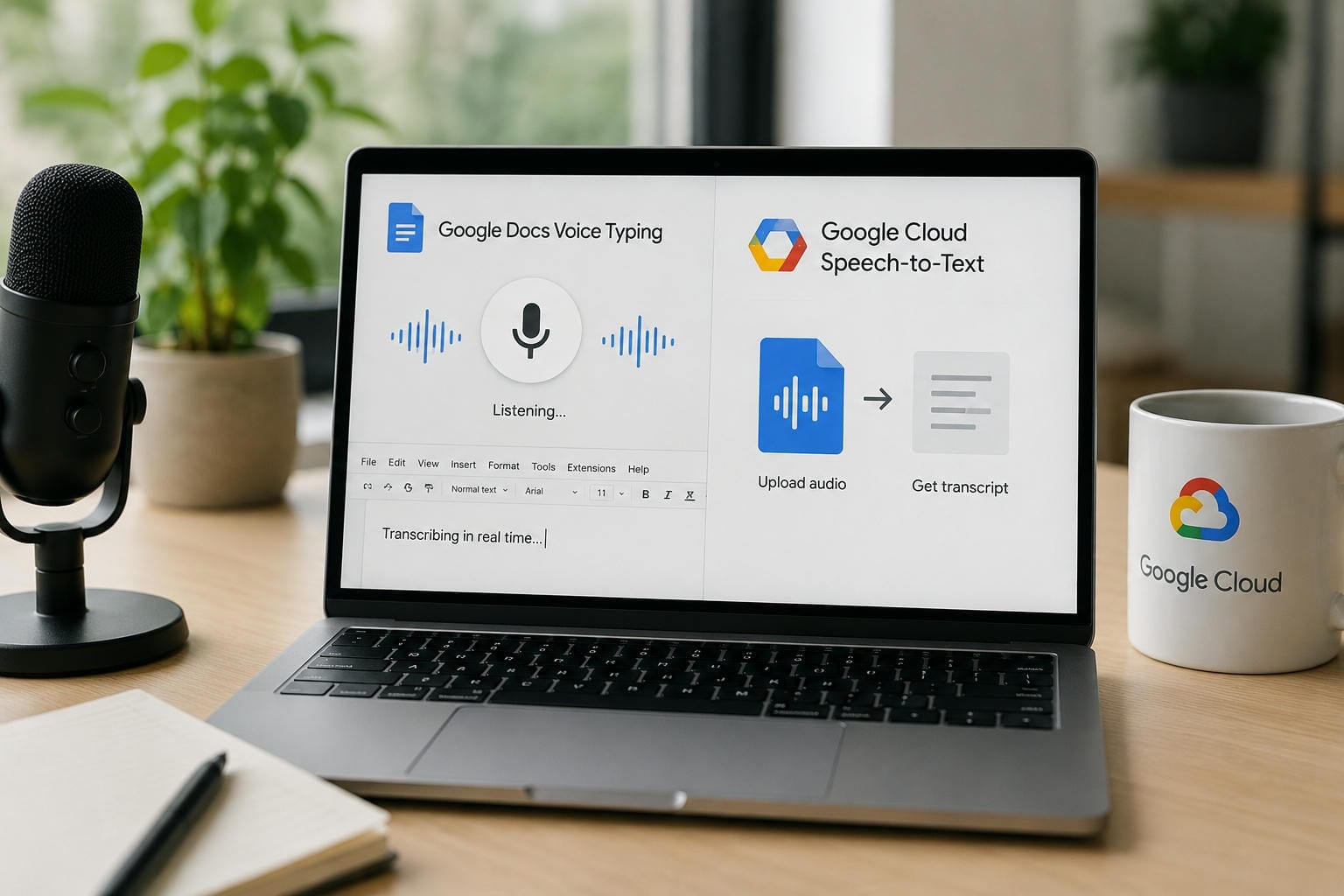
Google Docs Voice Typing is a built-in speech recognition feature for Google Docs that works in the browser. Instead of uploading an audio file, it listens through the microphone on your computer and translates spoken words to text as it hears them. It's a popular way to transcribe audio to text for free online without installing any additional software because it comes with every Google account.
Google Cloud Speech-to-Text
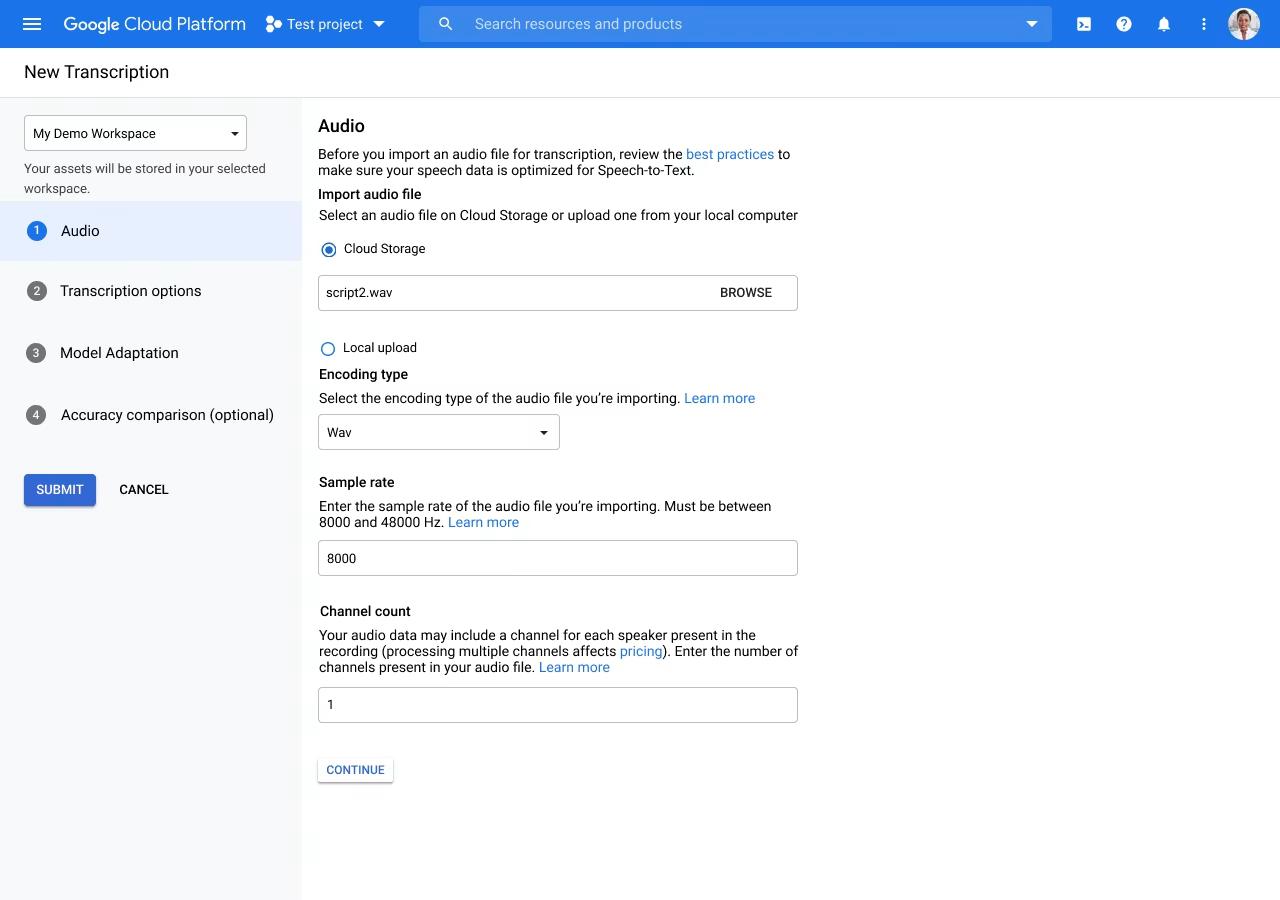
Google Cloud Speech-to-Text is Google's AI-powered transcription service for converting uploaded audio into text. Unlike Google Docs Voice Typing, it processes audio files directly using cloud-based speech recognition models instead of relying on real-time microphone input. The platform supports multiple languages and is designed for businesses, developers, and organizations that require scalable transcription for applications or large audio libraries.
How to transcribe audio to text with Google
Google has two main ways to convert speech to text, and which one is best for you depends on your workflow. If you are looking for an easy-to-use free Google Transcribe audio-to-text option for real-time speech or audio played through your microphone, Google Docs Voice Typing is a good choice. Google Cloud Speech-to-Text offers a more advanced transcription workflow for uploading audio files directly and processing them with AI.
Method 1: Use Google Docs Voice Typing
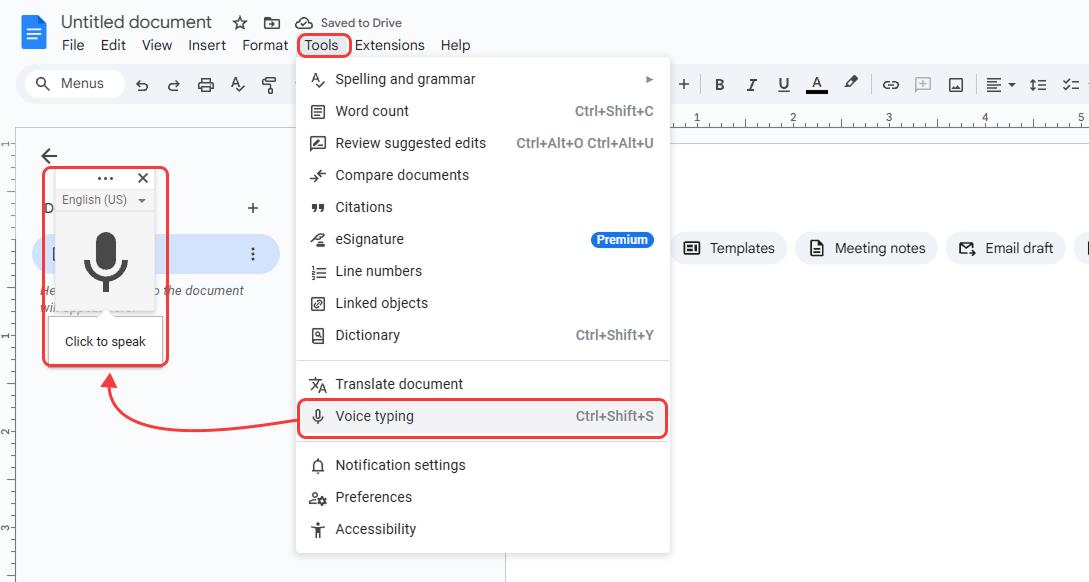
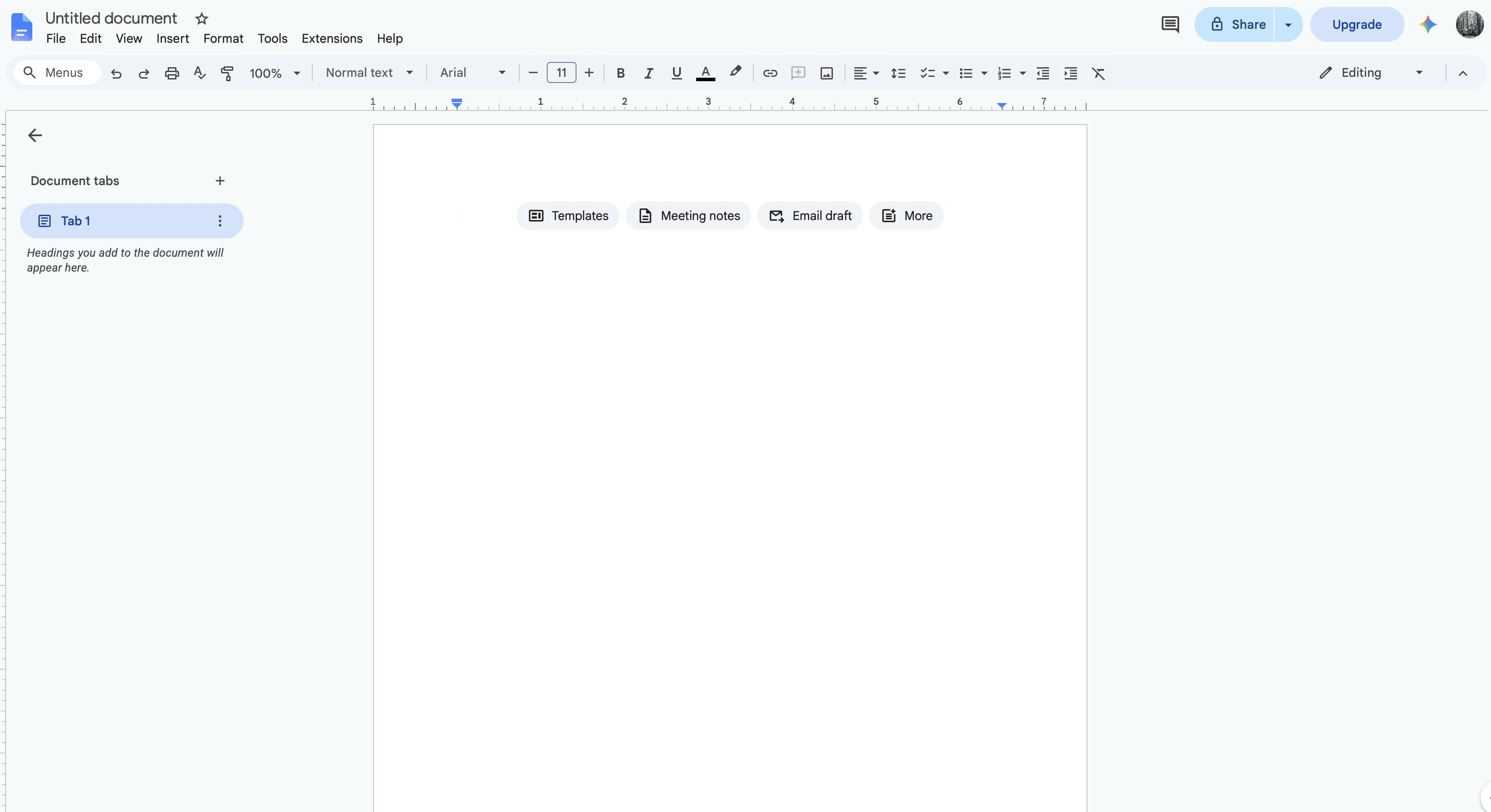
Step 1. Open Google Docs and enable Voice Typing
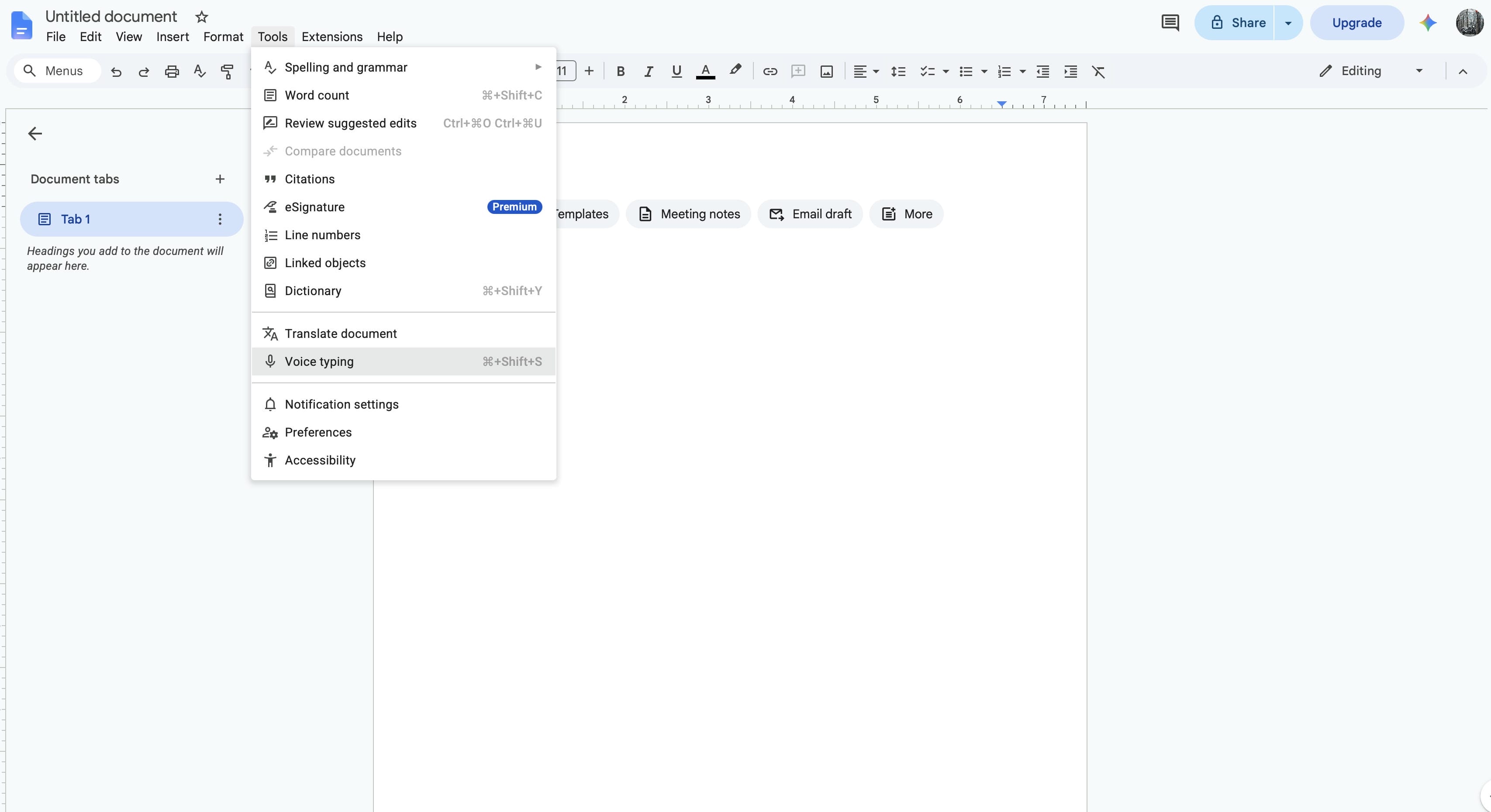
Open a new Google Docs document in the Chrome browser. From the Tools menu, select Voice Typing, then choose your preferred language and allow microphone access when prompted.
Step 2. Play your audio through the microphone
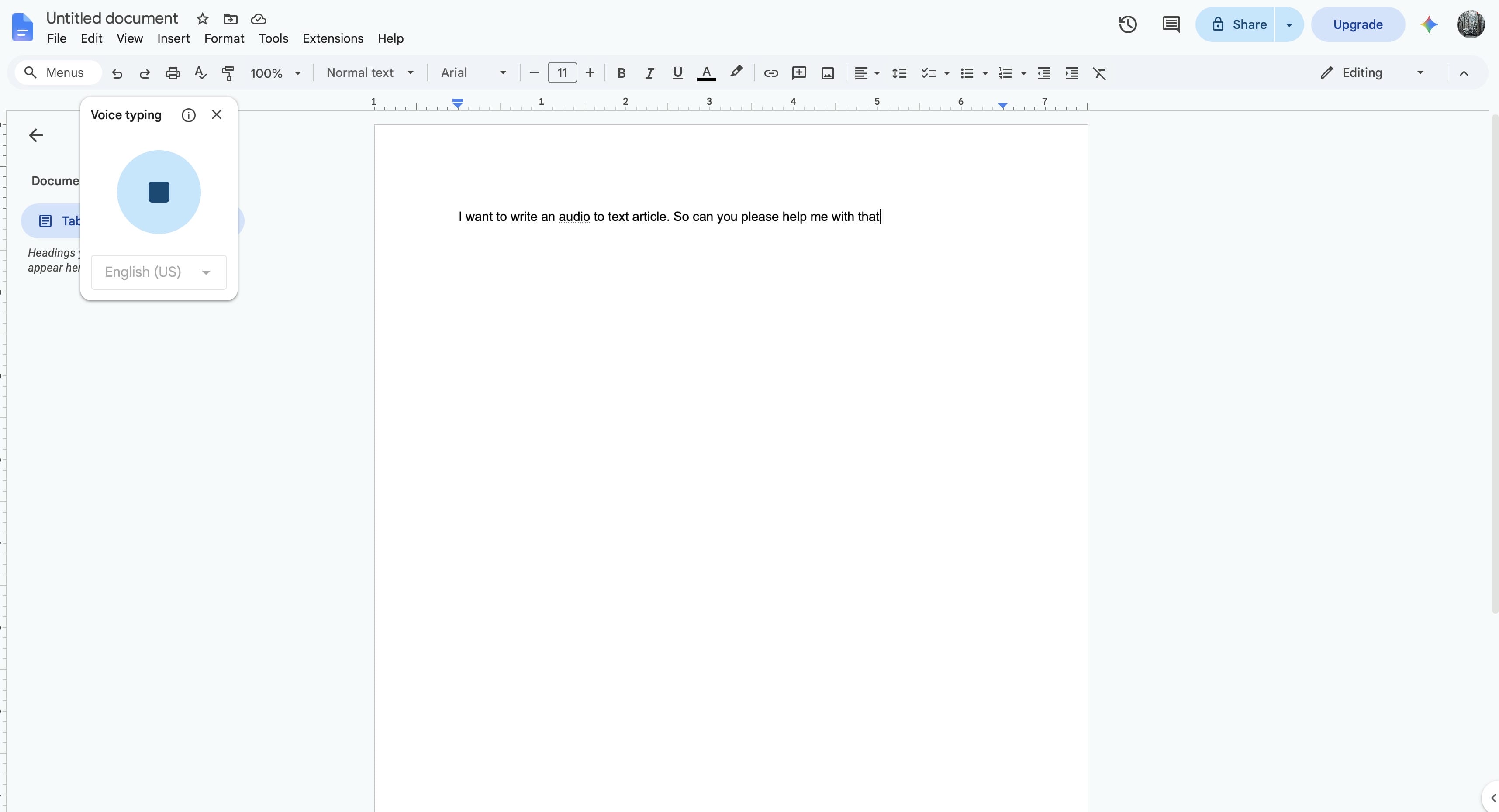
Click the microphone icon and begin speaking or playing your audio recording through your computer's speakers. Google Docs captures the sound in real time and converts it into editable text as the audio plays.
Step 3. Review, edit, and save the transcript
Once your recording is done, make sure to go back over the transcript and check for any names, words or punctuation that may have been misheard. Make the necessary edits. Save the document or copy the text for your intended use.
Method 2: Use Google Cloud Speech-to-Text
Step 1. Create a Google Cloud project and enable Speech-to-Text
Log in to the Google Cloud Console, create a project if you don't have one and enable the Speech-to-Text API. You may need to set up billing before you can use the service past the free usage.
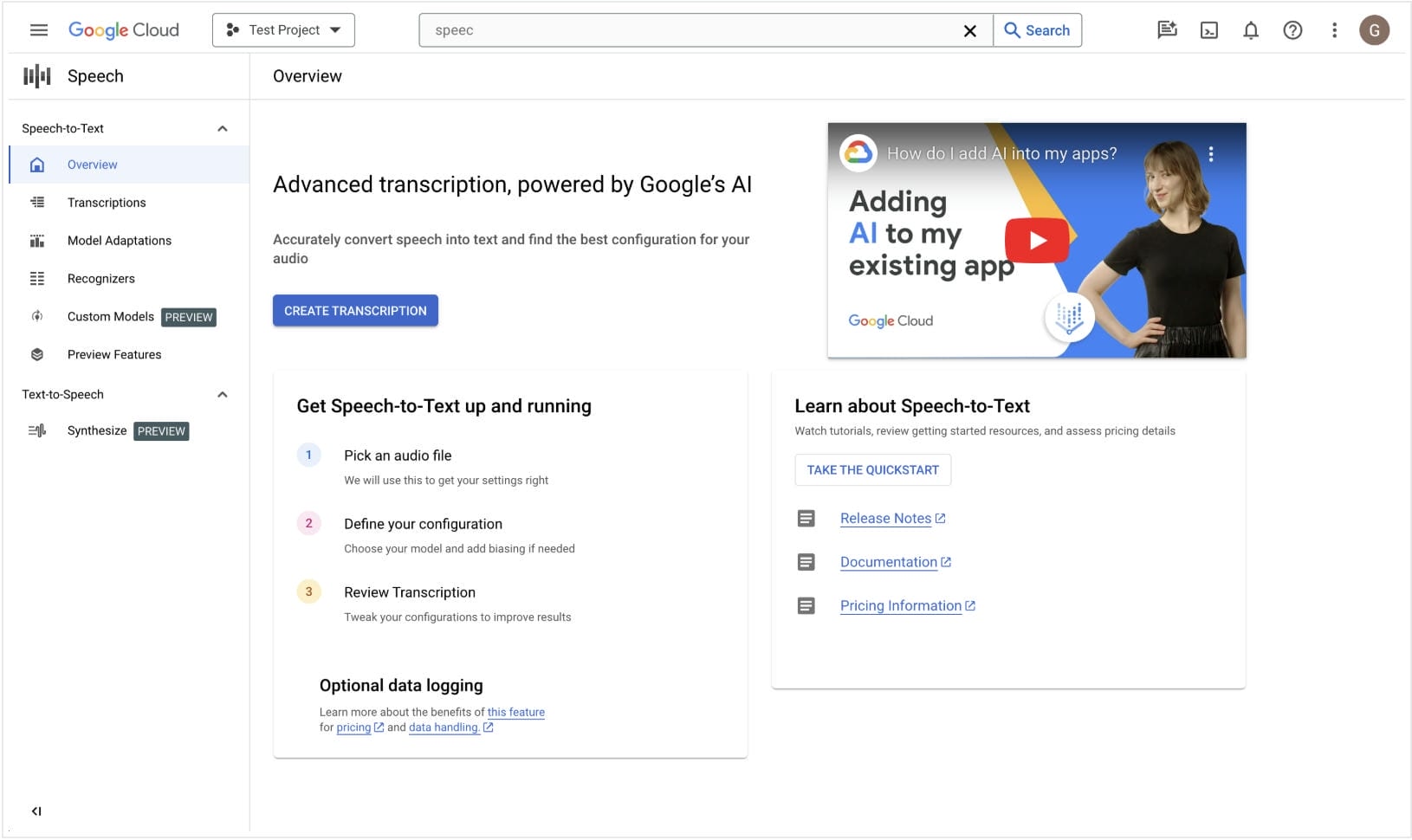
Step 2. Upload your audio and start transcription
Upload your audio file, choose the appropriate language and transcription settings, then start the transcription process. Google Cloud analyzes the recording using AI speech recognition and generates a text transcript.
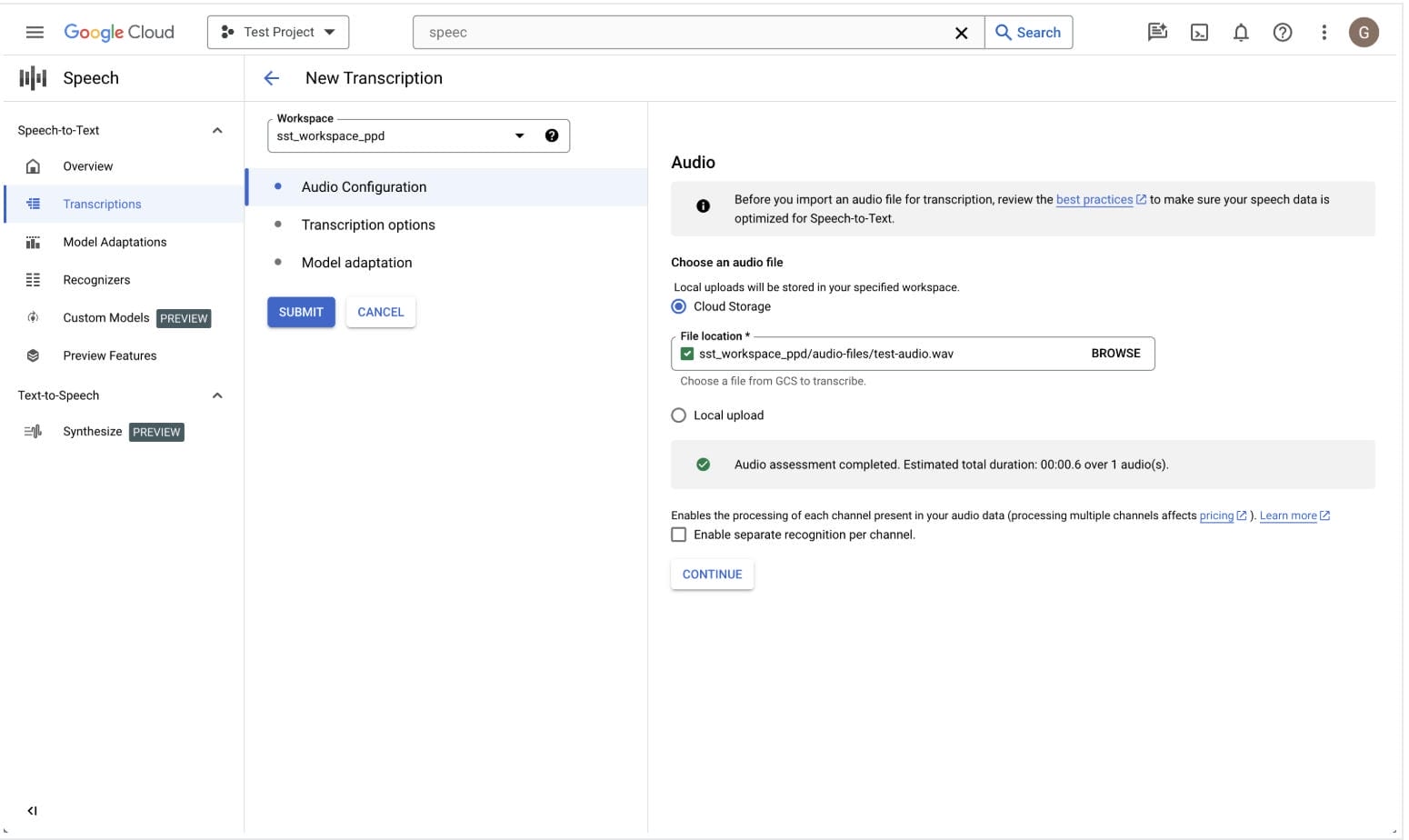
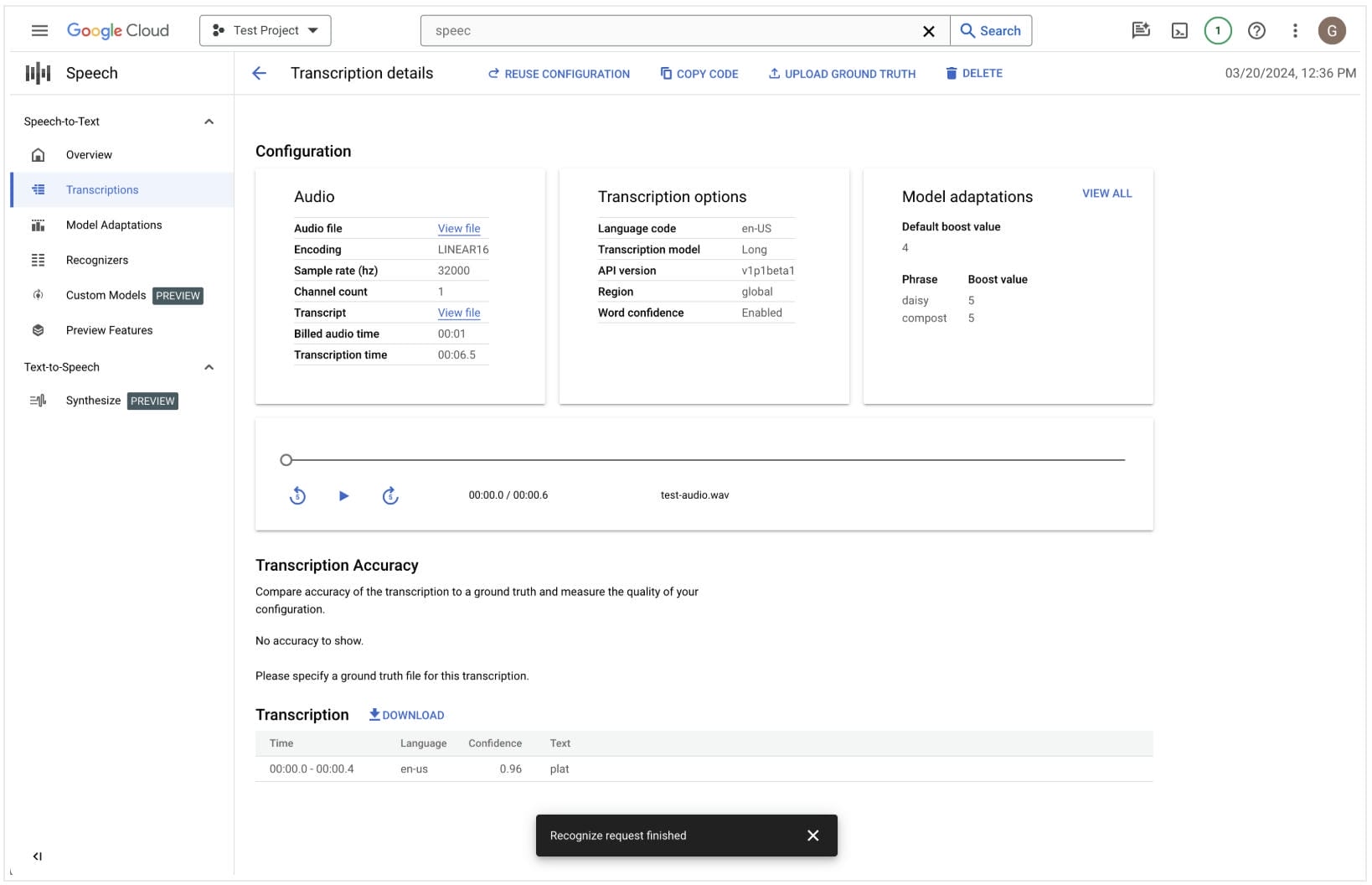
Step 3. Review and download the transcript
After processing is complete, review the generated transcript for accuracy and make any necessary corrections. You can then download or use the transcript in your application, workflow, or documentation.
Which Google transcription method should you use?
Both Google transcription tools are reliable, but they are used for different purposes. Google Docs Voice Typing is made for users who want a fast, simple way to turn speech into text. Google Cloud Speech-to-Text is better suited for uploaded audio files and larger transcription projects using AI-powered processing.
Google Docs Voice Typing
If you need to convert audio to text online for free on Google without creating a cloud project or installing any additional software, Google Docs Voice Typing is a good option. It can be logged in to easily with any Google Account and works great for meetings, lectures, interviews or shorter recordings played through your microphone. It has to be played back in real time and may not be the most convenient solution for existing audio files.
Google Cloud Speech-to-Text
Google Cloud Speech-to-Text is more suited to businesses, developers and users who work with recorded audio regularly. Supports uploaded files, multiple languages, and scalable AI transcription, so it's a good choice for larger or automated workflows. However, it does require setup in Google Cloud and is more technical than Google Docs Voice Typing.
Editorial review
While Google has reliable transcription tools for a variety of workflows, it's not always the fastest way to get existing audio or video into editable text. If you want an easier way to upload files or transcribe supported online videos without setting up cloud services, Vmake Labs offers a streamlined AI-powered workflow.
Meet Vmake Labs: Transcribe audio to text in clicks
If you have audio or video already recorded, Vmake Labs has a browser-based way to turn speech into editable text. No cloud services to configure; just upload your files or paste a supported video link and get accurate AI transcripts. Once the text has been transcribed, you can revise it, make any edits you need and export it for various publishing or documentation purposes.
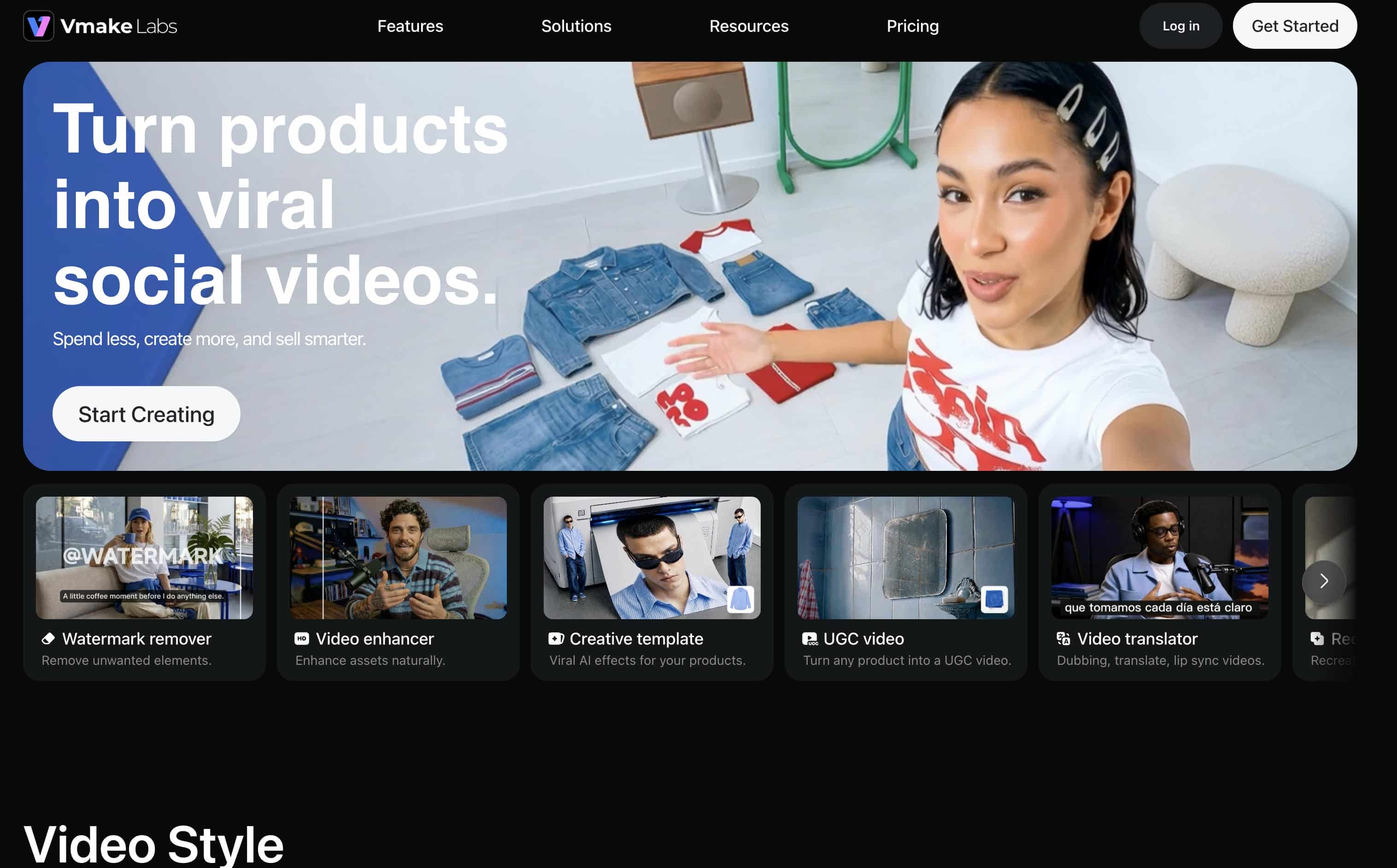
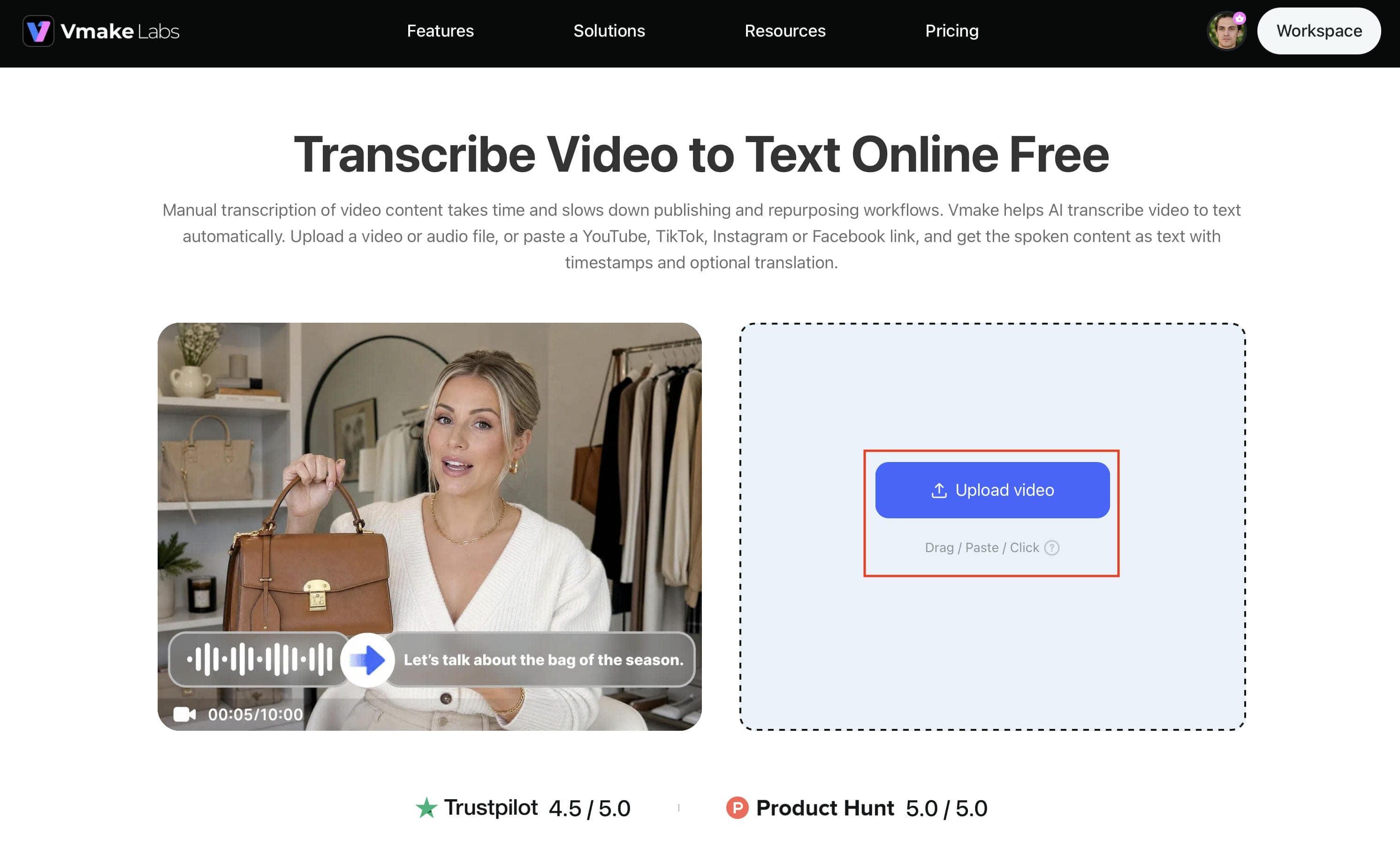
Step 1. Upload your audio or video, or paste the link
Upload an audio or video file from your device, or paste a supported public link from YouTube, TikTok, Instagram, or Facebook. The AI processes your content directly in the browser, allowing you to start transcription without downloading additional software or configuring cloud services.
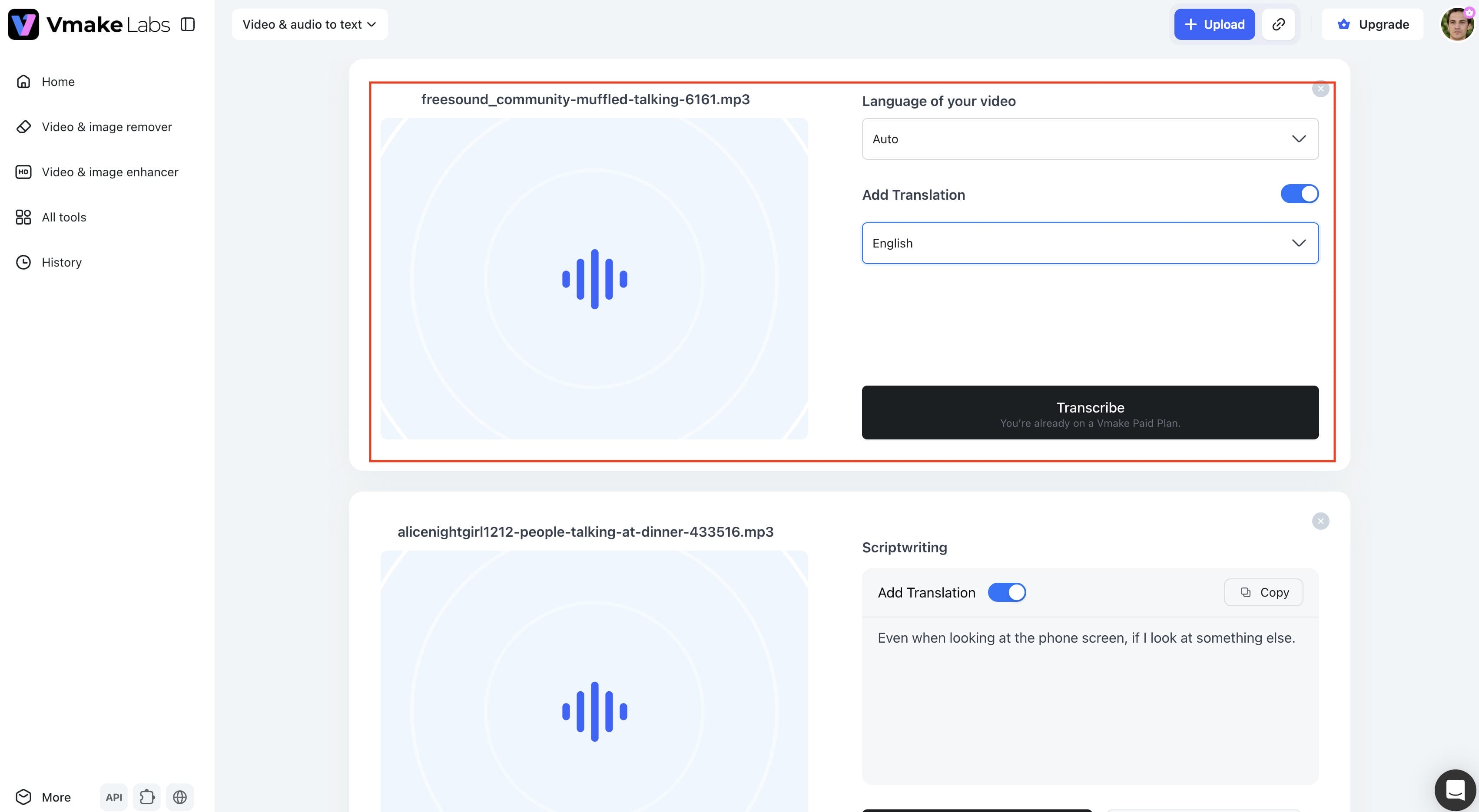
Step 2. Select the transcription language
Select the language of your recording before you begin transcription. The AI processes the content and generates an editable transcript, which you can read through, search and edit before exporting.
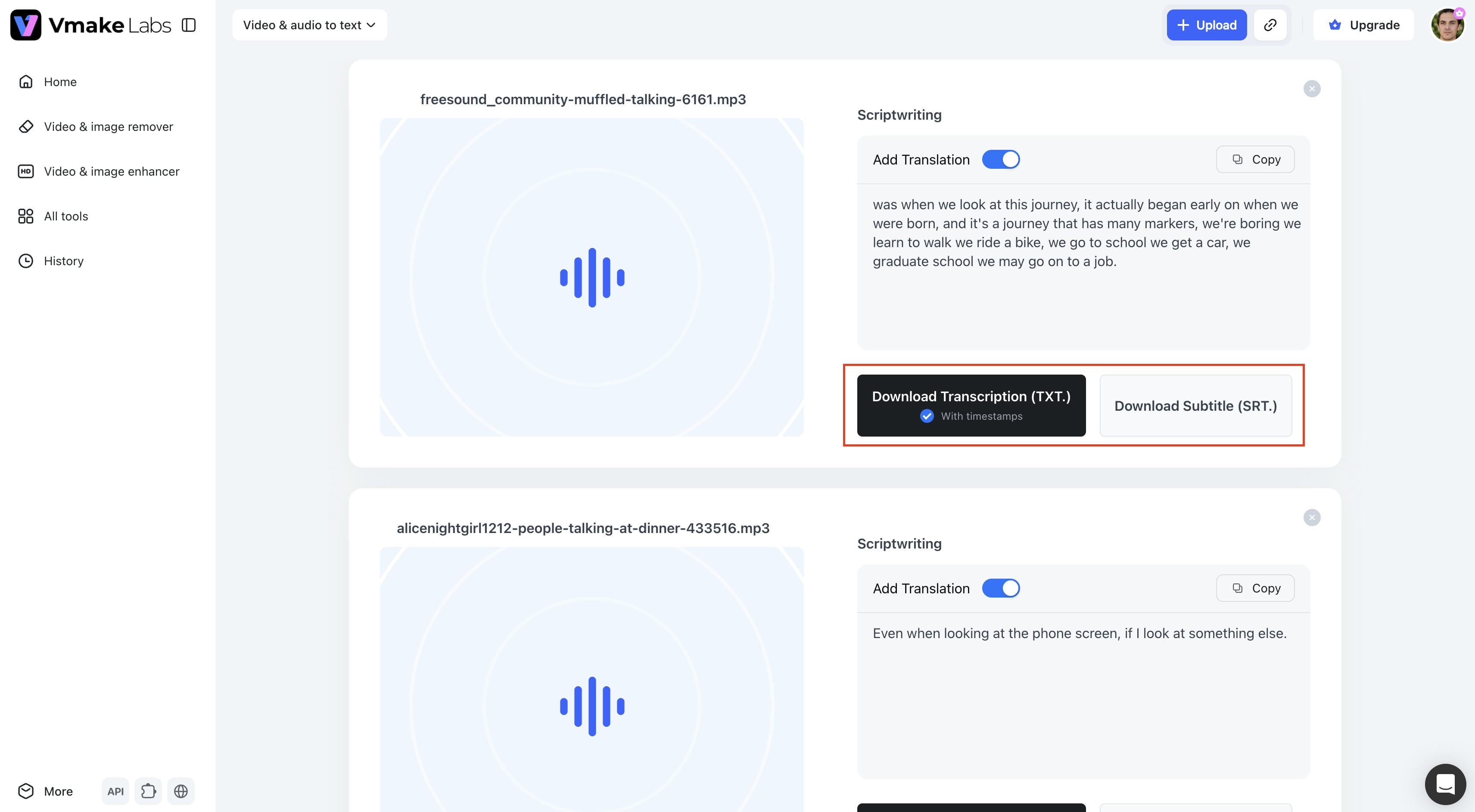
Step 3. Copy or download your transcript
When the transcript is ready, review it for accuracy and make any necessary changes. After that, you can either export the text or download it as a TXT or SRT file for articles, captions, subtitles, meeting notes or other written content.
Key features of Vmake Labs Video & Audio to Text
-
AI-powered audio and video transcription: Convert spoken content from audio and video files into accurate, editable text within minutes.
-
Direct file upload: Upload audio or video files from your device without configuring cloud services or additional software.
-
Video link transcription: Paste supported YouTube, TikTok, Instagram, or Facebook links to generate transcripts directly from online videos.
-
Multilingual transcription and translation: Transcribe content in multiple languages and translate transcripts for wider accessibility and global audiences.
-
TXT and SRT export: Download transcripts as TXT or SRT files for articles, captions, subtitles, meeting notes, or documentation.
-
Simple browser-based workflow: Upload your content, generate an AI transcript, review the text, and export it from one easy-to-use interface.
Tips for more accurate audio transcription
Any transcription tool can be successful depending on the software and the quality of the recording. Simple practices before and after transcription can help reduce errors and make the final transcript easier to read and to use.
-
Record in a quiet environment: Choose a location with minimal background noise, so voices remain clear throughout the recording. If you can't avoid it, choose a background noise remover to clean the materials before transcription.
-
Use a high-quality microphone: A high-quality microphone helps the AI to better understand the words spoken and the speaker, and therefore makes fewer mistakes.
-
Minimize background noise and interruptions: Ask speakers to avoid talking over one another and reduce distractions such as music, traffic, or notifications during recording.
-
Select the correct transcription language: Choosing the spoken language before transcription helps AI apply the appropriate speech recognition model and improves overall accuracy.
-
Review names, technical terms, and punctuation: AI transcription is highly accurate, but proper nouns, industry-specific terminology, and punctuation should always be checked before sharing or publishing the transcript.
-
Split lengthy recordings into smaller sections: If you're working with very long audio files, dividing them into shorter segments can make transcription more manageable and simplify the editing process.
Conclusion
Yes, Google Docs Voice Typing is a simple free way to transcribe live speech into text, while Google Cloud Speech-to-Text is a more sophisticated solution for uploaded audio files and business workflows. The answer depends on how you capture, manage and use your content. Vmake Labs provides an AI-powered alternative for a faster, browser-based workflow with existing audio or video files. Upload your files or paste supported video links, generate editable transcripts, and export them in TXT or SRT formats without any complex setup.
FAQs
Can Google transcribe audio to text?
Yes. Google can transcribe audio to text, either in real-time with Google Docs Voice Typing or after the fact with Google Cloud Speech-to-Text. For existing audio or video, you can use a simpler browser-based workflow with Vmake Labs, an AI-powered solution.
Is Google transcribe audio to text free?
Partly. Google Docs Voice Typing is free with a Google account, while Google Cloud Speech-to-Text offers limited free usage before paid pricing applies. If you need a straightforward transcription workflow without cloud configuration, Vmake Labs is another option to consider.
Can Google Docs transcribe recorded audio files?
Not directly. Google Docs Voice Typing listens to audio played through your microphone rather than uploading audio files. If you want to upload recordings directly, Vmake Labs supports audio and video file uploads as well as transcription from supported video links.
What is the difference between Google Docs Voice Typing and Google Cloud Speech-to-Text?
Google Docs Voice Typing is ideal for live transcription that happens in real-time, while Google Cloud Speech-to-Text is designed for audio files you upload, AI-powered processing, and scalable workflows. Your decision will boil down to whether you need a simple transcription tool or a cloud-based solution.
What is the easiest way to transcribe audio to text online?
Which is the easiest method depends on your workflow. For live speech, Google Docs is best and for advanced transcription, Google Cloud is best. Vmake Labs is a simple browser-based tool that lets you upload audio or video files directly and export editable TXT or SRT transcripts.

You May Be Interested
Canva Audio to Text Converter: Complete Guide & AI Alternative
ElevenLabs Audio to Text: Complete Guide to AI Alternative
How to Transcribe Audio to Text: Efficient Guide
How to Transcribe Audio Recording to Text in Minutes

Vidnoz AI Video Generator Review 2026: Pros, Cons & Best Alternative
What Is Video Translation and How Does AI Work?