Vidnoz AI Video Generator Review: Honest Breakdown in 2026
Thinking about using Vidnoz AI? This Vidnoz AI video generator review explores features, pricing, pros, cons, use cases, and real user experience while comparing it with Vmake, a new alternative. Let's dive in.

Rising demand for fast video has made AI avatars mainstream for marketing and training. Vidnoz AI stands out with its massive library of talking heads and ready-made templates. This honest 2026 review breaks down its features, pricing, real user feedback, and how it compares to video-first alternatives.
What is Vidnoz AI video generator?
Vidnoz AI is a cloud-based video creation platform designed to replace traditional video shoots with digital avatars and text-to-speech engines. Instead of hiring actors, setting up cameras, and recording audio, the Vidnoz AIvideo generator lets users assemble a complete video directly inside a web browser by typing out a script.
The platform is built heavily around templates and preset configurations to reduce the technical barriers of video production. It is tailored specifically for:
-
Content creators run high-volume social channels.
-
Corporate training teams need standardized onboarding or instructional presentations.
-
E-commerce and marketing professionals are producing fast product feature breakdowns.
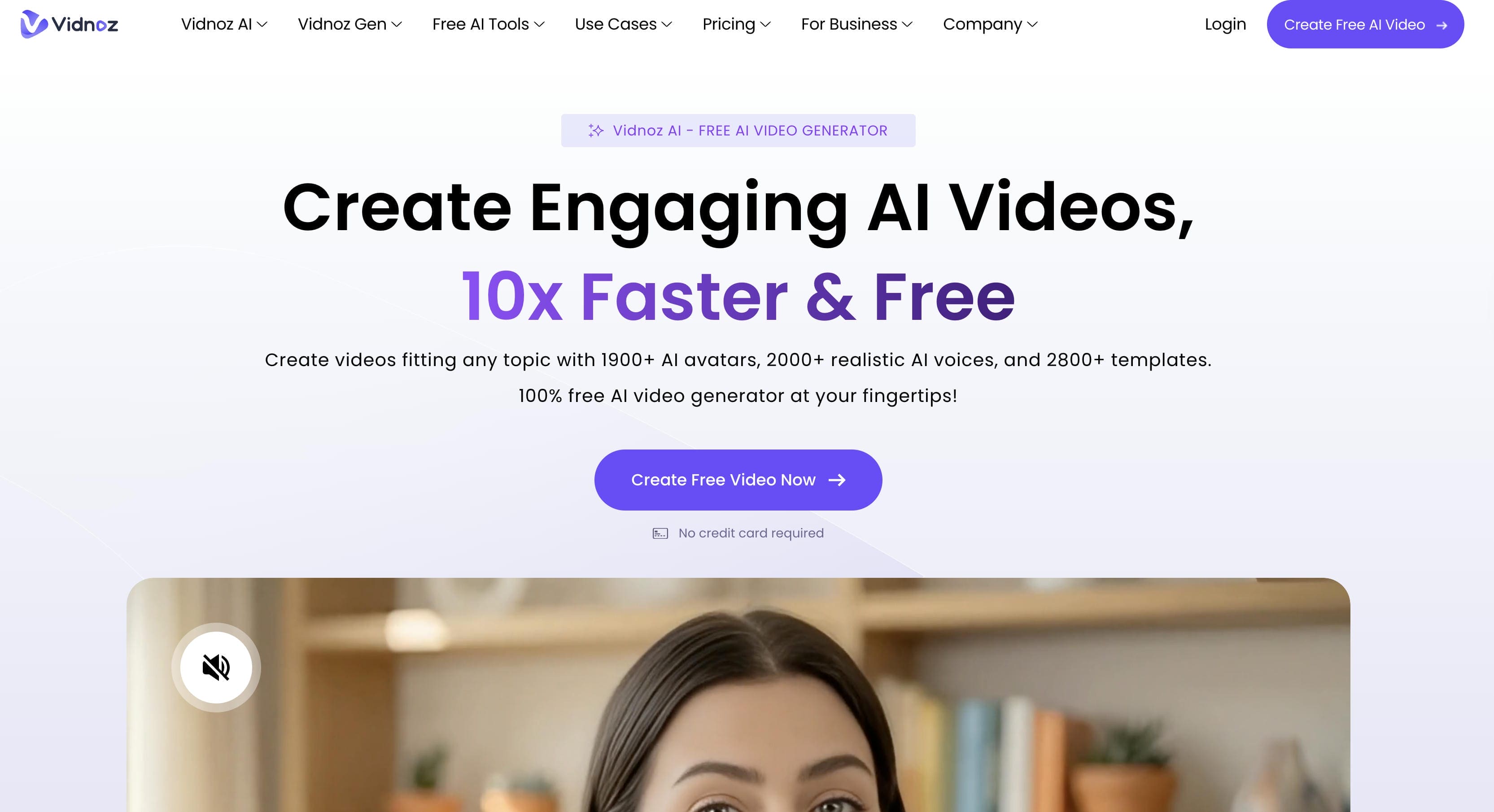
Key features of Vidnoz AI video generator
The Vidnoz AIvideo generator packages several core systems into a unified browser dashboard, focusing primarily on talking presenters and automated script handling.
AI Avatars and Talking Presenters
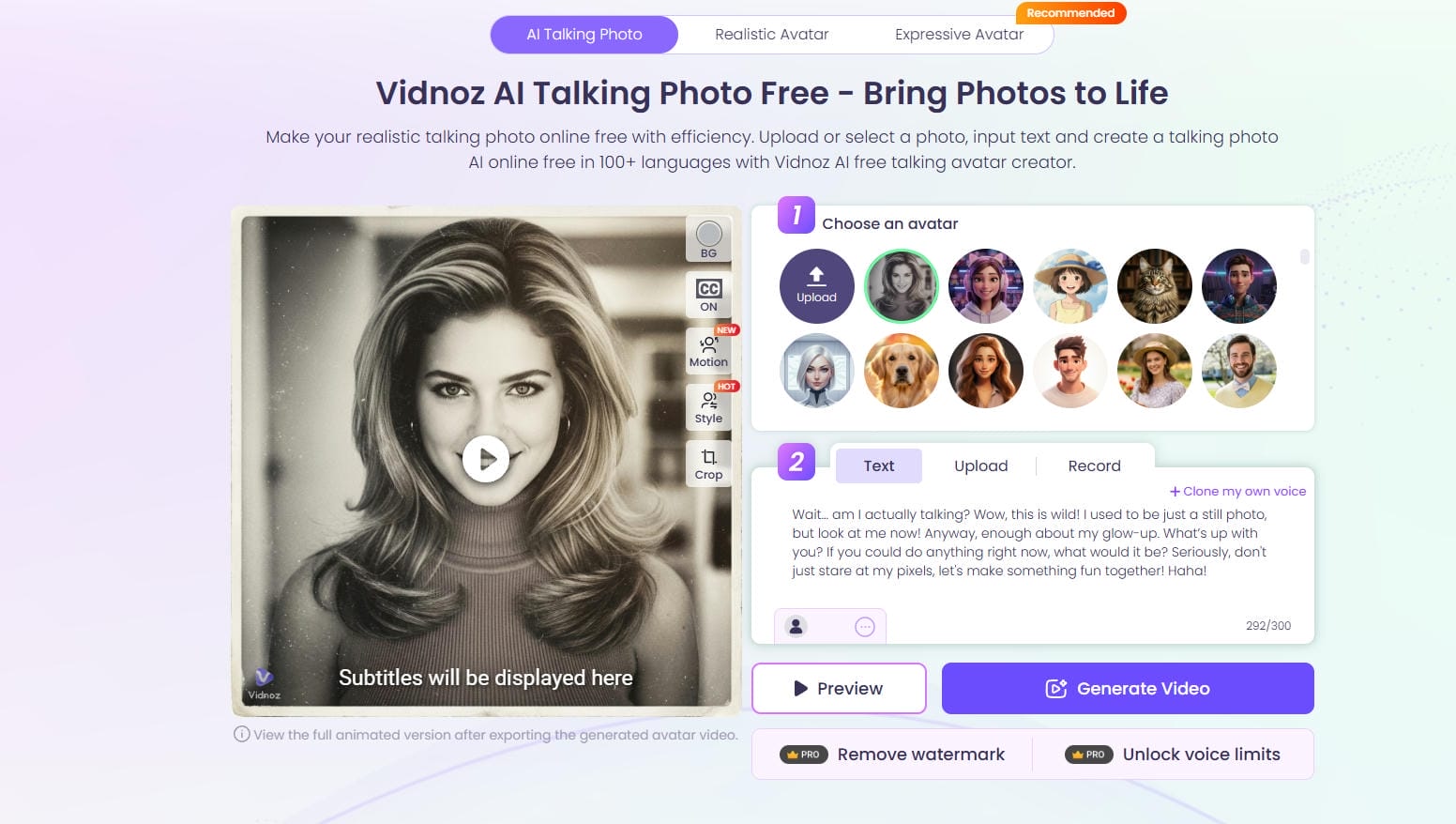
The defining asset of Vidnoz is its extensive library of over 1,200 photorealistic digital avatars. These avatars mimic human presenters, handling narration duties with automated lip-syncing mapped directly to your script text. It provides an easy path to creating explainer clips, customer support responses, and corporate training layouts that require a consistent, front-facing human speaker to drive engagement.
Text-to-Video and Prompt-Based Creation
Vidnoz enables users to generate videos from written scripts, prompts, or simple ideas. The AI automatically transforms text into visual scenes, making it easier to create explainer videos, marketing content, and presentations without starting from scratch.
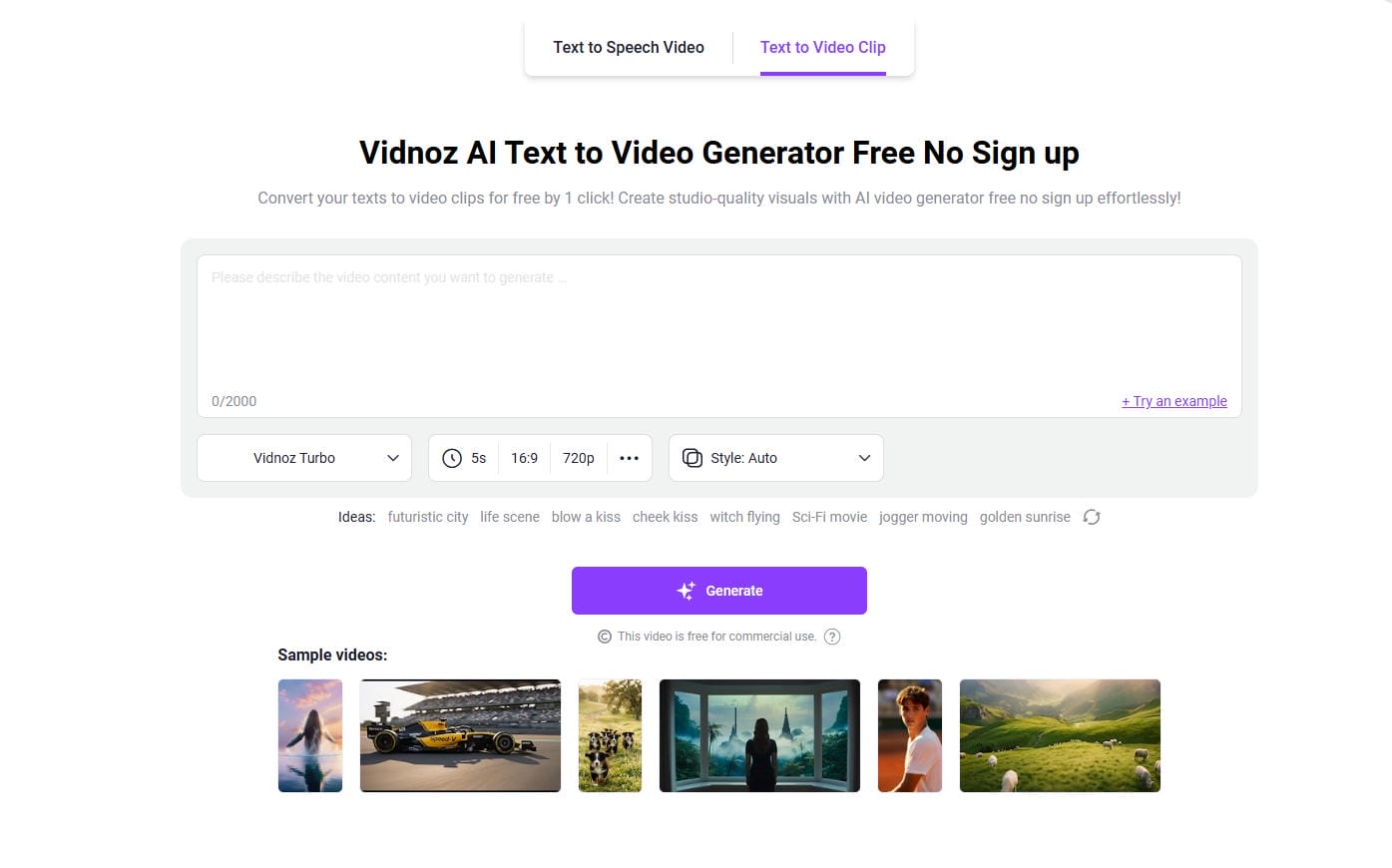
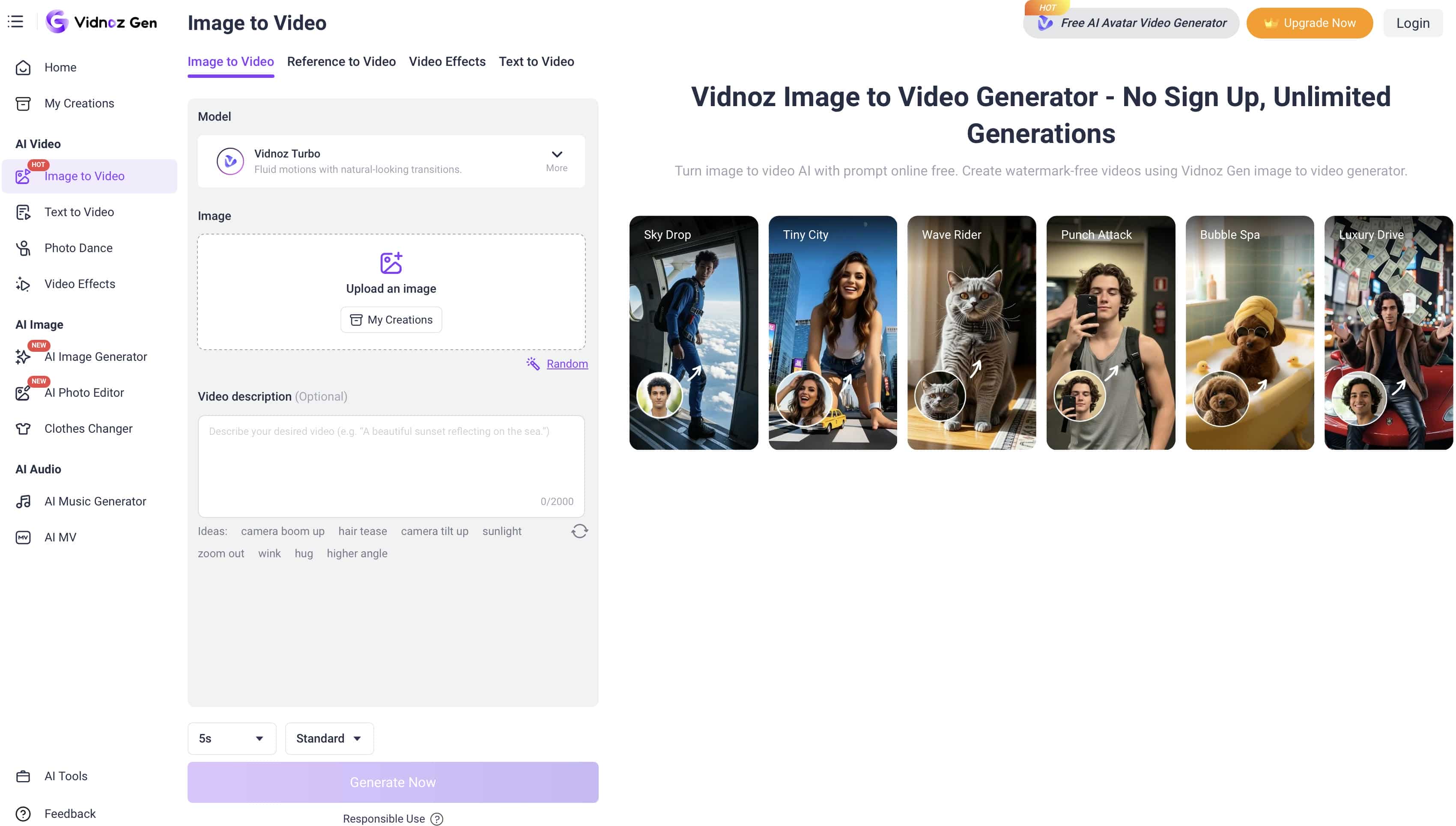
Image-to-Video Animation
Vidnoz also includes an image-to-video generator that transforms static images into animated clips. Users can upload portraits, illustrations, or product photos and apply AI-generated motion effects to create more engaging visual content. This feature is particularly useful for social media posts, promotional materials, and creative storytelling projects that require movement without recording new footage.
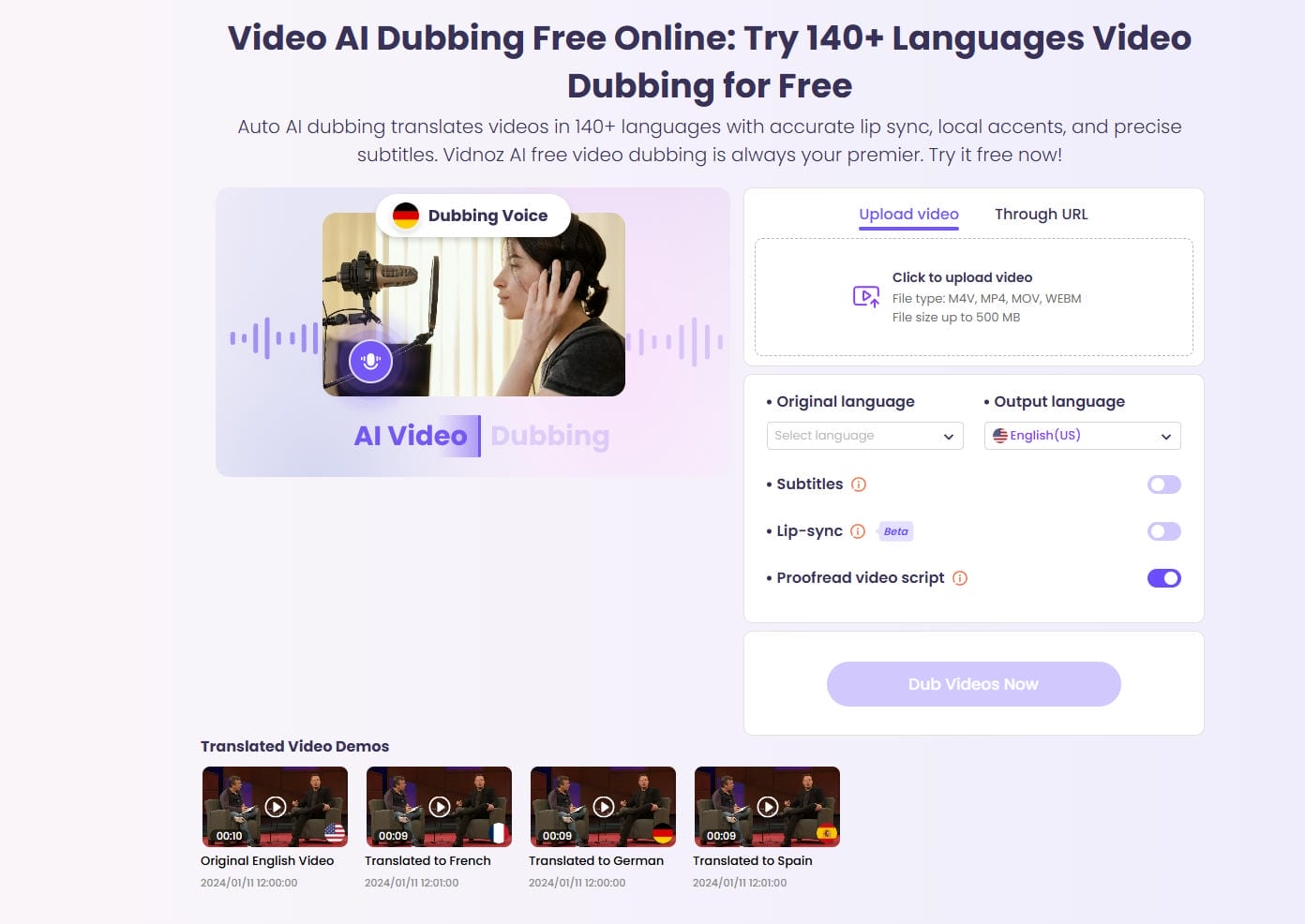
AI Voiceovers and Multilingual Support
To serve global marketing needs, Vidnoz provides access to hundreds of AI voices spanning multiple styles, tones, and age ranges across more than 140 languages and localized accents. This makes international localization incredibly simple: you can duplicate an existing video campaign and instantly swap the spoken-language script to reach regional audiences without re-recording any raw audio assets.
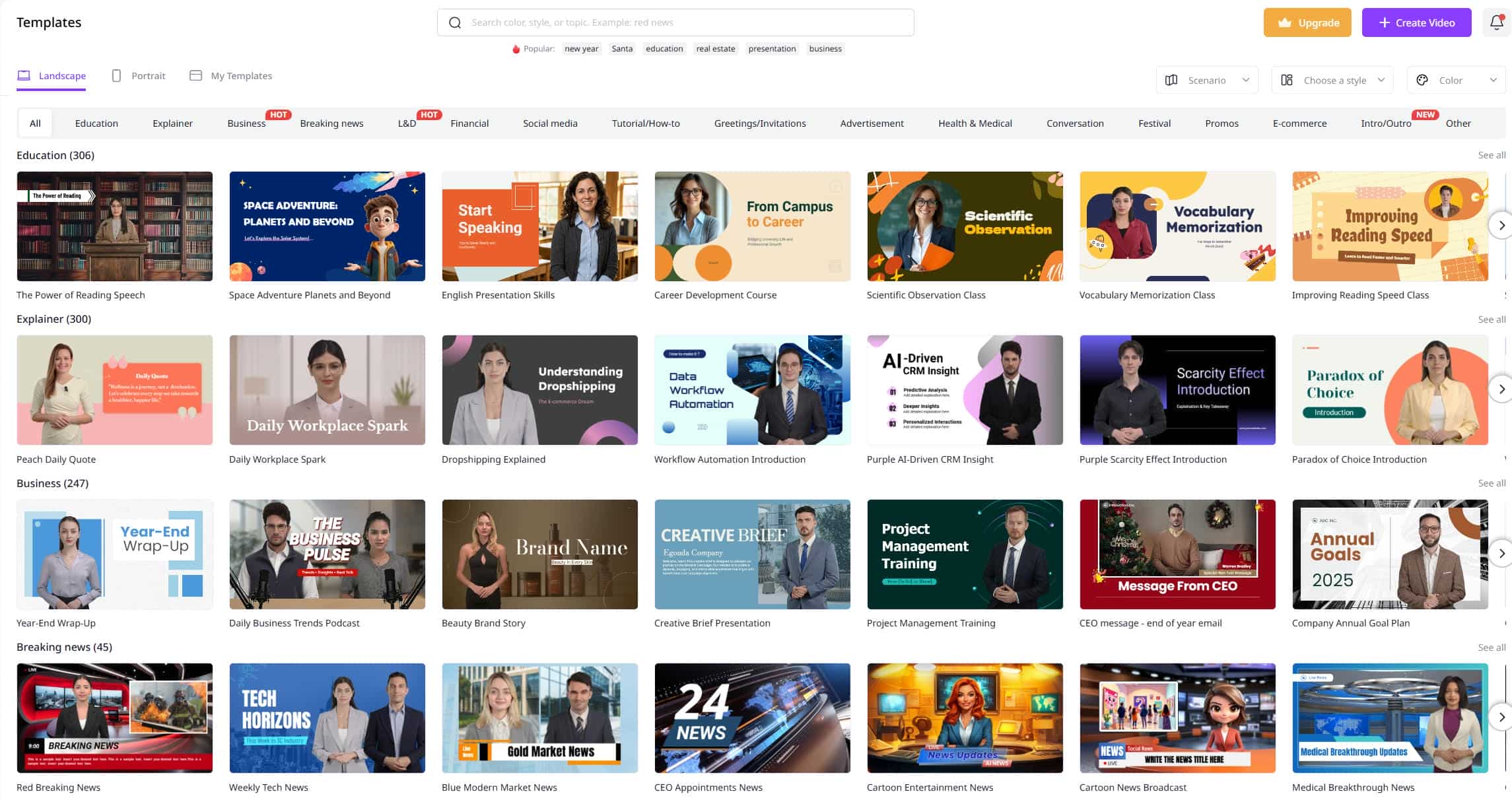
Video Templates and Editing Tools
The platform features thousands of pre-made video templates divided by industry and aspect ratio. Users edit these structures via a simple drag-and-drop workspace where they can change background colors, position text overlays, upload brand logos, and add stock music to maintain brand alignment across short-form marketing materials or deep training assets.
How to use Vidnoz AI video generator to create videos
Creating a video within Vidnoz is a linear process that avoids the complexity of traditional post-production applications.
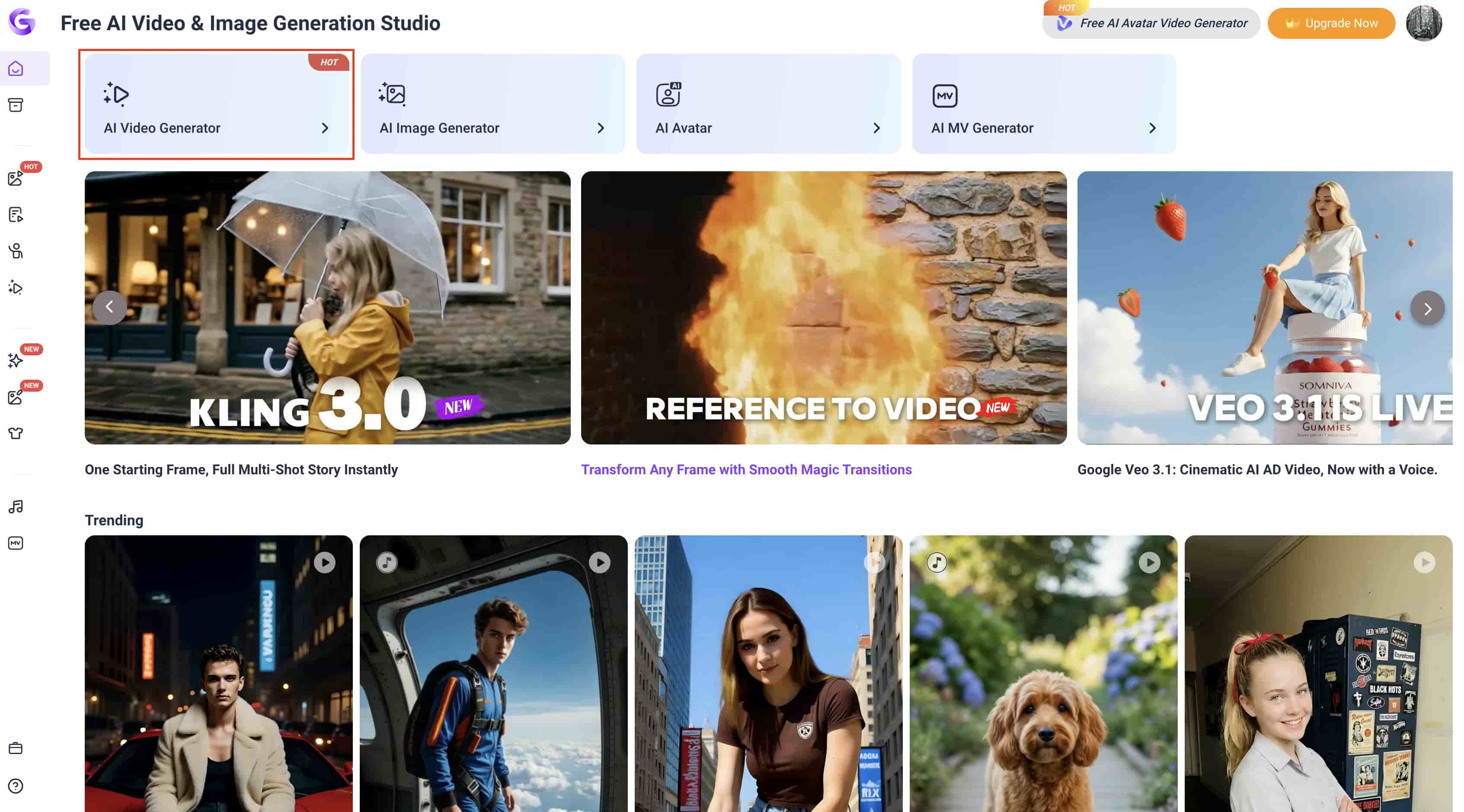
Step 1: Open the Vidnoz AI dashboard and select AI Video Generator
Log in to your Vidnoz AI account and open the main dashboard. From the homepage, click AI Video Generator under the "Free AI Video & Image Generation Studio" section to start creating a new AI video project.
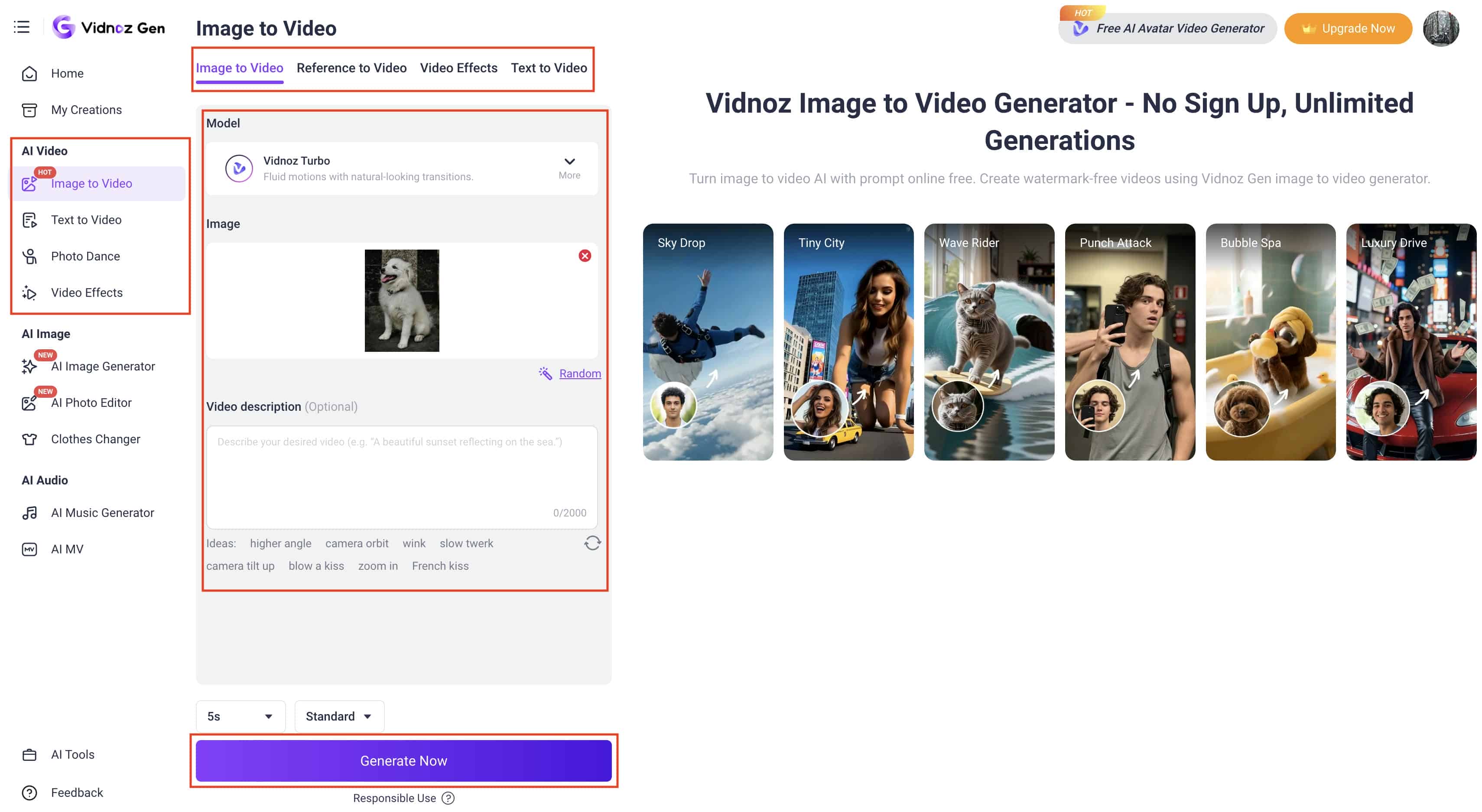
Step 2: Upload your image and generate the video
Select the Image to Video tab from the left sidebar, upload the image you want to animate, and choose a video model such as Vidnoz Turbo. Enter an optional video description to guide the motion and scene behavior, adjust the video length and quality settings if needed, then click Generate Now to create your AI video.
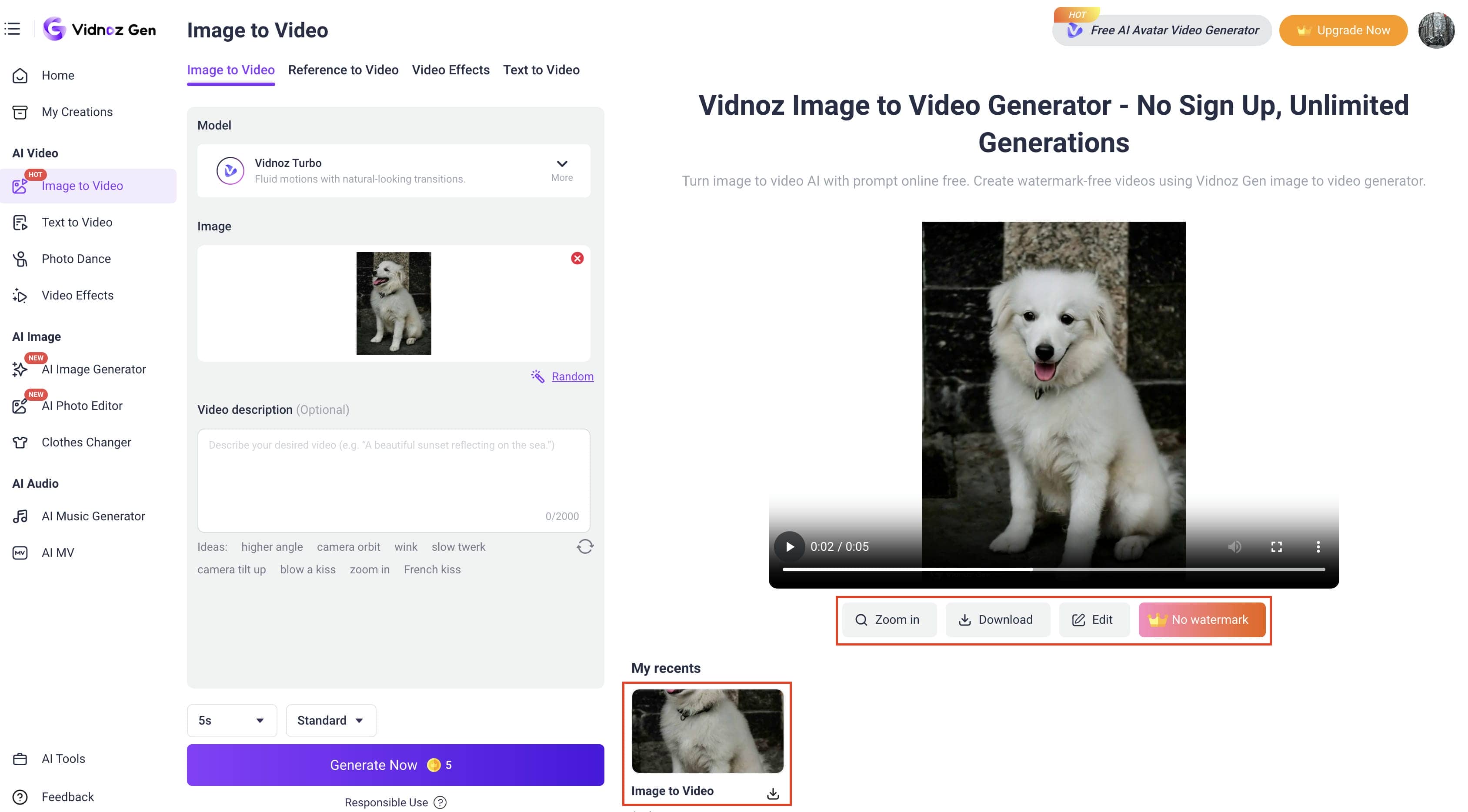
Step 3: Preview, edit, and download your generated video
After the generation is complete, preview the video in the built-in player to review the animation and motion effects. If needed, use the Edit option to make adjustments, then click Download to save the video to your device. You can also access previously generated projects from the My recents section for quick viewing and downloads.
Is Vidnoz AI video generator worth it?
Determining whether Vidnoz is the right fit involves analyzing its pricing structure, operational limits, and real-world performance feedback.
Vidnoz Pricing Plan
Vidnoz runs a structured subscription model that splits into free exploratory use, standard creator tiers, and fully customized enterprise accounts.
|
Plan |
Price |
Credits / Limits |
Best For |
Key Limitations |
|---|---|---|---|---|
|
Free |
$0 |
30 credits/day (~1 minute/day) |
Testing & light use |
720p, watermark on some exports, daily limits |
|
Starter |
$19.99/mo (or less yearly) |
More credits, 1080p, no watermark |
Individuals & small teams |
Still credit-based |
|
Business |
$56.99/mo |
Higher limits + team features |
Growing teams & agencies |
— |
|
Enterprise |
Custom |
Unlimited + SSO, analytics, dedicated support |
Large organizations |
Contact sales |
Pros and Cons
|
Pros |
Cons |
|---|---|
|
|
|
|
|
|
|
|
Community Reviews
On G2:
On Capterra, users praise the tool as an efficient, time-saving upgrade over competitors, but note that it feels too repetitive for complex projects. Ultimately, they find the platform handy for the price, though they dislike that the most advanced creative features are locked behind expensive tiers.
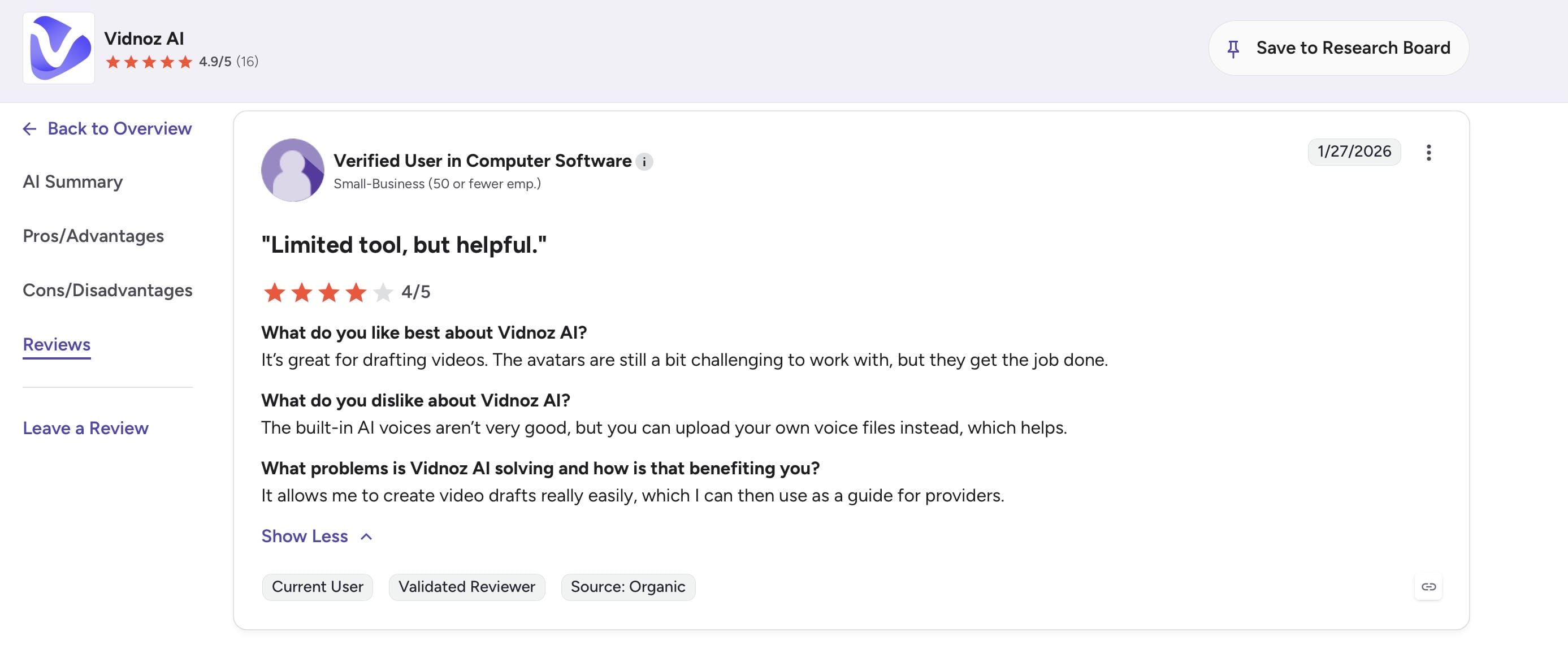
On Capterra
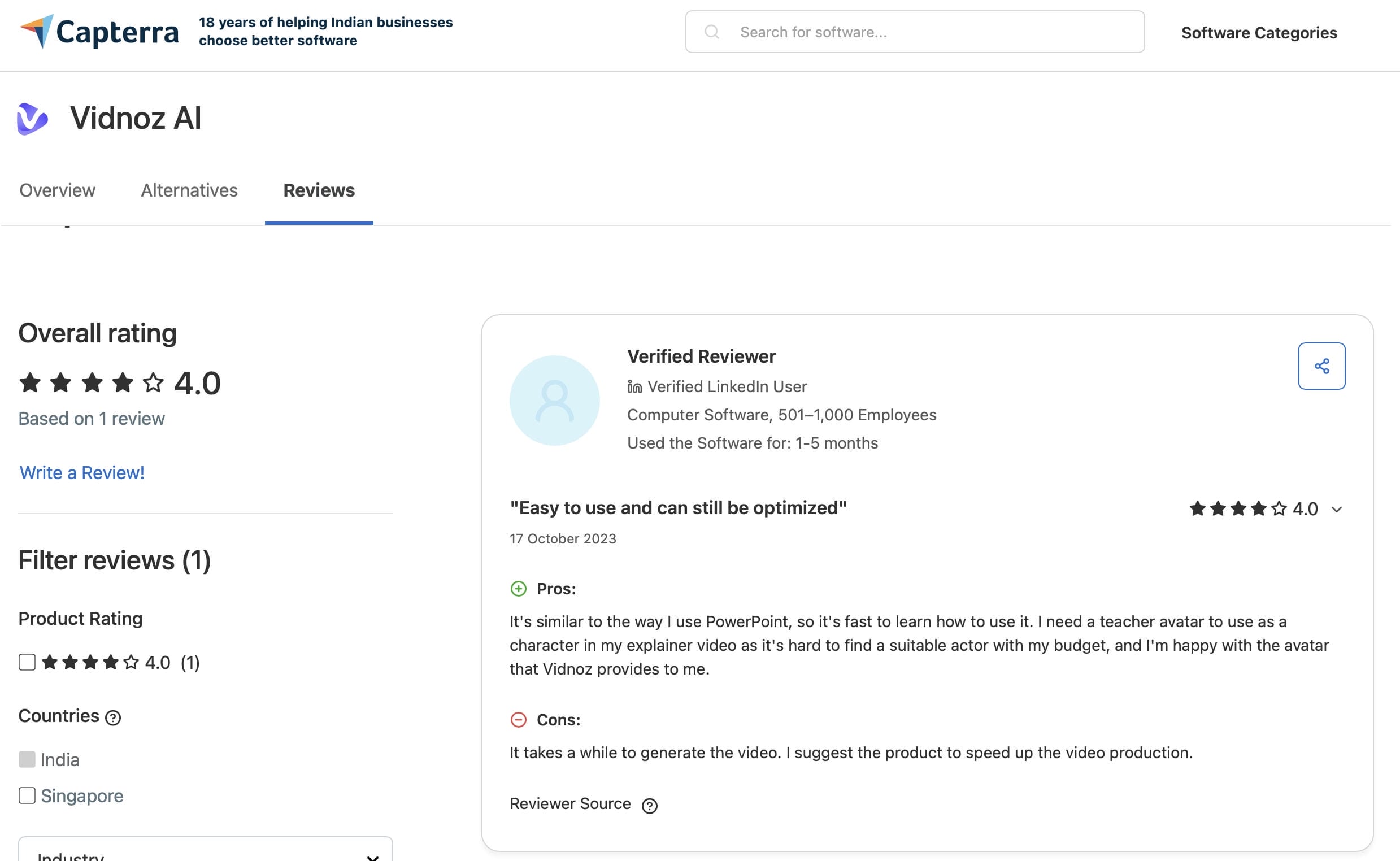
On Capterra, users praise Vidnoz AI for its intuitive interface and ease of use, especially for creating avatar-based explainer videos without hiring actors. However, some reviewers note that video generation can be slower than expected and would like to see faster processing speeds.
Editorial verdict
Despite its strengths, Vidnoz AI is primarily designed around AI avatars, scripted presentations, and template-based video creation. Users looking for more advanced visual storytelling, cinematic motion effects, or higher-end commercial video production may find its creative flexibility somewhat limited. For those needs, it is worth exploring platforms that focus more heavily on video quality and visual generation capabilities, such as Vmake AI.
New alternative: Meet Vmake AI Video Generator
For creators and businesses who find talking-head presenters too limiting or require pristine visual output rather than predictable slideshow templates, Vmake AI serves as a highly specialized, video-first alternative.
While Vidnoz focuses on automated digital spokespersons reading plain text, Vmake AI approaches production with an emphasis on rich cinematic motion, high-end visual enhancement, and strict quality control. It is built specifically to turn raw images, product photos, and rough clips into highly polished, commercial-ready video assets.
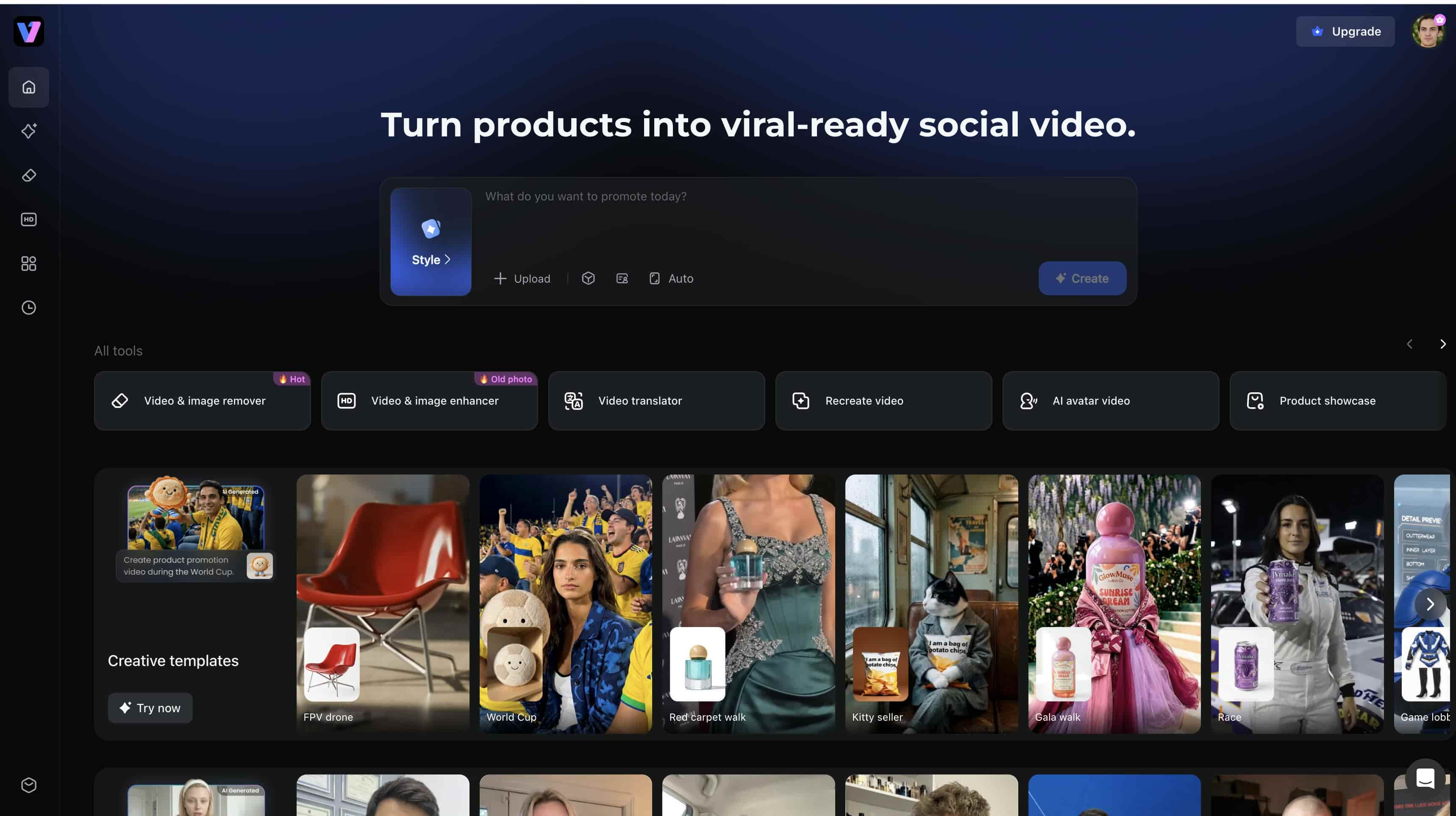
Key Features of the Vmake AI Video Generator:
-
Multiple Top AI Models: Harnesses a range of generative engines tailored specifically for fluid physical motion and accurate lighting simulations.
-
High Resolution Output: Features an industry-grade built-in video upscaler that can upgrade compressed inputs into ultra-clear, sharp outputs.
-
Long Duration Settings: Offers extended generation windows and smooth frame interpolation to prevent sudden visual morphing or unnatural jumps.
-
Built-In Effects for Choices: Packed with video-centric enhancement tools like intelligent background removal, edge sharpening, and blur correction.
Step-by-Step Guide to Vmake AI
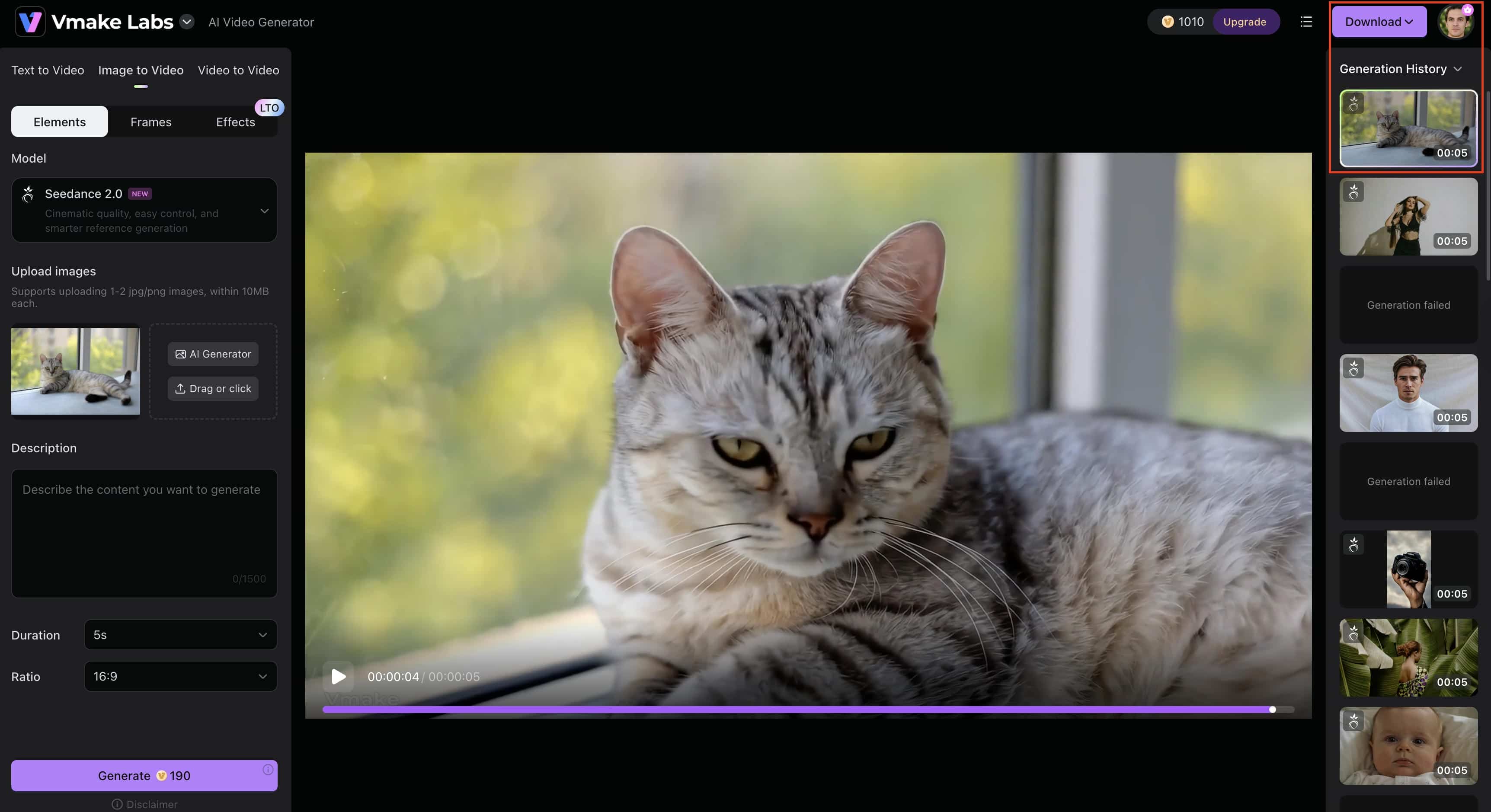
Step 1: Open the AI video generator
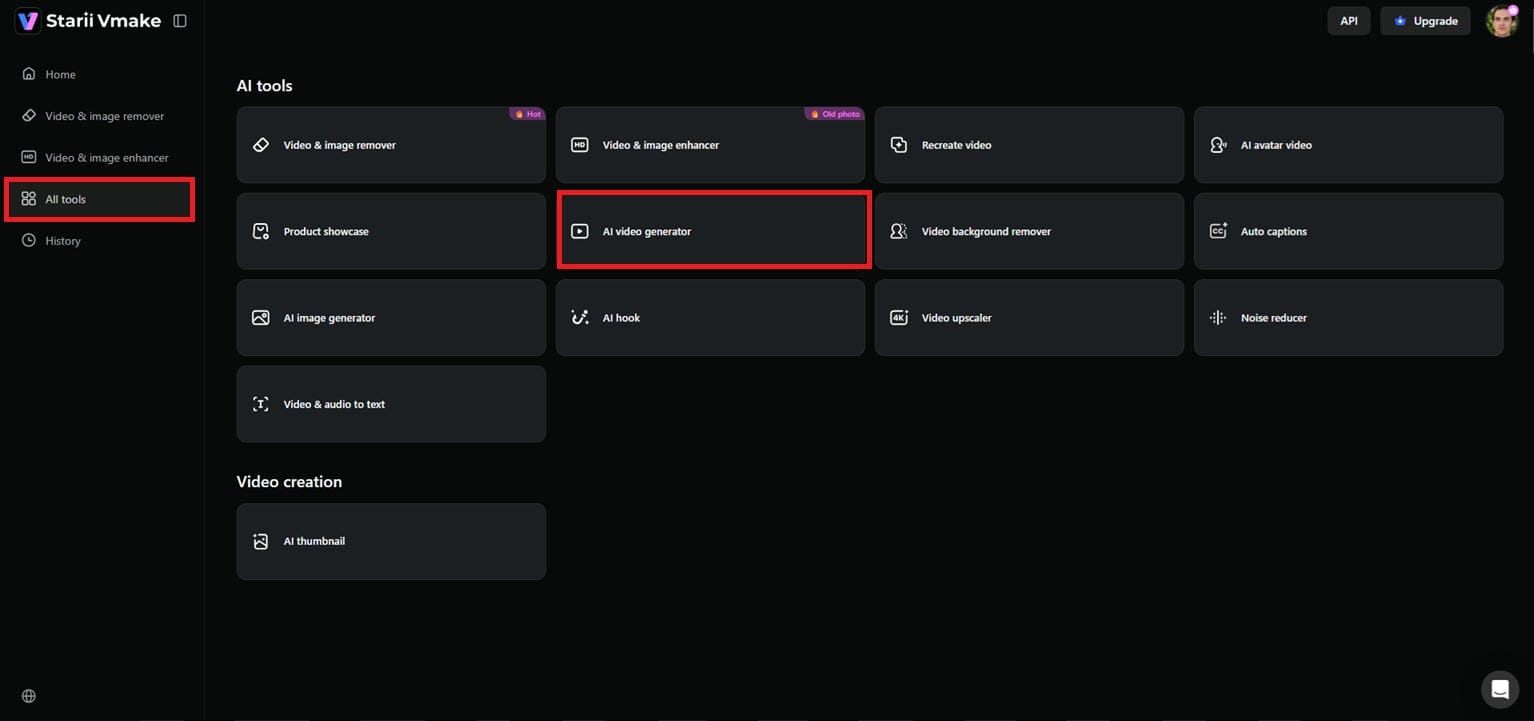
Navigate to the Vmake dashboard and select ''All Tools'' from the menu on the left side. Choose AI Video Generator to go to the main editing area and begin your project.
Step 2: Enter prompt and set preferences
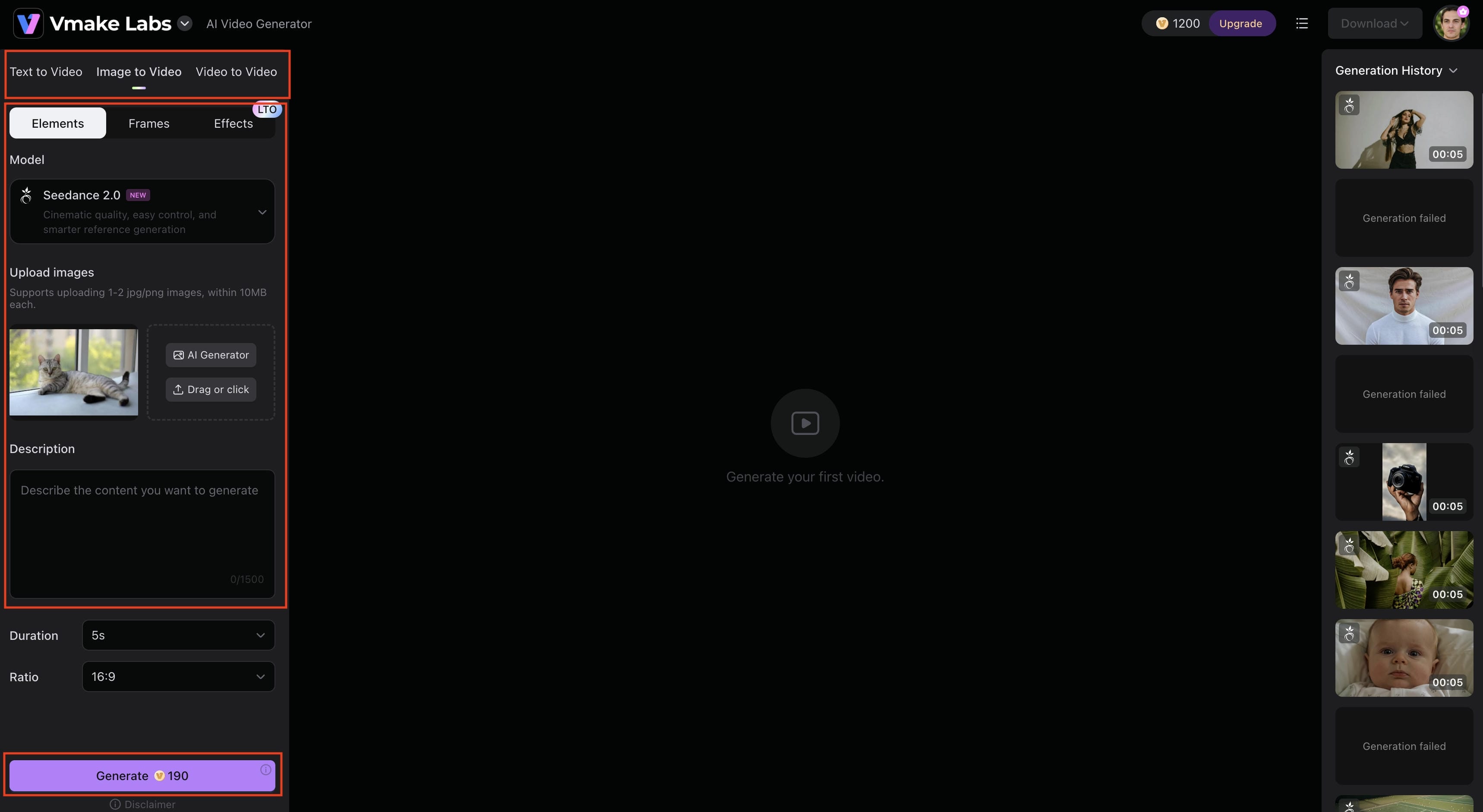
Select the generation mode of your liking, i.e., Text to Video, Image to Video, or Video to Video. Type your text prompt and add reference photographs if you like. Select the AI model, set options such as video length (2-15 seconds), aspect ratio, and visual style, then hit "Generate."
Step 3: Preview and download the video
Once you create the movie, preview the final product to see how the animation, motion, and overall look feel. If you like the result, click on "Download" to save and export the video for social media or content creation.
Vidnoz AI vs. Vmake: Which Tool Suits You Better
|
Feature Comparison |
Vidnoz AI |
Vmake AI |
|---|---|---|
|
Primary Design Focus |
Avatar-driven slideshows and speech scripts |
Video enhancement, clarity, and motion quality |
|
Generation Inputs |
Text scripts and template selections |
Product photos, video clips, and motion prompts |
|
Visual Realism |
High in static frames; can feel stiff in motion |
Fluid physical tracking and sharp edge definitions |
|
Upscaling & Enhancing |
Not supported; output bound by template limits |
Built-in 4K upscaling and artifact removal |
|
Best Suited For |
Fast corporate presentations and talking-head ads |
High-quality e-commerce videos and polished social assets |
Choose Vidnoz AI if:
-
You need talking-head videos: Your primary goal is to use an avatar to deliver a speech script or standard presentation.
-
You want to build from templates: You prefer starting with text scripts and pre-made template selections rather than raw footage.
-
Speed and corporate utility matter most: You need to rapidly spin up fast corporate presentations or straightforward talking-head advertisements.
Choose Vmake AI if:
-
Visual quality and sharpness are priorities: You need high video enhancement, crisp clarity, artifact removal, and built-in 4K upscaling.
-
You are working with physical products: Your main inputs are product photos, existing video clips, and motion prompts rather than just text.
-
You need fluid, realistic motion: You require realistic physical tracking, fluid movement, and sharp edge definitions.
Conclusion
This Vidnoz AI review shows it is excellent for generating fast explainer videos, tutorials, and marketing clips using digital avatars. Its extensive asset library and easy browser setup save significant time for daily content creators.
However, Vidnoz falls short if your projects require crisp definition, stable textures, or advanced upscaling to address compression artifacts. For high-end professional quality, switching to a video-centric platform like Vmake AI ensures your final outputs maintain the clarity, sharpness, and visual detail needed to stand out perfectly on high-definition displays.
FAQs
Does Vidnoz AI video generator require video editing experience?
No, it requires zero editing experience. The platform uses a basic slideshow-style drag-and-drop interface, making it as easy to navigate as a standard text presentation deck. However, if your final clips look soft or lose crispness during export, passing them through Vmake AI instantly upscales your video quality without any manual editing hassle.
Can I upload my own media files to the Vidnoz AI video generator?
Yes, you can easily upload your own assets. Vidnoz allows you to import logos, image backgrounds, audio clips, and screen recordings to customize templates. If your uploaded high-resolution product images appear blurry after Vidnoz animates them, Vmake AI offers a dedicated enhancement suite to restore crisp visual textures.
How long does Vidnoz AI take to generate a video?
It takes just a few minutes, depending on video length and server traffic. Because all rendering tasks are handled remotely on cloud networks, your local hardware won't slow down processing. If you want a similarly fast platform that prioritizes fluid, cinematic motion over rigid avatar templates, Vmake AI refines your assets with incredible speed.
Are videos created with Vidnoz AI suitable for commercial use?
Yes, but only on paid subscription plans. Free tier users face licensing limits and visible watermarks, while upgrading unlocks full commercial rights. For a commercial workflow focused heavily on e-commerce conversions, Vmake AI is an excellent partner, automatically generating clear, professional product videos optimized for online storefronts.
Does Vidnoz AI support team collaboration or business workflows?
Yes, higher-tier plans include team workspace features for sharing templates, collaborating on scripts, and managing credit pools. If your business team also requires advanced quality control, switching to Vmake AI provides your organization with powerful collaborative tools for 4K upscaling, automated video sharpening, and background removal.

You May Be Interested
AI TikTok Video Generator | Create High-Quality AI Videos
Best AI Video Generator: Top Tools Tested (2026)
Viggle AI Video Generator Review & Top 2026 Alternatives
Trump AI Video Generator: 3 Best Tools to Create AI Videos
How to Remove CapCut Watermark
Nero AI Review 2026 Explained: Is the Tool Worth Using?