Canva Audio to Text Converter: Complete Guide to AI Transcription
Discover how the Canva Audio to Text Converter turns speech into editable text and captions. Follow a step-by-step guide, explore its capabilities, and compare it with Vmake Labs for AI transcription.

Turning speech into text in Canva is quick and simple. This guide explains how the Canva audio to text converter works, how to transcribe audio in Canva, its pricing, key features, and why Vmake Labs is a practical alternative for AI transcription and subtitles.
What Is the Canva Audio to Text Converter?
The Canva audio to text converter is an AI-powered feature that converts spoken audio into editable transcripts and captions directly inside Canva projects. It helps users create accessible videos without leaving the design workspace. This makes it useful for presentations, social media videos, tutorials, and other visual content.
How Canva Audio to Text Works
The Canva audio to text feature uses AI speech recognition to convert spoken audio into editable text. Rather than simply matching individual words, it analyzes speech patterns, punctuation, and context to produce transcripts that read more naturally. Because the feature is built into Canva, transcription becomes part of your existing design workflow, making it useful for presentations, tutorials, social media videos, and other visual projects. Like most AI transcription tools, the quality of the output depends on the recording itself, so background noise, overlapping speakers, or strong accents may still require a quick manual review before publishing.
How to Transcribe Audio to Text in Canva
Transcribing audio in Canva is a simple process that takes only a few steps. Open the transcription tool, upload your recording, and let the AI convert speech into text. After the transcript is generated, you can make any final edits before using it in your Canva project.
Step 1: Open Canva and Access the Transcribe App
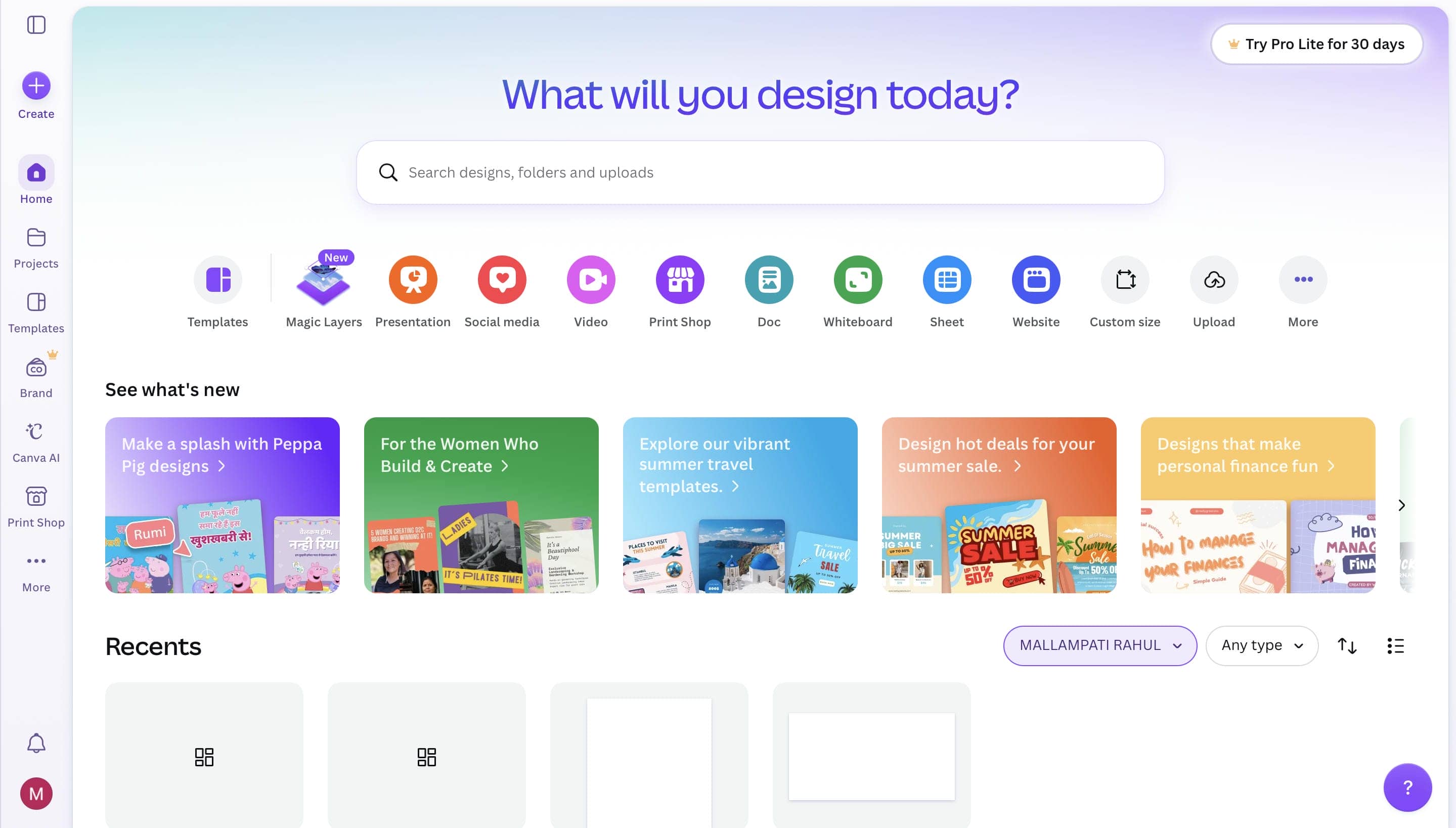
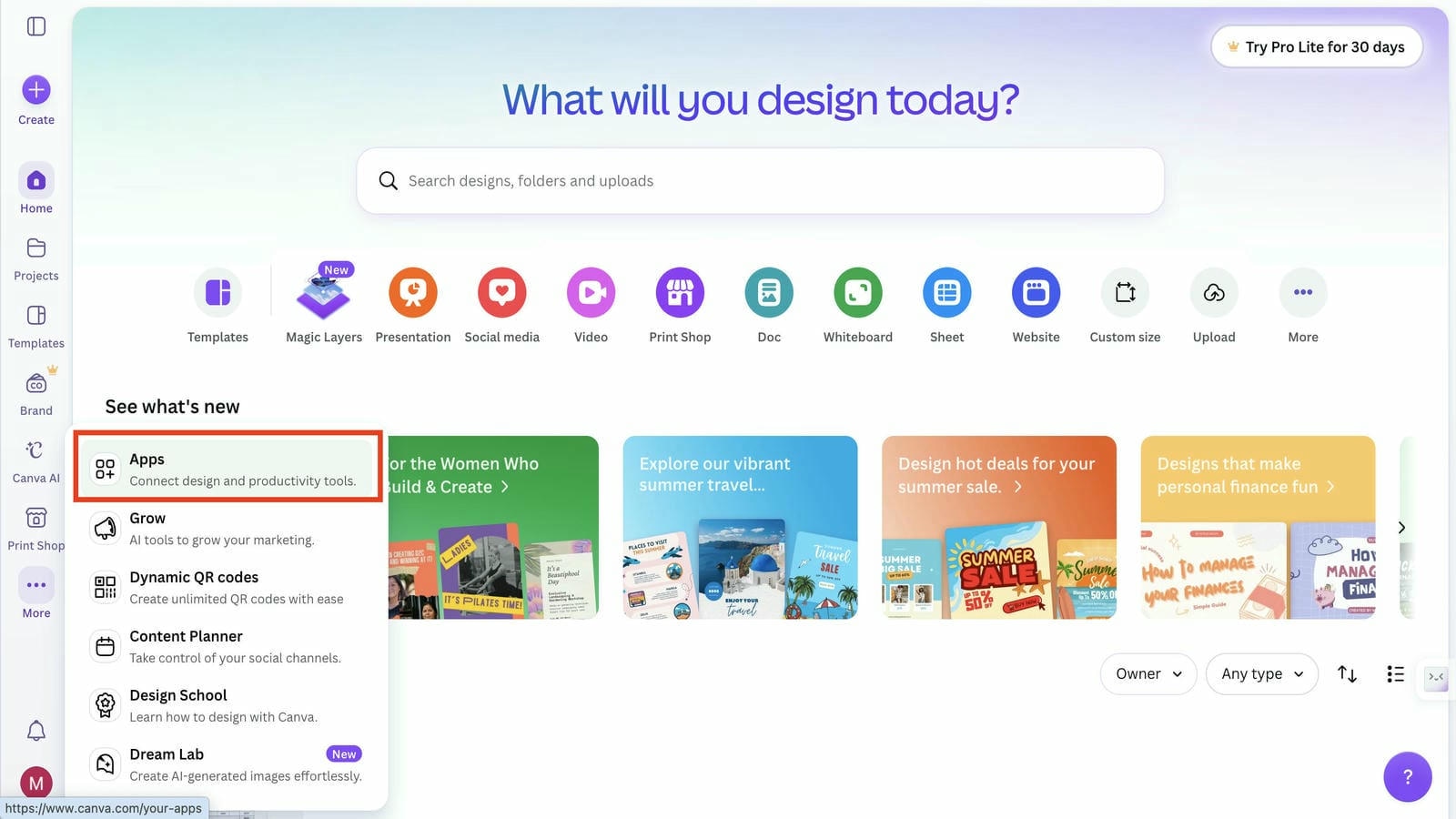
Open Canva and create a new design or open an existing project. From the left sidebar, click Apps, search for Transcribe, and open the app to access Canva's audio-to-text tool.
Step 2: Upload Your Audio or Video File
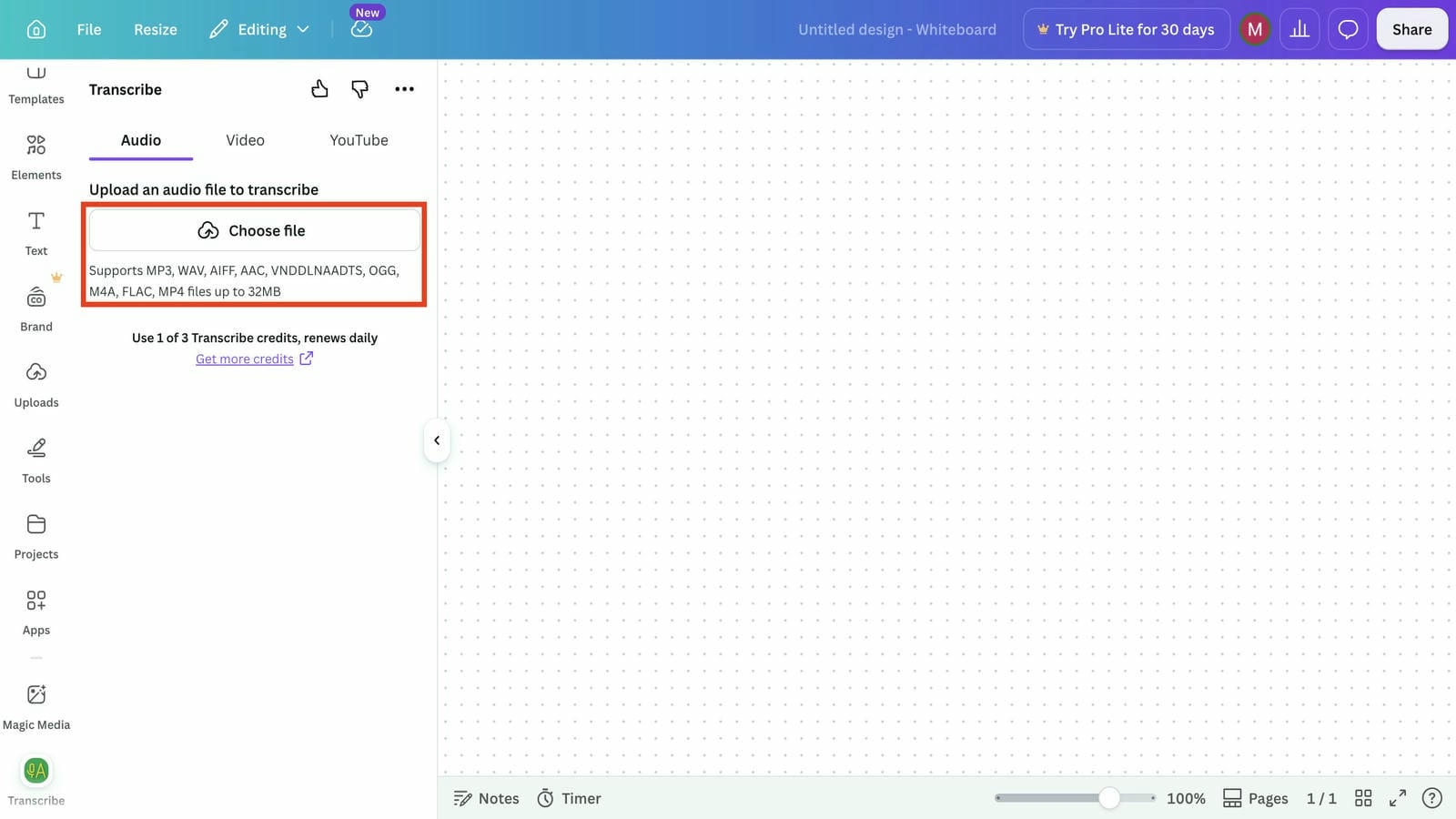
Click Choose file and upload the audio or video you want to transcribe. Canva supports popular file formats, including MP3, WAV, M4A, MP4, AAC, FLAC, and OGG, so you can work with a wide range of recordings.
Step 3: Generate the Transcript
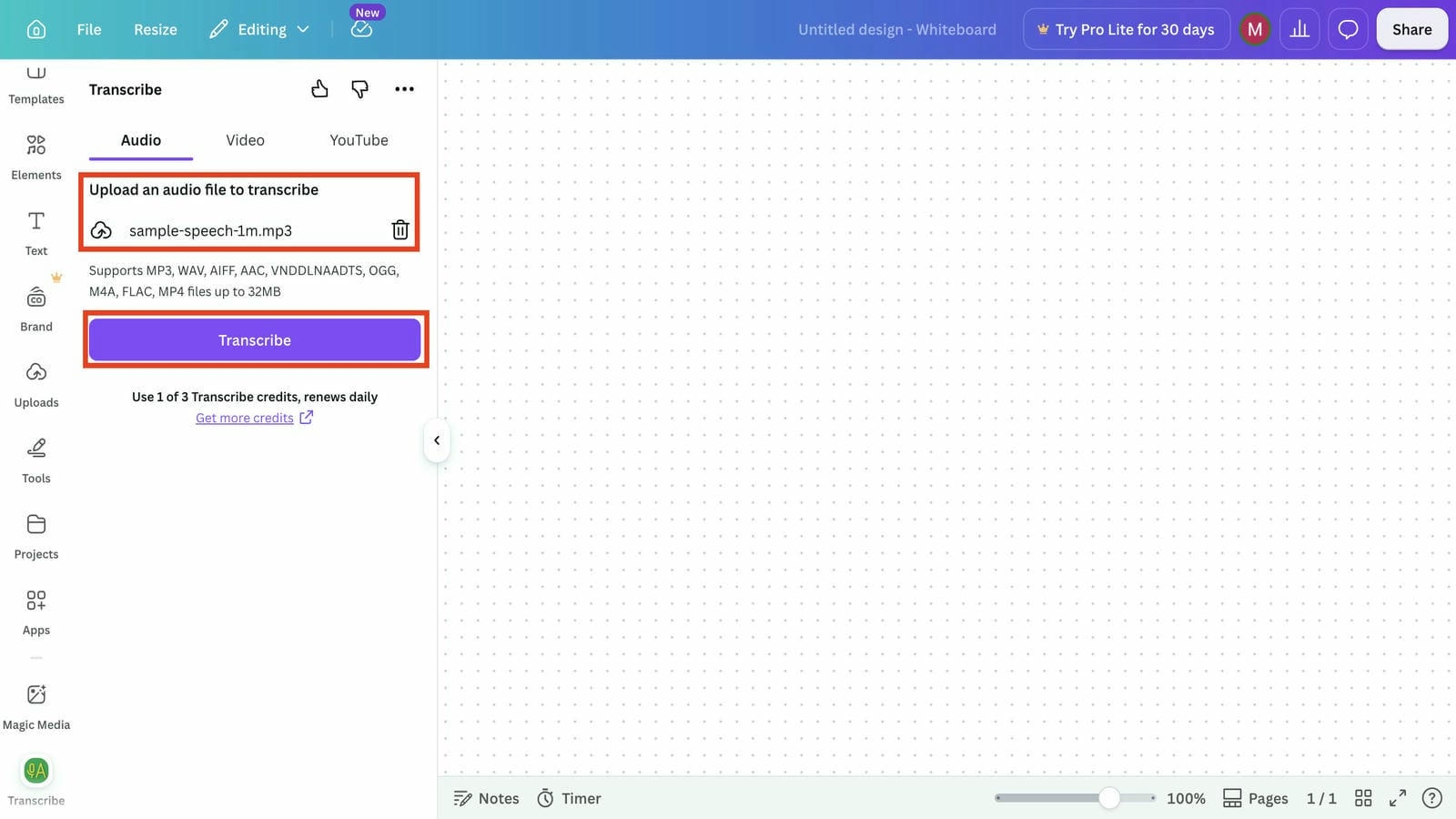
After your file finishes uploading, click Transcribe to begin the conversion. Canva analyzes the spoken content and automatically generates an editable transcript that you can review before using it in your project.
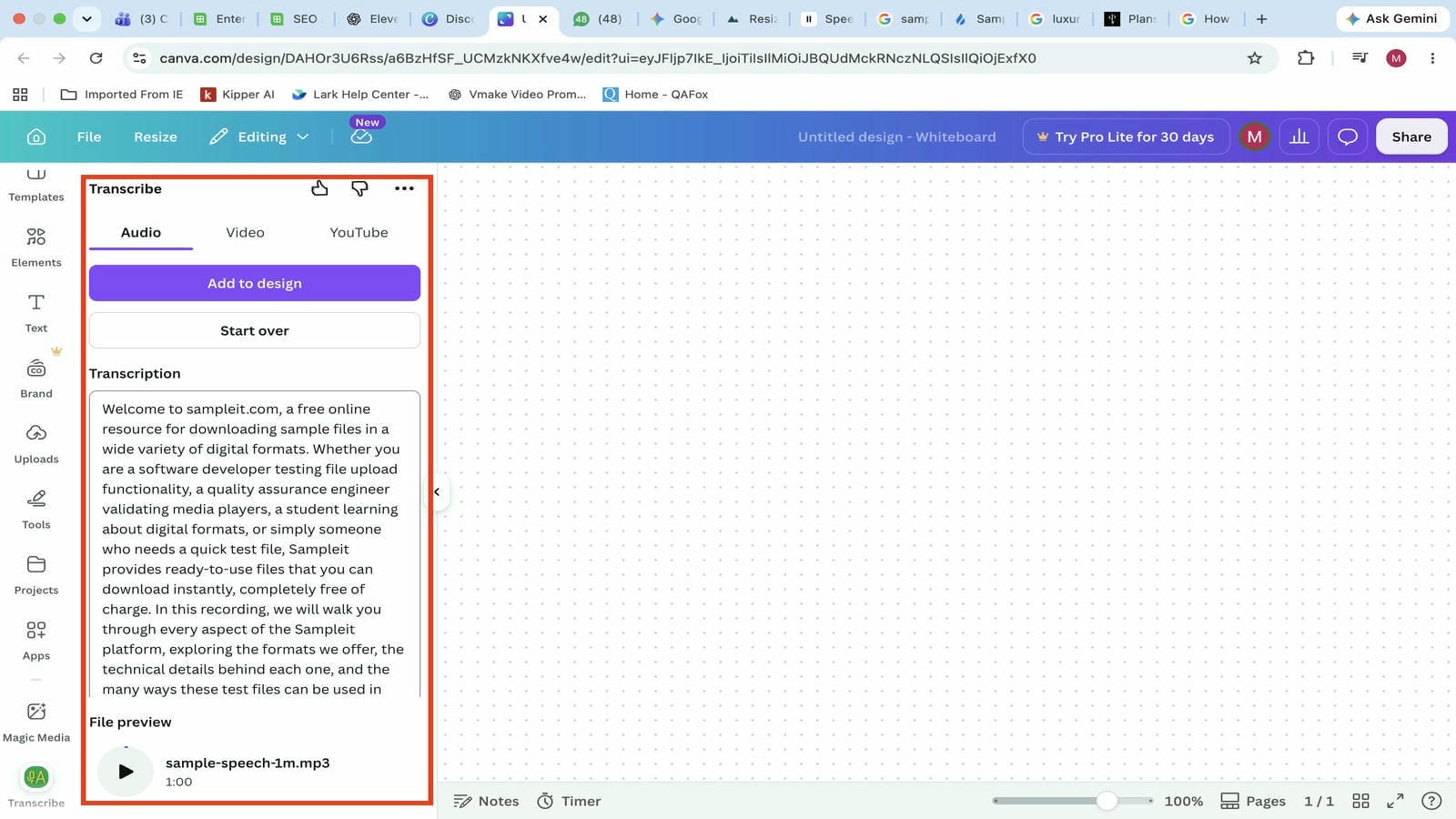
Step 4: Review, Edit, and Export When the transcription is complete, review the generated text for accuracy and make any edits if needed. You can then add the transcript to your Canva design, copy the text, or continue editing it as part of your project before exporting your final design.
Canva Audio to Text Converter Pros, Cons, and Pricing
The Canva audio to text converter works well for users who already edit videos inside Canva. It combines AI-generated captions with video editing, although its transcription workflow differs from tools built specifically for speech-to-text tasks. Looking at its strengths, limitations, and pricing can help you decide if it fits your needs.
Canva Audio to Text Converter Pros and Cons
|
Pros |
Cons |
|---|---|
|
Converts audio into editable transcripts and captions within Canva projects. |
Some audio-to-text features require a Canva Pro subscription. |
|
Keep transcription and video editing in a single workspace. |
Best suited for Canva projects rather than dedicated transcription workflows. |
|
Allows users to review and edit AI-generated transcripts before publishing. |
Export options for transcripts may be more limited than specialized AI transcription tools. |
|
Helps speed up caption creation for videos and presentations. |
Transcription accuracy can vary depending on audio quality, background noise, and speaker clarity. |
|
Beginner-friendly interface with no advanced editing skills required. |
Lacks some advanced transcription features offered by dedicated AI transcription platforms, such as extensive subtitle export options and transcription-focused workflows. |
Pricing
|
Plan |
Pricing |
Audio-to-Text & AI Features |
|---|---|---|
|
Free |
Free |
Access to Canva's AI-powered Audio to Text tool with free usage limits, along with basic design and editing features. |
|
Canva Pro |
$18/month |
Higher AI usage limits, premium design assets, Brand Kit, Magic Studio tools, and enhanced AI features for creating and editing transcripts and captions. |
|
Canva Business |
$25/month |
Everything in Pro, plus team collaboration, shared workspaces, brand management, admin controls, and higher AI usage for teams. |
|
Enterprise |
Contact sales |
Includes enterprise-grade security, governance, centralized administration, dedicated support, and premium AI capabilities for organizations. |
Generate AI Transcripts and Captions with Vmake Labs
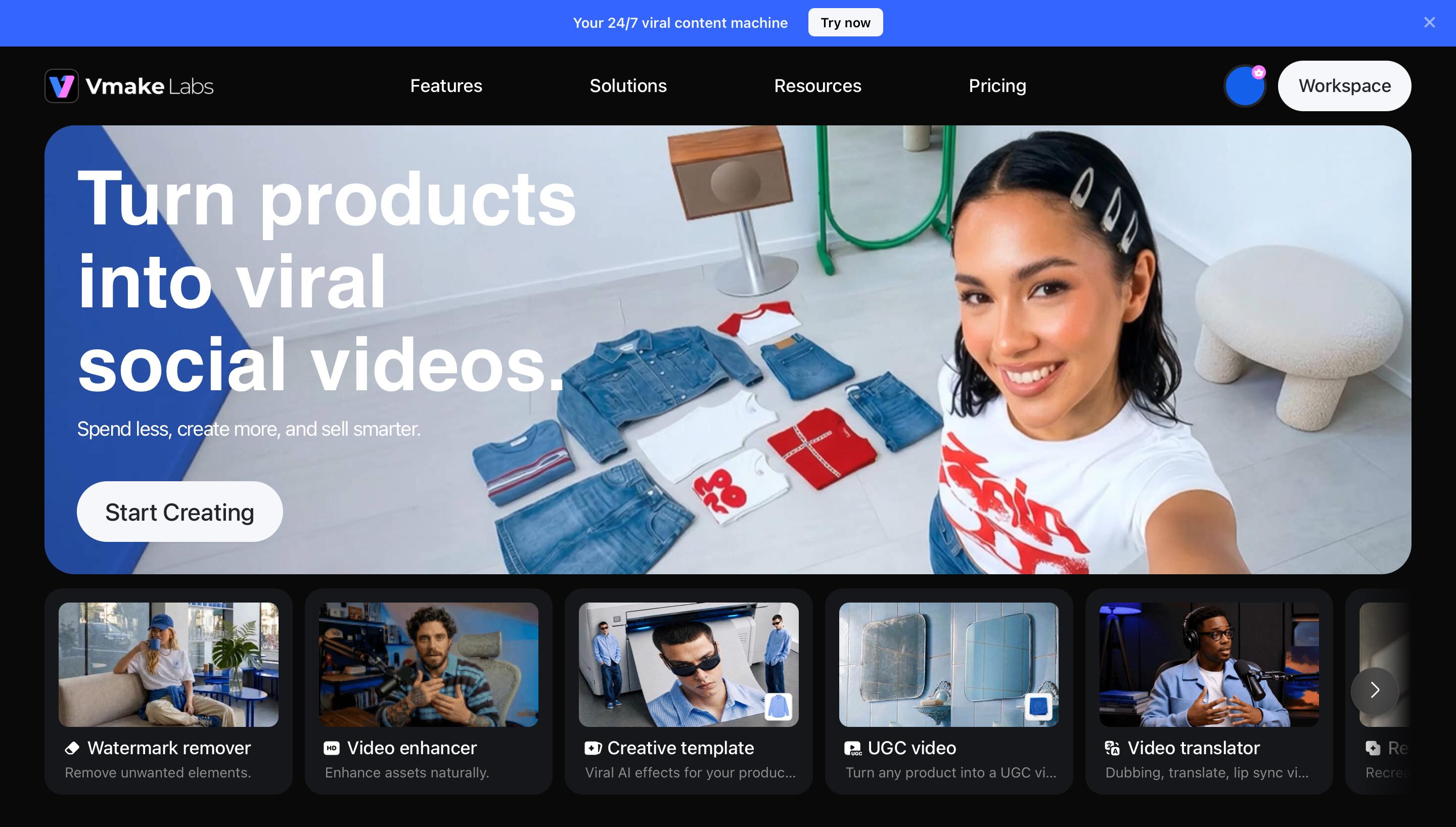
If you need more than basic transcription, Vmake Labs offers a complete workspace for converting audio and video into editable transcripts and subtitles. You can upload your files, or paste YouTube, TikTok, Instagram, and Facebook video links to generate transcripts directly. Review the generated text, make changes, and export your content without switching between different tools. This makes the workflow more convenient for podcasts, webinars, interviews, marketing videos, social media content, and educational videos.
Why Use Vmake Labs for Audio-to-Text?
-
AI-powered transcription for audio and video: Upload audio or video files and let Vmake Labs convert spoken content into editable text. The AI-generated transcripts are suitable for interviews, meetings, podcasts, tutorials, and other everyday transcription tasks.
-
Creates editable transcripts and captions: Vmake Labs automatically generates transcripts and subtitles that you can review and edit before downloading. This makes it easier to correct names, punctuation, and formatting.
-
Supports direct transcription from video links: In addition to uploading files, Vmake Labs lets you paste YouTube, TikTok, Instagram, and Facebook video links to generate transcripts directly, making it convenient to transcribe online content.
-
Supports multilingual transcription: Transcribe audio and video in multiple languages, including English, Spanish, Portuguese, Traditional Chinese, and Simplified Chinese, helping you work with multilingual content more efficiently.
-
Exports transcripts and subtitles in multiple formats: Download transcripts as TXT files or export subtitles in SRTformat, making it easy to continue editing or publish content across different platforms.
-
Suitable for a variety of content: Whether you're working with podcasts, interviews, webinars, social media videos, online courses, or business presentations, Vmake Labs provides a streamlined transcription workflow for different types of projects.
-
Simple cloud-based workflow: Everything runs in your browser without requiring software installation. Upload a file or supported video link, generate the transcript, review the results, and export your files from one workspace.
How to Convert Audio to Text with Vmake Labs
Turning audio into editable text with Vmake Labs only takes a few simple steps. Upload your audio or video file, select the source language, and start the AI transcription process. Once it's finished, review the generated text, make any necessary edits, and download the transcript or subtitles in the format that works best for your project.
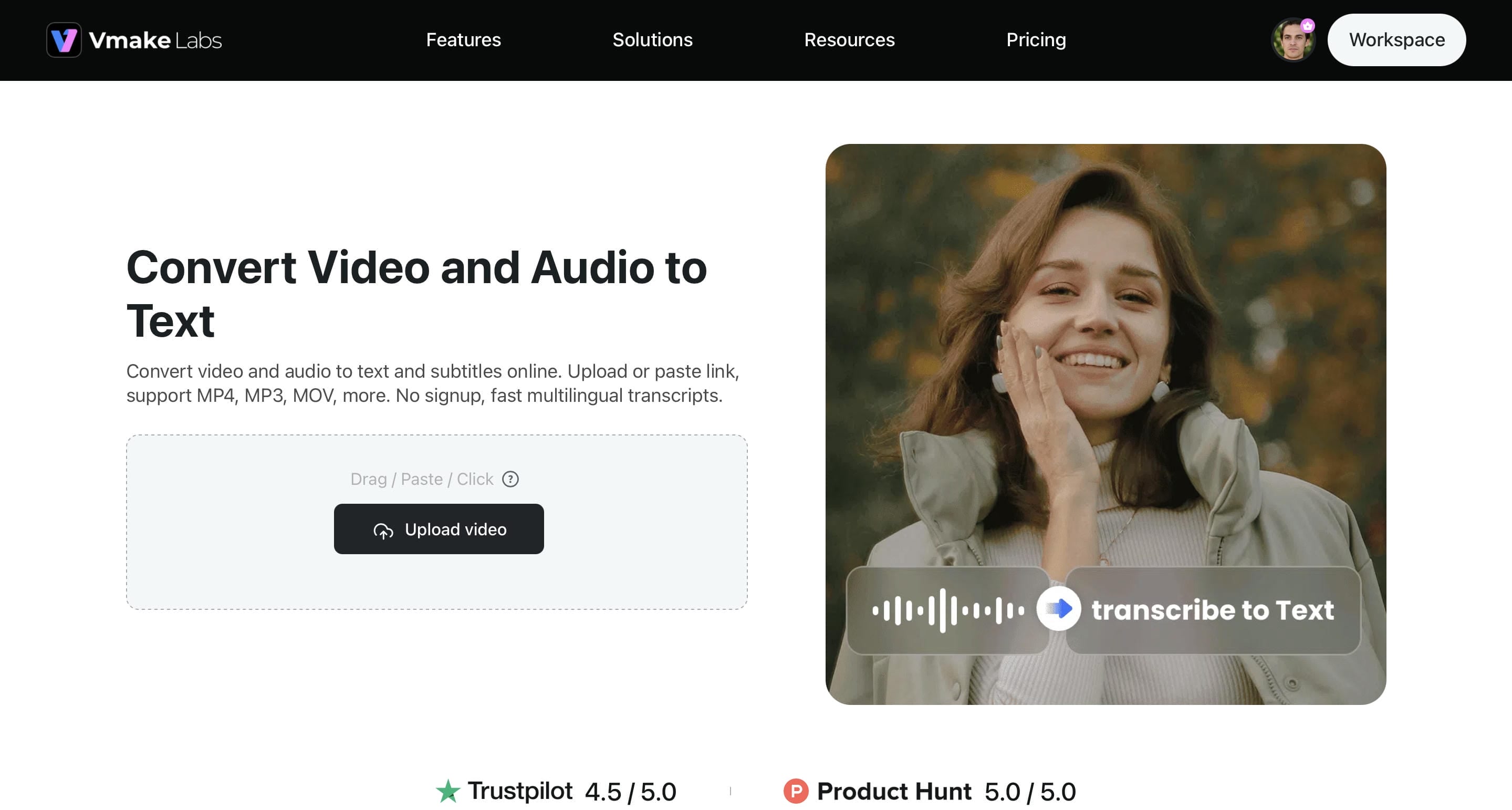
Step 1: Open the Video & Audio to Text tool.
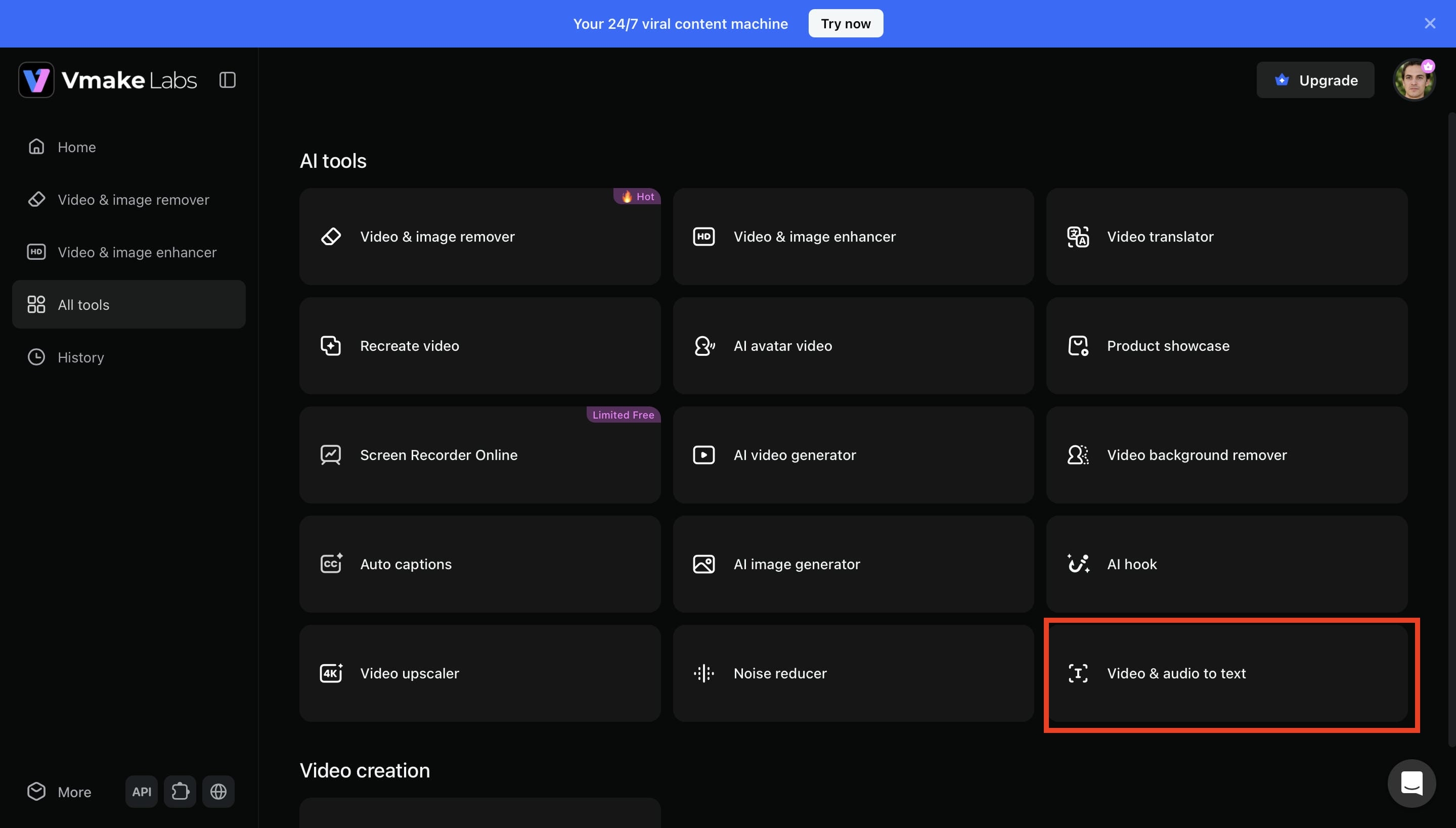
From the All Tools section, select Video & Audio to Text to open the transcription workspace. This is where you can start a new project and convert audio or video into editable text.
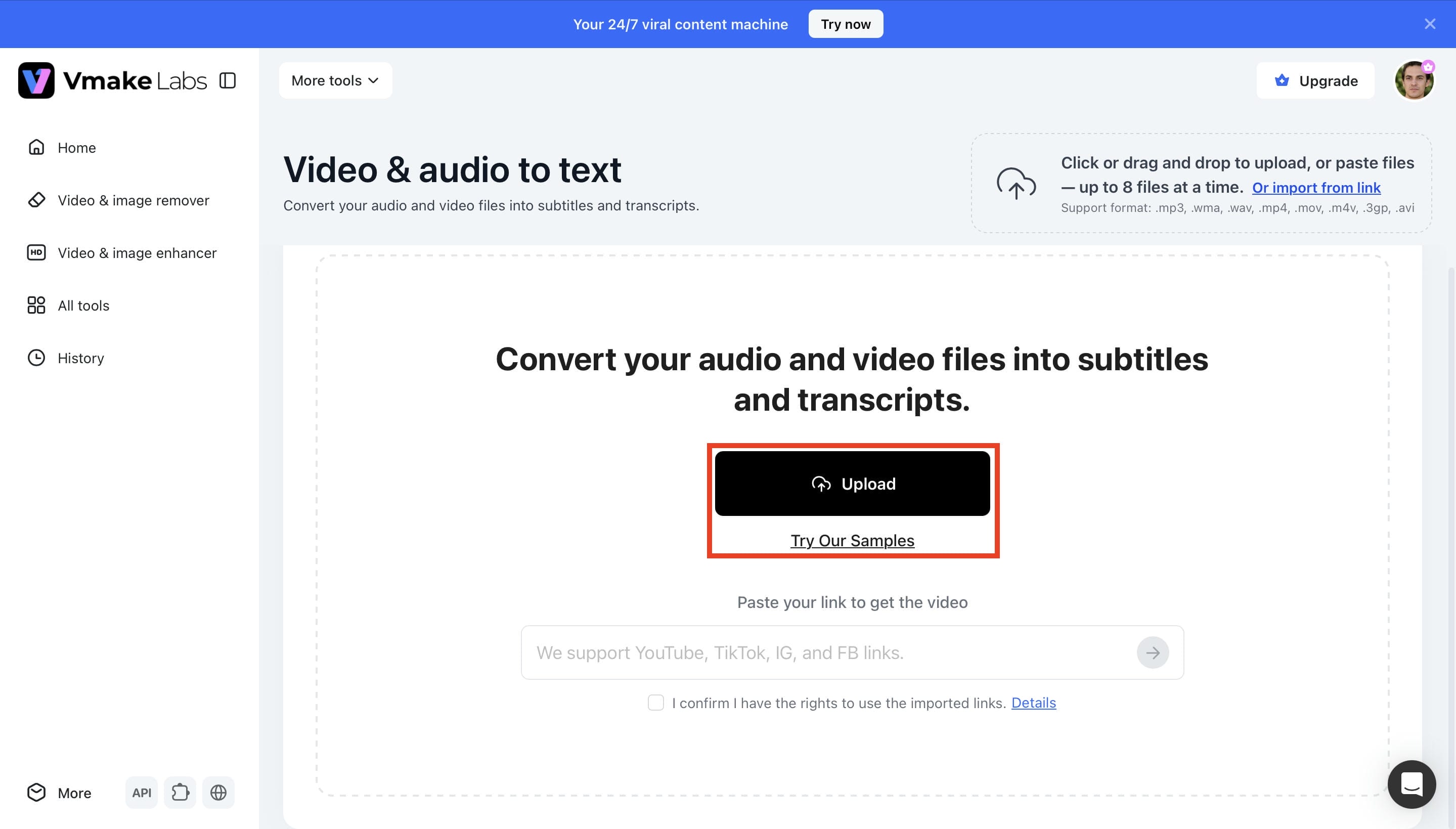
Step 2: Upload your audio or video file.
Click Upload, drag and drop your audio or video file, or paste a supported YouTube, TikTok, Instagram, or Facebookvideo link. Vmake Labs supports common media formats, allowing you to begin transcription in just a few clicks.
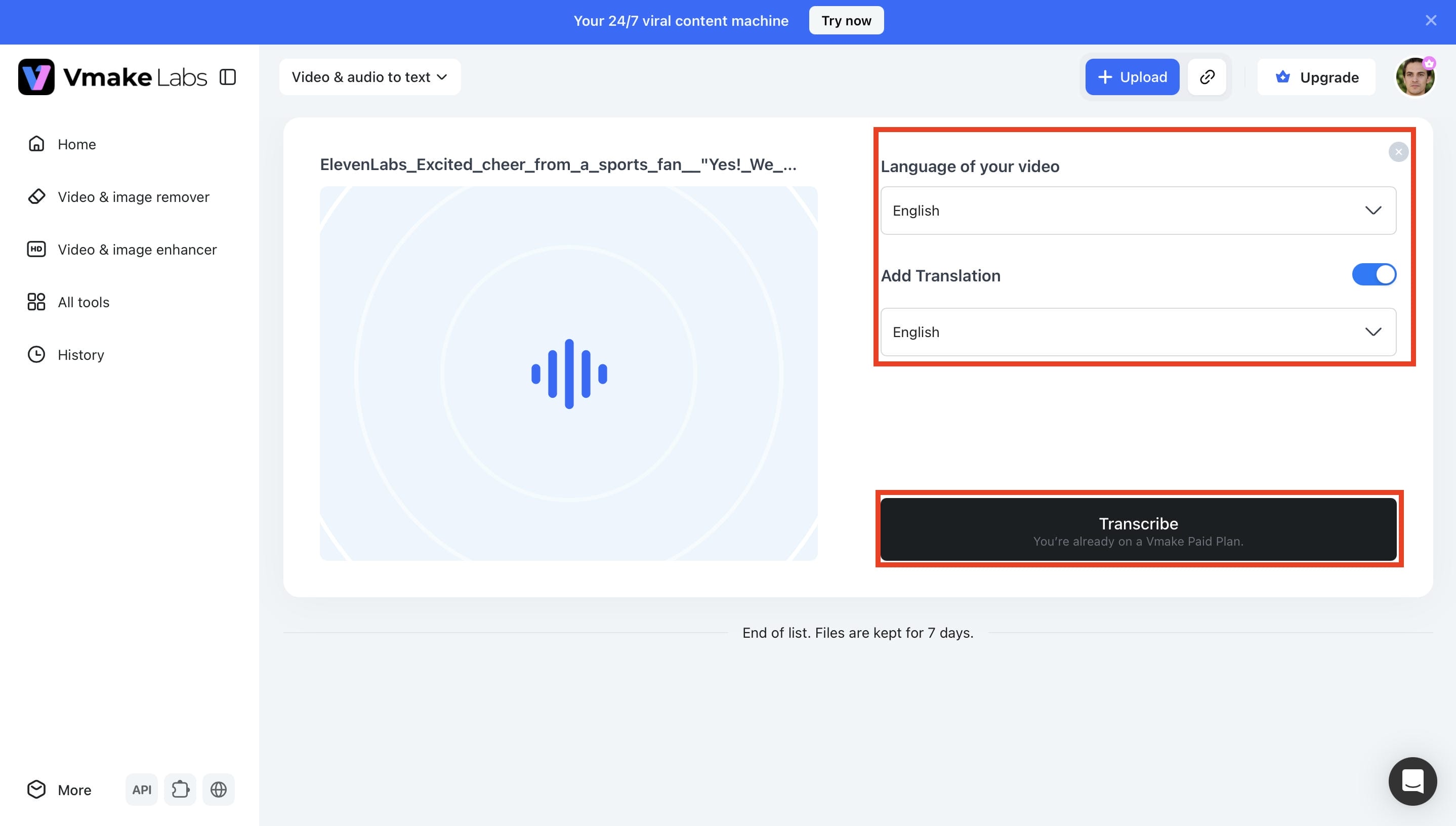
Step 3: Select the language and generate the transcript.
Choose the spoken language from the dropdown menu. If needed, enable translation, then click Transcribe to generate an AI-powered transcript from your recording.
Step 4: Review, Edit, and Download the Transcript
After processing is complete, review the generated transcript and make any necessary edits. When you're satisfied with the results, copy the processed text or download the transcript as a TXT file. If you're creating captions, you can also export them in SRT format.
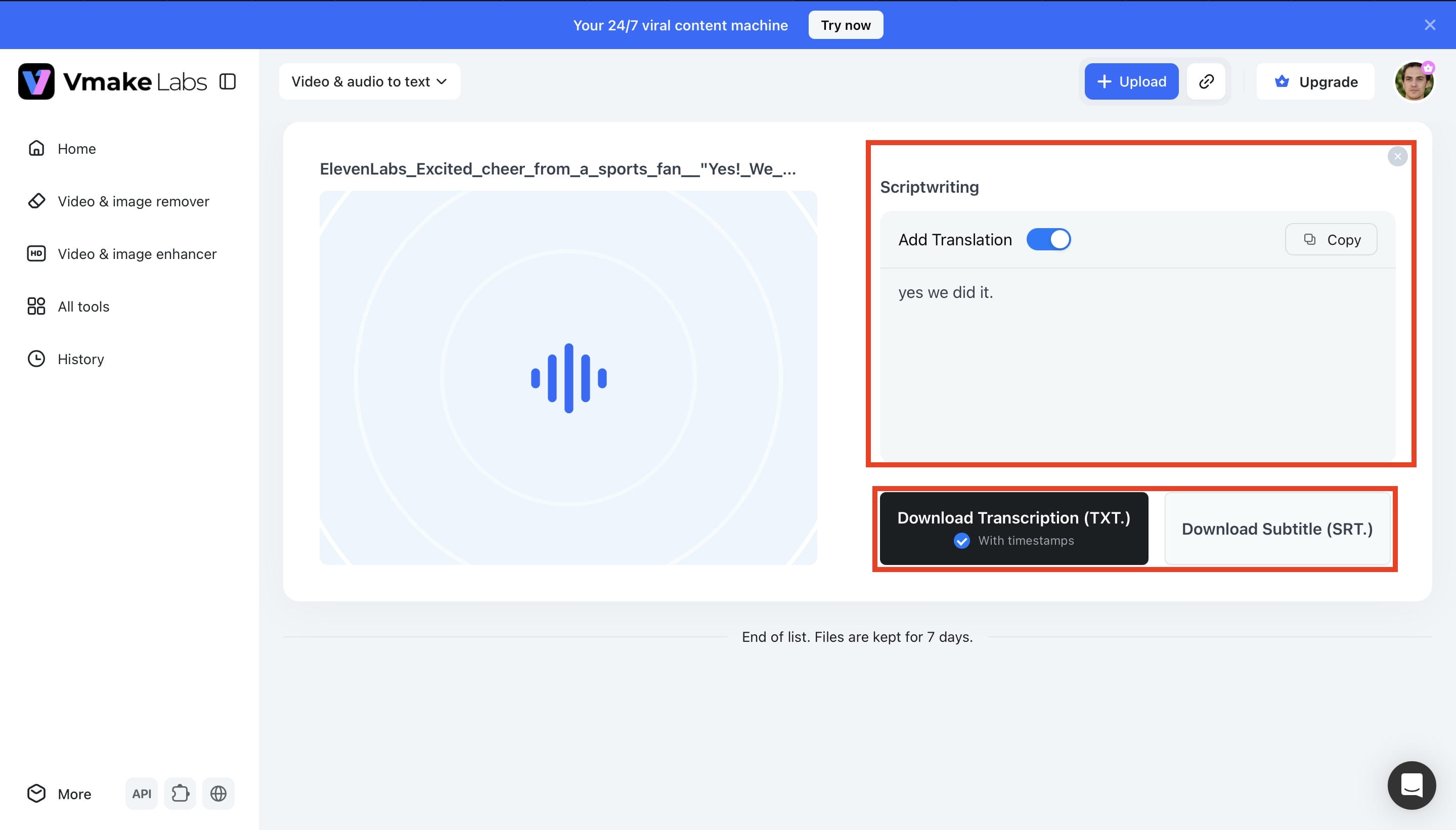
Canva Audio to Text vs. Vmake Labs
Both Canva Audio to Text and Vmake Labs support AI-powered audio-to-text transcription, but they emphasize different workflows. Canva Audio to Text integrates transcription into the content creation process, allowing users to generate and edit transcripts and captions while working on videos and designs. Vmake Labs also provides AI-powered transcription while combining it with subtitle editing, transcript export, and support for transcribing content directly from supported video links, making it suitable for workflows that continue beyond transcription.
|
Comparison |
Canva Audio to Text |
Vmake Labs |
|---|---|---|
|
Primary workflow |
AI transcription integrated into Canva projects |
AI transcription and subtitle editing |
|
AI transcription |
Generates editable transcripts and captions |
Generates editable transcripts and subtitles |
|
Supported media |
Audio and video files |
Audio and video files, plus YouTube, TikTok, Instagram, and Facebook links |
|
workflow |
Design and transcription workflow |
Transcript and subtitle workflow |
|
Editing experience |
Edit transcripts and captions within Canva |
Dedicated transcript and subtitle editing workspace |
|
Export options |
Export completed projects with captions |
Export transcripts and subtitles in multiple formats |
|
Best suited for |
Presentations, social media videos, tutorials, and other Canva projects |
Podcasts, webinars, marketing videos, social media content, and multilingual projects |
The right choice depends on how you plan to use your transcripts after they're generated. Canva Audio to Text is a good fit if your workflow centers on creating and editing videos or presentations within Canva, where transcription is part of the overall content creation process. Vmake Labs is a good fit if your workflow continues with subtitle editing, transcript downloads, multilingual transcription, or exporting transcripts and subtitles in multiple formats. Both support AI-powered transcription effectively, but they emphasize different workflows depending on what comes next after transcription.
Conclusion
The Canva audio to text converter is a practical option for creating transcripts and captions while working on videos and design projects. Its built-in transcription feature keeps everything inside the Canva workspace, making it a convenient choice for presentations, social media content, and tutorials. Like most AI transcription tools, recordings with background noise, overlapping speakers, or unclear audio may still need a quick review. If you need more than built-in transcription, Vmake Labs also supports subtitle editing, multilingual transcription, TXT and SRT exports, and transcription from supported video links, making it a good alternative for more advanced transcription workflows.
FAQs
How accurate is the Canva audio to text converter?
The Canva audio to text converter works best with recordings that have clear speech and minimal background noise. If your audio contains muffled speech or unwanted noise, using a voice enhancer beforehand may help improve transcription accuracy. Even with cleaner audio, it's still a good idea to review the generated transcript before publishing to correct names, punctuation, or any missed words. If you need greater control over transcript editing and subtitle exports, Vmake Labs offers a dedicated AI transcription workflow.
Can I edit AI-generated transcripts before exporting?
Canva lets you review and edit AI-generated transcripts before adding them to your project or exporting the final version. You can fix spelling, punctuation, names, and other small errors. A quick proofread is still a good idea since AI can occasionally miss words or misinterpret names.
Can I translate transcripts or captions into another language in Canva?
Canva includes AI translation features for supported projects, making it easier to create captions in different languages. Available languages and features may vary depending on your Canva plan. If you also need downloadable translated transcripts and subtitle files, Vmake Labs combines transcription, translation, and export tools in one workflow.
When should I use a dedicated AI transcription tool instead of Canva?
Canva is a good option when transcription is just one part of creating a video or presentation. If your focus is producing accurate transcripts, editing subtitles, exporting TXT or SRT files, or transcribing content directly from supported video links, a dedicated AI transcription tool offers more flexibility. Vmake Labs is built for these workflows, making it a practical choice for podcasts, interviews, webinars, marketing videos, and multilingual content.
Why is my audio transcription not completely accurate?
Even the best AI transcription tools can only work with the audio they're given. Background noise, people talking over each other, fast speech, or poor microphone quality can all lead to mistakes, so don't expect every transcript to be perfect on the first try. A quick review usually fixes most issues. If you also need to edit captions and export subtitle files, Vmake Labs includes those options alongside AI transcription.

You May Be Interested
How to Remove Background Noise from Audio: Step-by-Step Guide
How to Download Audio from Instagram: Quick Guide for 2025
How to Transcribe Audio to Text: Efficient Guide
How to Transcribe Audio Recording to Text in Minutes
VEED.io Audio to Text: Everything You Need to Know in 2026

Canva AI Video Generator Review: A Complete Hands-On Test