ElevenLabs Audio to Text: Complete Guide to AI Transcription
Discover how ElevenLabs audio to text converts speech into accurate transcripts. Learn its features, follow step-by-step instructions, and explore an AI-powered alternative with Vmake Labs.

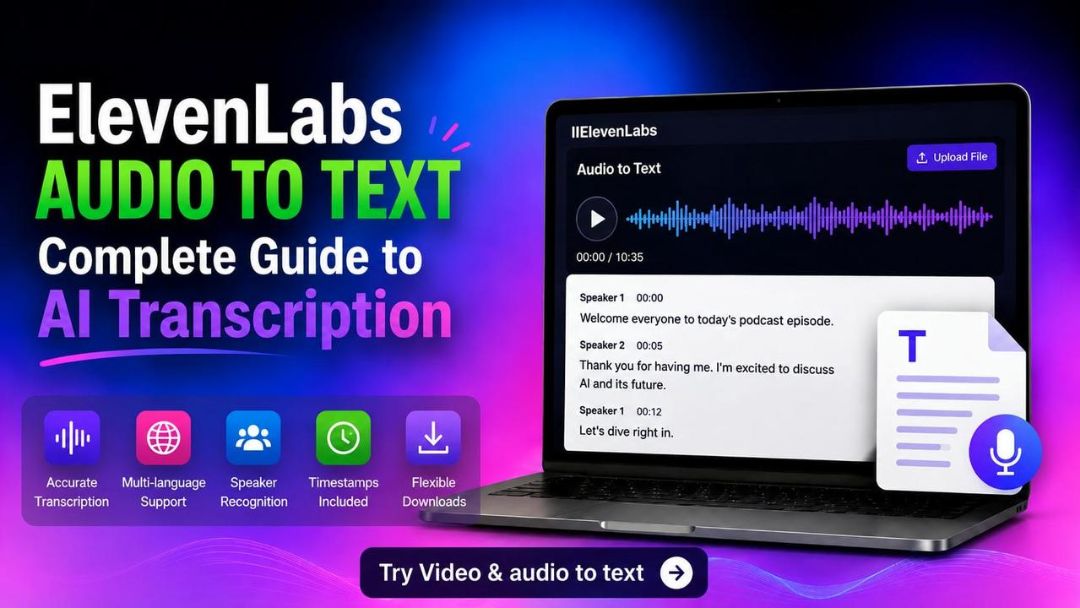
Accurate AI transcription saves time when converting meetings, interviews, podcasts, and videos into text. This guide explains how ElevenLabs Audio to Text works, its key features, pricing, and step-by-step workflow. You'll also discover how Vmake Labs helps create accurate transcripts and subtitles with an easy AI-powered workflow.
What Is ElevenLabs Audio to Text?
ElevenLabs Audio to Text is designed to turn spoken audio into written text without having to transcribe everything by hand. Upload a recording, and the AI creates an editable transcript that you can search, review, and use however you need. It's especially useful for meetings, interviews, podcasts, lectures, or any recording you don't want to type out yourself.
How ElevenLabs Audio to Text Works
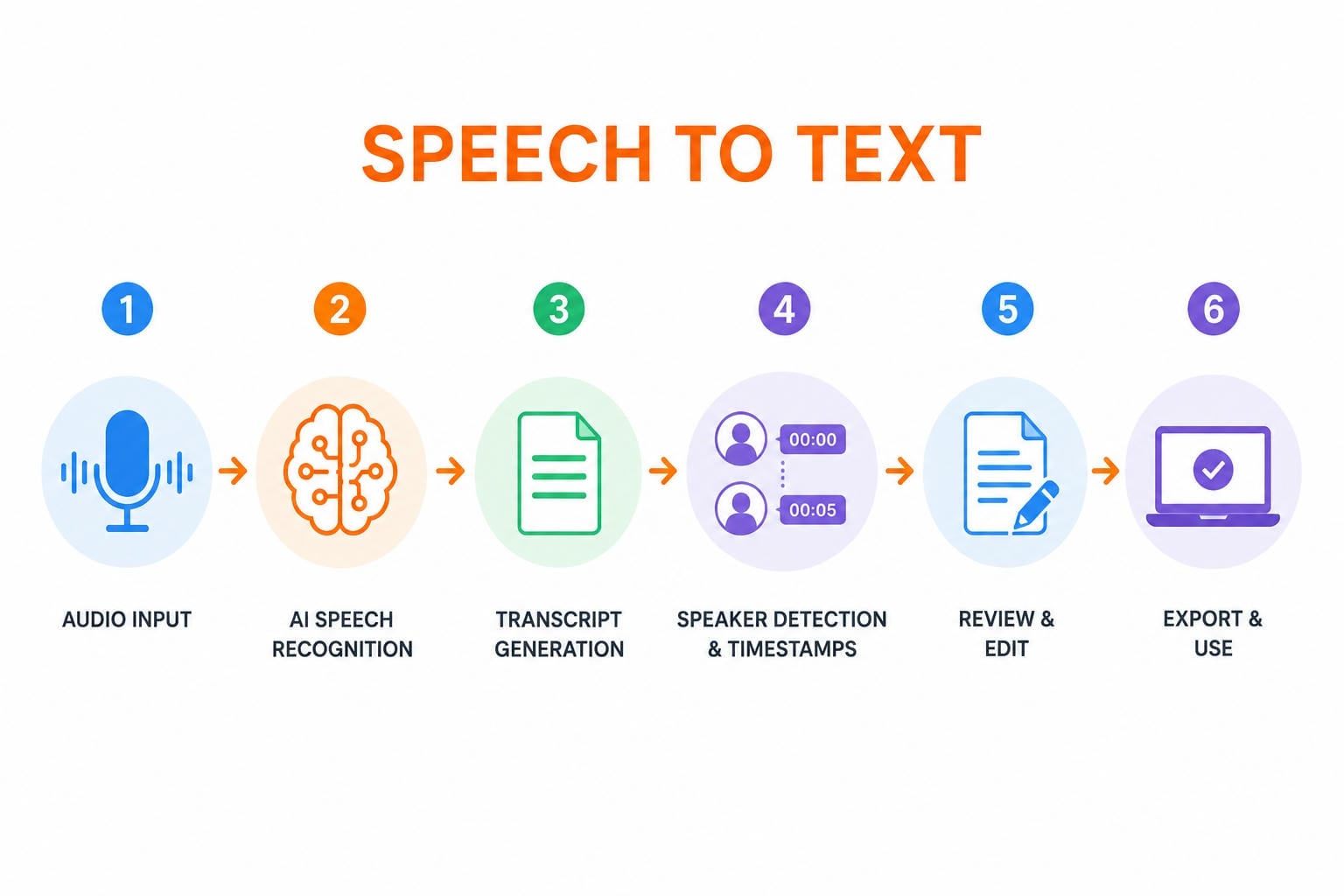
ElevenLabs Audio to Text uses AI speech recognition to turn spoken conversations into written text. Instead of simply matching individual words, it analyzes context, punctuation, and sentence flow to produce transcripts that are easier to read. The tool can also identify different speakers and add timestamps, making longer recordings simpler to review and organize. While the results are generally accurate, recordings with heavy background noise or overlapping voices may still need a quick manual check before the transcript is ready to use.
How to Convert Audio to Text with ElevenLabs
Turning a recording into text with ElevenLabs Audio to Text is pretty straightforward. You only need to upload your file, choose the transcription settings, and let the AI do the initial work. Most recordings are processed without much trouble, although files with background noise or several people talking at once may need a quick review before you export the final transcript.
Step 1: Open the Speech to Text Tool
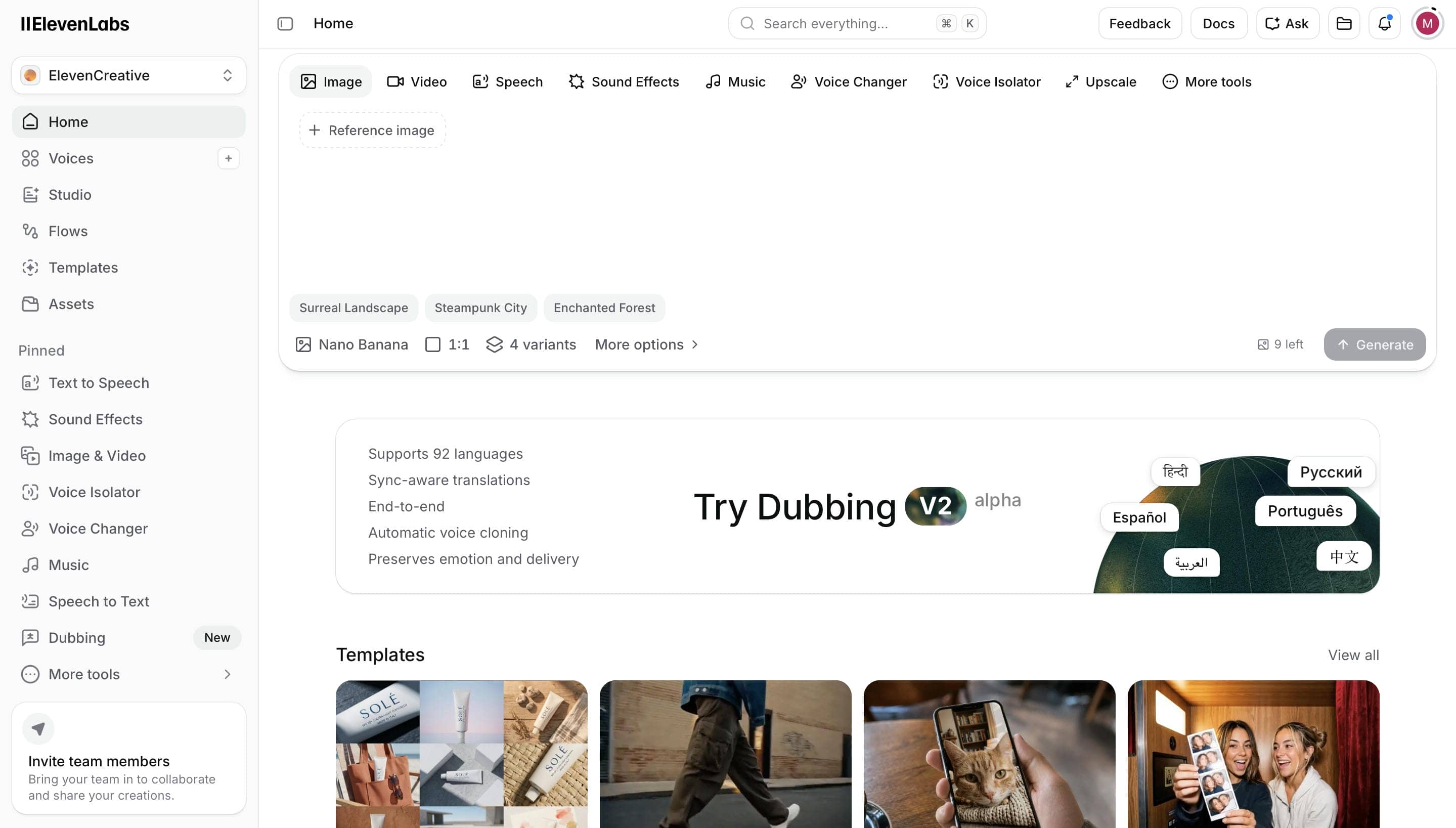
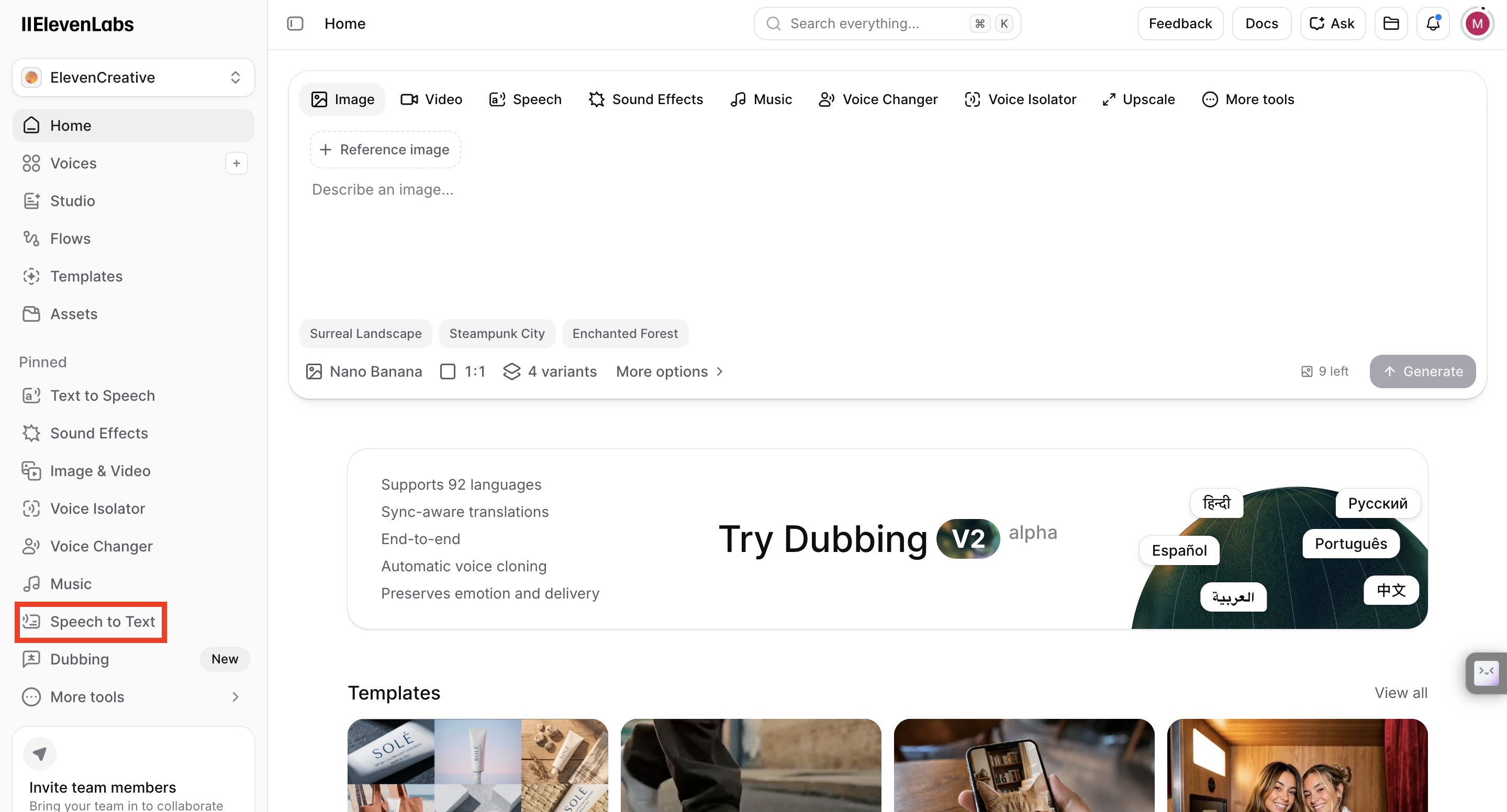
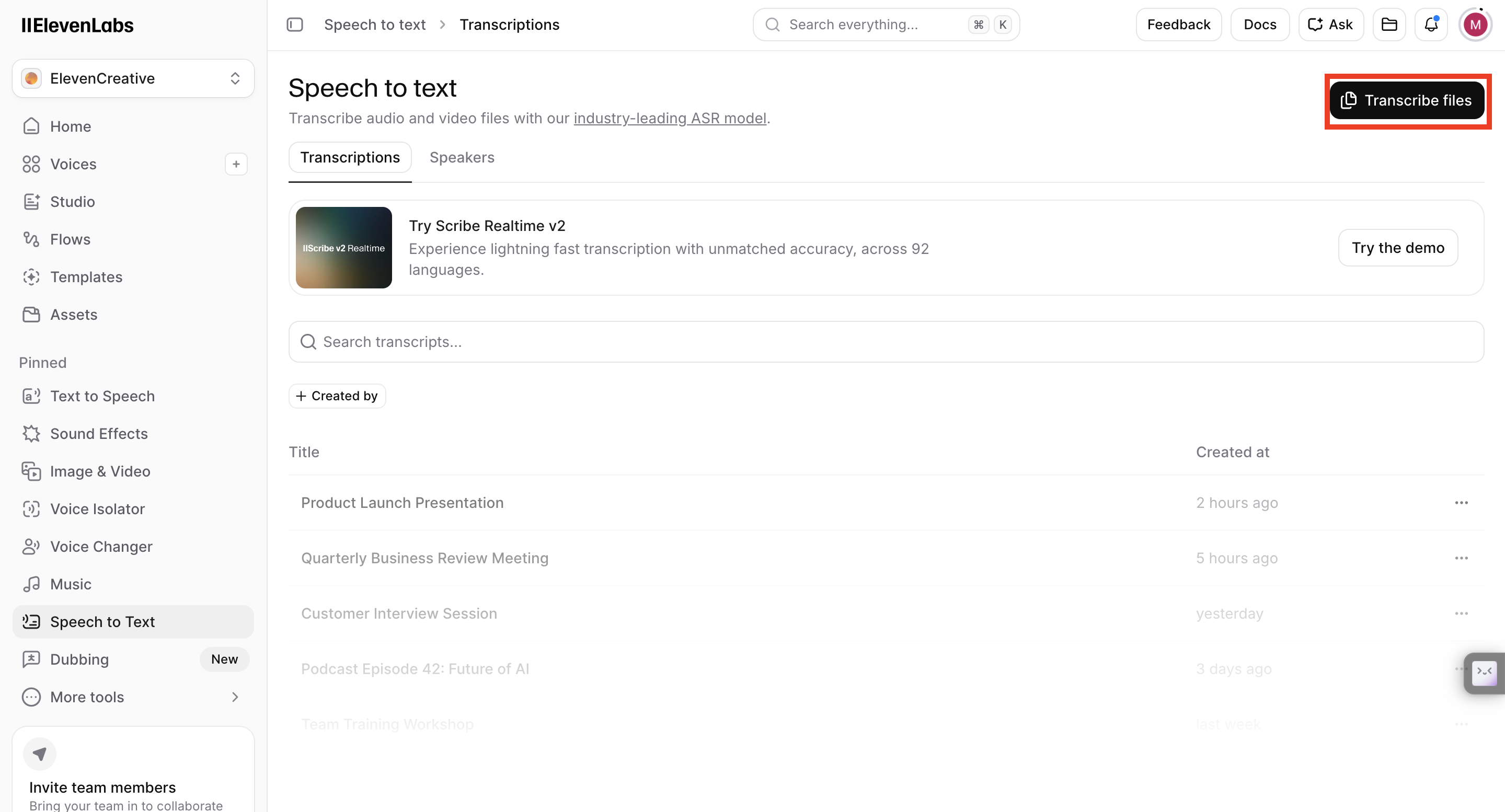
Sign in to your ElevenLabs account and select Speech to Text from the left-side menu. The transcription page displays your previous projects and gives you access to start a new transcription with the Transcribe Files button.
Step 2: Upload Your Audio or Video File
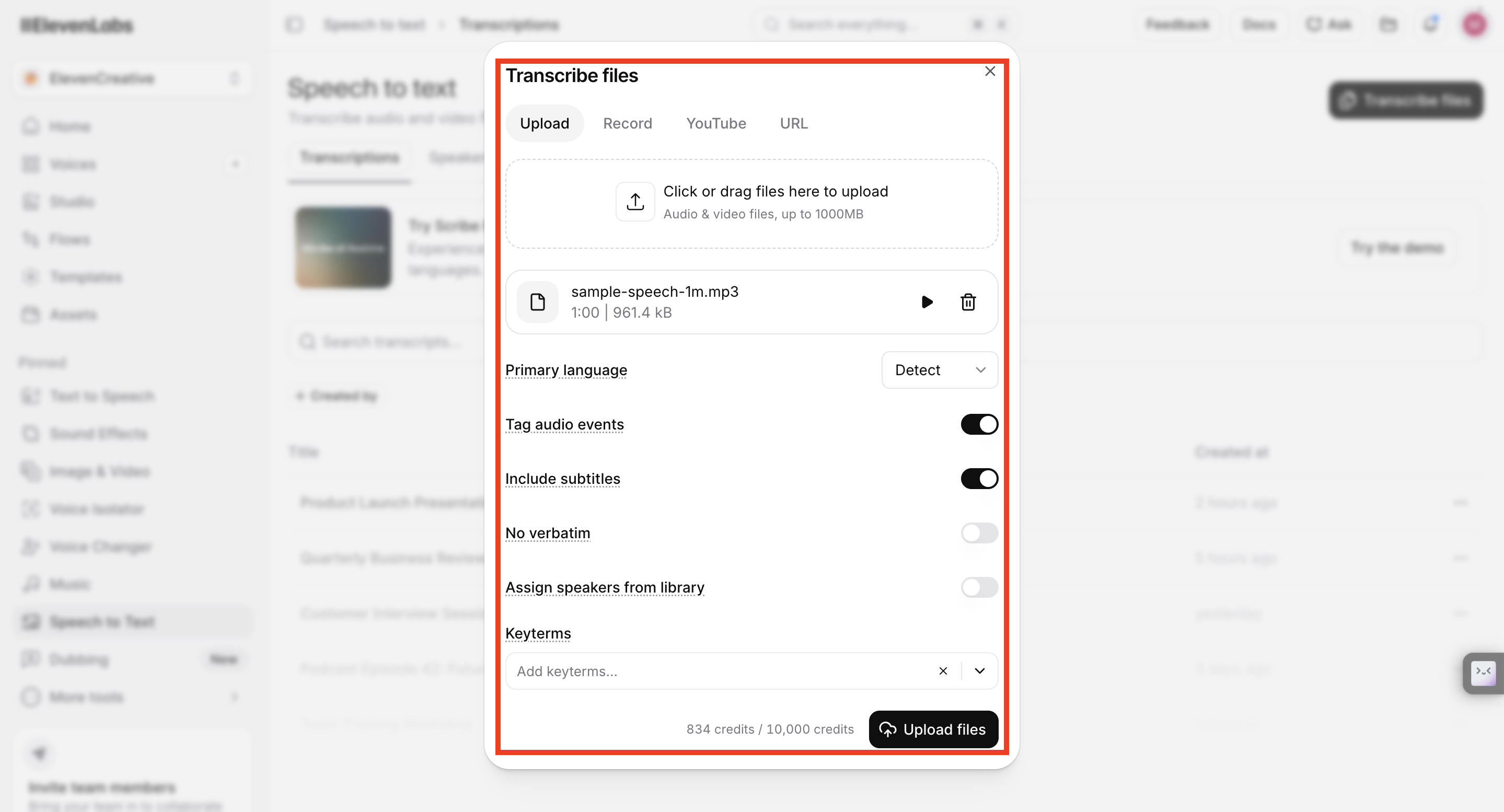
Click Transcribe Files, then upload your audio or video file by dragging and dropping it into the upload window or selecting it from your device. You can also choose the recording language and adjust transcription settings before processing.
Step 3: Generate the Transcript
When everything looks right, click Upload Files to start the transcription. ElevenLabs processes the recording and creates a transcript based on your selected settings. Most files are completed quickly, although longer recordings naturally take more time.
Step 4: Review and Export the Transcript
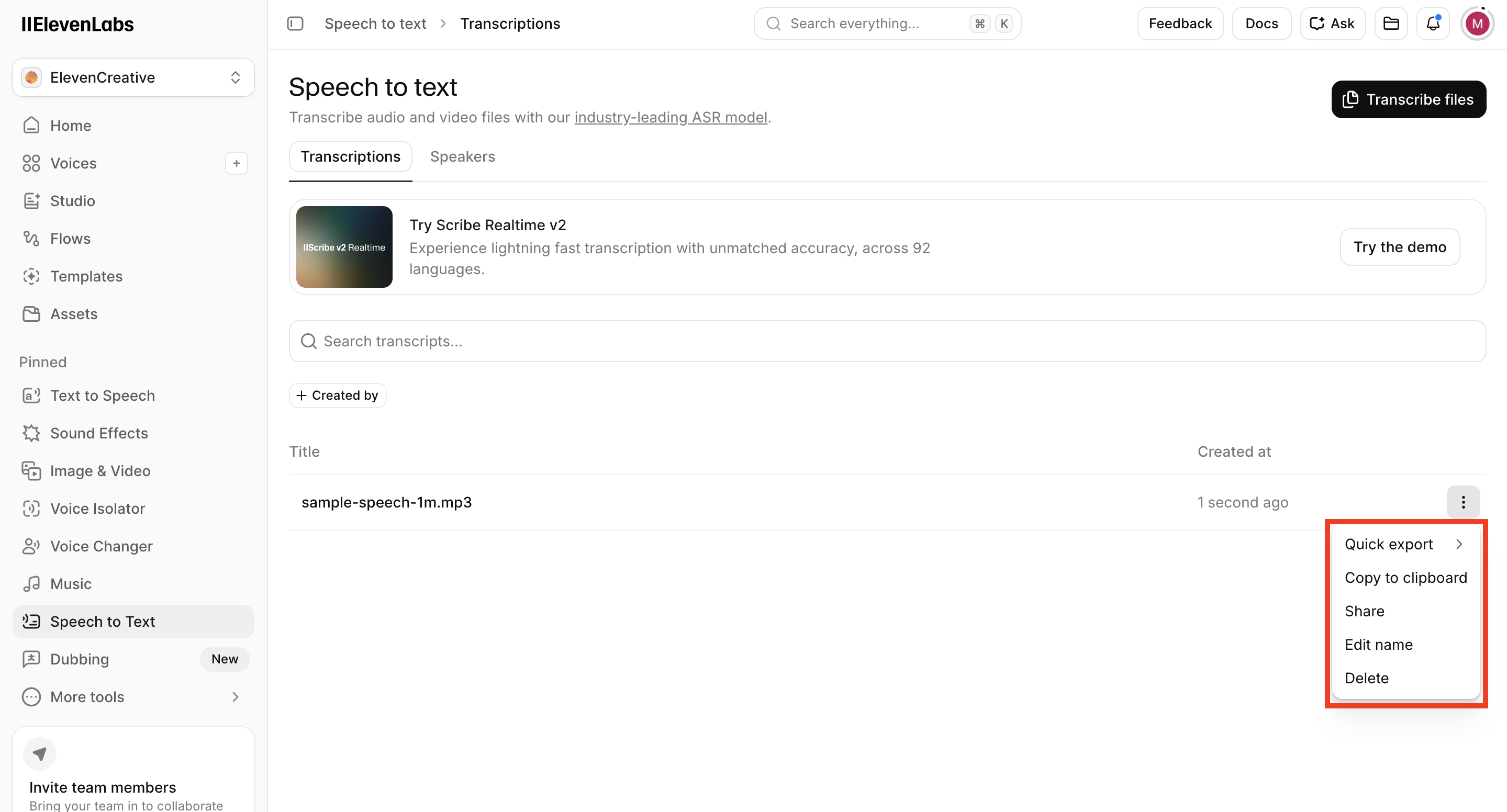
Once the transcript is ready, open it from the transcription list to review the results. Select Quick Export to download, copy, or share the transcript, or use the menu to rename or delete the file whenever needed.
ElevenLabs Audio to Text: Pros, Cons, and Pricing
Every AI transcription tool comes with its own strengths and limitations, and ElevenLabs Audio to Text is no different. It produces accurate transcripts for many types of recordings, but factors like audio quality, transcription limits, and subscription plans can affect your overall experience. Looking at its pros, cons, and pricing can help you decide if it's the right fit for your workflow.
Pros and Cons
|
Pros |
Cons |
|---|---|
|
Produces accurate transcripts for clear recordings |
Accuracy may decrease with noisy recordings |
|
Supports transcription in multiple languages |
Higher transcription limits require a paid plan |
|
Includes speaker labels and timestamps |
Technical terms may need manual corrections |
|
Lets you edit and export transcripts |
Monthly usage depends on your subscription |
Pricing and Plans
|
Plan |
Price (Monthly) |
AI Transcription Features |
Best For |
|---|---|---|---|
|
Free |
$0 |
Limited AI transcription usage |
Trying basic AI transcription and audio tools |
|
Starter |
$6/month |
Increased transcription usage |
Hobbyists and occasional content creators |
|
Creator |
$11/month |
More transcription capacity and AI features |
Podcasters, YouTubers, and regular content creators |
|
Pro |
$99/month |
High transcription limits for professional use |
Professionals and agencies |
|
Scale |
$299/month |
Large-scale AI transcription |
Teams and businesses produce content at scale |
|
Business |
$990/month |
Enterprise-level AI usage and collaboration |
Large organizations |
|
Enterprise |
Custom |
Custom AI transcription solutions |
Organizations needing custom pricing and support |
Generate AI Transcripts and Captions with Vmake Labs
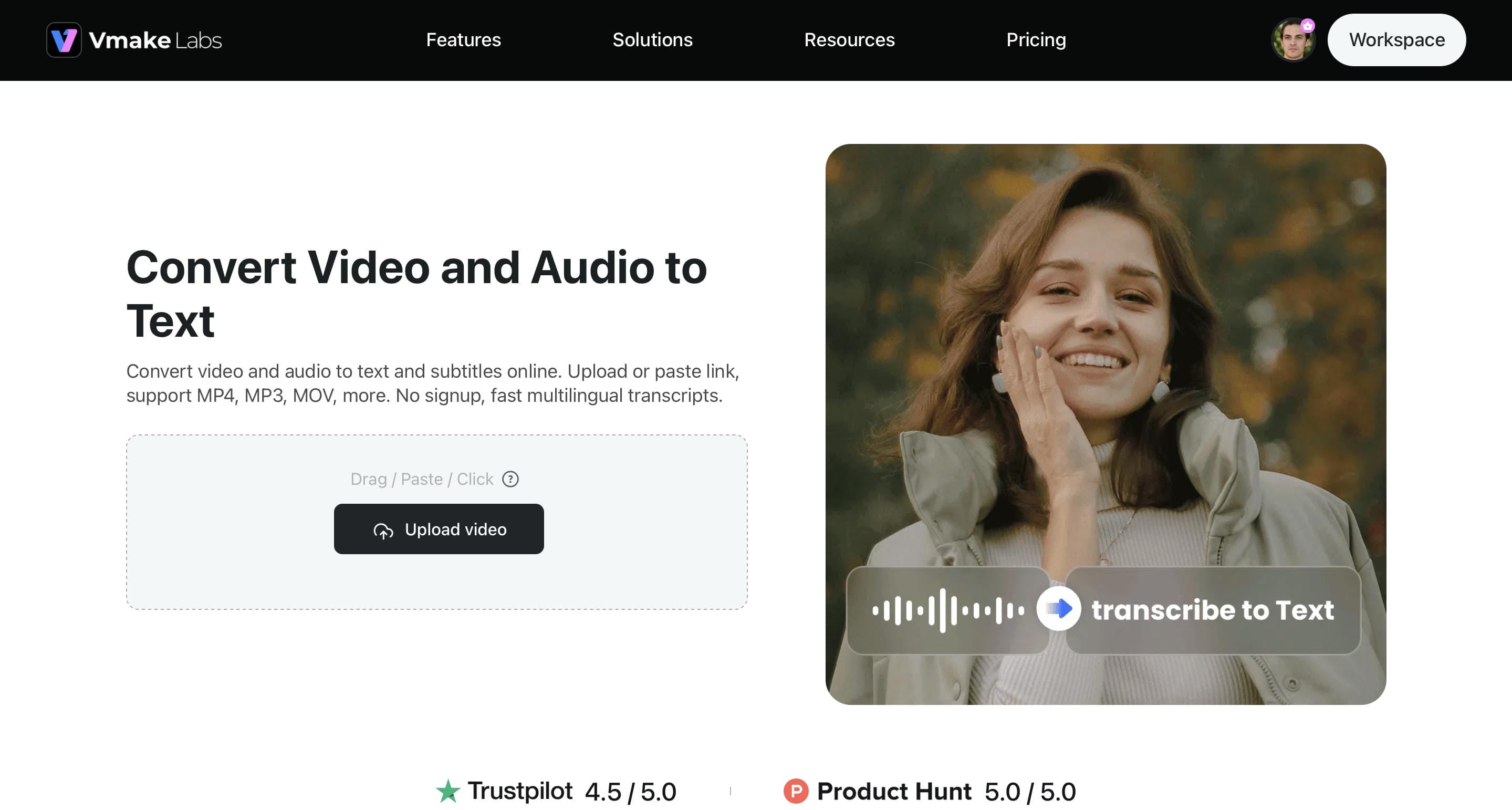
If you need more than a basic transcript, Vmake Labs offers an all-in-one solution for AI transcription, voice translation, and subtitle creation. It automatically converts audio and video into editable text, supports AI subtitle generator, and lets you export your files in multiple formats. In addition to uploading audio and video files, Vmake Labs also supports transcription directly from YouTube, TikTok, Instagram, and Facebook links. The simple cloud-based workflow makes it easy to process content for social media, podcasts, tutorials, webinars, and business videos.
What Makes Vmake Labs a Good Alternative?
-
Generate Transcripts Automatically: Vmake Labs quickly converts spoken audio into editable text using AI. The generated transcripts are suitable for interviews, meetings, podcasts, and video content, reducing the time spent on manual transcription.
-
Edit Captions with Ease: Review and fine-tune transcripts and subtitles from a single editing workspace. This helps improve caption readability and keeps your transcript organized throughout the project.
-
Export in Multiple Formats: Vmake Labs supports transcript and subtitle downloads in formats such as TXT and SRT. This makes it easy to continue editing or publishing content across different platforms.
-
Transcribe from Video Links: In addition to uploading files, you can paste YouTube, TikTok, Instagram, and Facebook video links to generate transcripts directly.
-
Supports Multiple Languages: Generate transcripts in multiple languages, including English, Spanish, Portuguese, Traditional Chinese, and Simplified Chinese, making it easier to work with multilingual audio and video content.
-
Simple Cloud-Based Workflow: Since Vmake Labs runs entirely in your browser, you can access your projects from different devices without installing software.
How to Convert Audio to Text with Vmake Labs
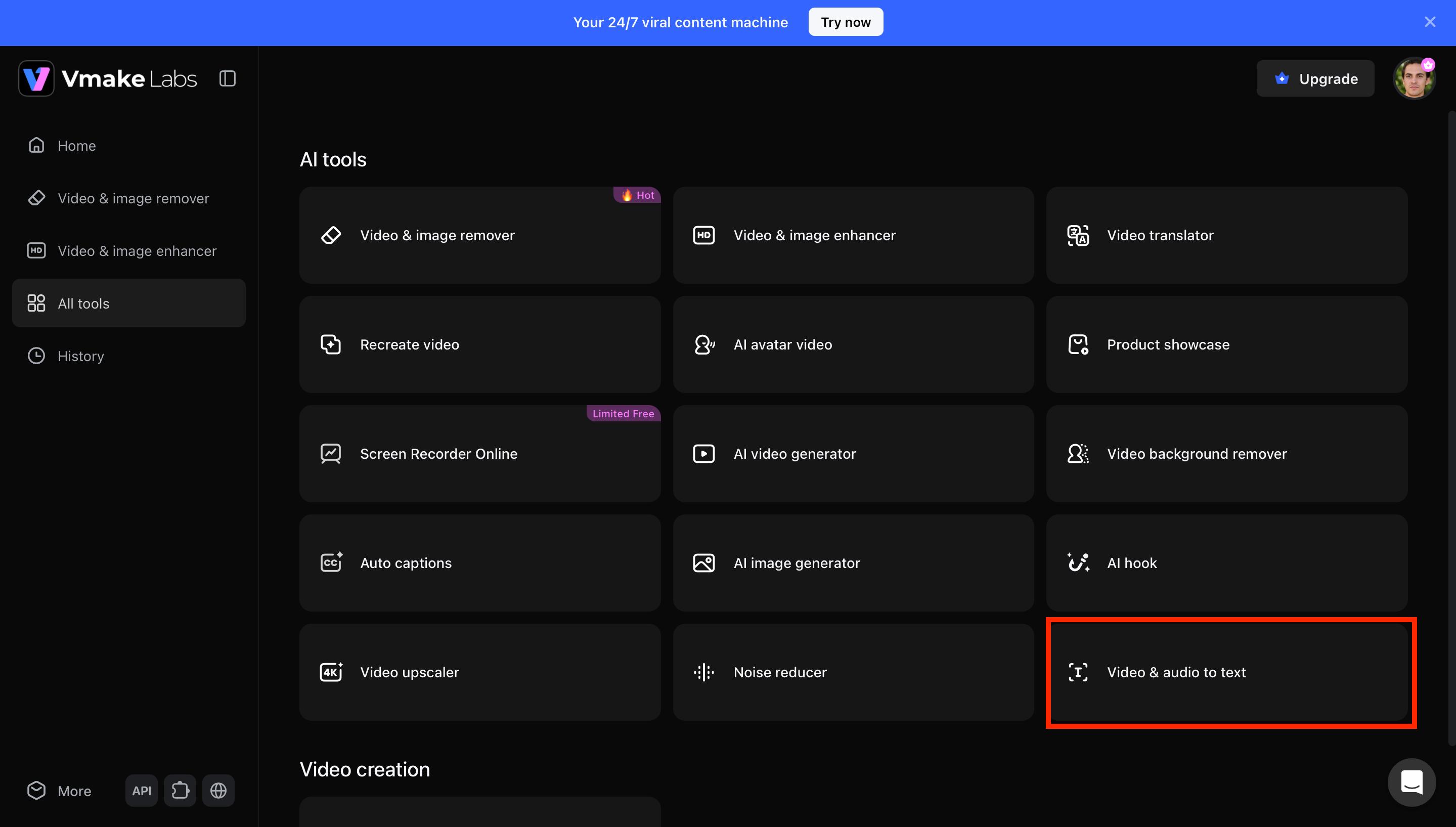
Step 1: Open the Video & Audio to Text Tool
From the All Tools page, select Video & Audio to Text to open the transcription workspace. This is where you can upload audio or video files and generate AI-powered transcripts and subtitles.
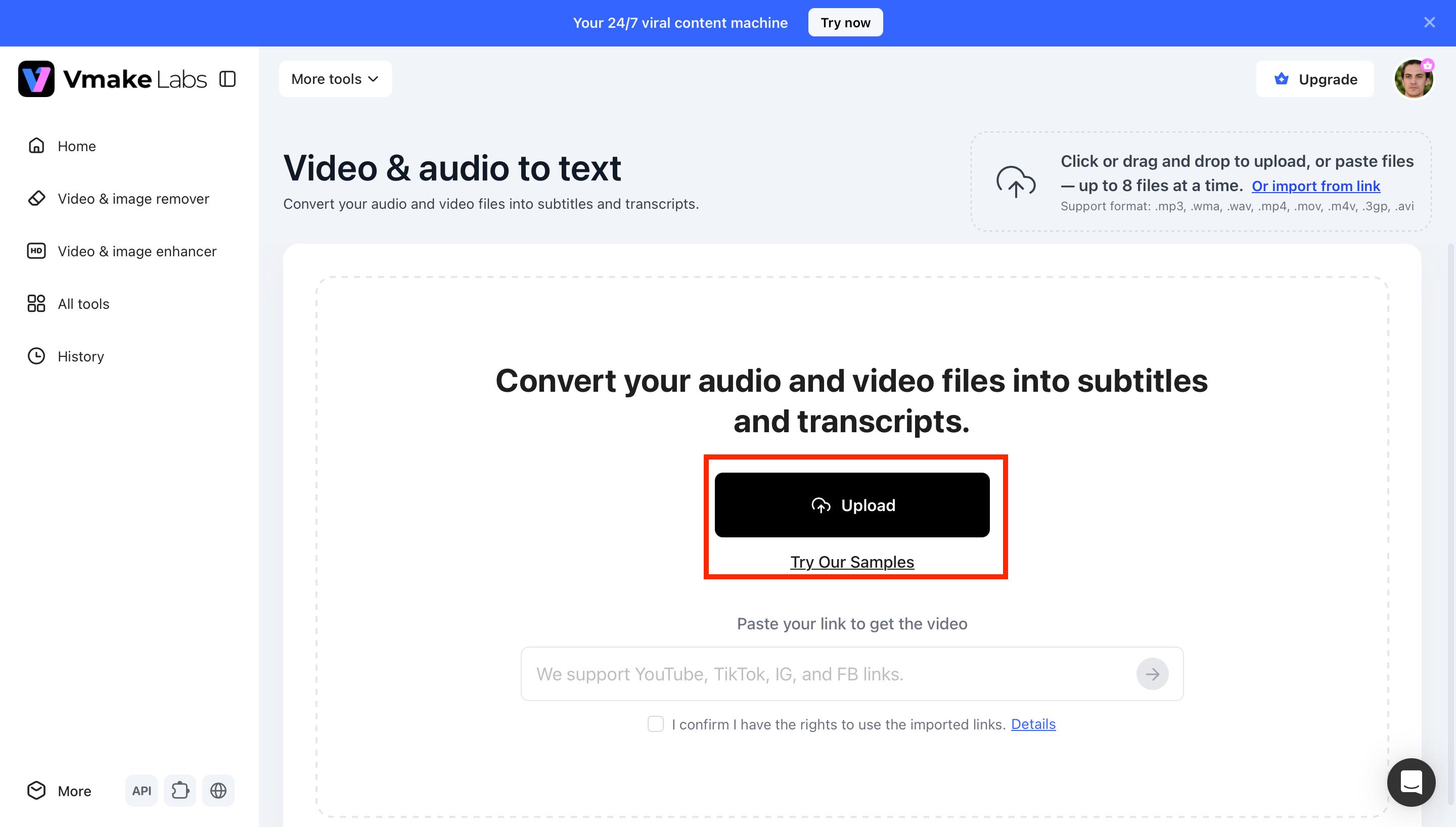
Step 2: Upload Your Audio or Video File
Click Upload, drag and drop your recording into the workspace, or paste a supported YouTube, TikTok, Instagram, or Facebook video link. Vmake Labs supports popular audio and video formats, making it easy to start AI transcription in just a few clicks.
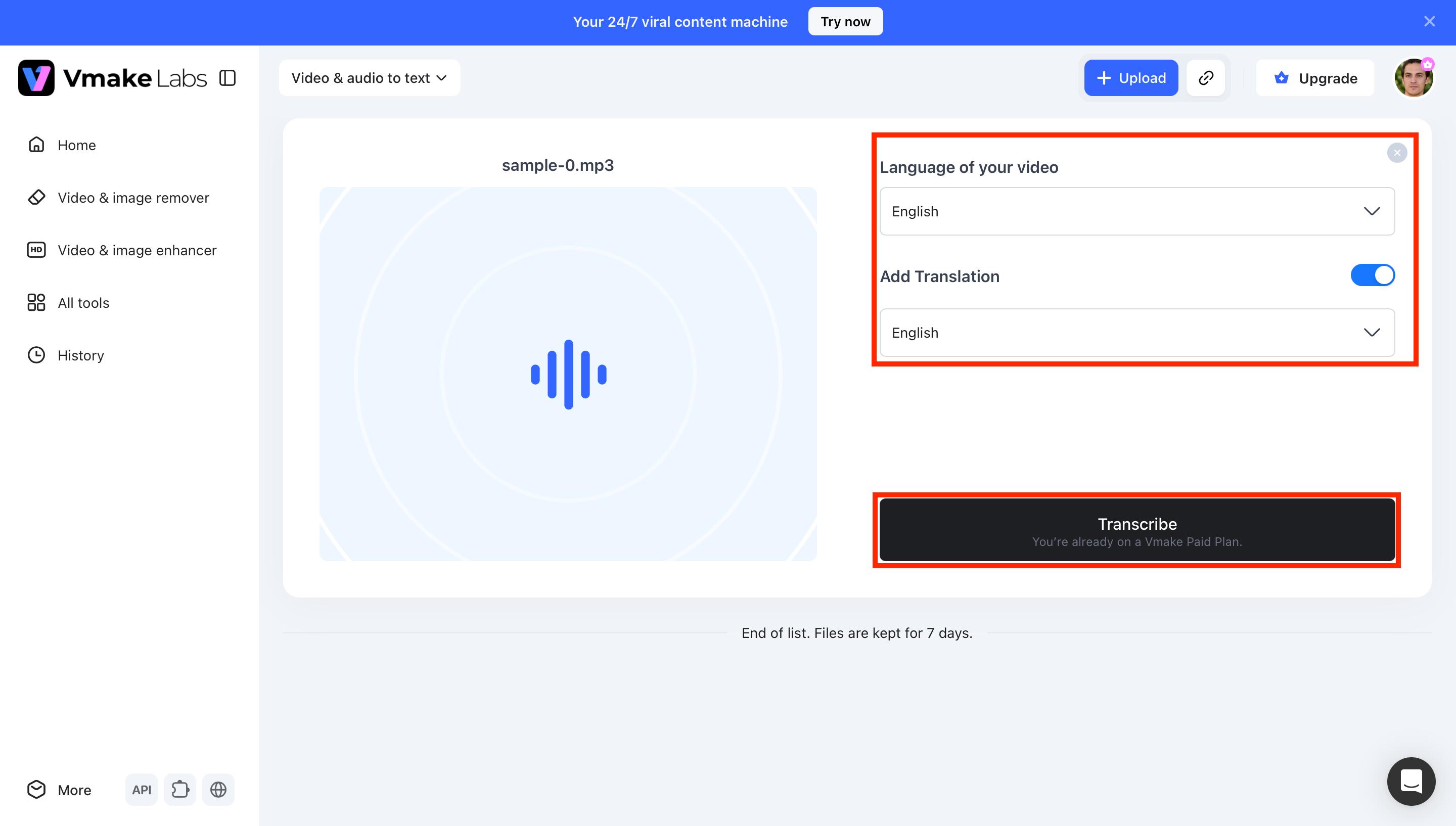
Step 3: Select the Language and Start Transcription
Select the language spoken in your recording and enable translation if you need subtitles in another language. Once you've finished configuring the settings, click Transcribe to generate the transcript.
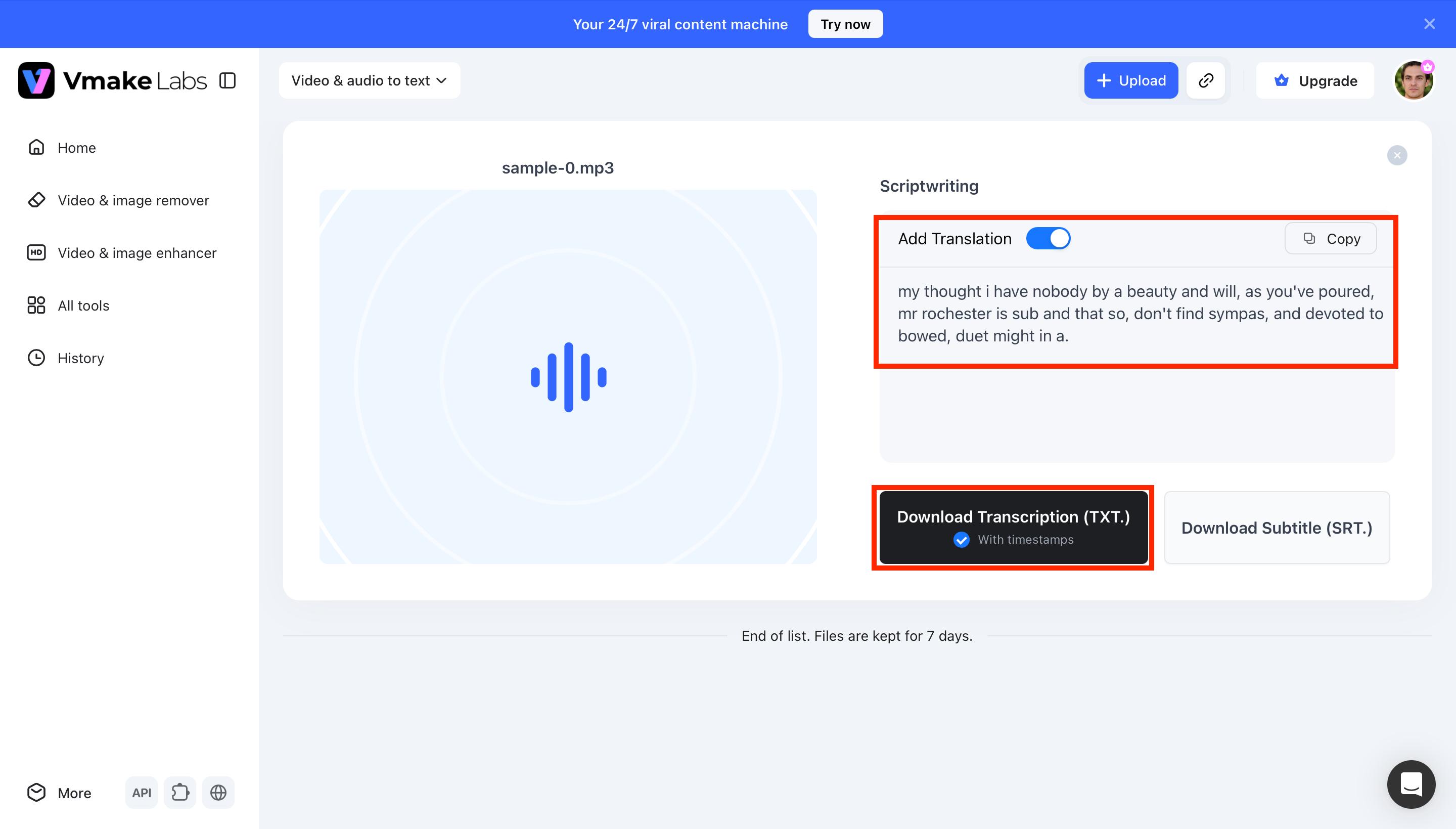
Step 4: Review and Download the Transcript
After the transcription is complete, review the generated text and make any final adjustments if needed. You can copy the transcript directly or download it as a TXT file with timestamps. If you generate subtitles, you can also export them as SRT files for your project.
ElevenLabs Audio to Text vs. Vmake Labs
Both ElevenLabs Audio to Text and Vmake Labs support AI-powered transcription, but they emphasize different workflows. ElevenLabs Audio to Text focuses on converting audio and video recordings into accurate, editable transcripts. Vmake Labs also provides AI-powered transcription while combining it with subtitle editing, transcript export, and support for transcribing directly from video links, making it suitable for workflows that continue into captioning and video publishing.
|
Comparison |
ElevenLabs Audio to Text |
Vmake Labs |
|---|---|---|
|
Primary workflow |
Streamlined audio and video transcription |
AI transcription with subtitle editing |
|
Supported media |
Audio and video files |
Audio and video files, plus YouTube, TikTok, Instagram, and Facebook links |
|
Workflow |
Transcript-first workflow |
Transcript and subtitle workflow |
|
AI subtitle generation |
Generates transcripts for caption creation |
Generates editable transcripts and subtitles |
|
Editing experience |
Review and edit transcripts |
Transcript and subtitle editing workspace |
|
Export options |
Transcript downloads |
Transcript and subtitle export in multiple formats |
|
Best suited for |
Meetings, interviews, podcasts, and voice recordings |
Social videos, tutorials, webinars, podcasts, and marketing content |
The right pick comes down to what you need after the transcript is created. ElevenLabs Audio to Text is the better fit if your workflow ends with generating accurate transcripts from meetings, interviews, podcasts, or voice recordings. Vmake Labs is the better fit if your workflow extends into subtitle editing, caption creation, and exporting transcripts or subtitles in multiple formats. Both handle the core transcription task well. The difference is how much of what comes next each one supports.
Conclusion
If your main goal is to convert audio or video into an editable transcript, ElevenLabs Audio to Text is a good option. With features like multilingual support, speaker recognition and timestamps, it can be useful for meetings, interviews, podcasts and similar recordings. Some files may still need a quick check, particularly if the audio is not clear. If subtitle creation is part of your workflow, Vmake Labs brings together transcription, caption editing, and several export options, making it easier to prepare content for different platforms.
FAQs
Is ElevenLabs Audio to Text free to use?
ElevenLabs offers a free plan that lets you try its AI transcription features with limited usage. If you need higher transcription limits or additional AI features, you can upgrade to one of its paid plans. For users who also want to create and edit subtitles, Vmake Labs combines AI transcription and caption generation in a single platform.
How accurate is ElevenLabs Audio to Text?
ElevenLabs produces accurate transcripts for recordings with clear audio and minimal background noise. Recordings with multiple speakers, strong accents, or technical terms may still need a quick manual review before they're ready to use. For video projects, Vmake Labs also provides editable transcripts and subtitles that can be refined before export.
Does ElevenLabs support speaker recognition?
ElevenLabs supports speaker recognition for compatible recordings, making it easier to distinguish different speakers in meetings, interviews, podcasts, and panel discussions. This keeps transcripts organized and much easier to review.
Which languages does ElevenLabs Audio to Text support?
ElevenLabs supports transcription in a wide range of languages, making it suitable for users creating content for different audiences. Language support continues to expand as the platform adds new AI capabilities and improves recognition quality. If you're working with multilingual videos and need subtitles as well, Vmake Labs offers AI transcription and subtitle generation in a single workflow.
When should I use Vmake Labs instead of ElevenLabs Audio to Text?
Vmake Labs is a better choice when you need both AI transcription and subtitle creation on a single platform. It allows you to generate transcripts, edit captions, and export files in formats such as TXT and SRT, making it ideal for tutorials, webinars, podcasts, and marketing videos.

You May Be Interested
How to Remove Background Noise from Audio: Step-by-Step Guide
How to Download Audio from Instagram: Quick Guide for 2025
How to Transcribe Audio to Text: Efficient Guide
How to Transcribe Audio Recording to Text in Minutes
VEED.io Audio to Text: Everything You Need to Know in 2026
How to Transcribe a Video to Text: Guide to Accurate Transcriptions