How to Remove Background Color Overlay on Video Canva
Learn how to remove background color overlay on video in Canva. We cover its limitations and how an AI-powered tool helps you achieve cleaner, more professional results for transparent videos.

Need to remove a background color overlay on a video in Canva? While Canva offers basic background editing, certain export and transparency limitations complicate the process. This guide explains what Canva handles effectively, where it falls short, and how achieving cleaner results becomes possible.
Can Canva remove a video background and color overlay?
Understanding the differences between standard backgrounds and applied overlays clarifies what editing tools can actually achieve. The built-in features handle certain graphical elements well but struggle with others.

To answer whether can you remove background video in Canva, the platform does support this via its Pro tier tools. Background colors refer to the solid layer behind a subject, whereas a color overlay acts as a filter placed entirely over the media. Users often encounter colored overlays when utilizing premade templates or specific stylistic elements. While the AI-powered Background Remover processes standard footage, handling complex overlays or exporting transparent MP4 files presents distinct challenges.
|
Editing Task |
Canva Support |
Notes |
|---|---|---|
|
Remove video background |
Yes (Pro) |
AI-powered feature |
|
Replace background |
Yes |
Images, colors, videos |
|
Remove color overlay |
Yes |
Adjust overlay settings |
|
Export transparent MP4 |
Limited |
Depends on workflow and output |
How to remove a video background in Canva
Executing a background removal requires navigating the editor's specific timeline and layer controls. Taking the correct steps ensures the best possible outcome within the platform's native capabilities.
Step 1: Upload and position the video on the Canvas
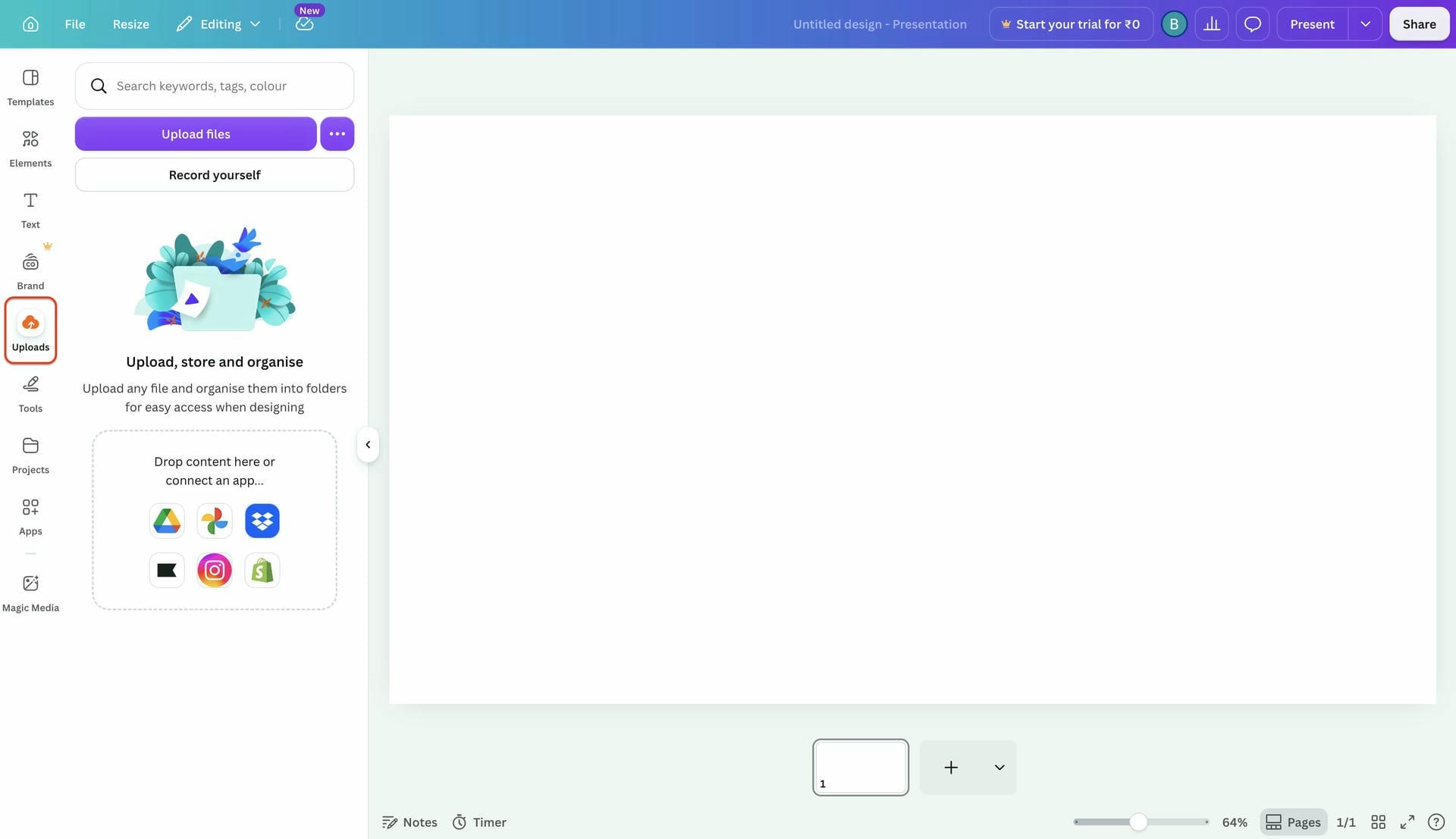
To begin, navigate to the Canva dashboard and open either a new or existing design project. From the left-hand panel, select the "Uploads" tab to browse local folders and import the target video file. Once the upload finishes, simply drag and drop the media directly onto the main project Canvas.
Step 2: Activate the premium BG Remover tool
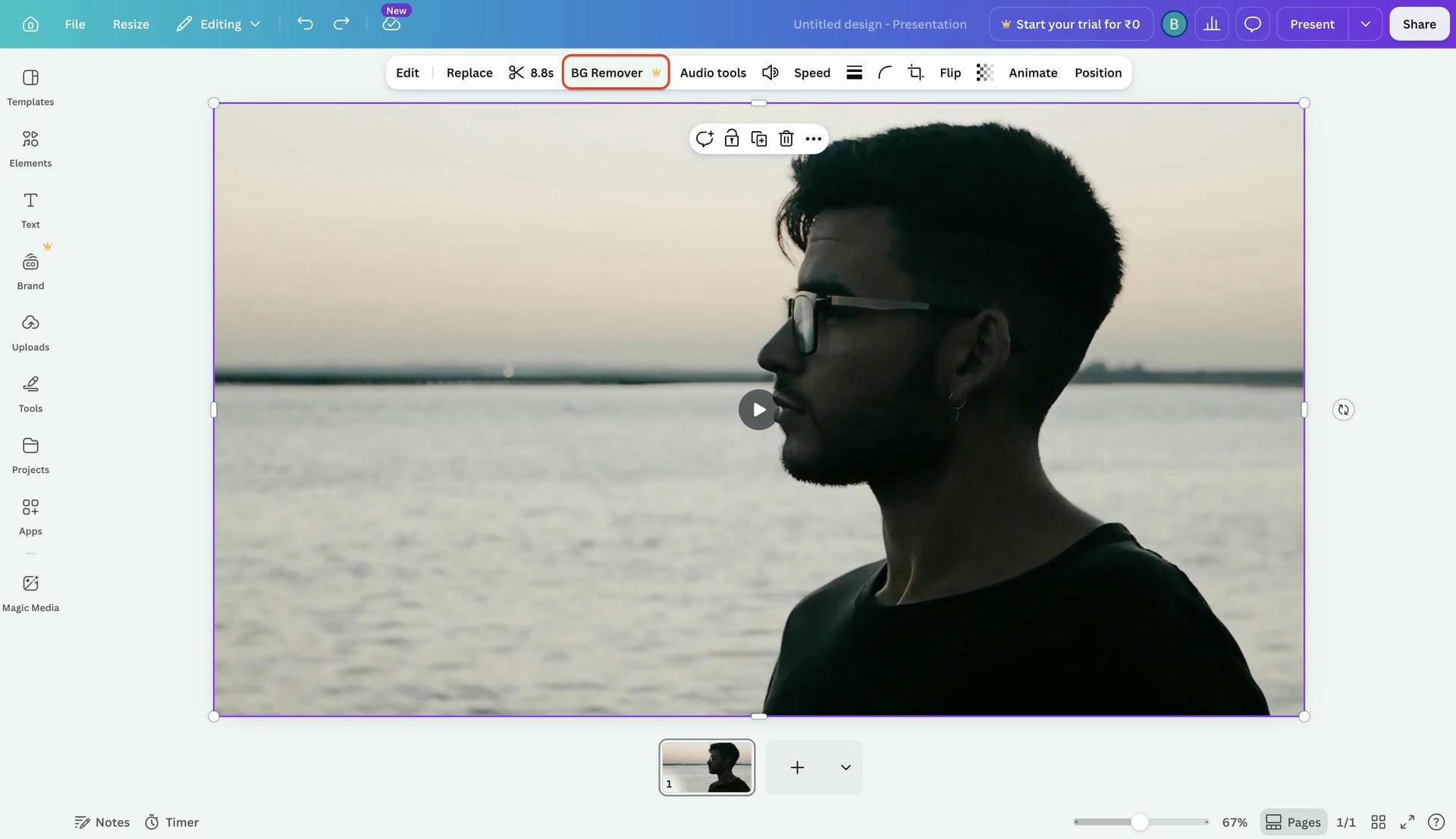
After uploading the video, expand it to full screen and click anywhere on the video screen to access multiple video features. A highlight border will appear around the clip, indicating it is currently active and ready for modification. Look at the top toolbar and click the "BG Remover" premium feature to eliminate the background automatically.
Step 3: Wait for the processing to complete and download
The platform automatically analyzes the footage to separate the main subject from its original surroundings. Once the loading indicator finishes processing, the background will disappear completely. Finally, click the "Share" button located at the top right and hit the download button to save the finalized video file directly to a local drive.
Common issues when editing video backgrounds in Canva
-
Overlay won't disappear: The color filter occasionally remains active even after processing the main footage. Editors must manually locate the transparency settings to detach the color fill completely.
-
Background remover isn't available: Free accounts lack access to this specific premium feature by default. Upgrading to a paid tier remains mandatory for those wanting to utilize the automatic removal button.
-
Jagged edges around subjects: The built-in AI sometimes struggles with complex details like stray hair or fast physical motion. These processing errors leave messy borders around the isolated subject.
-
Transparent export isn't possible: Downloading a standard MP4 file merges the background into a solid color automatically. Retaining true transparency requires specialized file formats that the default exporter does not support.
-
Slow rendering on longer videos: Processing high-resolution or lengthy clips takes significant time inside the native browser editor. The platform frequently slows down if the local system runs out of memory during export.
Canva video background removal limitations you should know
Recognizing technical constraints prevents frustration during complex design projects. Specific boundaries exist regarding export formats and processing capabilities.
While the software provides excellent template tools, designers frequently encounter roadblocks when isolating video subjects. Community discussions highlight ongoing struggles with precise edge accuracy and rendering transparent video files. These transparent MP4 concerns often force creators to seek alternative workflows when standard basic removals fail to meet professional standards.
|
Area |
Canva |
What Users Should Know |
|---|---|---|
|
Edge accuracy |
Good |
Complex hair and objects may need refinement |
|
Transparent video export |
Limited |
May require another workflow |
|
Processing speed |
Moderate |
Longer videos take more time |
|
Background replacement |
Yes |
Works best with clear subjects |
|
Batch editing |
Limited |
Manual editing is often required |
How to remove video backgrounds easily with Vmake Labs?
Dedicated online tools provide faster processing and superior accuracy for isolating complex subjects. For those seeking cleaner subject isolation, Vmake Labs video background remover provides a specialized environment tailored specifically for advanced footage manipulation.
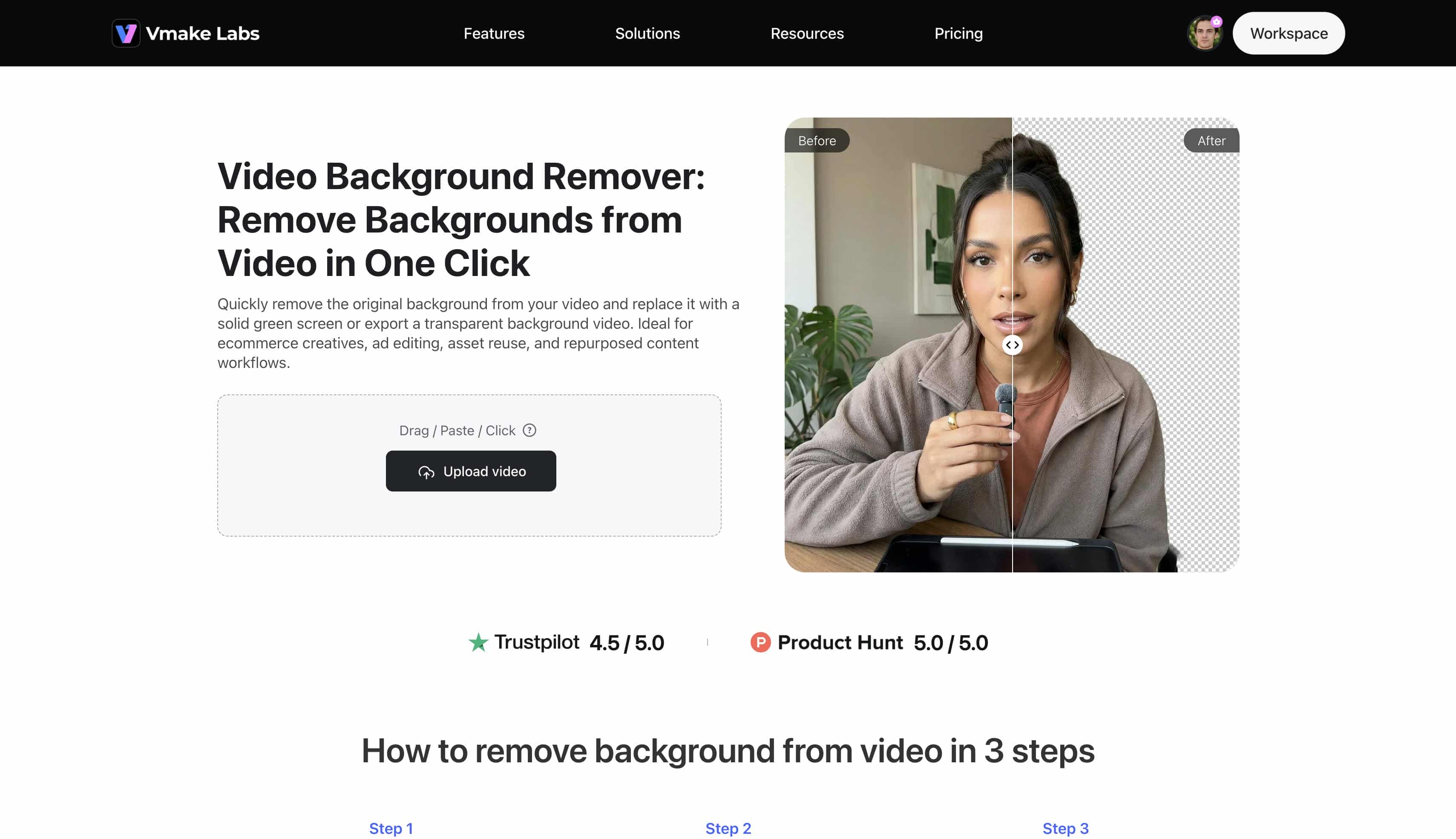
Vmake Labs Video Background Remover operates as a powerful online utility crafted expressly for isolating subjects and swapping out backdrops without tediousness. It excels when projects demand high-fidelity edge detection or immediate green screen generation. Unlike general software that struggles with transparent exports, this platform addresses complex video compositing needs directly.
Key features of Vmake Labs Video Background Remover
-
AI-powered background removal: Advanced algorithms analyze the footage to distinguish the main subject from complex surroundings automatically. The tool eliminates the need for manual masking or frame-by-frame tracing during post-production.
-
Precision edge refinement: The technology processes difficult details like wispy hair or transparent clothing items with high accuracy. The final cutout looks natural and integrates smoothly into new compositions.
-
One-click background replacement: Swapping the original scenery for a new image or solid color requires only a single interaction. A streamlined video background change speeds up the testing of different visual concepts for various marketing campaigns.
-
HD video export: High-definition rendering guarantees the final output retains crisp visual quality suitable for broadcasting. The cloud infrastructure processes high-resolution files efficiently to preserve essential visual details.
-
Browser-based editing: The application runs directly within standard web browsers without requiring heavy local software installations. Complex video manipulation becomes instantly accessible on standard desktop computer systems.
How to use Vmake Labs Video Background Remover
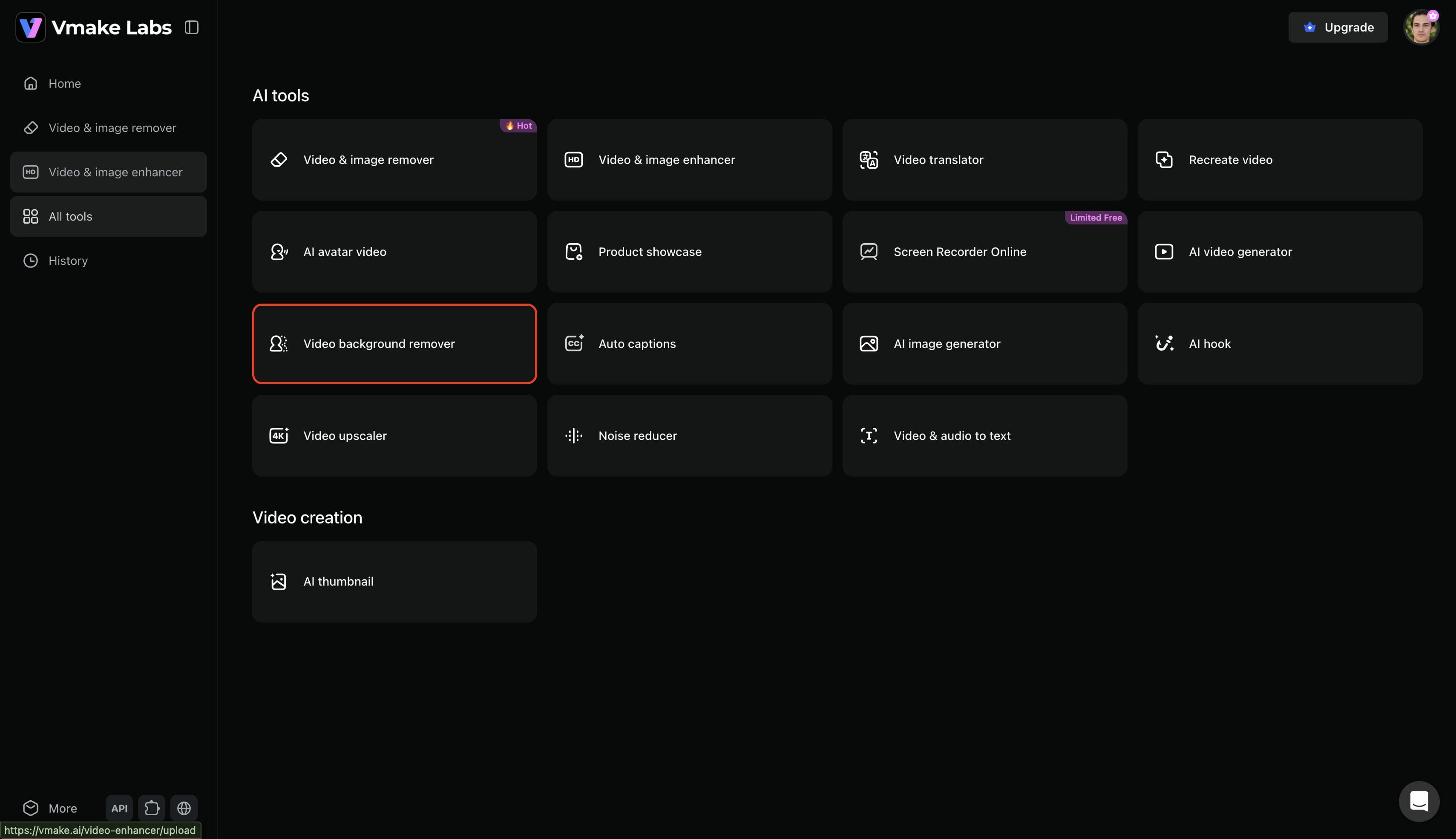
Step 1: Select the "Video background remover" tool
Begin by logging into the main Vmake Labs workspace through a standard web browser. Navigate toward the "All tools" directory located within the platform's main interface. From that menu, simply choose the "Video background remover" feature to launch the editing environment.
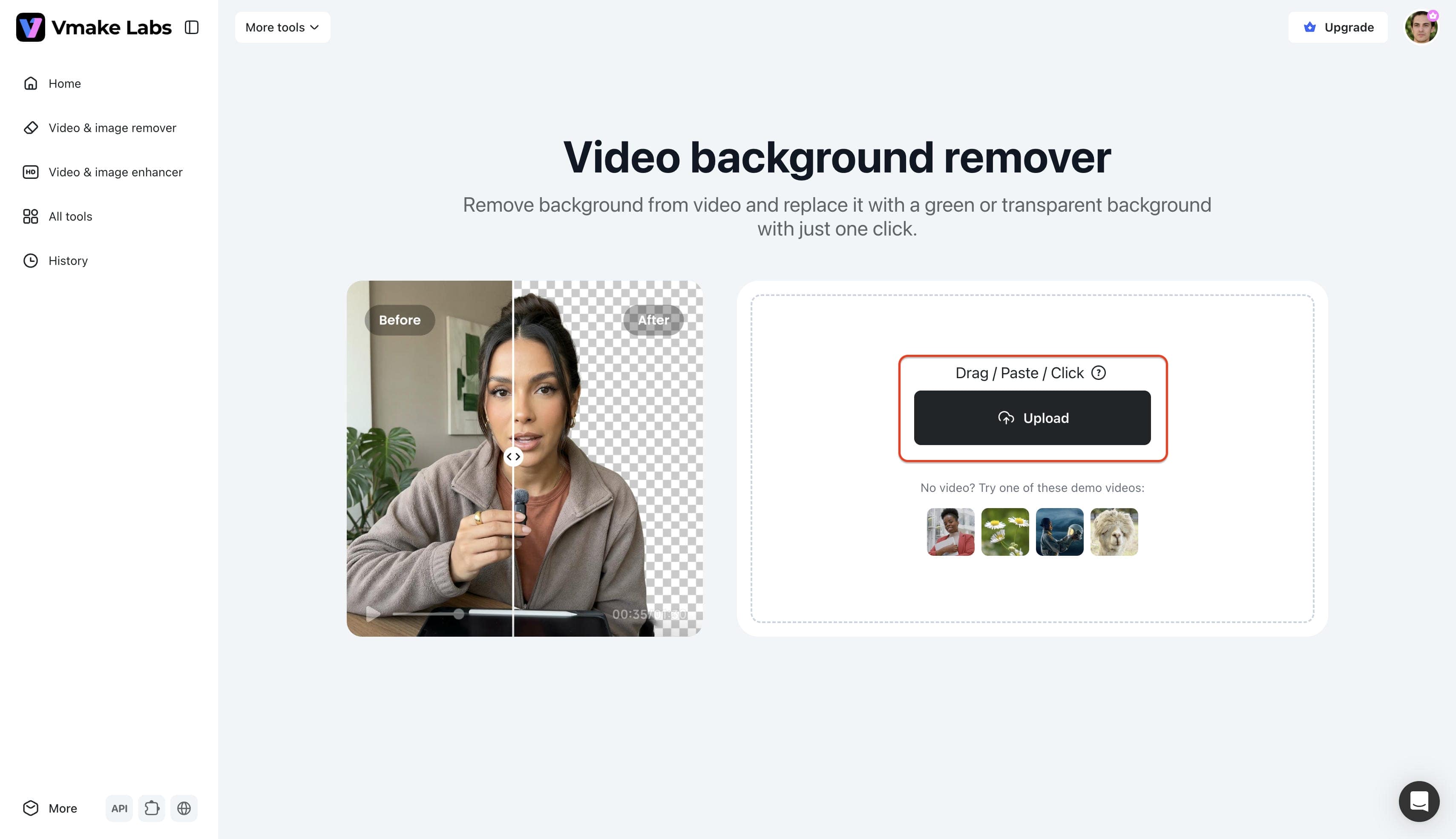
Step 2: Upload the video whose background requires removal
Next, prepare the specific media file intended for modification. Click the designated "Upload" button to browse local folders and import the chosen footage. The system accepts various standard formats, ensuring the transfer process remains smooth and efficient.
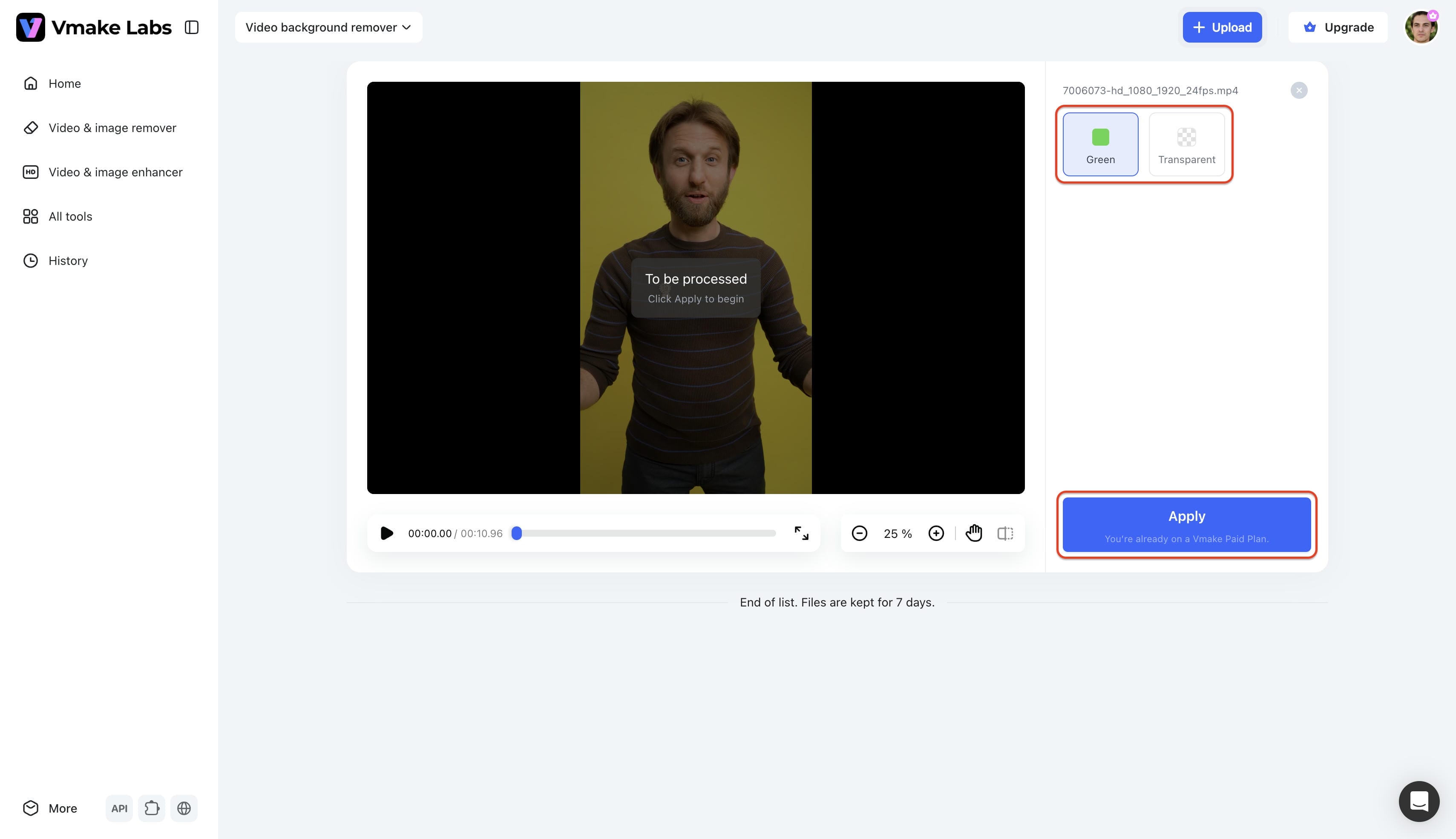
Step 3: Remove background and export
The system automatically processes the footage to remove the original scenery upon upload. It applies a "Green" screen by default, though selecting the "Transparent" option remains available. Finally, download the completed video asset to a local drive for immediate integration into other creative projects.
Check lists: Canva vs. Vmake Labs for removing video backgrounds
Feature comparisons
Comparing both platforms side-by-side reveals distinct advantages depending on specific project requirements. Evaluating their core functionalities helps determine the right tool for the job.
|
Feature |
Canva |
Vmake Labs |
|---|---|---|
|
AI video background removal |
Yes |
Yes |
|
Color overlay editing |
Yes |
Limited (Focuses on background removal) |
|
Automatic subject detection |
Yes |
Yes |
|
Edge refinement |
Basic |
More precise |
|
Background replacement |
Yes |
Yes |
|
Beginner friendly |
Yes |
Yes |
|
Best use case |
Design projects |
Dedicated video background removal and replacement |
Common scenario comparisons
Canva and Vmake Labs both assist in removing unwanted video elements, but they perform best in distinct situations:
|
Scenario |
Better choice |
Why |
|---|---|---|
|
Quick Canva social media design |
Canva |
Easier if the whole project is already in a Canva template. |
|
Simple background replacement |
Canva |
Works well for basic edits and adding images or templates behind the subject. |
|
Transparent or green screen video export |
Vmake Labs |
Better when you need a transparent-background video for overlays, motion graphics, or a green screen version for further editing in another tool. |
|
Ecommerce product videos and ad creative variations |
Vmake Labs |
Better for isolating product subjects and reusing one clip across product pages, ads, and multiple campaign versions without reshooting. |
|
Talking-head, tutorial, or explainer clips |
Vmake Labs |
Useful when you want to place the same subject over different backgrounds. |
|
Editing outside Canva |
Vmake Labs |
More practical when you need a reusable asset for compositing, post-production, or other video tools. |
Editorial verdict
Choose Canva if you are working on quick social media projects, using existing templates, or just need simple background replacements. It is the best choice for basic edits layered directly within your existing design environment.
Choose Vmake Labs if you need precise edge refinement, transparent or green screen exports, or reusable clips for external editing. It is ideal for e-commerce videos, ad variations, and talking-head tutorials.
Conclusion
Removing a background color overlay in Canva provides a quick solution for basic design tasks and social media graphics. While the platform offers intuitive editing features, export limitations and complex edge detection often hinder professional workflows. Dedicated solutions like Vmake Labs provide a streamlined alternative for editors requiring accurate subject isolation, transparent exports, and high-quality background replacements. Choosing the right software ultimately depends on the desired final output and the complexity of the original video footage.
FAQs
Can you remove background video in Canva for free?
The background removal feature for moving media is locked behind the Pro subscription. Free tier accounts cannot access this specific tool and must upgrade to utilize the AI cutout capabilities.
Can Canva remove background from video automatically?
Yes, the Pro version includes an AI-powered tool that automatically detects the main subject. It deletes the surrounding graphical elements with a single click inside the timeline interface.
Why does my video still have a color overlay after editing?
Color overlays often act as separate layers or filters placed above the main media files. Editors must locate the general transparency settings or the specific applied filter to delete it manually.
Can Canva export transparent videos?
Exporting a standard MP4 will automatically fill any transparent areas with a solid color. Producing transparent background videos requires specialized file formats or GIF exports not fully supported here.
What video formats work best for background removal?
High-contrast footage shot in well-lit environments typically yields the best overall results. Standard MP4 or MOV files featuring clear separation between the subject and the backdrop ensure the AI tools process the edges accurately.

You May Be Interested

[2026] How to Blur Background in Zoom: Desktop & Mobile
[2026 Updated] Ultimate Guide to OBS Background Removal
How to Remove People from Background: Fast AI Tools
How to Remove Background Noise from Video: Best AI Tools in 2026
How to Remove Background from a Video: Guide to Professional Edits